This introduction is based on development code and documentation. Check the Store listing for the features available in the released version.
Count down to a start time,
with a name of your own.
Keep track of a meeting, the start of a broadcast, or a work or break milestone. Control up to three named timers individually.
- Count down to a target time
- Count down for a duration or count up
- Pause, resume, and show overtime after zero
- Customize the name and the words for the target, remaining time, and elapsed time
- Use colors, emphasized digits, and flashing at zero as visual cues
There is no finish sound in the development version described here. Closing the app ends measurement; the next launch restores your saved inputs with the timers stopped.
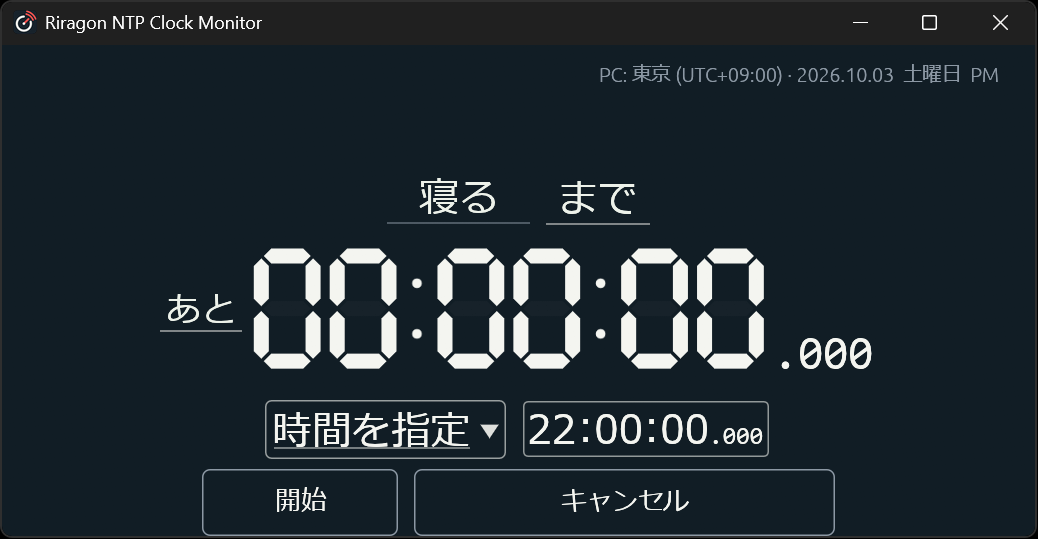
Create a timer for your meeting
Choose the time reference
In NTP settings, select NTP correction and wait for the first valid response. You can also choose your PC's time as the reference.
Enter a name and start time
Open the timer settings and choose Set time. Name it Meeting and enter the start time.
Start it and place the window
Start the countdown, then adjust the window position, size, and visible panels.
A time without a date means the next occurrence of that time. If it has already passed today, the target is tomorrow. Explicit dates and scheduled starts are available through external controls. The app does not join meetings or start broadcasts automatically.
Use NTP as the reference
for the app's displayed time.
Measure responses from up to 12 servers. View the offset from your PC and the round-trip delay, with graphs for individual servers or combined views.
- Choose PC time or NTP correction as the app's time reference
- Choose servers, set the measurement interval, or measure manually
- Check synchronization, waiting for the first response, and holdover states
- Choose UTC or a regional time zone in a separate setting
Correction applies to the app's display. It does not adjust the Windows clock or change Windows synchronization settings.
With NTP correction enabled, a target-time countdown can start after the first valid response. If the connection is lost afterward, the app continues from the last corrected time. Showing milliseconds does not guarantee millisecond accuracy.
How the NTP reference is used
Windows clock settings stay unchanged
Choose a design for each kind of display.
Choose analog and digital clock designs independently. Timers use a digital design selected separately from the clock.
- Choose seconds, milliseconds, and 12- or 24-hour clock display
- Show or hide the date, weekday, AM/PM, and time-zone name
- Set colors for the background, analog clock, digital clock, and timers independently
The design list is based on development build 0.2.59. All displayed timers share the selected timer design. The app does not load external JSON skins.
See the unchanged render samplesPut it where you need it, at the size you need.
Transparency, on top, and position lock
Choose these options independently in normal window mode. Transparency removes the background and frame. Position lock prevents moving and resizing and passes clicks through to the app behind it. A control window remains available to unlock it.
Full screen and flexible sizing
The clocks and timers scale as you resize the window. Use F11 or settings to enter full screen and choose the display.
Drag to arrange and swap panels
Drag a panel with the middle mouse button. Drop in another panel's center to swap them, or near an edge to insert above, below, left, or right. Move boundaries to adjust proportions. The layout settings also support left-button dragging and direction buttons.
These are panels within one window, rather than several independent clock windows. You can change the layout in settings while position lock is enabled.
Keep your preferred setup for next time.
- Choose whether to restore the previous window position and size
- Choose whether to start the app when you sign in to Windows
- Show or hide the taskbar entry and open settings from the system tray
- Choose Japanese or English and a time zone from around the world
- Keep hidden timers running while the app remains open
Startup also follows Windows permission settings. Timer inputs, names, and layouts are saved, but running remaining or elapsed time does not carry over after restarting the app.
Control from external tools
The CLI, authenticated local JSON API, and MCP use the same settings and timers as the running app.
Read about external control