Screenshots show the Japanese interface in version 1.2.87.0; descriptions are based on source version 0.2.87. Check Microsoft Store for the released version. Select an image to view it at full size.
01 / Analog clock
A familiar clock, with a look of your own.
Read the time from the hands of a familiar clock face. Choose a classic dial or a simpler design to suit your desktop and the way you like to see the time.
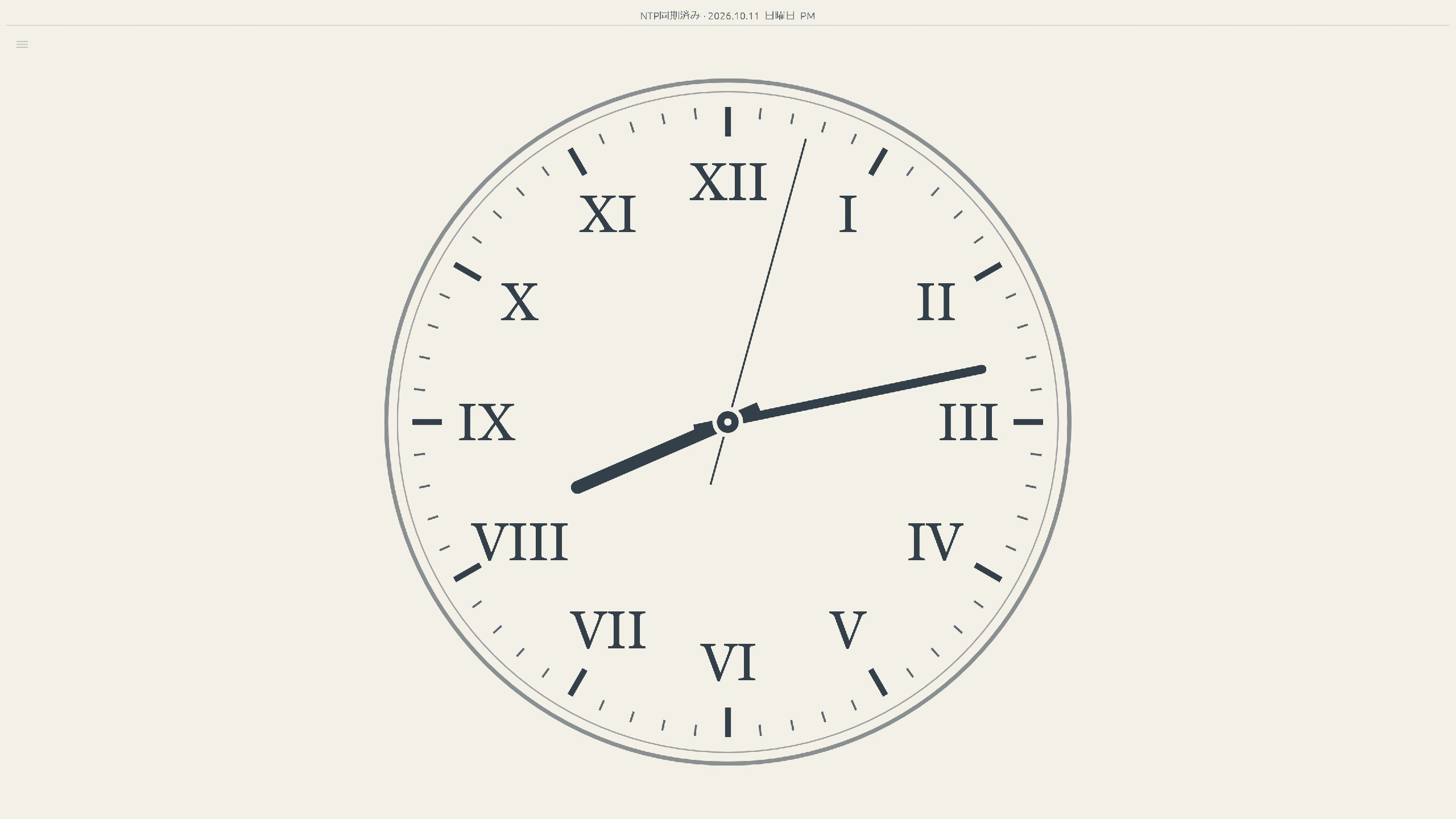
- Choose from six designs: Studio, Classic, Station, Space, Shadow Dial, and Roman Arch.
- Pick clock colors to suit a light or dark background.
- Show an outer ring of numbers from 13 to 24 for a 24-hour reference.
- Choose a smooth or one-second stepping second hand. Turning on ticking sound switches the hand to one-second steps that follow the sound.
02 / Ticking sounds
Tick, tock. Take a moment to enjoy the sound.
There is something familiar about a clock quietly marking each second. Choose from 11 sounds recorded from real clocks, watch the second hand, and enjoy the rhythm at your desktop.
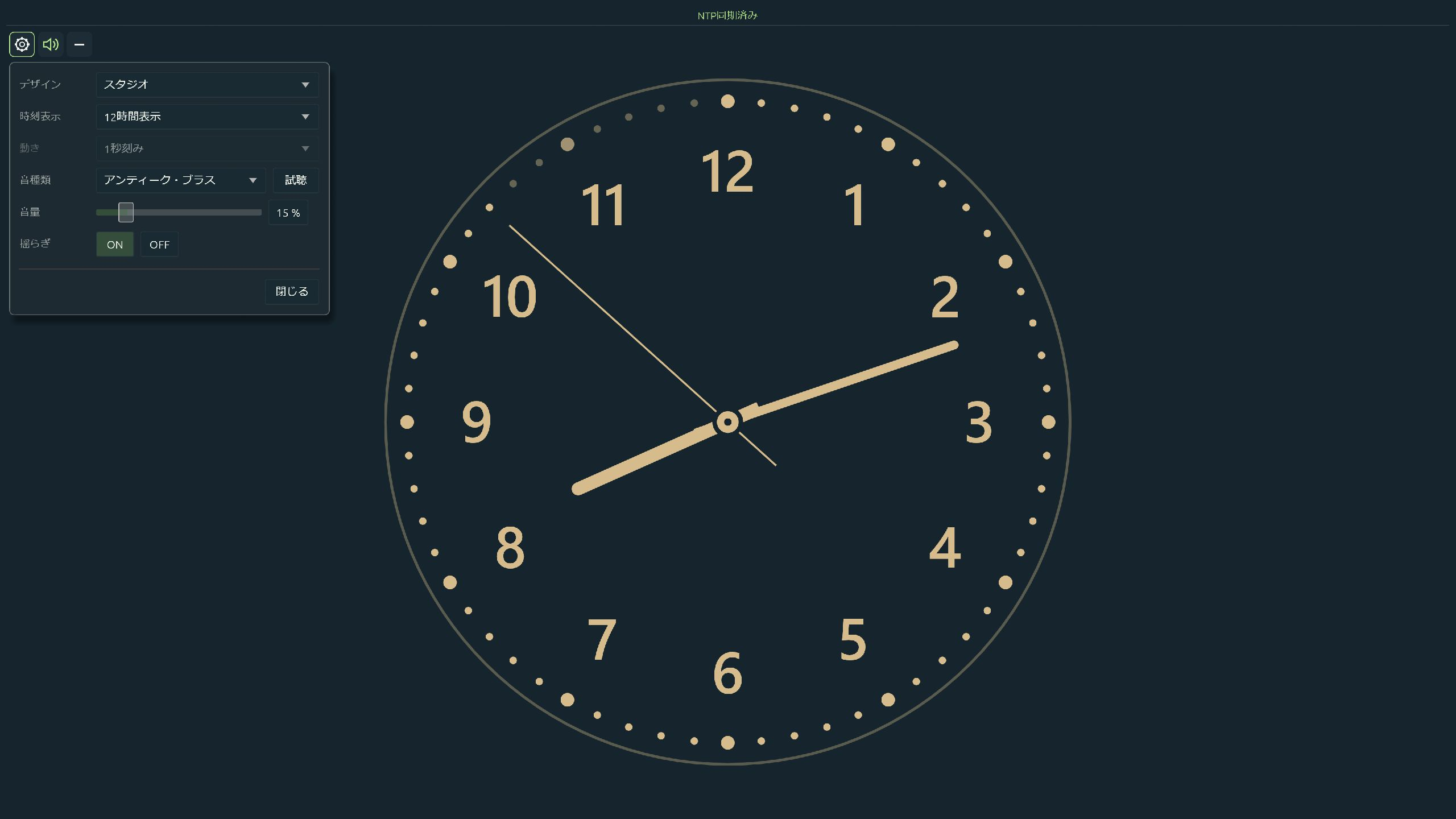
- Preview sounds as you choose them, turn ticking on or off, and adjust its volume.
- Enable or disable subtle variations in the sound.
- Random at startup picks one of the 11 standard sounds each time the app starts and keeps that sound for the session.
- Additional secret sounds become available as you use the sound previews.
- Hiding the analog clock also pauses its ticking sound.
03 / Digital clock
Time and date, clear at a glance.
When you want to check the time in large digits, choose from four designs including LED and Flip. Add the information you need or keep the focus on the numbers.
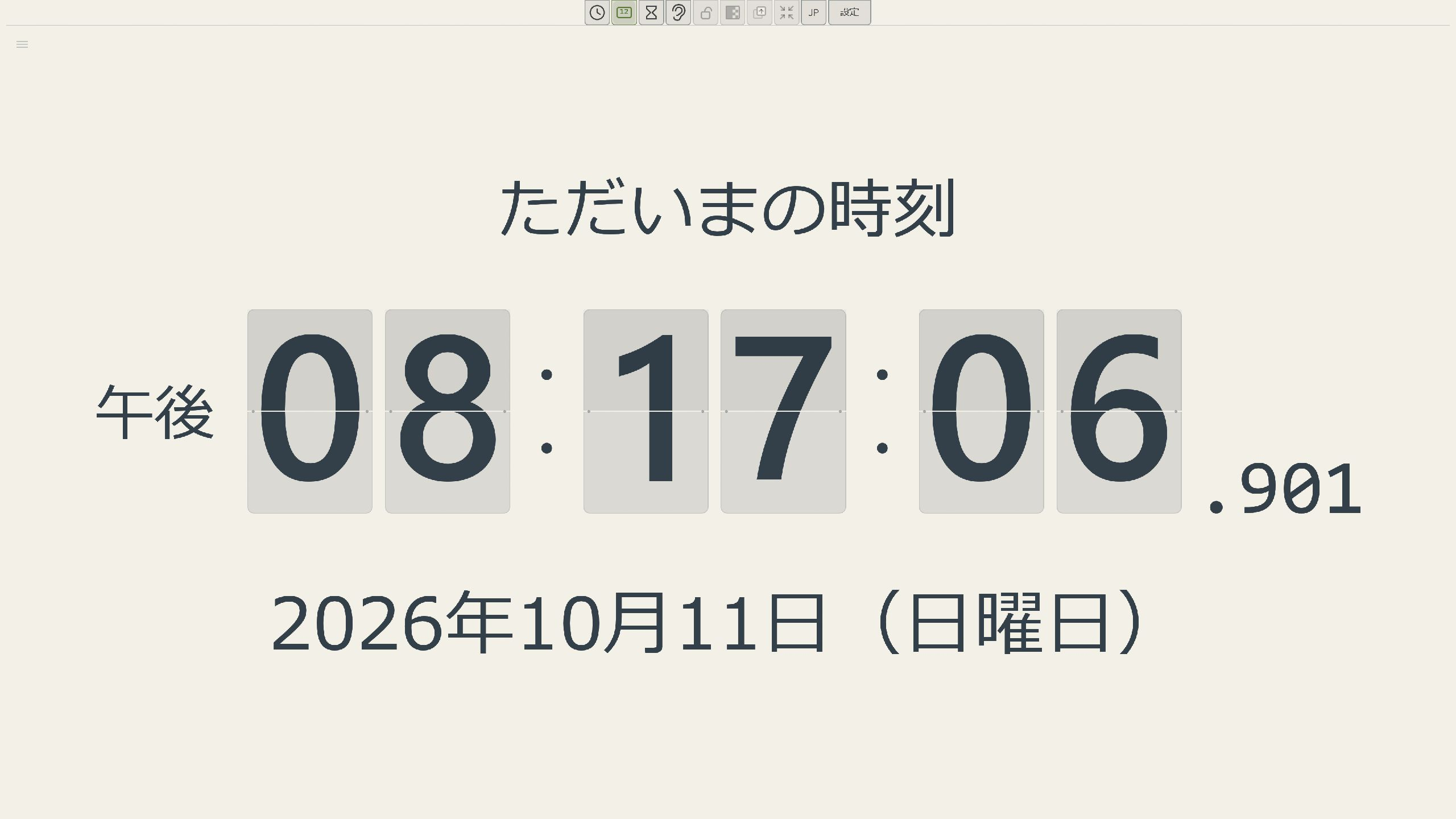
- Choose LED, Flip, Flip II, or Whitespace Typography.
- Switch between 12- and 24-hour time, and show or hide milliseconds.
- Include the date, day of the week, AM/PM, and other supporting labels.
- Choose digital clock colors to use alongside your analog clock and timers.
04 / Speaking clock
Hear the time while your eyes are elsewhere.
Hear the time in Japanese or English. Spoken announcements and time signals let you follow the passage of time without watching the screen.
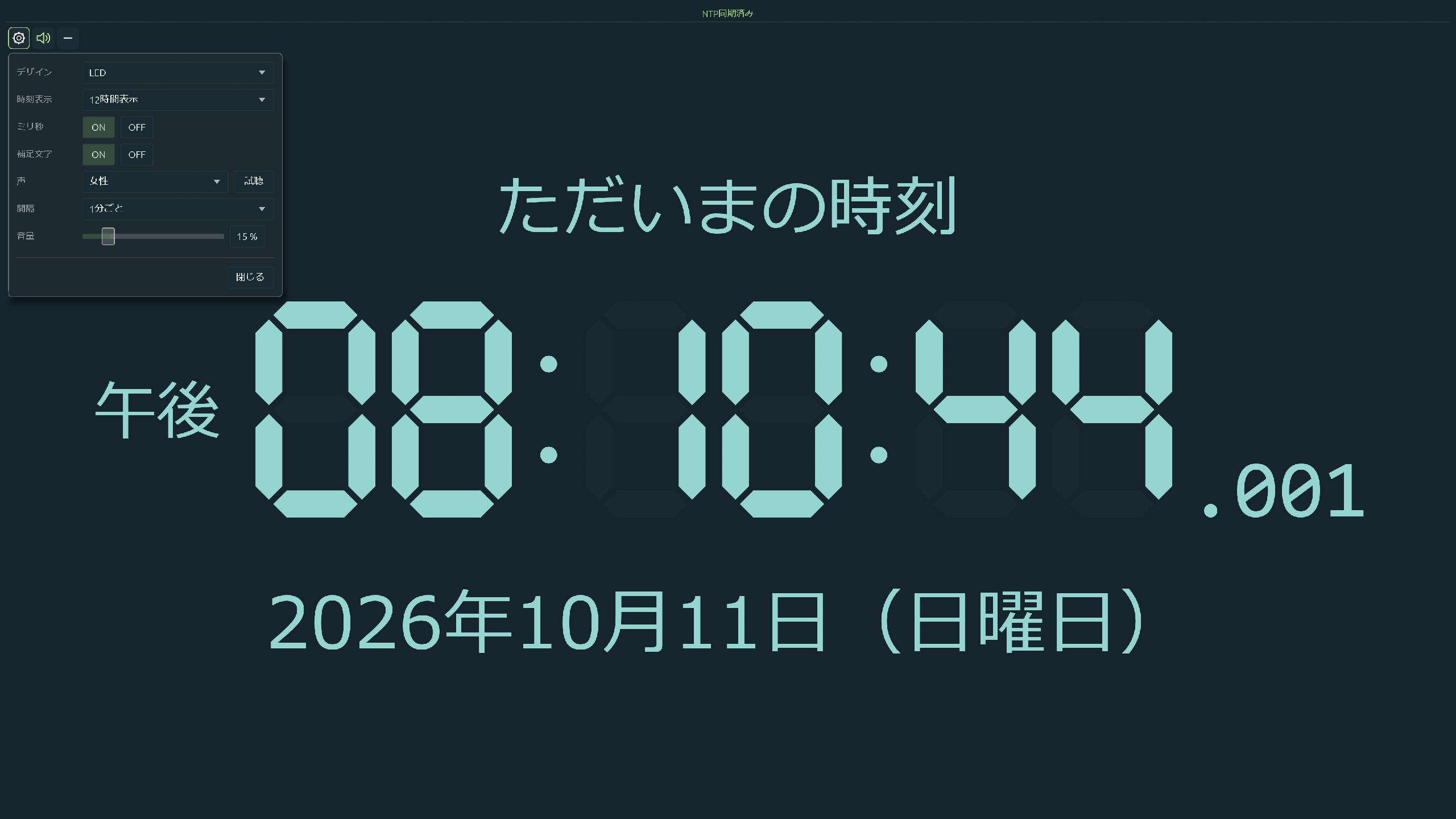
- Choose a female or male voice. The spoken language follows the app's Japanese or English interface language.
- Announce the time every 10 seconds or every minute, followed by advance tones and a tone at the announced time.
- Announcements follow the displayed time zone, 12- or 24-hour format, and NTP or PC time setting.
- Preview and stop the voice, turn announcements on or off, and adjust their volume separately.
- Voices are included with the app, so no voice-service connection or account is needed. Hiding the digital clock pauses regular announcements.
05 / Four timer modes
Keep several timelines in view.
Count the 30 minutes before a meeting or see how long you have been working. Combine four timer modes and display up to six timers at once.
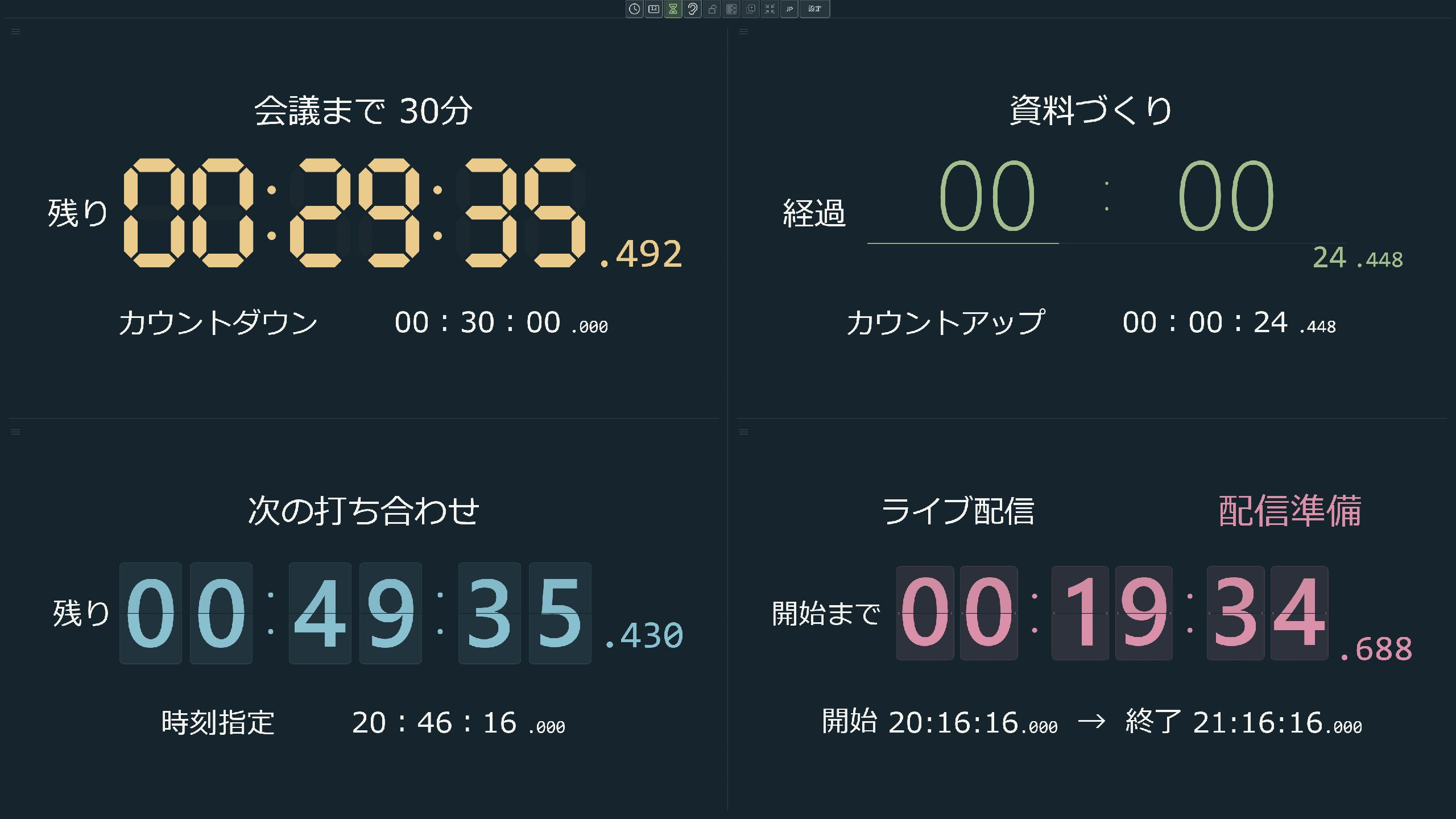
- Target time: count down to the next occurrence of a chosen time. You can also enter 24:00.
- Countdown: measure a duration in hours, minutes, and seconds, finishing at zero.
- Count up: measure elapsed time. Editing pauses the timer, and you can resume from that point.
- Scheduled timer: set a start and end time and follow the time before, during, and after the event.
- Edit a timer's name, mode, and time on the timer itself, with controls to start, edit, apply, cancel, or end it.
- Display milliseconds alongside hours, minutes, and seconds. The text color also changes as time runs low.
06 / Scheduled timers
Until it starts. Until it ends. And beyond.
For live streams, meetings, and classes with a planned start and end. Set the two times and follow the progression from waiting to in progress to finished.
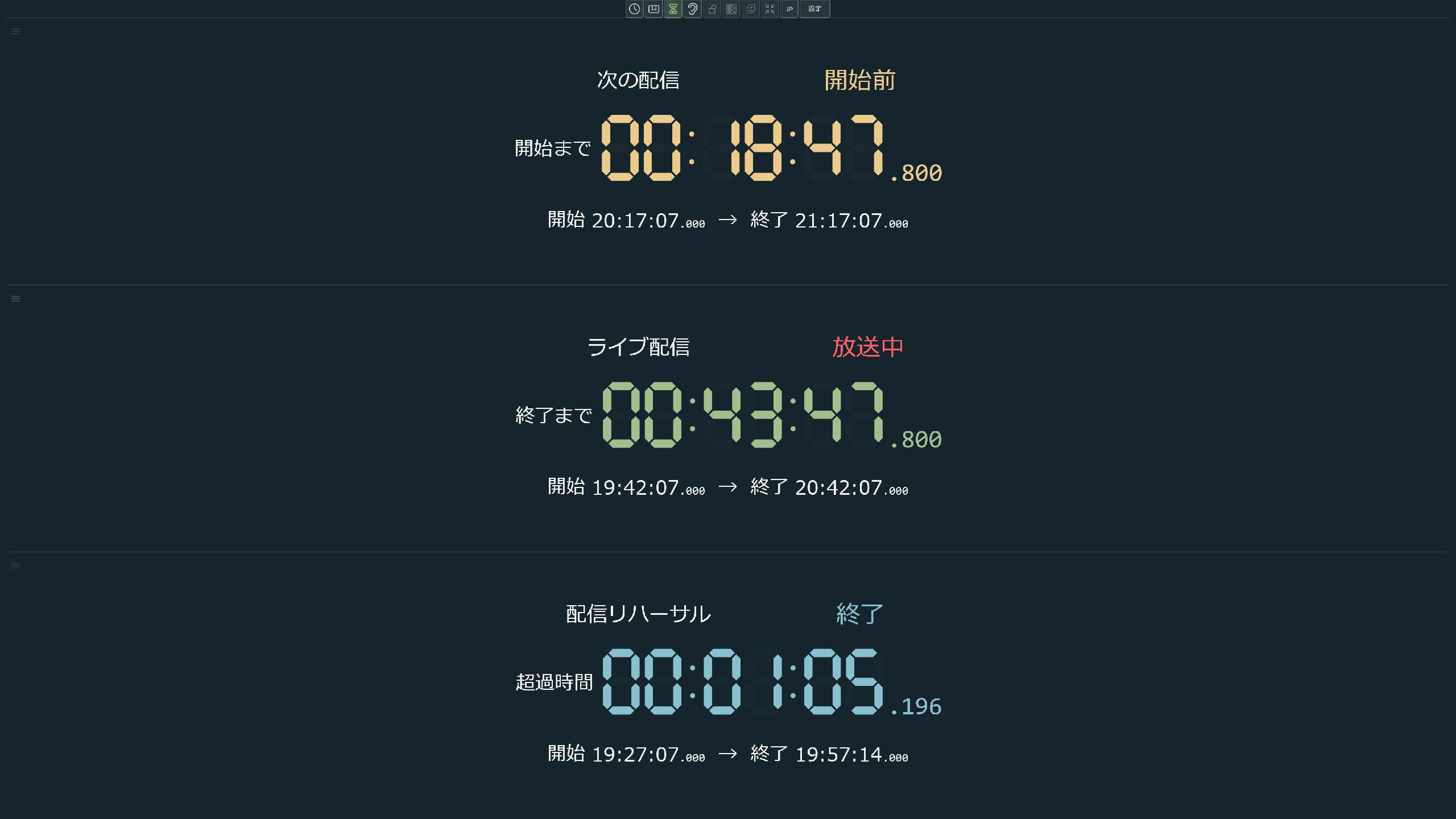
- Count down to the start, then to the end. Optionally display overtime after the planned end.
- While the event is in progress, a red status label and blinking dot indicate the current stage.
- Customize all three status names, such as Before, On air, and Finished. You can also edit each heading beside the numbers.
- Schedules can cross midnight. An end time at or before the start time is treated as the following day.
- The display follows the schedule you set, so you can track progress alongside the clock.
Scheduled timers display time; they do not detect or start and stop the actual meeting or stream.
07 / Individual timer settings
A look and a sound for each task.
Choose names, colors, and sounds for work, breaks, or stream preparation. Decide whether completed timers stay visible or are cleared away.
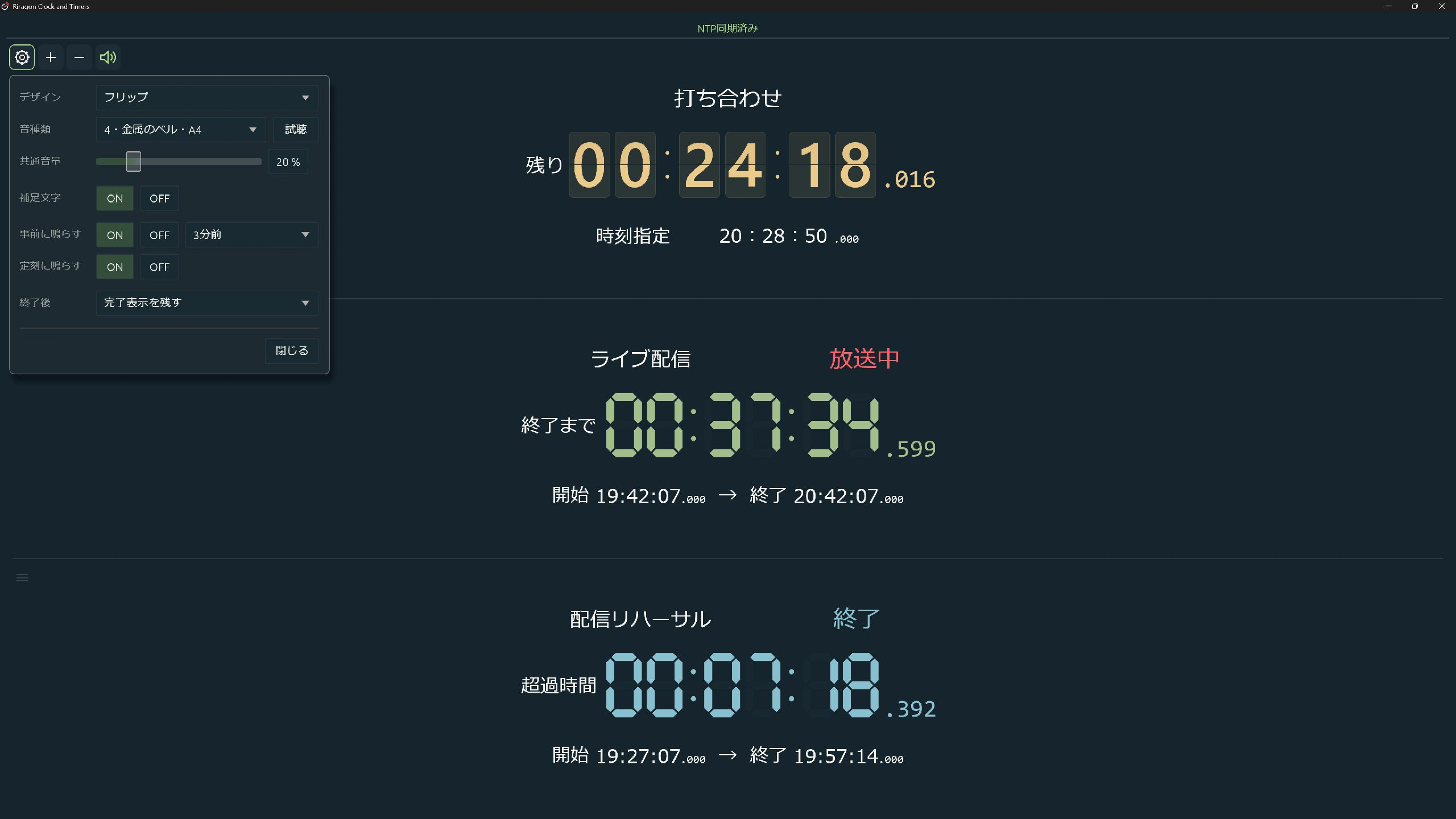
- Save a separate design, color, and notification sound for each timer. Edit or hide supporting labels such as Remaining and Elapsed.
- Choose an electronic beep, one of 10 singing bowls, or a random sound. Preview sounds before choosing.
- Turn notifications on or off for each timer; their volume setting is shared across all timers.
- For target-time timers, set advance sounds at 1, 3, 5, or 10 minutes before the target, separately from the sound at the target time.
- After completion, keep the finished display, hide it while retaining its settings, or delete it and its settings. Scheduled timers can keep showing overtime.
- Ending a count-up timer can leave that session's measured value on screen. Start a new run to measure again from zero.
08 / Flexible layouts
From a corner of your desktop to a wide monitor.
Make the clock large and the timers small, arrange them side by side, or stack them. Combine analog, digital, and timer panes into a layout that works for you.
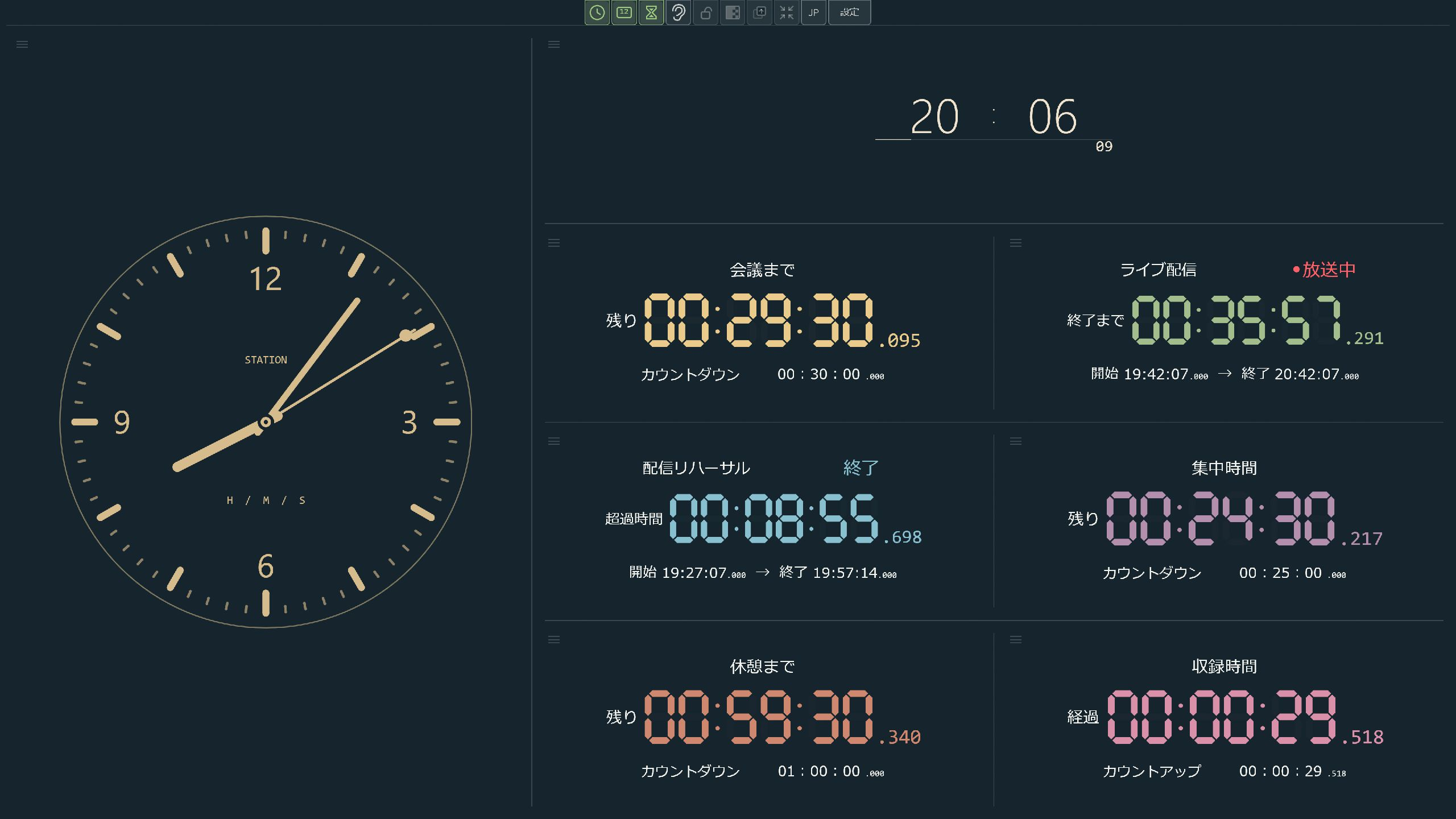
- Hold the mouse wheel button and drag a clock to swap panes or move them above, below, left, or right.
- Drag pane boundaries to adjust the space given to each clock and timer.
- Undo layout changes with Ctrl+Z.
- Choose which clocks and timers to show. Hiding all panes leaves a single-line digital clock.
- Use Fit to shrink the window around the visible clocks while keeping their current size.
- The background is shared across the app. Combine a background color with individual clock colors.
- Timers keep running as you change the layout or visibility.
09 / NTP and time zones
Choose your time reference and check its reception.
NTP obtains time from network servers. The app uses those readings to correct its displayed time, lets you compare server responses, and shows the time in your chosen region.
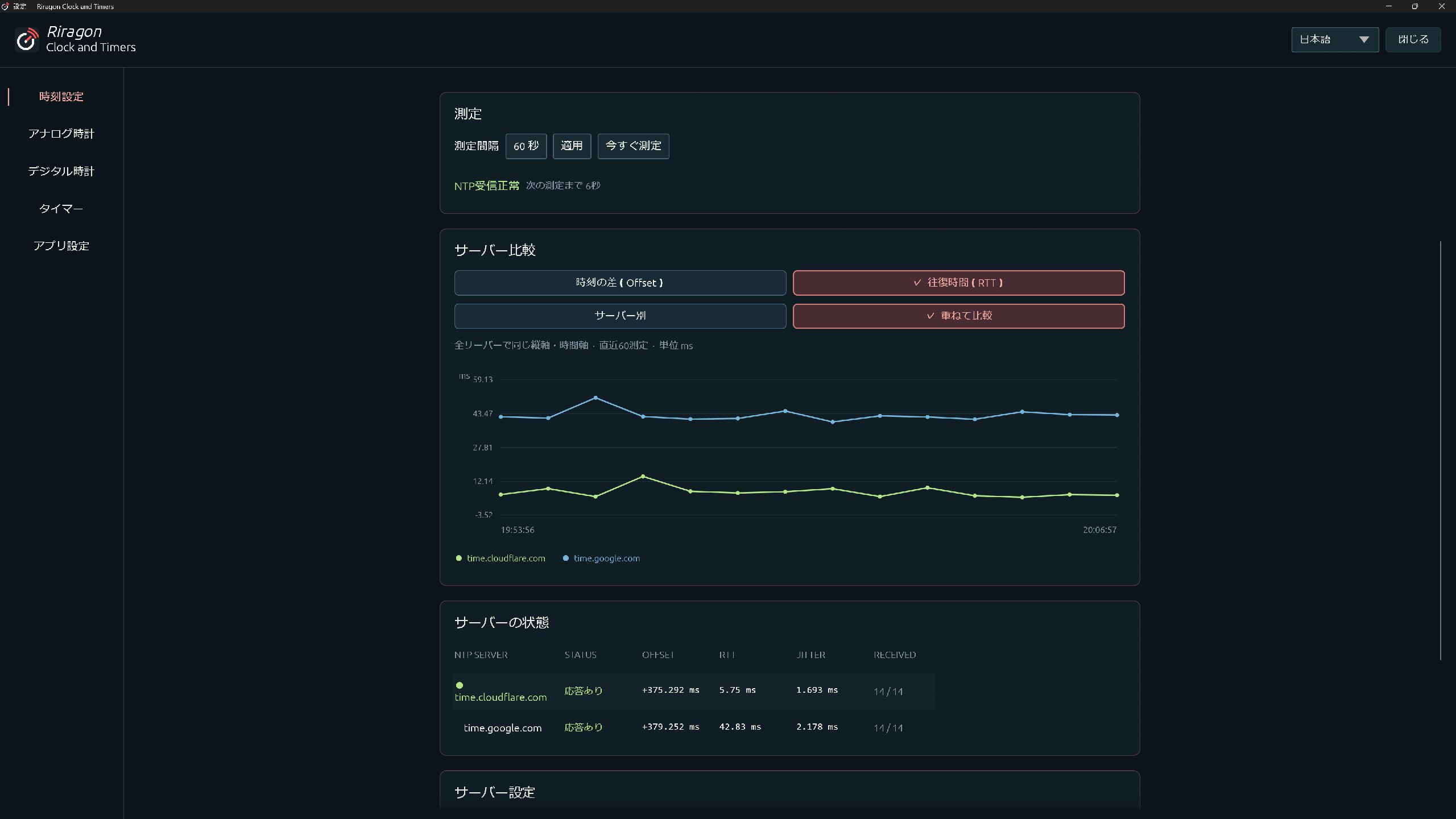
- Choose PC time or NTP-corrected time for the display.
- Register multiple NTP servers and use automatic selection or a chosen reference. In automatic mode, repeated reception failures trigger a switch to another responding server.
- Set the measurement interval or measure immediately. View synchronization status, the reference server, the last reception, and other details.
- Compare time offsets and round-trip response times on graphs, viewing individual servers or overlapping them.
- Follow the Windows time zone or search for UTC and regions around the world. Daylight saving time is applied for the selected region.
- Clocks, target-time and scheduled timers, and spoken announcements share the time reference and time zone. Windows clock and time-zone settings are not changed.
10 / Everyday conveniences
Your usual clock, in its usual place.
Keep a small clock out of the way of your work or fill a second monitor. Choose display and startup behavior to suit your daily routine.
- Keep the app on top, make its background transparent, or enter full screen with F11.
- Locking the position in normal windowed mode lets clicks on the clock pass through to the window behind it. Use the settings button to return to the controls.
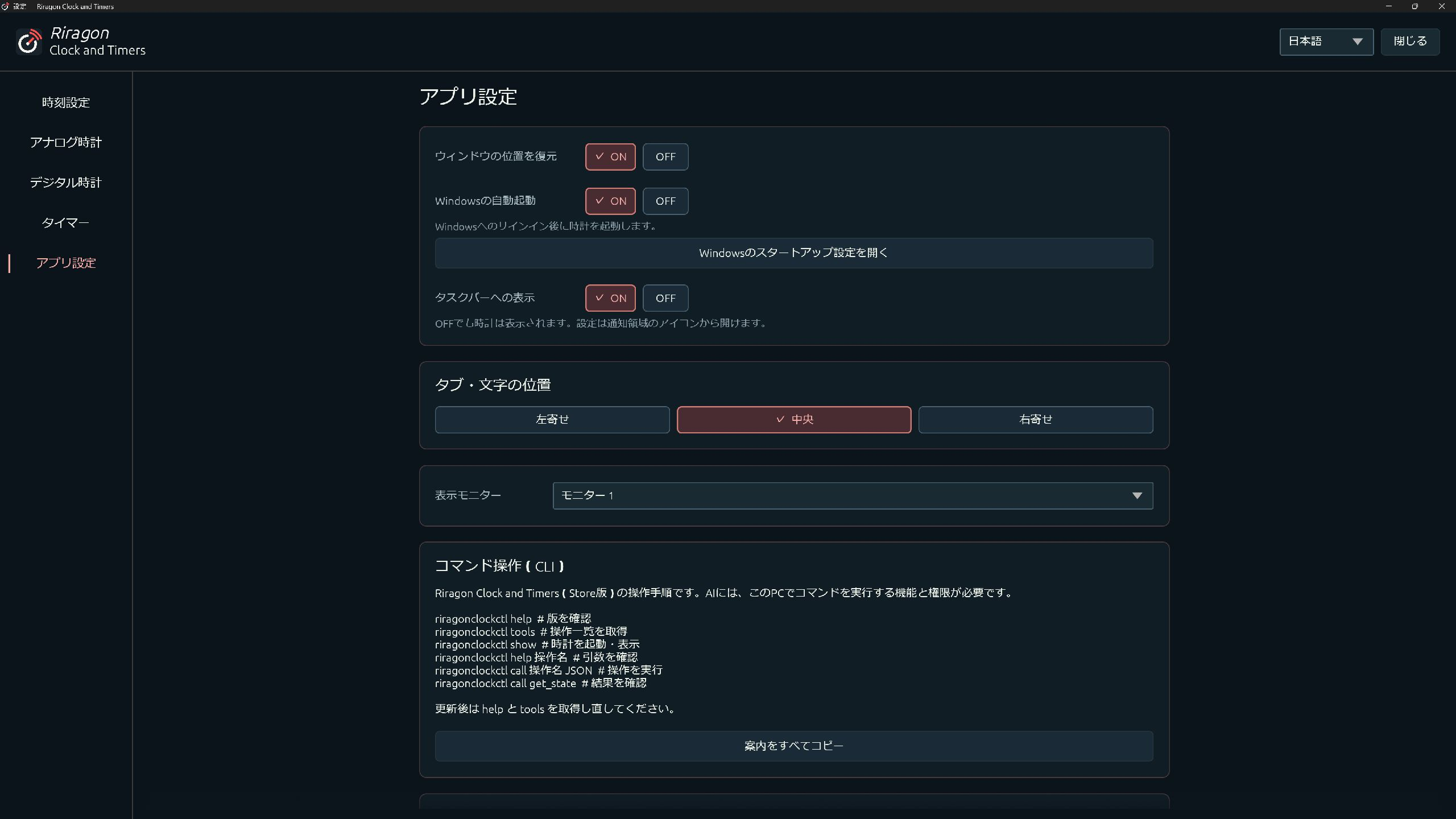
- Choose the display monitor and align the top tabs and labels to the left, center, or right.
- Enable launch at Windows sign-in and restoration of the previous window position and size. Automatic startup follows Windows settings.
- Choose whether the app appears on the taskbar. The clock remains visible when its taskbar entry is hidden, and settings are available from the notification-area icon.
- Switch the interface between Japanese and English.
- Mute ticking, spoken time, and timer sounds together while preserving their individual switches and volume settings.
- Confirmed appearance, layout, sound settings, and timer inputs are saved automatically. View or copy the save location in settings, or reset all settings.
- Read product information, terms of use, and third-party licenses inside the app.
Closing the app ends timing. On the next launch, running timers restart from their saved inputs; the previous remaining or elapsed time is not carried over.
11 / External tools
Control the same clocks from a command.
AI assistants and tools that can execute commands on this PC can also operate Riragon Clock and Timers. They use the same clocks and timers you see on screen, so you can combine them with your usual workflow.
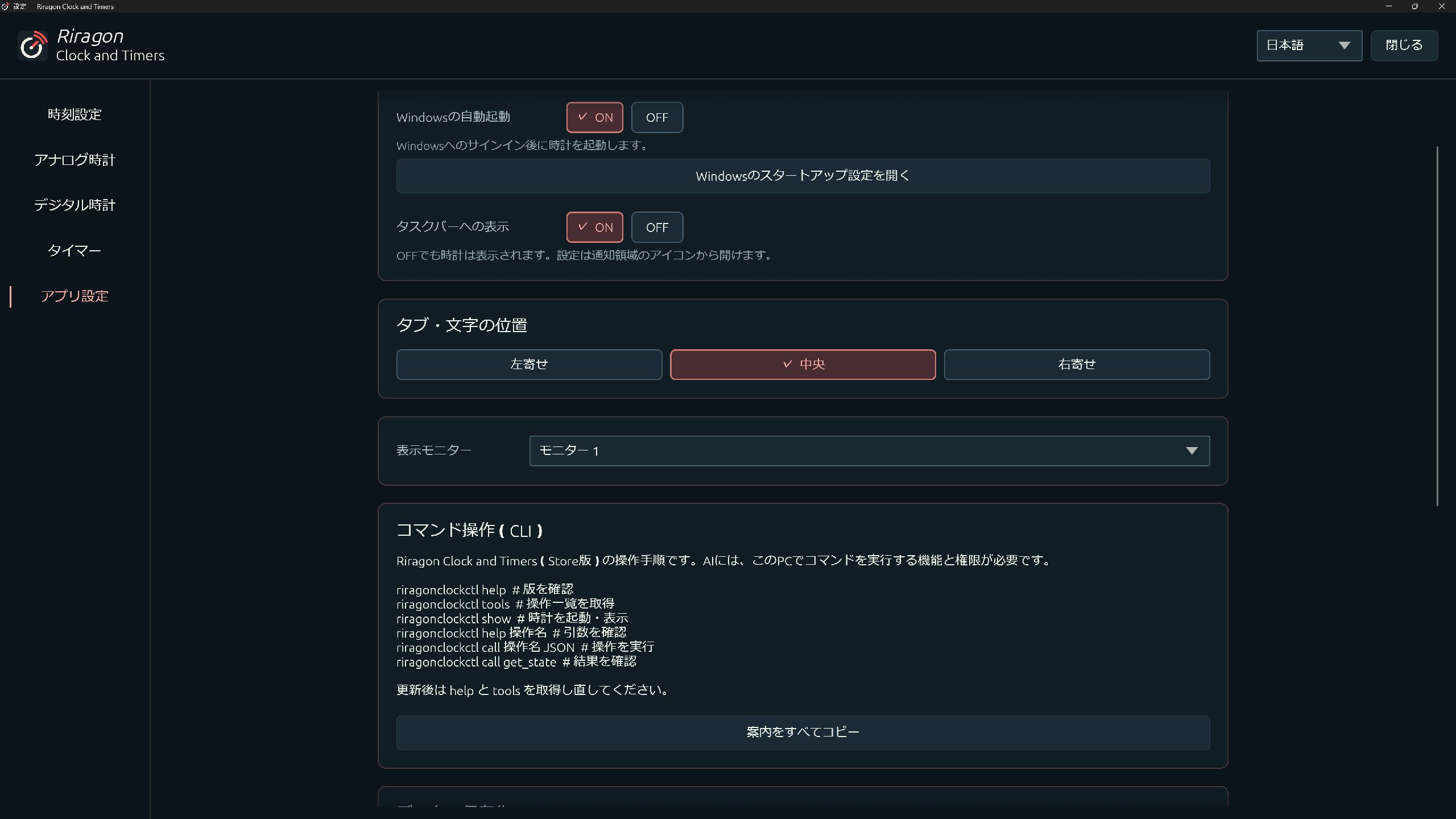
- Use the included
riragonclockctlcommand to display the clock, change settings, control timers, and check their state. - Work with dated deadlines and retrieve NTP measurements and history.
- The GUI and command interface share the same settings and timers.
- Copy the command guidance from inside the app. Check
riragonclockctl helpin the installed version for its available operations and arguments.