A Windows presentation timer for ten minutes of speaking and five minutes of questions
A Windows presentation timer that displays remaining time in a small window or full screen. This walkthrough sets up ten minutes for a talk and five for questions, with always-on-top display and a recording of the ending bell.
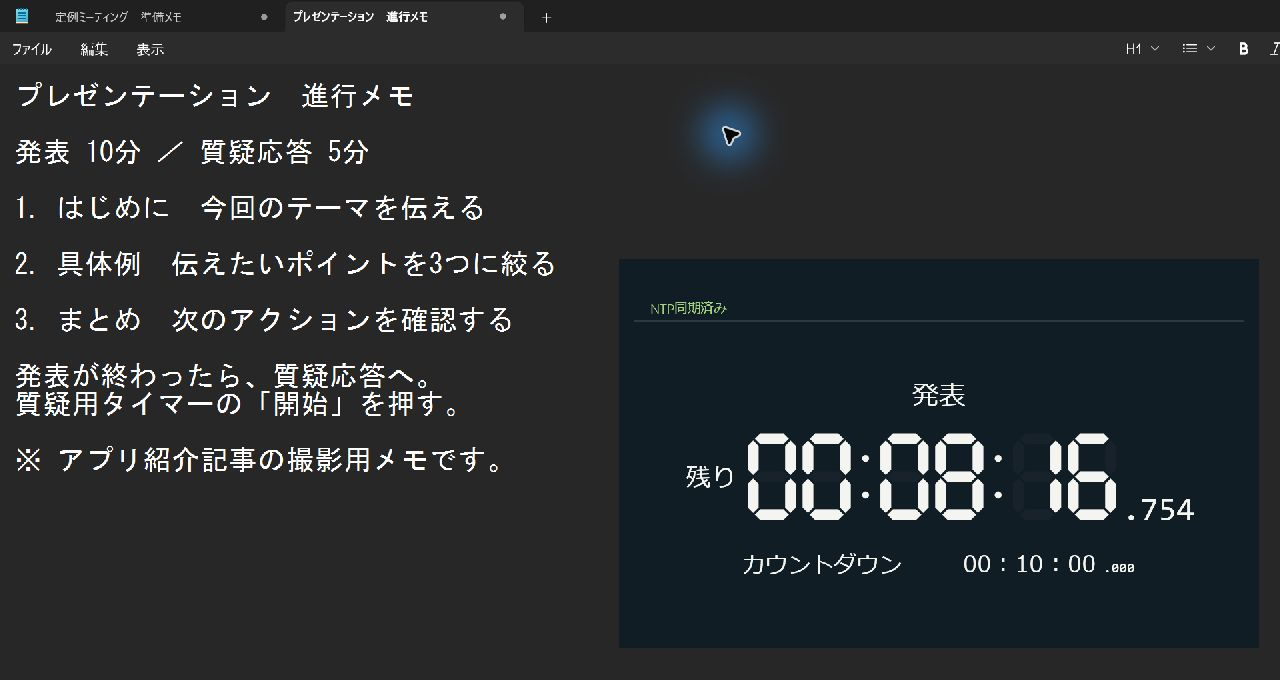
Ten minutes for a presentation, followed by five minutes of questions. A large remaining-time display makes it easier to judge when to wrap up than repeatedly checking a clock while speaking.
Here I try Riragon Clock and Timers, which I made for Windows, as a presentation timer. The small window placed over presentation materials and the resonant ending chime are the features I would like you to try.
Microsoft Store: normally ¥980 → free until December 31, 2026
Get it free through December 31Prepare separate ten-minute and five-minute timers
Use countdowns, which count a specified duration down to zero. Show two timers and set the talk to ten minutes and questions to five.
Enable the timer display in the top bar, then prepare them as follows.
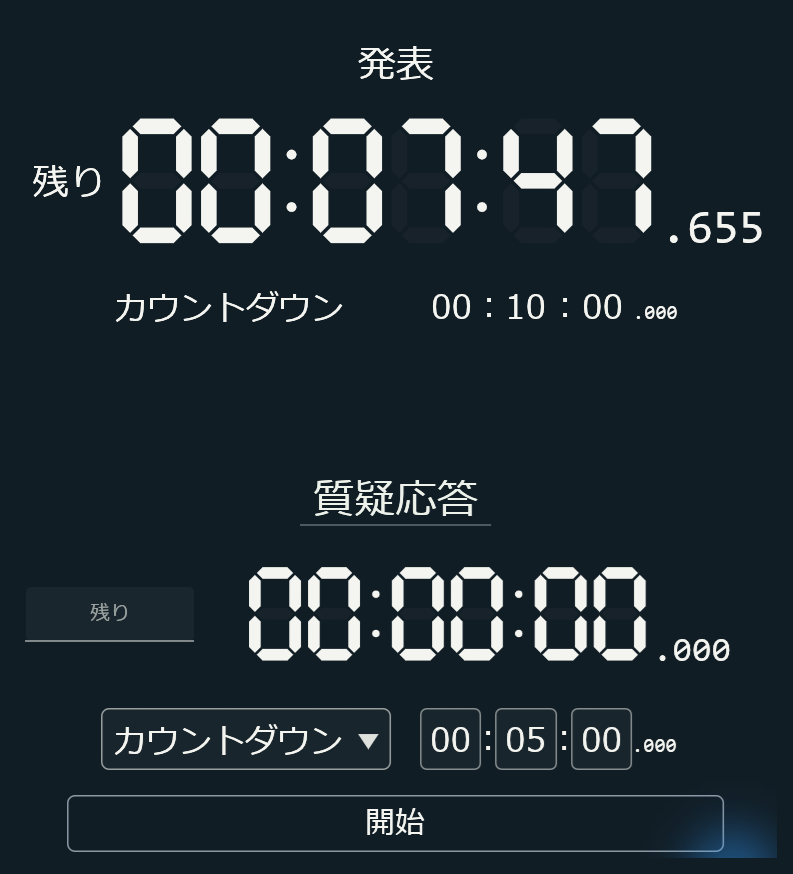
The left and right parts of the same screen are cropped and stacked vertically. The large zero on the questions timer indicates standby; it will start with the five minutes entered in the field.
- Move the pointer near the timer's upper left and use + to add a second timer.
- Set each timer's type to Countdown and enter its name and duration.
- Start the presentation timer when the talk begins, then start the questions timer when the session moves to questions.
To edit a name or duration while timing, use Change below the digits to return to input. The two timers are independent and do not switch automatically; the moderator starts each as the session progresses.
A small window nearby, full screen across the room
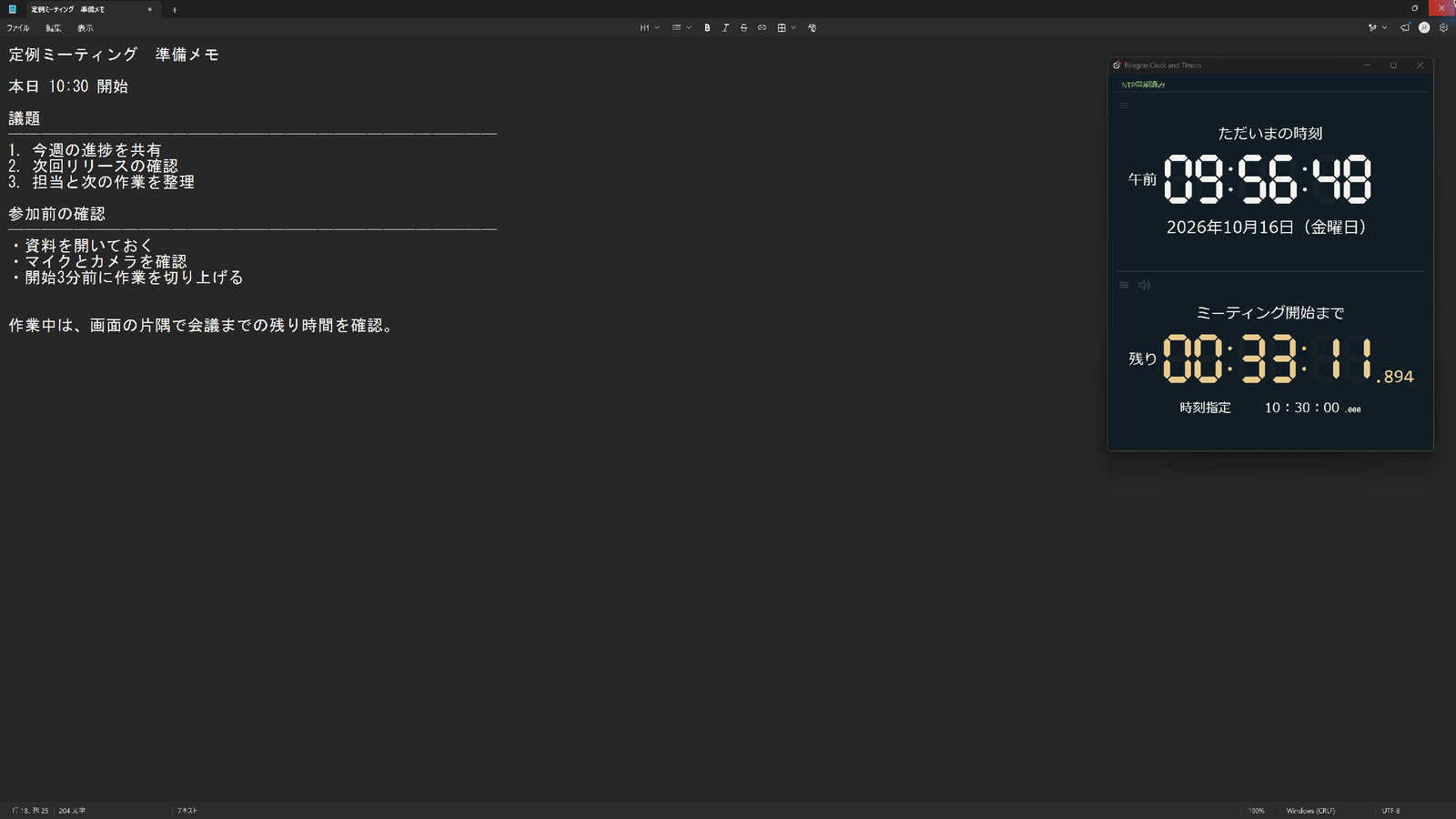
When using it alongside notes, shrink the window and put it at the edge of the screen. Its size is freely adjustable. Enabling always-on-top in the top bar keeps it above notes and the browser while you work.
Sample presentation notes in Notepad, with the timer always on top and position locked. Sharing the entire screen or duplicating it to a projector also shows the timer to the audience. Check it using the same connection as the actual presentation.
After placement, position locking is available too. While locked, clicks pass through to the application behind it. To start questions, move the pointer to the top bar, unlock it with the padlock icon, and then press Start.
For viewing from farther away, press F11 for full screen. This provides a large display on a dedicated monitor. Press F11 again to return to the normal window.
Color changes warn as time runs out
In the LED design photographed here, the display turned yellow at 30 seconds or less and red at ten seconds or less.
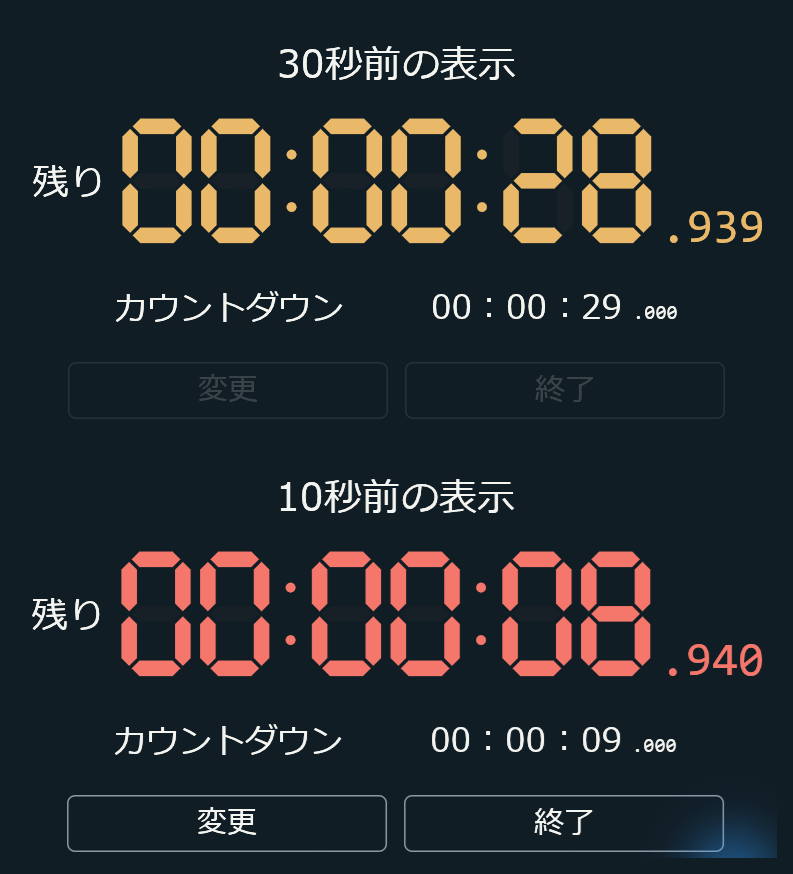
I paused a short countdown for comparison. These are left and right crops from the same screen, stacked vertically: 28.9 seconds is yellow, and 8.9 seconds is red.
Particular care went into the ending chime
I wanted the familiar resonant chime to announce the end of a talk, including its lingering decay. The app includes ten singing-bowl sounds, made by striking a metal bowl, selected from purchased audio material. Electronic sounds are available too.
Here is an approximately six-second demonstration of sound 2, Clear Bell. It combines a still image of the finished timer with audio recorded from the actual app. The full decay is included, with only the volume adjusted. Press Play to listen.
Choose the sound and volume through the gear at the timer's upper left.
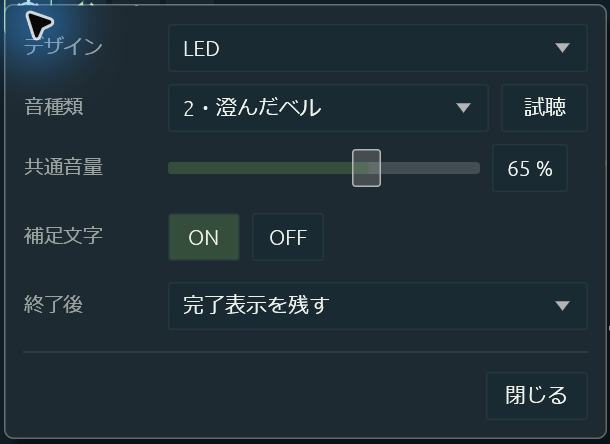
To hear it, enable the timer's sound icon and disable global mute in the top bar. Before presenting, use Preview and check the volume through the venue's speakers.
Use the same timer with materials outside PowerPoint
PowerPoint's Presenter View also has a timer, pause, and reset. Riragon's small window is useful when you want the same display and bell while presenting a PDF or browser-based material too.
App details and availability
It is currently offered as an alpha, or prototype, release. Normally ¥980, it is free until December 31, 2026. Copies obtained during that period can continue to be used afterward; new acquisitions after the offer ends will be at the normal price.
Related articles
- Riragon: a meeting timer counting down to the meeting's start
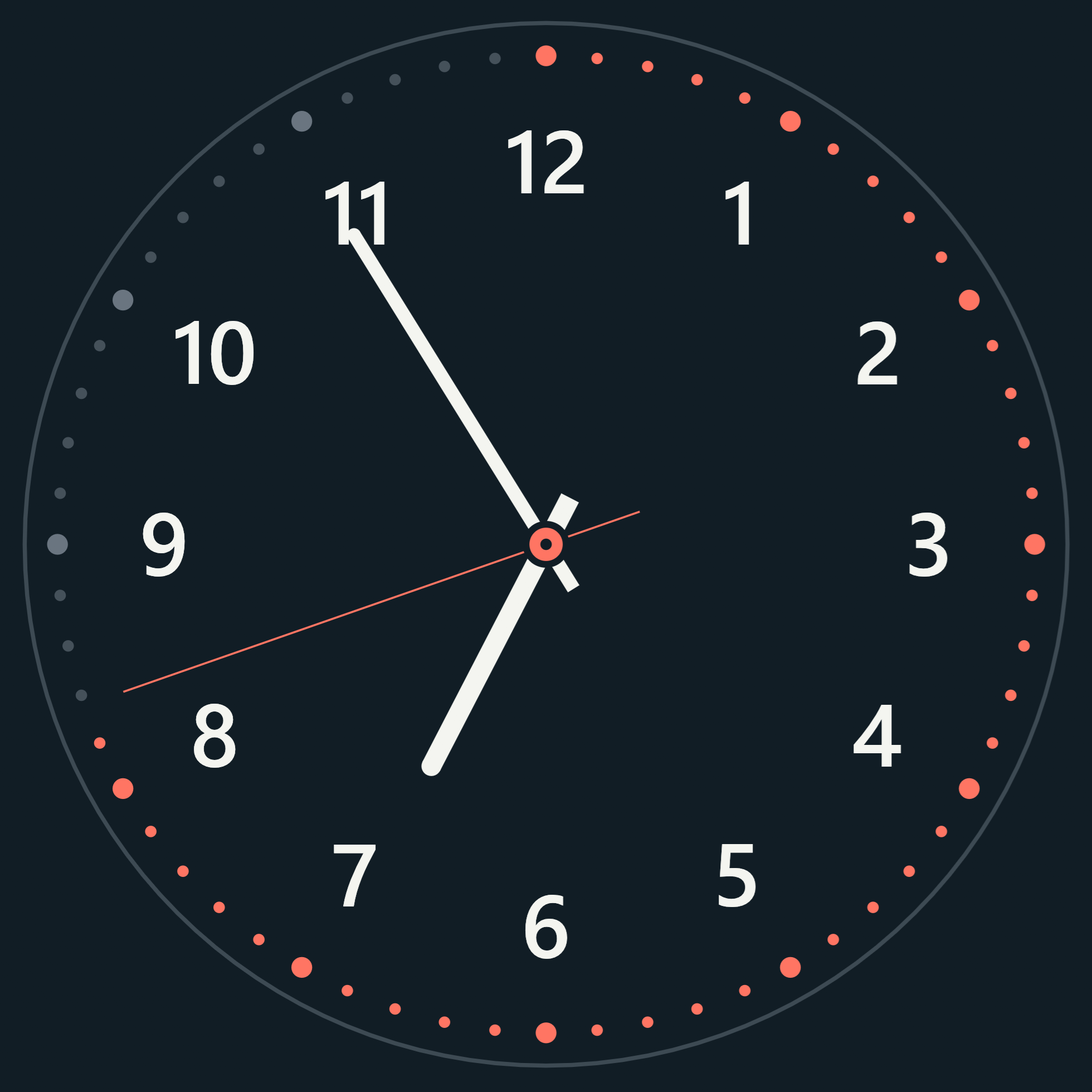
- Riragon: a Windows analog clock and its ticking second hand
Official related link
Related articles
Updates and contact: X @riragoncom.