How long until the meeting? A Windows meeting countdown timer
Use Riragon Clock and Timers on Windows to see how much time remains before a meeting. This guide covers entering a start time, setting a three-minute advance notification, and keeping a small timer window on top.
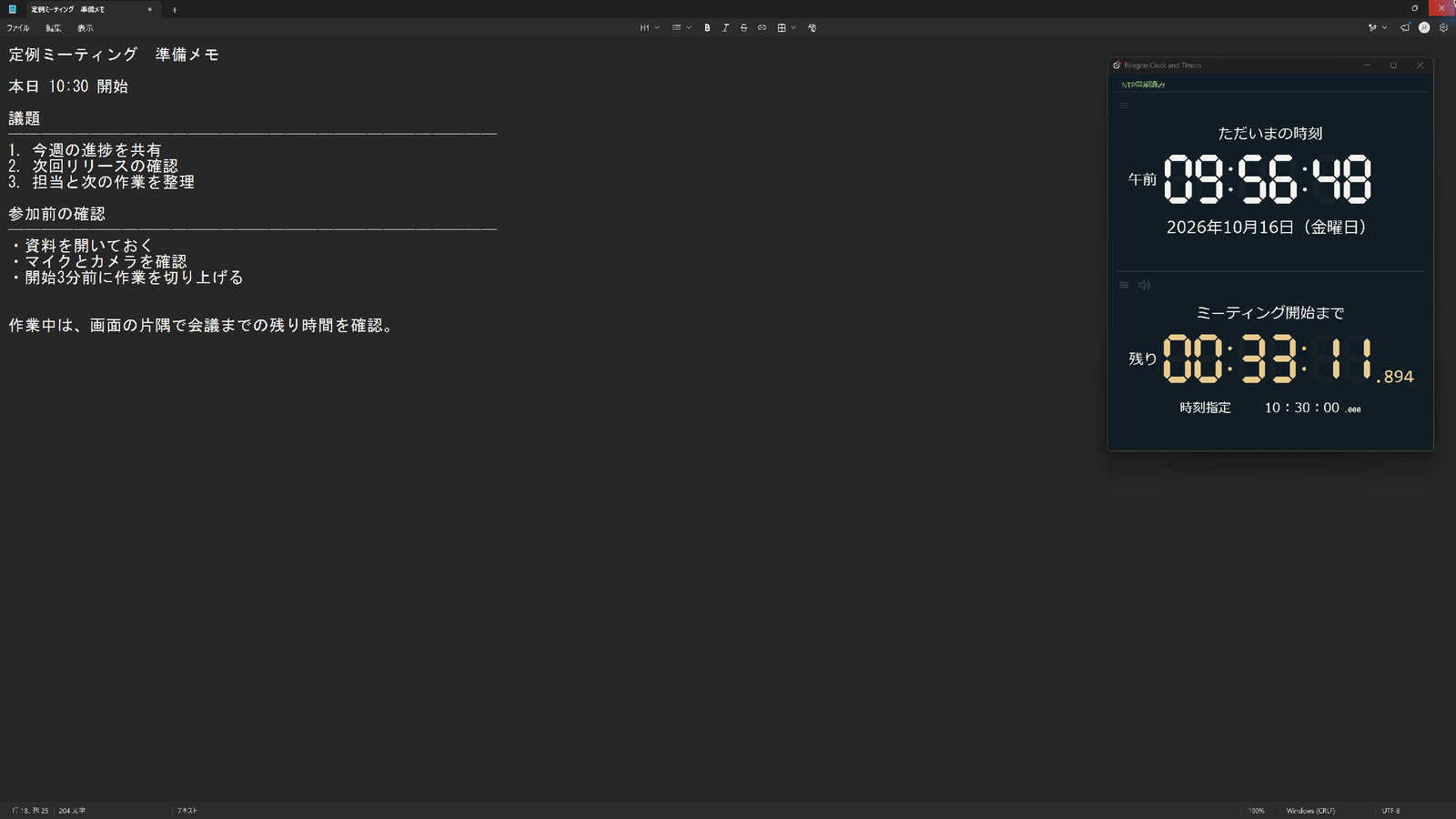
Online meetings do not require travel. That also makes it easy to keep working on something else until the last moment.
You look at the clock and think there is plenty of time, then suddenly the meeting is about to start. Sometimes another task absorbs you so completely that you nearly forget the meeting itself. Seeing the remaining time alongside the current time can help you decide when to stop.
That is why I built Riragon Clock and Timers for Windows. Here I introduce its use as a meeting timer, showing a countdown in a corner of the screen while you work.
Microsoft Store: normally ¥980, free through December 31, 2026
Get it free through December 31Enter the meeting start time to show the countdown
Use the timer's target-time mode to count down to a meeting. For a meeting at 15:00, enter 15:00 as the start time. The timer displays the time remaining until then.
The steps are:
- Move the pointer over the top bar and turn the timer display on.
- Move the pointer over the timer, click the input-type label, and select the target-time option.
- Enter the meeting start time and press Start below the input field.
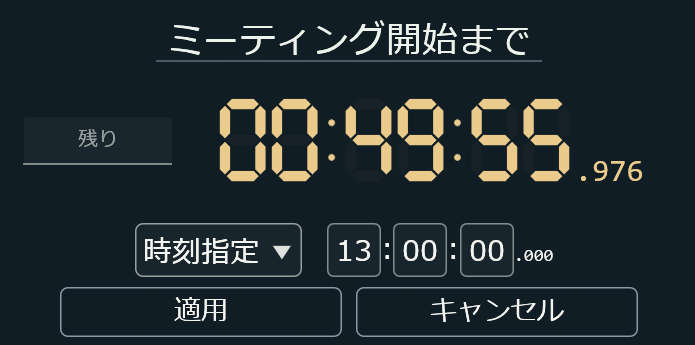
Enter the meeting start time in target-time mode. This screenshot shows the input opened with Change while a timer is already running.
You can now check how many minutes remain while you work, without mentally subtracting the current time from the meeting start time.
The target is the next occurrence of the specified time. If you enter a time that has already passed, it counts down to the same time tomorrow.
Use a three-minute warning to switch from work to meeting preparation
Even with the countdown visible, concentrated work can draw your attention away from it. That is where advance notifications help.
Open the gear at the timer's top left and enable the advance alert. Choose one, three, five, or ten minutes beforehand. A three-minute alert gives you a cue to open documents or connect to the meeting. The alert at the exact start time can be configured separately.
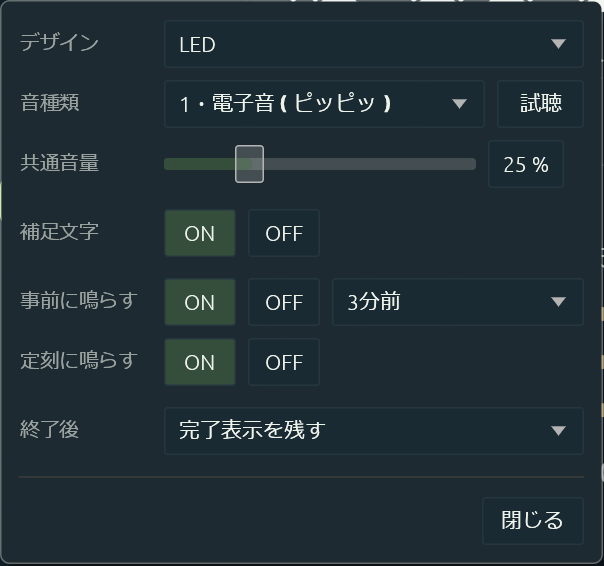
Enable the advance alert and choose three minutes. The on-time alert is a separate switch.
For sound, enable the sound icon at the timer's top left and turn off global mute in the top bar. Check the volume and use the preview control in the gear menu to confirm that it plays.
Keep a small window on top
When a browser or document covers the clock, you have to switch windows to check the countdown. A small always-on-top window keeps it visible in a corner of your workspace.
- Resize the window freely to a readable size.
- Use the top bar to toggle always-on-top and position locking.
- Press F11 for full-screen display.
You can use a small window on your working display or a large one on a spare display. When the position is locked, clicks pass through to the application behind it, allowing you to keep working where the clock overlaps. Resize and position it before locking, because the size cannot change while locked.
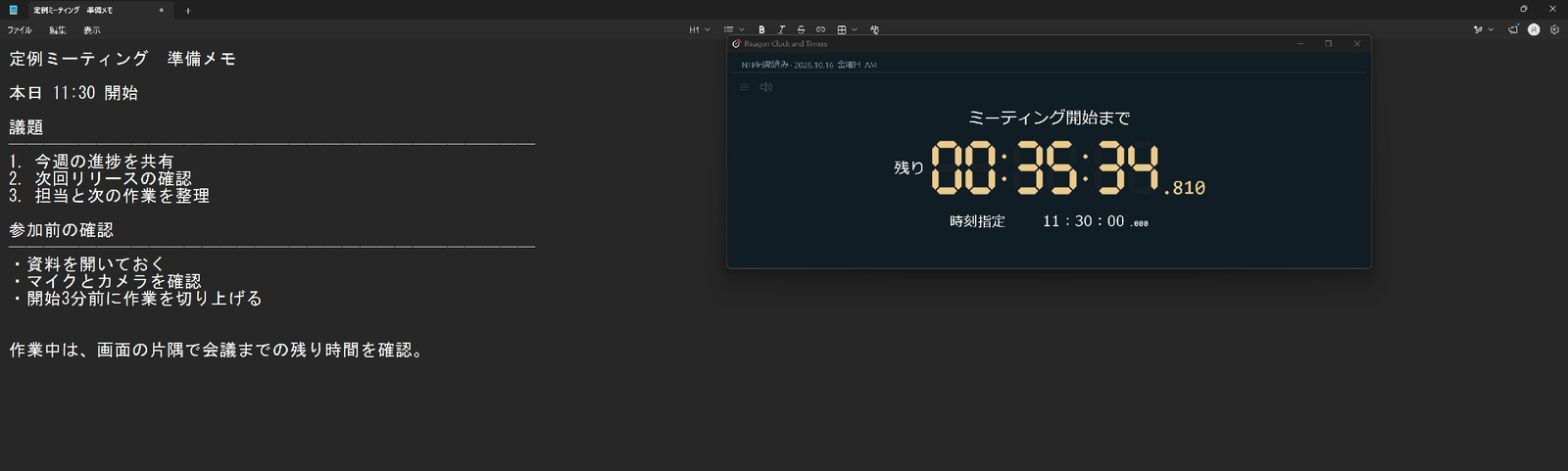
A wide timer at the top of the screen. You can hide the current time and display only a large countdown.
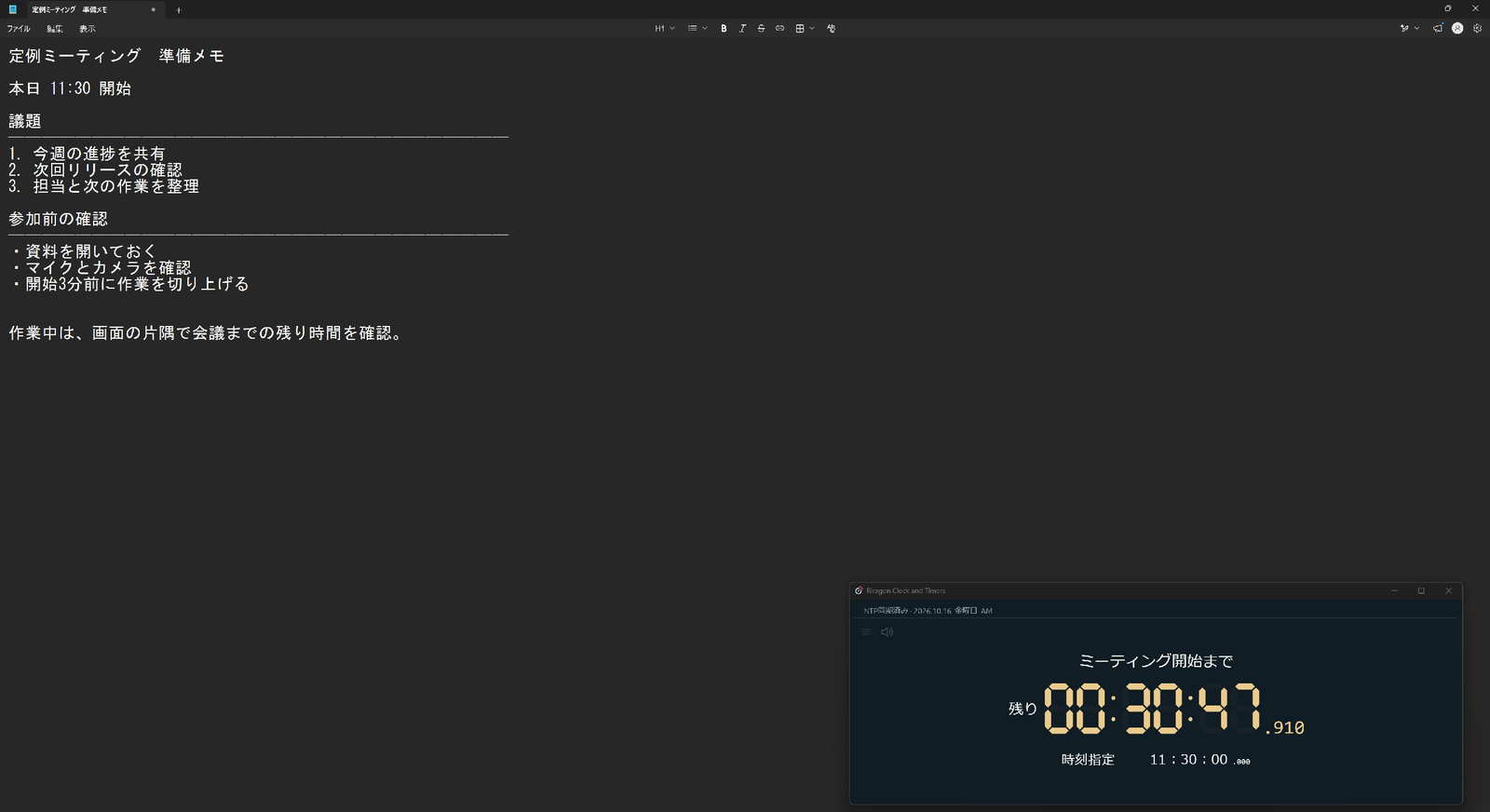
Putting it at the bottom leaves more room at the top for work. Choose a position that does not cover important buttons or documents.
Correct the app's displayed time with NTP
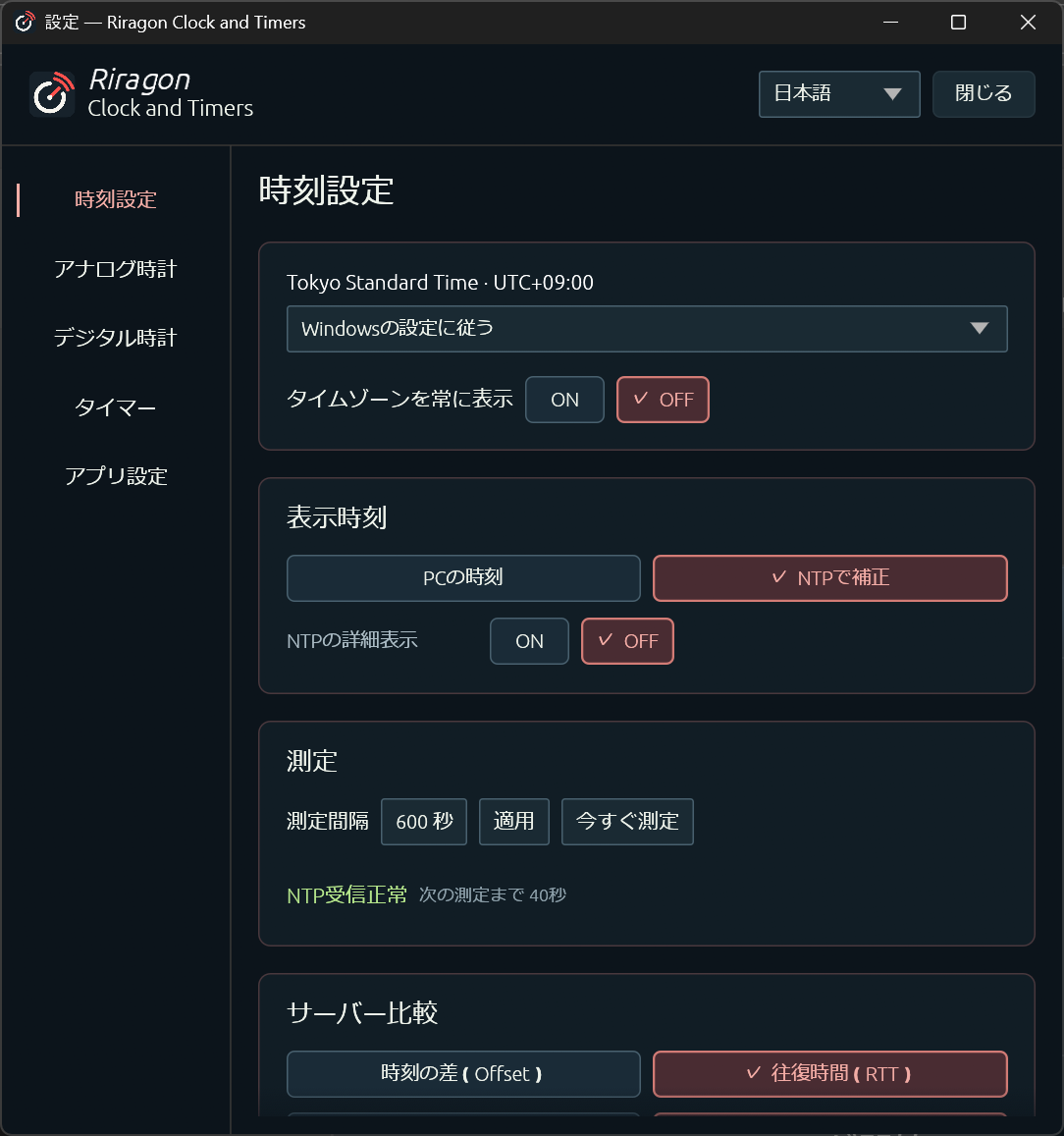
NTP obtains time information over a network. This app uses it to correct the displayed time, and target-time timers follow that corrected clock. It does not change the Windows system clock.
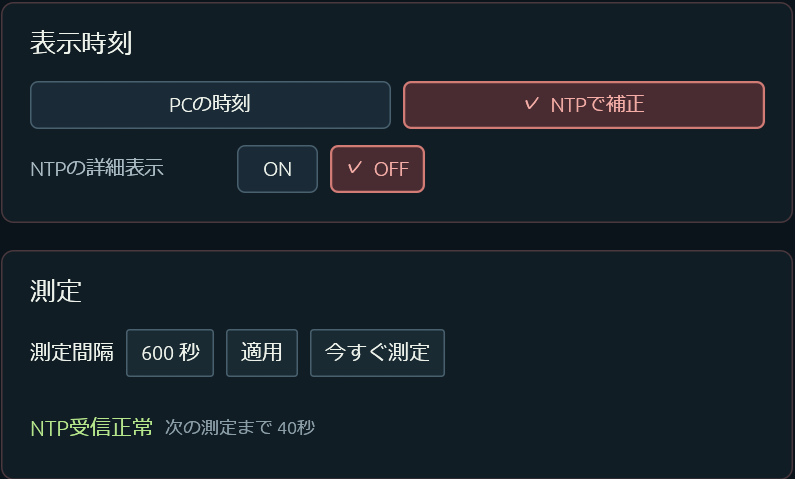
Select NTP correction in the time settings. The reception status is visible there too. Open the full settings screenshot.
Display and timer settings are saved
Confirmed display and timer settings are saved. There is also an option to restore the window position on the next launch.
If you close the app while a target-time timer is running, it starts a new countdown toward the saved time on the next launch. When using NTP, it waits for the first time update. A timer stopped by completion or by ending it does not start automatically.
For another meeting, change the saved target to the next start time. If the timer is running, use Change below the digits.
Free through December 31, 2026, and still usable afterward
To mark the alpha release, the app is available for ¥0 through December 31, 2026. If you obtain it during that period, you can keep using it free after the offer ends. New acquisitions after the period will be at the regular price.
I hope you will try it during your normal work as a cue to finish a task before a meeting.
An overview is available on the Riragon Clock and Timers introduction page.
Related articles
Updates and contact: X @riragoncom.