Creating a custom curved video screen in Unreal Engine 5
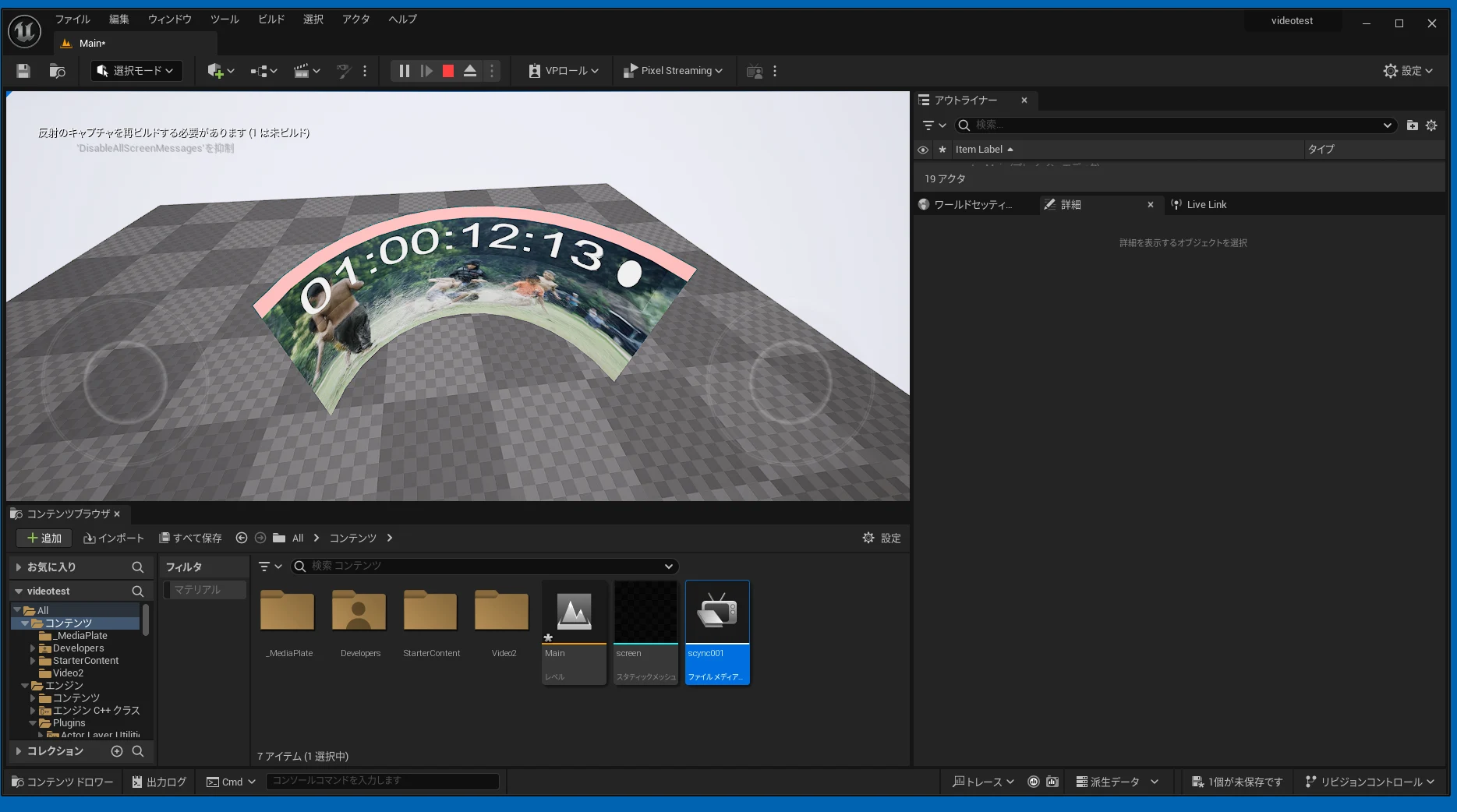
Build a custom-shaped curved video screen for UE5 with a Blender mesh and Media Plate. Media Plate can also create a simpler curved screen by choosing a spherical mesh and adjusting its angle, although that option was not covered in the earlier article.
Note: This article was first published more than a year ago.
- Geometry Script and boolean-style mesh workflows vary with plugin and UE versions. Check the documentation for your version.
- Performance depends heavily on the polygon budget of the target platform.
This article shows how to display video on a curved screen with a custom shape in UE5. The Media Plate feature from the previous article also offers an easier route: choose a spherical mesh and set its angle to create a curved screen, although I did not cover that option there.
If you need a more individual shape, the following workflow may help.
The previous article about Media Plate:
https://riragon.com/blog/en/ue5-douga-saisei-h265-mp4/
Build a curved screen with a custom shape
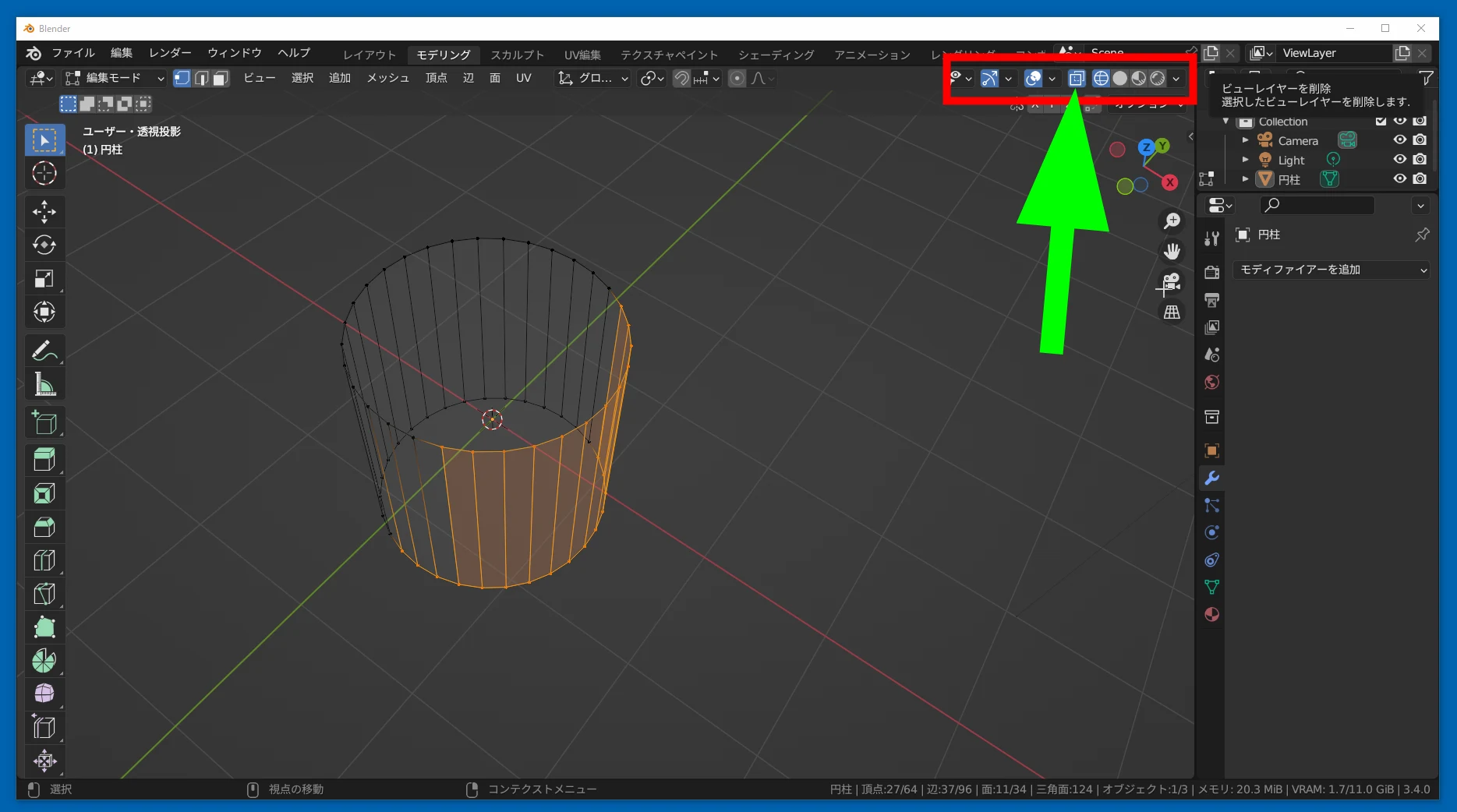
For example, start by creating a cylinder in Blender. This does not require advanced Blender features, but I will not explain every basic operation. If Blender is new to you, work through a simple tutorial first. Edit the cylinder in the modeling workspace. 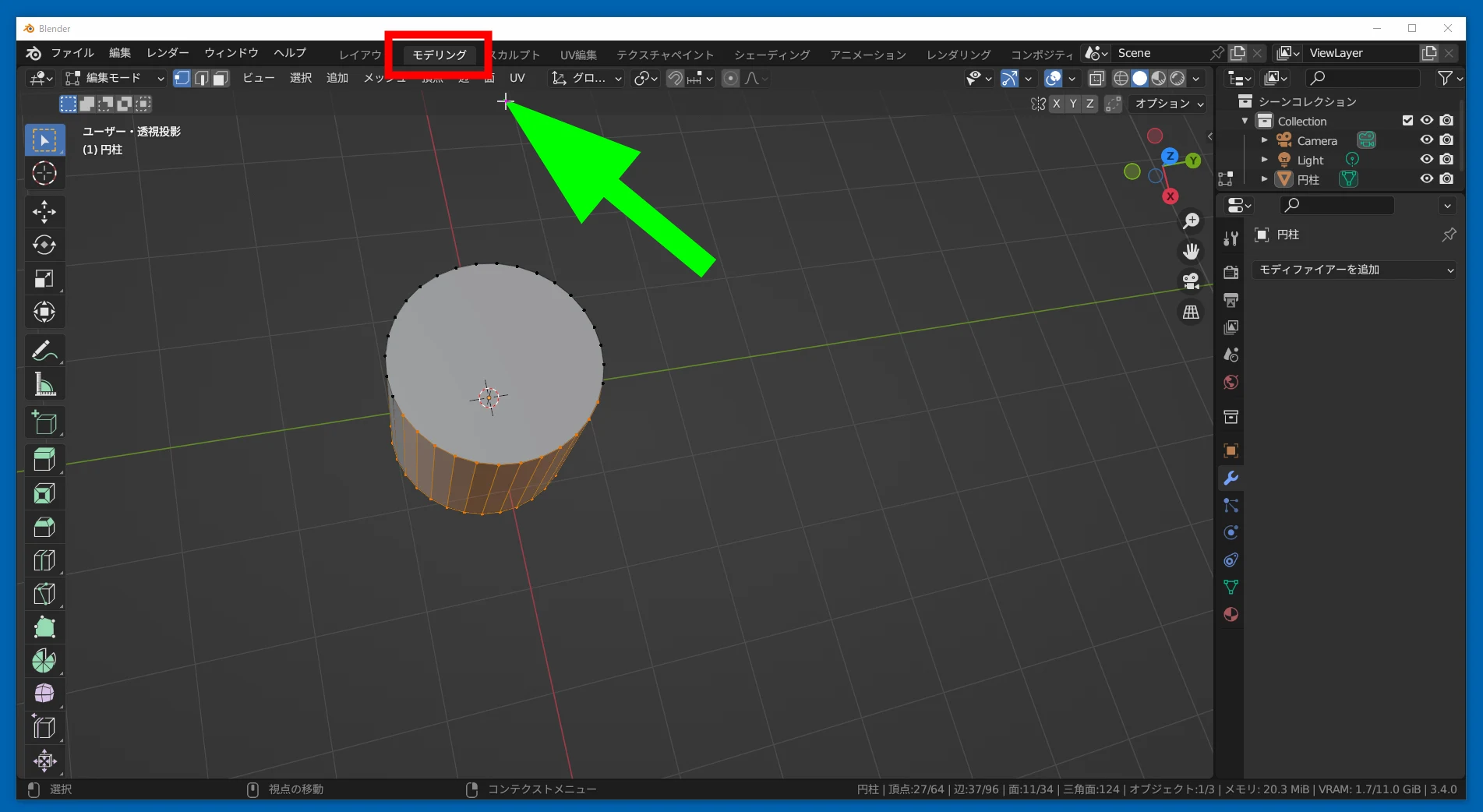 Click the area shown so that you can also select vertices on the far side of the mesh.
  Delete the unwanted vertices and other unnecessary geometry. Adjust the mesh carefully so that no stray parts remain.
 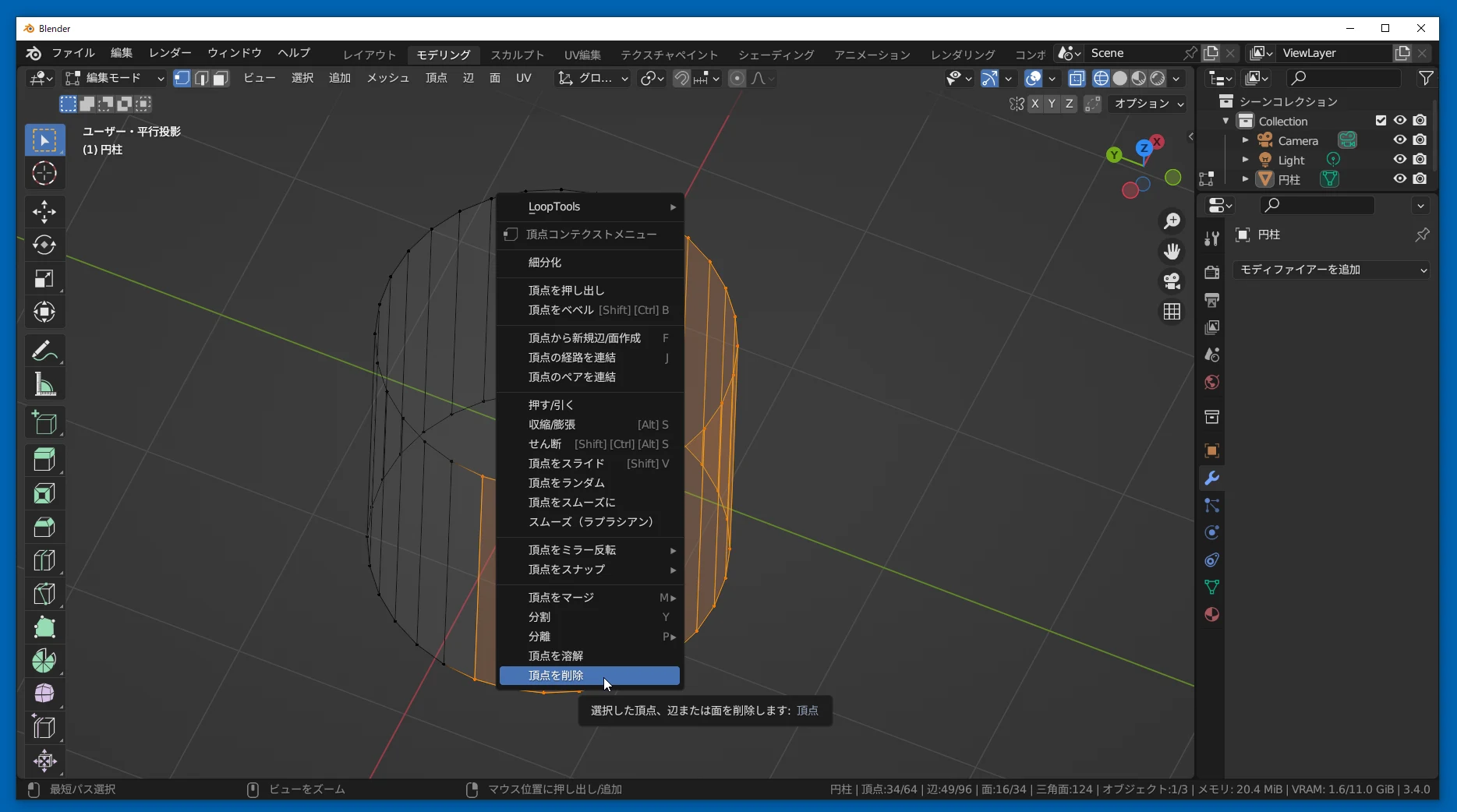 You now have a curved screen shape.
 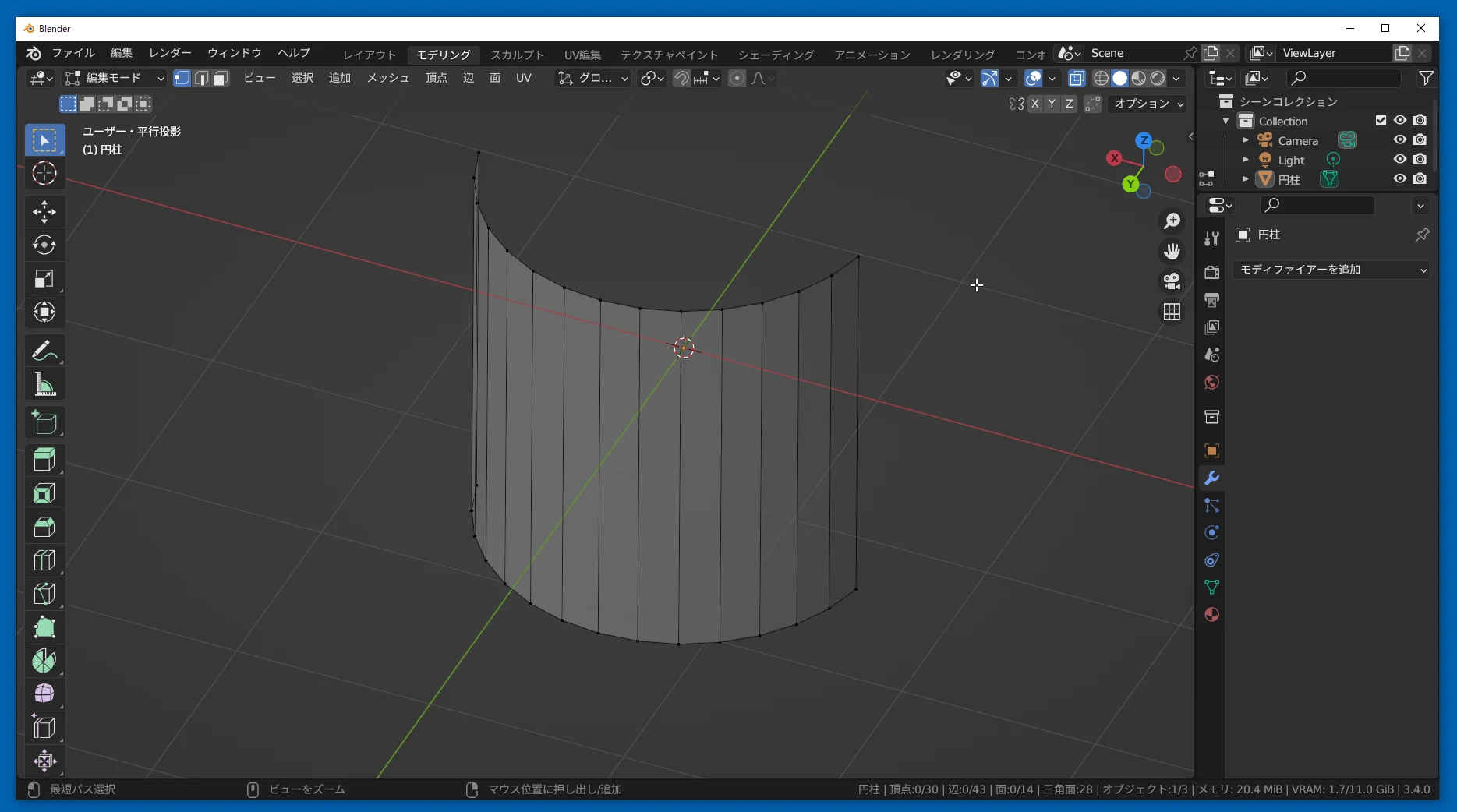 Widen it or change its proportions to get the shape you want.
 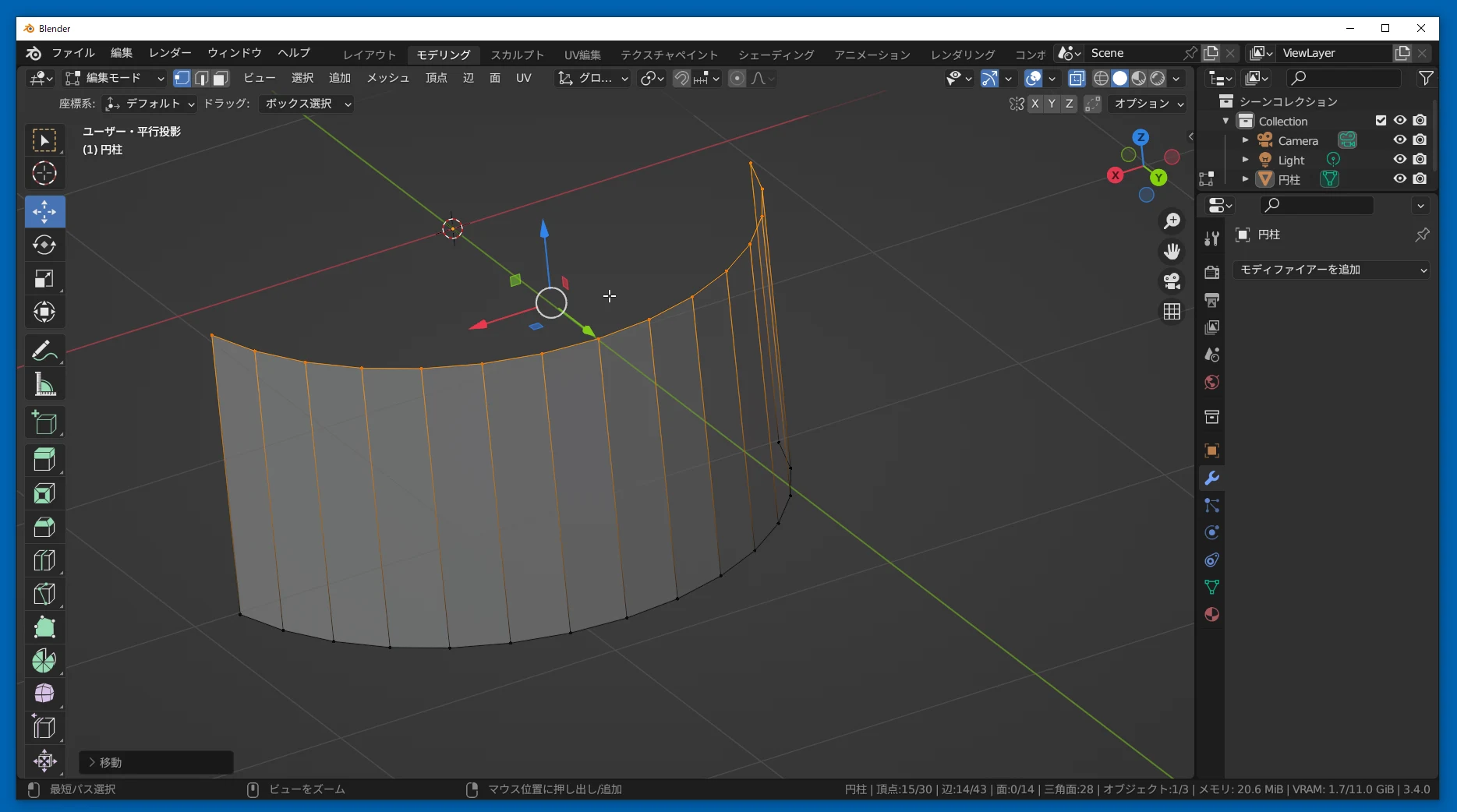 Select UV.
 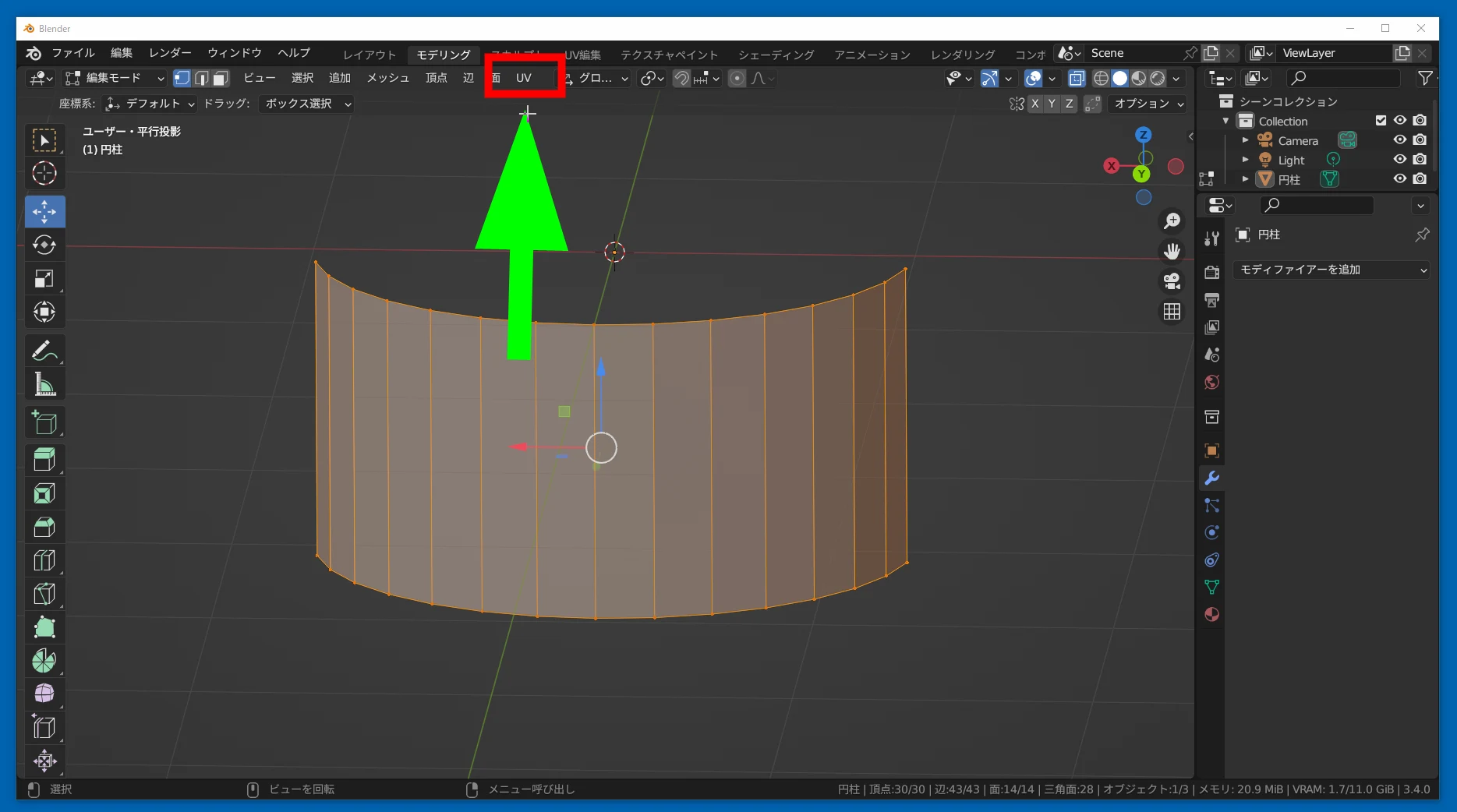 Click Unwrap to unwrap the mesh.
 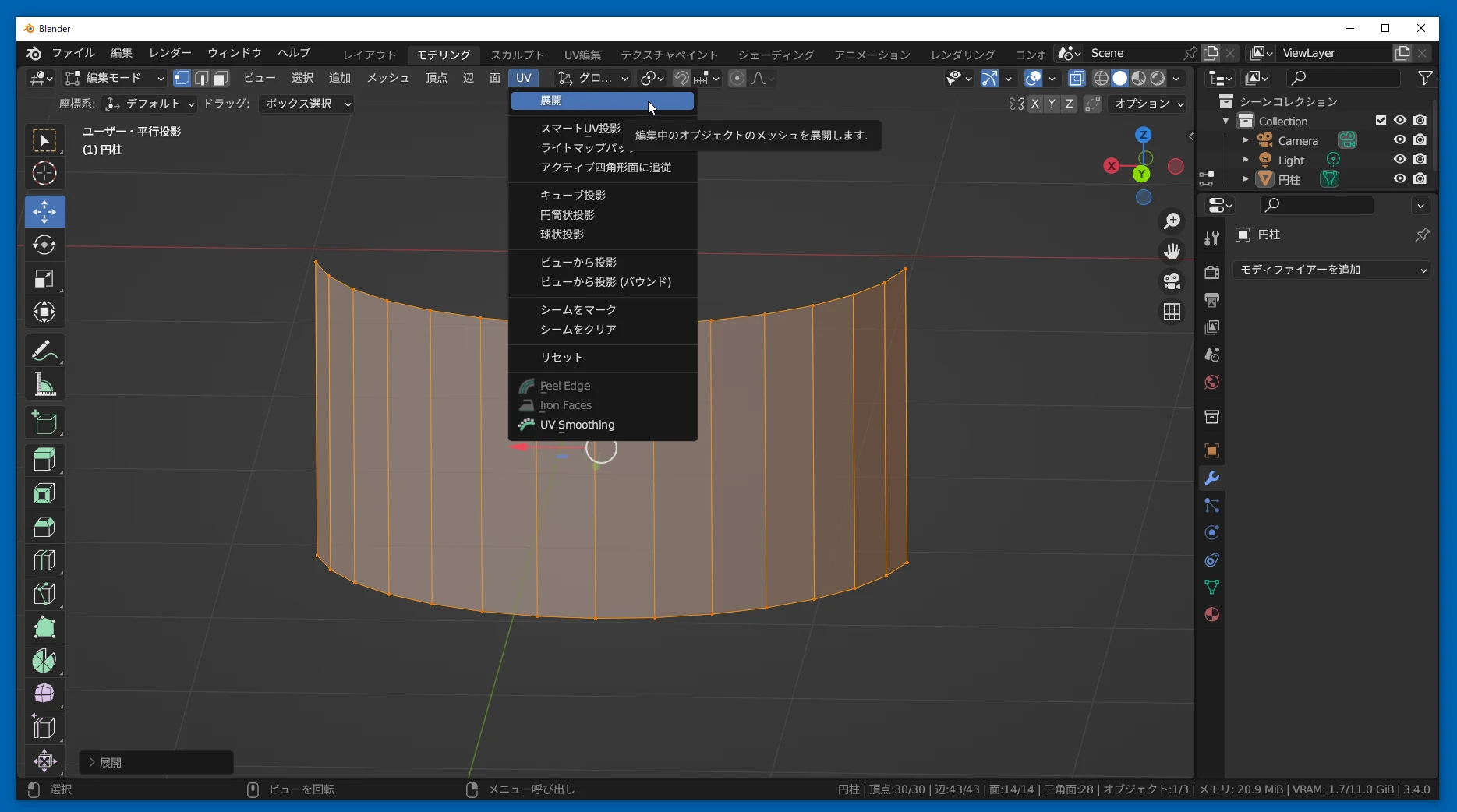 The UV map appears. Think of the UV map on the left as being assigned to the selected area on the right.
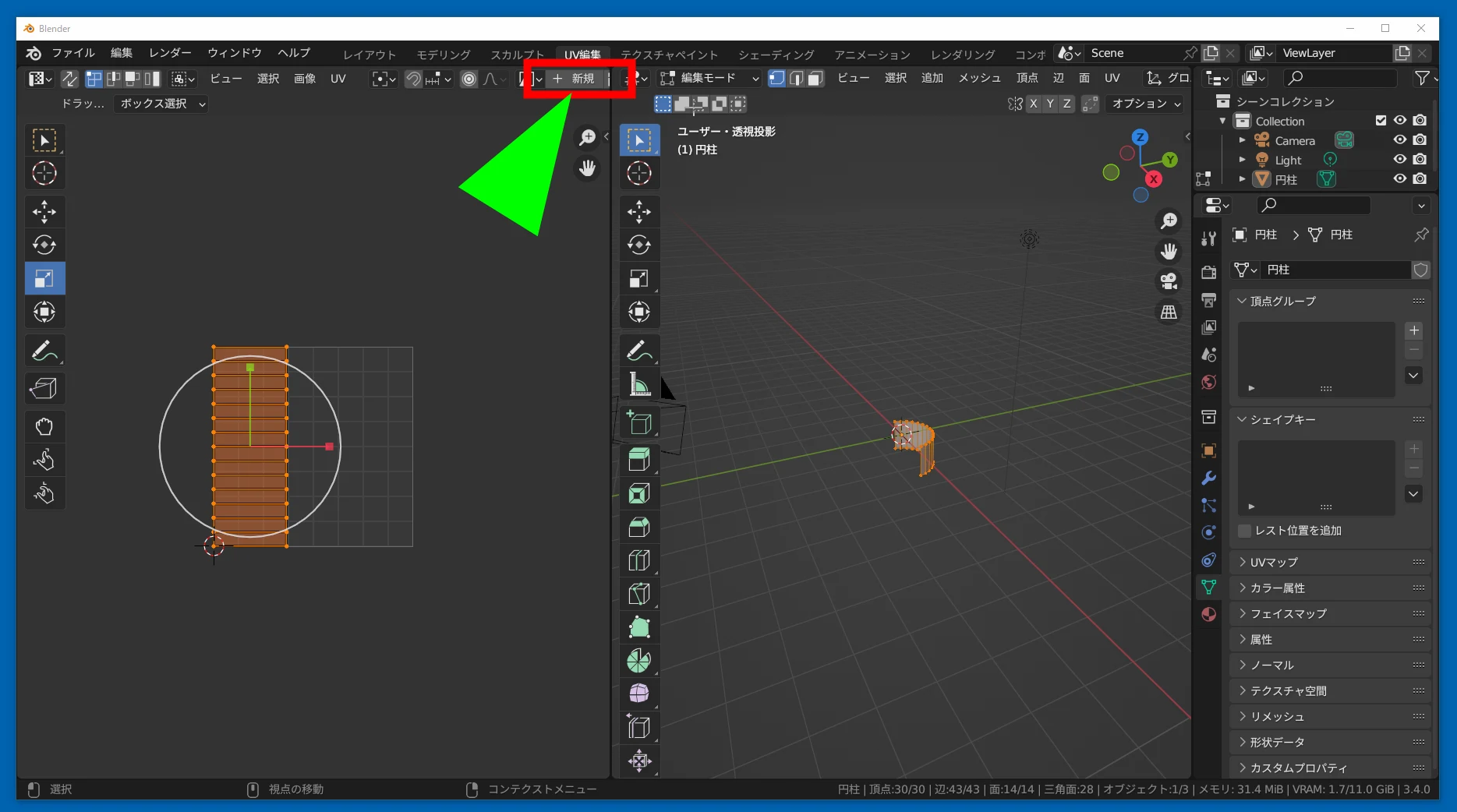
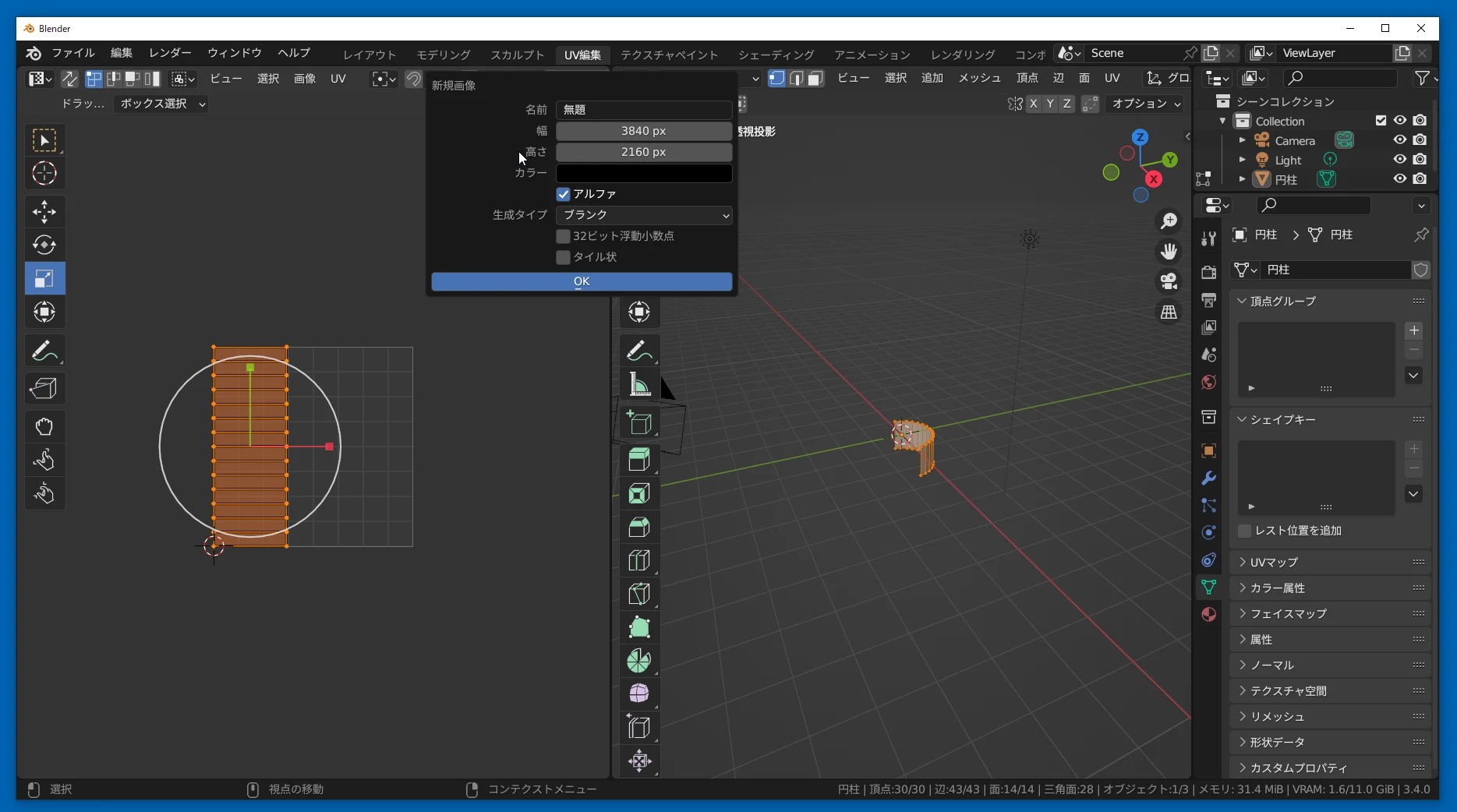
 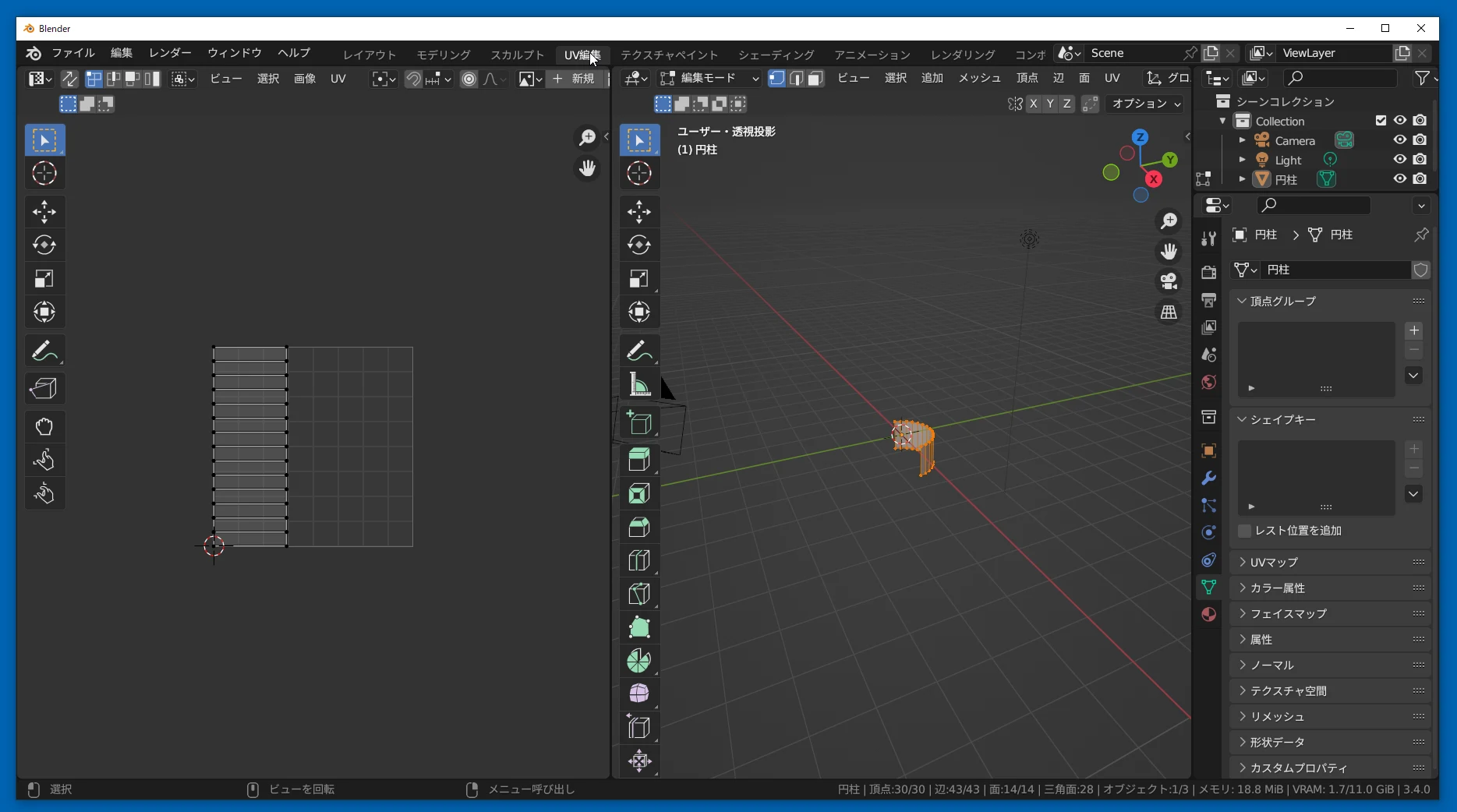 Click New to set the texture dimensions.
  I used 3840×2160 pixels.
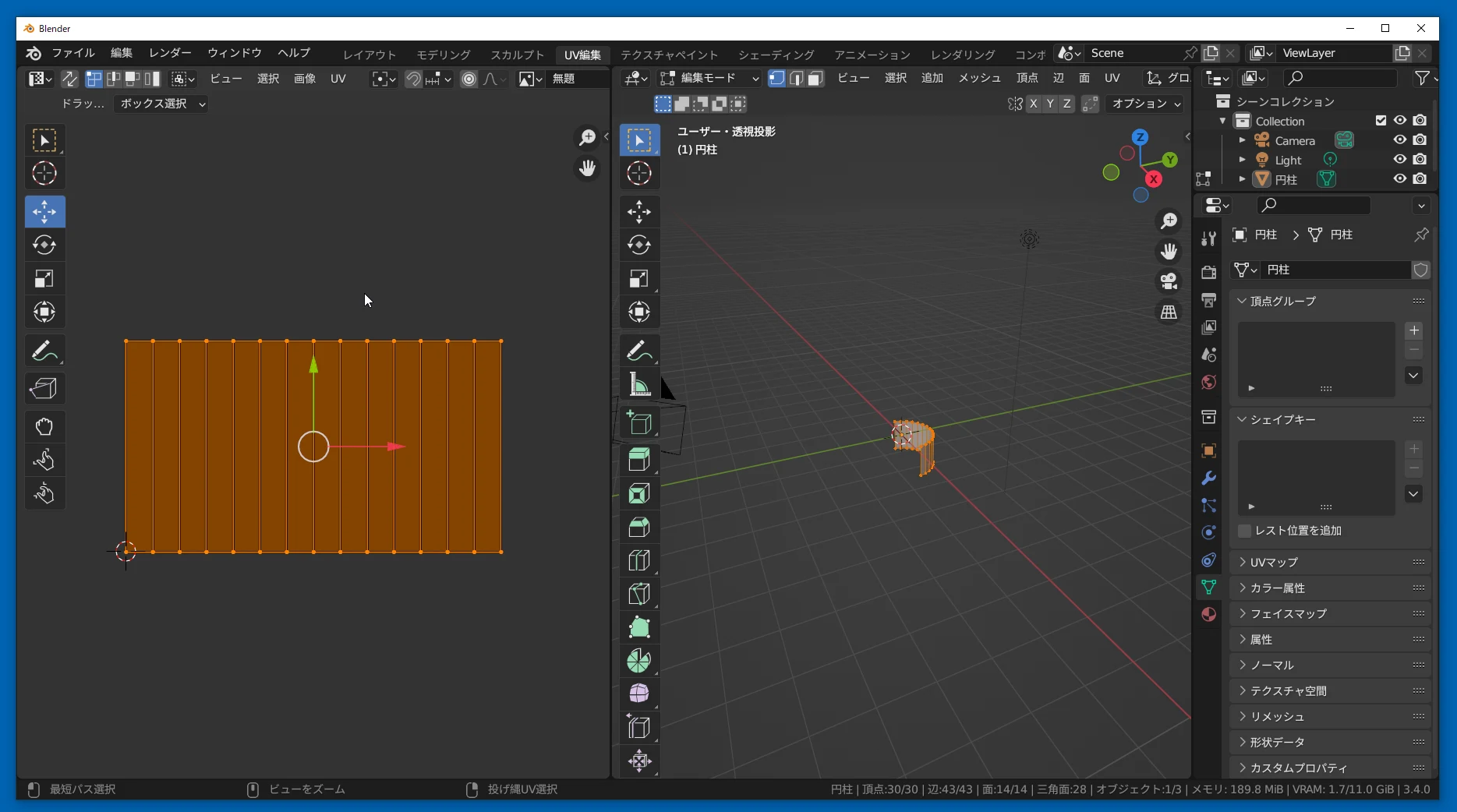
  Rotate and scale the UV layout on the left to fit the texture dimensions. That completes the UV setup.
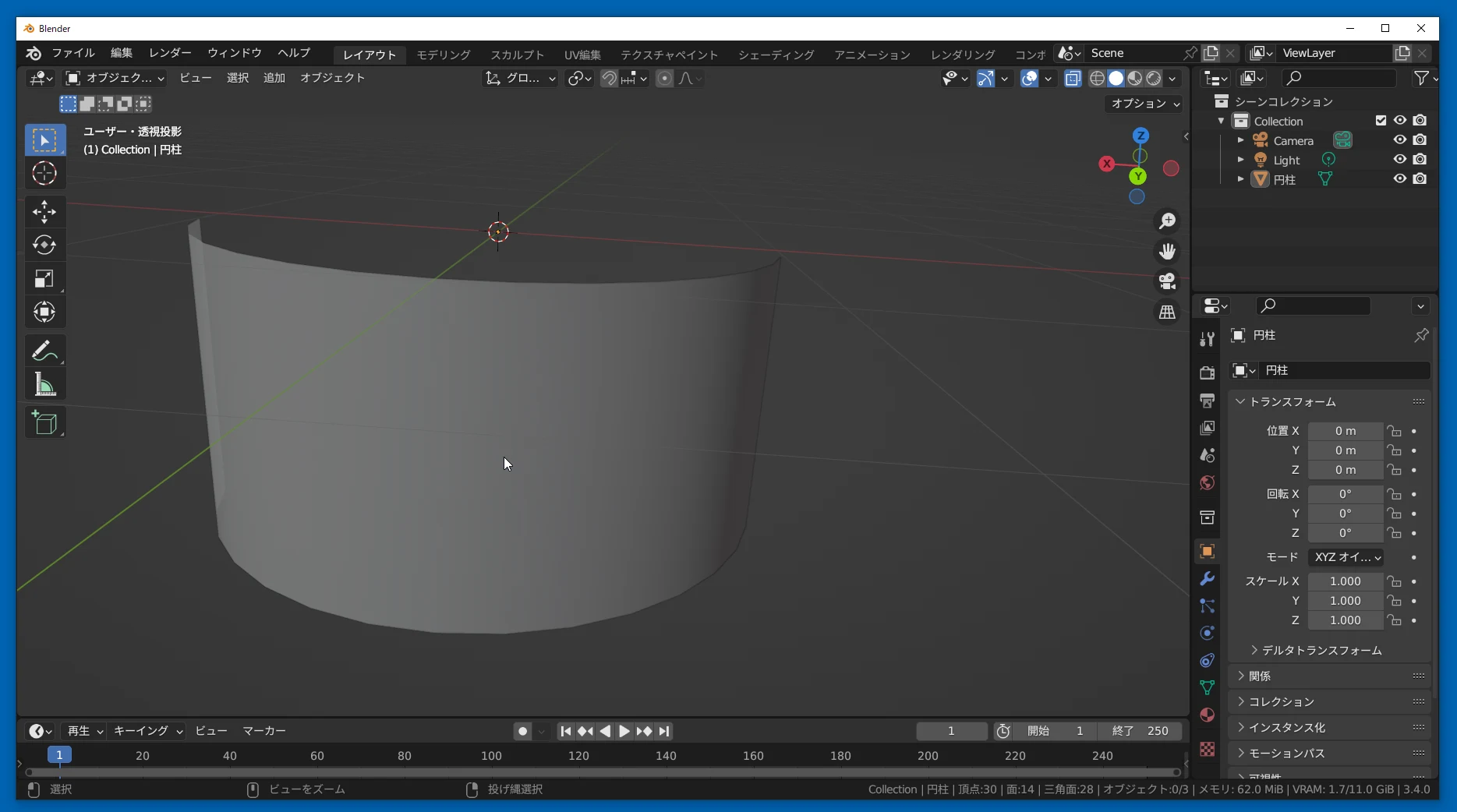
  Return to Layout. Select the mesh and, if I remember correctly, right-click and choose smooth shading.
 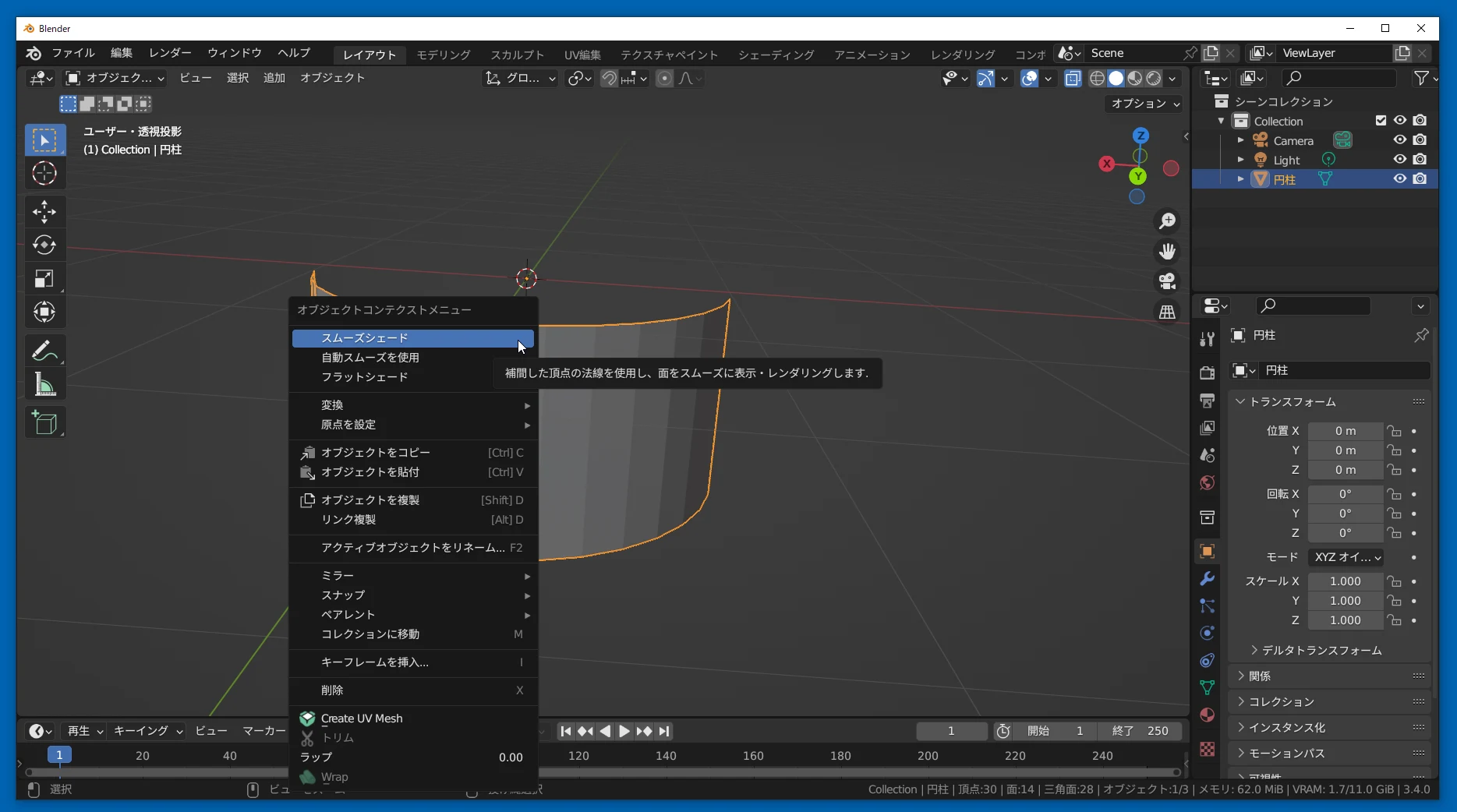 The curved screen now looks good.
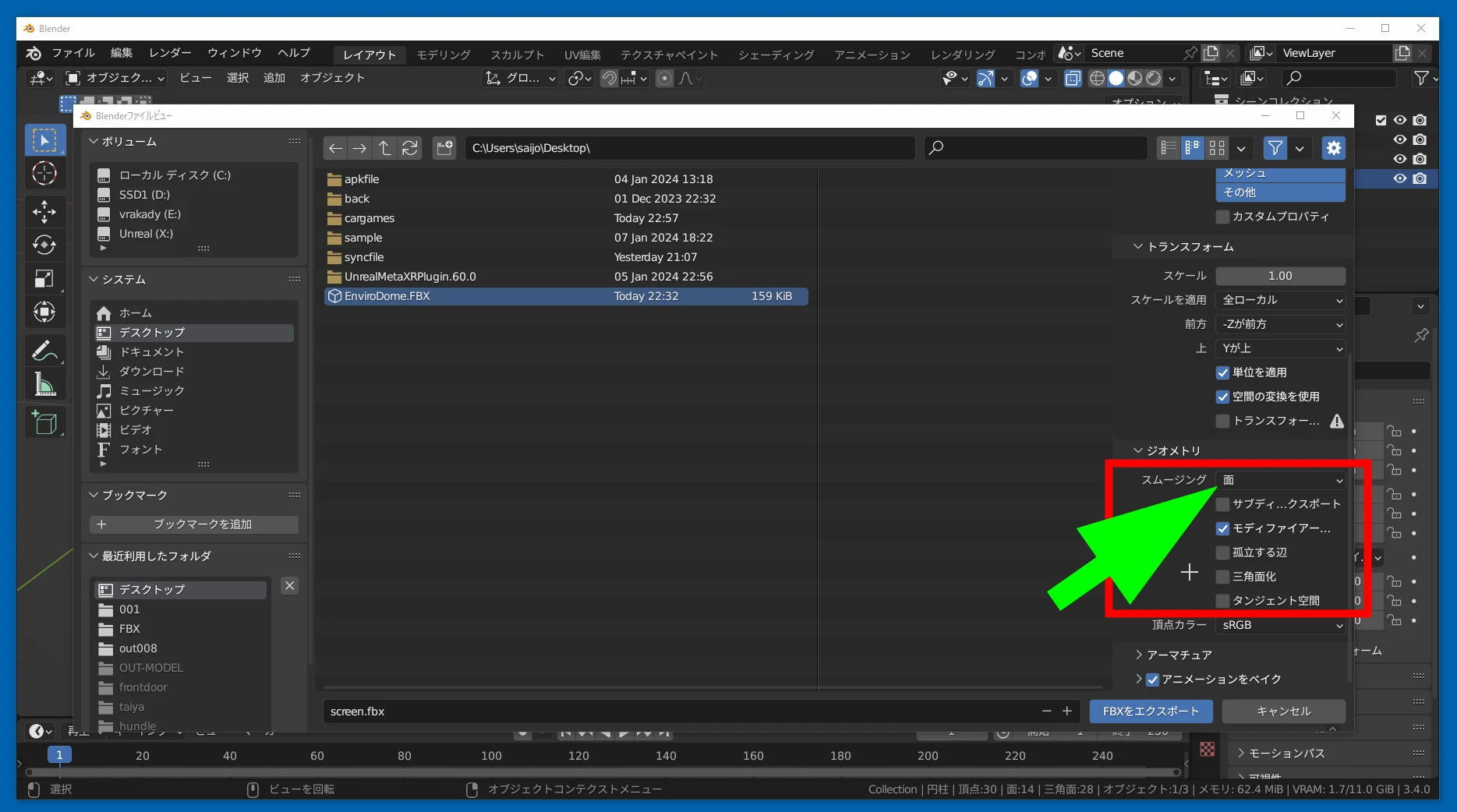
  Export it as FBX, setting Geometry > Smoothing to Face. I have the impression this avoids an import warning in UE5; it is something of a precautionary habit.
  Import the exported FBX and adjust the settings as appropriate.
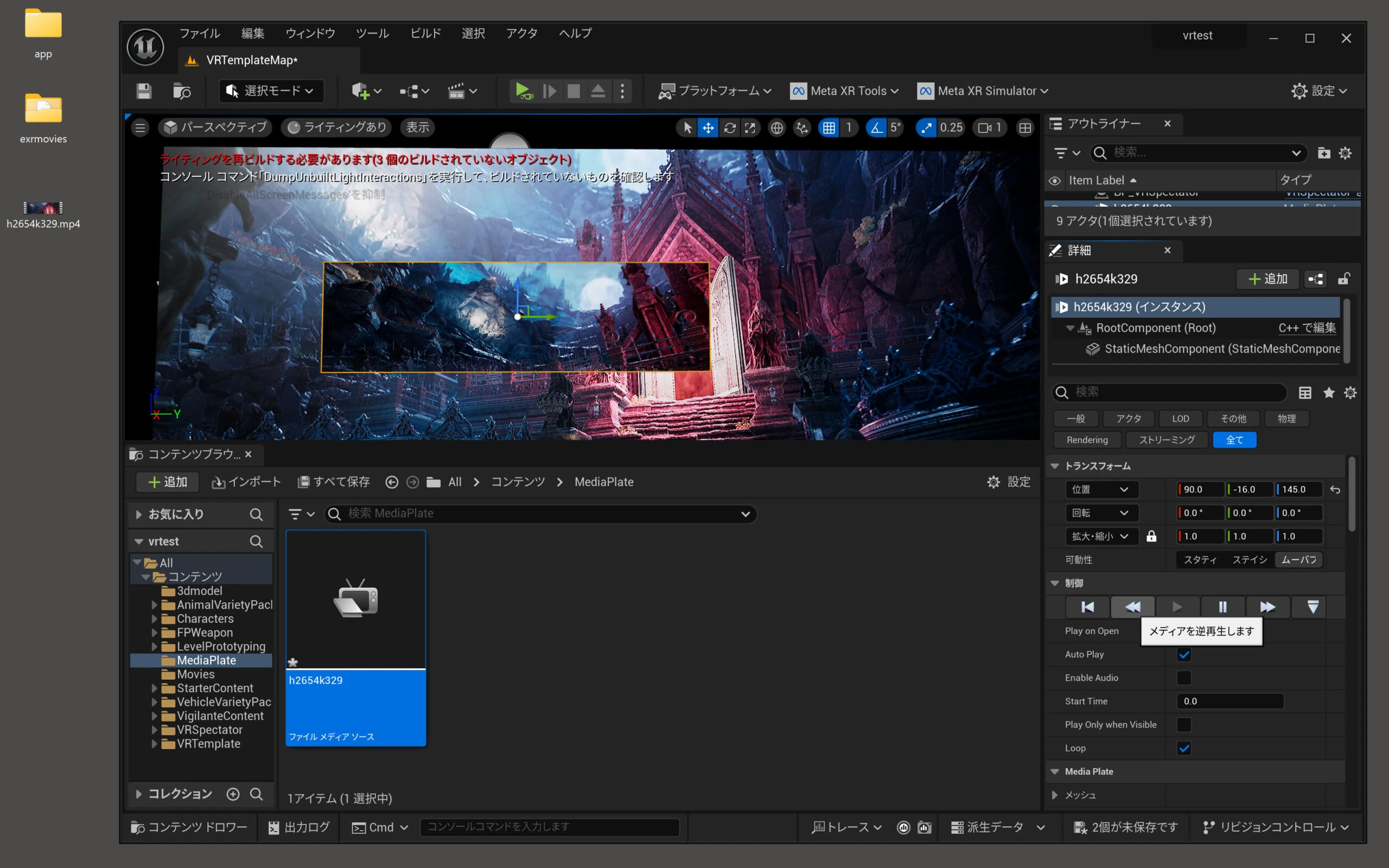
 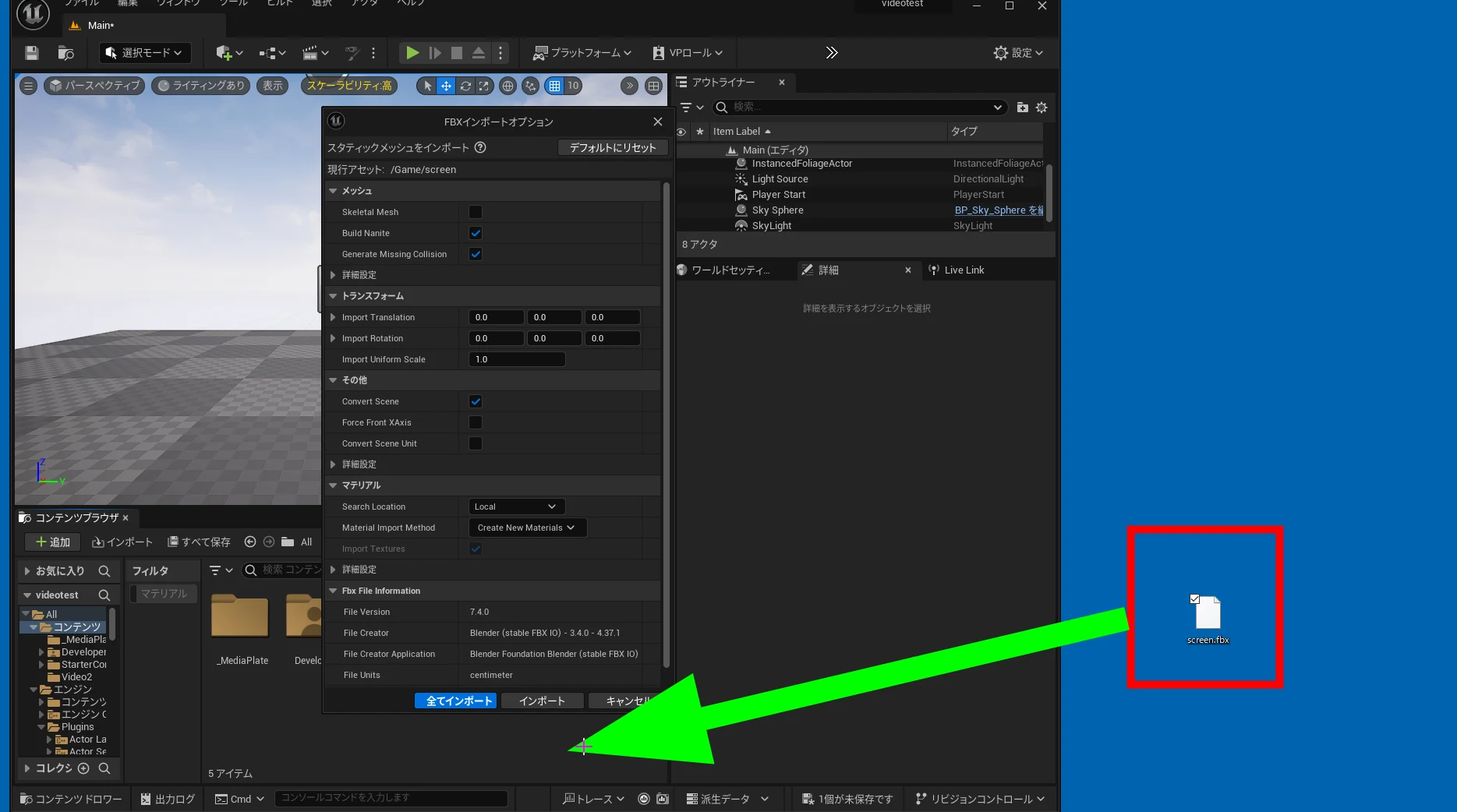 Drop in a video.
 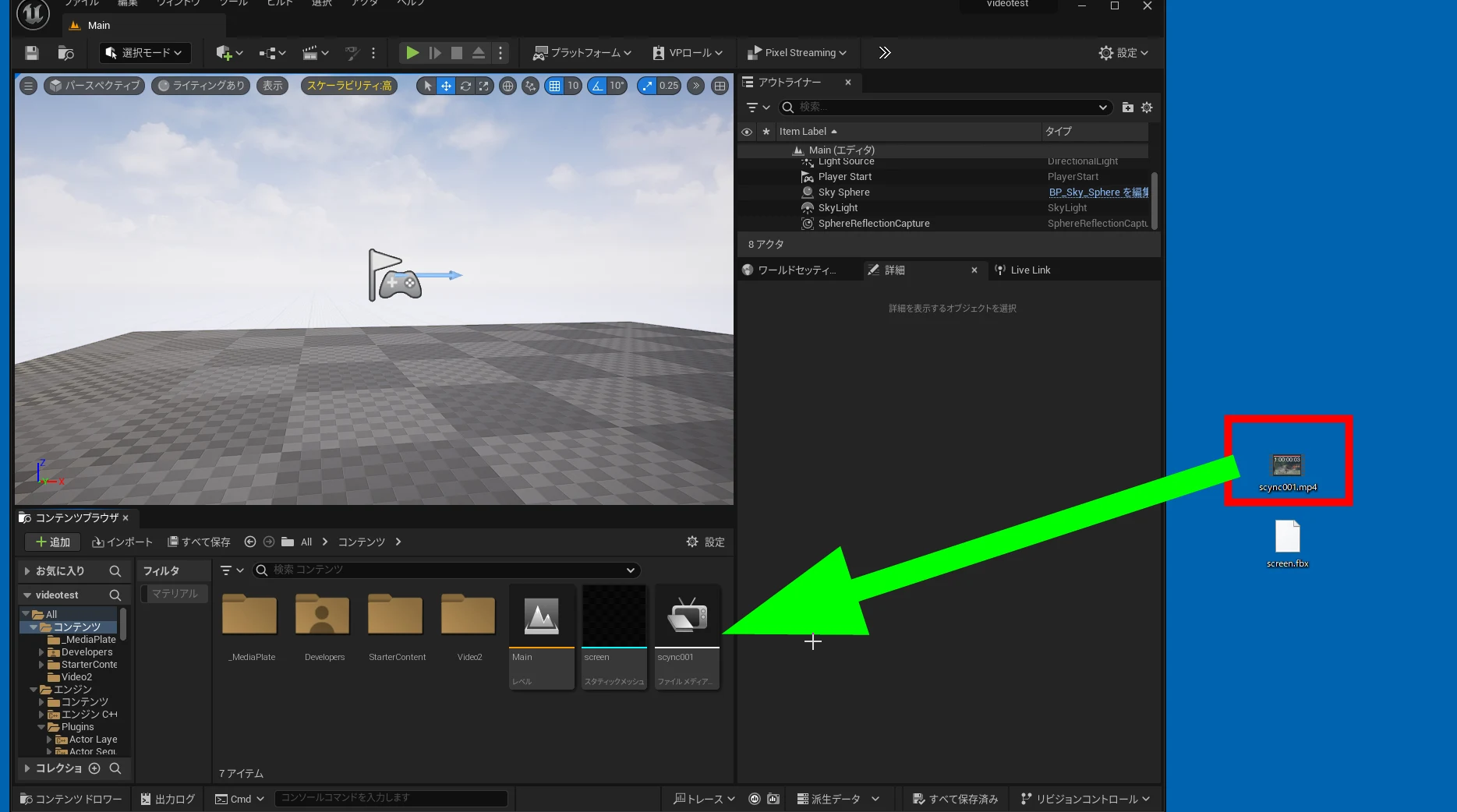 Drop the video into the level. Media Plate makes it convenient to play a video simply by dropping it into the scene.
 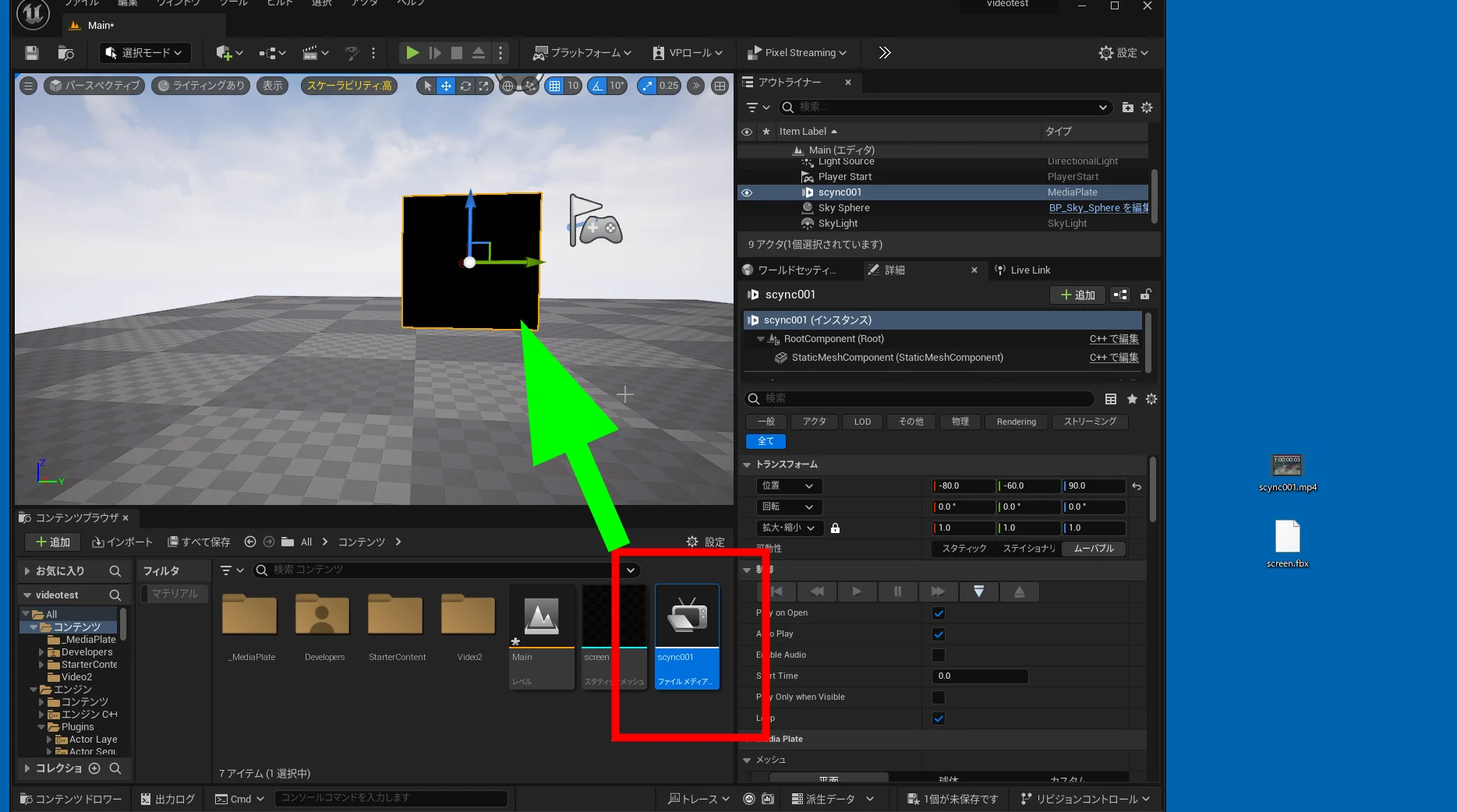 You can also build a screen from a sphere by specifying its field of view. This is often more suitable for equirectangular maps. To use your own shape, choose Custom next to the spherical option.
 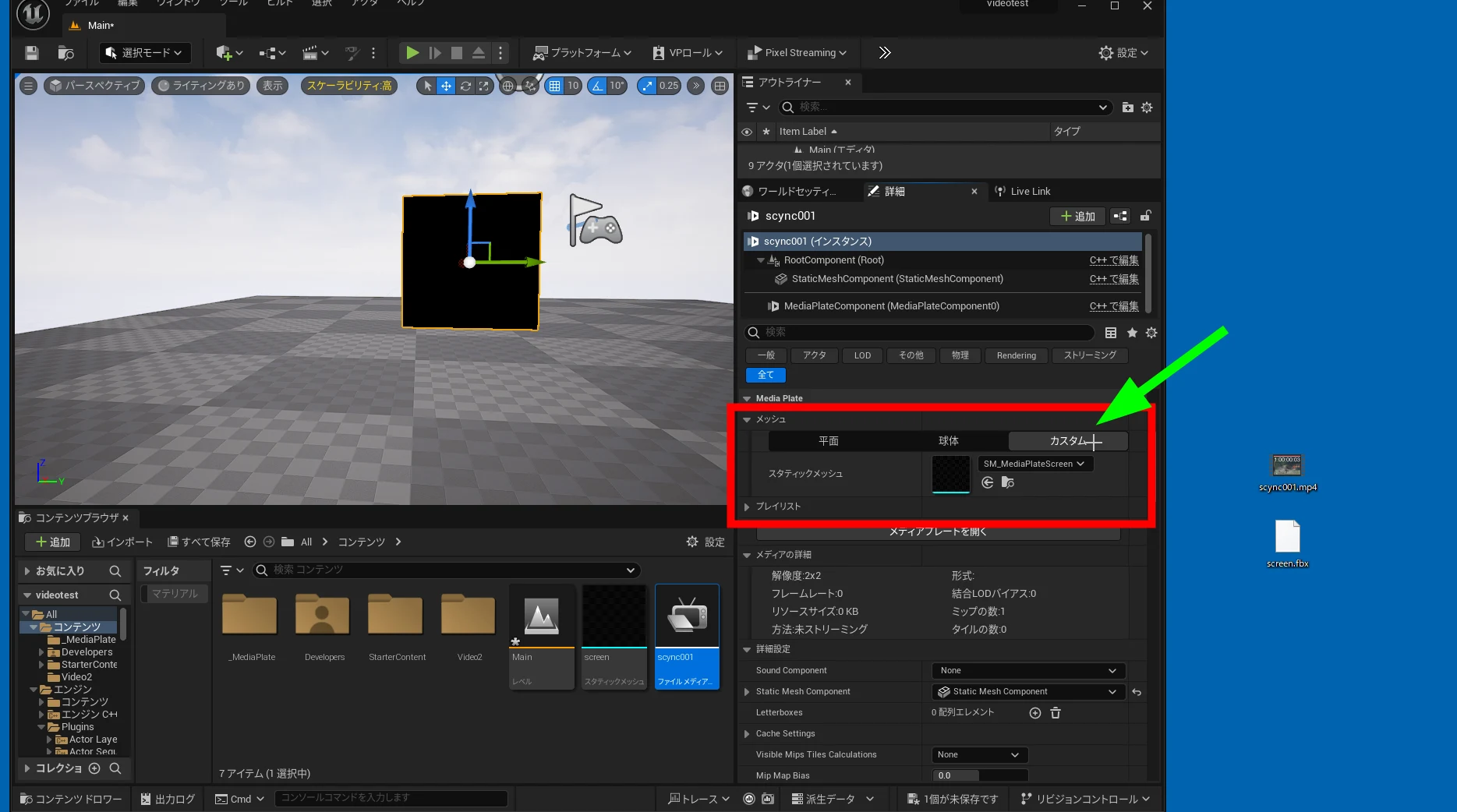 Assign the FBX you created earlier.
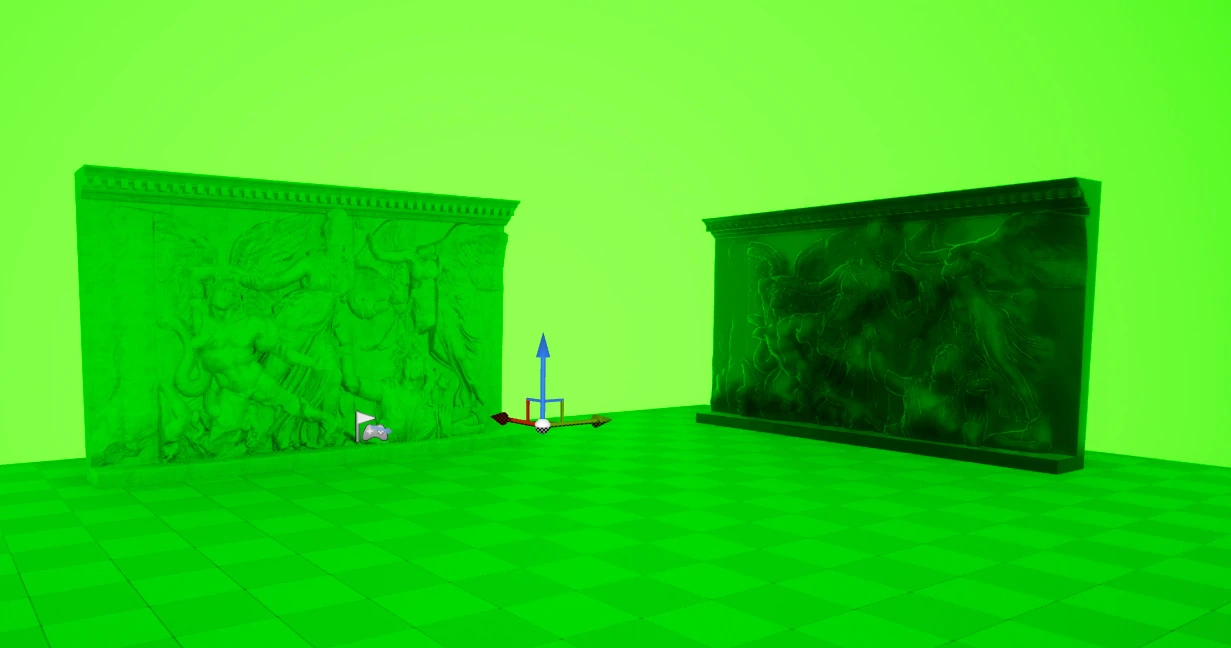
 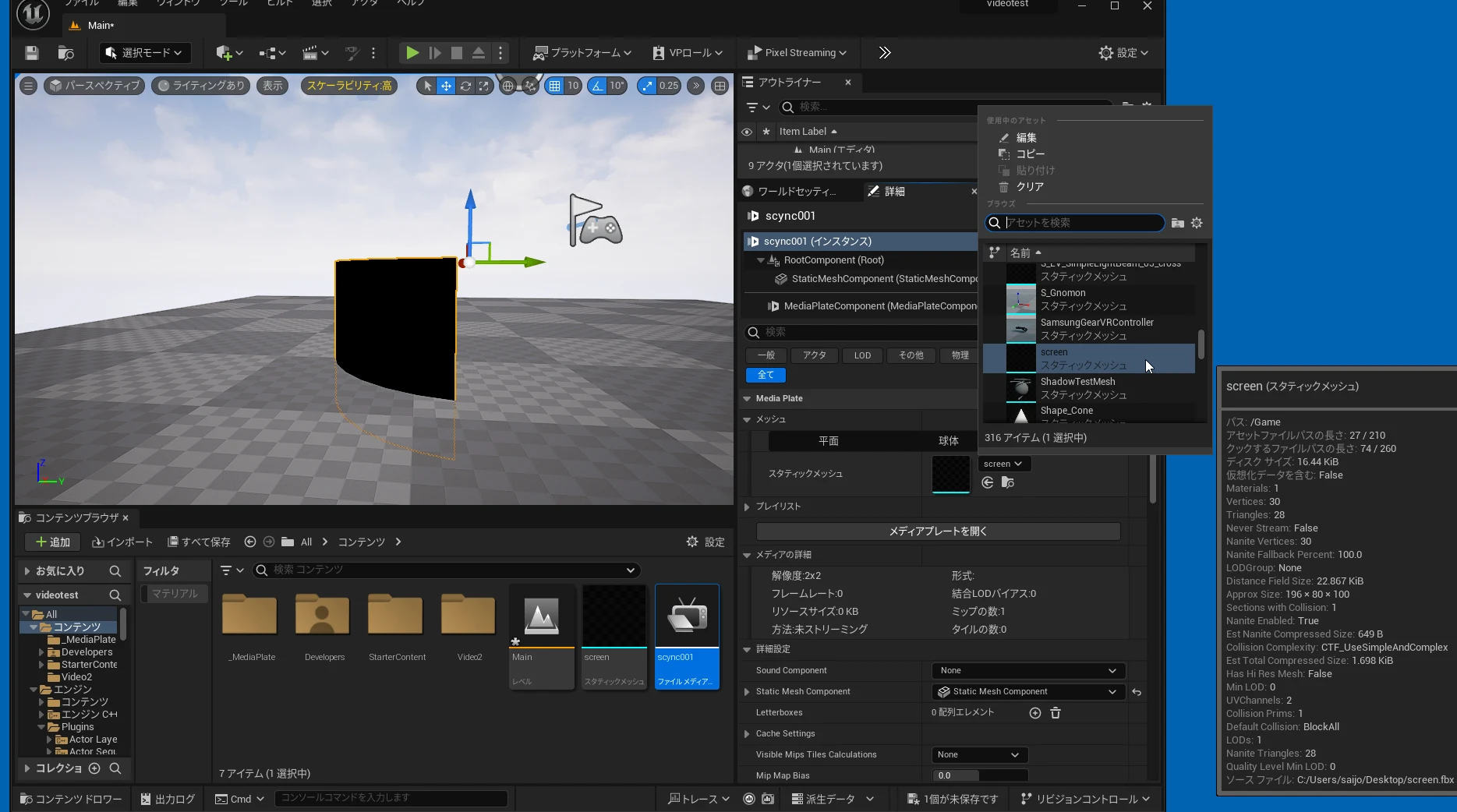 The result is a curved screen like this.
 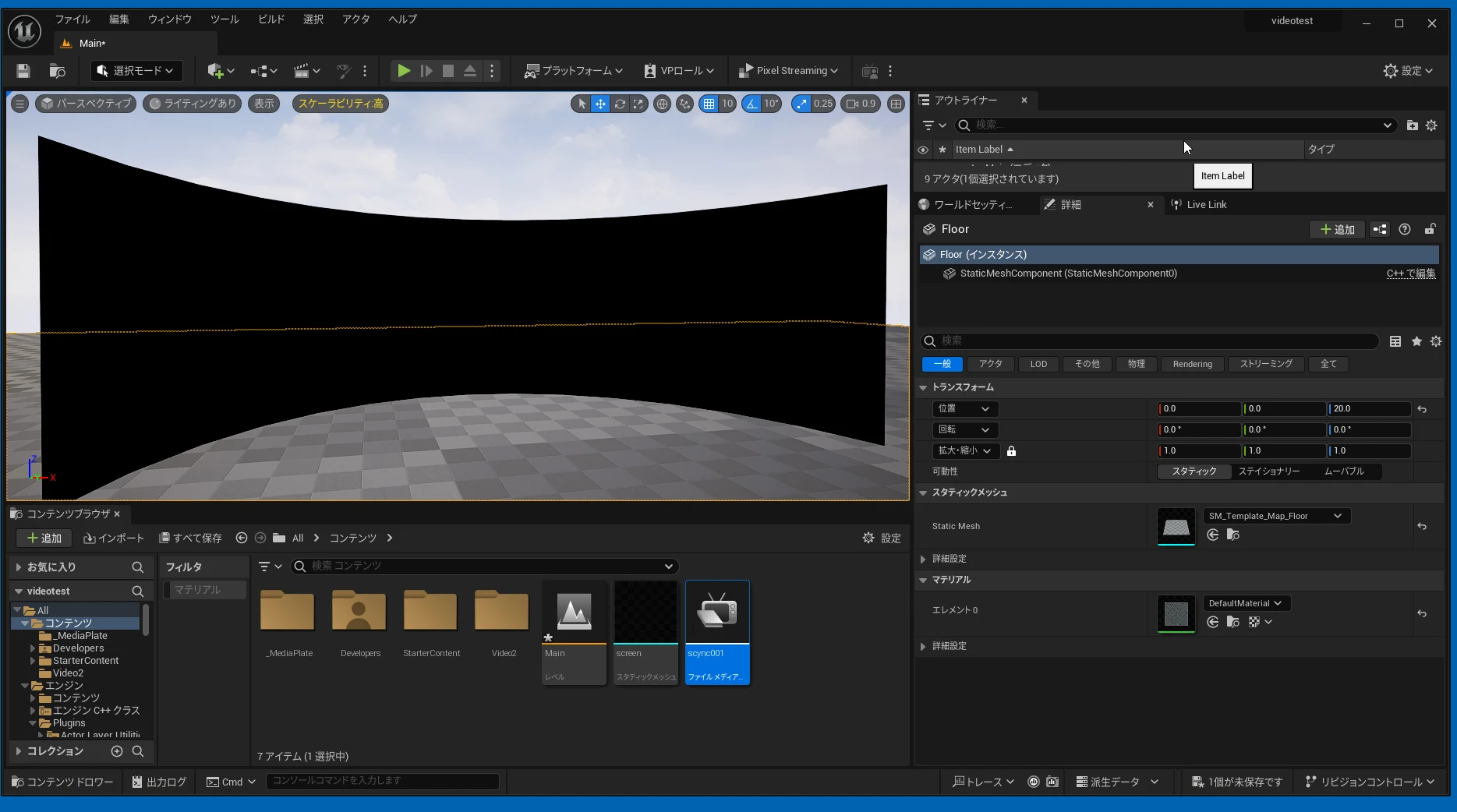 Play the video. It will often appear upside down or reversed. You can return to Blender and flip the mesh orientation.
 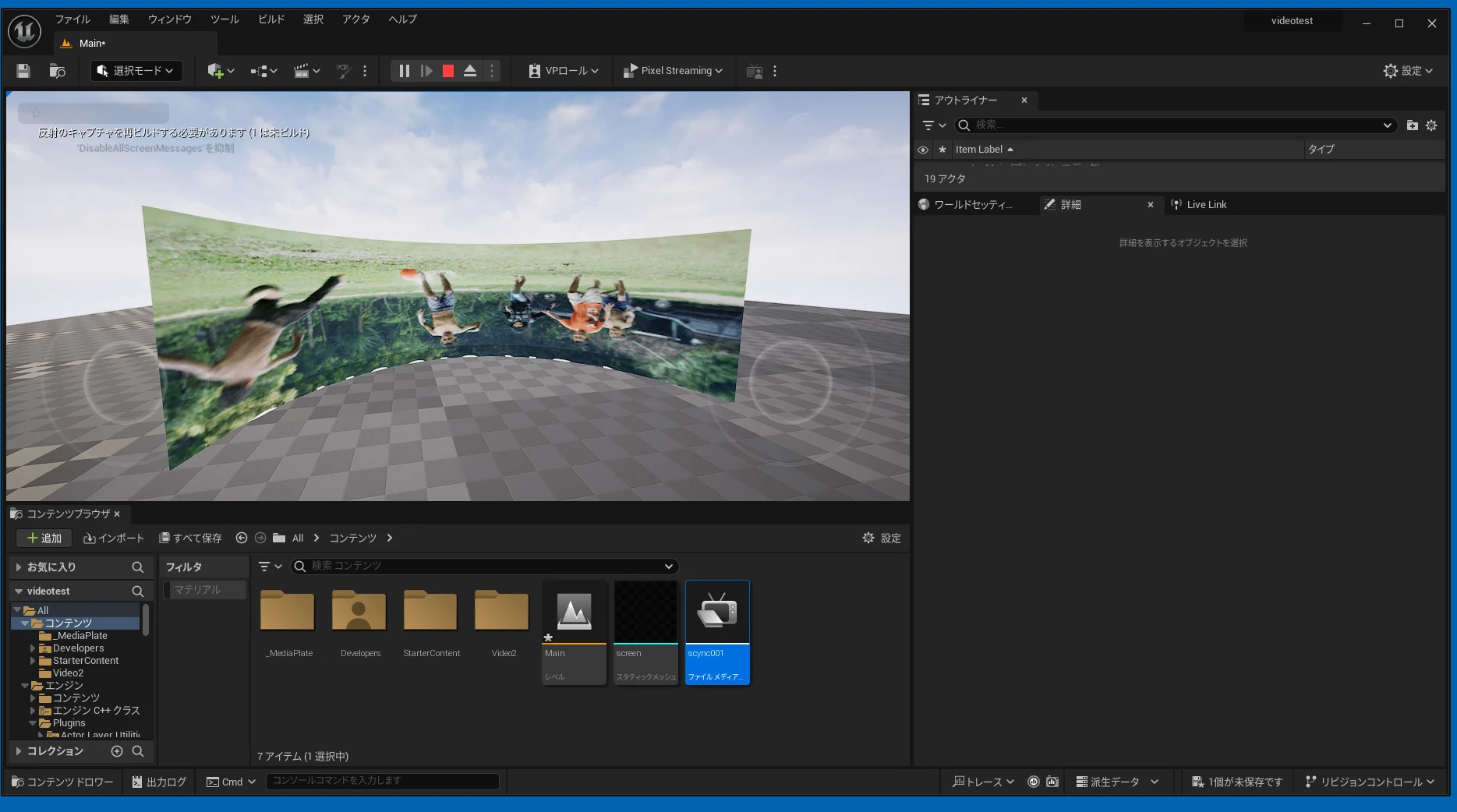 You can also flip the mesh orientation inside UE5. I hope this provides a useful starting point when you need a video screen with a custom shape.
Related articles
Updates and contact: X @riragoncom.