Two ways to play video on a screen in a UE5 level: Media Plate and a Blueprint setup
A January 8, 2024 walkthrough using UE 5.3.2 to place and play video in a level. It covers the simpler Media Plate approach first, followed by the older Media Player and Blueprint workflow.
Note: This article was published more than a year ago.
- H.265/HEVC decoding on Windows and UE depends on the OS, GPU, and installed store extensions. Check official compatibility information.
- Recommended Media Player containers and codecs vary by UE version. Consult the media documentation for your release.
- Distribution platforms and encoding tools update their required profiles.
This article uses UE 5.3.2 and was written on January 8, 2024.
Here are two ways to place and play video on a screen actor inside a UE5 level.
There are two main approaches.
The older approach imports the footage and configures a Blueprint to play it.
The newer approach uses Media Plate.
I will begin with Media Plate.
A video file has a container and a codec. A container is the wrapper, associated with extensions such as MP4 or MOV. The codec is the compression method, such as H.265 or H.264. I recommend MP4 in UE5 because it tends to cause fewer problems. H.265 inside MP4 is my suggested combination here. Also see UE5's Media Framework How-To guides, a collection of walkthroughs for using Media Framework.
https://docs.unrealengine.com/5.3/ja/working-with-media-in-unreal-engine/
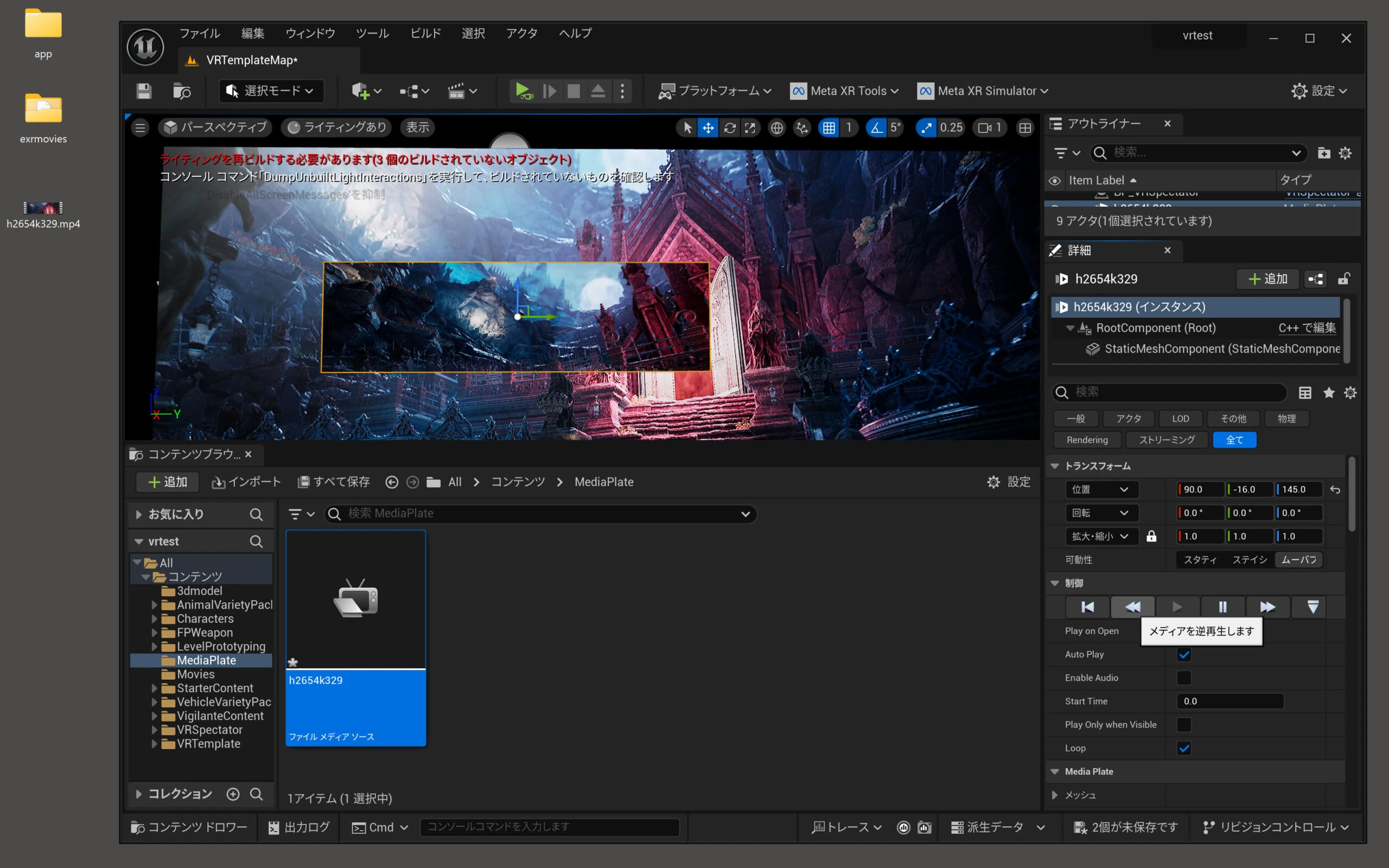
Place and play video in a UE5 level with Media Plate
The old workflow involved several fiddly steps. UE5's Media Plate actor makes it much easier. Also see the UE5 Media Plate actor documentation.
https://docs.unrealengine.com/5.1/ja/the-media-plate-actor-in-unreal-engine/
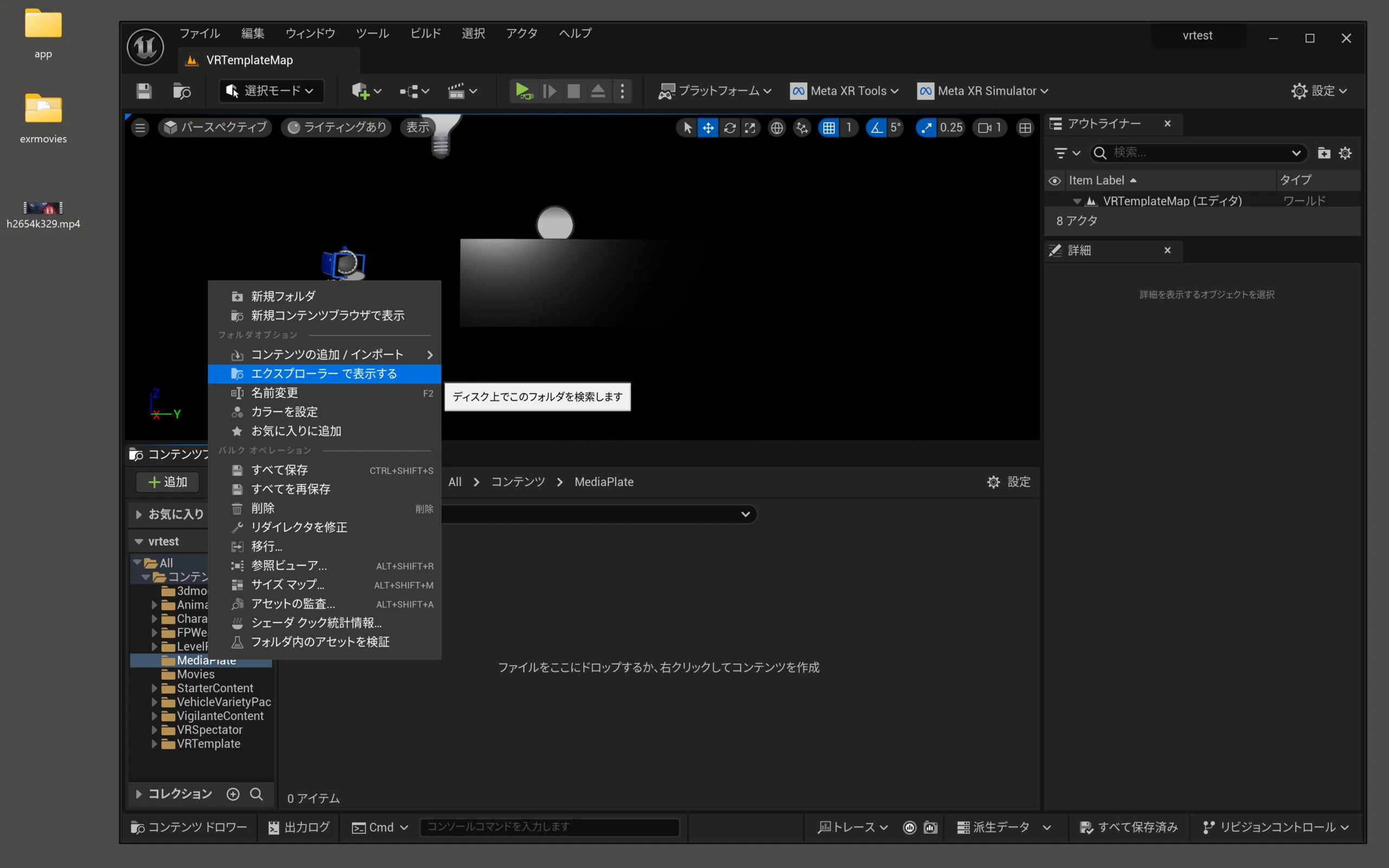
First, create a suitable video folder inside the UE5 project's Content directory. Use Show in Explorer to open the actual directory. I place the real video file there because it otherwise will not be packaged into the APK.
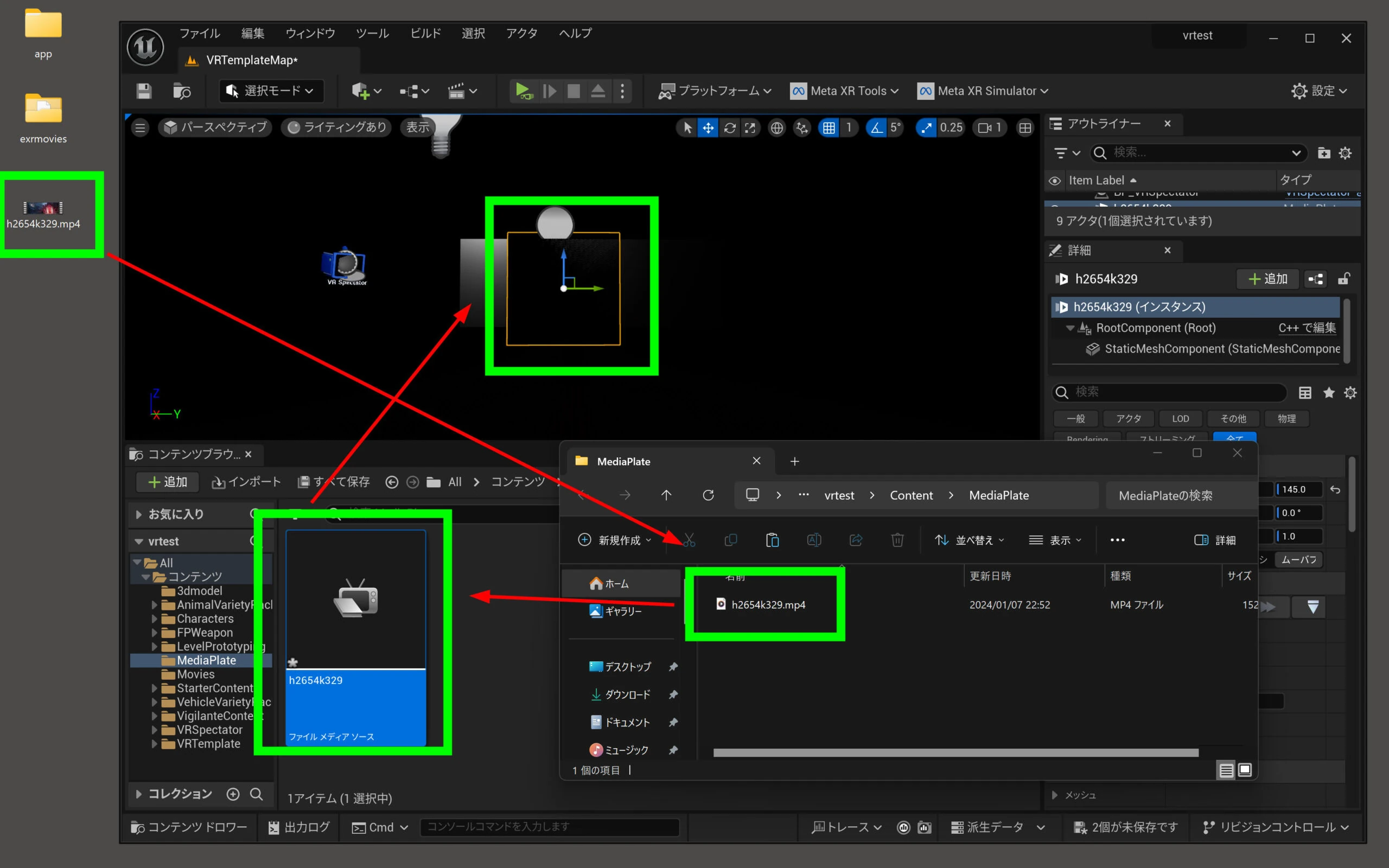
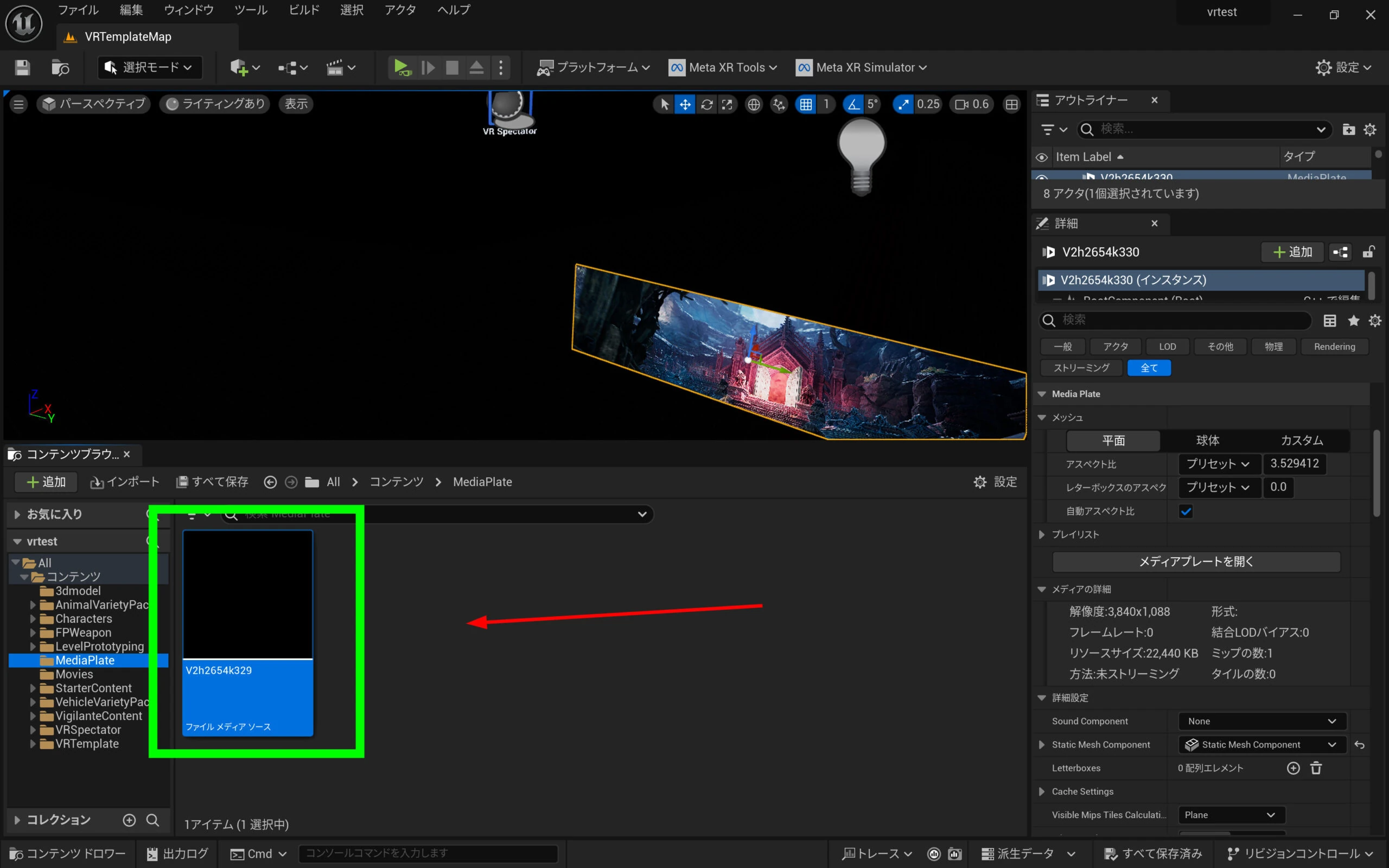
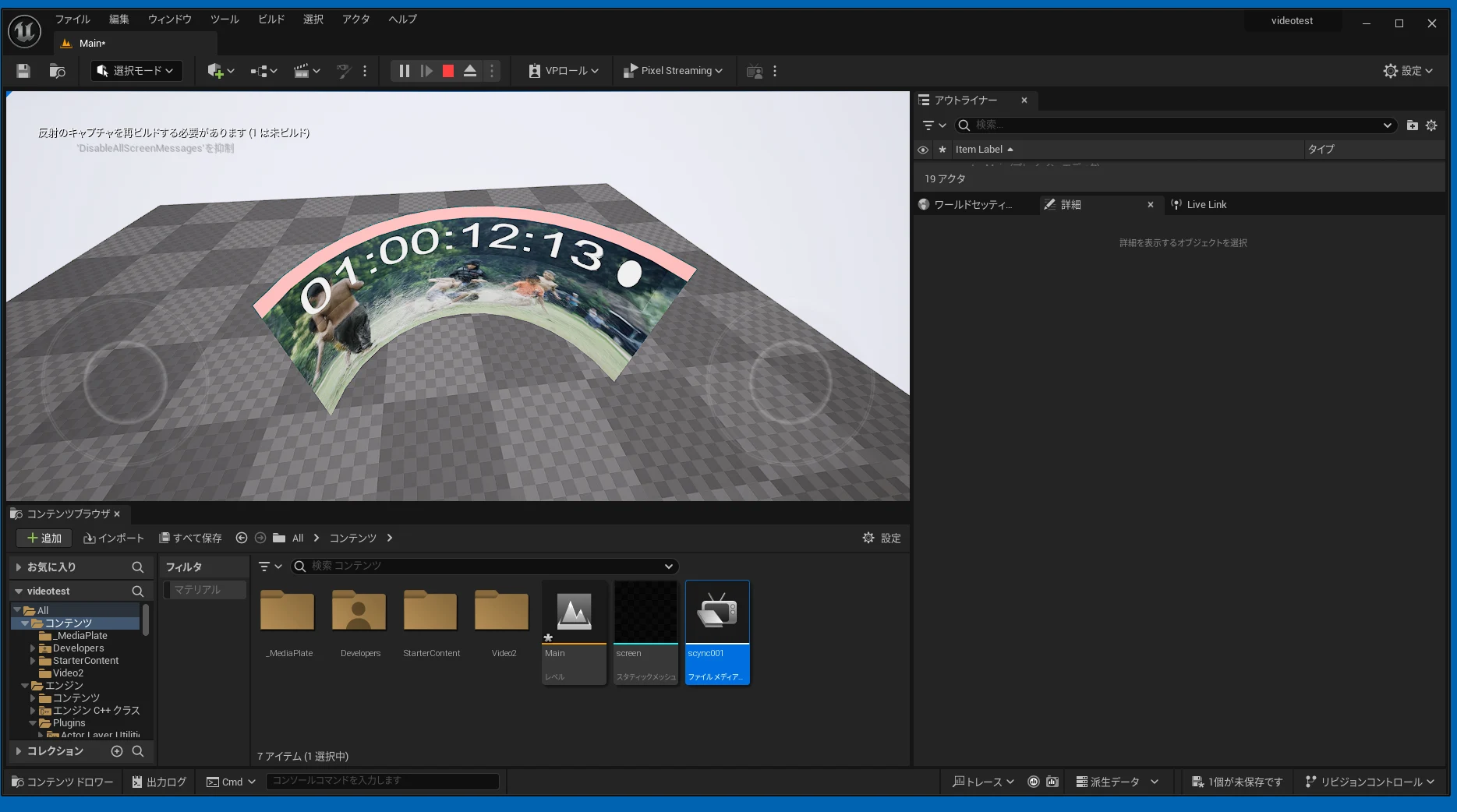
 Move the video into that folder. Drag it into the corresponding Content Browser folder, then drag the resulting File Media Source into the preview area. That is all.
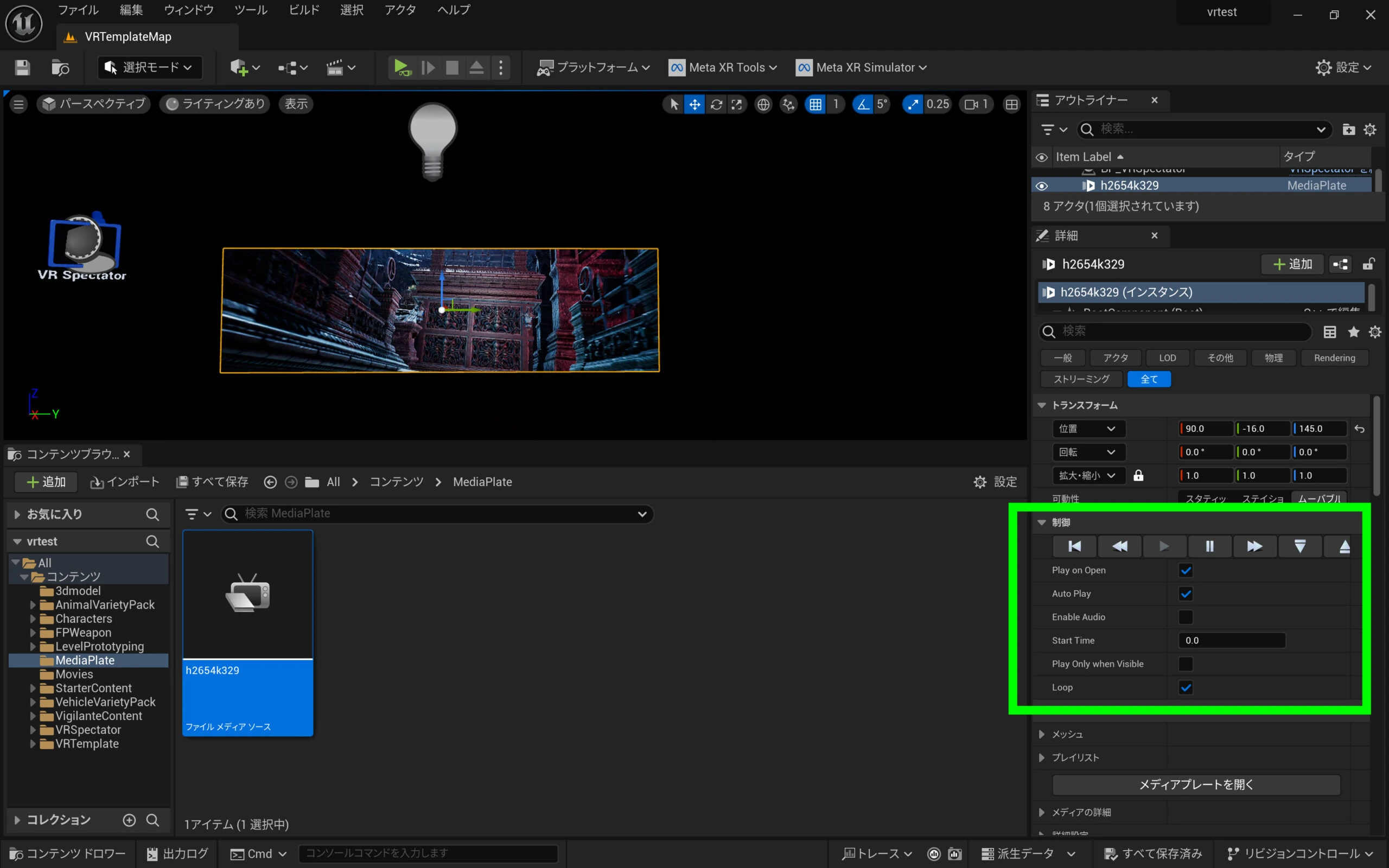
 Playback controls no longer require a Blueprint. Configure them in the right-hand panel; the defaults are sufficient for a quick test.
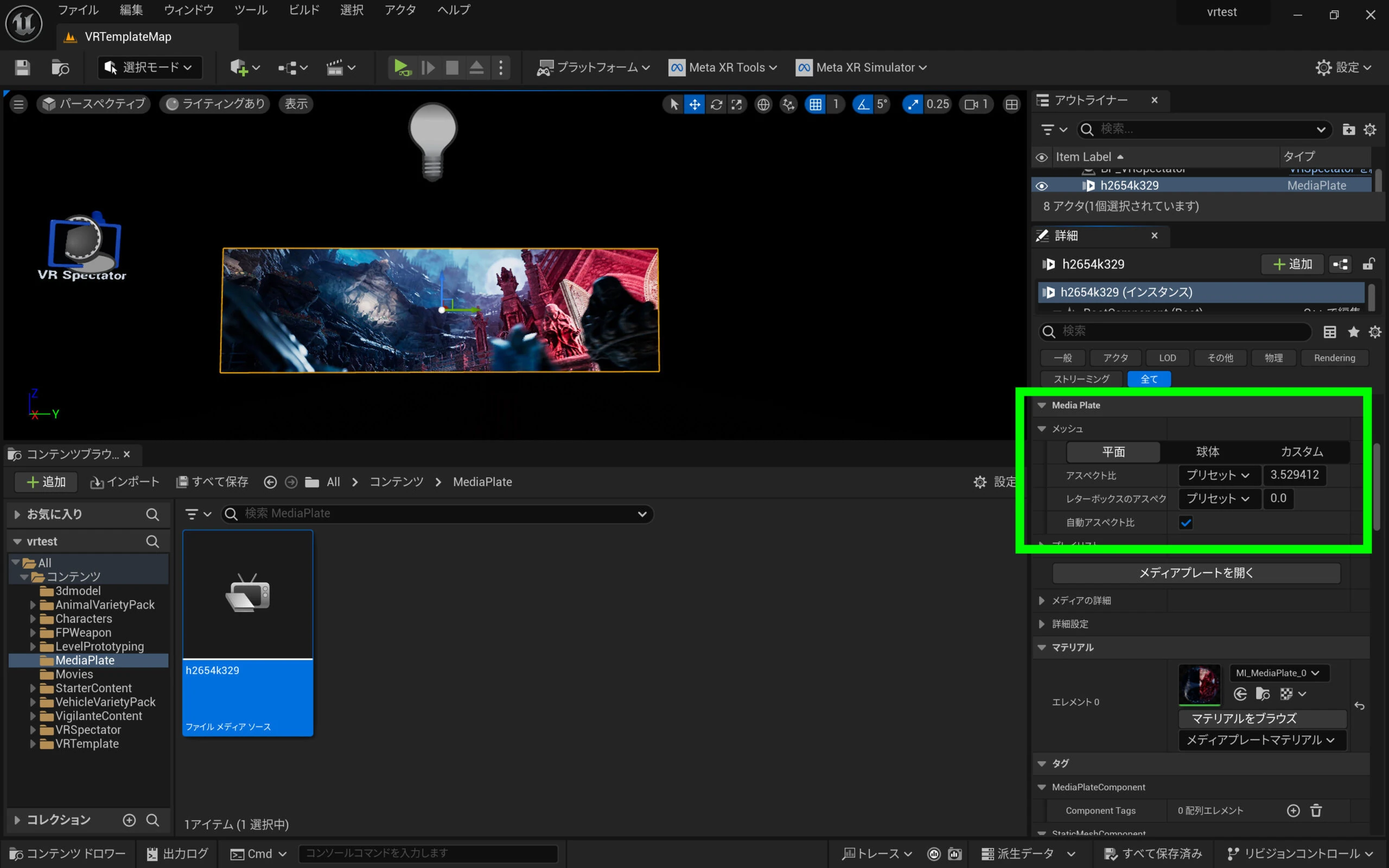
 The screen shape is also easier to adjust. With automatic aspect ratio enabled, it follows the source video's dimensions. You can set it manually too.
 Check the video URL so playback works after APK export. Double-click the File Media Source.
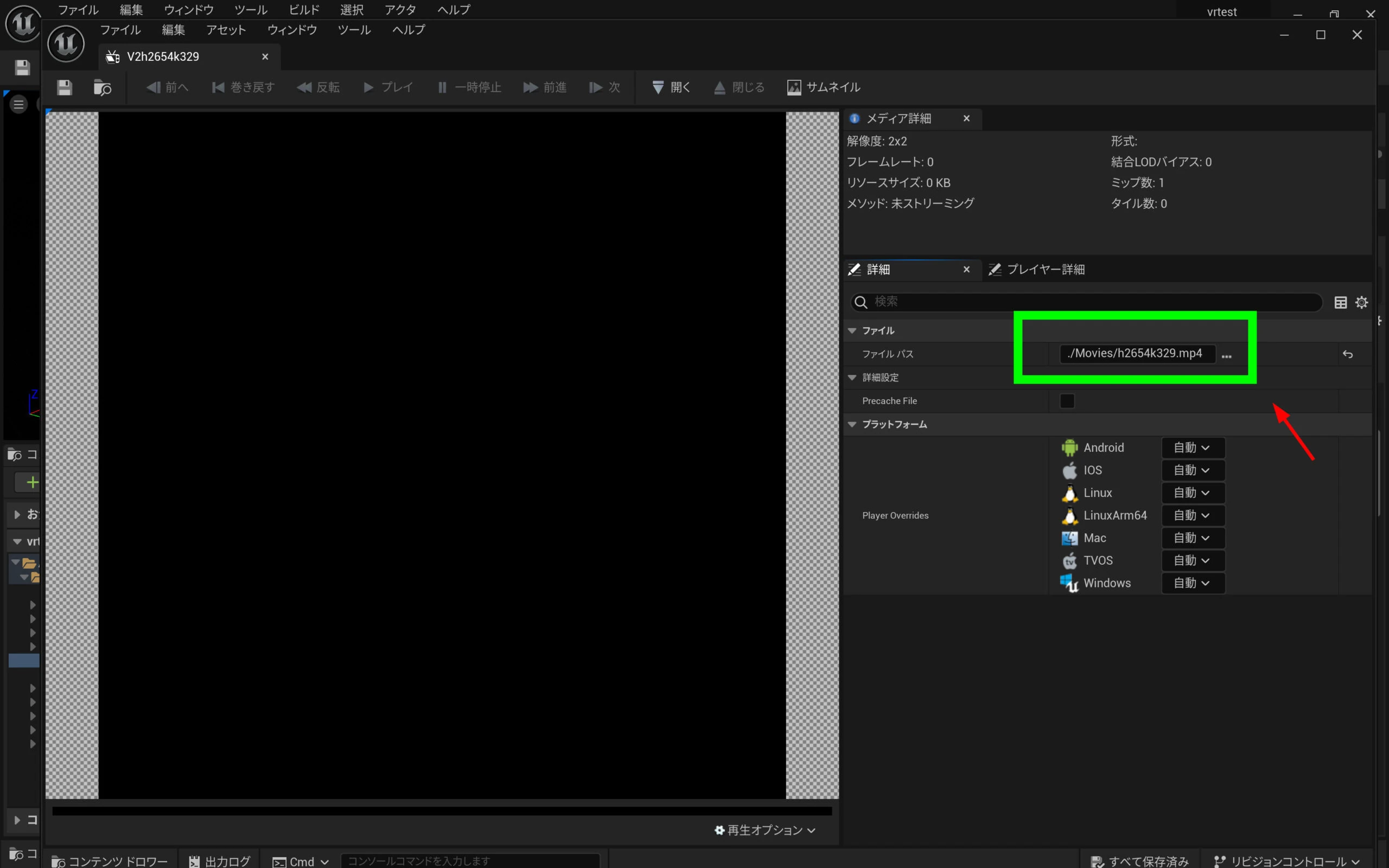
 An exclamation mark beside File Path indicates that the referenced location will not package into the APK. Point it at the MP4 moved inside the UE5 project's Content directory.
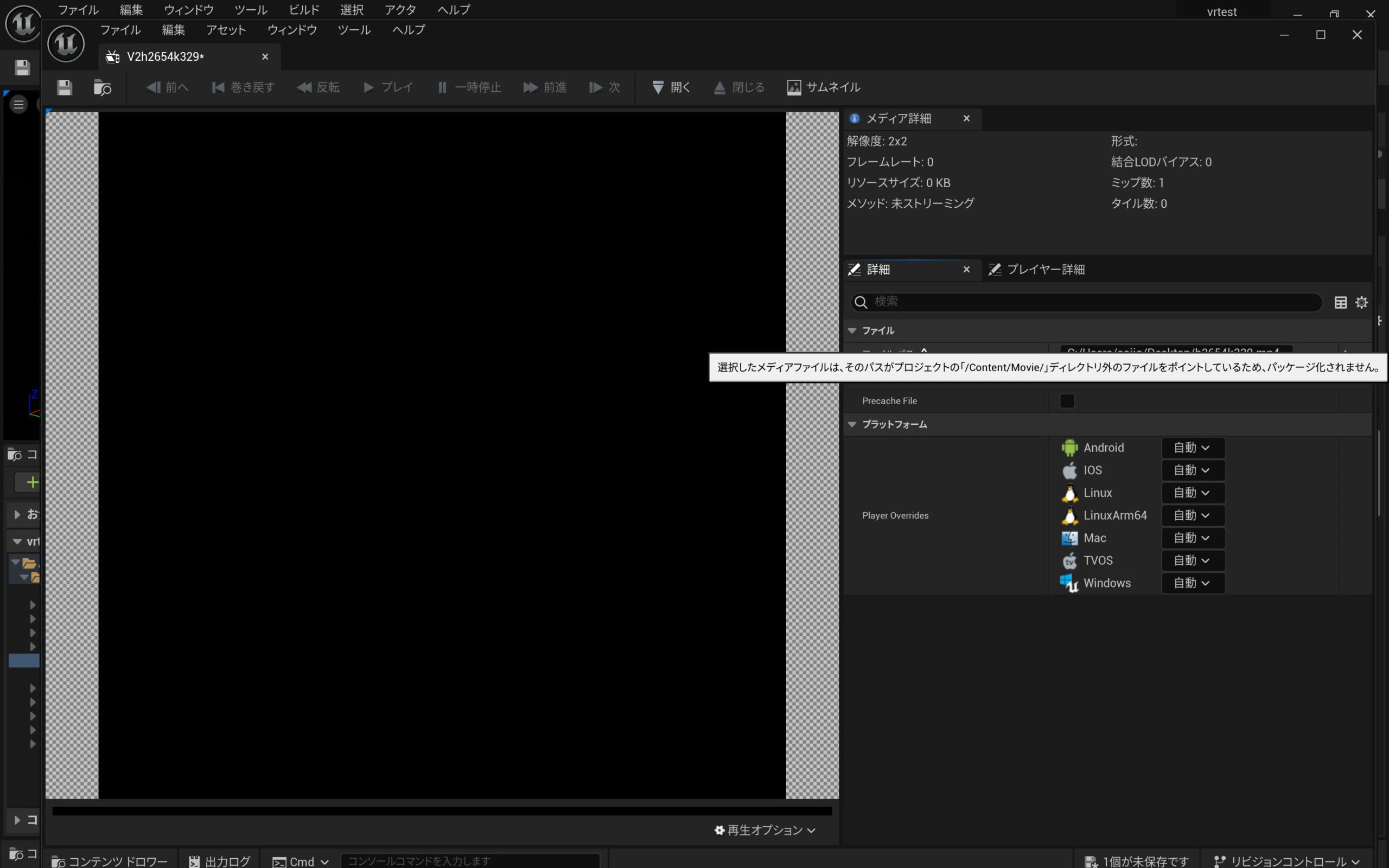
 A path pointing at a Desktop folder or another external directory will not package correctly.
 After exporting the APK, the video played successfully. Done. That was easy!
The older method: place and play video through a Blueprint
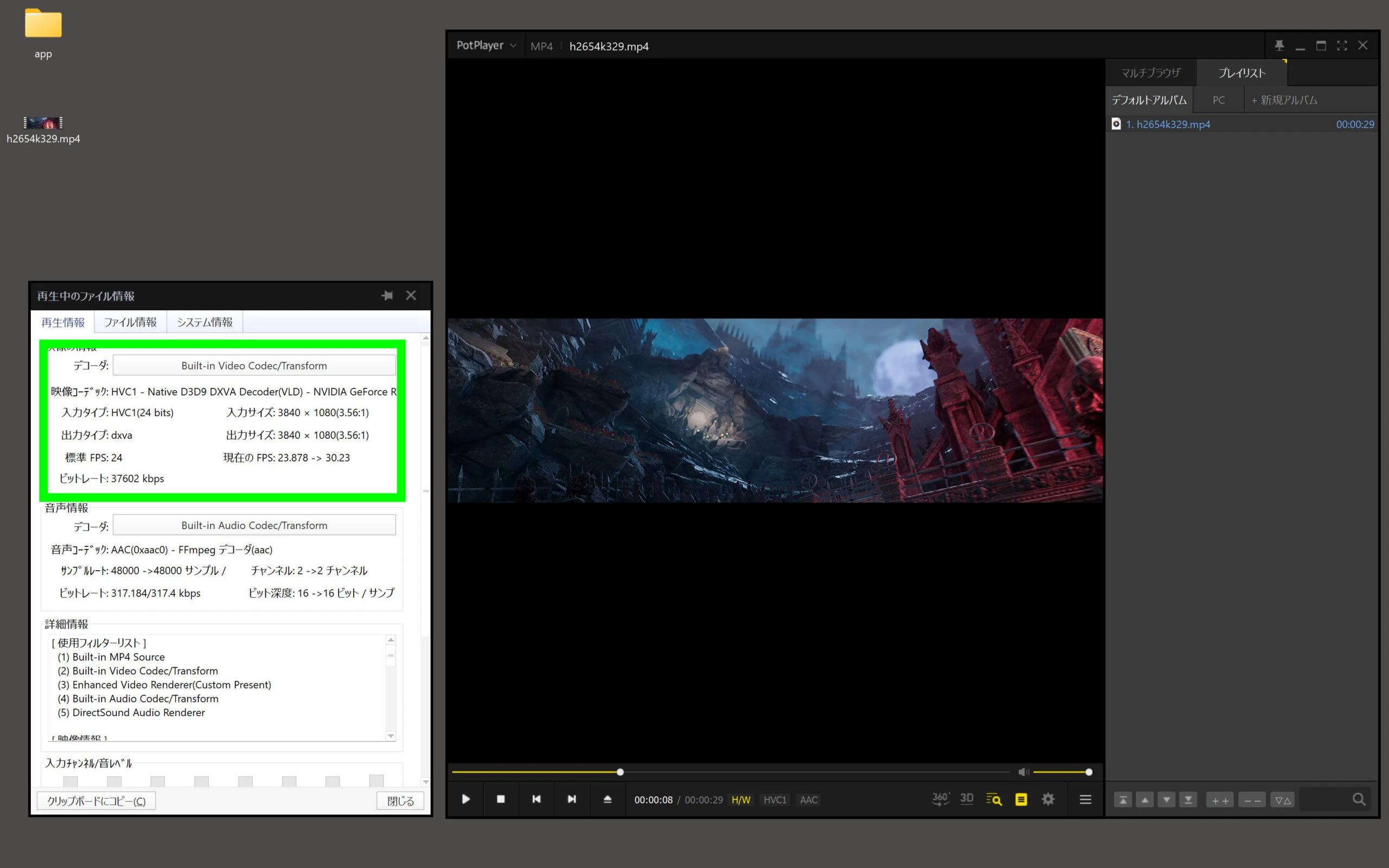
The older method imports footage and uses a Blueprint for playback. I created a 3840 × 1080, 24p video, an ultrawide 32:9 image, with an MP4 container and H.265 codec.
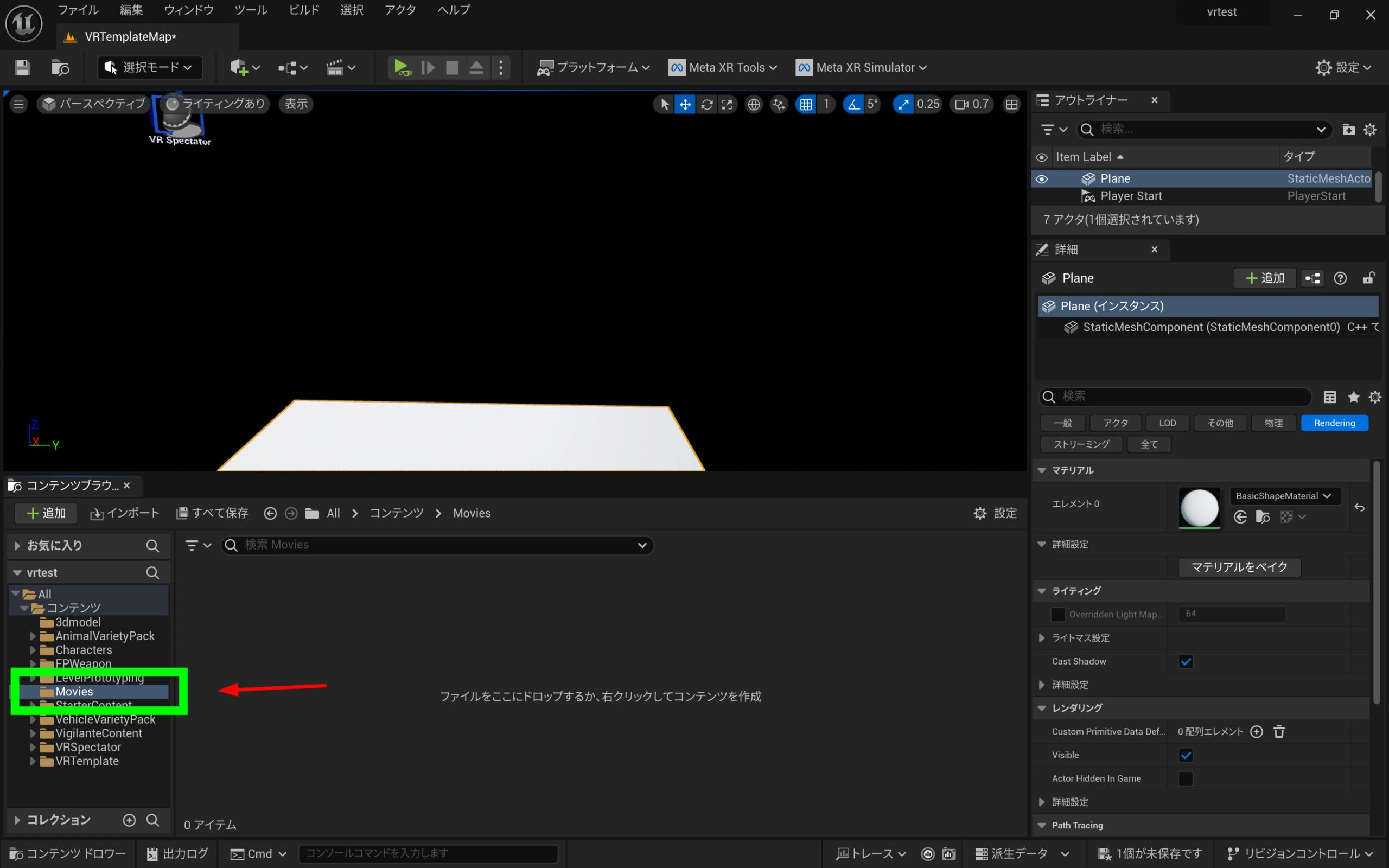
 Create a suitable folder such as Movies.
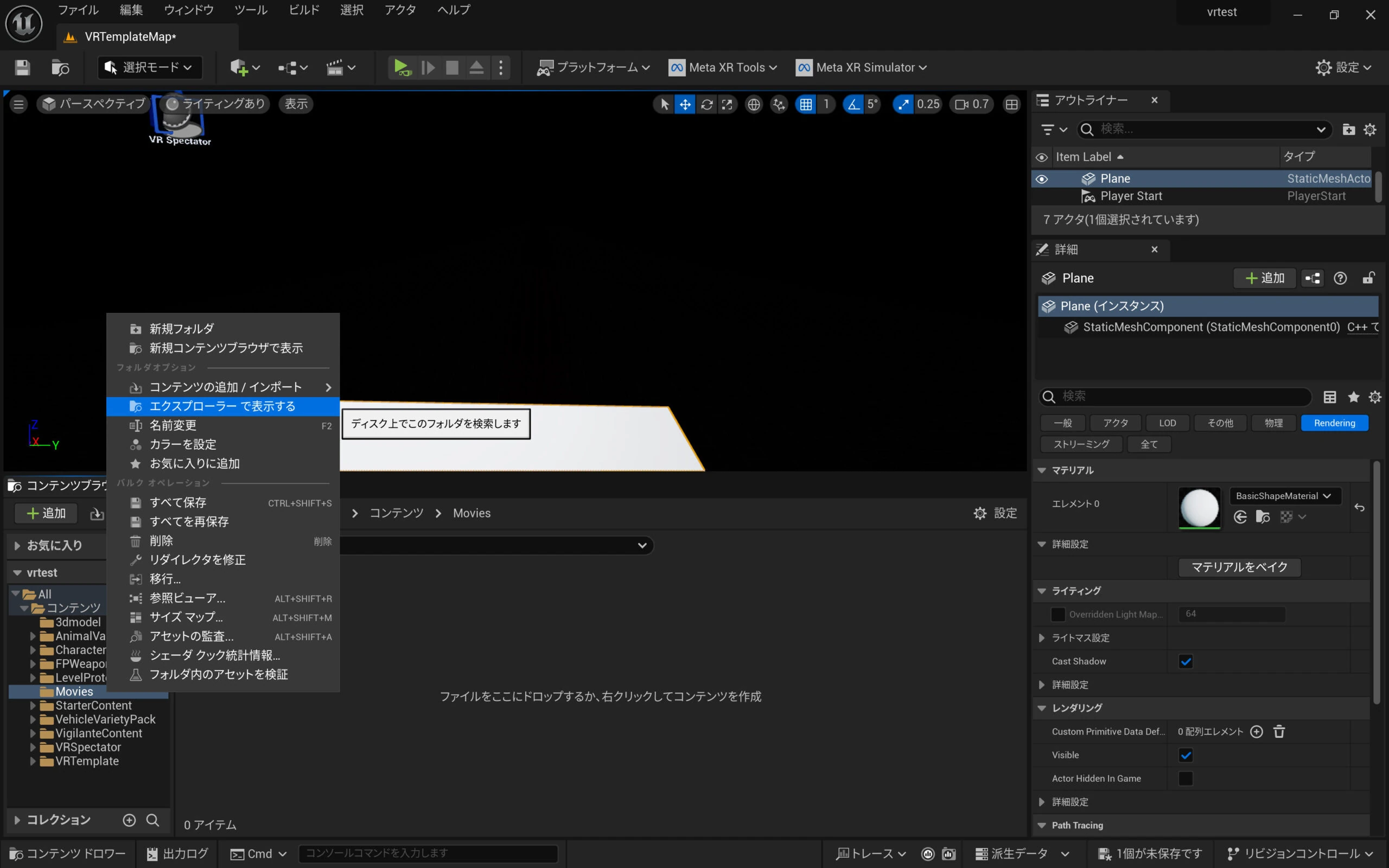
 Right-click Movies and choose Show in Explorer to open its actual directory. APK export requires the video to exist physically inside the project's Content directory.
 Move the video into Movies.
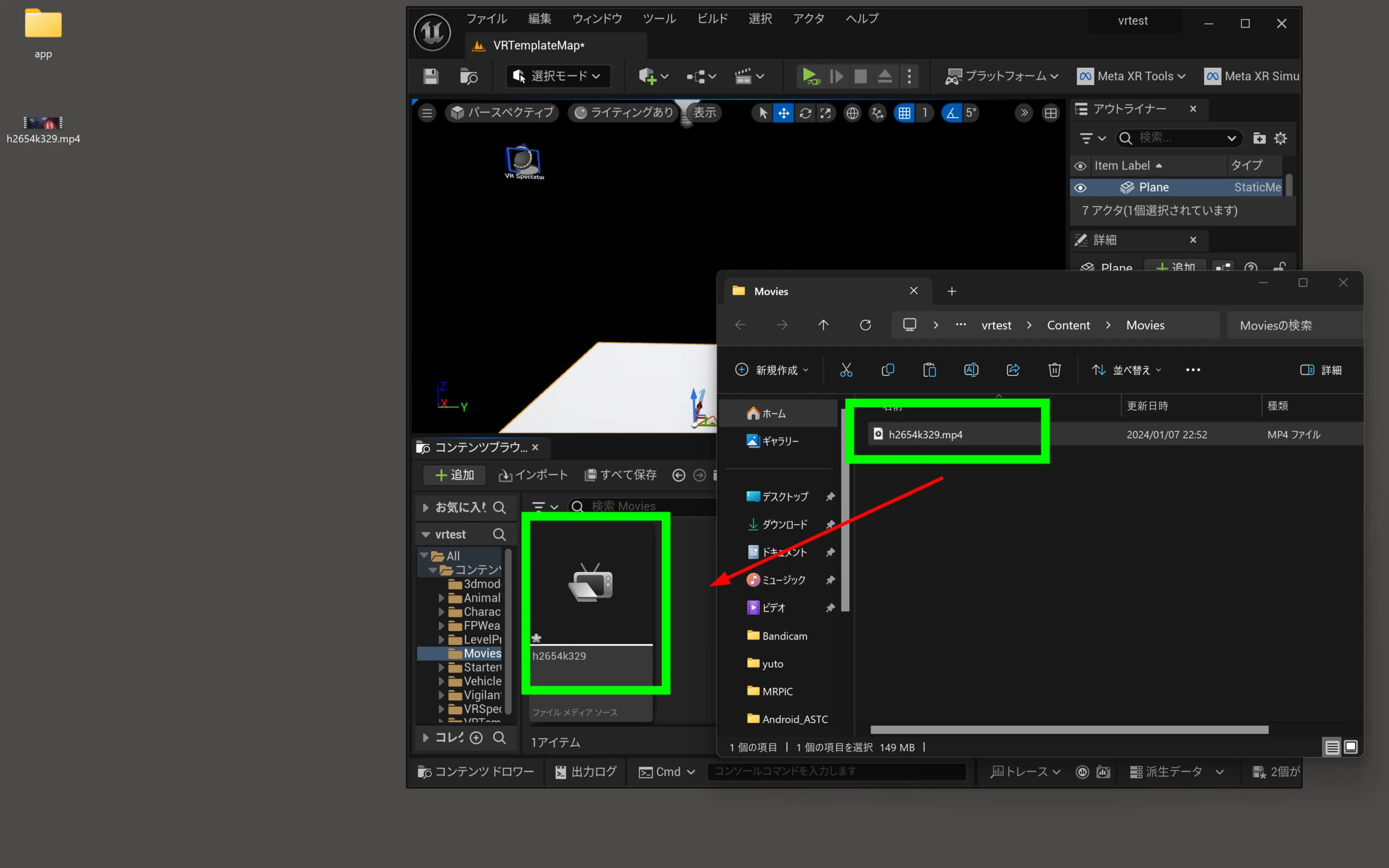
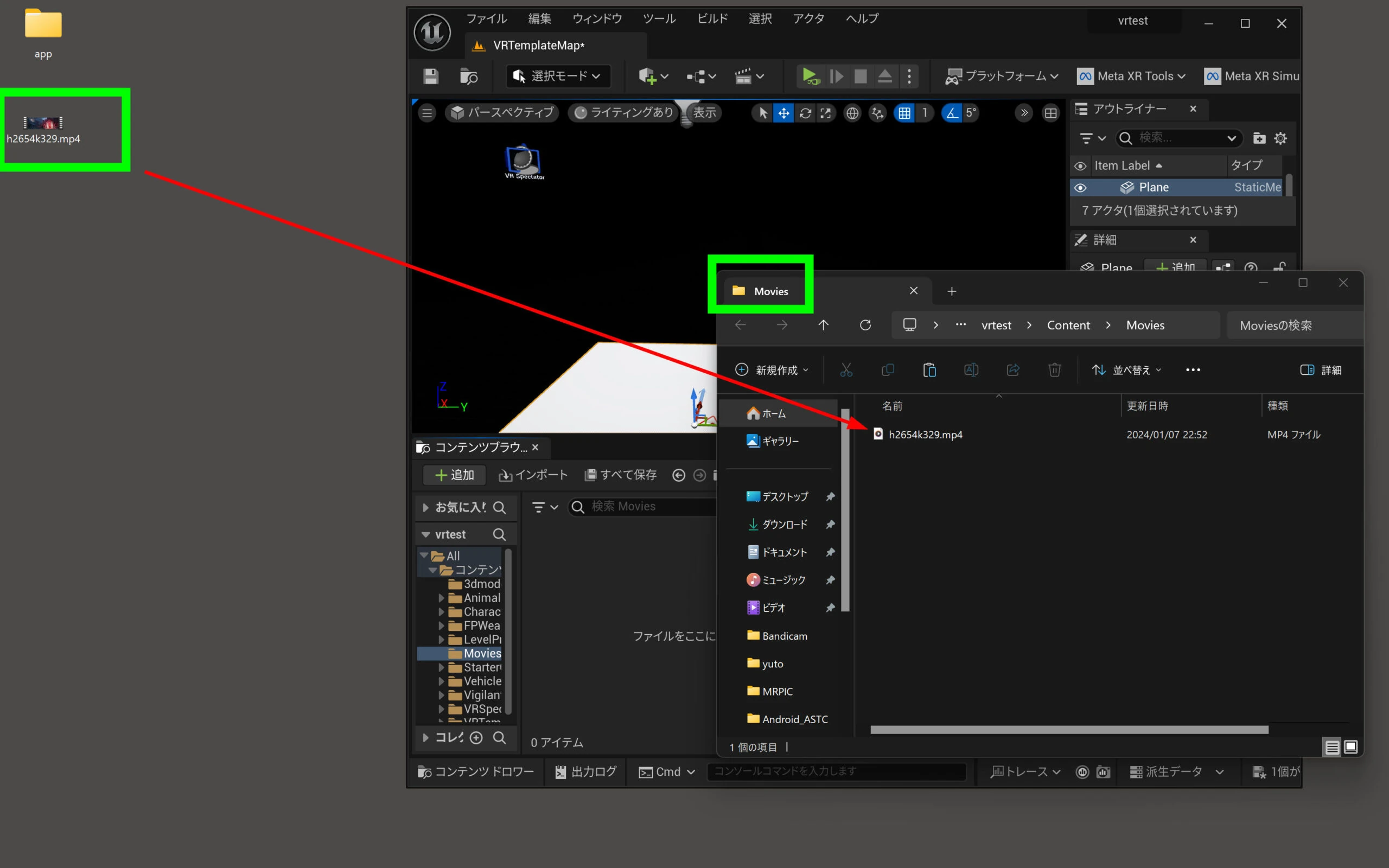 Drag it from Movies into the UE5 Content Browser.
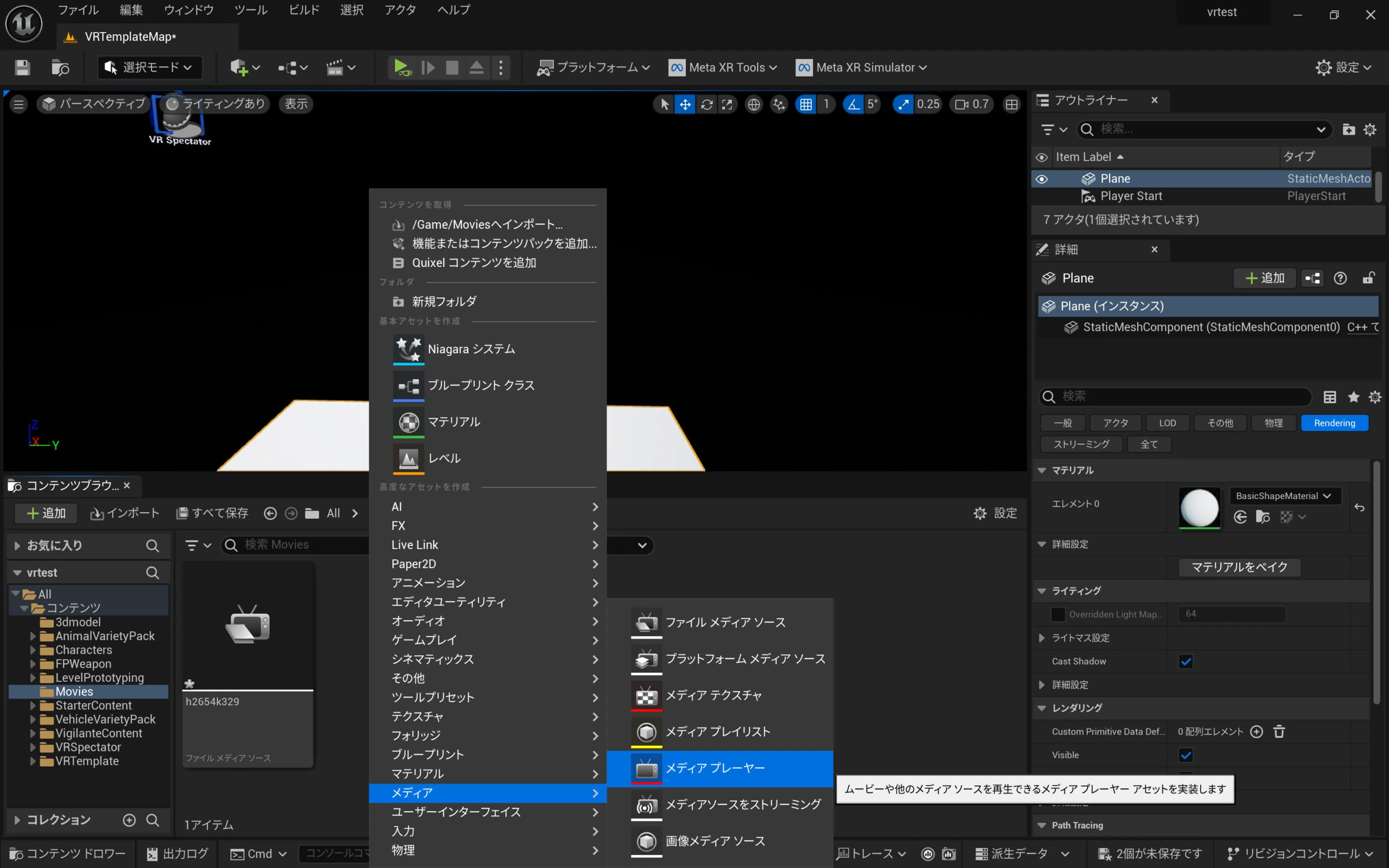
 Right-click in the Content Browser and add a Media Player.
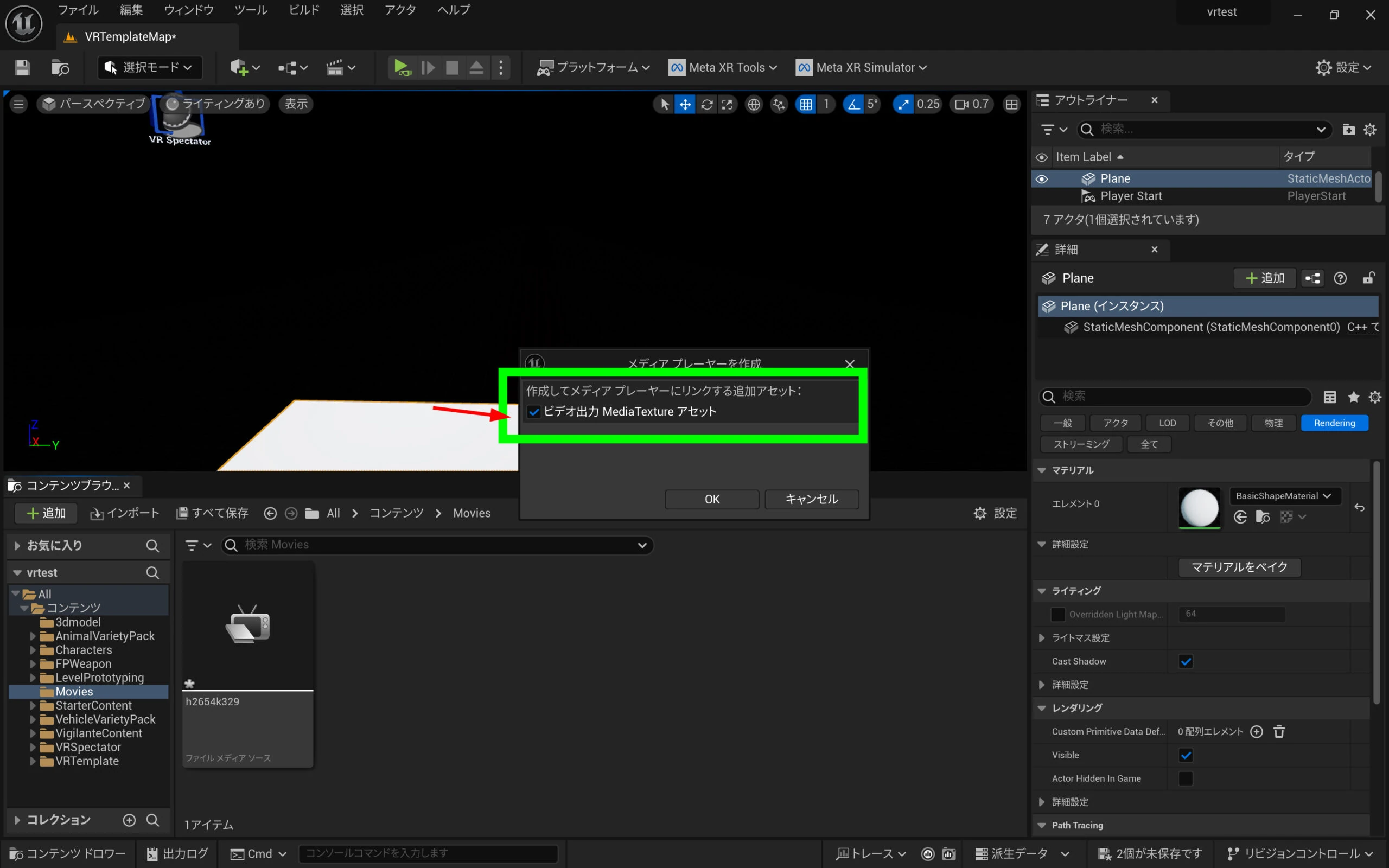
 Enable the option to create a video-output MediaTexture asset. This creates the texture automatically.
 Open the Media Player and click the video to check playback. If the codec will not play, an alternative such as Electra Player may help, although I will not cover that here.
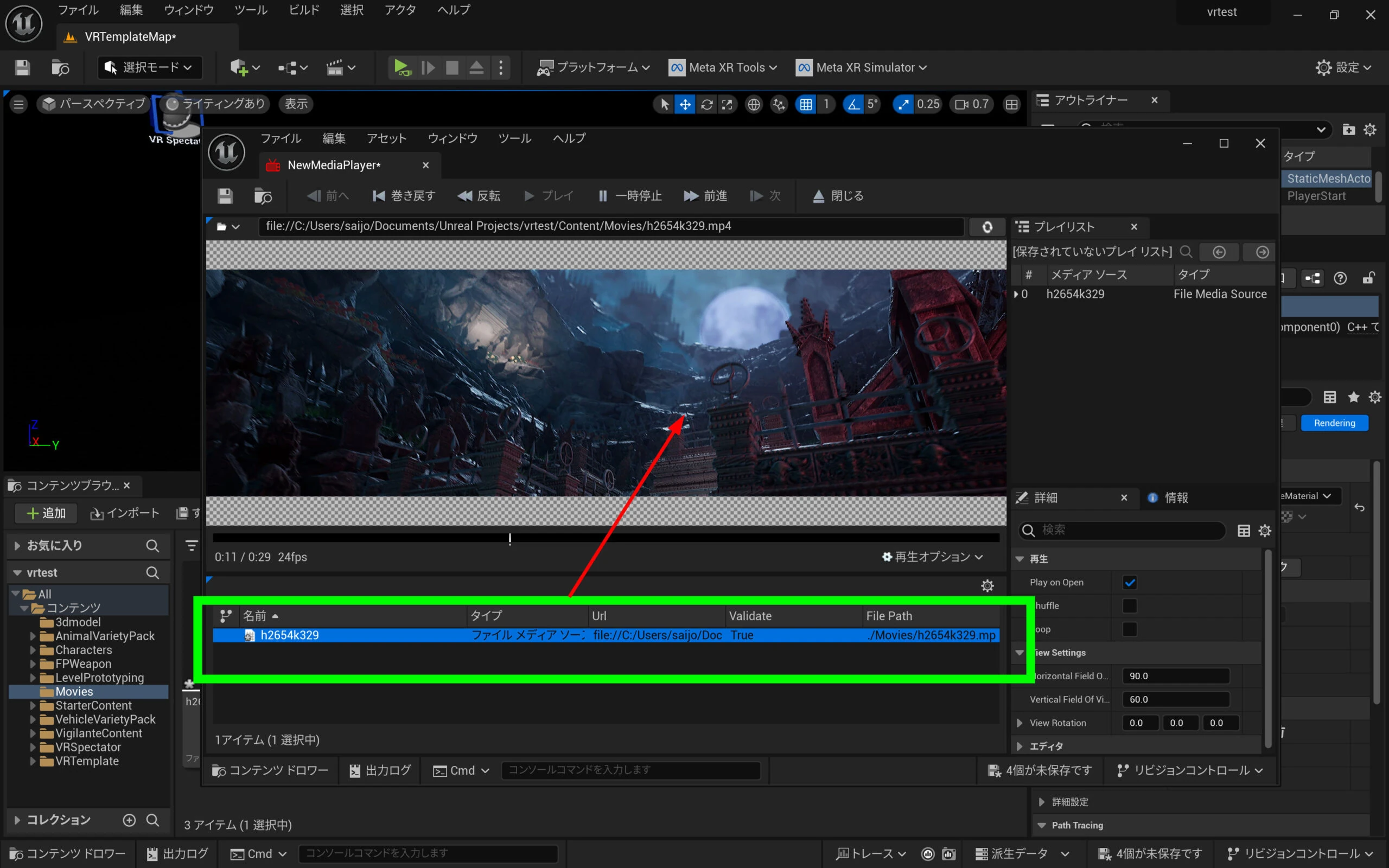 If it plays correctly, open the Level Blueprint.
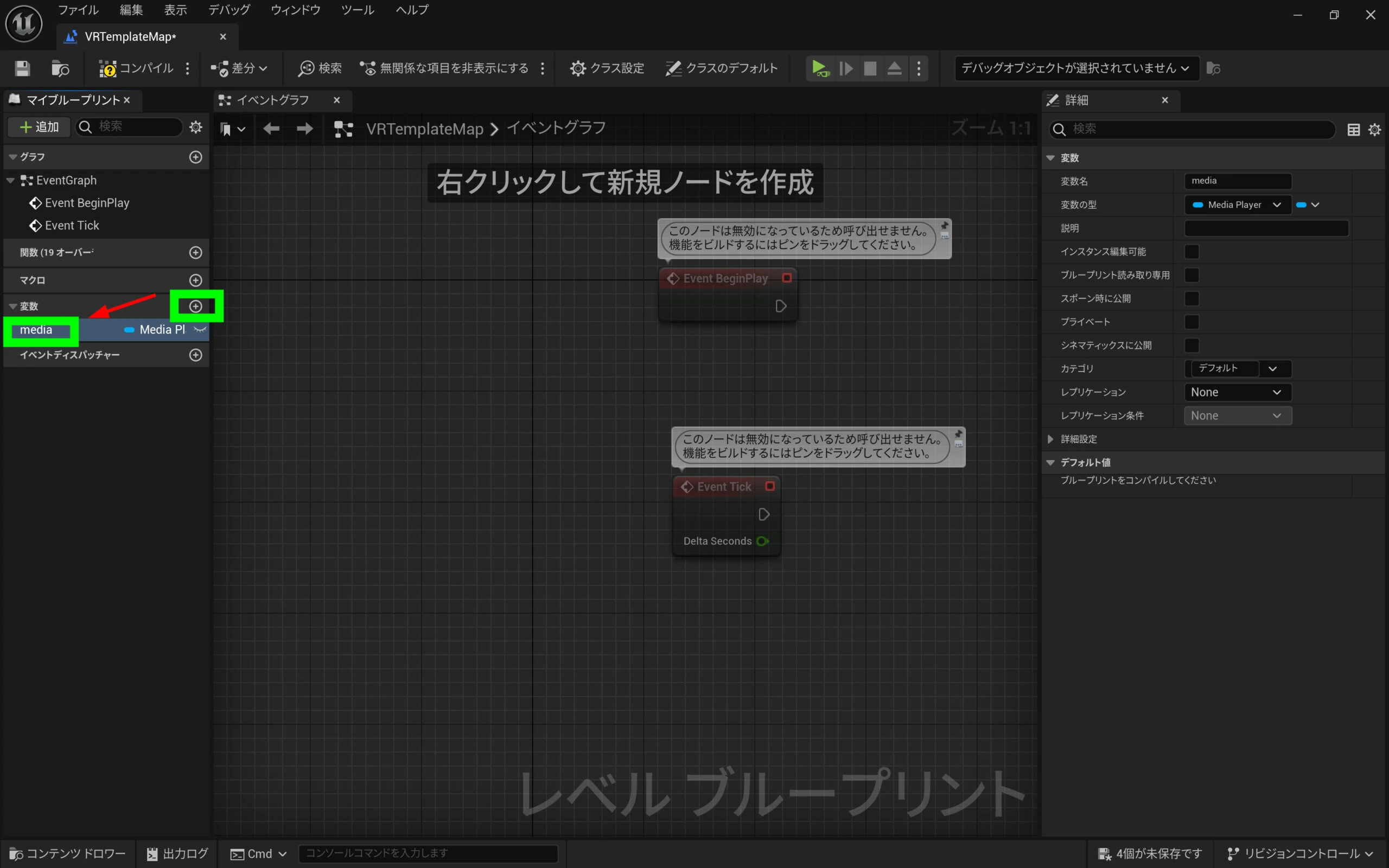
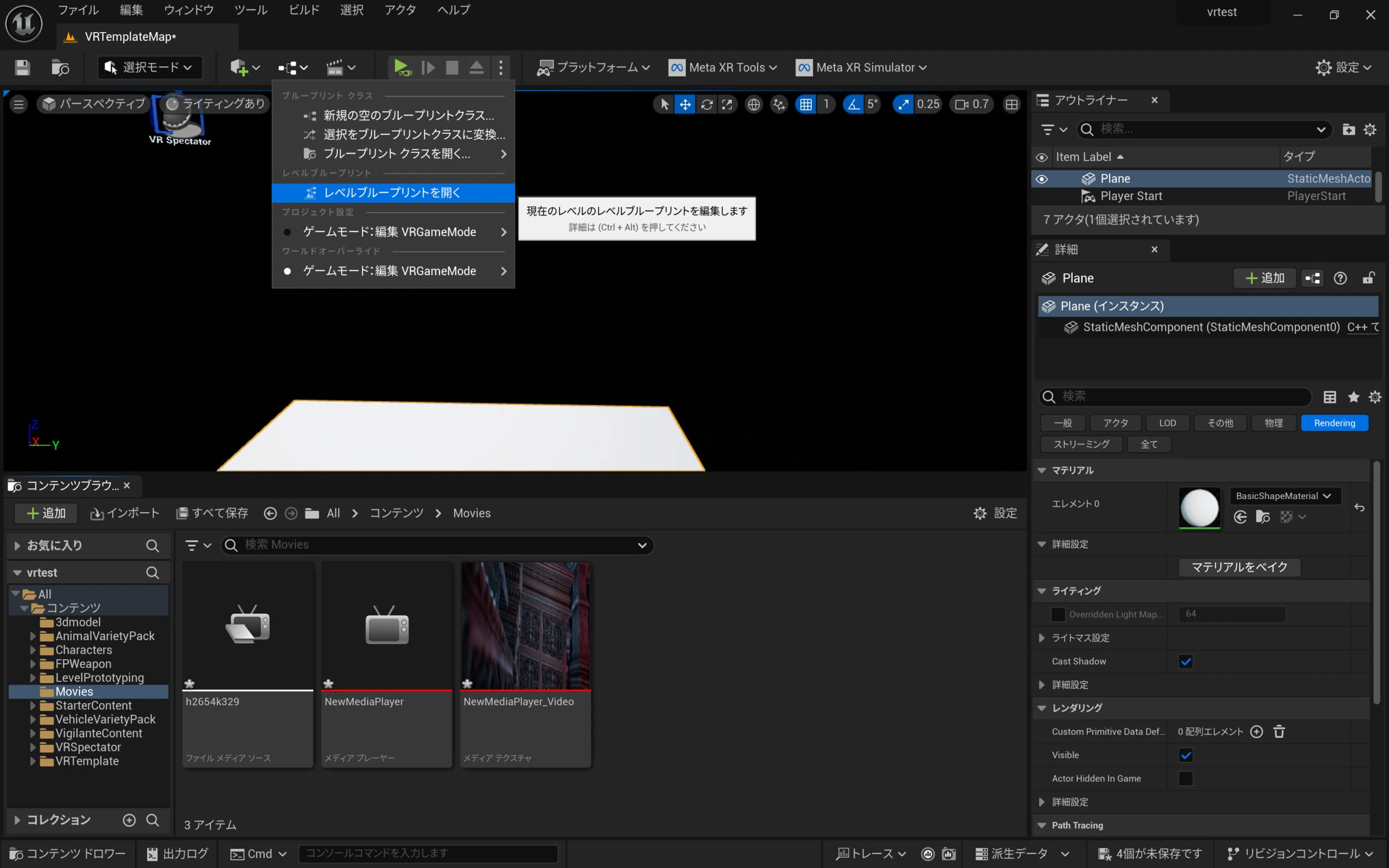 Click the plus beside Variables at the lower left and give the variable a suitable name.
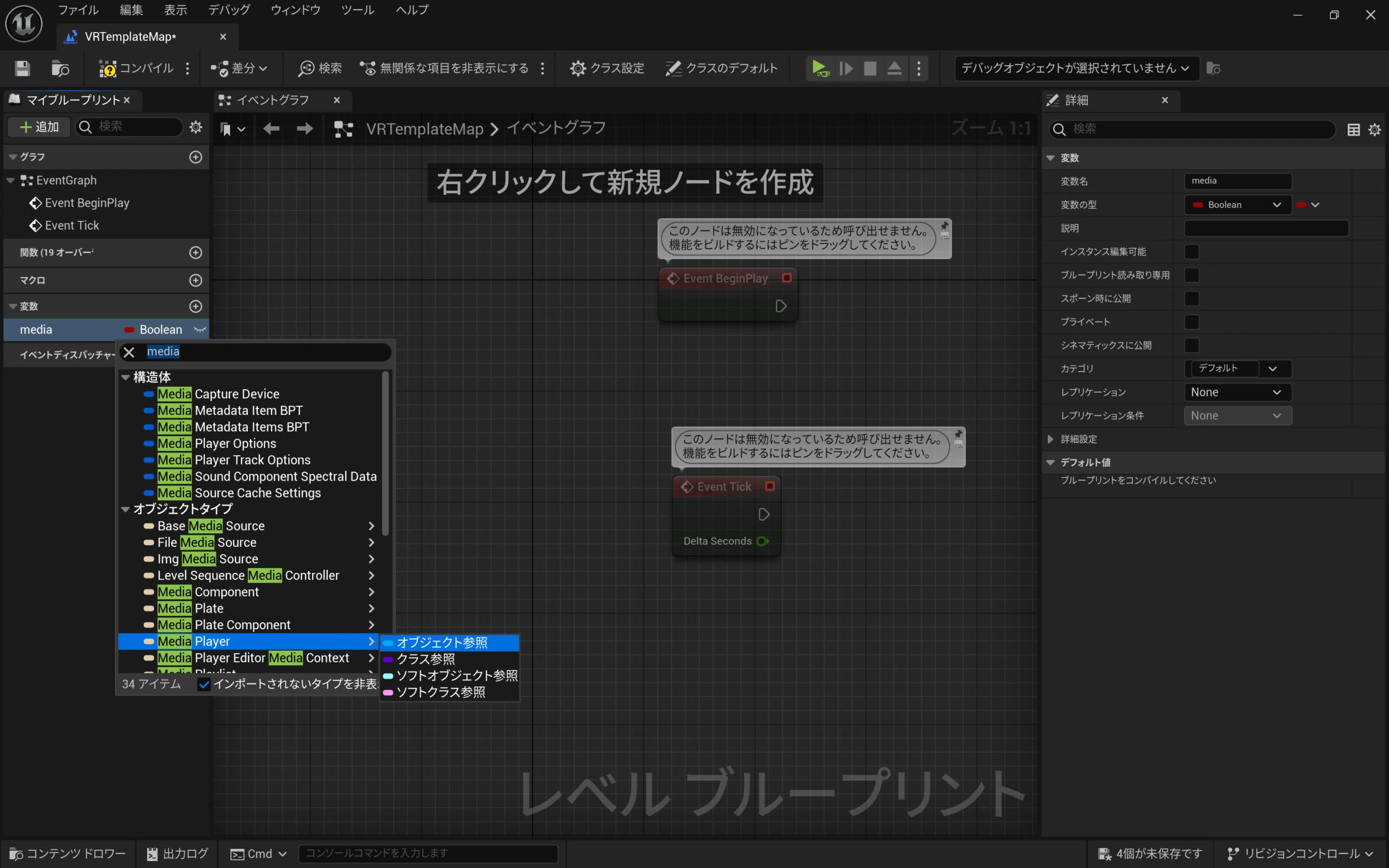
 Click its type, initially Boolean, and change it to Media Player, then choose Object Reference.
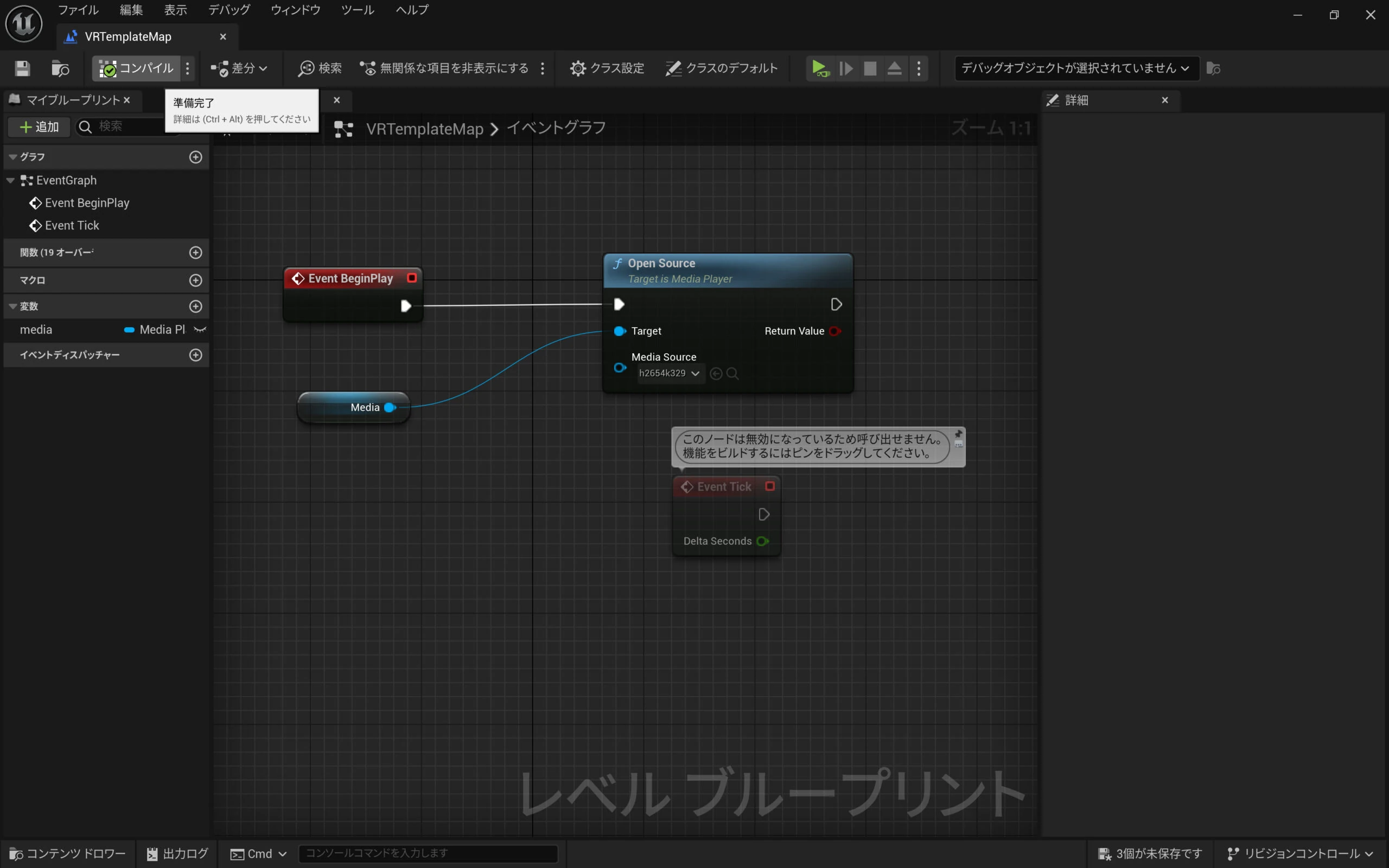
 Right-click in the Level Blueprint Event Graph and add Open Source. If it is not listed, disable Context Sensitive.
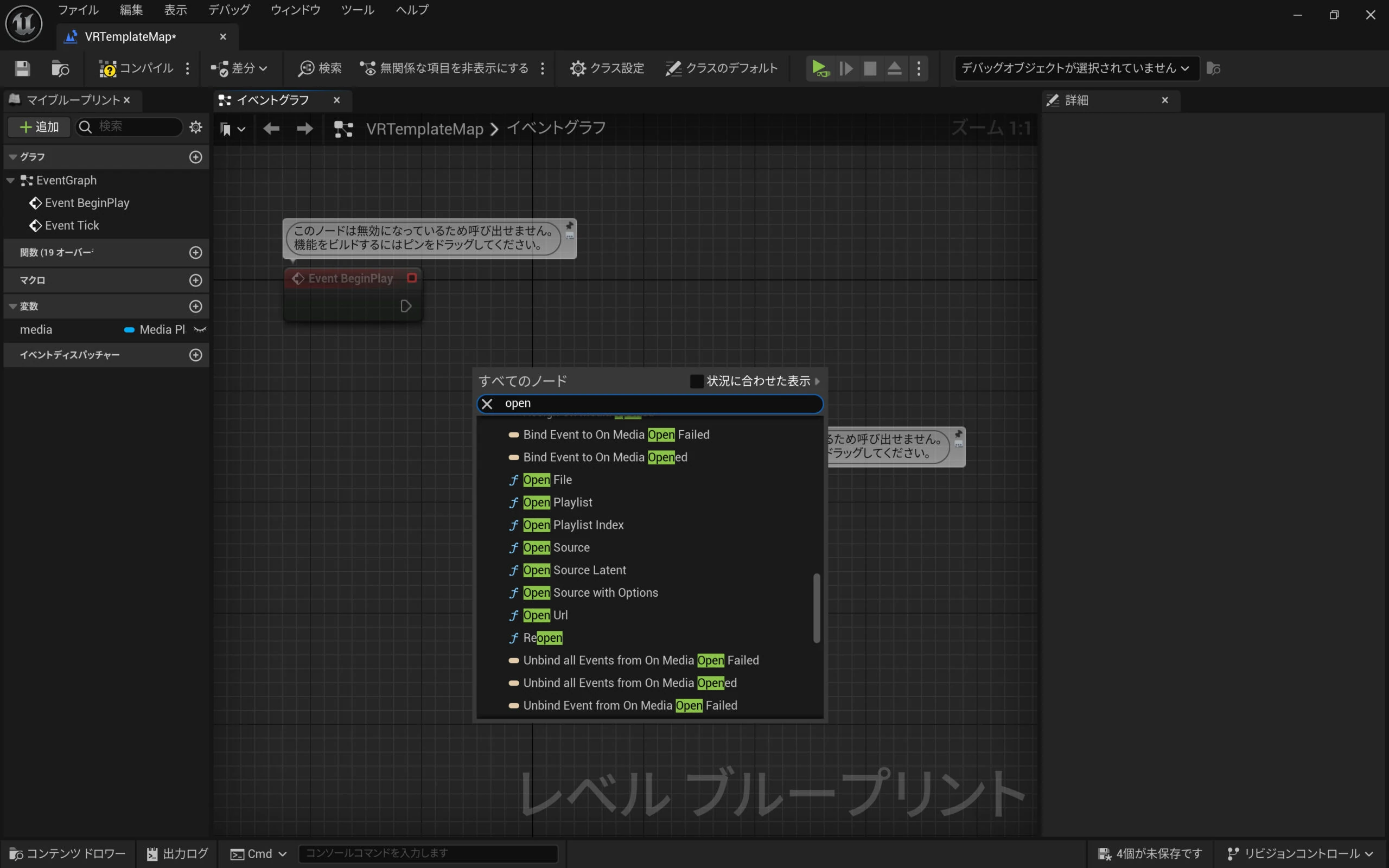 Drag the Media variable into the graph and choose Get Media.
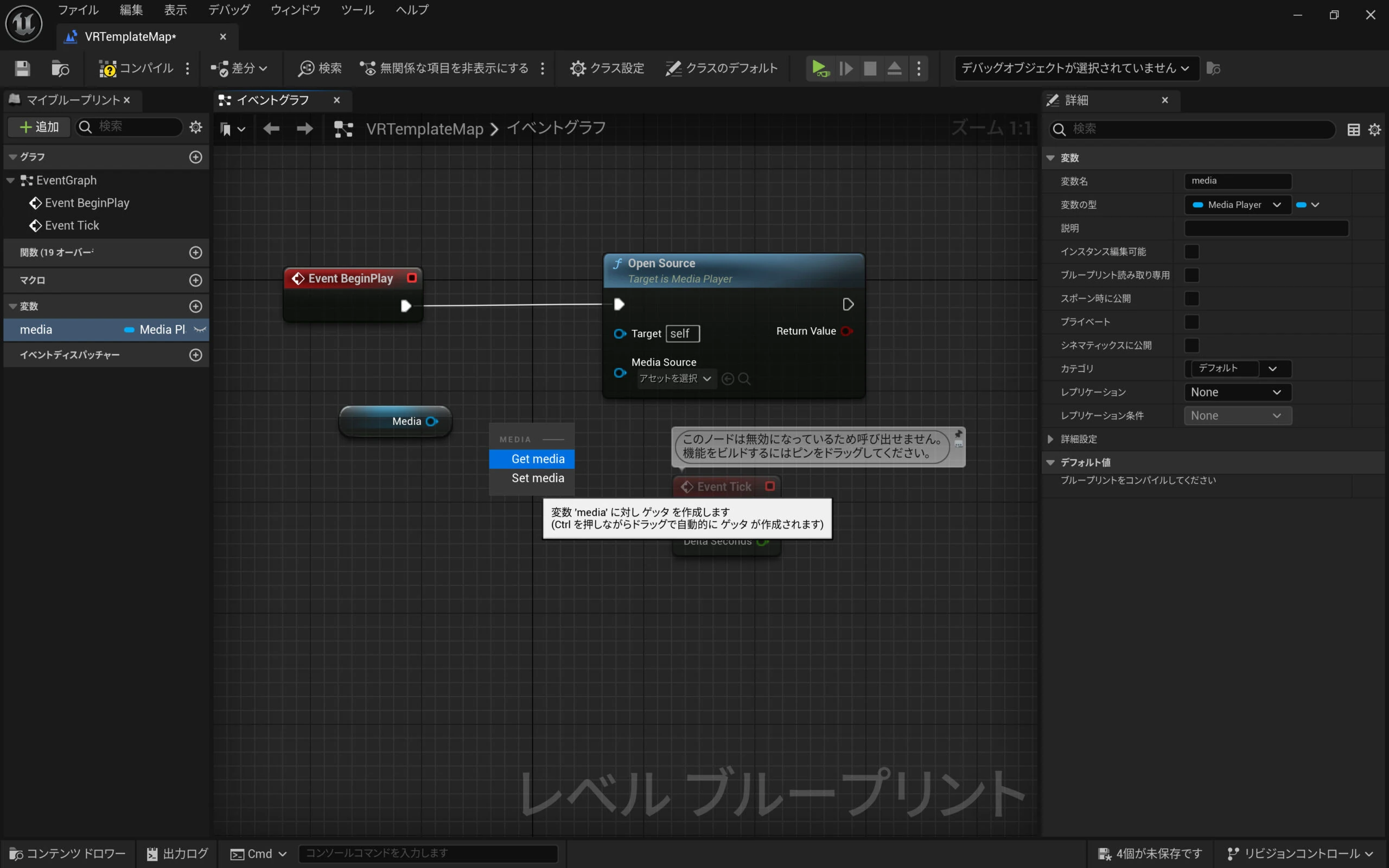 Connect Event BeginPlay, Media, and Open Source as shown.
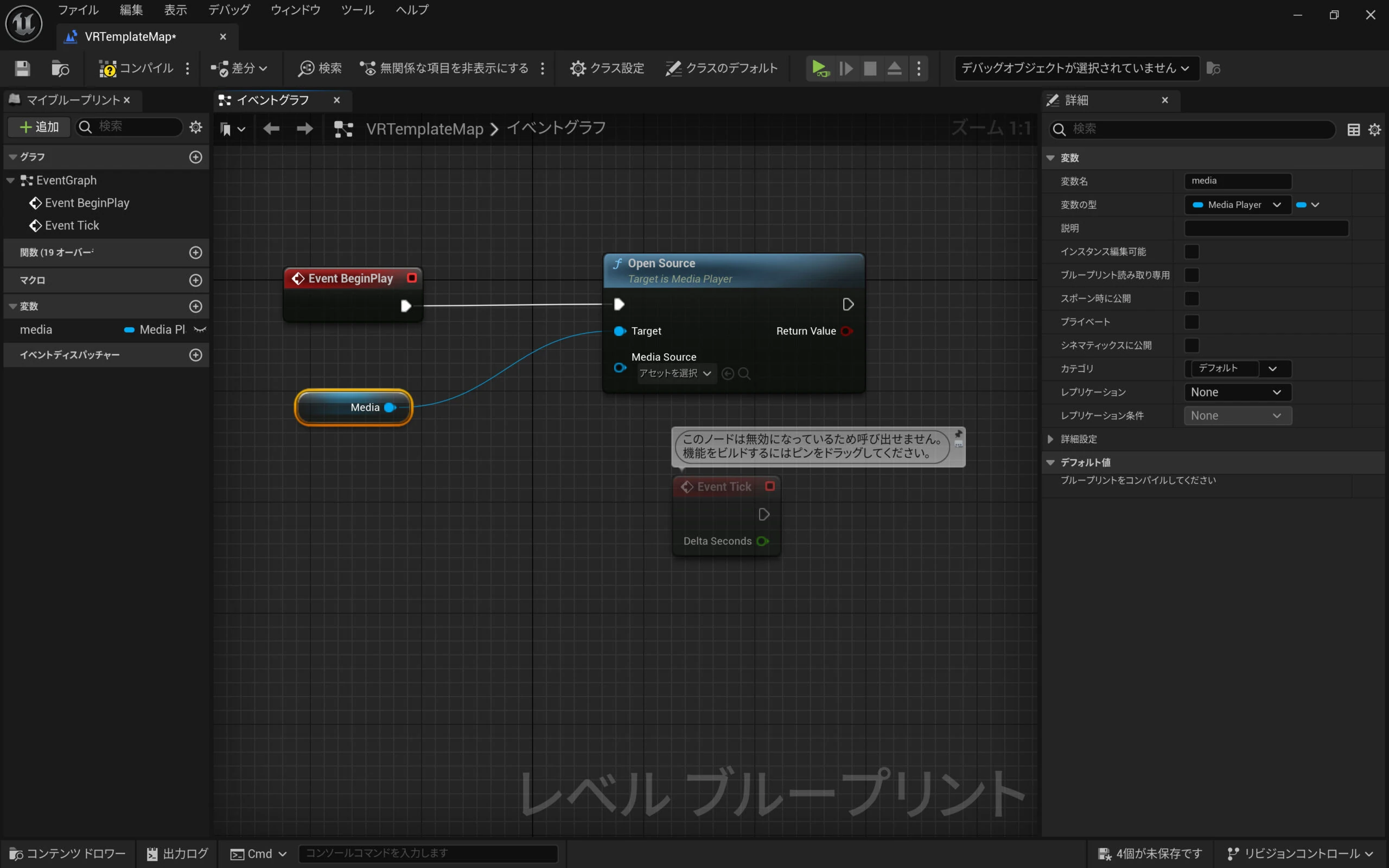 Press Compile once.
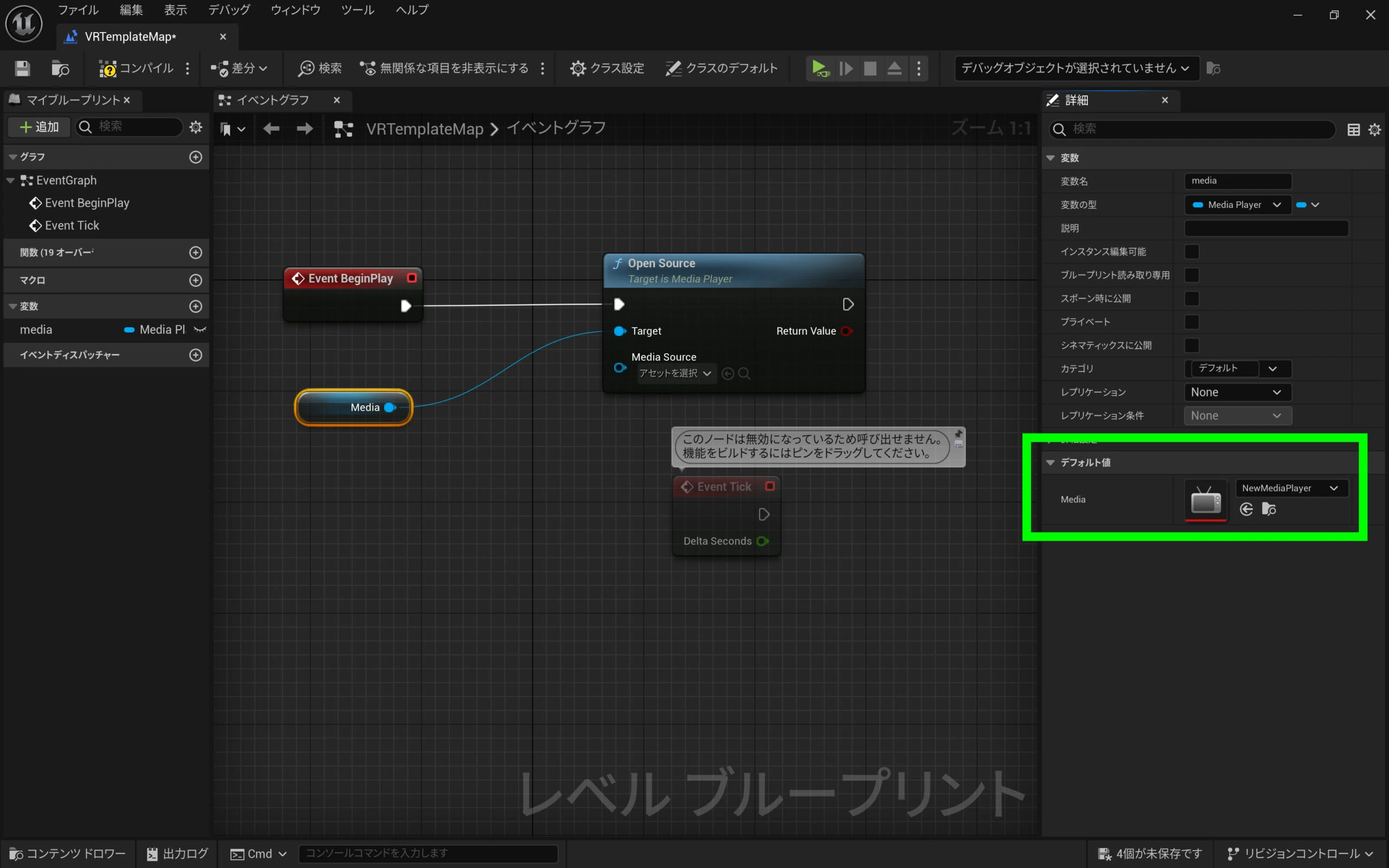
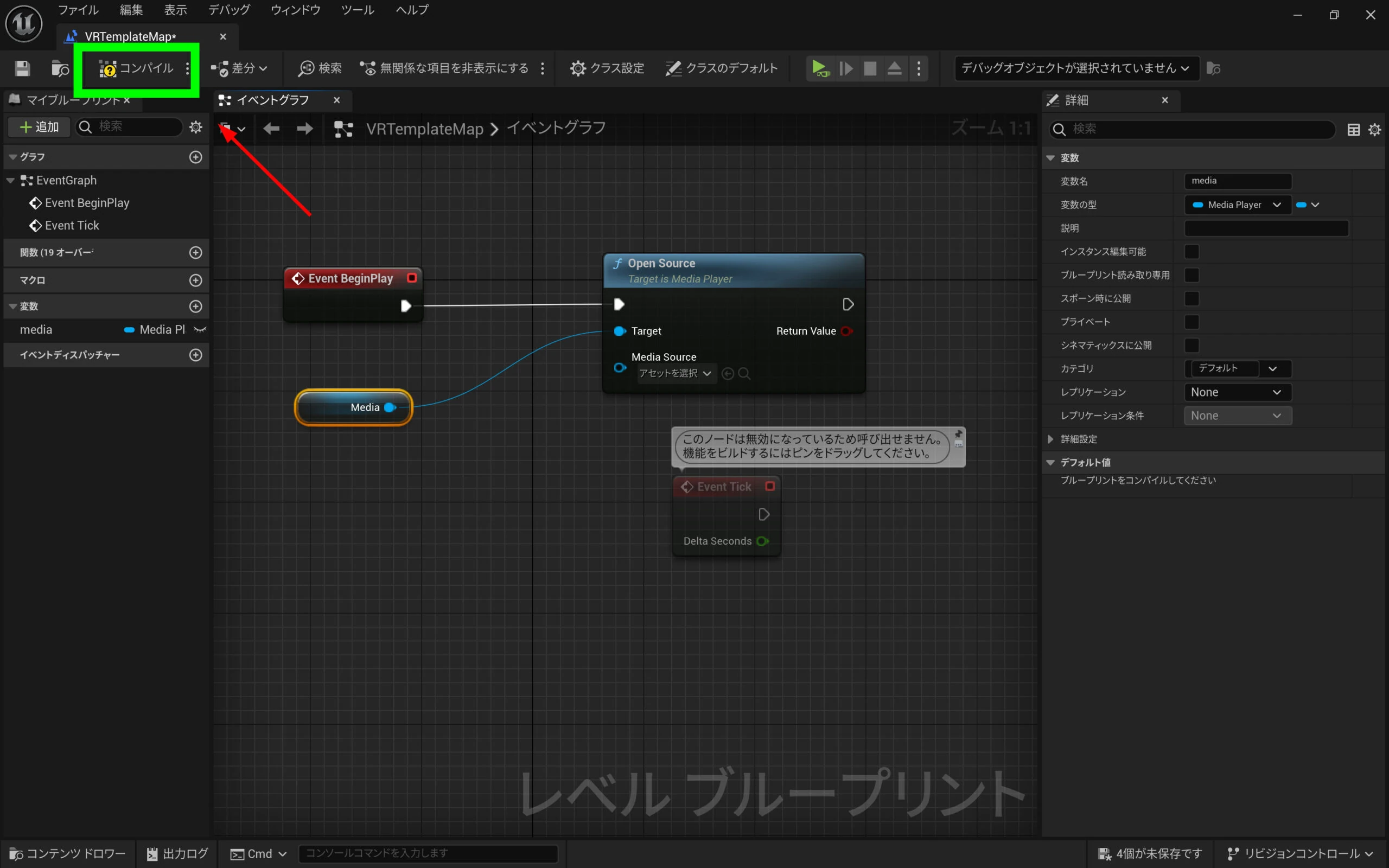 After compiling, the Media variable's default value can be selected on the right.
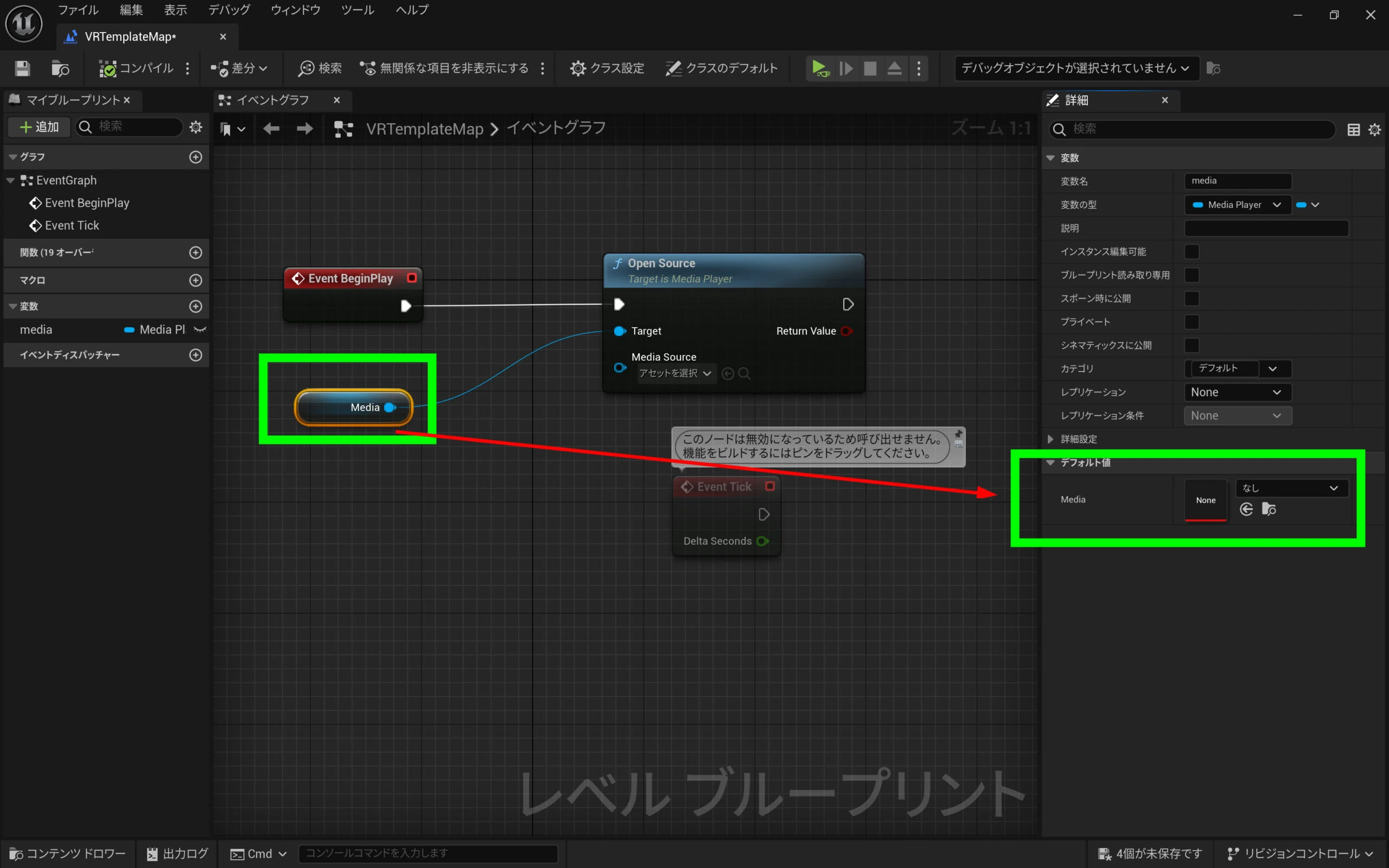 Choose the Media Player created earlier.
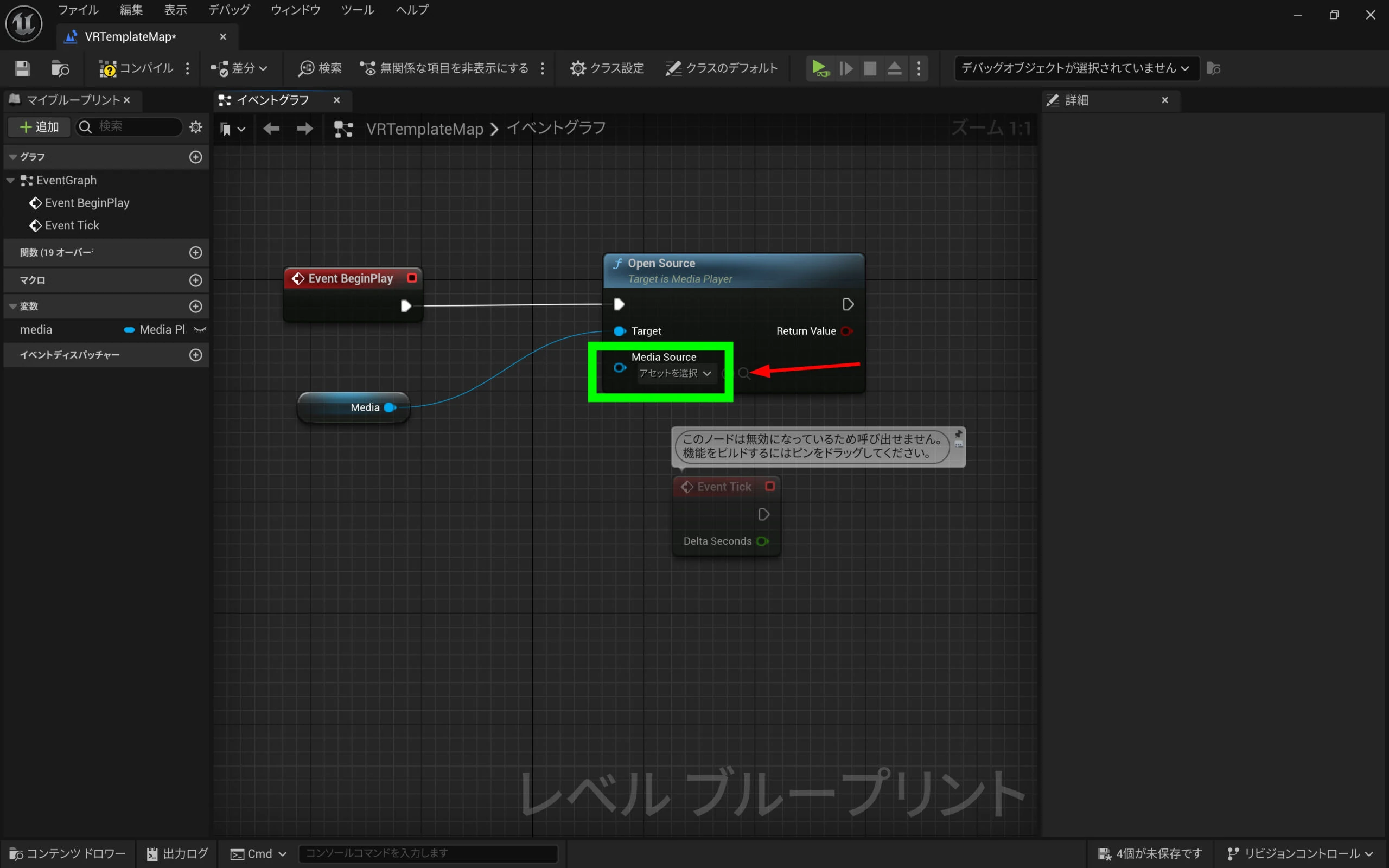
 Select the Media Source asset.
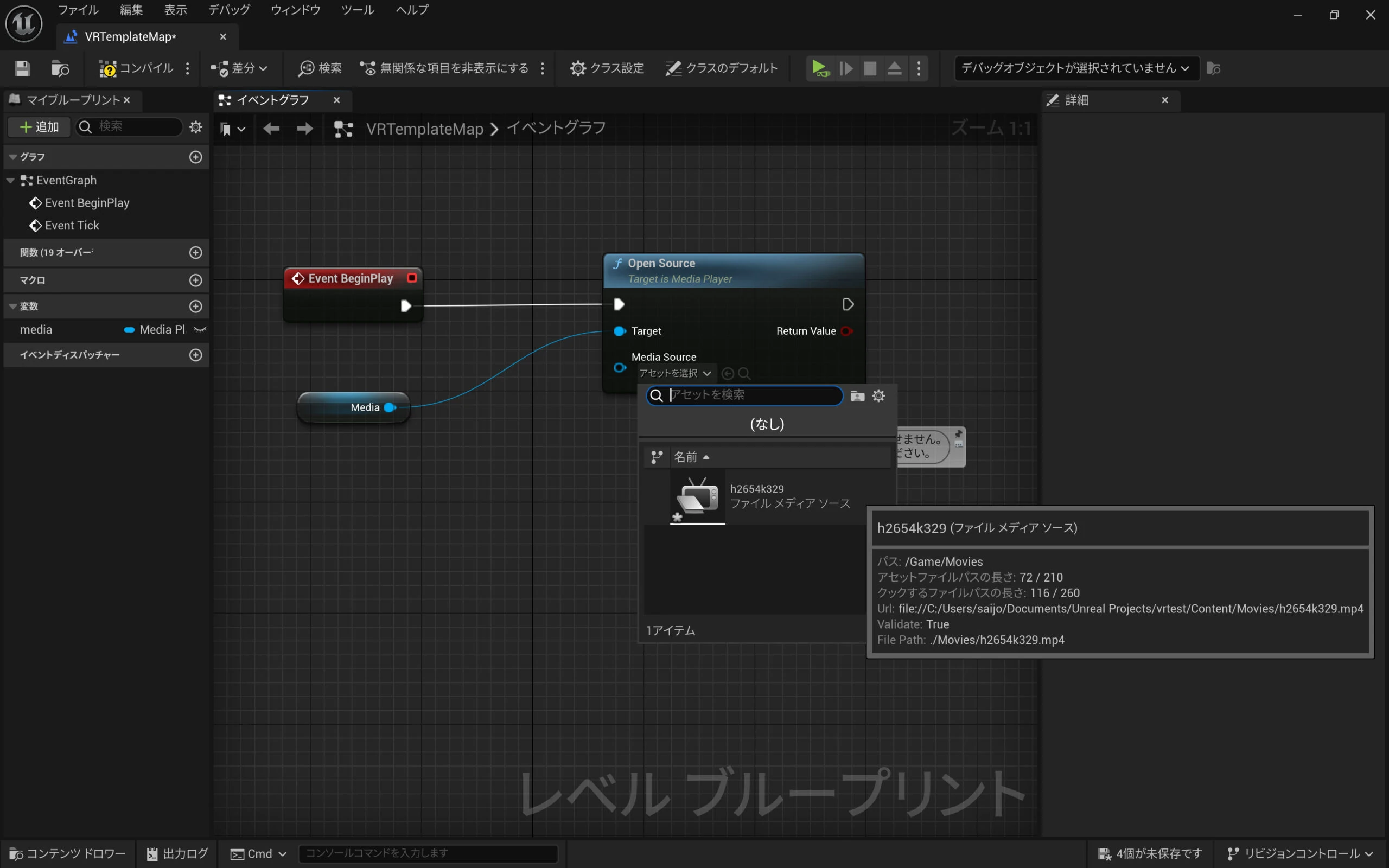
 Choose the video's file source.
 Save and compile to finish.
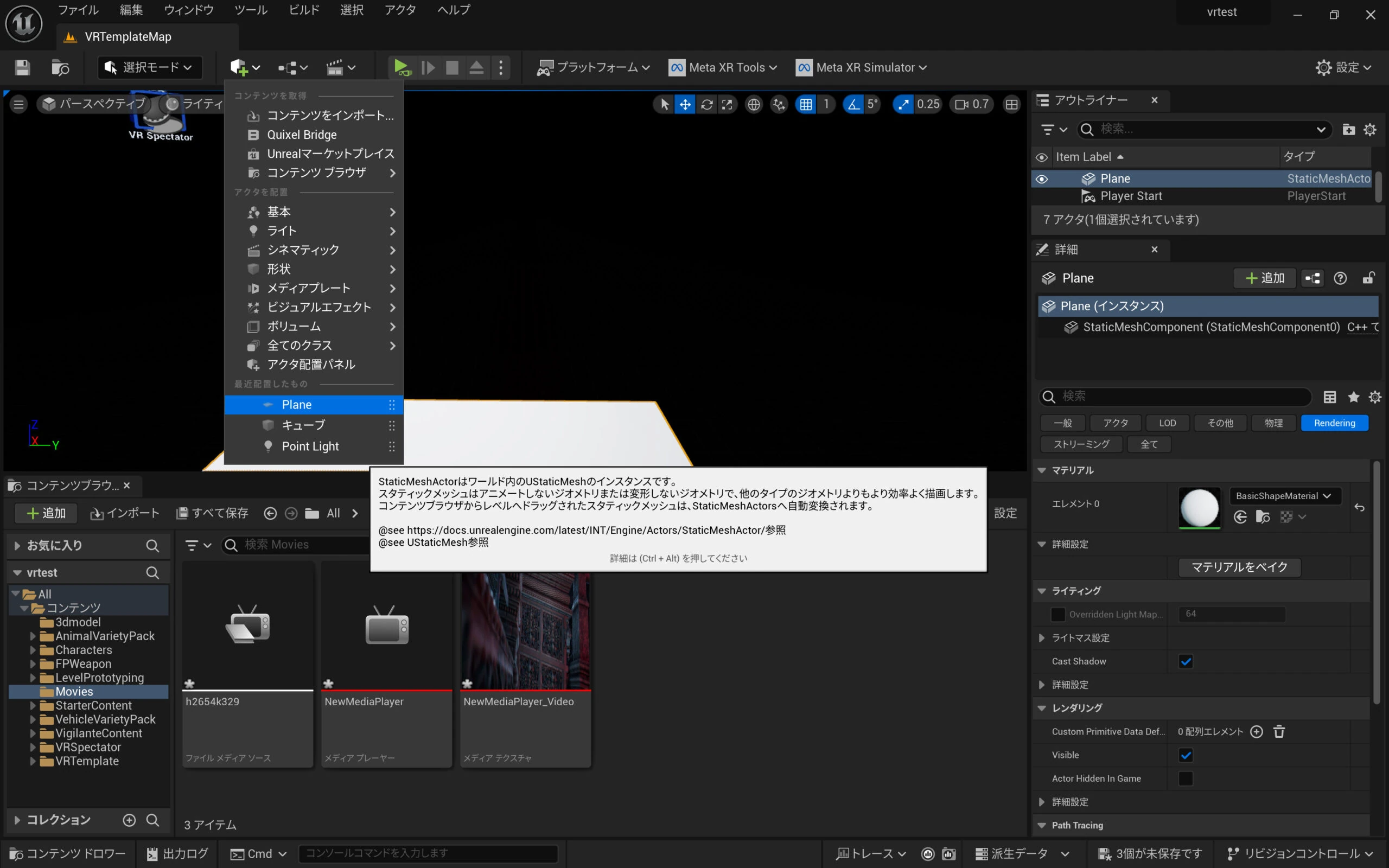
 Prepare a test screen. I added a Plane.
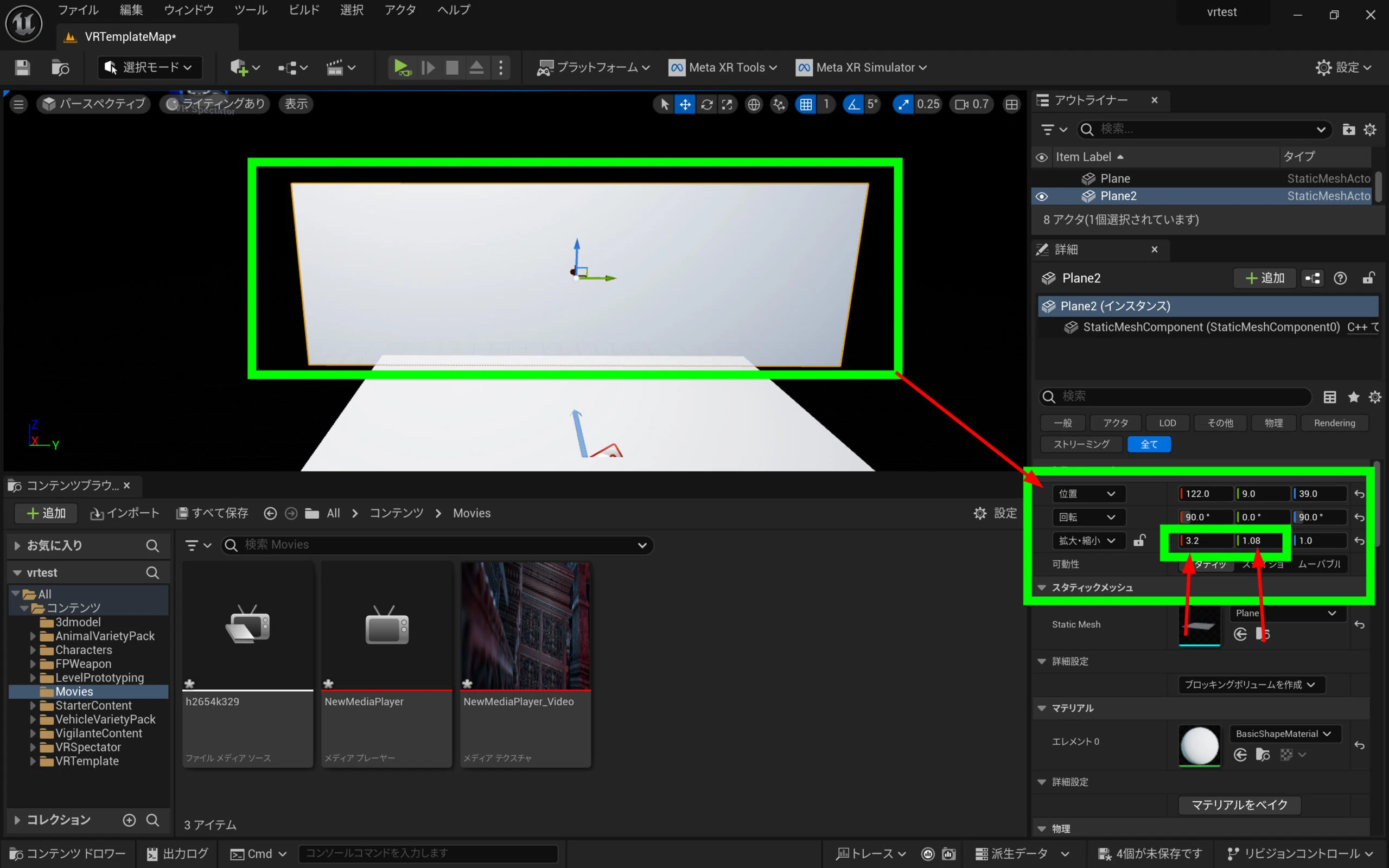
 Adjust its size to a 32:9 aspect ratio.
 Apply the media texture and adjust the size as needed.
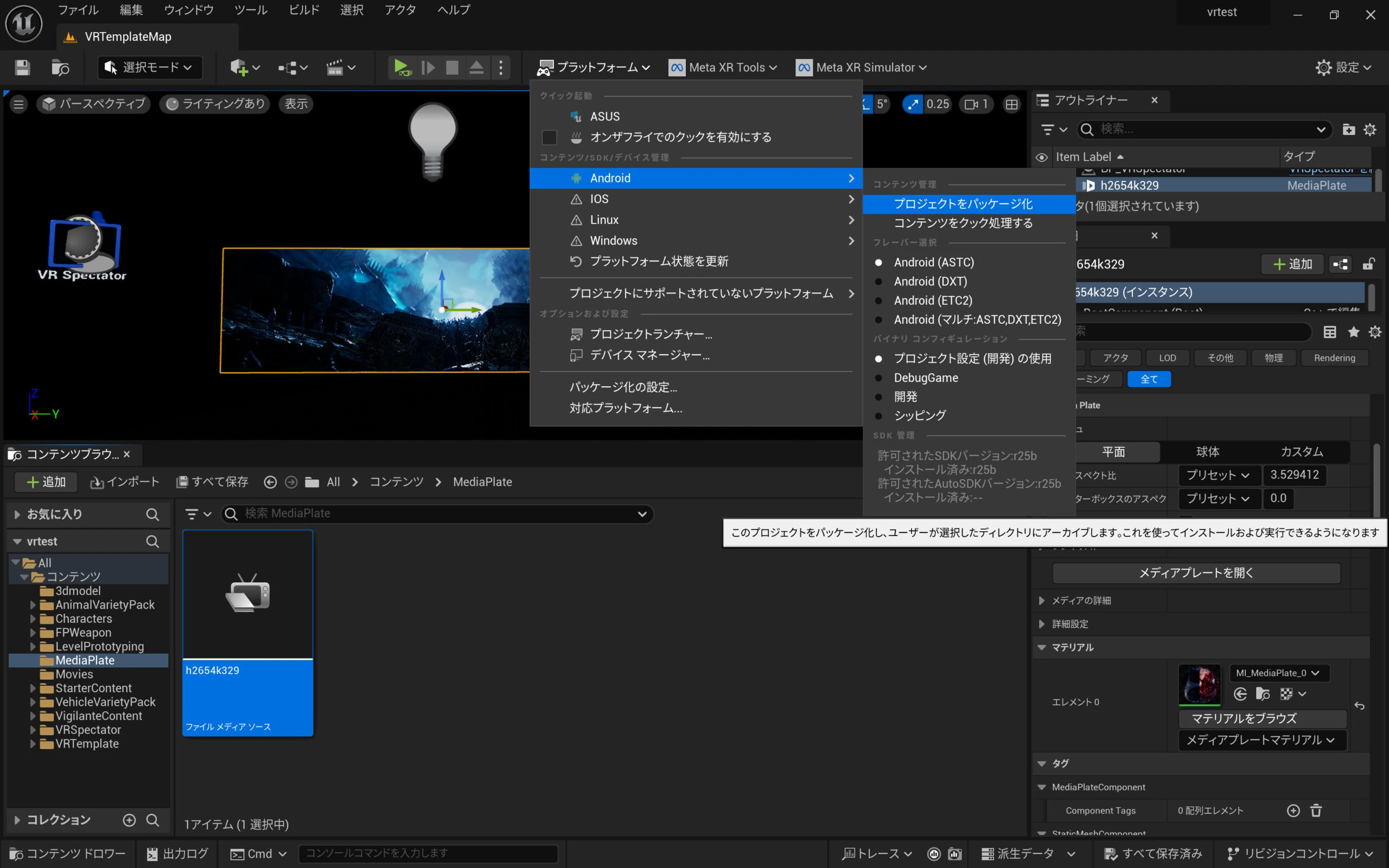
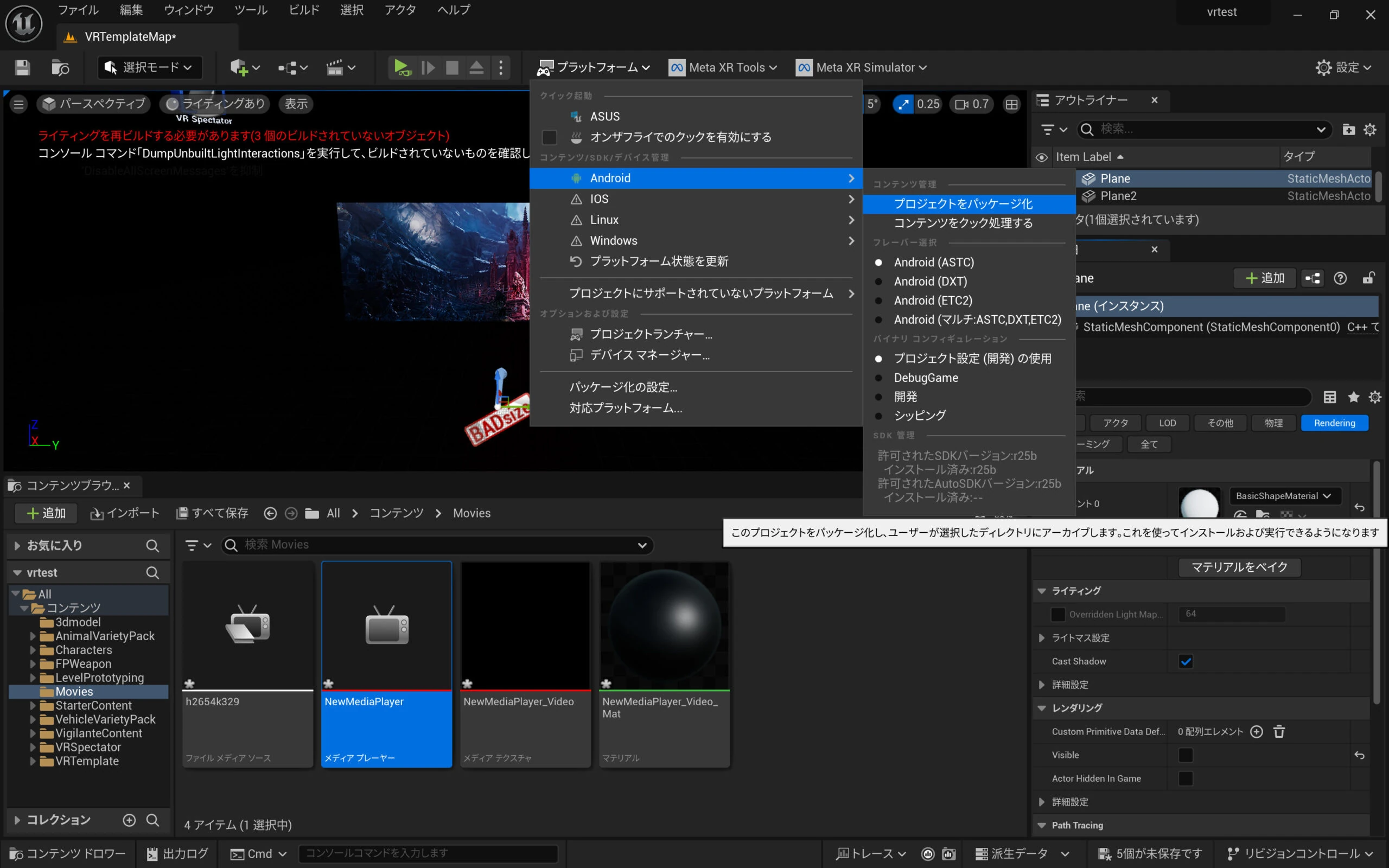
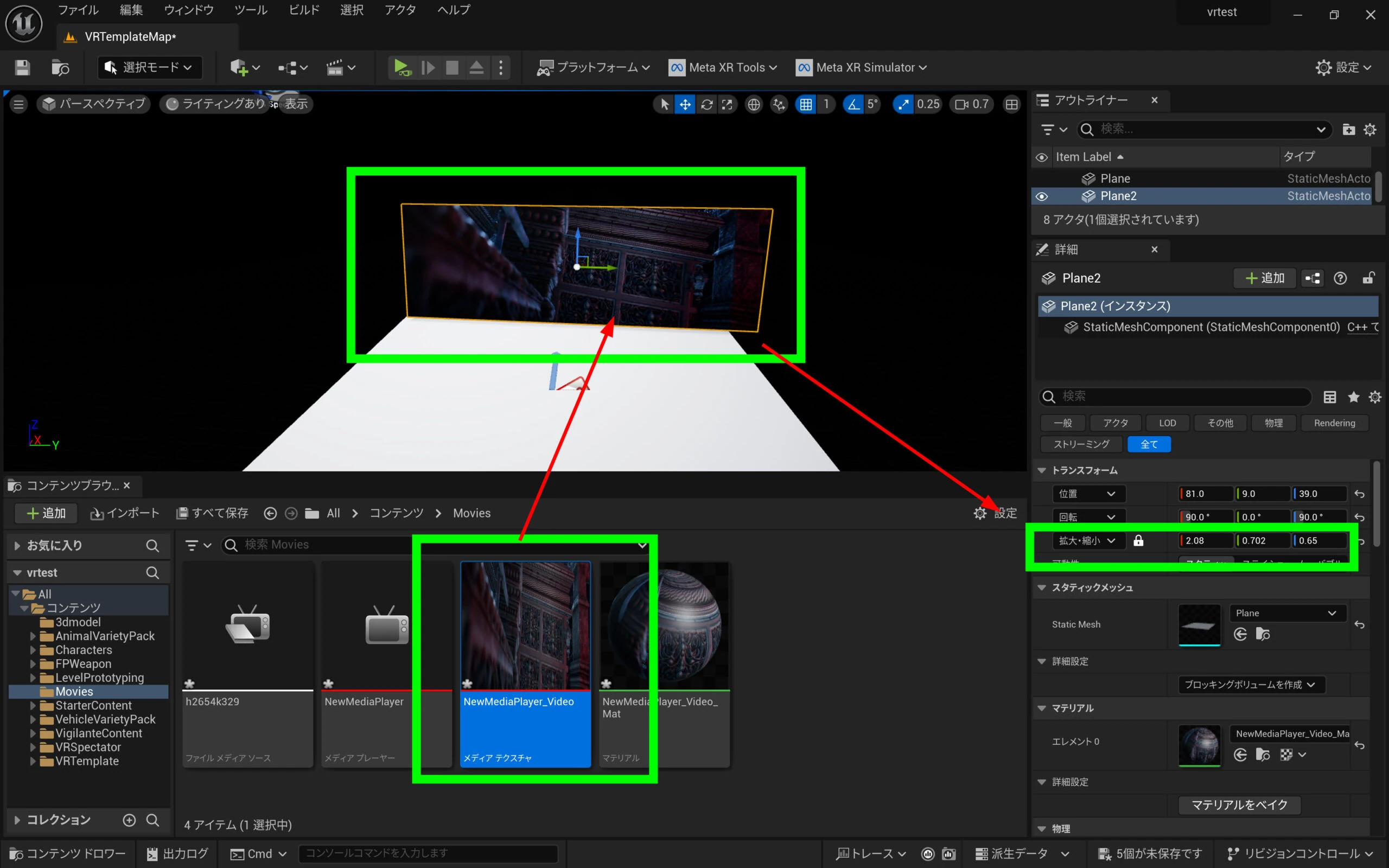 Preview it, then choose Android > Package Project to export.
 The newer Media Plate makes video playback simple. If you need detailed control, managing playback in a Blueprint, as in the older method, may still be preferable.
Related articles
Updates and contact: X @riragoncom.