RealityCapture Alignment Settings: feature limits, overlap, priors, and lens models
I explain RealityCapture's alignment settings and how I use them, while emphasizing that photographs with suitable overlap matter more than adjusting parameters.
Note: This article is more than one year old.
- RealityCapture interface names, alignment presets, and licensing vary by version. Check the official release notes and manual.
- Suitable settings depend heavily on the subject, spacing between shots, and lens distortion. Treat these values as starting points.
- Hardware requirements and cloud-processing prices for large projects may also change.
In the previous article, I introduced the overall RealityCapture workflow. This time, I will explain alignment, the first stage in photogrammetry. Alignment determines the cameras' positions and orientations from multiple images.
Previously: a step-by-step guide to RealityCapture and high-quality 3D model creation https://riragon.com/blog/en/realitycapture-3d-tukaikata/
I have used RealityCapture professionally for about five years.
How you take the photographs matters more than Alignment Settings.
Poorly aligning photographs remain poor, while good photographs produce good results.
Changing settings often makes little difference.
Developing a shooting method that aligns well is more important.
I suspect many RealityCapture users choose their alignment settings almost like a lucky charm.
Even without changing settings, the results can vary greatly, occasionally becoming much better. Alignment feels chaotic.
Nevertheless, understanding the settings can be useful.
The manufacturer's explanation of Alignment Settings is here.
https://rchelp.capturingreality.com/en-US/appbasics/alignsettings.htm
Downloading a small dataset for practice
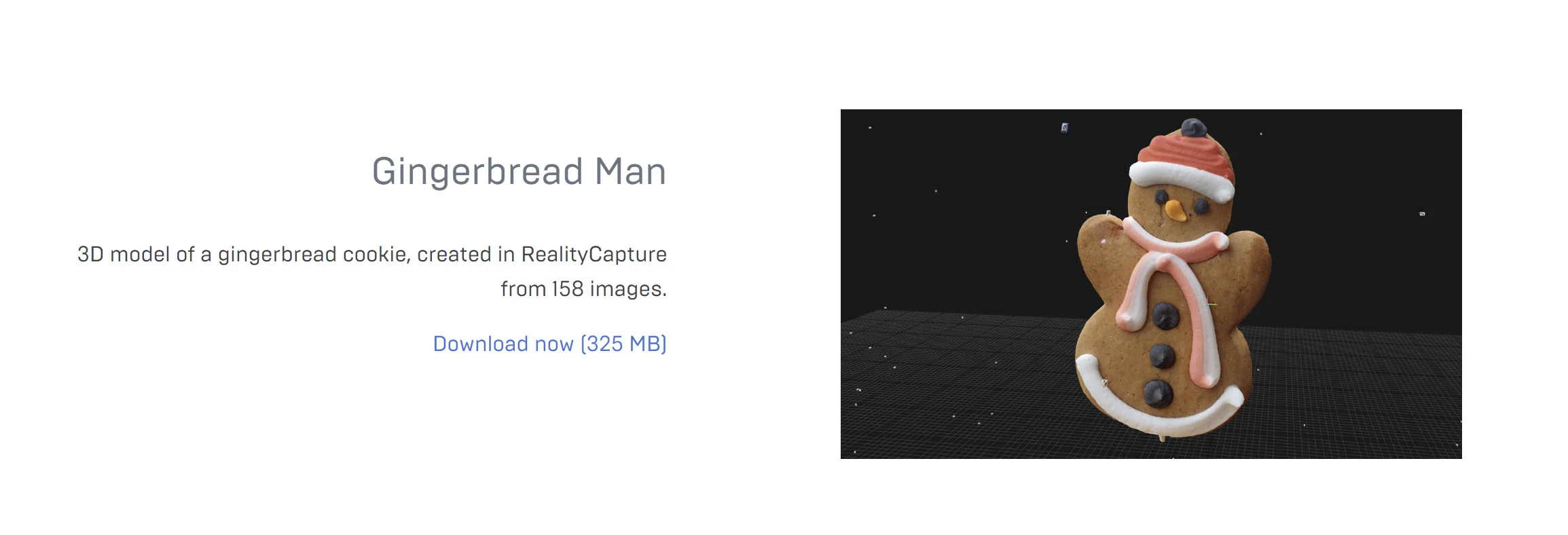
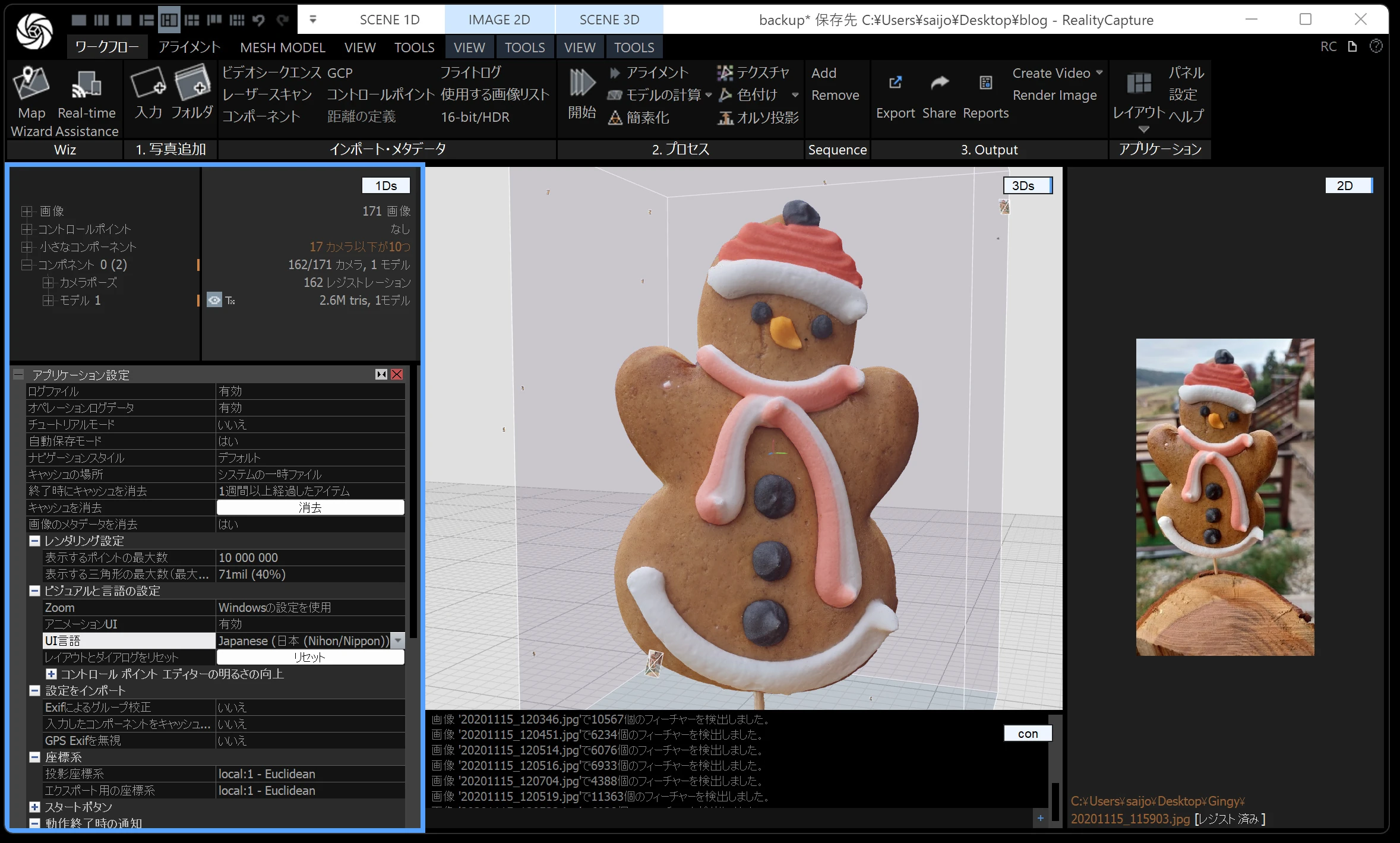
Trying alignment is the quickest way to learn. Download the lightweight Gingerbread Man dataset below and experiment with the values. Perhaps the results will barely change.
https://www.capturingreality.com/sample-datasets
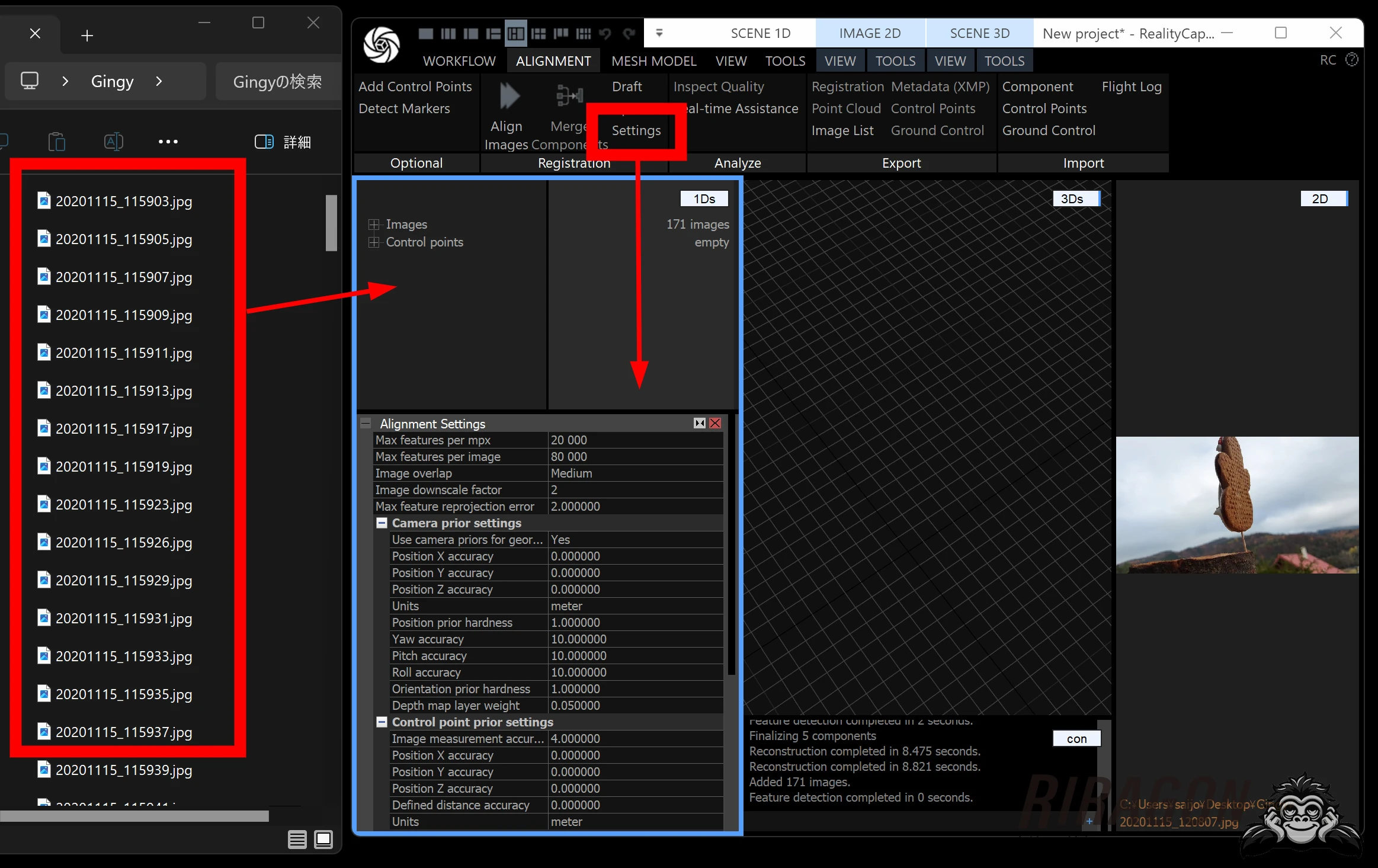
 Drop the downloaded images into RealityCapture. Click Settings on the ALIGNMENT tab to display the options below the menu.
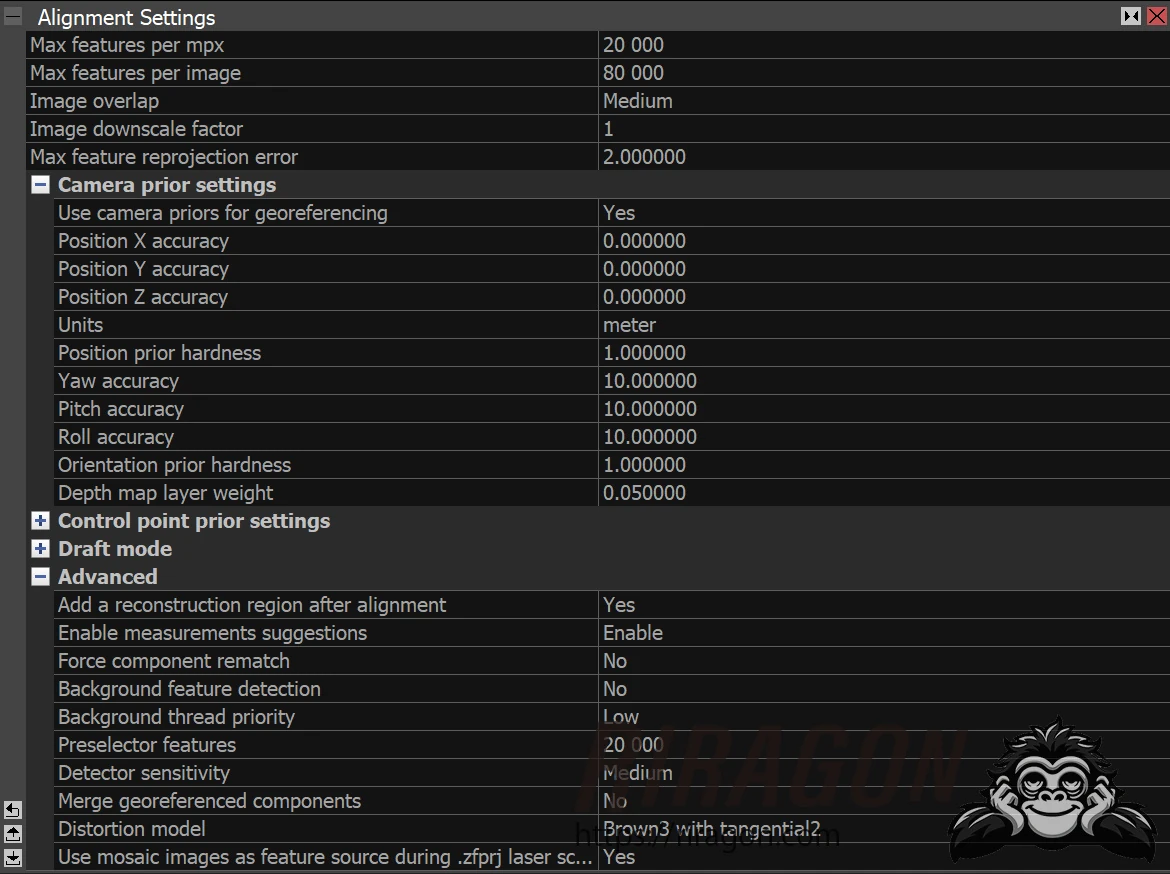
RealityCapture Alignment Settings
A key term is component: a group of cameras connected through overlapping images.
Multiple components mean some parts are not connected. Causes include insufficient overlap and a lack of feature points—in other words, they will not join.
Ideally, all your photographs belong to a single component. Unfortunately, improving the photography generally helps more than tinkering with Alignment Settings.
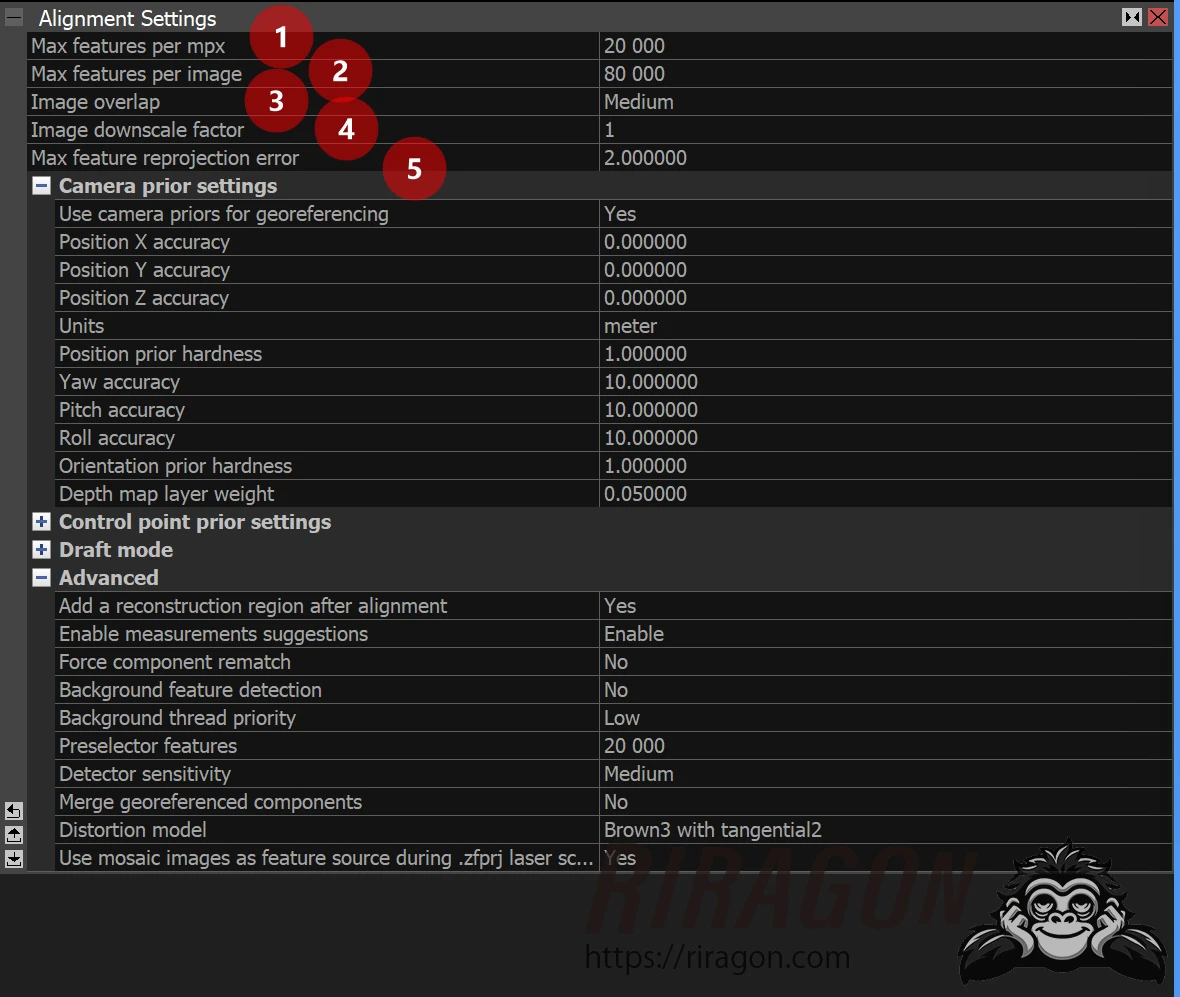
1. Max features per mpx
The default is 10000.
This is the maximum number of features per megapixel. For example, 1000 × 1000 pixels is one megapixel.
More features slow processing but may reduce the number of components.
Fewer components mean the analysis has connected more successfully.
I set it to around 20000, twice the default.
My basis was a setting from some tutorial.
A lucky charm, really.
Unfortunately, simply increasing it usually makes very little difference.
2. Max features per image
The default is 40000.
This defines an absolute upper limit on the features used per image.
Limiting the detected features in an individual image manages computational load and supports efficient processing.
It is the absolute feature-count limit for each image.
This setting should become relevant when aligning large images.
I set it to around 80000, twice the default.
Again, the basis was a tutorial.
Another lucky charm.
I have not paid close attention to it, but with images of a certain size—for example 2000 × 2000 pixels, or four megapixels and above—I imagine Max features per image becomes the applicable limit.
3. Image overlap
The default is Medium. Set it according to how much adjacent photographs overlap: Low for 20% or less, High for 60% or more, and Medium for around 40%. More shared image area makes camera-pose calculation easier and speeds processing. With little overlap and insufficient photographs, separate components are more likely. In other words, take closely spaced photographs with at least 60% overlap. I usually leave it at Medium. When images do not connect and form multiple components, changing it to Low sometimes helps them join.
4. Image downscale factor
The default is 1.
This controls the image size used for alignment analysis.
For maximum accuracy, use full size, or factor 1.
Reducing image size speeds processing, but lower resolution makes details harder to detect.
Because it is downscaling, I assume 2 means one-half and 3 means one-third.
Halving both dimensions reduces the pixel count to one-quarter.
My guess is that the size decreases in successive multiples.
In my experience, alignment results look similar at 1 and 2. I use 2 because processing finishes quickly. Repeating alignment several times seems more effective. Sometimes 1 produces multiple components while 2 combines them successfully. Mysterious; it feels like luck.
5. Max feature reprojection error
The default is 2.
This is an internal accuracy level used during alignment.
Keeping the maximum error within three pixels is recommended.
The setting constrains feature reprojection error and can allow more accurate alignment.
It is the internal precision level used during alignment; the stated recommendation is a maximum of 3px.
I leave it at 2 without much thought.
Some people recommend going below 2.
Camera Priors / Control Point Prior Settings
Next are Camera Priors and Control Point Prior Settings. I have no experience with surveying photogrammetry and leave them at their defaults. I have not paid attention to them even when using a drone.
They seem relevant to georeferencing, accurate positions on a map, geographic information systems (GIS), and adjusting the accuracy of measurements against ground control points. They may be useful in surveying and civil-engineering projects using GPS, RTK, or PPK.
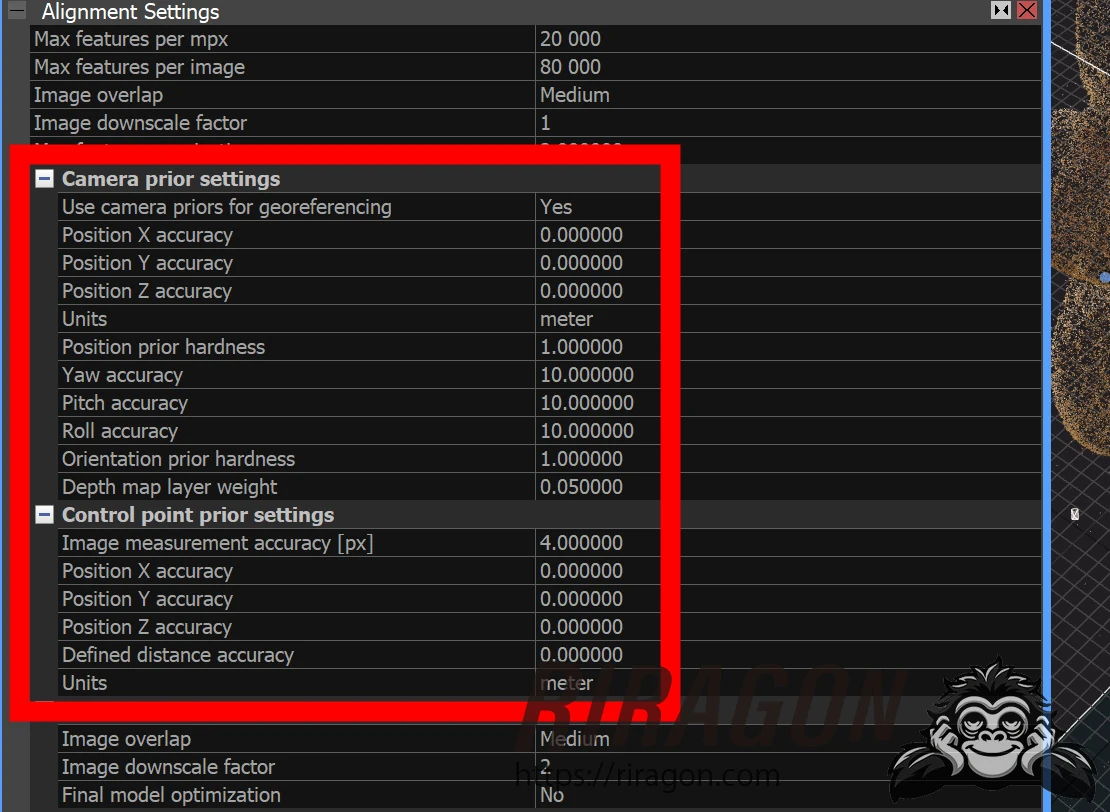
Use camera priors for georeferencing
Uses the images' prior positions in alignment and scene georeferencing.
Position accuracy
Specifies the accuracy of the cameras' prior positions: the range within which a calculated position is considered equal to its prior value.
Units
The coordinate-system units used to display camera priors and their accuracy.
Position prior hardness
Defines how closely the calculated position should follow the prior position. Larger values keep the result closer to the prior and may change the visual connections between cameras.
Yaw / Pitch / Roll accuracy
Specifies the accuracy of the camera's prior orientation: the range within which a calculated orientation is considered equal to the prior value.
Orientation prior hardness
Defines how closely the calculated orientation should follow the prior. Higher values hold it closer and may change visual connections between cameras.
Image measurements accuracy [px]
Defines the allowed deviation in image coordinates for manually placed control points.
Position accuracy
Specifies the position accuracy of a control point in each coordinate.
Defined distance accuracy
Sets the usual accuracy value for distance constraints.
Units
The coordinate-system units used to display control-point priors and their accuracy.
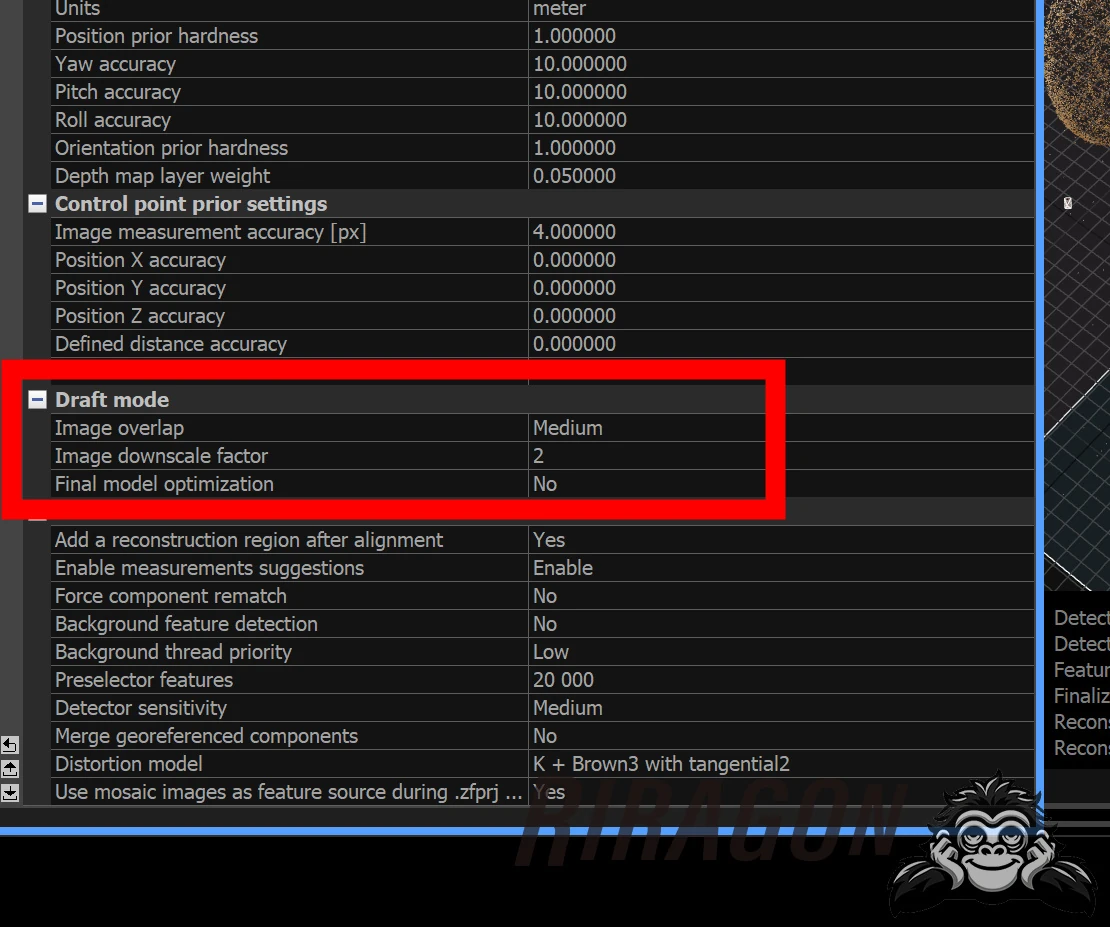
Draft Mode
Alignment does not take very long in my work, so I do not use Draft Mode. For hundreds or thousands of images, I lower alignment resolution to inspect the result. Draft seems about the same speed to me; perhaps it helps on very large projects of around 10,000 images. Its overlap and resolution options work like the ones above.
Setting Final model optimization to Yes apparently runs bundle adjustment.
Bundle adjustment jointly optimizes camera positions, or poses, and object coordinates using observations from multiple images.
I tend to think ordinary alignment is enough.
Advanced Settings
Advanced Settings contains promising-looking options to try when things fail. Do they change the result much?
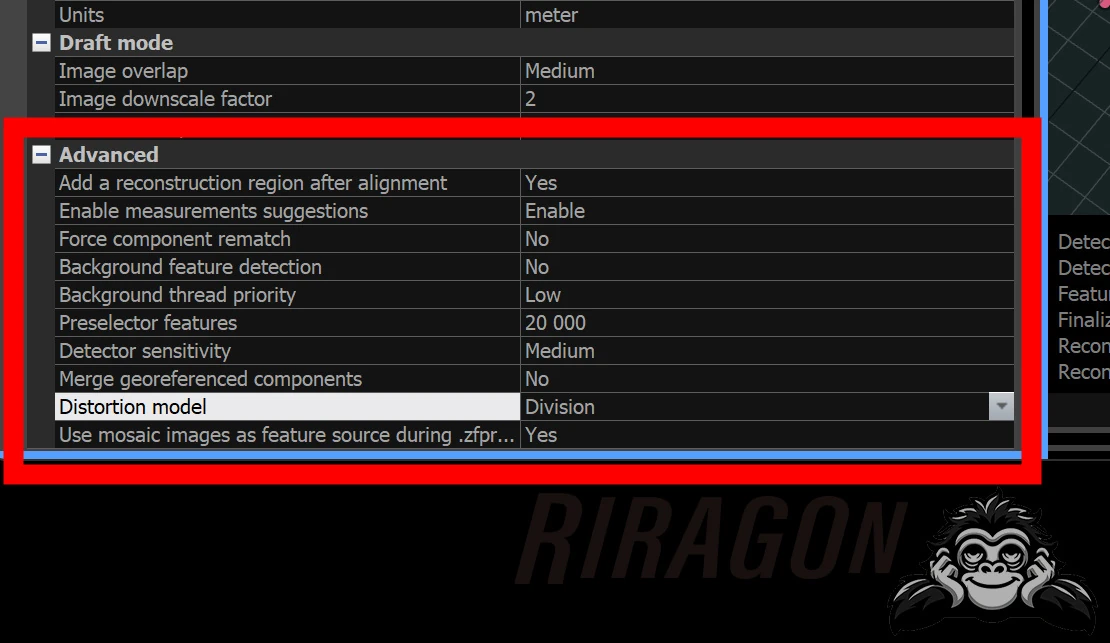
Add a reconstruction region after alignment
Yes automatically creates a reconstruction region after alignment. Automatic region creation is convenient, so I always use Yes.
Enable measurement suggestions
Enables suggestions for image measurements from 3D. I leave it enabled.
Force component rematch
The application realigns images and cameras to find better connections, using camera poses to discover new matches. It sounds useful, but when a dataset will not connect, setting this to True still does not solve it for me. I wonder how much it helps.
Background feature detection
Chooses whether to detect features automatically in the background at lower processor priority. This can help while placing control points, since the computer preprocesses images and saves time. I have not consciously used this setting when placing control points. Does it help?
Background thread priority
Sets the background detection priority to Low or Normal. I imagine it is relevant when using the background as a tracking element, but I have not deliberately used it that way.
Preselector features
The default is 10000. This is the number of detected features used for alignment. An optimal value is one-quarter to one-half of detected features, so setting it around 20000 is a commonly suggested approach.
Detector sensitivity: Low / Medium / High / Ultra
Ultra detects more features in weakly textured areas, including possible features caused by image noise. Low, conversely, discards features that might be useful for image registration. When images will not connect, I try lower or higher settings, but...
Merge georeferenced components
If an aligned scene splits into several components and all are georeferenced, the application can combine them without shared visual overlap. I turn it on when components will not connect, but...
Distortion model
Defines the lens-distortion model to use.
Prefer images as feature during import
RealityCapture imports .zfprj mosaic images and uses them as feature sources during alignment. I do not understand this clearly. Does it help? What exactly are mosaic images?
A closer look at distortion models
This is important for camera lenses, but well-photographed datasets usually work reasonably well with any setting. My general approach is Division for smartphone or GoPro images, Brown3 for an interchangeable-lens camera, and Brown3 with tangential2 if I see the "banana effect," where straight lines curve.
Division
Division reliably covers simple distortion and is effective for fisheye optics, such as a GoPro. It models distortion with a single-parameter division model.
Brown3
Brown3 is a very widely used distortion model for optics below 180 degrees. It is a polynomial radial-distortion model with three modeling parameters and is used by default. I understand it as suitable for an ordinary, properly made lens.
Brown4
Brown4 can cover different distortion near the center and edges. It is also a polynomial radial model, but with four coefficients. Perhaps it is useful for an inexpensive lens with unusual distortion.
Brown3 with tangential2 / Brown4 with tangential2
These add tangential distortion to Brown3 or Brown4, allowing lens offsets to be corrected. Tangential distortion is negligible in most modern optics. I understand this as relevant to asymmetric lens positioning, a shifted mount, and similar issues.
K + Brown3 with tangential2 / K + Brown4 with tangential2
These allow optimization of the full camera calibration alongside the Brown model, including skew and aspect ratio. Without K + ..., RC assumes zero skew and an aspect ratio of 1. This setting seems useful when several different cameras are mixed.
I usually choose Brown3 with tangential2 without any particular reason. One tip suggests starting with the simpler Division model, then switching to Brown to optimize the data. That may be a good approach. Still, photography is the more important factor than these settings.
Related articles
Updates and contact: X @riragoncom.