RealityScan (formerly RealityCapture): a beginner's guide from photos to UE5
Follow a sample photo set through RealityScan's one-click workflow, then learn the manual alignment, mesh, texture, and export stages before trying the result in UE5.
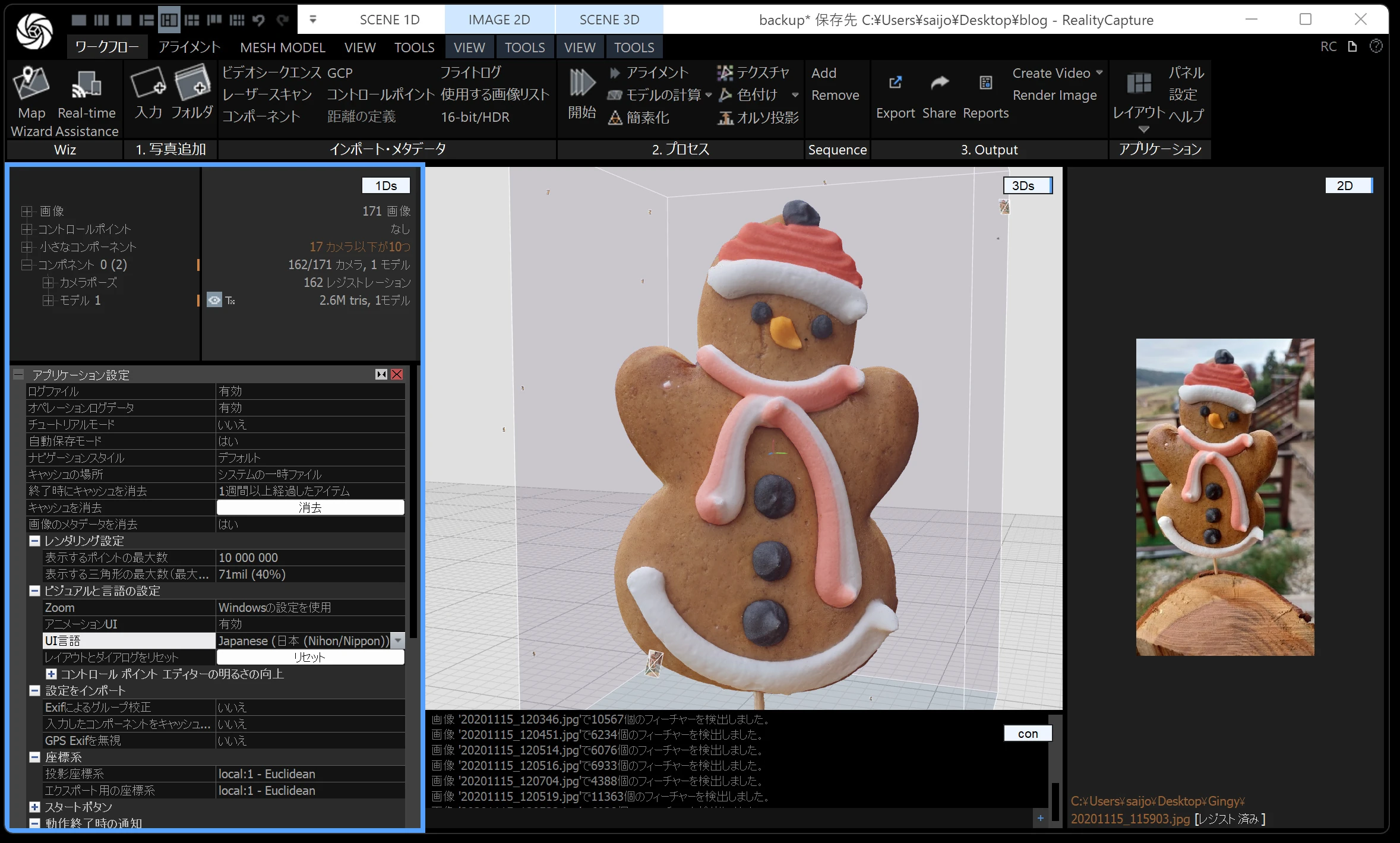
Today I will explain the process of making a high-quality 3D model in RealityScan, formerly RealityCapture. There are many beginner tutorials, but they often feel difficult and discouraging. Here, I focus on the simplest way to try it and the key ideas that make the next steps easier to understand.
In May 2024, Epic Games' RealityScan became effectively free for many users. Roughly speaking, its license allows free use below a revenue threshold, such as the official limit of under $1 million annually. For individual use, it is effectively free.
For students, this is an excellent opportunity to learn advanced technology at no cost. Students in educational institutions, from elementary school through university, can use it free too. I will explain the workflow at a level intended to be understandable to an elementary-school student.
The PC version was formerly called RealityCapture.
The mobile app had been called RealityScan, but the brands were unified under the RealityScan name.
The PC program is RealityScan; the mobile version is RealityScan Mobile.
It is a slightly confusing change, but it should feel familiar after a few years.
RealityScan licensing details
It is free for individuals and small businesses with under $1 million in revenue over the past 12 months, and for educational institutions and students.
Preparing RealityScan
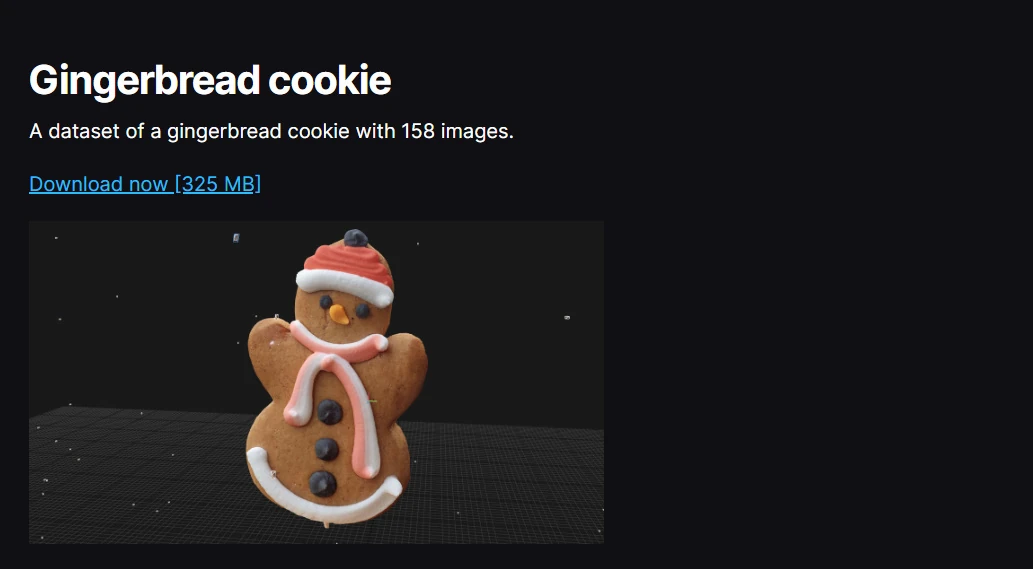
The first step is to try it. Let's make a high-quality model with the simplest procedure. Download Epic's Gingerbread Man sample by scrolling a little down the page.
Gingerbread cookie: a dataset with 158 images. Download now, 325 MB
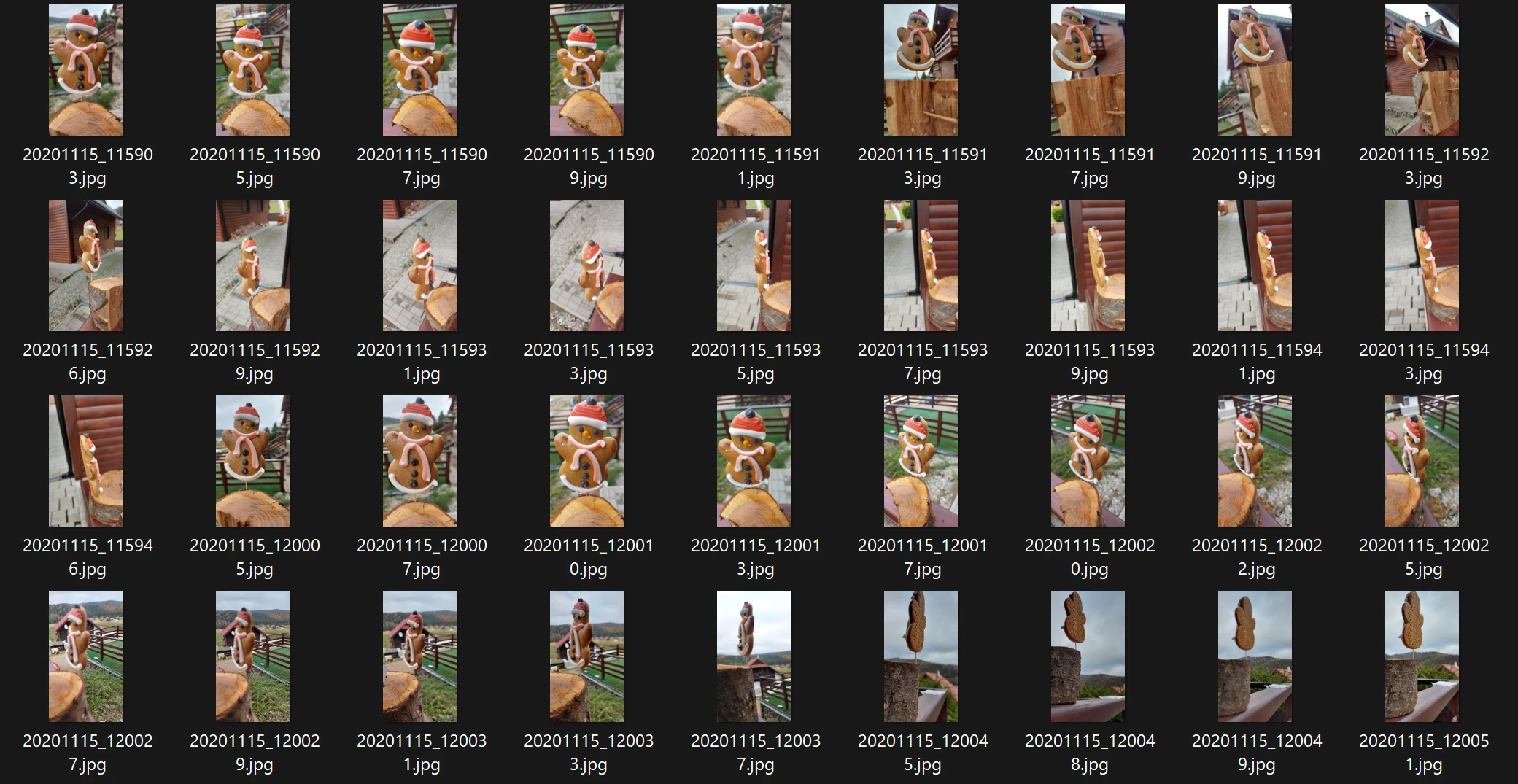
The download contains photographs like these. You can also try your own camera or smartphone photographs.
Installing through the Epic Games Launcher
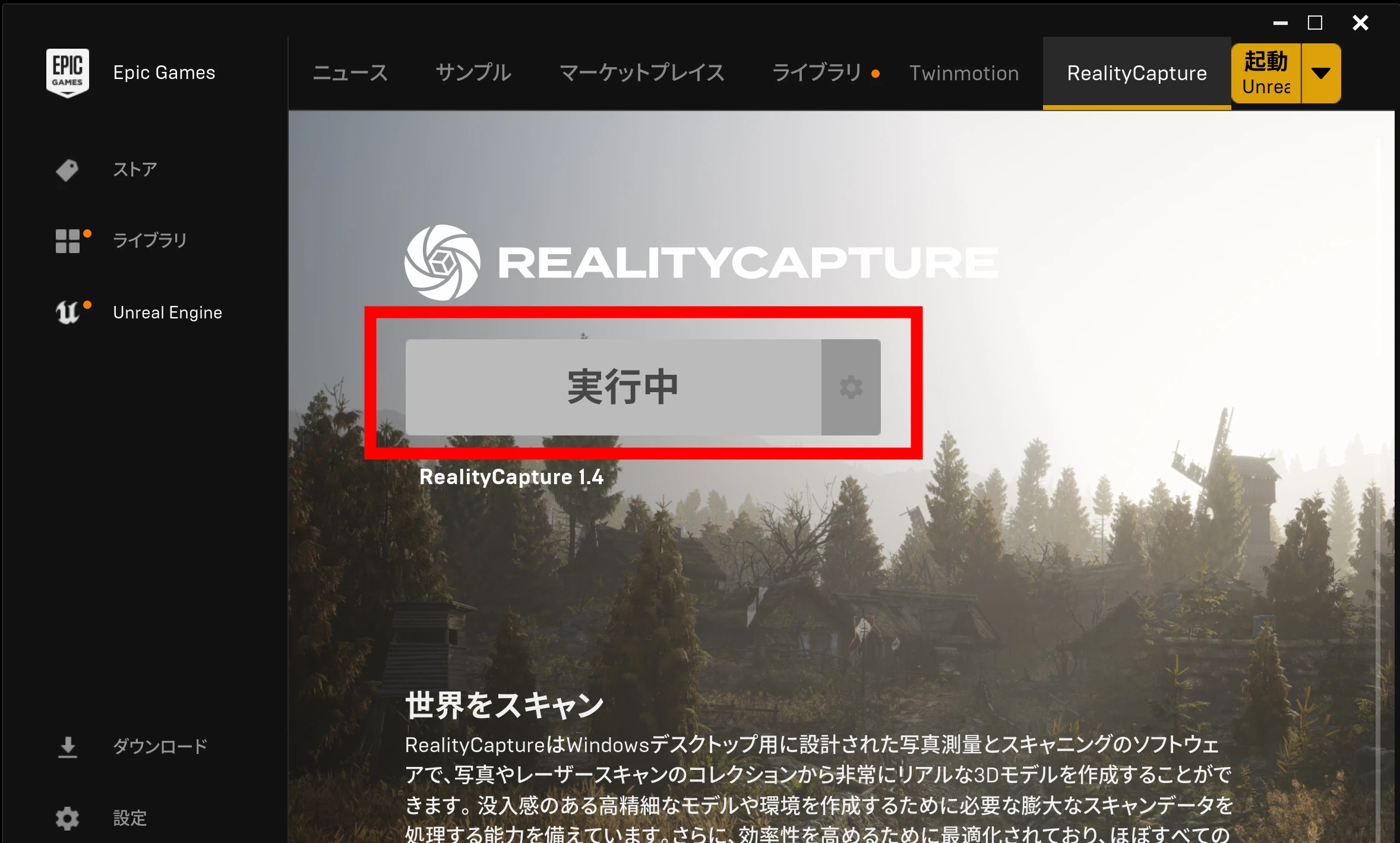
Install the Epic Games Launcher. If you have played Fortnite or similar games, it may already be installed. The launcher has a RealityScan, formerly RealityCapture, tab.
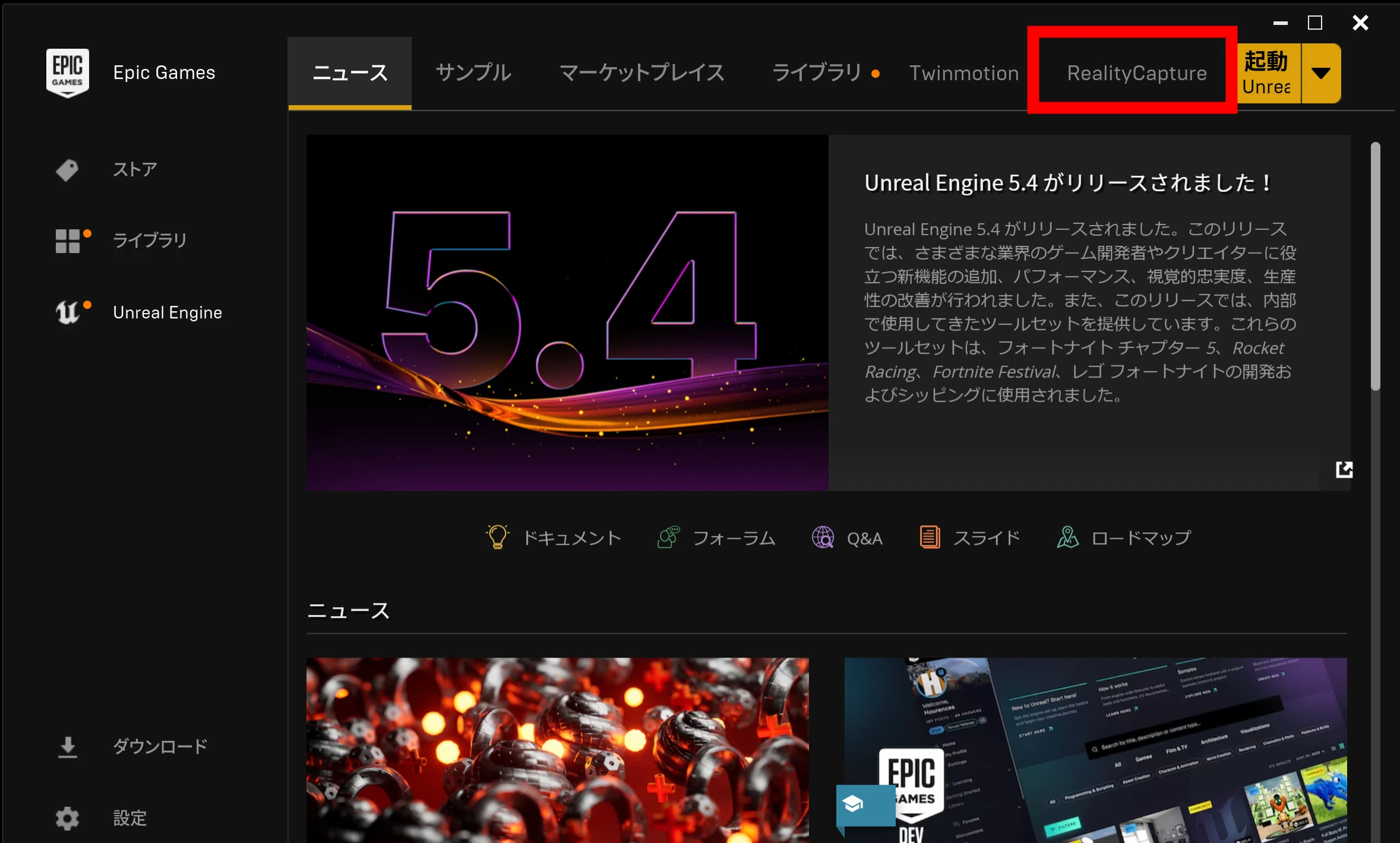
Open the tab and install RealityScan. Once it launches, you are ready.
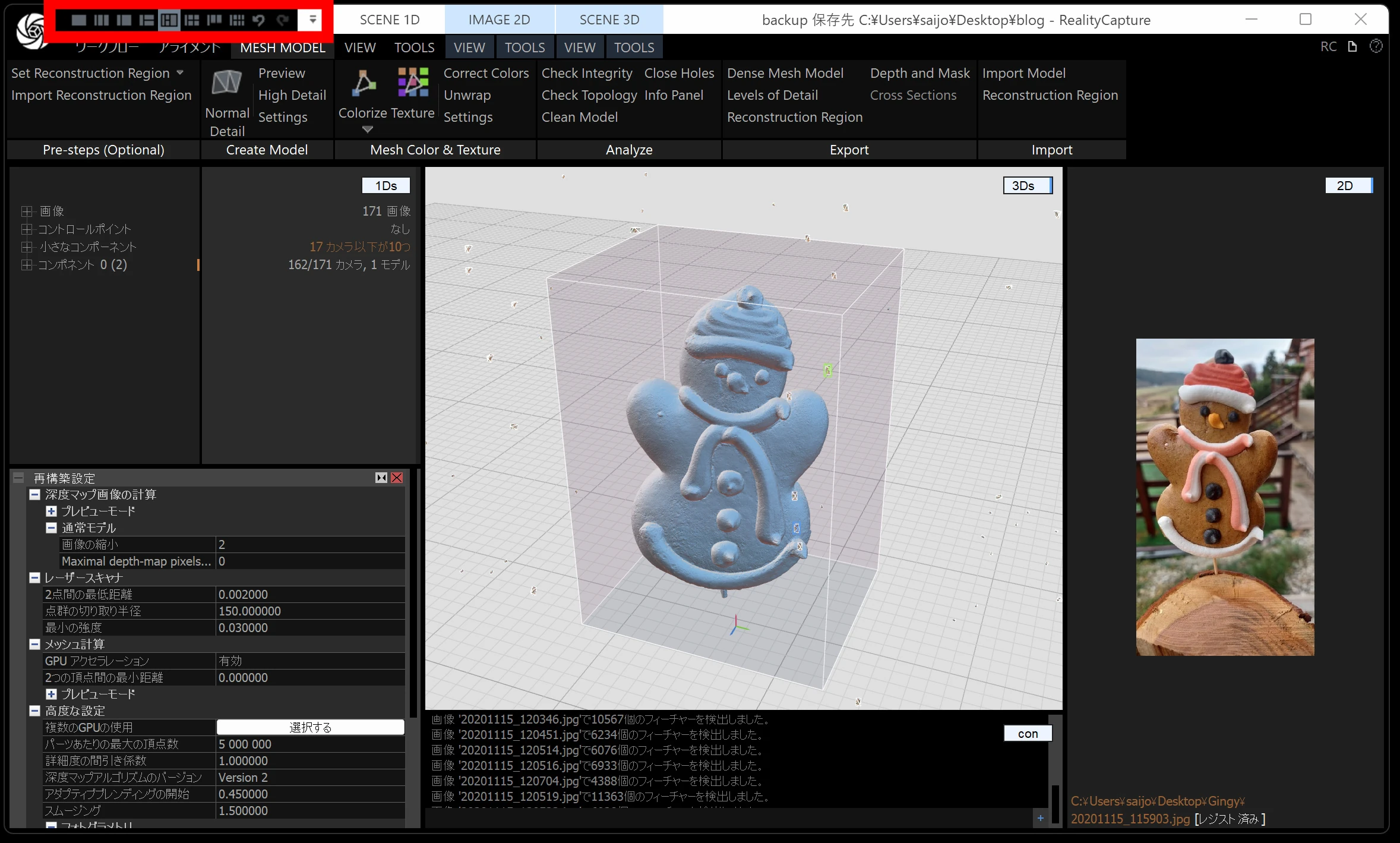
Layout and the Japanese interface
You can change the layout from the upper left. I recommend the following arrangement.
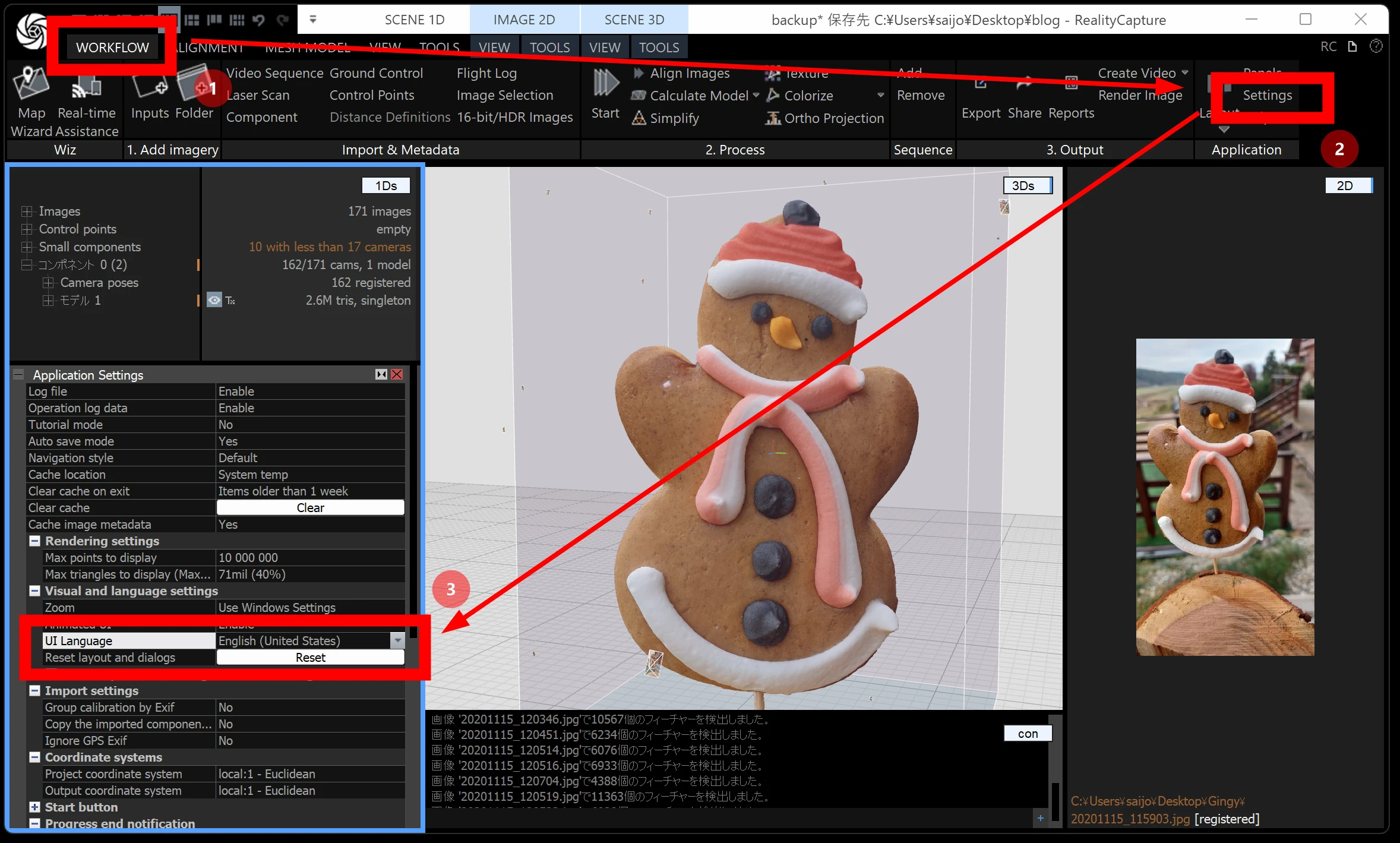
In the original Japanese workflow, I recommend switching the interface to Japanese after launch. It translates some menus and makes them a little easier to understand, although most remain in English.
Choose the Japanese option under WORKFLOW → Settings → UI Language.
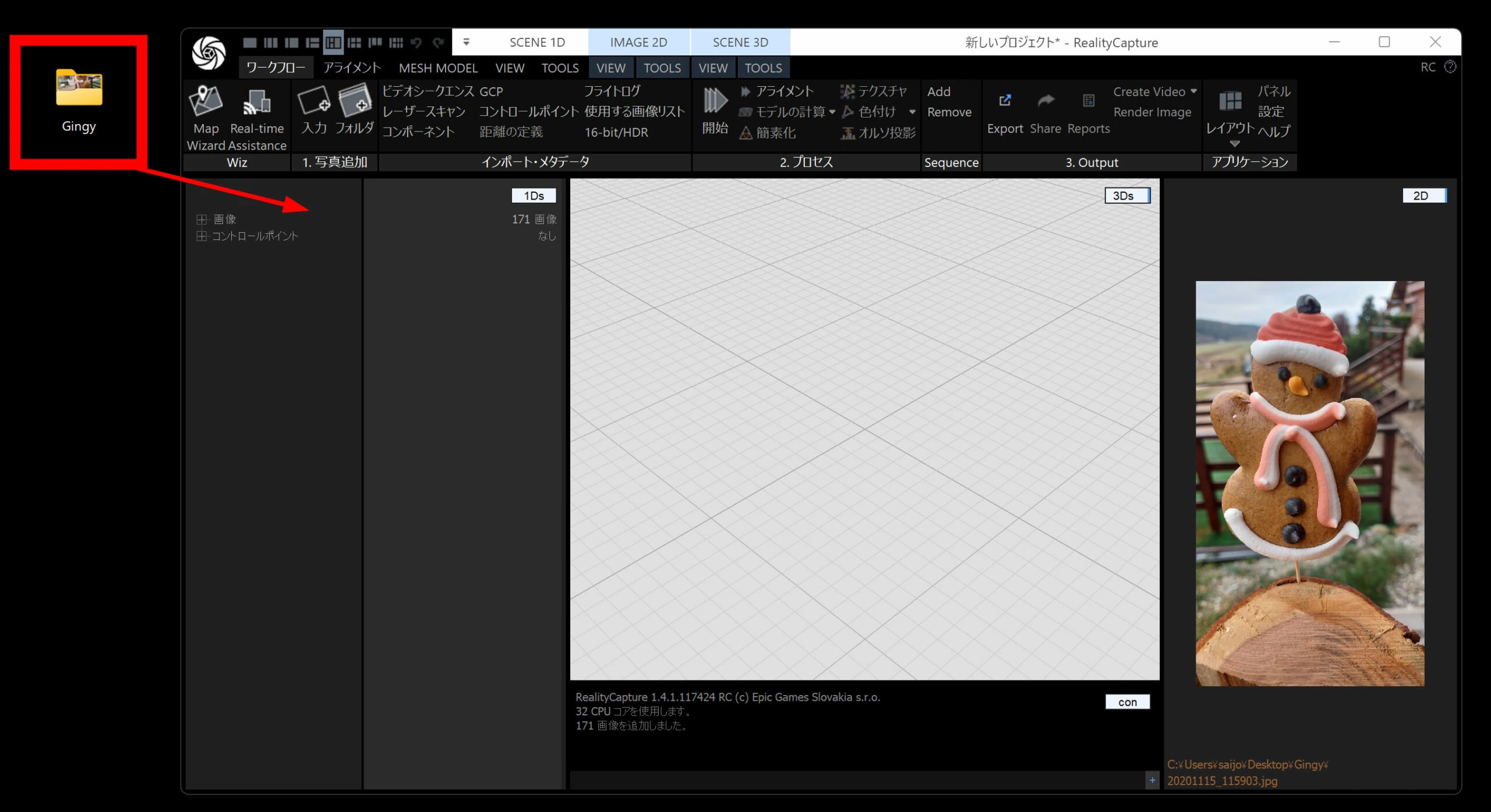
Trying the one-click workflow
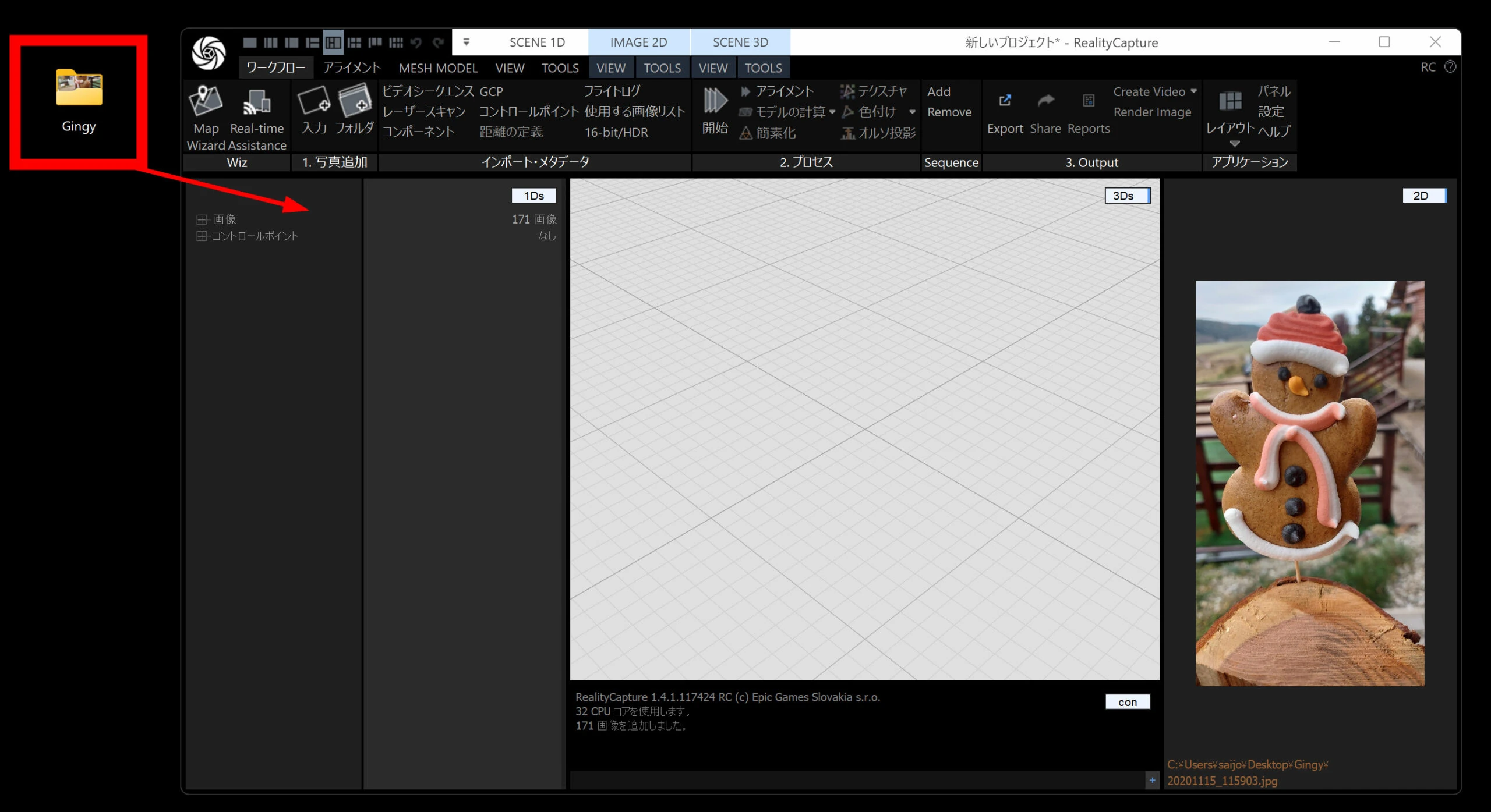
Drag and drop the photographs into RealityScan.
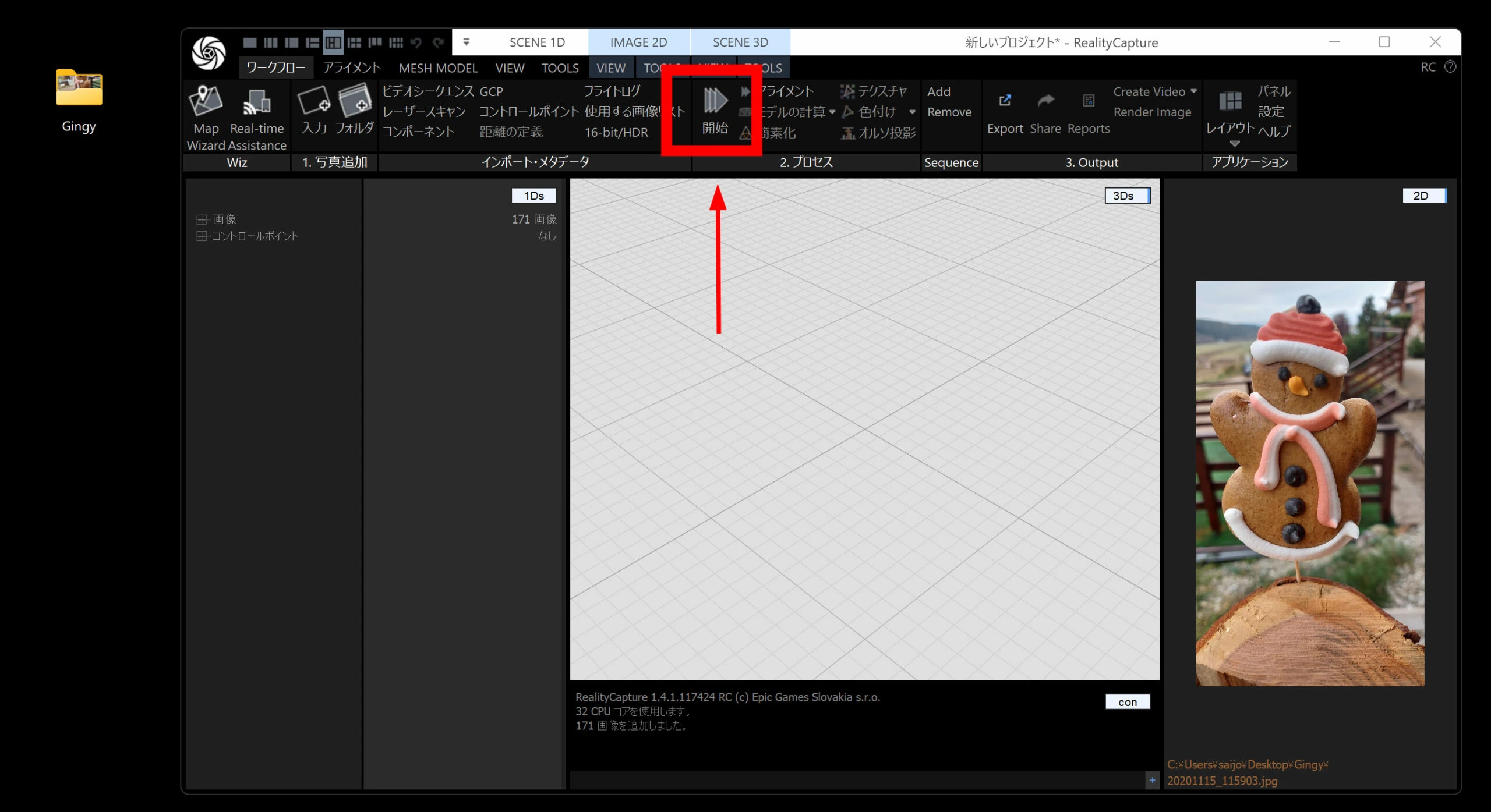
Click Start. This runs the whole process. I recommend experiencing the one-click approach first.
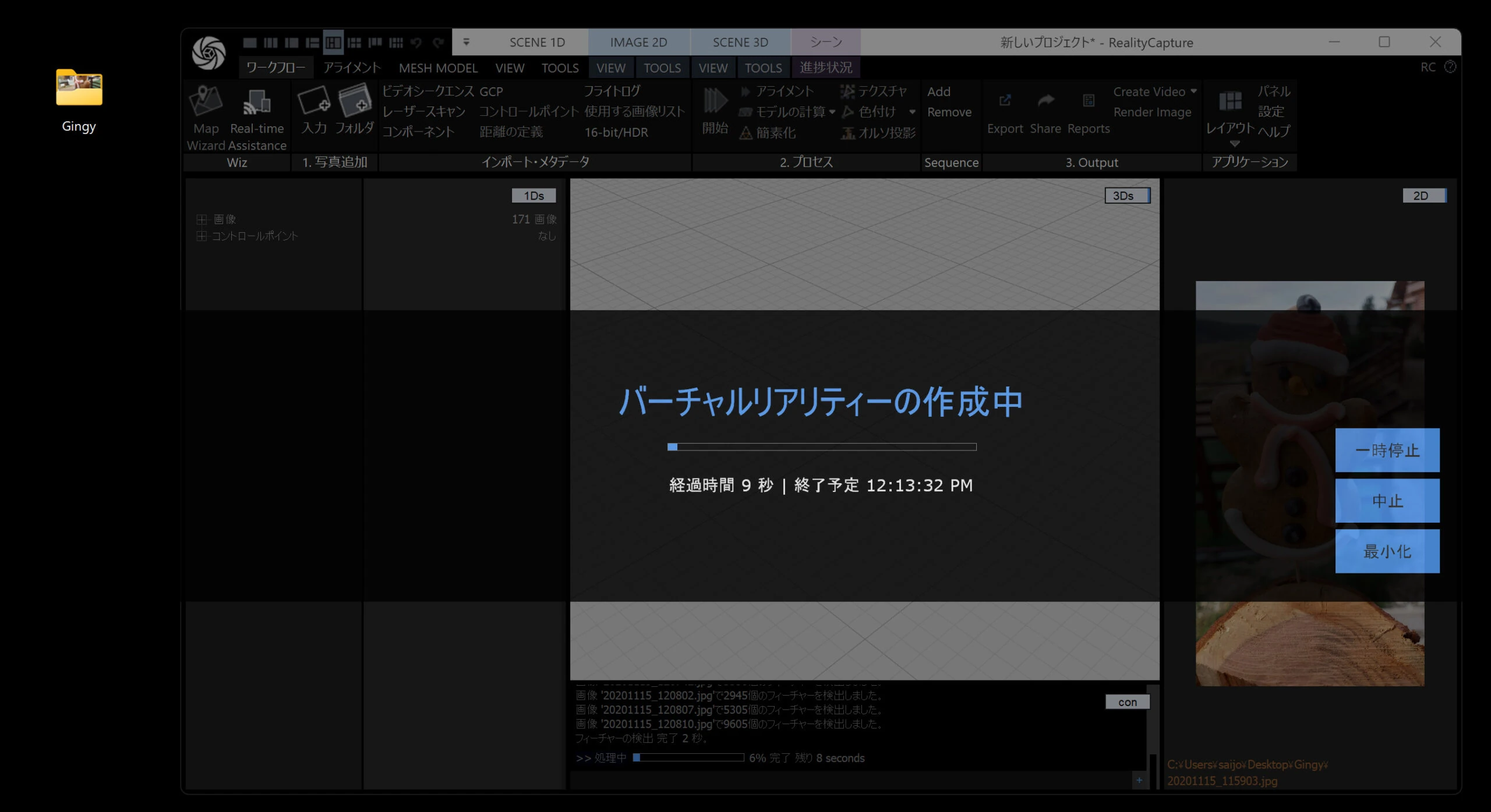
Wait for processing. A lower-spec PC will take a while.
That alone produces a photogrammetry result. You have a 3D model you can rotate freely, which should be a small moment of excitement.
Understanding the stages manually
One button can do everything, but real subjects often do not work so easily. Let's follow the manual workflow; these stages become central in practical work.
Importing images
Import the images again.
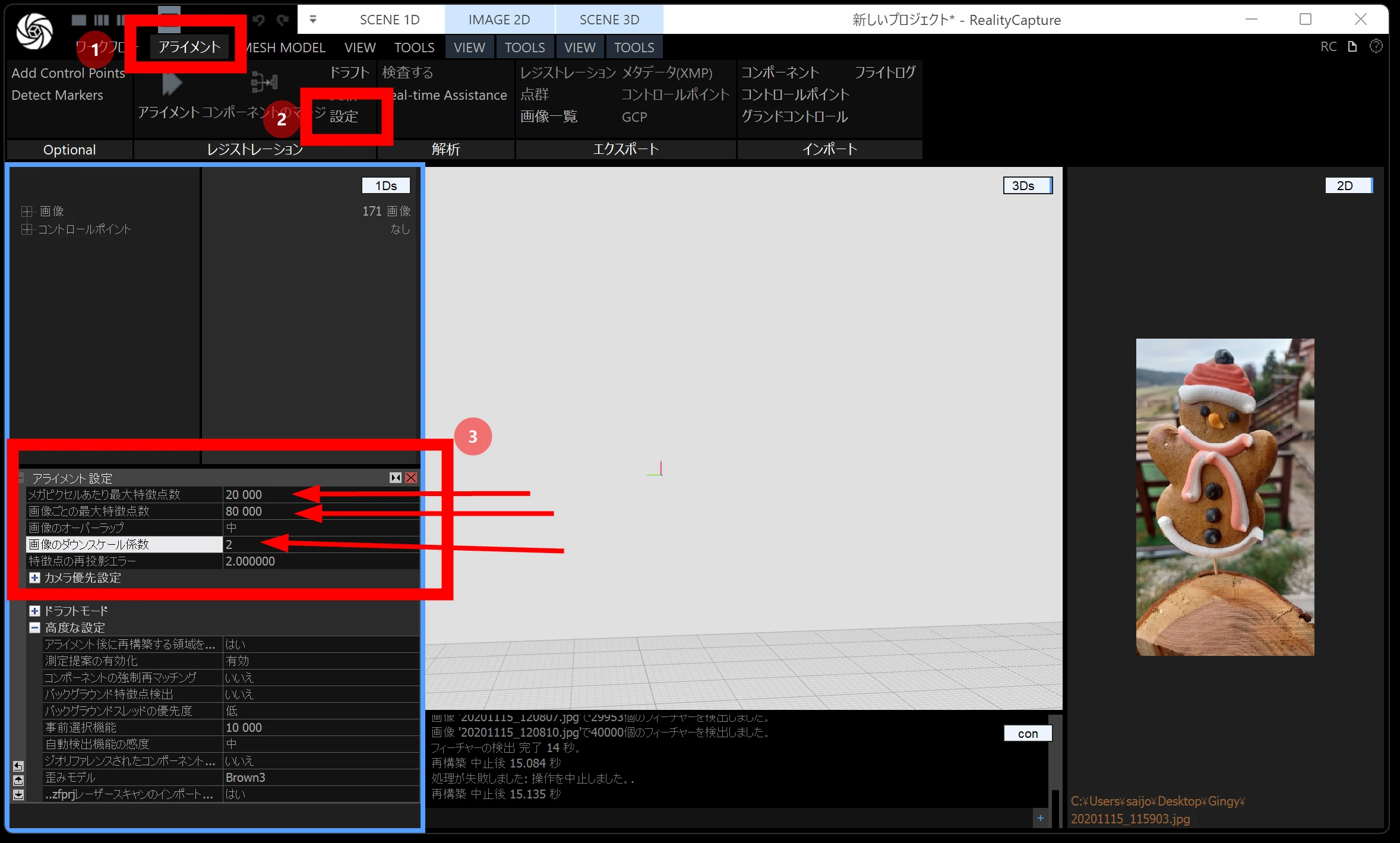
Alignment
Select Alignment and open its settings. To reduce processing load, set Image downscale factor to 2.
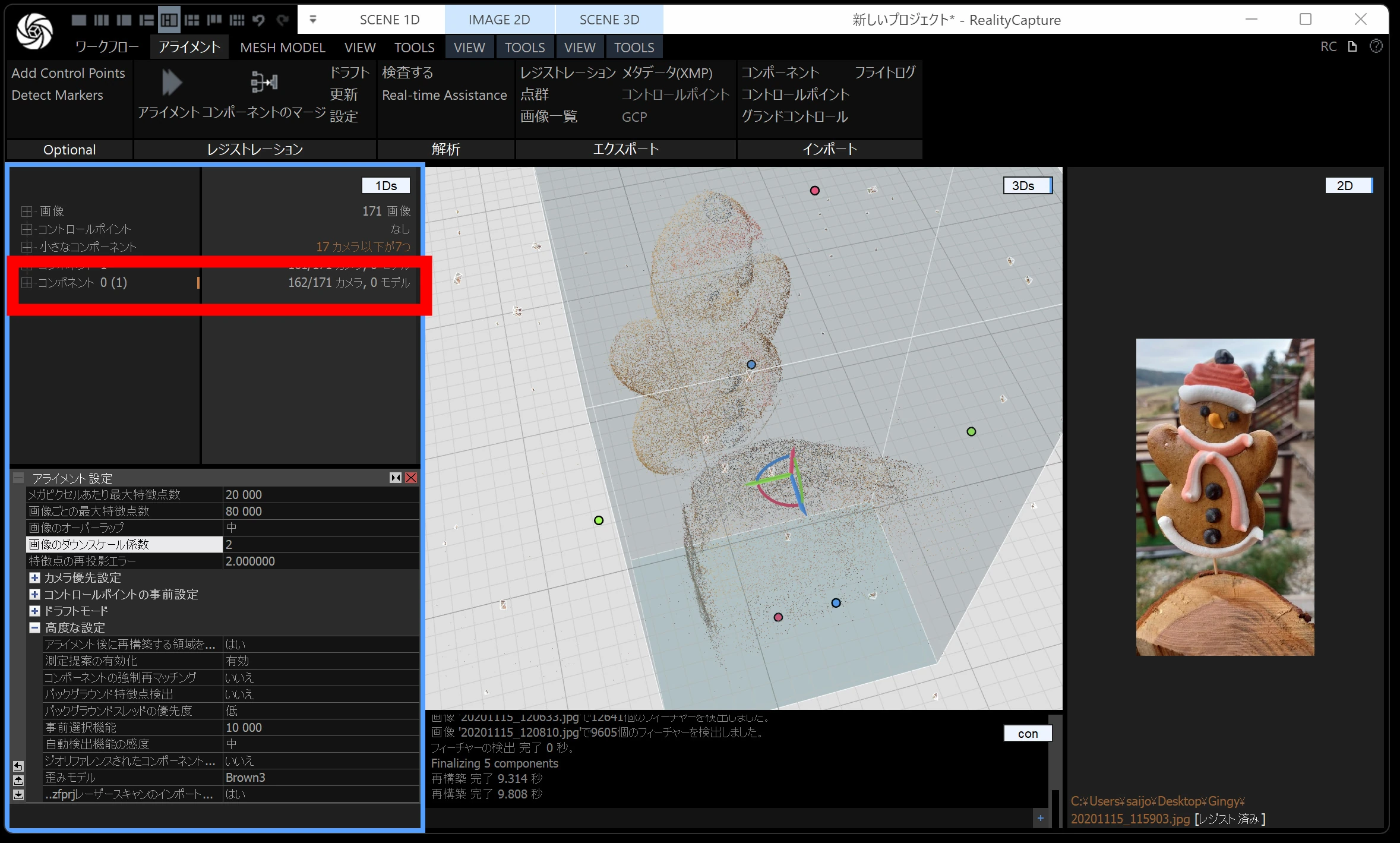
Run Alignment. This analyzes the photographs using techniques such as triangulation and creates a point cloud.
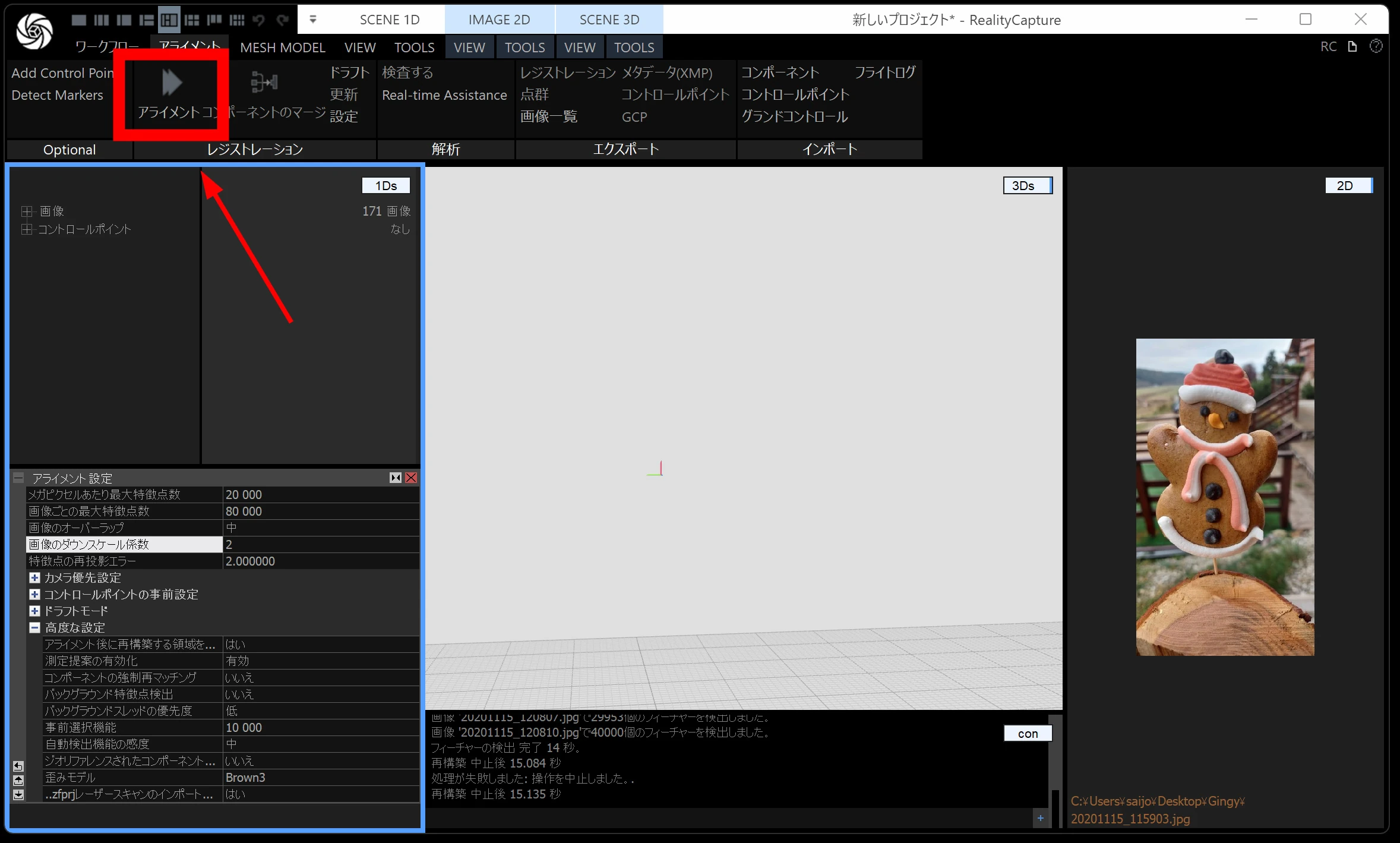
Afterward, the images are grouped into components. The first run may combine relatively few images, so repeat alignment two or three times.
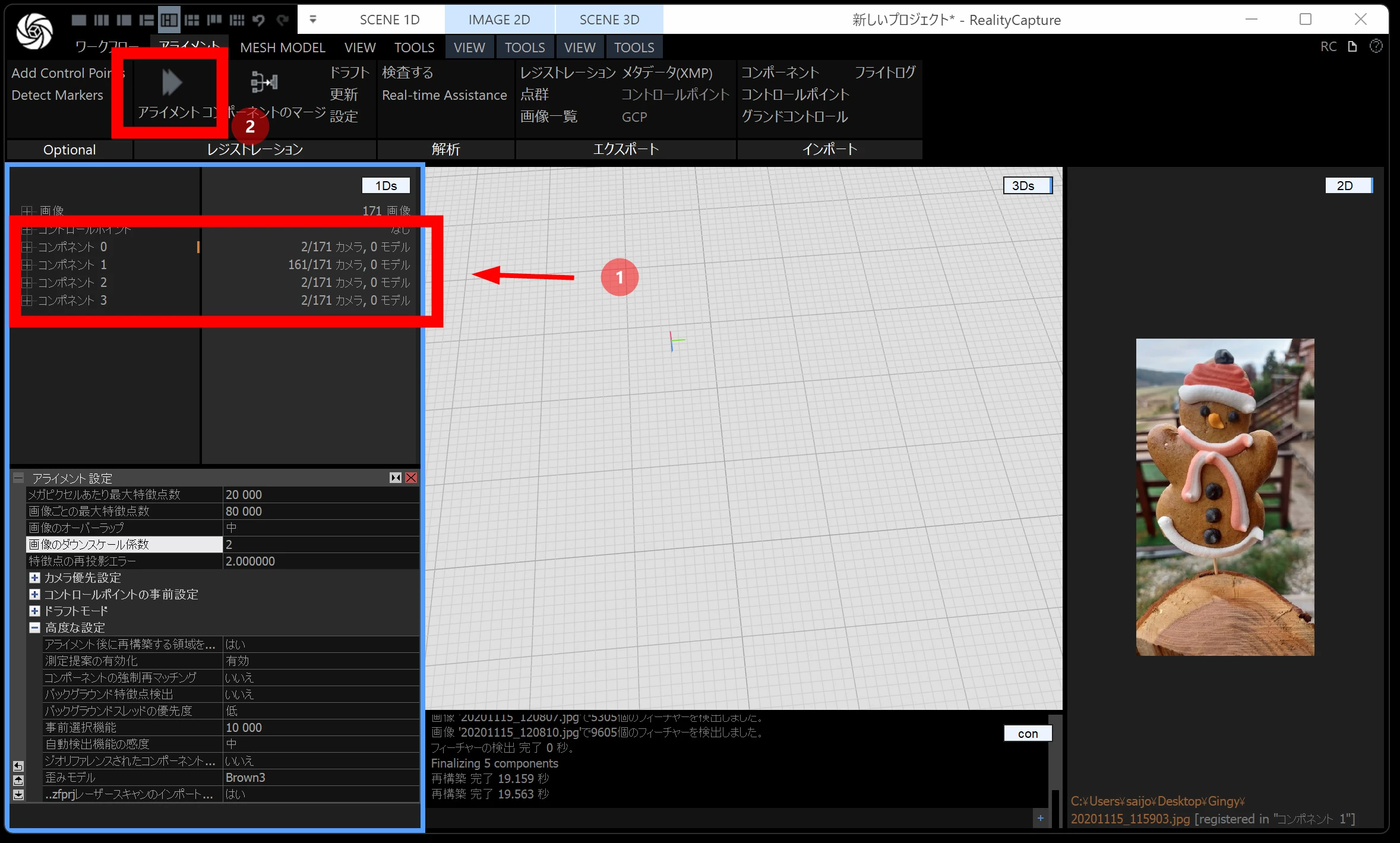
Here, repeating it twice increased the number of images in one component. Let's accept this result. The more images combined, the more complete the point cloud becomes, so try to merge as many as possible.
MESH MODEL
Next, select MESH MODEL. Close the lower-left menu with its red × to reduce clutter. The settings menus look similar, so hiding unrelated options makes things clearer.
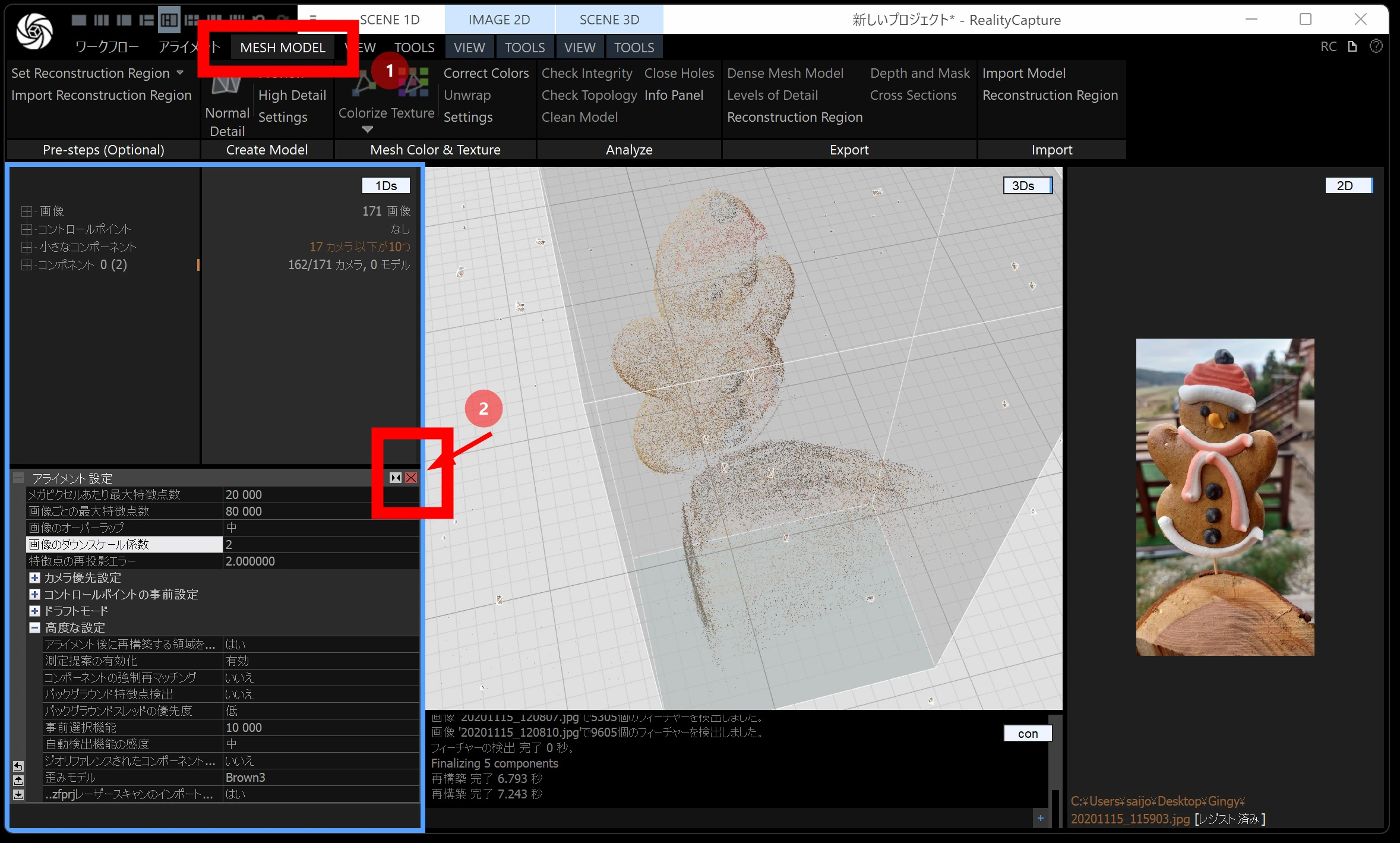
Open MESH MODEL settings. Much of this area remains English even when the interface language is Japanese.
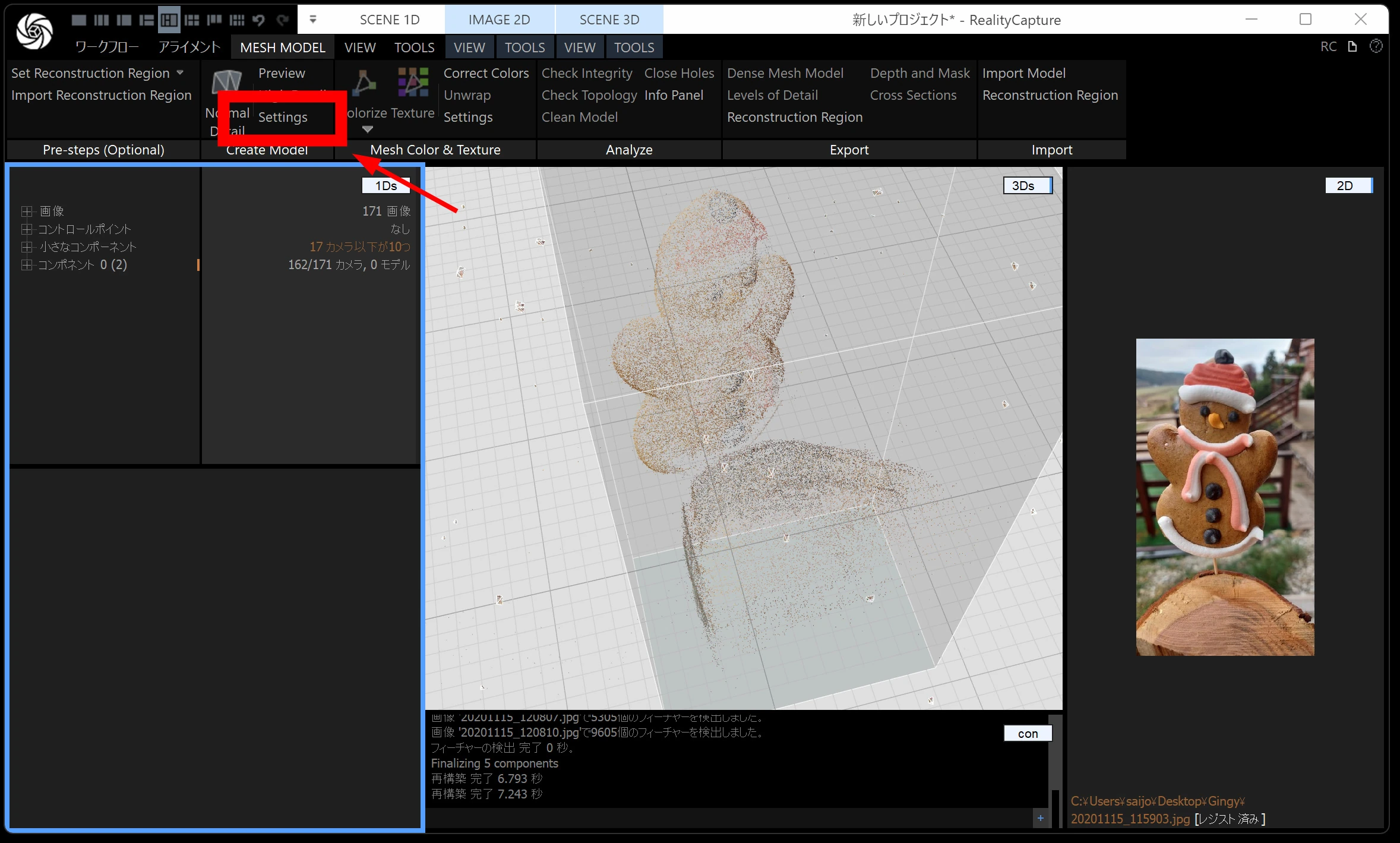
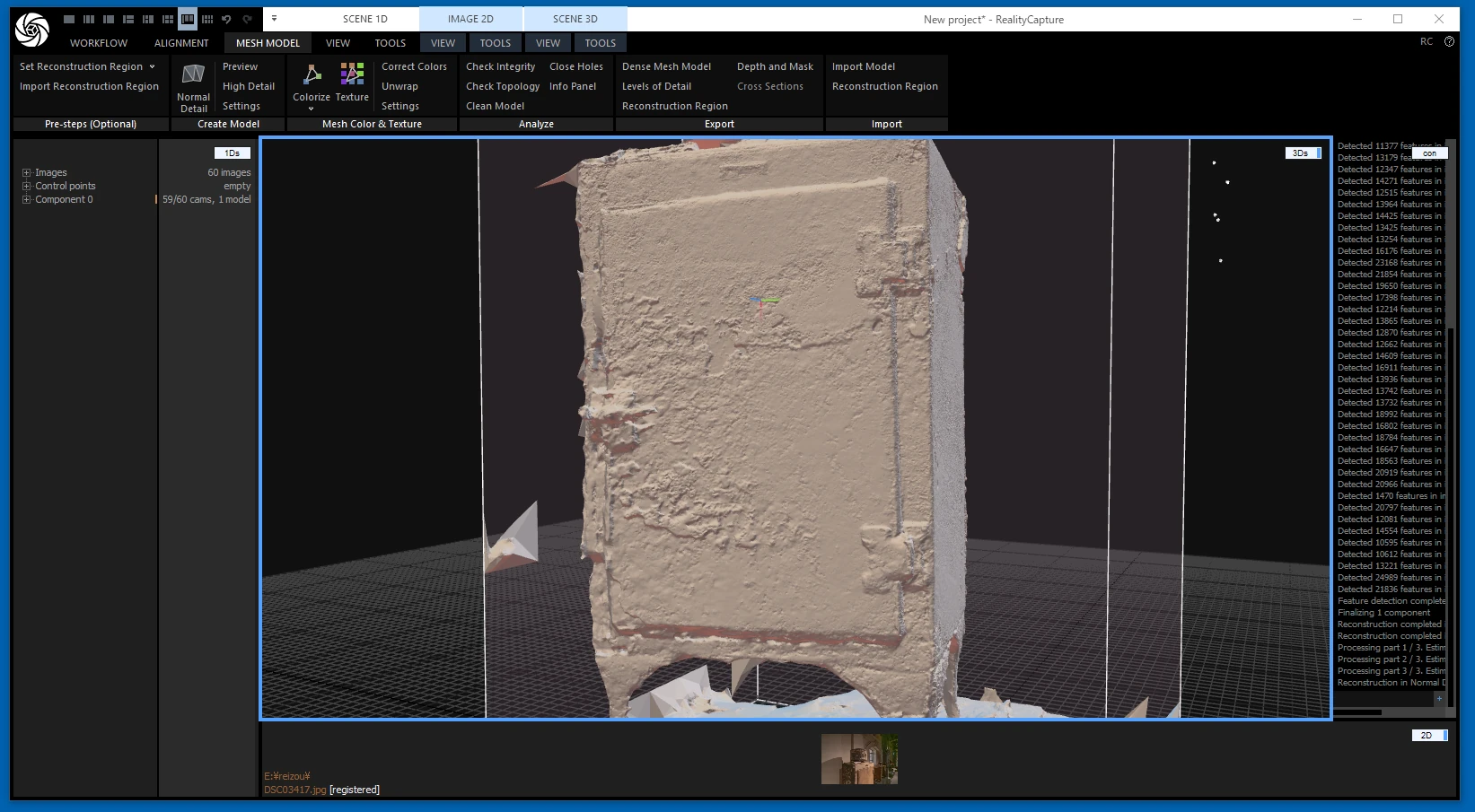
This stage builds a mesh of triangular polygons from the point cloud. It takes time, so setting image downscale for the normal model to around 2 reduces the load.
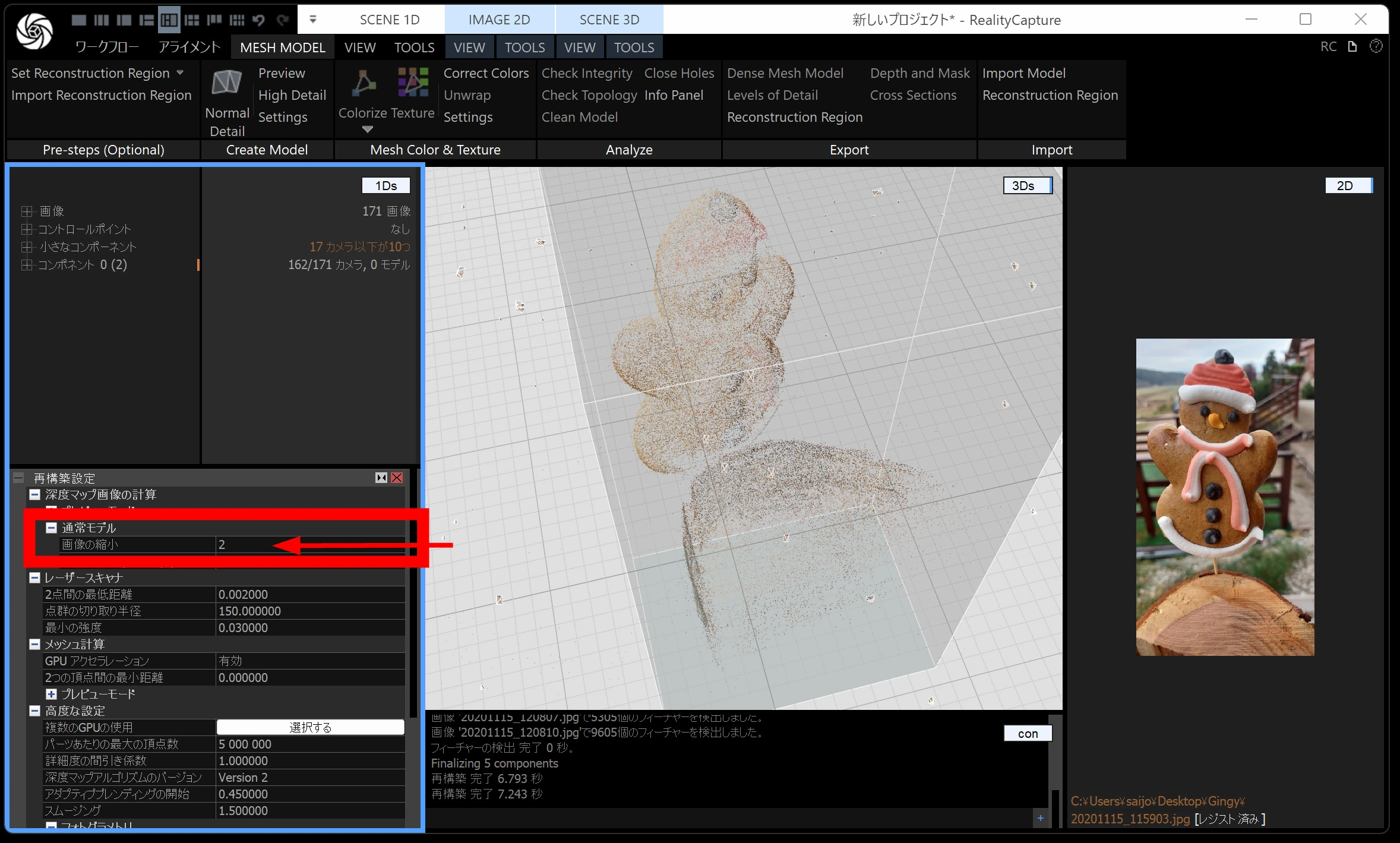
The visible box defines the reconstruction region. Restricting it to the necessary area also reduces processing, so click and shrink it.
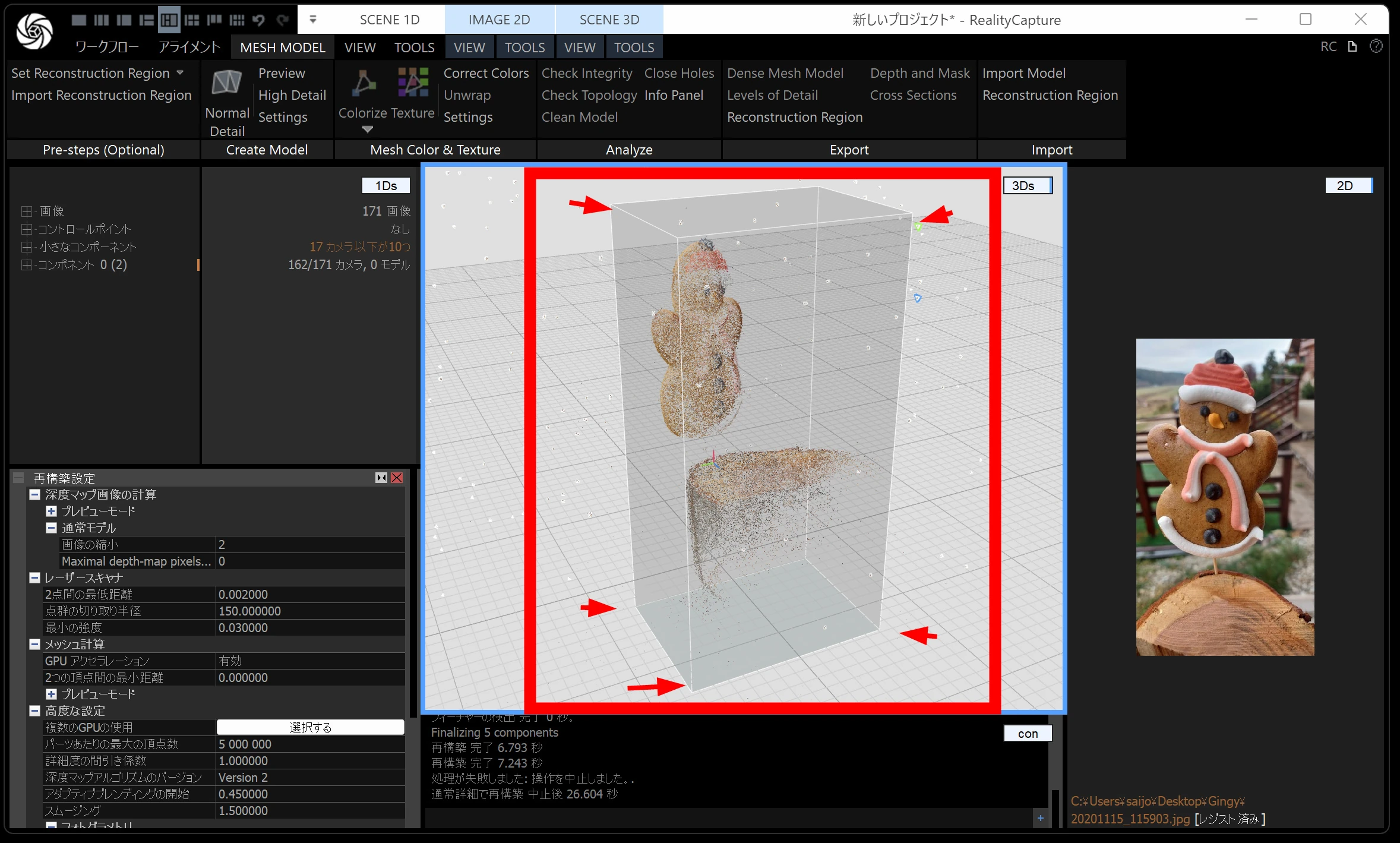
Clicking displays movement handles. Drag them to adjust the position.
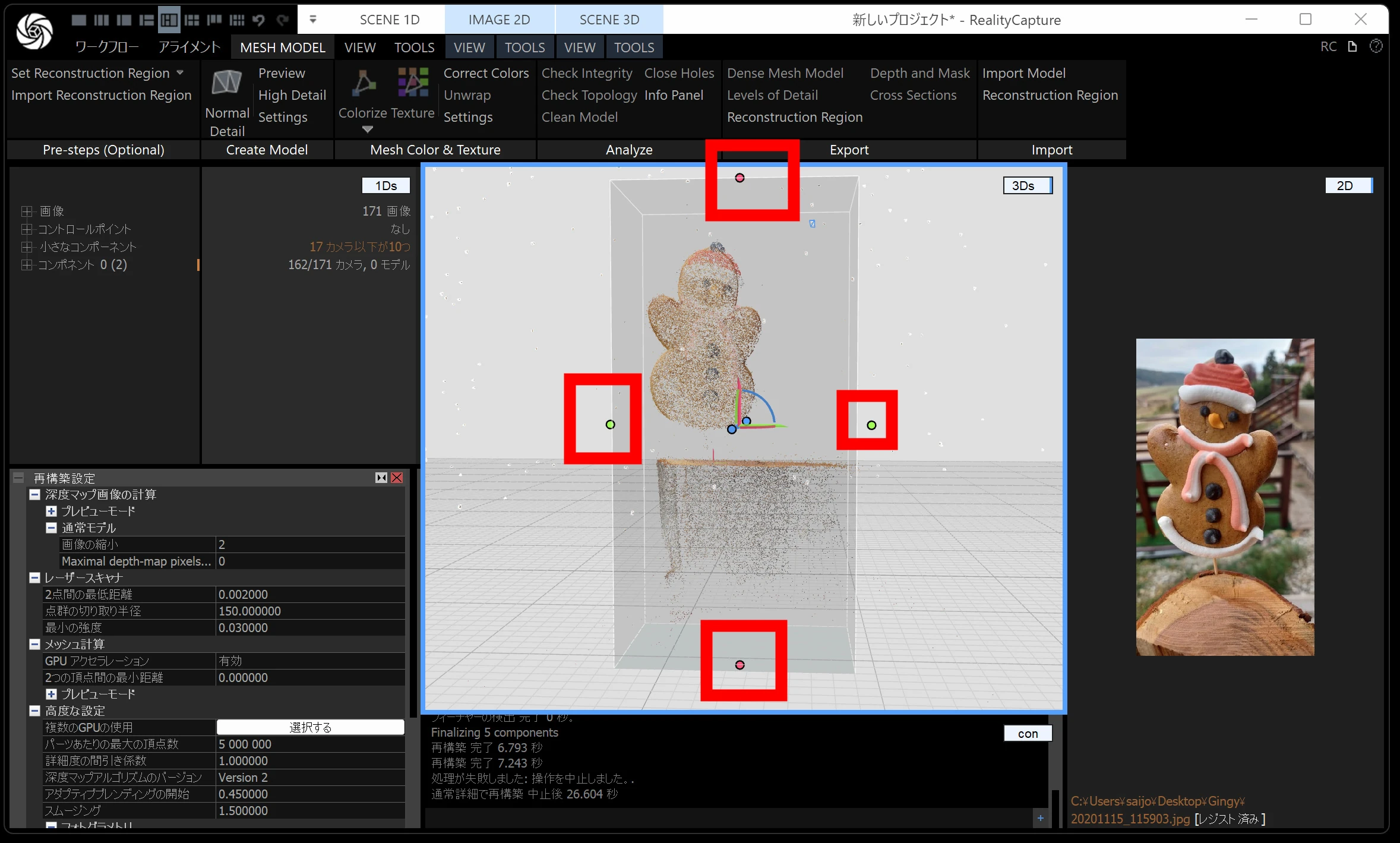
The base is unnecessary, so reduce the region. Check from different angles that the figure itself fits inside.
Click Normal Detail to run the reconstruction.
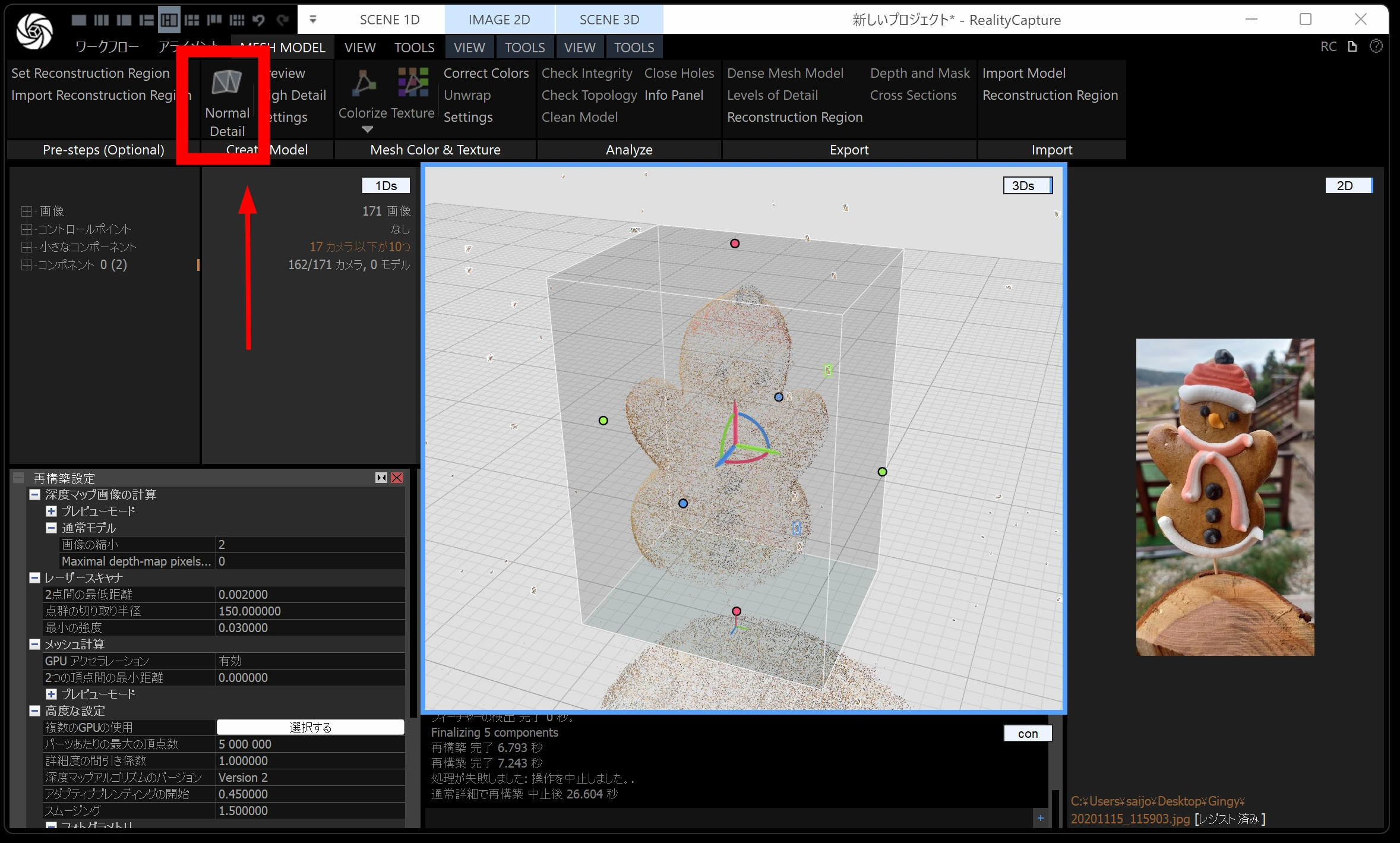
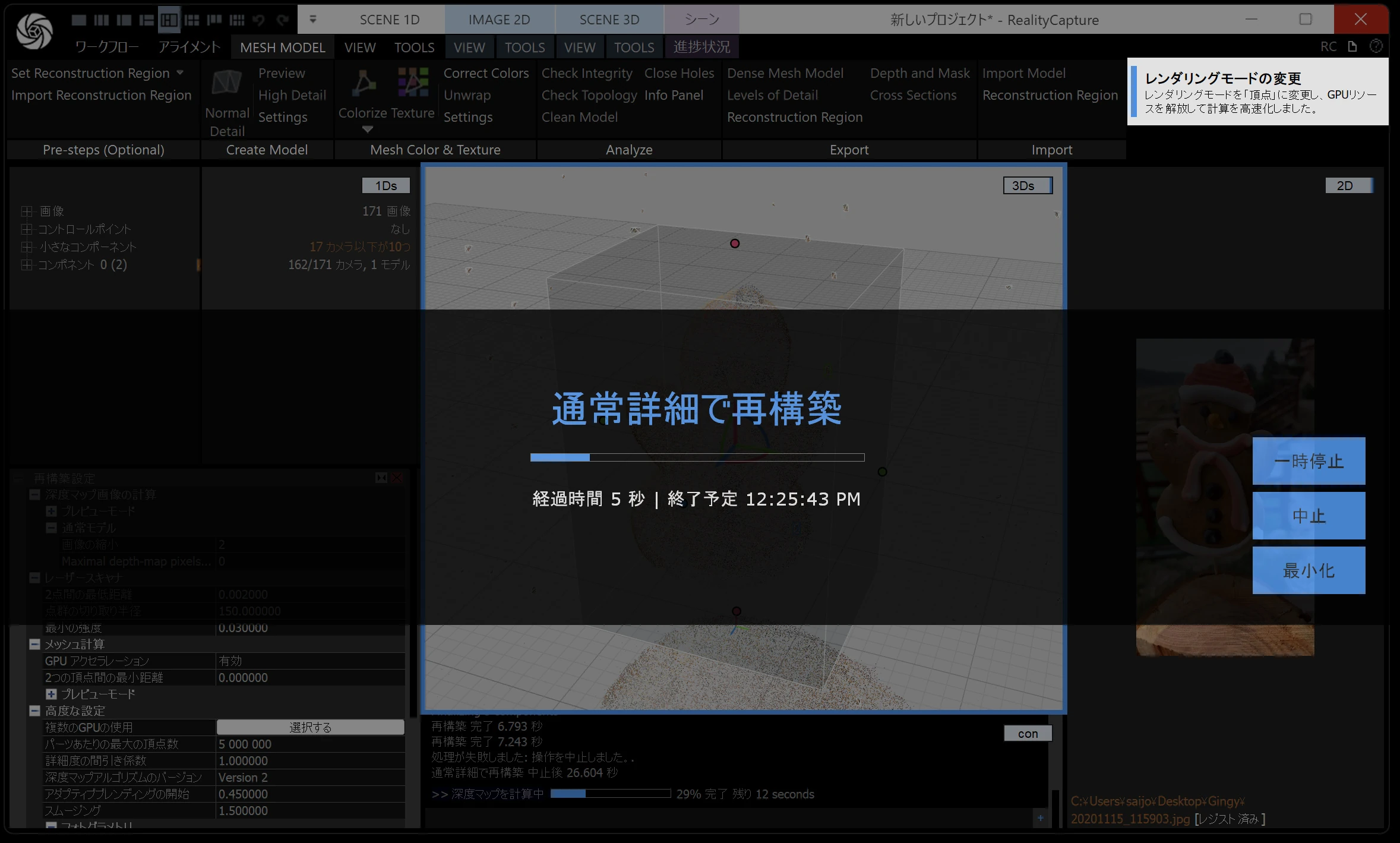
Analysis begins. Wait for it to finish.
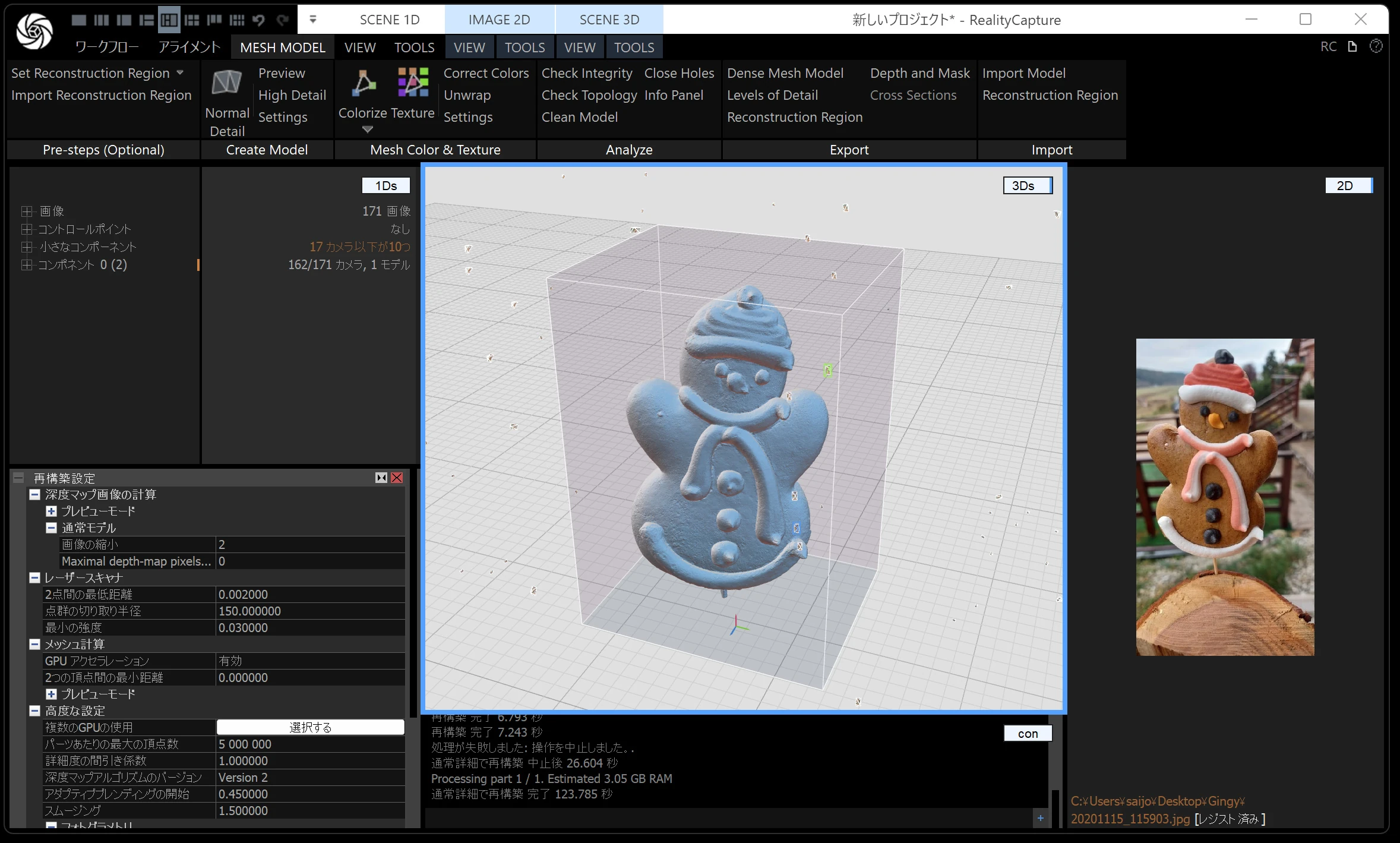
The completed result is a mesh model.
Unwrap, Colorize, and Texture
Open Settings.
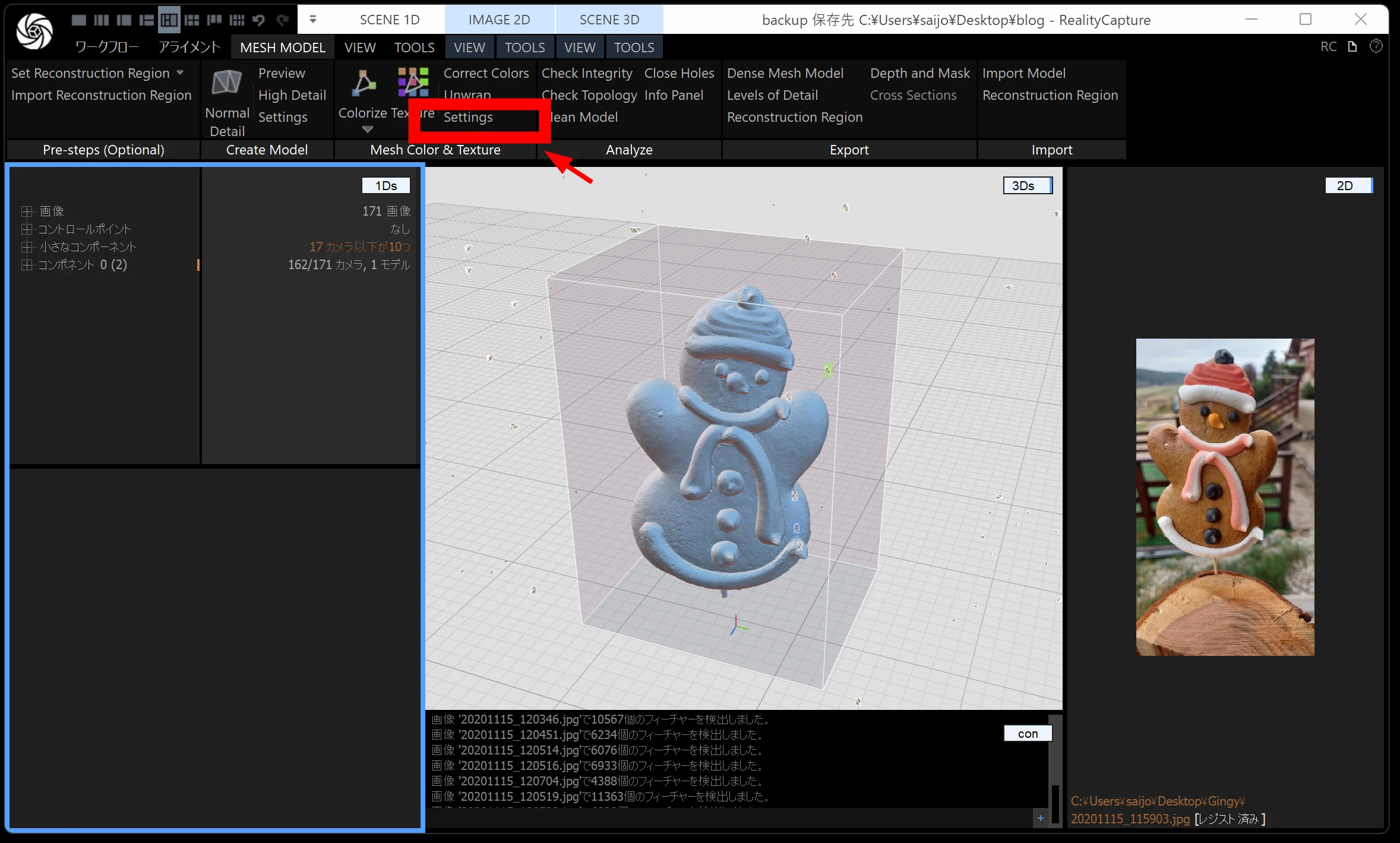
There are many options, but leave them as they are initially, except set Jitter to 1.
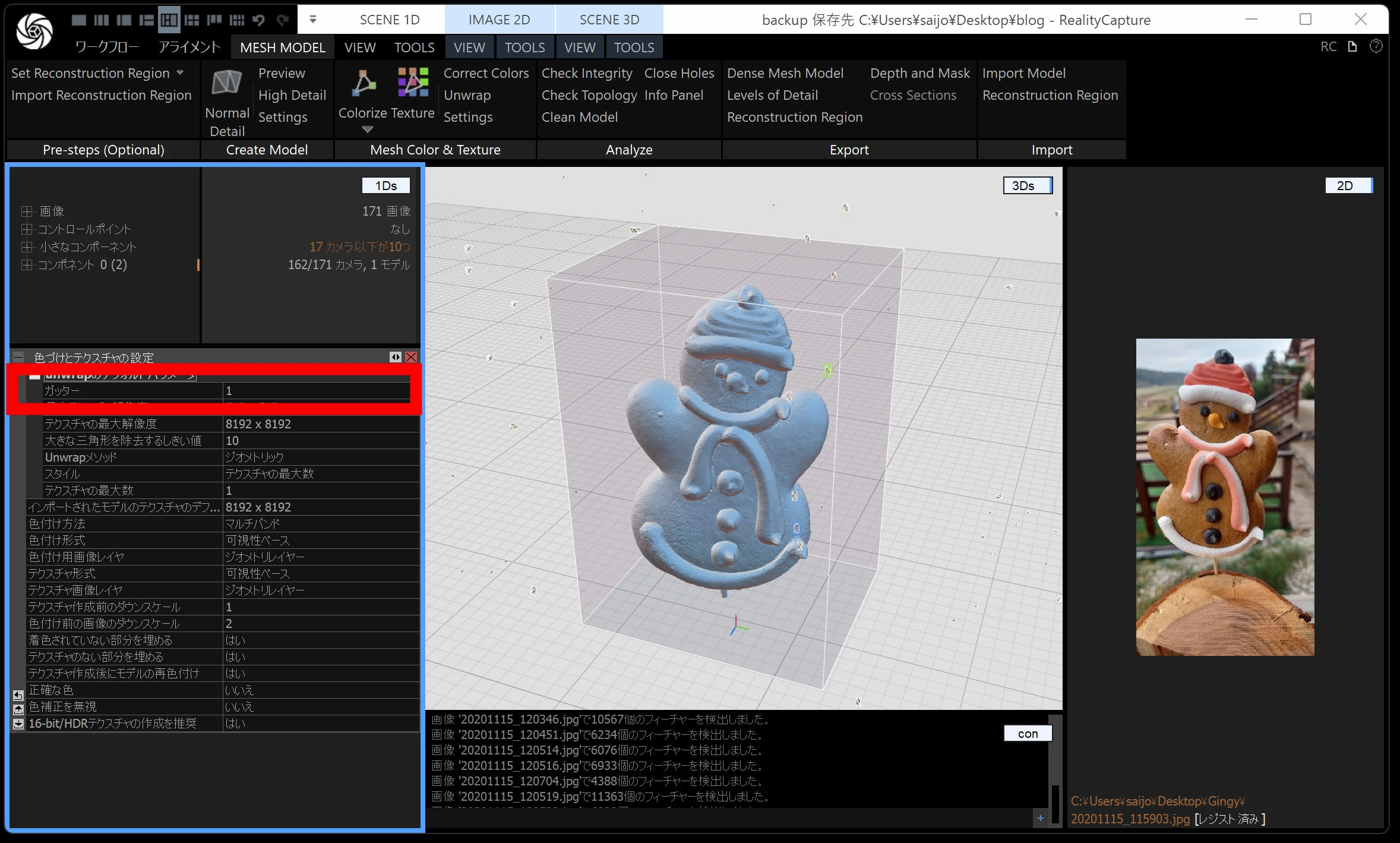
Run Unwrap first. This prepares the later stages and allows you to inspect texture quality in advance.
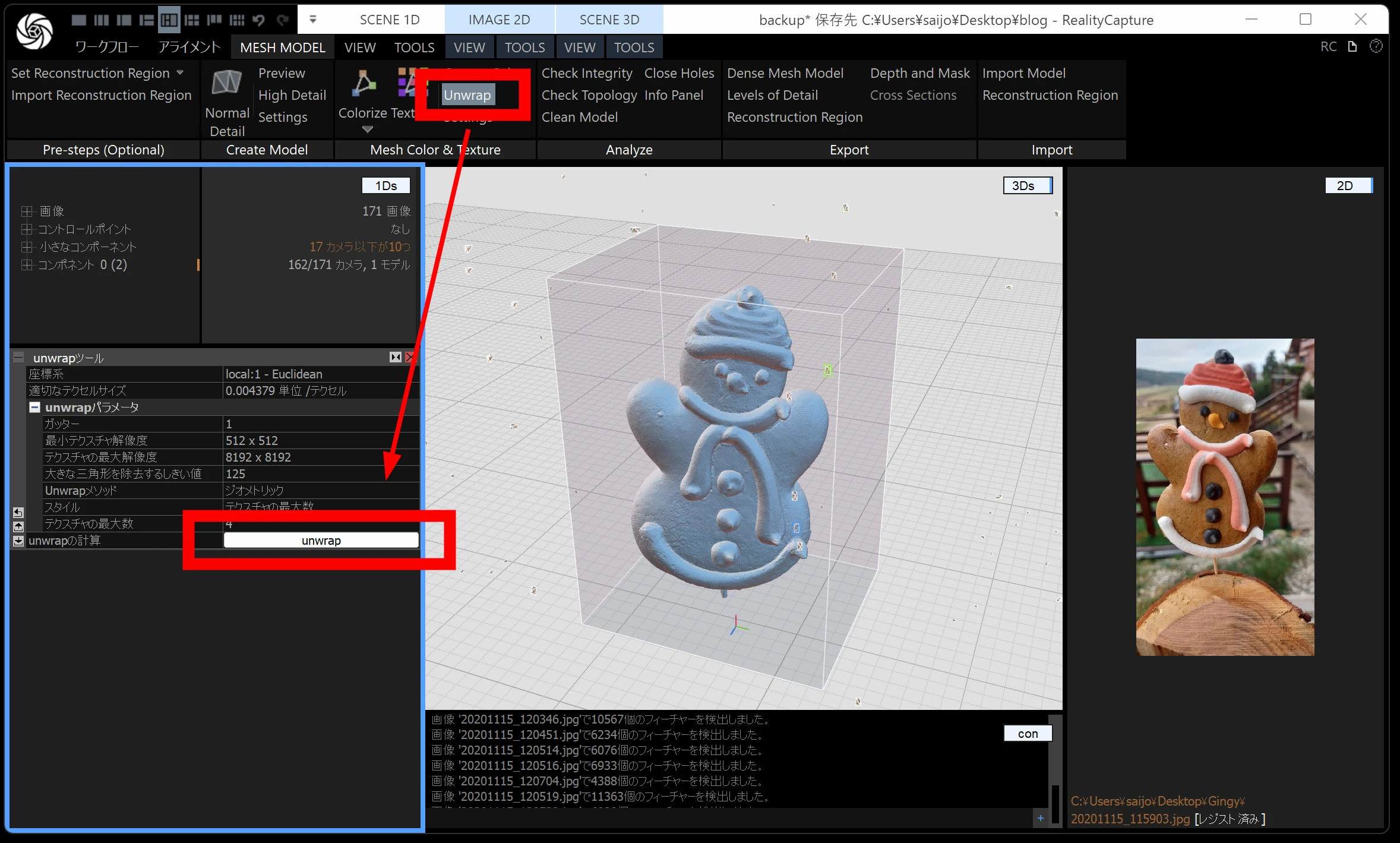
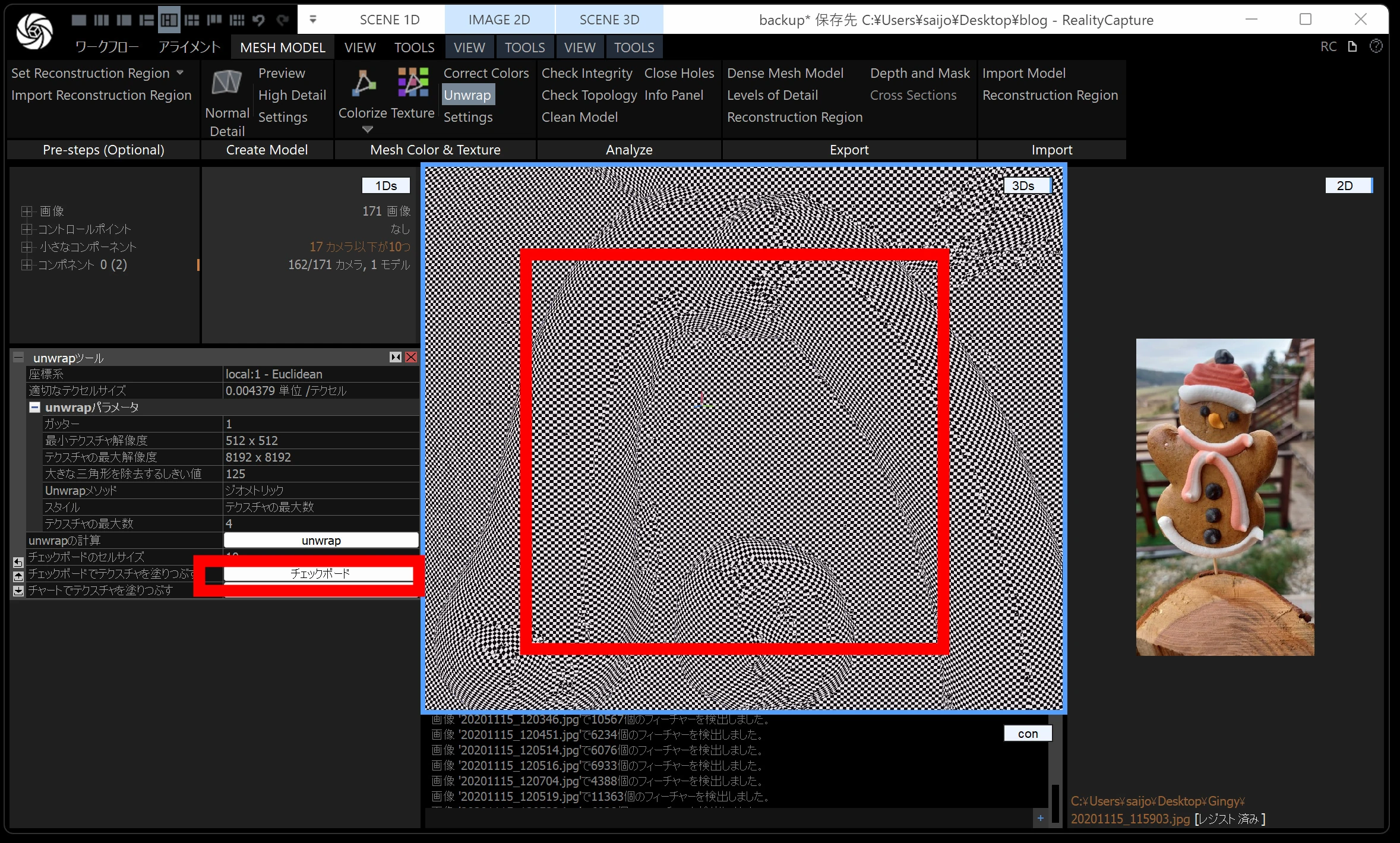
Clicking the checkerboard reveals areas where textures may not map well. This model did not need that check.
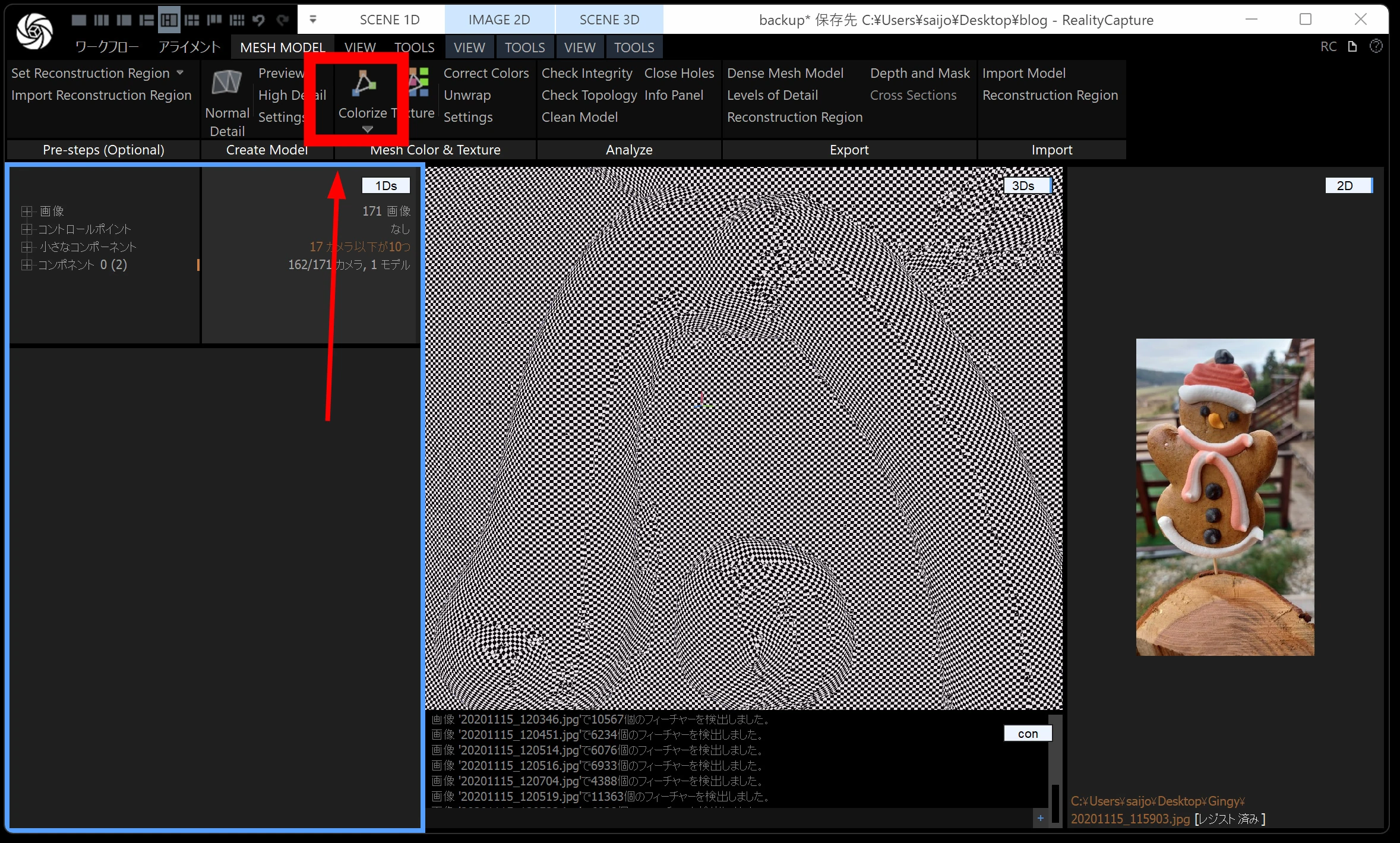
Next, run Colorize.
Finally, click Texture.
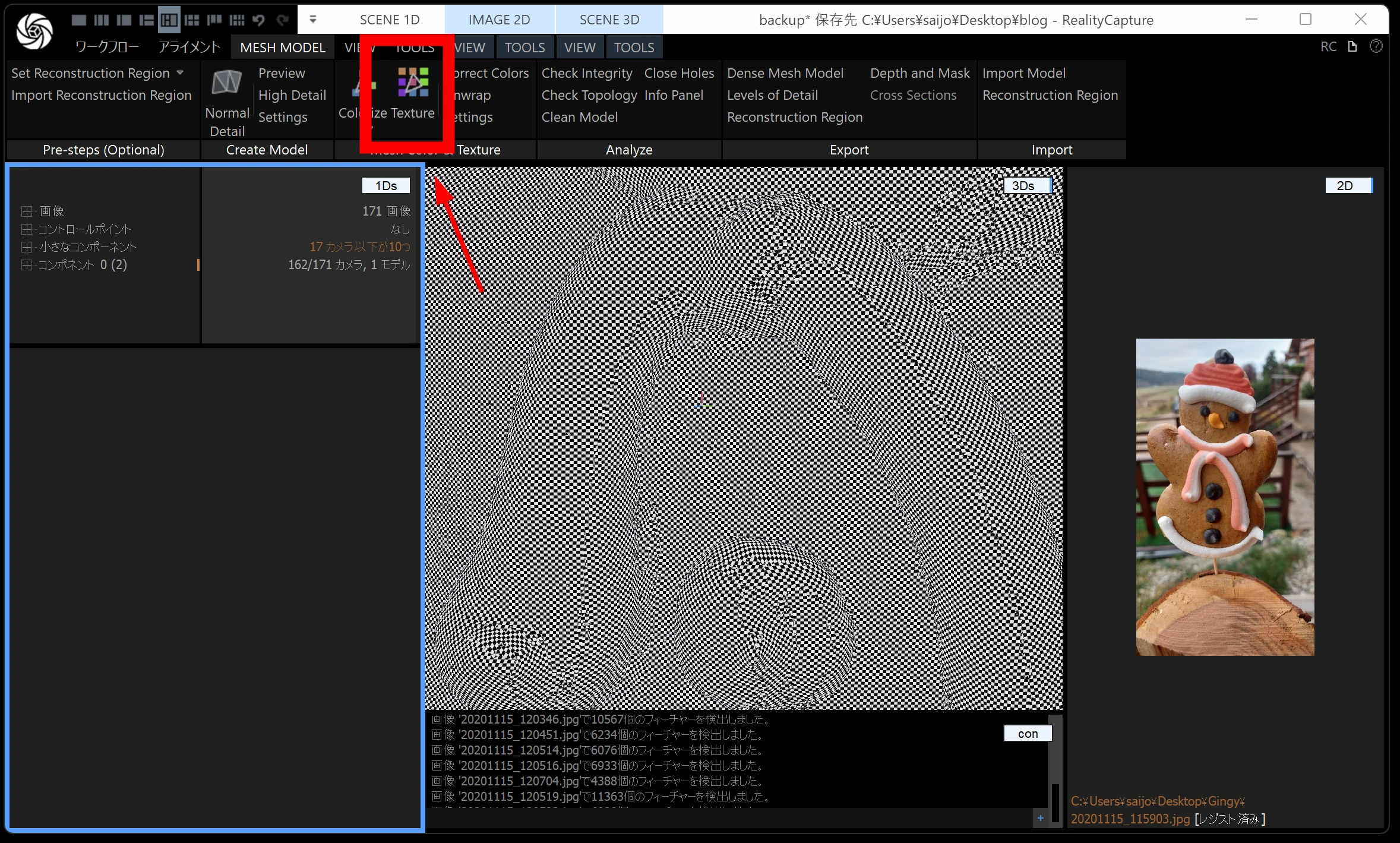
The basic appearance is now complete.
Exporting
Check the model size. This example had 2.8M, which is somewhat large, but let's export it as-is.
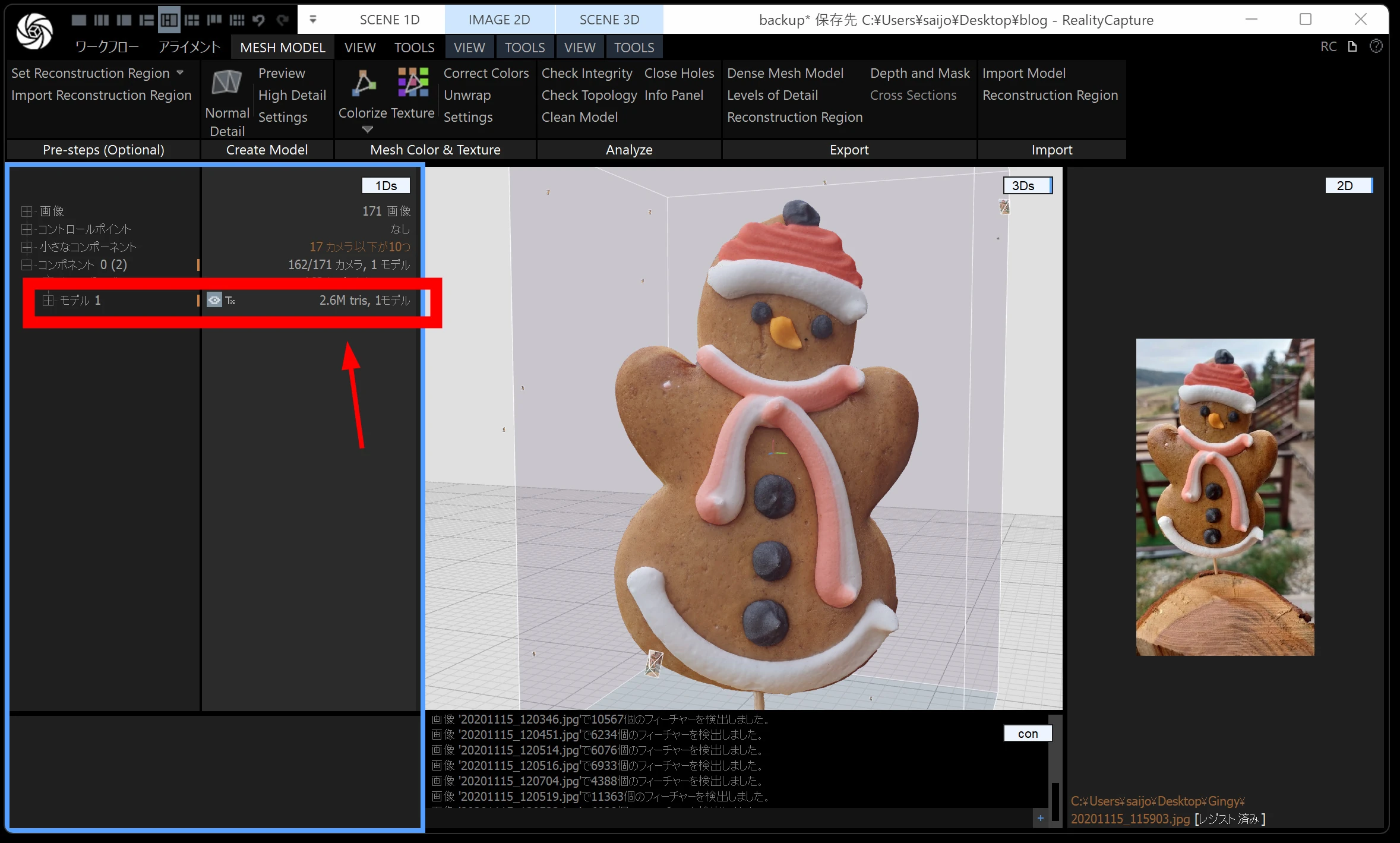
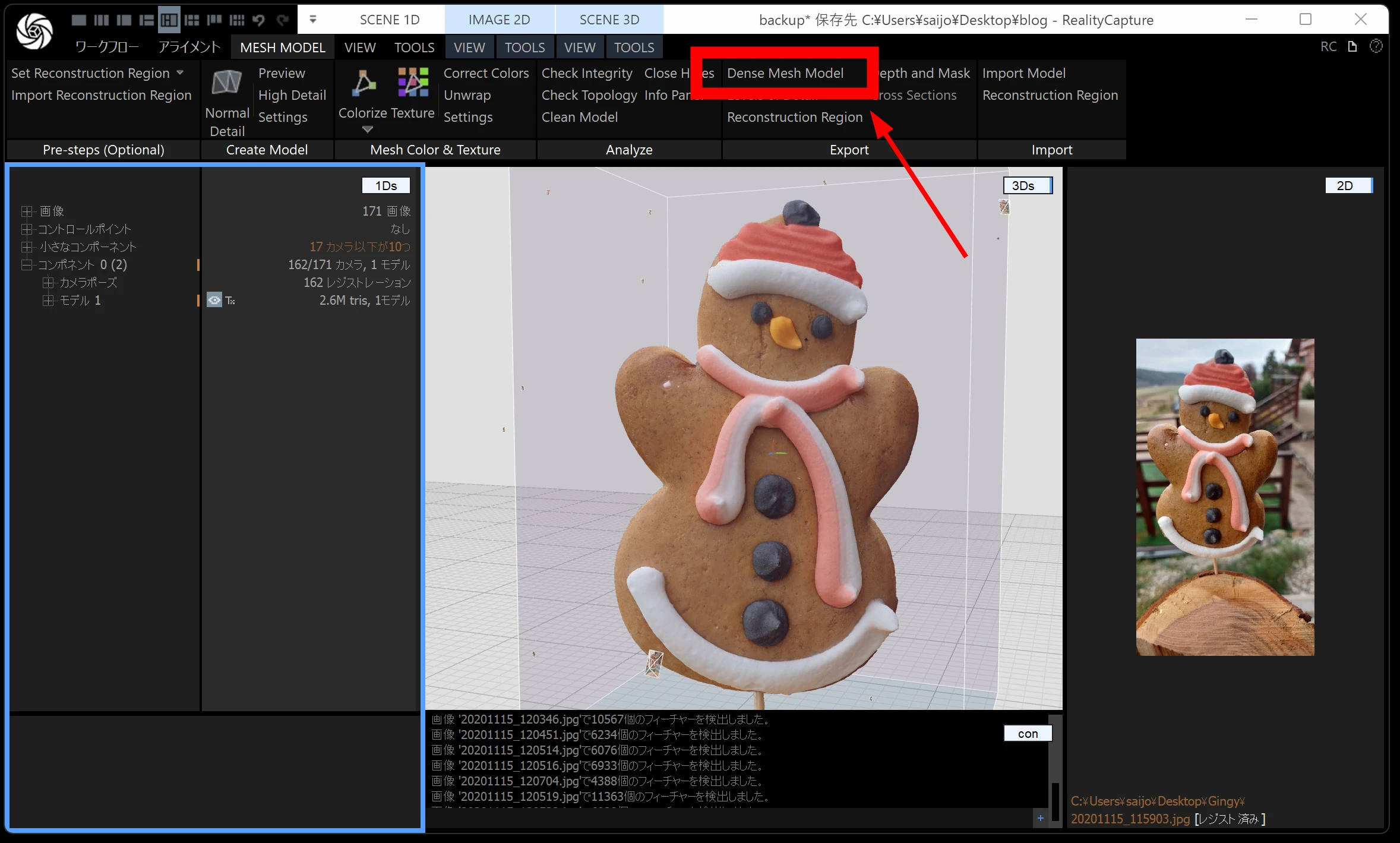
Click Dense Mesh Model.
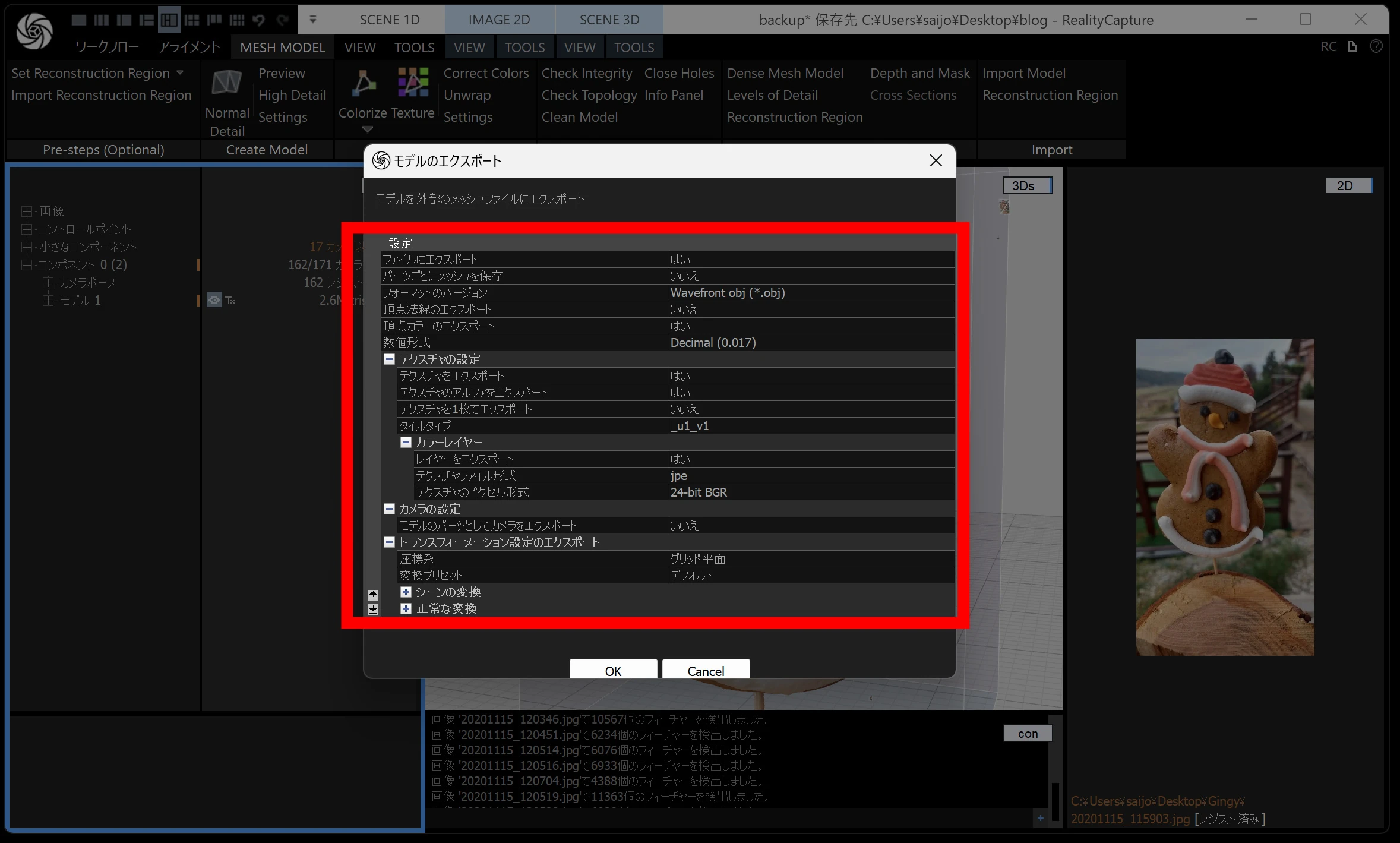
OBJ is easy to handle initially; FBX is also fine.
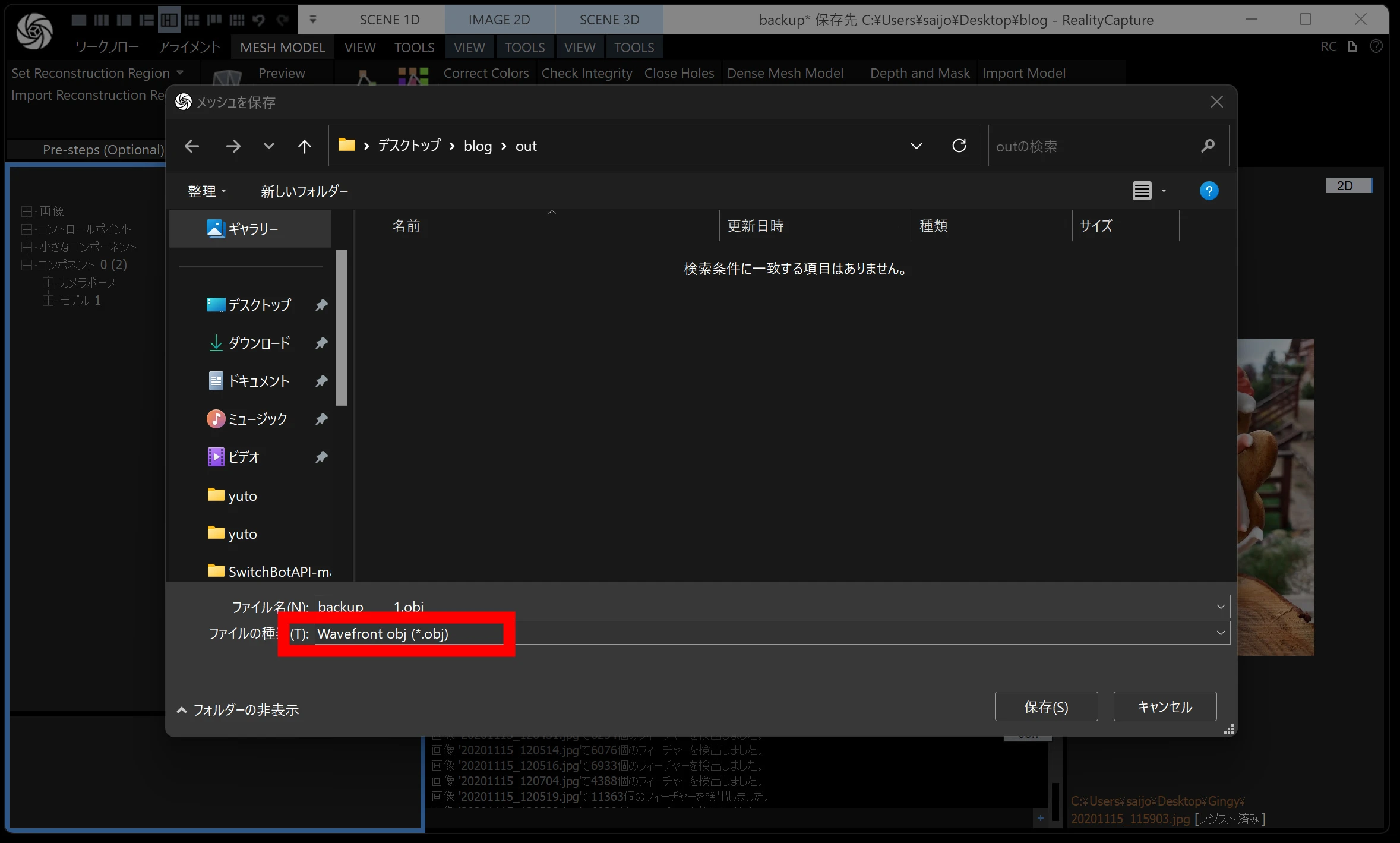
Export with textures. If unsure, use the following settings as a reference, including when you have forgotten the defaults.
Importing into UE5, for reference
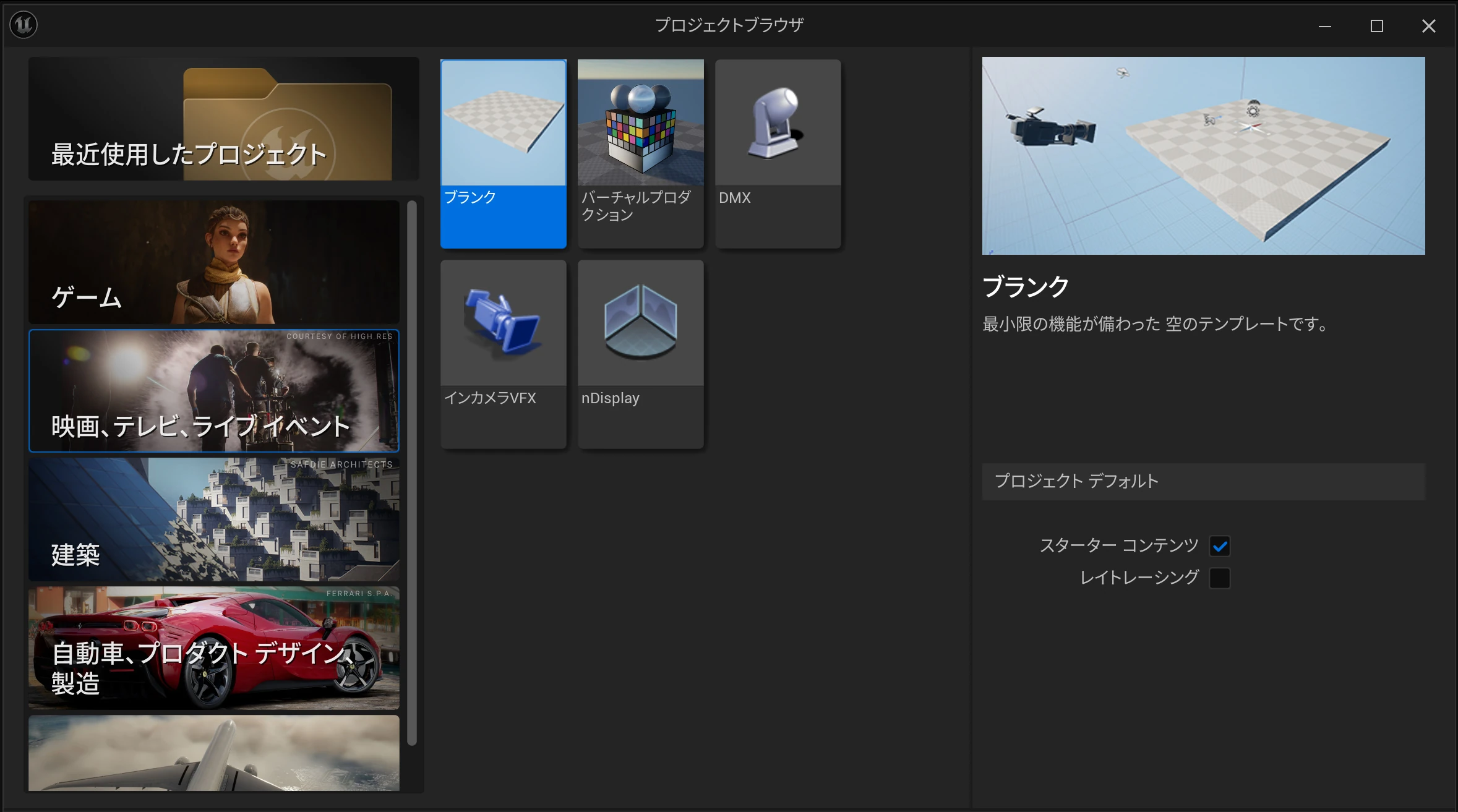
Importing into Unreal Engine 5 lets you use the model in games, simulations, and other work. I will not cover every detail here; working with 3D data requires some understanding and adjustments.
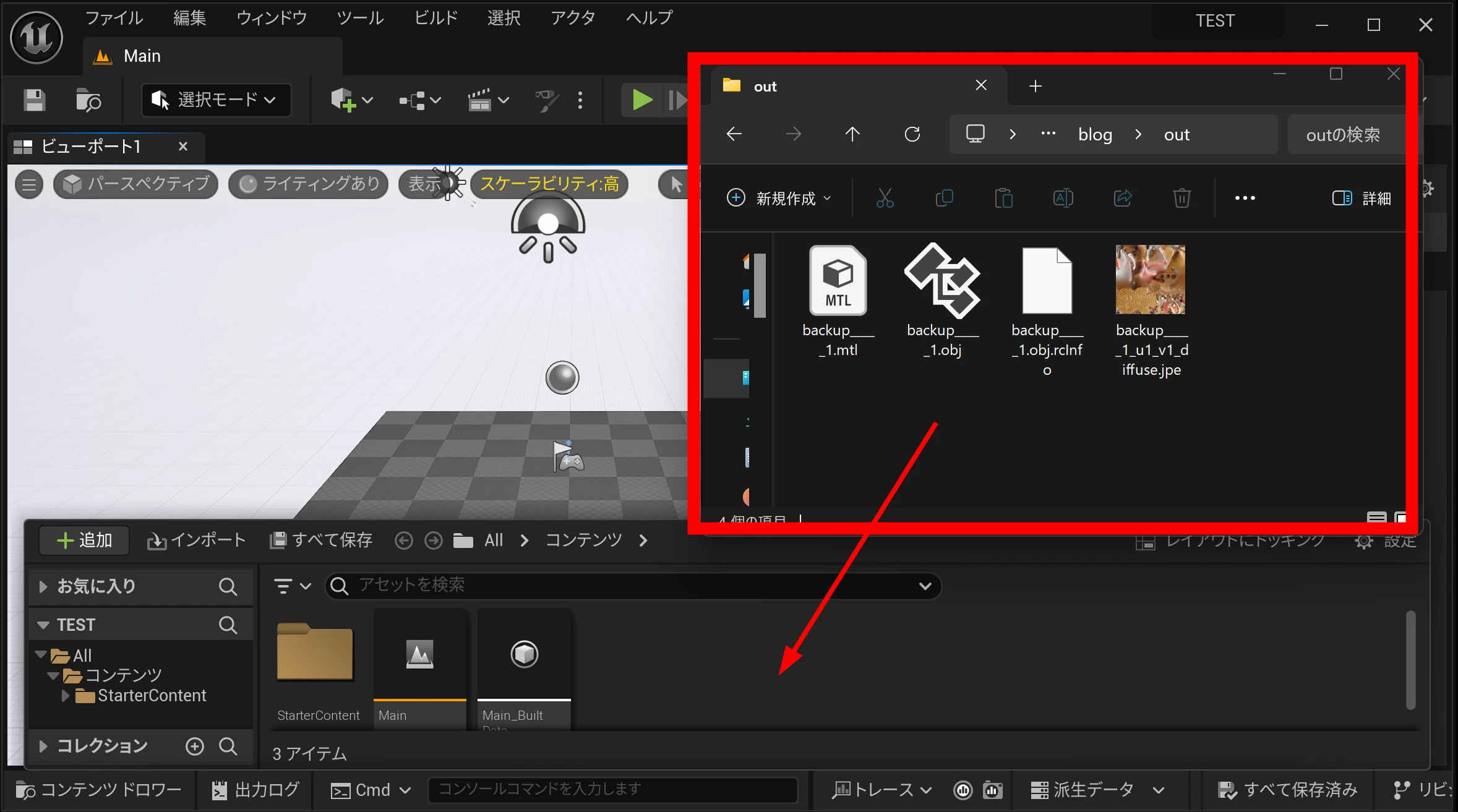
Drag the exported OBJ into the Content Browser.
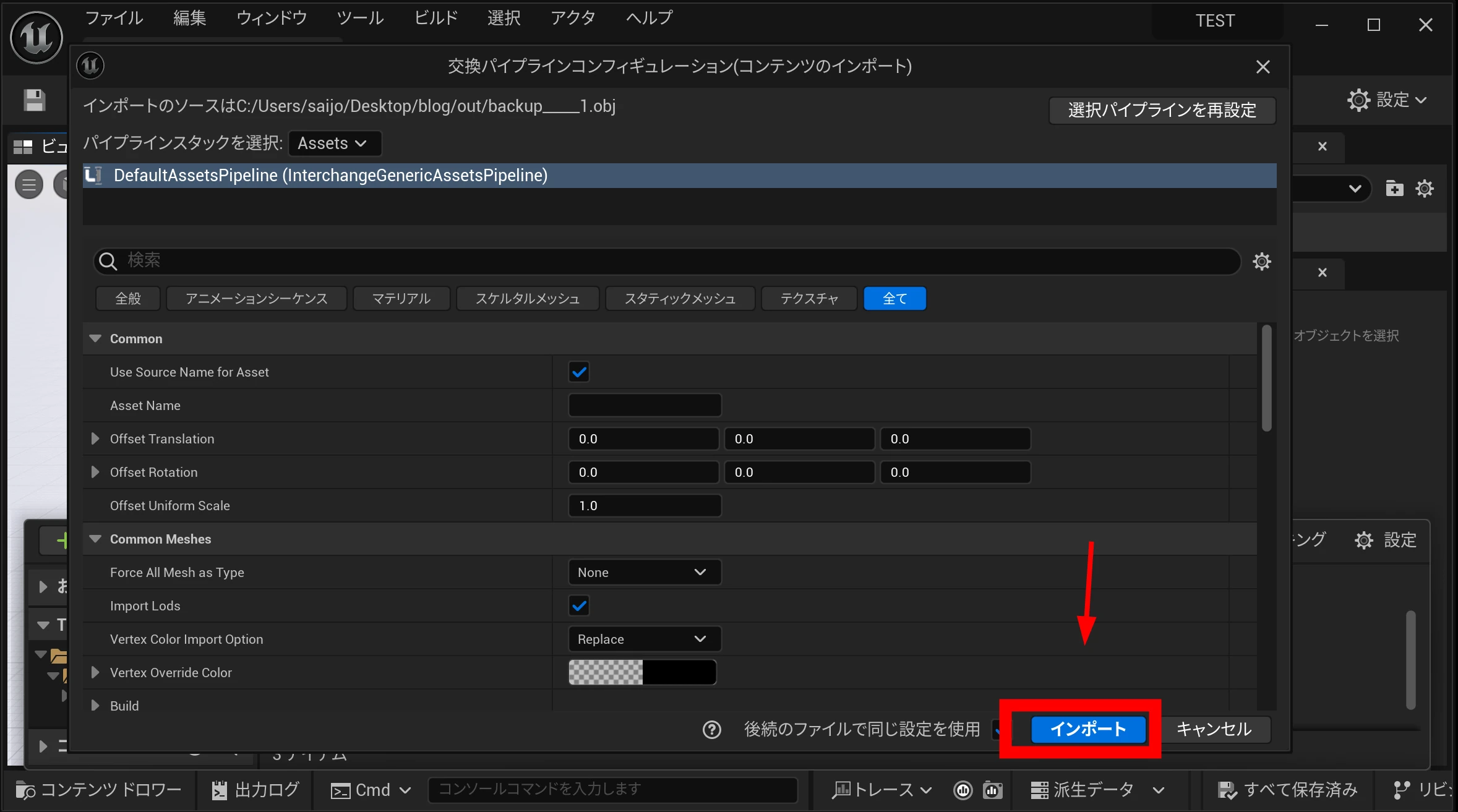
Run Import.
The model was placed in the level. For real work, you will need to understand Lit/Unlit, mesh quality, materials, and textures. This article was intended to let you enjoy creating and importing a 3D model. If you are unfamiliar with UE5, even importing it may take some effort.
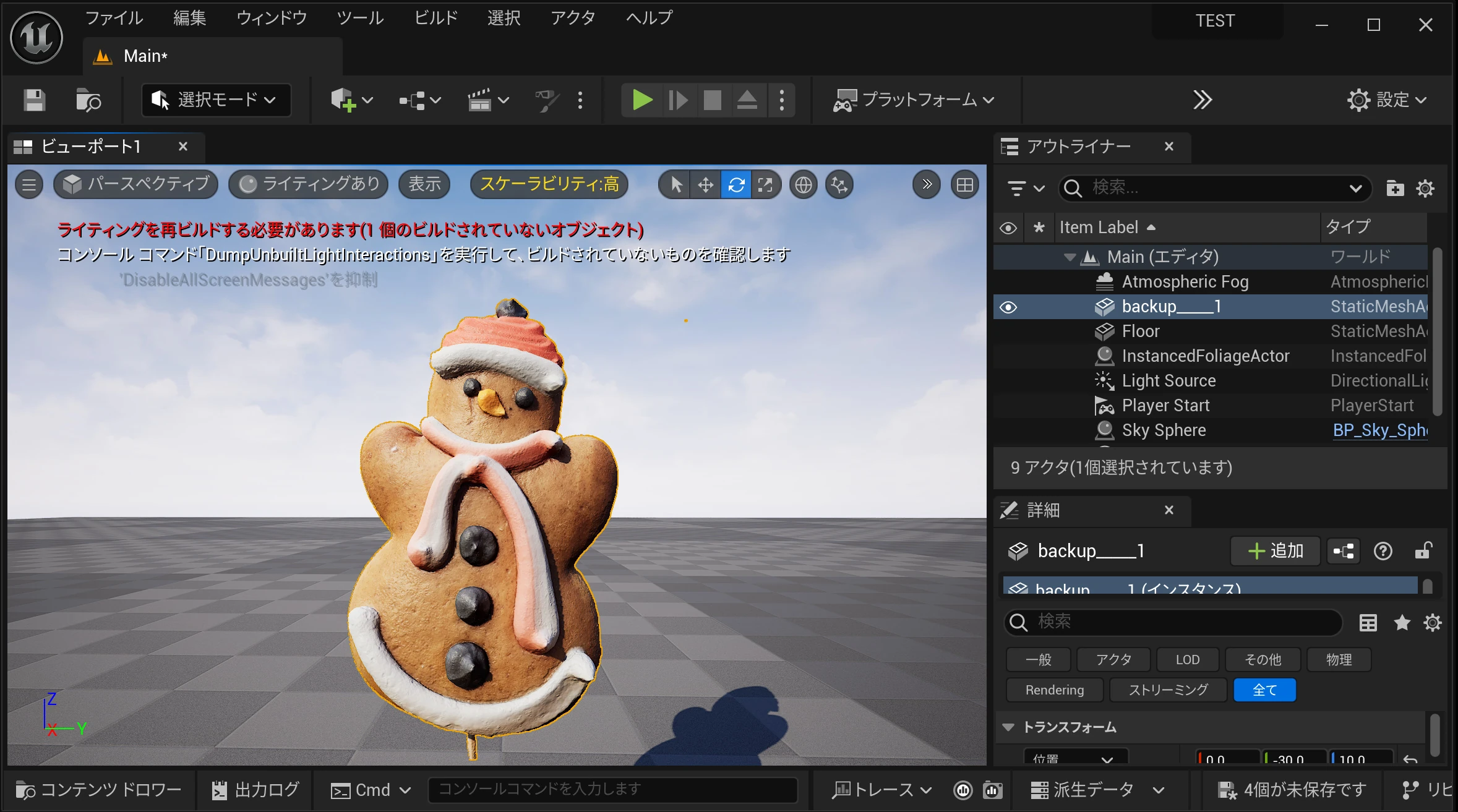
You have now experienced the whole RealityScan workflow. Higher-level work will require more settings and technical operations, but this should give you a foothold. Good luck!
Related articles
Updates and contact: X @riragoncom.