
Simple to use.
A clear, uncluttered screen. Get started without learning a manual.

Riragon Rename is a Windows app that makes it easy to batch rename photos, images, CSV files, documents and more in a folder you select. Intuitive from the start. No manual needed.
C:\Pictures\Travel| Before | After | |
|---|---|---|
| IMG_1041.jpg | → | Travel_1041.jpg |
| IMG_1042.jpg | → | Travel_1042.jpg |
| IMG_1043.jpg | → | Travel_1043.jpg |
| IMG_1044.jpg | → | Travel_1044.jpg |
A clear, uncluttered screen. Get started without learning a manual.
Only the names change. The data inside your files is never rewritten.

A real 100,000-file rename, followed by independent content checks.

Undo recent operations in order, until you switch modes or close the app.
Start with a straightforward text replacement.
Simple mode puts everything you need in one view.
Choose a folder and check the files inside.
Enter the text to find and replace. Review the changes highlighted in color.
Apply the changes, then check the result for each file.
Screens are illustrations of the workflow.
By default, replacement affects the name stem and keeps the extension. Leave the replacement empty to remove unwanted text.
When the same text appears more than once, replacing it everywhere can change a part you meant to keep.
Repeated matches are flagged with “2 matches” and similar warnings. Duplicate names and invalid file names are checked before you apply.
Undo your most recent renaming operations in order when you need to start again.
Undo is available until you switch modes or close the app. Later edits, moves or other file changes can prevent restoration.
Both the year and the reference number will change. Check that this is what you intended before applying.
See which files have problems and why.
Repeated matches are a warning: you can proceed after checking. Duplicate or invalid file names are errors that block execution.
Switch to Advanced mode in Options. Choose the naming function you need and set its rules.
Switch between naming functions; they are not combined in a single operation.
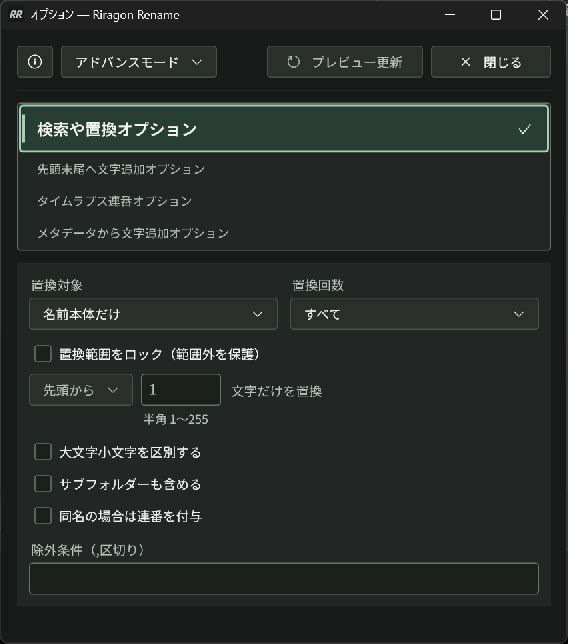
Explore Riragon Rename, from batch replacement and sequential numbering to undo.
Find literal text. Leave the replacement empty to remove unwanted text.
Target the name stem, extension or full name. The default protects the extension.
Replace every match, only the first, or only the last match in each name.
Limit replacement to a number of characters from the beginning or end. Text outside stays untouched.
Choose case-sensitive matching. Japanese and Unicode file names are supported.
Warnings flag names with multiple matches. A warning does not block renaming: check the preview before applying.
Add shared text at either or both ends. Suffixes go before the original extension.
Use a shared name detected from the originals, or enter your own for photos and image sequences.
Choose a start number, 1–12 digits and an underscore or hyphen. Number by name or date, separately for each extension.
Add creation or modification dates to make documents and records easier to identify.
Use the capture date stored in JPEG EXIF metadata to organize photos by date.
Include the model recorded in JPEG metadata when organizing photos from different cameras.
Use a separated date, compact date, or date and time. File dates can use local time or UTC.
Insert at the beginning, end or a character position, or replace the name stem. Add fixed text around the value.
Choose to skip files with missing information or block the batch. Read errors are reported separately.
See file names while choosing a folder, or enter a location directly.
Choose JPG, CSV, files without an extension, or another available type across naming modes.
Standard find-and-replace can include subfolders. Affixes, sequences and metadata apply to direct children only.
In standard replacement, exclude names or relative paths with text, glob or regex conditions, separated by commas.
Sort by name, creation date or modification date. In sequence mode, this determines the numbering order.
Filter the displayed rows to review changes or errors. Display filters do not change the execution scope.
Browse 1,000 rows per page without changing the full plan or sequence numbers.
Select a row to inspect full paths and copy before names, after names or details. Keyboard navigation is supported.
Yellow marks replaced or removed text; green marks new text. Unchanged characters keep their normal color.
Confirm an input to refresh the proposed names. Actual renaming starts only when you apply.
Check duplicate destinations, unsupported names and existing files. Plans with errors cannot be applied.
Standard replacement can add suffixes such as “ (2)” to resolve conflicts. Preview the exact names first.
Cancel a running batch. Completed changes remain; review successful, failed and unexecuted items afterwards.
See warning and error reasons in the diagnostics window, and per-file results in the comparison table.
Undo newest operations first until you switch modes or close the app. External edits, moves or deletion may prevent restoration.
Automatic records support checks and recovery through the CLI after a restart. They are not backups of file contents.
Export all items in the current rename or undo result before moving to a new preview.
A preview shows estimated working memory. Over-budget plans are blocked instead of silently reducing the scope.
Start with straightforward replacement, then use detailed naming tools. Switching modes resets inputs, displayed results and undo history.
Keep separate settings for different jobs. Load and preview them before use; target folders are not saved.
Start with defaults or restore automatically saved naming settings. Opening the app does not start a rename.
Change the interface and diagnostic language while keeping your current inputs and results.
Rename on your PC without uploading files to a cloud service.
List, preview, review, apply, inspect results and recover. Normal CLI operations share progress with the GUI.
Inspect trailing-number ranges, duplicates and gaps without renaming files.
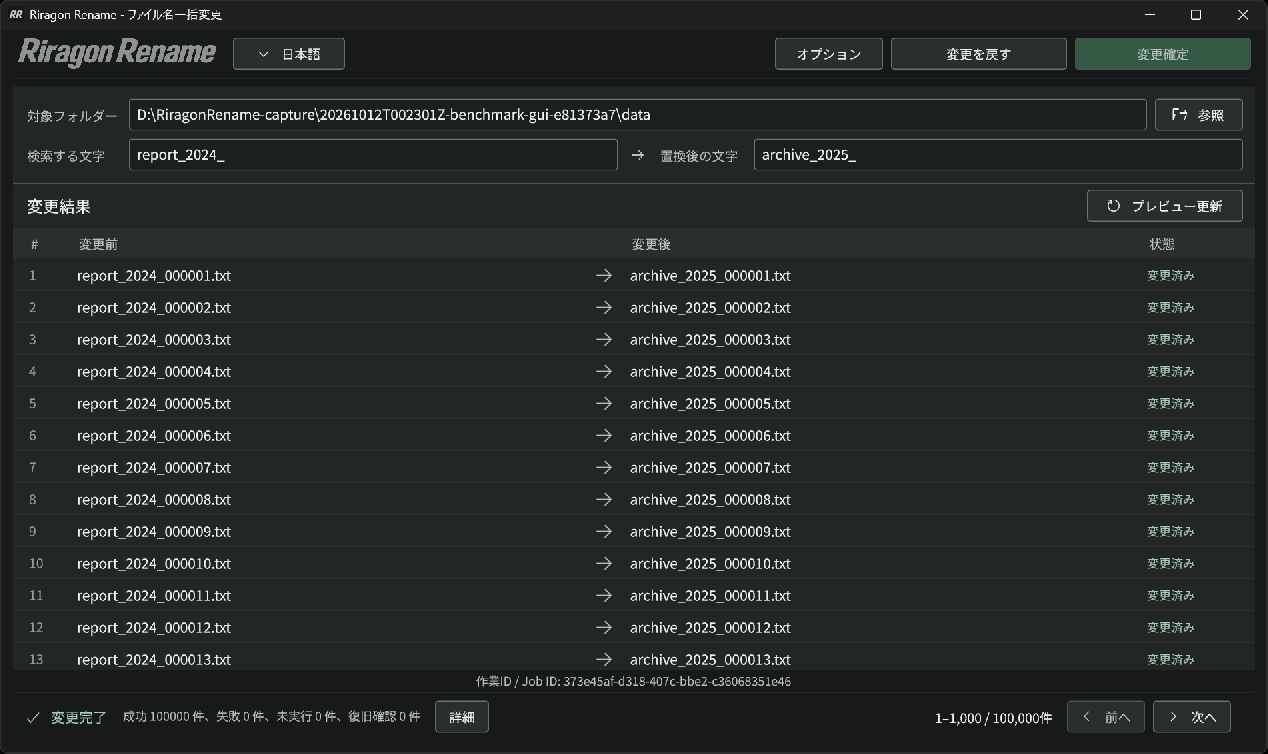
Preview first, even for a large batch. We created 100,000 text files, renamed them with Riragon Rename, then independently checked every name and file's contents.
| Operation | Elapsed time |
|---|---|
| Create the 100,000-file preview | 15.00 s |
| Check every planned name against the rule | 0.69 s |
| Rename, validate and save execution records | 318.92 s |
| Independently verify all resulting files | 24.25 s |
Replaced the prefix report_2024_ with archive_2025_, preserving the sequence number and extension.
All 100,000 names matched the expected result.
Every file's SHA-256, file ID, size and modification time matched its original values. No files were missing or extra.
Timings were measured using CLI 1.0.9 without opening the app window. GUI rendering and interaction time are excluded. Creating the test files and recording their original hashes and metadata took a separate 628.20 seconds. Files and execution records were stored on the same D: drive. We ran once after creating the files, without clearing caches, while normal desktop apps remained open. Times vary with the PC, drive, file count and naming rules.
Find answers to common questions.
For anything else, get in touch by email.
Simple mode needs only a folder, the text to find and its replacement. Switch to Advanced mode when you need more control.
File contents stay intact, and extensions are preserved by default. Changing an extension does not convert the file format.
Undo recent operations until you switch modes or close the app. Files edited, moved or deleted outside the app may not be restorable.
Completed renames remain in place; they are not automatically rolled back. One in-flight file may finish when you cancel. Review the results, then use Undo if needed.
Check the reason shown in Details. Files in use, name conflicts or errors saving execution records can block a rename. Resolve the cause and check any completed results before creating a new preview.
Riragon Rename works on file names. Renaming folders and moving files are not supported.
No. Open the app and use it directly. CLI integration with other tools is optional.