
START EXPLORING
Riragon Prime Generator Guide
Generate prime lists, choose formats and verification methods, and resume interrupted jobs. Learn about reports and the development version’s command-line analysis tools.
Start with a small range so you can check the output format and verification results. These instructions describe development version 1.0.6.
View on Microsoft Store · Back to the app
Looking for something to investigate? Open the Prime Atlas. It begins with a surprising observation: last digits occur about 25% each, yet consecutive primes are less likely to repeat the same ending.
Generate a prime list
- Open the app. English is the default on first launch. You can switch between English and Japanese beside the logo.
- Enter start and end values. For example, start
2and end1000000generate primes up to 1 million. Both endpoints are included; 0 and 1 are never output as primes. - Choose an output folder and format: TXT, CSV, TSV, JSON or BIN.
- Check the generation estimate for output size, file count and available disk space. Enable file splitting in Settings if needed.
- Choose a verification method and press Generate.
- Review the count, output location and verification results, then open the completed dataset folder.
Generate large primes and large datasets
Create the range you need on your own PC, even when downloading such a list would be inconvenient. Range endpoints can be as large as 10¹⁸.
To investigate near a large value, choose nearby start and end points. For example, start 1000000000000 and end 1000000001000 cover the 1,001 integers from 1 trillion through 1 trillion plus 1,000.
For a large output, check estimated size, file count and free disk space first. You can split the output into files in Settings and resume interrupted jobs from History. Processing time and storage requirements depend on the range, format and PC.
Choose a verification method
| Method | What it checks |
|---|---|
| Storage integrity checks | File hashes, format, order, range and count. |
| Full independent verification | Storage integrity checks, plus comparison of every prime against a list calculated for the same range by a separate implementation. |
Matching file hashes alone do not establish that every entry is prime or that no primes are missing. Use full independent verification for those checks.
Resume an interrupted job
Find the interrupted job in History and resume it if available. Keep the intermediate .partial folder with its name and contents unchanged. Before closing the app, stop the running job safely; you can continue from History later.
Reports and completed datasets
The completed folder contains prime data, a manifest.json recording generation settings, a verification.json with verification results, and a report including file hashes and reproduction commands. Saved data can be verified again later. Recreating a report and re-verifying the dataset are separate actions.
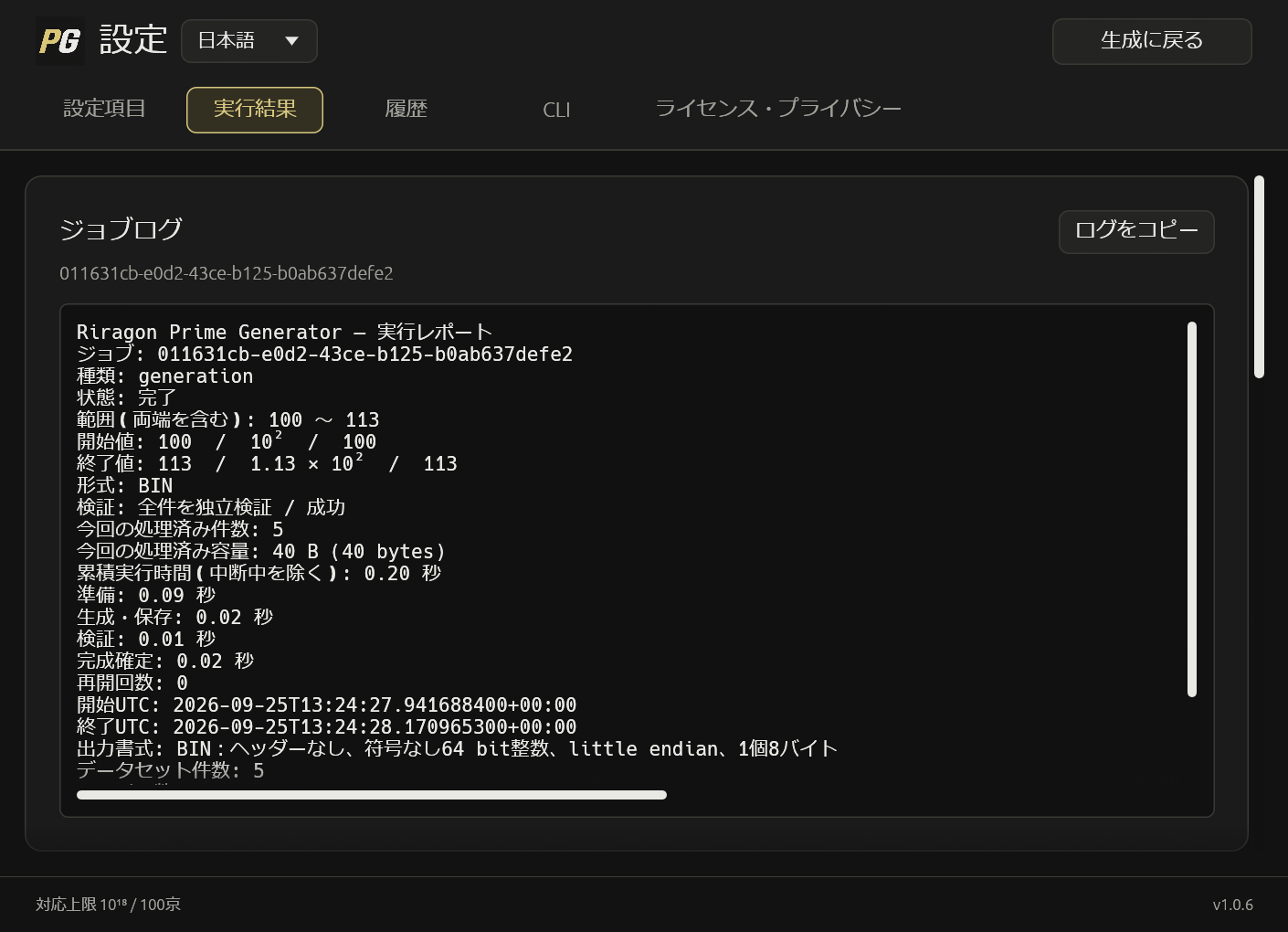
You can save and load settings and enable automatic saving. Settings also include completion and failure notifications, and an option to prevent sleep during processing.
Explore the last-digit bias yourself
To reproduce the atlas comparison, generate with start 6, end 1000000 and format TXT. You will get 78,495 primes. Excluding 2, 3 and 5 matches the atlas sample.
Load the completed TXT into a spreadsheet or your own program. If the output is split, join all primes in ascending order before counting.
- Take the rightmost digit of each prime and count the 1s, 3s, 7s and 9s. Divide each count by 78,495 for the individual last-digit frequencies.
- Form overlapping pairs of consecutive primes: first and second, second and third, and so on. There are 78,494 pairs.
- Group the pairs by the first prime’s last digit, then count the next ending. For example, among pairs starting with an ending of 1, find the share that also end with 1.
| What you compare | Result up to 1 million |
|---|---|
| Primes ending in 1, out of all primes in the sample | 19,617 ÷ 78,495 ≈ 24.99% |
| Pairs with both endings 1, out of pairs starting with an ending of 1 | 3,213 ÷ 19,617 ≈ 16.38% |
Try changing the end value and comparing the results. Percentages fluctuate in small samples. Use the entire generated list: omitting primes inside the range changes which pairs count as consecutive.
Use the CLI or an AI assistant
The command-line interface lets you generate and verify data with commands. In Settings → CLI, copy the full instructions and give them to an AI that can run commands on your PC. Start by checking the available commands:
riragon-prime.exe --language en help
Ordinary CLI generation, resume and verification share progress and results with the app window. Successful generation opens the completed dataset folder. Use --headless to work without opening the app window.
Instead of an end value with --end, the CLI can accept a number of primes with --count. Combine --count with --random-start to let the app choose the starting value. Count-based generation is a CLI feature; the generation screen has no prime-count input.
You can also analyze an existing completed dataset folder:
| Command | What it examines |
|---|---|
gaps | Gaps between consecutive primes, twin-prime pair counts and gap frequencies. |
density | Prime counts and density by interval. |
probe | Saved primes immediately before and after a chosen value. |
Analysis commands do not open a new app window. If the app is already running, their output also appears in the Results log. Use help <command> for argument details.
capture saves a PNG of the app window and its corresponding state. An AI must load the returned image to inspect the screen; receiving the path alone is not visual inspection.
For help, email info@riragon.com with the app version, generation settings and any message shown.