Part 2: setting up a first-person VR world in Unreal Engine 5 with Meta Quest 3
Following the third-person VR preview setup, this article changes the character and camera to a first-person view with Meta Quest 3. It explores free movement instead of the teleportation used by UE5's standard Virtual Reality template.
Note: This article was published more than a year ago.
- Recommended Quest 3 and PC Unreal Engine versions and XR settings change quickly. Check both Epic and Meta developer information.
- Tracking and rendering behavior can change with headset firmware and GPU drivers.
- This is a sequel. Keep the prerequisite steps and software versions consistent with the previous article.
The previous article explained how to display a third-person VR headset preview in UE5.
This time, I change to a first-person view and replace the character too.
UE5's standard Virtual Reality template uses point-and-teleport movement, which does not let me move around freely in the way I want.
That is why I have been trying different approaches.
Previous article: setting up a high-quality VR world to explore freely in a headset with UE5 and Meta Quest 3
https://riragon.com/blog/en/unreal-engine-5-ue5-meta-quest-3-hmd/
The first steps are the same as before
Create a new Third Person world.
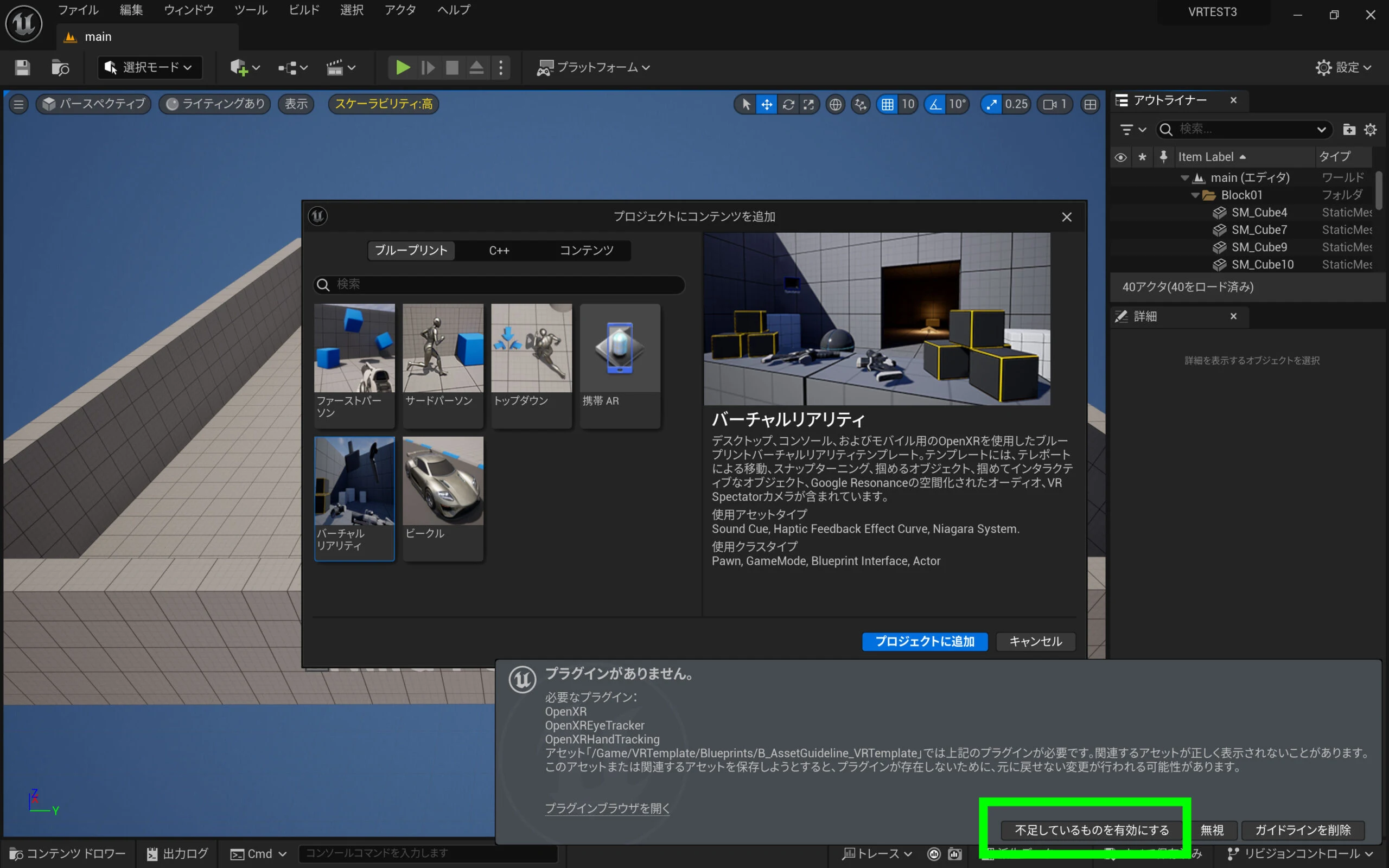
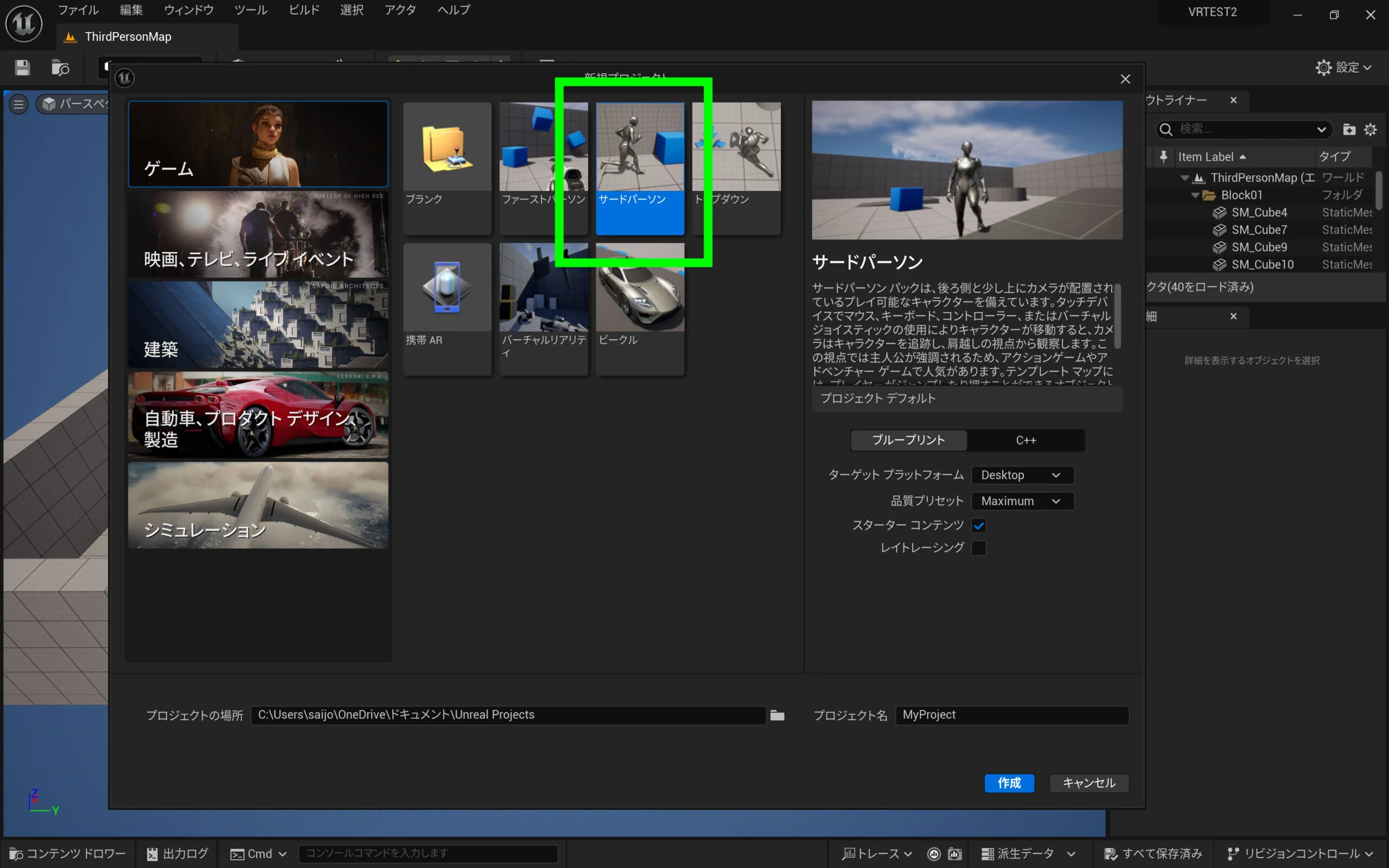 Choose Add Feature or Content Pack.
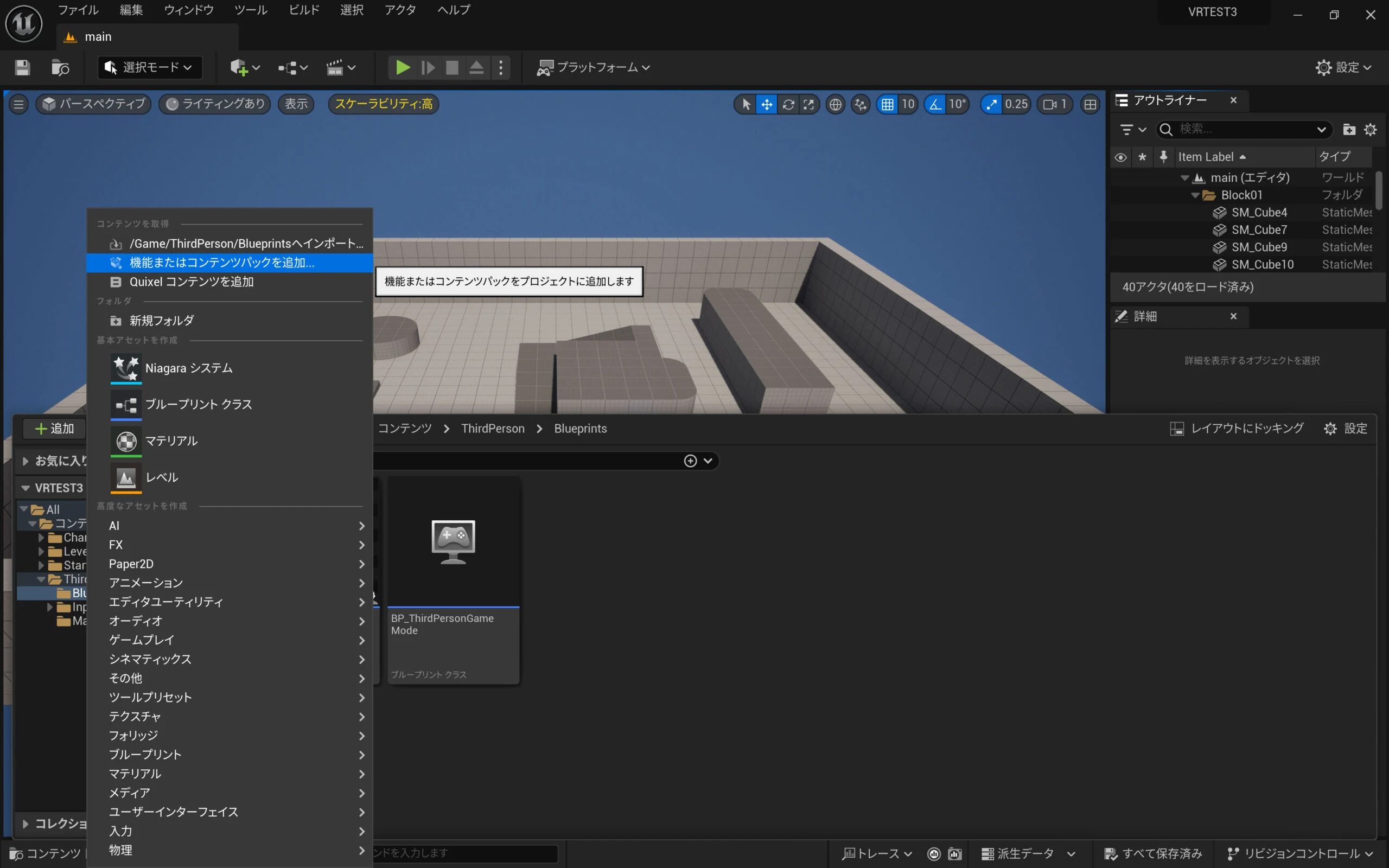 Add Virtual Reality here.
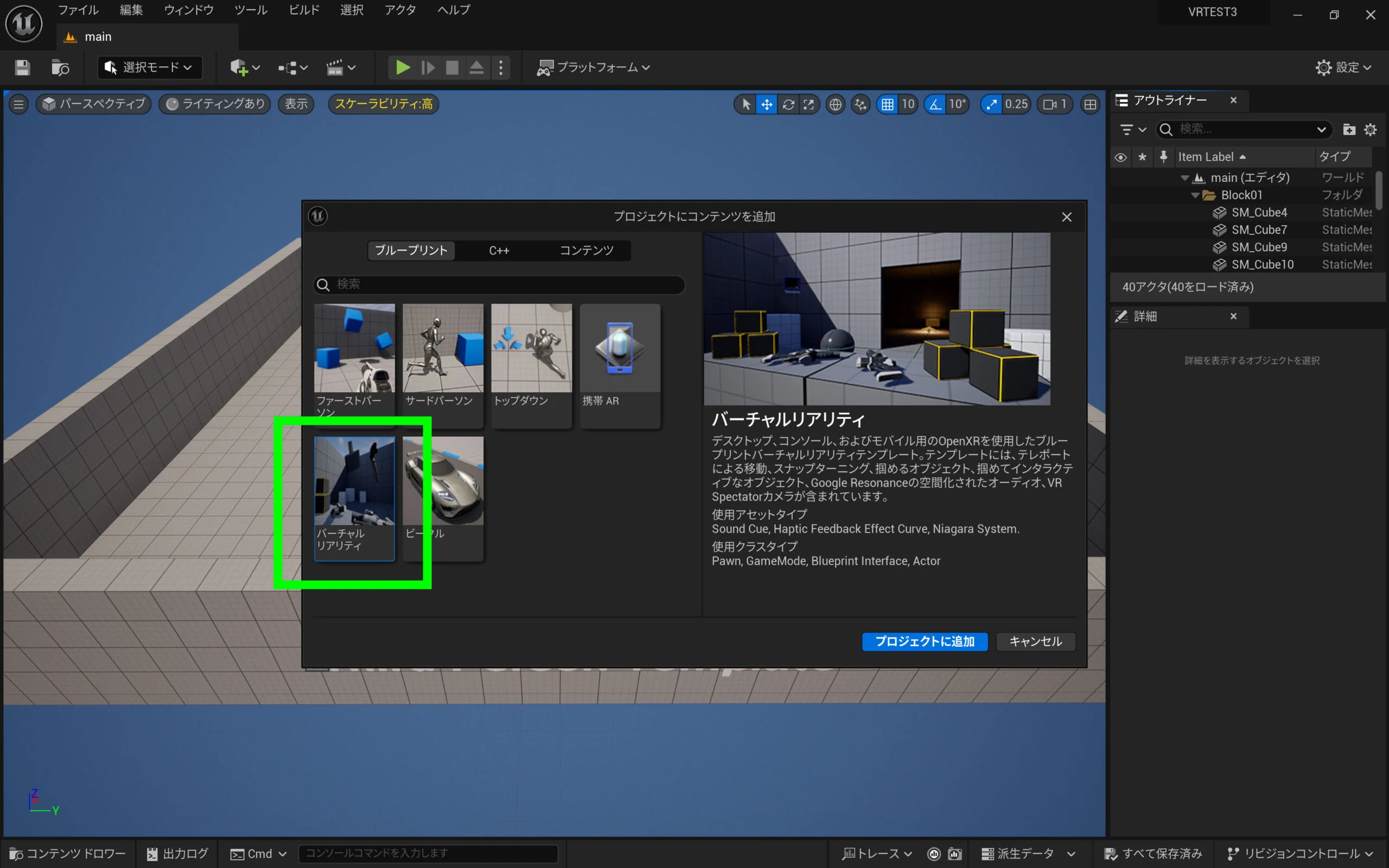 This automatically adds the missing VR plugins. Convenient. Click Enable Missing at the lower right.
Try replacing the character too
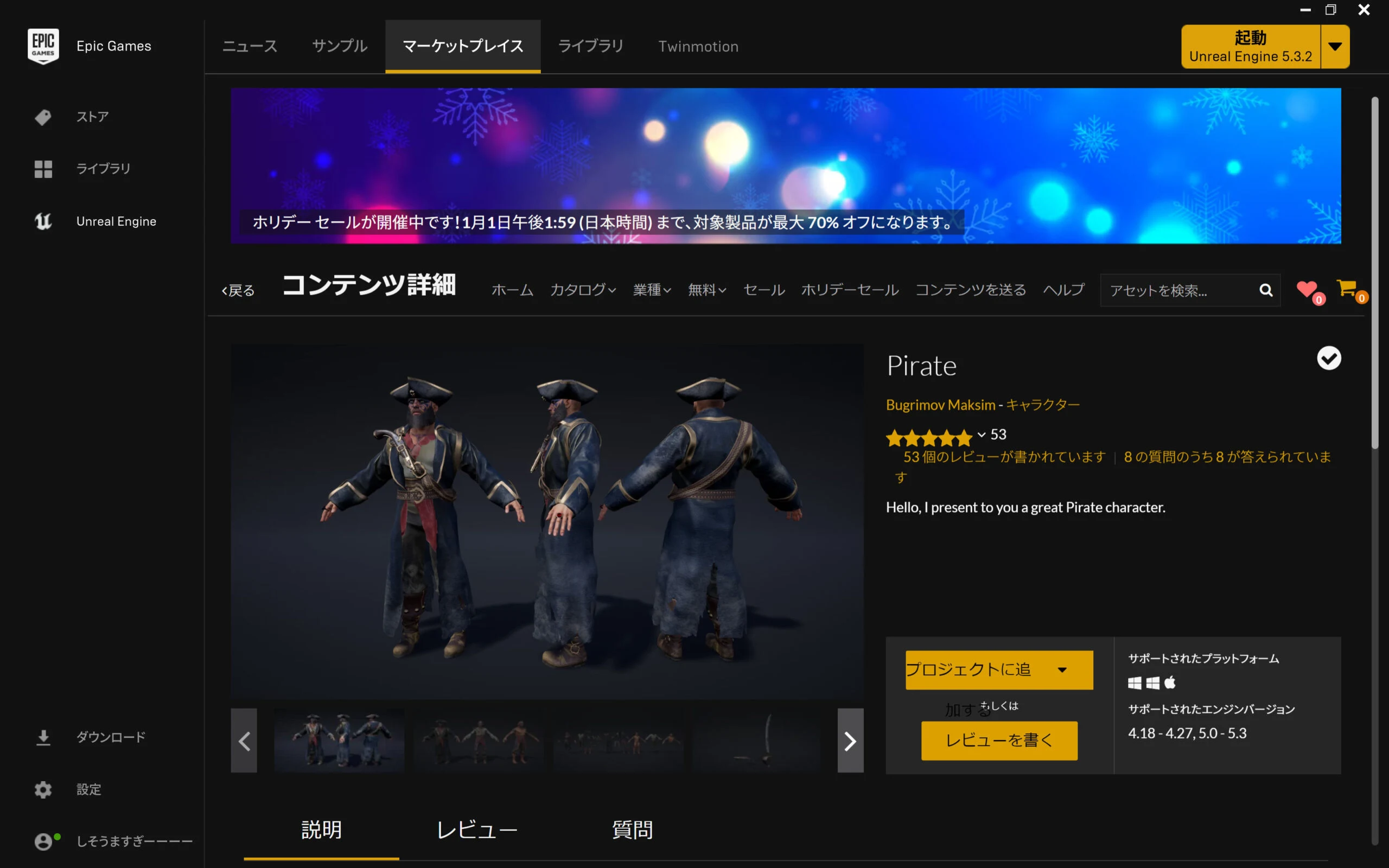
Restart to enable the plugins. While restarting, add a character from the Marketplace. A compatible UE5 test character can be substituted directly.
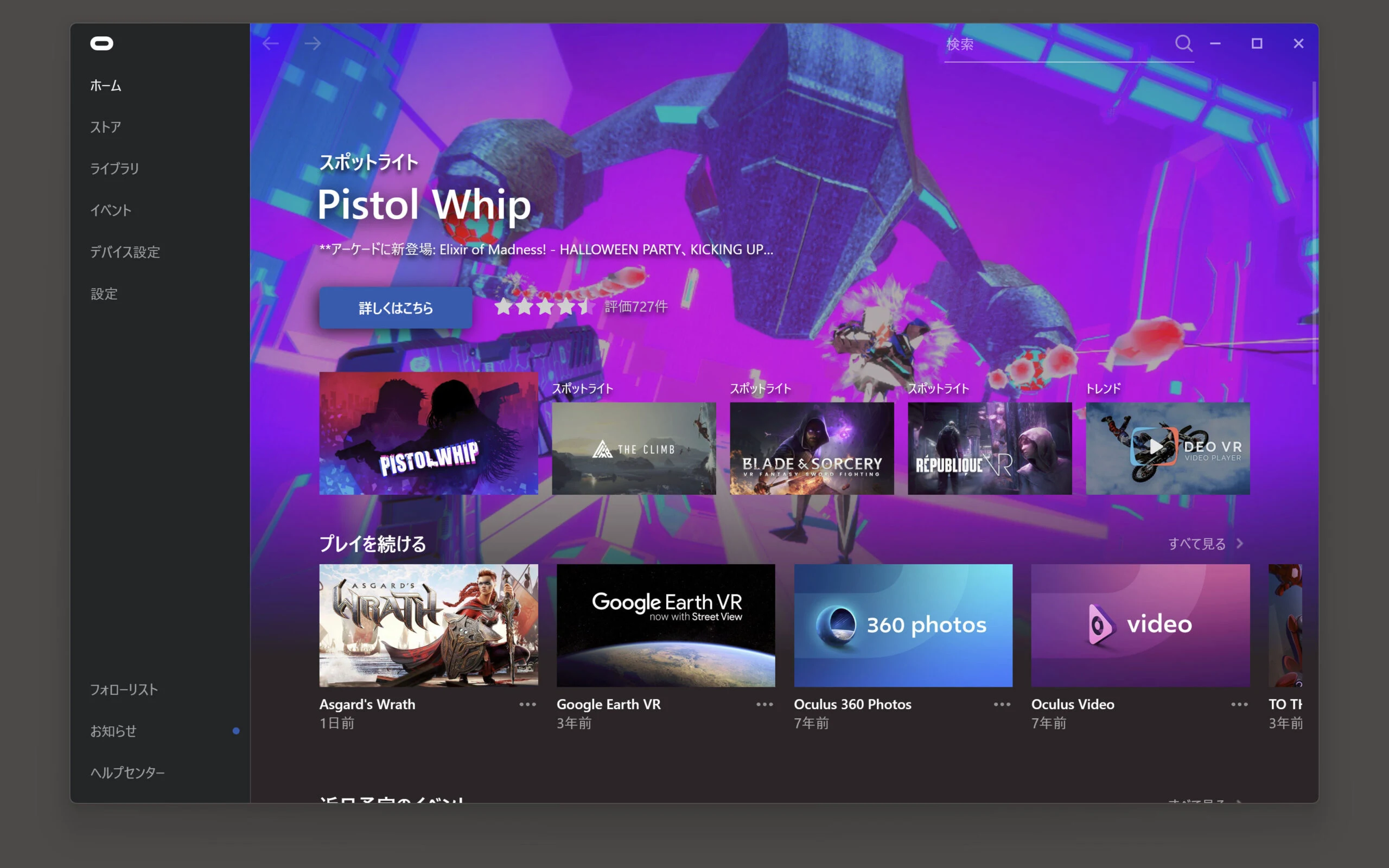
 Connect the Meta Quest 3 to the PC through Quest Link, also called Oculus Link.
Related product listings: Find Meta Quest 3 on Amazon (Ad)
Quest Link connects a standalone VR headset to demanding PC VR games and applications.
It lets Quest users enjoy high-quality PC VR as well as standalone operation.
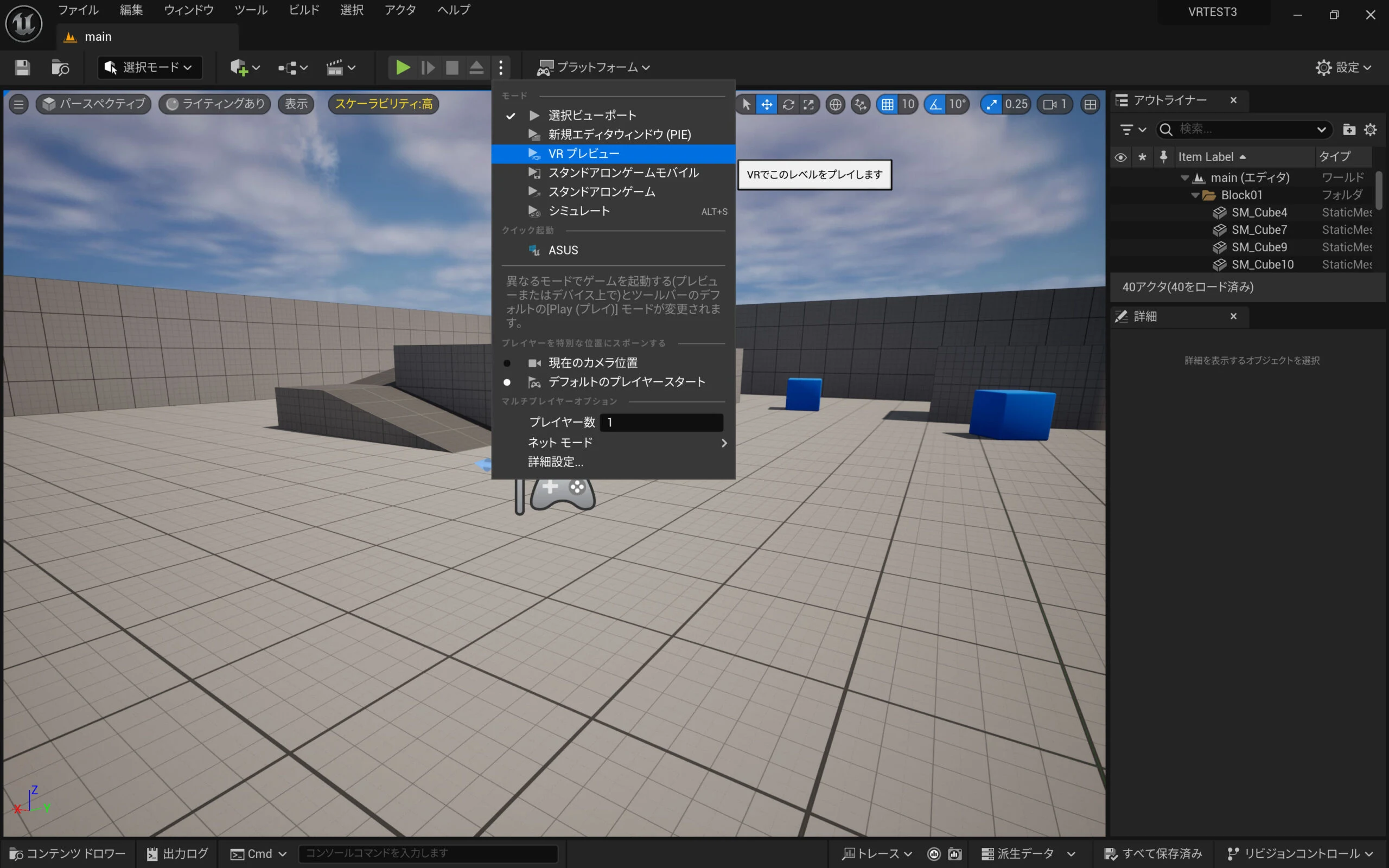
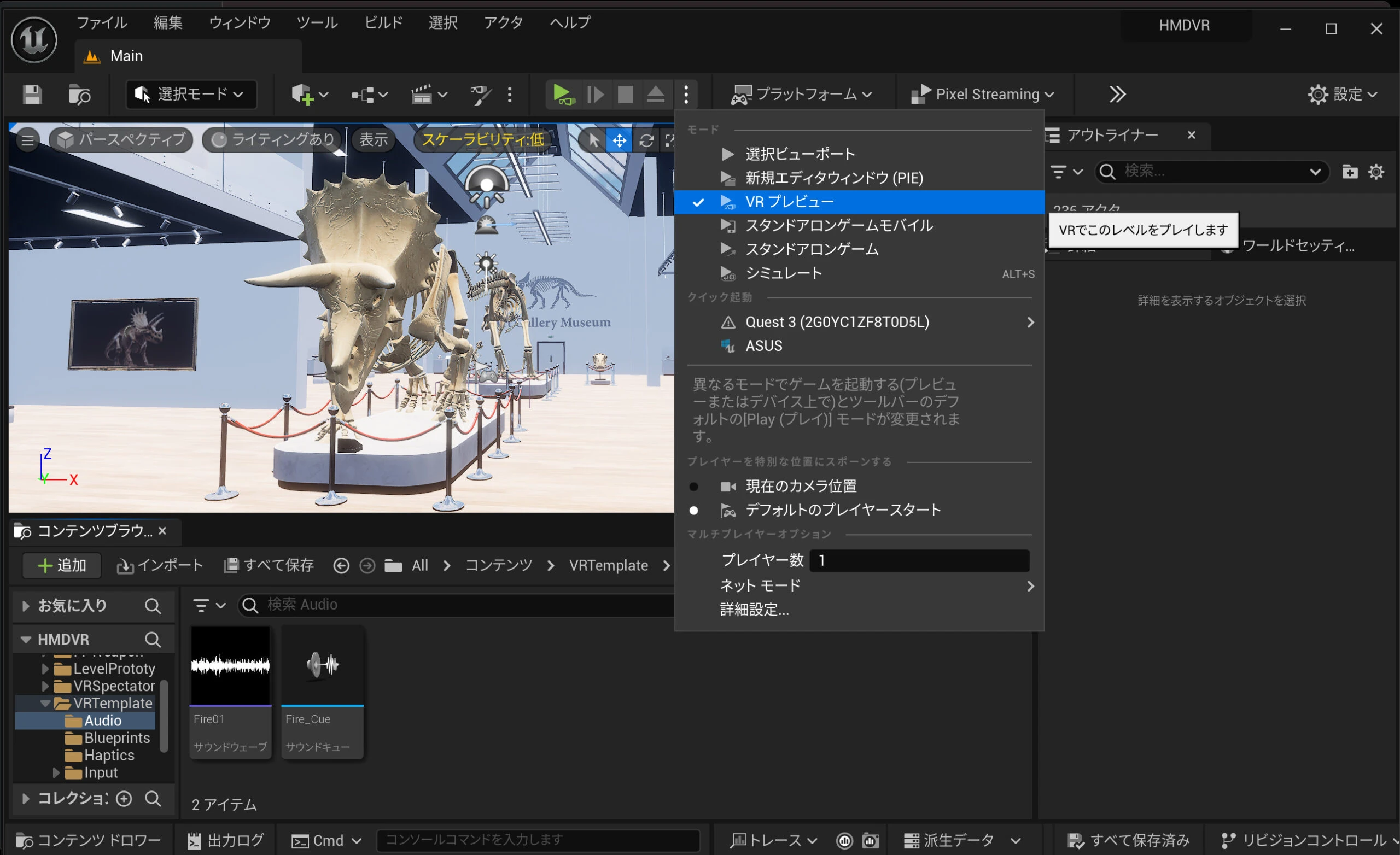
 With Quest Link connected and Virtual Reality added, VR Preview becomes available.
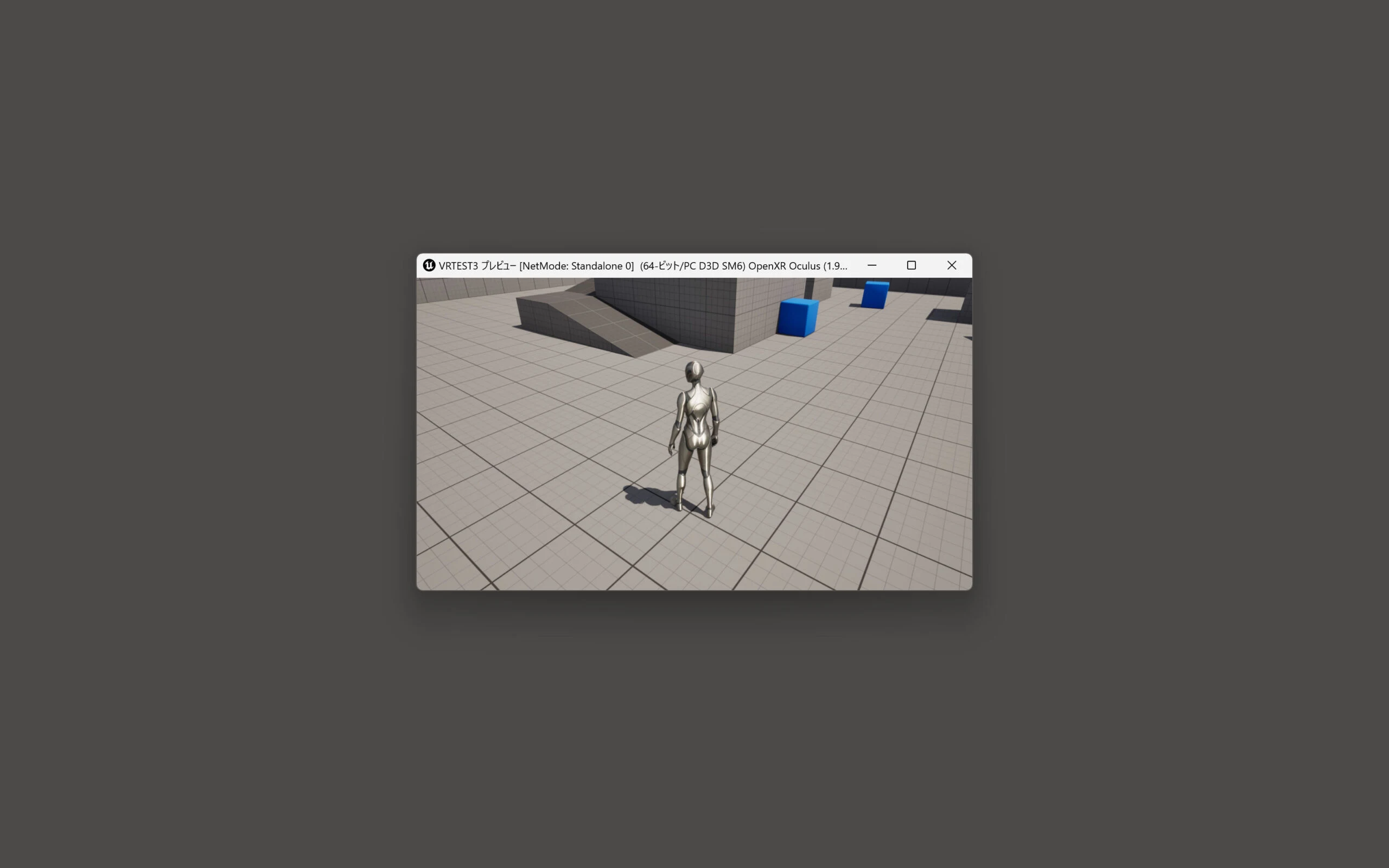
 The headset shows a third-person view like this.
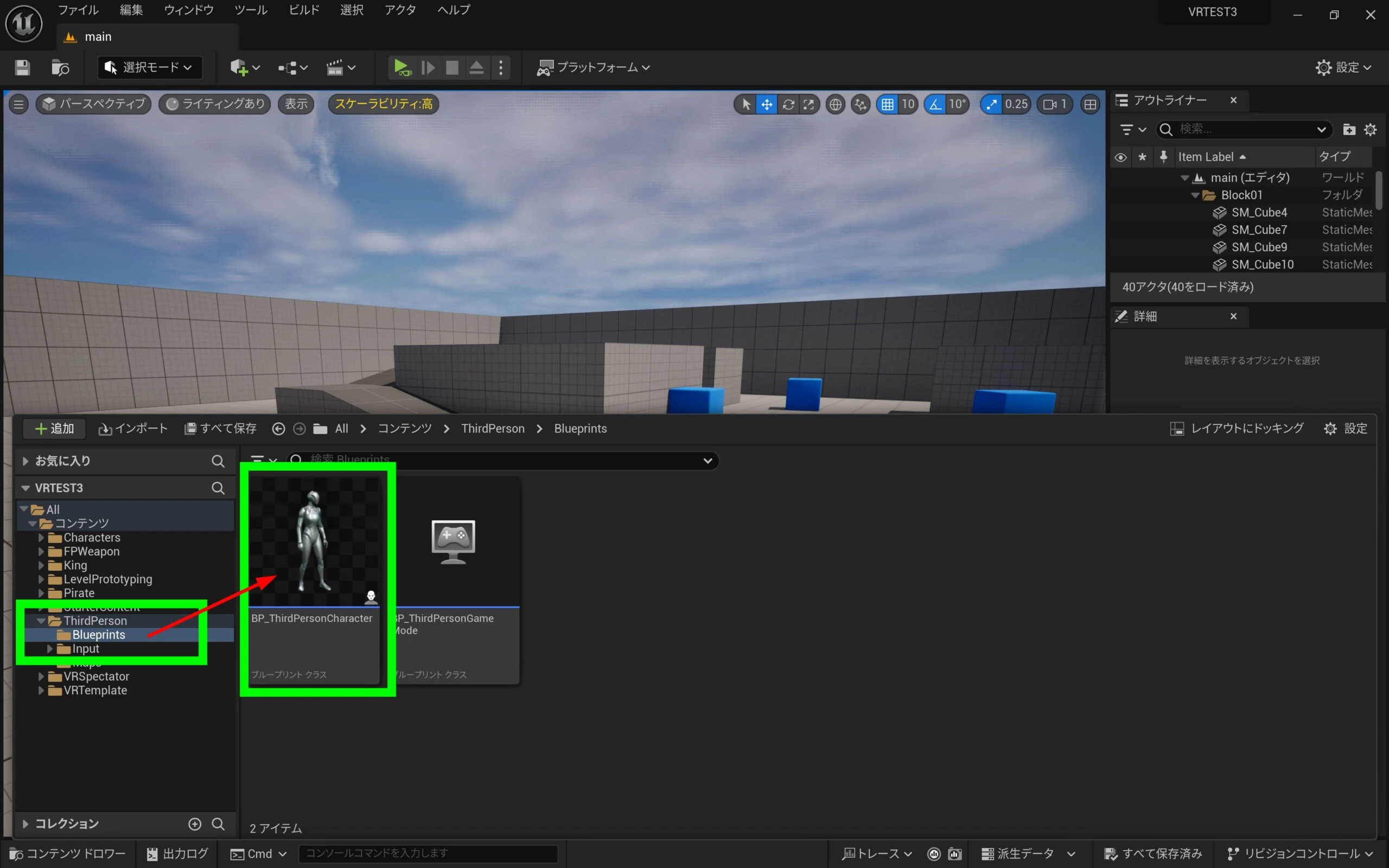
 Let us customize it. Open the Third Person Blueprint folder, where the relevant settings are stored.
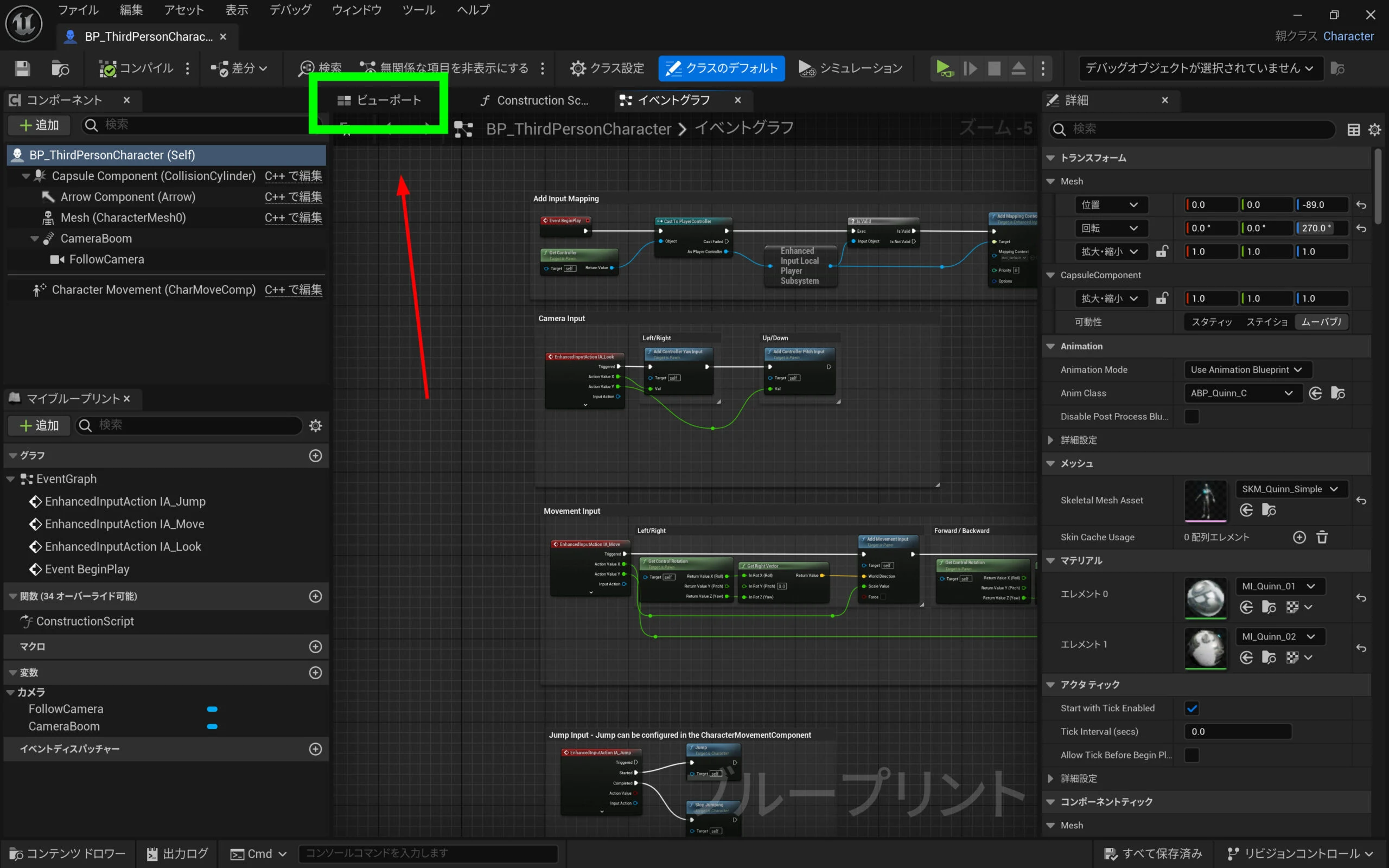
 Select Viewport.
 The viewport shows the relationship between the camera and character.
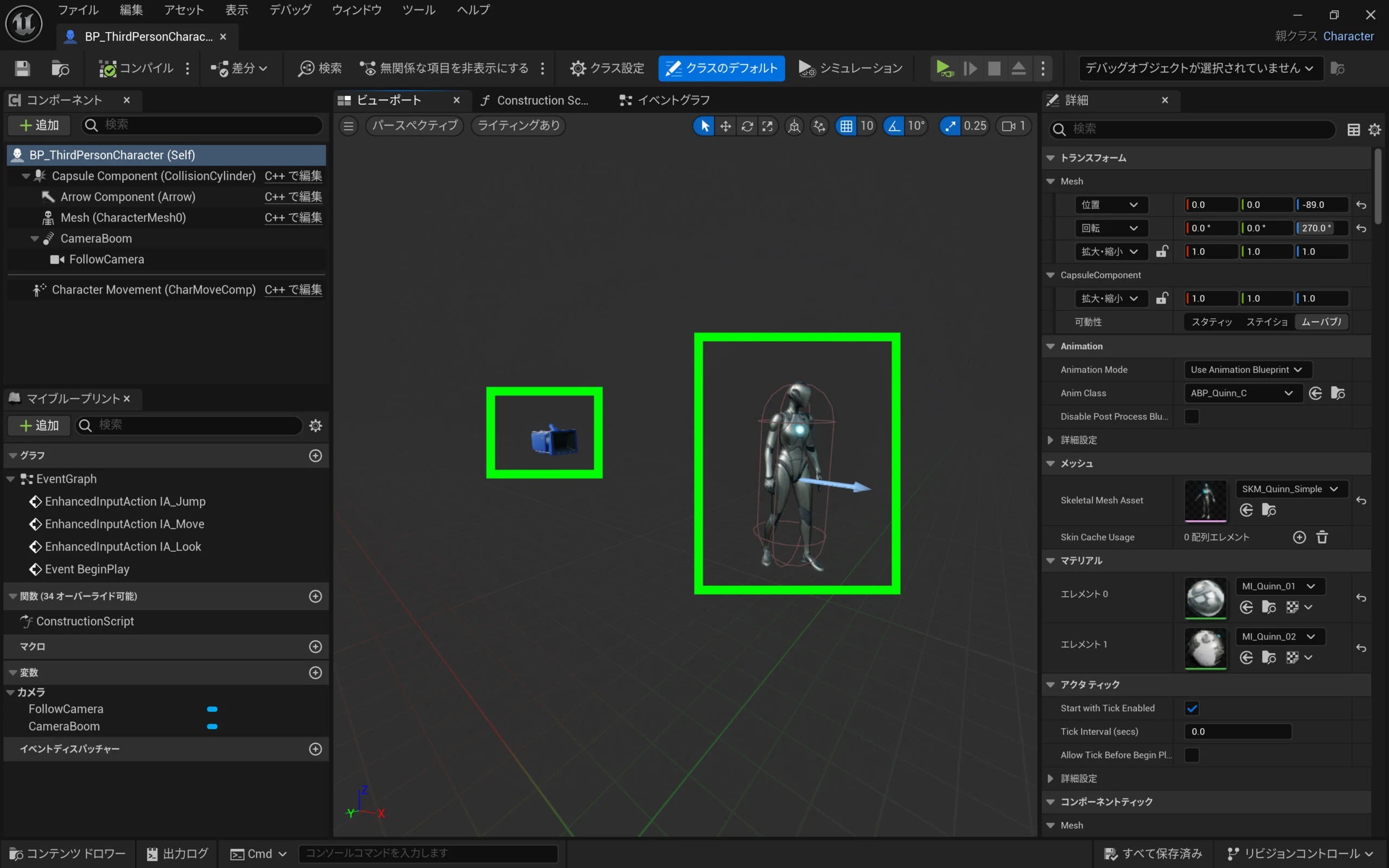 Select the Blueprint's mesh to change the character.
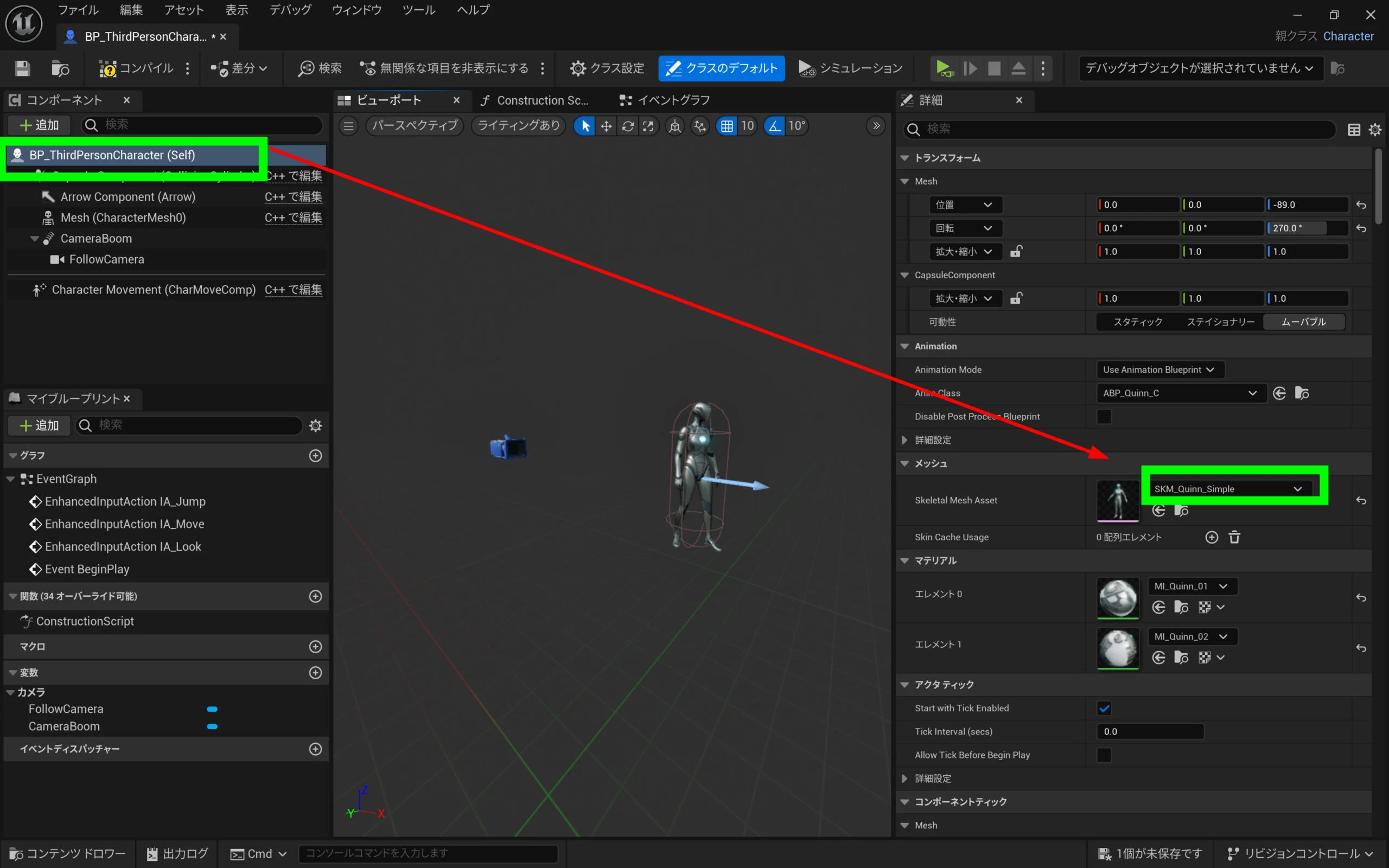 Find the pirate character installed earlier.
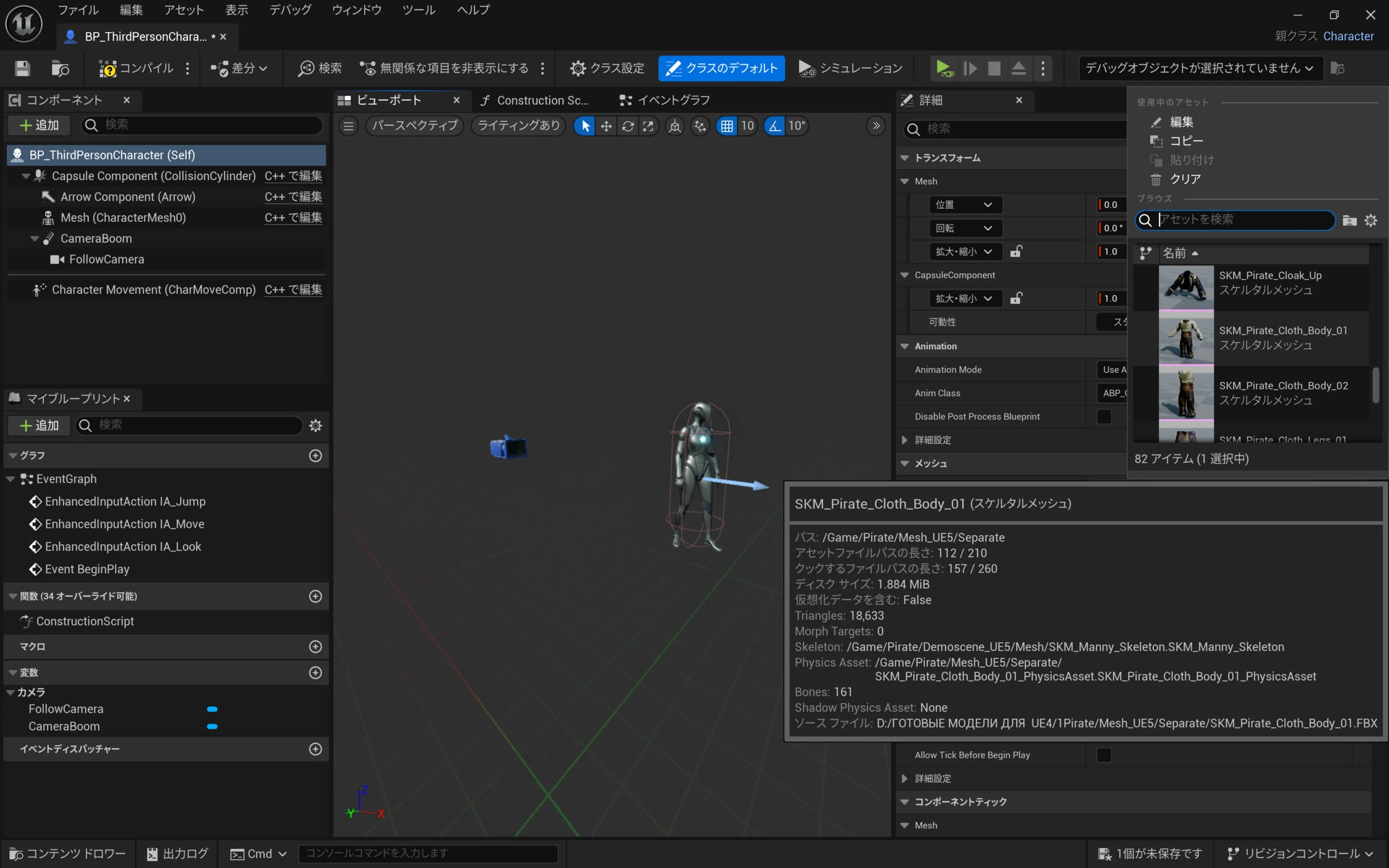 There happens to be a headless model. Select it to replace the character. Browsing suitable assets should help you find the character you want.
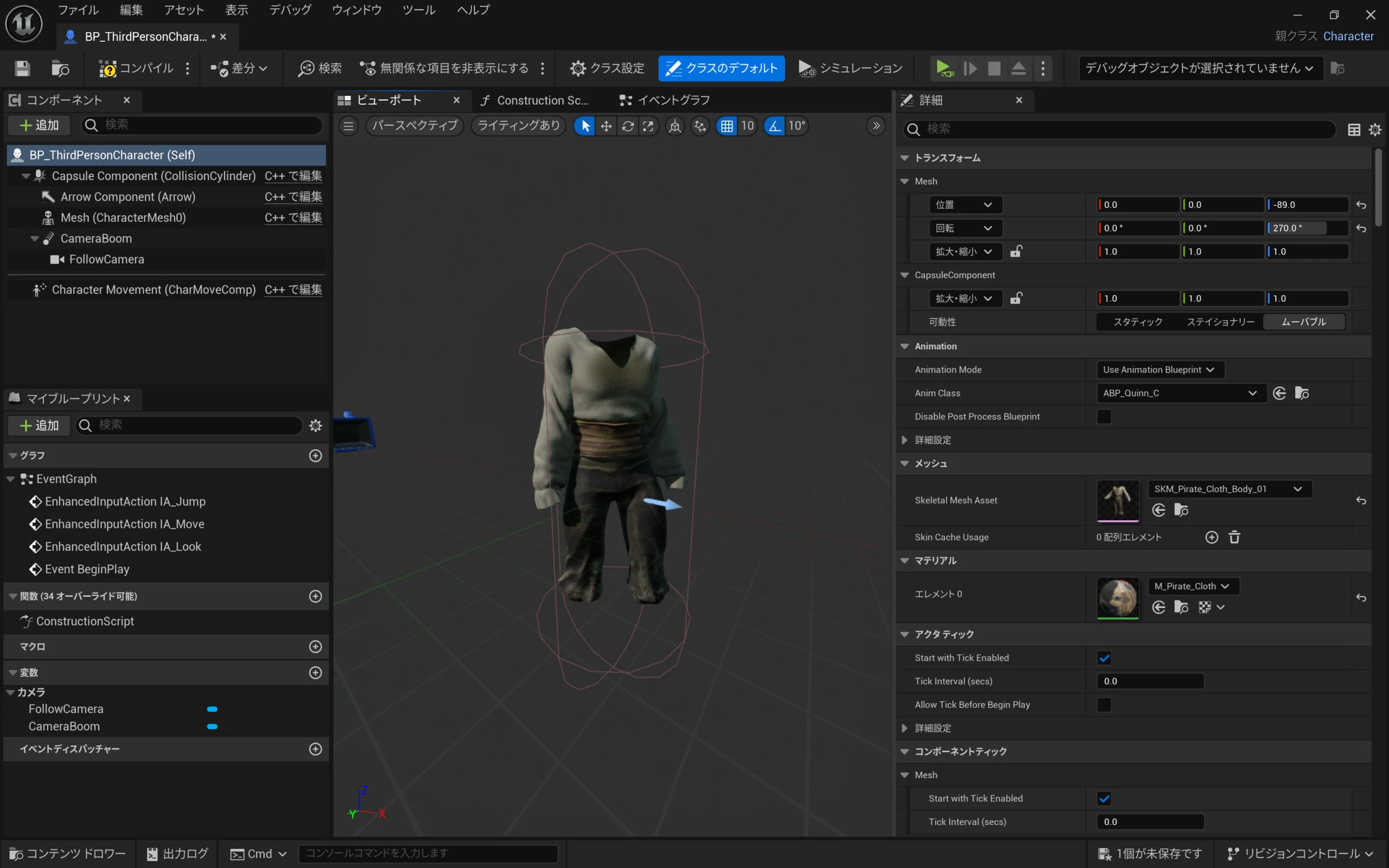 Press Save and Compile as needed to apply the changes.
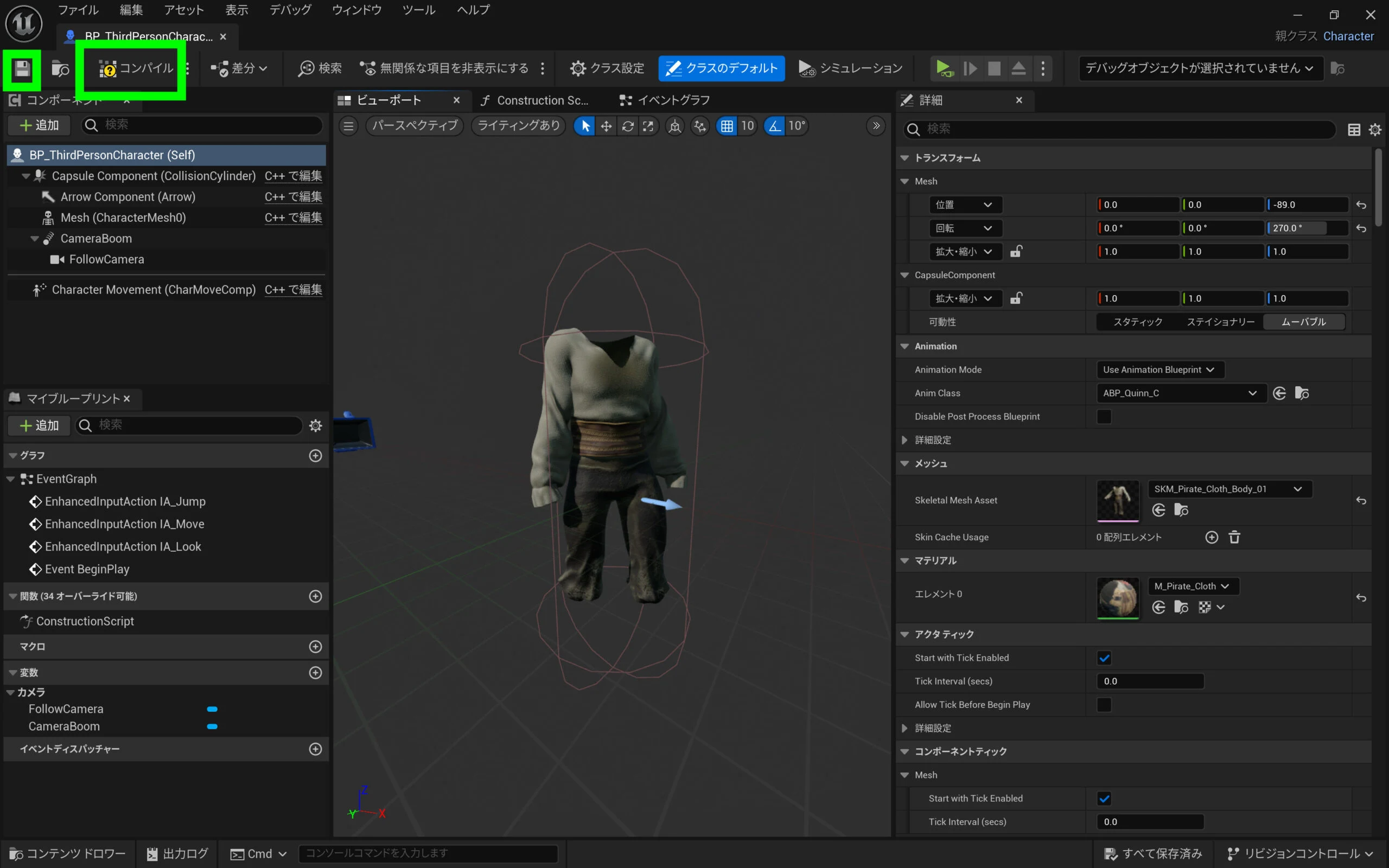 The character has changed as shown.
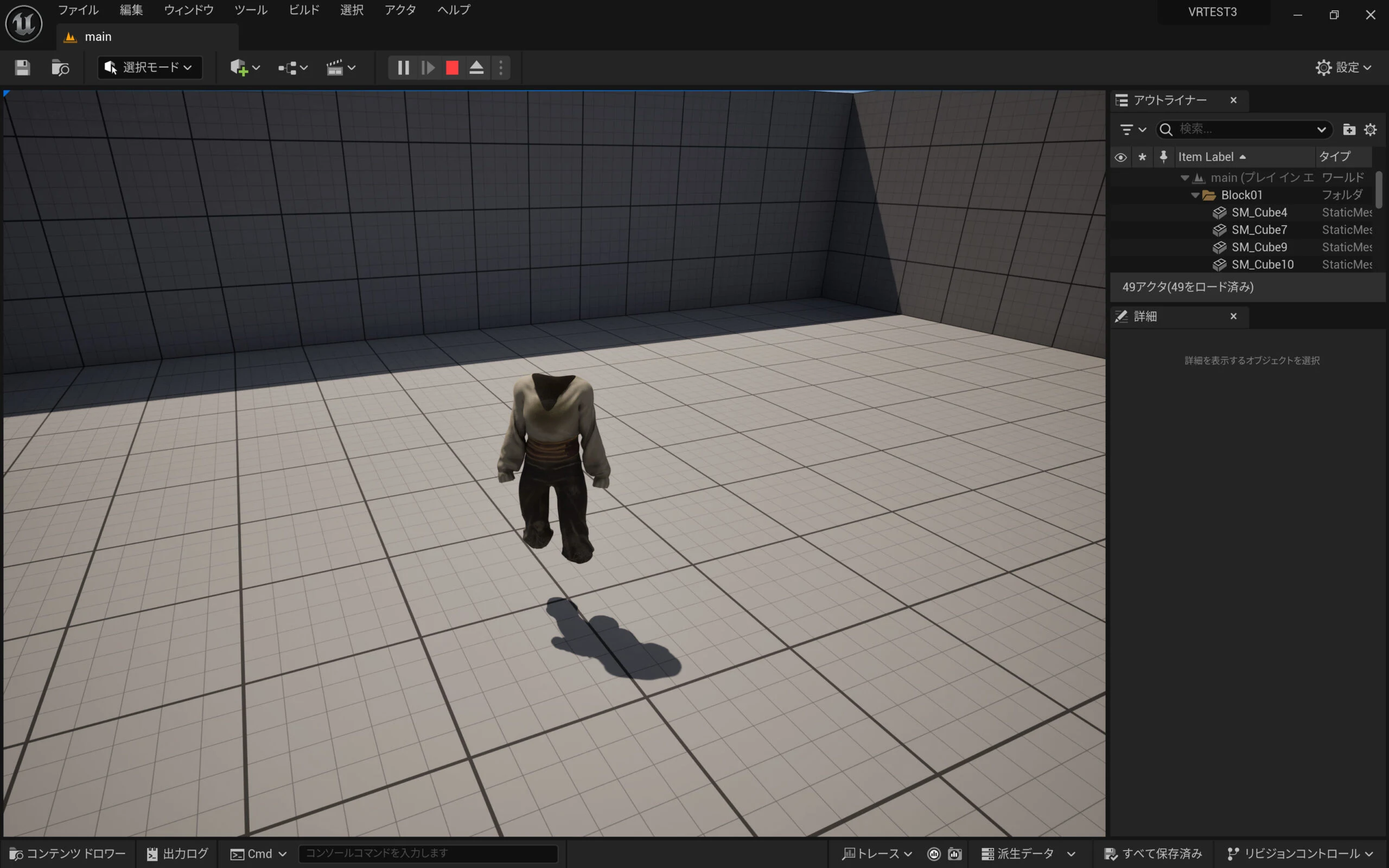
Changing the camera between first- and third-person views
There are probably other ways, and this may be a clumsy one. When attached to the character, the camera boom orbits with collision detection and moves, preventing the first-person view I want. To work around that, I add a Sphere under the Capsule hierarchy.
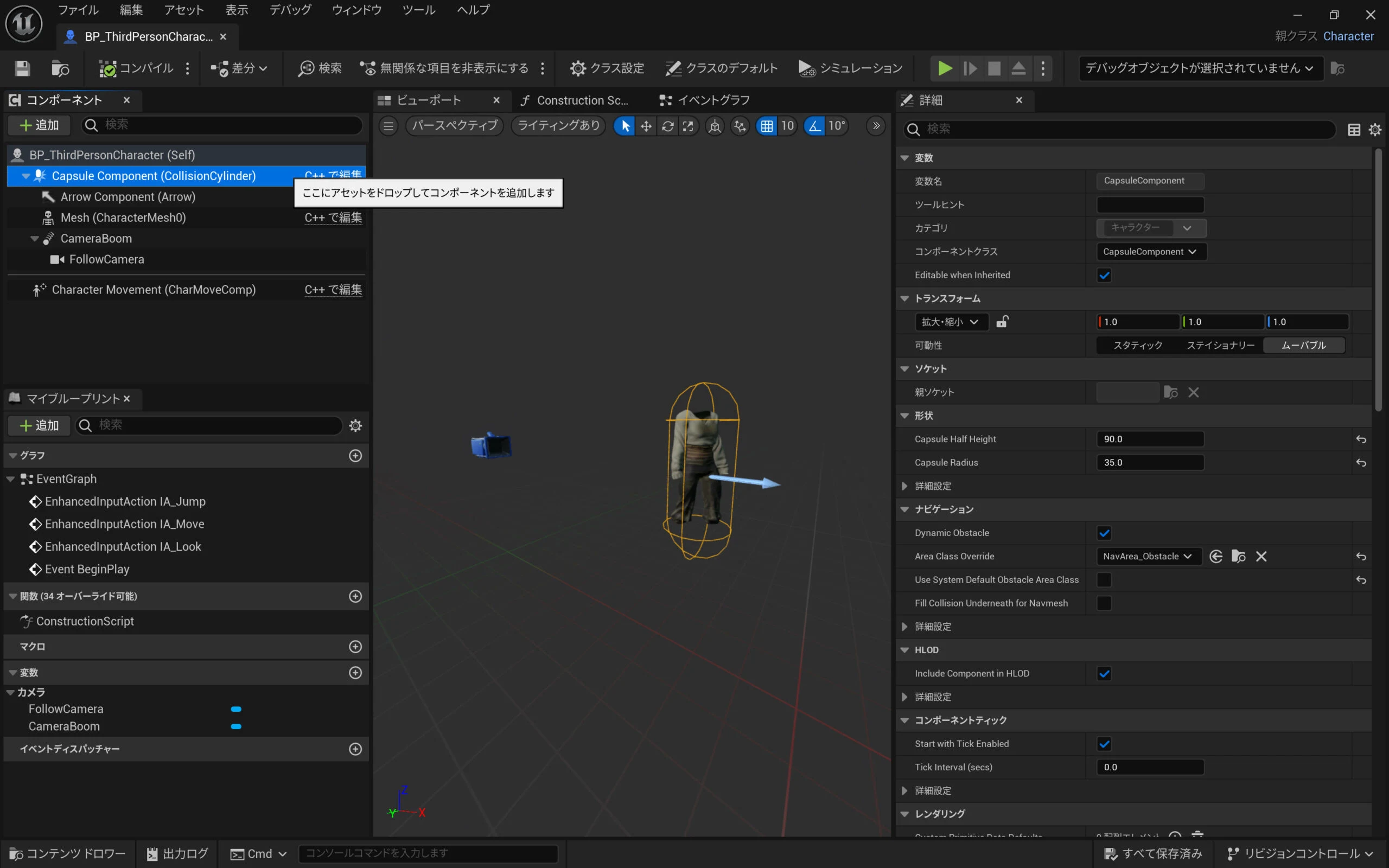 Select both CameraBoom and FollowCamera and drag them onto the new Sphere.
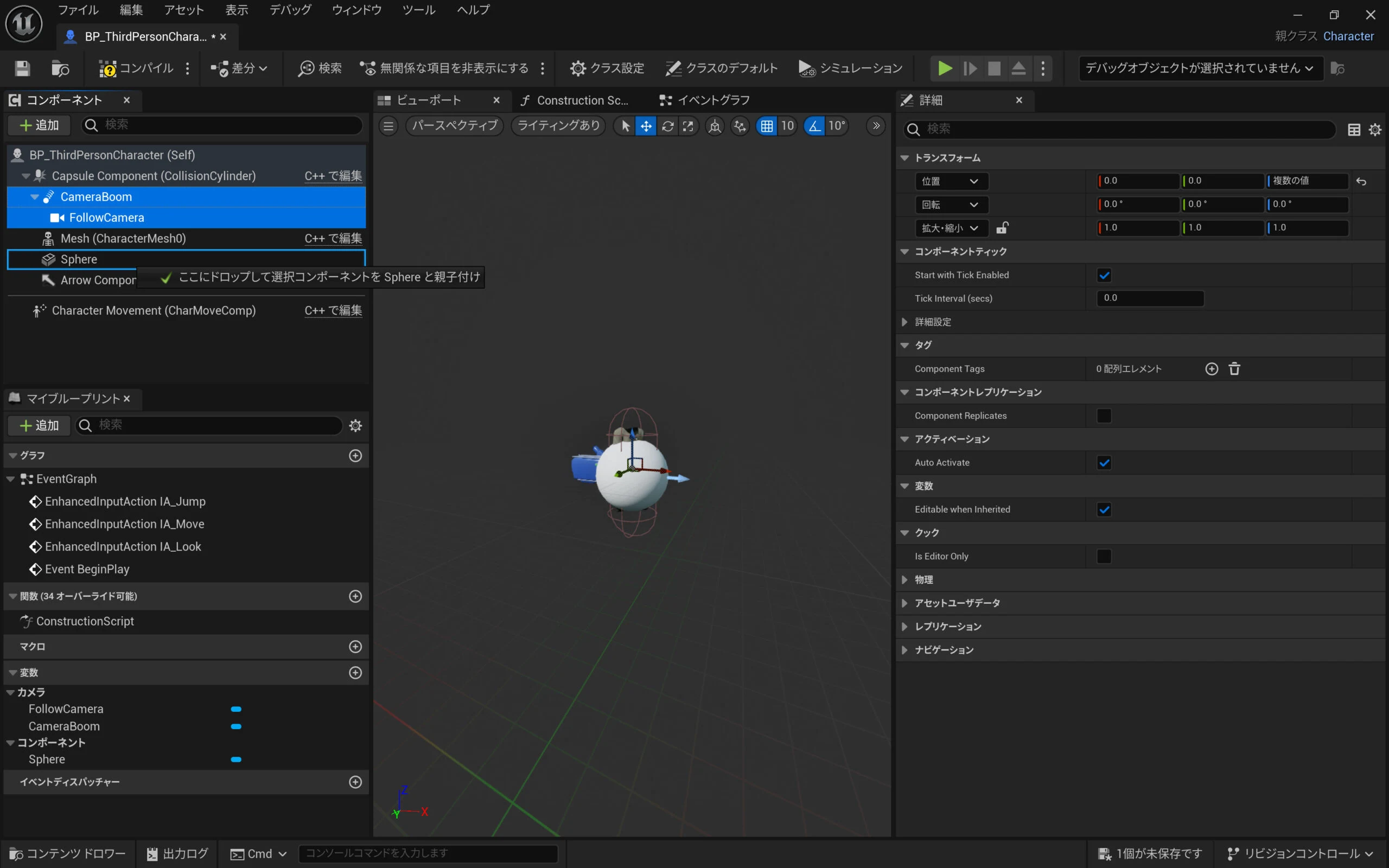 Check that the boom and camera are beneath the Sphere: Sphere / CameraBoom / FollowCamera.
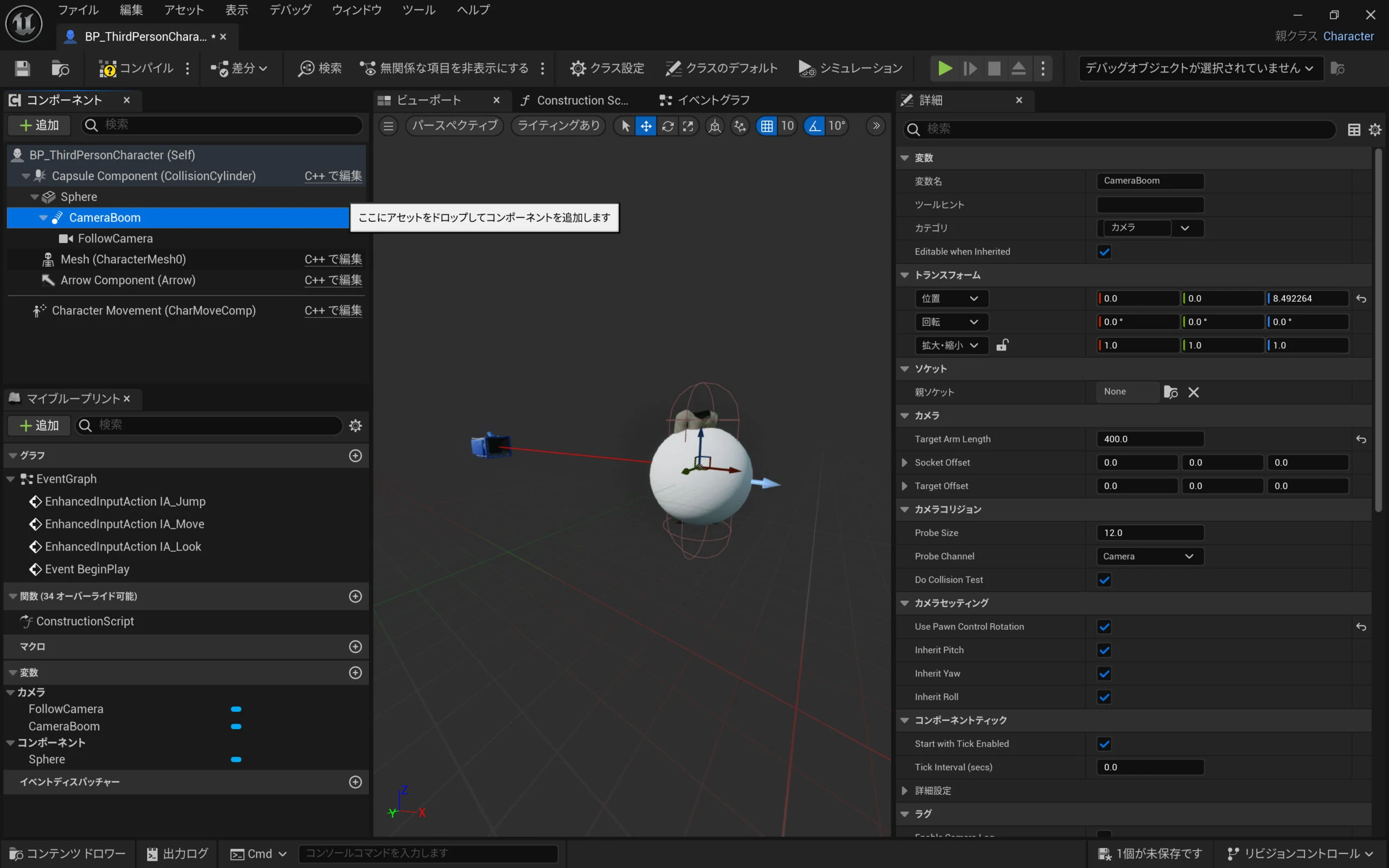 Check their placement in the preview.
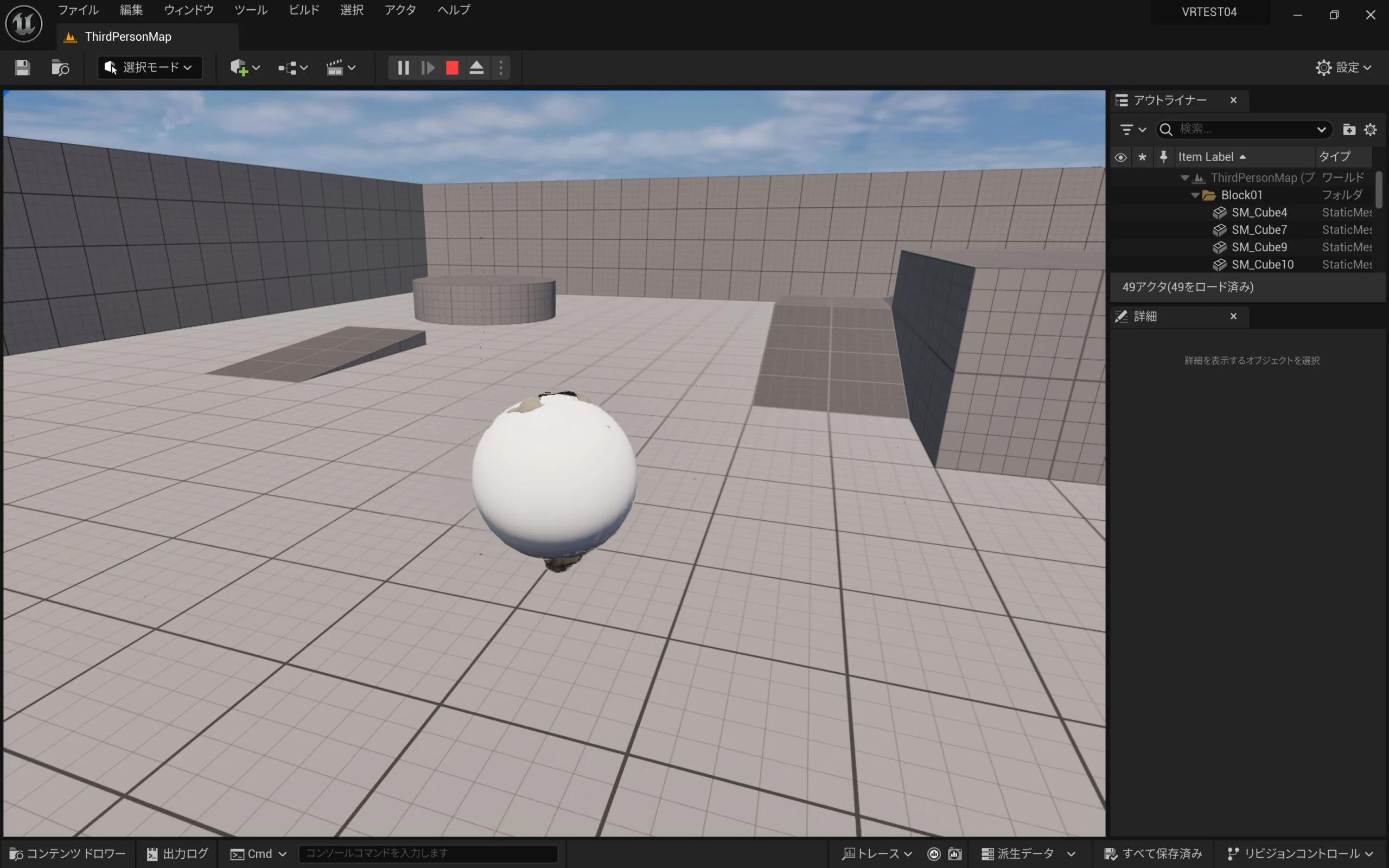 If CameraBoom has values in its Transform fields, set them to zero.
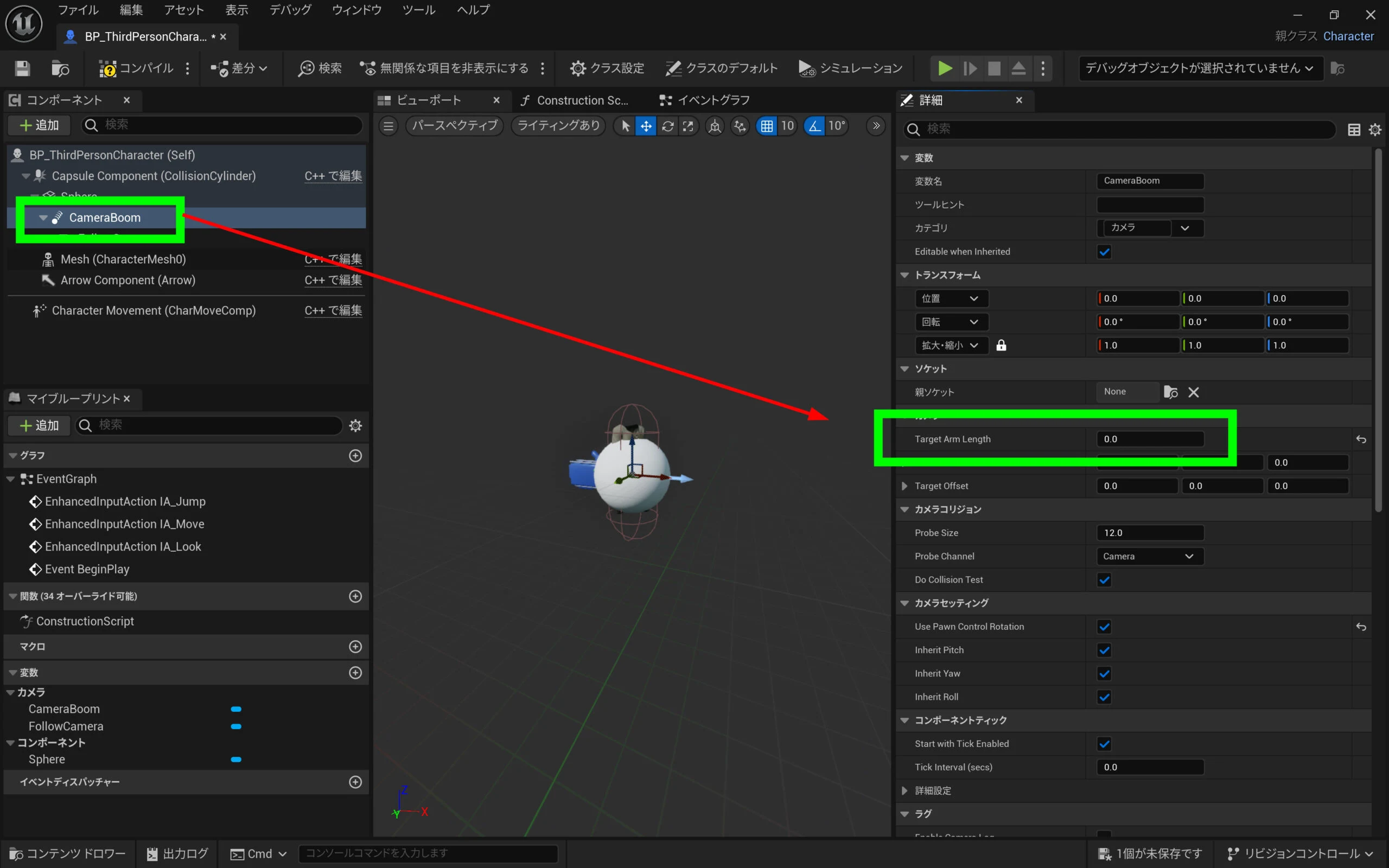
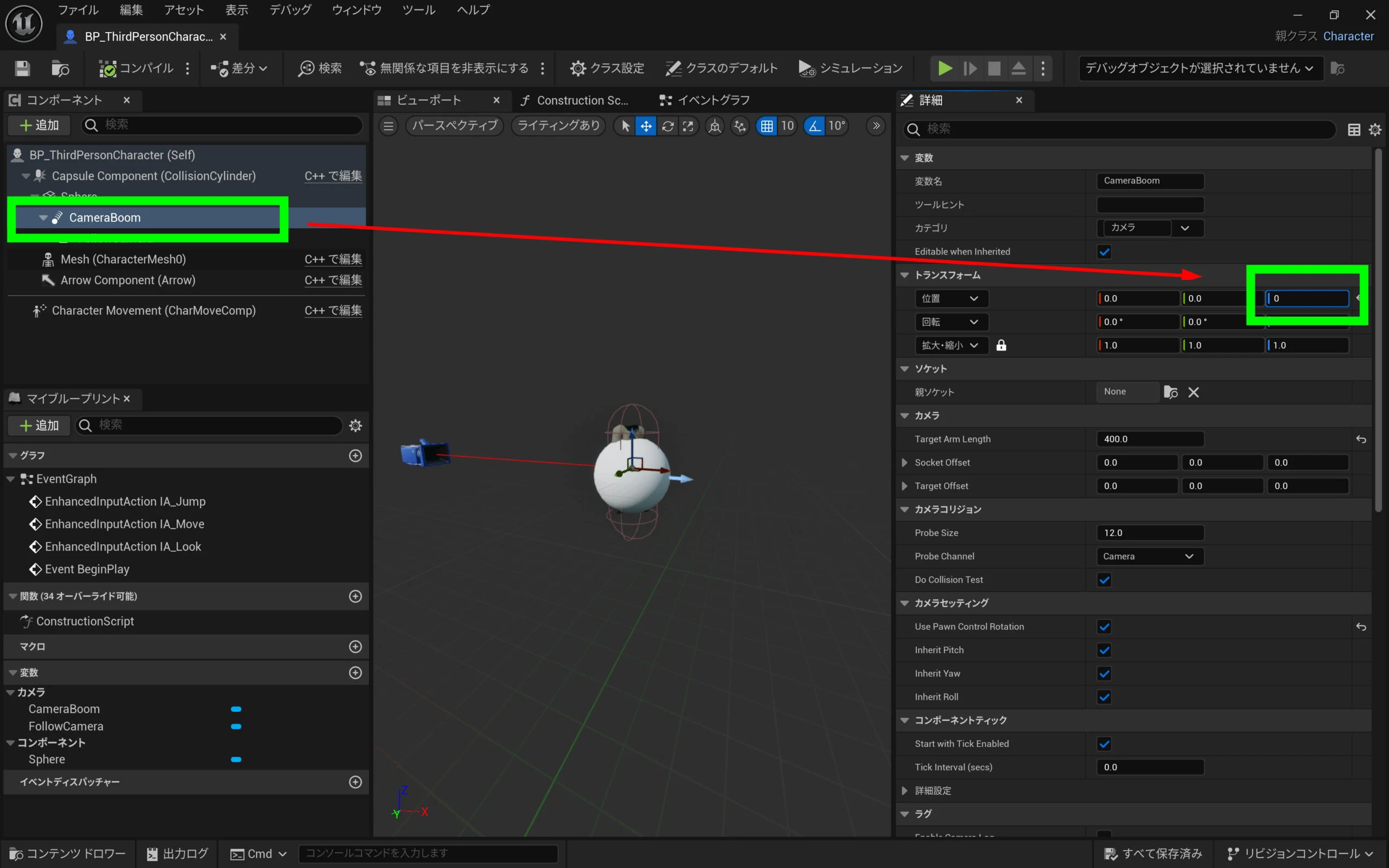 Change the boom distance for a first-person view. Unreal Engine's Camera Boom controls the viewpoint and field of view, following the player character as it moves.
The boom adjusts camera distance and height relative to the player. Its default distance is 400. Set that to zero. The camera is now at crotch level.
Change the boom distance for a first-person view. Unreal Engine's Camera Boom controls the viewpoint and field of view, following the player character as it moves.
The boom adjusts camera distance and height relative to the player. Its default distance is 400. Set that to zero. The camera is now at crotch level.
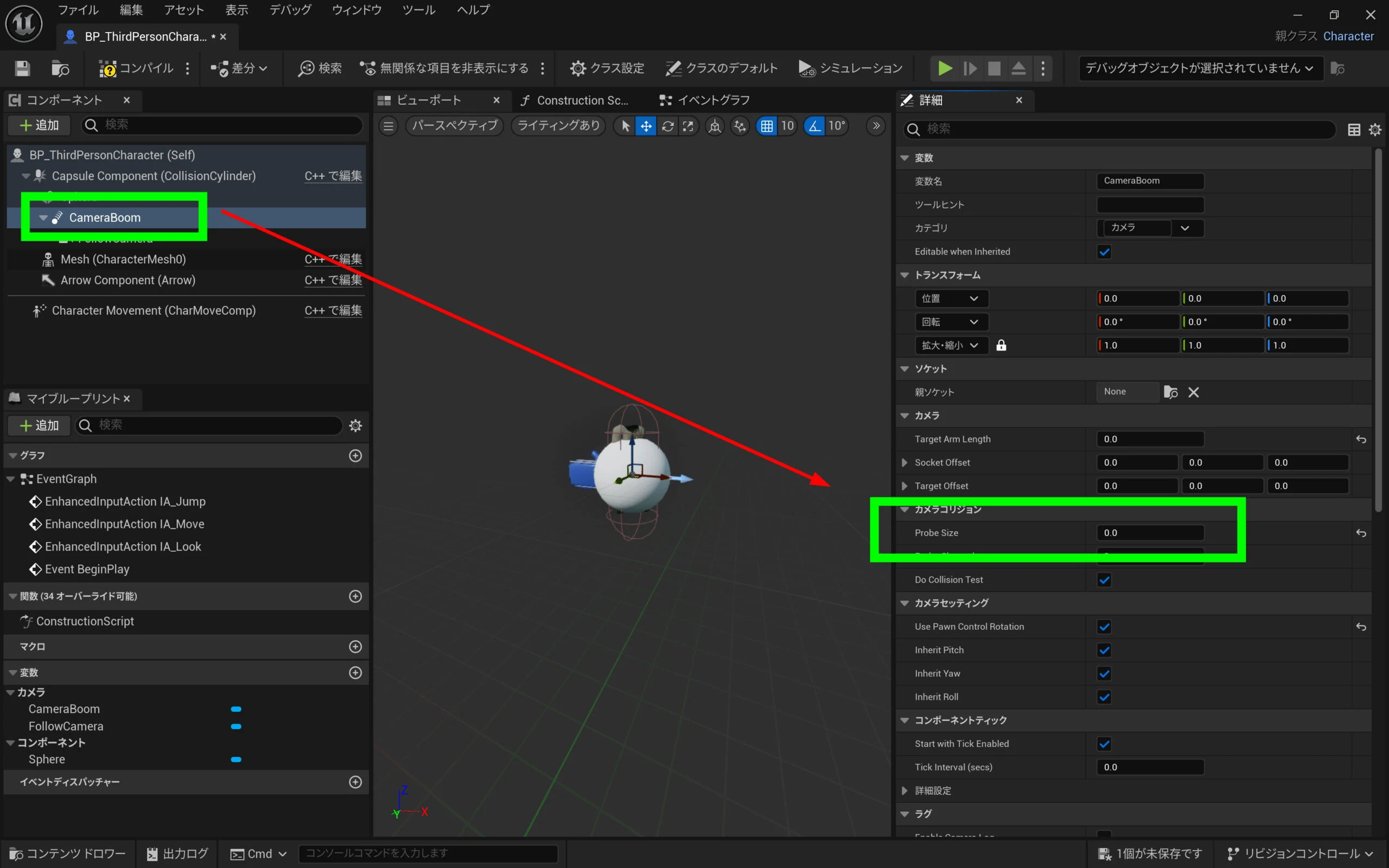
 Set the camera-collision Probe Size to zero too. This may not be necessary.
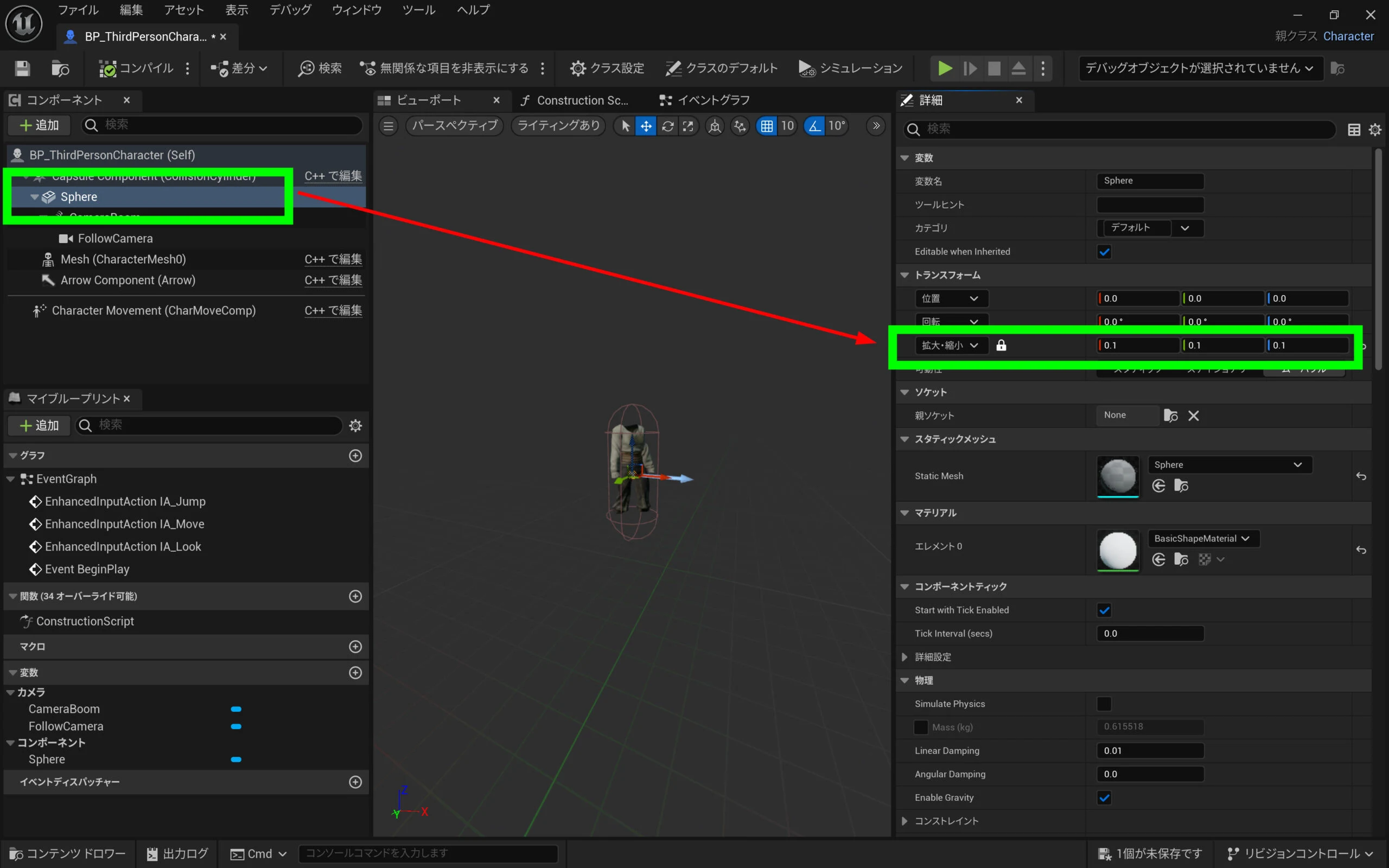
 Select the Sphere and set its scale to 0.1. The camera and boom also shrink to 0.1. This forcibly reduces the boom's movement. There is probably a more appropriate component than a camera boom for this purpose.
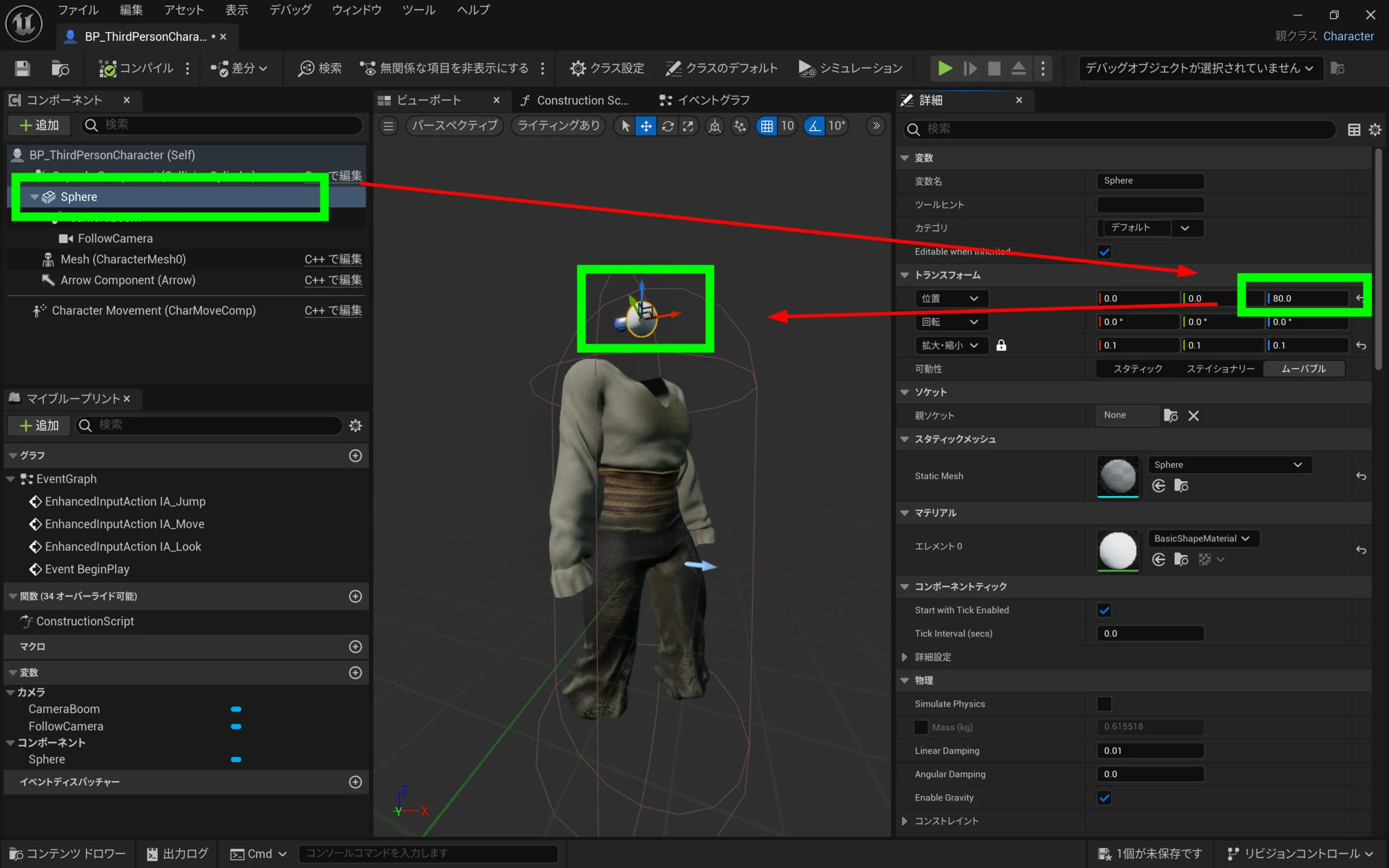
 Set the Sphere's height to around 80, at head level.
 The headset now has a first-person view. It does make me more prone to motion sickness, though.
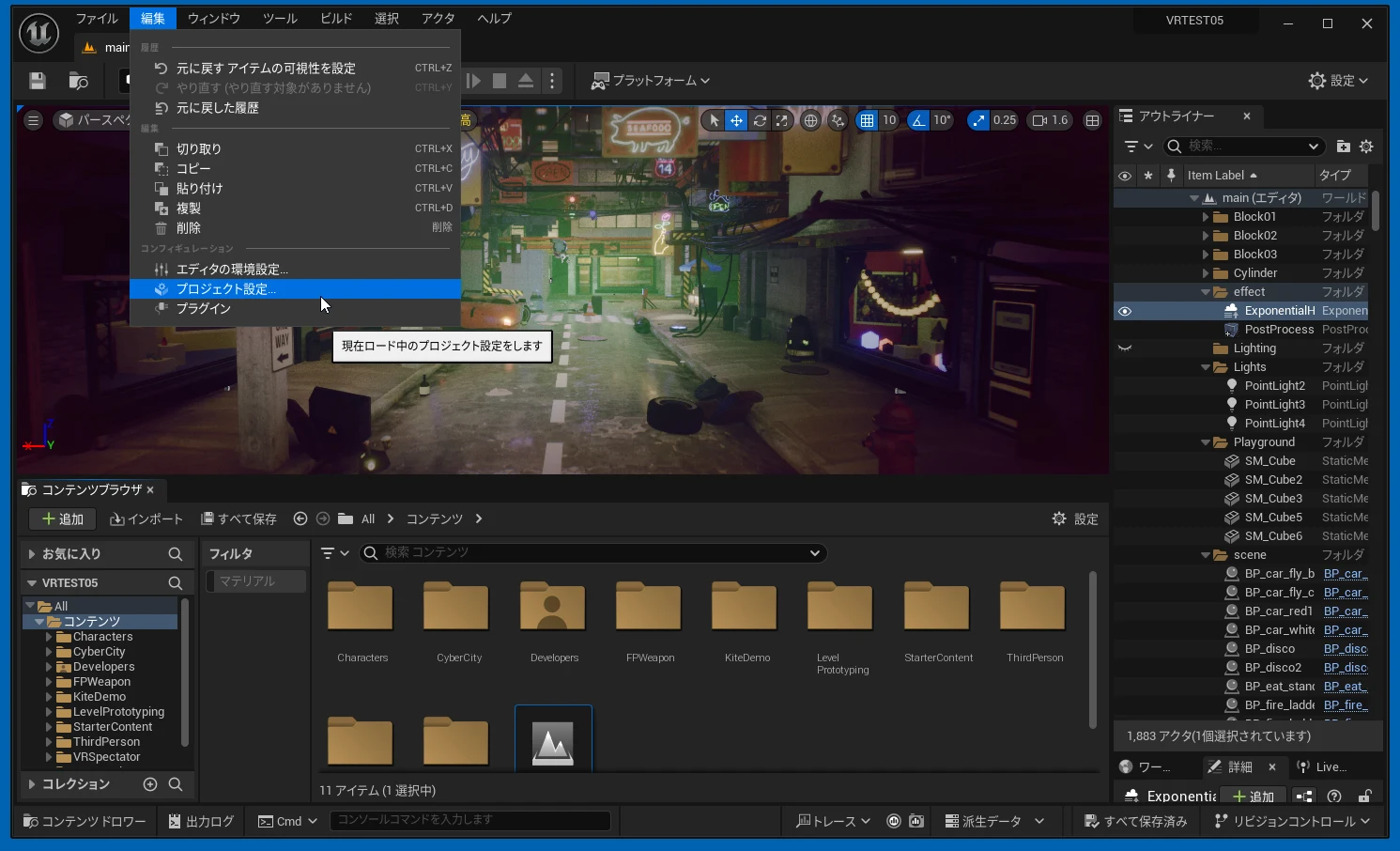
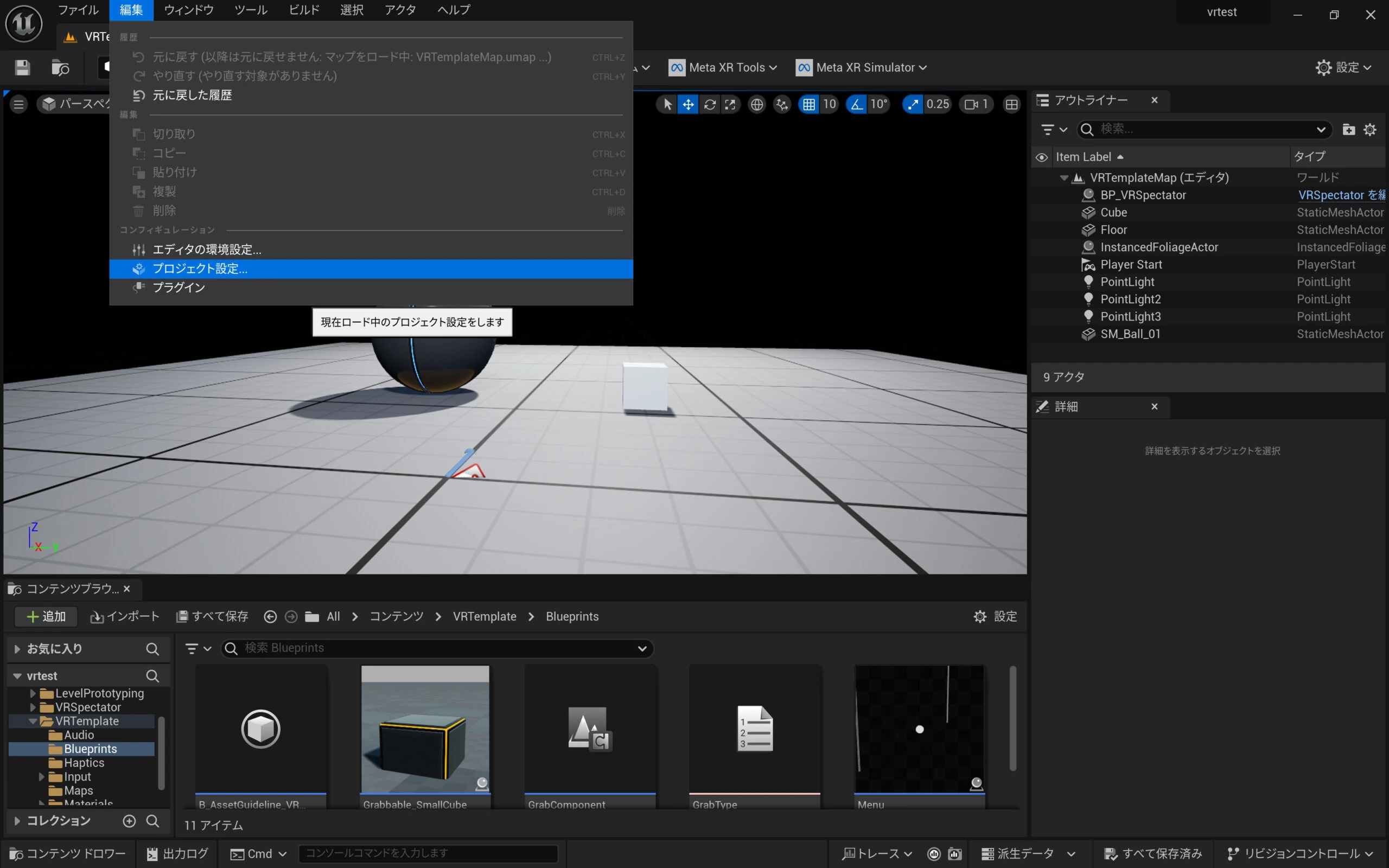
Reduce the VR workload. The following repeats the previous article. Open Project Settings.
The headset now has a first-person view. It does make me more prone to motion sickness, though.
Reduce the VR workload. The following repeats the previous article. Open Project Settings.
 Click Rendering.
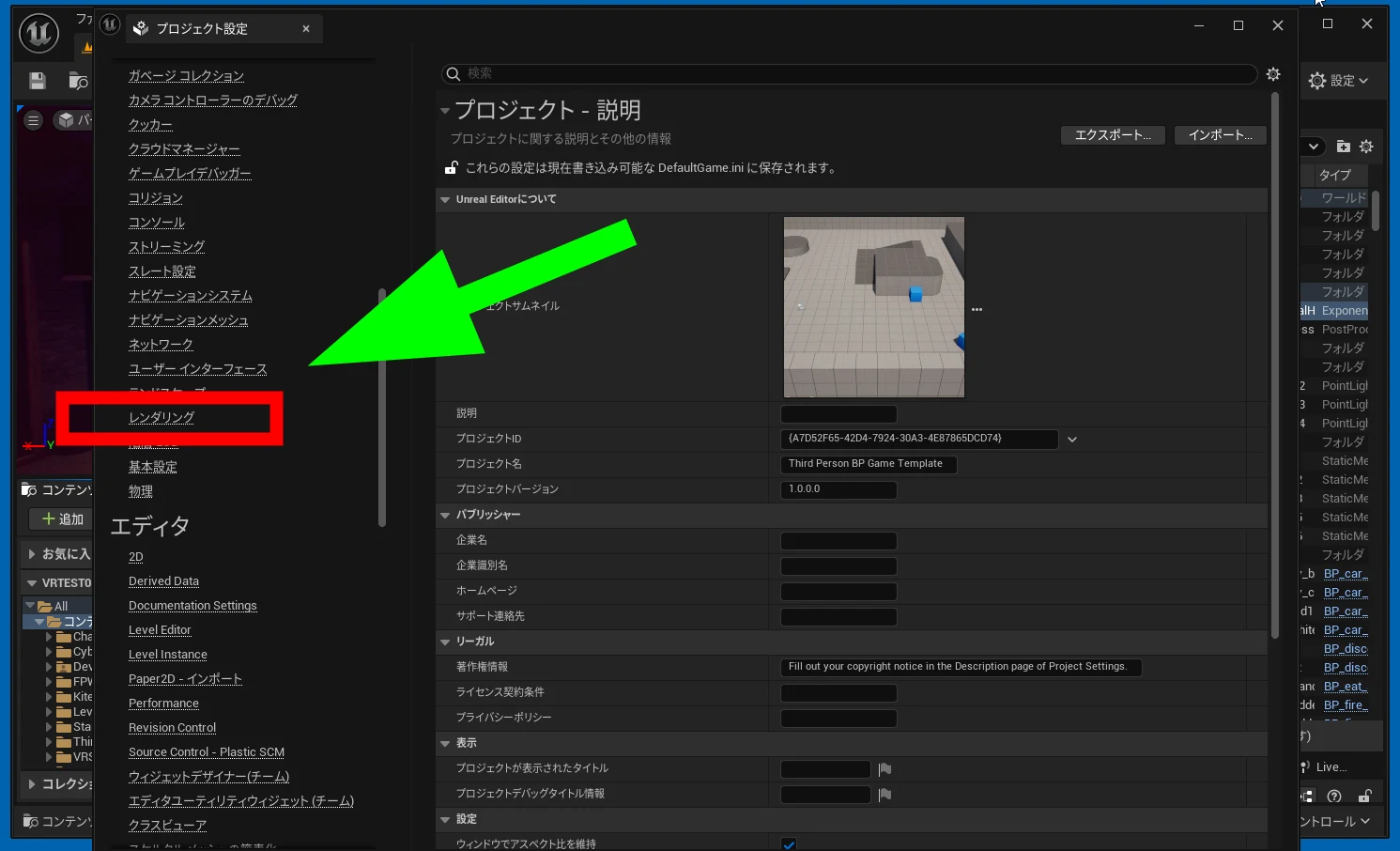 Find the VR settings.
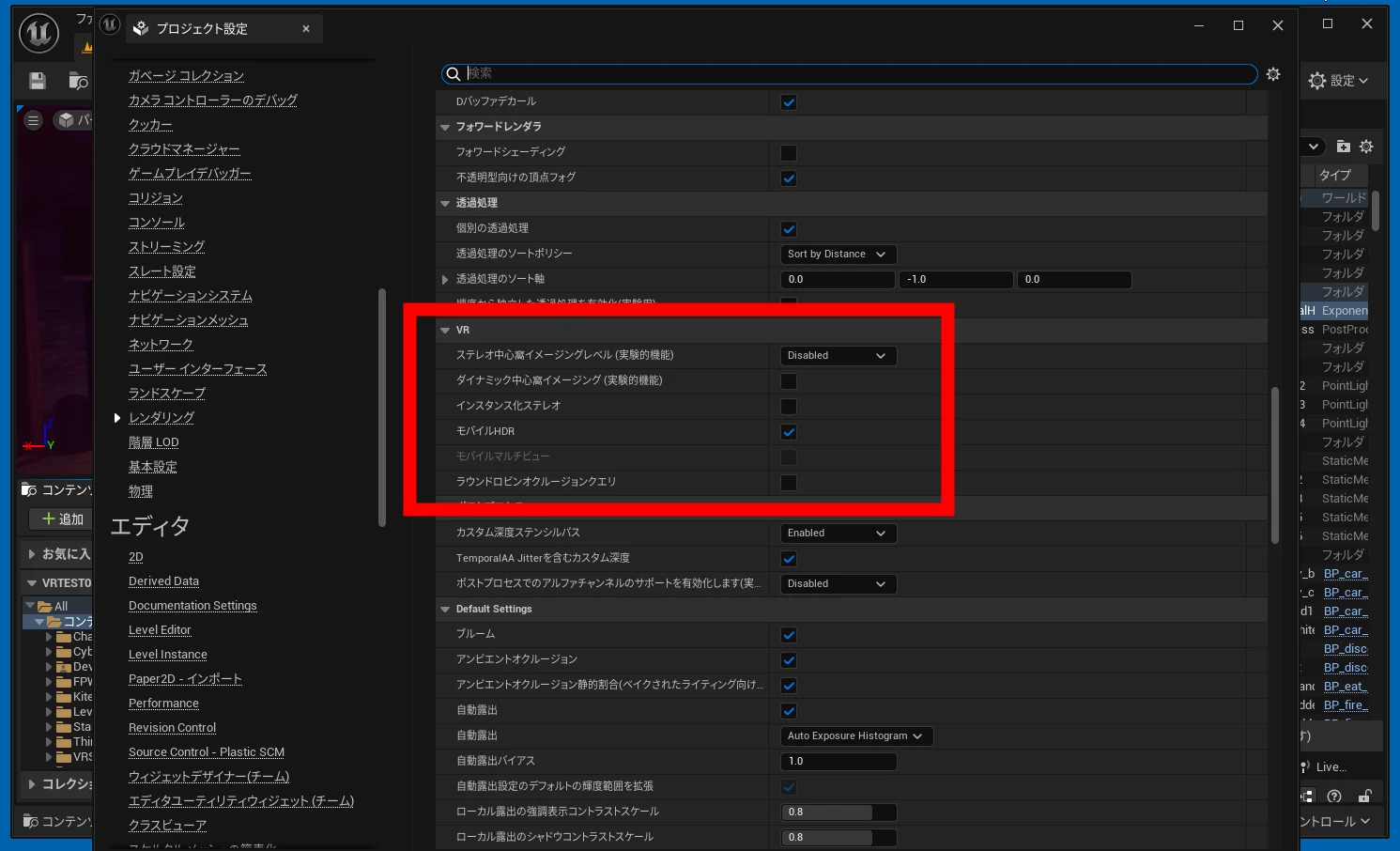 Set Stereo Foveation Level to Medium or another suitable value, and enable Dynamic Foveation.
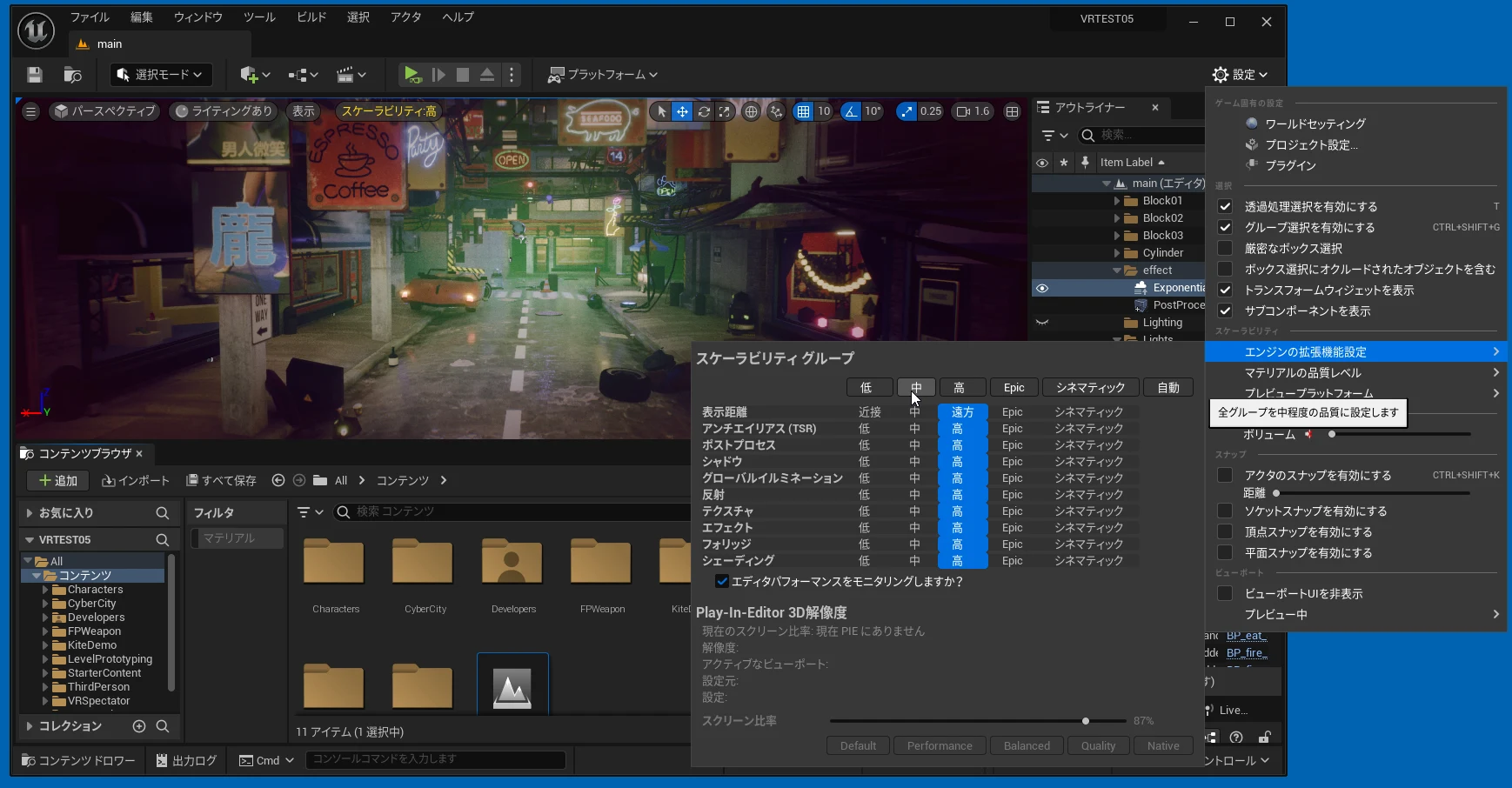
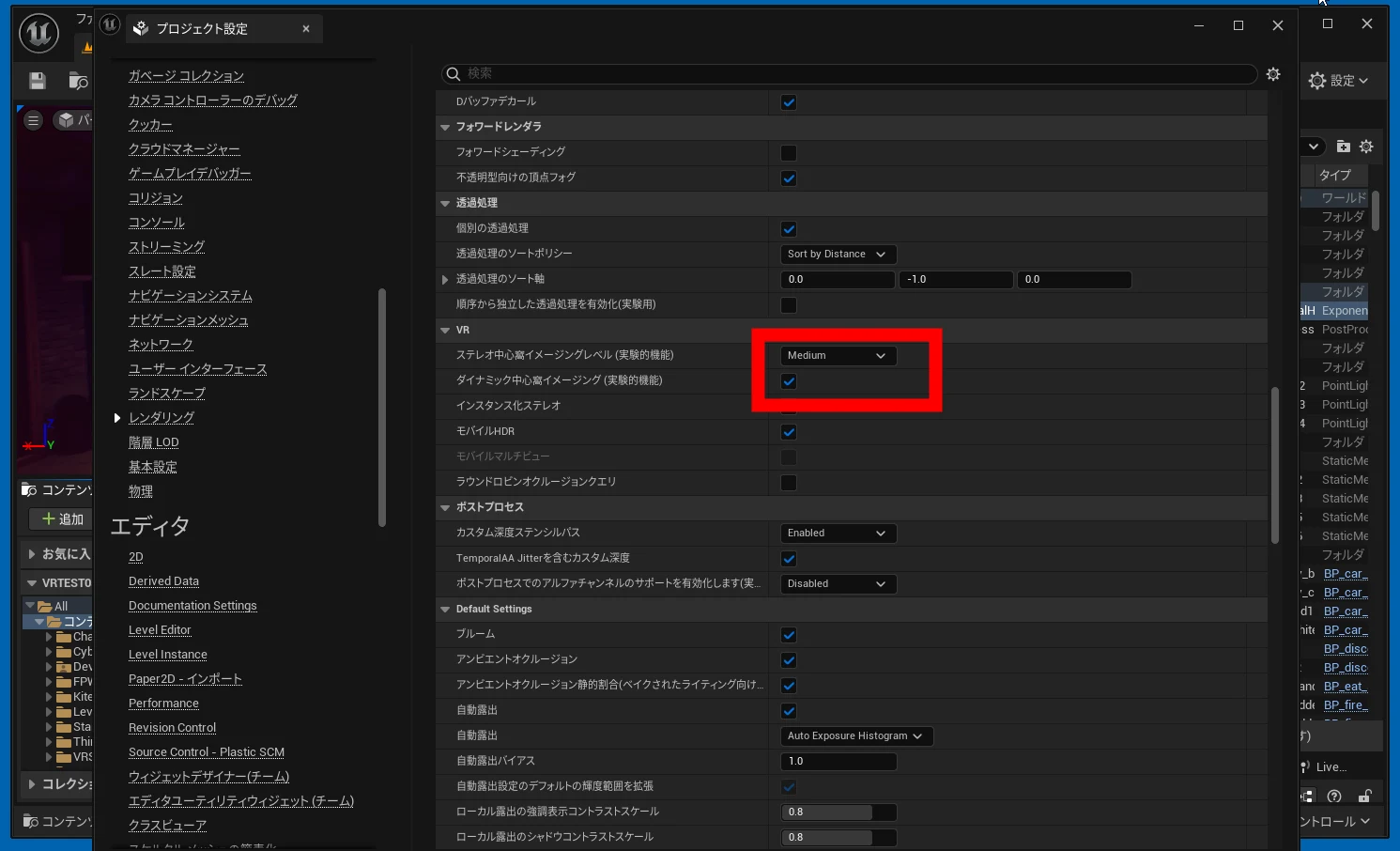 If it is still too demanding, open Engine Scalability Settings from Settings at the upper right and adjust the scalability groups.
 You can also reduce rendering effects. Find or add a PostProcessVolume.
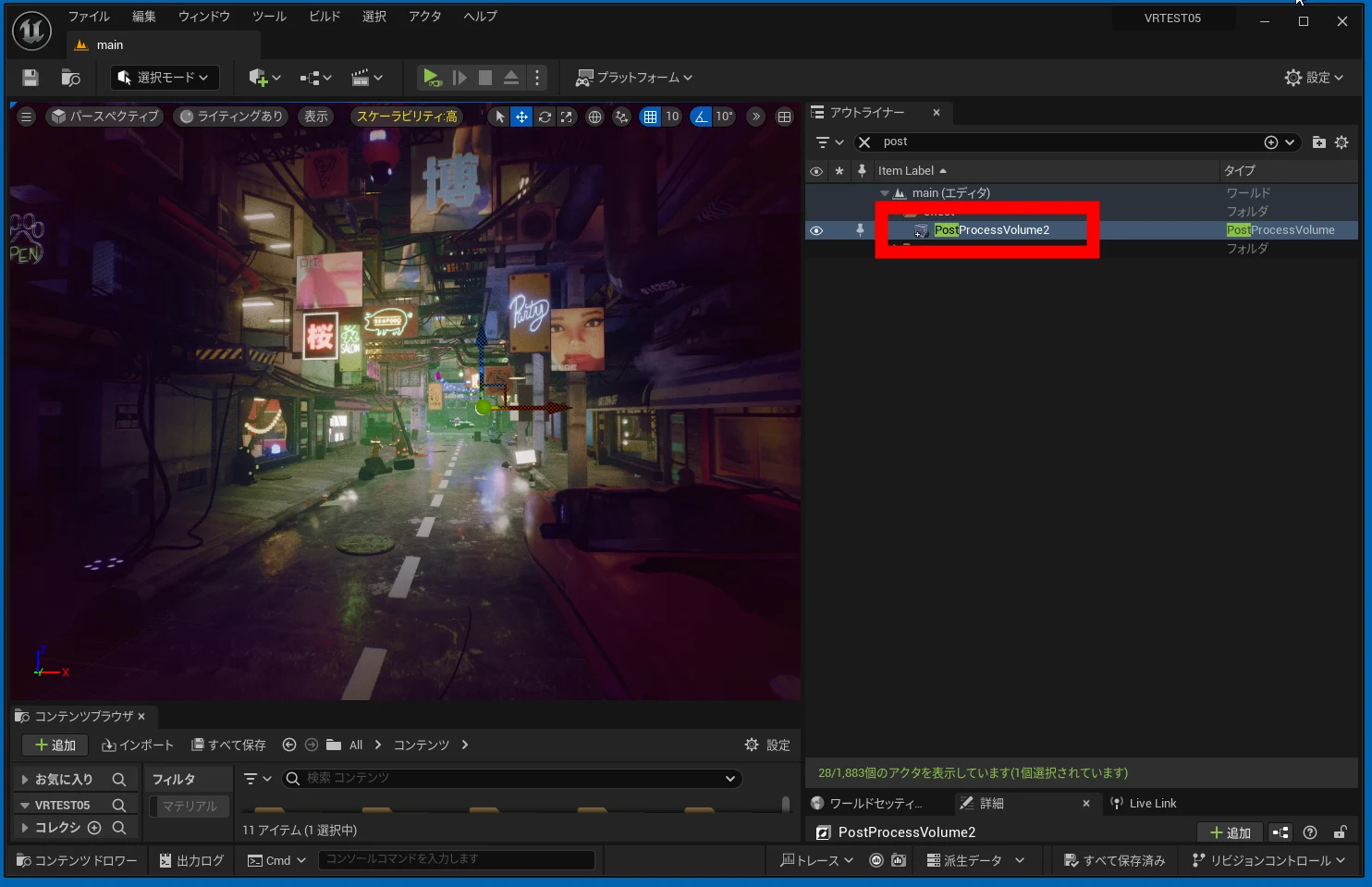 Set Bloom intensity to zero.
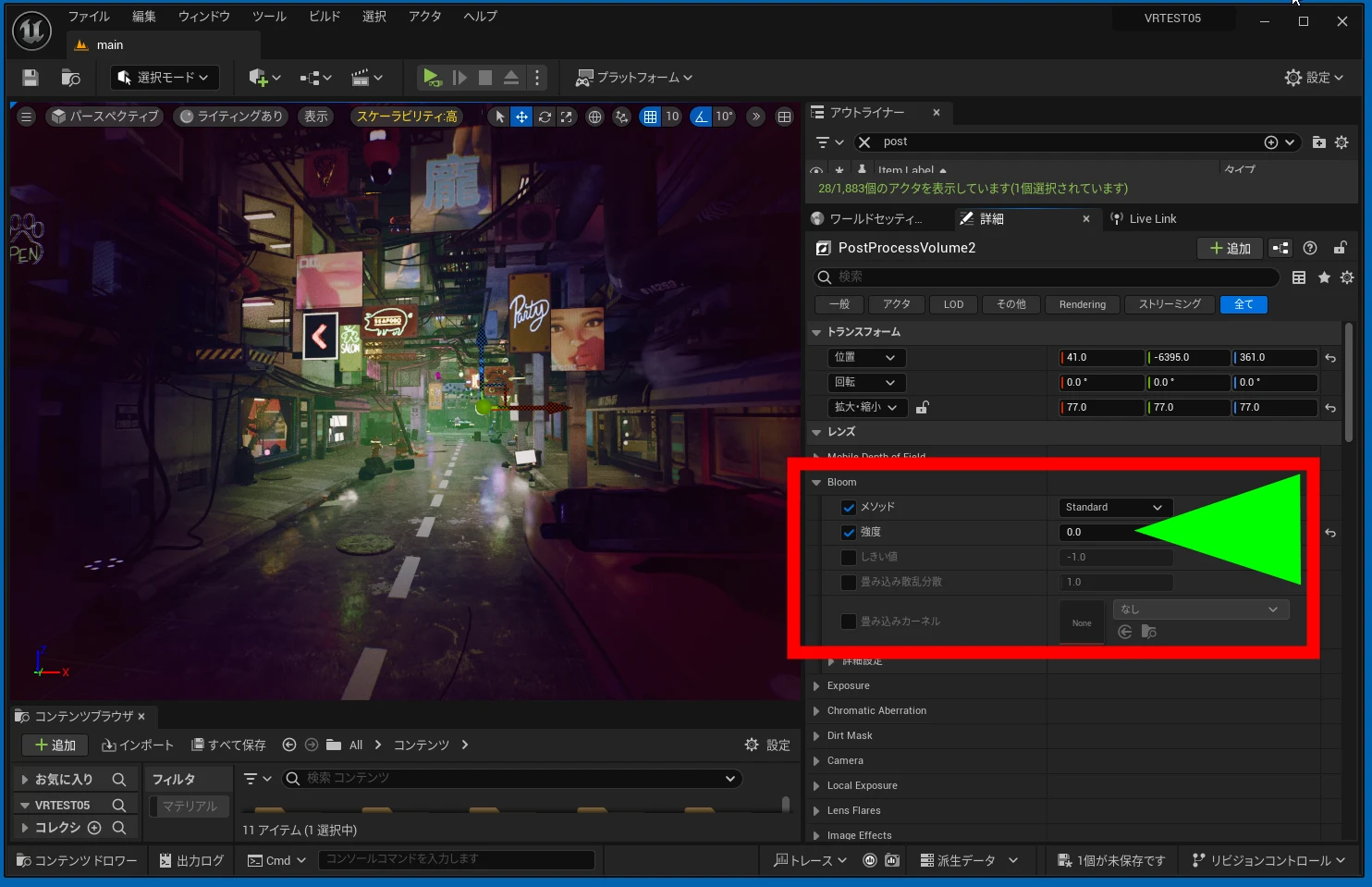 Set other potentially expensive effects to zero too.
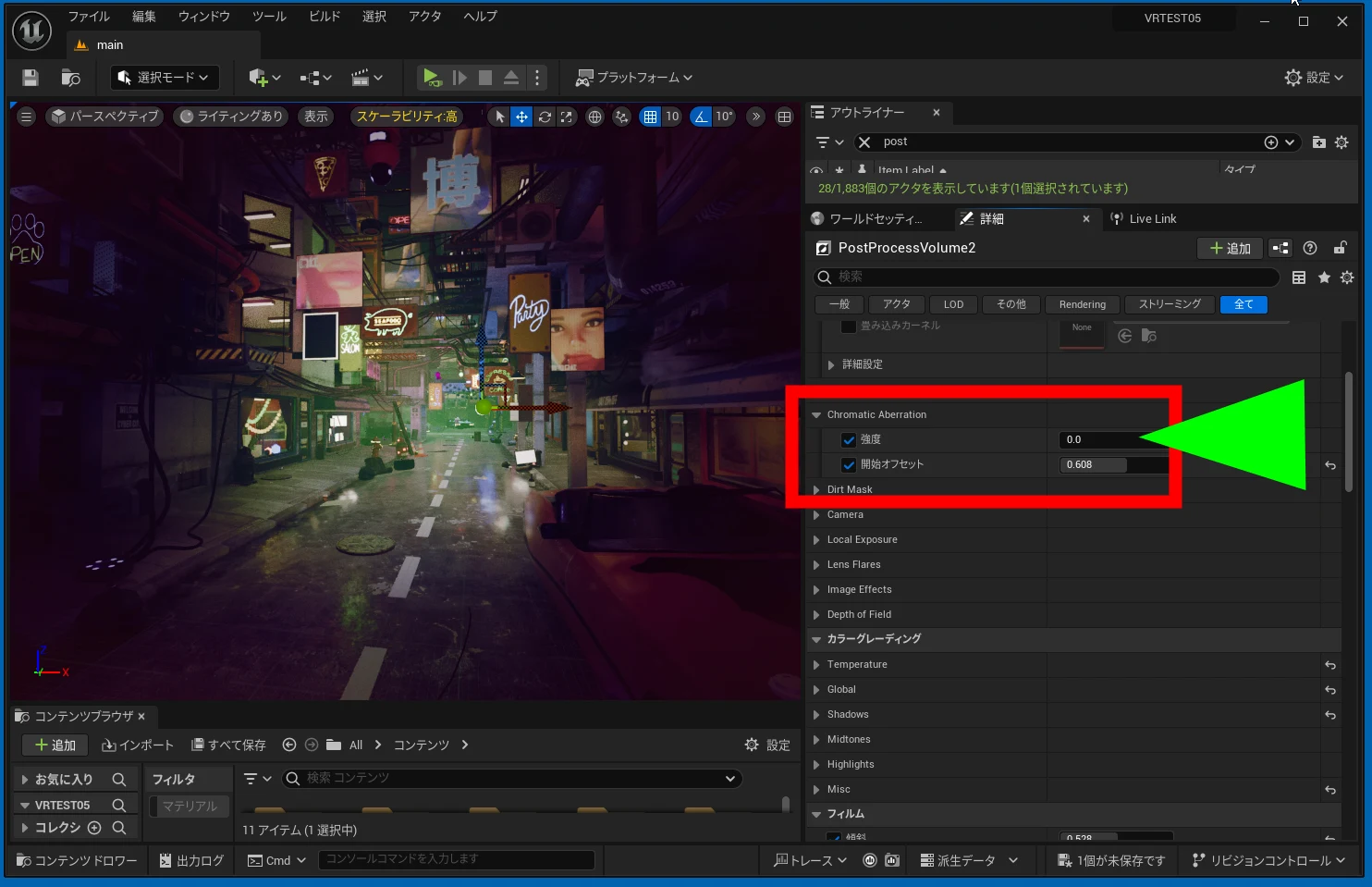
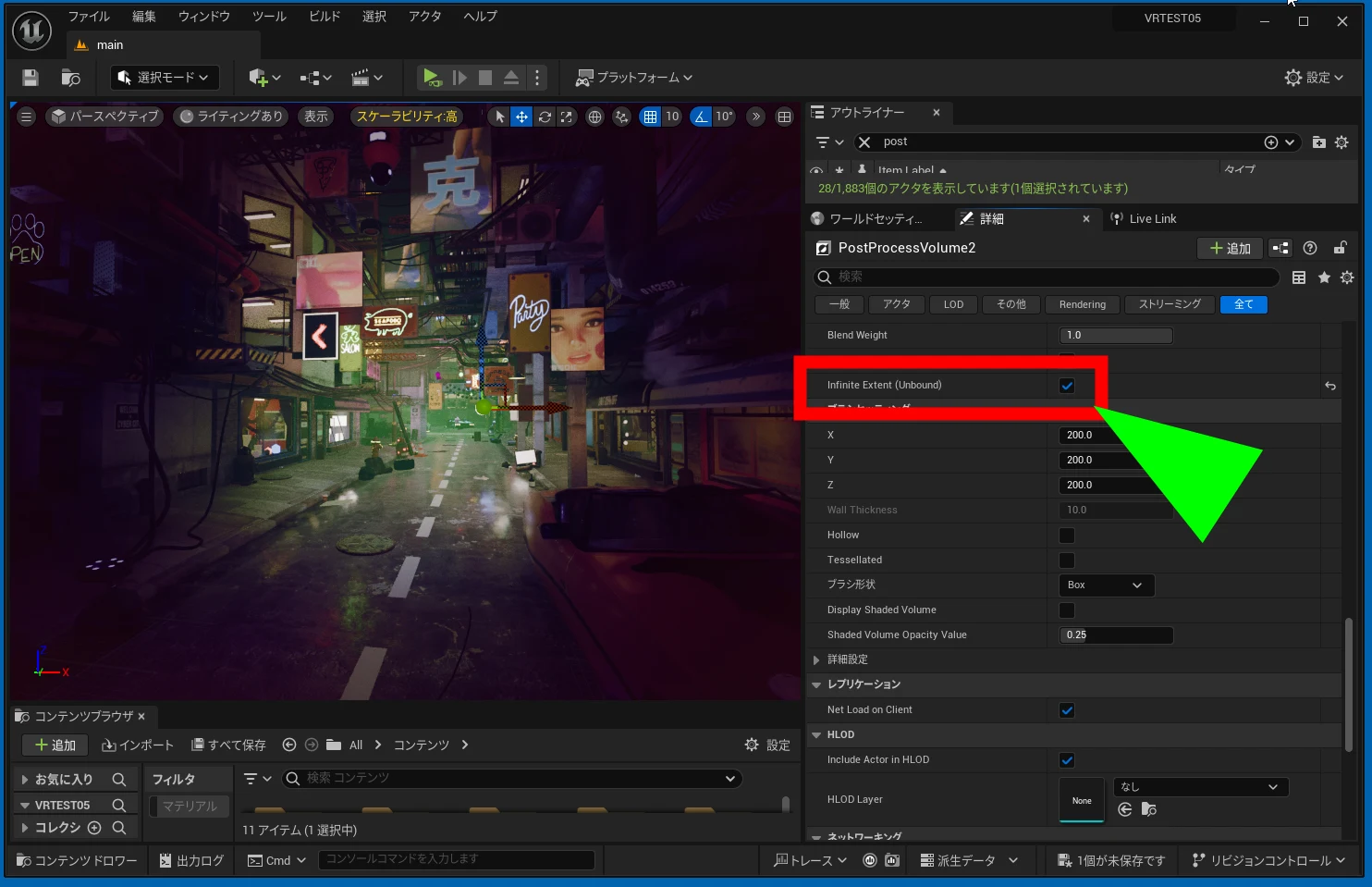
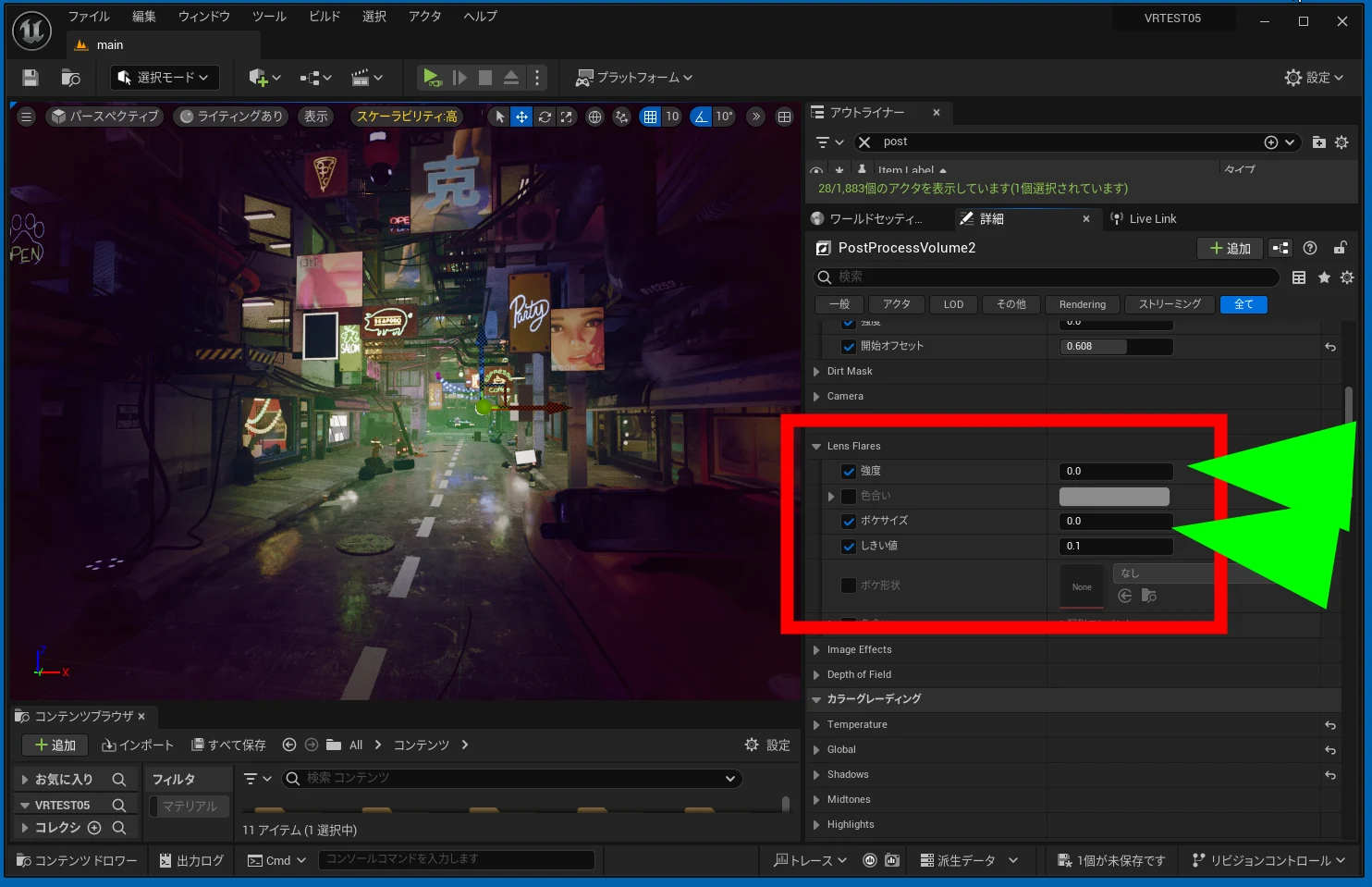 Enable Infinite Extent so the effect covers the whole scene.
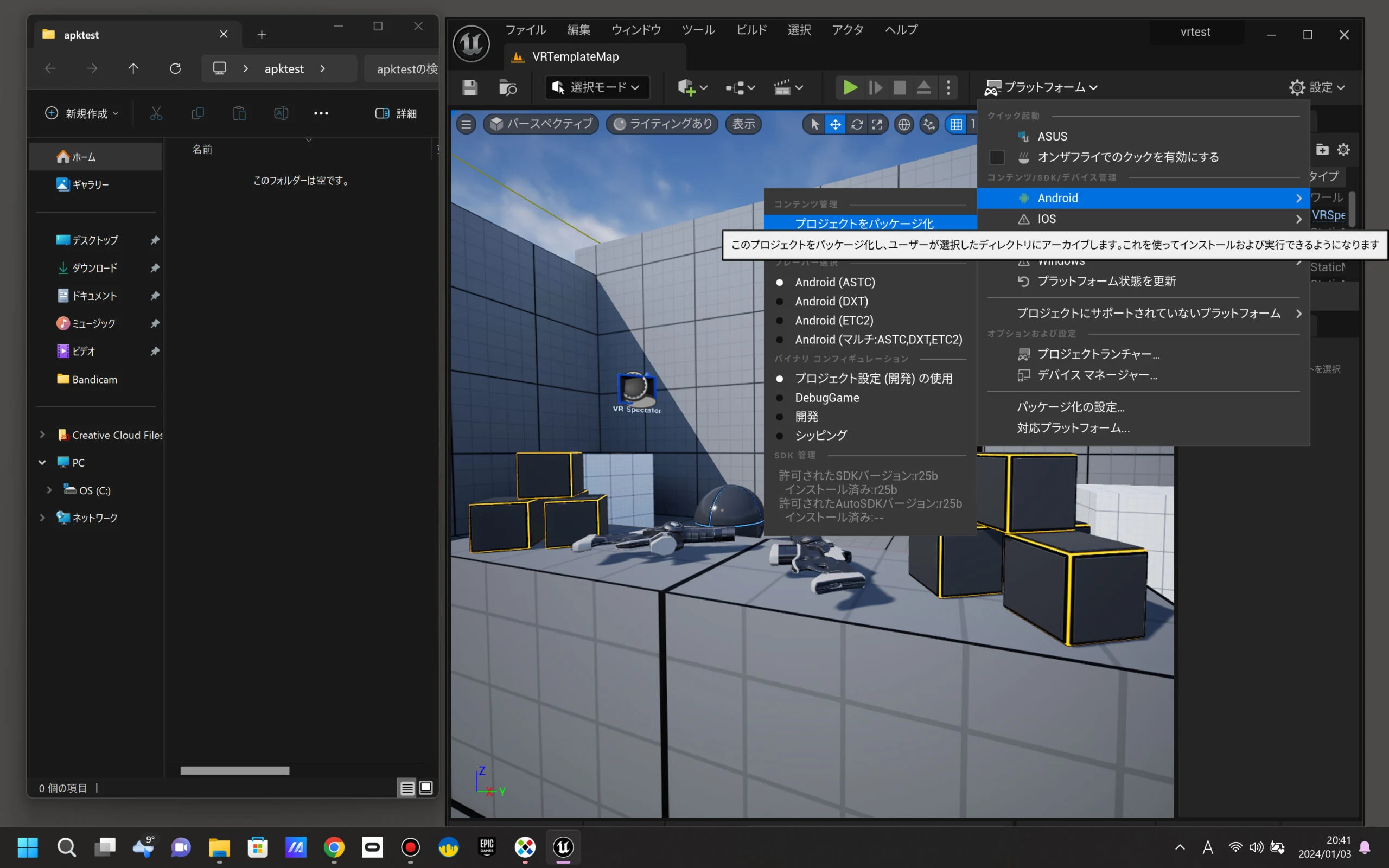
 I am getting tired of Oculus Link previews and want to view this standalone on the Quest 3. Can Unreal export an APK as Unity can? Next, I tested an Android development environment for Quest 3 with UE5.
Part 3: Meta Quest 3 APK development with Unreal Engine 5.3 in 2024: Android Studio, SDK, NDK, and JDK versions and setup
https://riragon.com/blog/en/ue5-oculus-meta-quest-3-android-studio-sdk-ndk-jdk/
Meta Quest 3 listings (storage capacity unspecified)Browse on Amazon Ad · Amazon Associate link
Related articles
Updates and contact: X @riragoncom.