Meta Quest 3 APK setup for UE 5.3: Android Studio, SDK, NDK, and JDK
A Windows 11 walkthrough for building Meta Quest 3 APK applications with Unreal Engine 5.3.2, using the Android Studio, SDK, NDK, and JDK versions tested on January 3, 2024. It covers the version choices and settings used to get a successful build.
Note: This article was published more than a year ago.
- Recommended combinations of Android Studio, SDK Platform, NDK, and JDK depend on the Unreal Engine version. Check Epic's Android documentation each time.
- Quest builds are sensitive to changes in Meta's developer settings and toolchains. Also consult the official Quest development guide.
- Gradle and AGP error wording varies by version and may not match the log examples here exactly.
This article describes my setup on January 3, 2024.
Previously, I tried various VR previews on the Meta Quest 3 using Oculus Link.
This time, I wanted the application to run standalone on the Quest 3, so I set up the UE5 development environment.
Preparing the environment takes time if you are unfamiliar with it.
For a first attempt, set aside a full day and work through it patiently rather than getting frustrated.
Develop an APK application for the Oculus Meta Quest 3
I am testing the setup needed to develop Oculus Meta Quest 3 APK applications with Unreal Engine 5.
The operating system is Windows 11.
I also confirmed the same procedure on Windows 10.
The UE5 version is 5.3.2.
The Oculus Meta Quest 3 is based on Android.
Related product listings: Find Meta Quest 3 on Amazon (Ad)
Android Studio is therefore needed for the Android development environment.
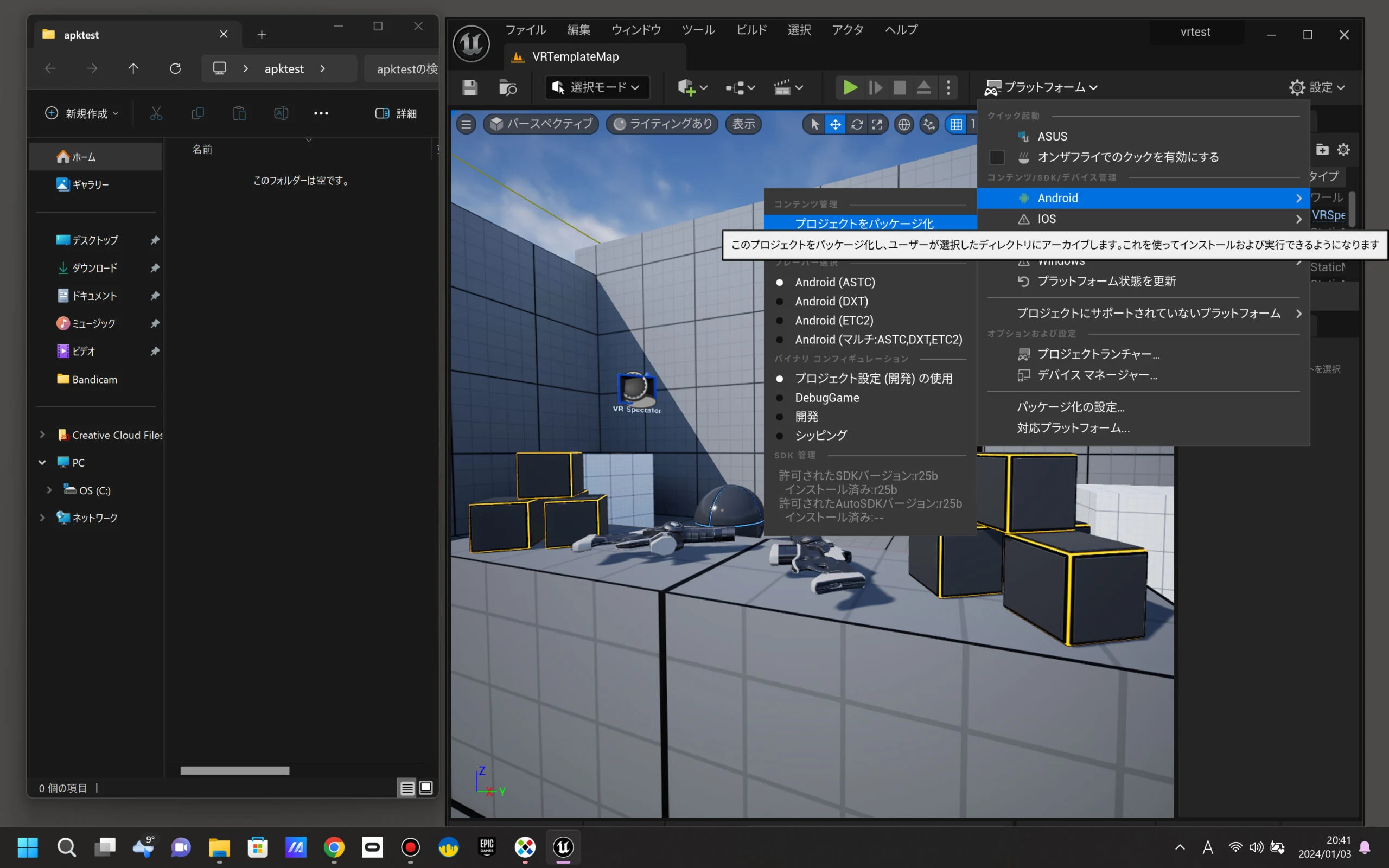
Install Android Studio and configure the required SDK components, particularly the Android SDK and NDK. Once the settings in Unreal Engine 5.3 are complete, the environment is ready for Android application development. If the Android SDK and NDK versions do not match what Unreal Engine 5.3 supports, errors can prevent the build. The settings may change within a year, but the importance of selecting matching versions should still be useful. For this UE5 and Meta Quest 3 setup, I use slightly older SDK, NDK, and JDK versions rather than the newest ones available on January 3, 2024. I hope the example helps.
- SDK Platforms API level 32/NDK 25.1.8937393
- Android SDK Command-line Tools 8.0
- JDK Development Kit 17
Check the UE5 reference documentation
First, skim the UE5 reference pages. They are useful if your environment has changed. Unreal Engine's reference documentation is thorough.
- Android Quick Start https://docs.unrealengine.com/5.3/ja/setting-up-unreal-engine-projects-for-android-development/
- Setting Up Your Android Device for Development https://docs.unrealengine.com/5.3/ja/setting-up-your-android-device-for-developing-applications-in-unreal-engine/
- Setting Up Android SDK and NDK https://docs.unrealengine.com/5.3/ja/how-to-set-up-android-sdk-and-ndk-for-your-unreal-engine-development-environment/
Set up Quest 3 Developer Mode and Oculus Link beforehand
As preparation, finish setting up Developer Mode and Oculus Link. Developer Mode provides access to special development features on Meta VR headsets. Oculus Link connects a Quest to a PC to run PC VR games and applications. Use a guide such as the following note article to enable Quest 3 Developer Mode.
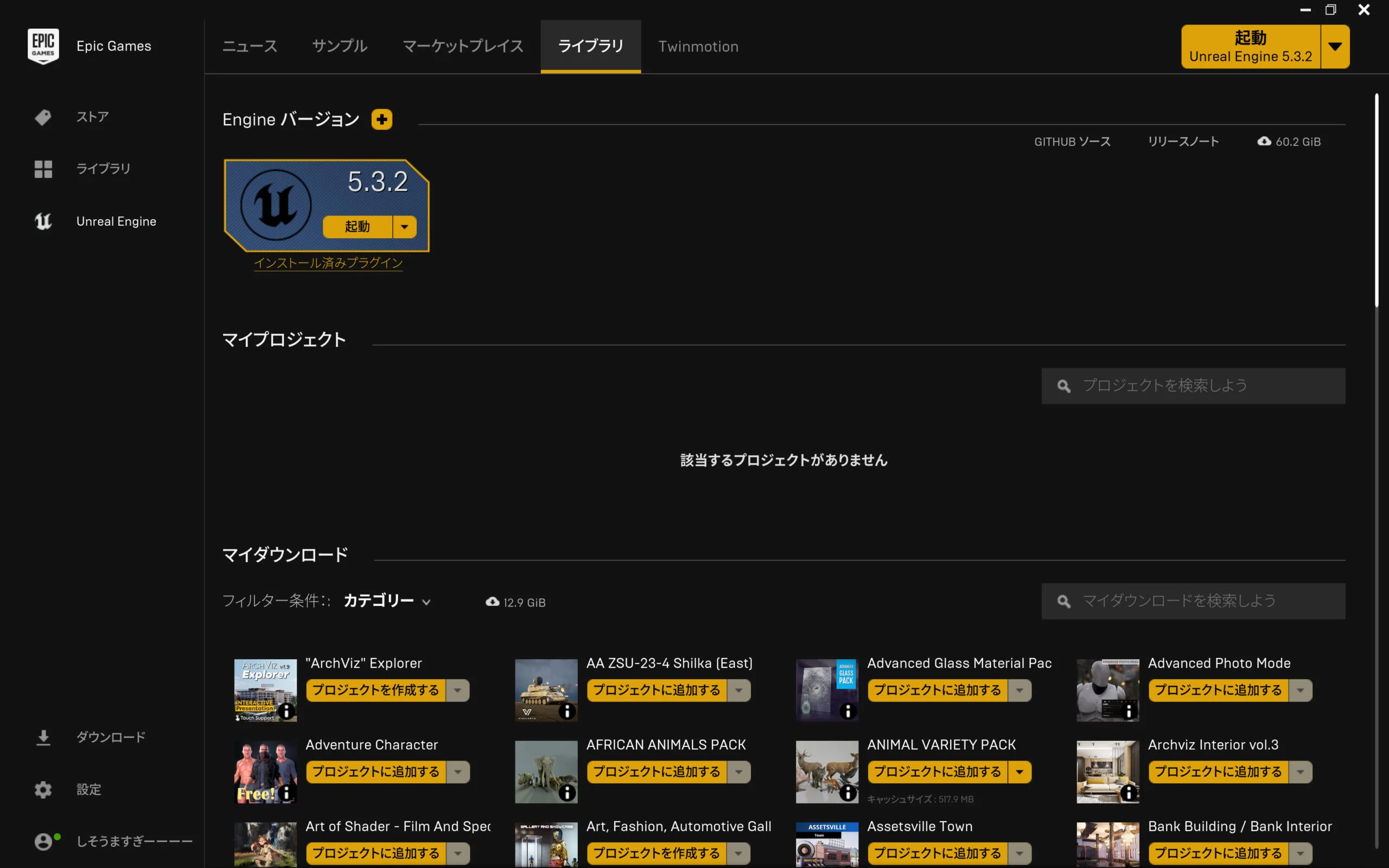
Install UE 5.3.2 as well.
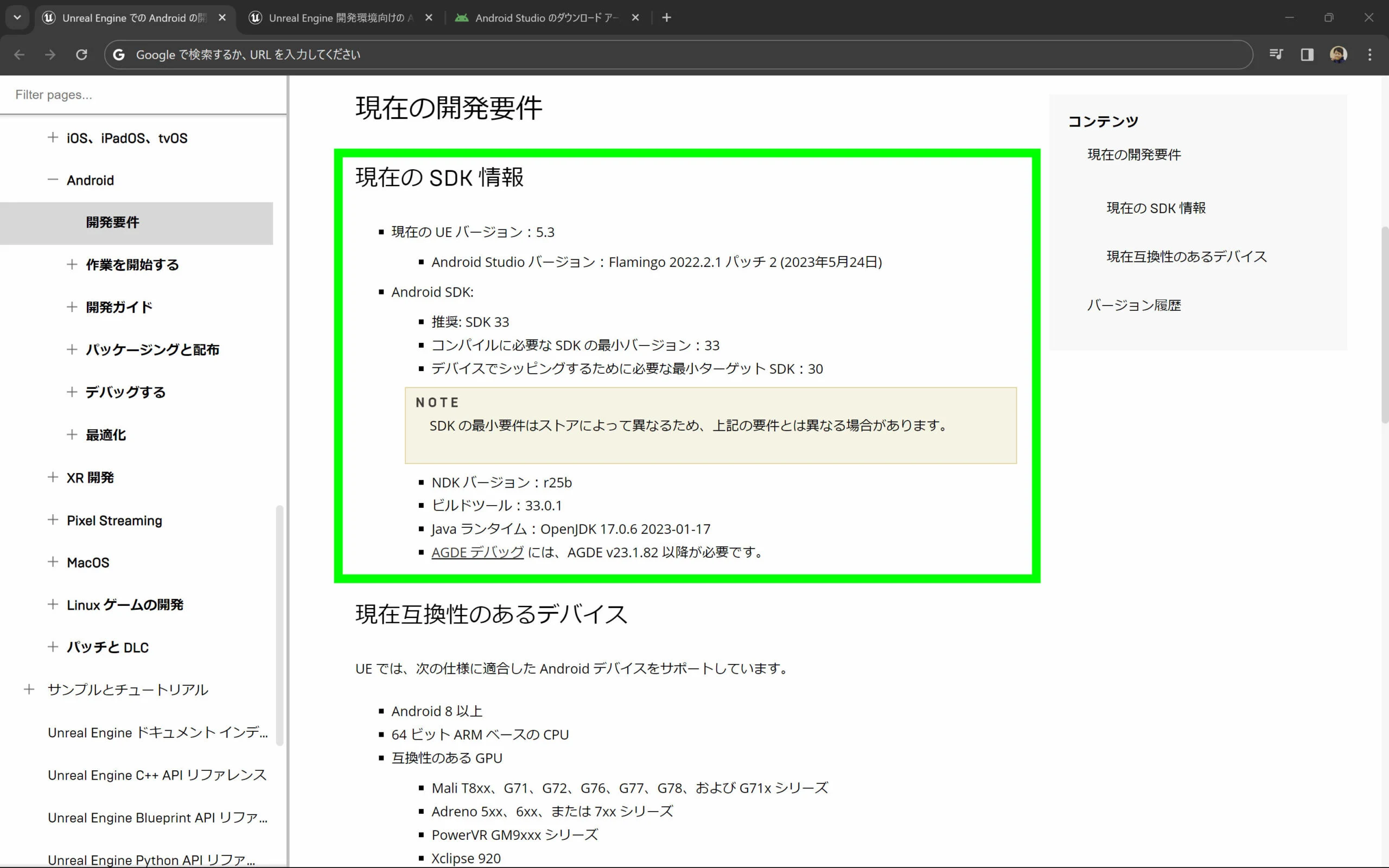
Android Studio version required for UE 5.3
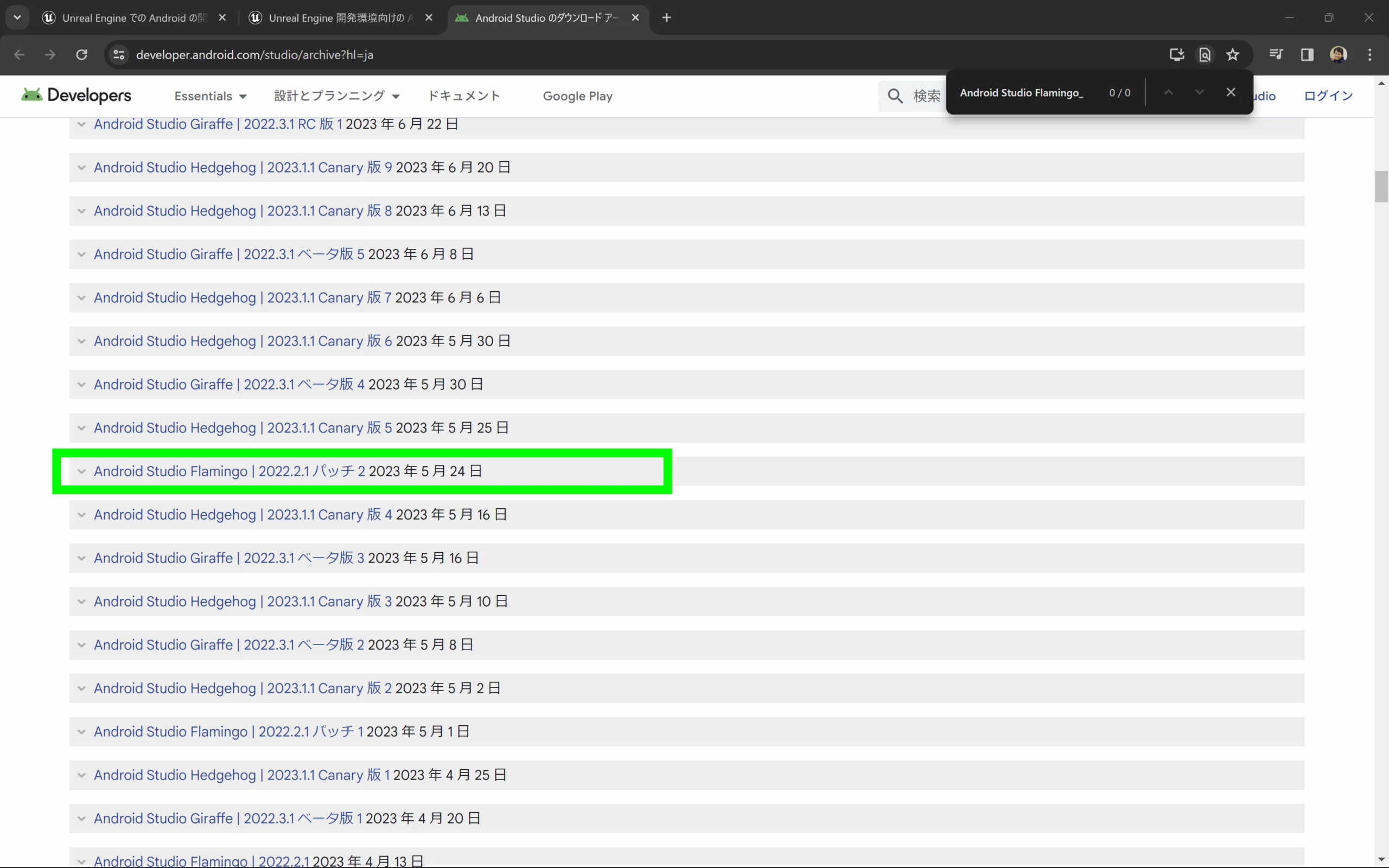
As of January 3, 2024, UE 5.3's development requirements specify Android Studio Flamingo 2022.2.1 Patch 2. I will install that version.
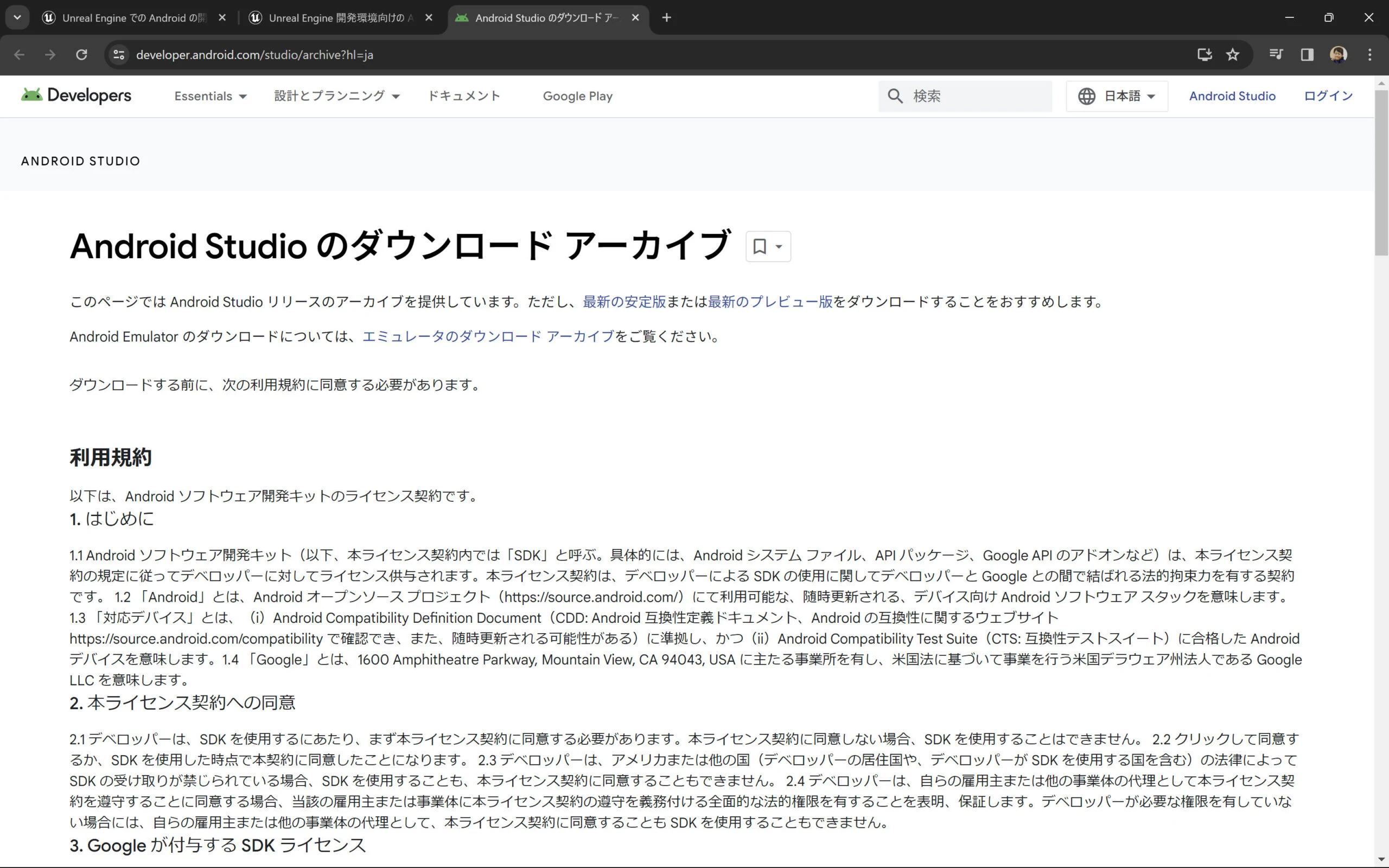
 Download the recommended Android Studio version from the download archive. Scroll to the bottom and accept the terms.
https://developer.android.com/studio/archive?hl=ja
 Search for Android Studio Flamingo 2022.2.1 Patch 2.
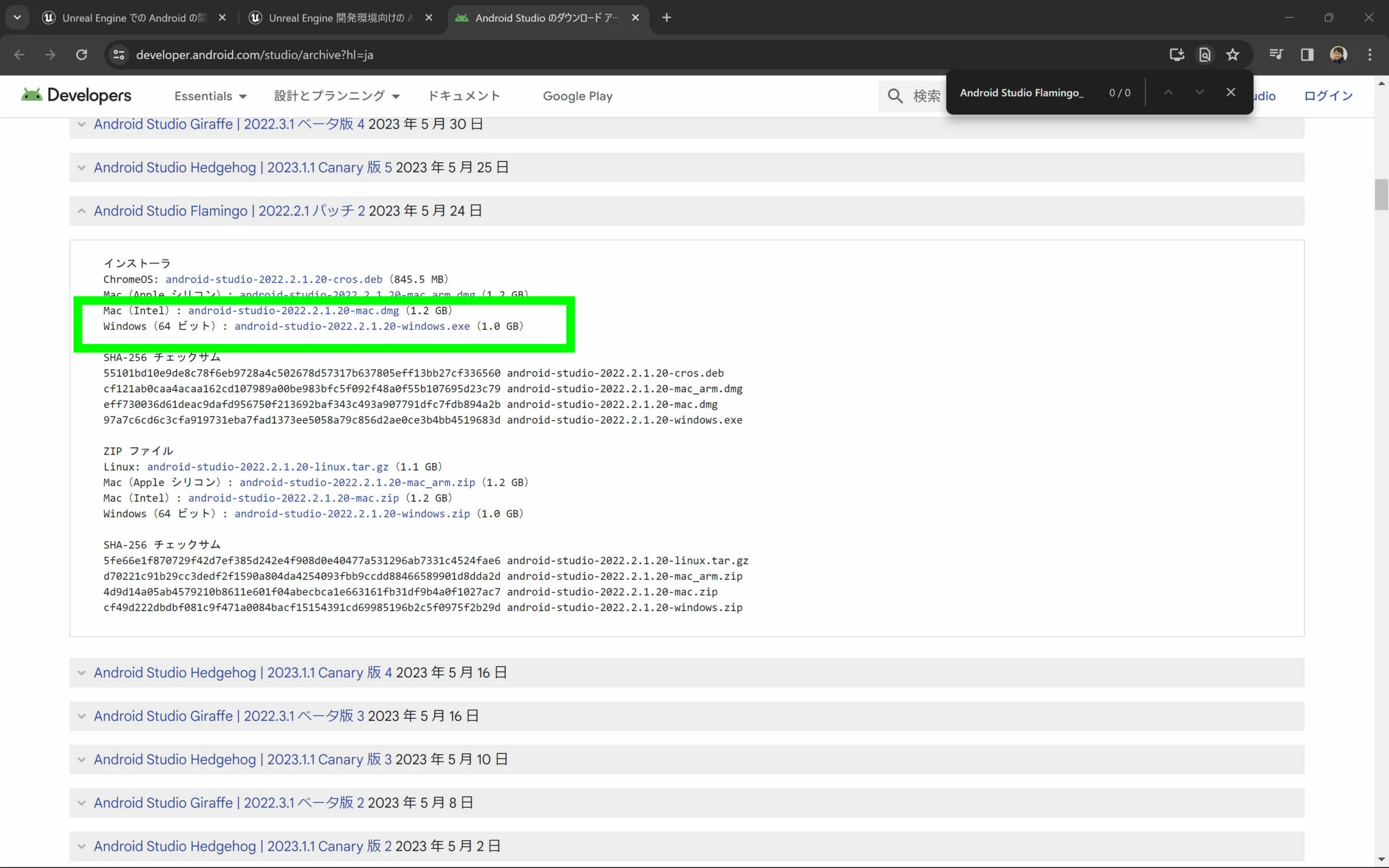
 Click it to reveal the Windows executable and download it.
Install Android Studio
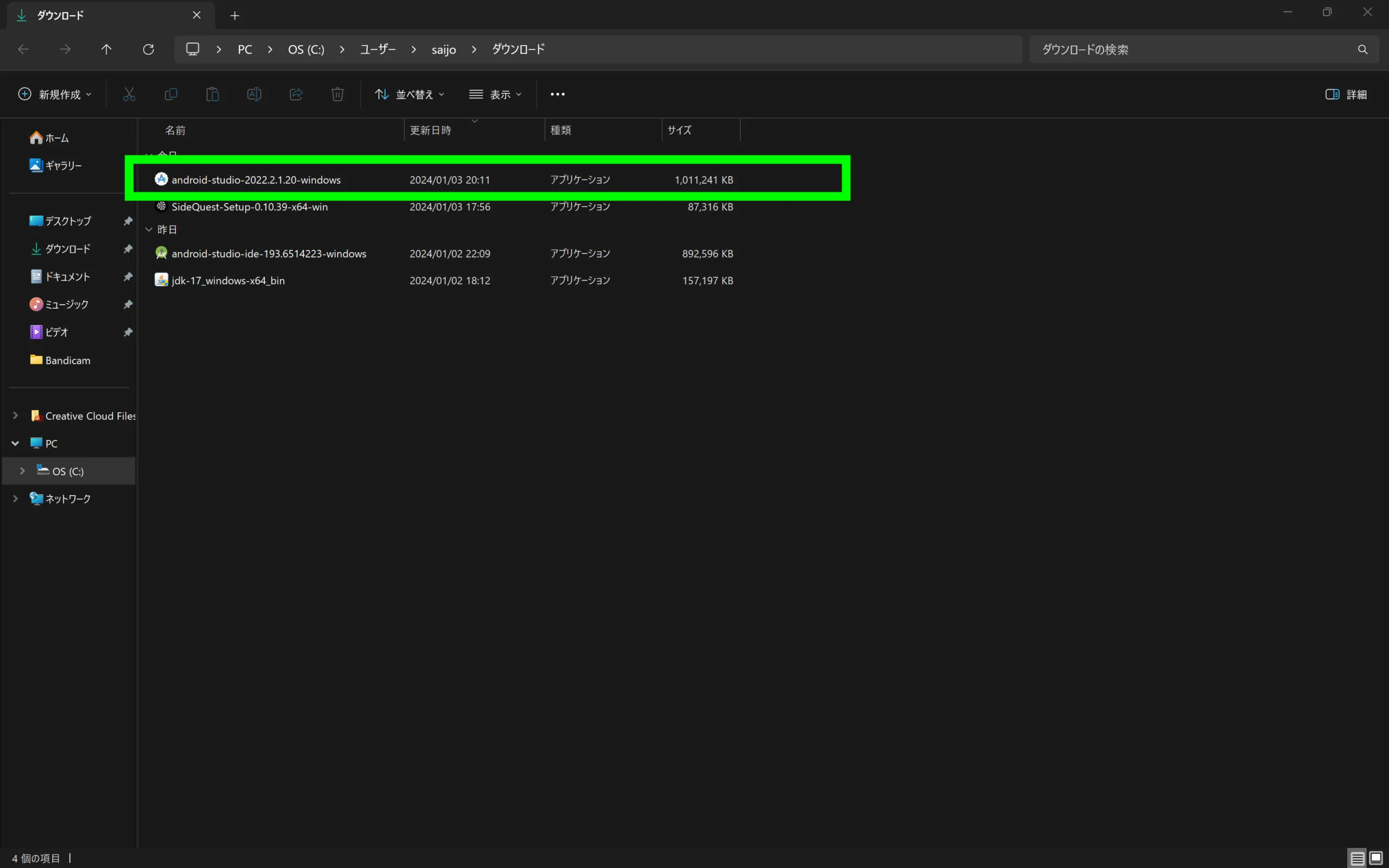
Run the downloaded installer.
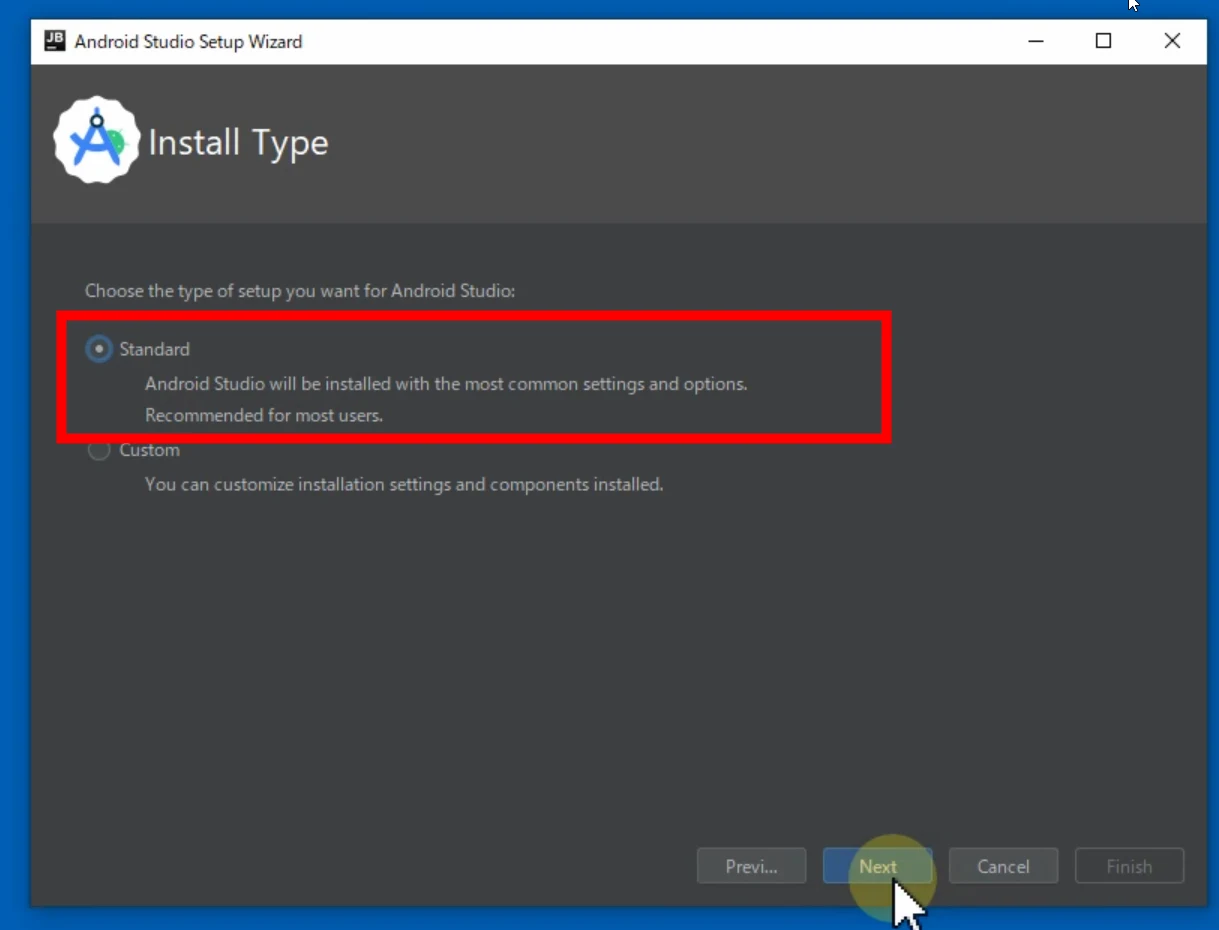
 Proceed using the specified settings.
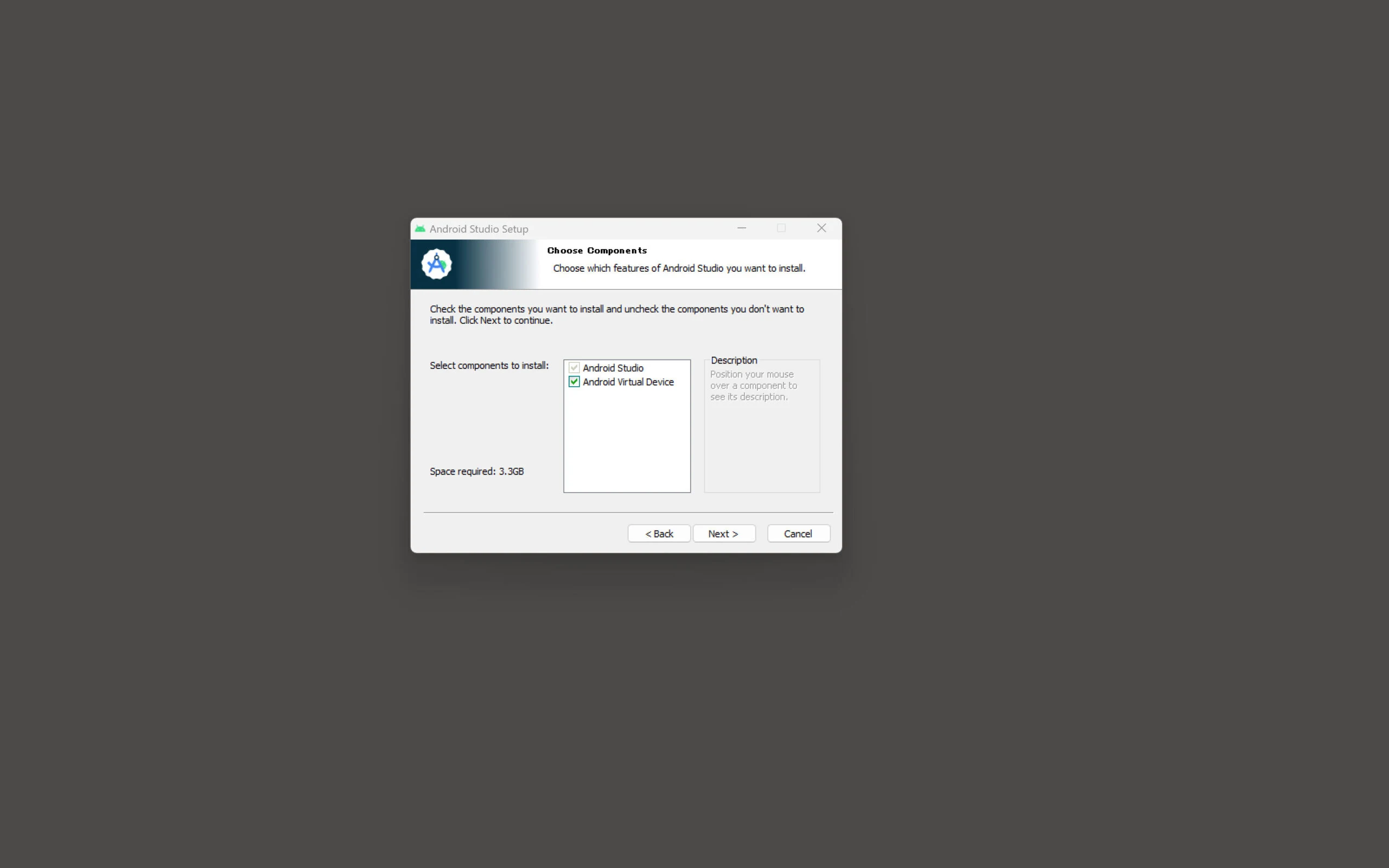 On a first installation, additional downloads and confirmation screens may appear. Continue through the normal process.
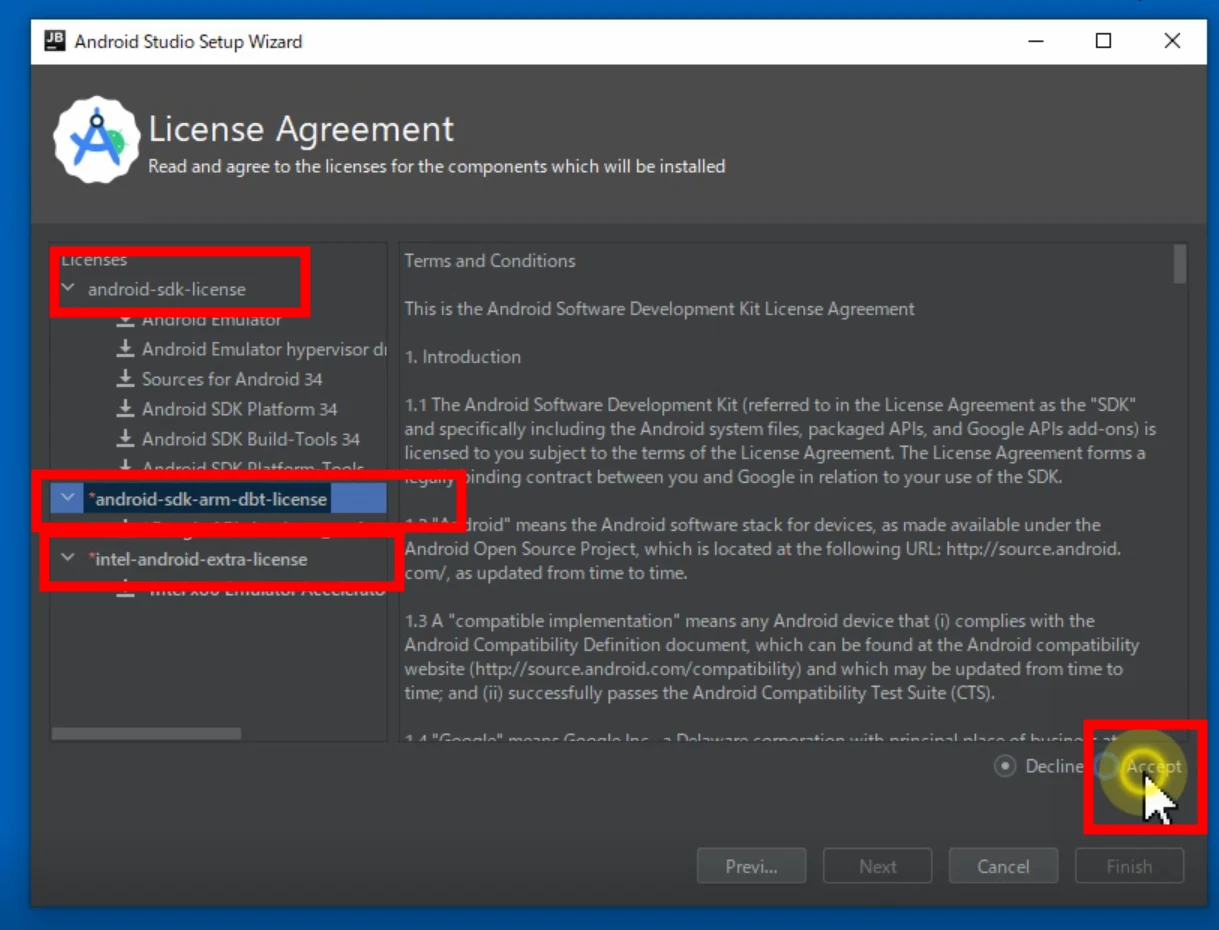
 Accept the respective licenses.
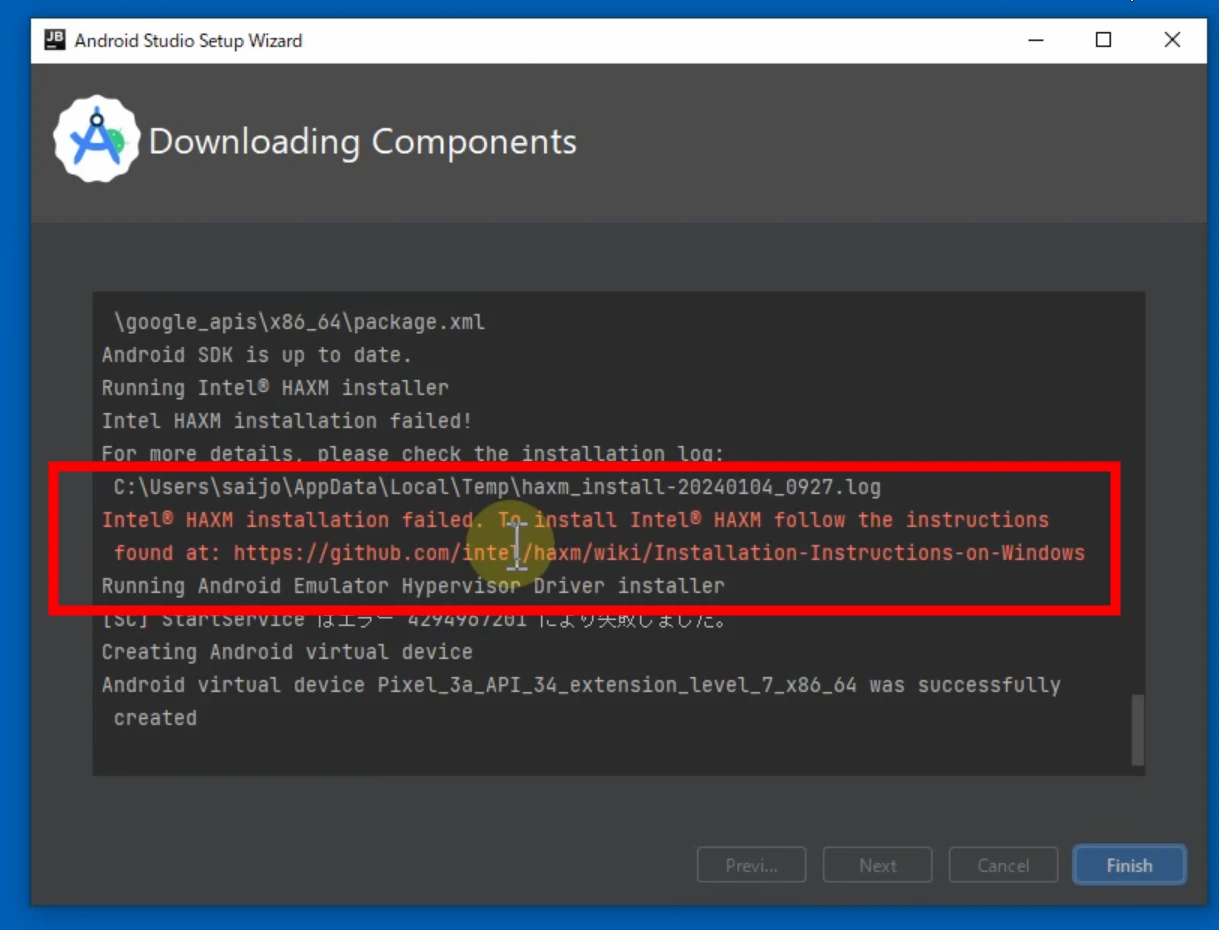
 I saw this error, but continued anyway.
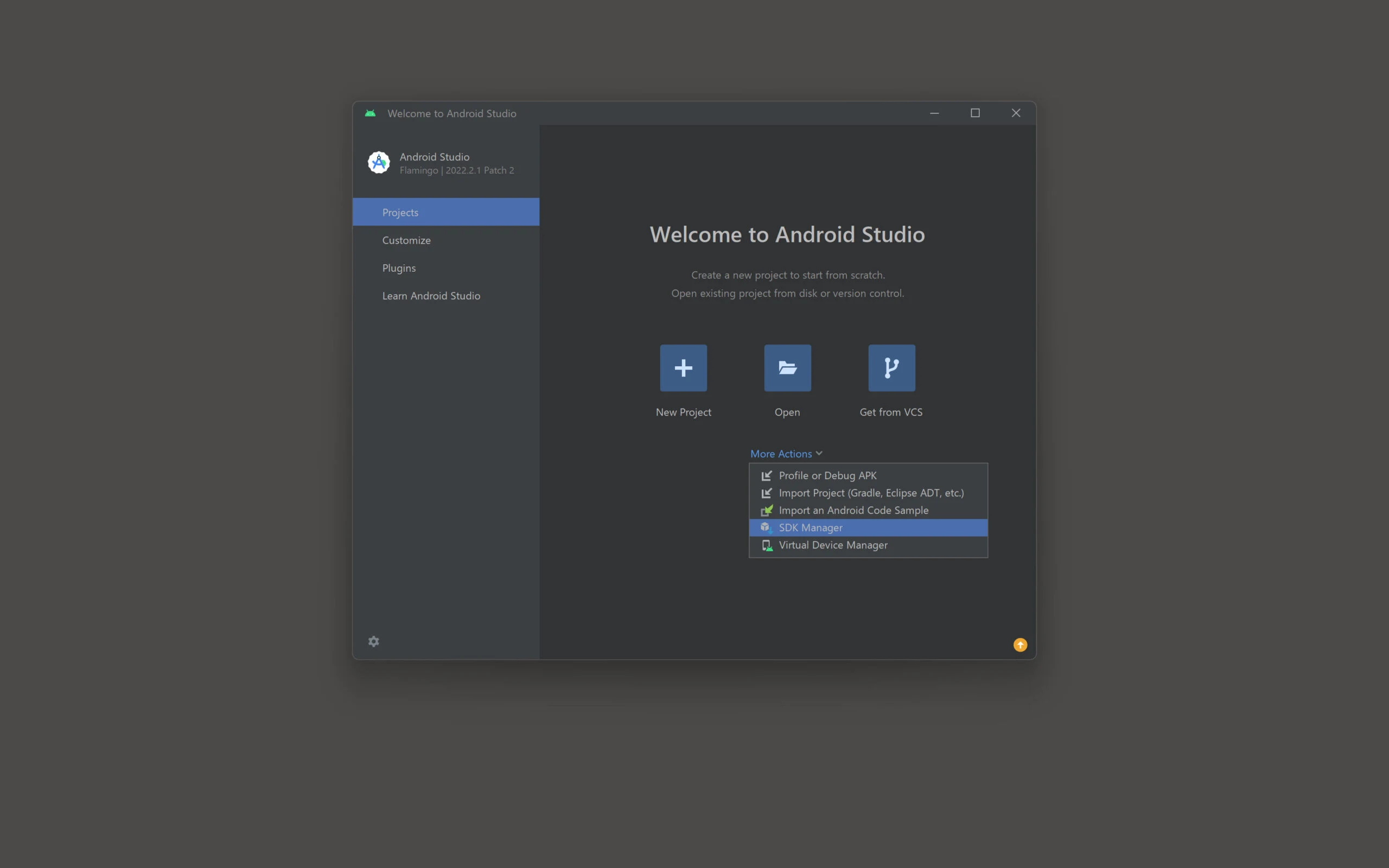
Configure Android Studio SDK Manager
After installation, choose SDK Manager from More Actions.
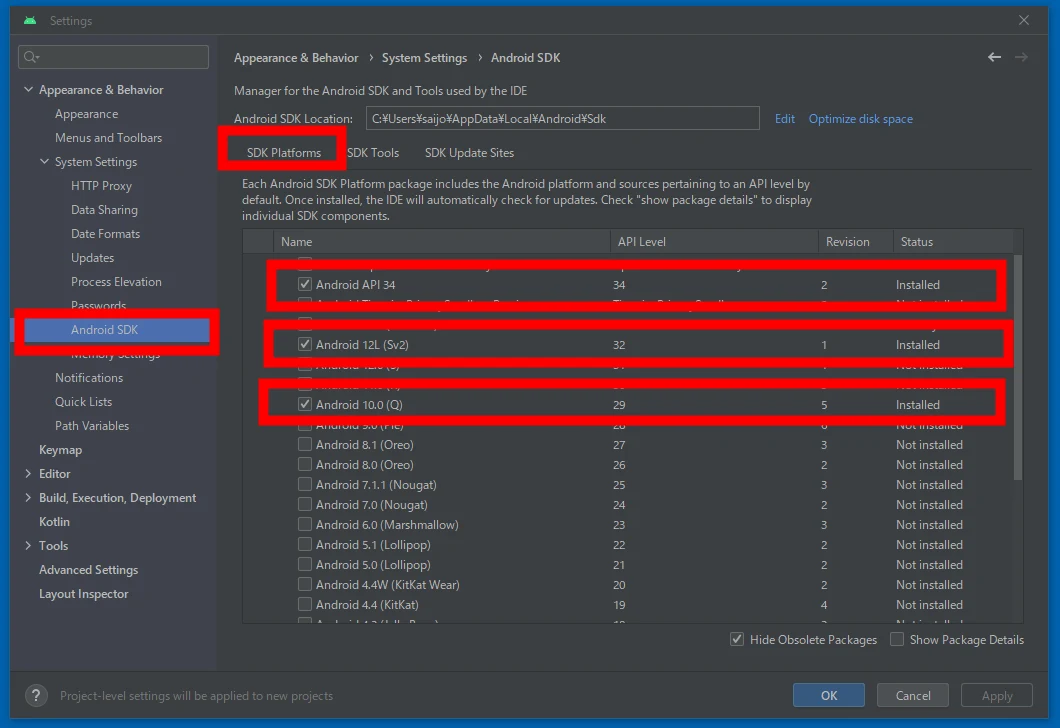
 SDK Platforms initially contained only API level 34. That alone produces errors here, so add API level 32. I also added 29 because I was unsure, though API level 32 should be sufficient.
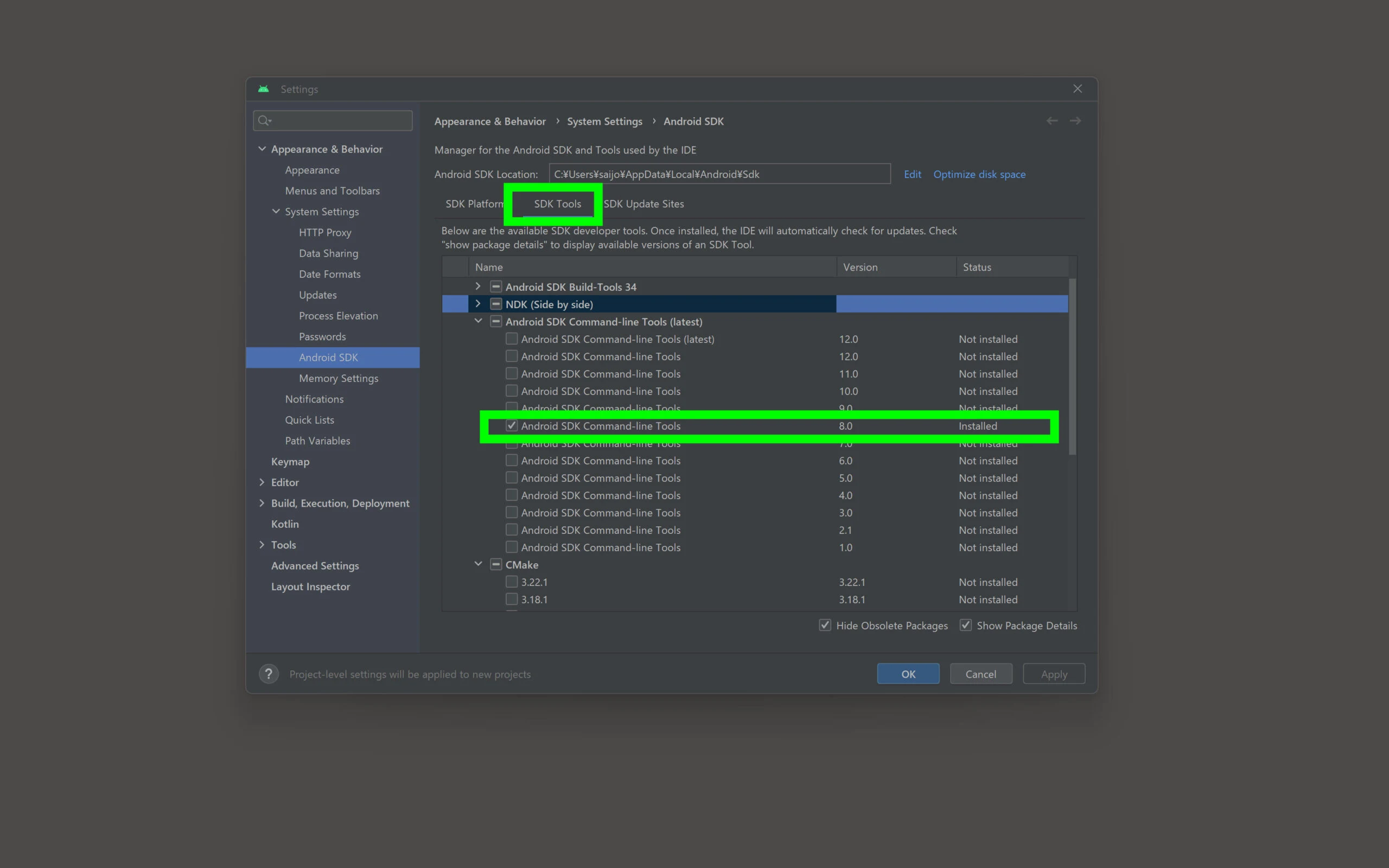
Android SDK Command-line Tools 8.0 is important
This is a key point. In SDK Tools, expand Android SDK Command-line Tools, select only 8.0, and install it.
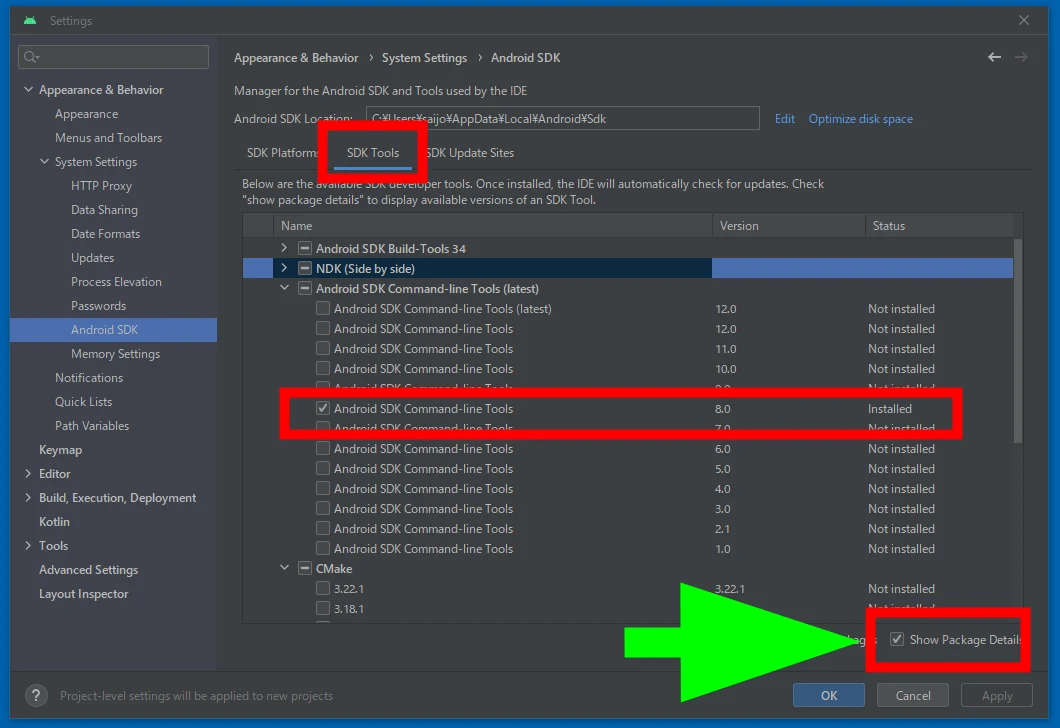
 If the versions are not shown as in the image, try the checkbox at the lower right. Android Studio installation is now complete.
Edit UE 5.3's SetupAndroid.bat
Find the folder where UE 5.3 is installed.
We need to run SetupAndroid.bat.
Find the Epic Games installation directory.
It is usually somewhere like the following.
「C:\Program Files\Epic Games\UE_5.3\Engine\Extras\Android」
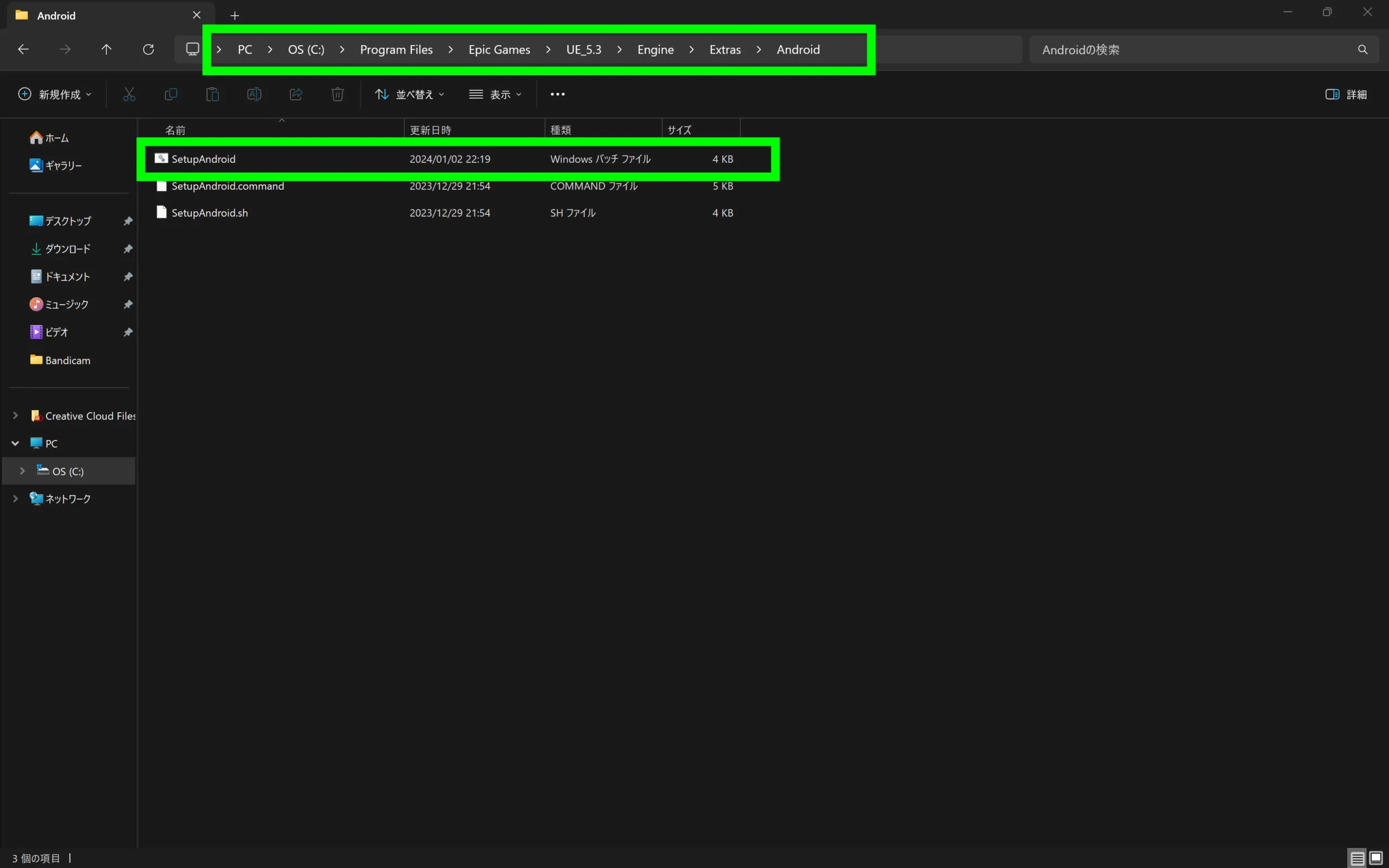 UE5's SetupAndroid.bat is a Windows batch file that automatically configures the environment required for Android application development with Unreal Engine.
Edit the contents of SetupAndroid.bat.
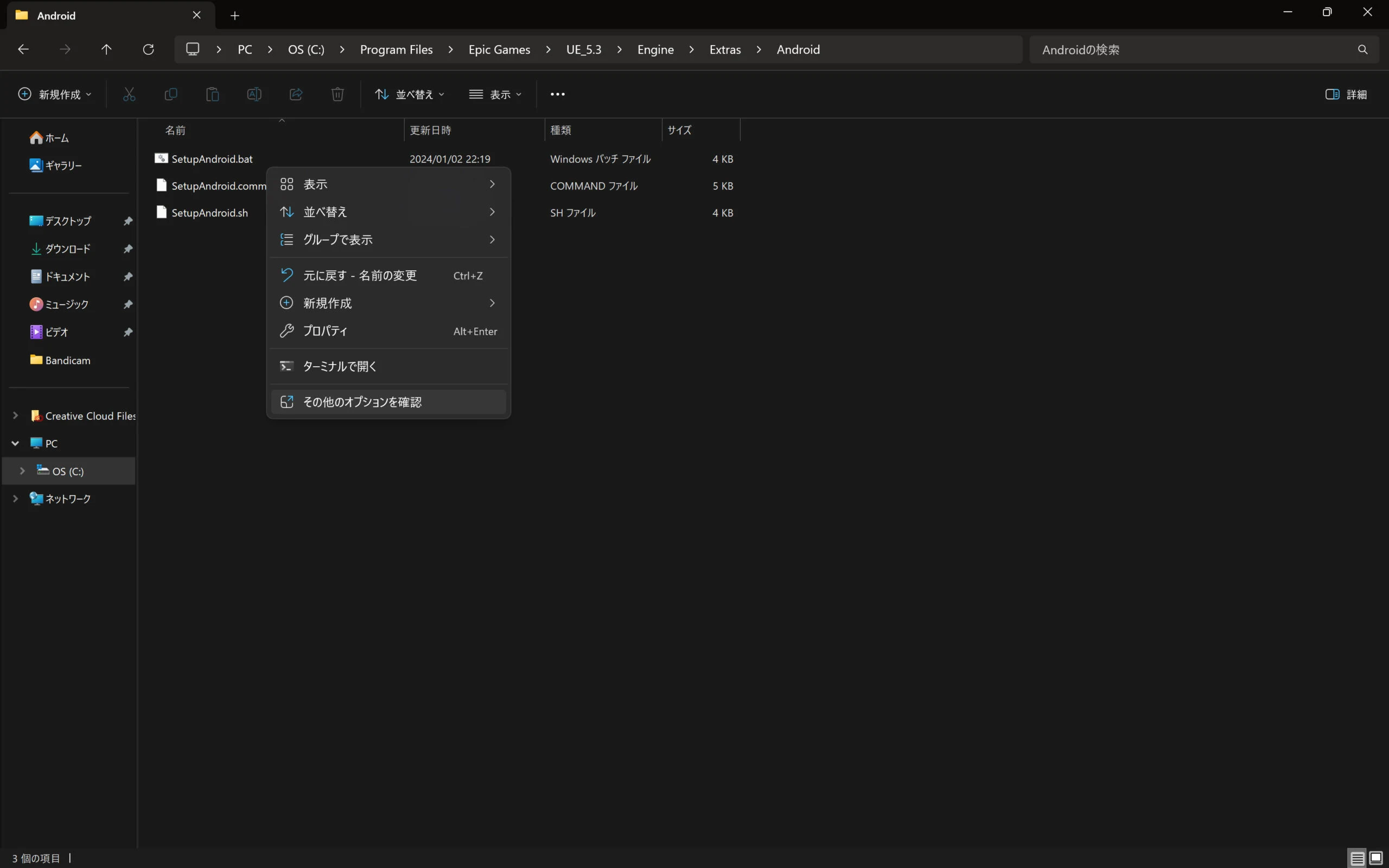
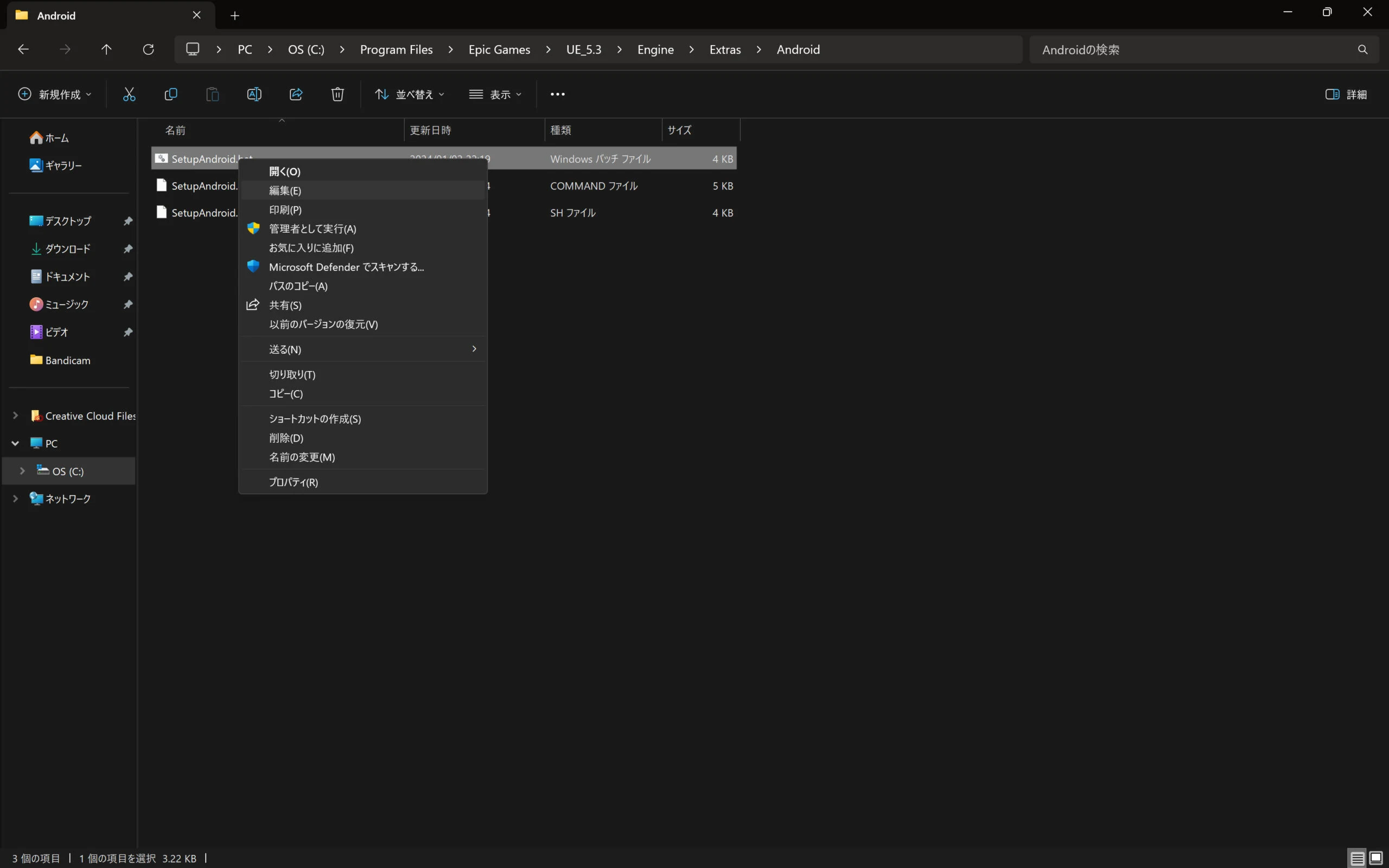
Use a text editor, or right-click SetupAndroid.bat and choose Show more options.
 Choose Edit.
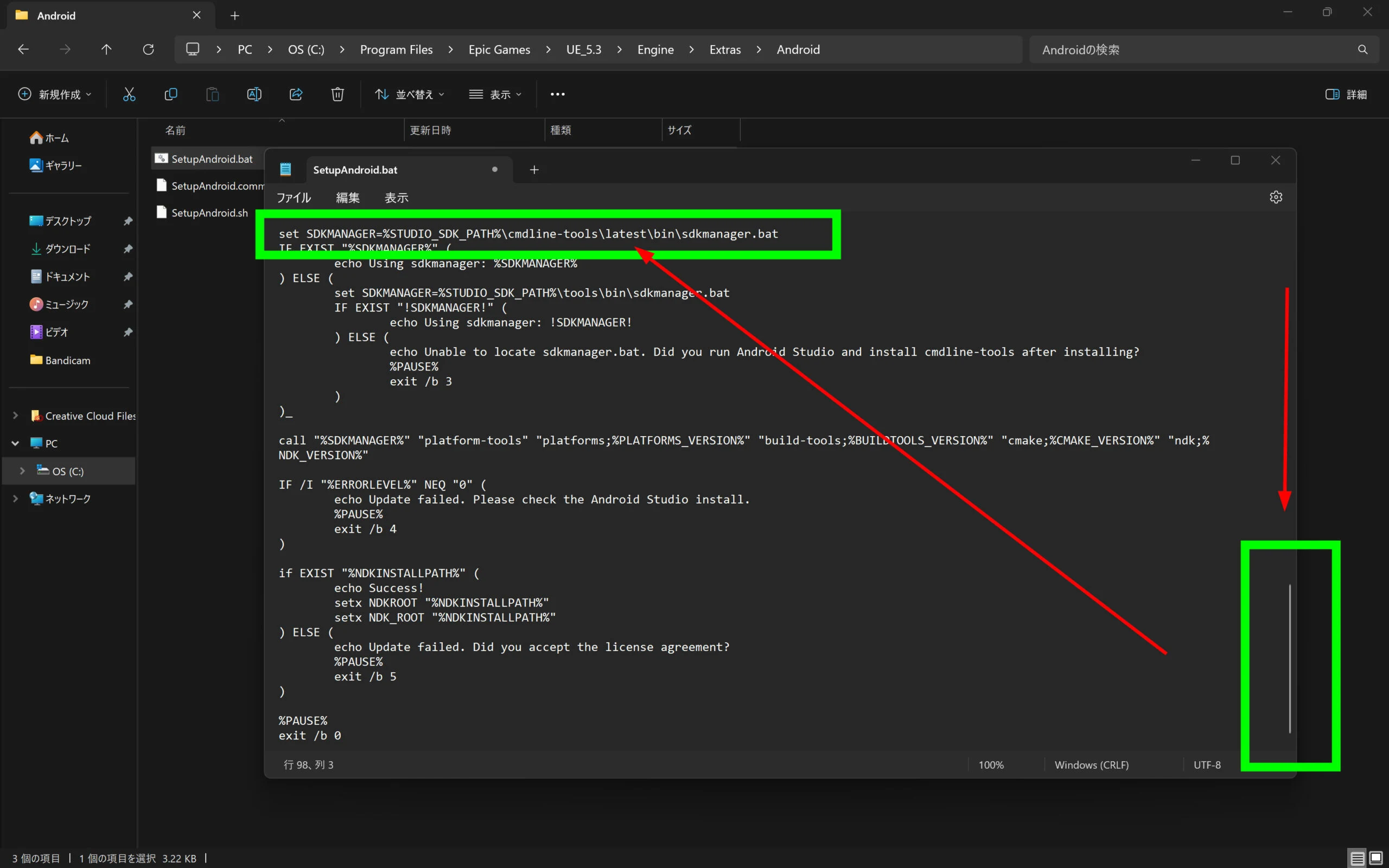
 Scroll down and find
 set SDKMANAGER=%STUDIO\_SDK\_PATH%\cmdline-tools\latest\bin\sdkmanager.bat.
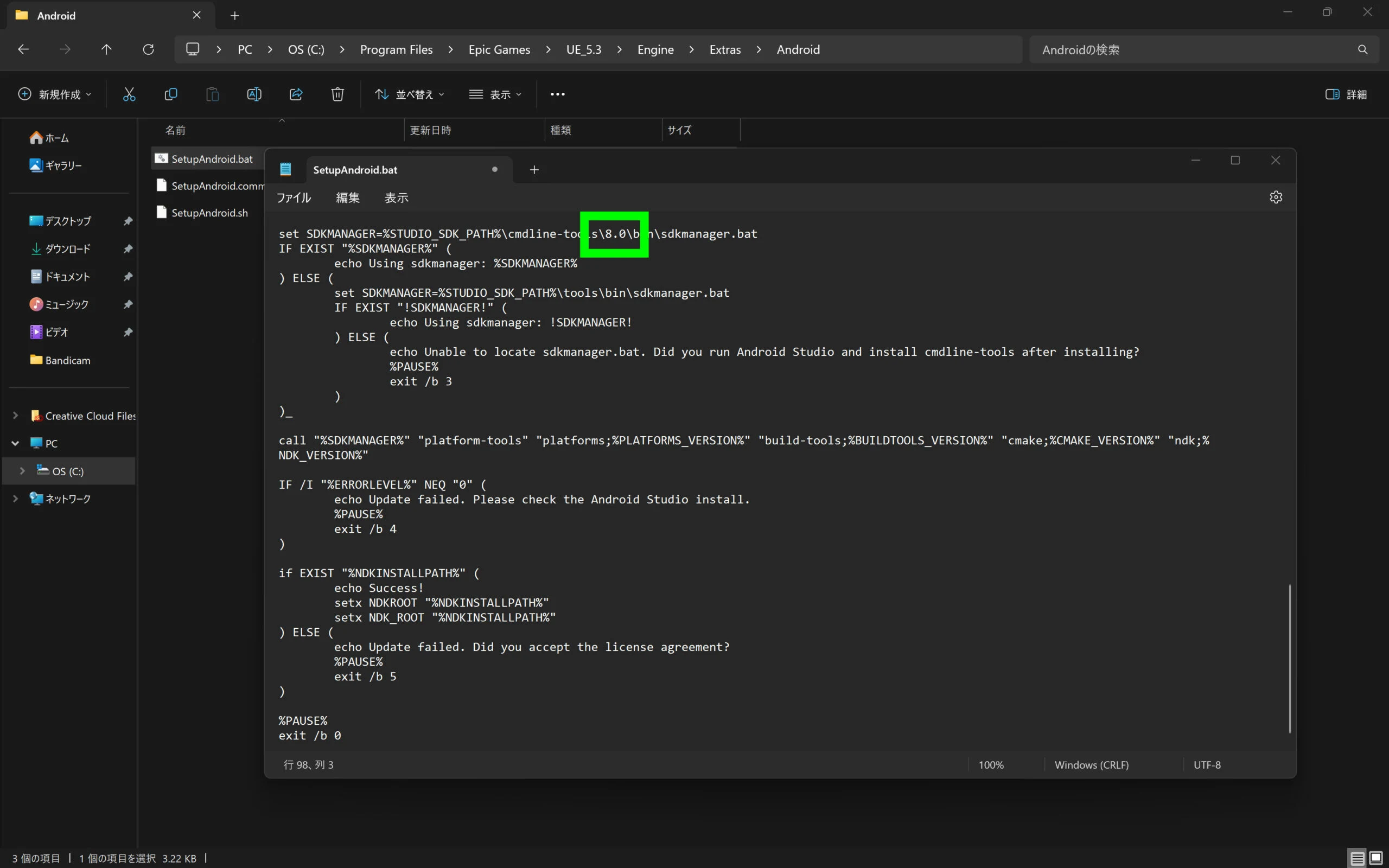
 Change latest to 8.0, producing
 set SDKMANAGER=%STUDIO\_SDK\_PATH%\cmdline-tools\8.0\bin\sdkmanager.bat, then save.
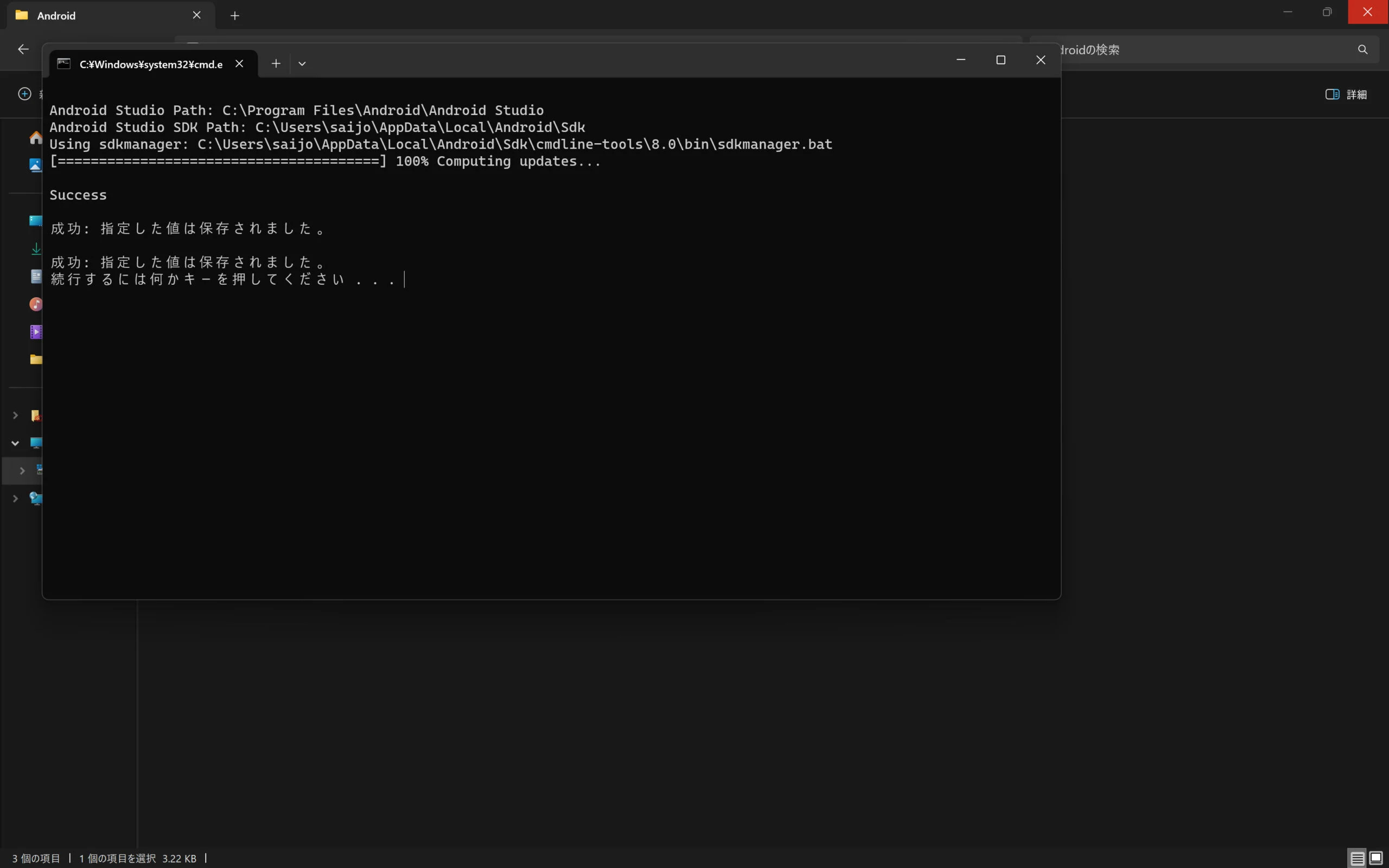
Run SetupAndroid.bat
After editing the file, click SetupAndroid.bat to run it. Sometimes it does not seem to finish. If it stops progressing, close the window and run it again.
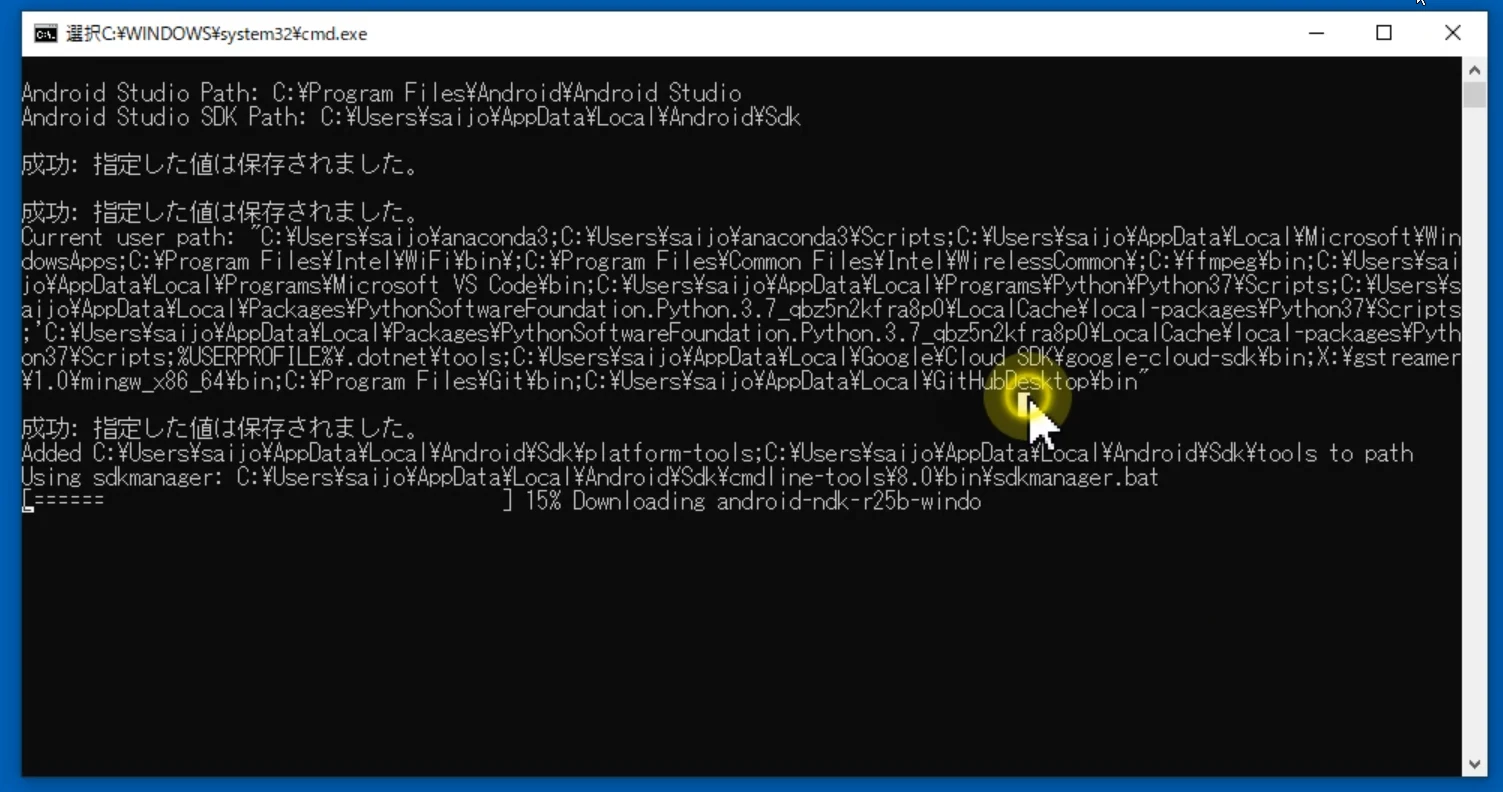 I ran SetupAndroid.bat twice to be sure.
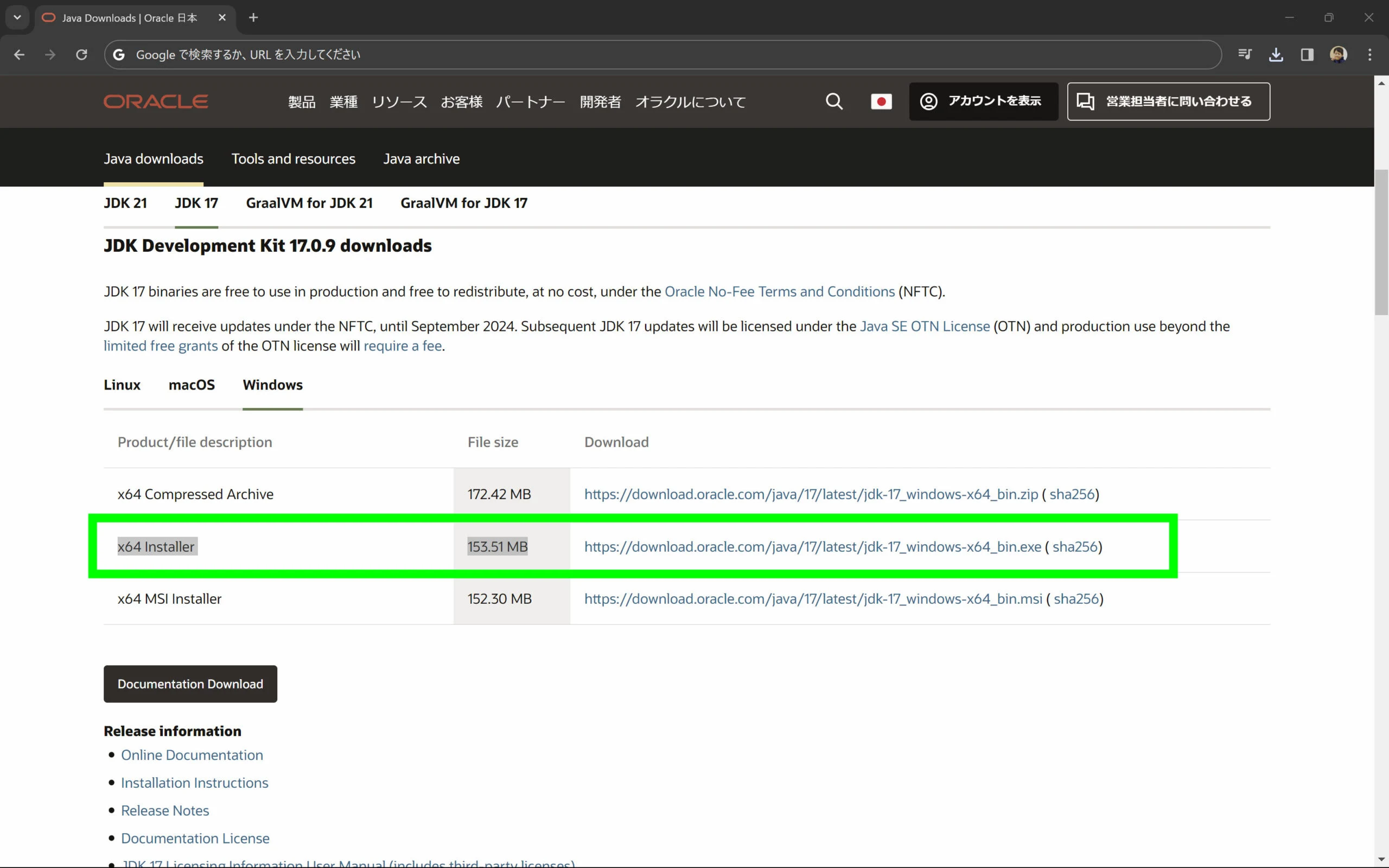
Download JDK Development Kit 17.0.9
Next, download JDK Development Kit 17.0.9. Several sites distribute it; use whichever you prefer. On the following site, selecting JDK17 reveals the downloads. Download the x64 Installer.
https://www.oracle.com/jp/java/technologies/downloads/#jdk17-windows
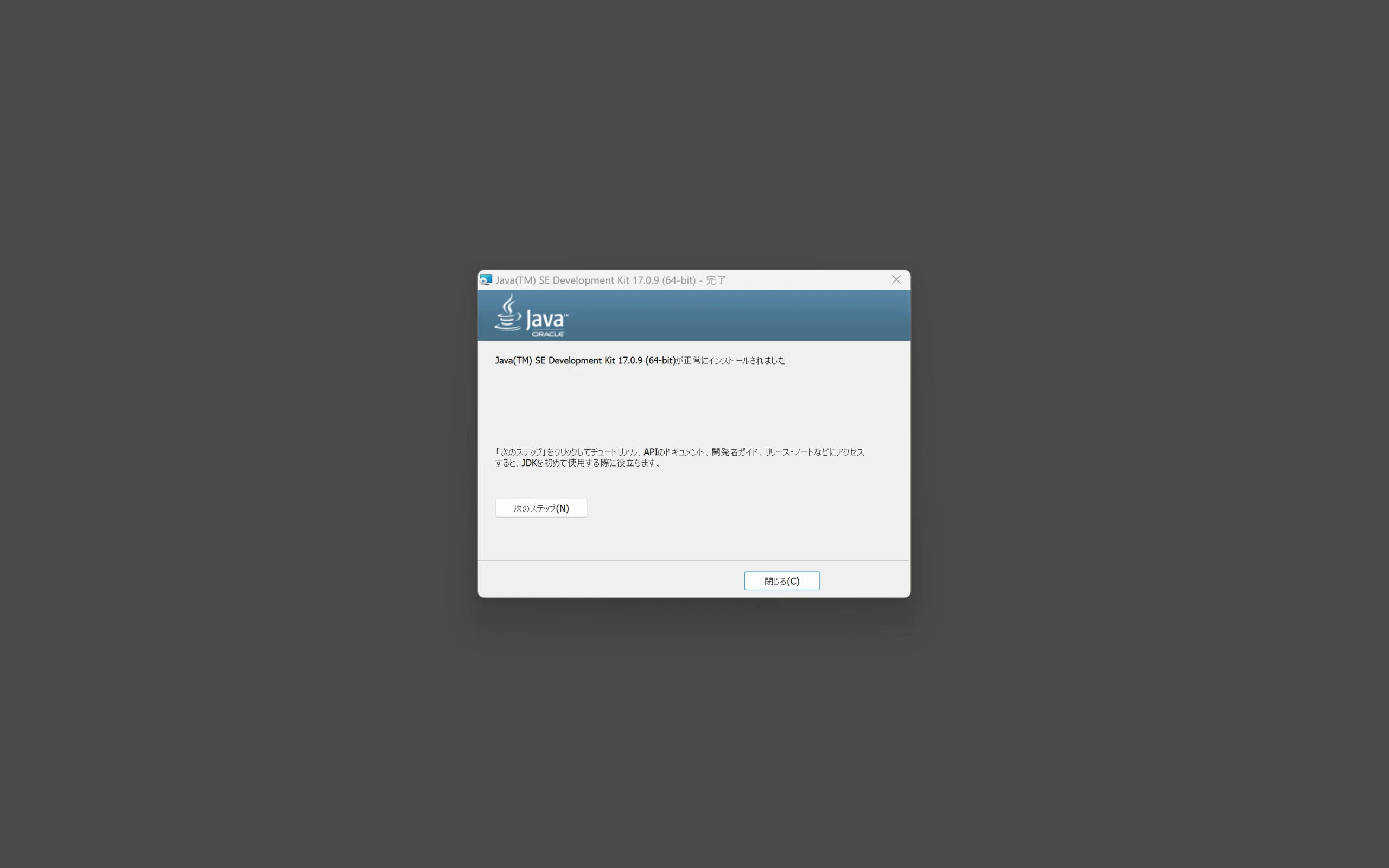
 Continue with Yes to finish installation. JDK17's environment variables need to be set manually later. For now, installation is complete.
Environment variables: first create a UE 5.3 Virtual Reality project
Create a UE 5.3 project using the Virtual Reality template. Starter Content is unnecessary. Starting UE 5.3 populates some environment variables, so launch it once.
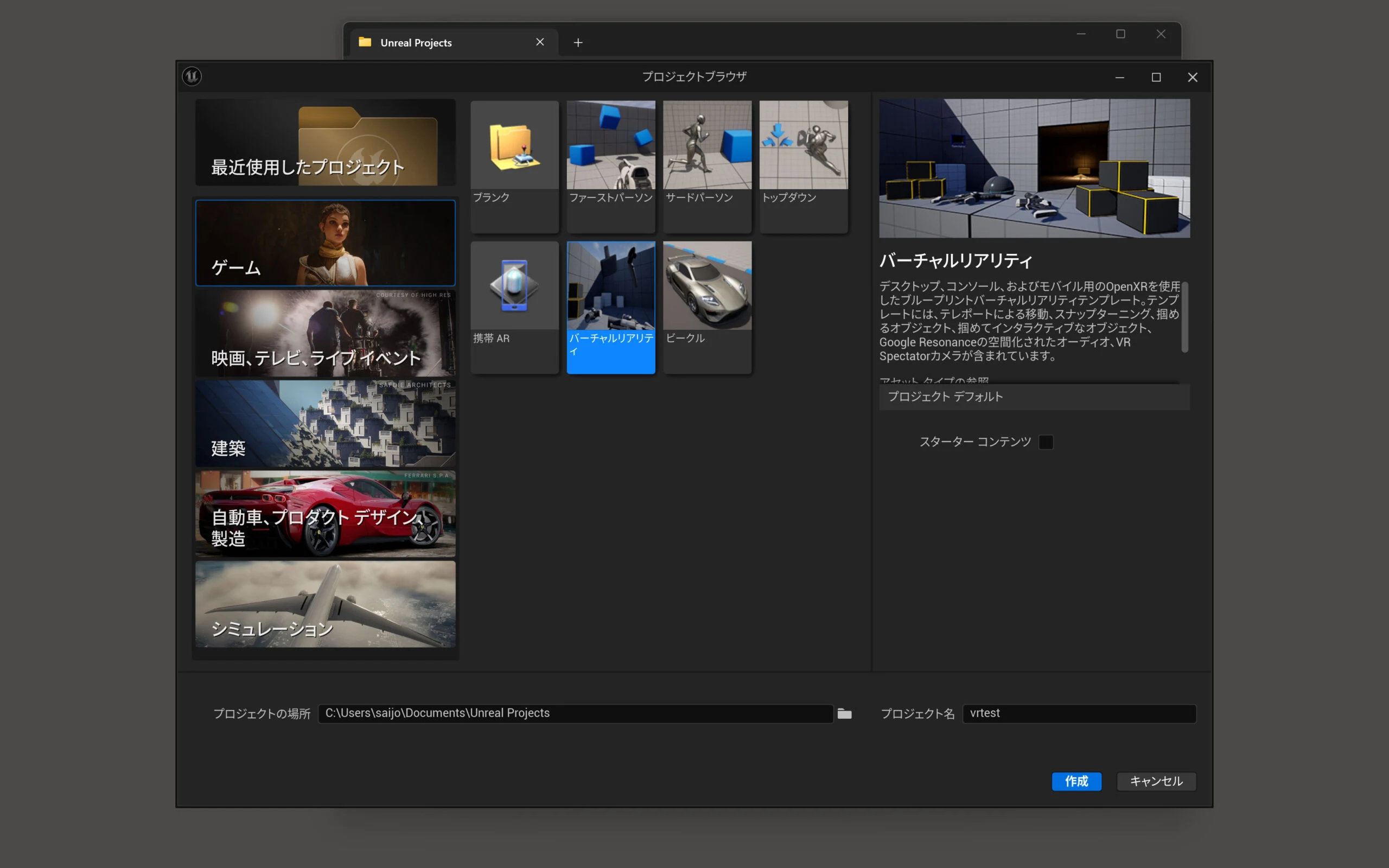
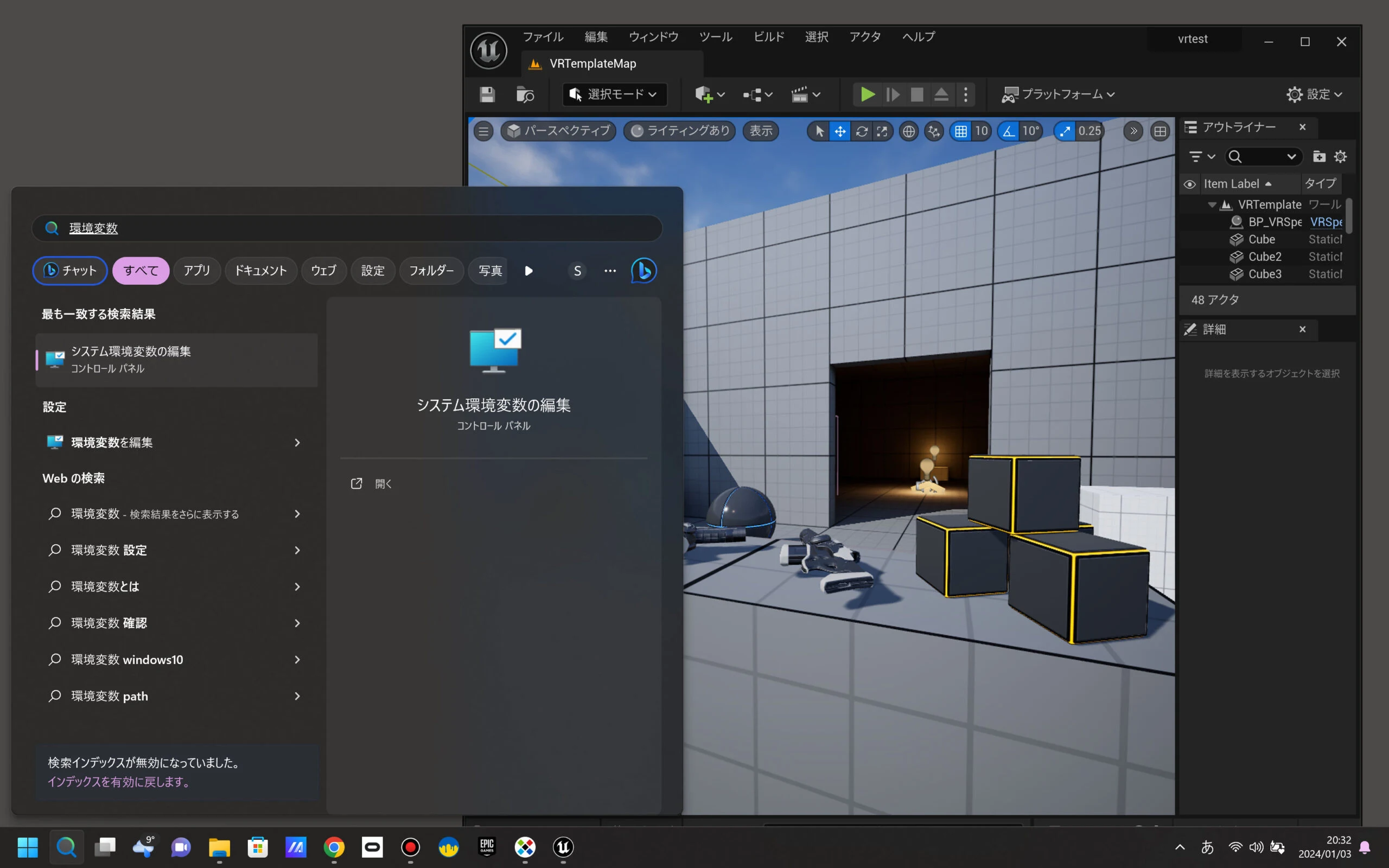
Edit system environment variables
With UE 5.3 running, search Windows for Edit the system environment variables and open it.
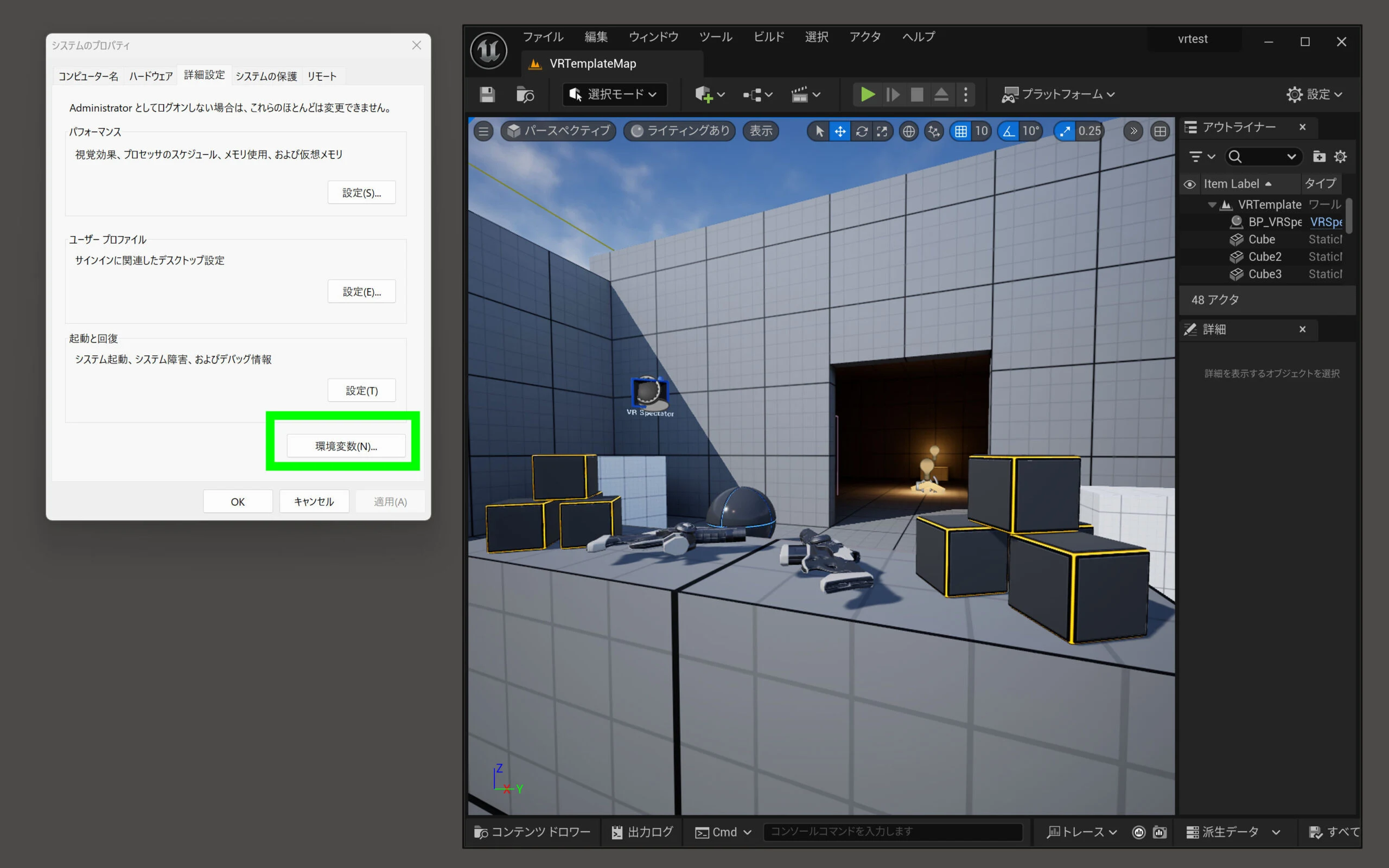
 Click Environment Variables.
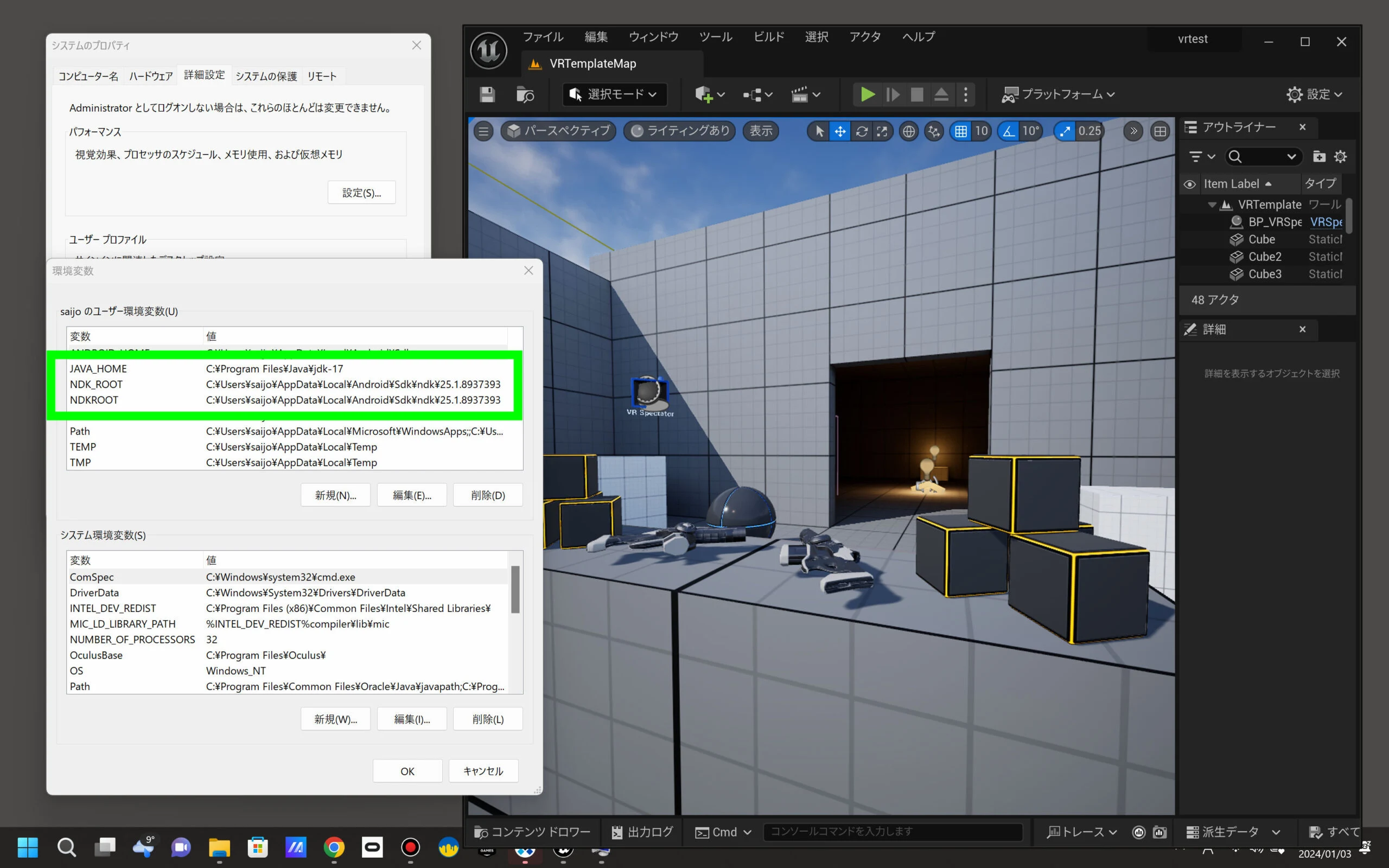
Check the environment variables
The environment-variable window opens. jdk-17 needs to be set manually. It is probably installed under Program Files/java/jdk-17; check your actual installation and change JAVA_HOME accordingly. The default is likely to point at the ordinary JDK inside your user directory. Be sure to change it.
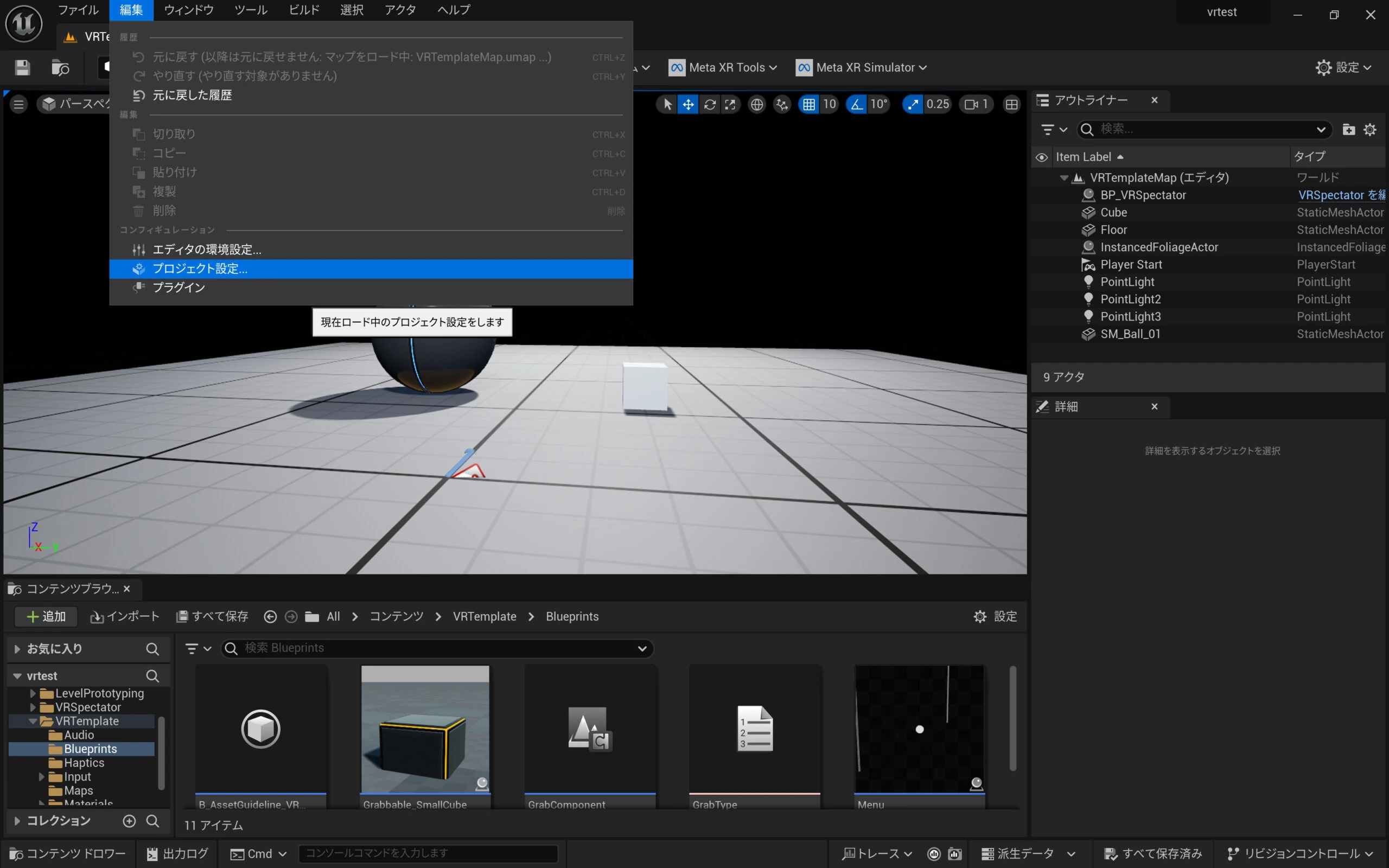
 Open Project Settings from UE 5.3's Edit menu.
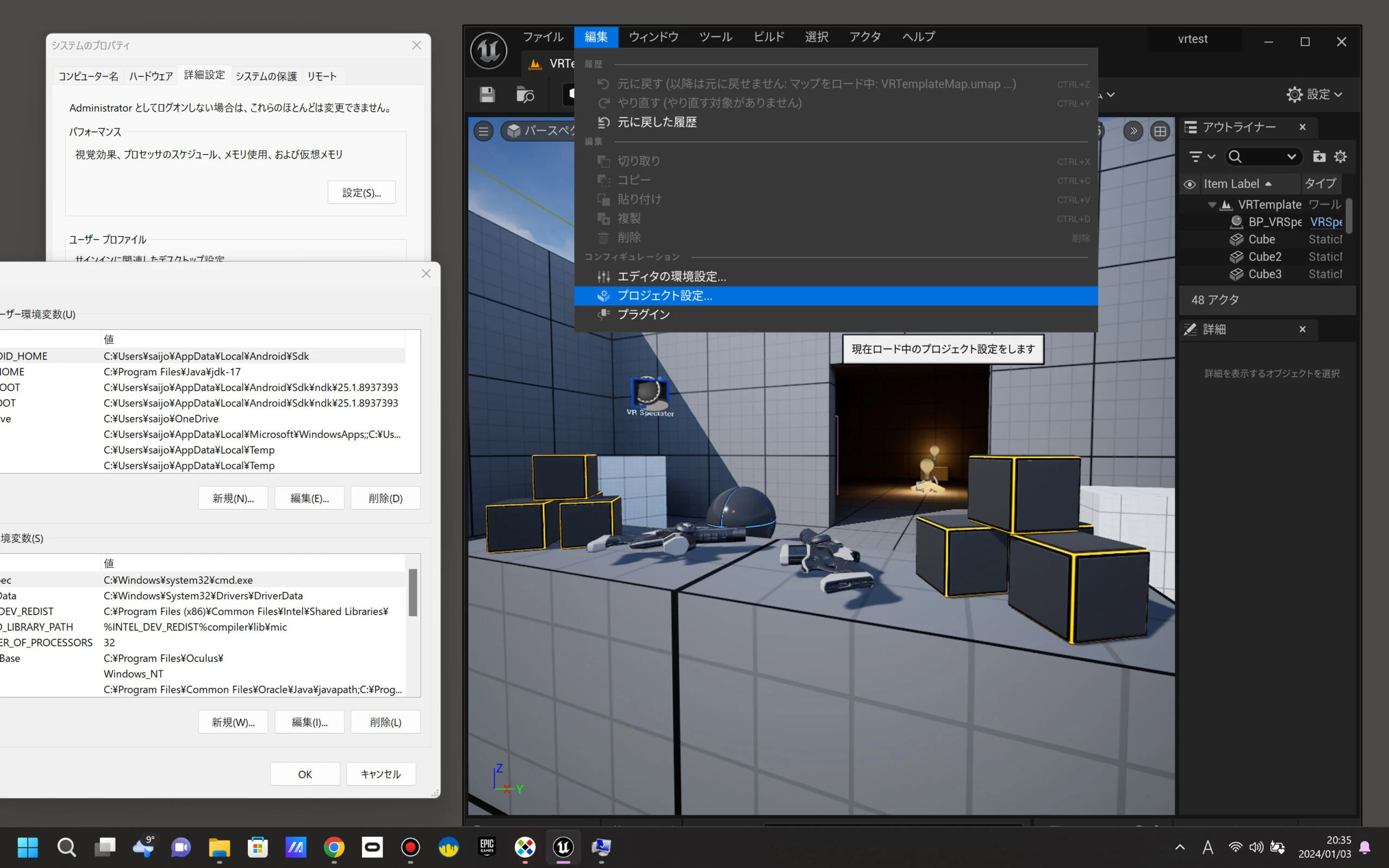
Configure Android settings in UE5
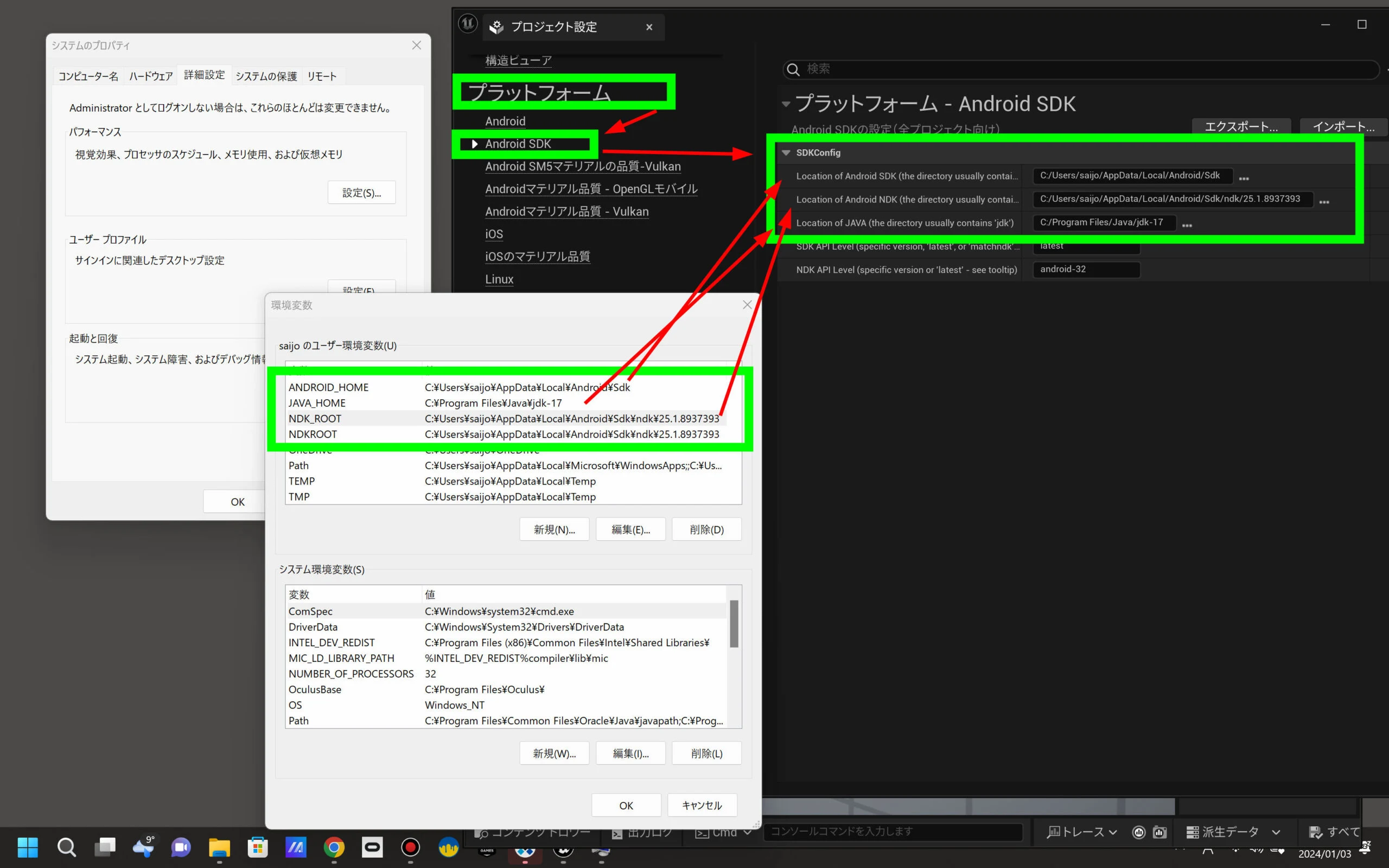
Find Platforms and open Android SDK. Usernames and paths vary between environments, so use the environment variables to identify the correct SDK, NDK, and JDK locations as shown below. Check the actual variable values too.
SDK
C:/Users/(username)/AppData/Local/Android/Sdk
NDK
C:/Users/(username)/AppData/Local/Android/Sdk/ndk/25.1.8937393
JDK: find the directory where you installed JDK17.
C:/Program Files/Java/jdk-17
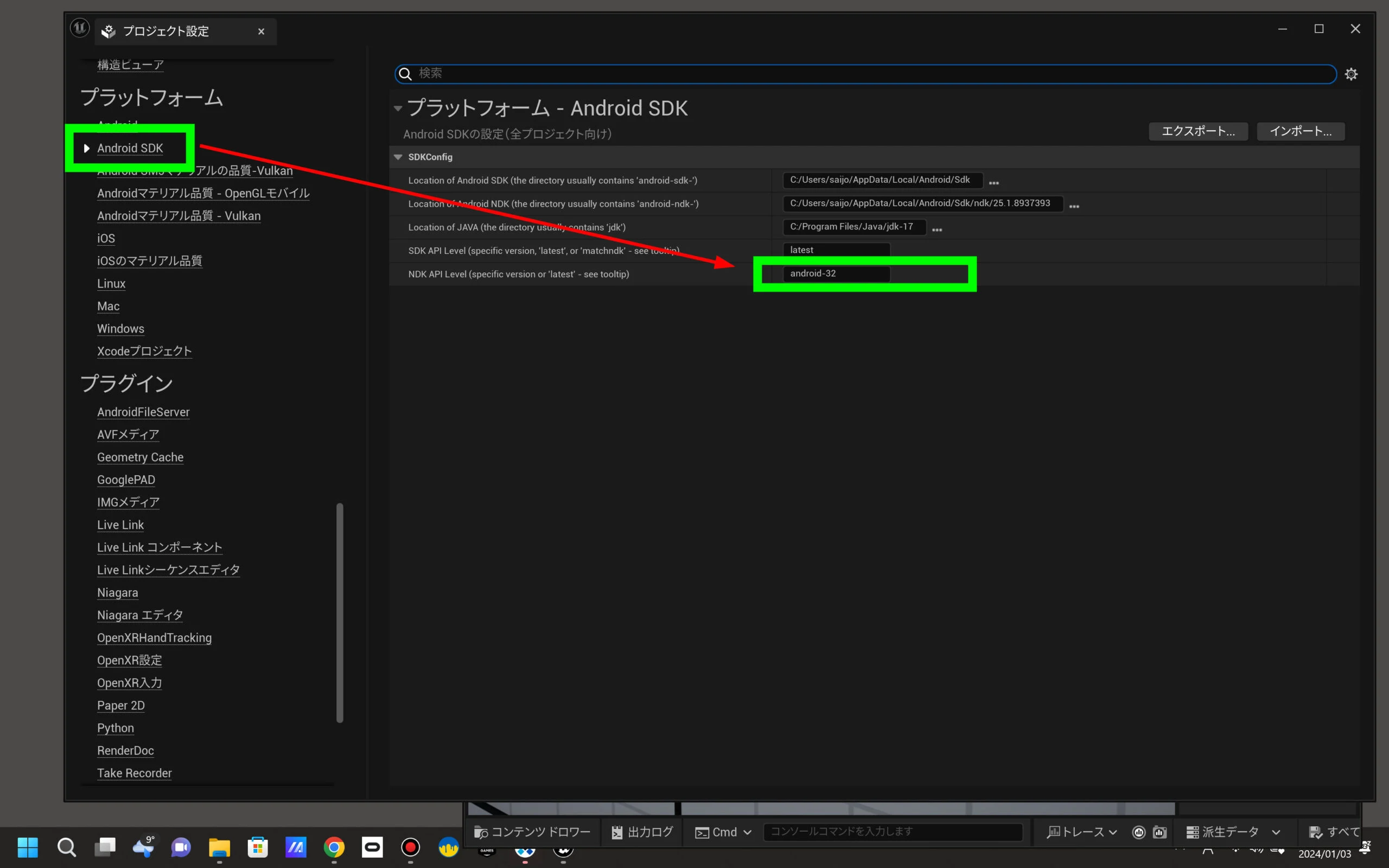
 Set the NDK API level to android-32.
 Next, select Android under Platforms, immediately above Android SDK in the left menu. Click Configure Now in the red area.
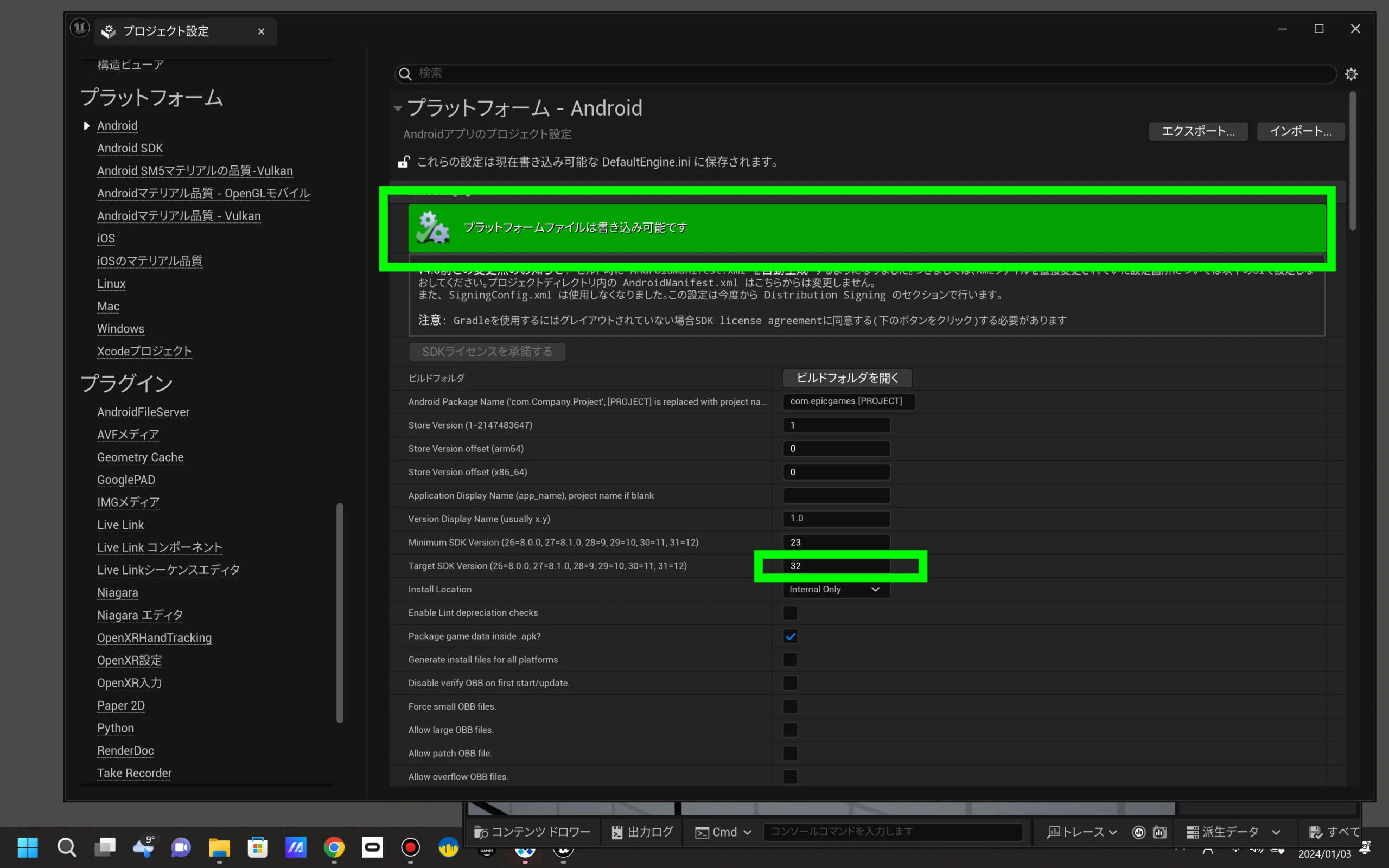
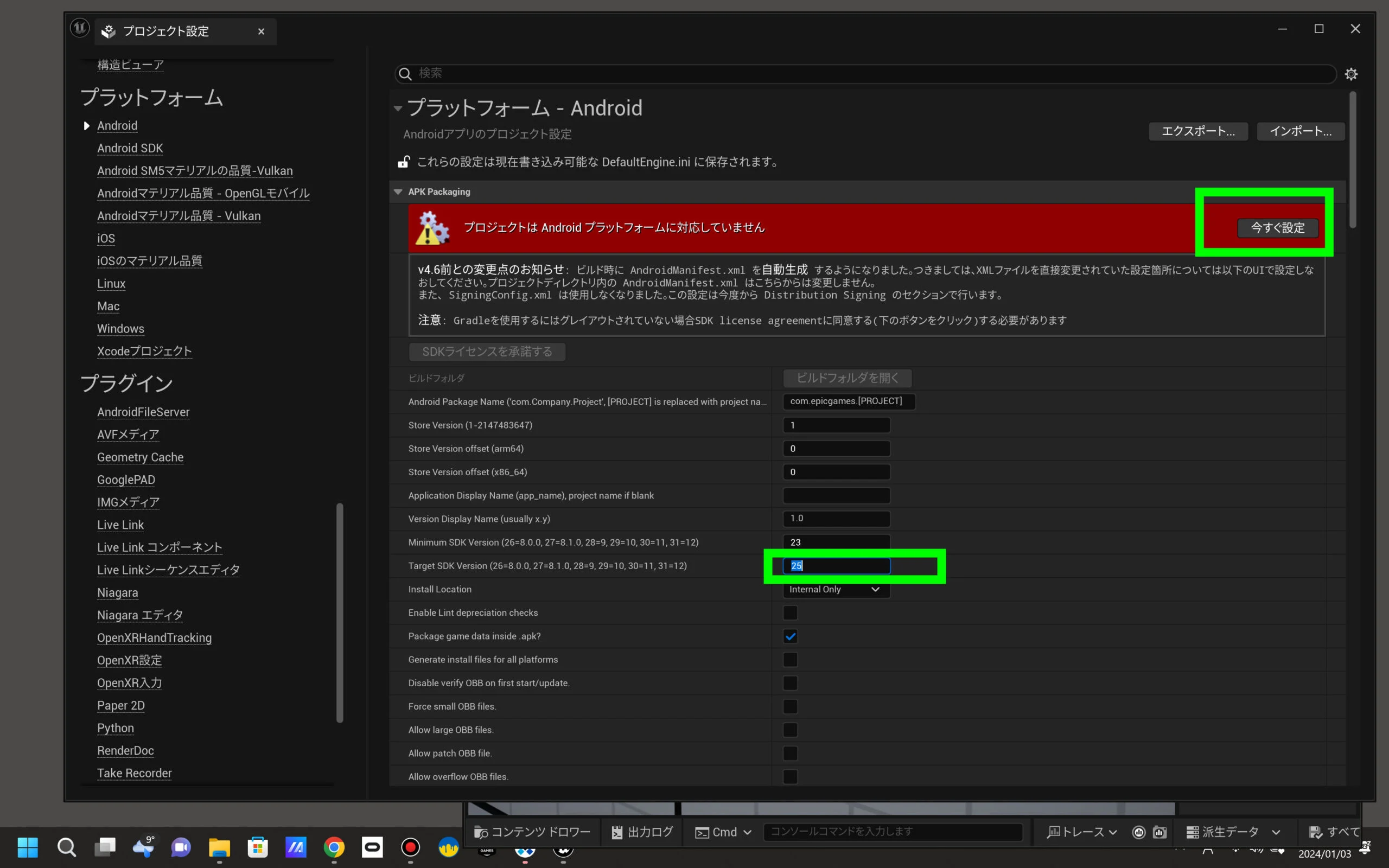 Change the Target SDK Version from 25 to 32. Saving and restarting might not be necessary, but I restarted both UE5 and Windows at the end.
Choose the APK output directory
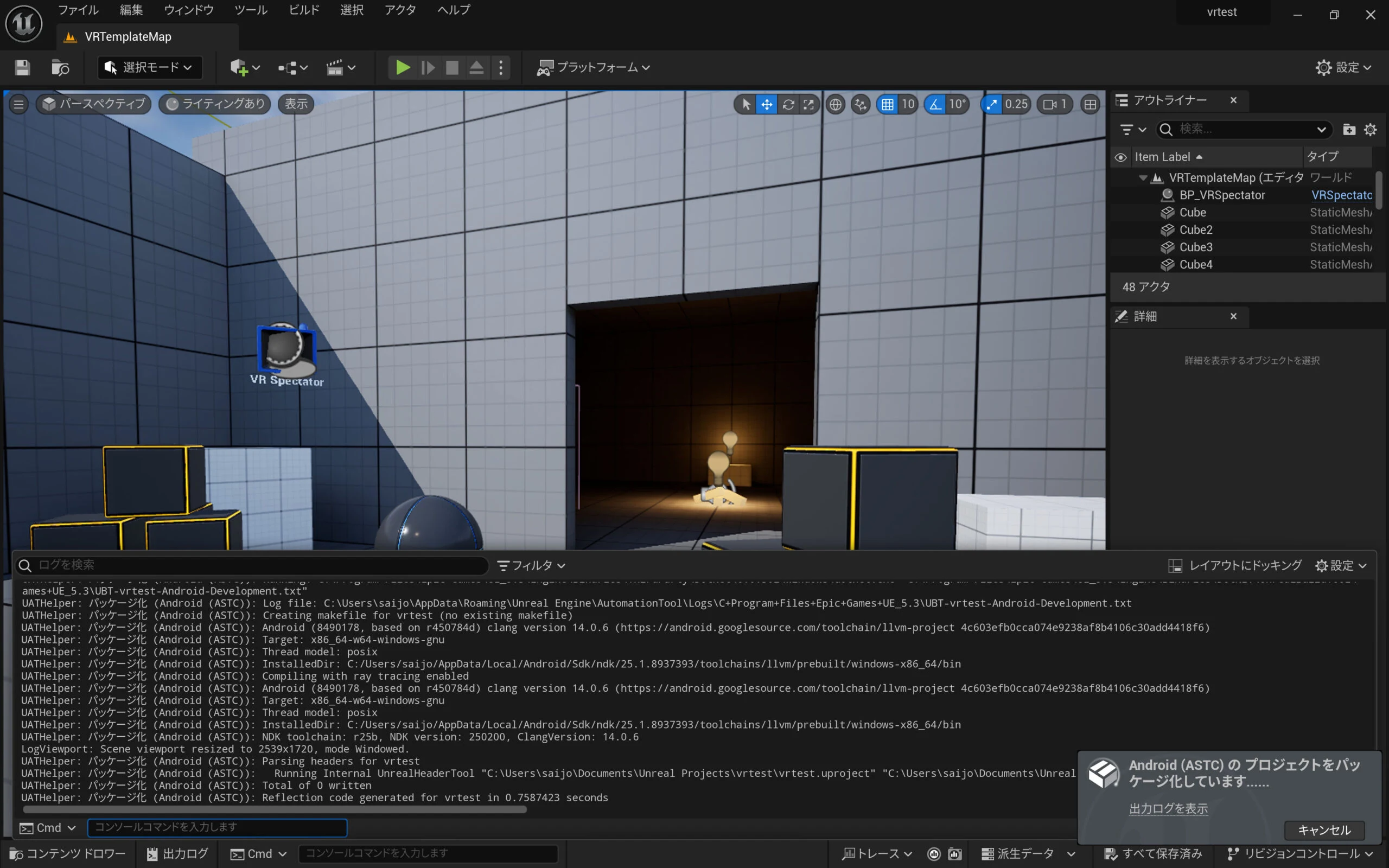
Select Android under Platforms and run Package Project. Create a new folder for the APK output.
Export takes a while. The first build may take more than an hour, so wait. It appears that even if you close it partway through, it can resume from that point.
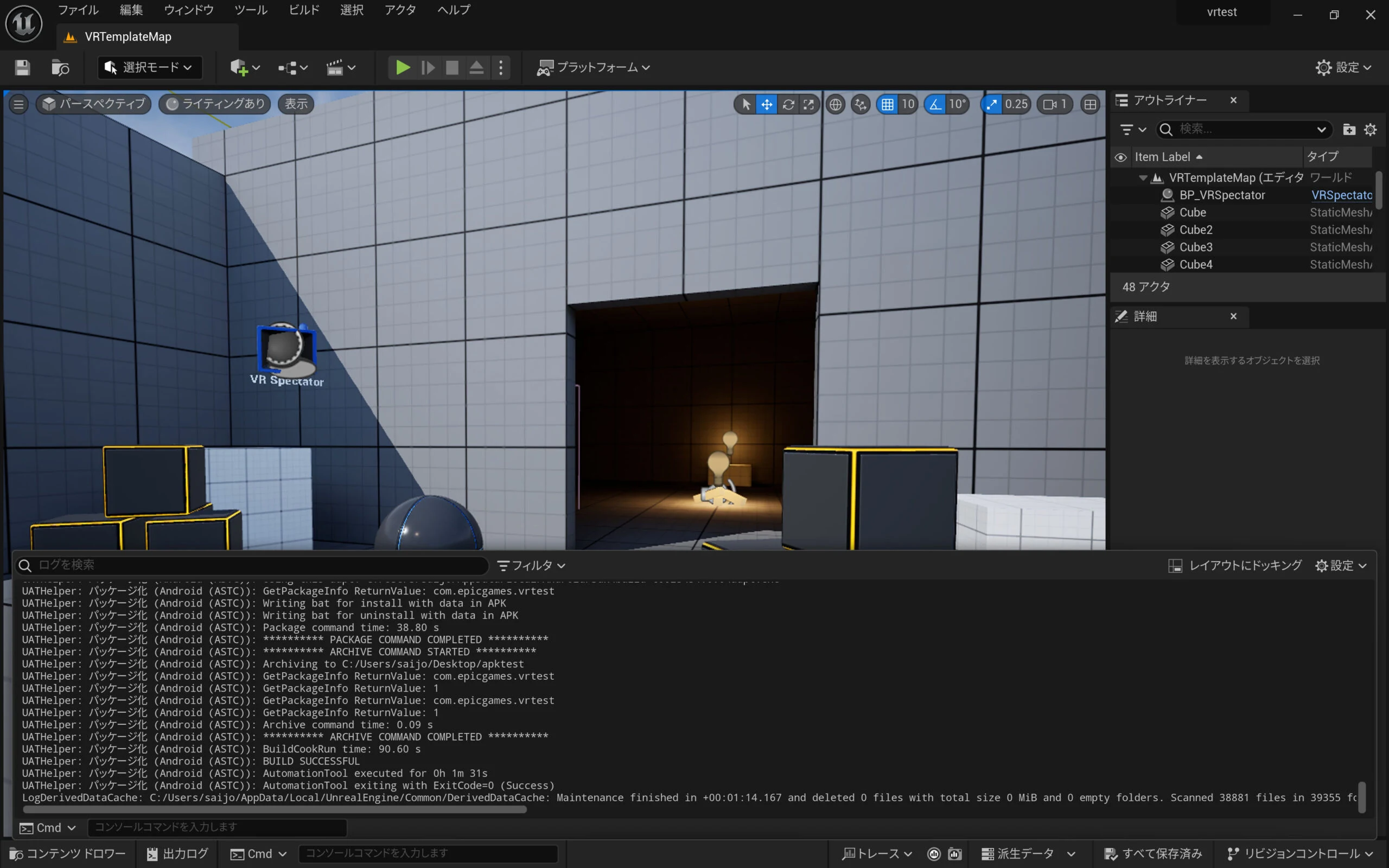
 If the export finishes without errors, it is done. Mine completed successfully.
Install the APK with SideQuest
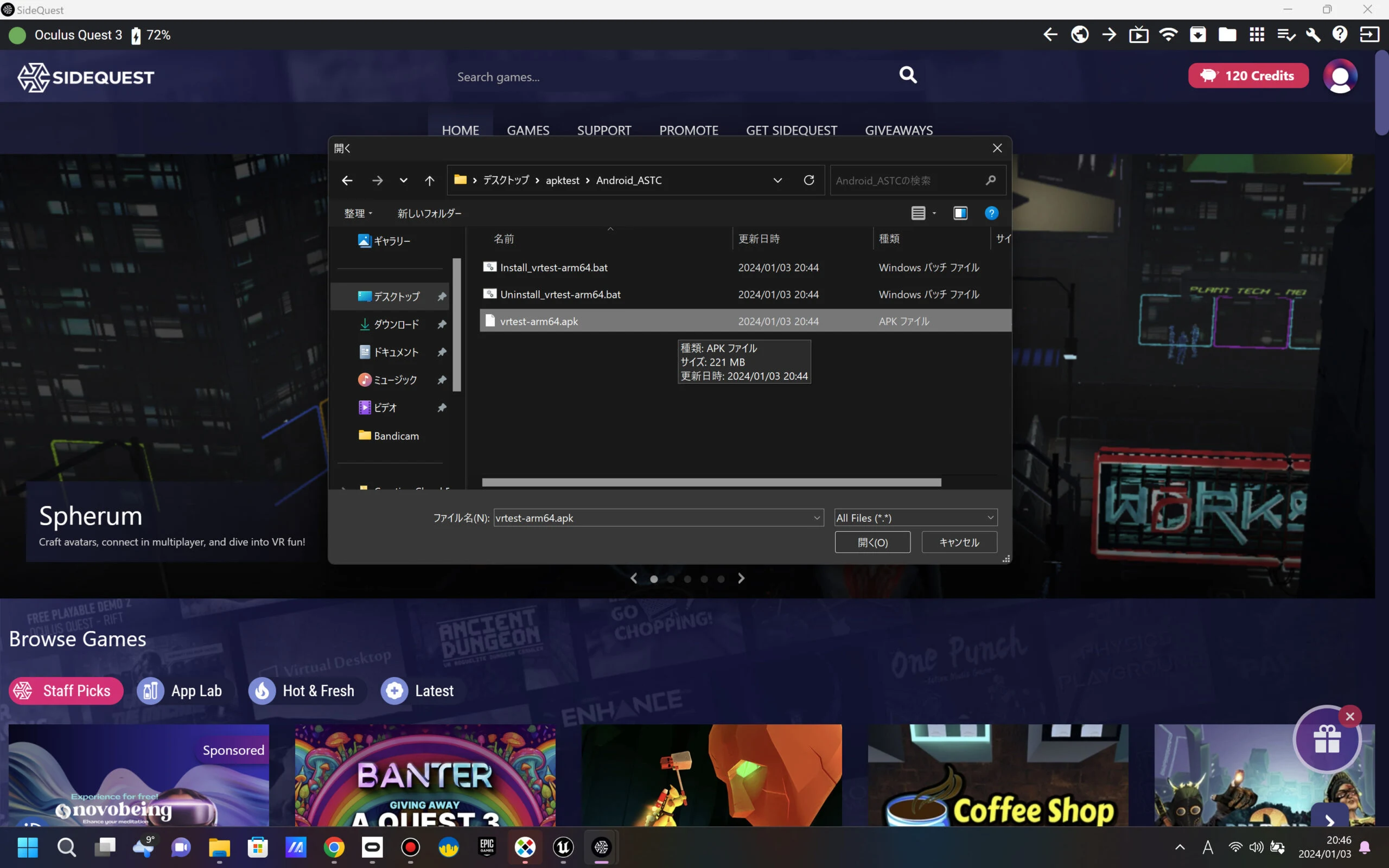
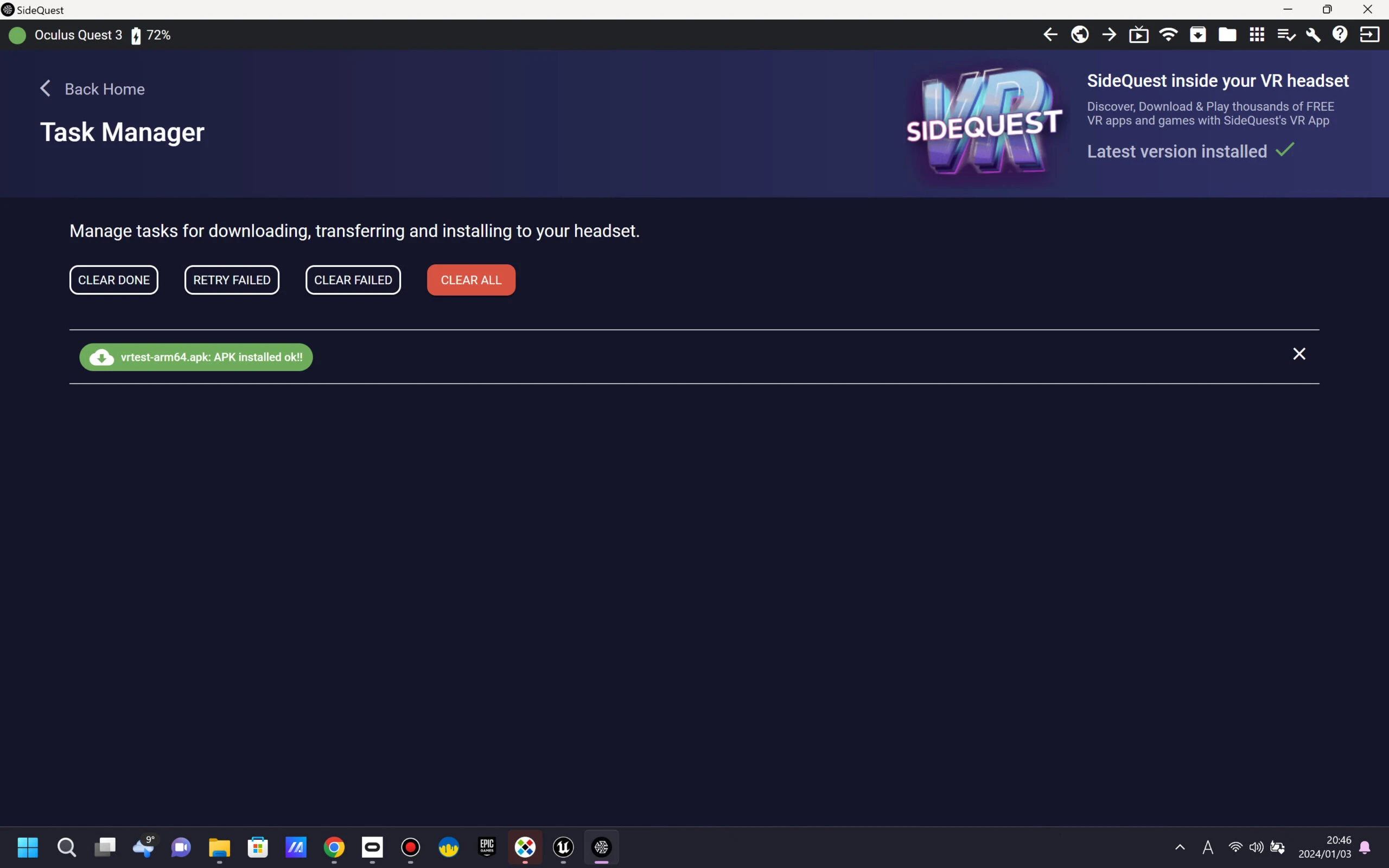
There are several ways to install an APK; configure whichever you use. Here I use SideQuest to install it on the Quest 3. Clicking the APK-install option in the top-right menu let me upload the file.
 After a short wait, installation completed.
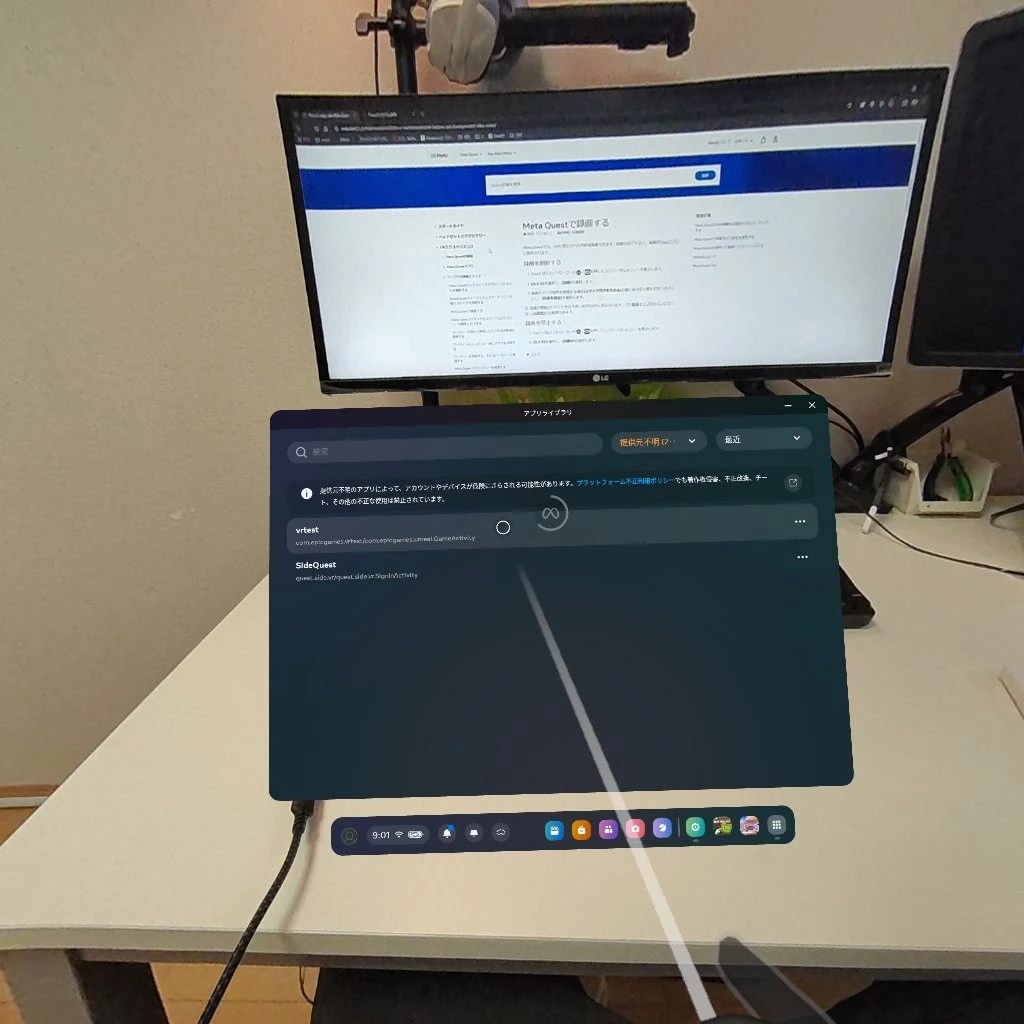
 The application appears under Unknown Sources after installation.
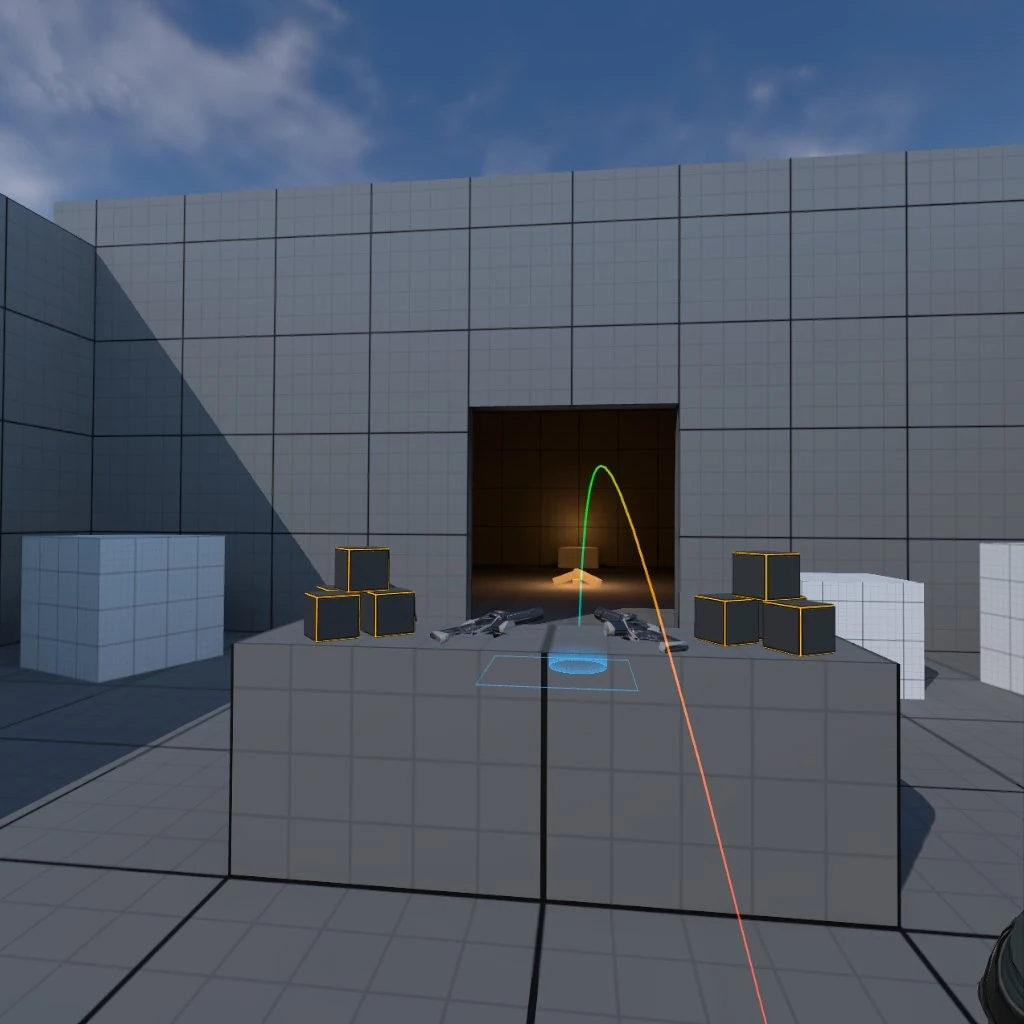
 The UE 5.3 Virtual Reality template ran on the Quest 3. That was quite a surprise!
 SideQuest is a tool for sideloading, or installing, unofficial applications and games on headsets such as Oculus Quest, Quest 2, and Quest 3.
It is used for applications unavailable through the Oculus Store, testing apps under development, and customizing VR experiences.
For detailed SideQuest setup instructions, consult guides such as the following. The instructions did not work immediately for me, but after several attempts I got it working. How to install SideQuest (PC and Android versions)
https://orentame.com/how-to-install-sidequest/
An illustrated guide to installing APK files on Meta Quest 3
https://viblog.jp/metaquest3-apkfile-install/
And other similar guides. I also used the following as a reference. This YouTube video recommends a different Android Studio version, Android Studio 4.0. If you cannot build the APK successfully, try its approach.
Next, I will test the setup for building an MR, or mixed-reality color-passthrough, APK application, one of the Quest 3's main attractions. I would like to run my own MR app. Part 4: setting up a Meta Quest 3 MR color-passthrough APK development environment with Unreal Engine 5.3 in 2024
https://riragon.com/blog/en/oculus-meta-quest3-mrunreal-engine-5-3/
Meta Quest 3 listings (storage capacity unspecified)Browse on Amazon Ad · Amazon Associate link
Related articles
Updates and contact: X @riragoncom.