Using HDRI Backdrop in Unreal Engine 5 for simple, realistic lighting
HDRI Backdrop uses a 360-degree HDR image as both a background and environmental illumination. These notes cover setup, projection, shadows, brightness, and image-resolution settings in UE5.
Note: This article is more than one year old.
- HDRI Backdrop, Sky Light, and exposure controls may move or be renamed between UE versions. Refer to the documentation for your release.
- HDR texture color-space handling, including ACES and OCIO, depends on project settings. Recheck your version's color configuration.
- Background-sphere scale and shadow behavior can differ between rendering paths. This article assumes a particular UE version.
HDRI Backdrop in Unreal Engine 5 uses a 360-degree equirectangular HDR image as a background. Because the image can also provide environmental illumination, it makes realistic lighting possible without a complicated setup. The equirectangular image represents a full sphere, but in many scenes you want objects to cast shadows on the ground rather than appear to float. You therefore use a dome or box-shaped backdrop. Available meshes include EnviroDome, EnviroBoxSharp, and EnviroBox.
Benefits of HDRI Backdrop
Improved rendering quality: HDRI Backdrop brings realistic environmental light into the background, helping the rendered scene look more convincing and attractive.
Reduced rendering time: The background lighting no longer needs to be set up manually, reducing the time involved in rendering.
A smoother workflow: You can directly import the background image your project needs, reducing preparation time and making the workflow easier.
More flexibility: HDRI Backdrop also works as a light source, with adjustable parameters for tuning the scene's illumination.
Unreal Engine 5.3 documentation: HDRI Backdrop Visualization Tool. Refer to the documentation for detailed explanations. https://dev.epicgames.com/documentation/ja-jp/unreal-engine/hdri-backdrop-visualization-tool-in-unreal-engine?application_version=5.3https://docs.unrealengine.com/5.1/ja/hdri-backdrop-visualization-tool-in-unreal-engine/
Enabling HDRI Backdrop
Choose Edit → Plugins → Rendering and enable HDRIBackdrop.
Setting up the environment
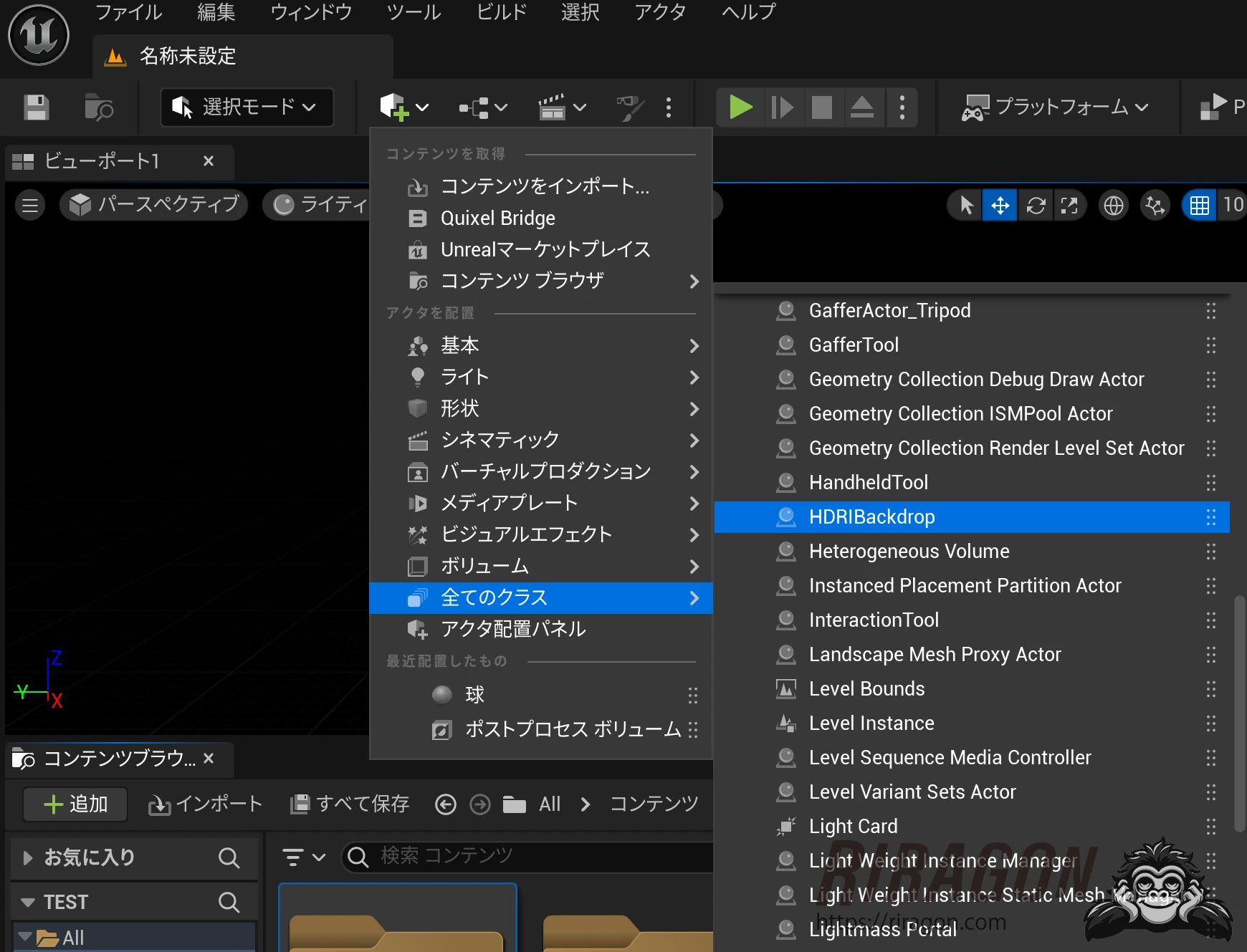
Create a new empty level. From the Add menu in the upper left, choose All Classes → HDRI Backdrop and drop it into the scene.
In the video below I selected HDRI Backdrop from the recent history rather than All Classes, but you can find it under All Classes.
All Classes → HDRI Backdrop:
Preparing an HDR image
The image needs to be in 32-bit HDR format. If it is not, you can open and convert it in a program such as Photoshop. Choose Image → Mode → 32 Bits, then Save As in HDR format. Drop it into the Content Browser and then into the map image field in HDRI Backdrop's Details panel. Use Save All to commit the changes.
Reducing projection distortion
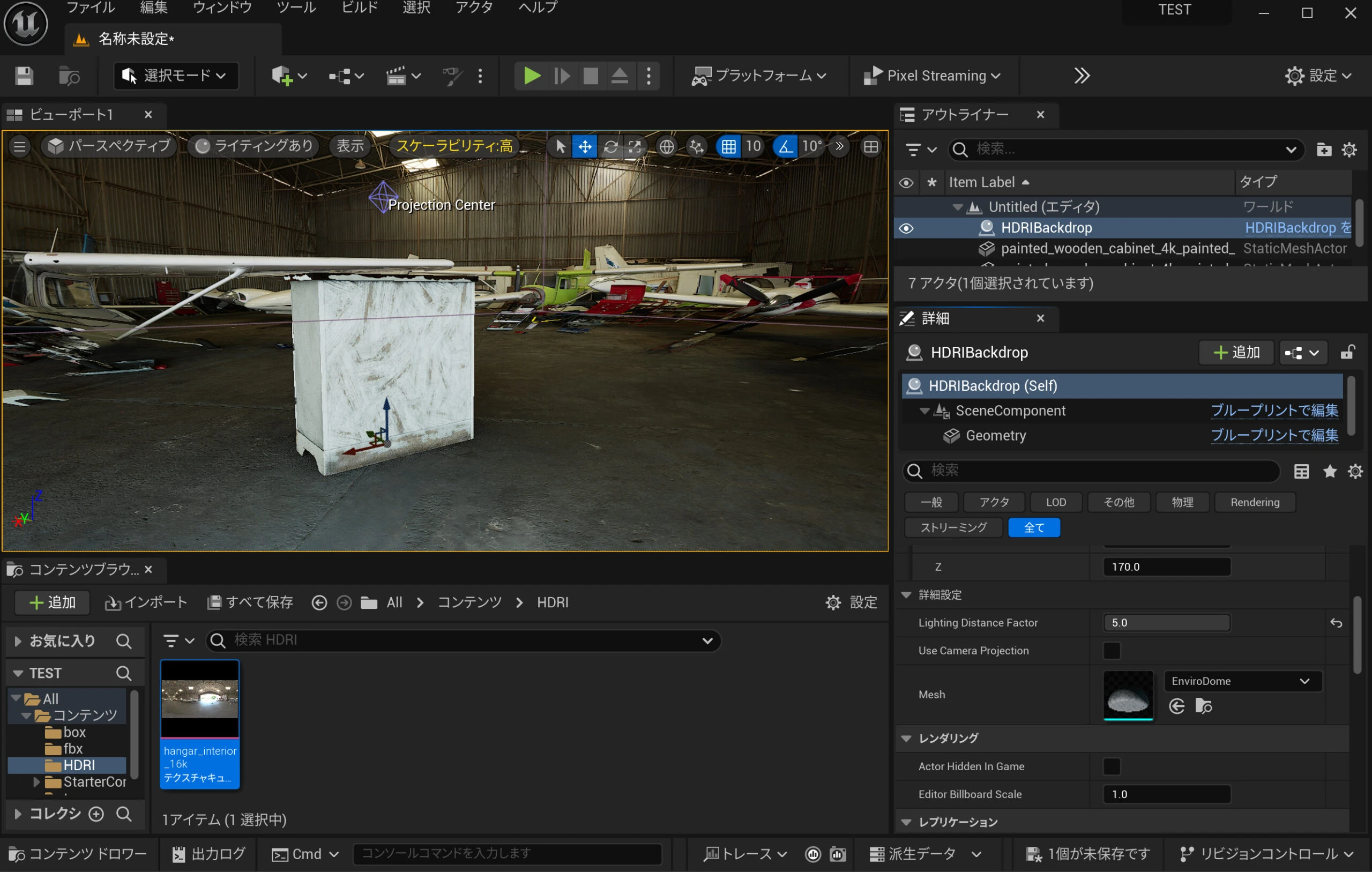
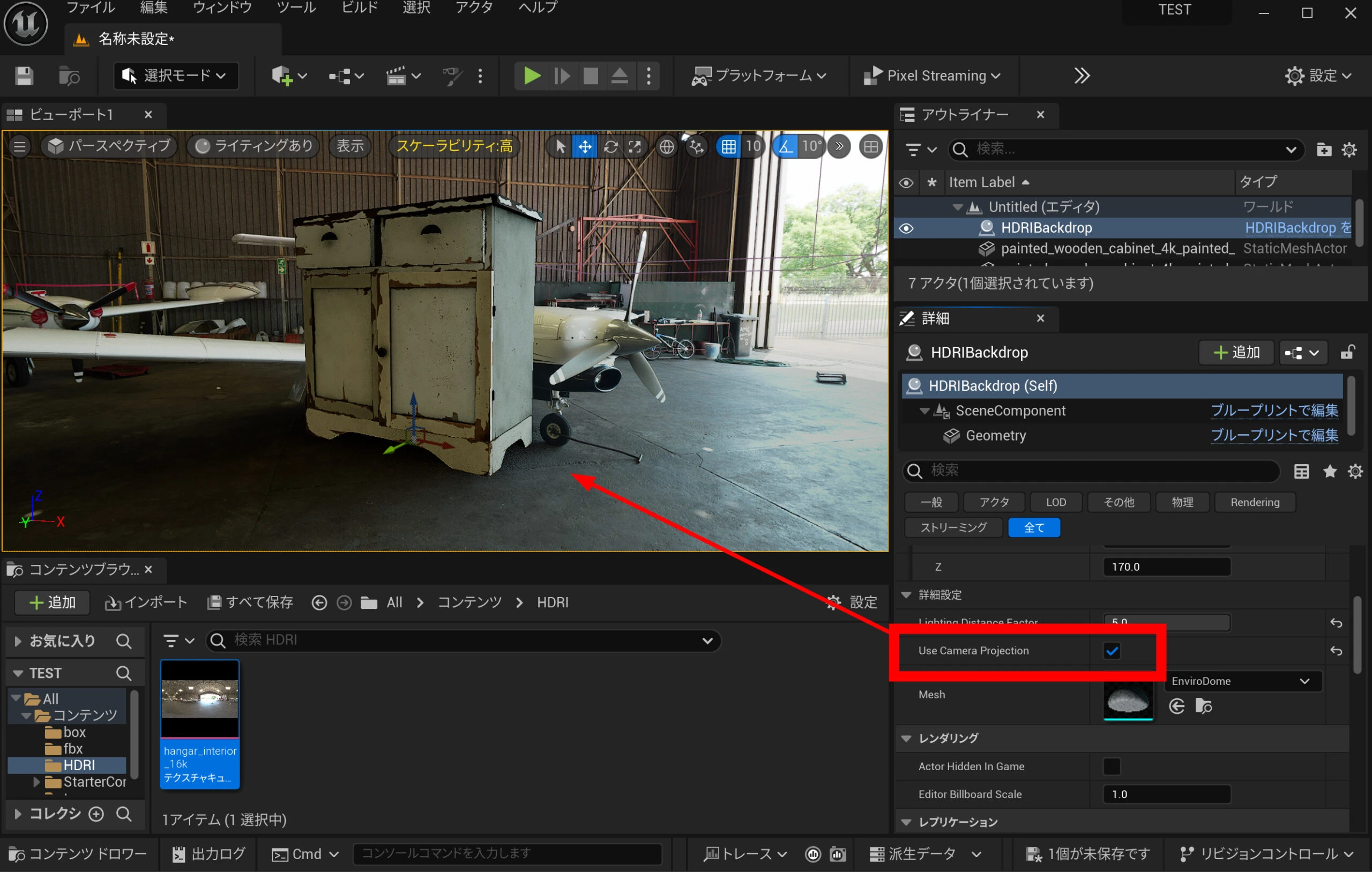
When the view is off-center, the 360-degree equirectangular image becomes distorted. Select the camera, for example, and set its X and Y positions to 0. Match its height to the camera height at which the equirectangular image was captured. Set HDRI Backdrop's horizontal position to zero too, adjusting its height as appropriate.
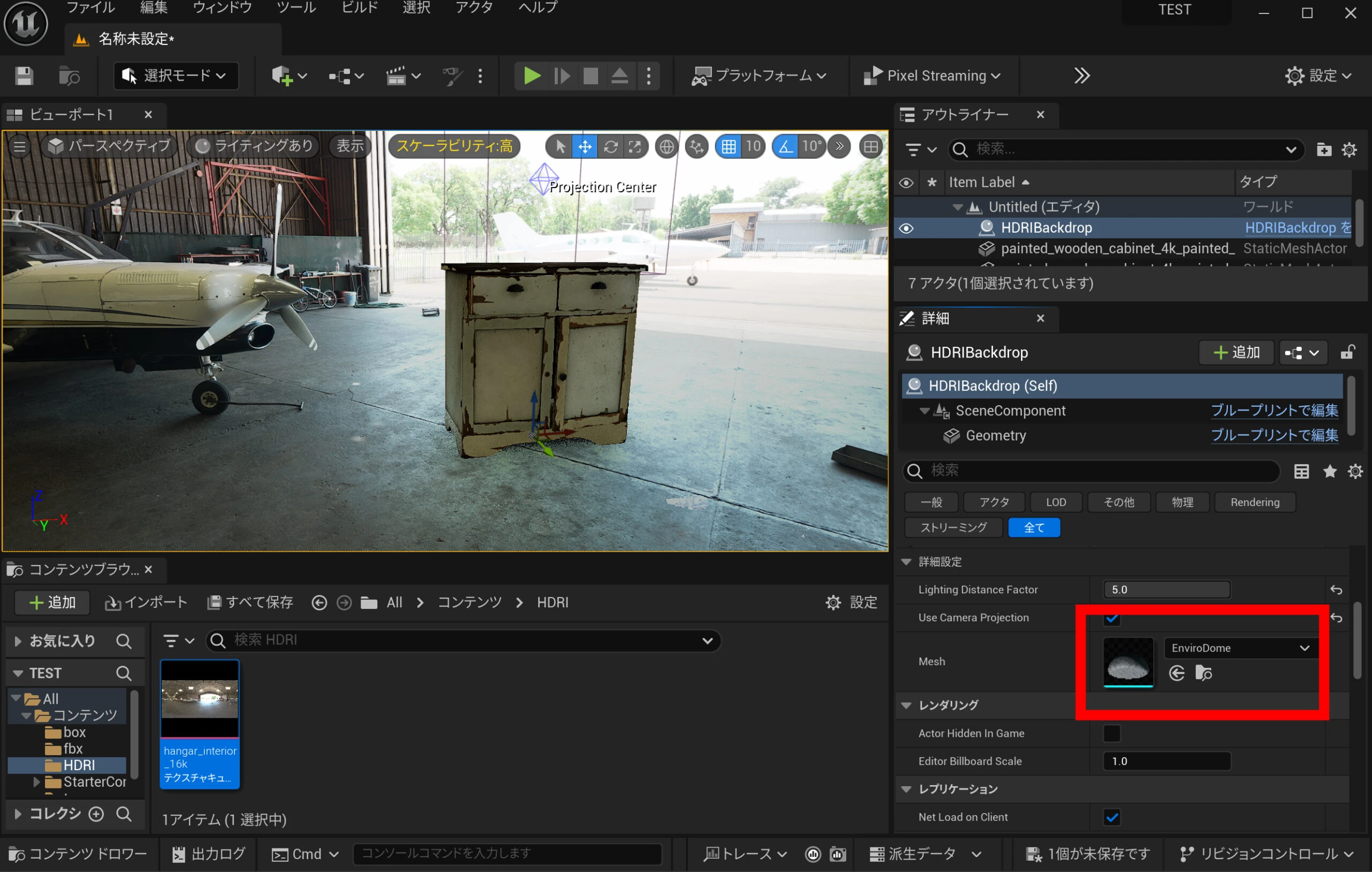
Alternatively, enable Use Camera Projection in HDRIBackdrop's Details panel. This keeps the view projected from the appropriate camera position for the equirectangular image. Choose whichever option blends into your intended scene more naturally.
Three backdrop meshes
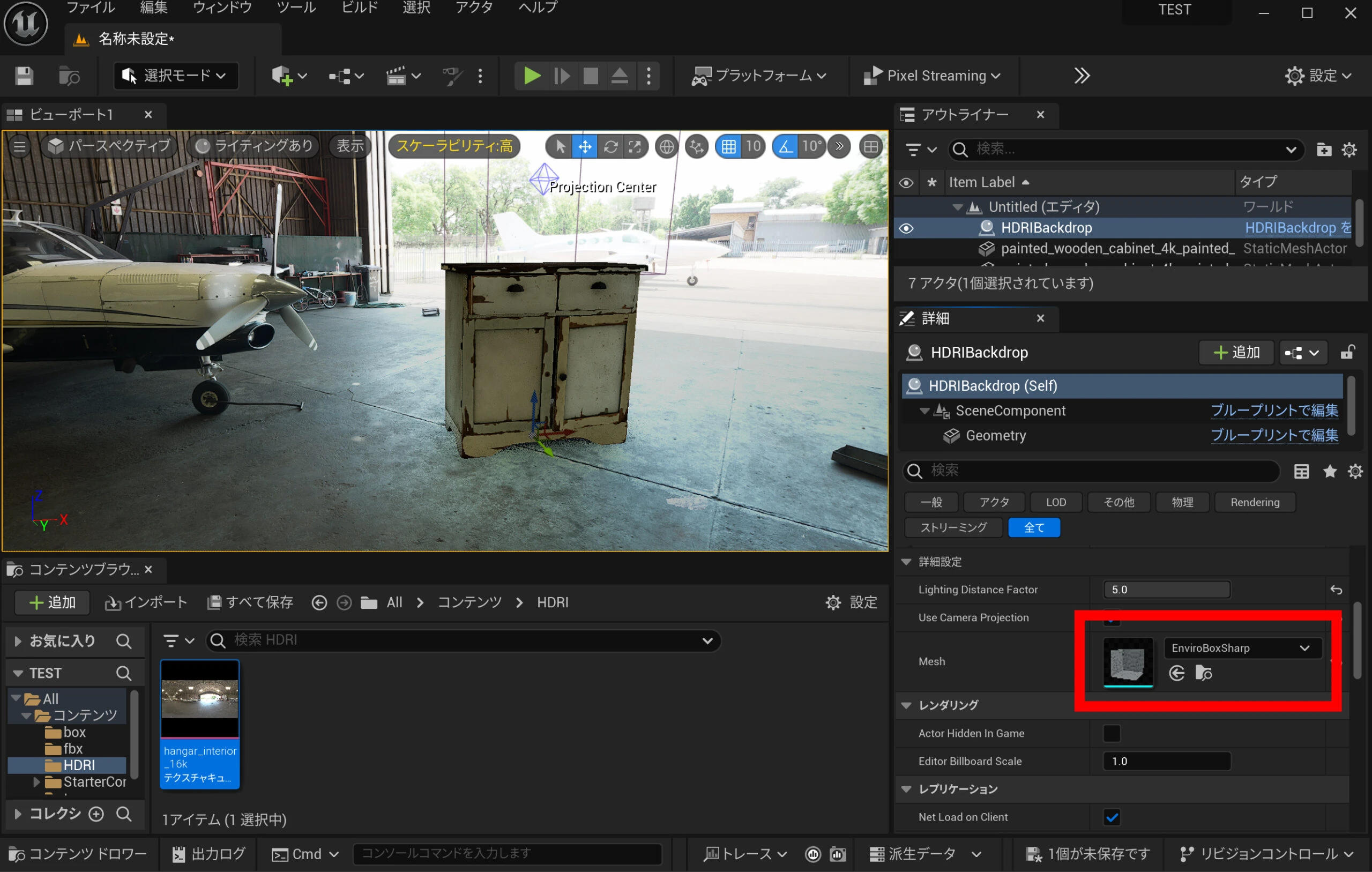
You can change the mesh in Details → Mesh. Search for "Enviro" to see EnviroDome, EnviroBoxSharp, and EnviroBox. Use a box for an environment with walls, or a dome for an open area. If they do not appear in the search, enable Show Engine Content in the settings.
EnviroDome, EnviroBoxSharp, and EnviroBox each gave a different lighting result. The effect will depend on the HDRI. For example, EnviroBox made the backlighting stronger in my scene. Changing the dome mesh's size also changes the impression.
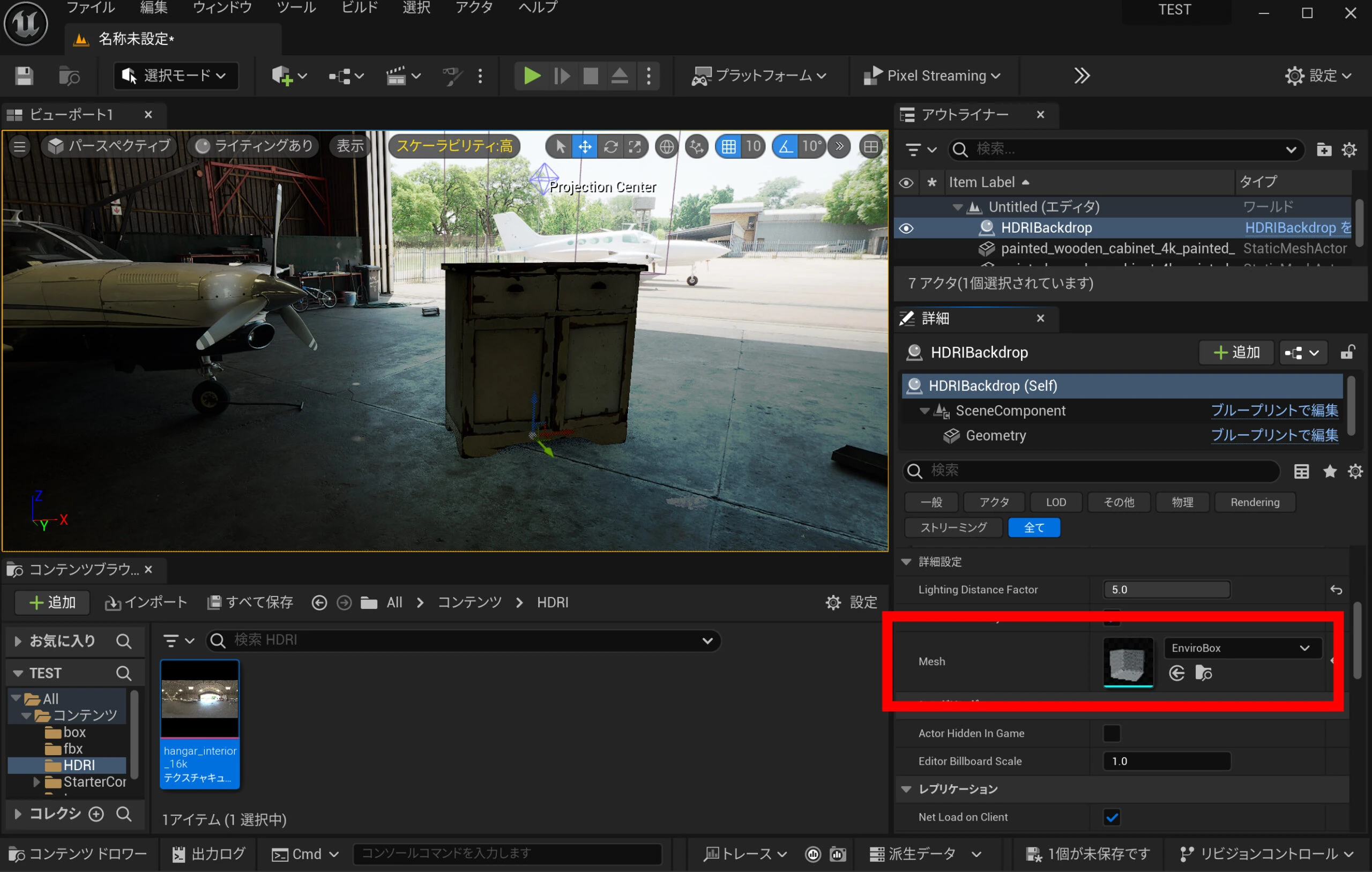 EnviroBoxSharp changed it like this.
 EnviroDome gave an even softer result. Each has a slightly different look, so try them and choose the one you prefer.
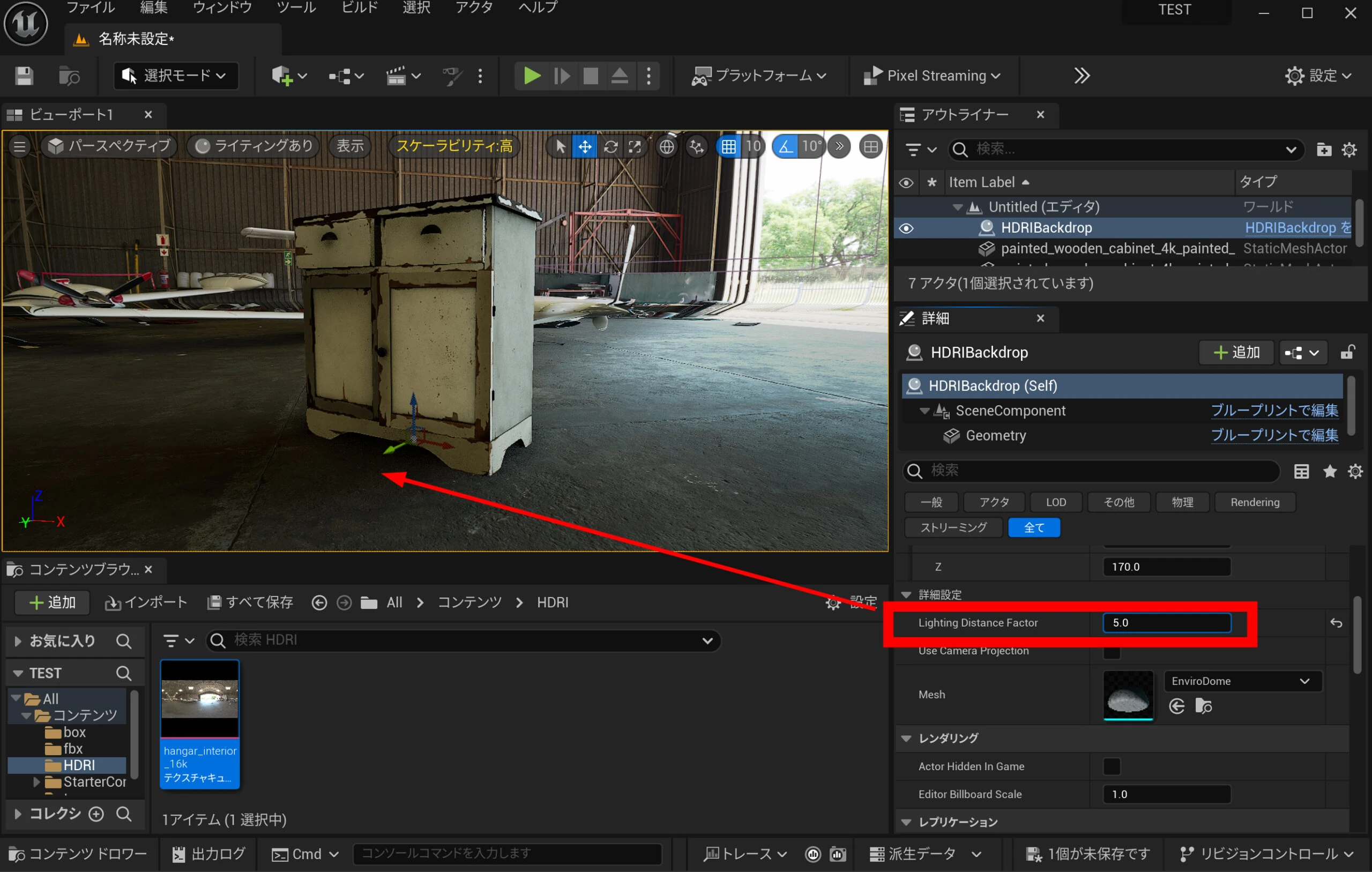
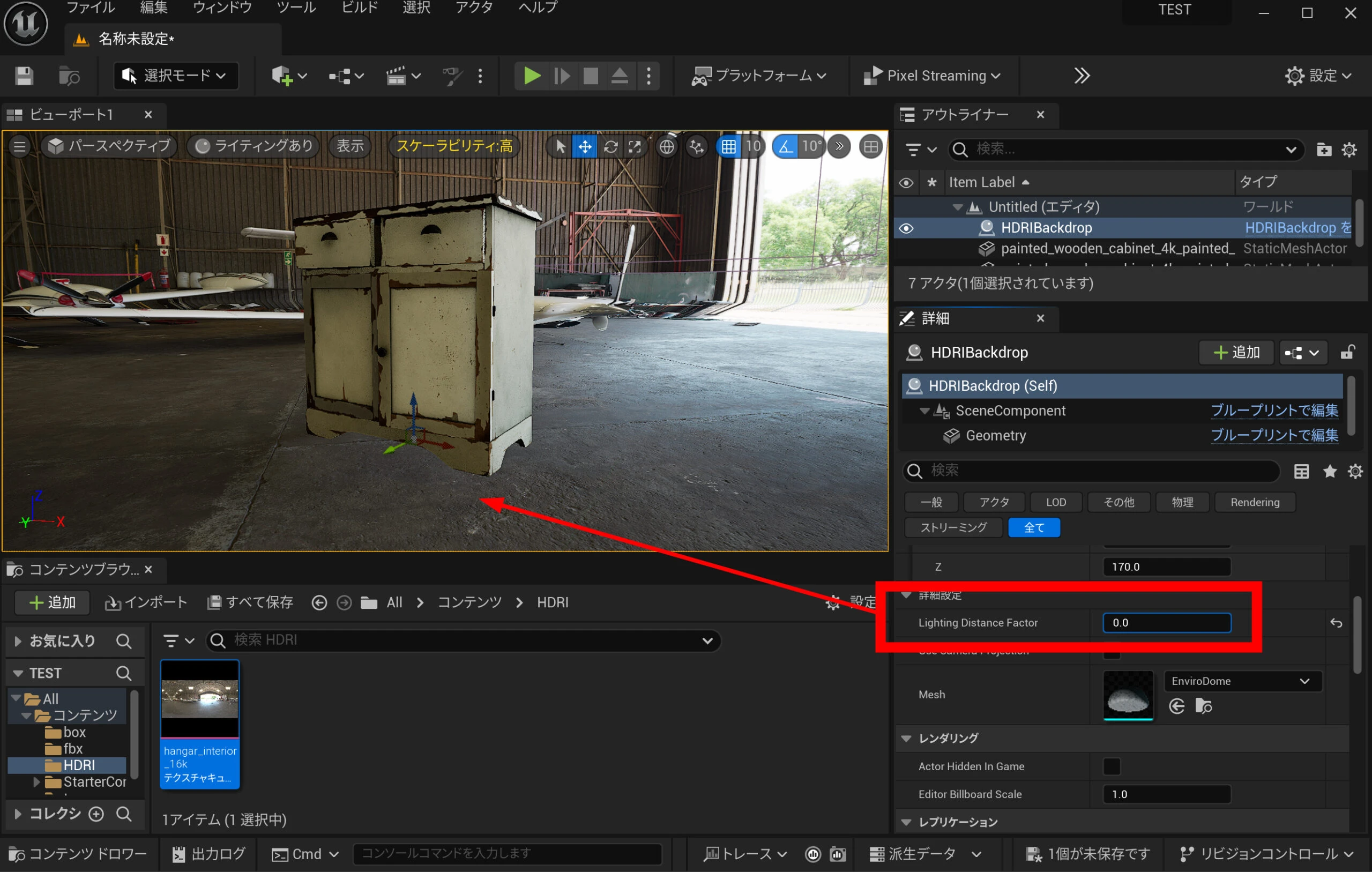
Adjusting ground shadows
Setting Lighting Distance Factor to 5 produced strong ground shadows.
 At 0, there were fewer shadows.
Forcing additional shadows into the HDRI Backdrop scene
Adding a Directional Light or Sky Light is generally not recommended for this setup, but can be useful when you deliberately want additional shadows. A Directional Light can provide direct sunlight and cast shadows. A Sky Light controls reflected light from the sky, including light that reaches shaded areas. With these two, you can adjust the brightness and color of illuminated areas, shadows, and areas not receiving direct light.
Adjusting brightness
HDRI Backdrop's Intensity controls the background's own emission. If you want more than its lighting alone, you can also use Directional Light and Sky Light intensity to adjust shadow brightness, white balance, and similar aspects.
I do wonder whether that defeats the point of using HDRI Backdrop, but without a Directional Light and Sky Light, I could not quite get the lighting right.
Adding those lights eventually produced a result I liked.
How would I manage it well using HDRI Backdrop alone?
Settings intended to use the HDRI's full resolution
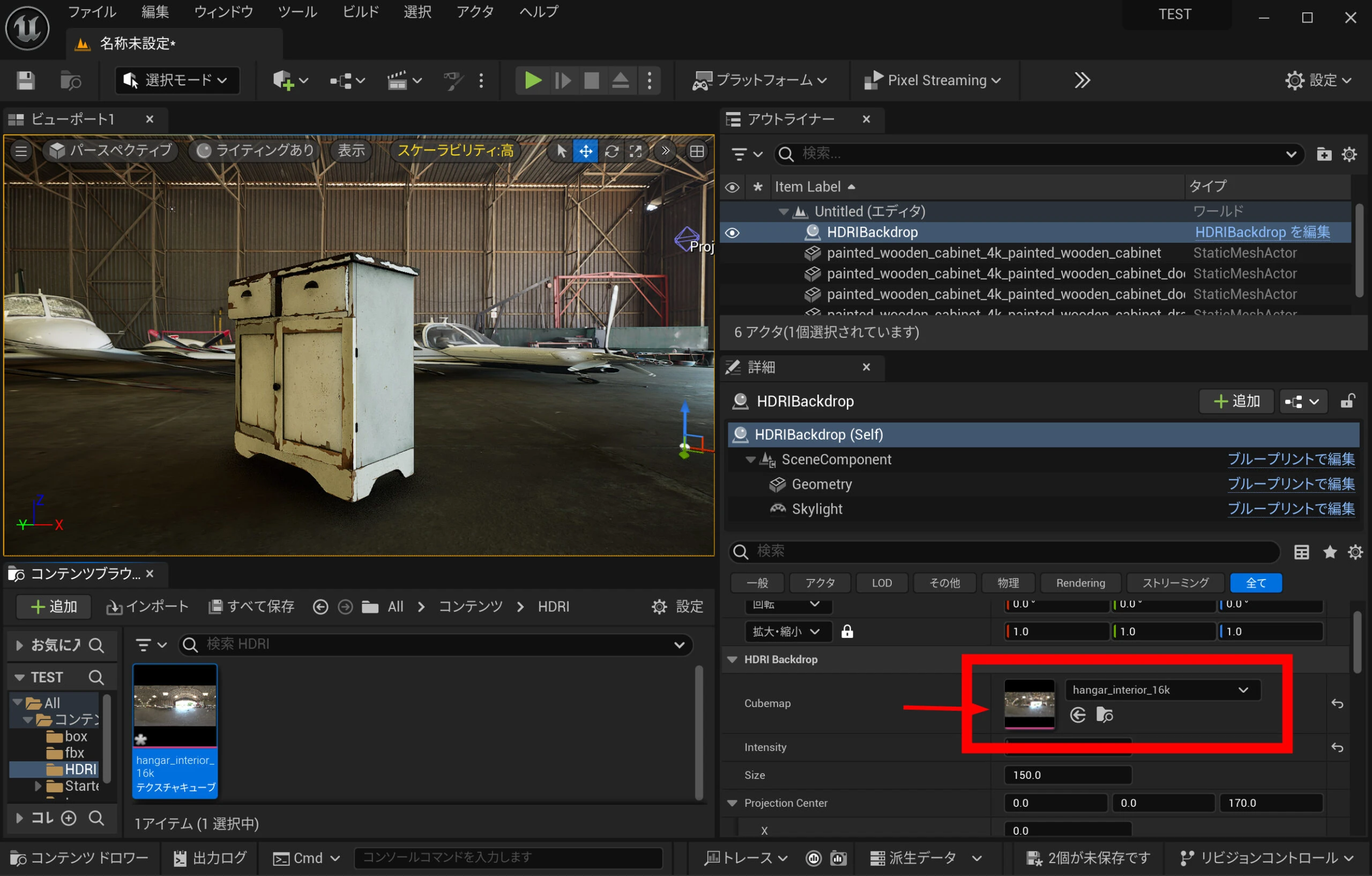
The documentation describes settings for getting the highest resolution from HDRI Backdrop. I could view the image at what looked like its original resolution without them, so they might not be necessary in my case. First, assign the HDRI to the backdrop.
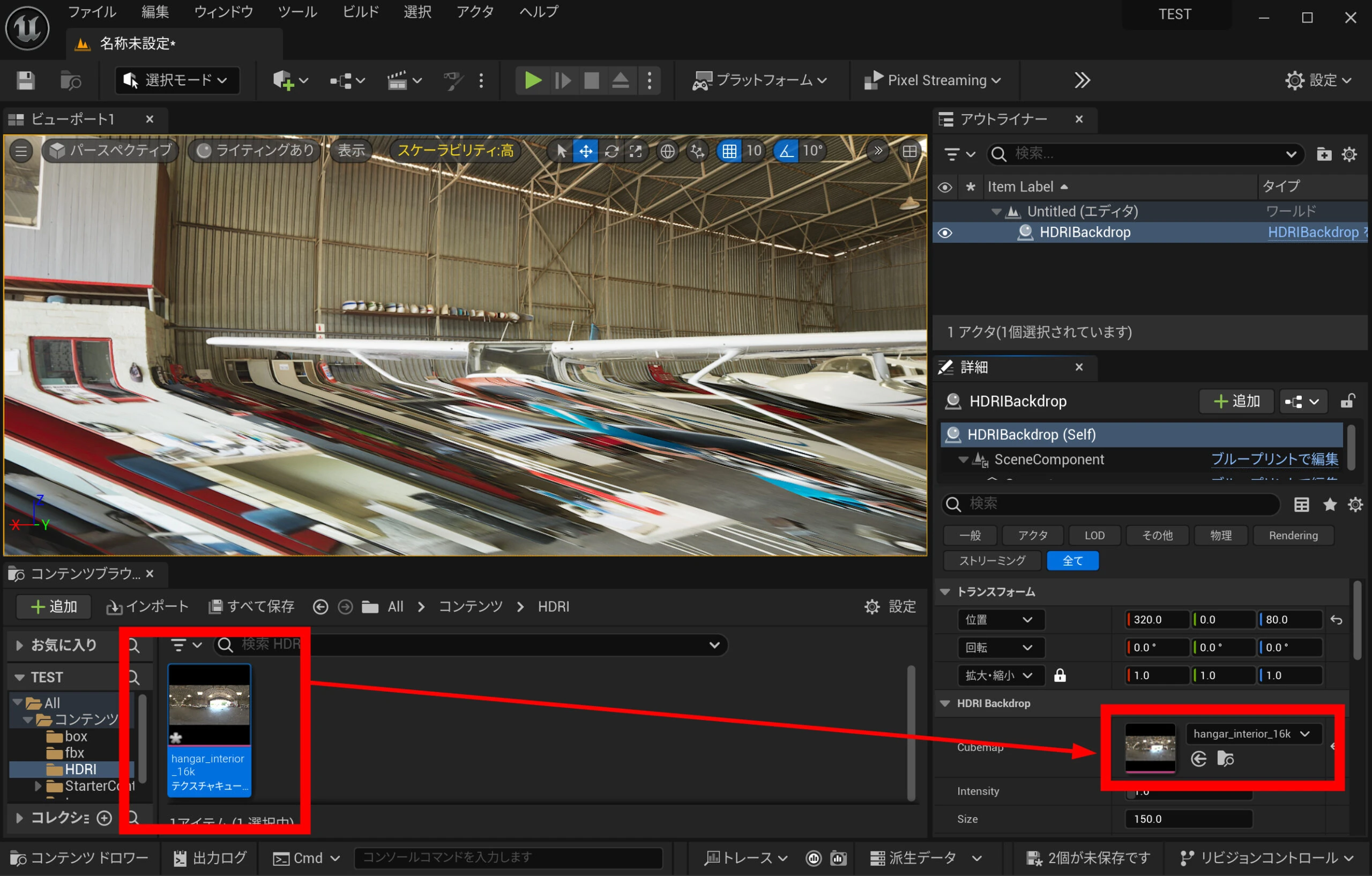 Double-click the Cubemap to open its settings.
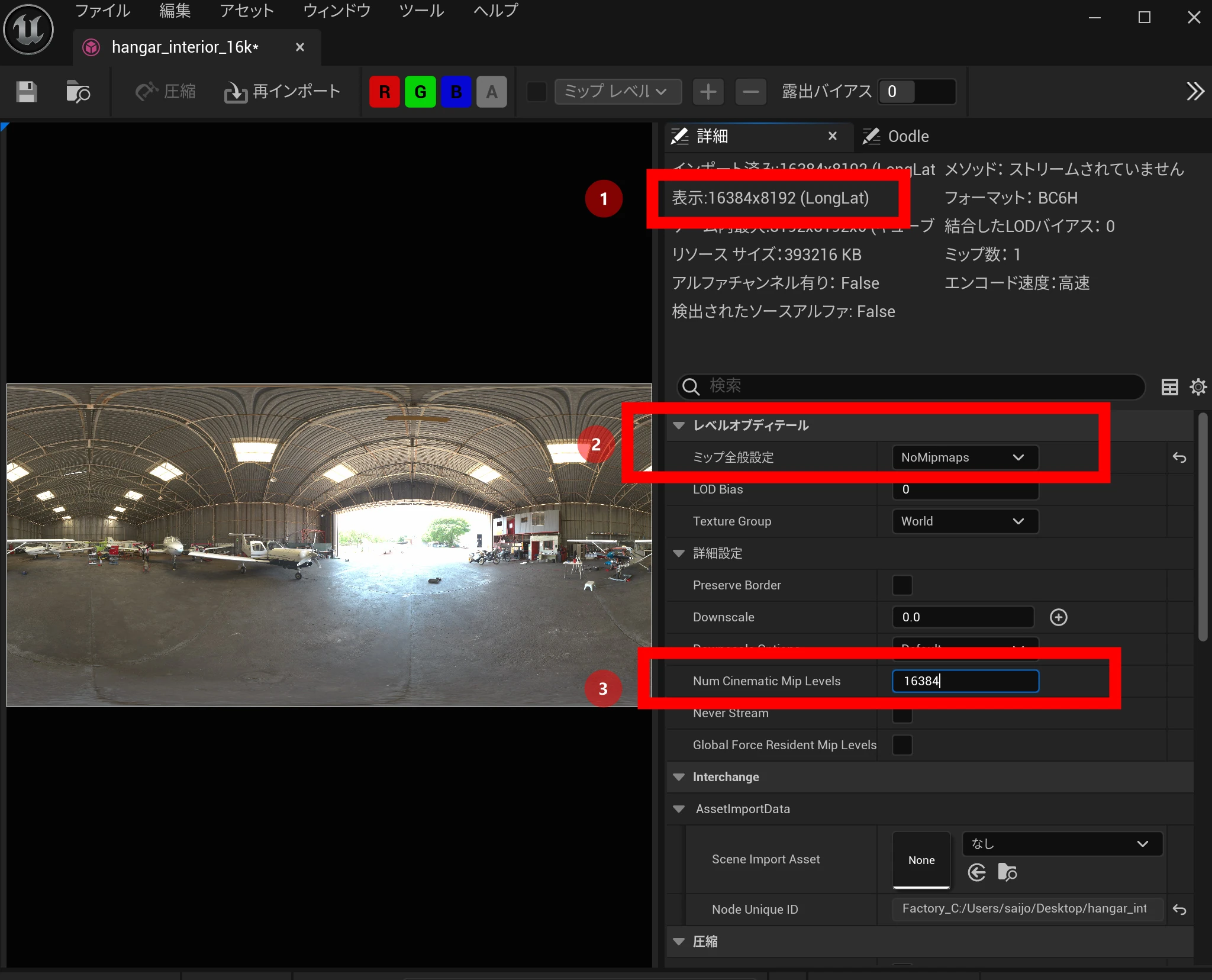
 If the maximum resolution is 16384, change Mip Gen Settings to NoMipmaps and wait for processing. Once it finishes, enter 16384 in Num Cinematic Mip Levels and save.
Related articles

Updates and contact: X @riragoncom.