Packaging a Windows VR app in Unreal Engine 5 and viewing it with a PC and headset
Create and package a Windows application with head-mounted display support in Unreal Engine 5. The walkthrough covers PCVR setup, starting the headset in the packaged app, and straightforward performance adjustments.
Note: This article was first published more than a year ago.
- Meta Quest OS, PC OpenXR and SteamVR software, and Unreal XR plugins update frequently. Check version compatibility in the release notes.
- Packaging, signing, and distribution requirements change with store and platform policies. These instructions assume a development workflow.
- Suitable hardware and encoding settings vary by GPU generation. Profile again on the actual device.
This article shows how to create and package a Windows application with head-mounted display, or HMD, support using Unreal Engine 5.
Packaging makes it runnable on other Windows machines.
You can distribute it as an application or game.
Applying VR settings lets you experience it through a headset.
Here I show how to view a project packaged for Windows in an HMD.
This is generally called PCVR.
It is useful for presenting a project from a PC at an event or similar setting.
PCVR requires a computer, making it less portable than standalone VR, but using the PC's power makes this workflow comparatively easy.
I also cover some simple settings for running a Windows HMD application more comfortably. Packaging for Windows requires a Visual Studio development environment.
The following site explains Visual Studio installation and setup clearly.
At the time of this article, I would choose Visual Studio 2022 rather than Visual Studio 2019.
https://ue5study.com/how/unrealengine-packaging-visualstudio-settings/
Check the official documentation as well.
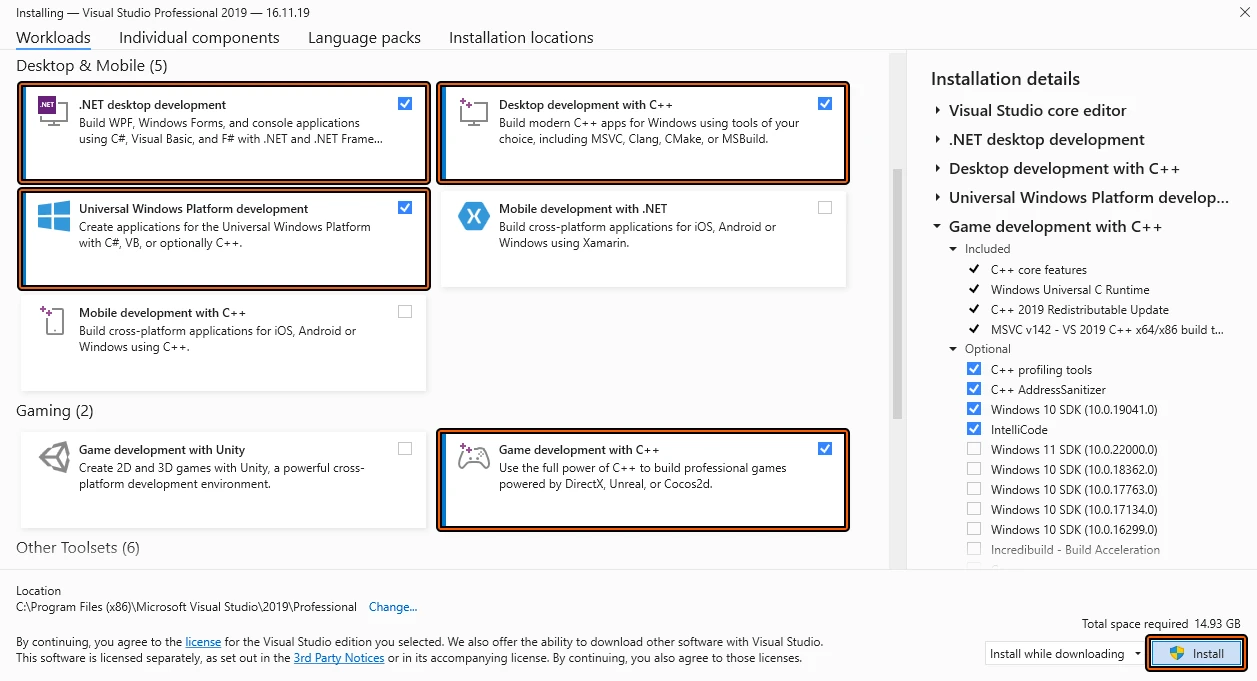
First, install Visual Studio 2022
Refer to the linked guide for details. In short, install Visual Studio 2022 with the options shown below selected.
Create the project and set up VR
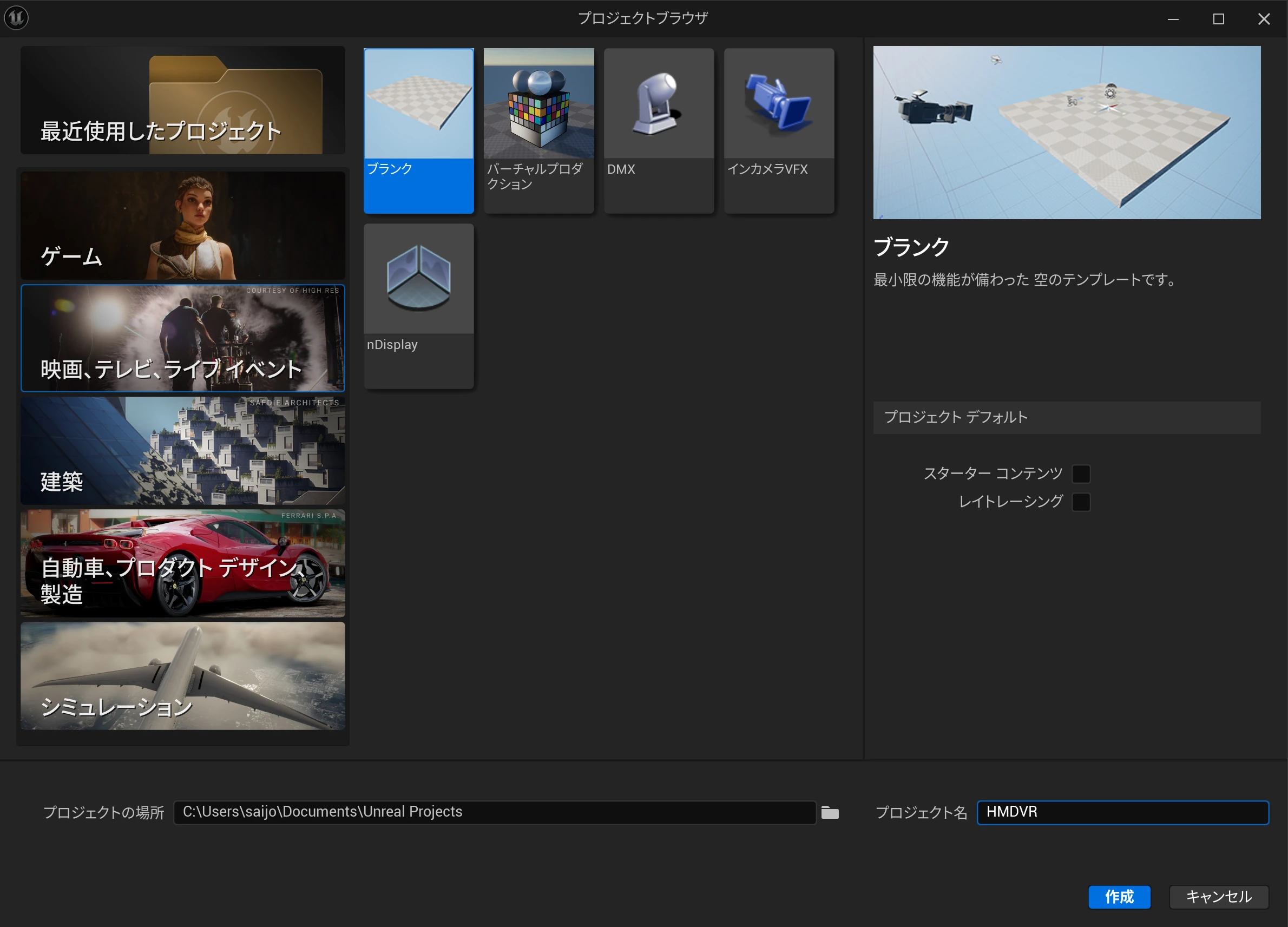
Create a UE5 project. I used Film > Blank.
 I used Art Gallery Museum.
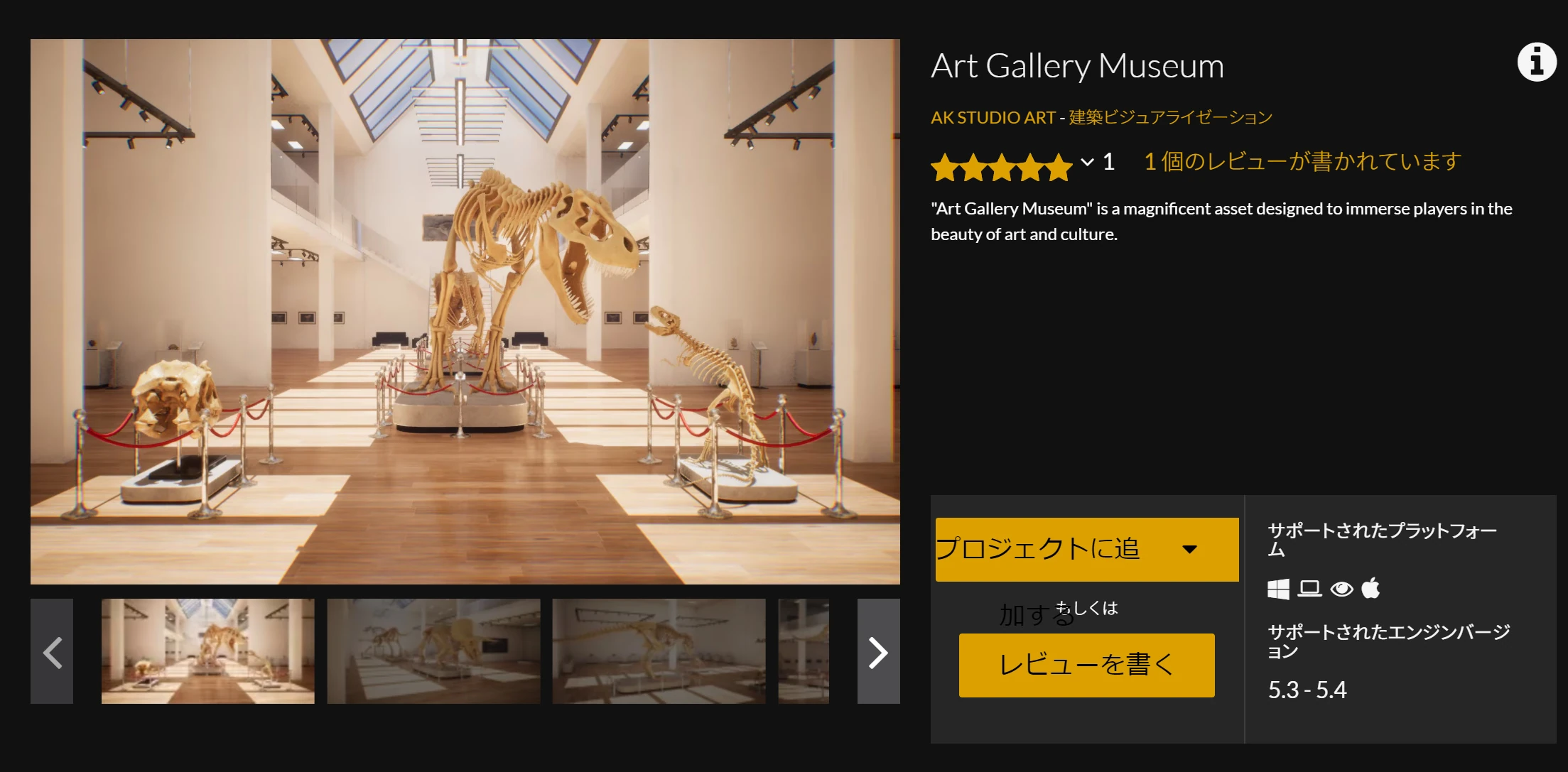 Skipping the asset-import details, I replaced the Main content with the imported assets so that the Art Gallery Museum demo would launch.
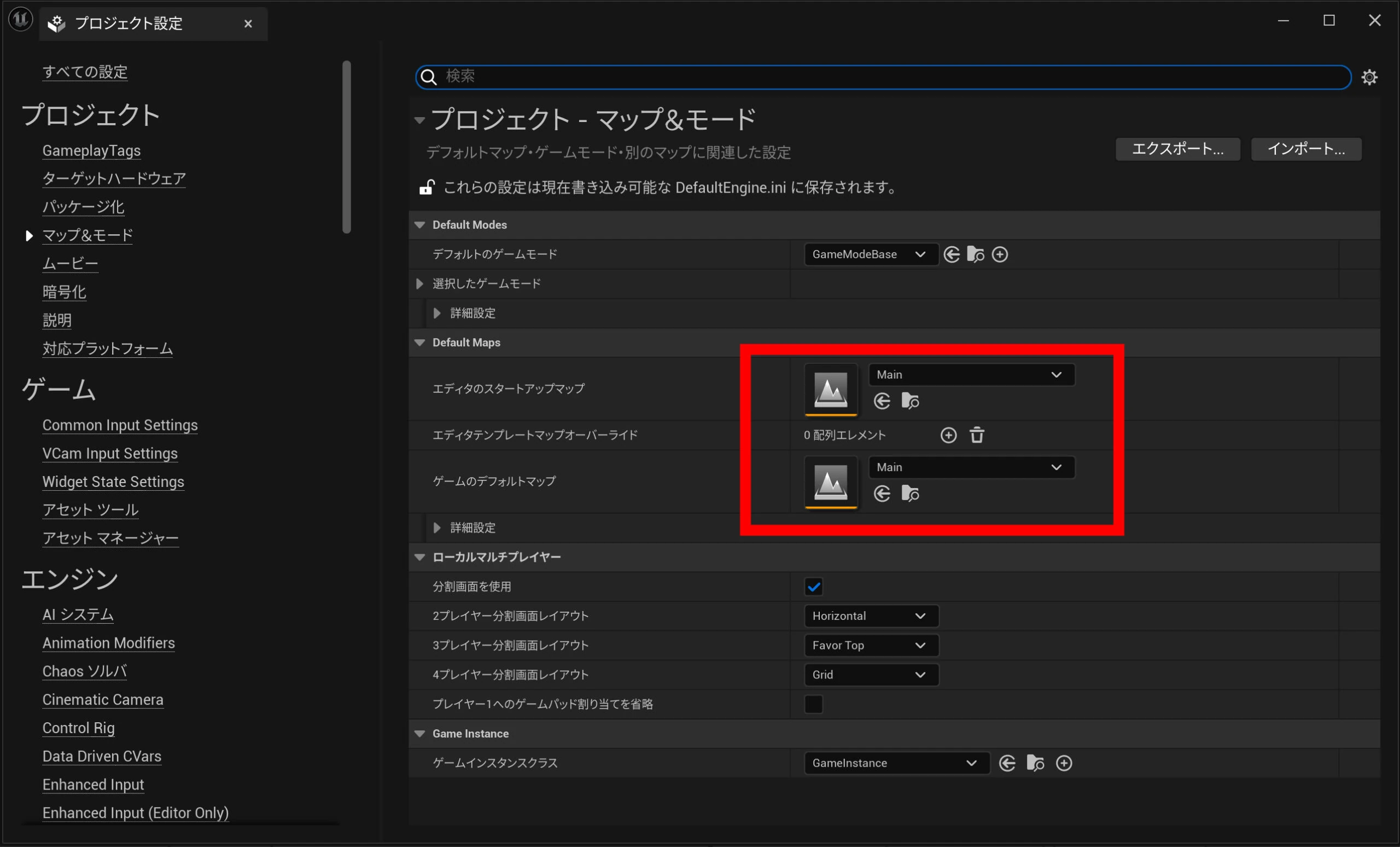
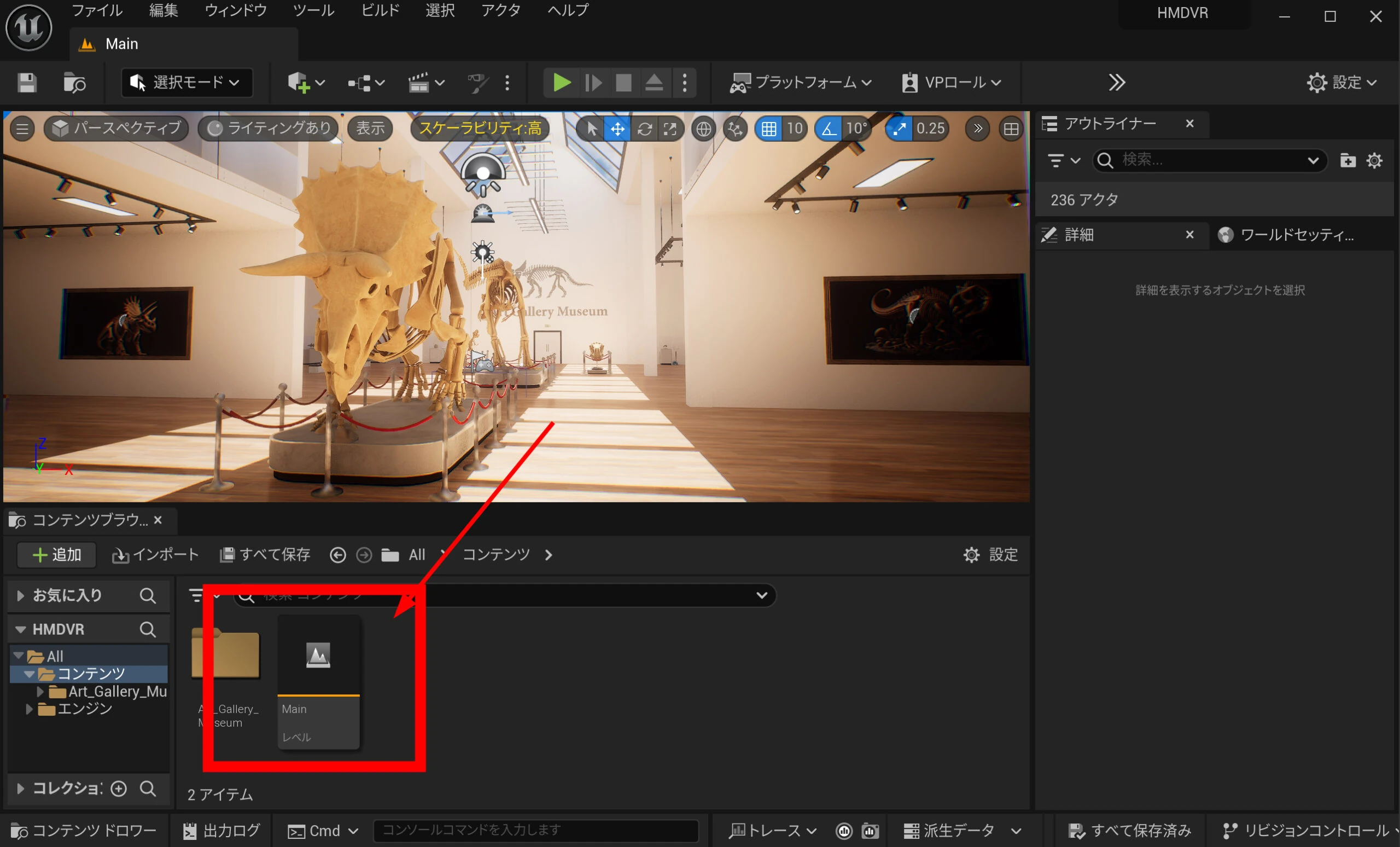 In the project's Maps & Modes settings, set Main as the startup and default map.
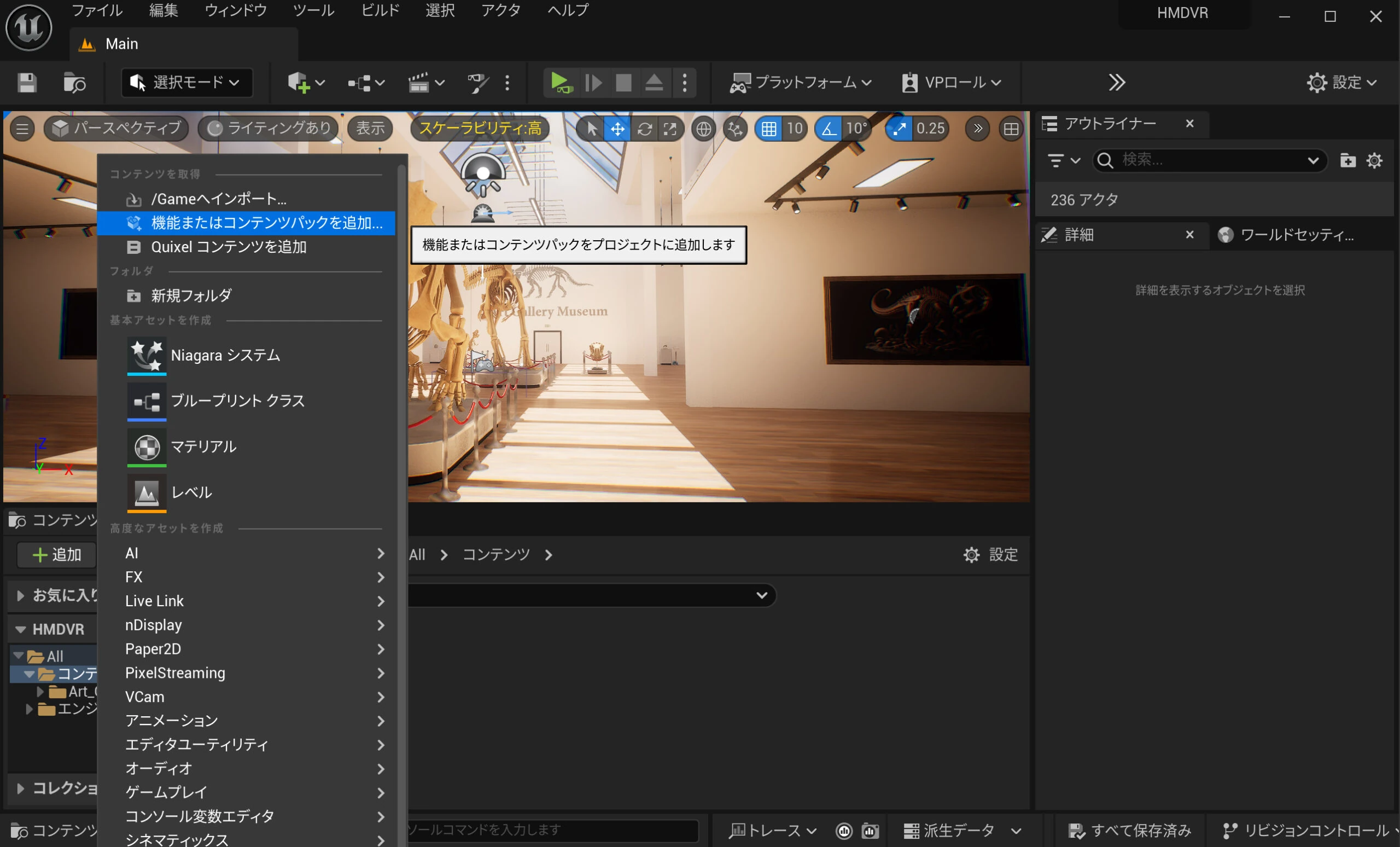
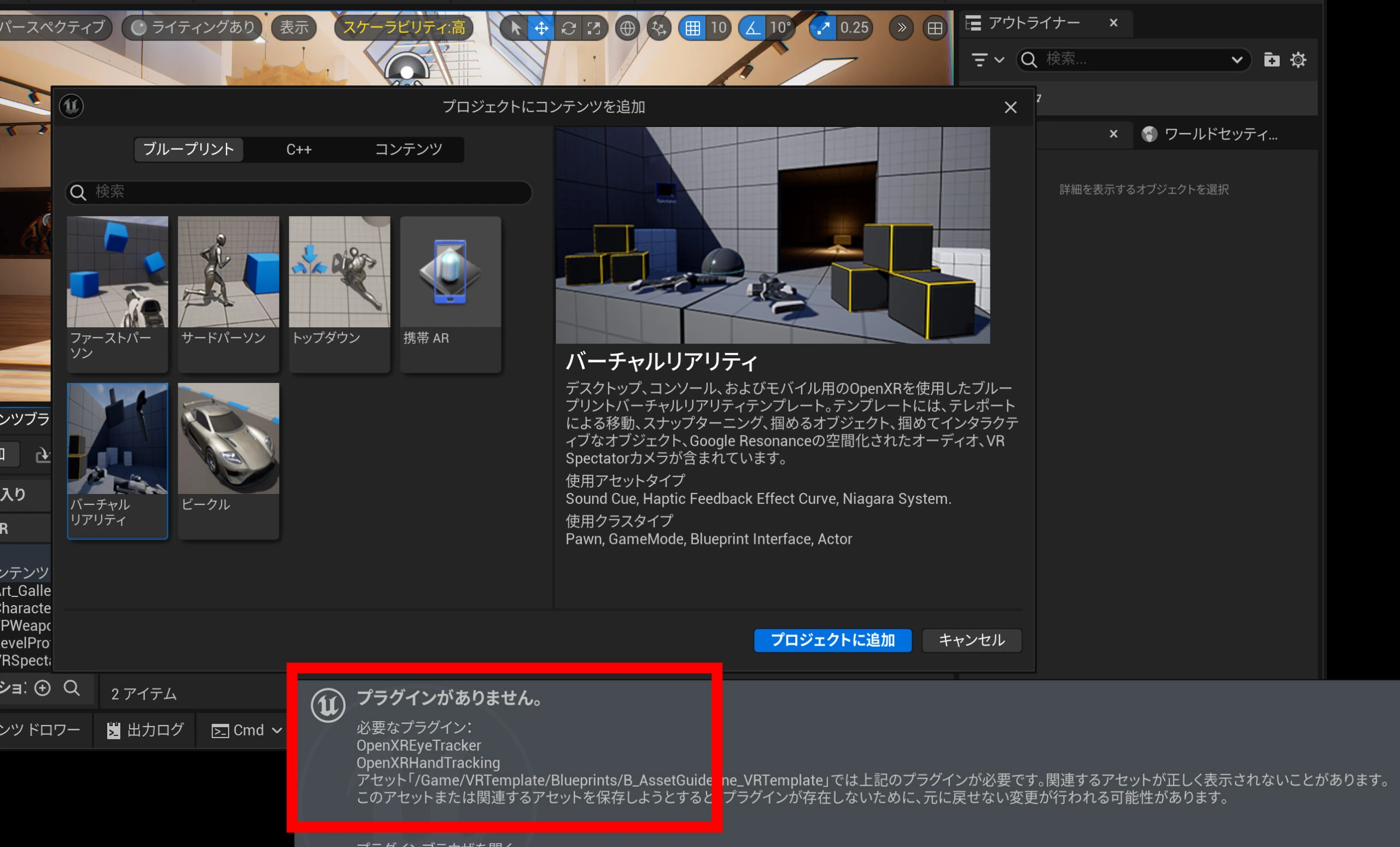
 Now prepare VR support. It can be added in a straightforward step: click Add Content and select Add Feature or Content Pack.
 Add Virtual Reality to the project.
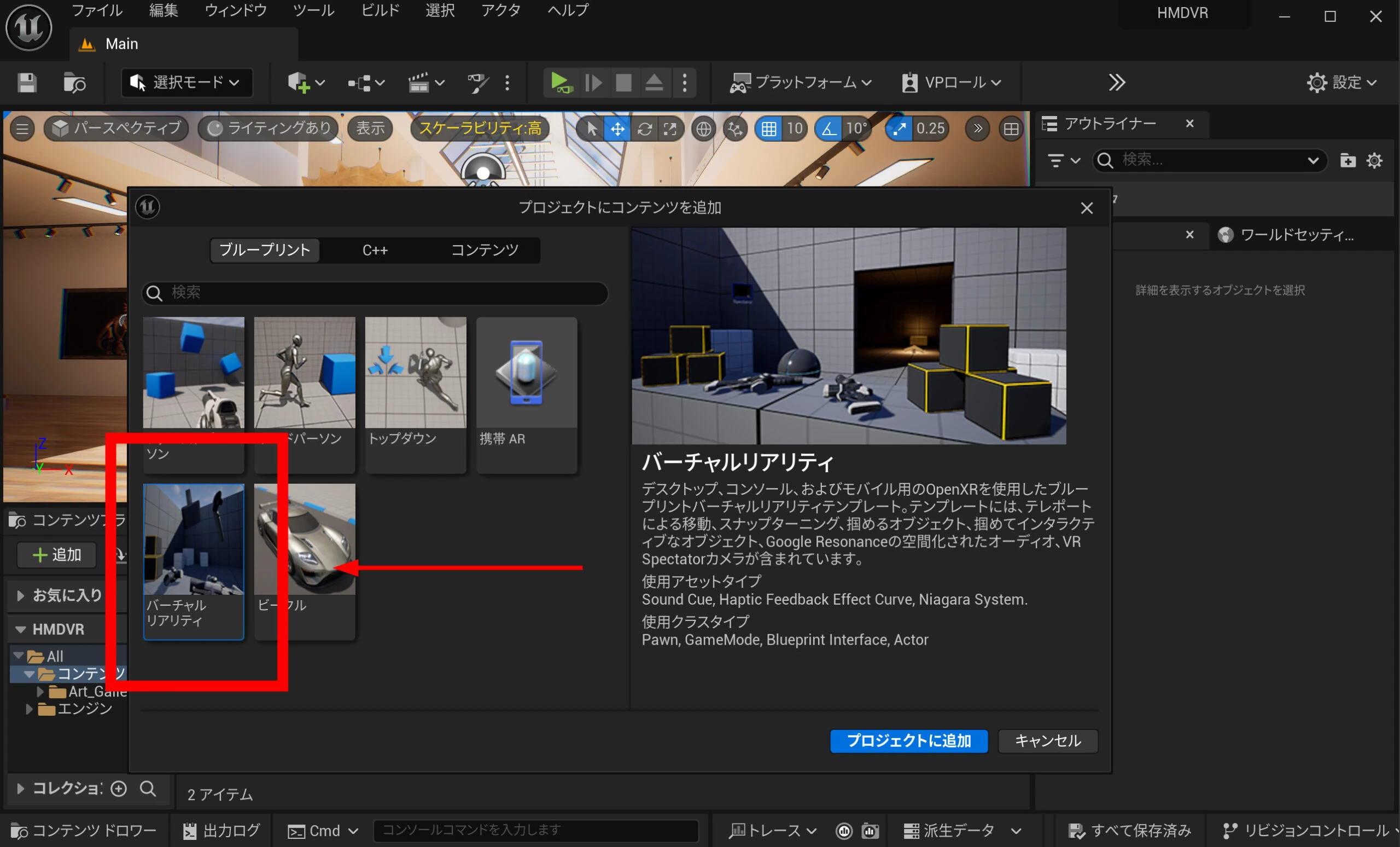 The required VR plugins are added automatically. There is an OK button at the lower right, partly hidden in the screenshot; press it as needed. That completes the UE5 environment setup.
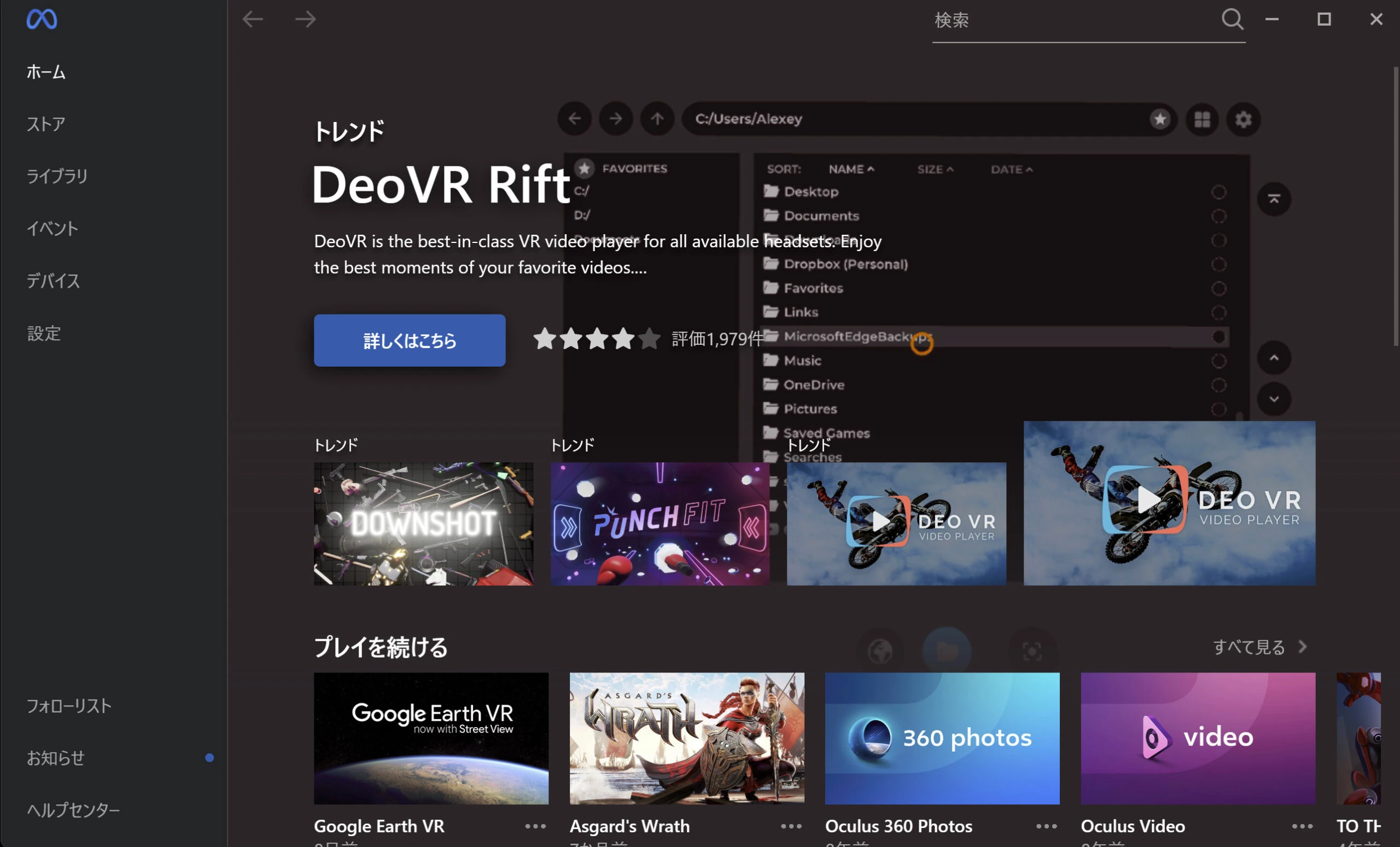
Connect Meta Quest 3
Test the project before packaging. Connect Meta Quest 3 to the Windows PC over a wired Oculus Link connection. Wireless options such as Oculus Air Link were jerky in my setup, so I recommend wired for this example. This article does not cover Link connection setup in detail; consult other instructions as needed.
Related products: Search Amazon for Meta Quest 3 (Ad)
Related products: Search Amazon for USB cables for connecting Meta Quest to a PC (Ad)
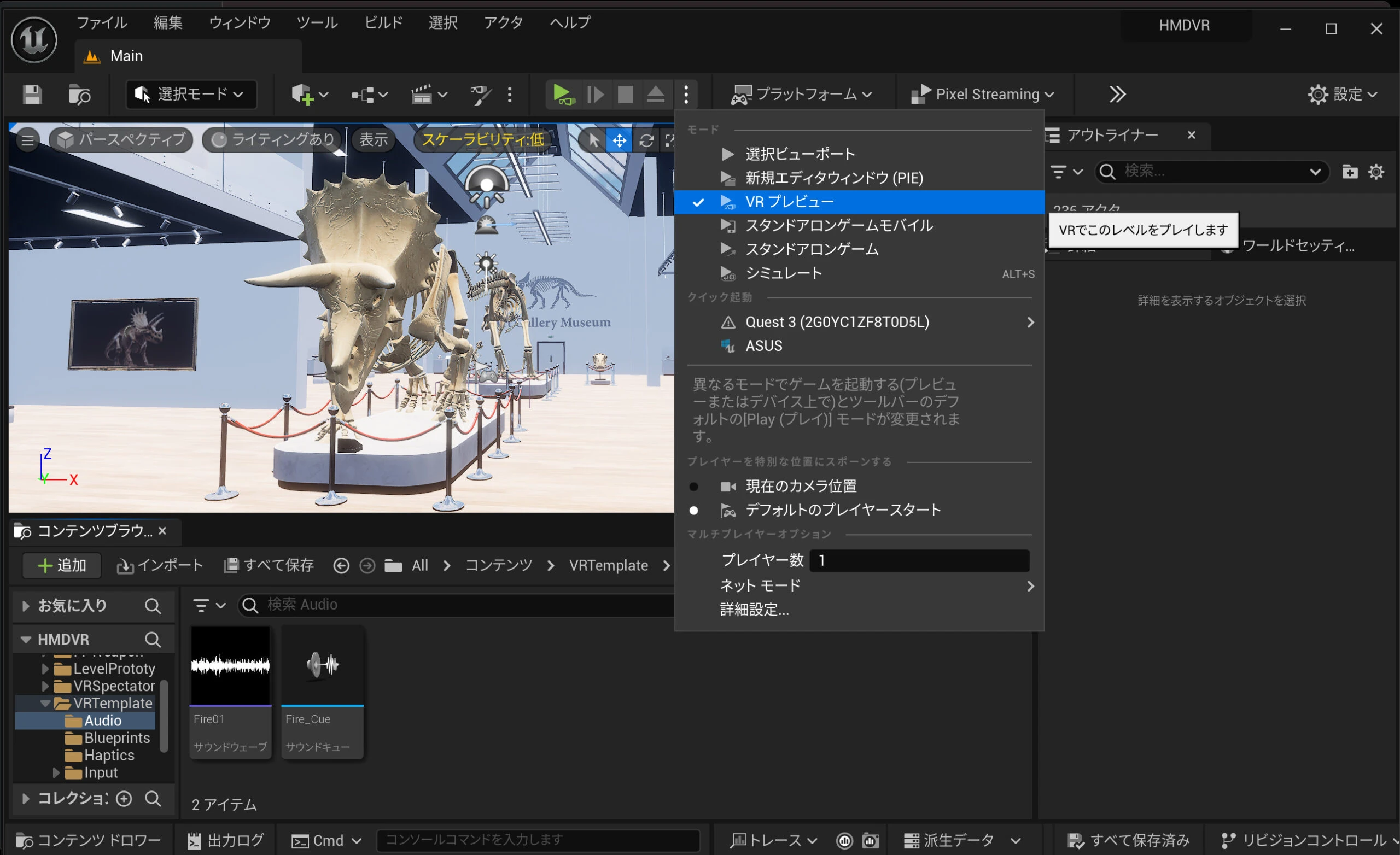
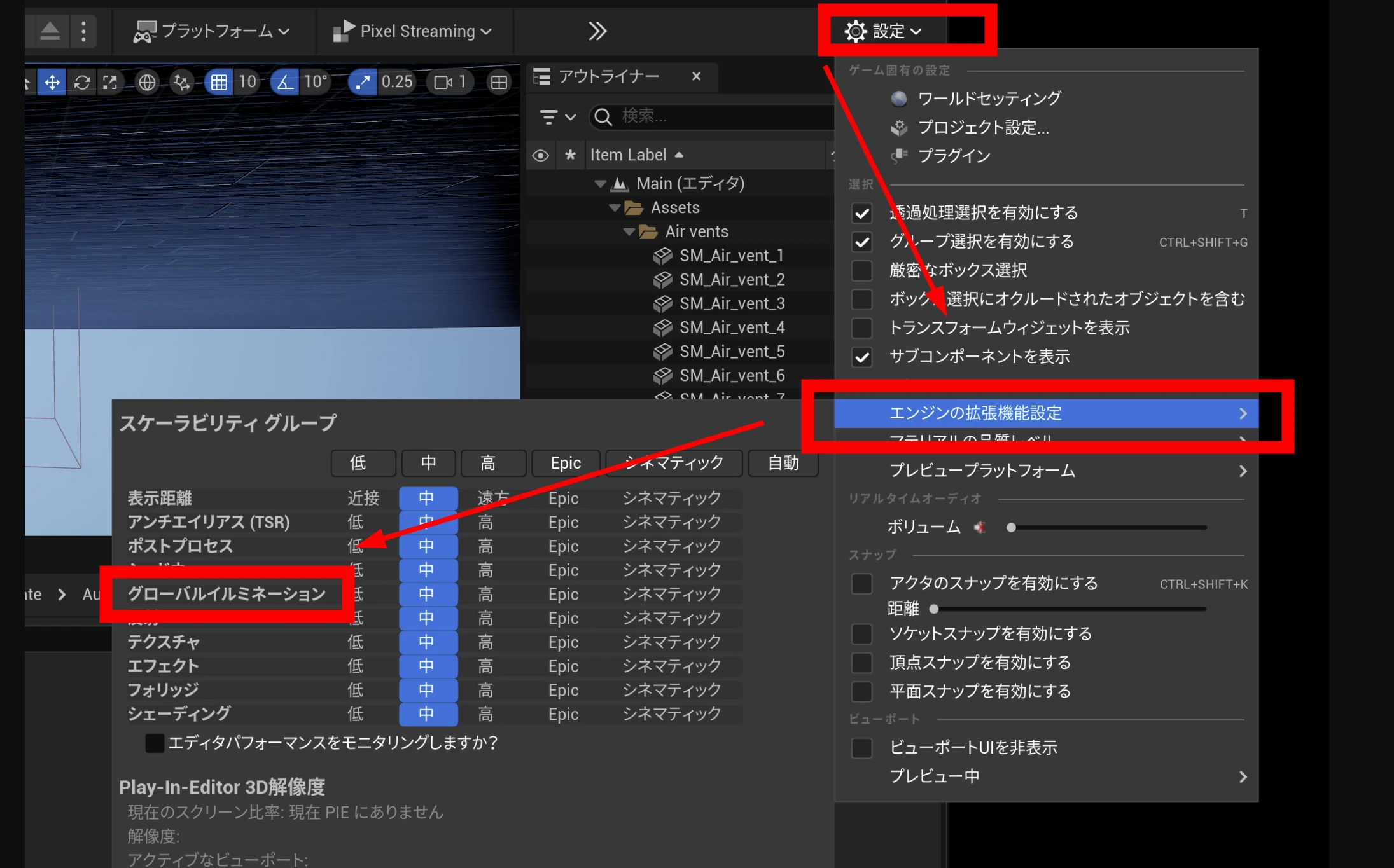
 If Oculus Link is connected, VR Preview appears in the platform/play options. Its performance can be adjusted through the engine scalability settings.
Try changing engine scalability and running VR Preview. In my tests, global illumination had the greatest impact. Setting it to Medium or lower eliminated the stutter and made movement smooth. Global illumination here is closely tied to Lumen; Medium or lower disables it.
These scalability settings apply to preview, separately from the packaged application. A smooth preview therefore does not guarantee that a packaged build will run smoothly.
If Oculus Link is connected, VR Preview appears in the platform/play options. Its performance can be adjusted through the engine scalability settings.
Try changing engine scalability and running VR Preview. In my tests, global illumination had the greatest impact. Setting it to Medium or lower eliminated the stutter and made movement smooth. Global illumination here is closely tied to Lumen; Medium or lower disables it.
These scalability settings apply to preview, separately from the packaged application. A smooth preview therefore does not guarantee that a packaged build will run smoothly.
Create a Blueprint that enables the HMD
Next, set up a Blueprint so the HMD works after packaging. With the default settings, VR Preview may work even though VR does not start in the packaged application.
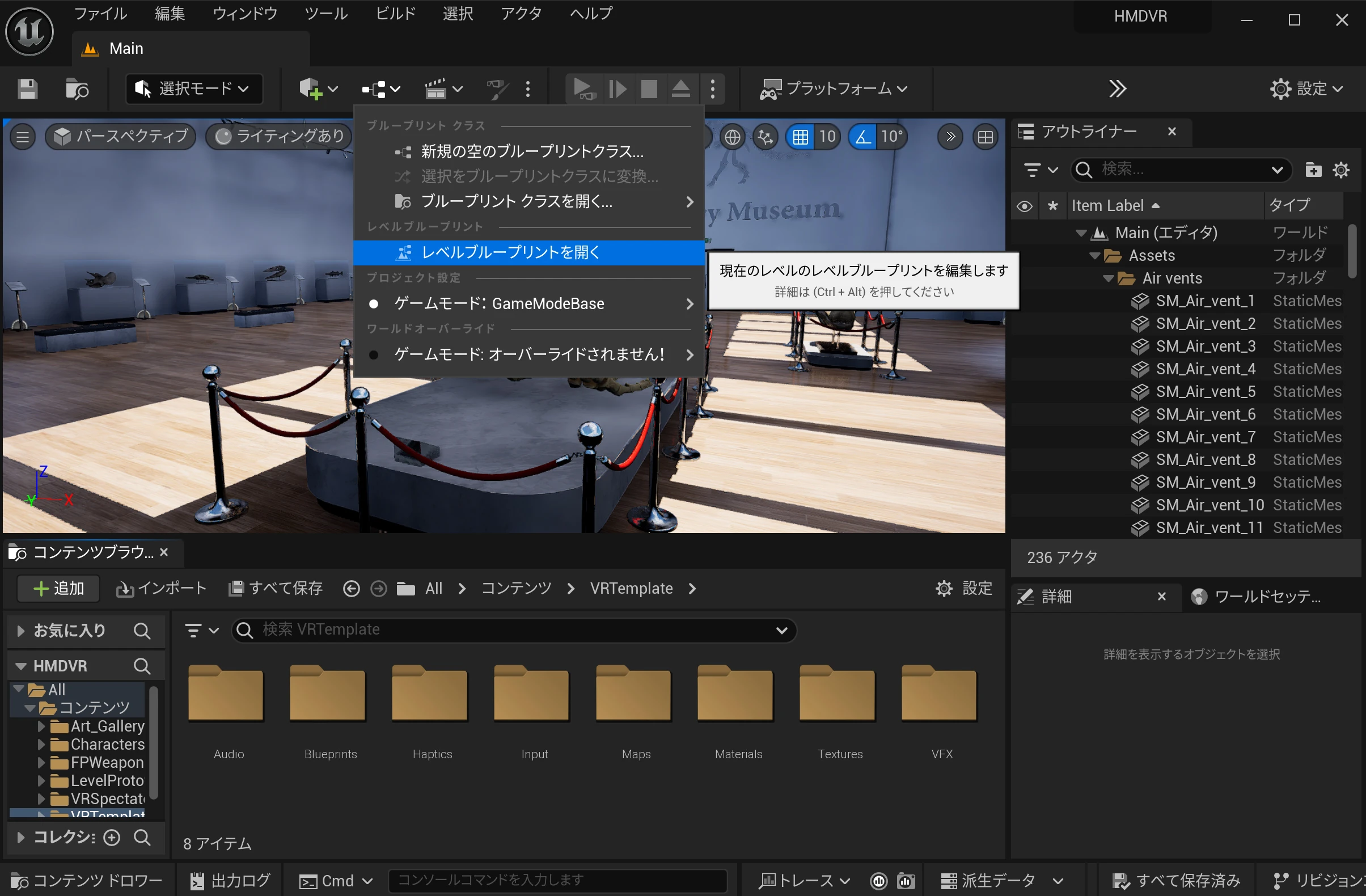
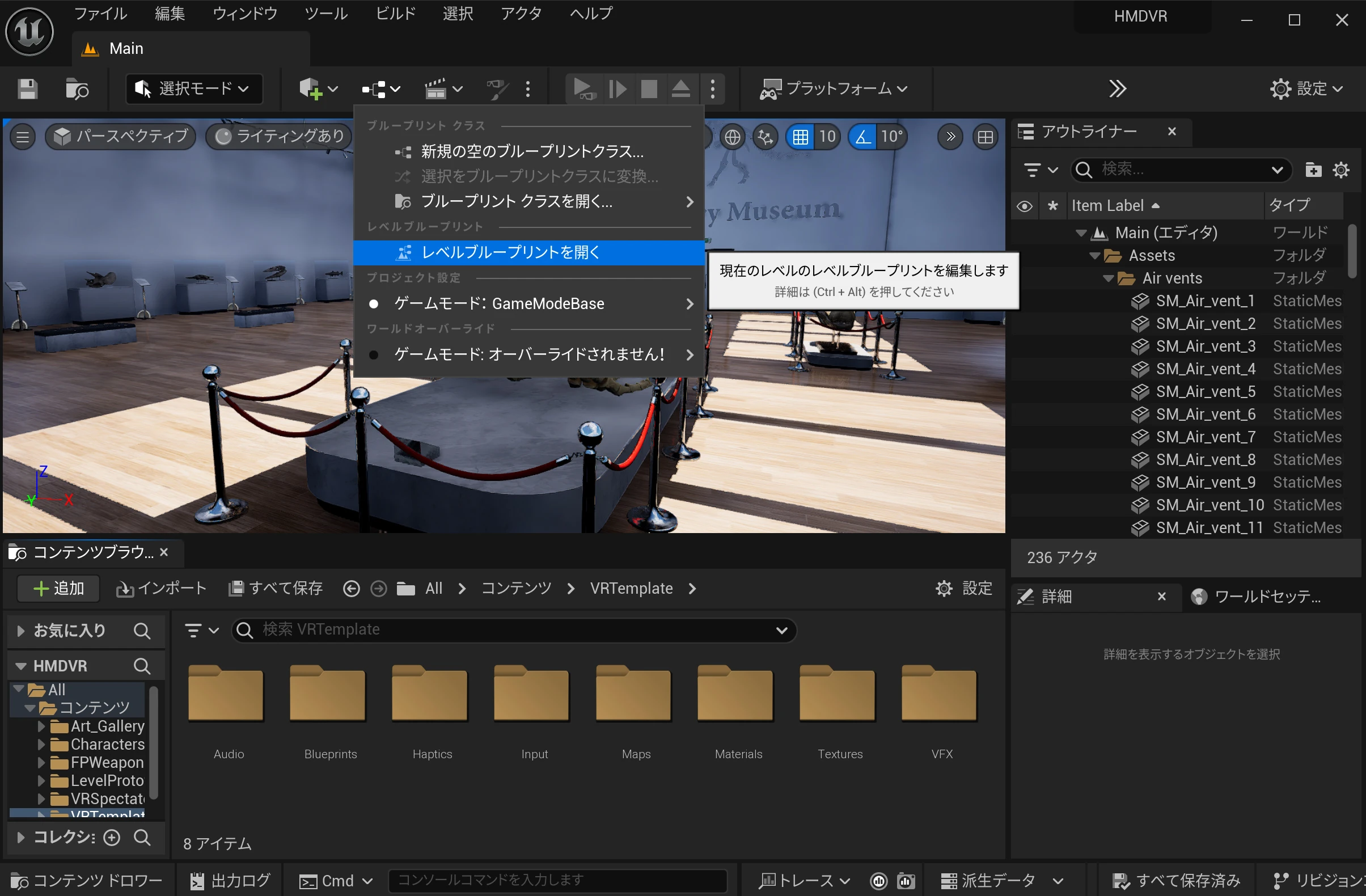 Open the Level Blueprint.
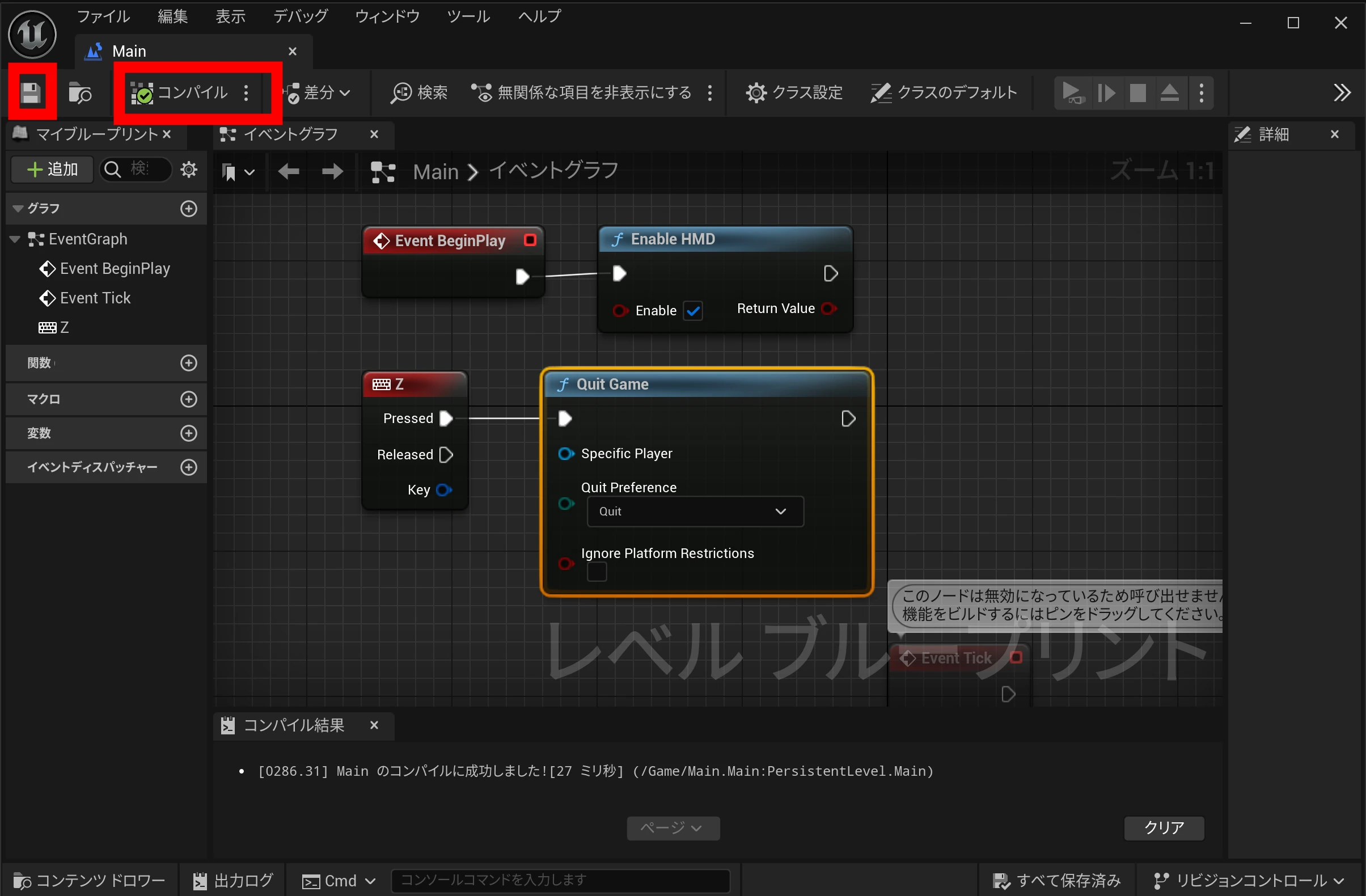
 Connect Enable HMD to Event BeginPlay.
Do not forget to check Enable.
This enables the HMD when the packaged project starts.
It is also useful to bind a key to Quit Game so that you can stop the application.
Use the following example as a guide, then compile and save.
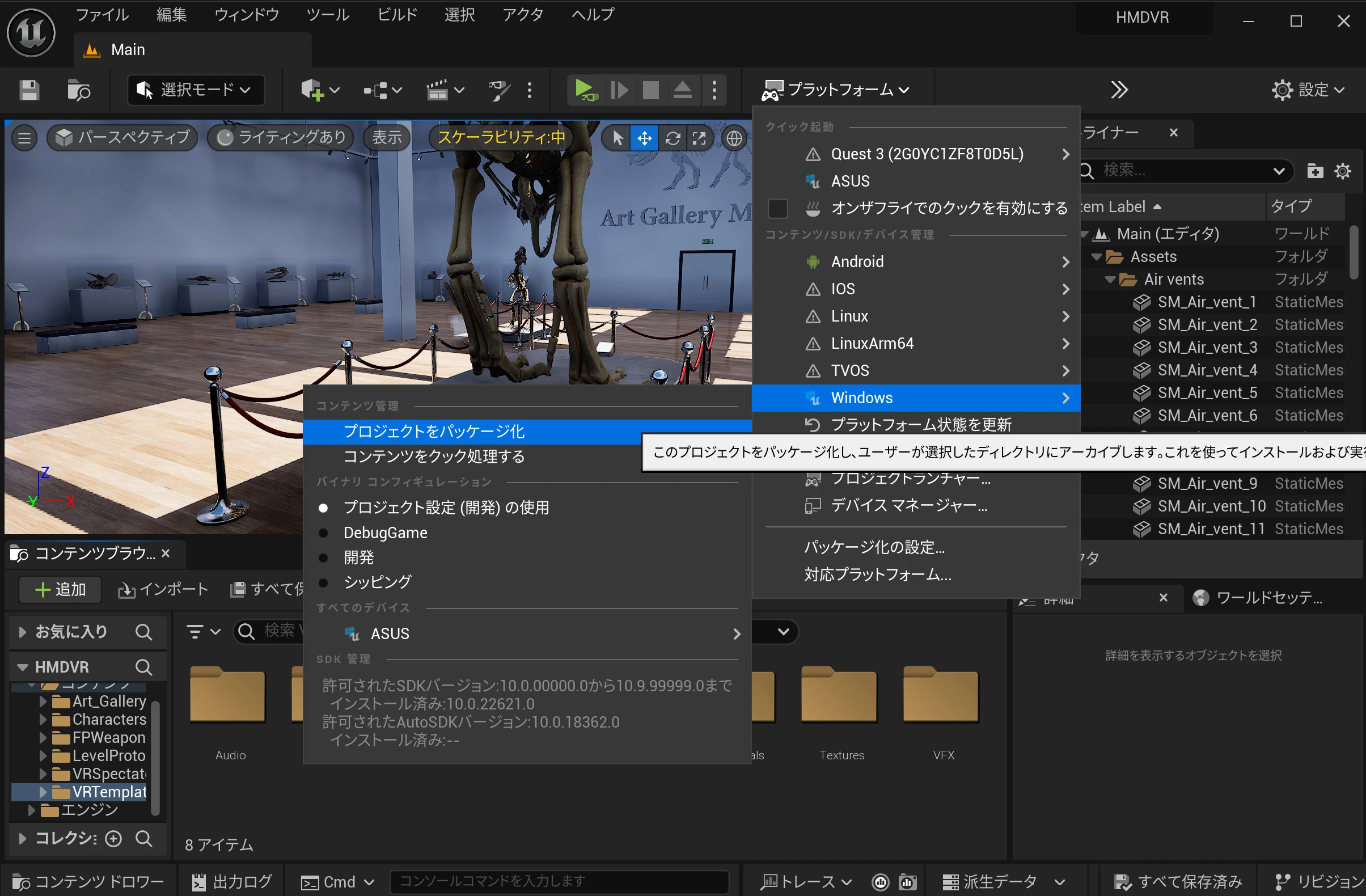
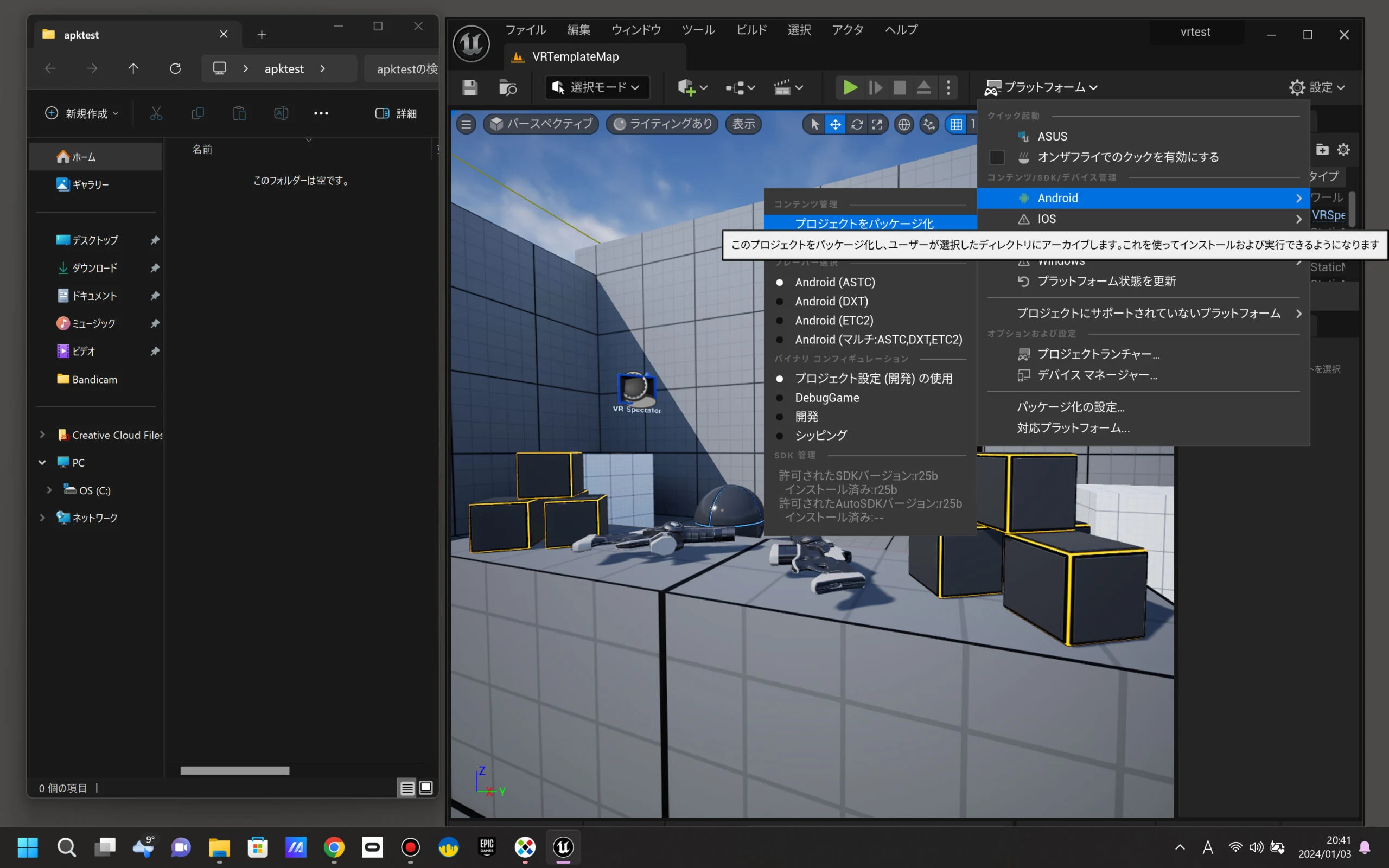
 Under Platforms > Windows, package the project. This creates runnable Windows files for distribution.
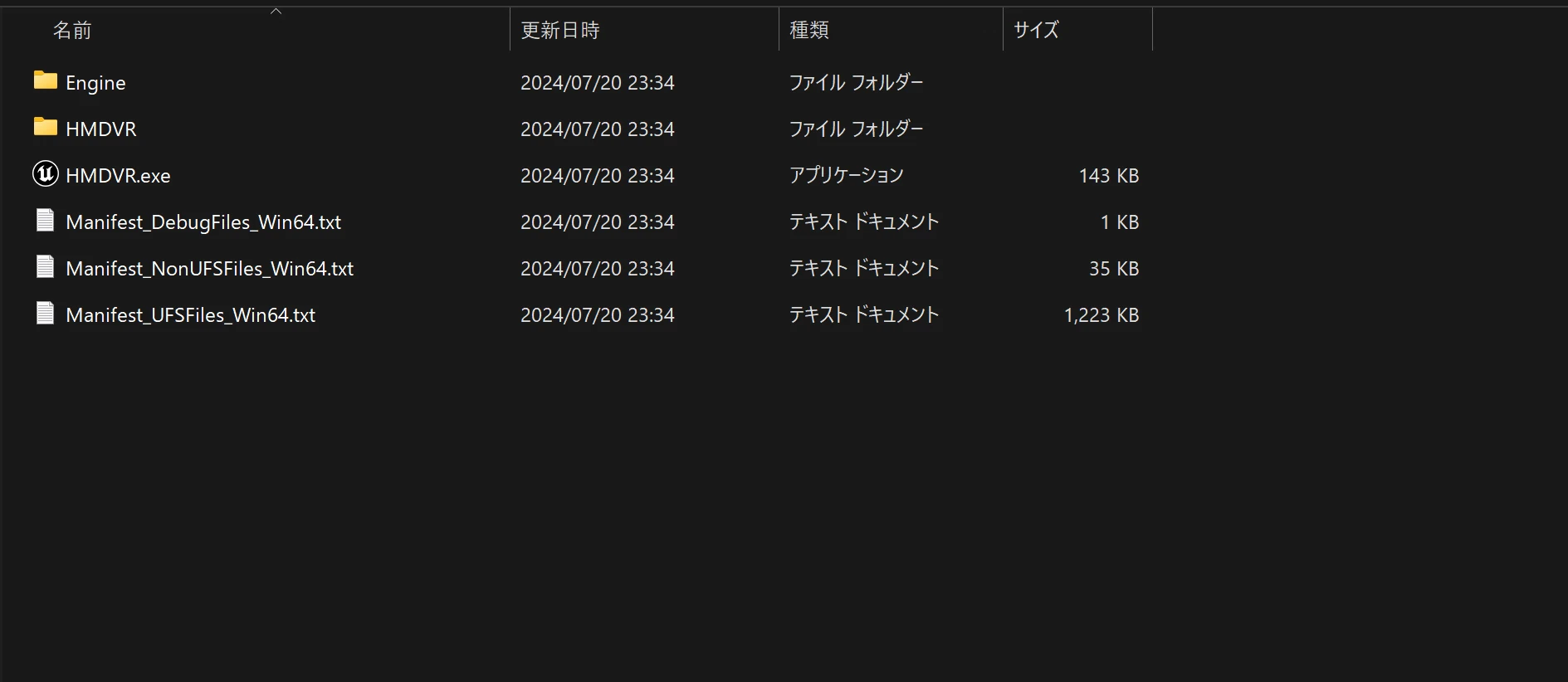
 Run the exported EXE to view the UE5 scene through the HMD. A connected gamepad can control movement. With the same settings as this article, WASD should also move you around, with Q and E for vertical movement.
 Run it and verify operation through the headset.
It can be quite jerky, so you need to balance the settings.
There are many possible settings for reducing the load.
For detailed tuning, consult references such as the following.
In practice, it can be hard to tell which individual settings help.
You may not immediately find a dramatic improvement when the app runs poorly.
- XR Performance Features https://dev.epicgames.com/documentation/ja-jp/unreal-engine/xr-performance-features-in-unreal-engine
- XR Best Practices https://dev.epicgames.com/documentation/ja-jp/unreal-engine/xr-best-practices-in-unreal-engine
- Developing for Oculus https://dev.epicgames.com/documentation/ja-jp/unreal-engine/developing-for-oculus-in-unreal-engine
VR options under Project Settings > Rendering sometimes helped, sometimes did not, and sometimes behaved poorly. Their effects were not always clear to me.
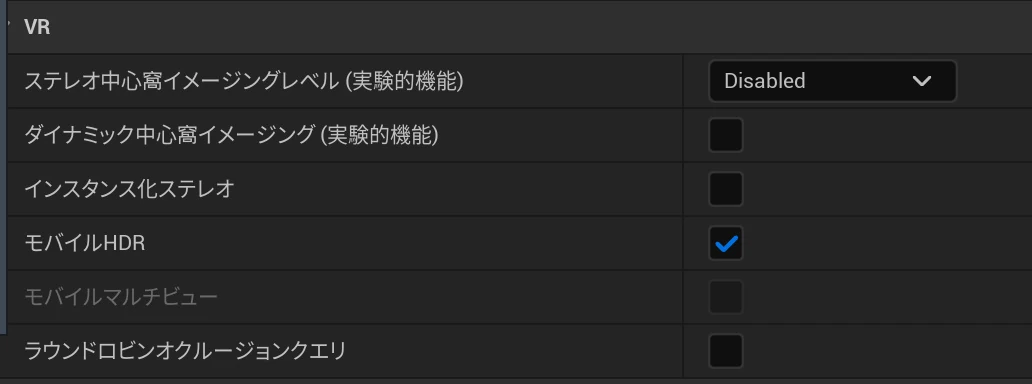
Simple settings that improved performance
Fine tuning may solve many issues, depending on the project load. In my case, changing various settings did not produce a particularly good result. There may be a better method, but here is the simplest approach that had a clear effect.
Lumen global illumination had a large impact, so first try disabling it. In Project Settings > Rendering, change Dynamic Global Illumination and Reflection Method from Lumen to None.
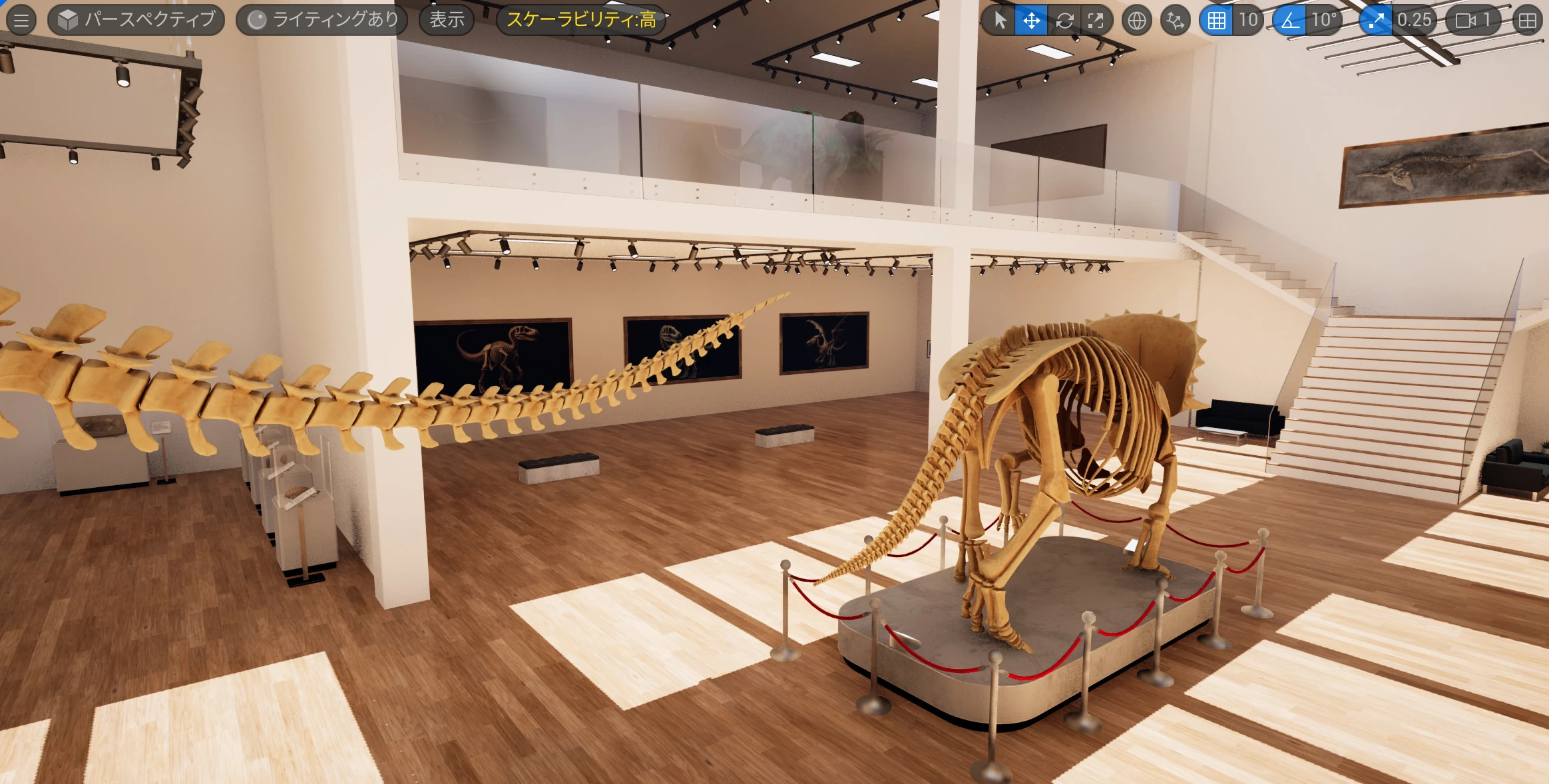
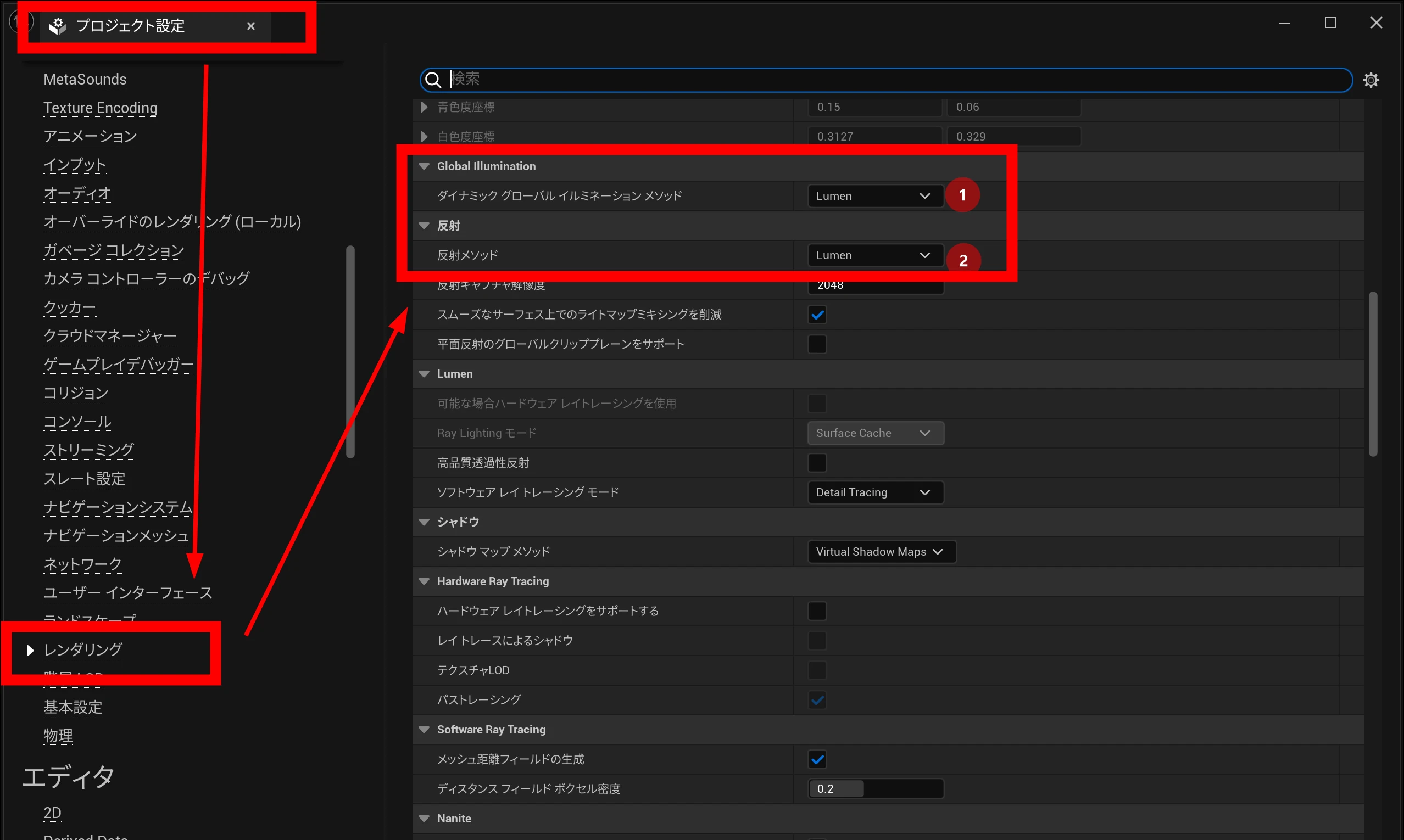 Package the project and test again. Lumen produces realistic lighting in real time, so disabling it makes the image look more like older computer graphics.
It changes from a realistic-looking view like this...
Package the project and test again. Lumen produces realistic lighting in real time, so disabling it makes the image look more like older computer graphics.
It changes from a realistic-looking view like this...
 ...to this rather plain-looking result.
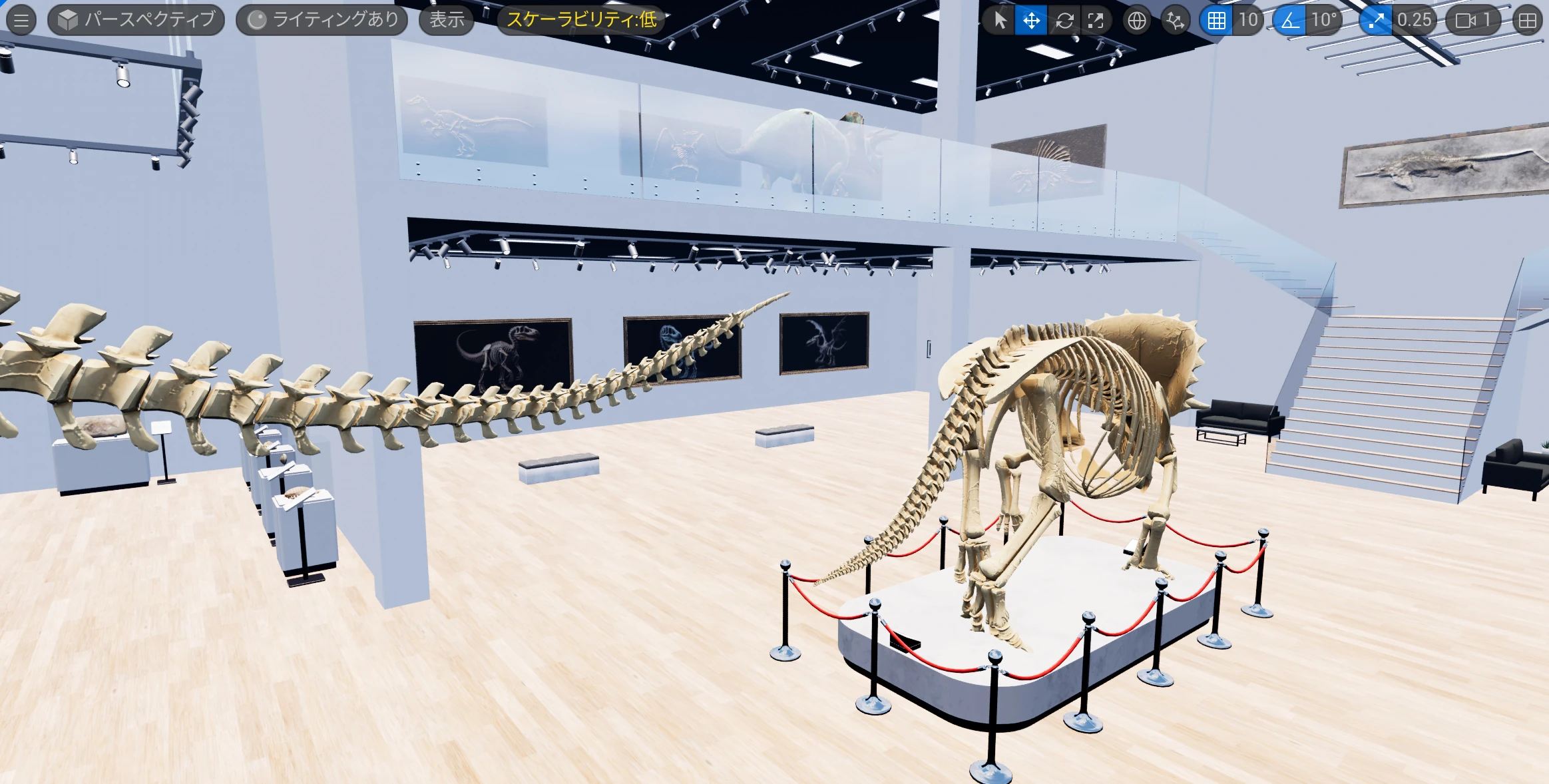 If that look is acceptable, turning off Lumen can make the app run comfortably. If you need Lumen, restore its settings and try the following approach.
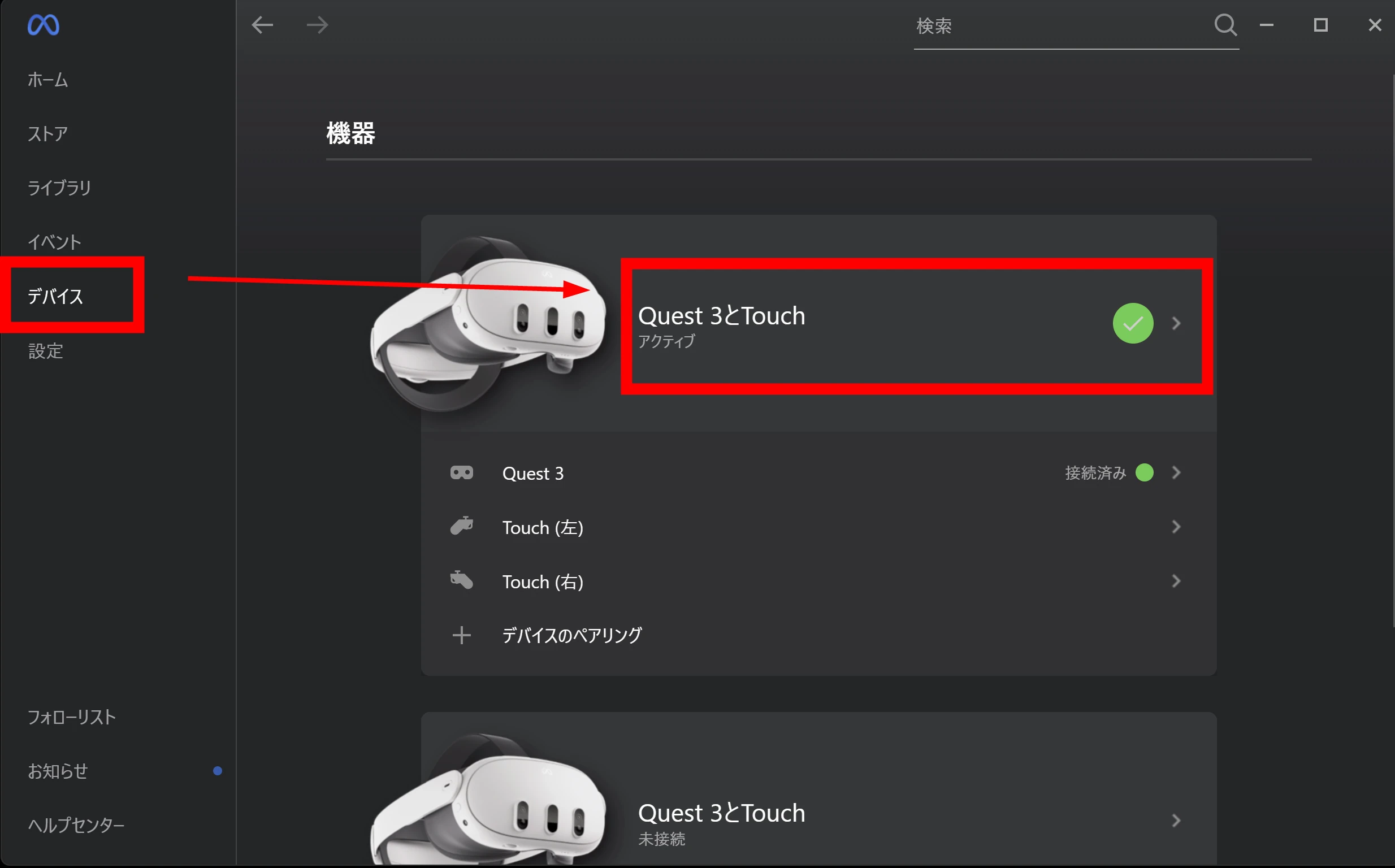
Lower the resolution for Meta Quest 3. Open the Meta Quest Link app and select the Quest 3 you are using in its device settings.
If that look is acceptable, turning off Lumen can make the app run comfortably. If you need Lumen, restore its settings and try the following approach.
Lower the resolution for Meta Quest 3. Open the Meta Quest Link app and select the Quest 3 you are using in its device settings.
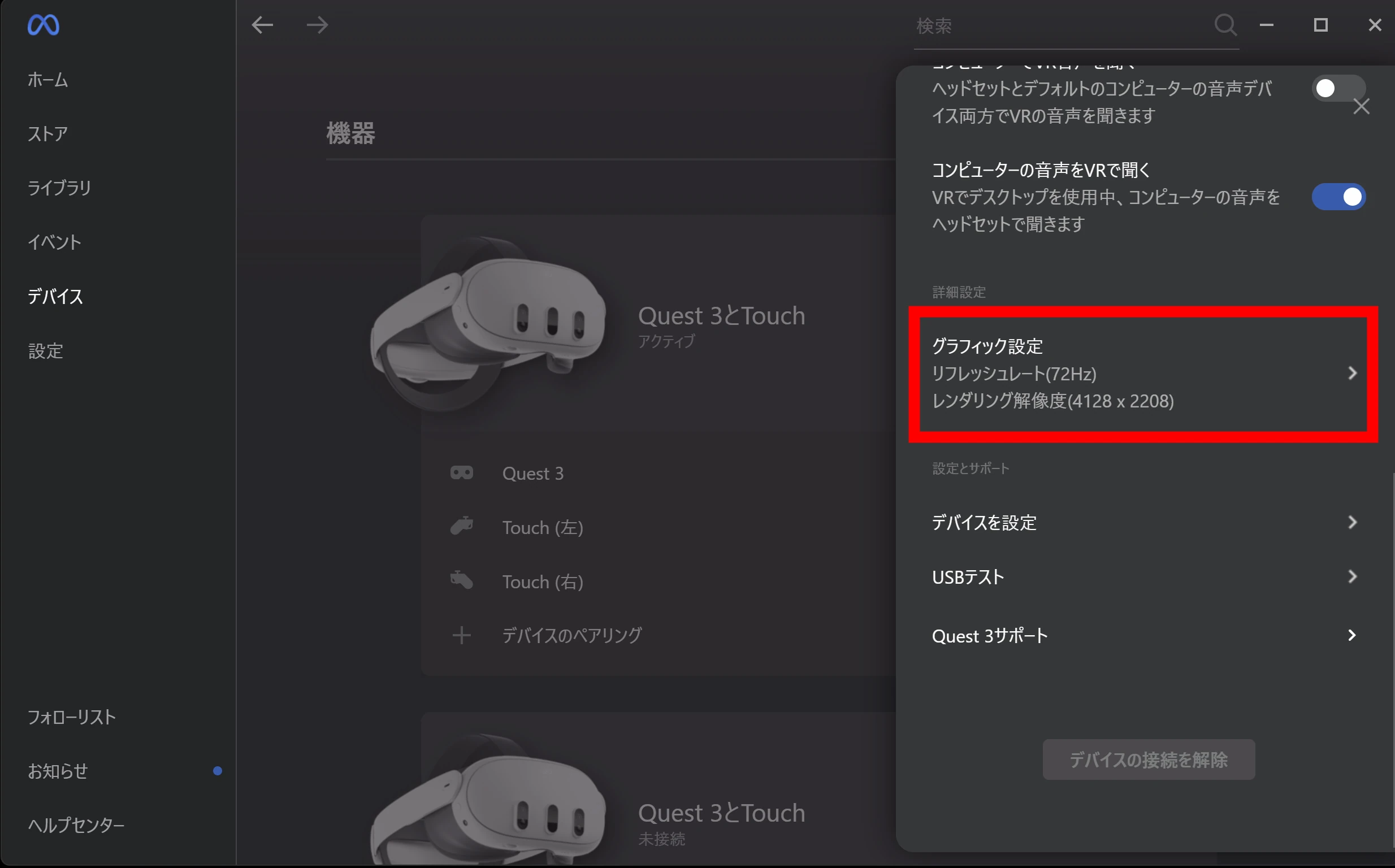
 Select Graphics settings.
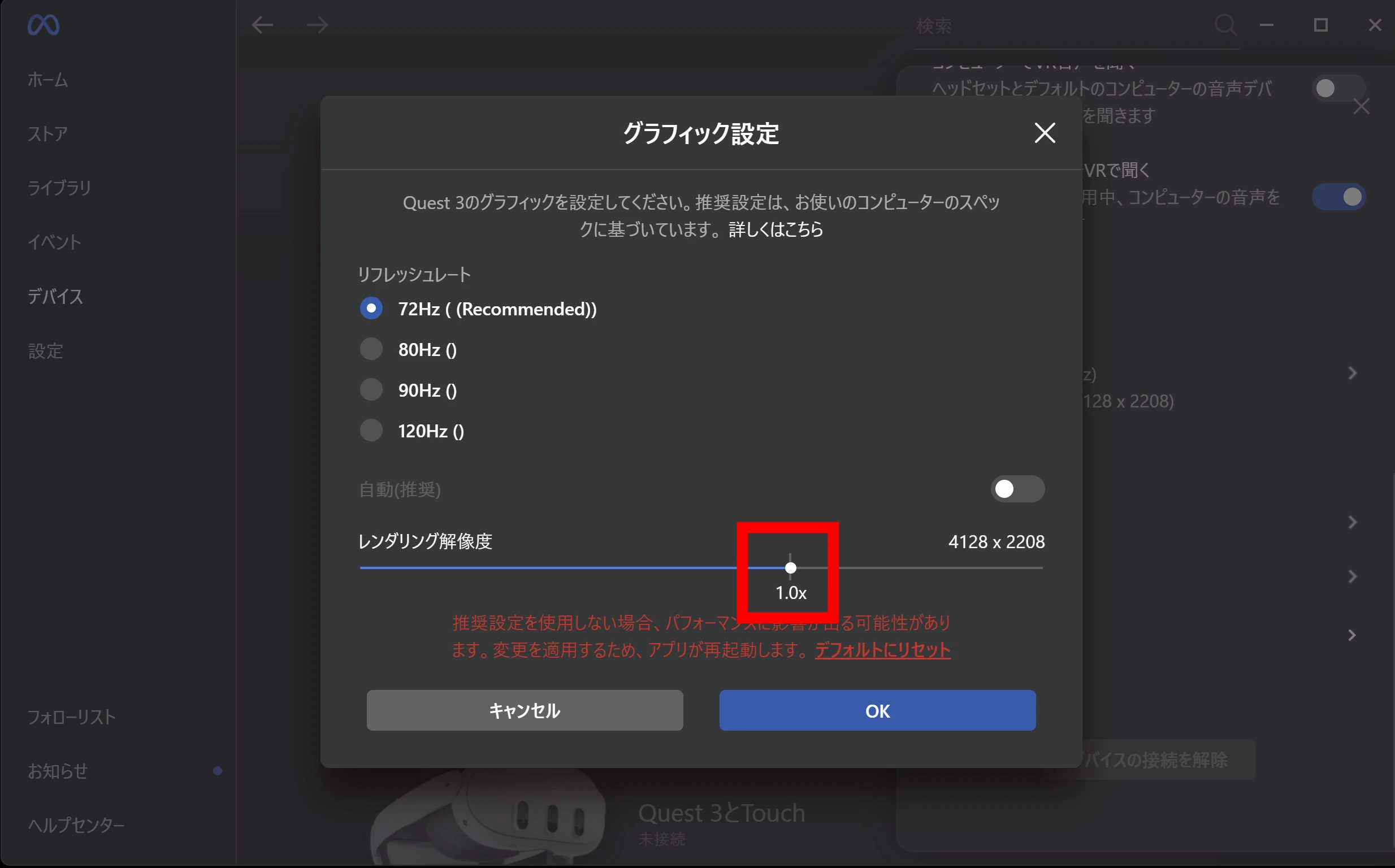
 Rendering Resolution is set to 1.0 by default in this example.
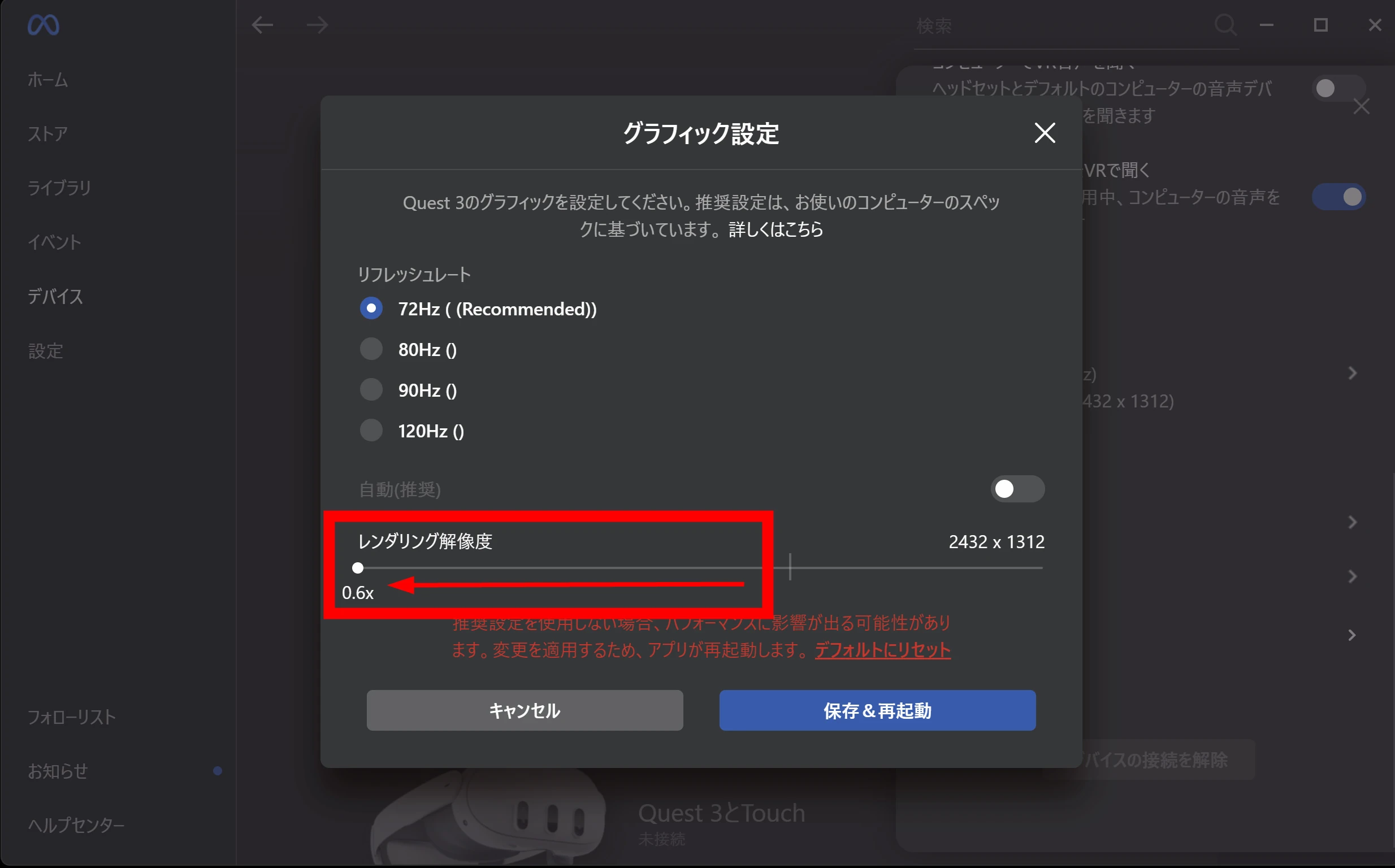
 Try lowering it to the minimum, test the application, then raise it until you reach a comfortable balance. Reducing resolution may let the project run smoothly even with Lumen enabled.
Meta Quest 3 listings (storage capacity unspecified)View listings on Amazon Ad / Amazon Associates link
Related articles
Updates and contact: X @riragoncom.