Part 4: Building a Meta Quest 3 mixed-reality passthrough APK with Unreal Engine 5.3 in 2024
Set up Meta XR passthrough in Unreal Engine 5.3 and export an Android APK for Meta Quest 3. This January 2024 walkthrough also experiments with hand tracking and depth, including plugin conflicts and preview problems.
Note: This article was first published more than a year ago.
- As the title indicates, these steps assume Unreal Engine 5.3. XR plugins and project templates may differ in 5.4 and later.
- Meta Quest builds are sensitive to Android and OpenXR toolchain updates. Check official version compatibility each time.
- Packaging error messages vary by version. Compare logs with current documentation rather than relying only on the wording here.
In the previous article, I set up Android tools and the development environment for Meta Quest 3. This time I want to try color passthrough and related features.
Displaying color passthrough on Meta Quest 3
This walkthrough exports an MR, or mixed-reality, APK using Unreal Engine 5.3 and color passthrough on Meta Quest 3.
Related products: Search Amazon for Meta Quest 3 (Ad)
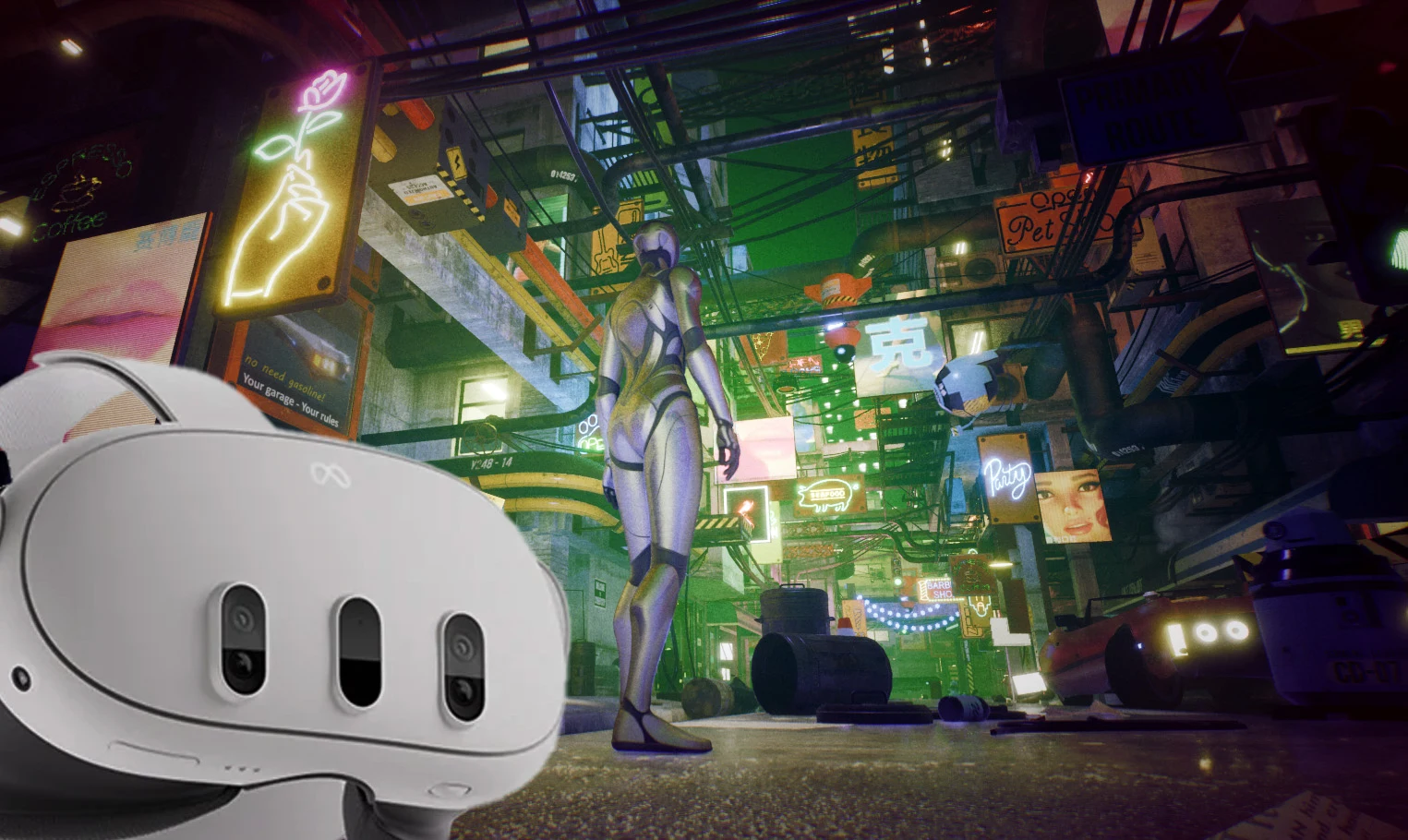
Color passthrough is one of Quest 3's main features.
It shows the real surroundings as live color video while you wear the VR headset.
You can therefore see the real environment in color while interacting with a virtual world.
In short, you can display 3D objects with the real world visible behind them. I had no idea how to make an MR app for Meta Quest 3, so I researched a workflow using Unreal Engine 5.3.
Download the Unreal Engine resources
Download the Unreal Engine resources from Oculus Developer. The site provides tools, plugins, and SDKs for developing VR experiences on Oculus devices. Click Unreal Engine 5 Integration.
https://developer.oculus.com/downloads/unreal-engine/
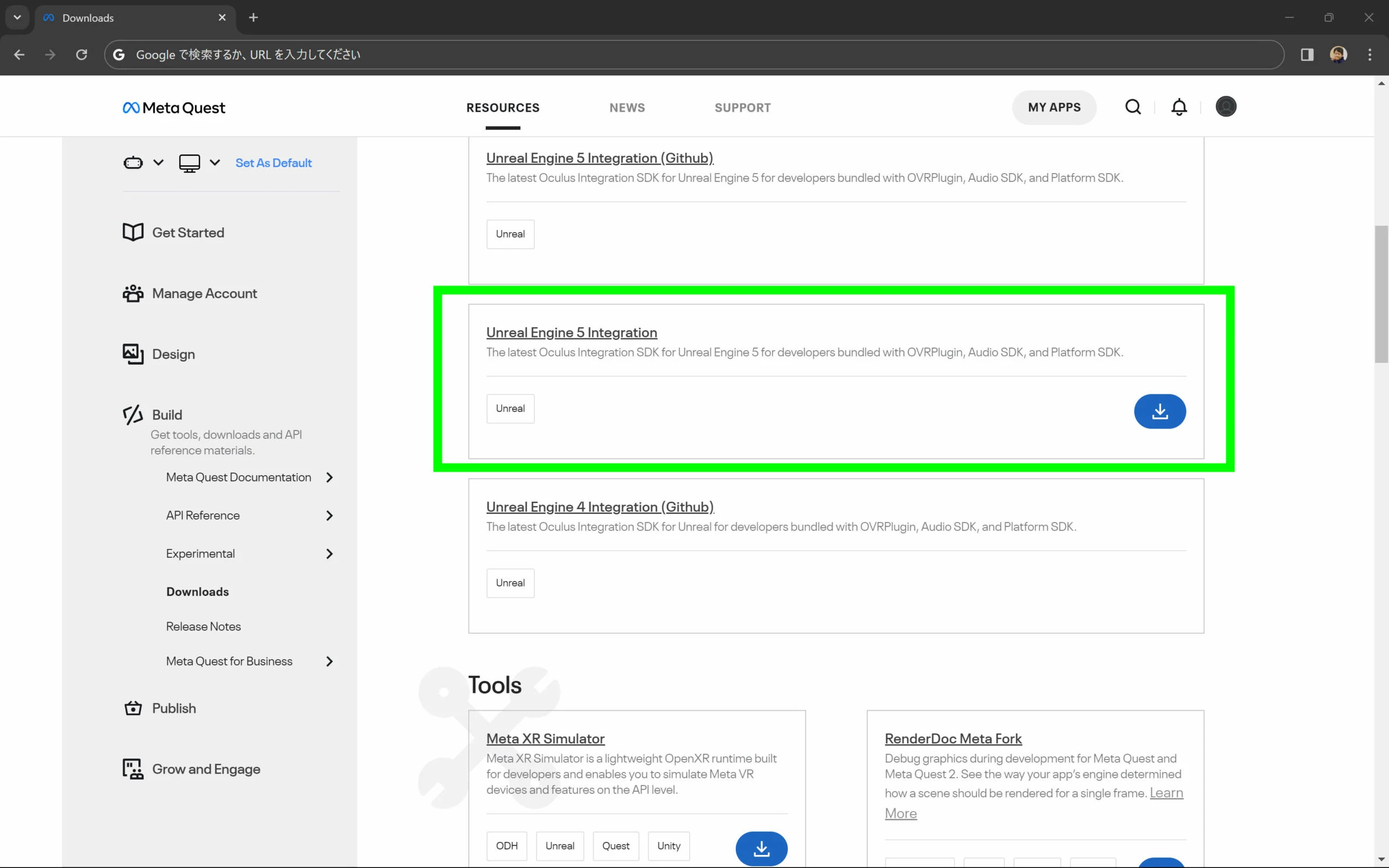 In January 2024, 60.0 was the latest version. Download that release for this walkthrough.
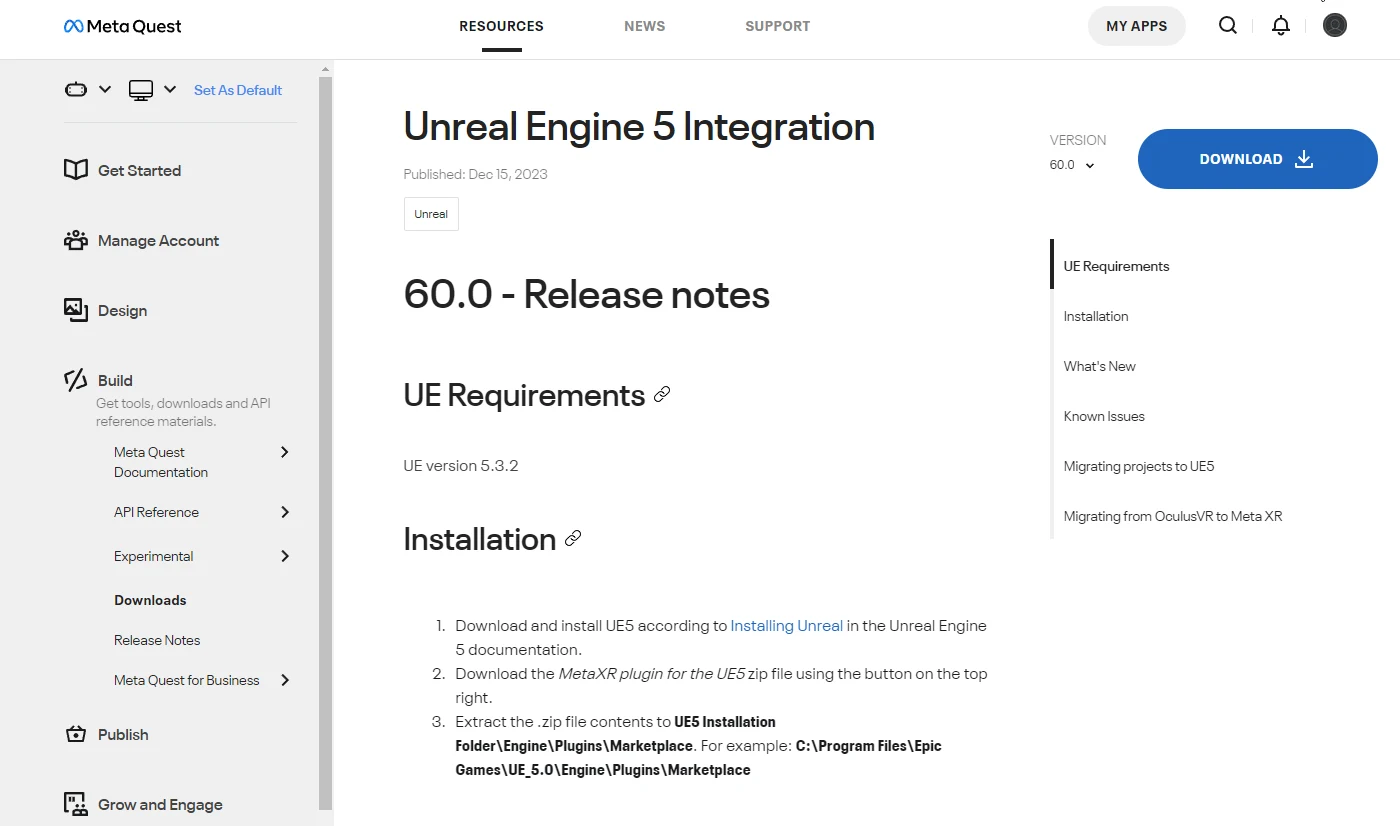 This version number appeared to match the Meta Quest build version.
I assumed that when the Meta Quest build moved to 60.0, Unreal Engine 5 Integration would also need to be updated to 60.0.
Because Meta Quest updates automatically, that could be awkward for long-term development and support.
Meta Quest release notes
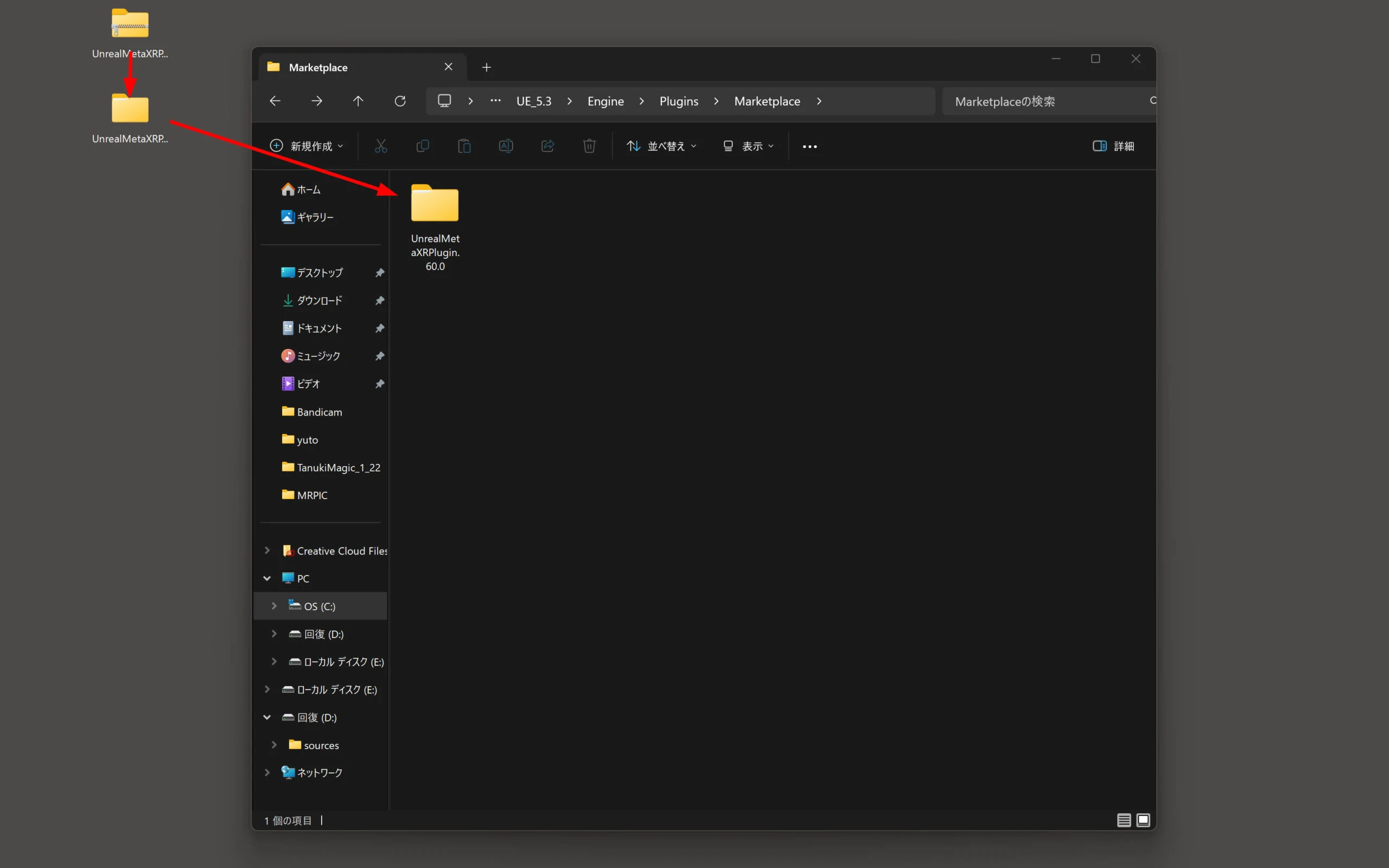
 Extract UnrealMetaXRPlugin.60.0.zip, create a Marketplace folder, and move the UnrealMetaXRPlugin.60.0 files into it.
Find the folder where Epic Games is installed, commonly C:\Program Files\Epic Games.
It is normally on the C drive, but a deliberate installation on another drive might look like the following.
Example: X:\UE_5.3\Engine\Plugins\Marketplace
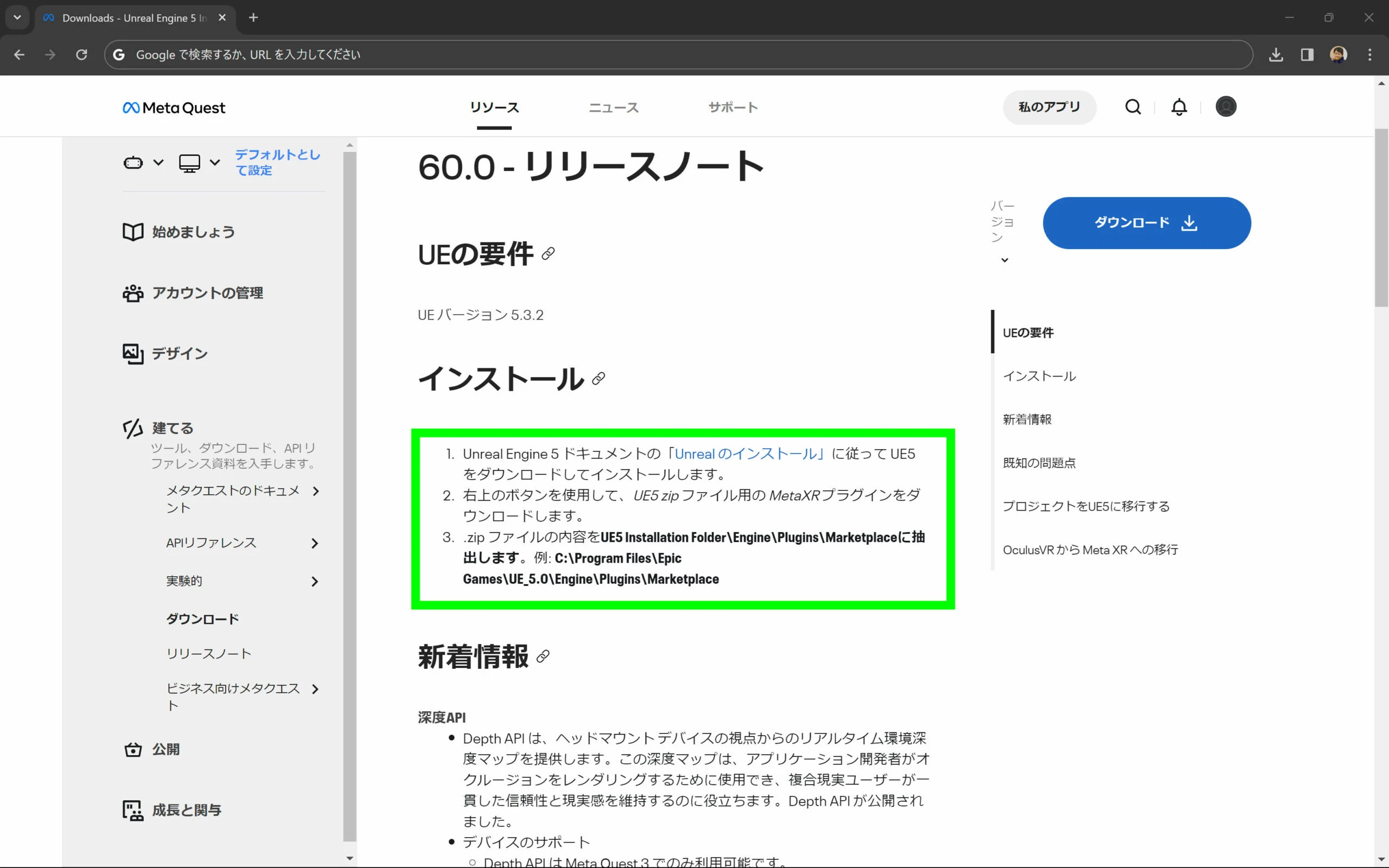 The operation is simply to extract UnrealMetaXRPlugin.60.0.zip and move the plugin files into the Marketplace folder.
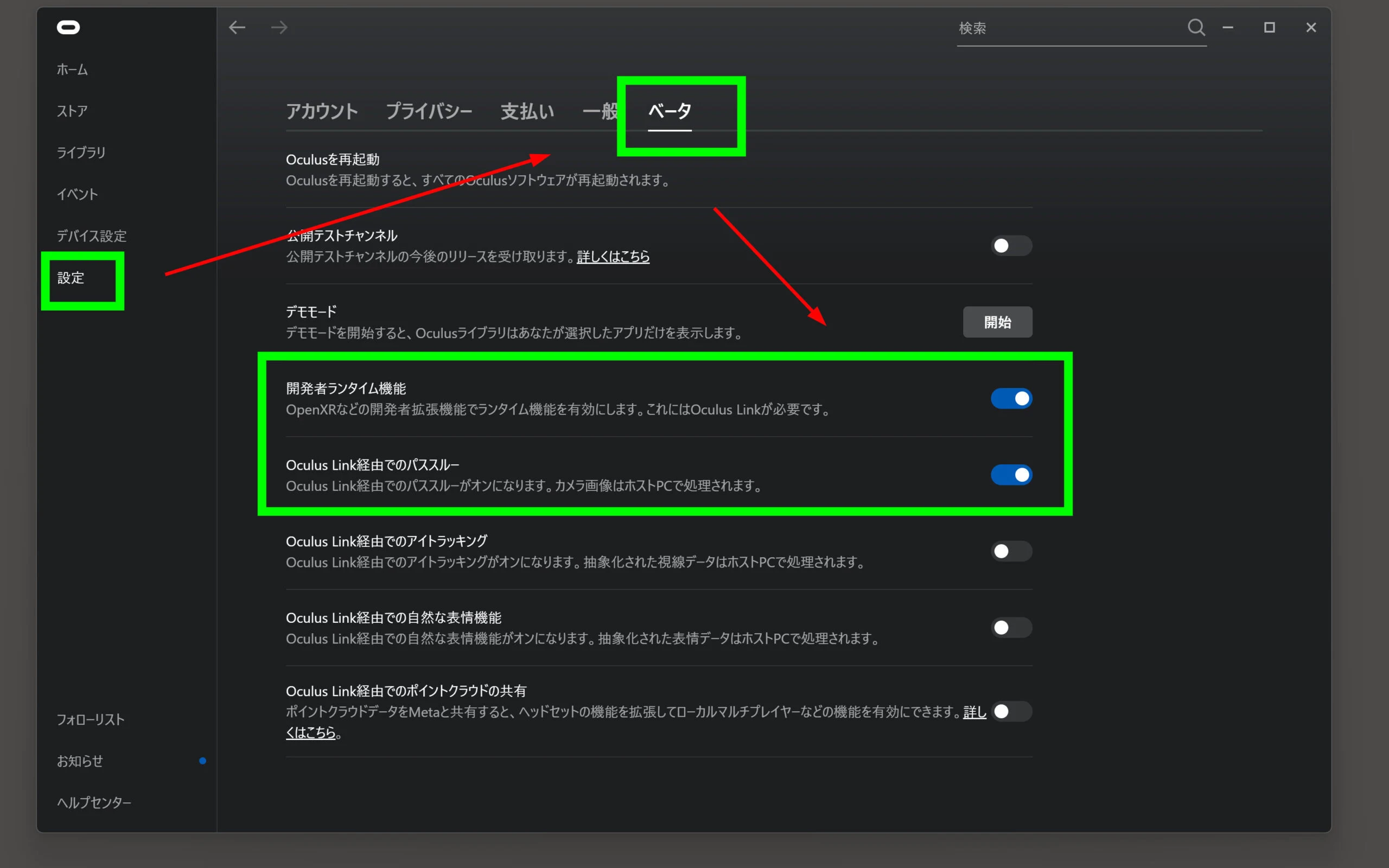
 Start the Oculus application on the PC. In Settings > Beta, enable Developer Runtime Features and passthrough over Oculus Link. If you have not registered as an Oculus developer, look up that registration process first. It is rather involved.
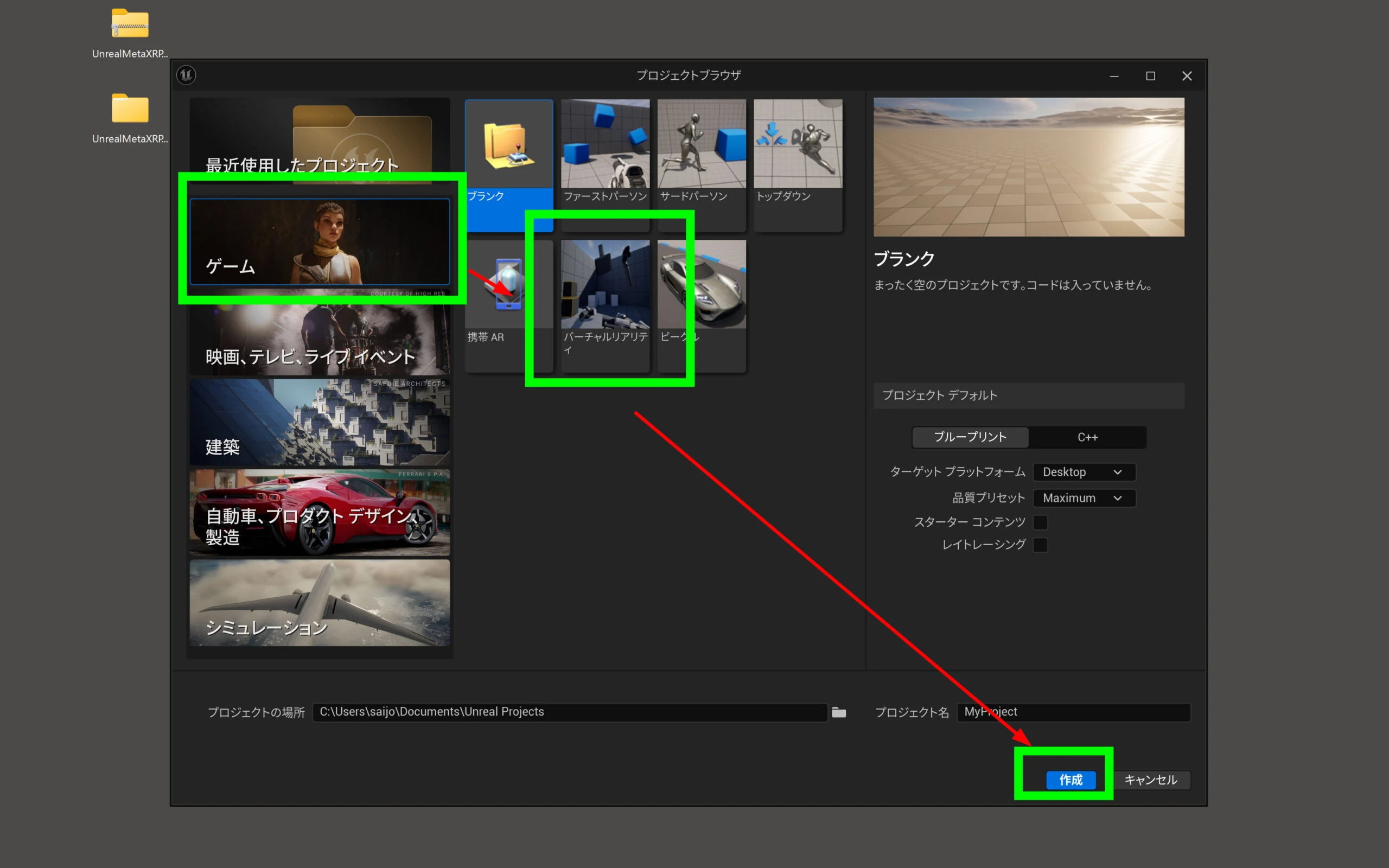
Create and configure the project
Create a Virtual Reality project in UE5.
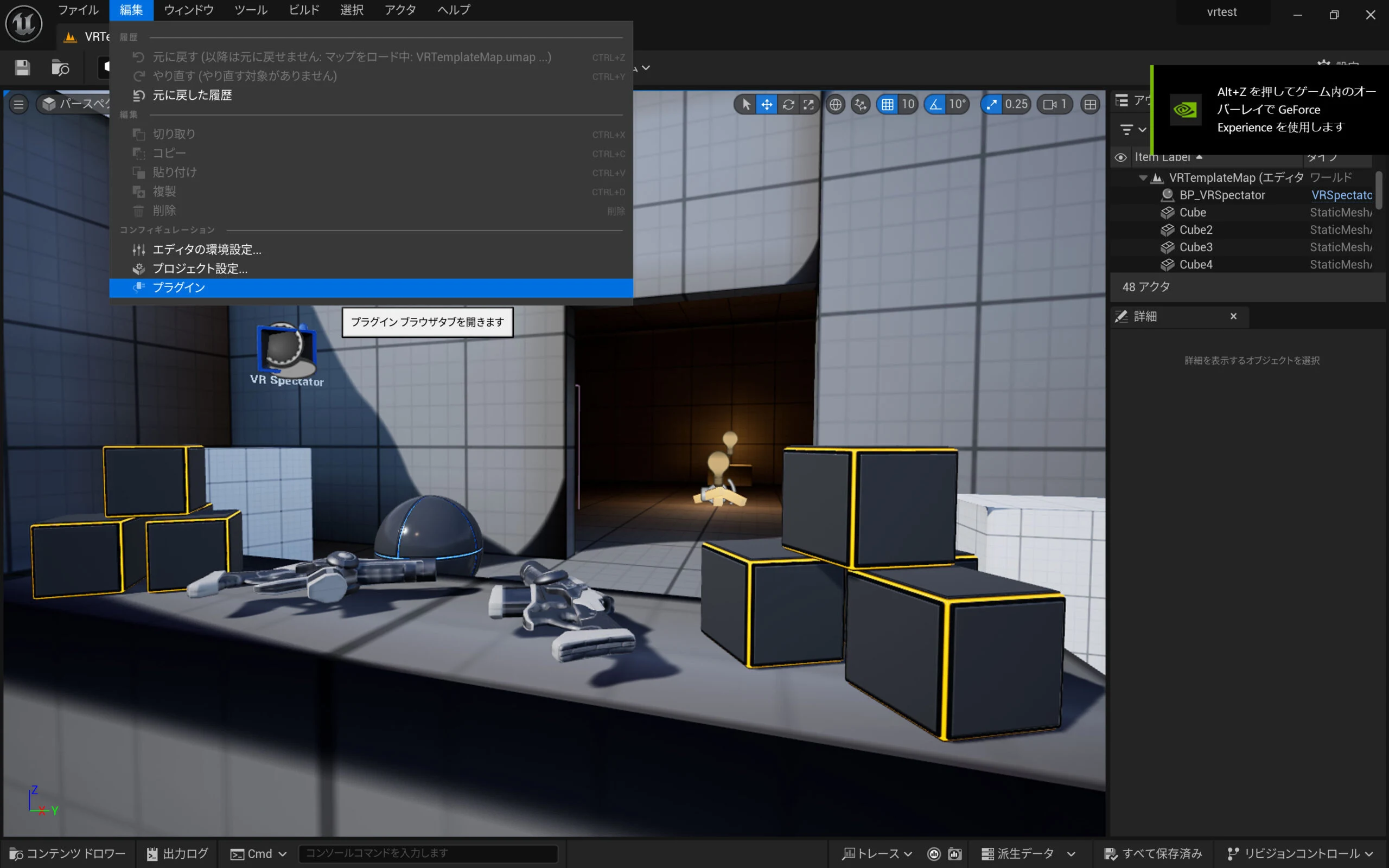
 Open Plugins from the Edit menu.
 Enable Meta XR and restart if requested.
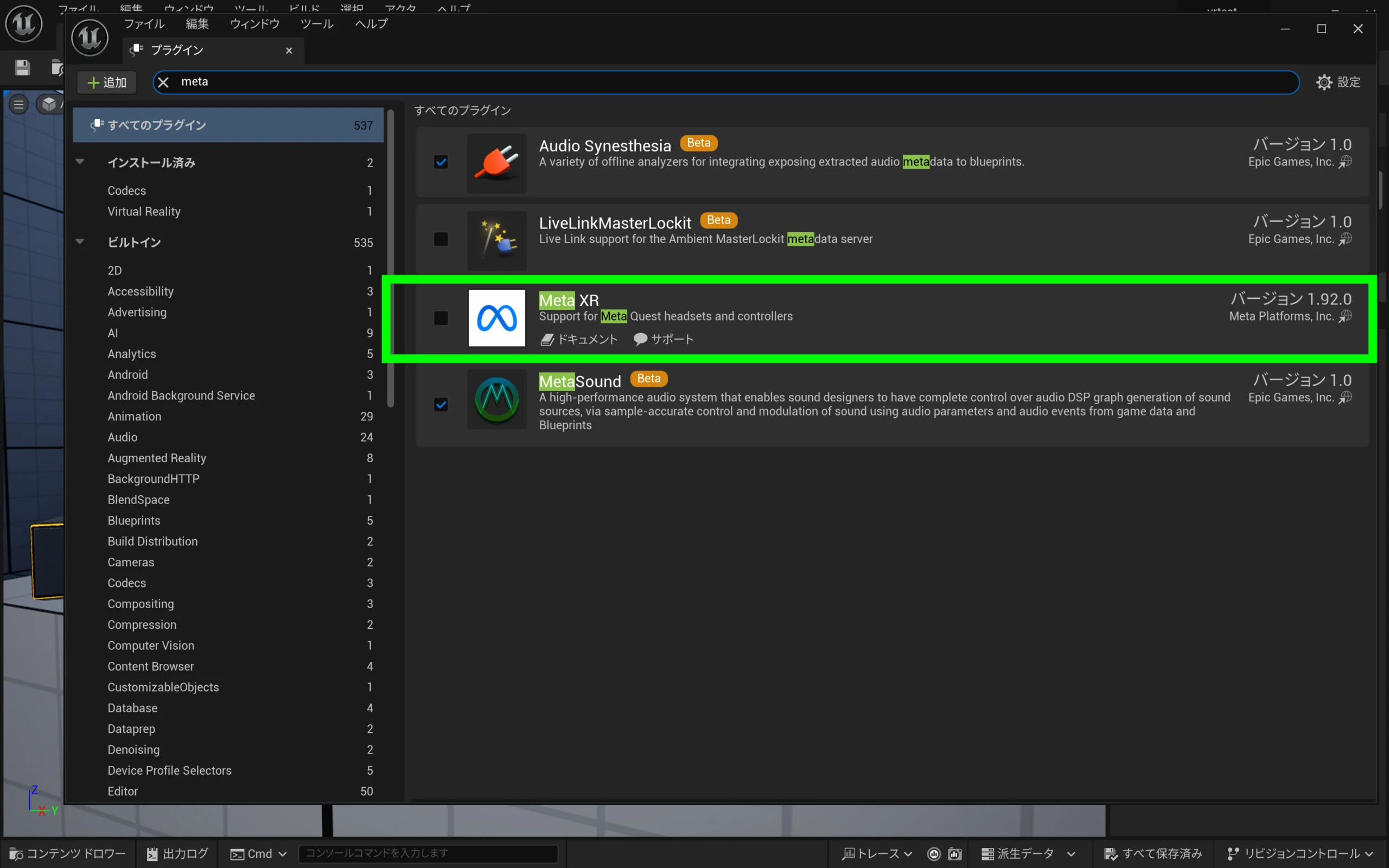 At the time of this setup, enabling both Meta XR and OpenXR prevented the project from working. Disable OpenXR. Doing so also disables two related options.
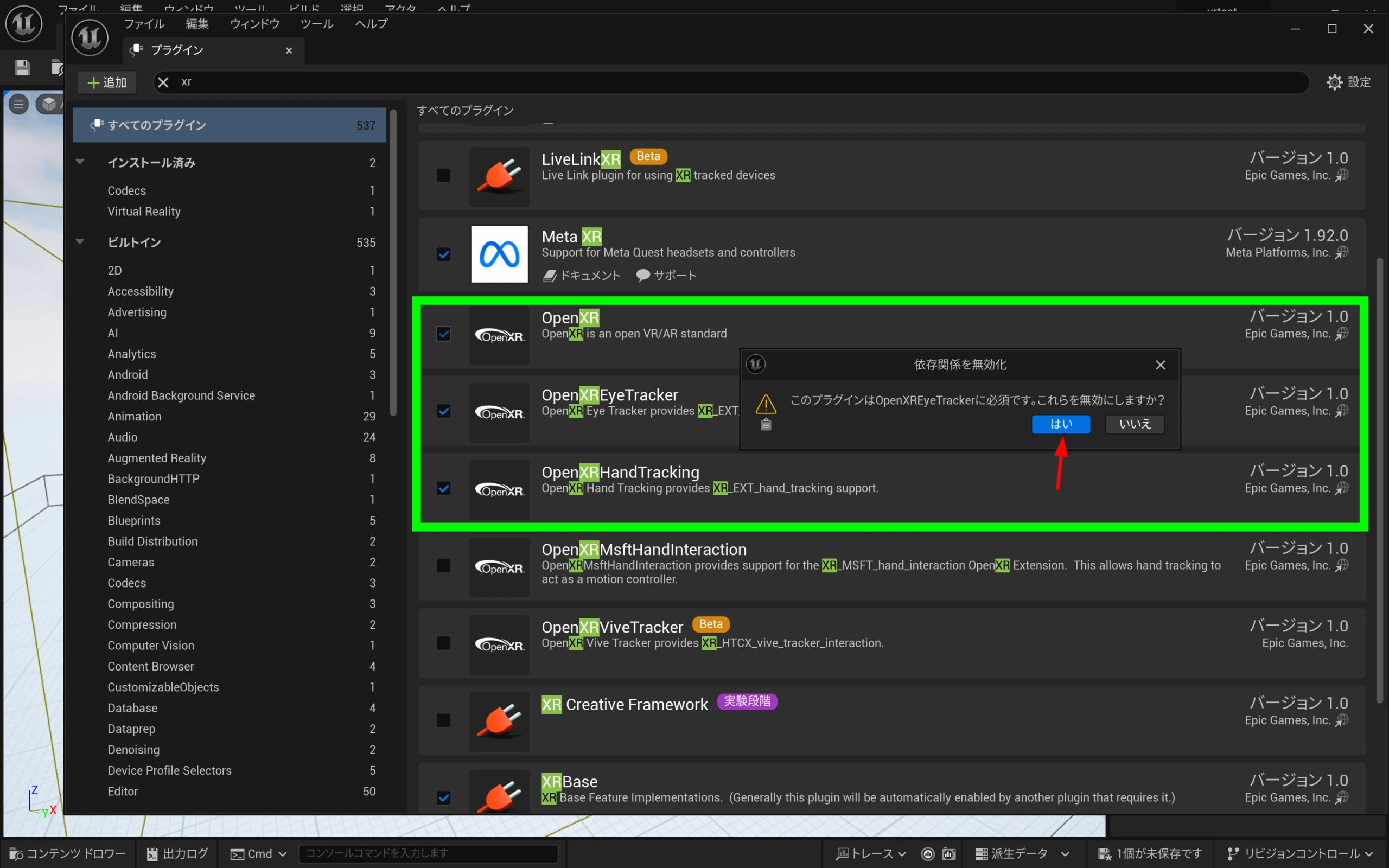 Restart the editor.
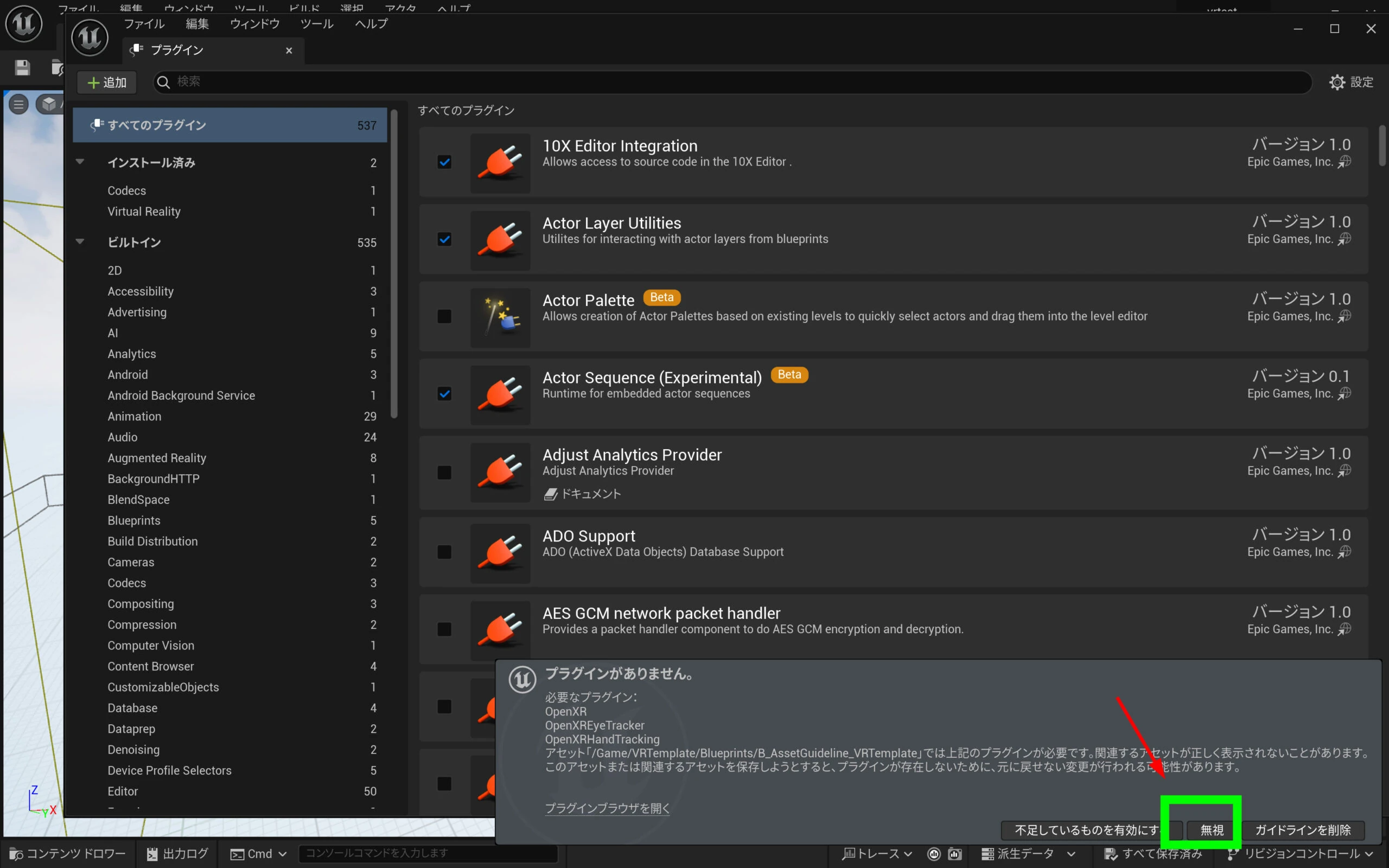
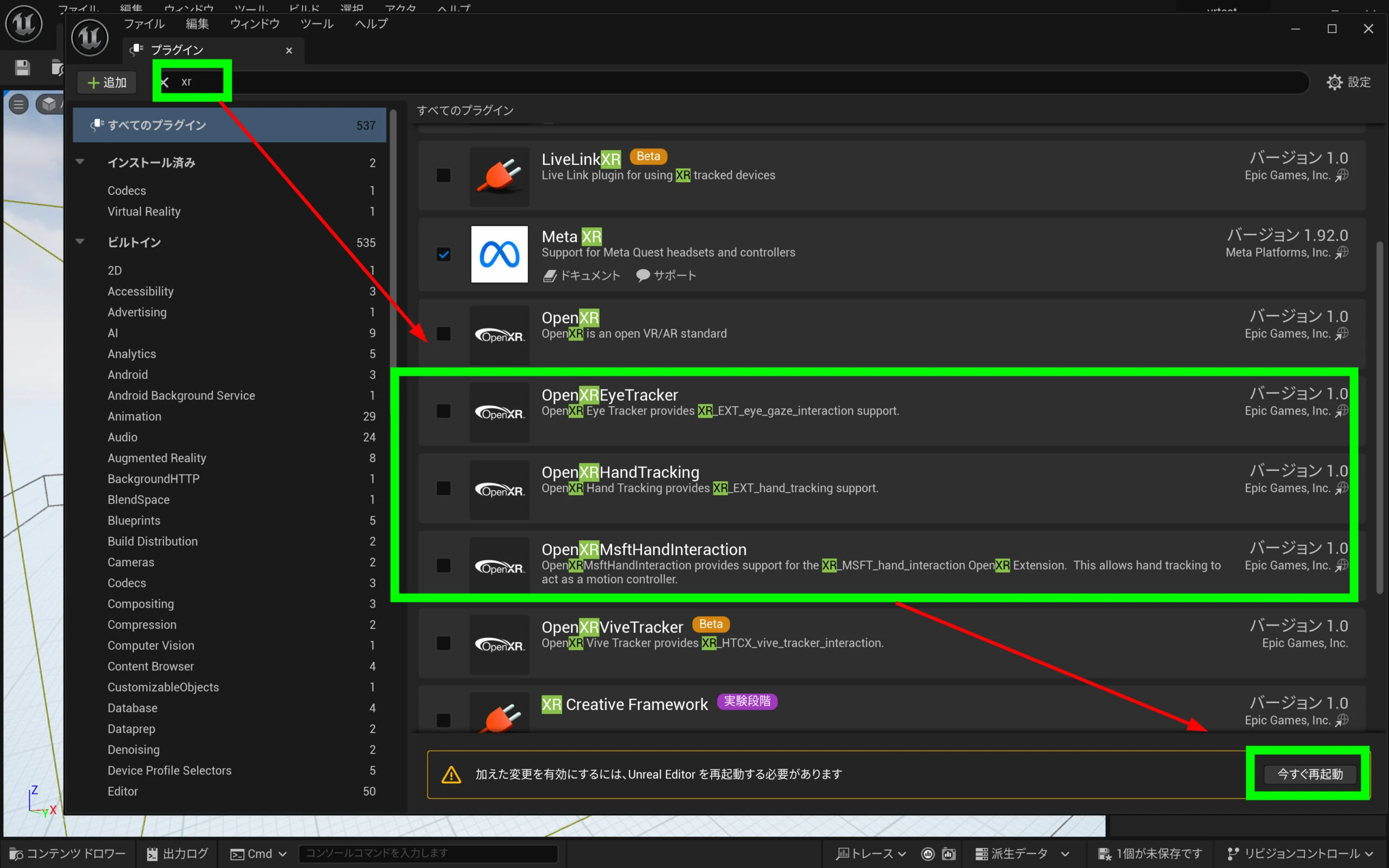 A warning appears; I ignored it in this setup. That completes the plugin configuration for now.
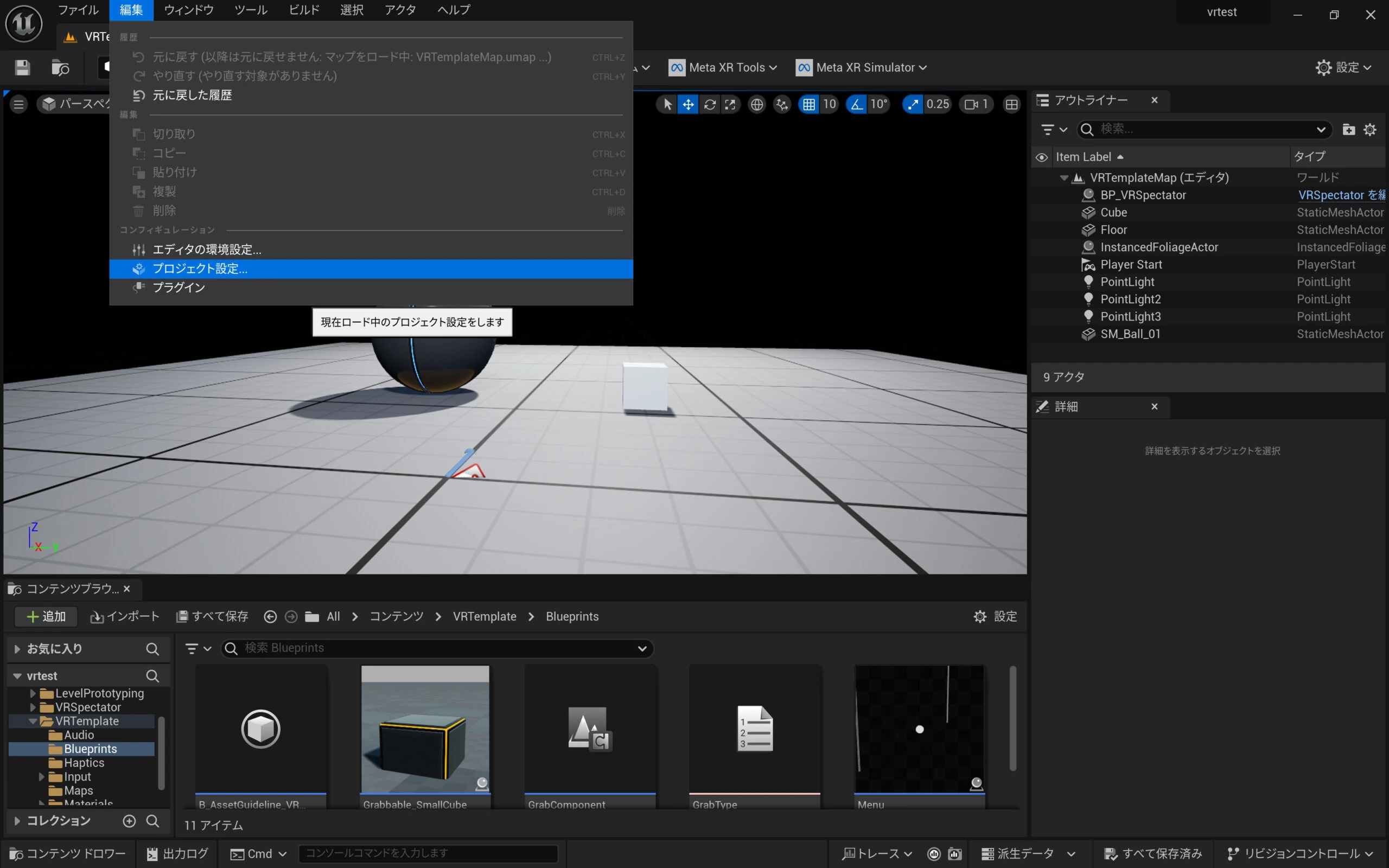
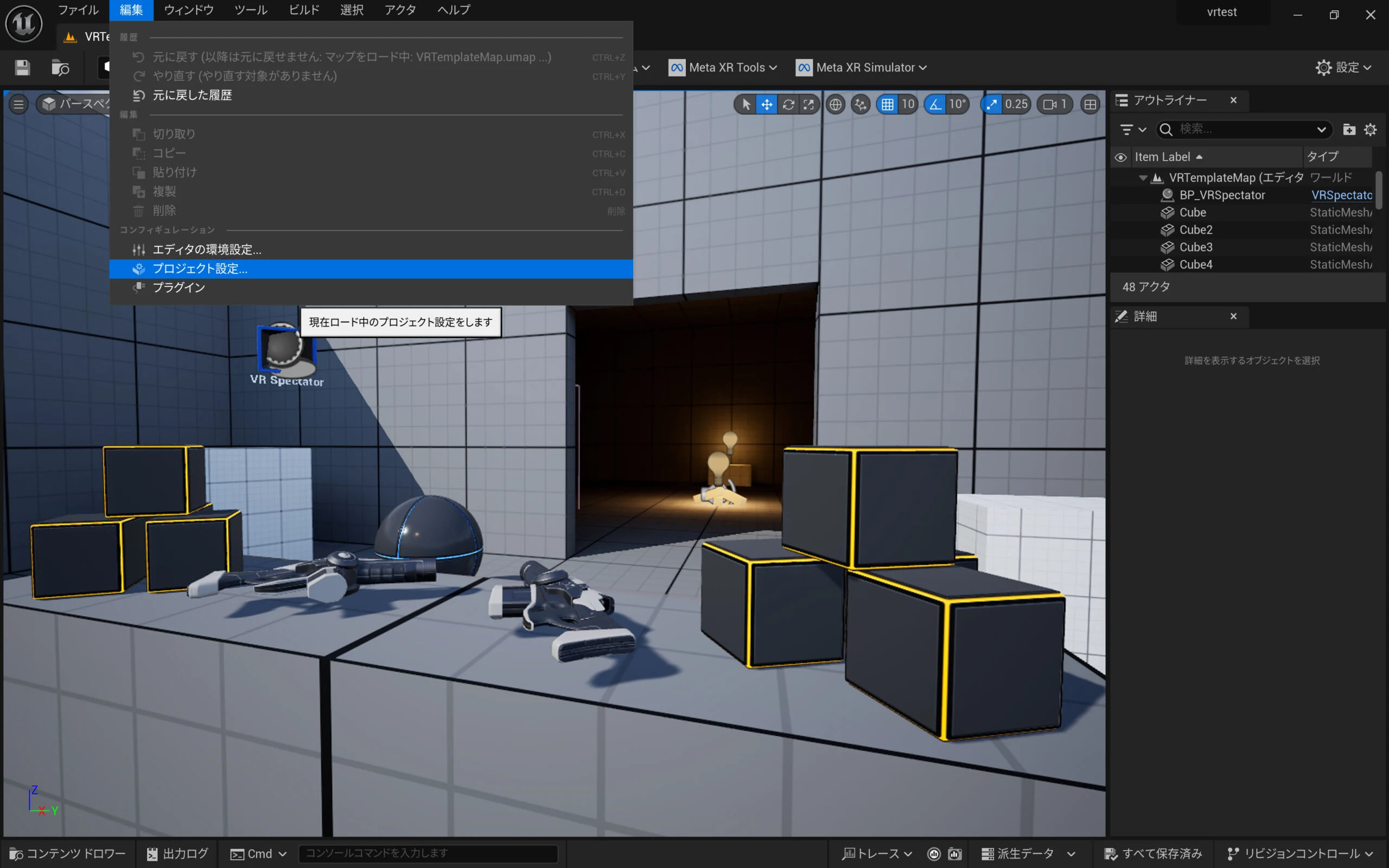
Open Project Settings from Edit
Choose Edit > Project Settings.
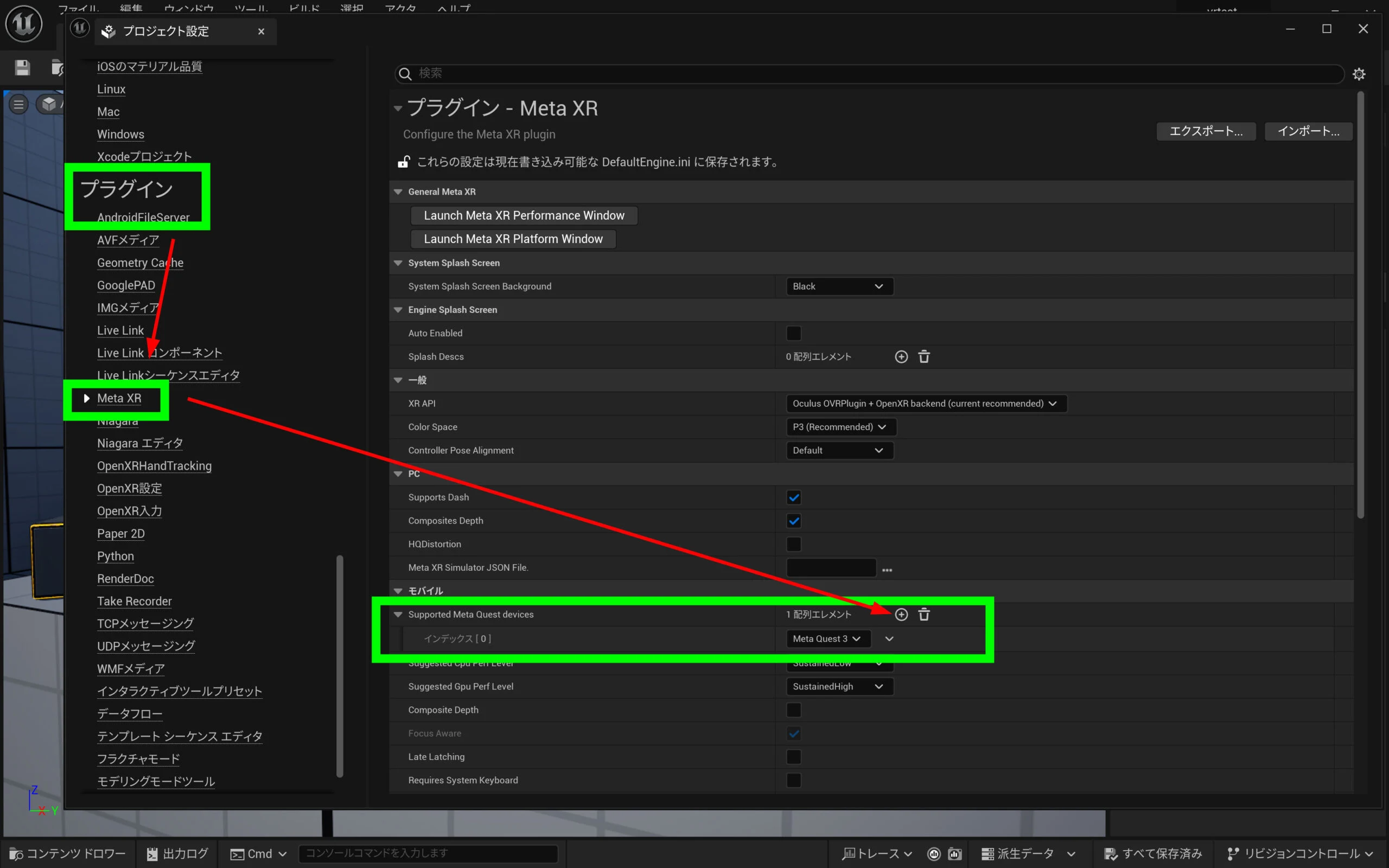
 Select Meta XR under Plugins. Click the plus button beside Supported Meta Quest Devices in the Mobile section to add Meta Quest 3.
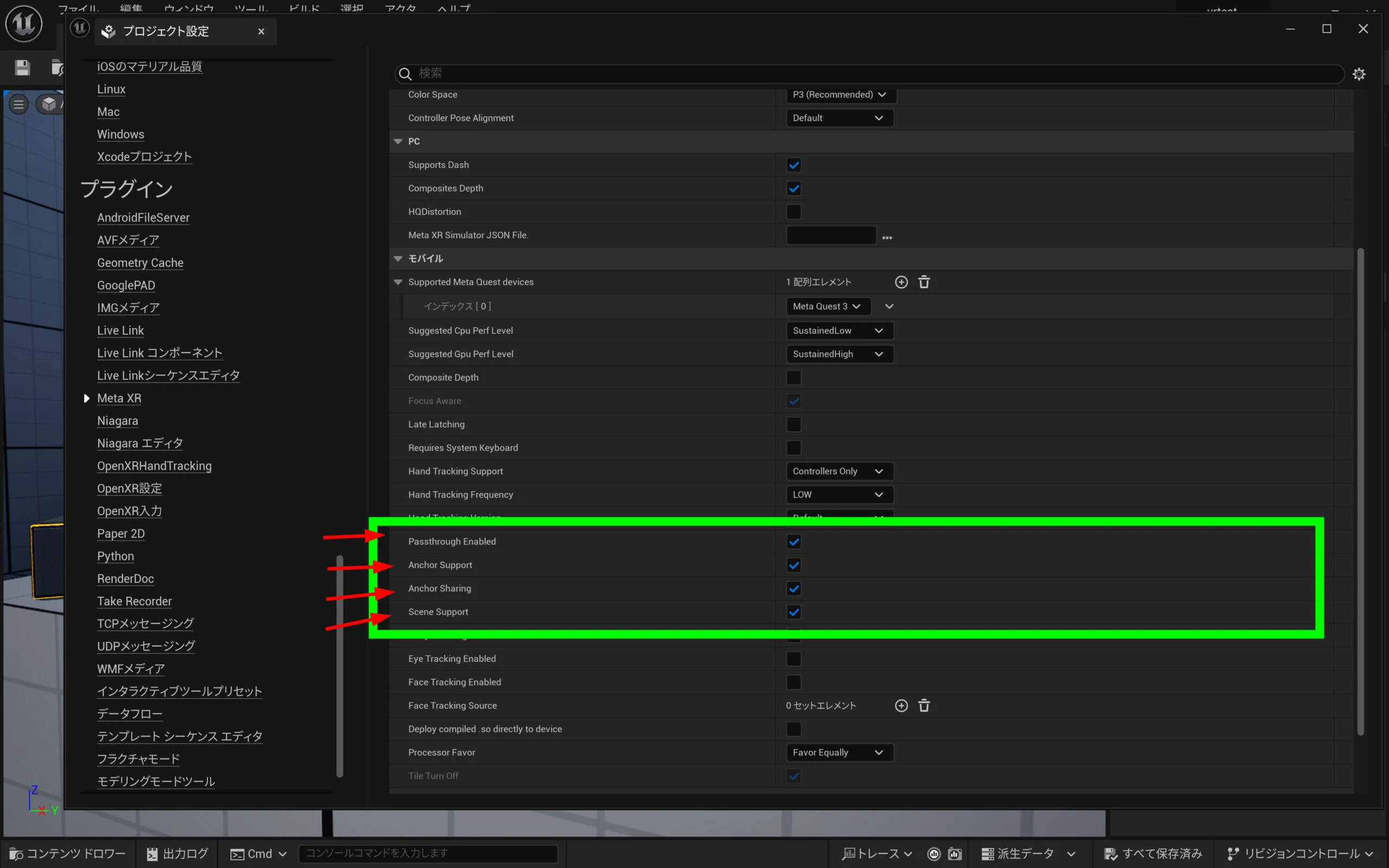
 Enable the four options shown a little farther down.
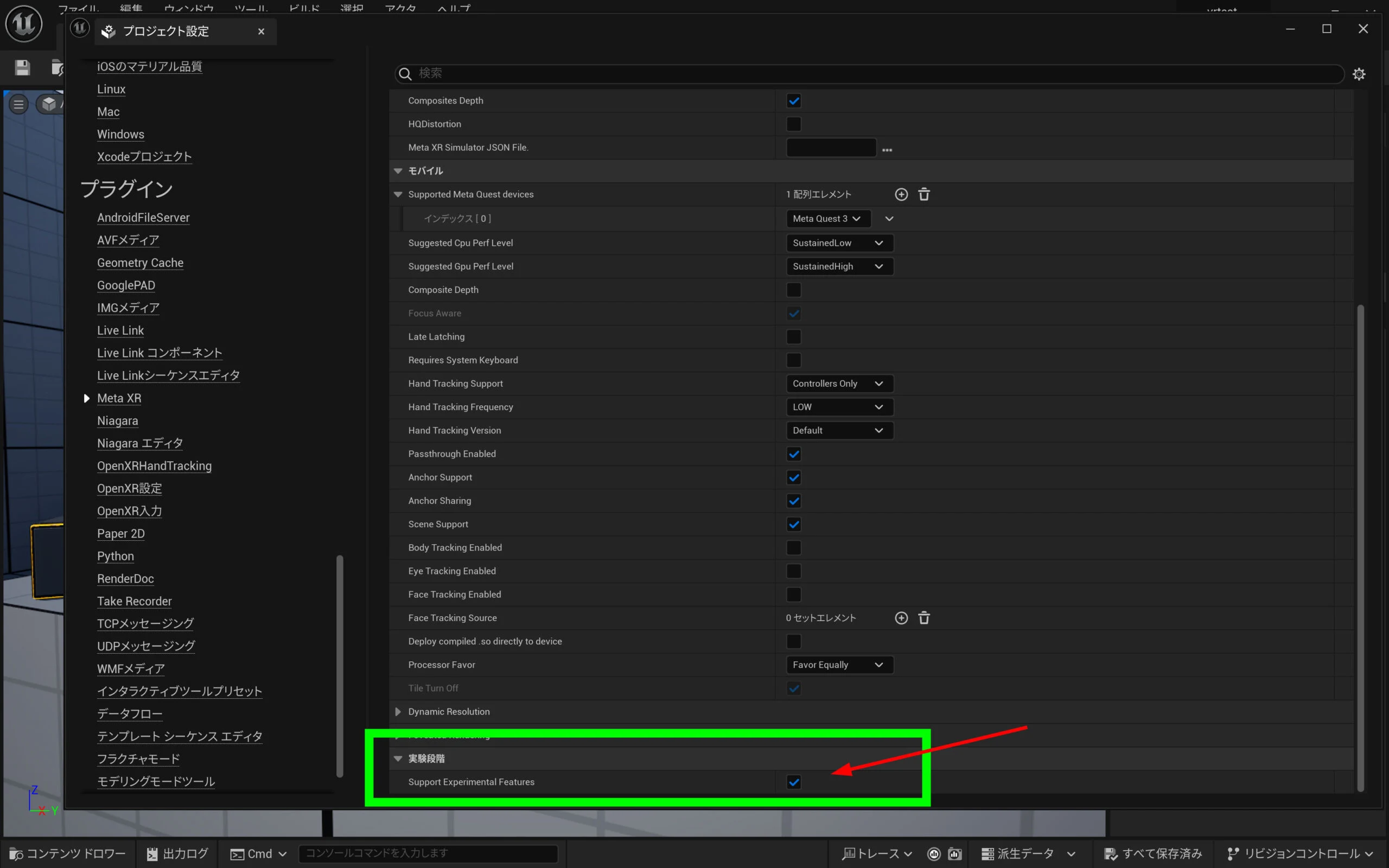
 Also enable the final experimental-feature option.
 Next, open Rendering. In the Postprocessing category after the VR settings, set Enable Alpha Channel Support in Post Processing to Allow through Tonemapper. That finishes this part.
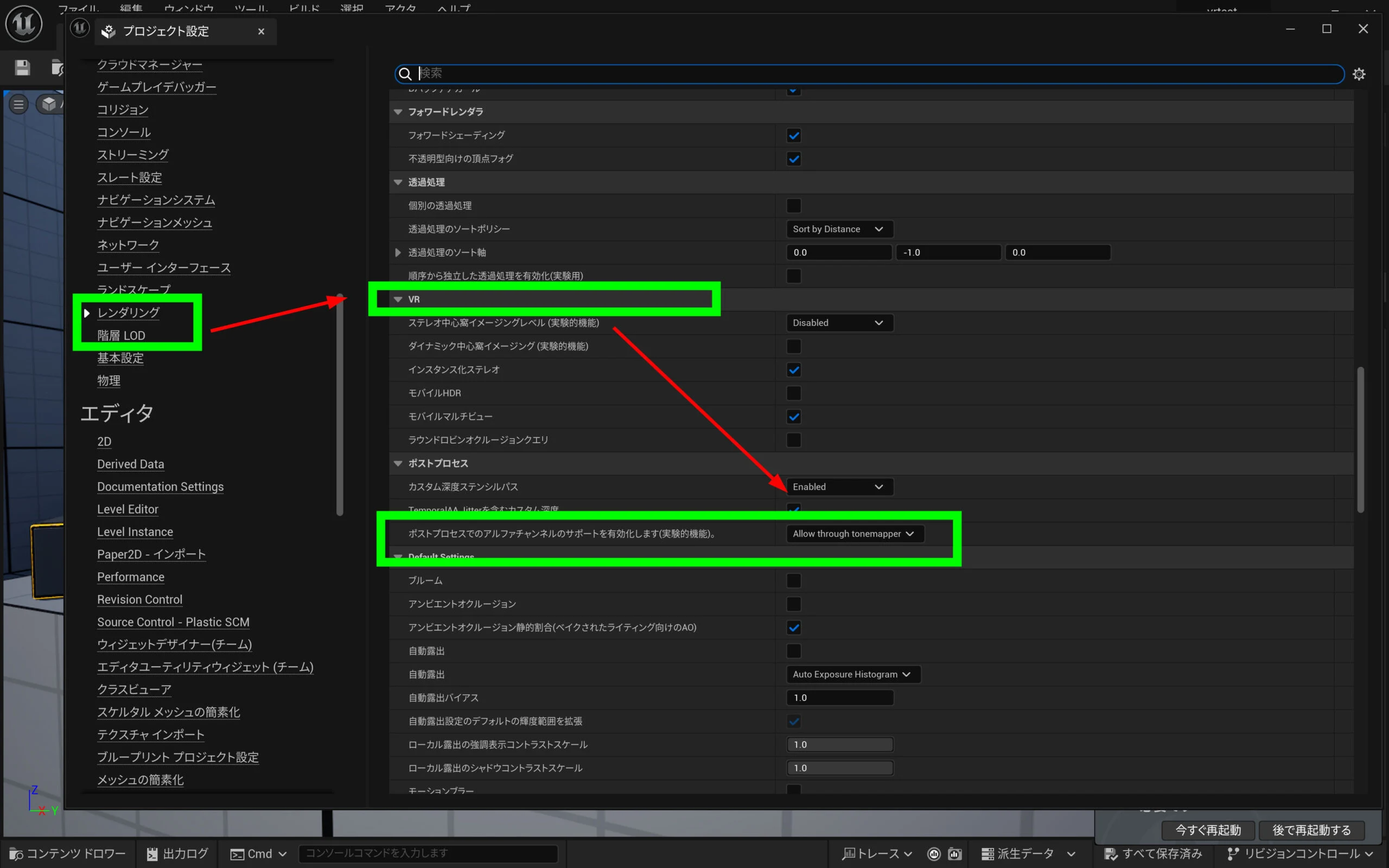
Configure the HMD in VRPawn
Now change the HMD configuration. In the Content Drawer, open VRTemplate > Blueprints > VRPawn.
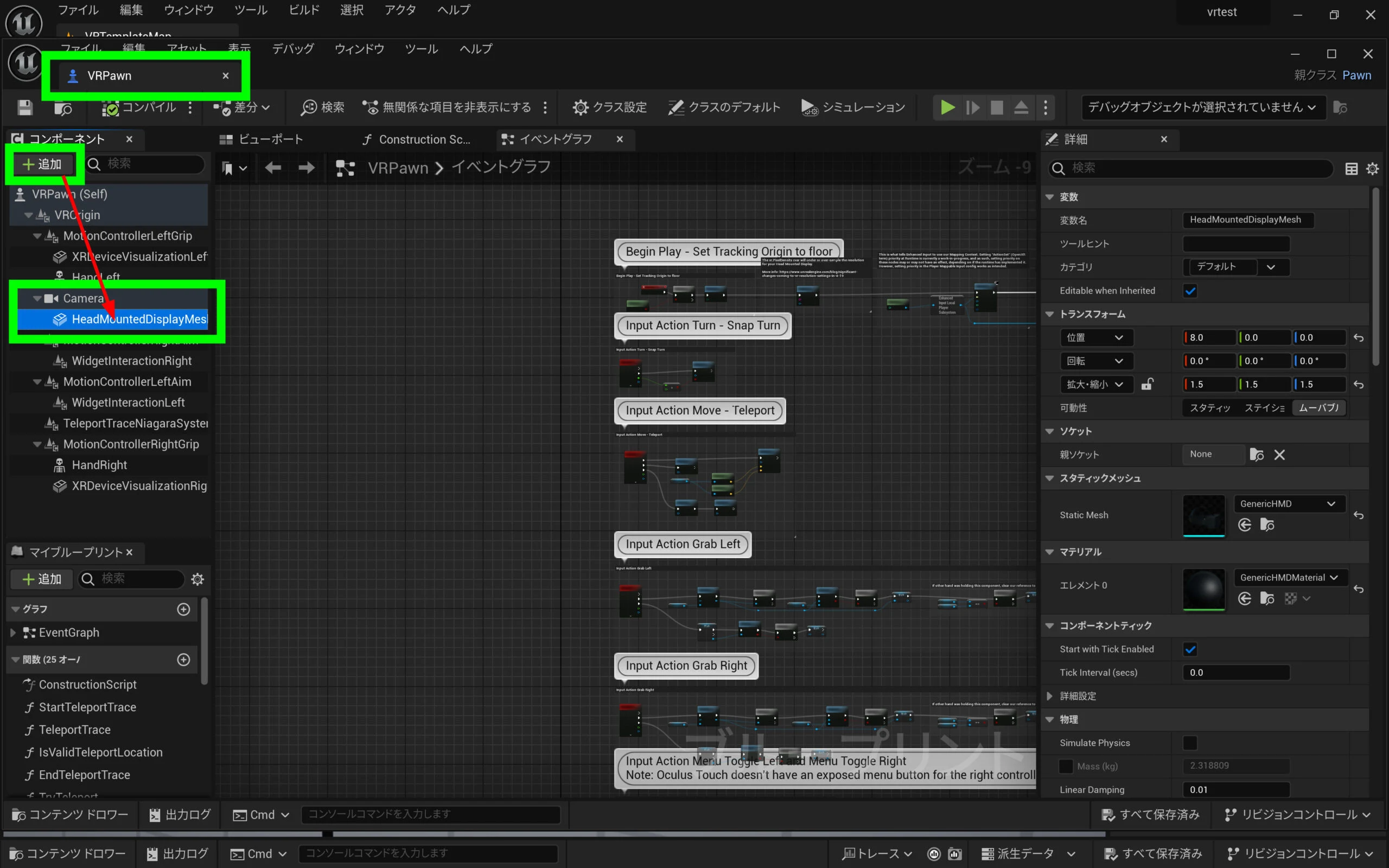
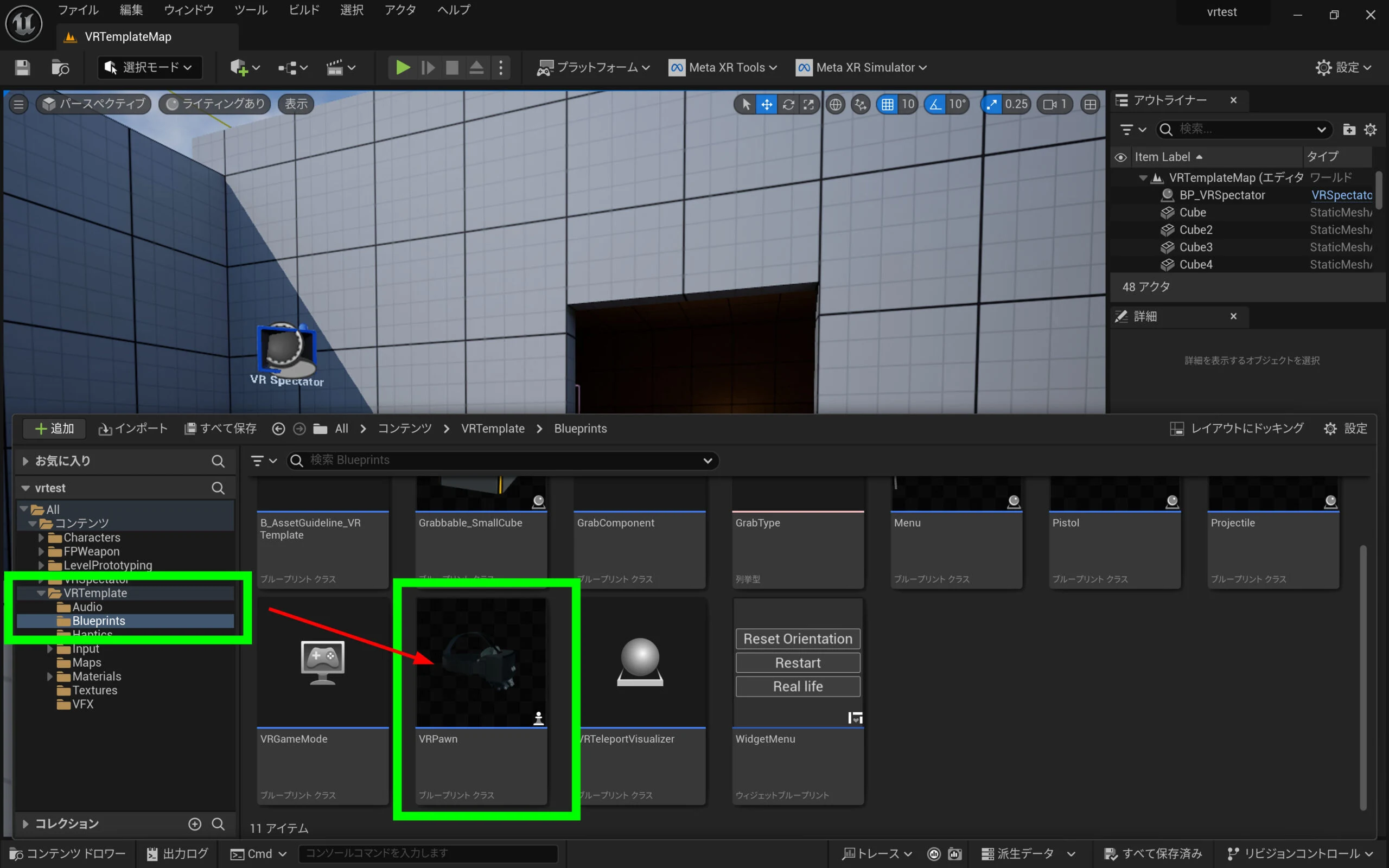 Select HeadMountedDisplay, then click Add.
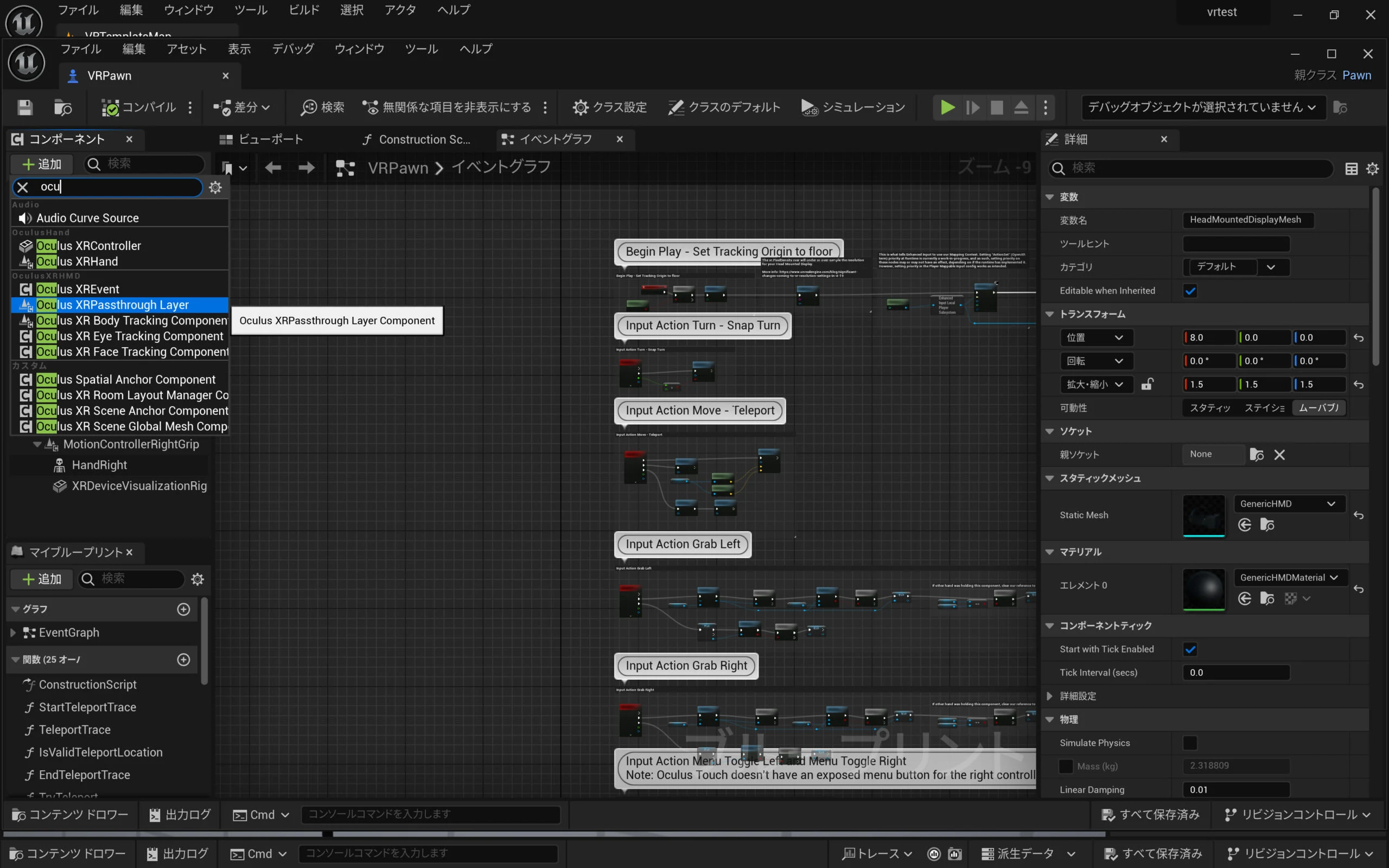
 Add Oculus XR Passthrough Layer.
 Check that it was added as a child component.
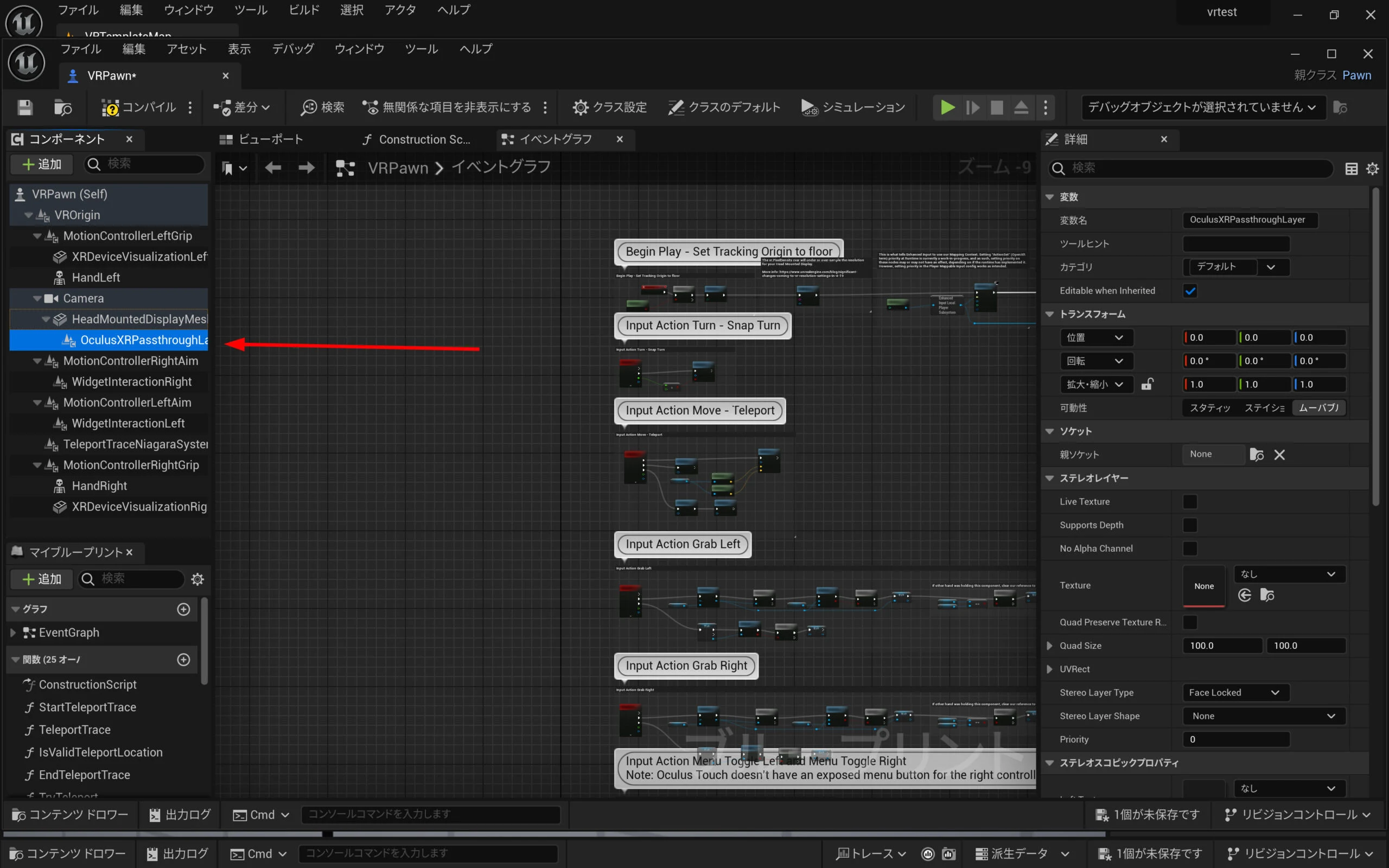 Select Oculus XR Passthrough Layer. On the right, enable Supports Depth and No Alpha Channel under Stereo Layer.
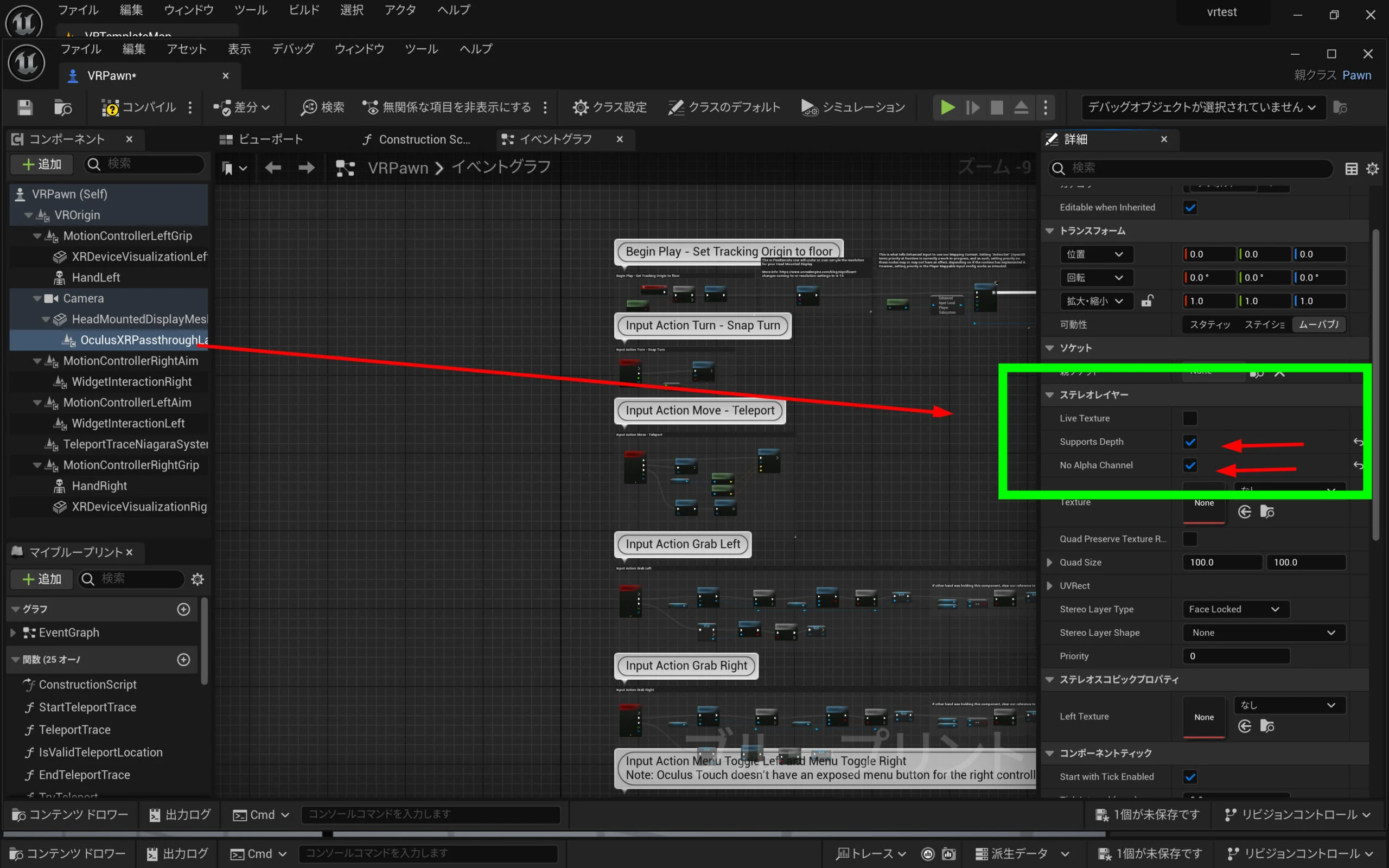 Under Stereo Layer Shape, select Reconstructed Passthrough.
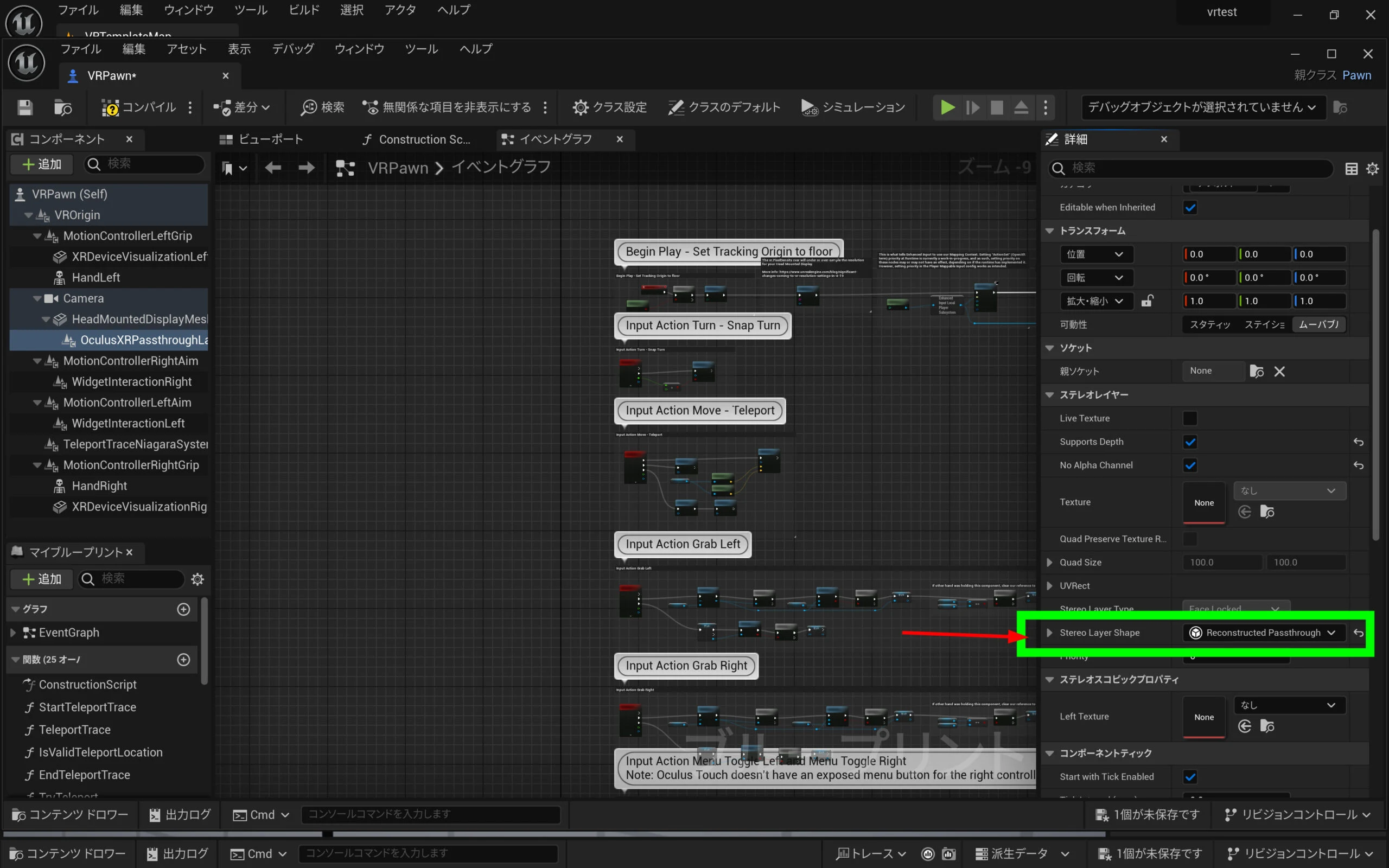 Open the layer-type dropdown and select Underlay.
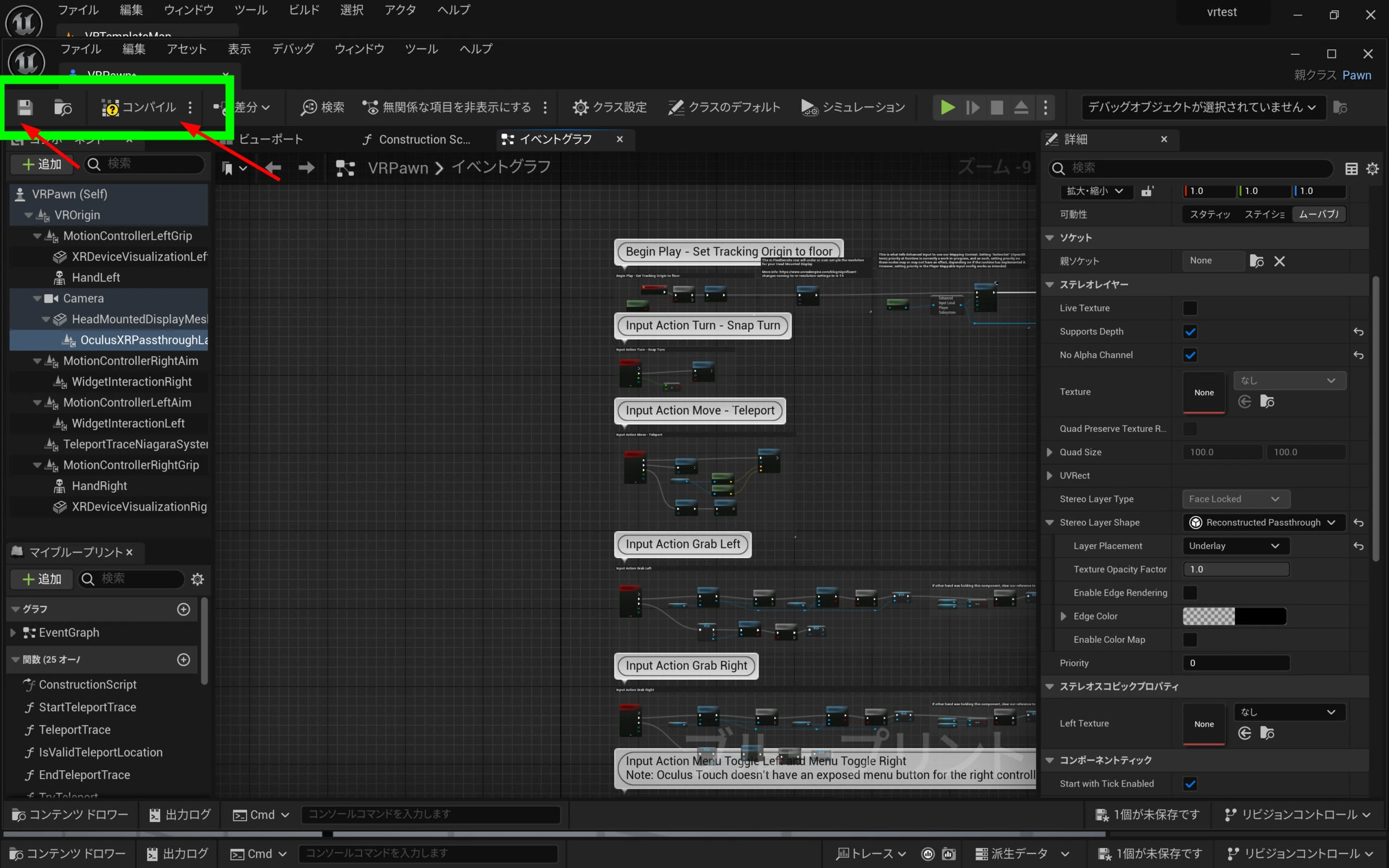
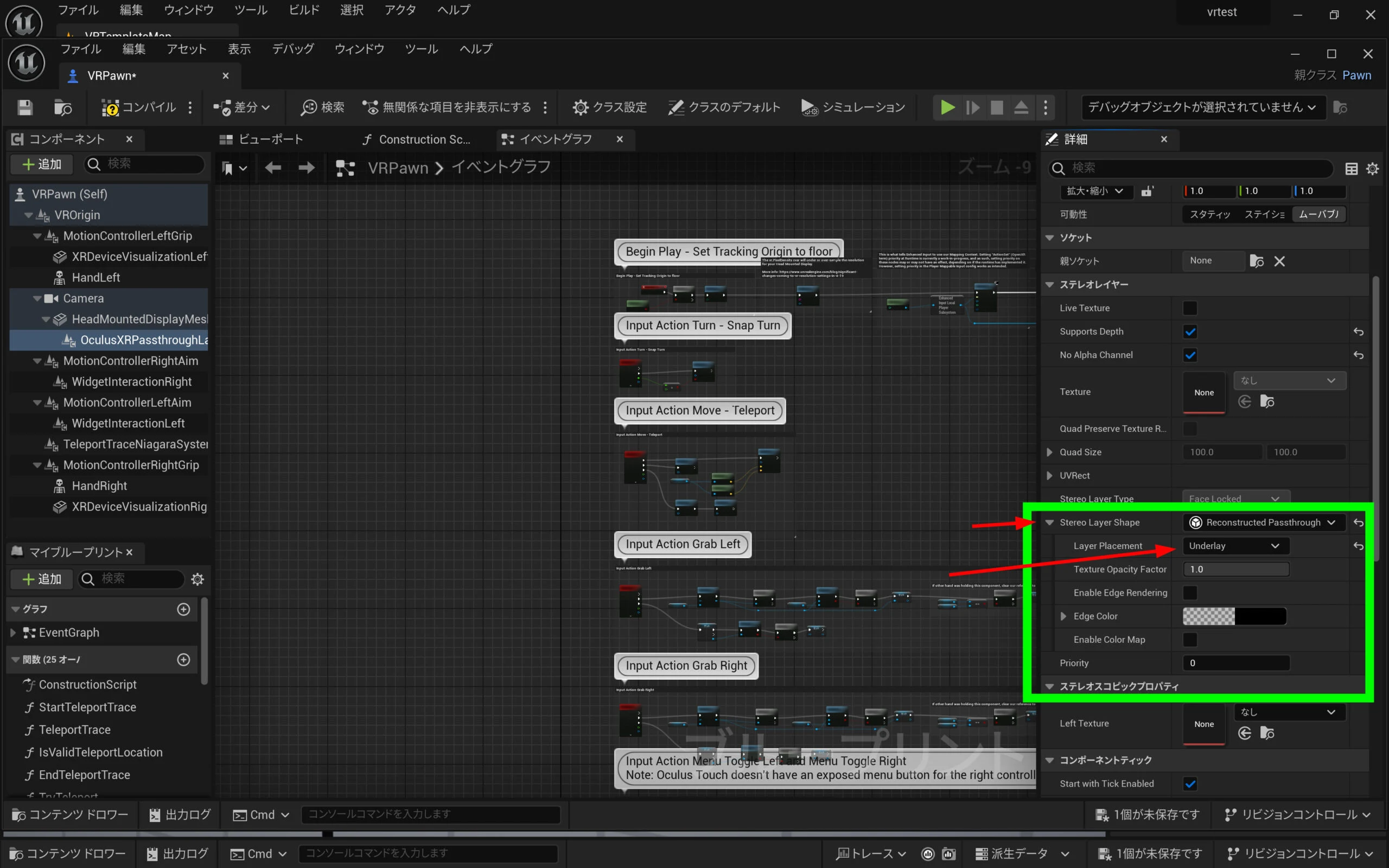 Save and compile. You can now try passthrough.
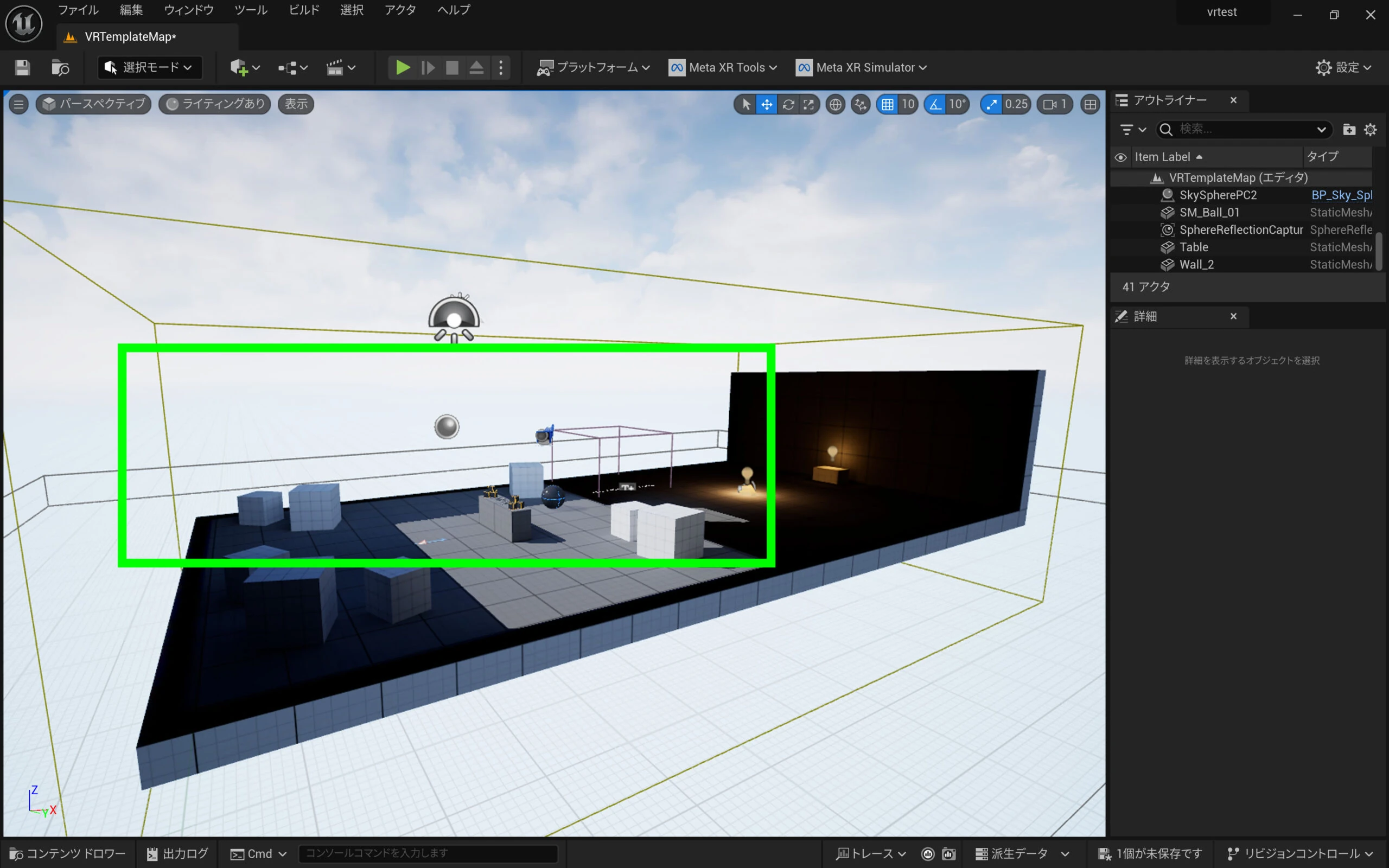
 Delete walls and other objects that would obstruct the real-world view.
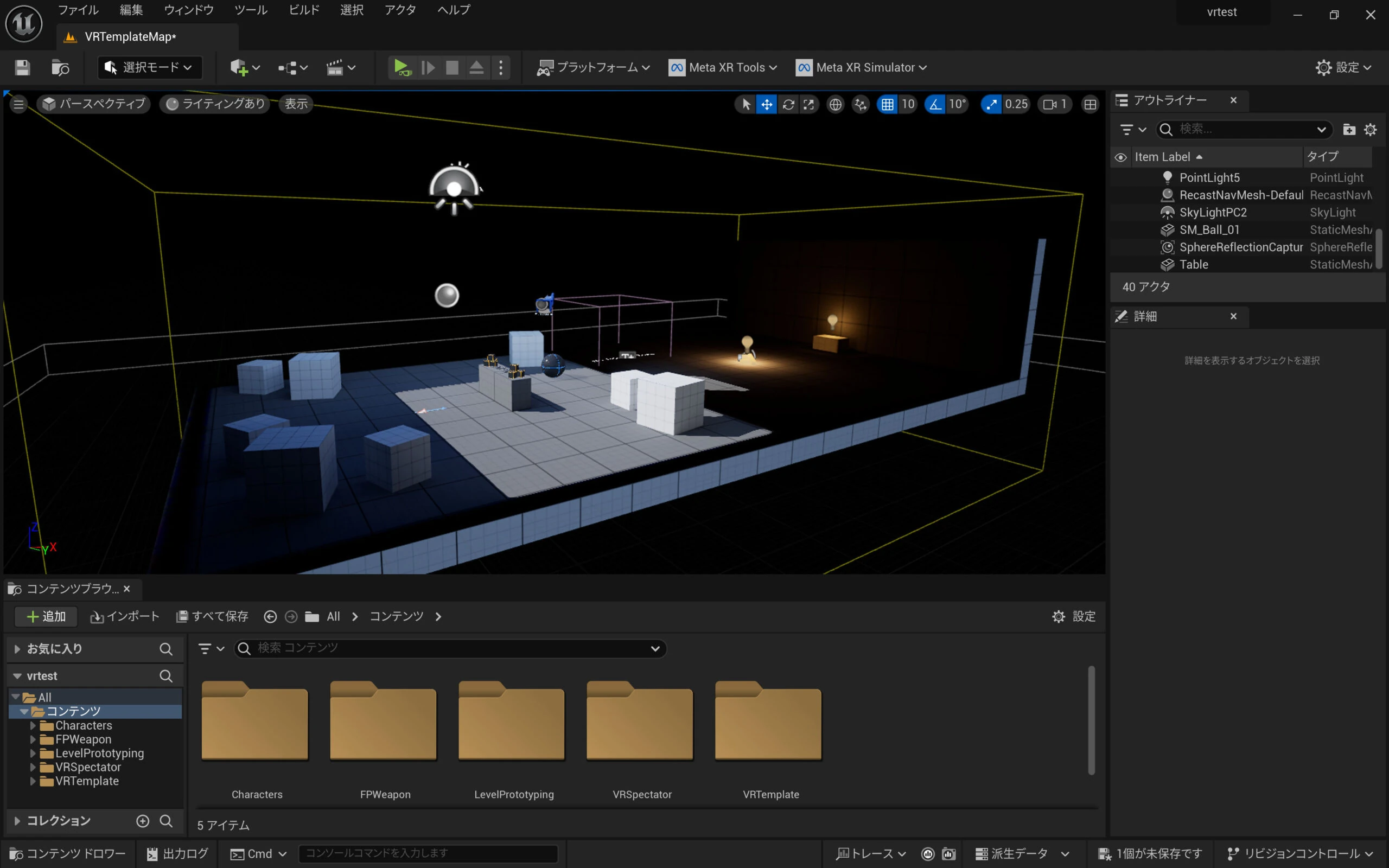
 A sky prevents passthrough too, so delete it. The black background becomes the transparent area.
Test a preview over Oculus Link
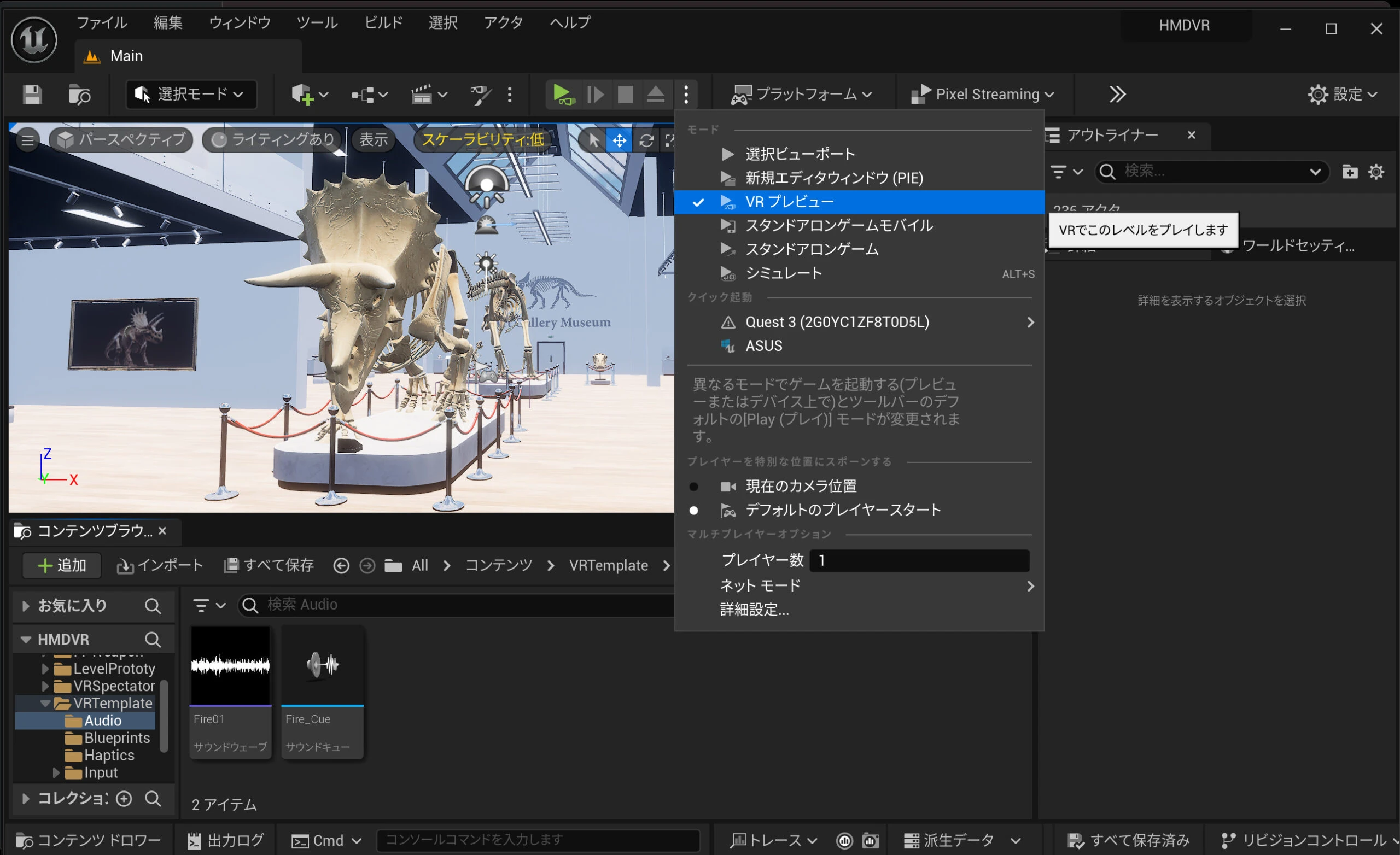
Start Oculus Link, open the three-dot menu beside the Play dropdown, and select VR Preview. You can then view the preview in the HMD.
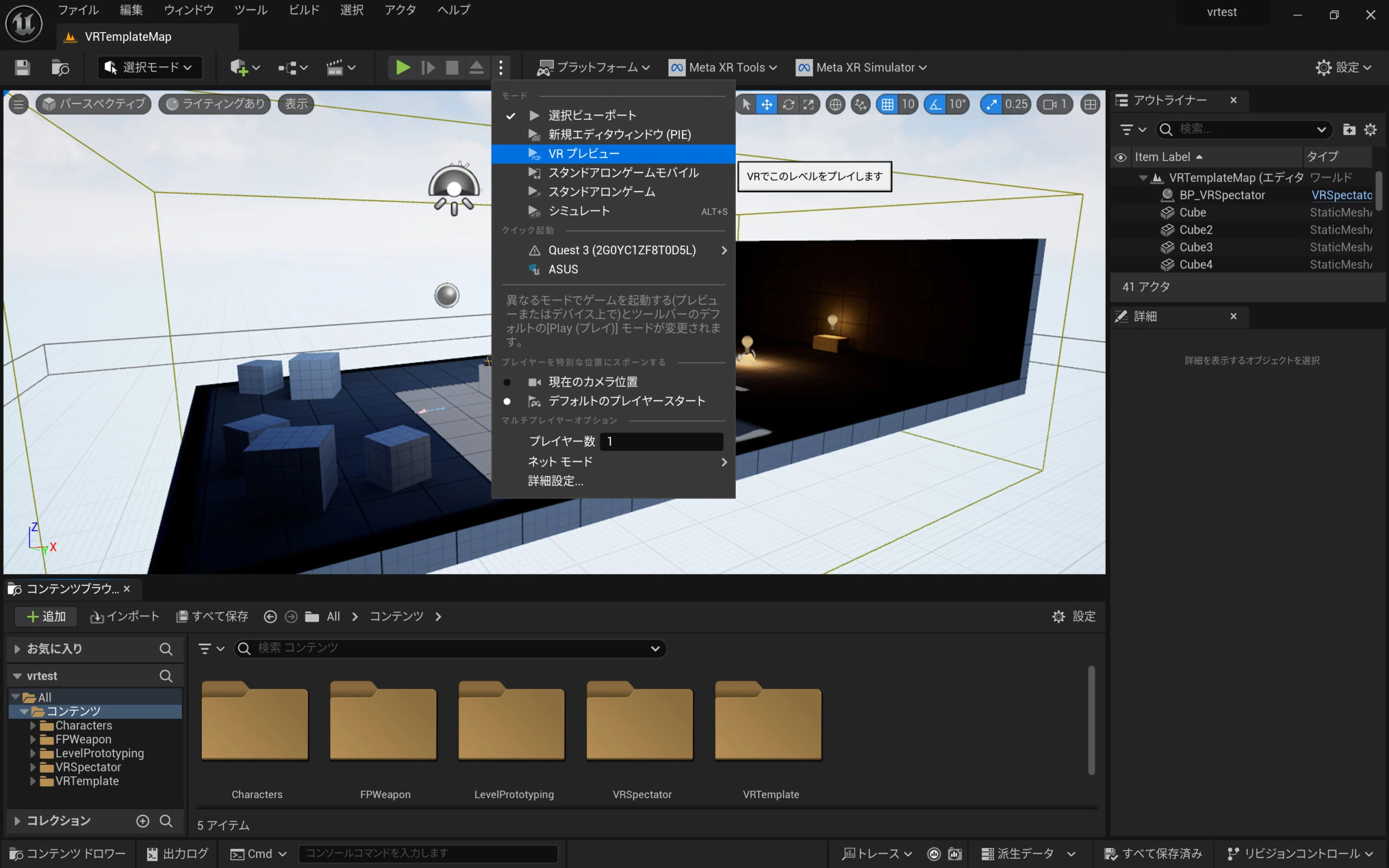 If the background does not become transparent, stop and restart the preview, or start it while the HMD is in its unworn standby state. In my experience, a few attempts could make it work.
Export an APK and check it
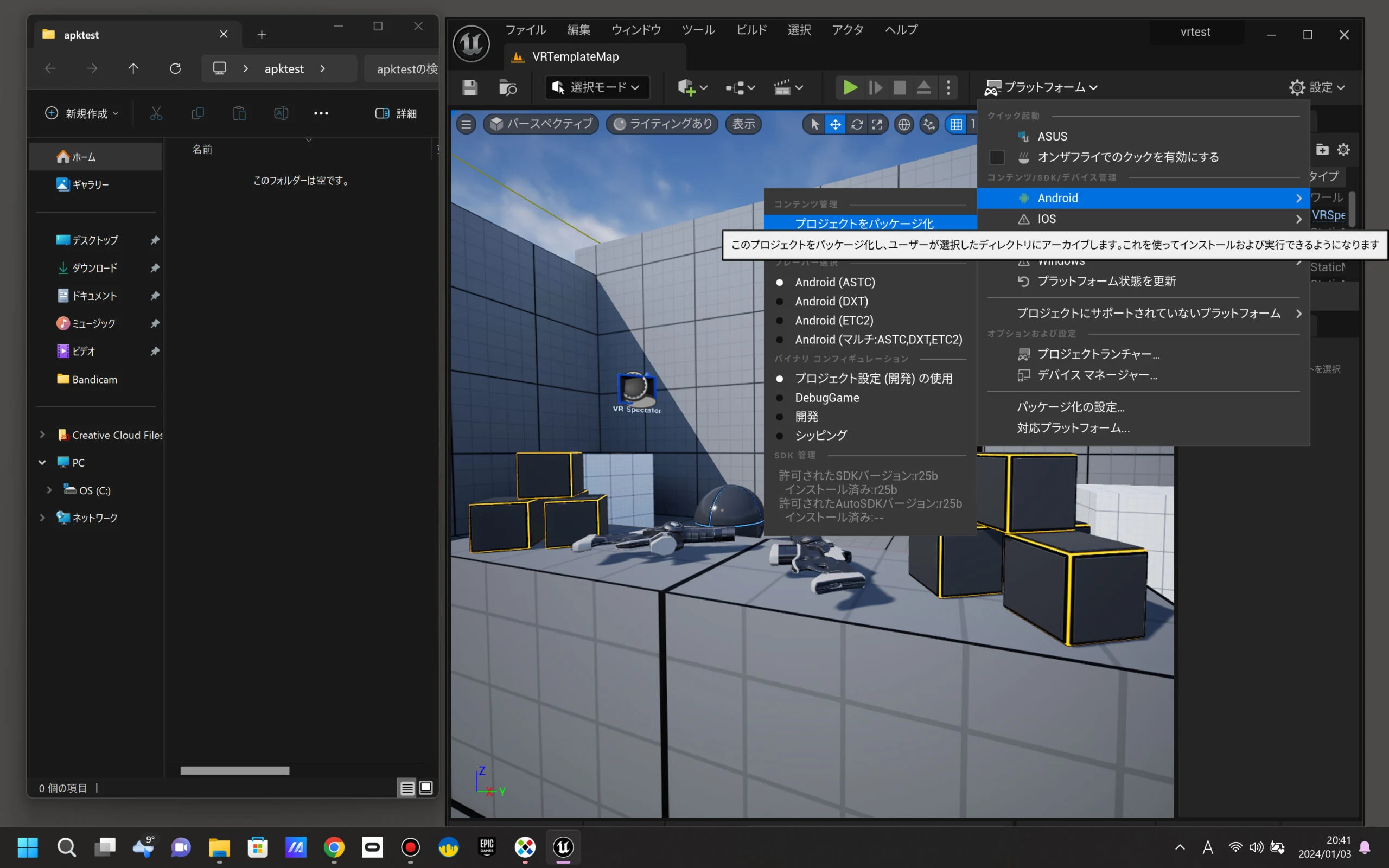
The preview often does not work reliably. If you cannot tell whether a setting is missing, package the Android project and test the exported APK instead.
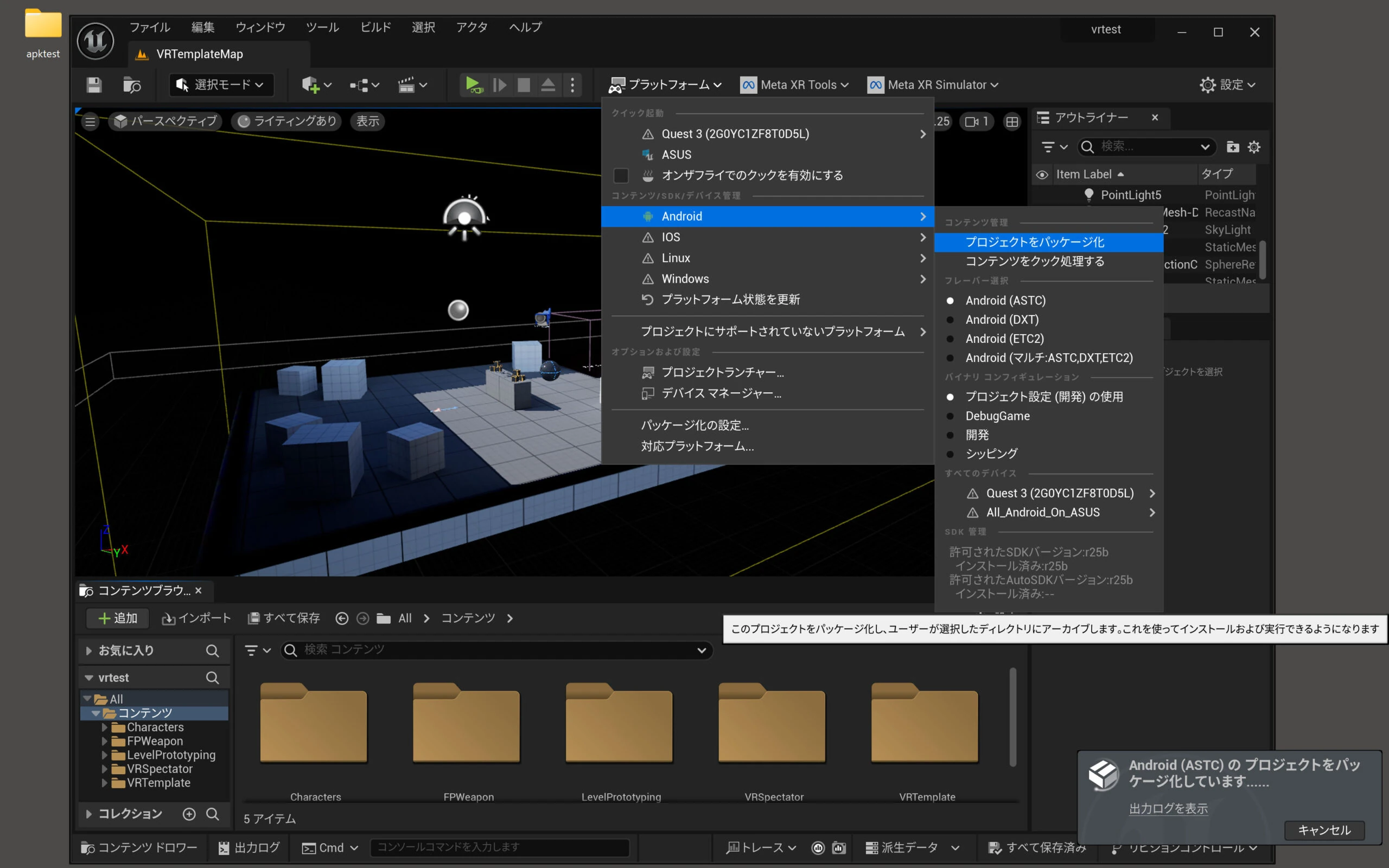
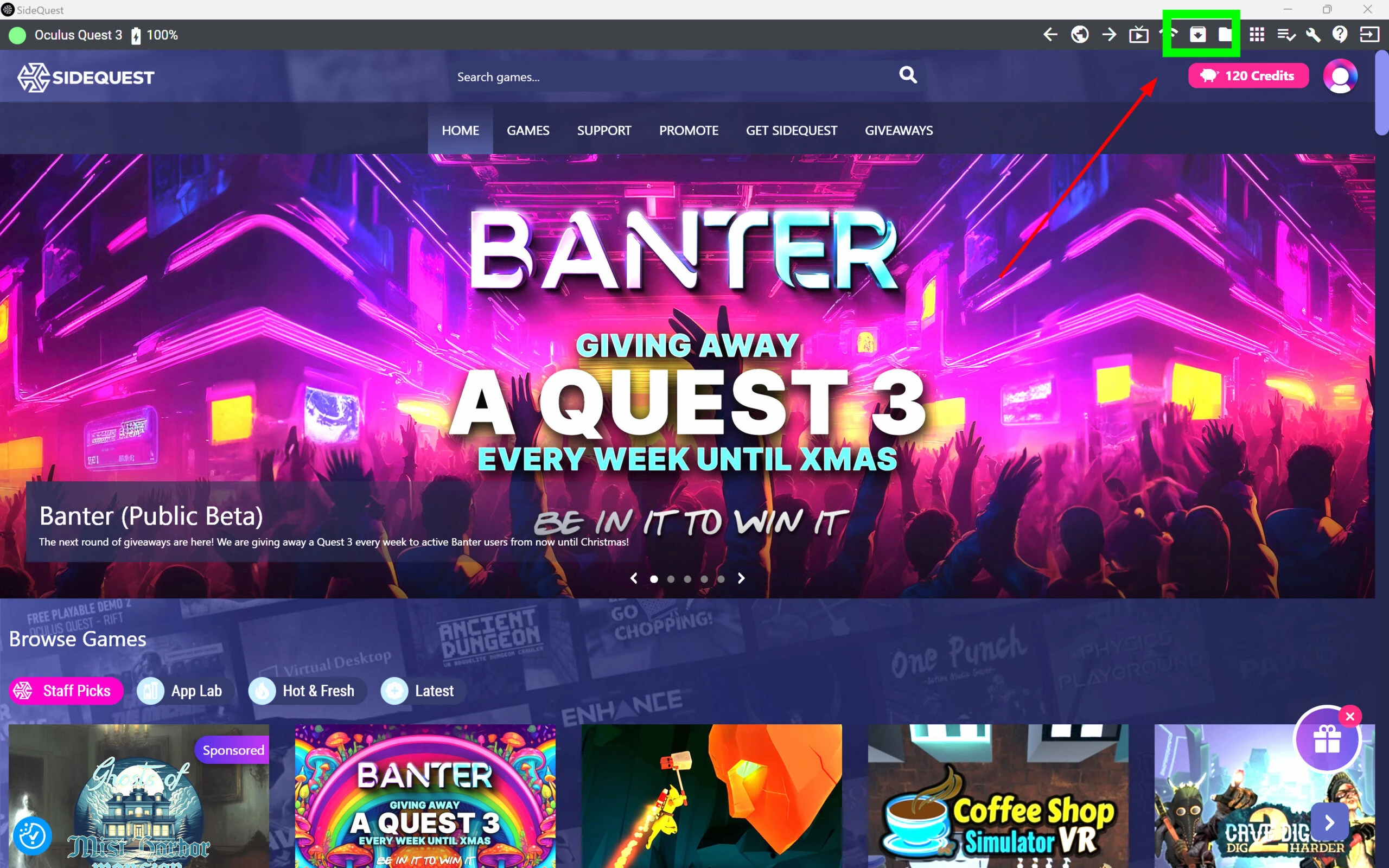
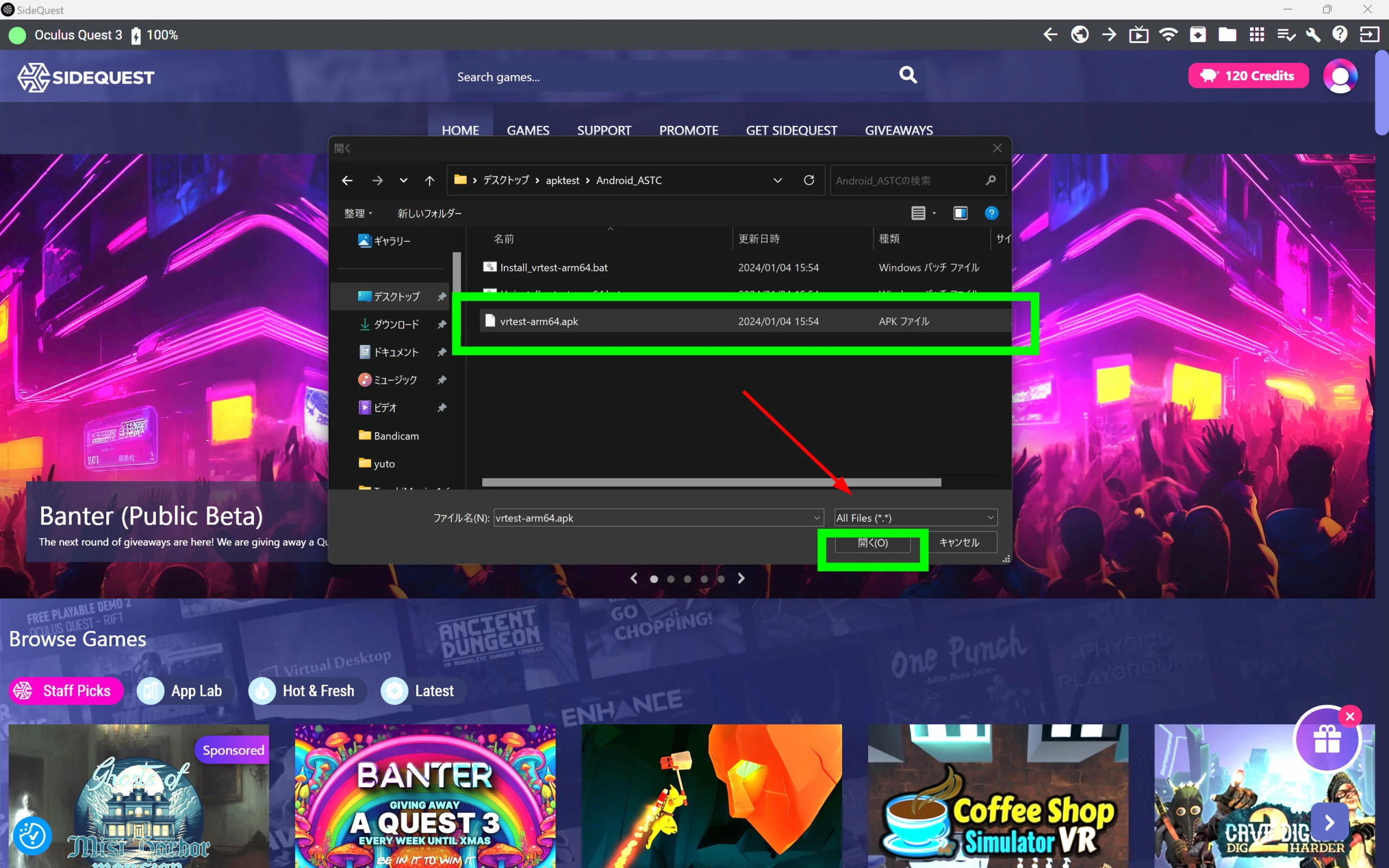
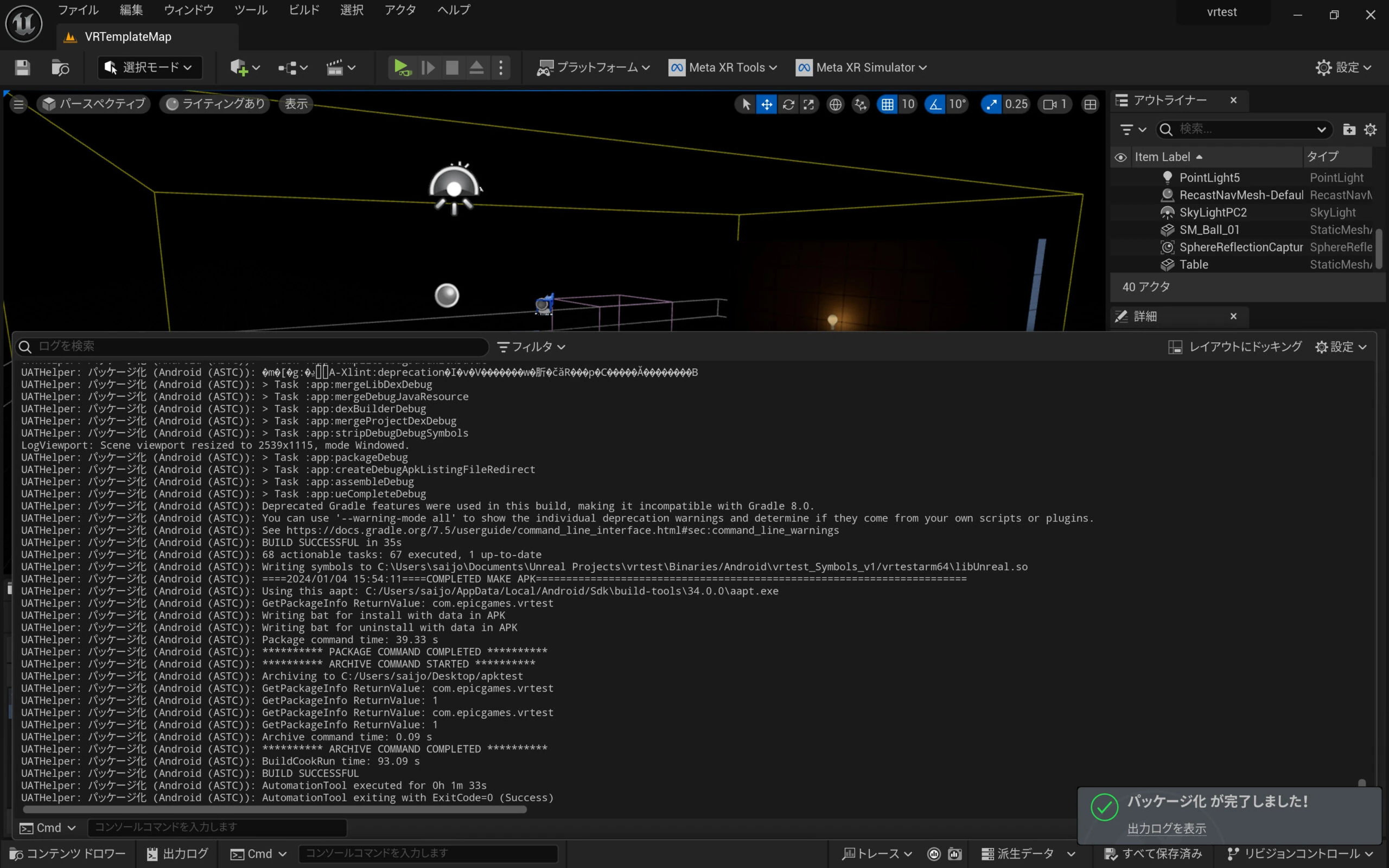 Install the APK with SideQuest. Look up SideQuest installation and use separately.
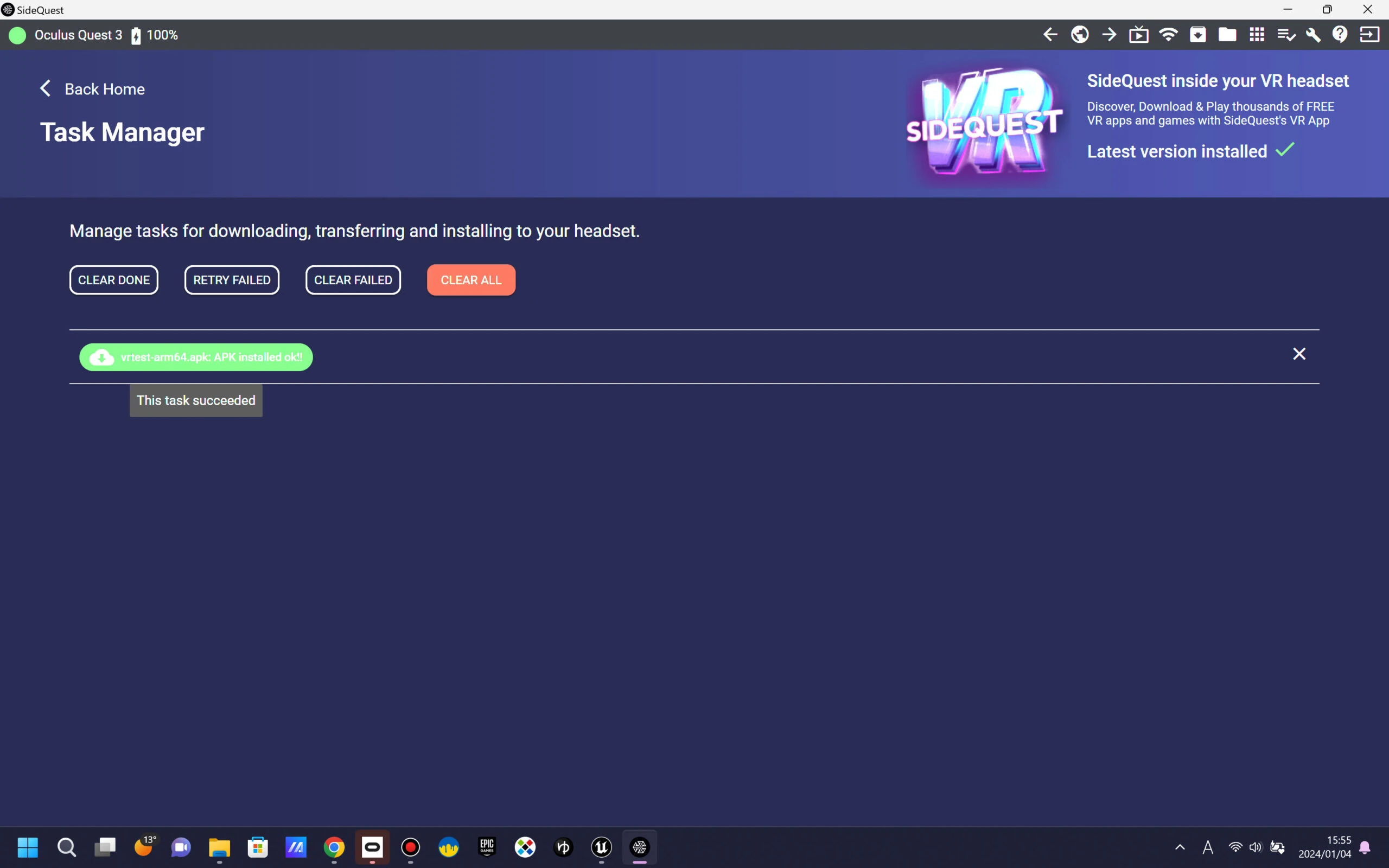 The workflow so far is based on the following video. If you cannot get it working, try its instructions.
Next, enable depth for the hands
Hand tracking and depth make virtual objects feel more present in MR. The setup is quite complicated and does not seem perfect, but the result is impressive enough to try.
Open Project Settings.
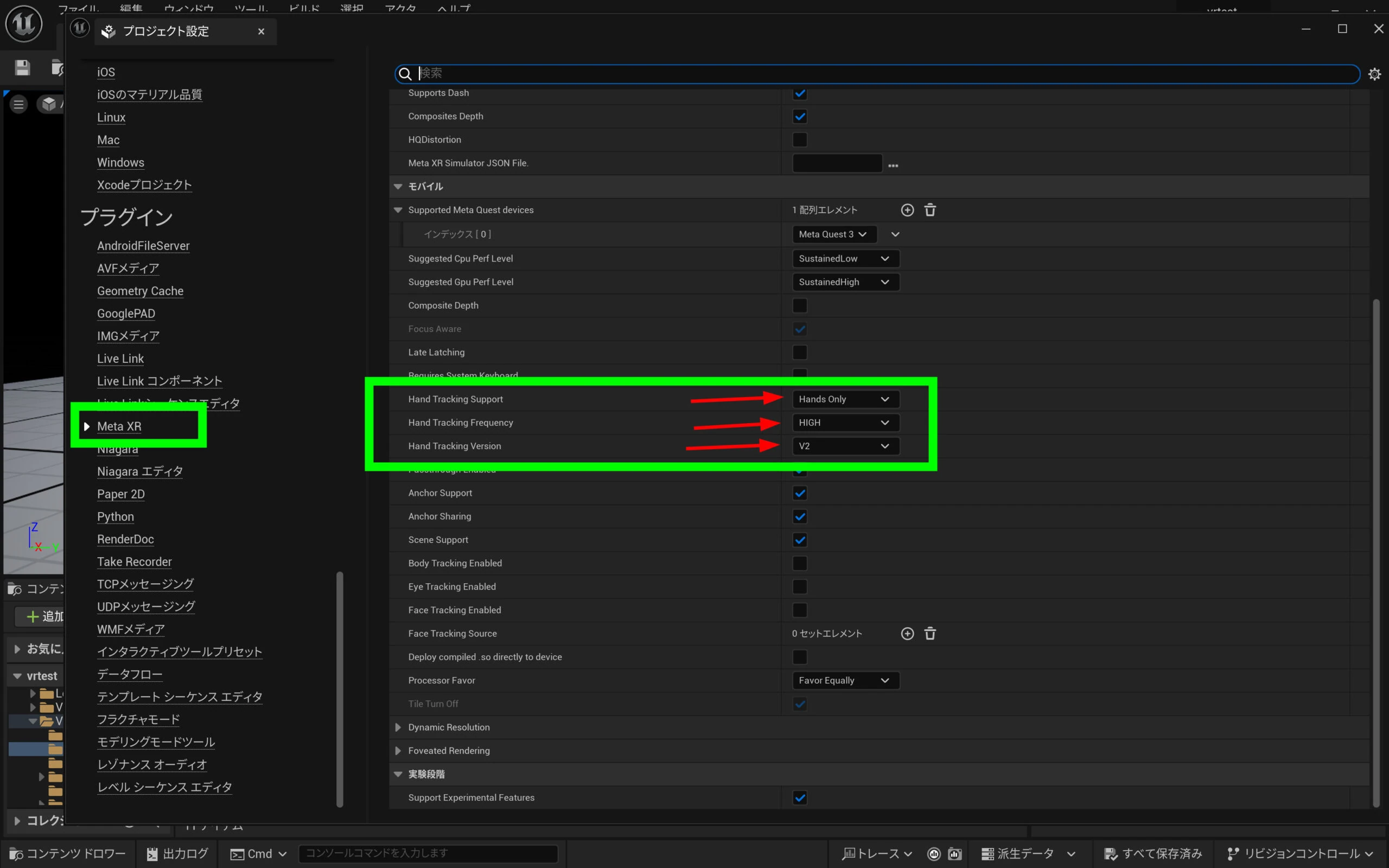
Enable Hand Tracking under Plugins > Meta XR.
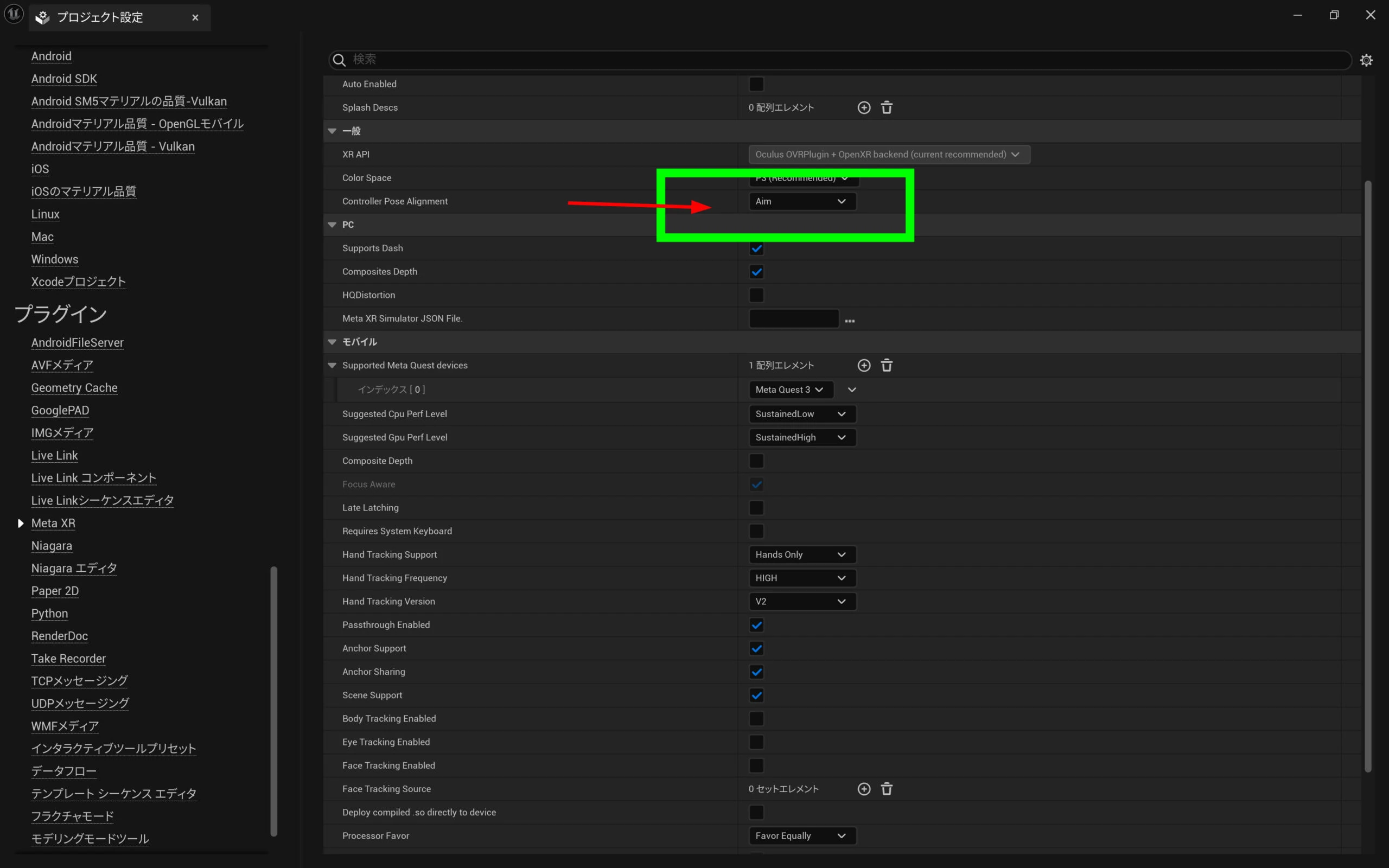
 Set Controller Pose Alignment to Arm in the general settings.
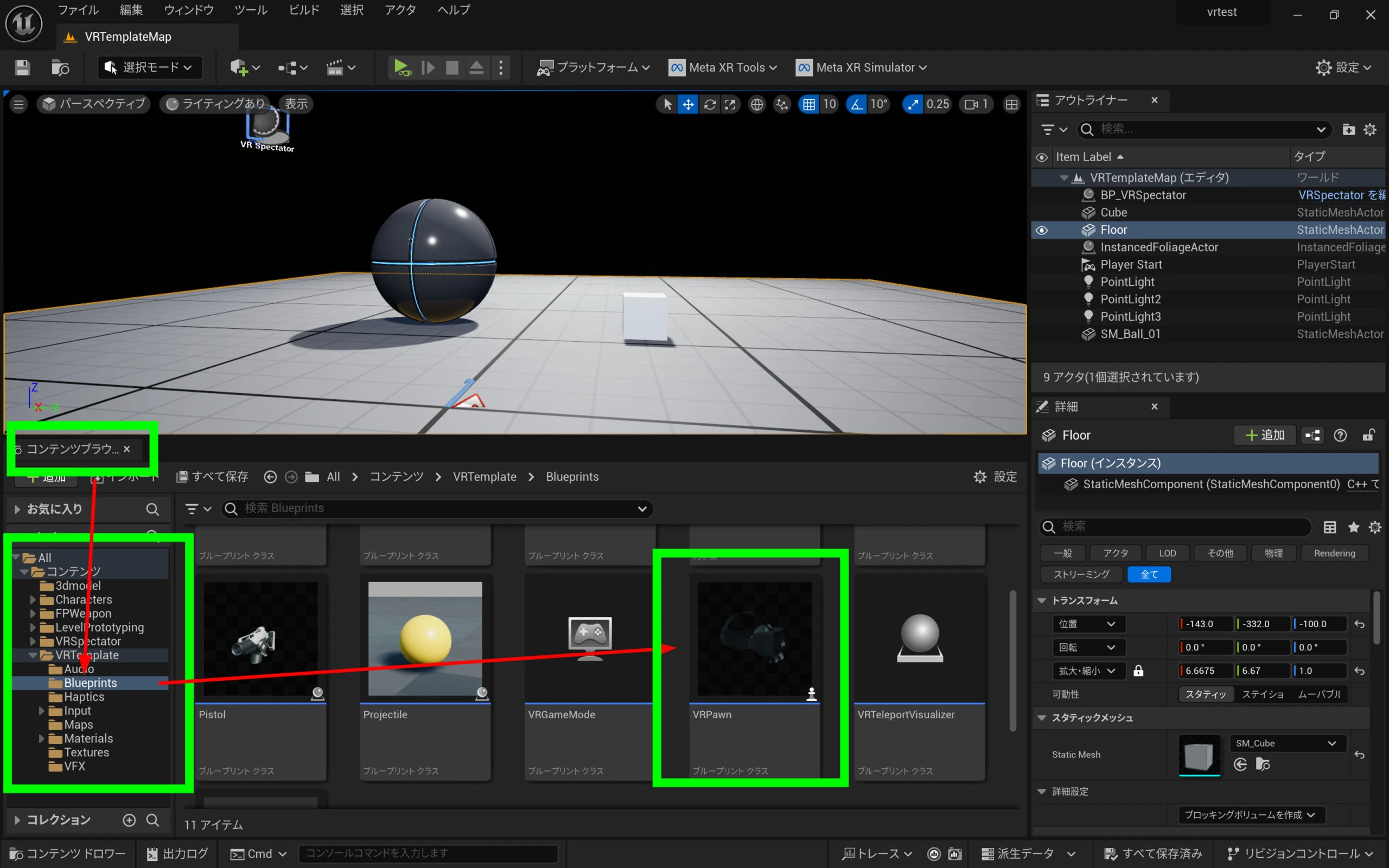
 Open VRPawn in the VR template's Blueprints folder.
 Select HandLeft and HandRight.
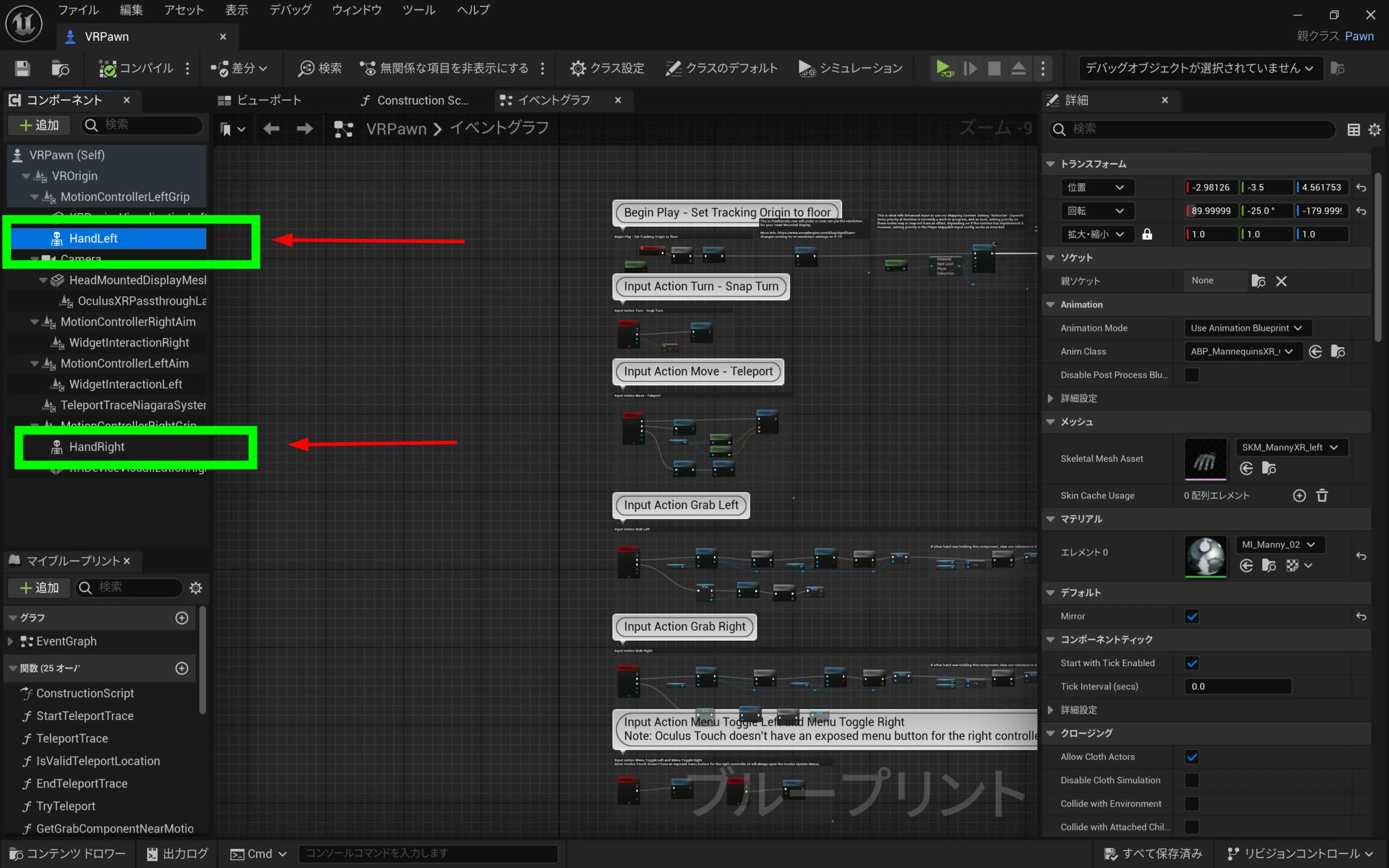 Delete them.
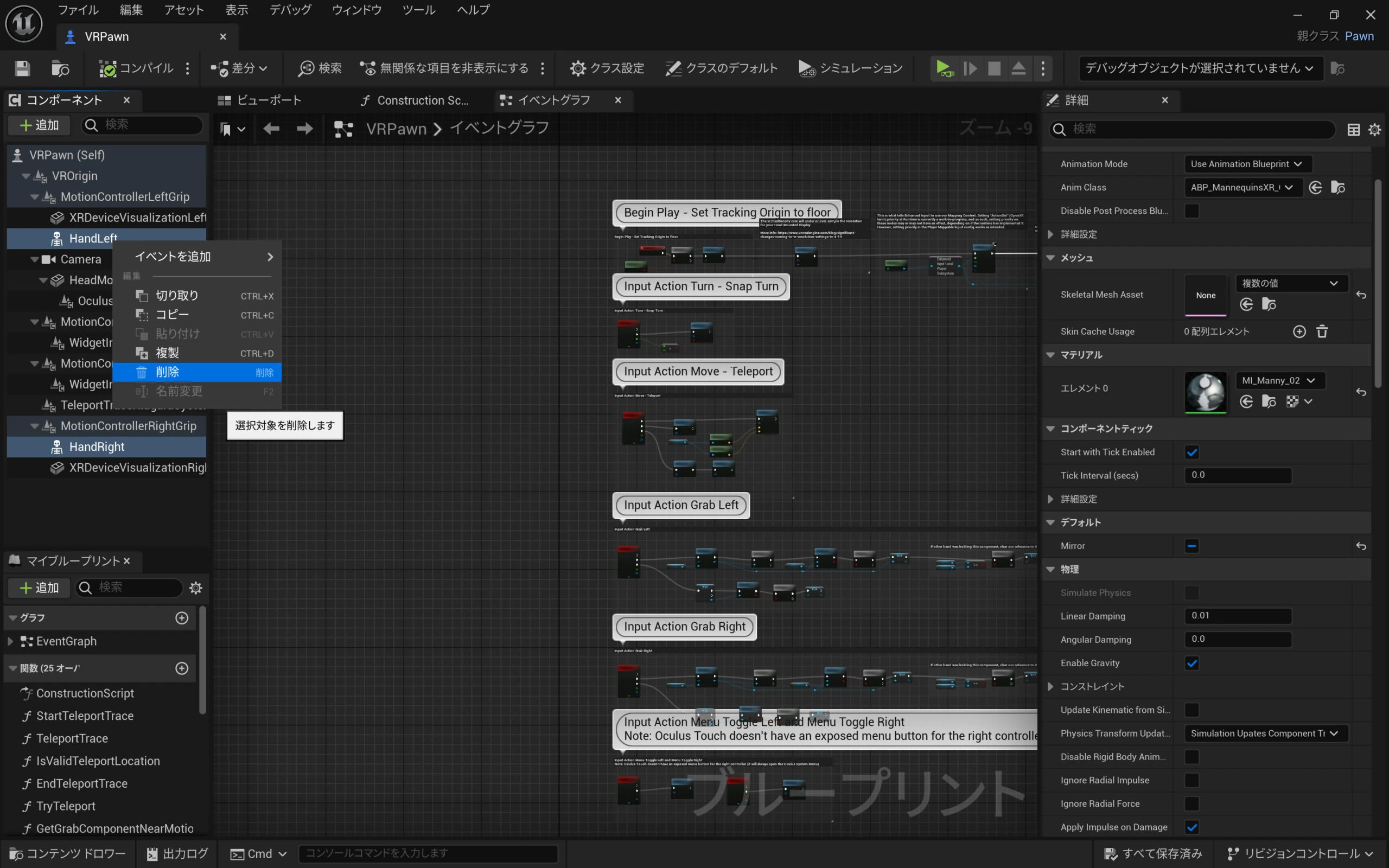 Move OculusXRPass from a grandchild of Camera to a direct child of Camera, one level up.
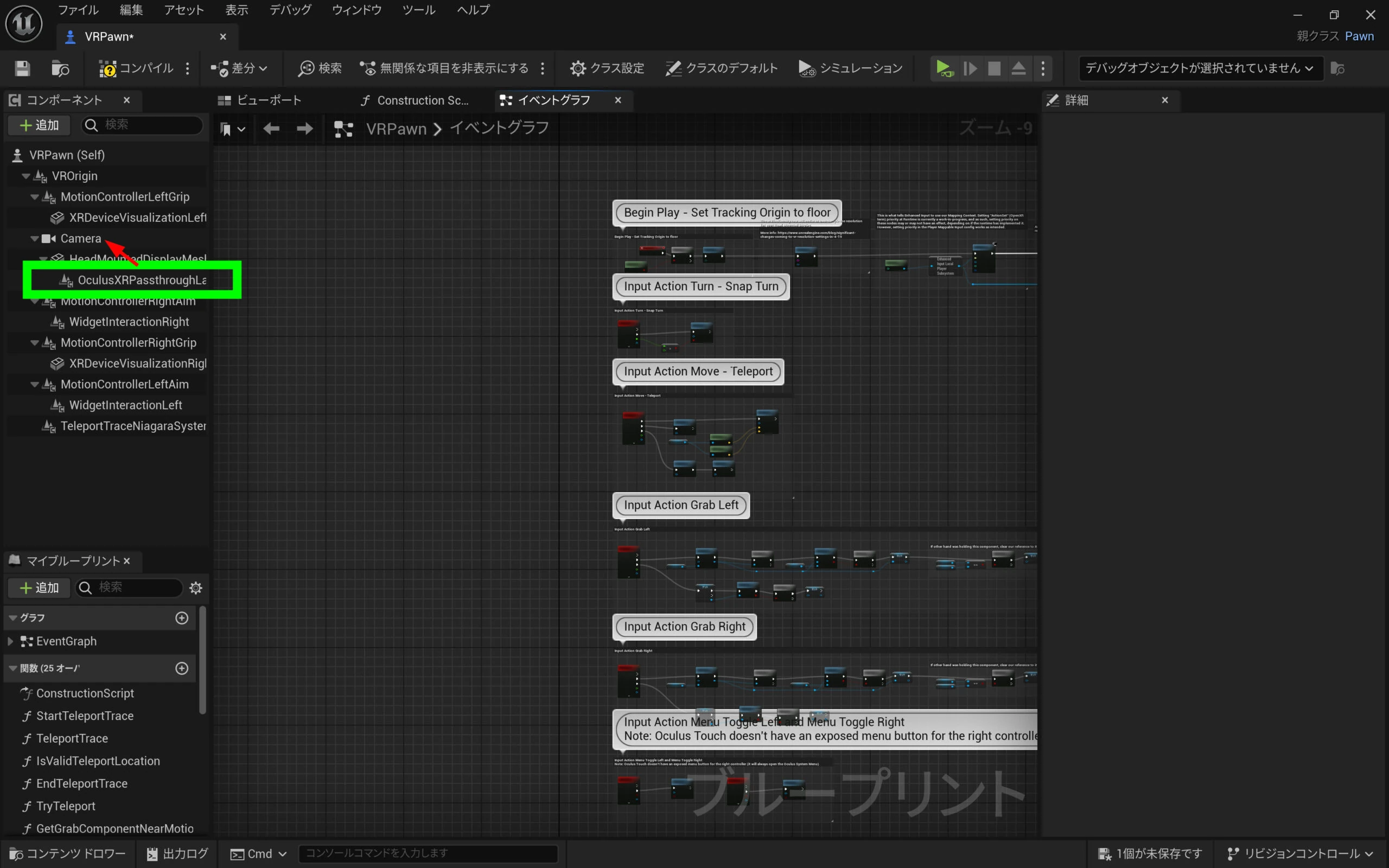 Arrange the components as shown.
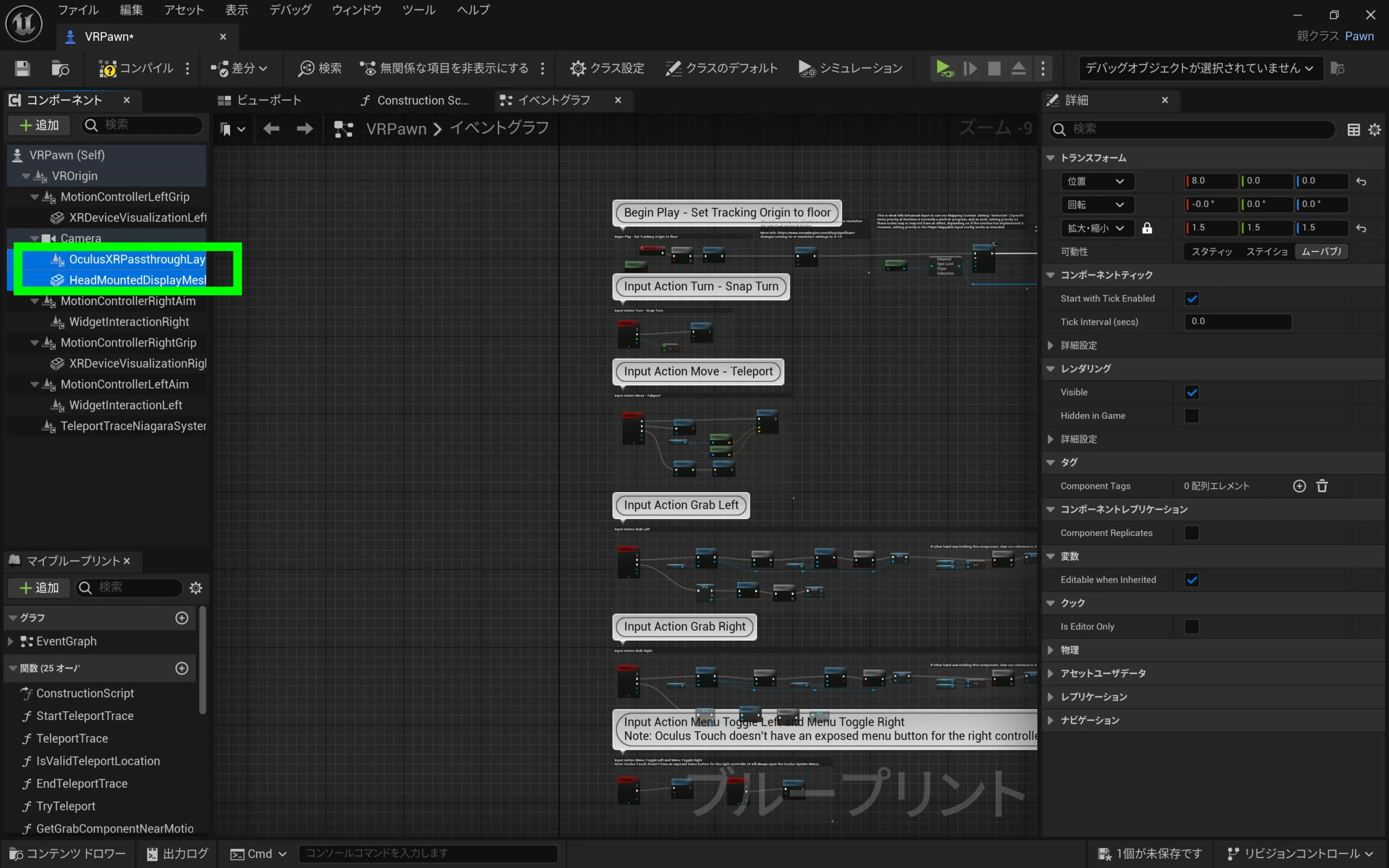 Compile once.
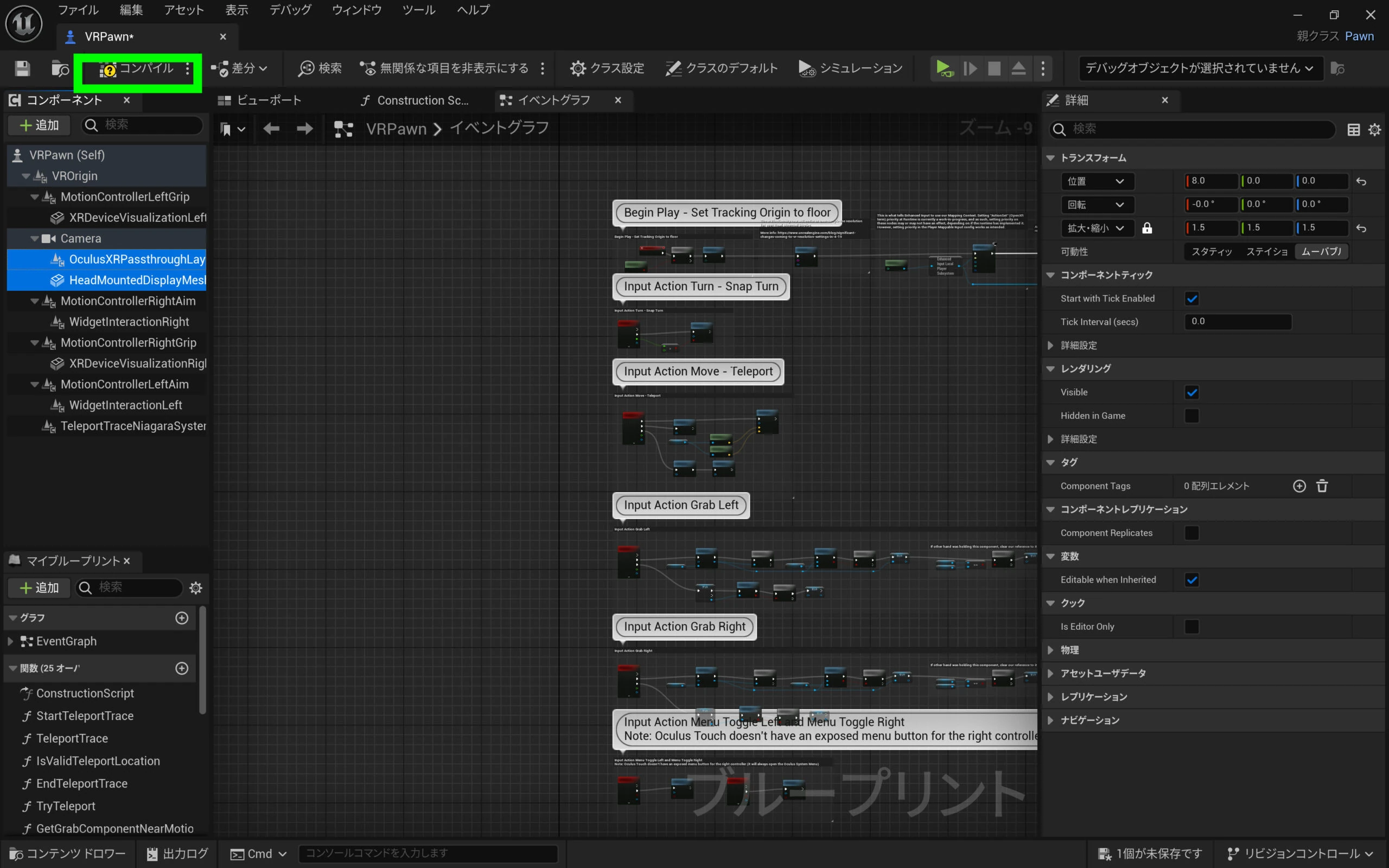 Errors appear. Delete the group of Blueprint nodes near the bottom.
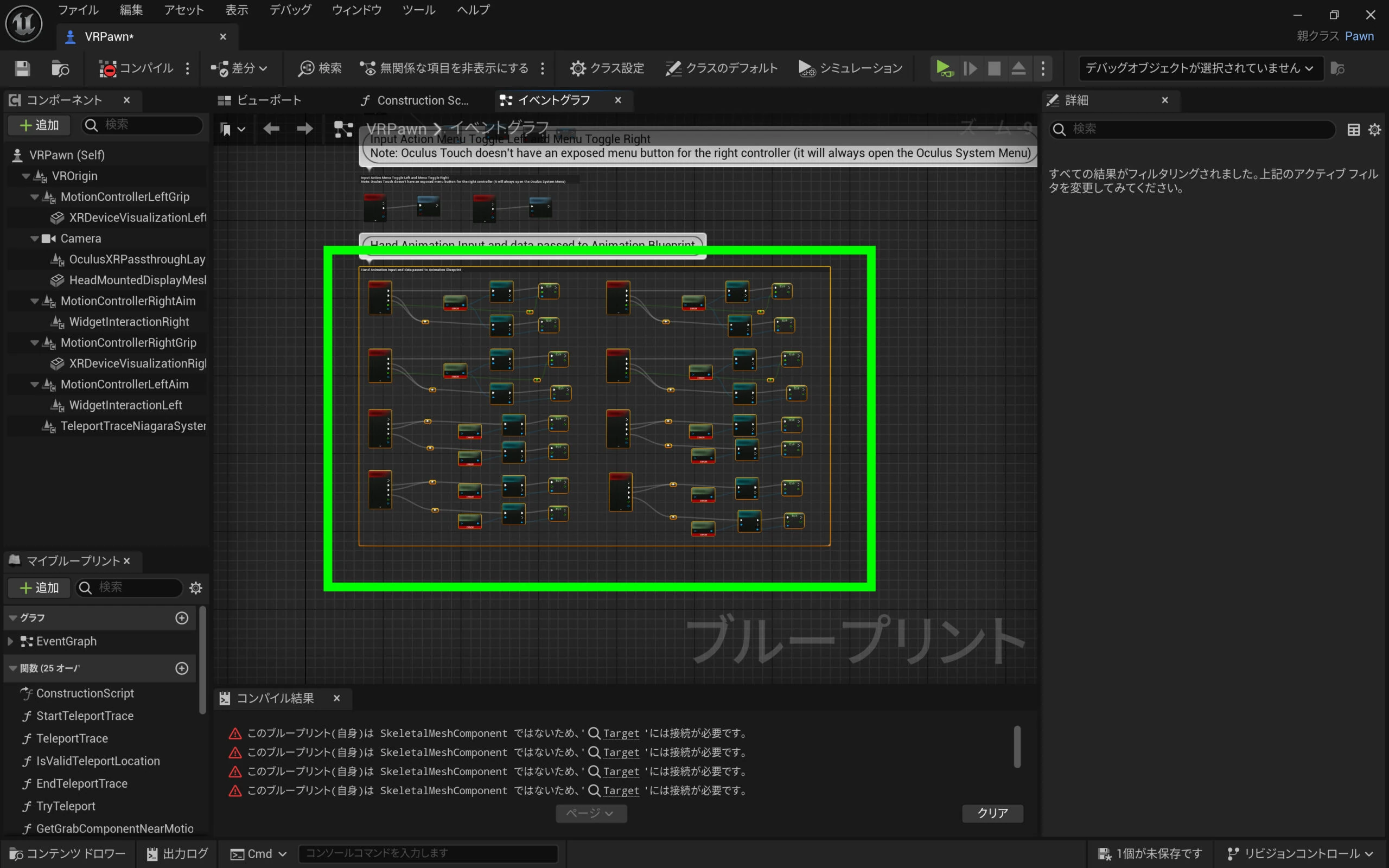
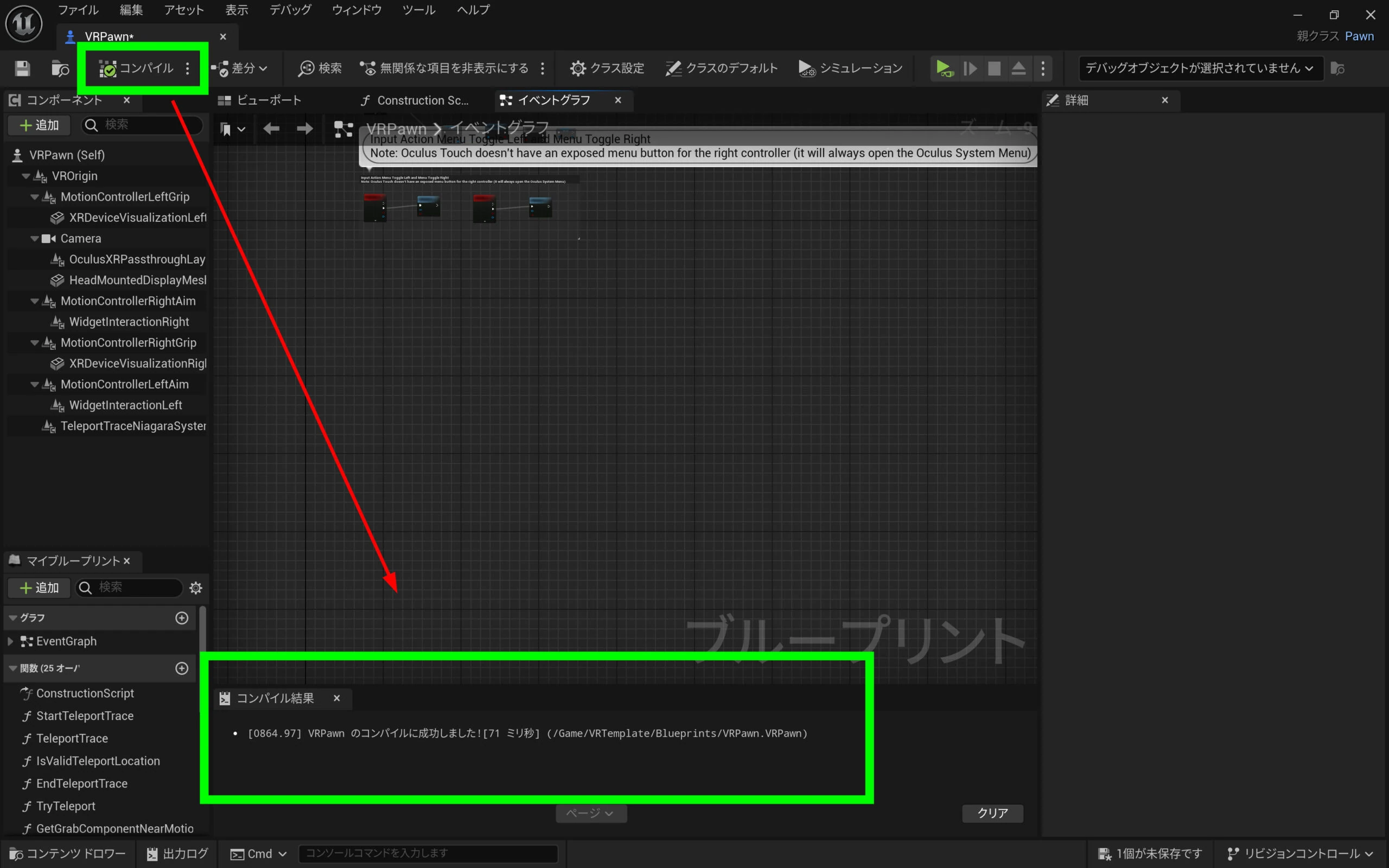
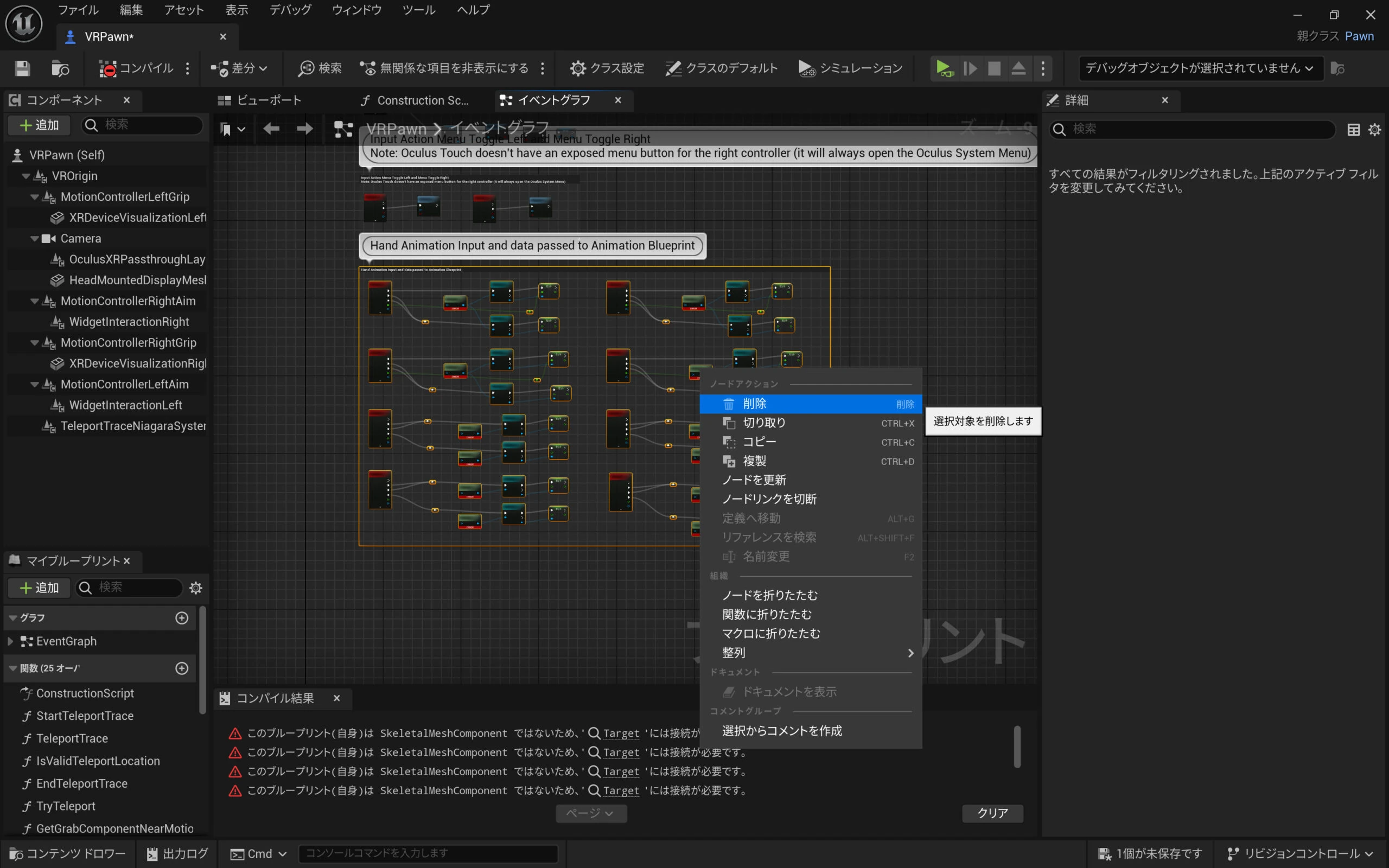 Compiling again removed the errors in my project.
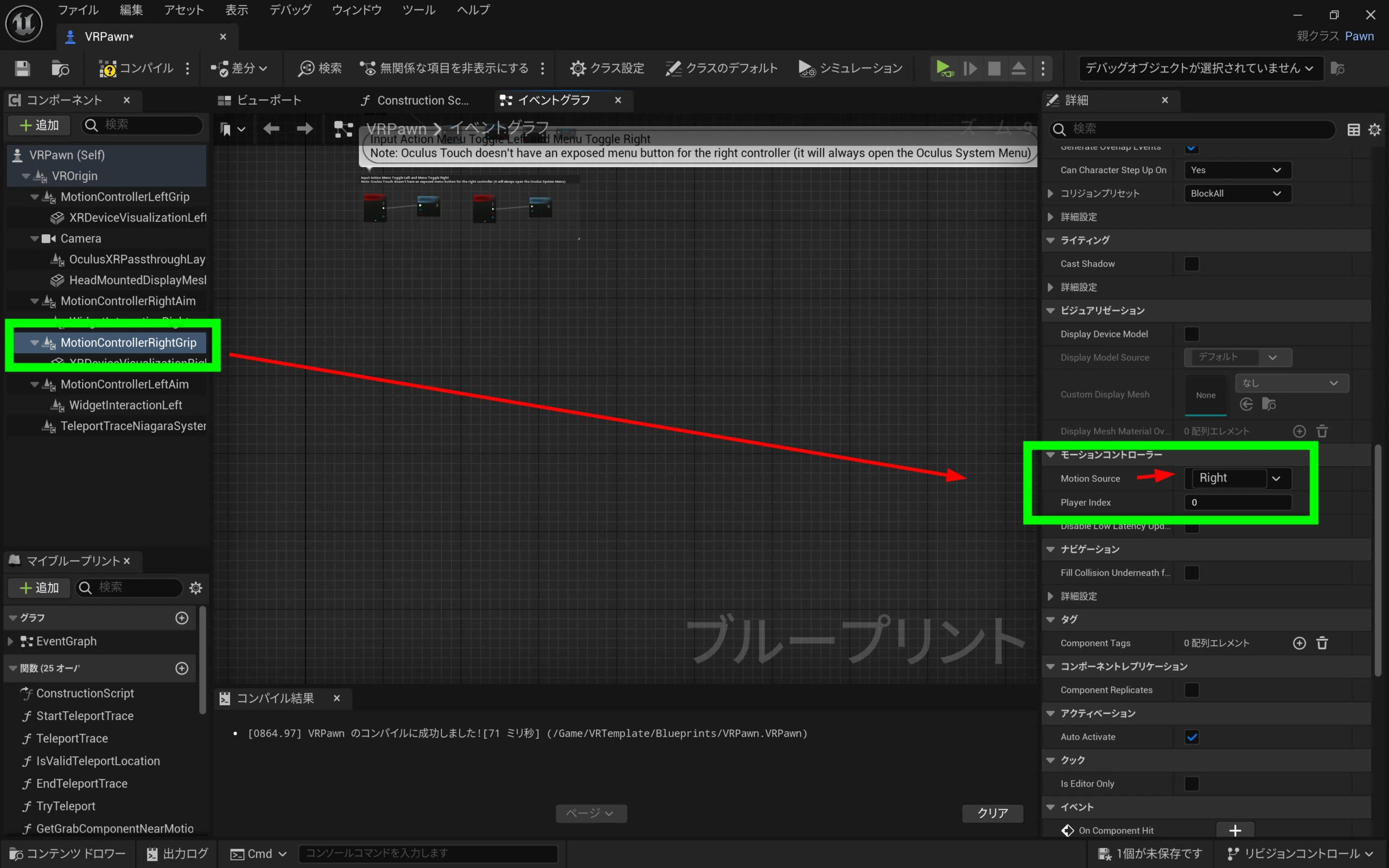
 Set MotionControllerLeftGrip to Left.
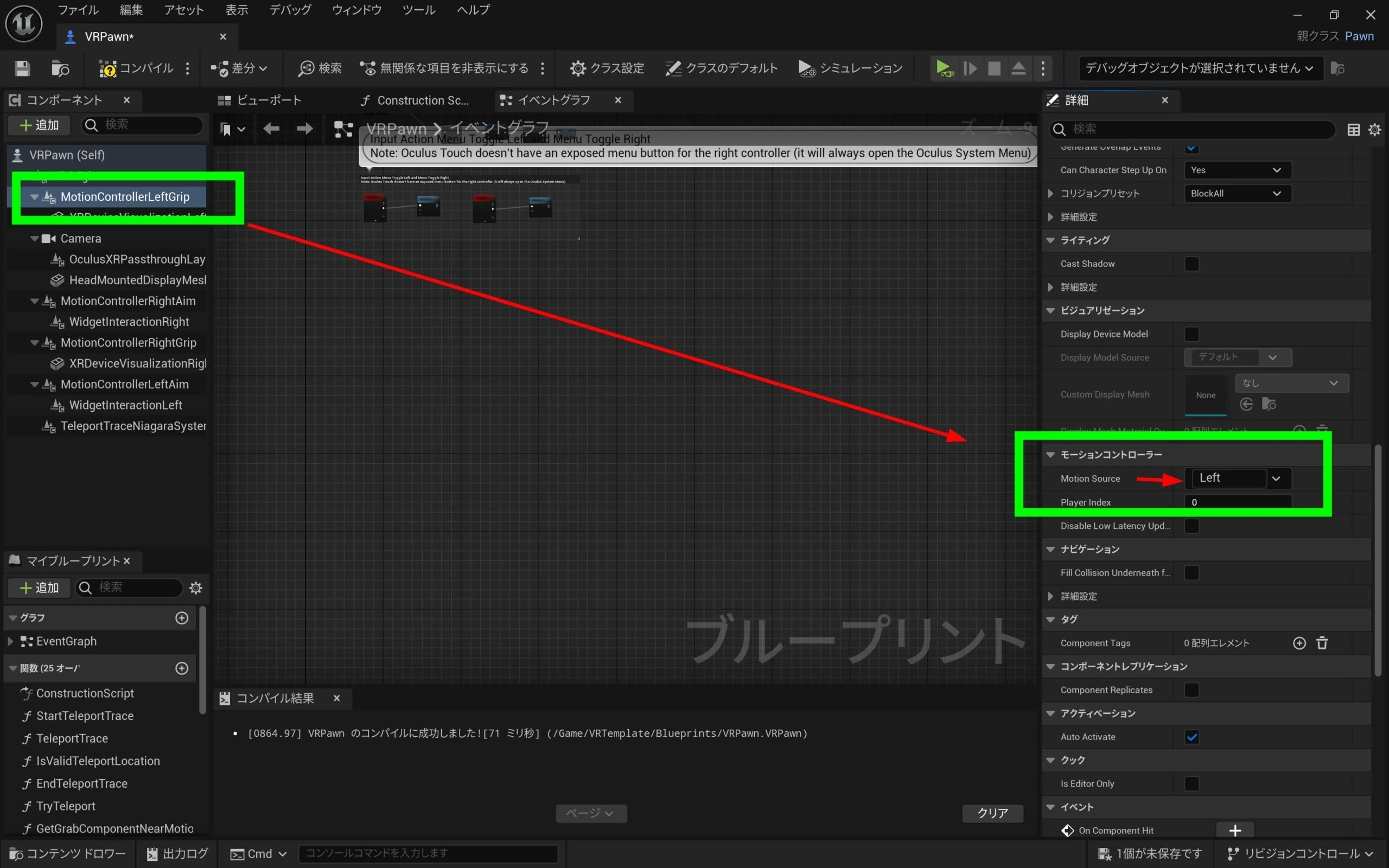 Similarly, set the other one to Right.
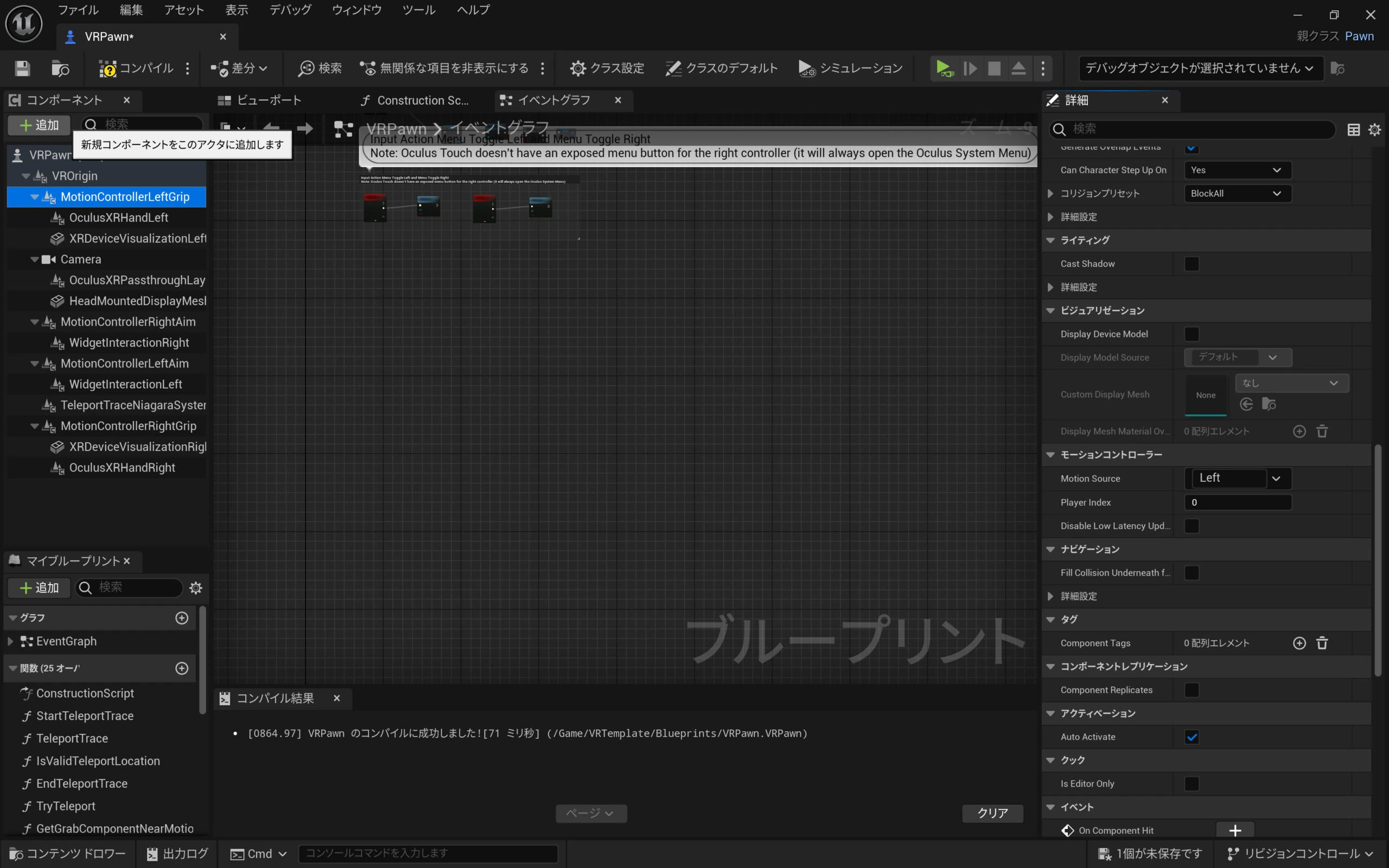
 With MotionControllerLeftGrip selected, click Add.
 Search for the hand component and add Oculus XRHand. Name it Oculus XRHandLeft.
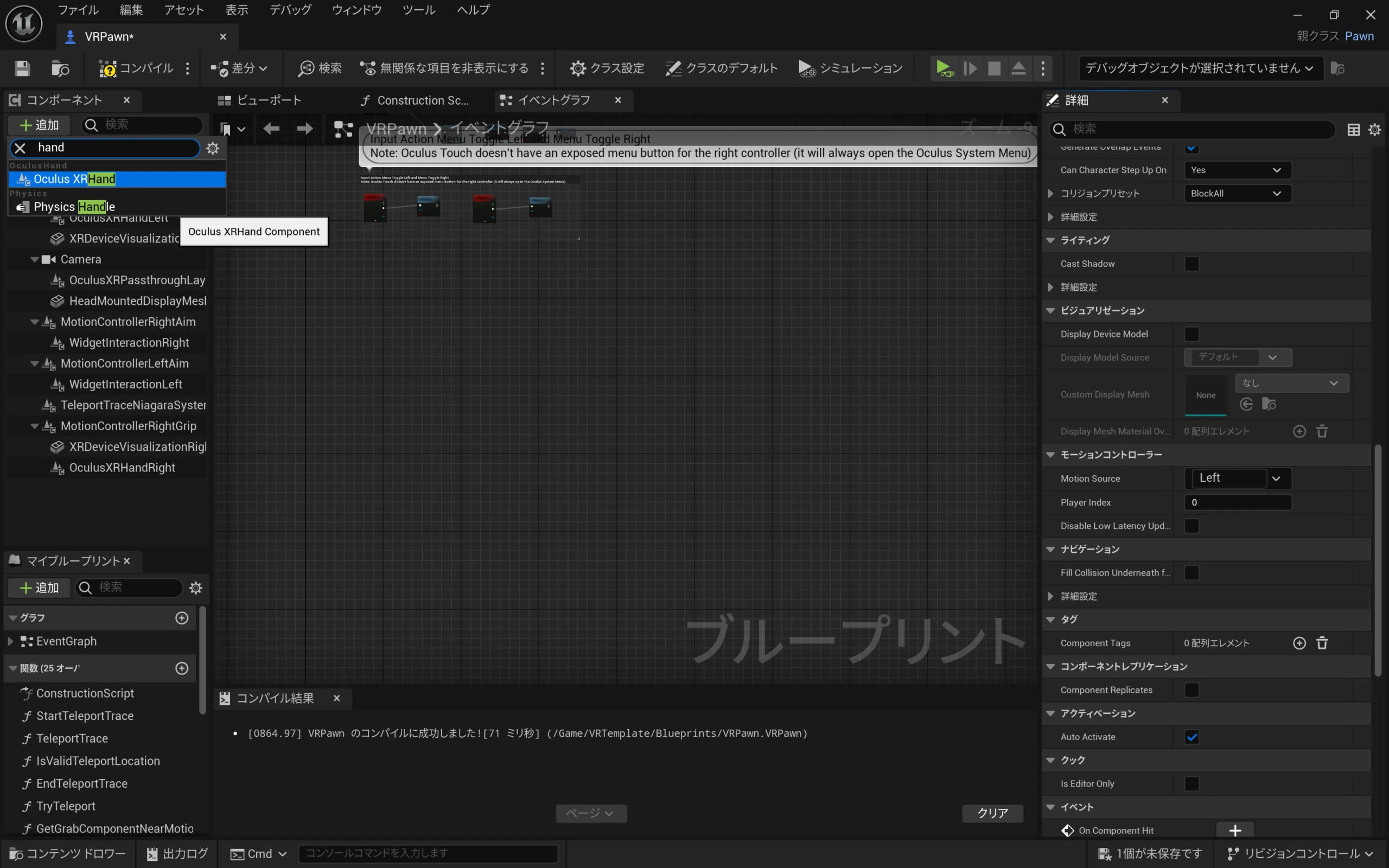 Add the matching component on the right: Oculus XRHandRight under MotionControllerRightGrip.
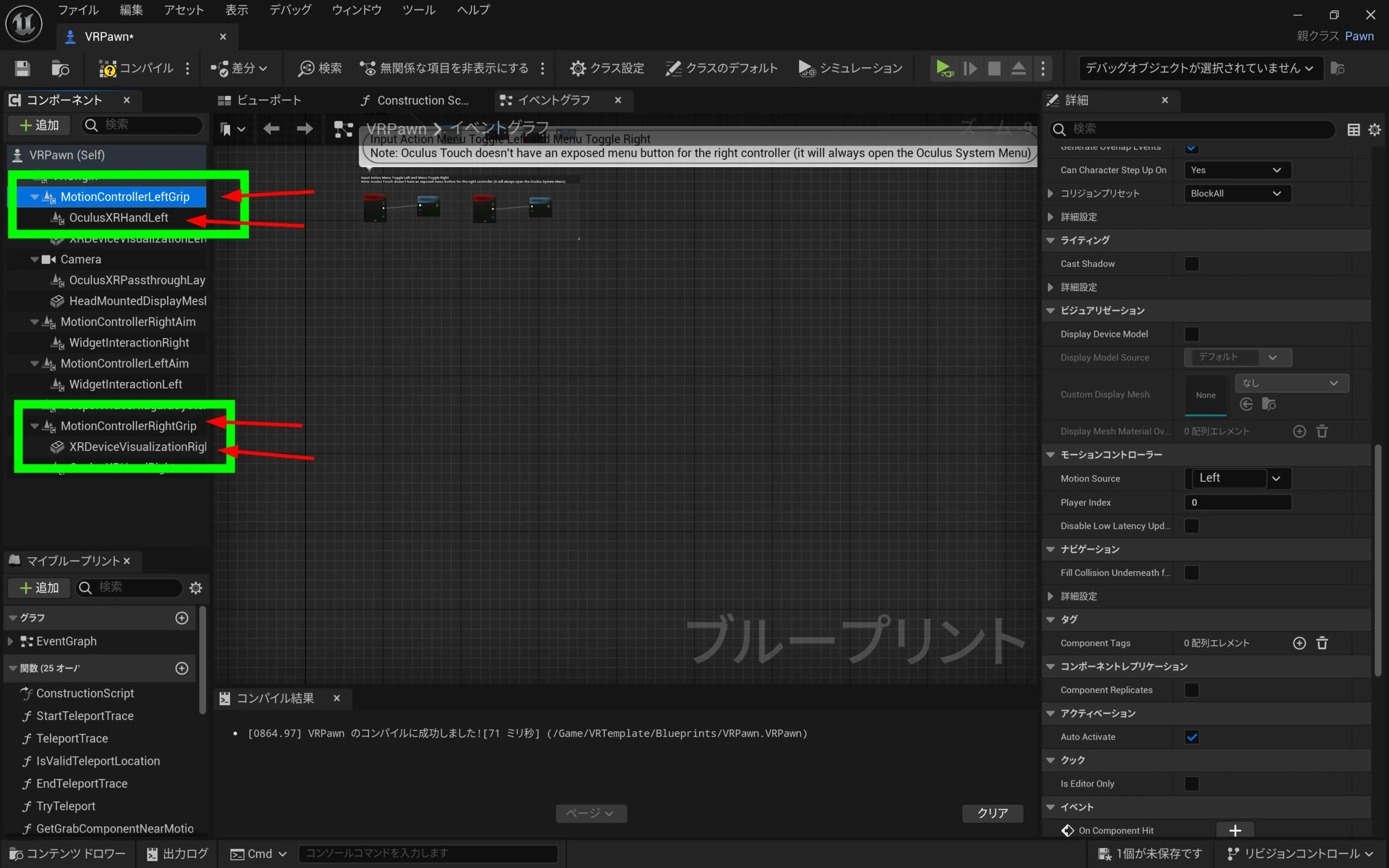 Set the left position to -5.5.
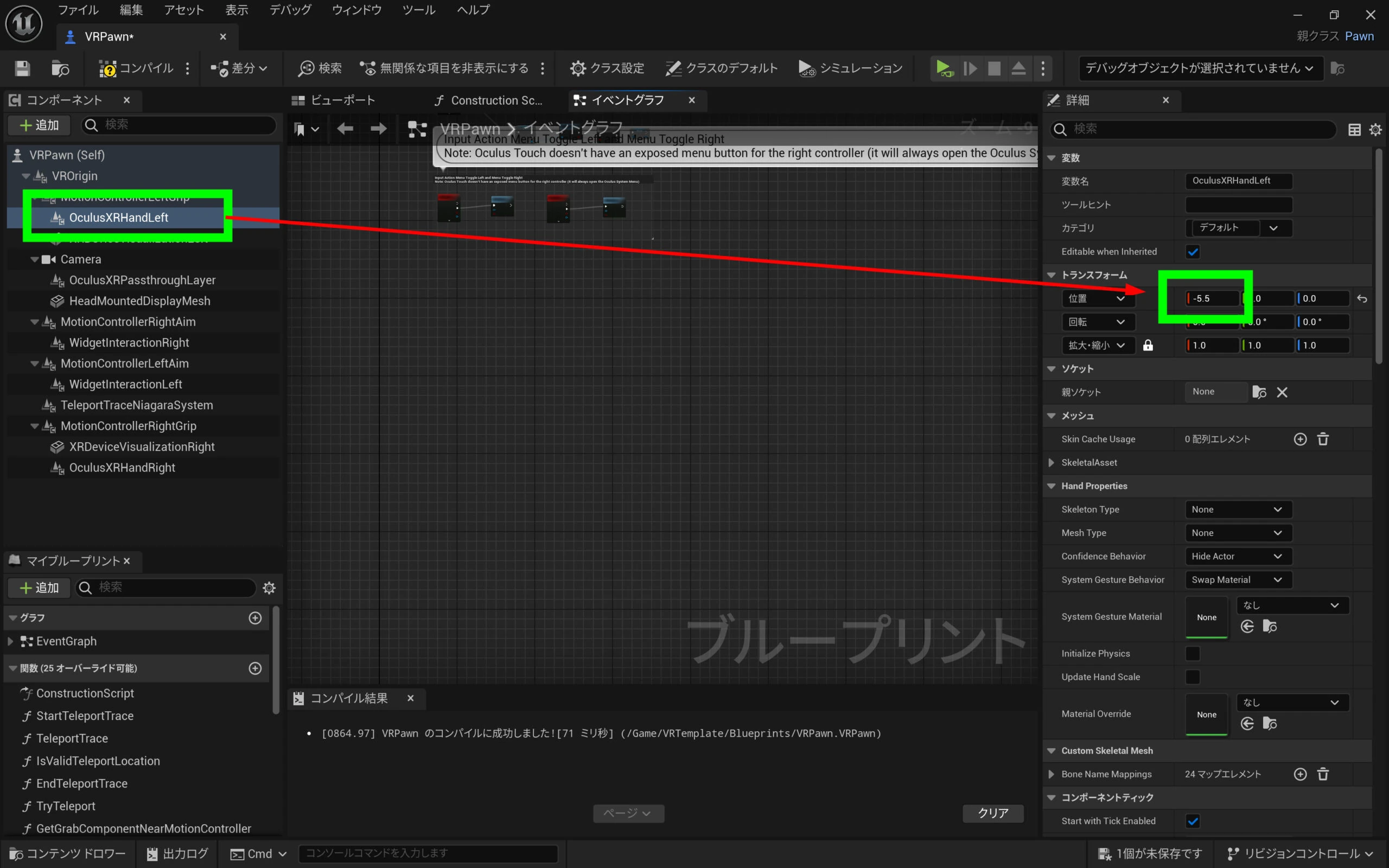 Then set the left position to -6. Adjust it as needed after checking the result.
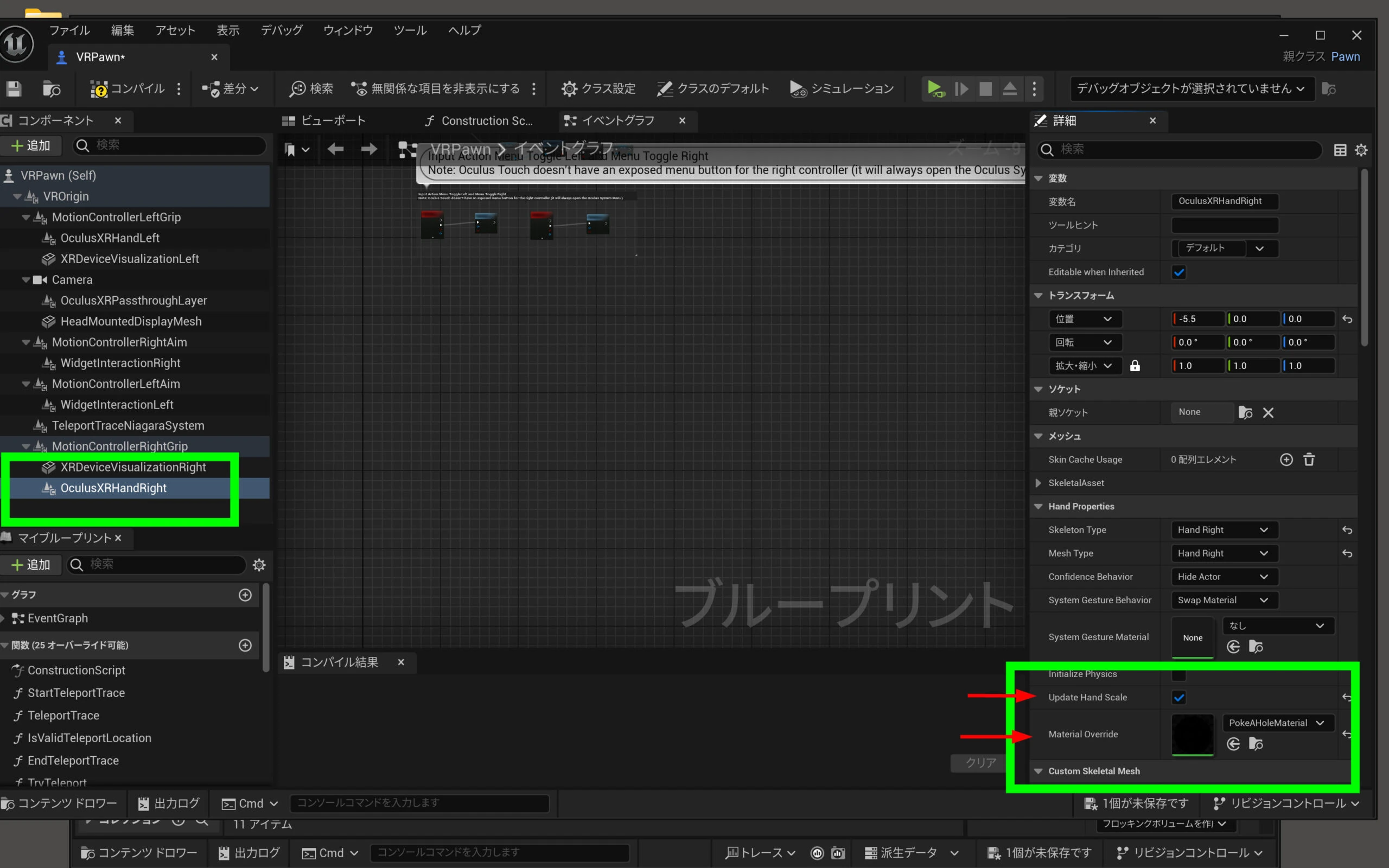
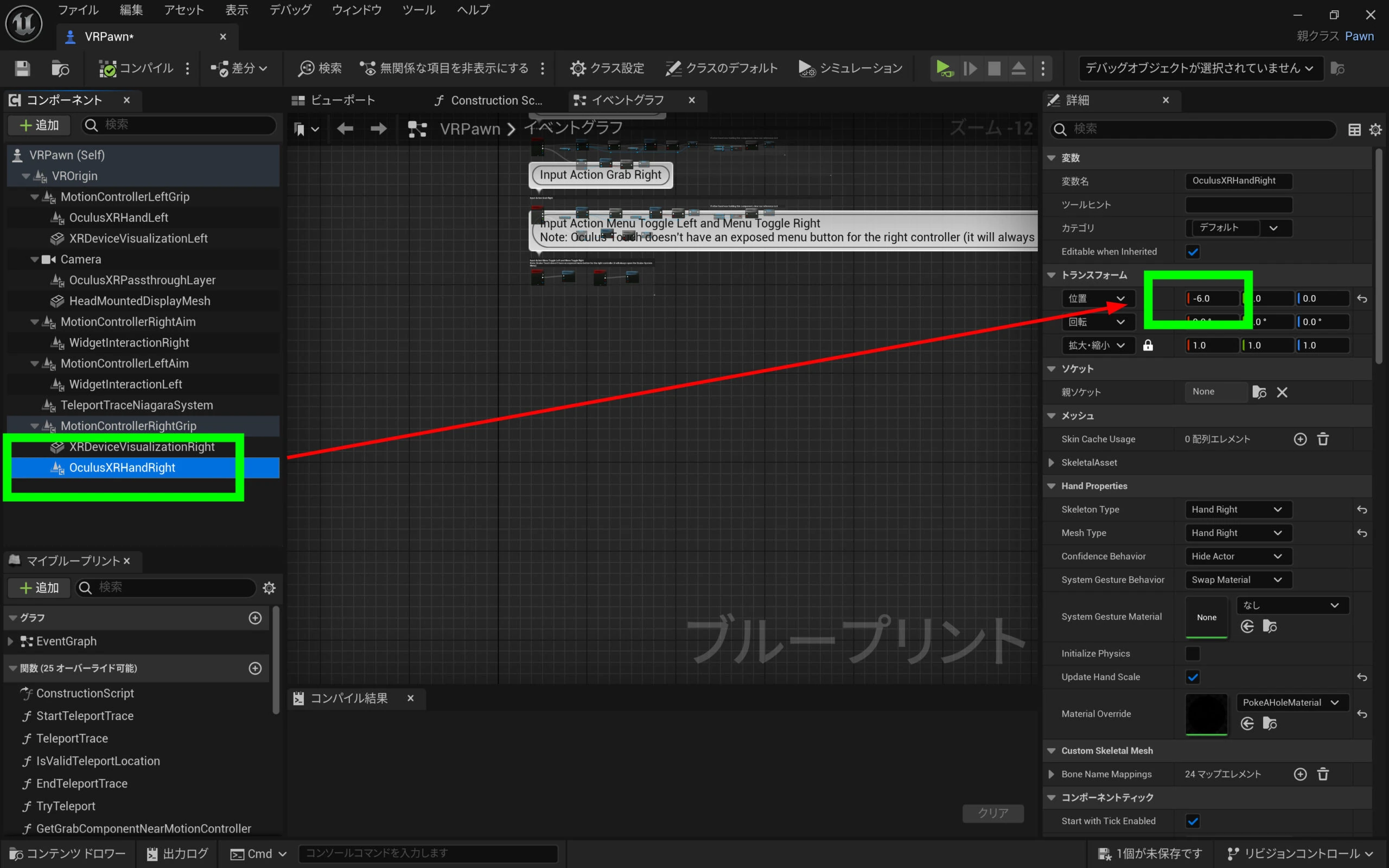 Change the Hand Properties of Oculus XRHandLeft.
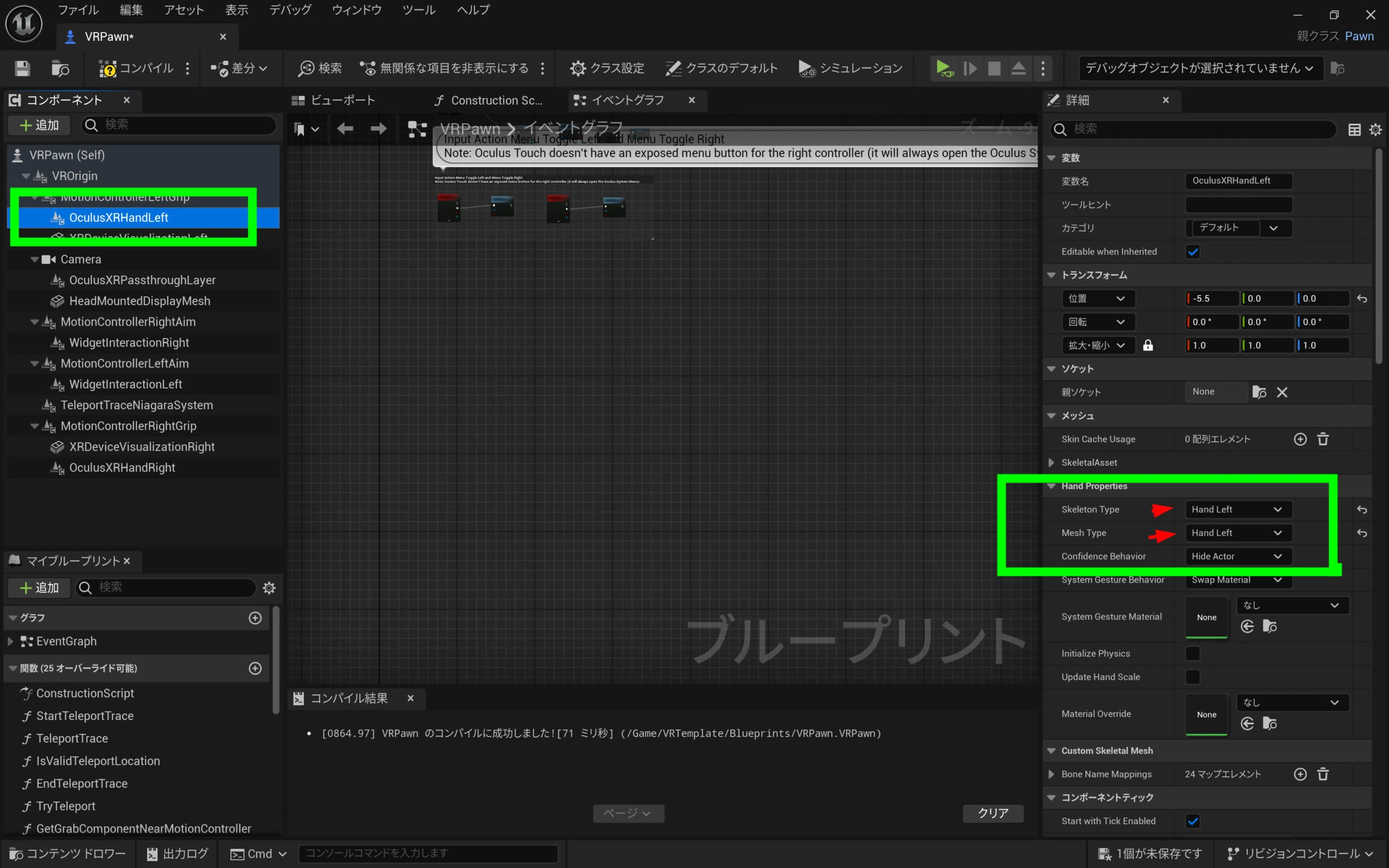 Make the matching changes on the other side.
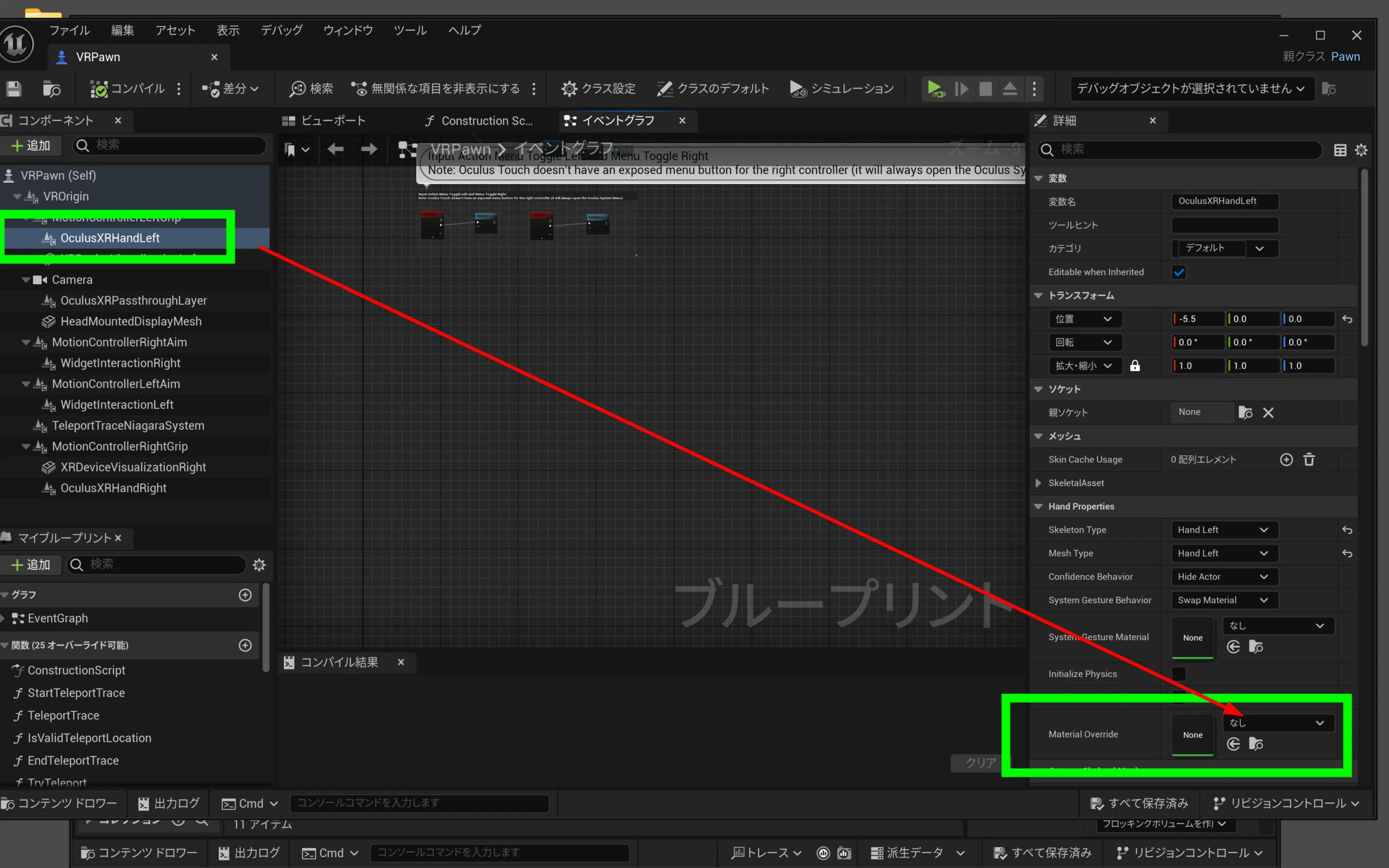
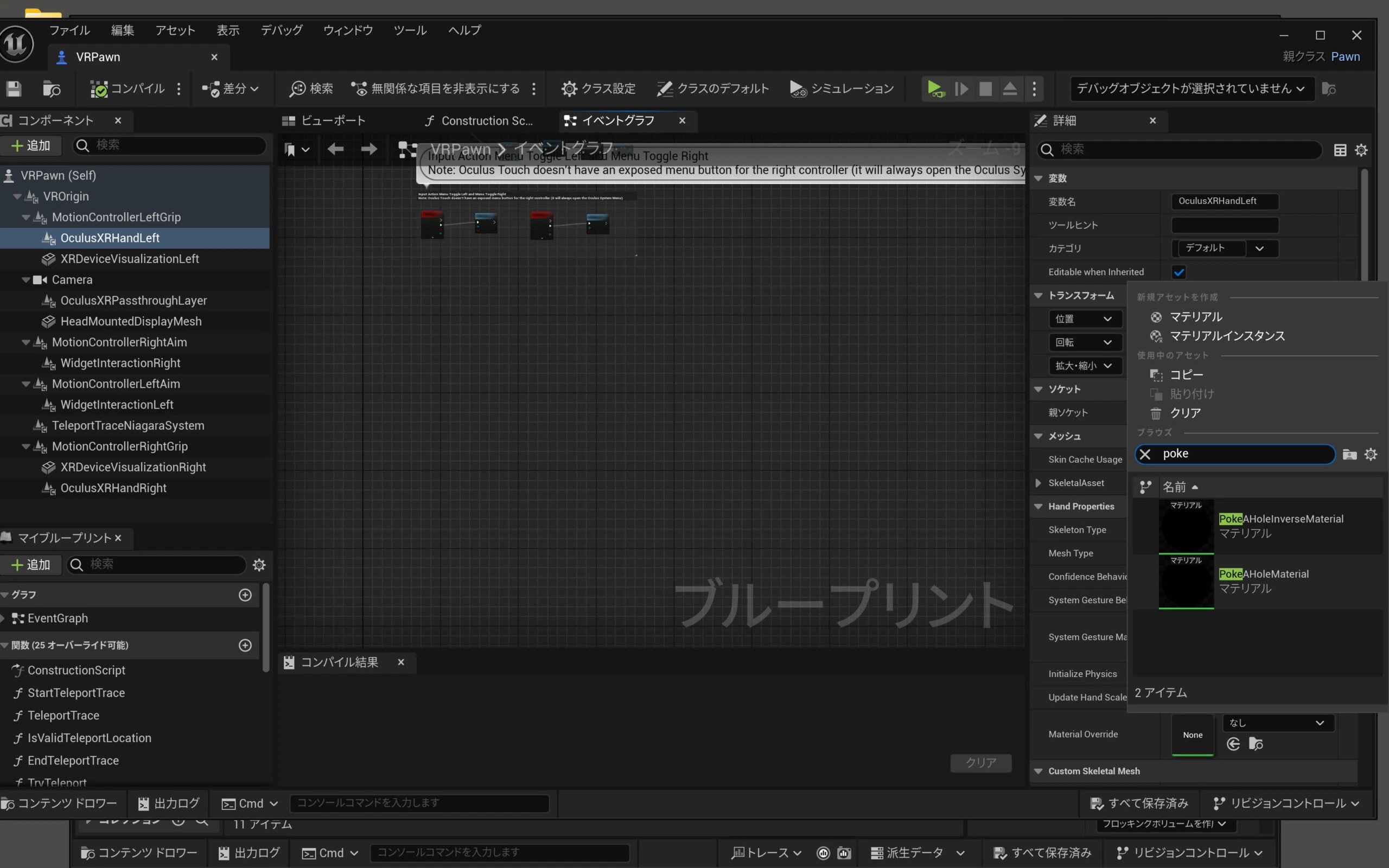
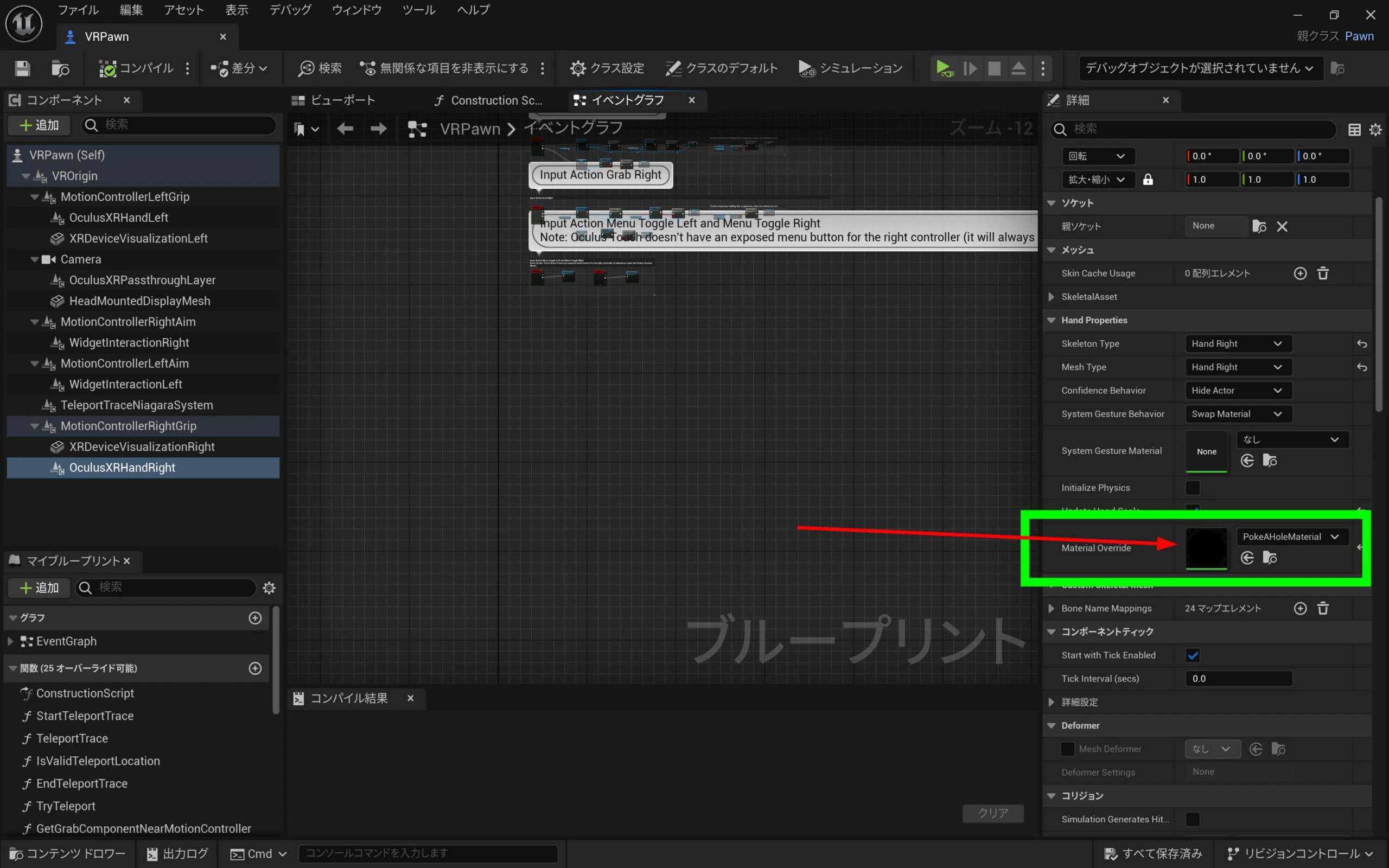
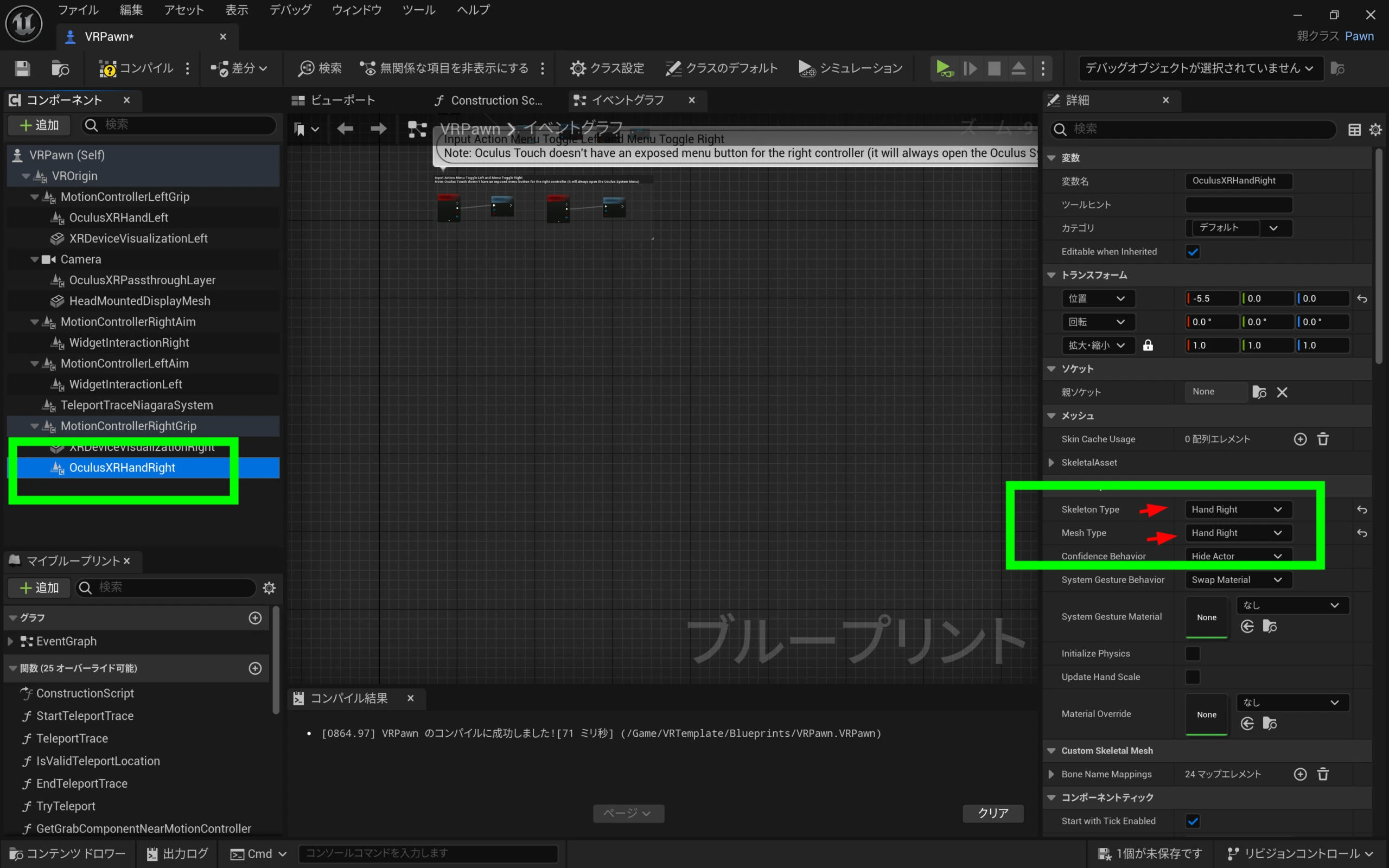 Select Oculus XRHandLeft and set its material override. Click the field currently showing None.
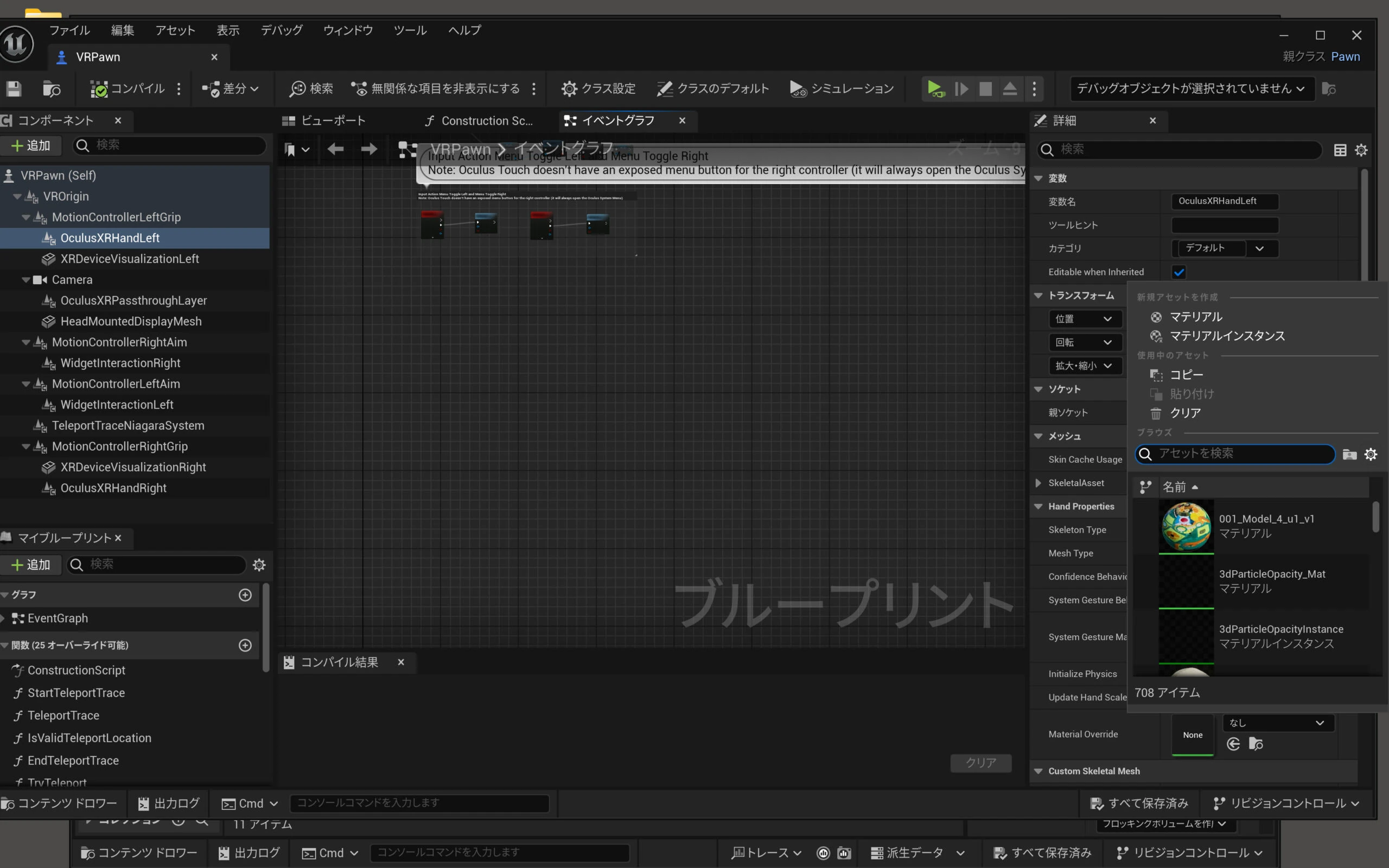
 There is a small gear icon next to the search field, which is easy to miss. Click it.
 Enable Show Developer Content.
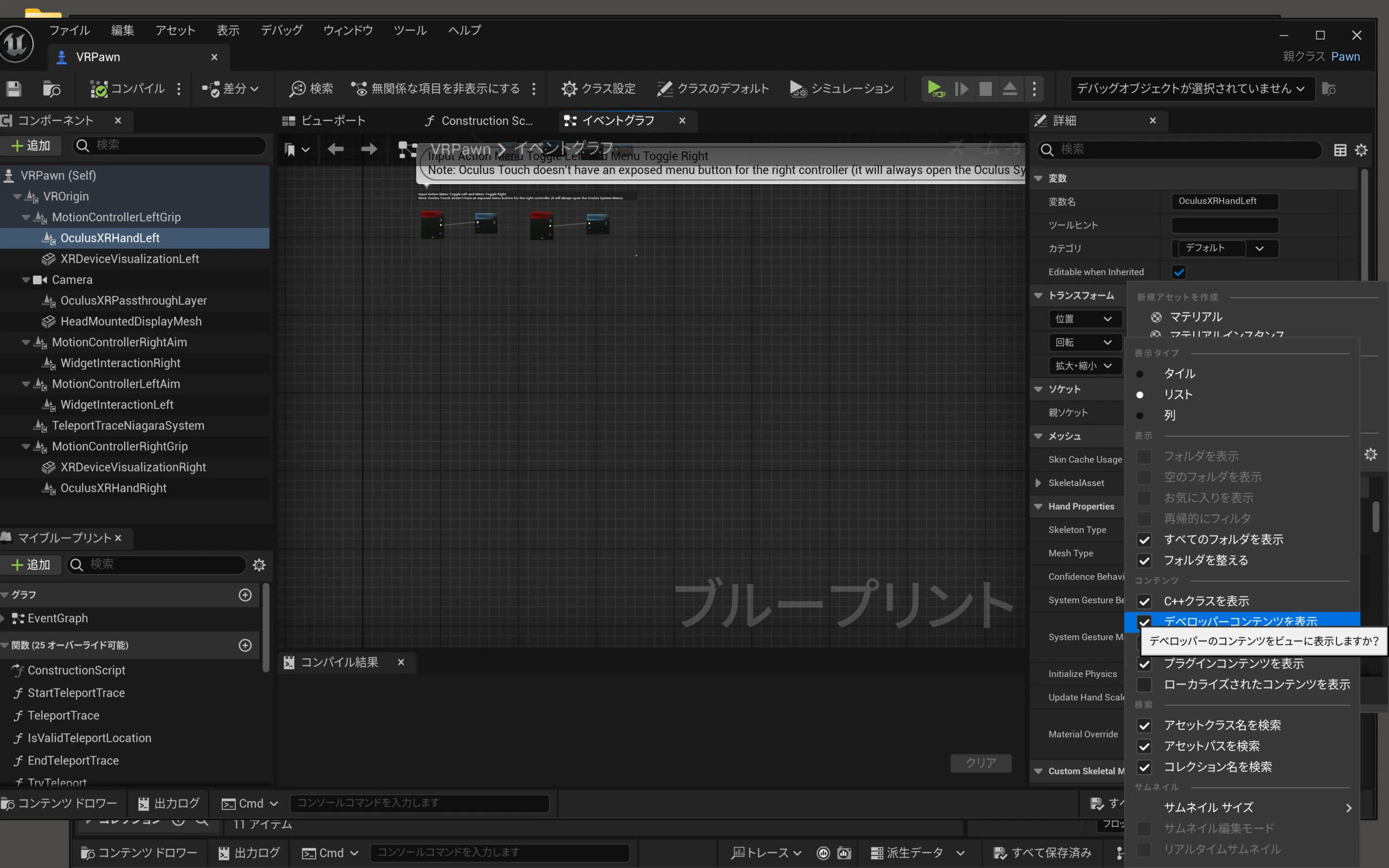 Enable Show Engine Content.
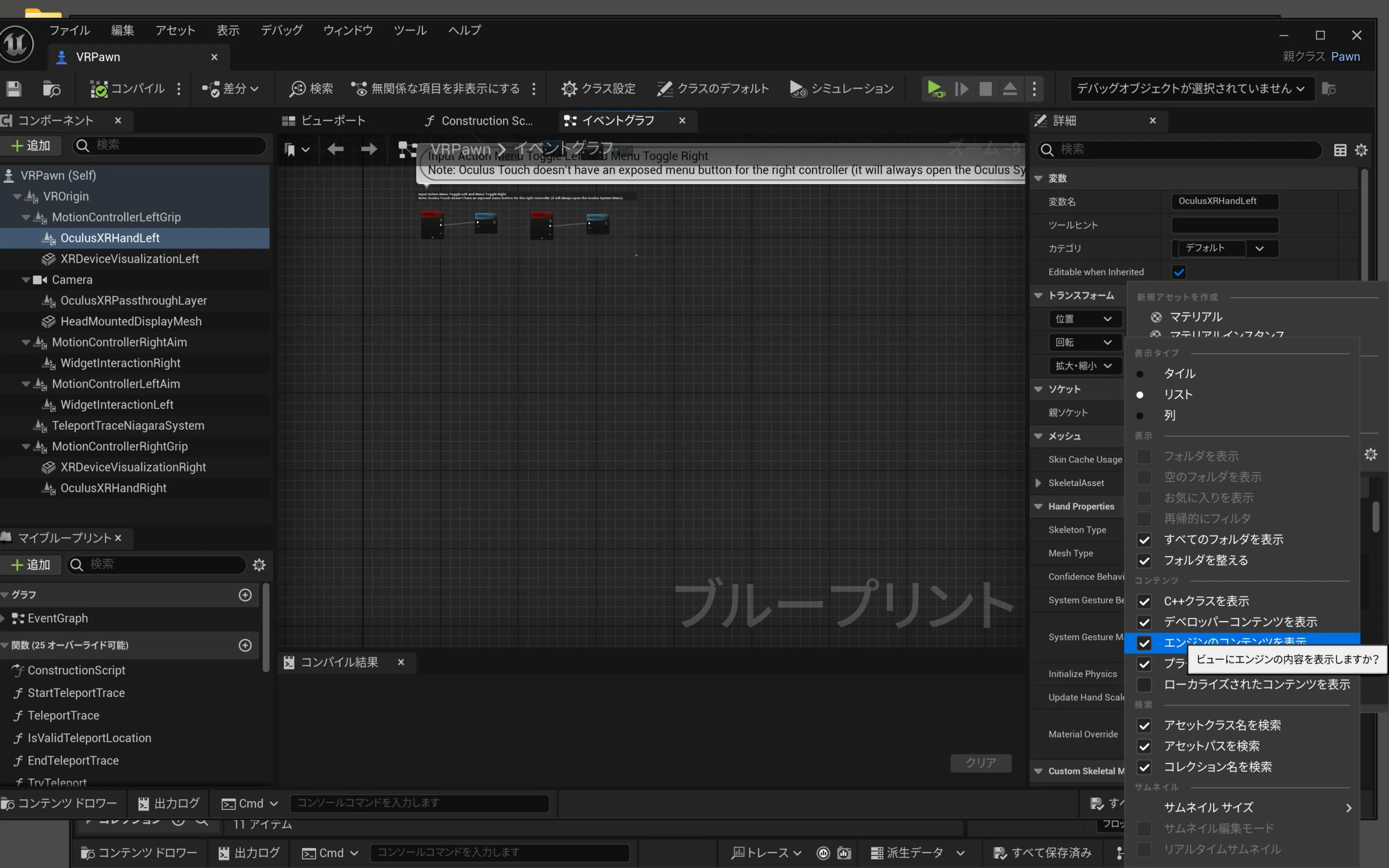 Enable the other option shown too.
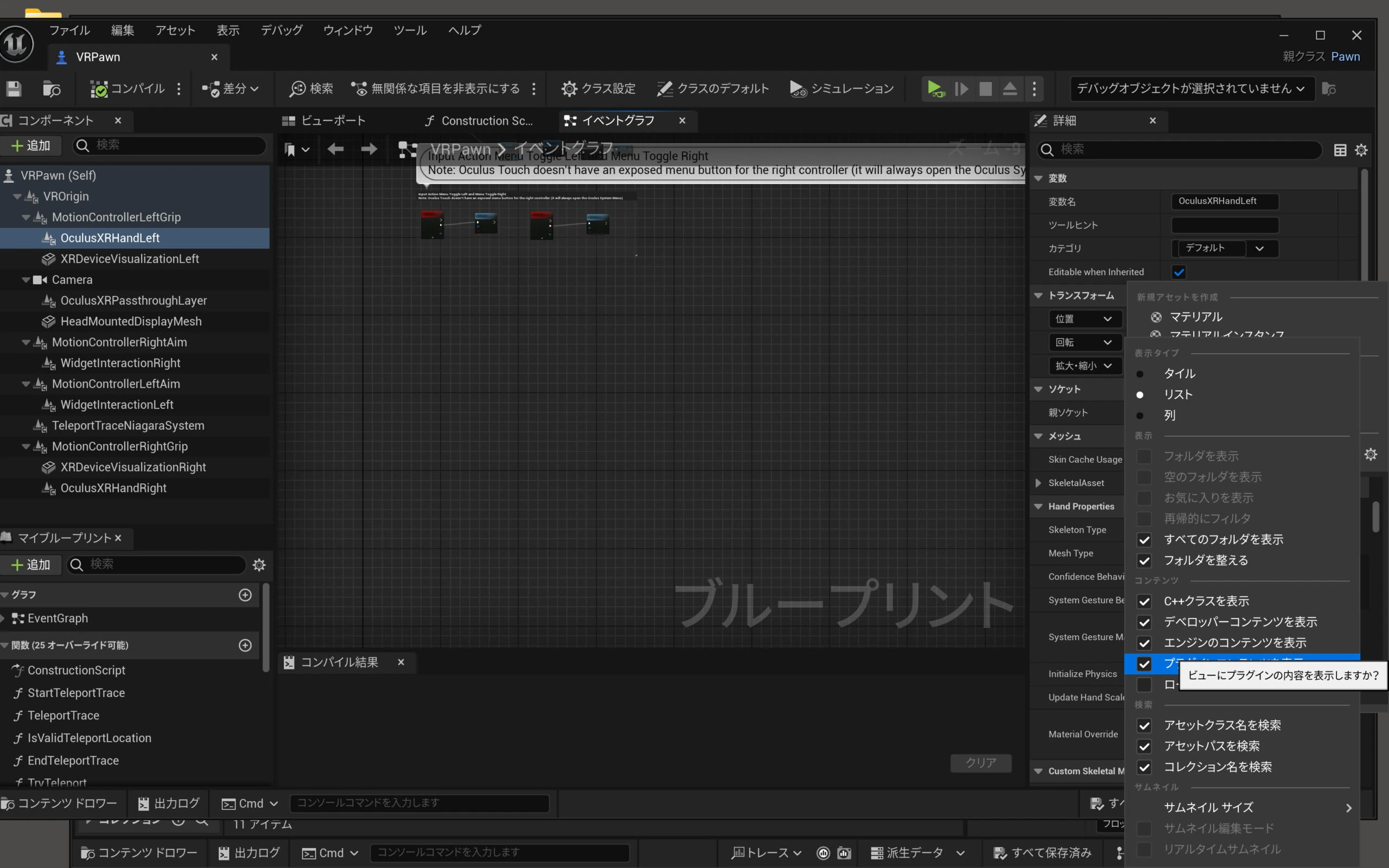 Search for Poke and choose PokeAHoleMaterial.
 Enable Update Hand Scale.
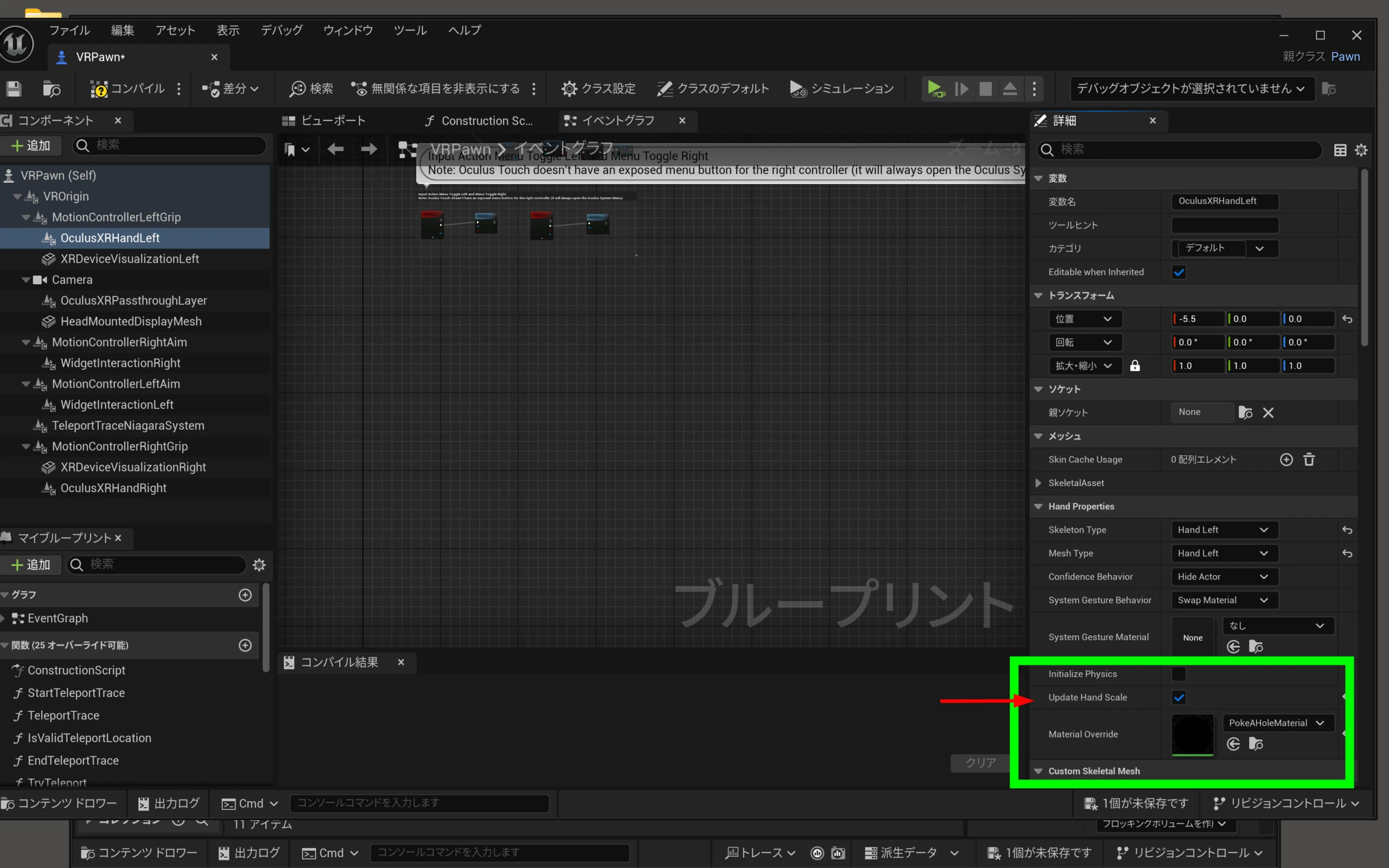 Apply the same settings on the other side.
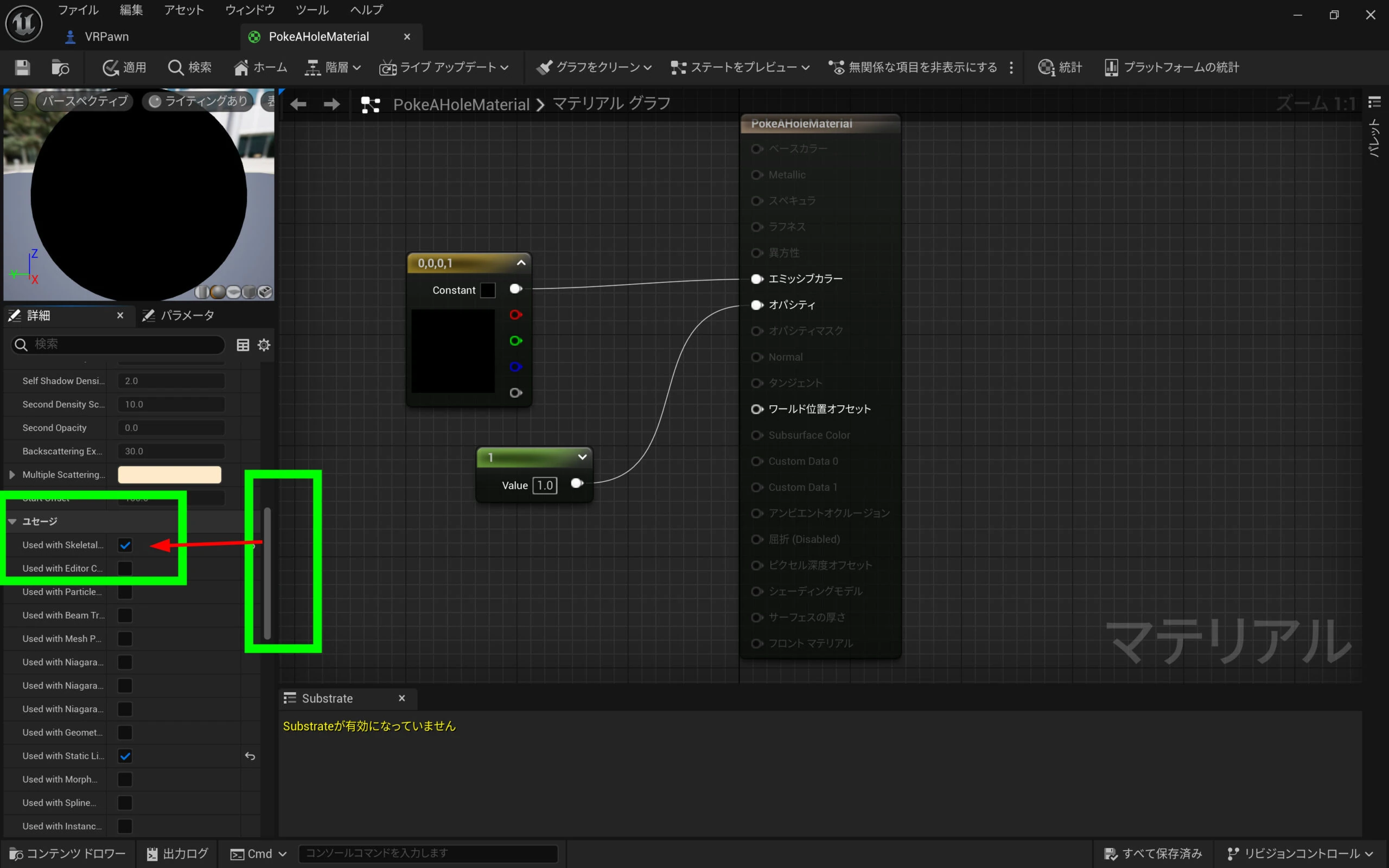
 Double-click PokeAHoleMaterial.
 Check that the option shown is enabled. I have not verified the detailed effect of this setting.
 That completes the configuration. Save, compile, and save all relevant assets.
Export and test the APK
Package the Android project and check the APK. It should finish quickly this time.
Install the APK with SideQuest.
I could now preview the MR result.
Meta Quest 3 listings (storage capacity unspecified)View listings on Amazon Ad / Amazon Associates link
Related articles
Updates and contact: X @riragoncom.