Riragon Rename for occasional bulk renaming, without having to remember commands
Riragon Rename is a Windows tool for the bulk filename changes you may need only occasionally, such as year-end document organization. This introduction covers basic operation, a 100,000-file test, warnings about multiple replacements, and rollback.
Riragon Rename, normally ¥980, is being offered free until December 31, 2026. You can get it free through December 31 from Microsoft Store if you would like to try it.
Organizing year-end documents or preparing files for a business partner sometimes means bringing thousands or tens of thousands of filenames into a consistent format.
Command Prompt or PowerShell can rename them in bulk, but for a once-a-year task, last year's syntax is easily forgotten. Searching, experimenting, and checking for mistakes can keep you from returning to the work that matters.
An apparently simple app is not much help if it freezes while loading a large folder. I want something easy to start using after a long gap that also handles large batches.
For that purpose, I would like to introduce Riragon Rename, a Windows bulk filename-changing app. Changing filenames is also called renaming. Enter the text to change, inspect the before-and-after preview, and apply the batch.
Here I use a development build with sample files prepared for screenshots and consult the official test records to look at the main points for office use.
Start with a folder and two text fields
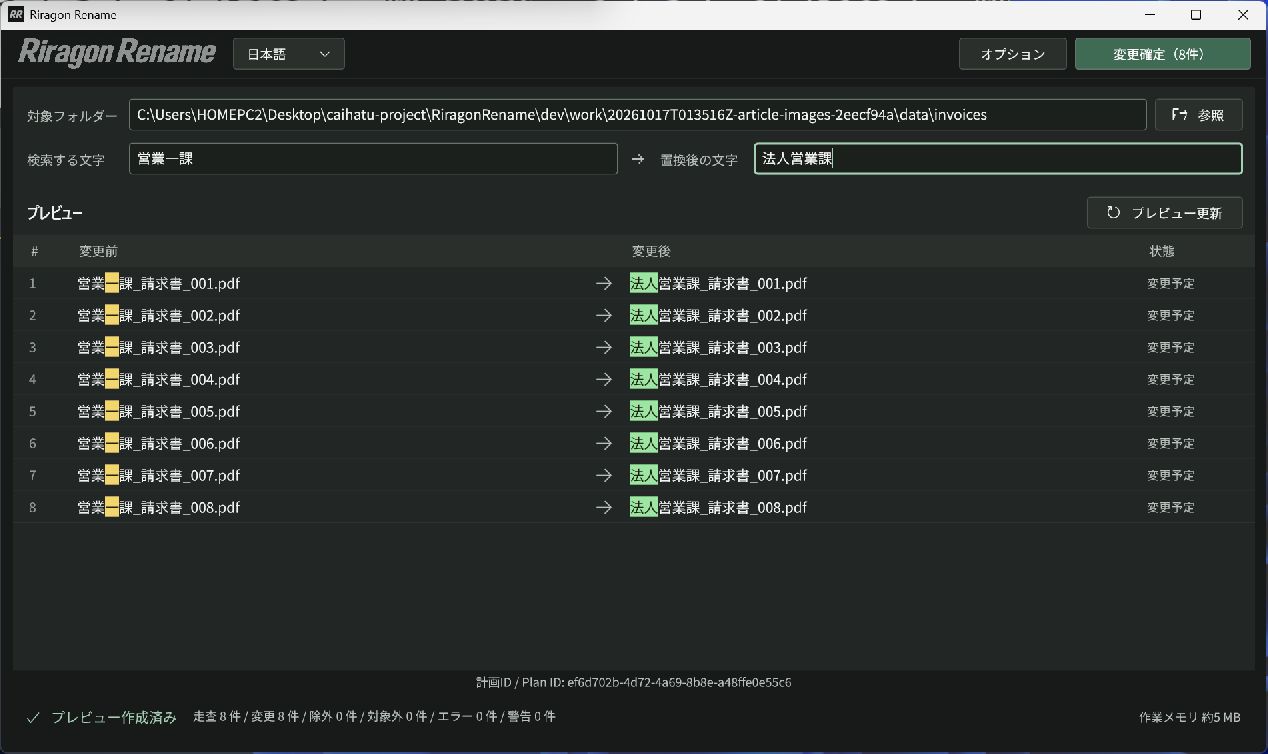
For example, suppose the invoice PDFs prepared for a handover should change the old department name 営業一課, Sales Section 1, to 法人営業課, Corporate Sales.
In the initial Simple mode, the basic process is as follows. If the app initially opens in English, the language field beside the logo can switch it to Japanese, as used in these examples.
- Use Browse beside Target Folder to choose the folder containing the files.
- Enter
営業一課in the search-text field and法人営業課in the replacement field. - Press Enter after typing, then check the updated preview's old and new names and file count.
- If the result is correct, press Confirm Changes. Afterward, check the success and failure counts too.
| Before | After |
|---|---|
営業一課_請求書_001.pdf | 法人営業課_請求書_001.pdf |
営業一課_請求書_002.pdf | 法人営業課_請求書_002.pdf |
営業一課_請求書_003.pdf | 法人営業課_請求書_003.pdf |
The actual screen of development version 1.0.11 with eight invoice PDFs. Entering the two fields highlights the affected text so it can be compared before confirmation.
Typing alone does not change the files. Being able to inspect the result before confirming makes the operation easier to understand on a first attempt.
By default, files directly inside the selected folder are included. Extensions identifying file types, such as .pdf, remain unchanged. Only names are changed; this does not edit PDF contents or spreadsheet data.
A recorded test completed 100,000 filename changes
Easy operation is not enough if the app cannot handle large batches. The official 100,000-file test is useful evidence here.
In the developer's October 12, 2026 test, all 100,000 changes succeeded, with zero failures or unexecuted items. The test replaced the beginning of filenames for 1,024-byte text files placed in one folder. Every resulting filename and file's contents were separately checked afterward.
Preview generation took about 15 seconds; renaming, safety checks, and saving execution records took about 5 minutes 19 seconds. Times vary with the PC and storage, but provide a reference for large batches.
The timing used CLI version 1.0.9, which shares the app's renaming engine, and excludes screen rendering and user-operation time. It is a single measurement on Windows 11 Pro with a Core i9-9900K, 64GB RAM, and a USB-connected SSD.
Related listings for the CPU used in the test: Find Intel Core i9-9900K on Amazon (Ad)
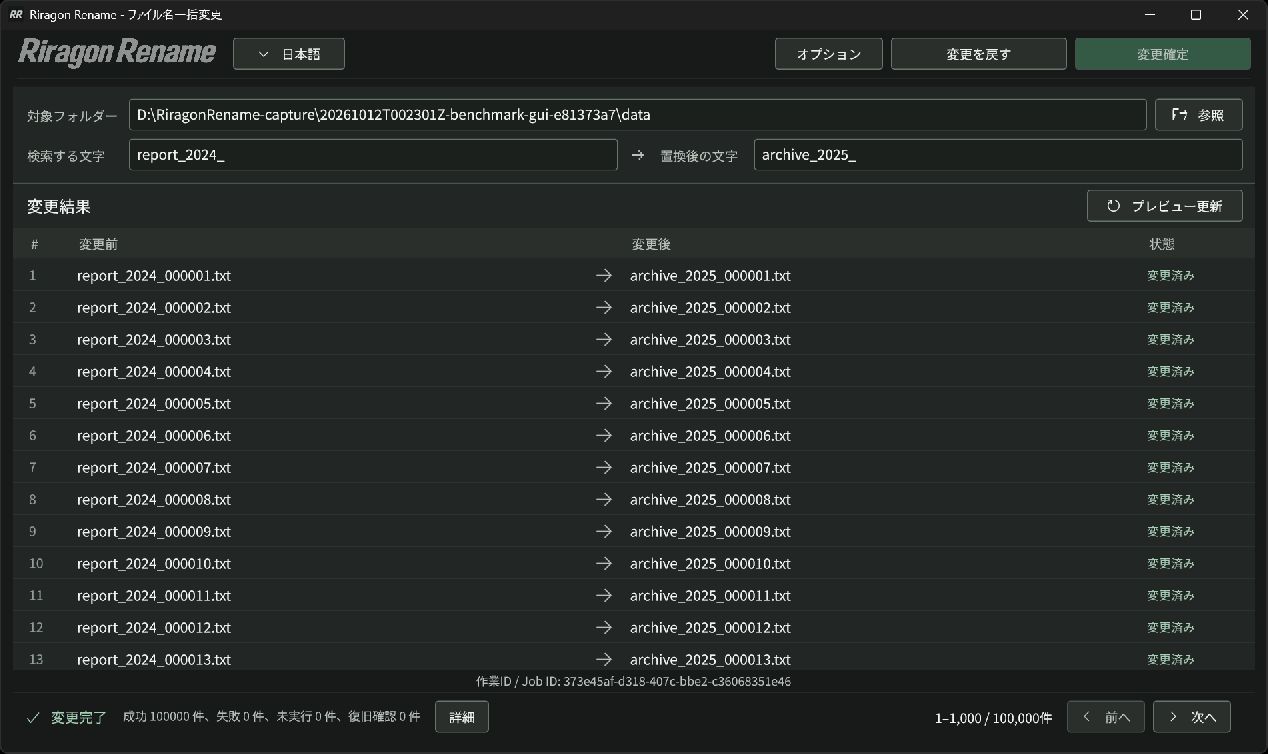
The 100,000-file completion screen. This image comes from a separate GUI test with version 1.0.10, not the timing measurement.
The list displays 1,000 entries per page, but that is only a display boundary. Confirmation processes the entire plan, not only the 1,000 visible entries. A large batch does not need to be registered again in smaller pieces.
Warnings when a replacement affects both a year and an identification number
The worrying part of bulk changes is accidentally replacing unintended text too.
For example, replacing 2024 with 2025 in report_2024_002024.csv produces report_2025_002025.csv. The same text appears in the identification number as well as the year.
When the search text occurs more than once in a filename, Riragon Rename shows a warning such as 'Caution: 2 locations'. It helps identify unintended replacements before confirmation.
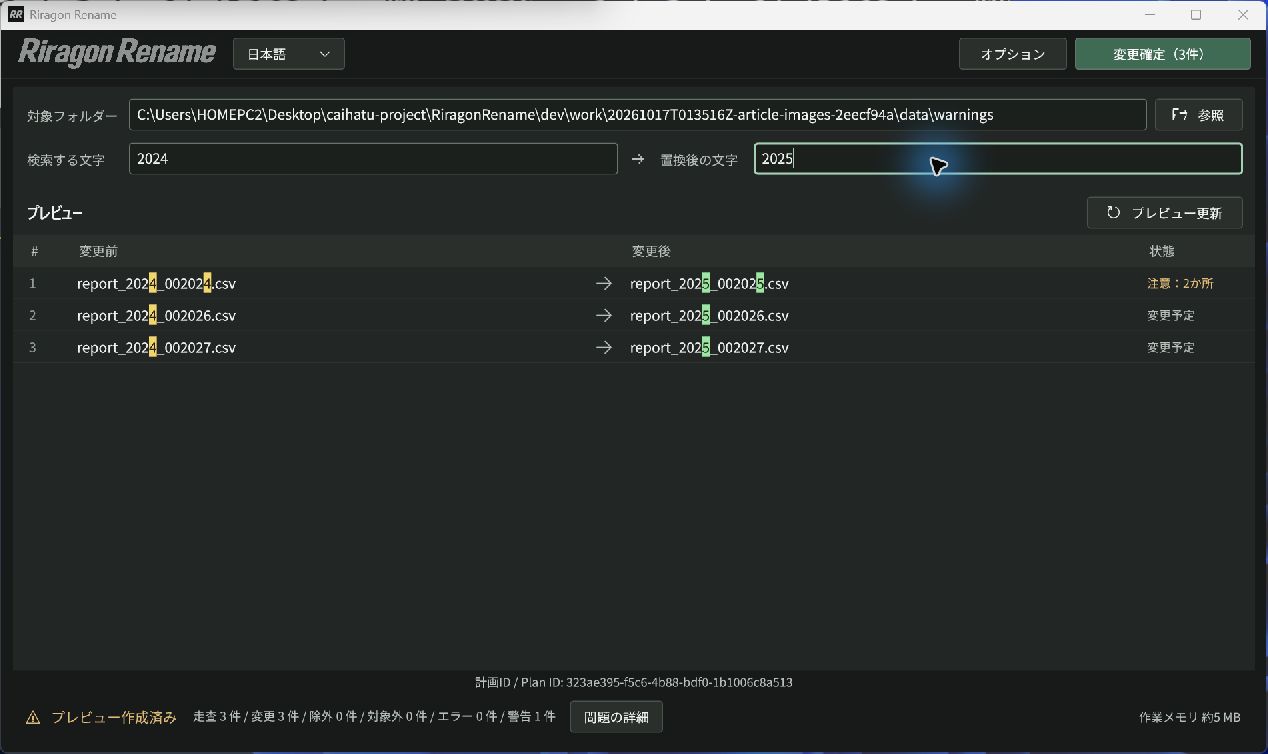
The first file has two affected locations: its year and identification number. The warning at the right and the highlighted text help you reconsider the search text.
To change only the year, search for report_2024_ and replace it with report_2025_, leaving the identification number untouched.
This warning does not block execution, so inspect the new names yourself. Changes that would give multiple files the same name or overwrite an existing file are instead stopped as errors. Having both a warning for oversight and checks that prevent execution is reassuring.
Roll back changes afterward
Sometimes you realize after execution that you want the original names back. The Undo Changes feature performs rollback, reversing the batch changes.
Press it to restore the names from the most recently confirmed batch. Multiple batches can be reversed from newest to oldest. Compared with manually restoring thousands of names, this makes the app easier to try.
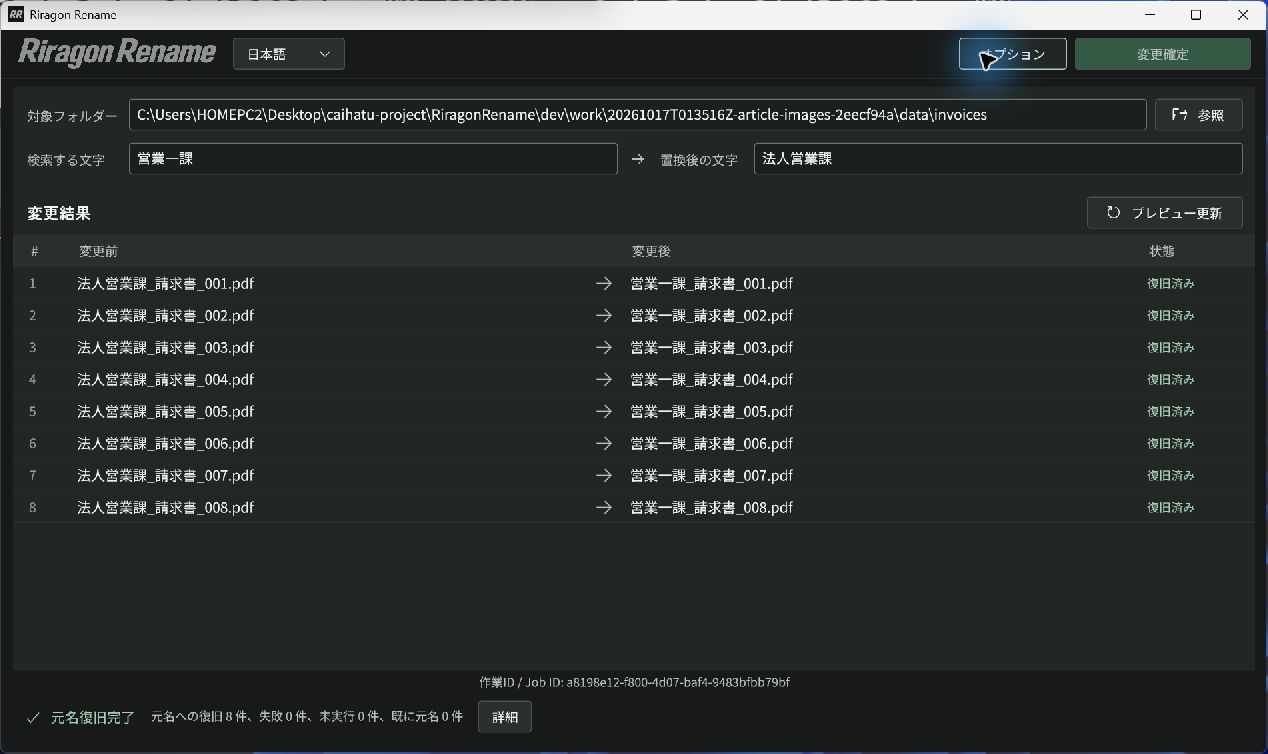
After Undo Changes, all eight files have their original department name again, and the status shows Recovered.
The button can undo work performed while the app remains open. Closing the app or switching between Simple and Advanced modes clears the history available through this button. Editing, moving, or deleting files after renaming can also prevent rollback, so verify the results before closing.
Add text or sequential numbers when needed
Beyond simple replacement, Advanced mode supports tasks such as:
- Adding shared text, such as a project name, to the beginning or end.
- Giving inconsistent filenames a shared name and sequential numbers.
- Using file creation or modification times, or photo capture times, in names.
- Filtering by extension or including subfolders in ordinary search and replacement.
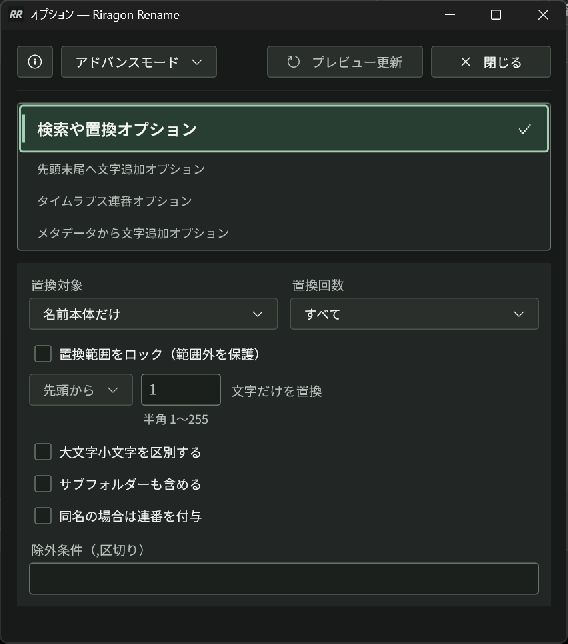
Advanced-mode settings in version 1.0.10. Choose a naming method at the top; search and replacement also allows the target part and replacement count to be specified.
Start with Simple-mode replacement and expand into other features when needed. For a once-a-year task, it is helpful not to learn every detailed setting in advance.
Large renaming jobs take preparation and checking time as well as processing time. Riragon Rename centers the workflow on text fields and a before-and-after comparison. Office workers who would rather not begin by relearning commands may find it worth considering.
Normally ¥980, free until December 31, 2026
Riragon Rename, normally ¥980, is available for ¥0 until December 31, 2026. Try it for year-end file organization or preparing documents for the end of the fiscal year.
It supports 64-bit Windows 10 and 11 on Intel/AMD x64 CPUs. See the official page and Microsoft Store for features and how to obtain it.
Related articles

Updates and contact: X @riragoncom.