Part 3: Modeling a 3D mouse in Blender, texturing it in 3D-Coat, and importing it into UE5
I modeled a 3D mouse as three material parts in Blender, painted its textures in 3D-Coat, and reproduced its illuminated LED in UE5.
Note: This article is more than one year old.
- Export options and material reproduction depend on the combination of Blender, 3DCoat, and UE versions. Check their release notes.
- Driver and OS support for 3D mouse hardware can change with manufacturer updates. This article demonstrates a modeling workflow.
- PBR texture resolution and compression settings depend on the target platform's memory limits.
3D-Coat is software from Pilgway, a developer based in Kyiv, Ukraine. Using it is also one way to support Ukraine. It supports a wide range of work, including 3D modeling, texturing, rendering, and UV mapping. Competing products include ZBrush and Substance Painter.
It is available at a lower price than those products, with perpetual-license or subscription options.
Each has its strengths, but 3D-Coat is just as approachable.
I use it for sculpting and texturing.
You can do similar work entirely in the free Blender, but having several tools available can make work smoother by letting you use each one's strengths.
3D-Coat
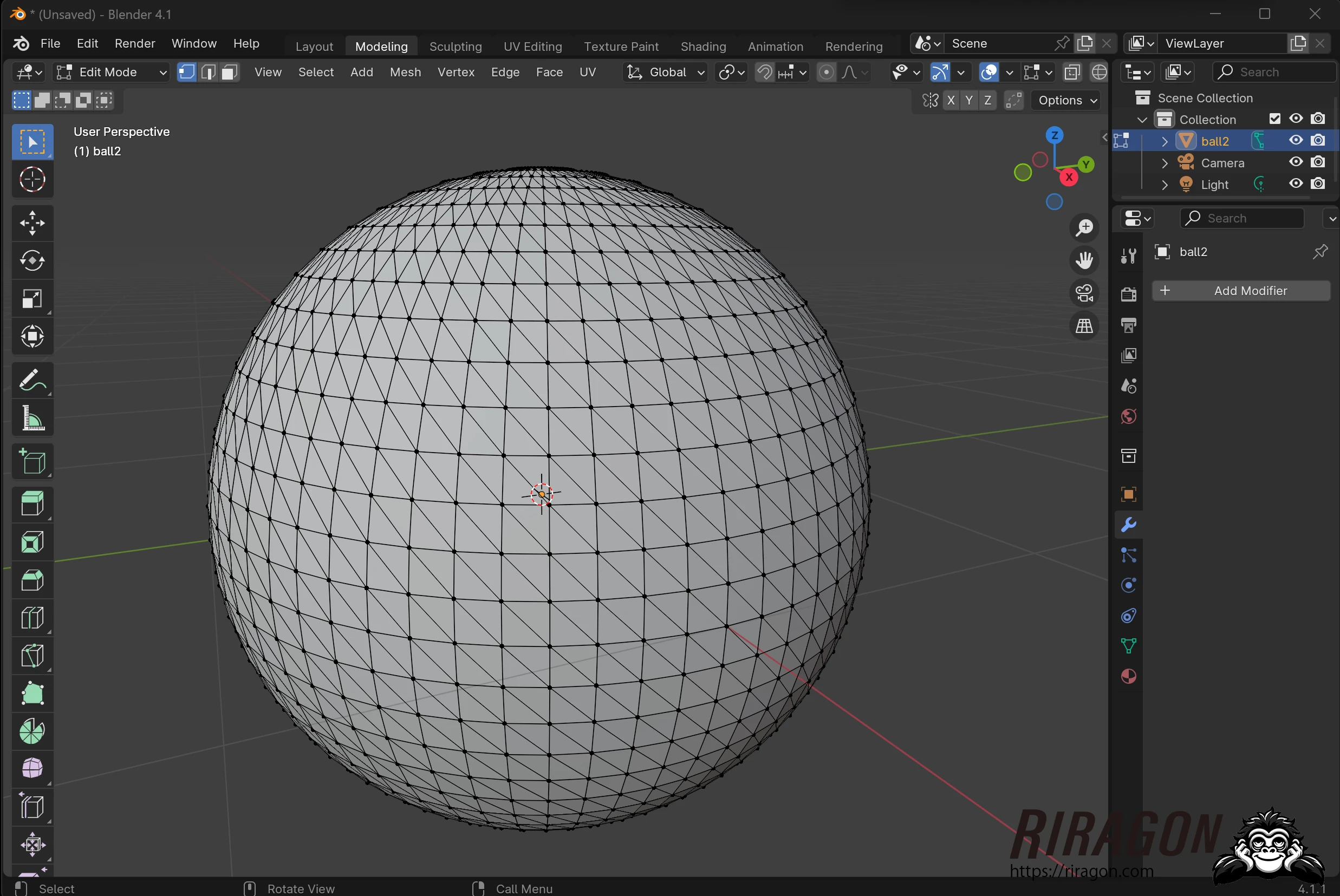
Modeling a 3D mouse in Blender
I will model a 3D mouse in Blender and texture it in 3DCoat. I split it into three parts with different material finishes and apply textures to each. First, I placed reference photographs in Blender.
Product listings from the manufacturer shown in the reference photograph: Search Amazon for 3Dconnexion 3D mice (Ad)
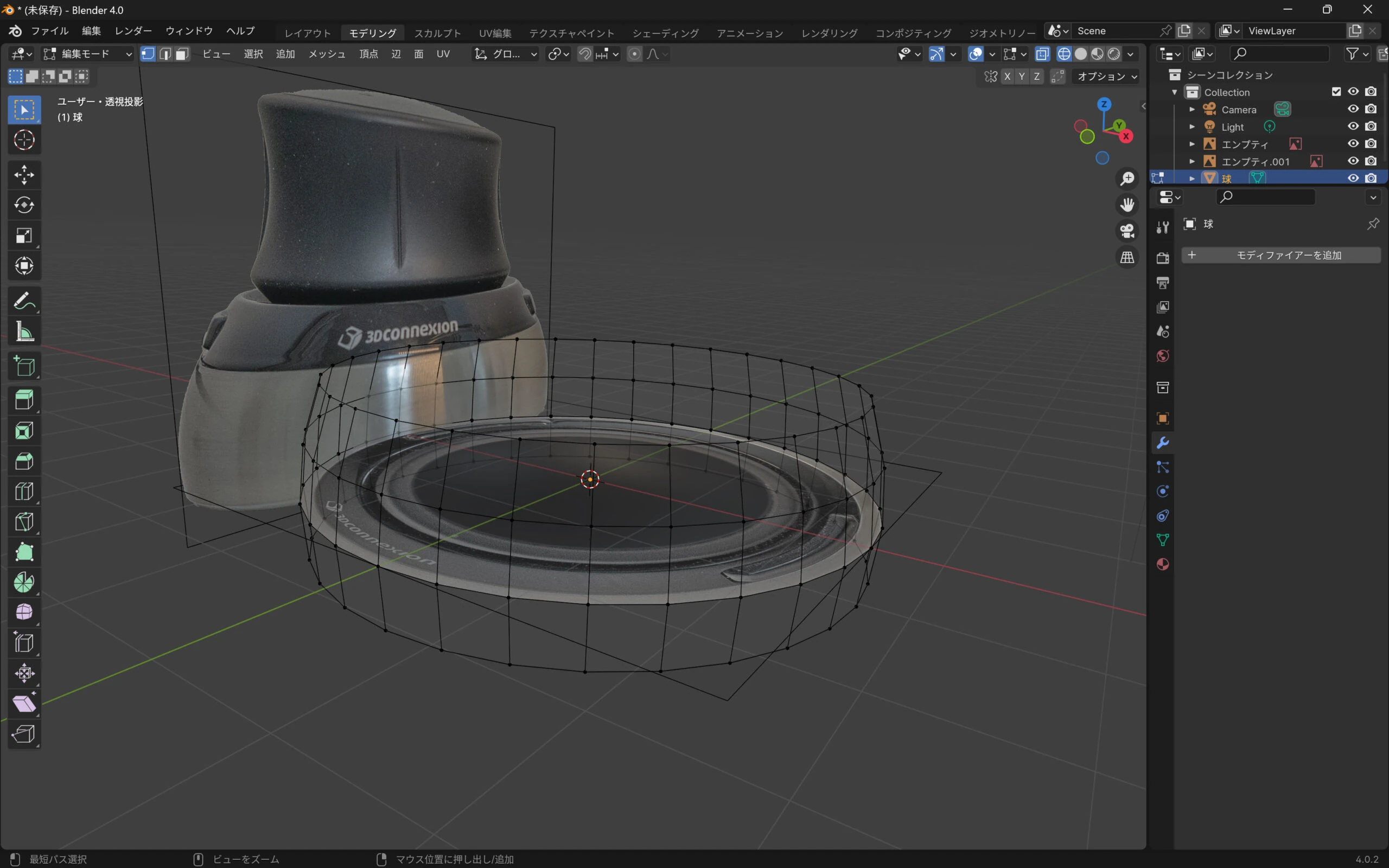 I added a cylinder and worked on it.
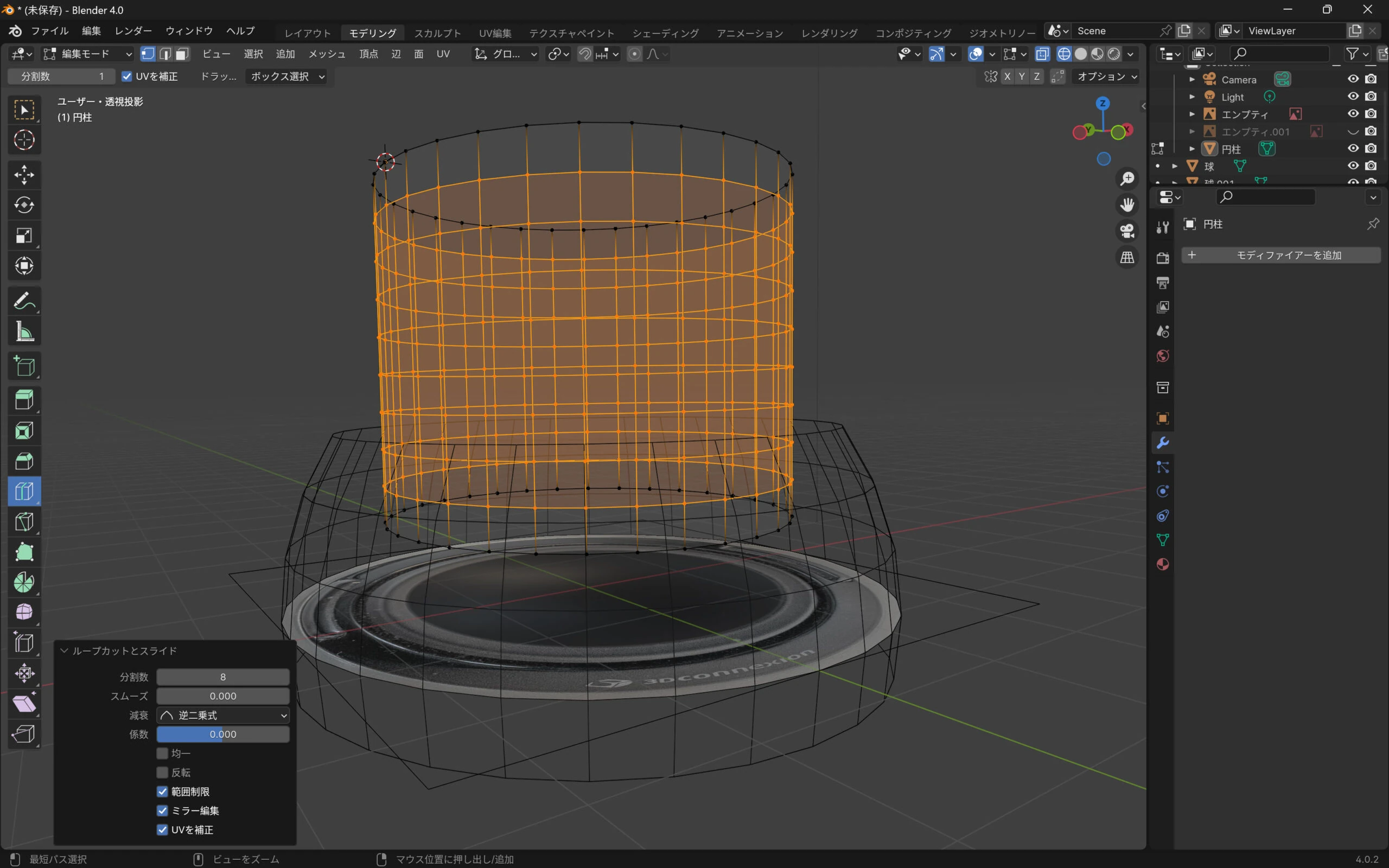
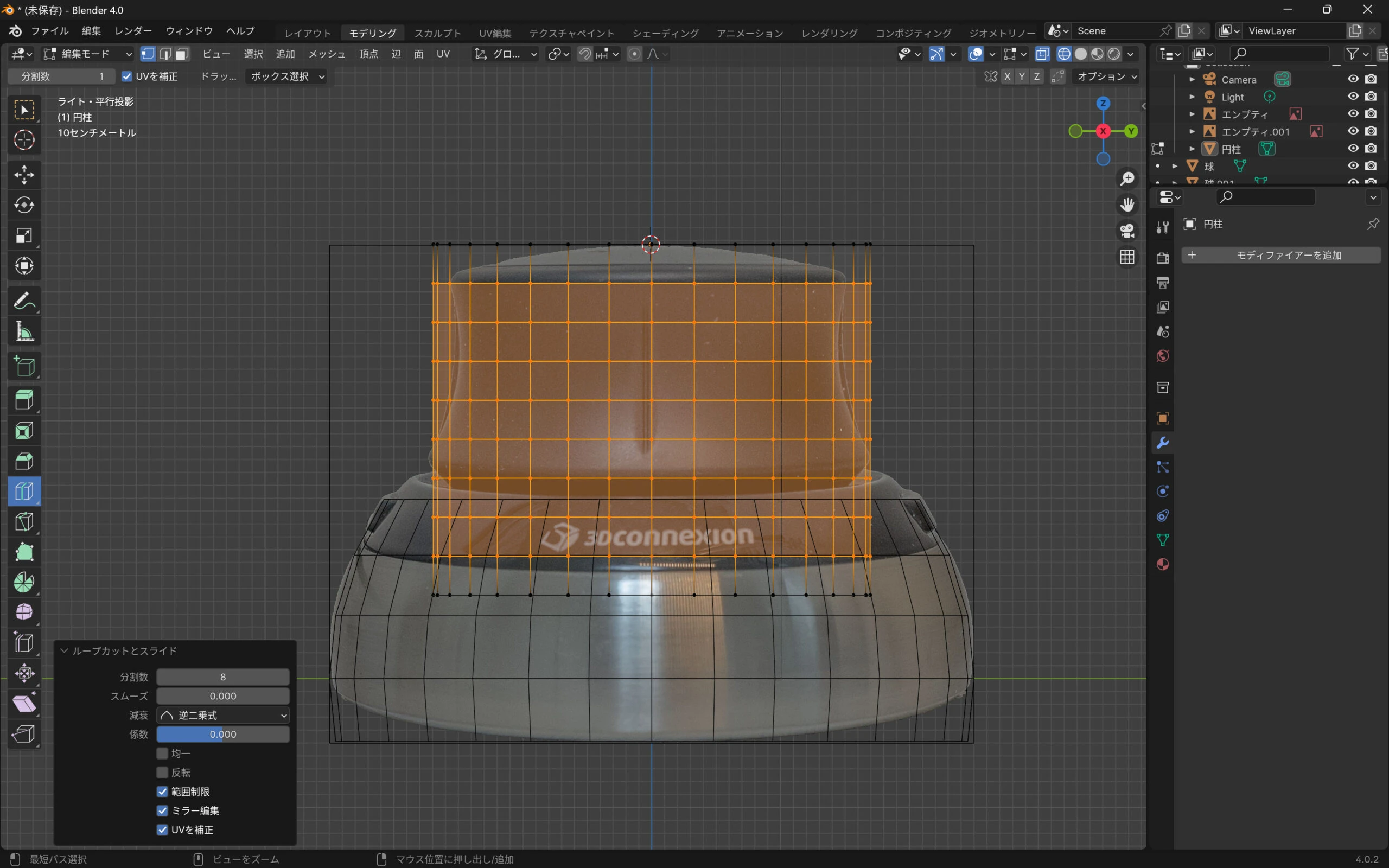
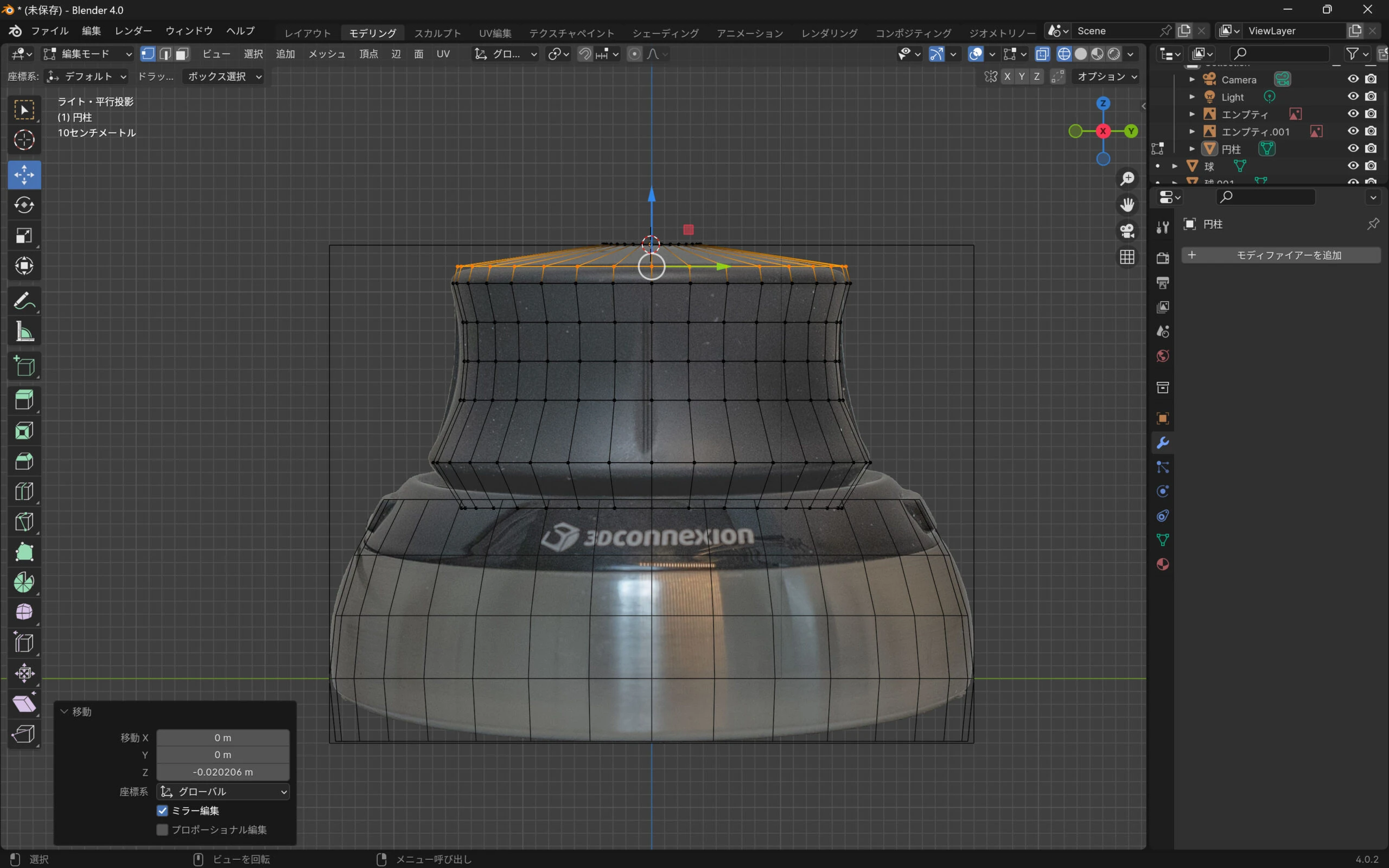 It was starting to look fairly close.
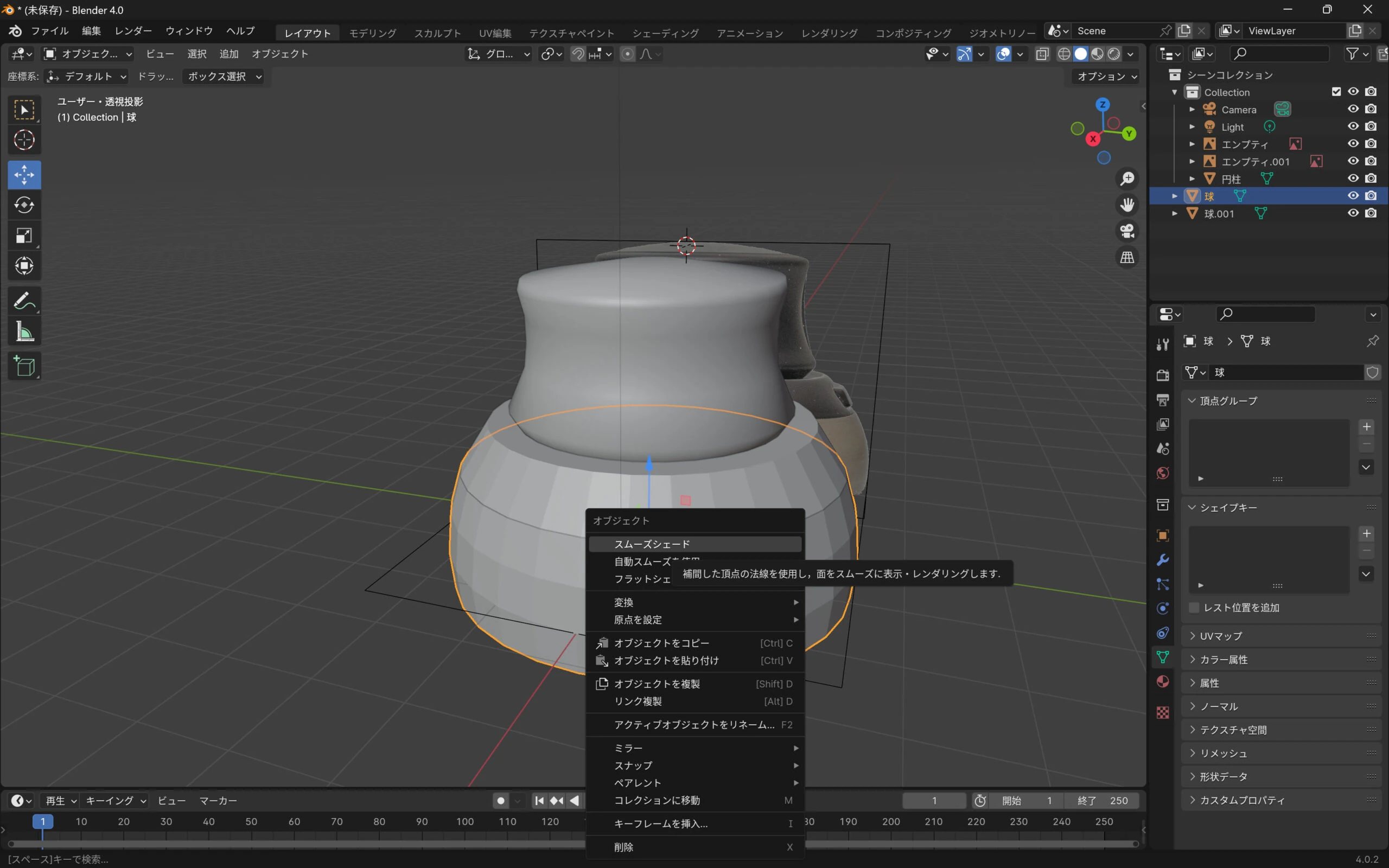
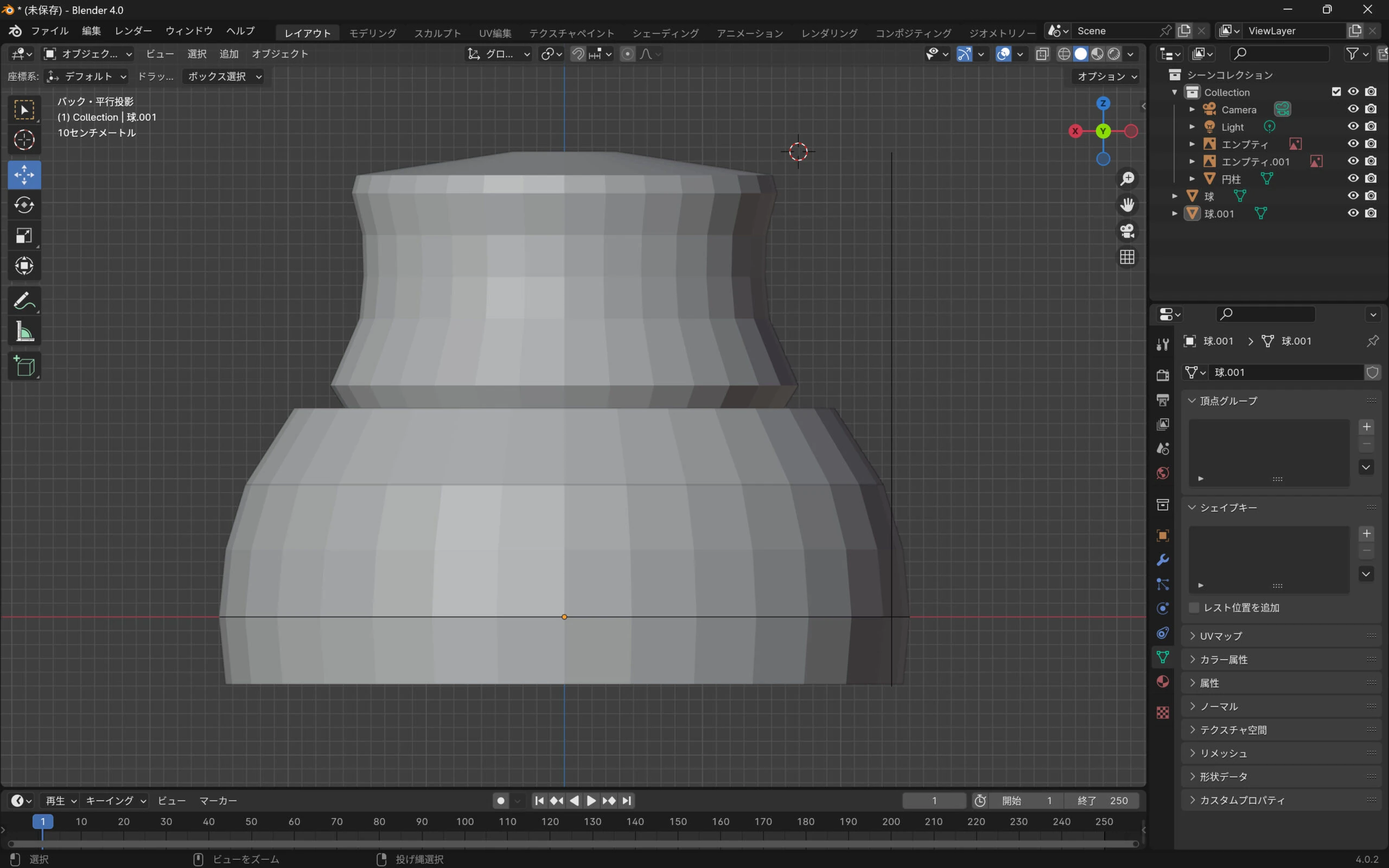 Shade Smooth made the surface look smoother.
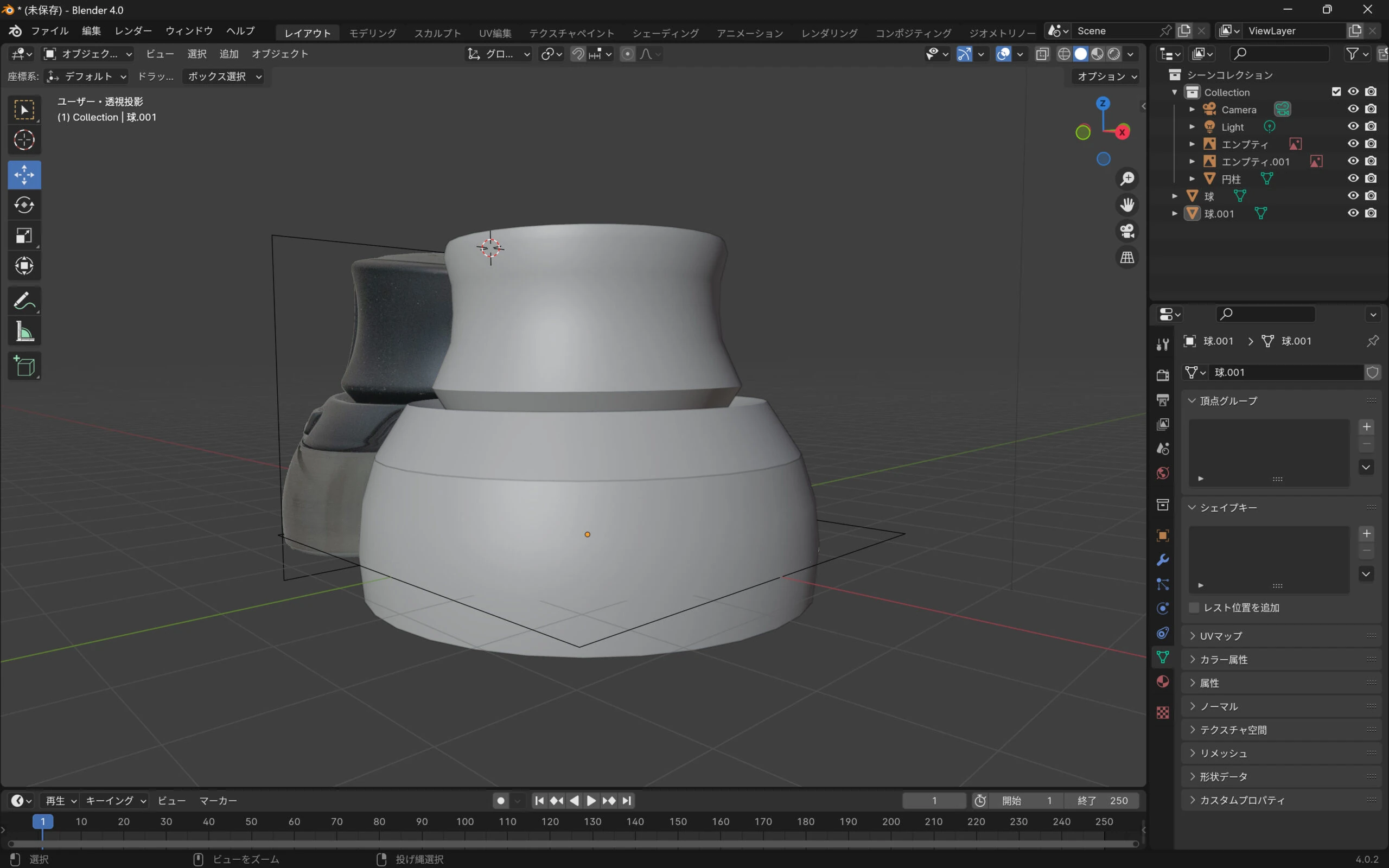
 The three parts were complete.
 I created a UV map for each part.
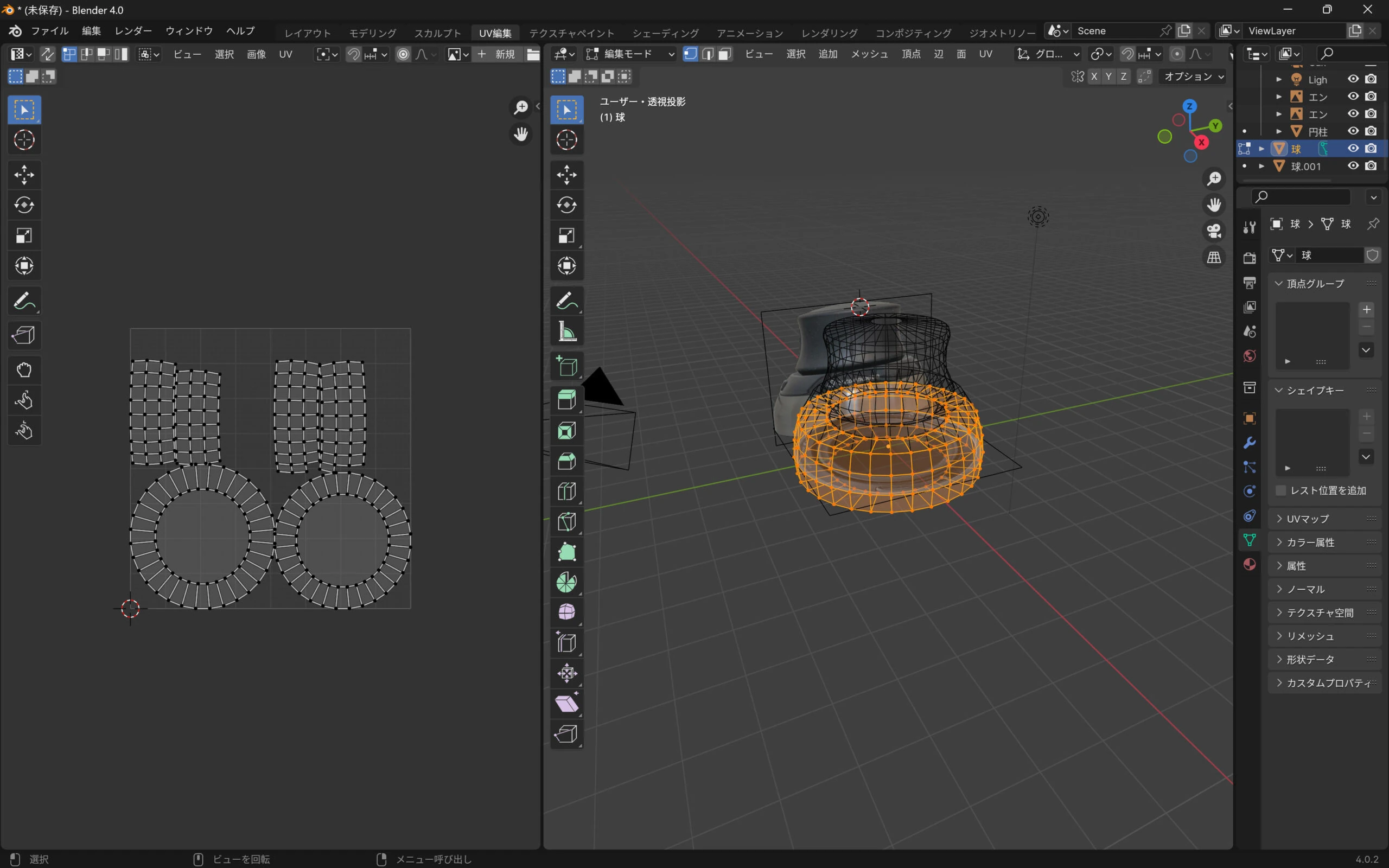
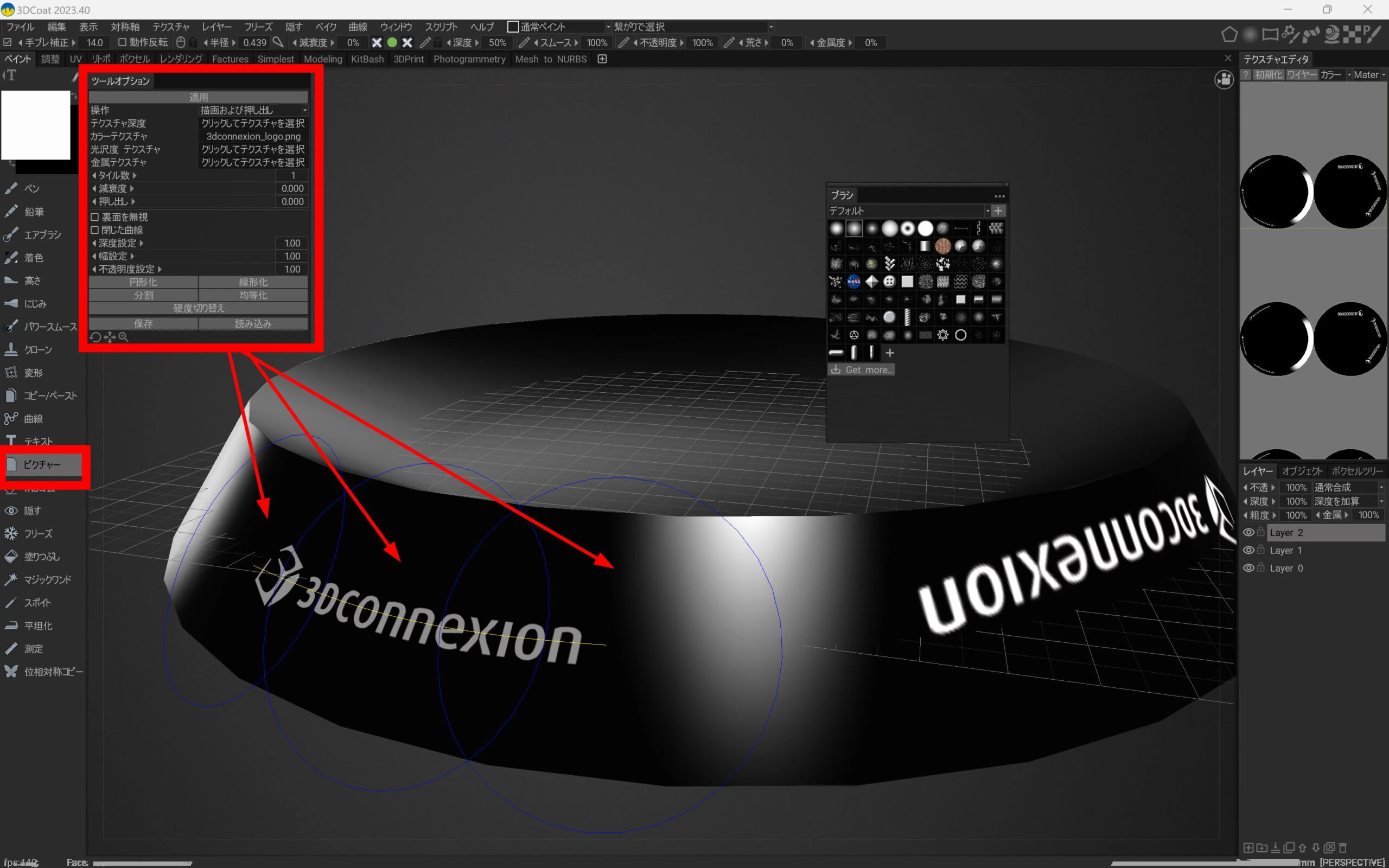
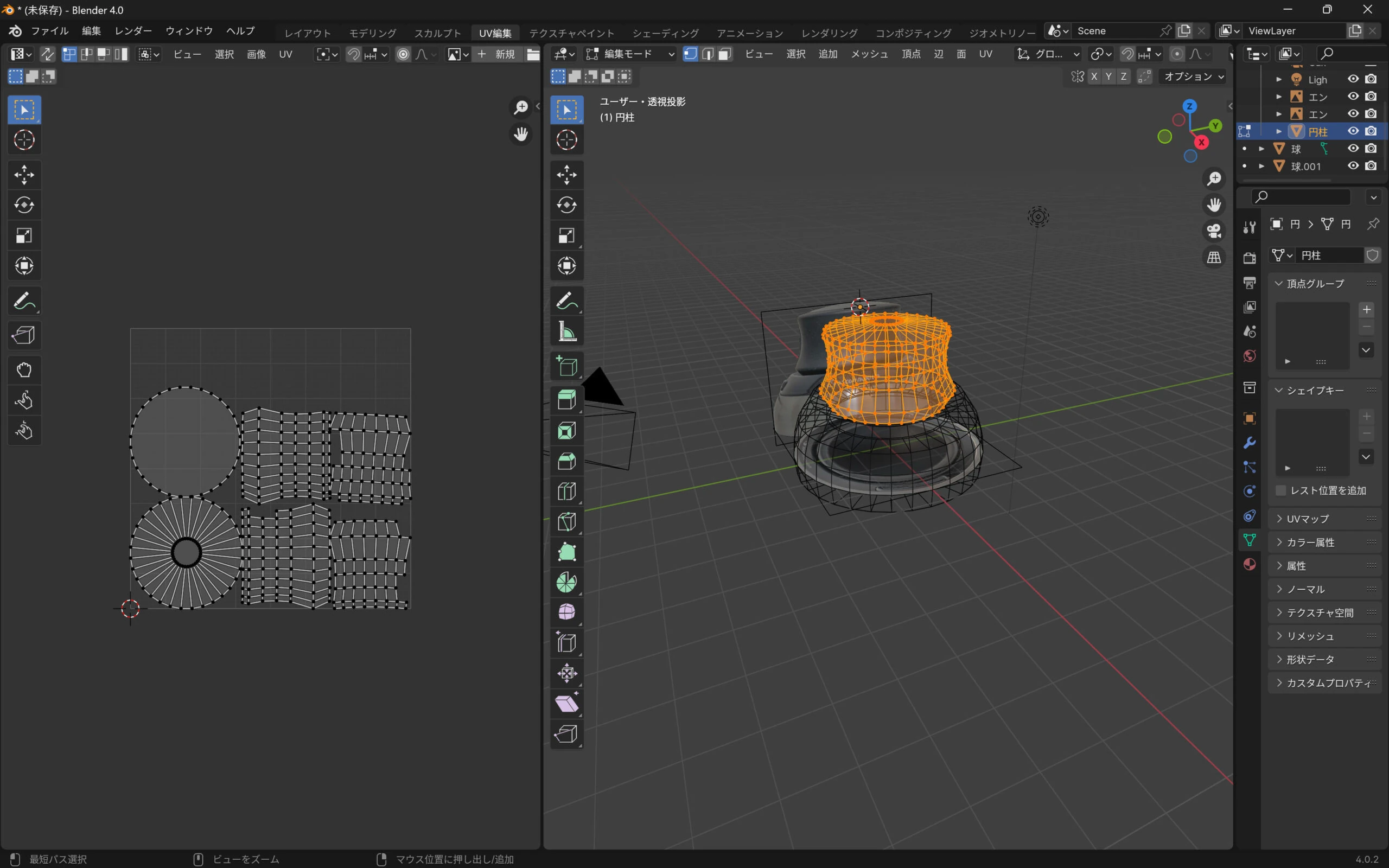 I sent the model from Blender to 3DCoat.
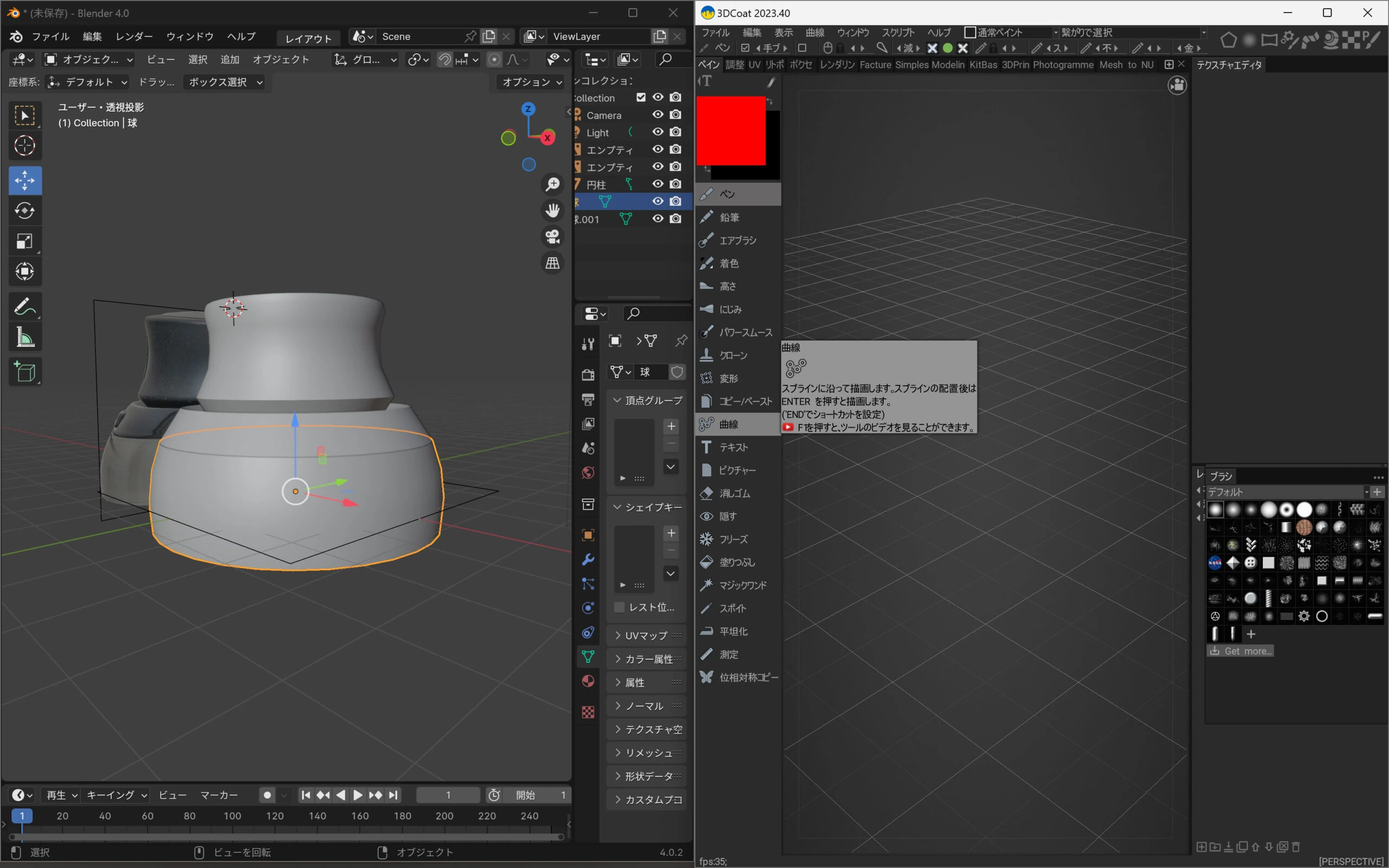 I applied textures in 3DCoat.
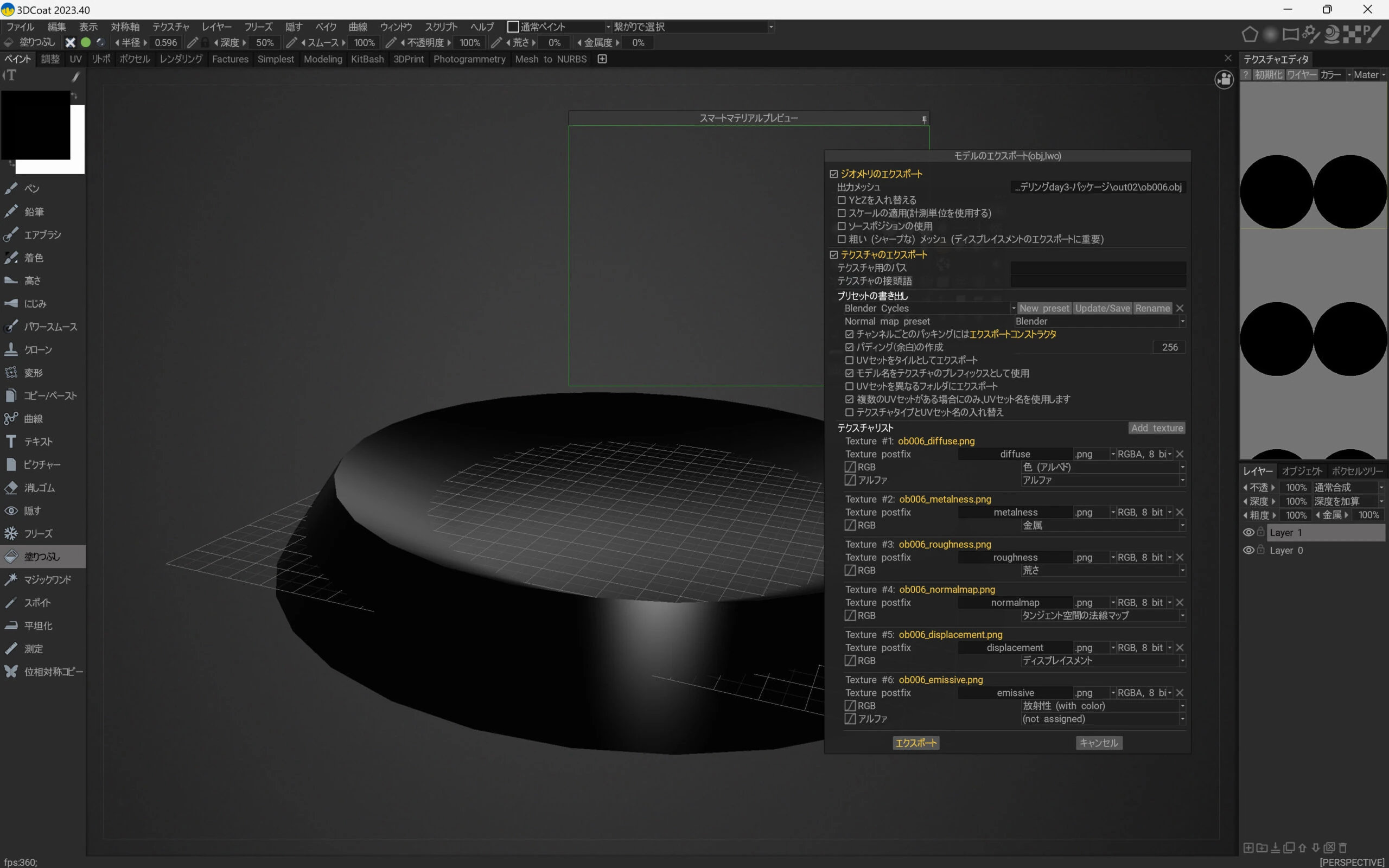 I could add the logo too. I painted textures to suit each part.
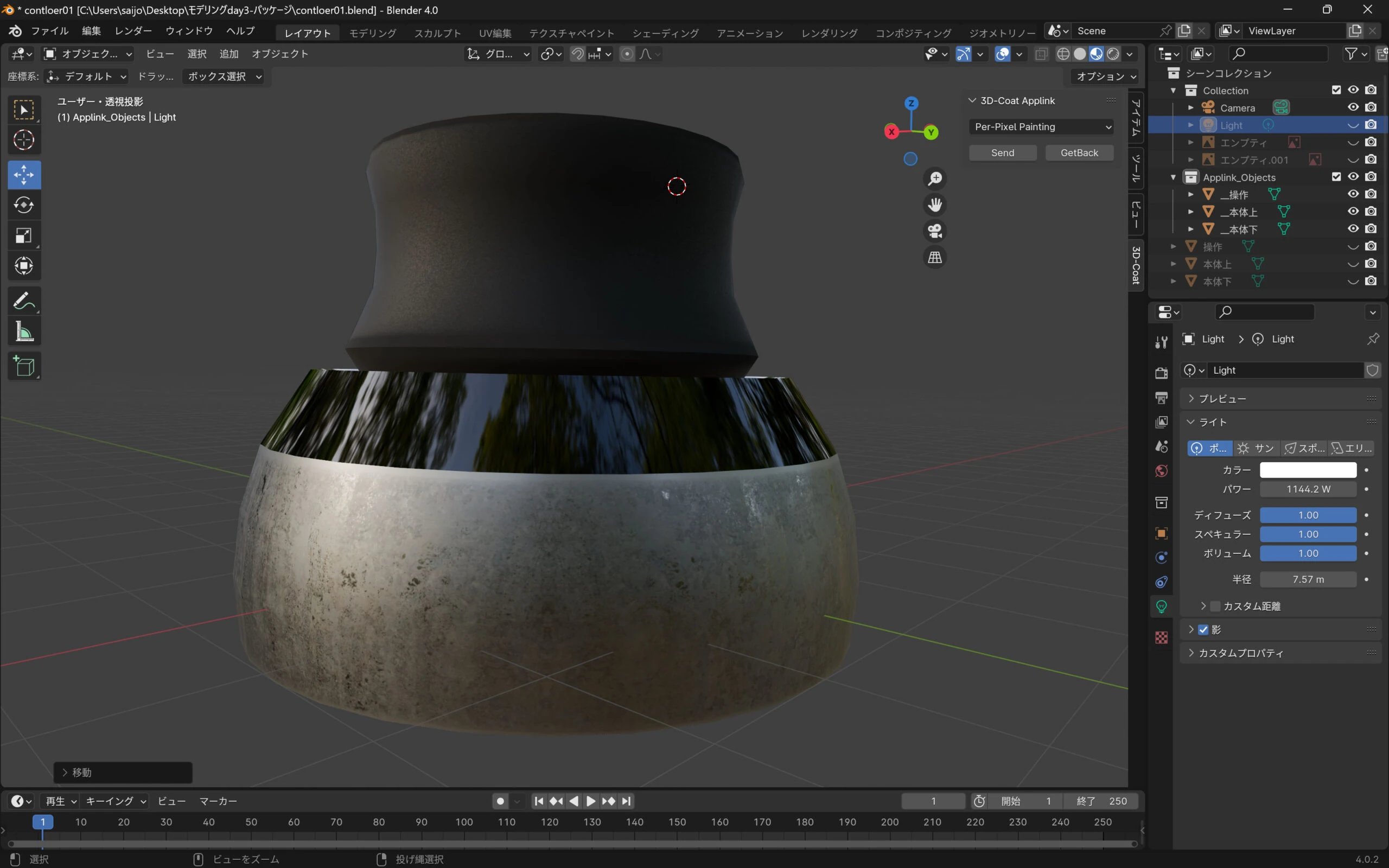
 Back in Blender, it looked like this. I assigned finishes such as rubber, plastic, and stainless steel to the relevant parts.
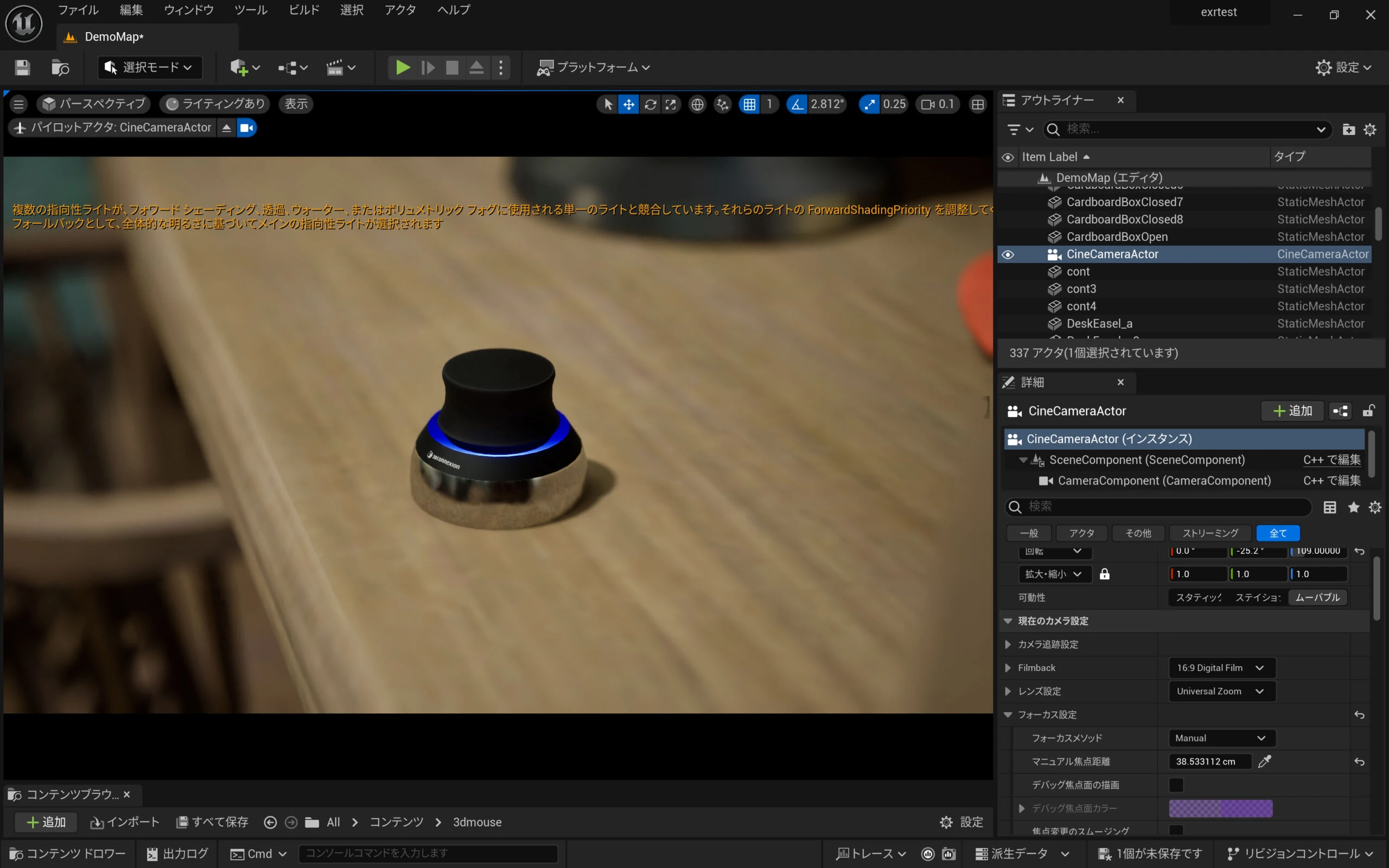
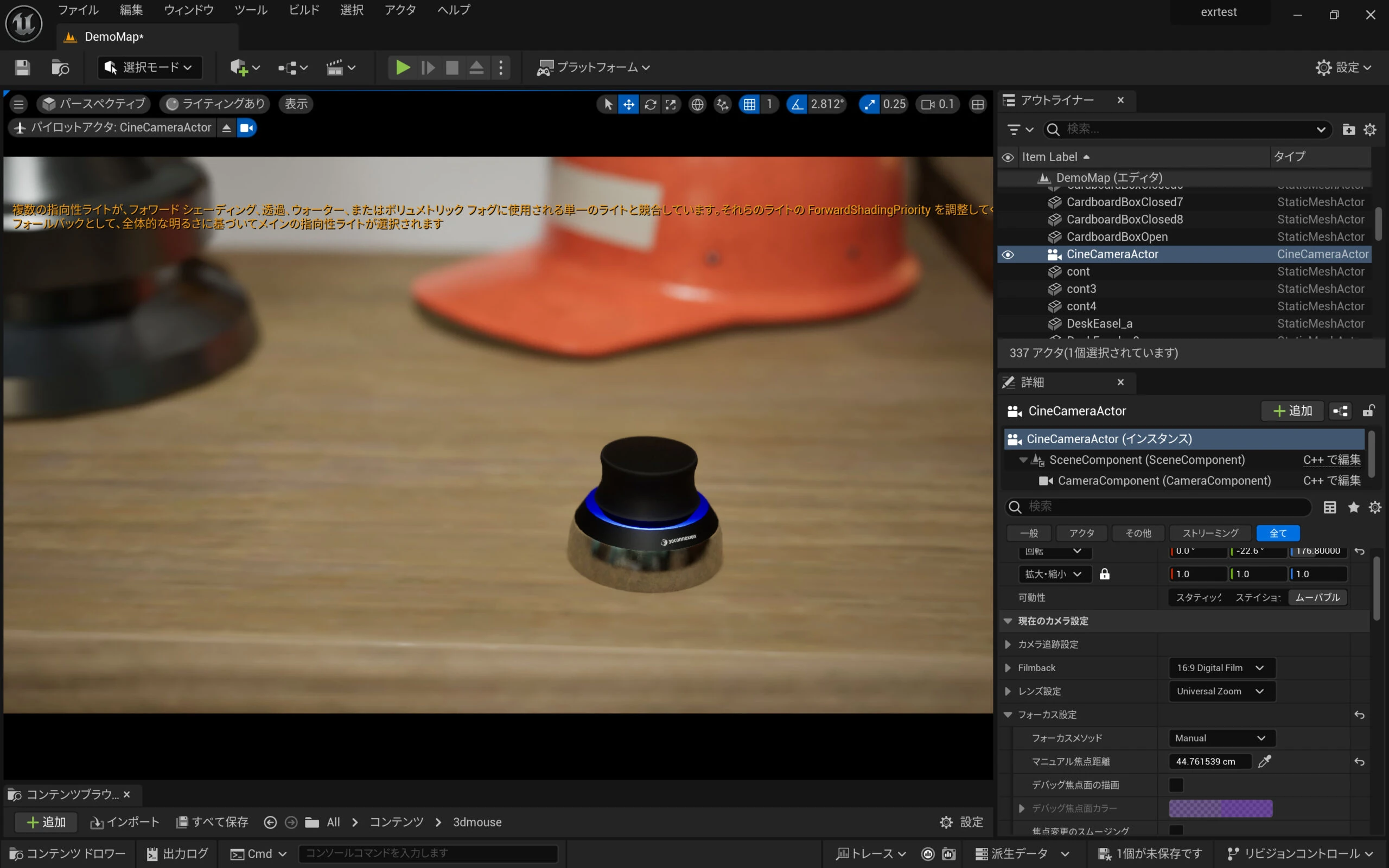
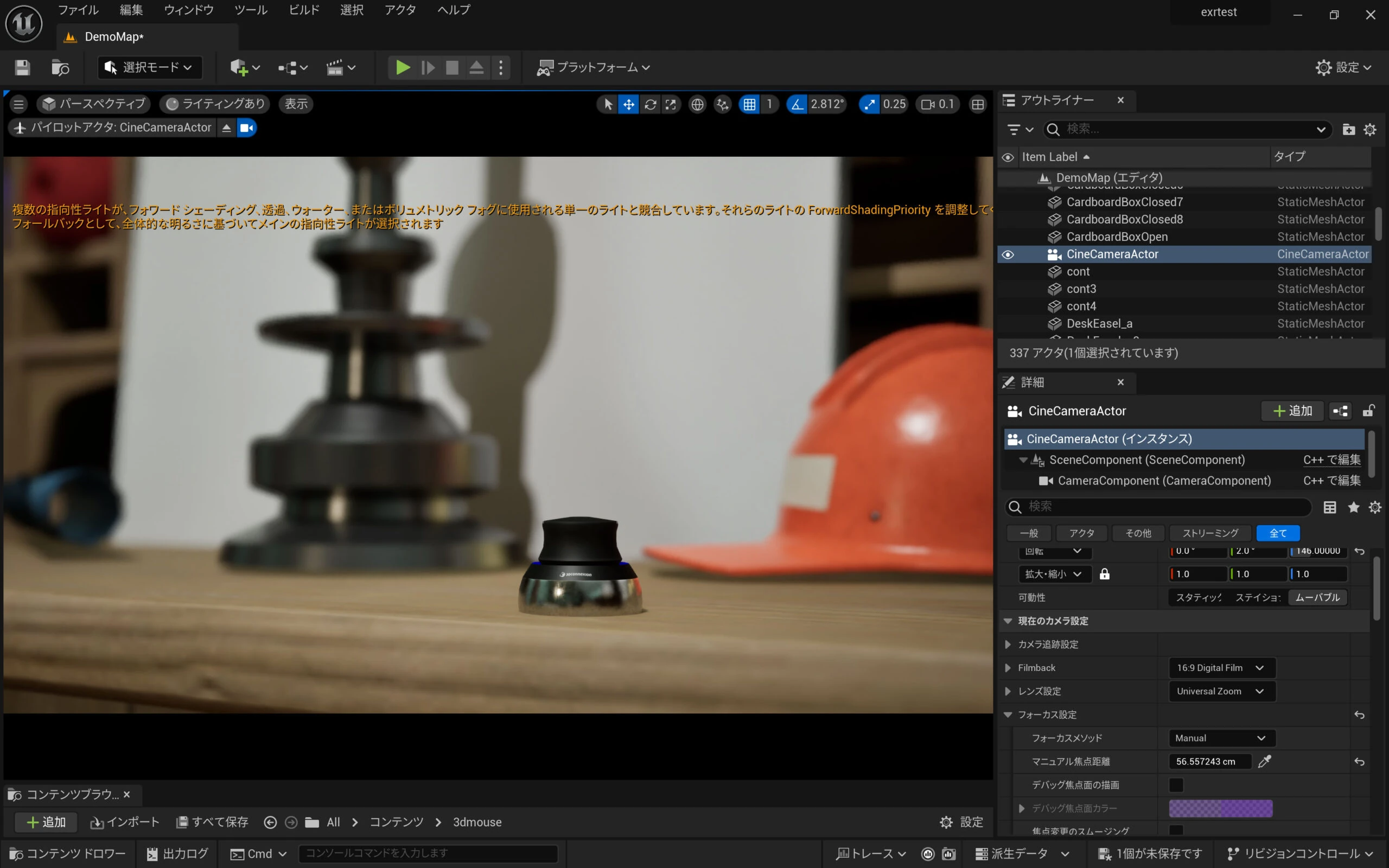
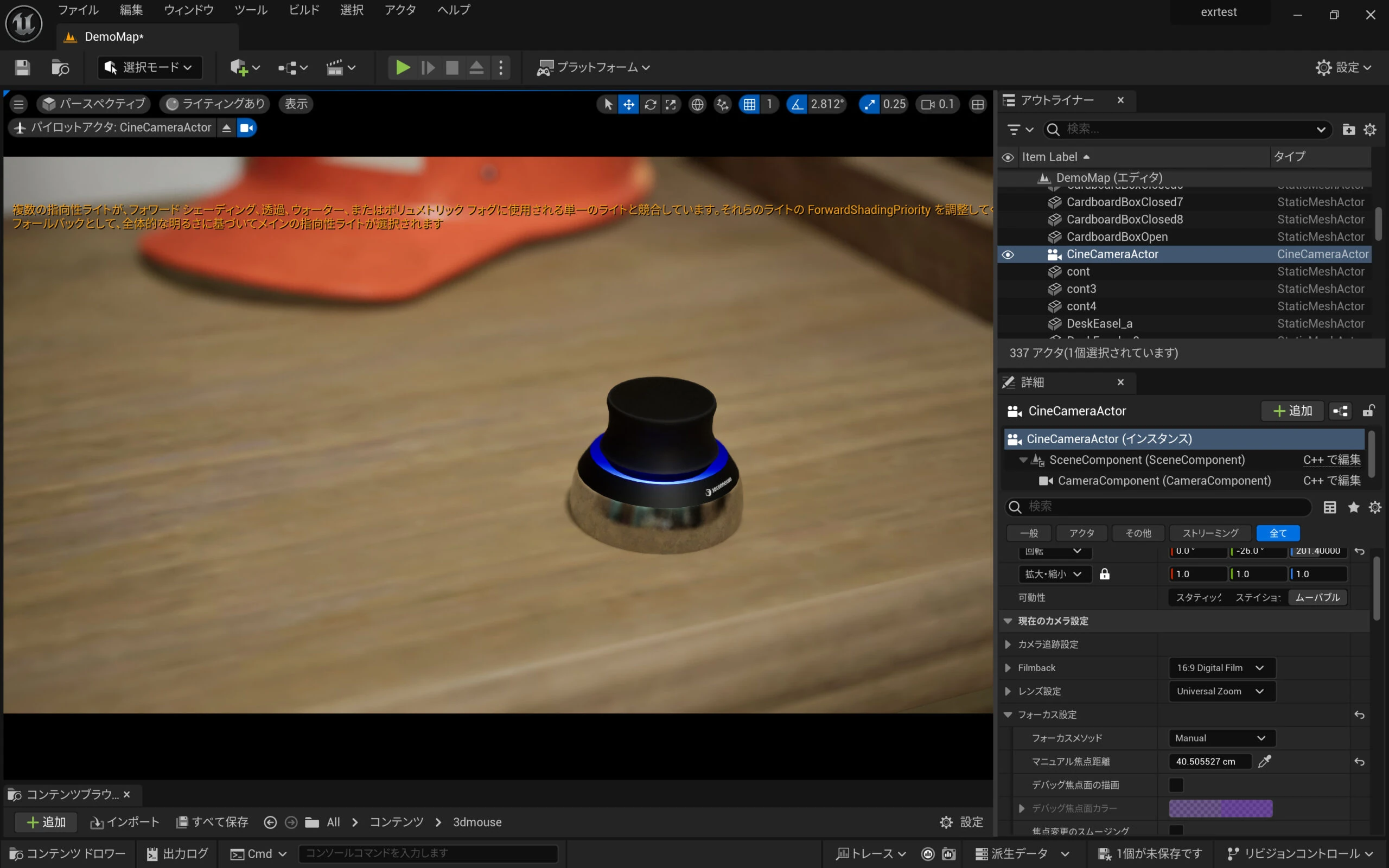
 I imported it into UE5 and used lighting to reproduce the LED's glow.
Related articles
Updates and contact: X @riragoncom.