Sending USB camera video over NDI with OBS on Windows and Ubuntu
Install OBS and an NDI plugin on Windows or Ubuntu to send and receive USB camera video over the network. This walkthrough also covers the Linux NDI SDK runtime and the NDI Tools Screen Capture alternative on Windows.
Note: This article was first published more than a year ago.
- OBS Studio, NDI plugins, and OS runtimes update quickly. Check the official installation instructions for the versions you combine.
- NDI SDK distribution conditions and terms may change. Read the latest terms before redistribution or commercial use.
This walkthrough installs OBS on Windows or Ubuntu and sends a USB camera feed over NDI. OBS is free recording and live-streaming software, available for Windows and Ubuntu from its official website. To add NDI support, install an NDI plugin. NDI is a technology for sending and receiving video and audio streams over a network; the plugin lets OBS send and receive those streams. About OBS: OBS, or Open Broadcaster Software, is free, open-source video recording and live-streaming software. It is widely used by developers, streamers, and video creators, and is available on Windows, macOS, and Linux. About NDI: NDI, or Network Device Interface, is a video-streaming technology developed by NewTek.
It allows high-quality video to be sent and received over an IP network with low latency.
It is widely used in broadcasting, live-event production, video conferencing, and live streaming.
What NDI looks like after installing the plugin
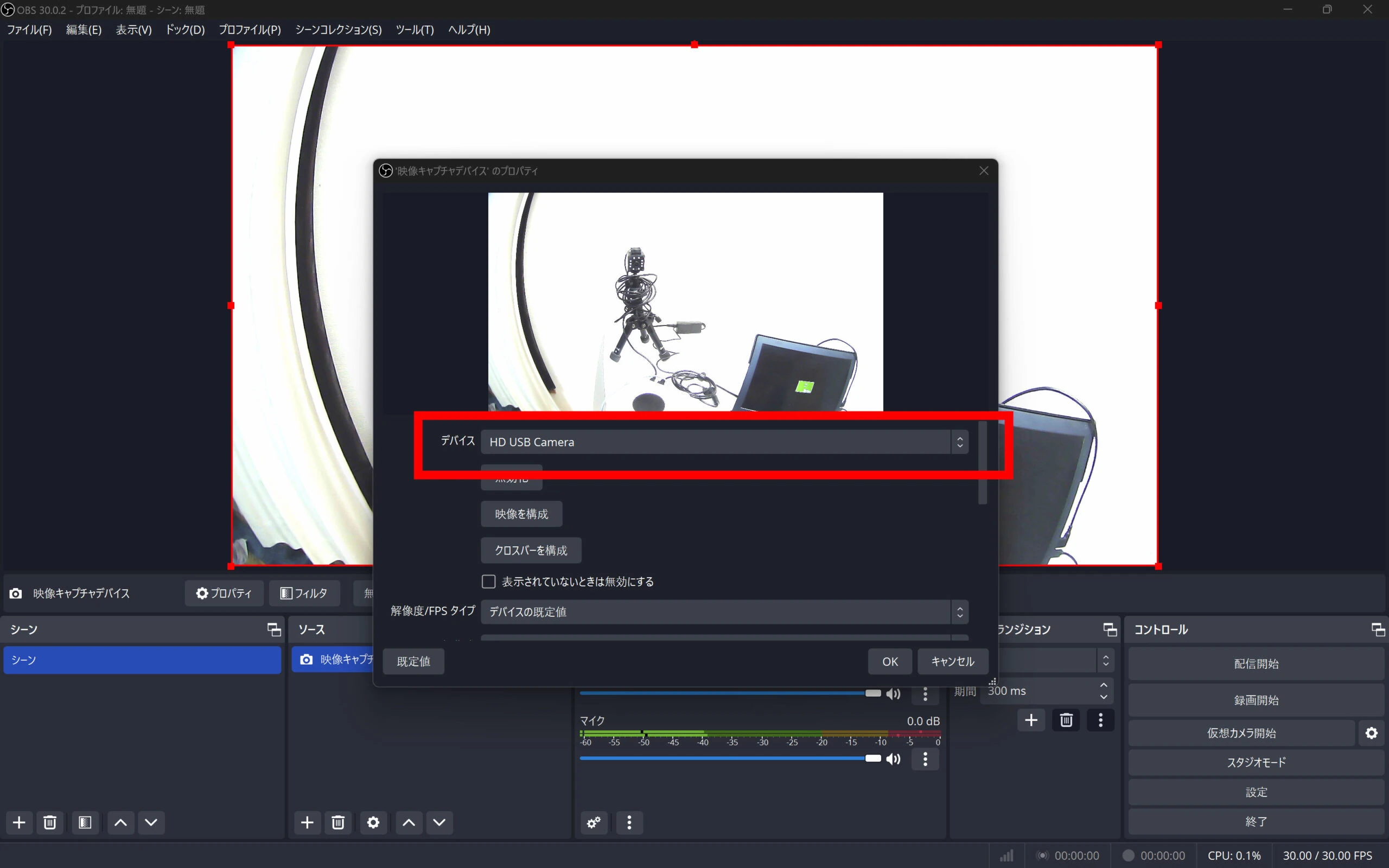
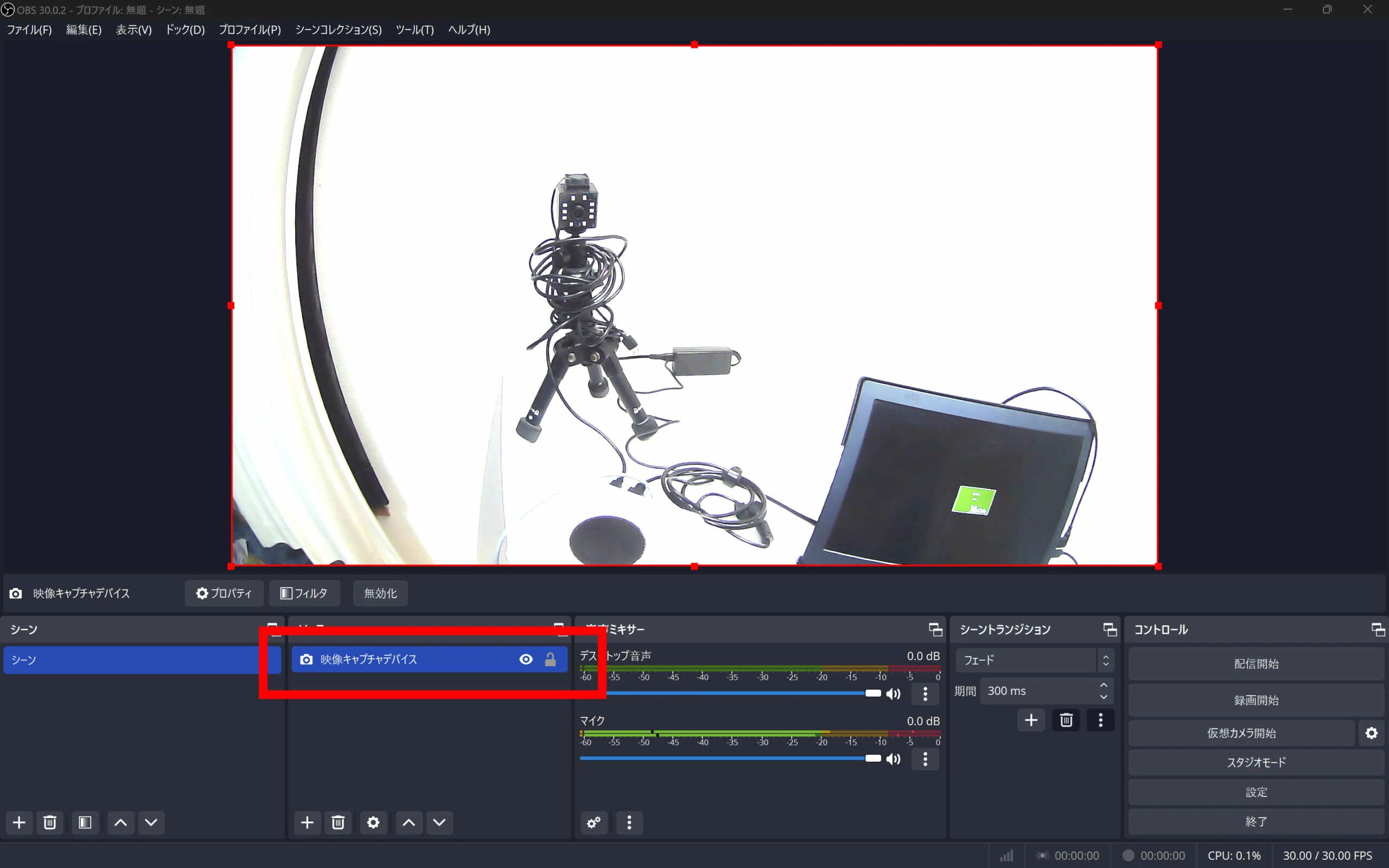 Select the USB camera.
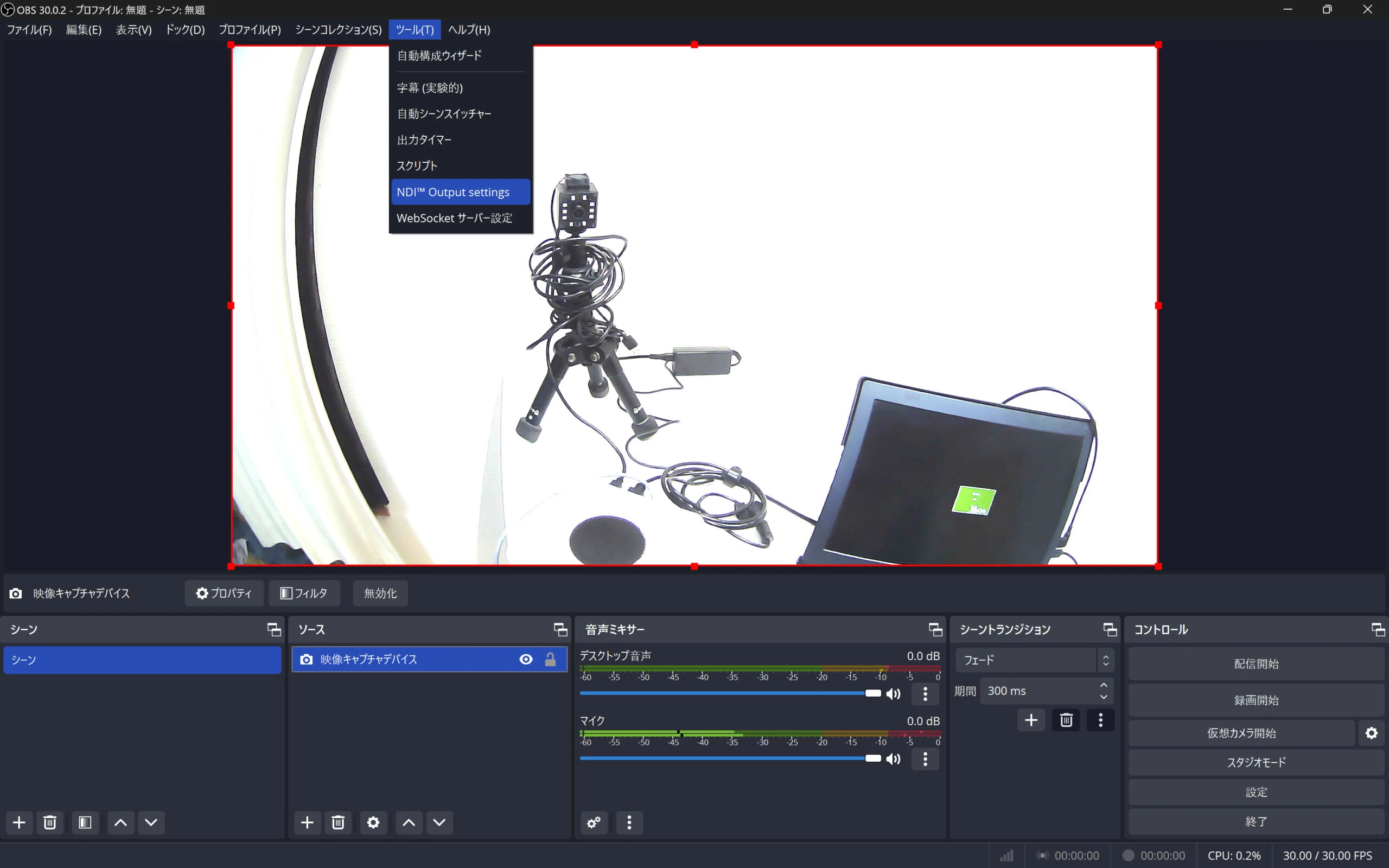
  Select NDI Output.
  Enable Main Output.
 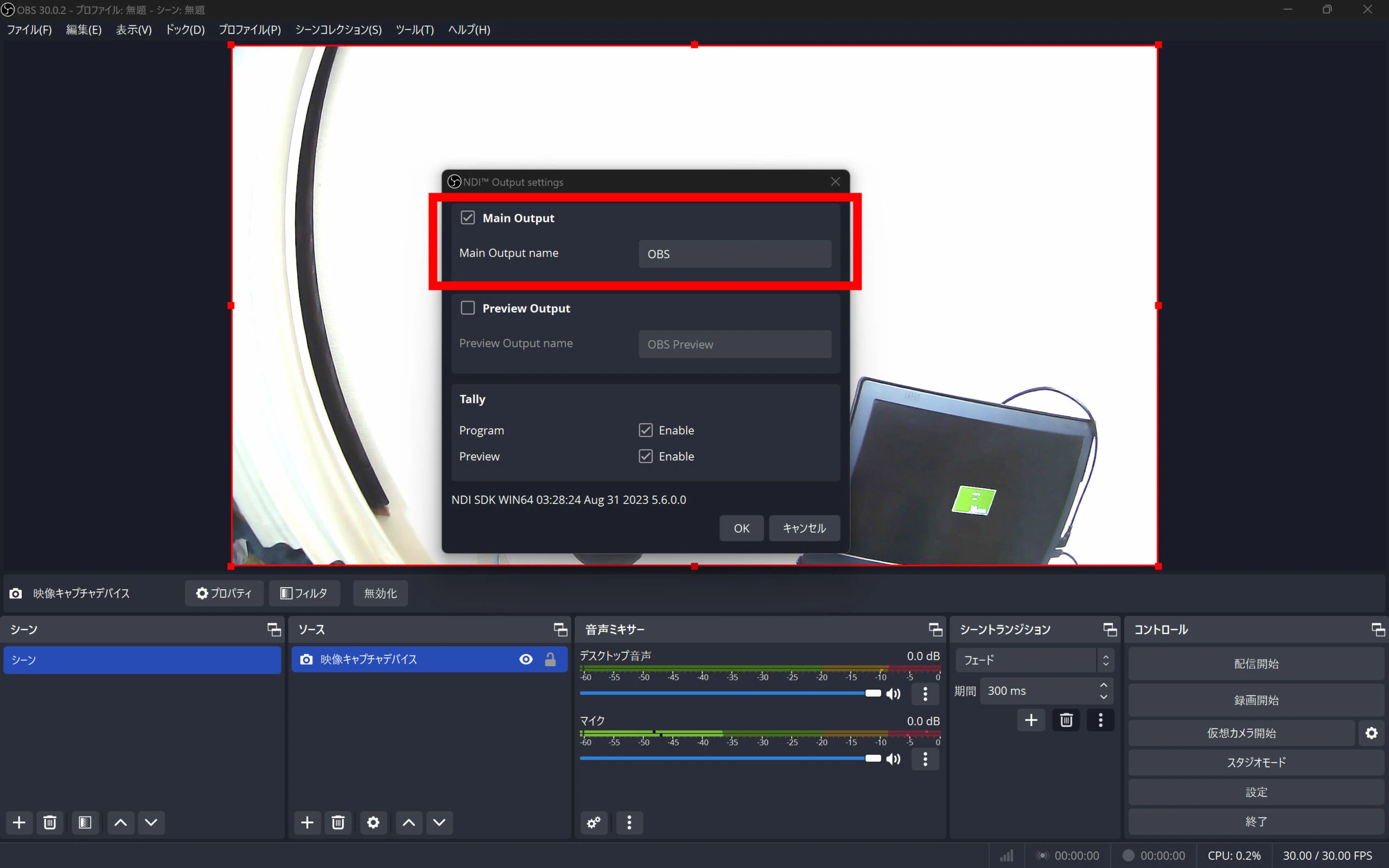 The video is now being transmitted over NDI. Straightforward!
 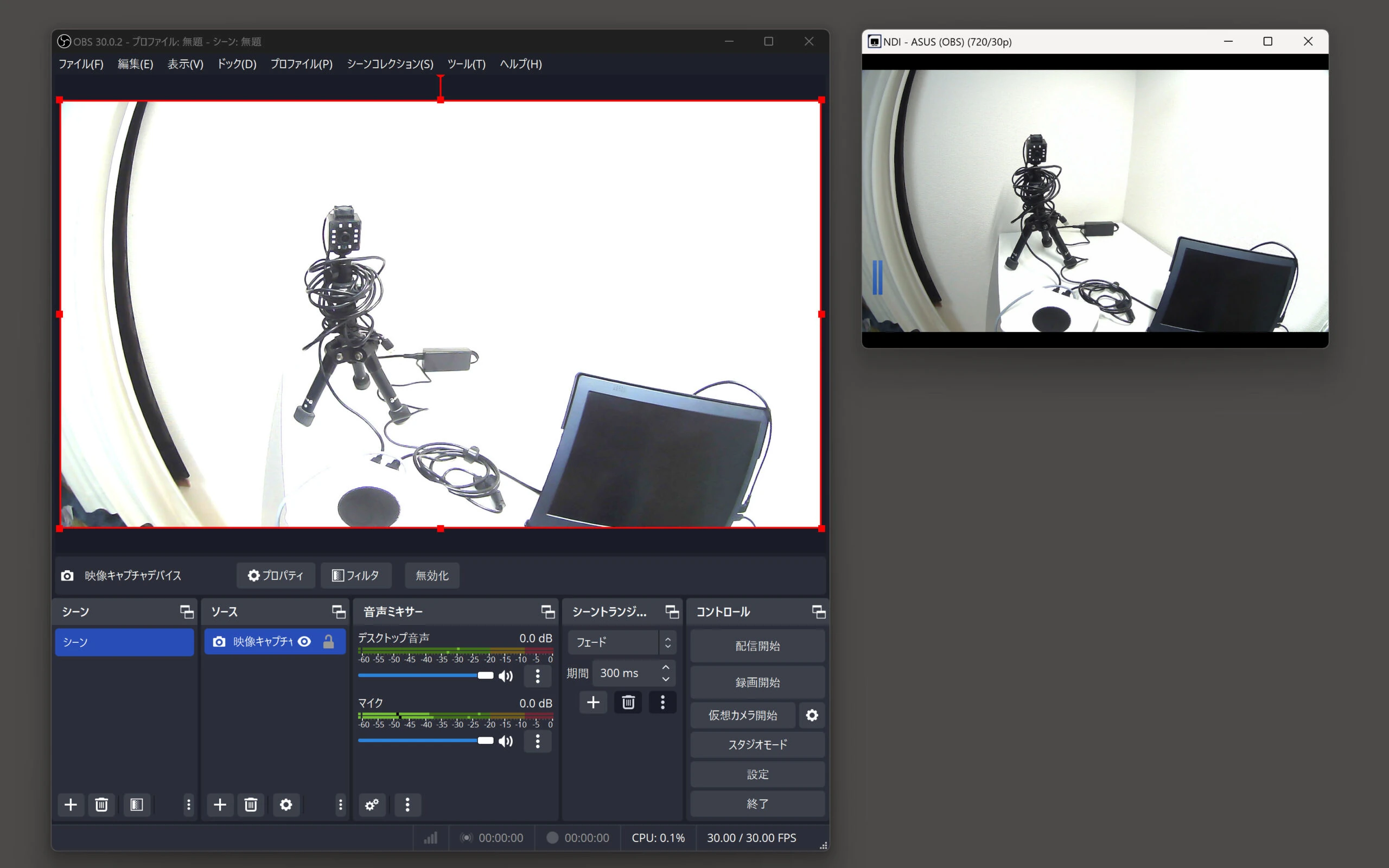 Here are the OBS and NDI plugin installation steps, starting with Windows and then Ubuntu.
Windows: install OBS and send the USB camera feed over NDI
Open the official OBS website.
https://obsproject.com/ja/download
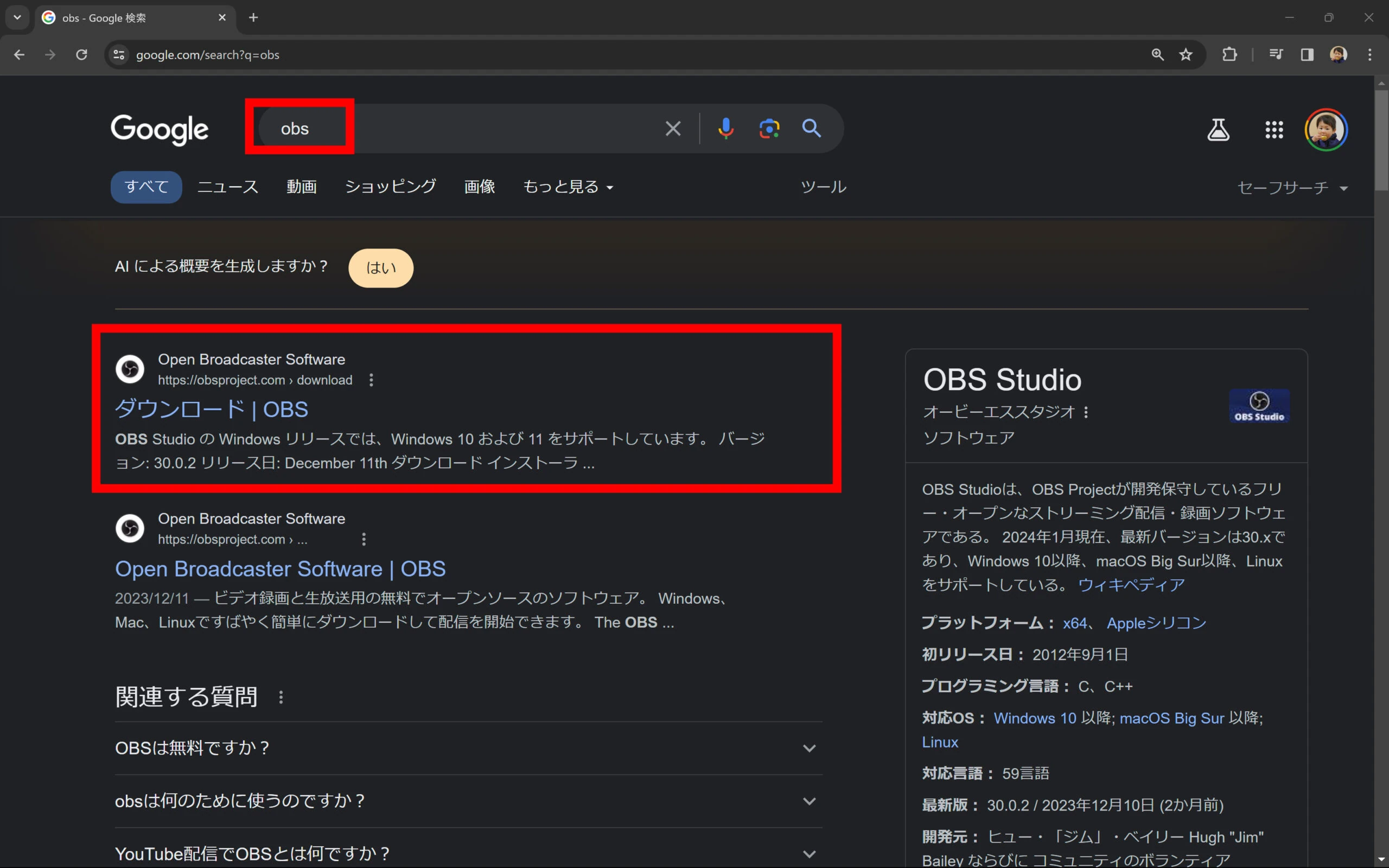 Find and click the Windows download link to download the current OBS Studio installer.
 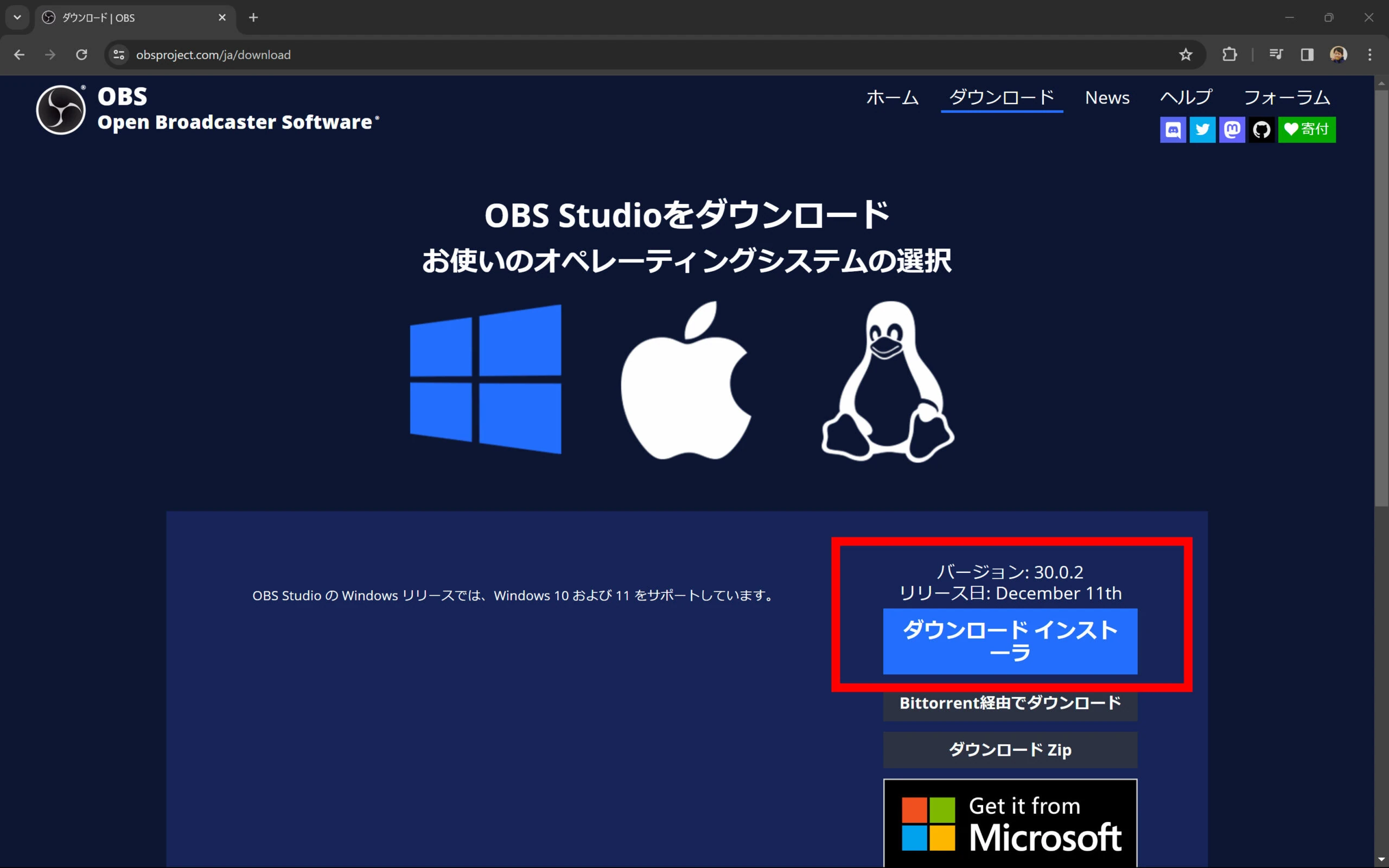 Run the installer and follow the prompts. You can customize the installation, but beginners can keep the default options.
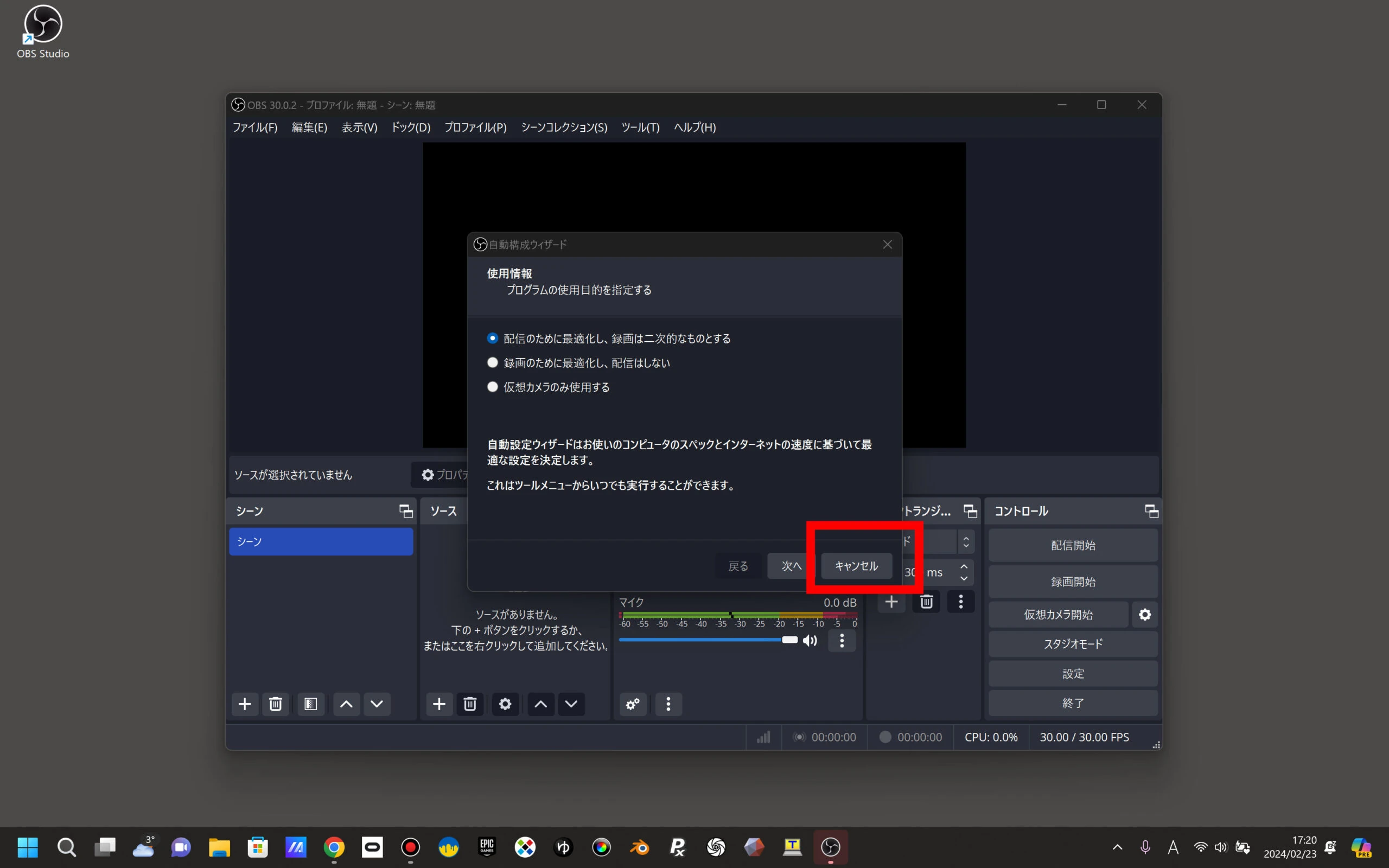
 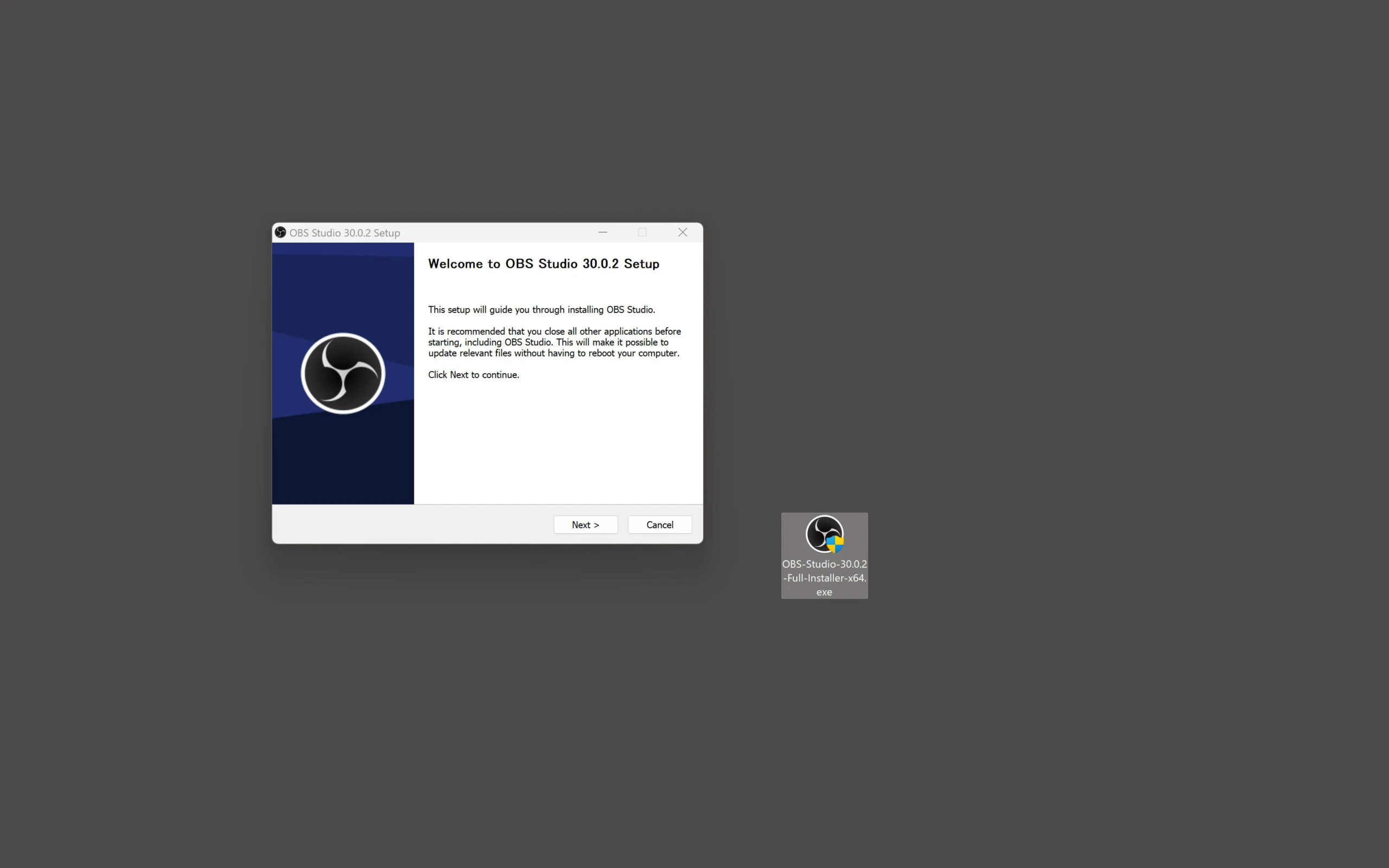 You can cancel the initial configuration wizard for this example.
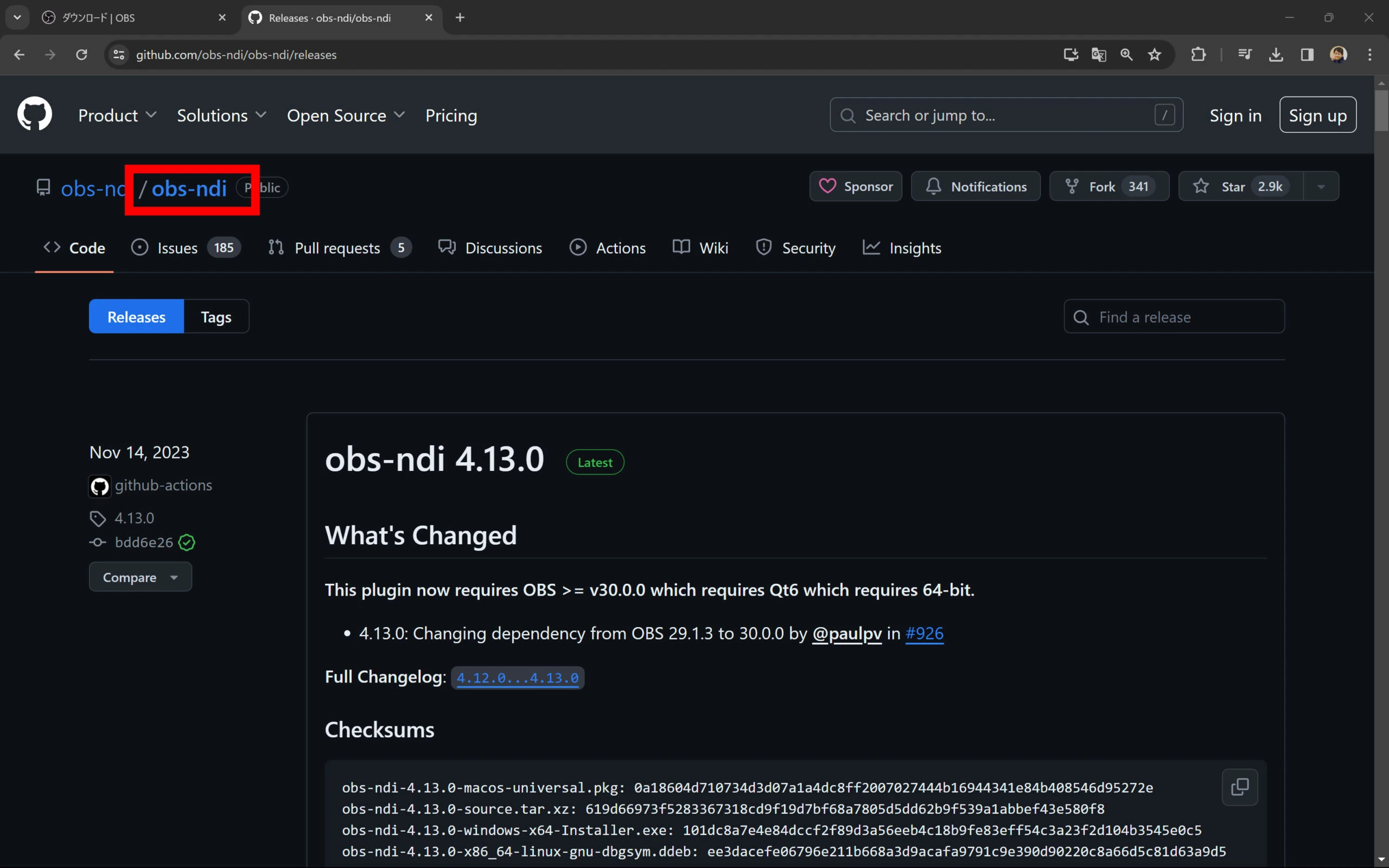
  Add the OBS-NDI plugin to give OBS the ability to transmit USB camera video over NDI.
https://github.com/obs-ndi/obs-ndi/releases
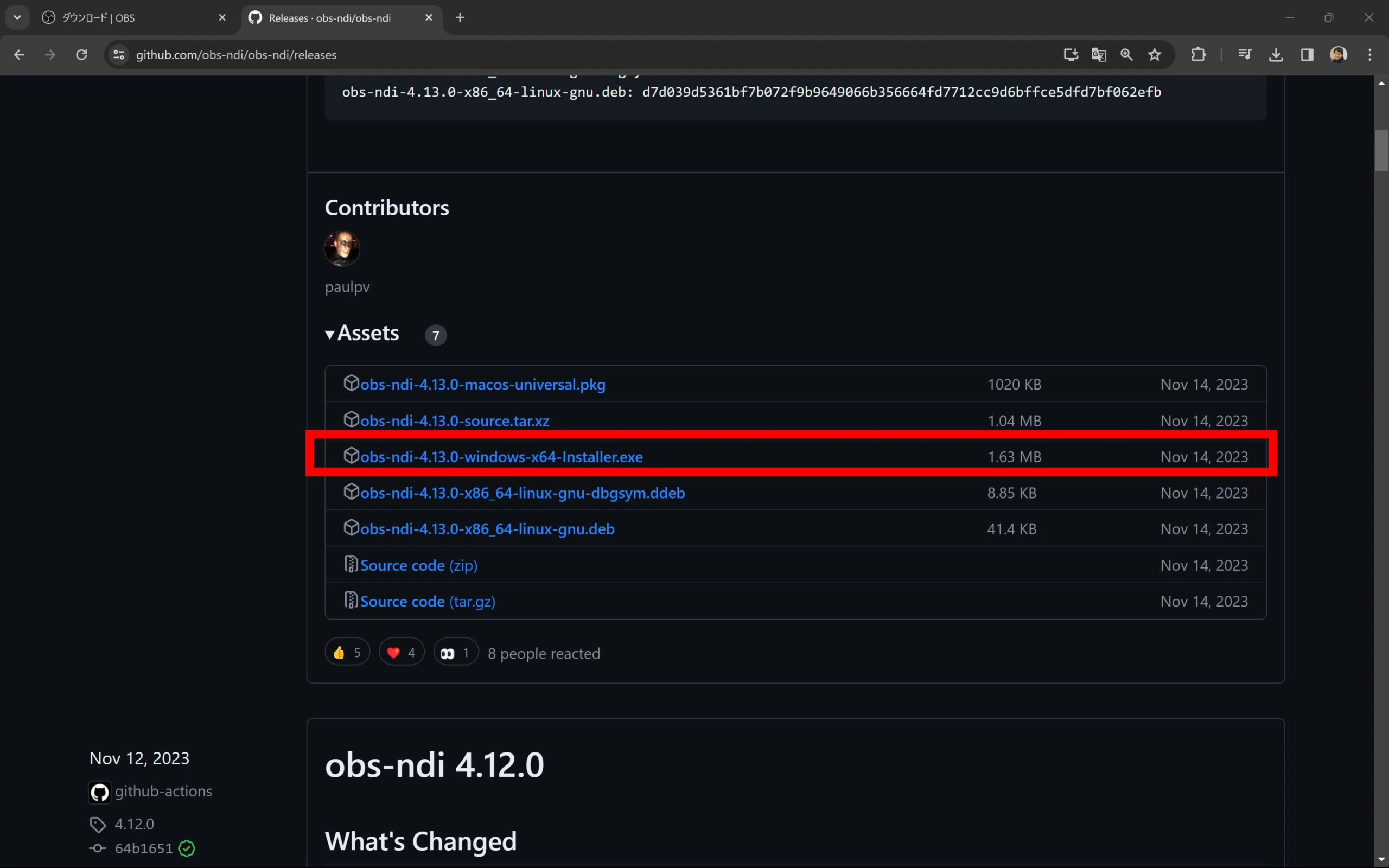
 Unless you need a specific release, download the current Windows installer. In this example it was obs-ndi-4.13.0-windows-x64-Installer.exe. Run the EXE.
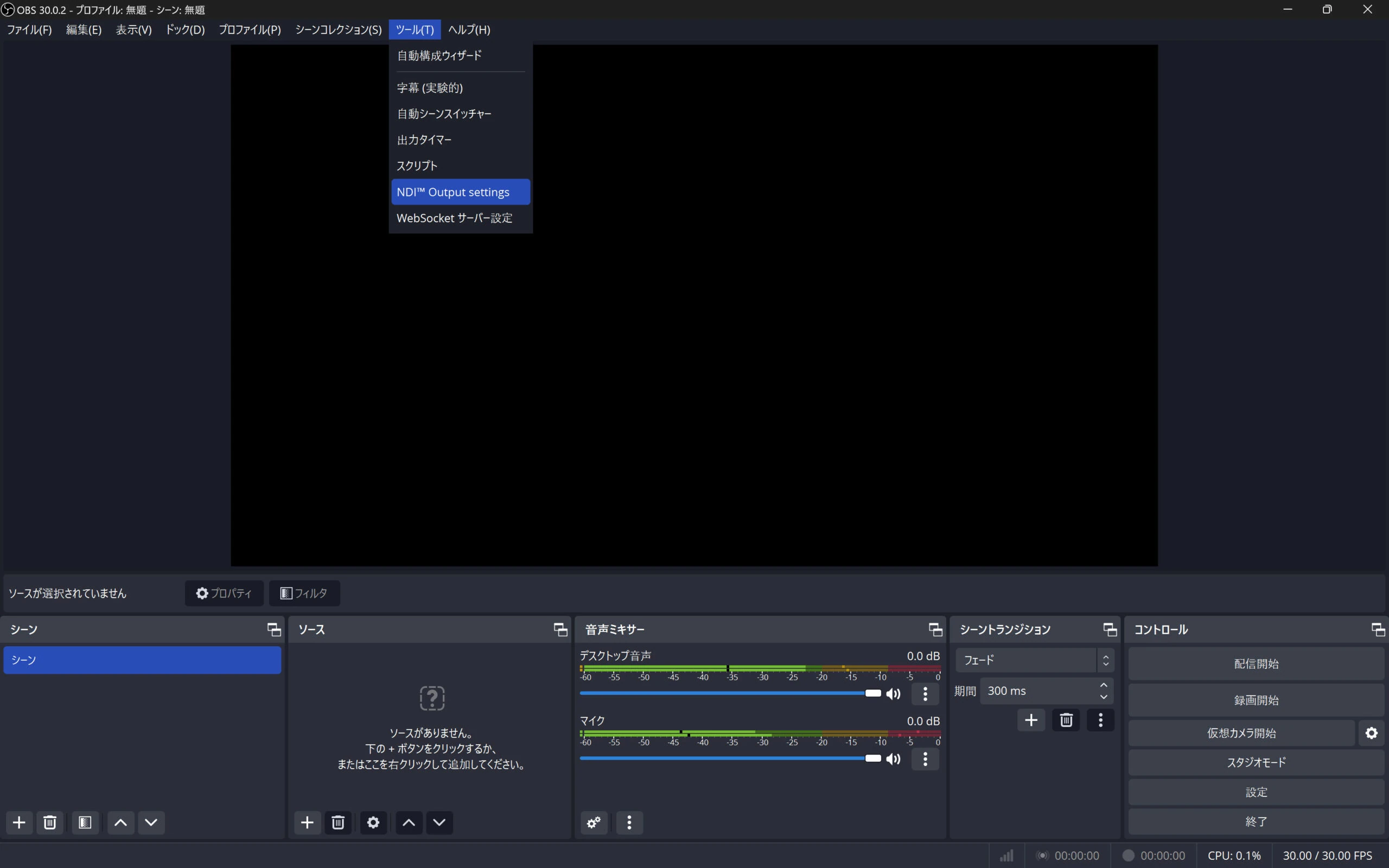
  NDI is available when OBS starts. Use Tools > NDI Output to send a stream. The NDI SDK/runtime was installed automatically in this setup, which made it easy.
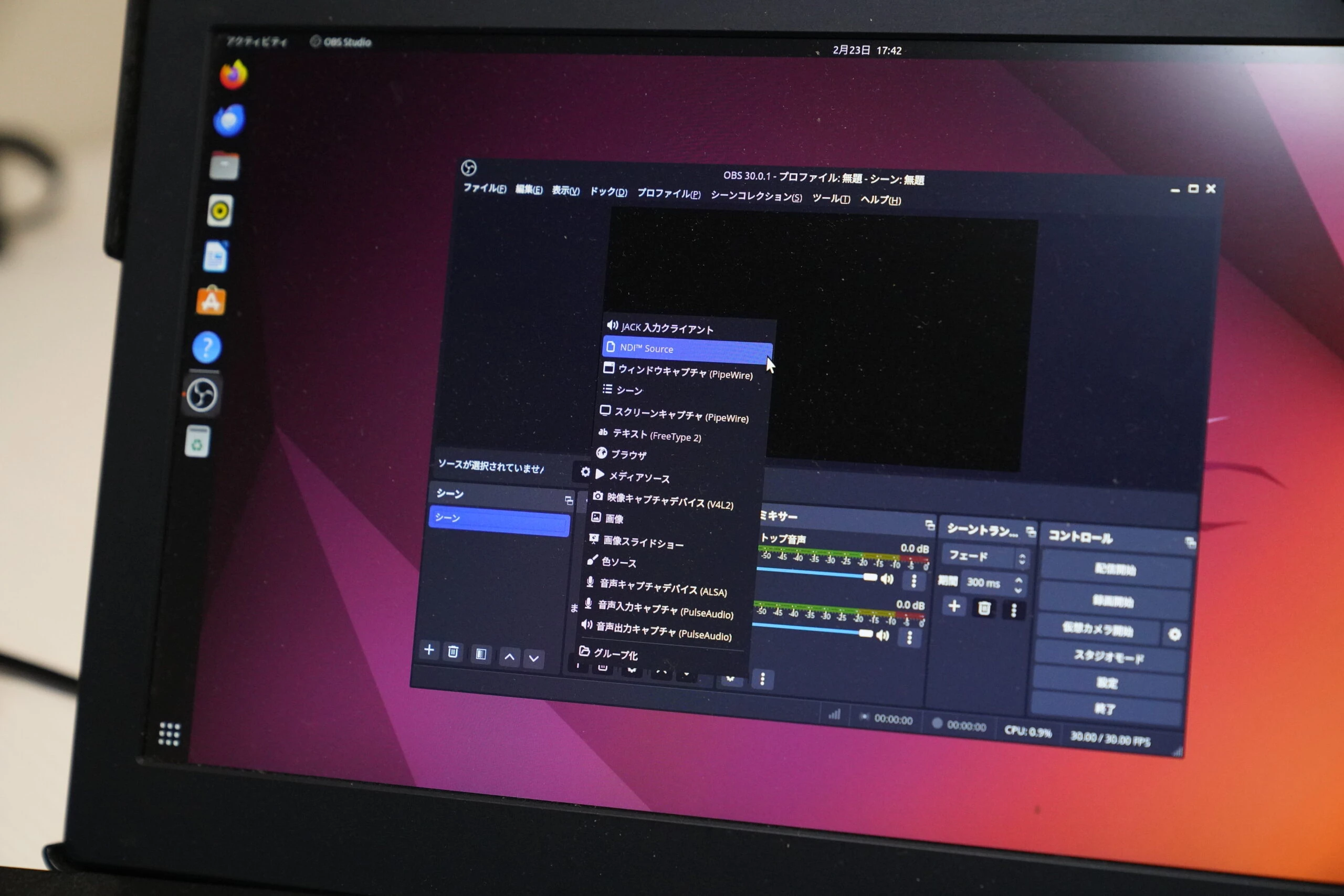
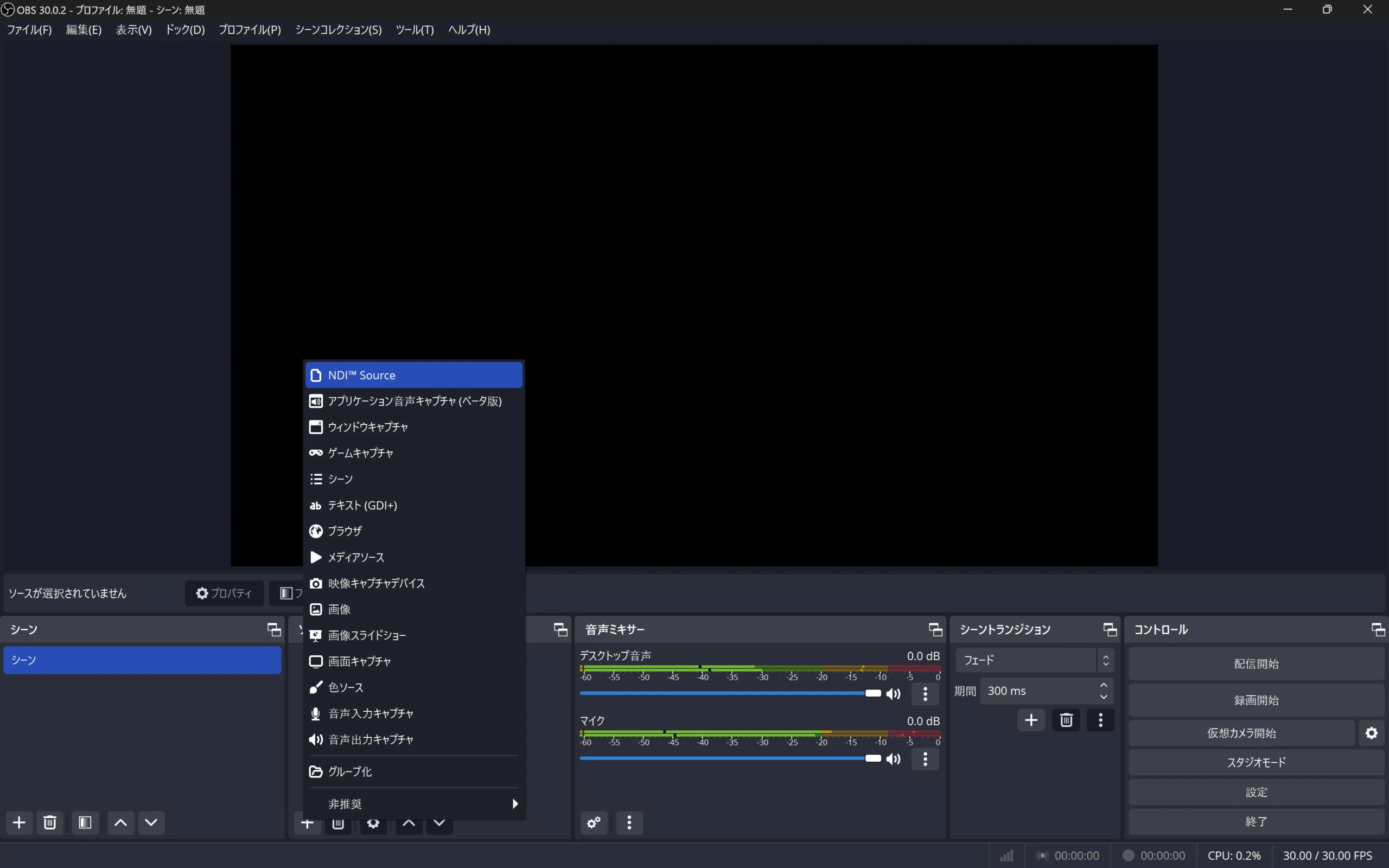
  To receive a feed, add an NDI Source.
  That completes the Windows setup. Next is Ubuntu.
Ubuntu 22.04: install OBS and send the USB camera feed over NDI
The hardware I used for Ubuntu 22.04 was a CHUWI LarkBox X with an AMD Ryzen 3750U.
Related products: Search Amazon for CHUWI LarkBox X (AMD Ryzen 3750U) (Ad)
Related USB camera listings: Search Amazon for USB cameras (Ad)
Register through the NDI site to receive the download for Install_NDI_SDK_v5_Linux.tar.gz by email.
Download the Linux version of the NDI SDK.
Names and download procedures may differ with the version.
https://ndi.video/download-ndi-sdk/
Extract the downloaded SDK archive, adjusting the filename as appropriate.
tar -xzvf Install_NDI_SDK_v5_Linux.tar.gz
Run the NDI SDK installer script. Press Enter through the text until item 10, then press Y to agree. After item 10, press Enter one step at a time so you do not skip the agreement prompt. 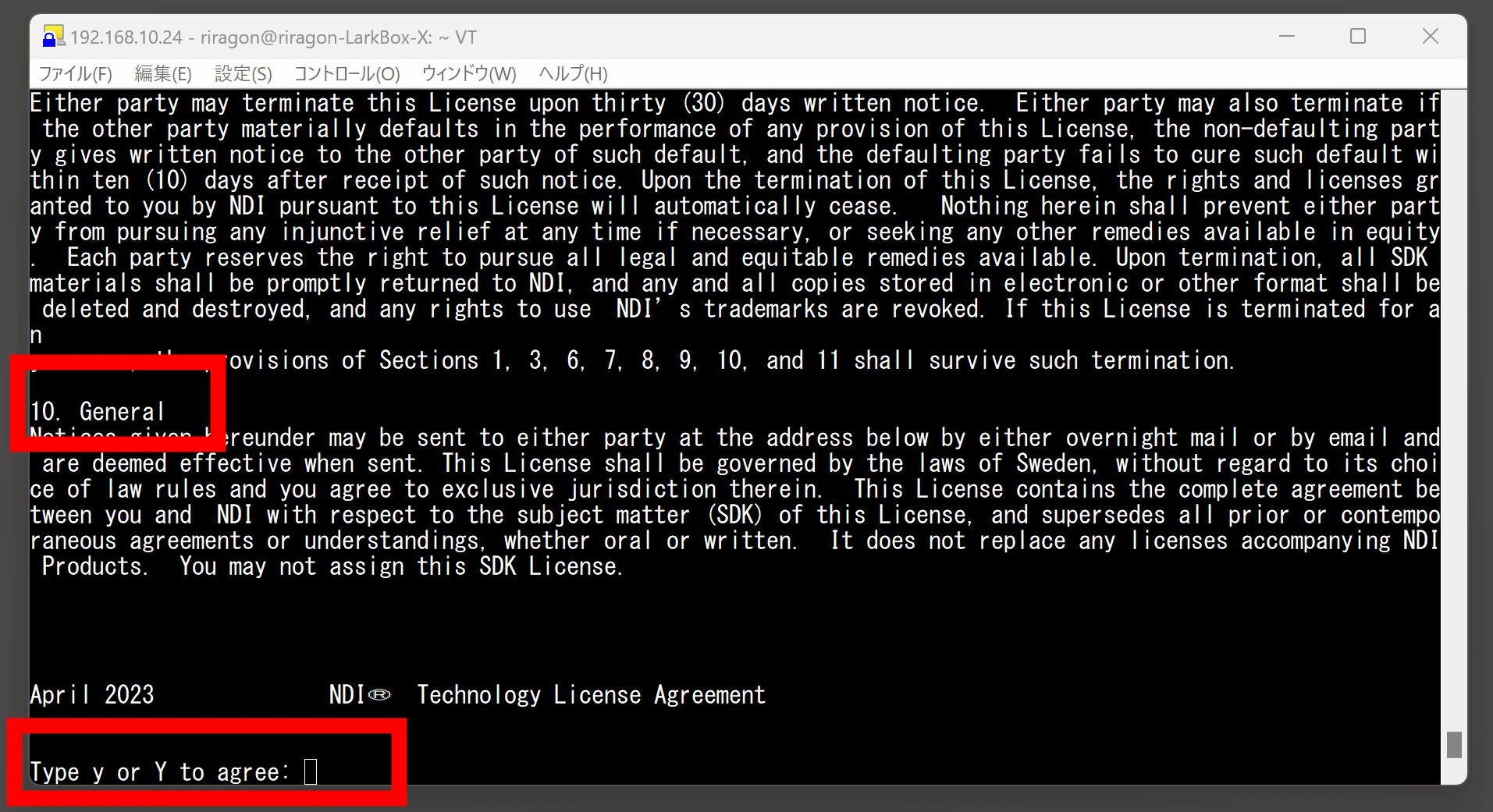
sudo ./Install_NDI_SDK_v5_Linux.sh
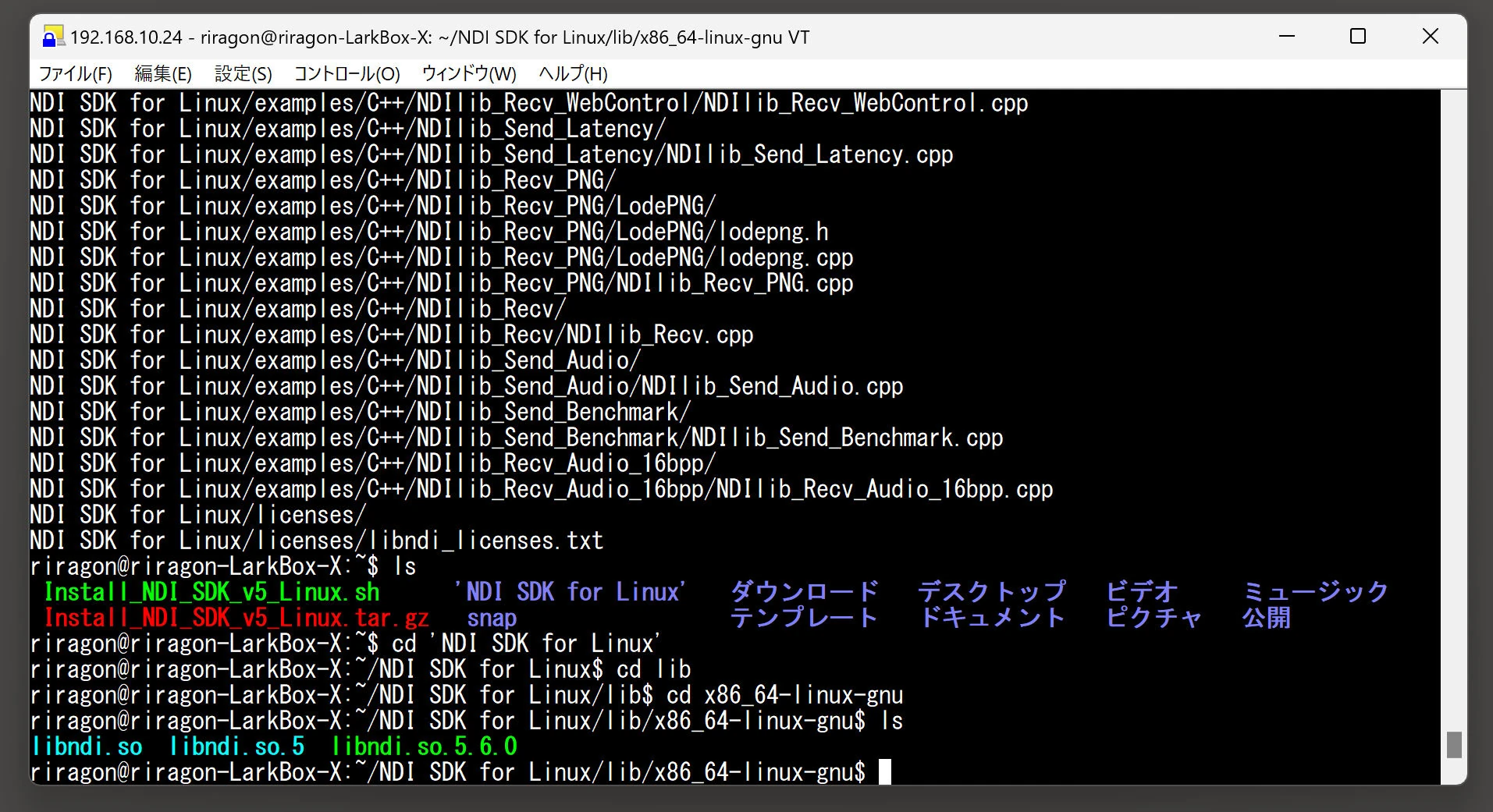
Enter the SDK installation directory. Names may differ slightly with the version, so check with ls. The target is the x86_64-linux-gnu directory inside lib.
cd 'NDI SDK for Linux'
cd lib
cd x86_64-linux-gnu
Copy the NDI libraries to the system library directory.
Update the library cache.
Placing the libraries there avoids needing to change environment variables.
The x86_64-linux-gnu directory should contain about three files, including libndi.so.5.6.0.
Move all of them.
Moving only libndi.so.5.6.0 might also be sufficient.
sudo cp libndi.so* /usr/local/lib/
sudo ldconfig
You may see a message such as "/sbin/ldconfig.real: /usr/local/lib/libndi.so.5 is not a symbolic link." Check that libndi.so.5 is a regular file, then remove it.
sudo rm /usr/local/lib/libndi.so.5
Create the correct symbolic link to libndi.so.5.6.0 and run ldconfig again to update the cache. The warning should disappear.
sudo ln -s libndi.so.5.6.0 /usr/local/lib/libndi.so.5
sudo ldconfig
Next, install OBS on Ubuntu.
sudo add-apt-repository ppa:obsproject/obs-studio
sudo apt update
sudo apt install obs-studio
Install the OBS-NDI plugin. On Ubuntu, use the x86_64-linux-gnu.deb package.
https://github.com/obs-ndi/obs-ndi/releases
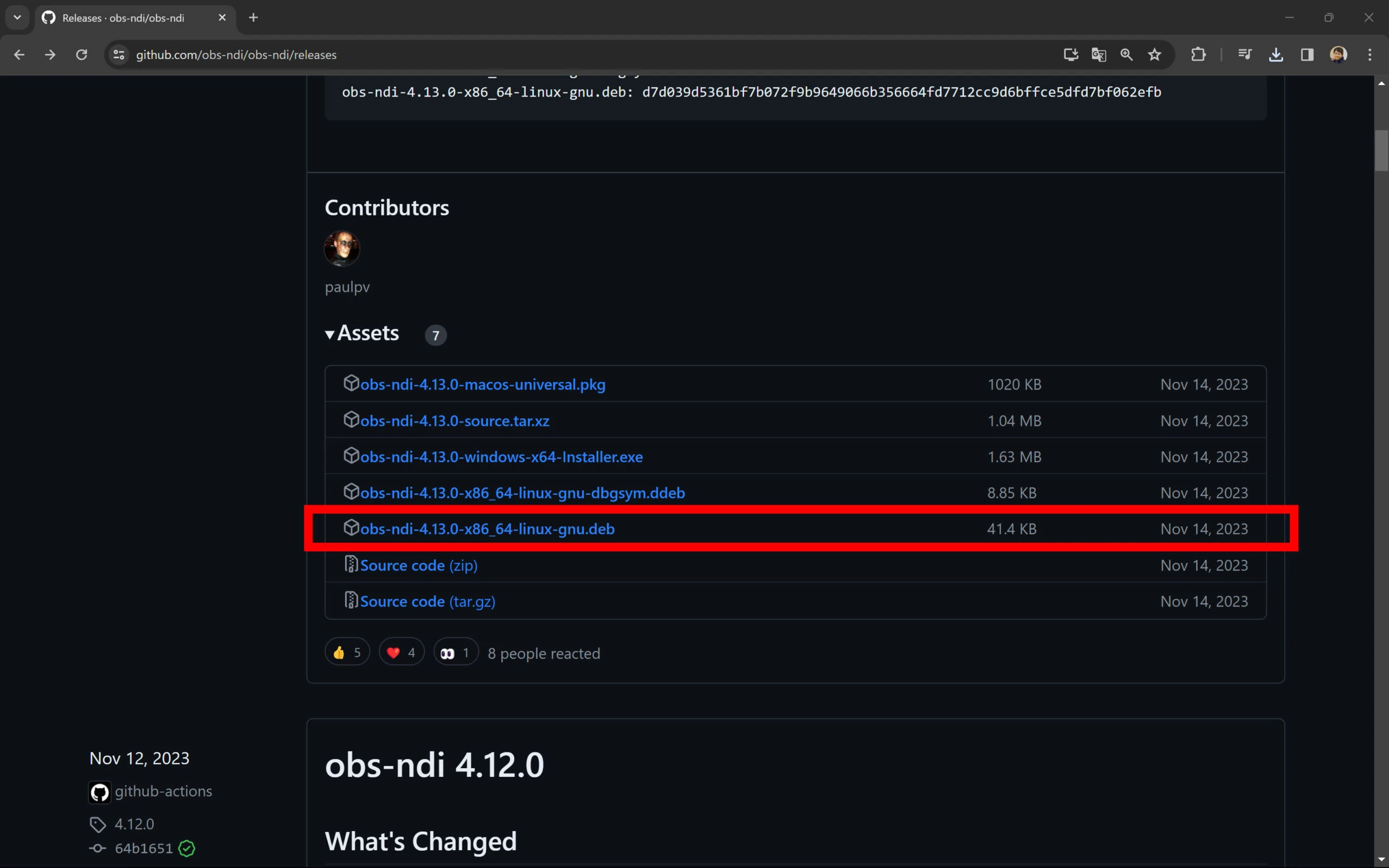 Run the installer.
sudo dpkg -i obs-ndi-4.13.0-x86_64-linux-gnu.deb
NDI appeared when I started OBS. Using OBS is the same as on Windows. 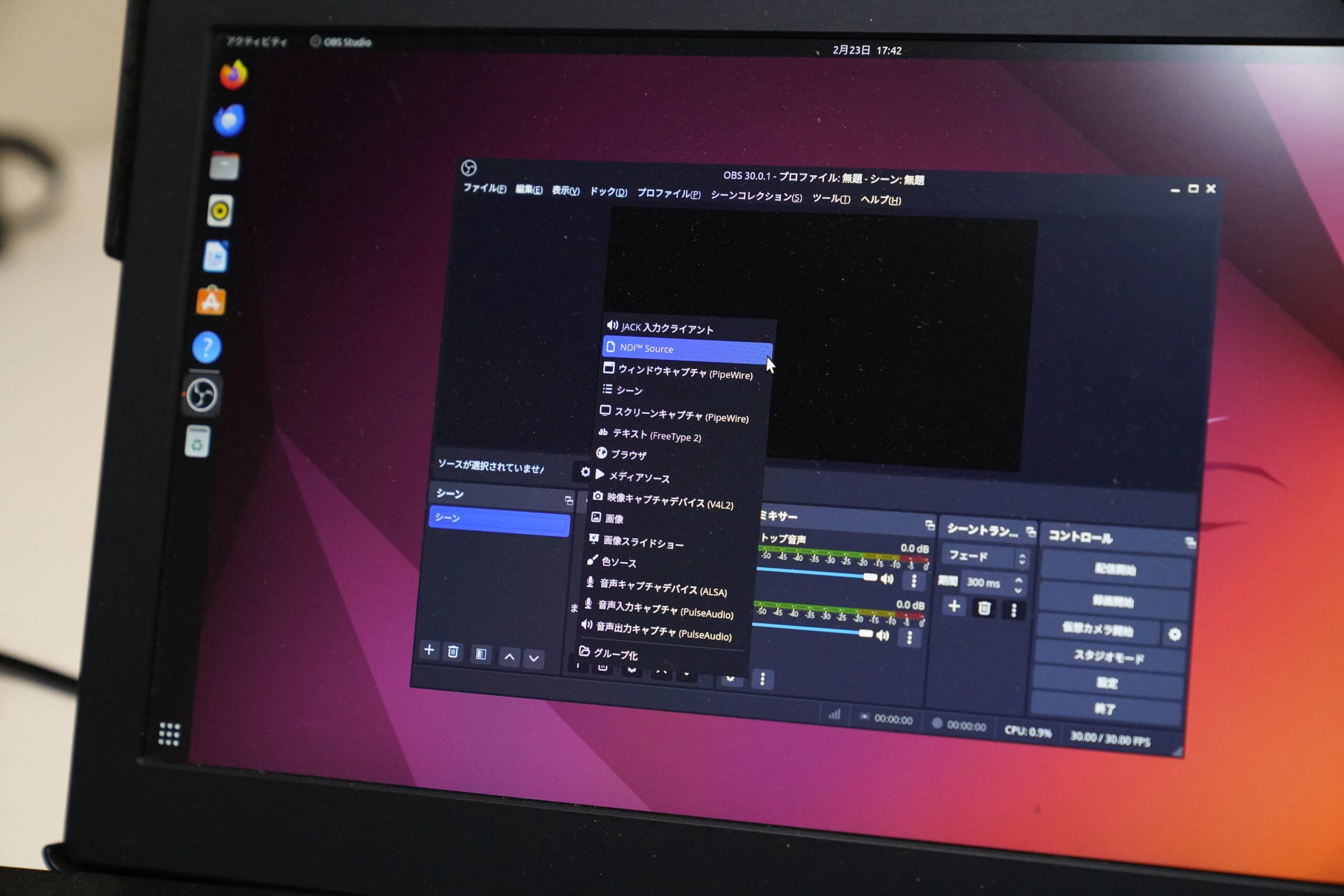
Another option: NDI Tools alone can send a USB camera feed
NDI Tools is a collection of convenient tools for Windows, also available free. Many features are Windows-only. It can be confusing at first, but is simple once you know where to look.
After installing it, try sending the USB camera through NDI Tools. You might expect to start with Webcam, but camera transmission actually comes from Screen Capture, which surprised me. 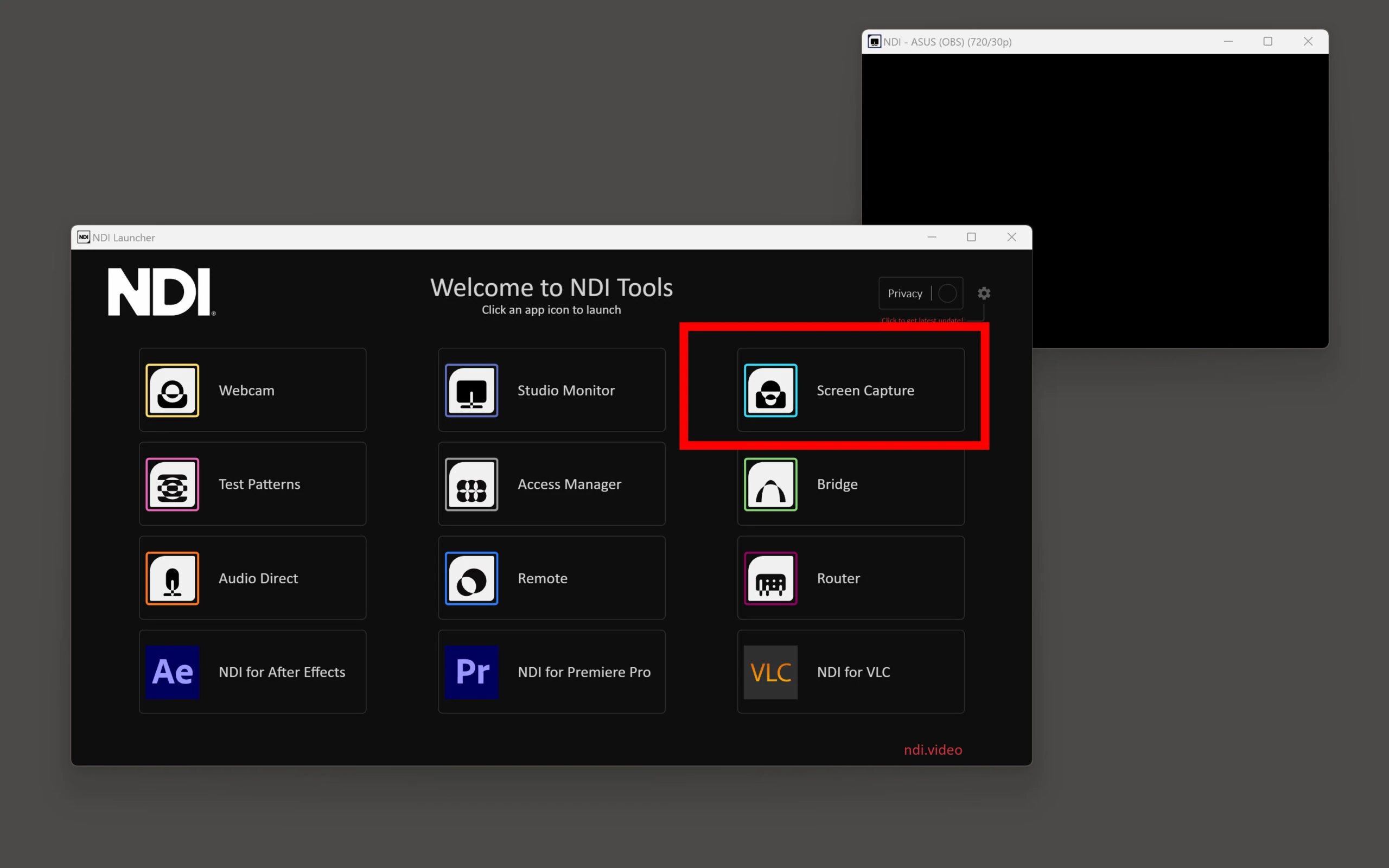 Clicking Screen Capture does not open a window. Instead, it appears among the hidden system-tray icons at the bottom right of Windows. Another surprise!
 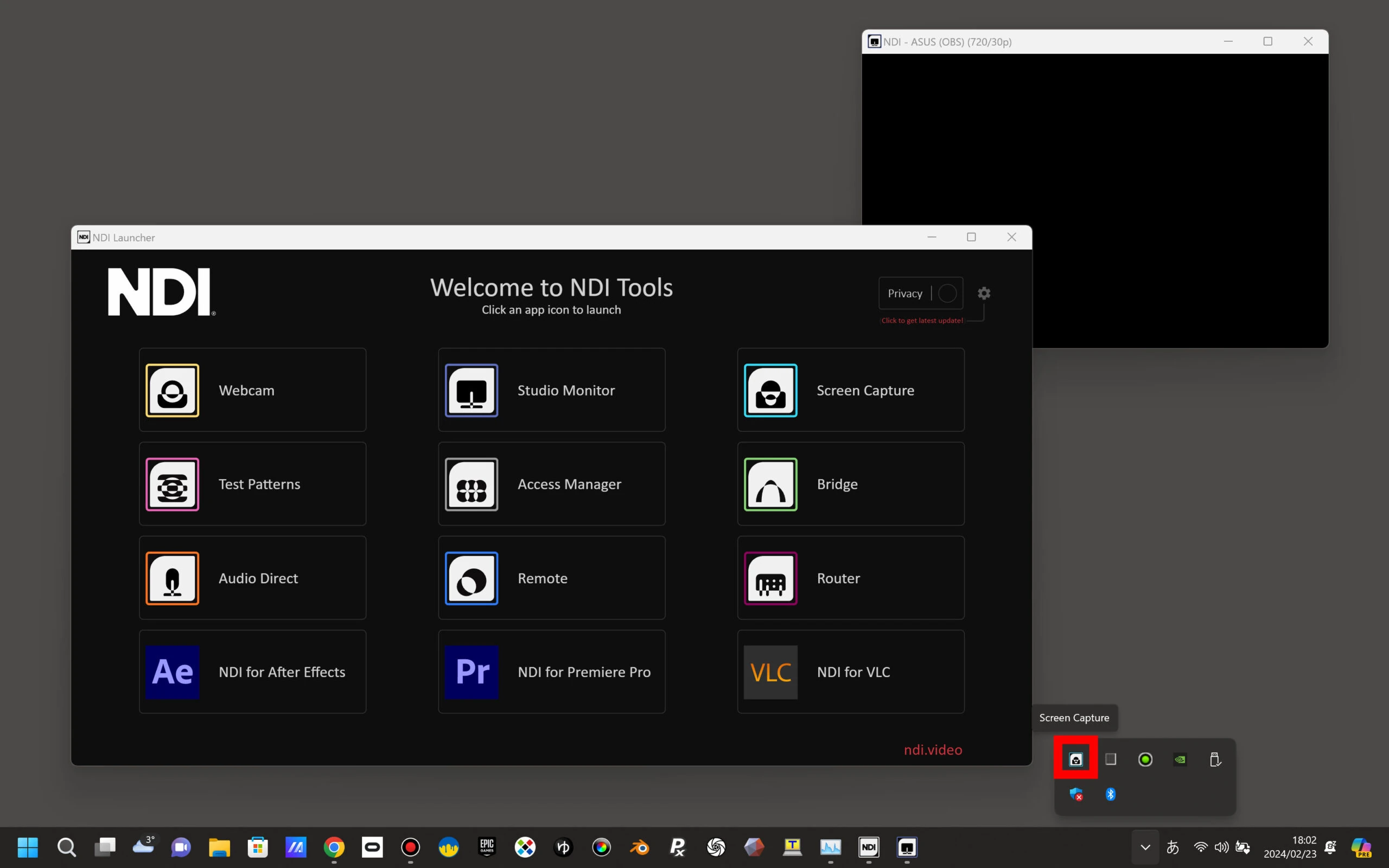 Right-click that icon to open its menu. In the webcam section, select the camera and resolution.
 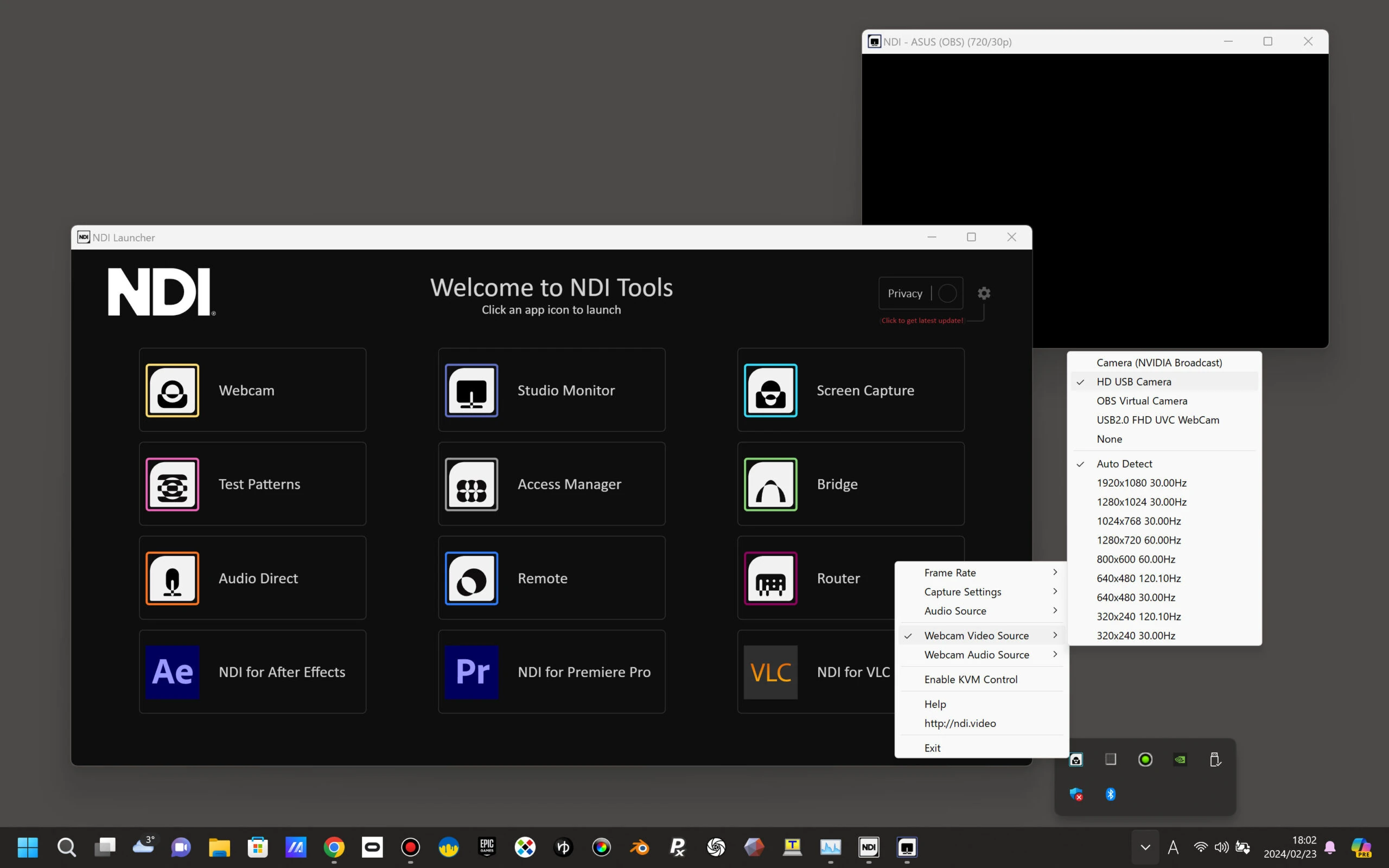 That is it: the USB camera video is sent over NDI.
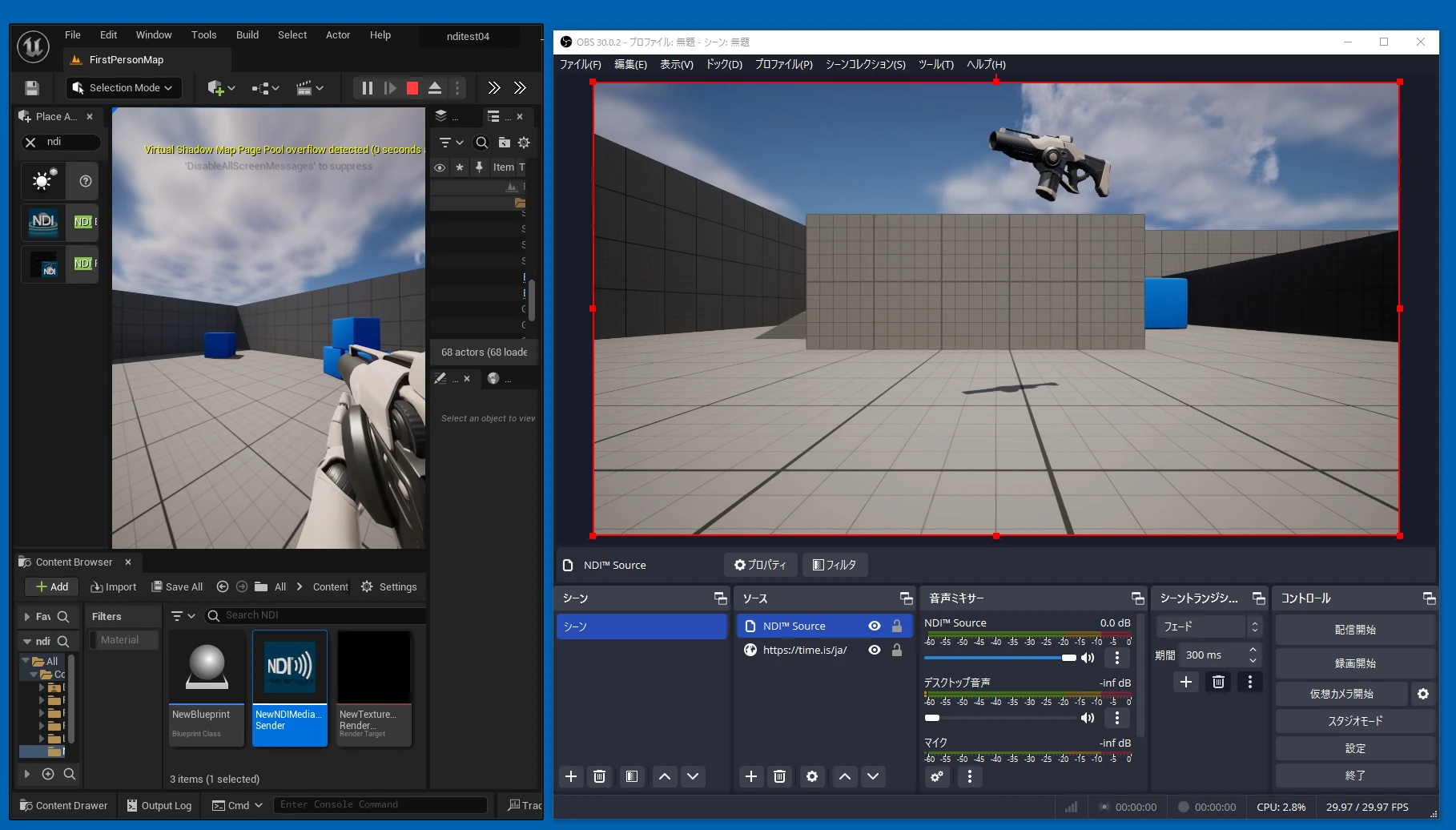
 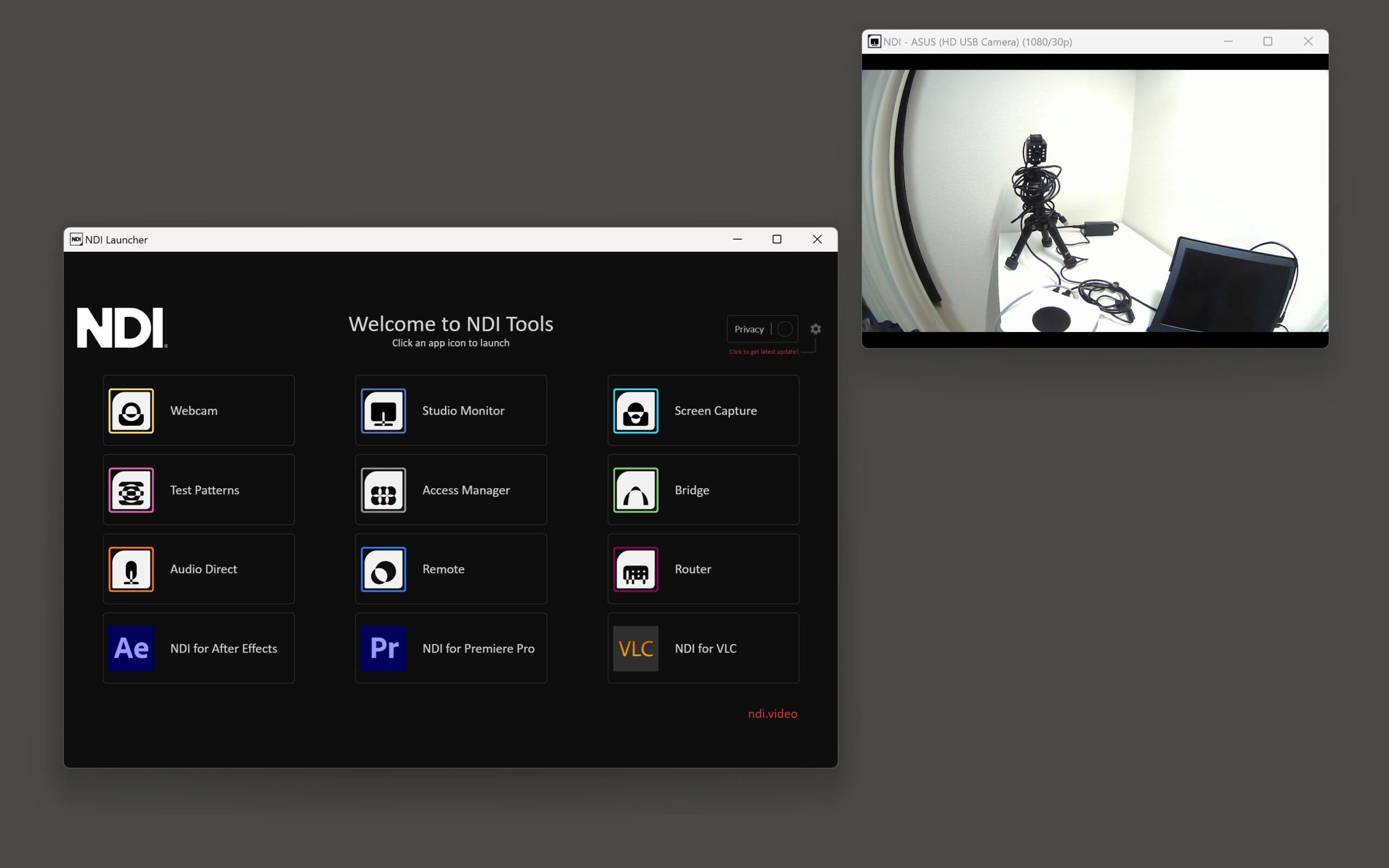 NDI lets you receive feeds from multiple network-connected cameras and switch between them in OBS for live streaming. Easy network transmission of high-quality video makes it useful in many situations.
Related CHUWI LarkBox X (AMD Ryzen 3750U) listingsView listings on Amazon Ad / Amazon Associates link
Related articles
Updates and contact: X @riragoncom.