UE5 material instances: adjust Metallic and Roughness with sliders
Create material instances in Unreal Engine 5 to adjust Metallic and Roughness visually. This walkthrough also connects Lerp, Constant, and Scalar Parameter nodes to control a roughness mask.

Note: This article was published more than a year ago.
- The Material Editor, default lighting, and project settings vary by Unreal Engine version. Consult the matching documentation.
- Roughness and Metallic can look different with Forward or Deferred rendering and with or without Lumen.
- The node layout reflects the UE version used at the time. Defaults and recommended workflows may change even when node names remain the same.
Material instances in Unreal Engine 5 make it a little easier to adjust Metallic and Roughness with sliders.
They manage material properties efficiently, letting you change properties such as Metallic and Roughness without directly editing the base material.
This makes it quick to apply different appearances to multiple objects.
Creating and using material instances
Unreal Engine 5.3 material instance documentation
First, a very brief example. Add a sphere and open its material element. Add a Scalar Parameter, name it Roughness for clarity, and connect it to Roughness.
I changed the material to black to make the effect easier to see. Select the Scalar Parameter and set its default, minimum, and maximum values. Roughness uses a range from 0 to 1.
Find the base material in the Content Browser and choose Create Material Instance. Open that instance to adjust the parameter just created with a slider.
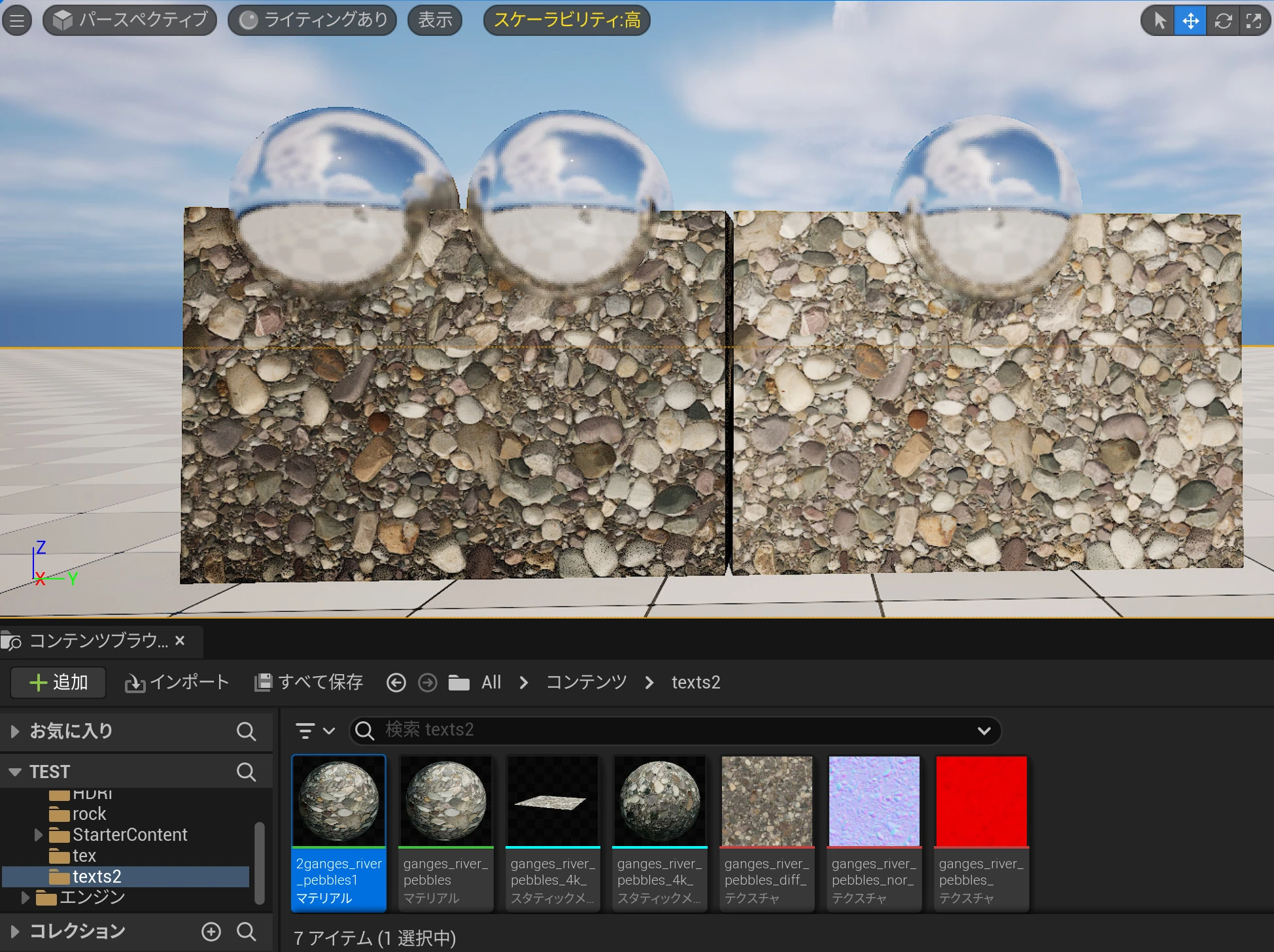
Likewise, import an FBX asset, add Scalar Parameters, and create a material instance. You can then slide Metallic and Roughness values while visually checking how naturally the model fits the scene. Convenient.
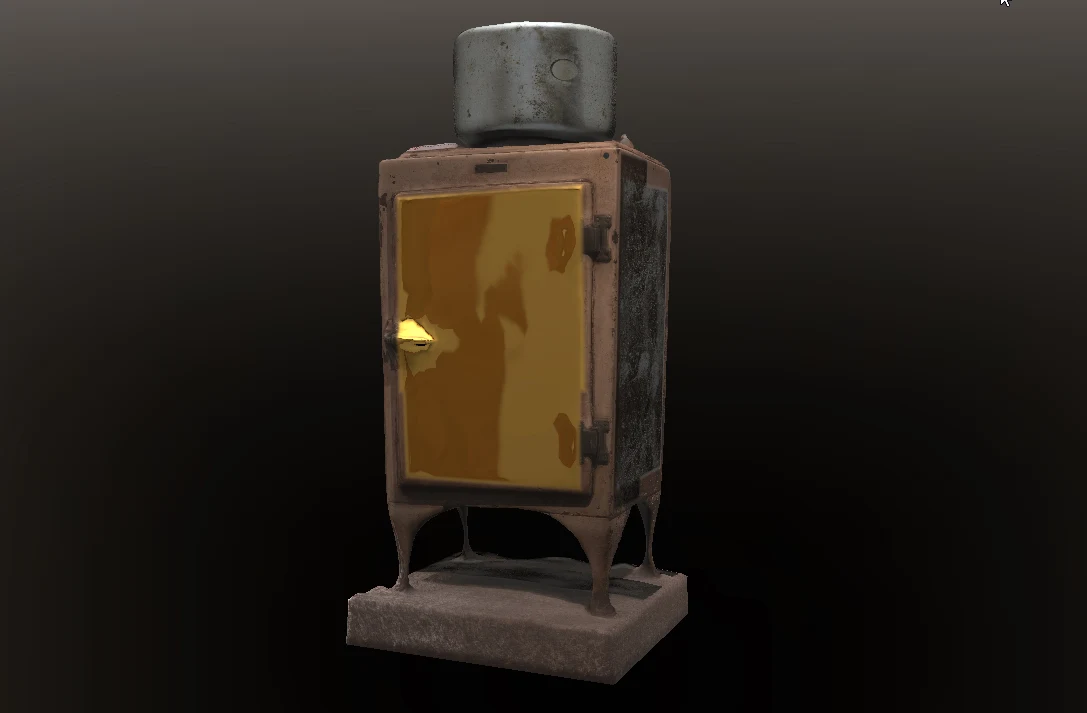
Let us go a little further. In the modeling application, I mark part of a refrigerator as metal and make a texture-based roughness mask for the gold and silver areas.
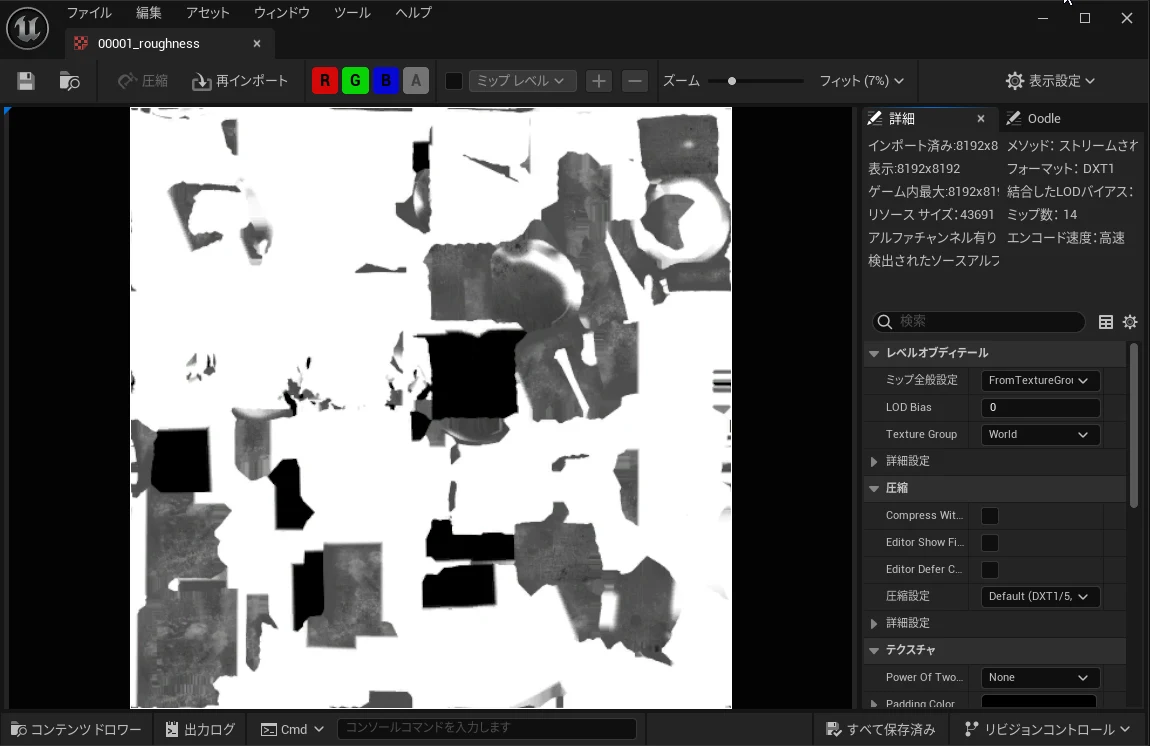
 The roughness mask is a black-and-white image like this. Is black the roughness region, or is it reversed? Is zero active and one inactive? I sometimes lose track of which of black and white has which effect.
 To control the mask's influence from 0 to 100%, connect several nodes. It is a little more involved; right-click in the material graph and search for the following.
①Linear Interpolate (Lerp)
Linear Interpolate, or Lerp, performs linear interpolation between two values.
To control the mask's influence from 0 to 100%, connect several nodes. It is a little more involved; right-click in the material graph and search for the following.
①Linear Interpolate (Lerp)
Linear Interpolate, or Lerp, performs linear interpolation between two values.
Using a specified ratio, usually between 0 and 1, it computes a smoothly varying value between inputs A and B.
For example, Alpha 0 returns A, while Alpha 1 returns B.
Alpha 0.5 returns the midpoint between A and B.
This is commonly used in games and graphics to create smooth changes over time, among other effects.
②Constant In Unreal Engine's Material Editor, a Constant node represents a fixed value.
Constants can be scalar values, vectors with two, three, or four floating-point components, or colors.
Connecting a Constant to a material property gives it the specified value without variation from other inputs.
It is a basic but essential shader component for defining static values in the graph.
③Scalar Parameter A Scalar Parameter is a parameter for changing a material property dynamically.
Through a material instance, it allows properties such as roughness or glossiness to be adjusted in the editor or at runtime on the object using the material.
Scalar Parameters make it easy to generate many variations from one material.
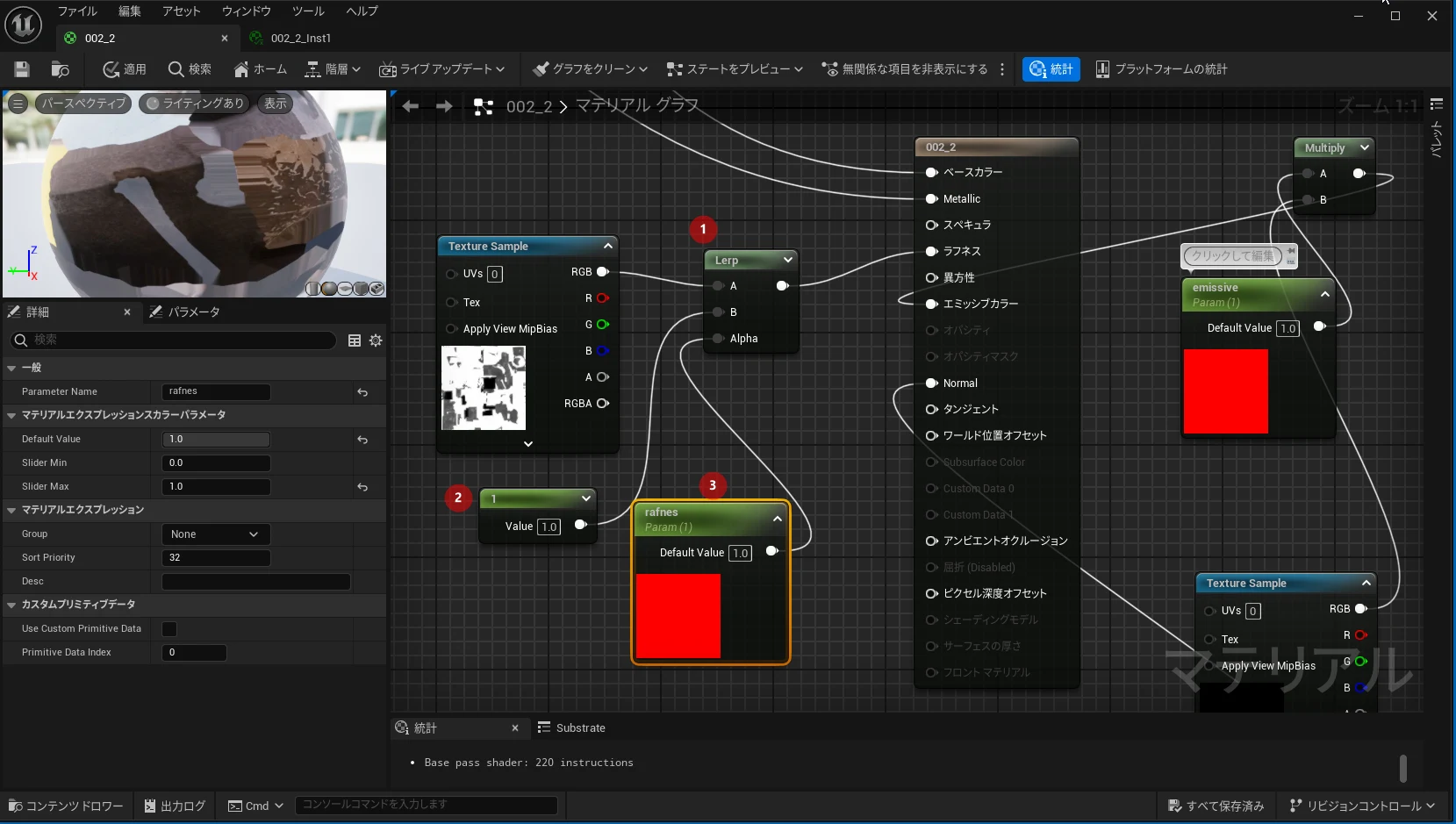 Now try connecting Linear Interpolate, Constant, and Scalar Parameter as shown. Give the Scalar Parameters suitable names.
Related articles
Updates and contact: X @riragoncom.