Related product listings: Search Amazon for Meta Quest 3 (Ad)
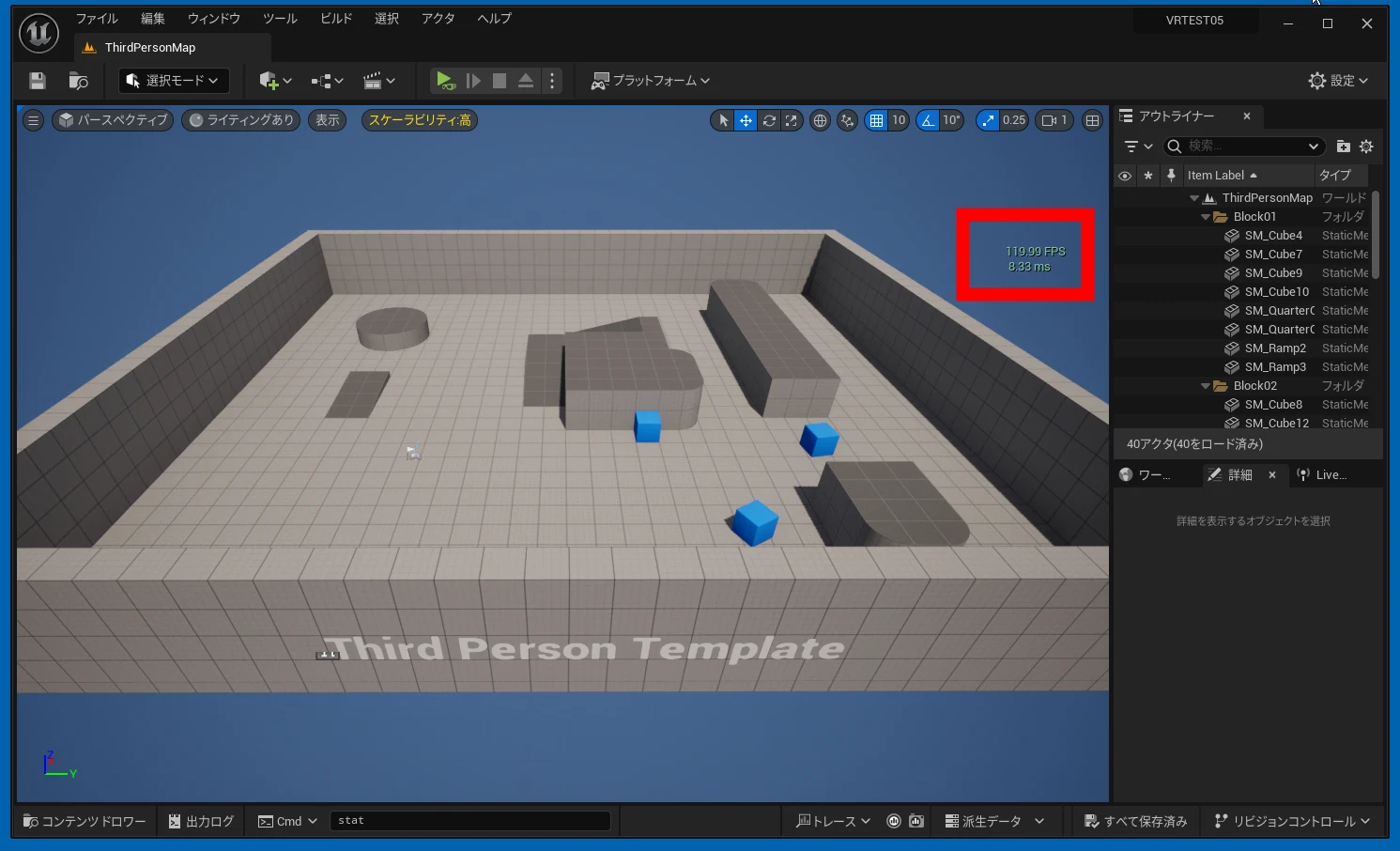
I wanted to use the then-new Meta Quest 3 to look around and move freely through virtual spaces in a head-mounted display (HMD). I imagine many people want to try VR with this high-quality combination of Quest 3 and UE5. ## Disappointed by UE5's VR template UE5 has a dedicated Virtual Reality template, designed to make basic VR behavior and interaction easy to implement. 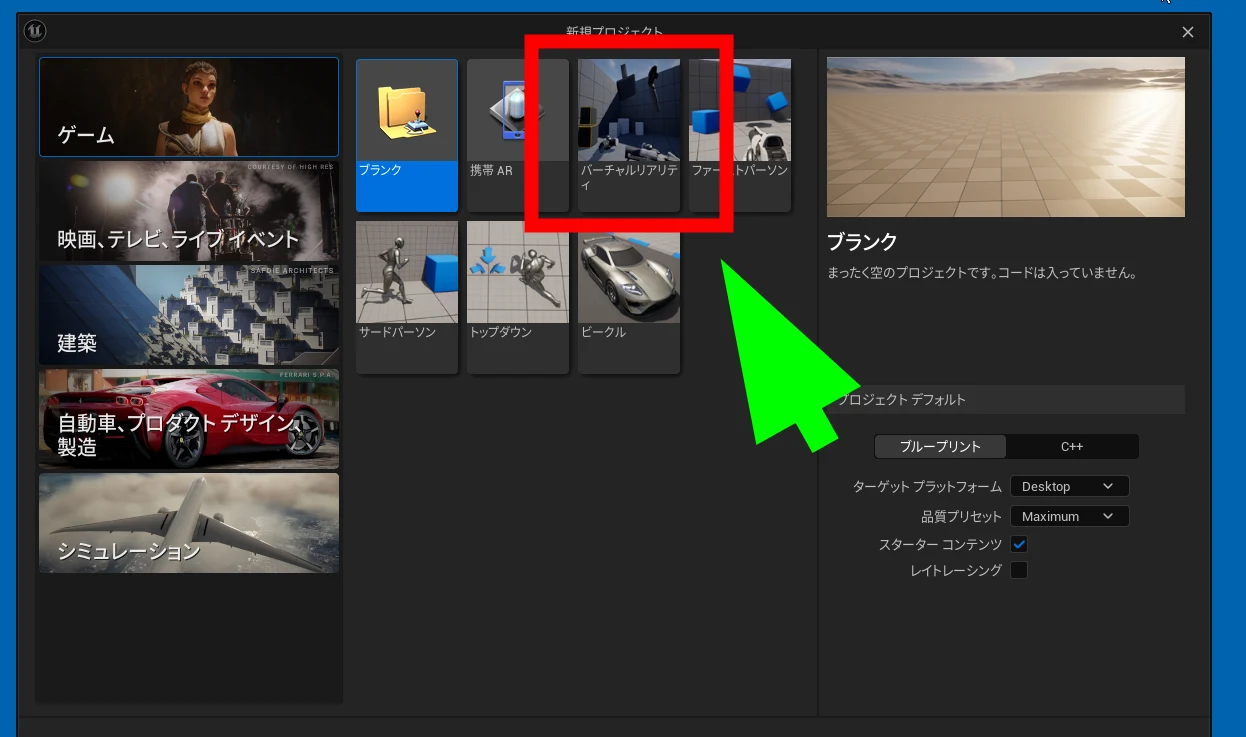 Its movement feels dated, though: teleportation between points and horizontal view changes in 45-degree steps. To me, it was a disappointing VR experience. Since it is VR, I want to move freely. Try the default behavior first and see how it feels. 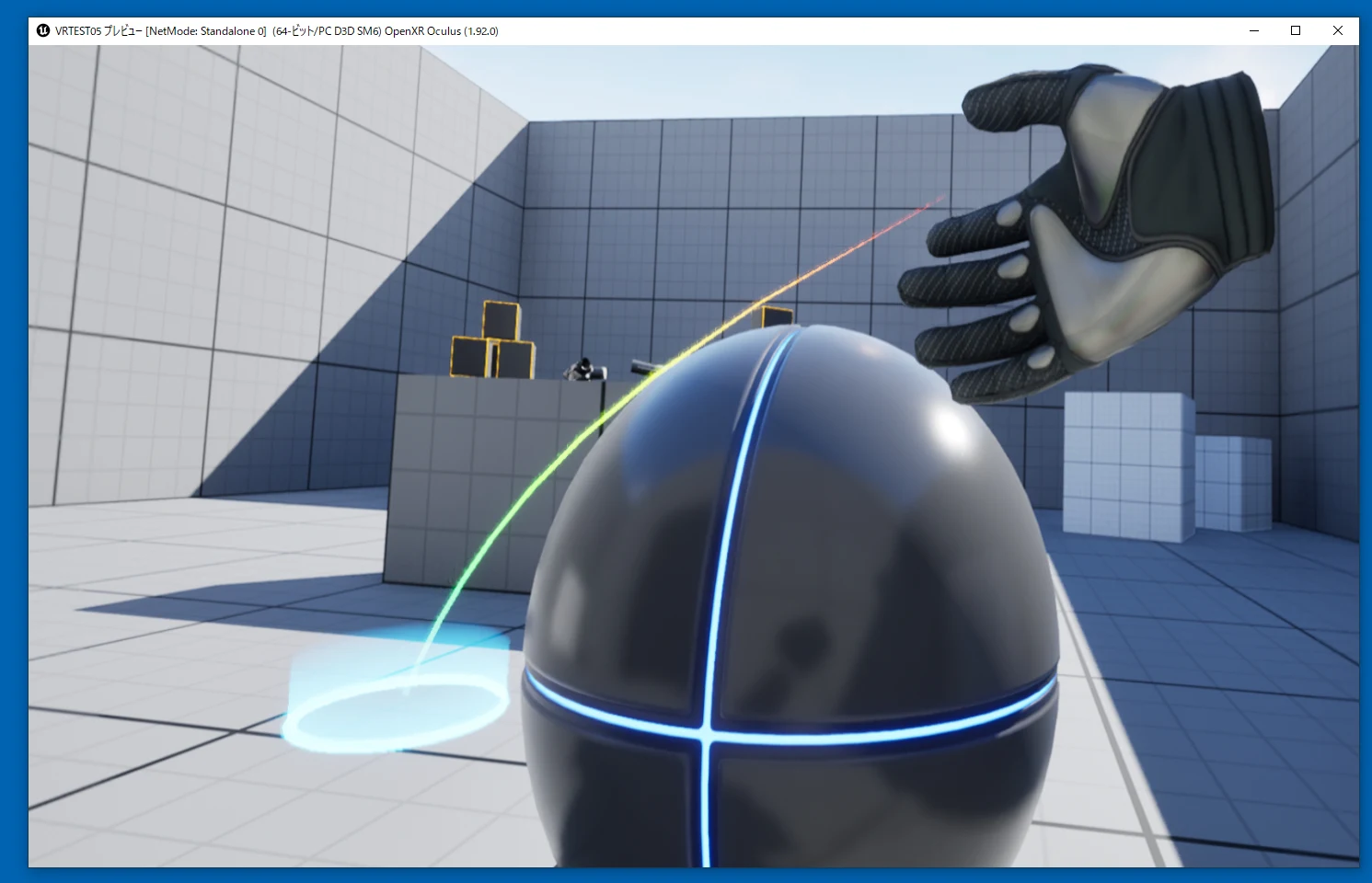 ## Improving the VR template? There are many guides to modifying the template for free movement. In first person, however, I get intensely motion-sick, and the setup is complicated. A difficult combination. [YouTube](https://www.youtube.com/watch?v=mLF1Jhg7WDY) ## Is there a simpler, more natural way? I investigated a simpler way to explore freely in the Quest 3 HMD. Controlling a third-person view worked with relatively less motion sickness. Here is a setup for adding a world of your choice and moving around as simply as possible. First, create a Third Person world. 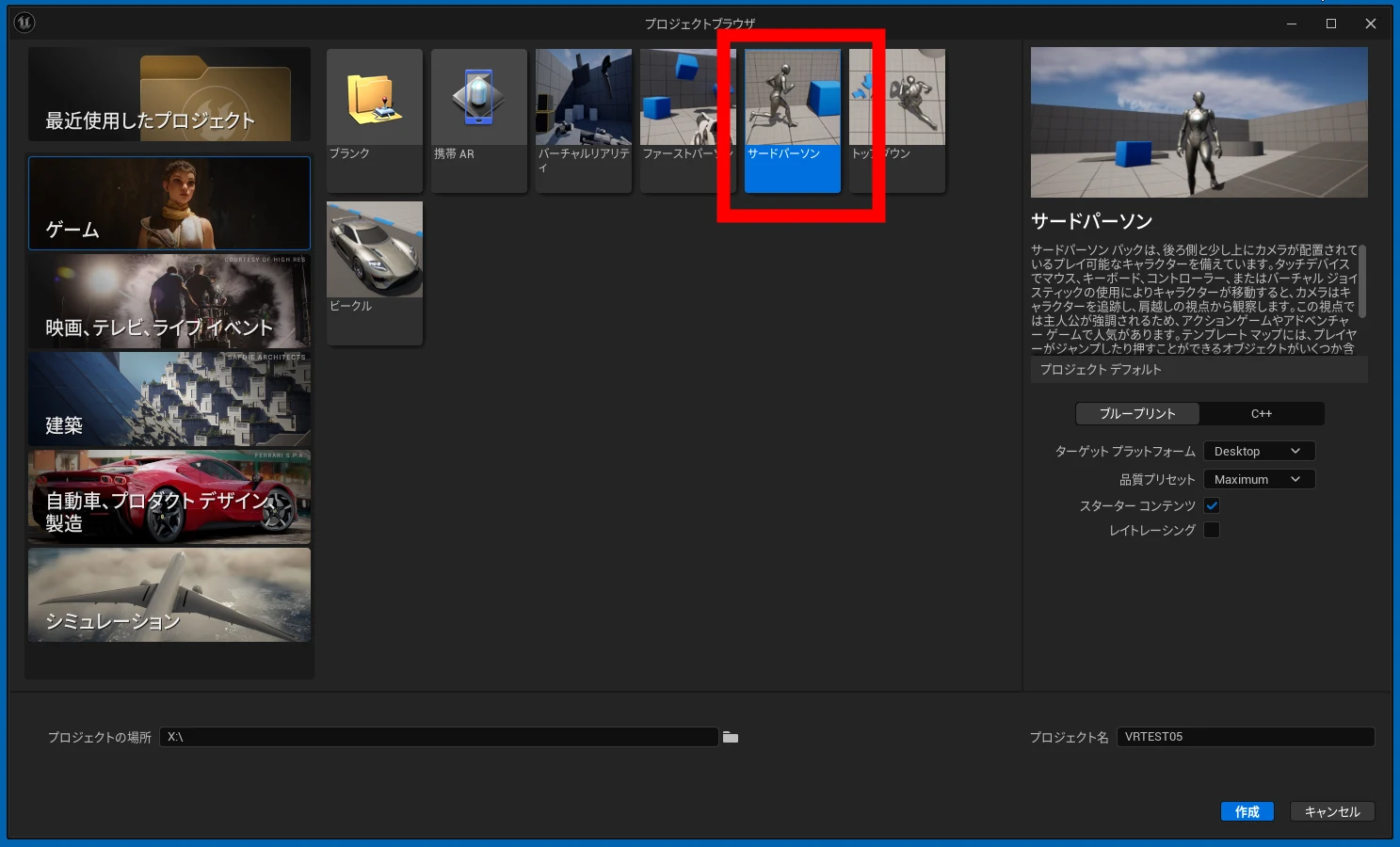 Once it opens, save it with a name such as main. The template itself is fine; arrange things so they are easy to work with. 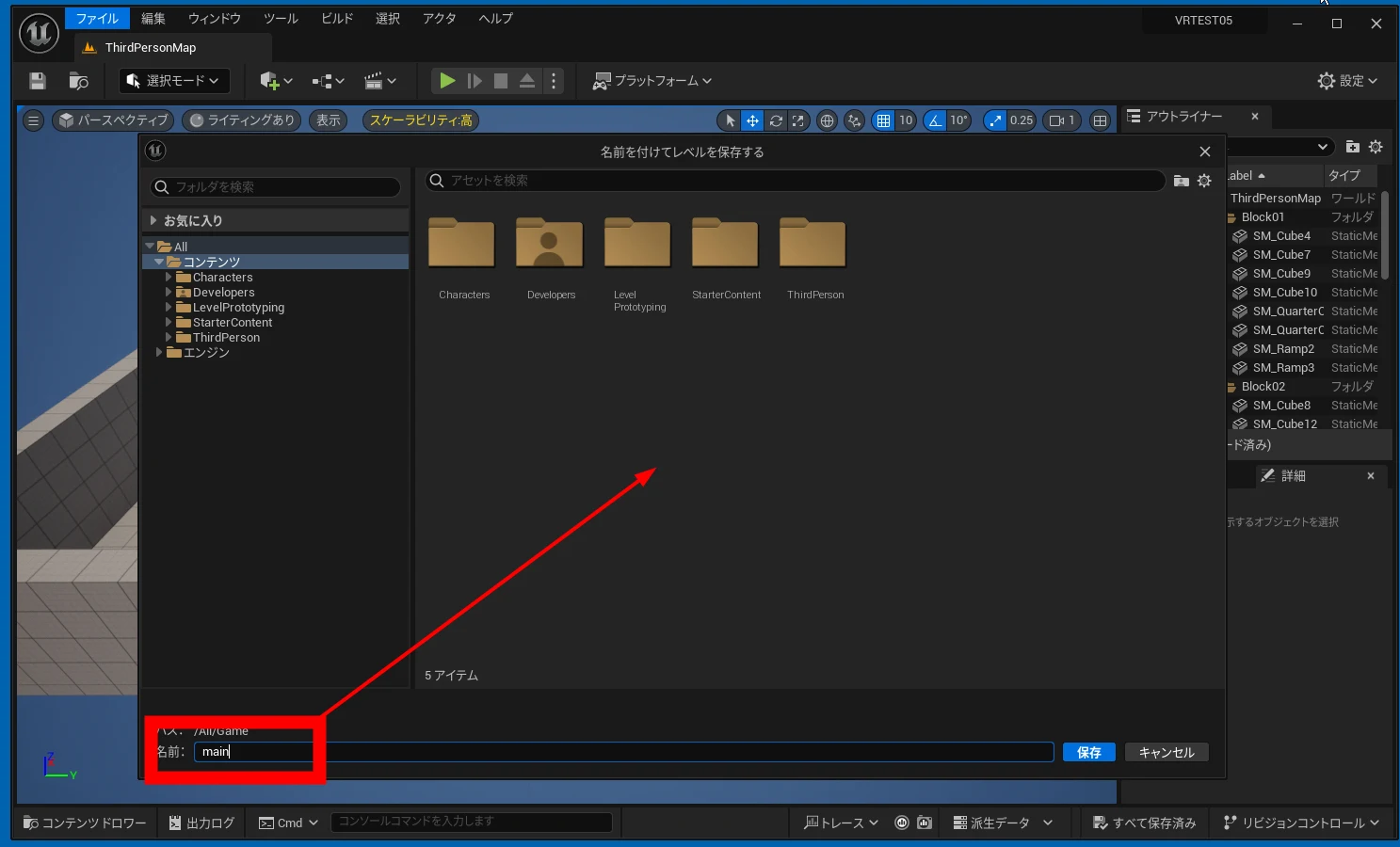 In the Content Browser's Add menu, choose **Add Feature or Content Pack**. 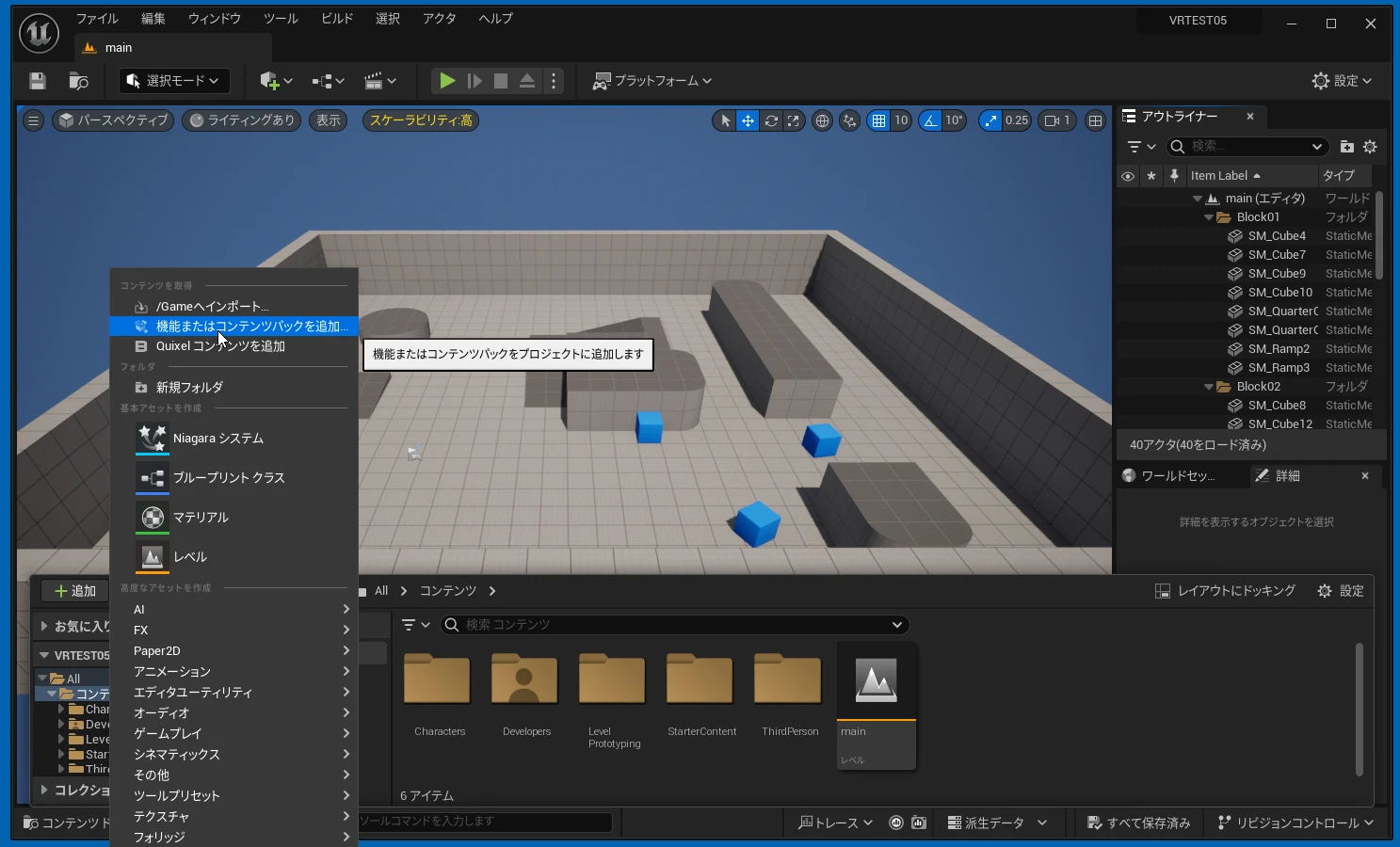 Add Virtual Reality to the project. 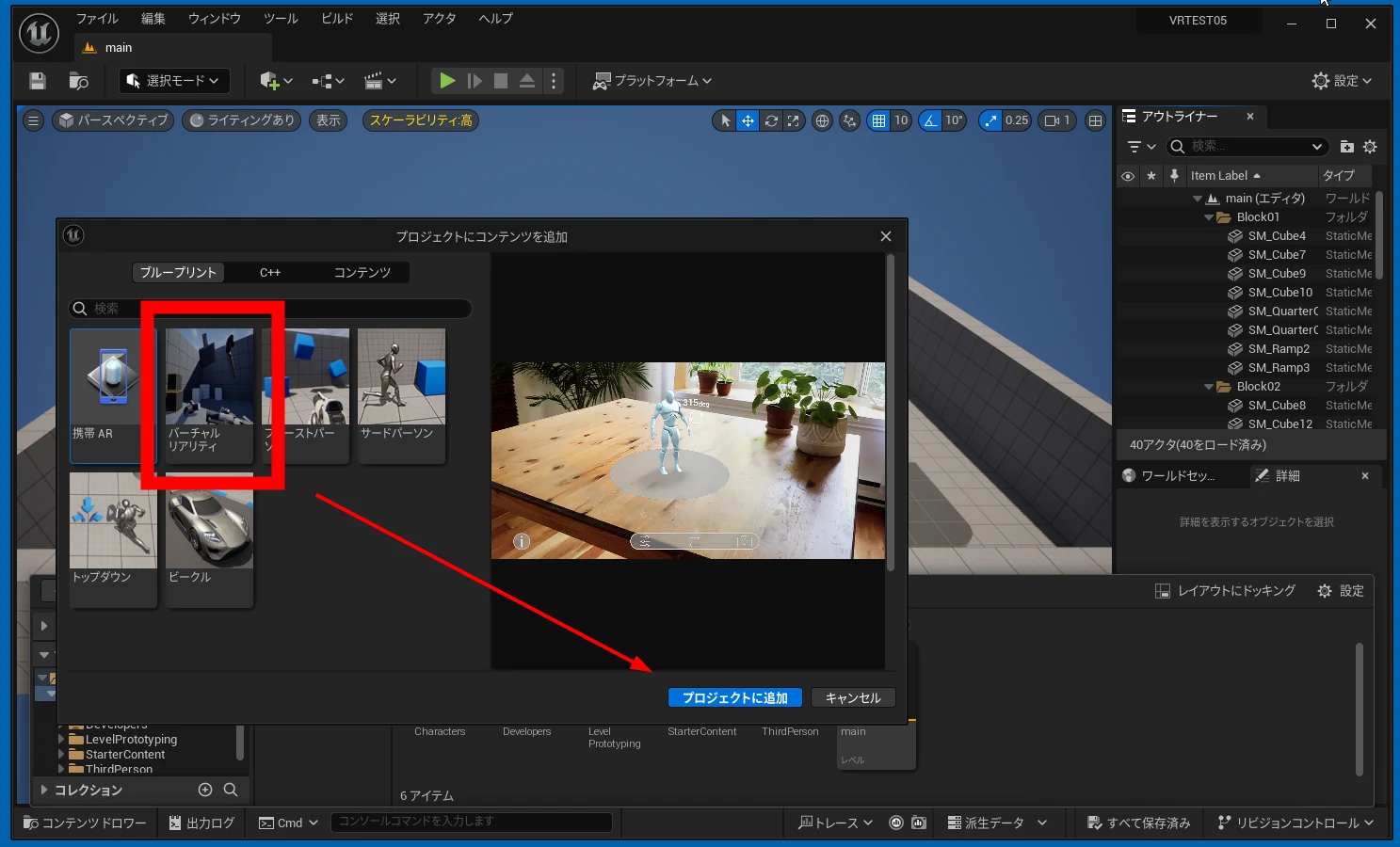 When prompted about missing plugins, choose to enable the missing items. This adds the plugins needed for HMD VR. Restart to apply them. 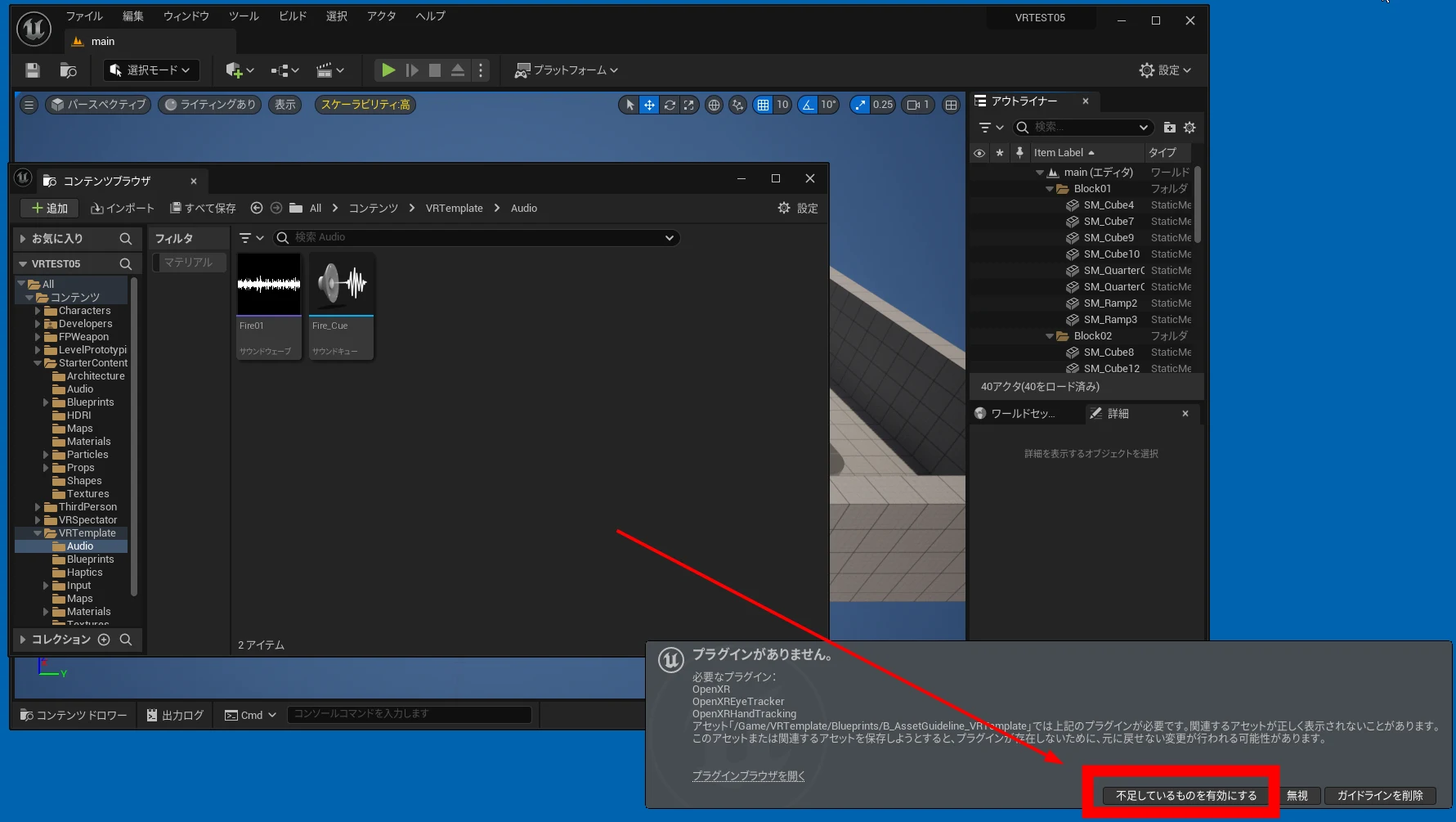 ## Previewing in the HMD Set up Quest Link for the Meta Quest 3 beforehand. 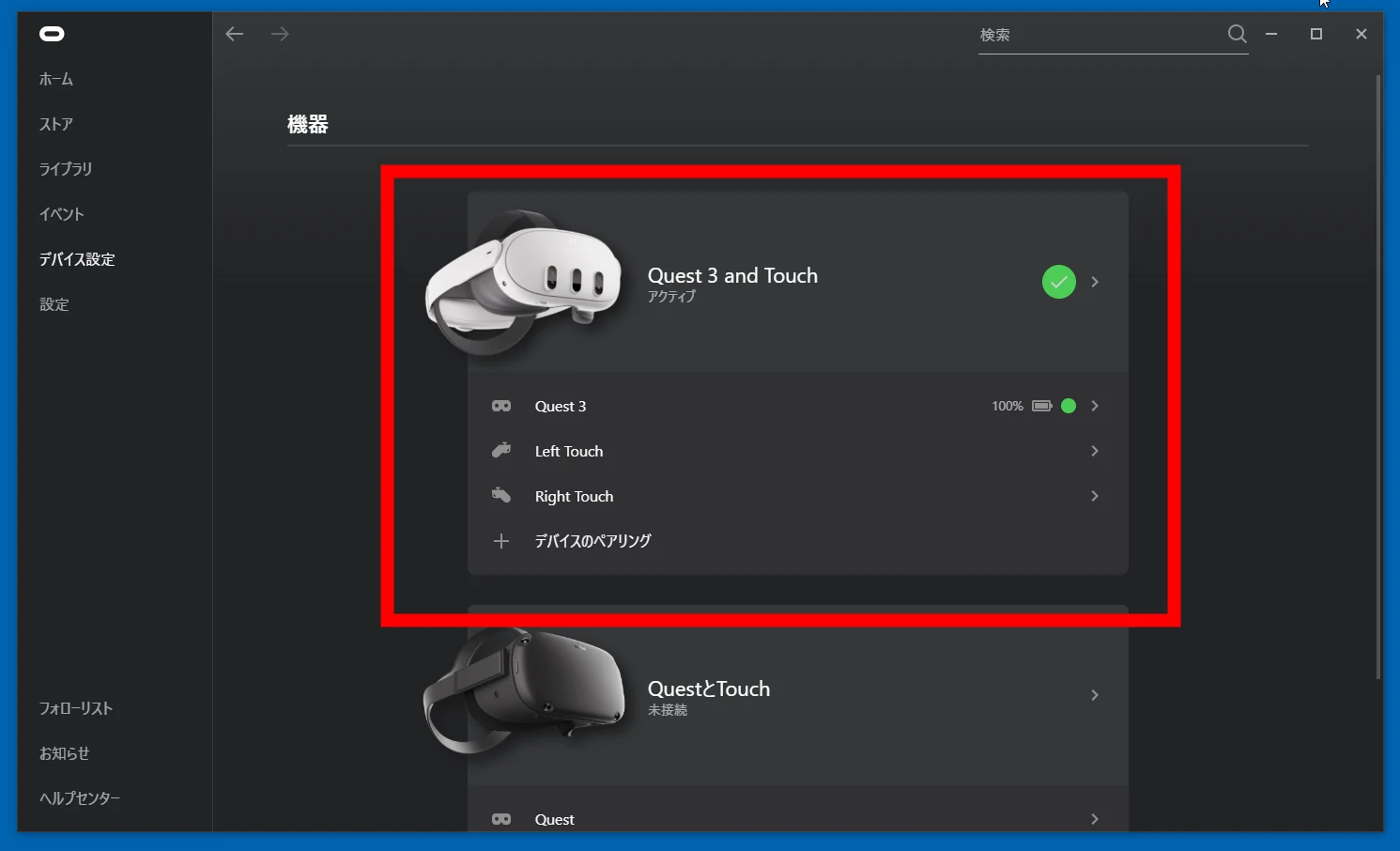 Prepare an Xbox-compatible controller to make movement easier. An inexpensive one around ¥3,000 is fine; official Xbox controllers cost more. The environment is now ready. Launch VR Preview. 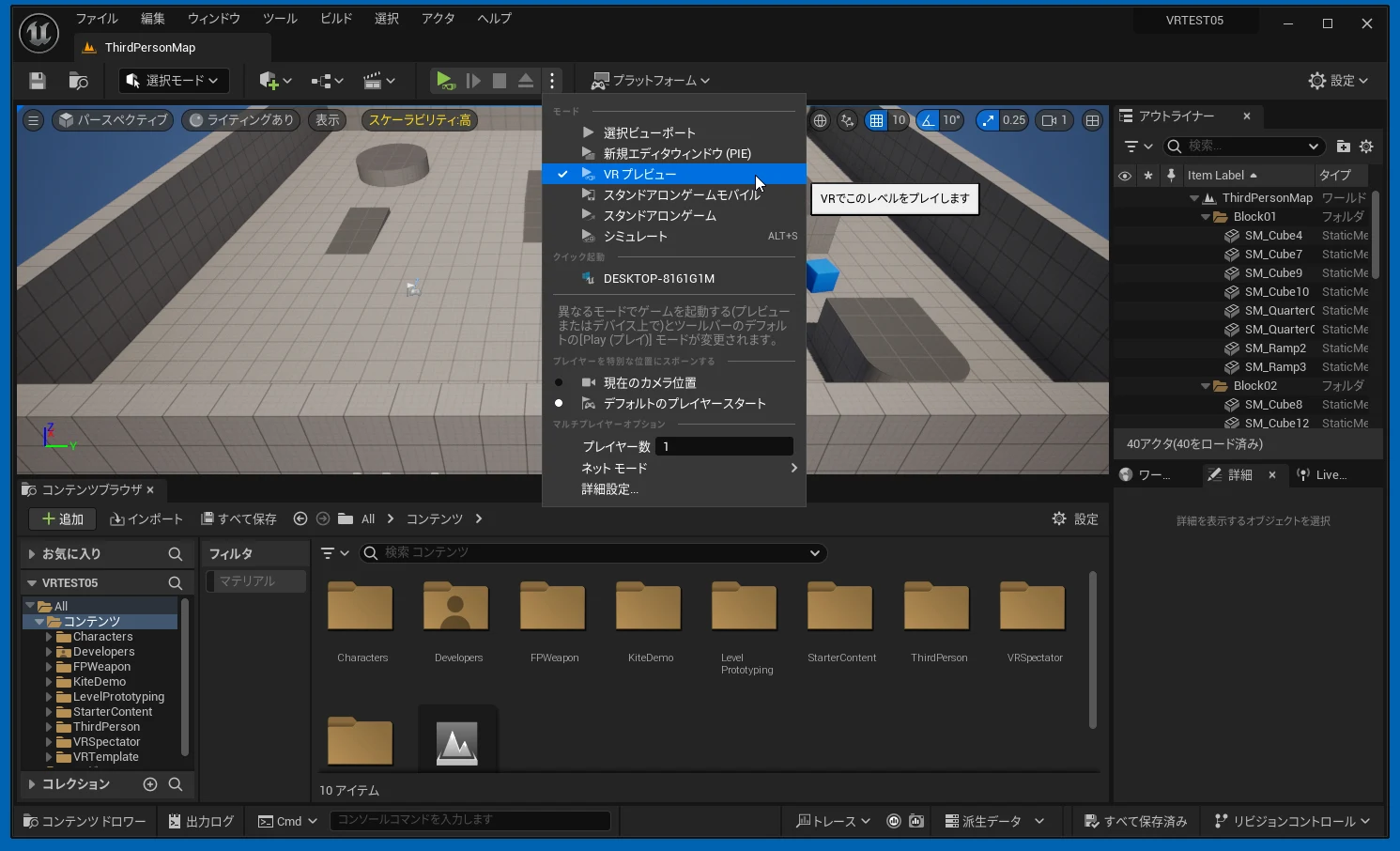 I could view VR in the Quest 3 HMD and move freely with the Xbox-compatible controller. 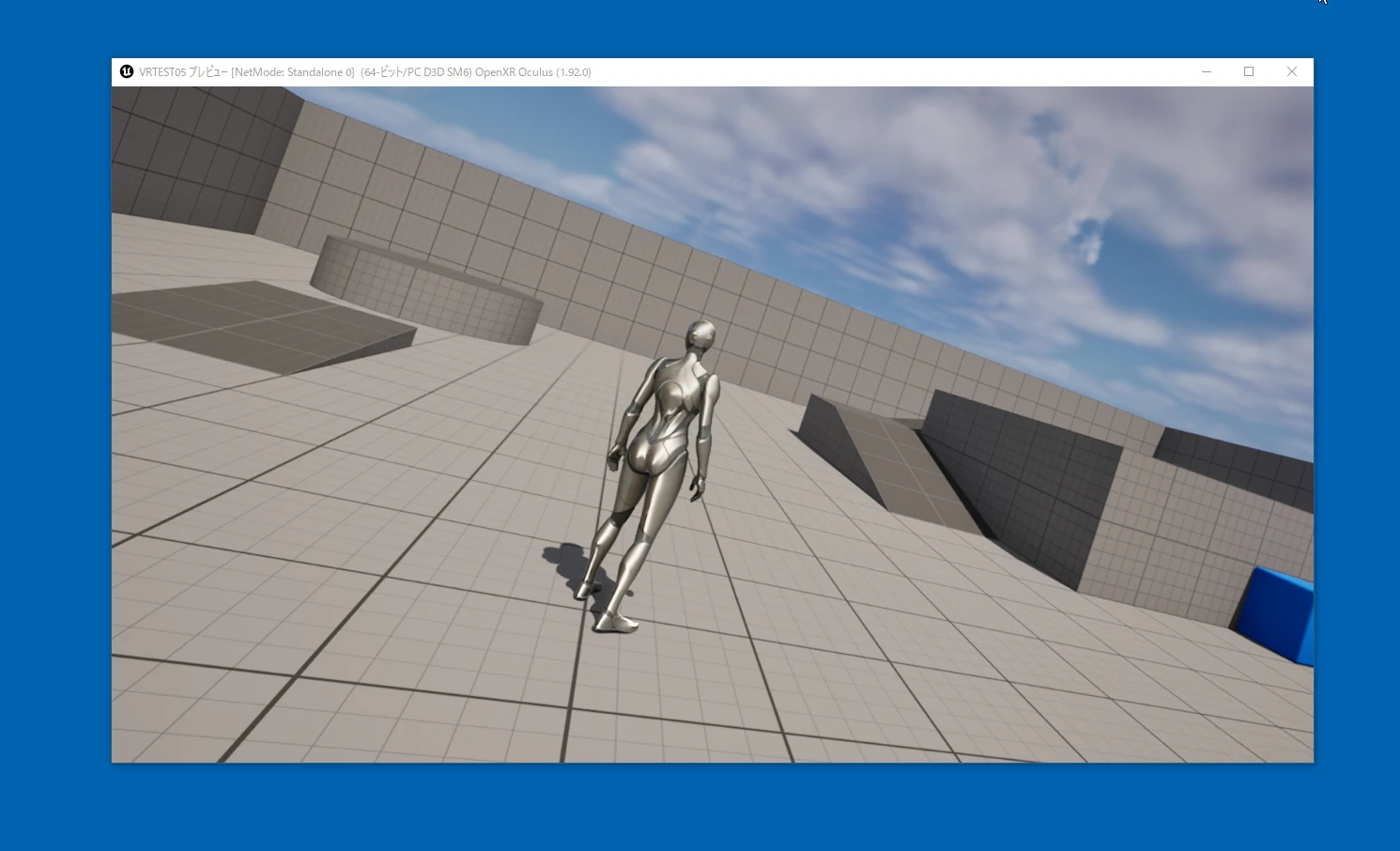 You can enter `stat fps` to check the frame rate. 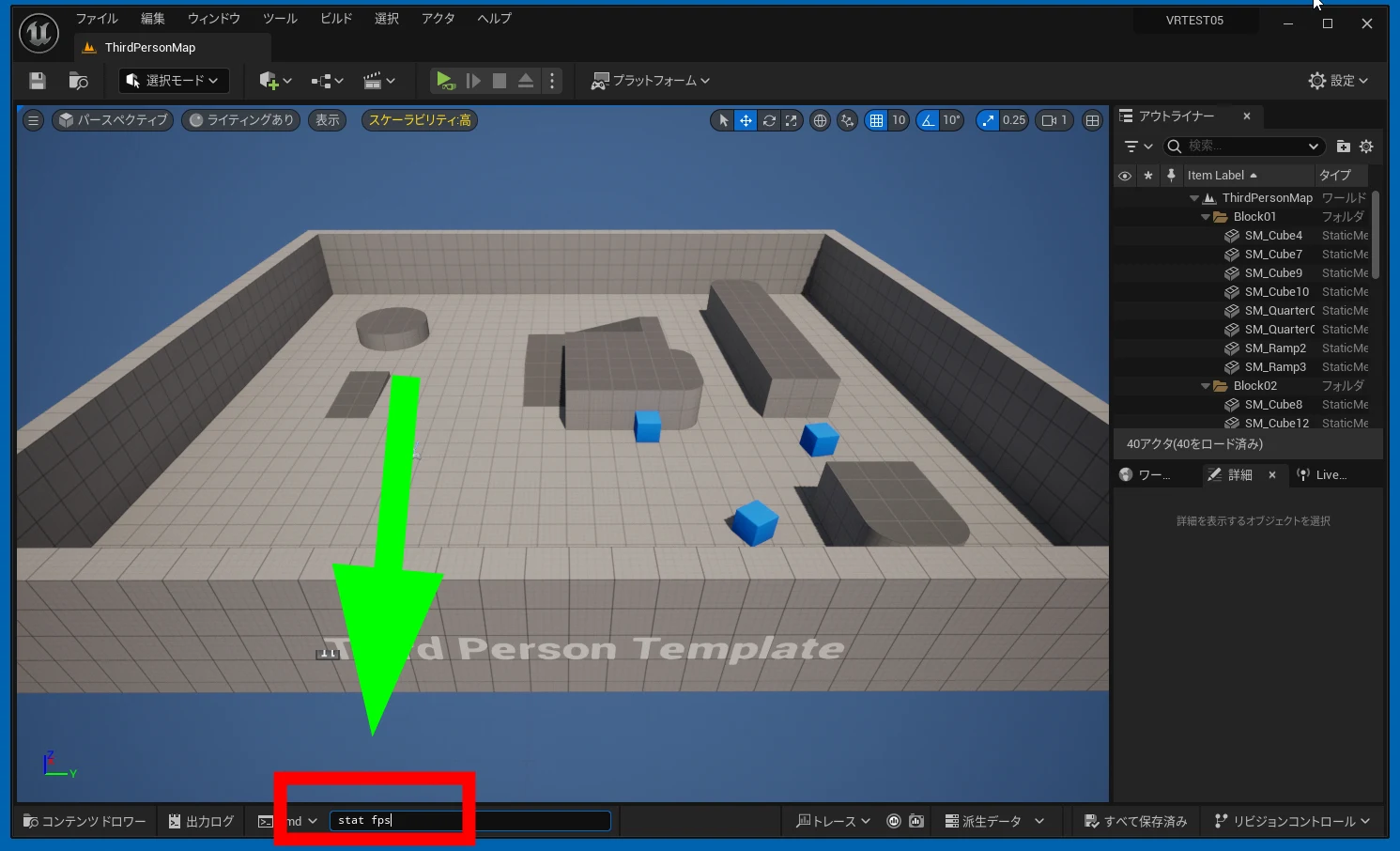 FPS appears in the upper right. If it is low, reduce the rendering load. The test PC used an RTX 2080 Ti, already rather old. Close the preview for now.Related product listings: Search Amazon for Xbox-compatible Windows controllers (Ad)
Related product listings: Search Amazon for GeForce RTX 2080 Ti graphics cards (Ad)
 ## Exploring a richer VR environment I added Cyberpunk - Cyber City to the project.Meta Quest 3 listings, storage capacity unspecifiedBrowse listings on Amazon Ad · Amazon Associates link