A simple Virtual Camera (VCAM) setup in Unreal Engine 5.4
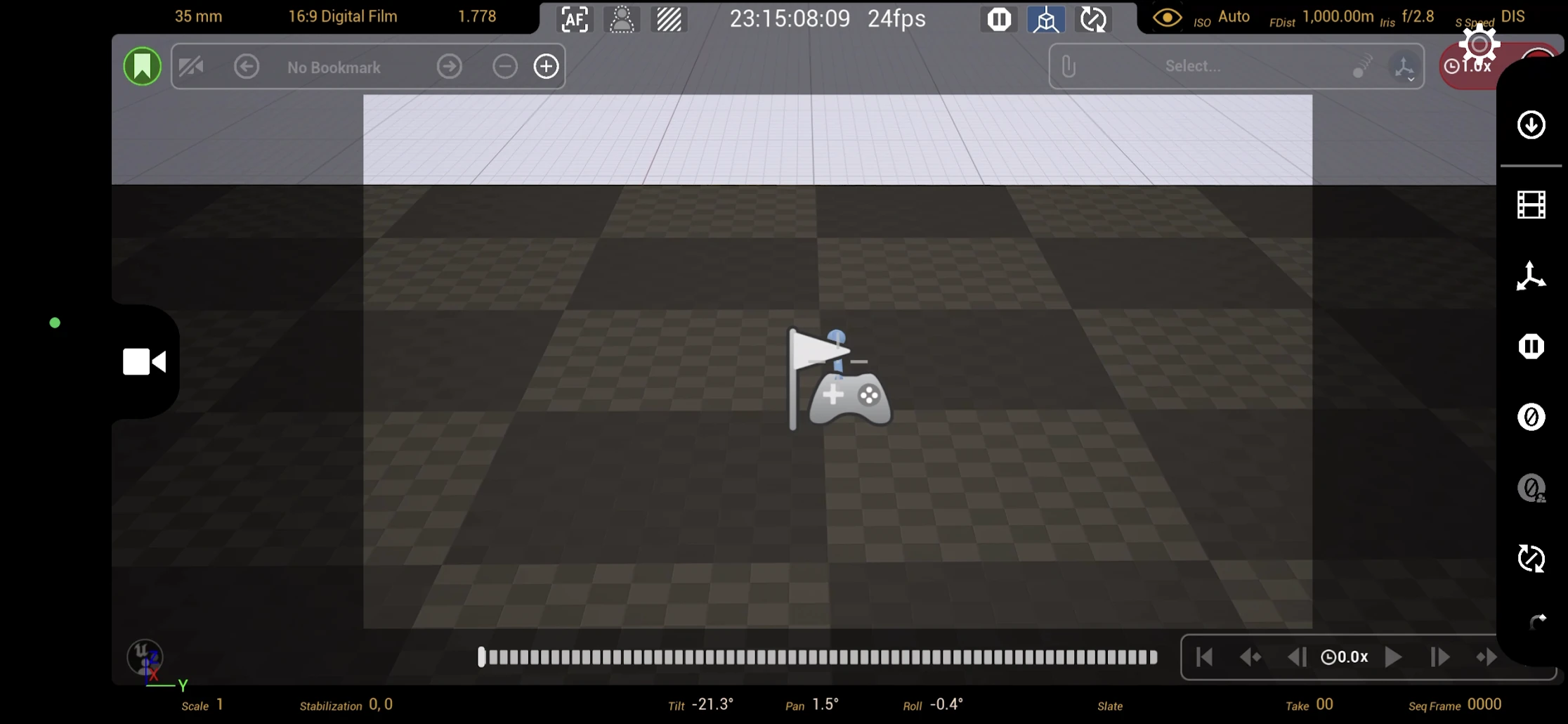
This walkthrough uses an iPhone or iPad to control a Virtual Camera in Unreal Engine 5.4. The workflow I tried no longer required the complicated setup that had been necessary a few years earlier.
Note: This article was first published more than a year ago.
- Virtual Camera, Live Link, and related plugin interfaces move between UE releases. Refer to the documentation for your version.
- Connection steps and permissions in the phone app change with updates. Check which app version the article assumes.
- Latency and resolution depend on USB or Wi-Fi connection quality. Consider a wired connection for production use.
A simple introduction to Virtual Camera in Unreal Engine 5.4
A few years ago, this required complicated configuration. In the workflow described here, that setup is no longer necessary. VCAM, or Virtual Camera, lets you control a camera inside UE5 from an iPhone or iPad. It uses sensors such as the device's gyroscope and accelerometer, allowing you to move the camera intuitively through the virtual space by moving the device. Let us set it up.
Related products: Search Amazon for iPhone and iPad devices (Ad)
Install Live Link VCAM on your iPhone or another supported device
Live Link VCAM
https://apps.apple.com/jp/app/live-link-vcam/id1547309663
The description of Live Link VCAM explains the idea: control a UE5 camera from an iPhone. The following is a translation of the description quoted in the Japanese article.
Live Link VCAM for Unreal Engine enables real-time virtual-production cinematography on your iPad or iPhone. Bring traditional filmmaking concepts such as camera lenses, framing, and movement into the digital world of Unreal Engine.
After recording natural camera takes, refine them in the editor and assemble a polished final composition in Unreal Engine's Sequencer.
You can review an early set through the lens, previsualize shots before filming, record actual takes during principal photography, and create additional shots in post-production.
ARKit camera movement: stream position and rotation data live to an Unreal Engine instance over a network with Live Link; operate a 3D camera in the real-time environment; record camera data with Take Recorder for use in Sequencer. Live camera-view streaming from Unreal Engine: visualize shots with accurate depth of field on your iPad or iPhone; adjust focus, aperture, and zoom with immediate feedback; review recorded takes and bookmark interesting locations in the world. Timecode support for synchronizing multiple devices: use the iPhone system clock, an NTP server, or Tentacle Sync connected to a master clock on stage.
In other words, you can perform a range of camera operations from an iPhone or iPad.
Start UE5
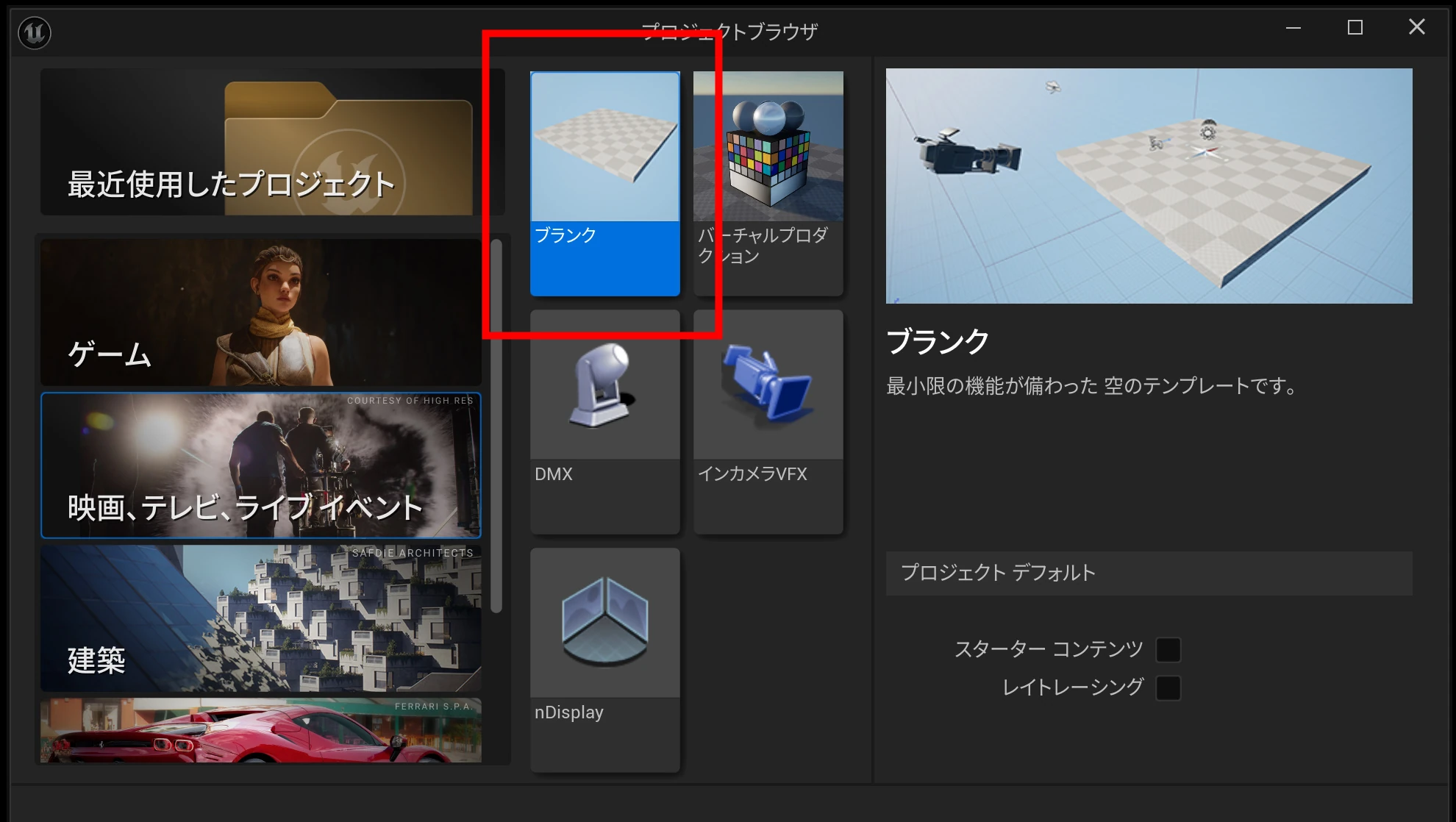
Choose Film, Television, and Live Events. You can then choose Blank or another template; I used Blank here. In this workflow, choosing that project category means VCAM is already set up.
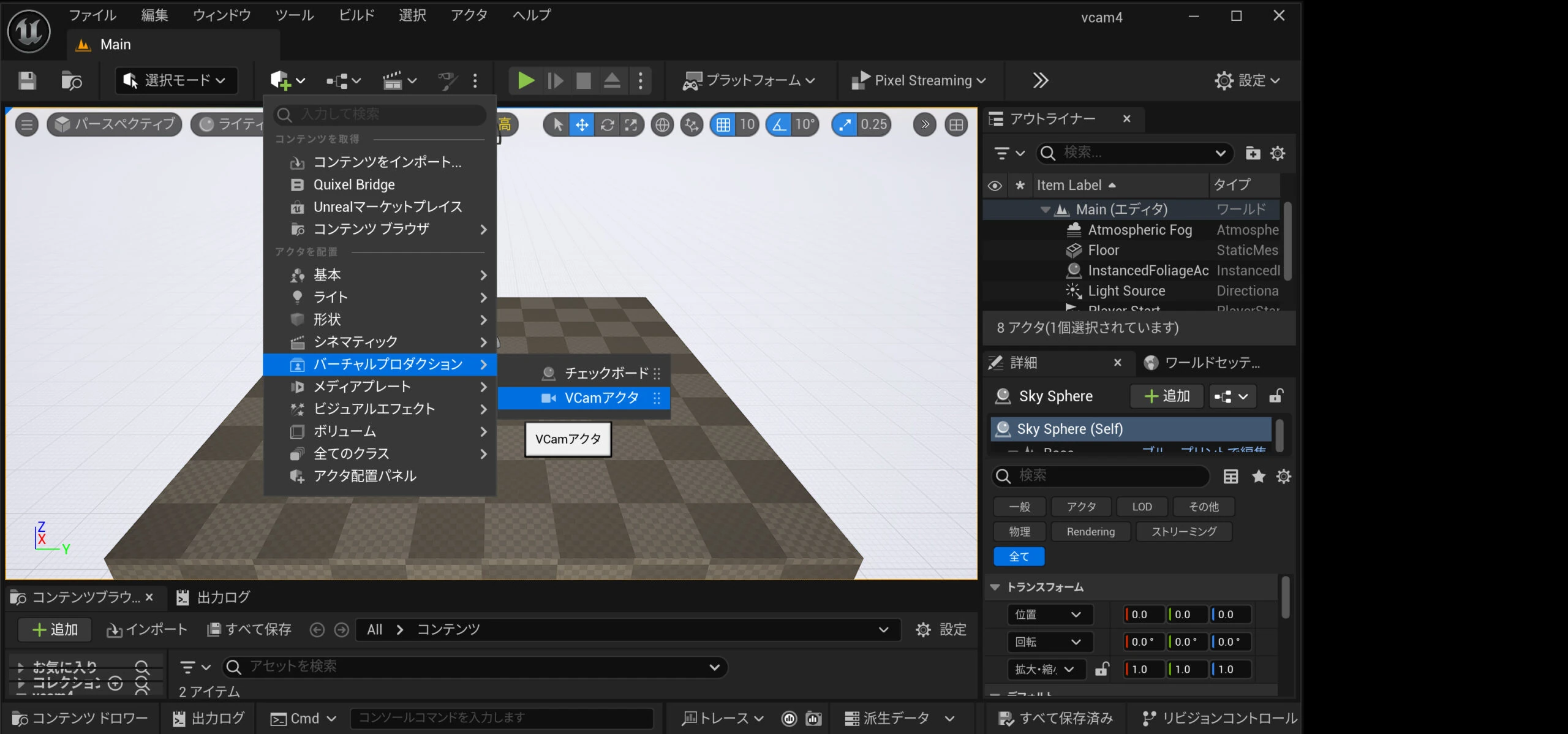
 Click the square-plus button in the top-left menu, open Virtual Production, and add a VCam Actor. That completes the preparation.
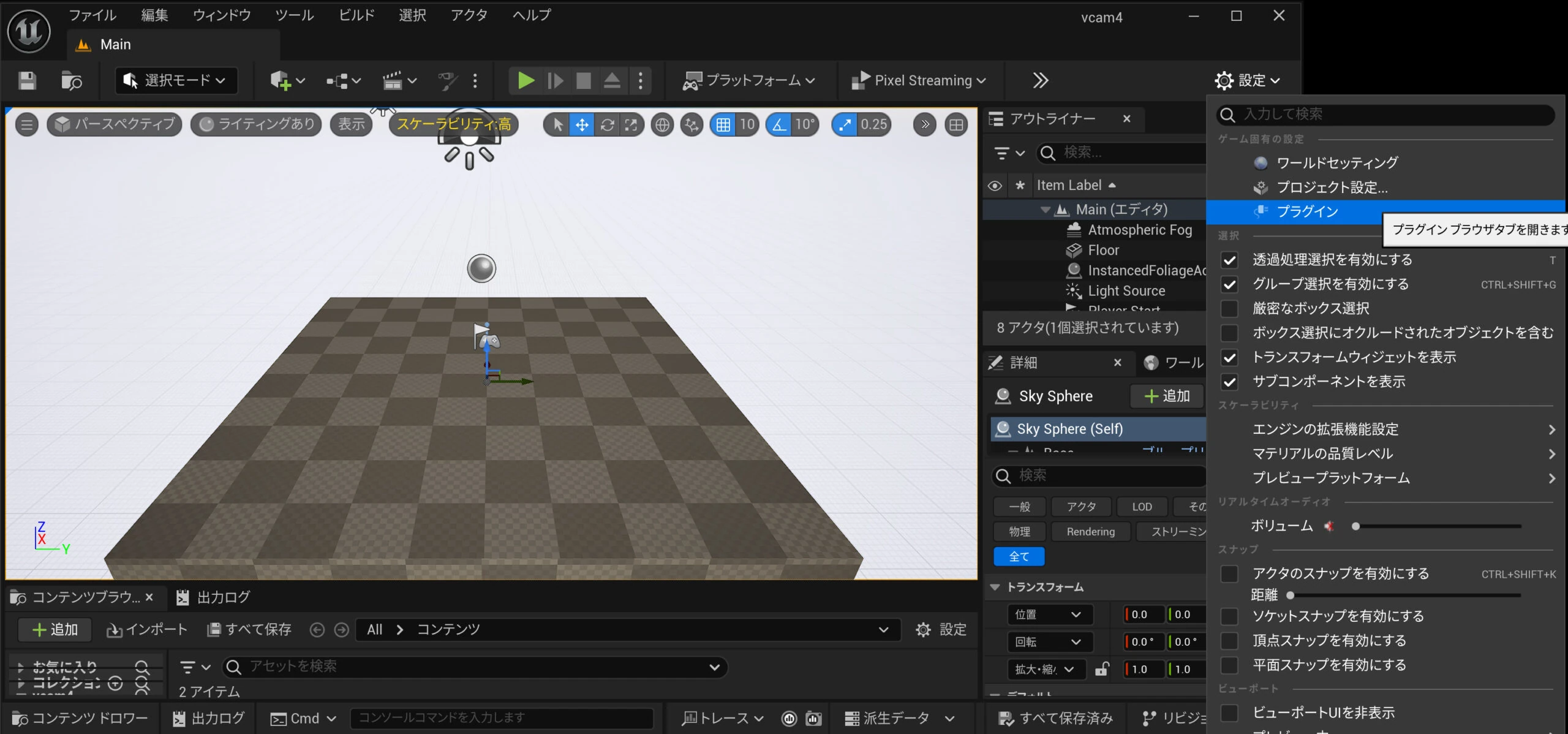
 If Virtual Production does not appear, open the plugin settings and check that Virtual Camera, Live Link, and Take Recorder are enabled.
Find the IP address of the PC running UE5
There are several ways to do this. On the PC running UE5, open Command Prompt and enter ipconfig. Suppose its address is 192.168.10.16. Make a note of it.
Start Live Link VCAM on the iPhone or iPad
Launch Live Link VCAM, enter 192.168.10.16, and connect. If it does not connect, check the network configuration. Once connected, try moving and operating VCAM.
iPhone and iPad listings (generation unspecified)View listings on Amazon Ad / Amazon Associates link
Related articles
Updates and contact: X @riragoncom.