Adding a displacement map in UE5 without complex Blueprints or tessellation settings
This walkthrough adds a displacement map in UE5 using Nanite Displaced Mesh. Unlike a normal map, displacement changes the actual mesh shape, producing real surface relief, shadows, and light reflections.
Note: This article was first published more than a year ago.
- World displacement and material node names and defaults change between UE versions. Refer to the documentation for your release.
- Mesh subdivision, including tessellation-related behavior, and performance vary considerably with the hardware generation.
- High-resolution displacement textures are affected by memory capacity and streaming settings.
This is a simple way to set up a displacement map in UE5.
A displacement map uses a texture to alter the actual shape of an object's mesh, creating real raised and recessed areas.
That produces realistic shadows and light reflections.
A normal map, by comparison, changes the apparent shading to suggest surface relief without changing the object's actual geometry.
Displacement maps were easy to use in UE4, but became less straightforward in UE5. Lumen and Nanite made it possible to handle geometry with extremely fine detail. Still, when using PBR material textures, it feels disappointing to represent all the surface relief through normal maps alone. I looked for an easier way to use a displacement map in UE5. Some methods appear to enable displacement in UE5 through complicated settings, including tessellation configuration, Blueprints, or edits to DefaultEngine.ini.
This time, I set up displacement without those steps.
References:
https://zenn.dev/posita33/articles/ue5-exp-displacement_tessellation
https://metatimecg.com/ue5-displacement/
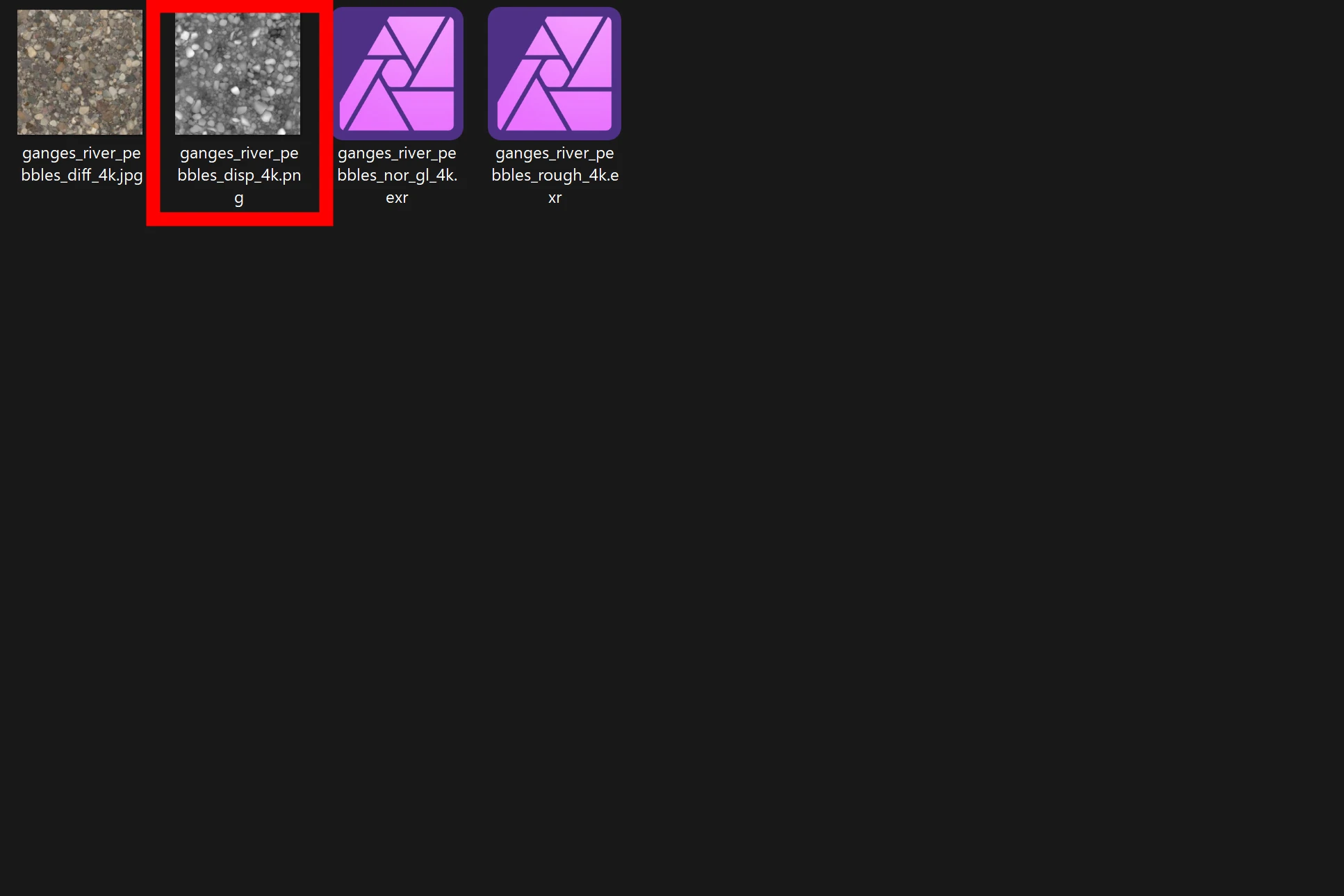
First, prepare a displacement map.
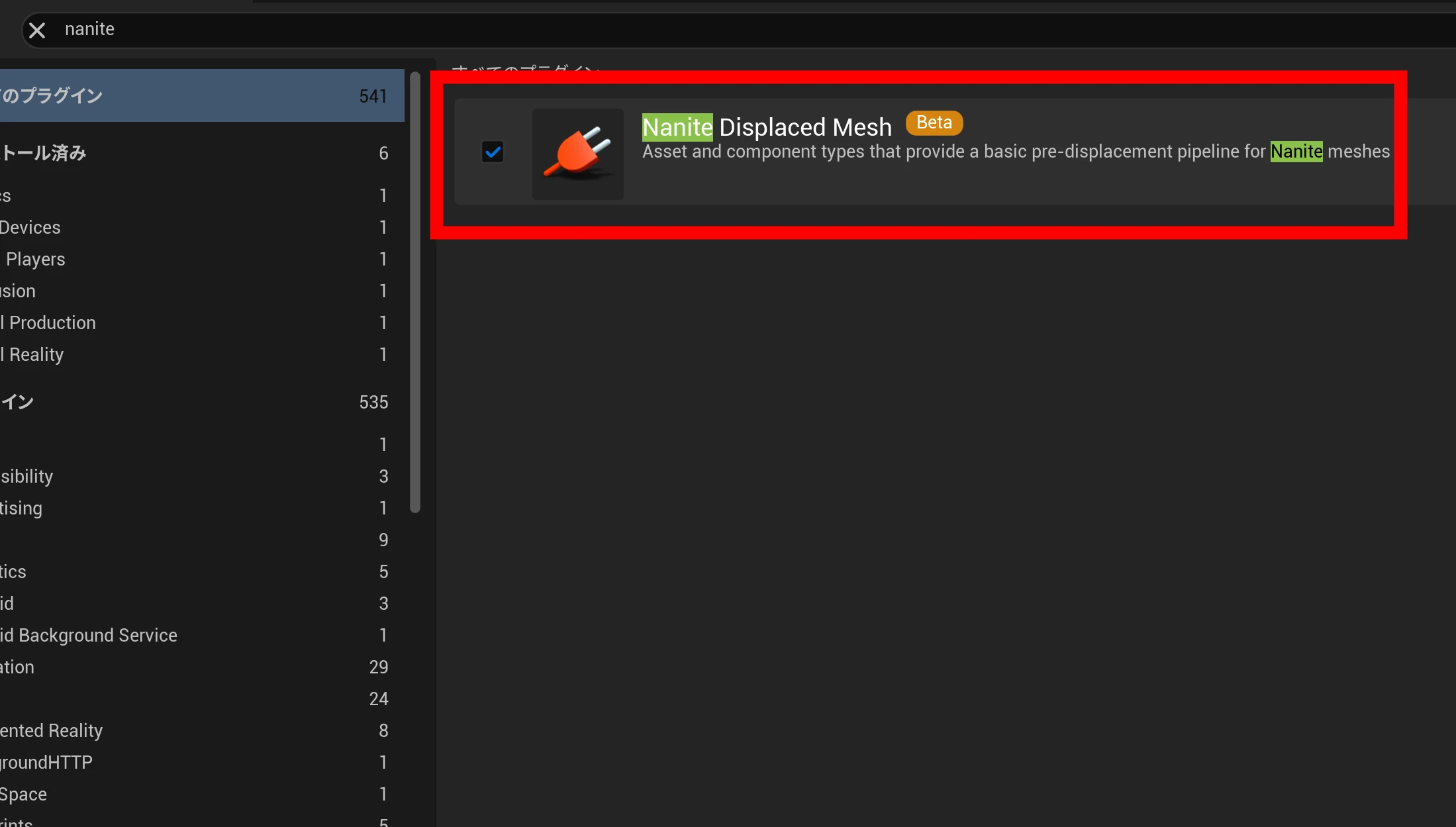
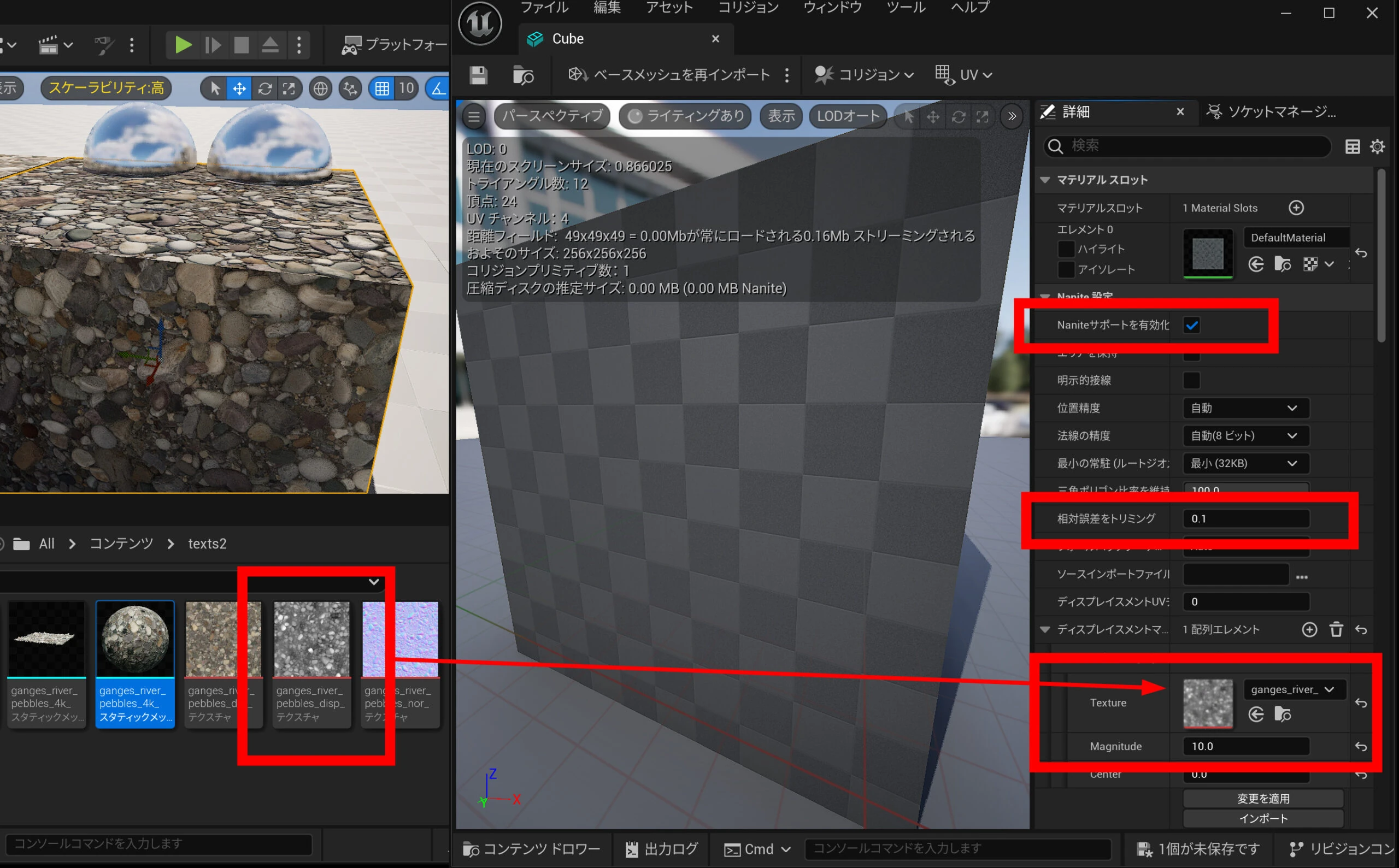
 Enable Nanite Displaced Mesh in the plugin settings.
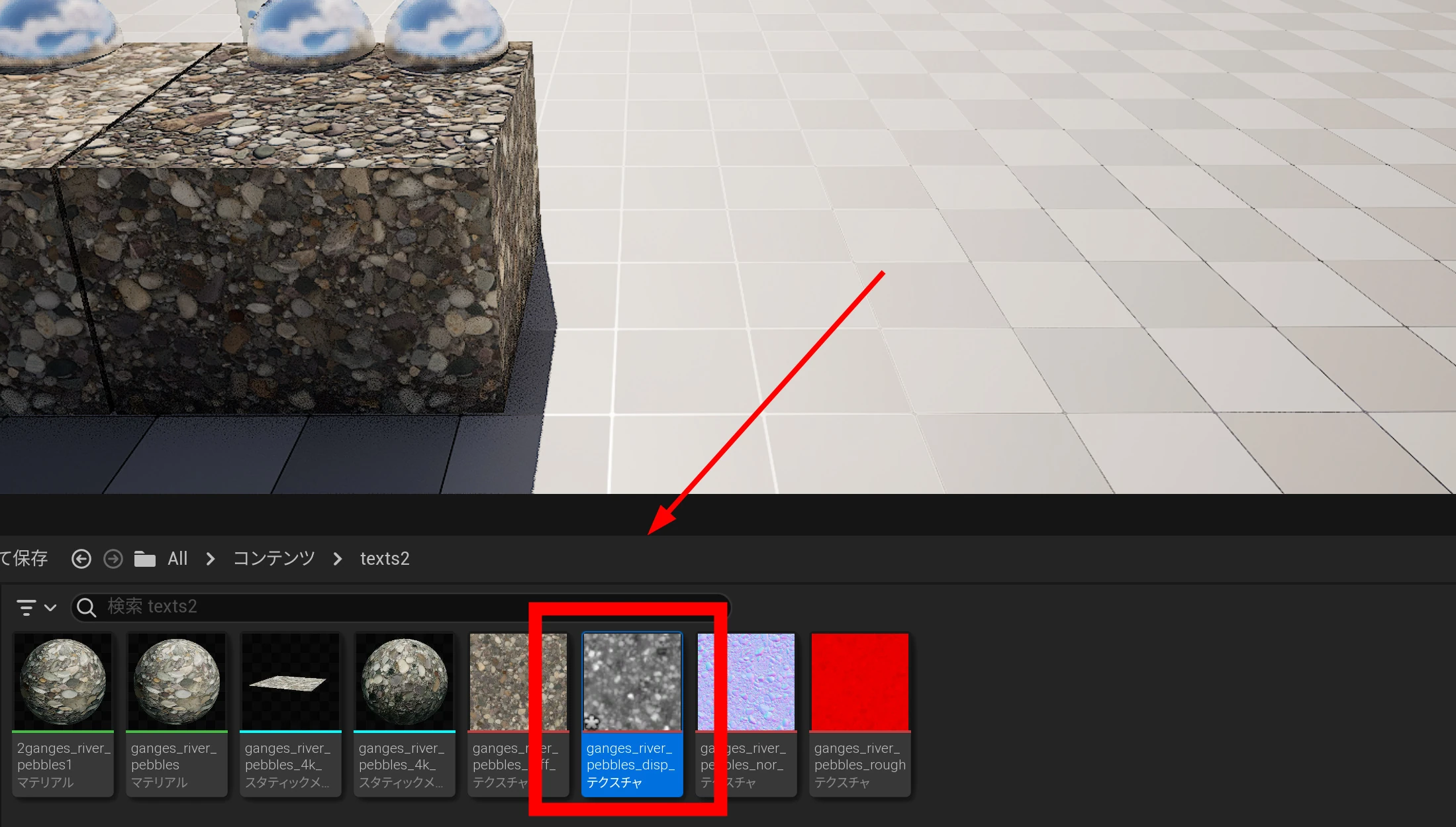
 Import the displacement map into UE5. This assumes you have already set up the diffuse, normal, roughness, and other material maps.
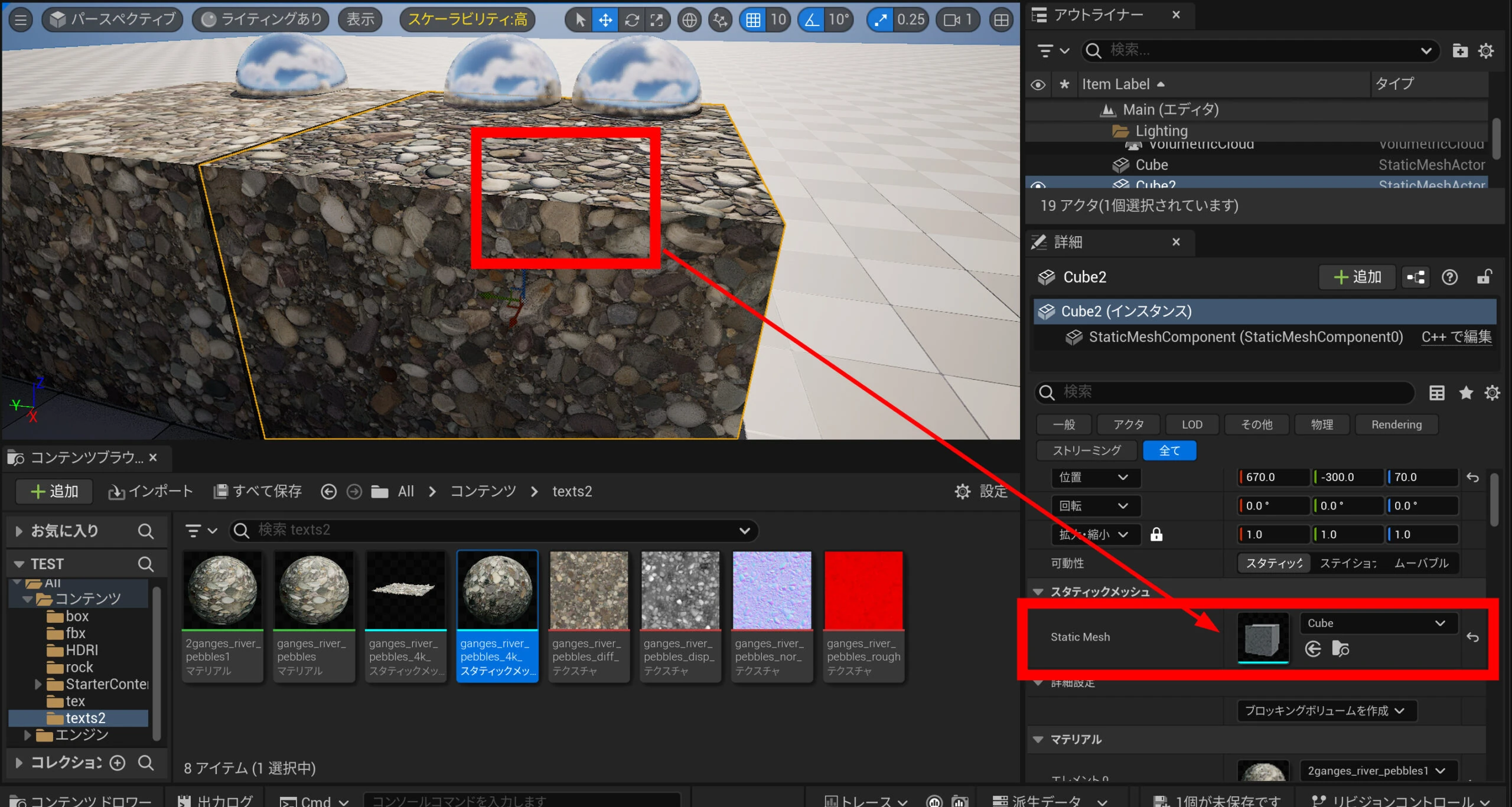
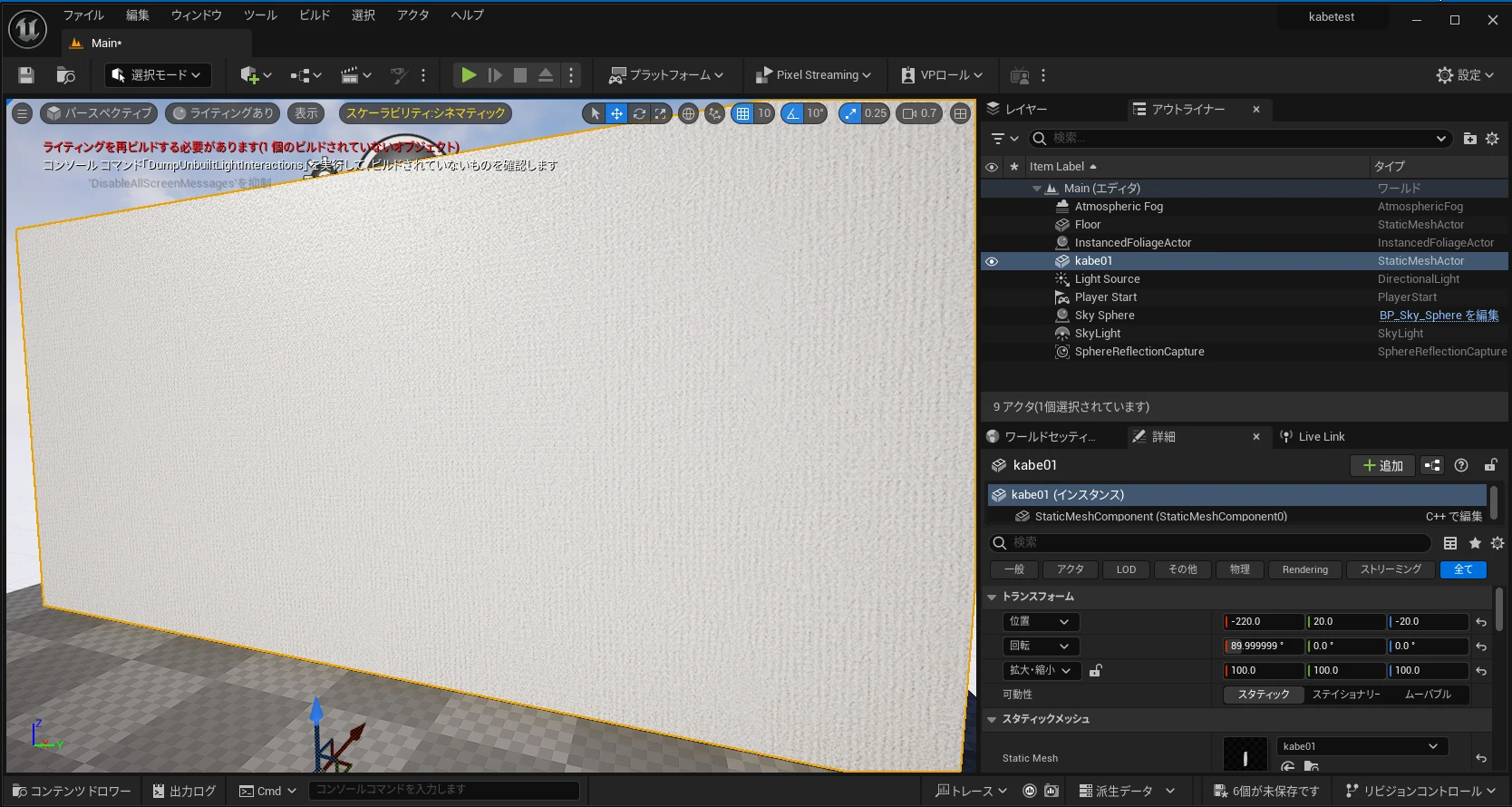
 There is an option to enable displacement on the static mesh. It is on the static mesh, rather than the material.
 Enable Nanite and adjust Trim Relative Error, starting around 0.1. At 0.1, the result looked more angular to me; increasing it toward values such as 0.3 seemed to soften those angles. Add an entry with the plus button in the displacement map section, then drop in the displacement map.
 Saving applied the surface relief.
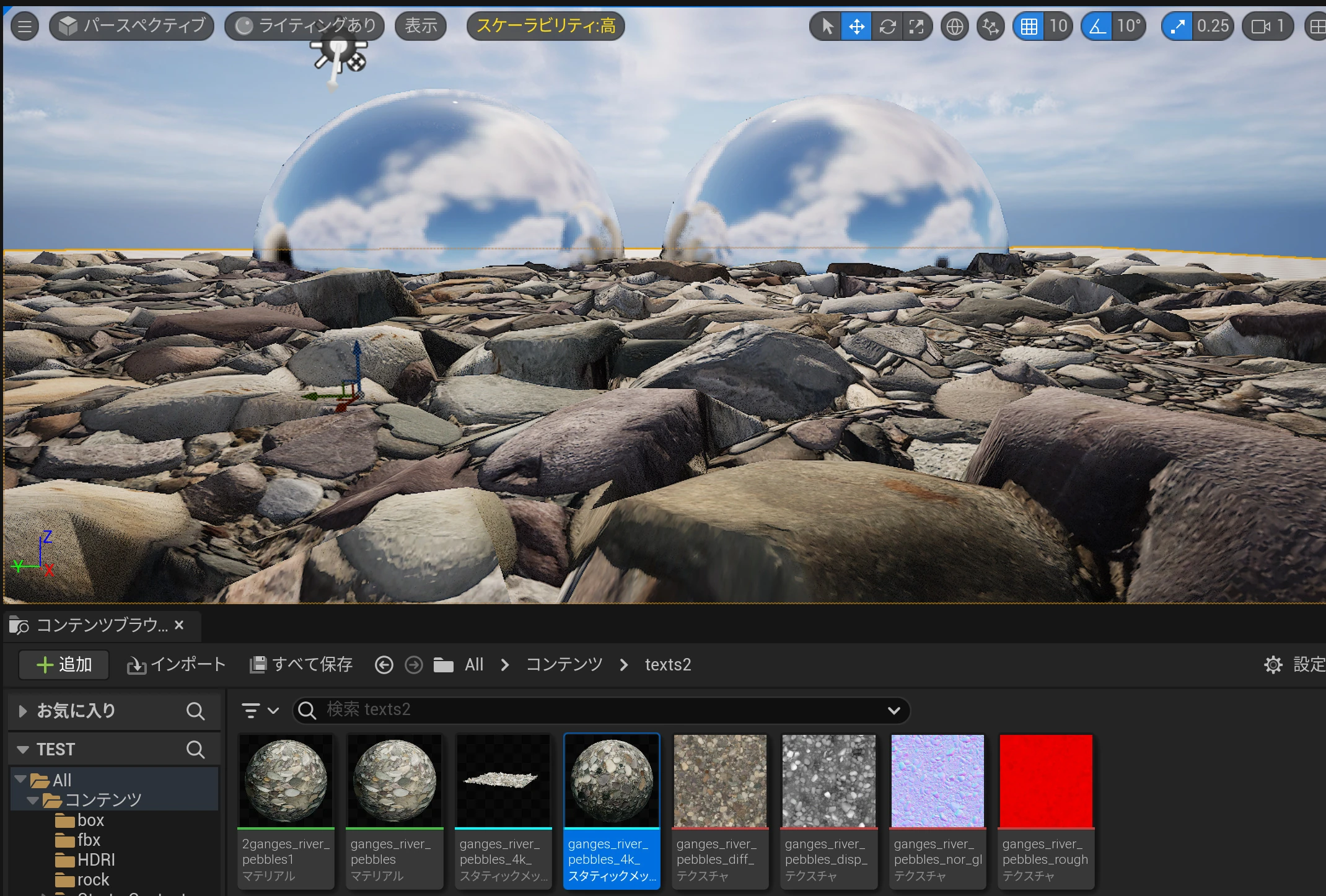
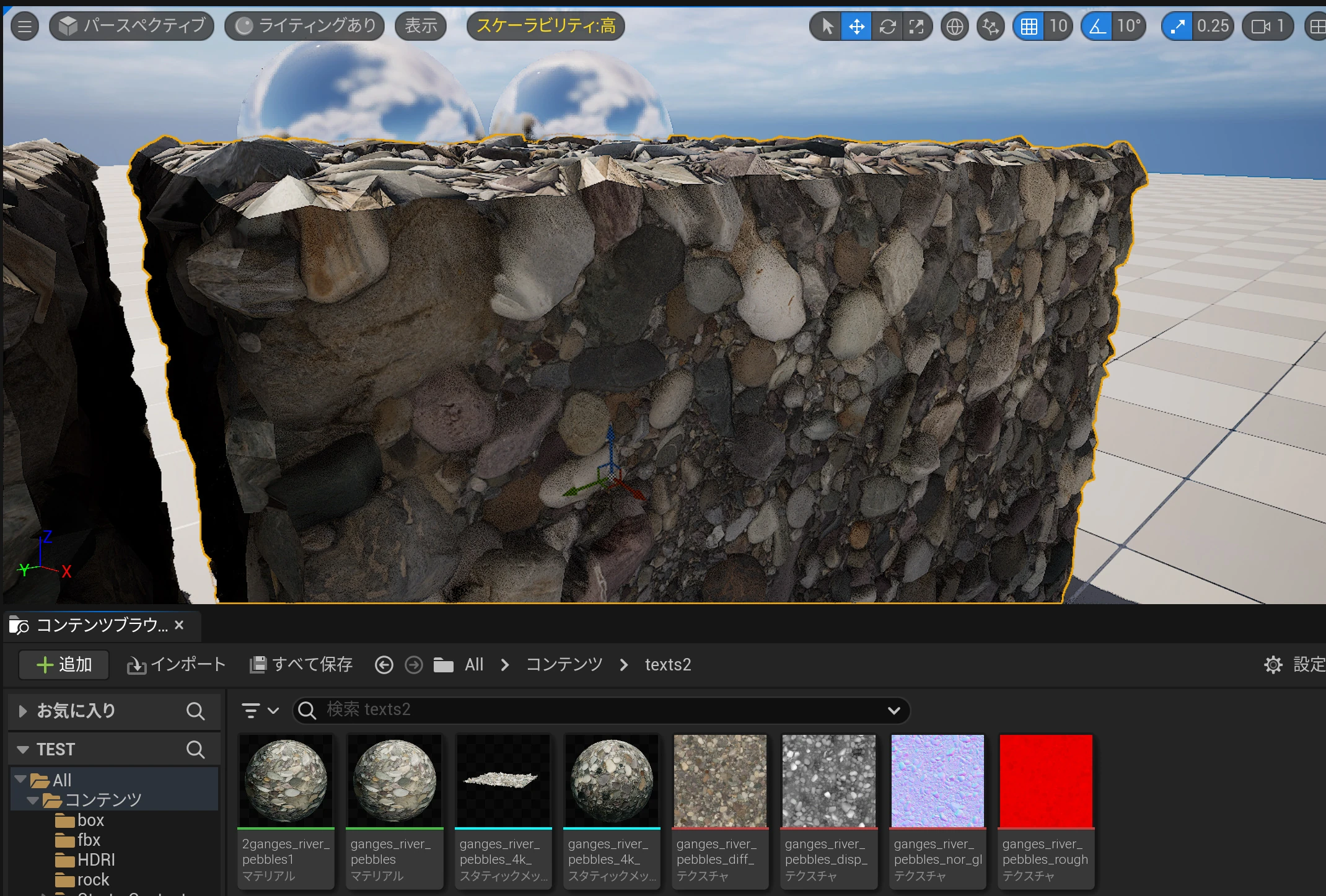
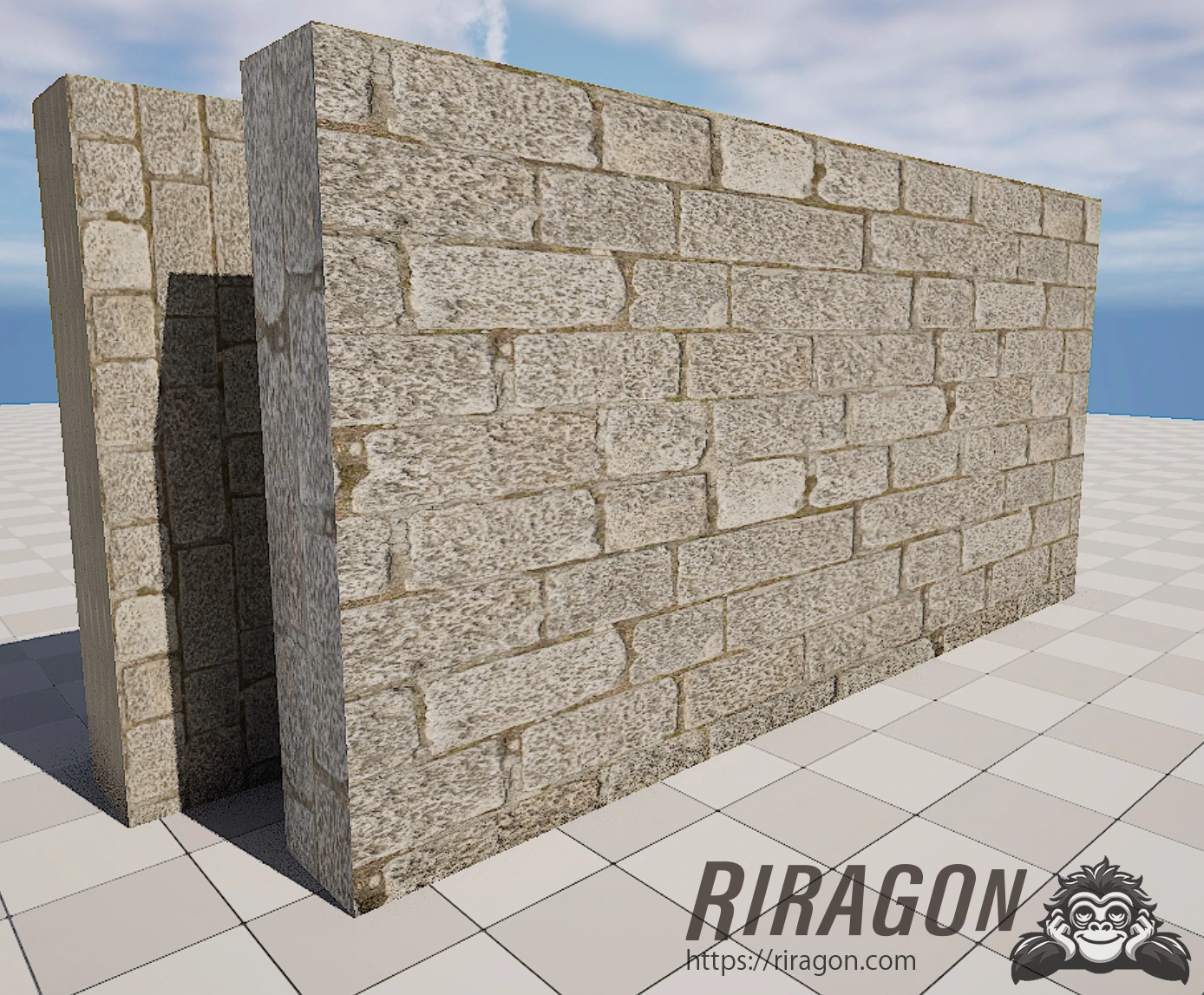
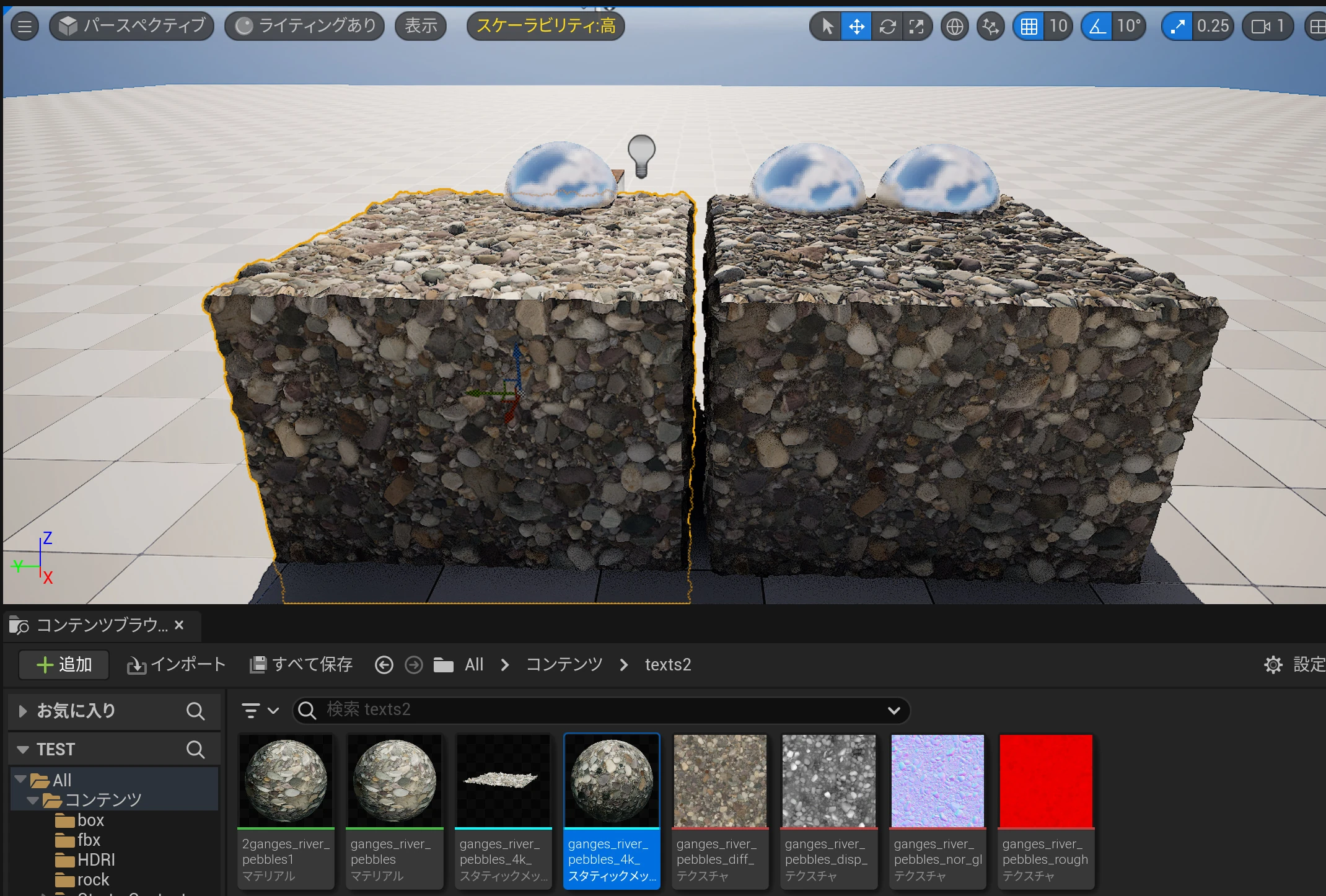 There it is: a properly bumpy surface. No Blueprint setup or text-file edits were needed.
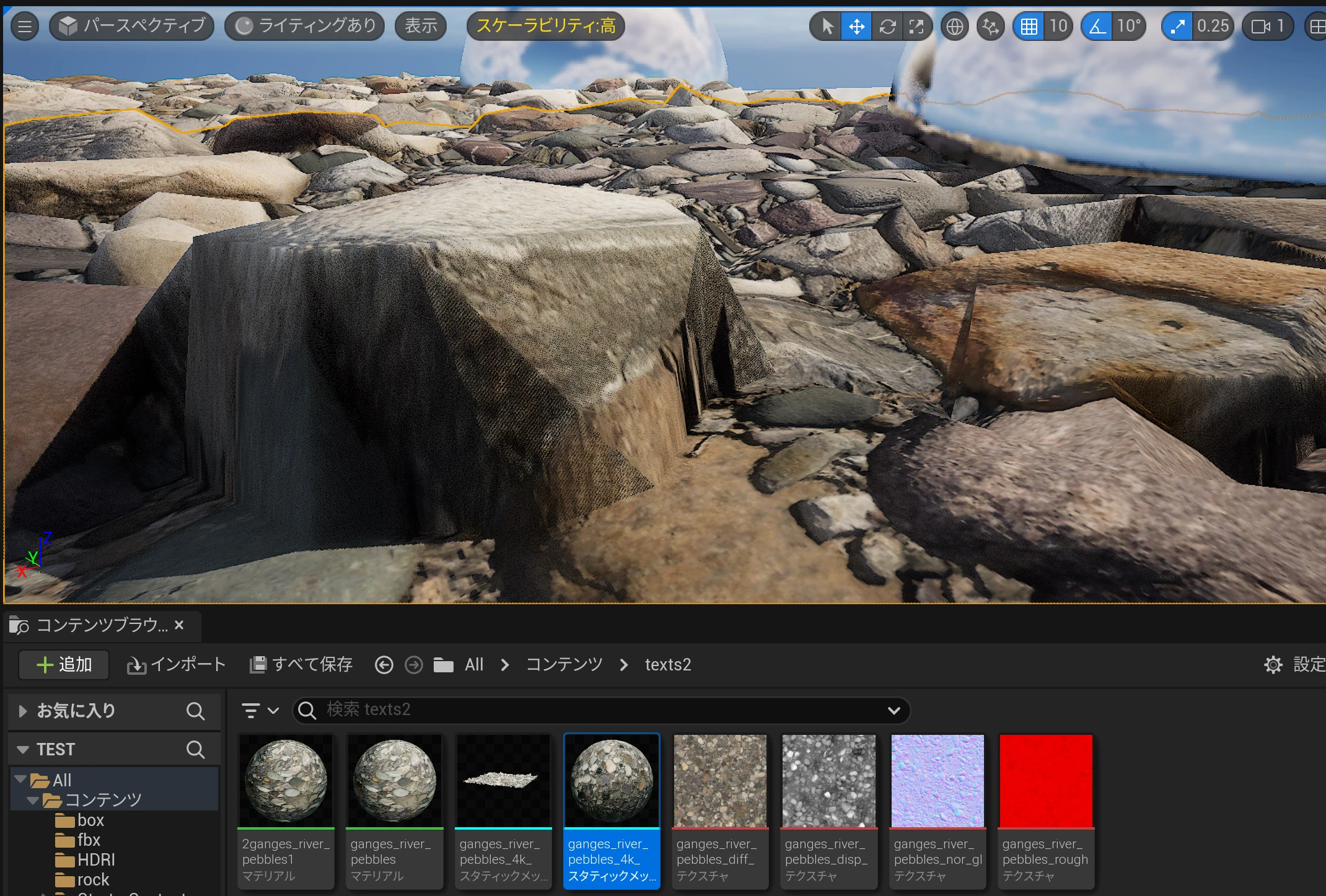 With displacement.
 Without displacement.
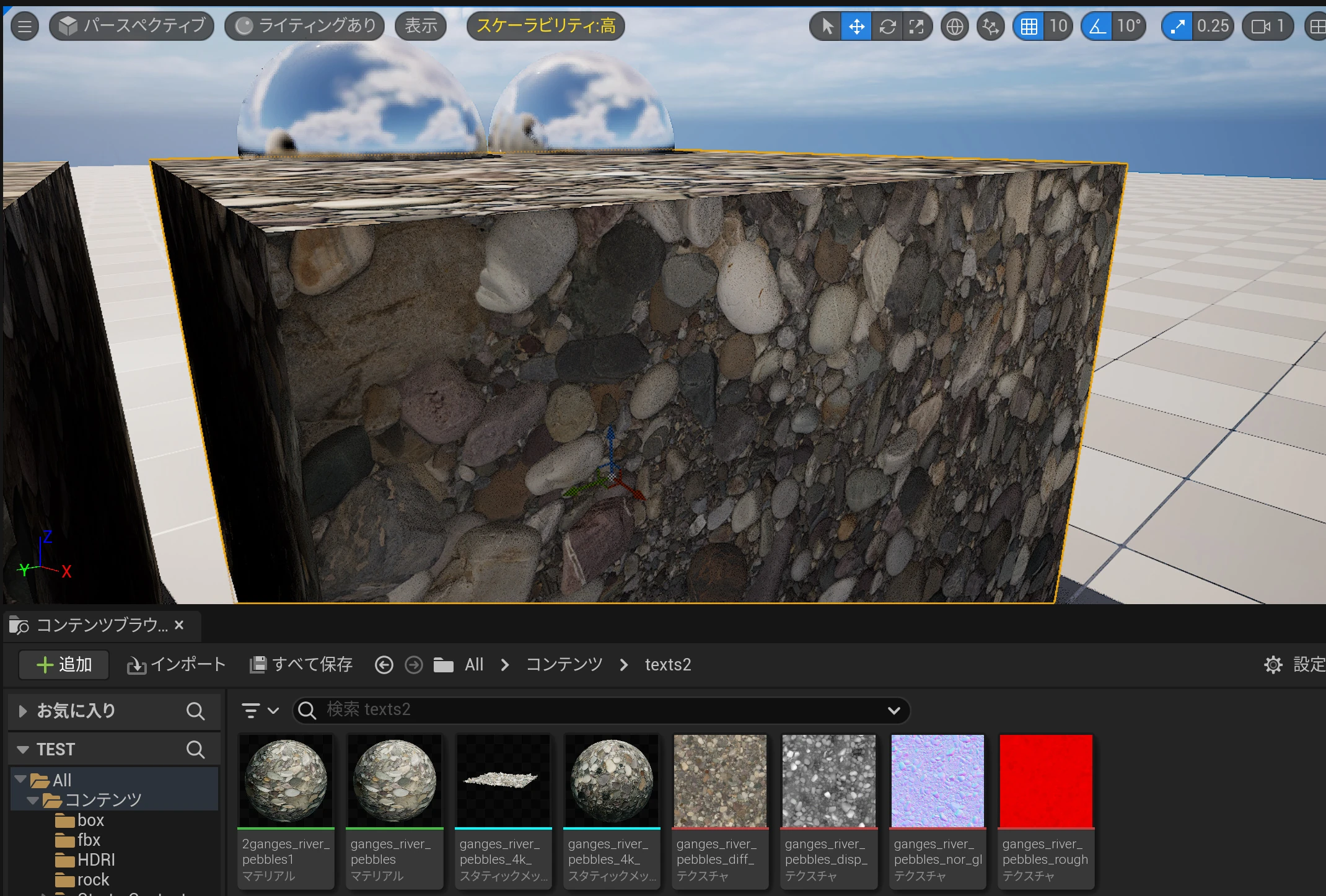 That is the simple method I used to add a displacement map in UE5.
It appears to be an experimental feature, so I have not verified that everything works correctly.
UE5.4 and other releases also seem to add alternative displacement-related features, and there are approaches such as parallax occlusion mapping. This area may still be evolving.
Related articles
Updates and contact: X @riragoncom.