Unreal Engine 5.3 HDR exports with OCIO and higher-quality render settings
A December 24, 2023 experiment exporting UE 5.3.2 footage through Movie Render Queue with OpenColorIO and ST2084-P3-D65, then checking sRGB color reproduction in DaVinci Resolve Studio. These are the settings I found satisfactory, rather than a claim that they are the definitive workflow.
Note: This article was published more than a year ago.
- Project settings for OCIO, ACES, and HDR display may move or change names between UE releases. Consult the color documentation for your version.
- Monitor assumptions such as ST2084 and P3-D65 depend on OS and GPU-driver settings. Use a calibrated environment rather than visual judgment alone.
- nDisplay and output-device integration can behave differently depending on the plugin and firmware combination.
This article describes the situation on December 24, 2023.
I exported UE 5.3 (Unreal Engine 5.3.2) footage as High Dynamic Range (HDR) intermediate data through Movie Render Queue, using OpenColorIO (OCIO) and ST2084-P3-D65. I then checked whether DaVinci Resolve Studio could reproduce the same sRGB colors shown in UE 5.3.2.
There may be more correct settings, but I was happy with the result.
Exporting HDR intermediates with a wide dynamic range can provide flexibility when footage created in Unreal Engine 5 is used in other video-production projects.
That wider range may help a video producer create final outputs suited to different viewing conditions and formats.
I am not certain whether ST2084-P3-D65 was the right choice. Simply exporting untone-mapped footage in a convenient color space might be sufficient for source material from UE5.
Start Unreal Engine
I am using UE 5.3 (Unreal Engine 5.3.2).
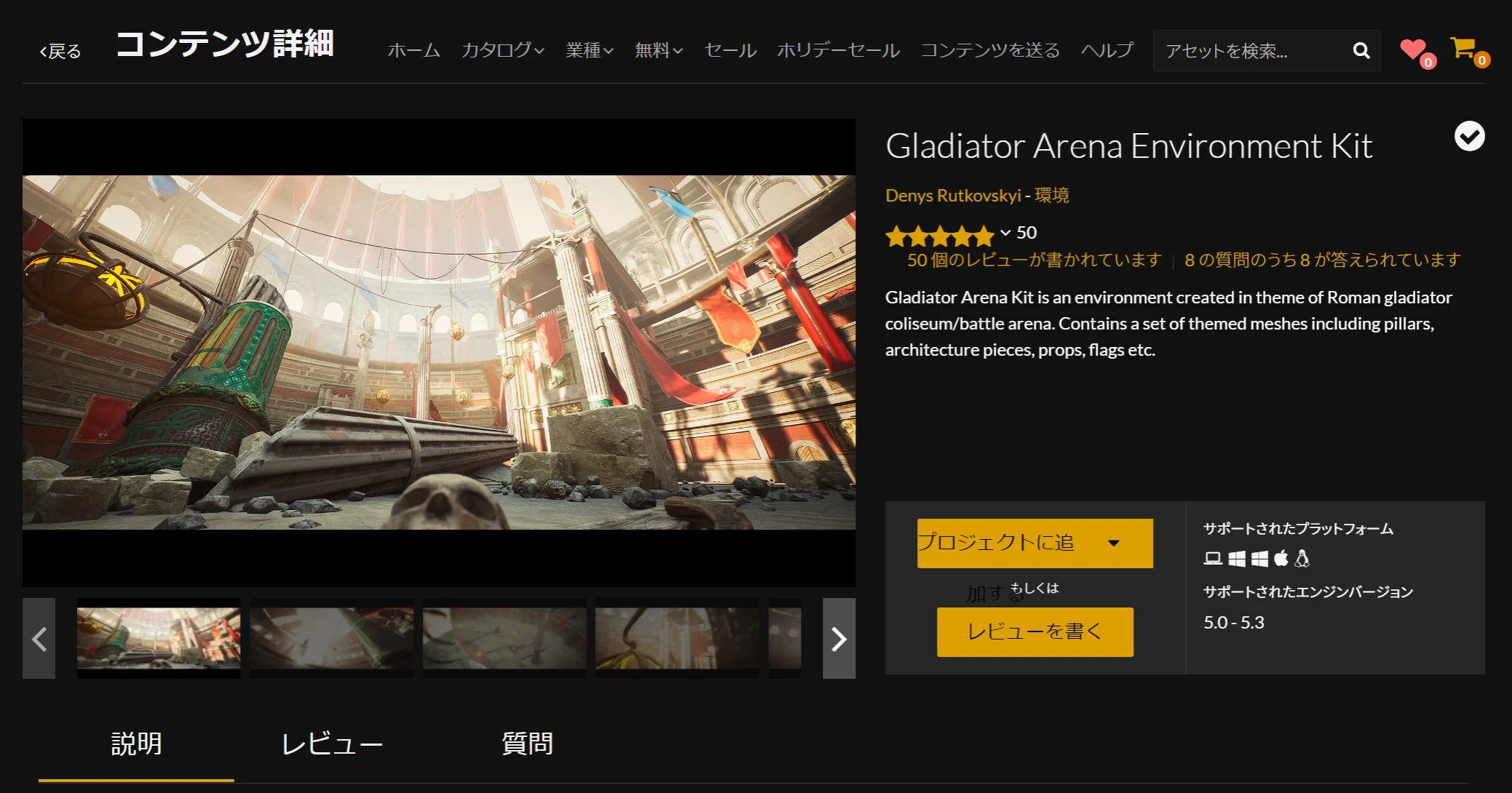
 The scene uses the Gladiator Arena Environment Kit asset.
https://www.unrealengine.com/marketplace/ja/product/ca891e17730b47a2945fb69adb7ef741/questions
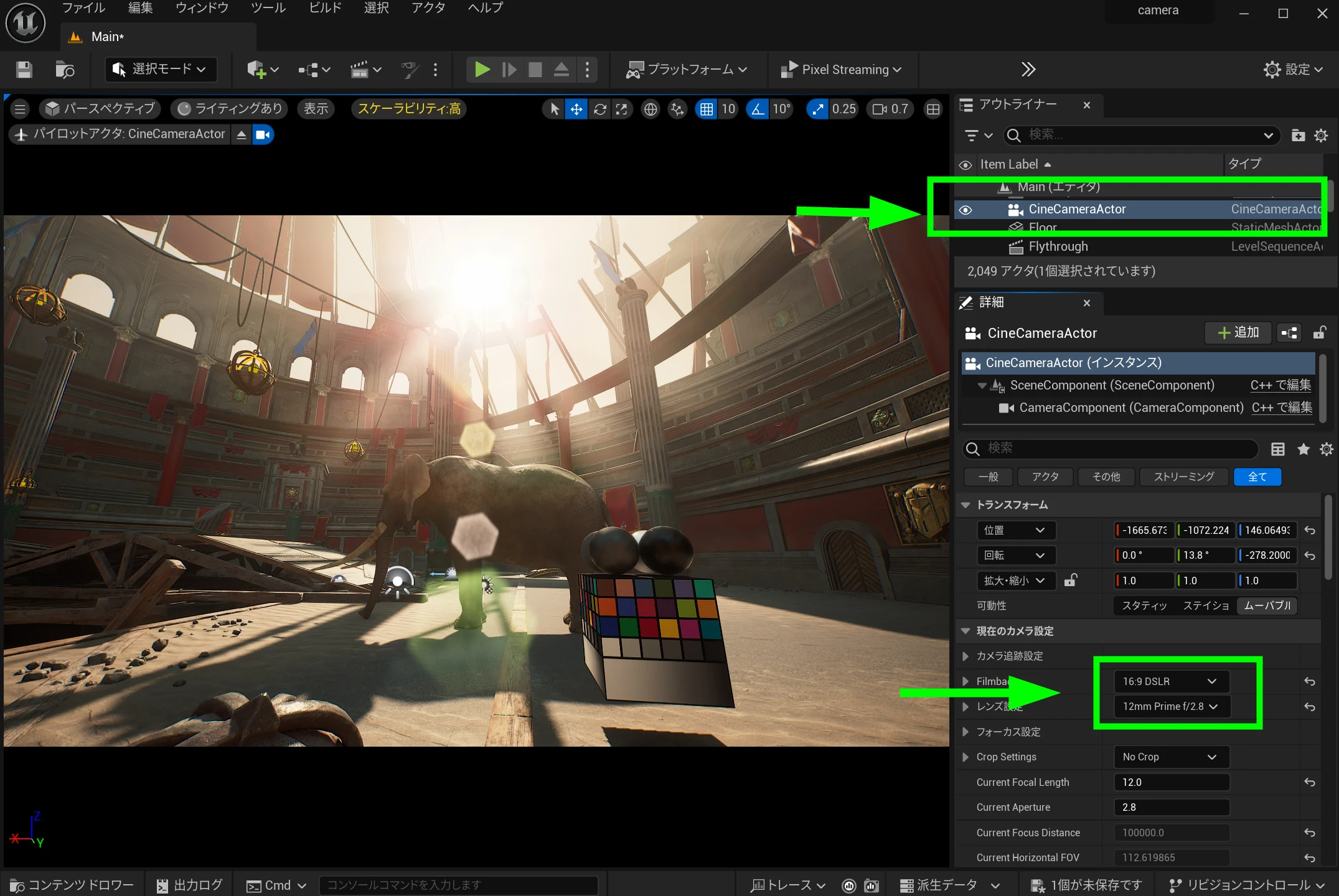
Initial camera and sequence setup in UE5
First, add a CineCameraActor. I set the camera to a full-frame sensor with a 12mm lens. I created a backlit scene to test the dynamic range from highlights to shadows. Backlighting is useful for testing the camera and rendering system's dynamic-range capabilities.
 Set up Sequencer to export footage. I will not explain Sequencer setup here; look up the relevant steps and adapt them to your project. For this export test, I used only one frame.
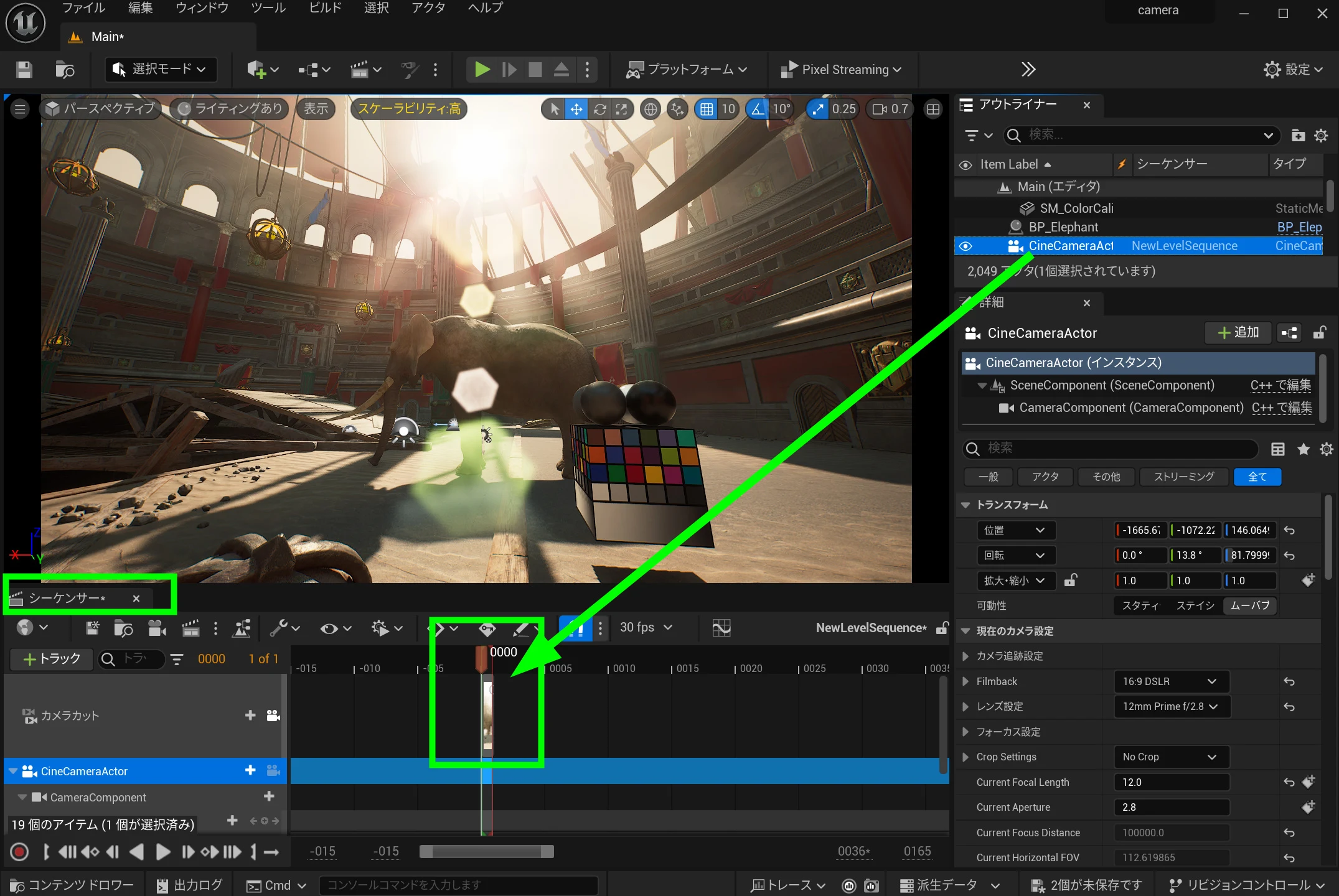
Enable the required UE5 plugins
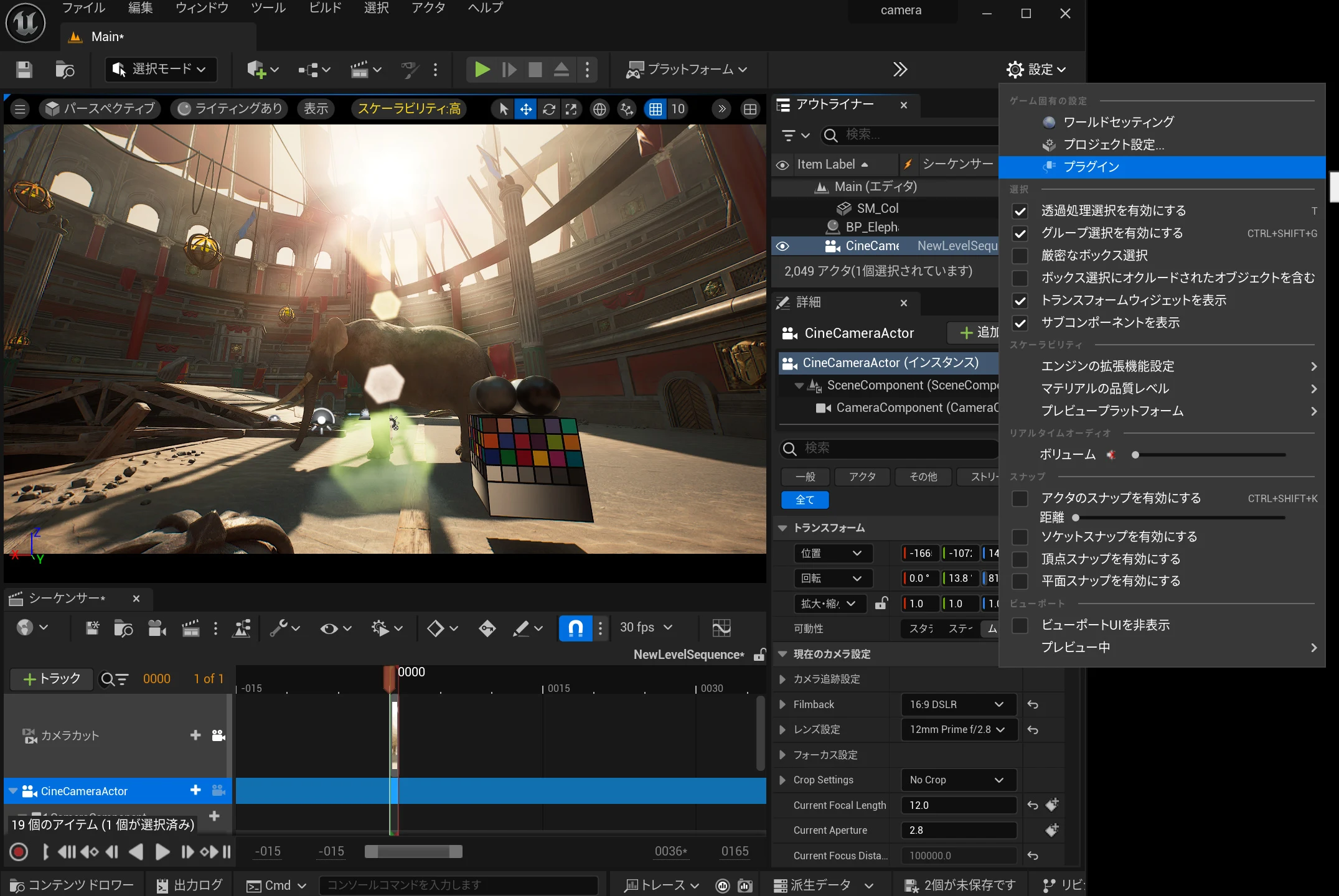
Check the plugins through Settings.
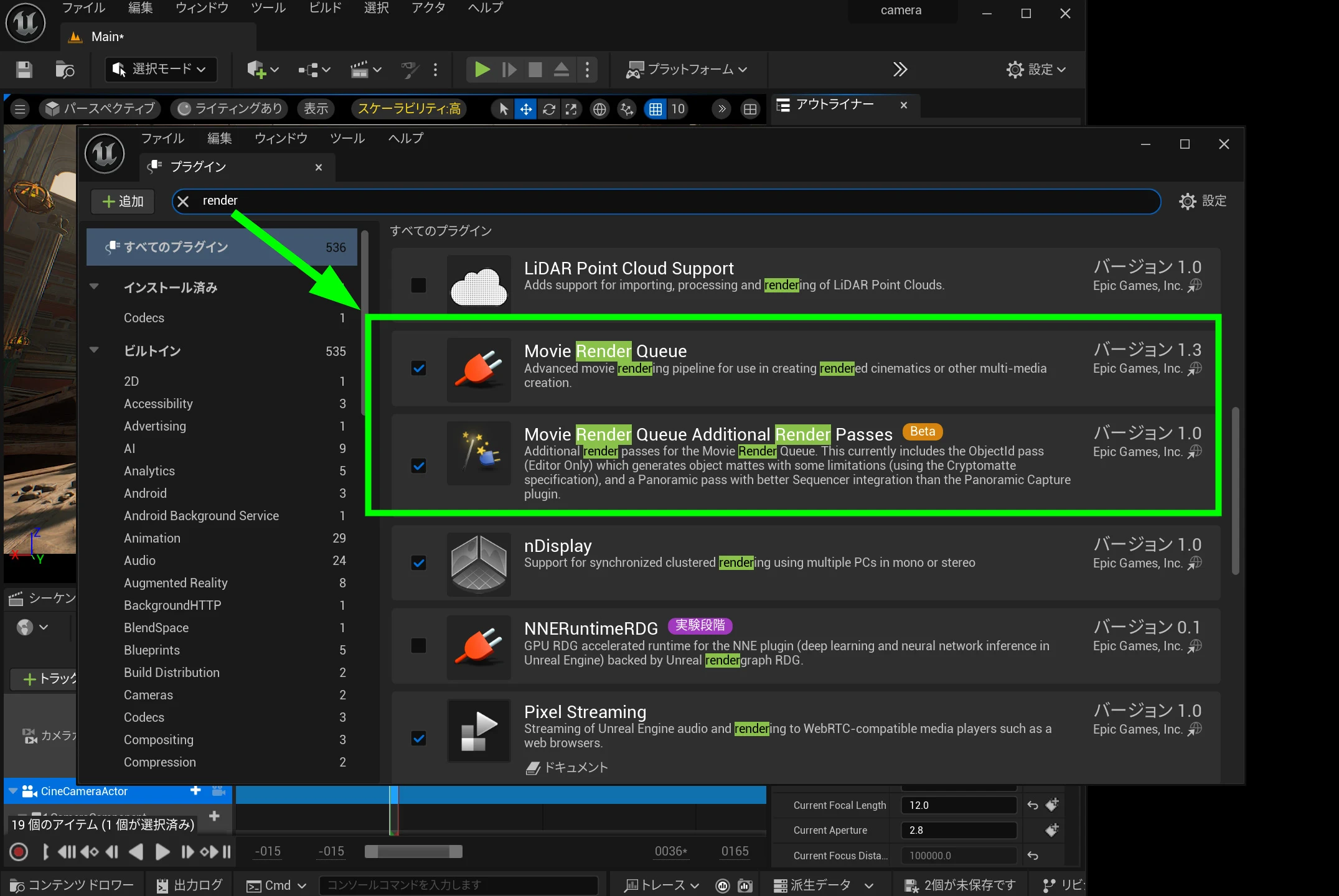
 Enable Movie Render Queue and Movie Render Queue Additional Render Passes. These plugins support high-quality video and animation rendering.
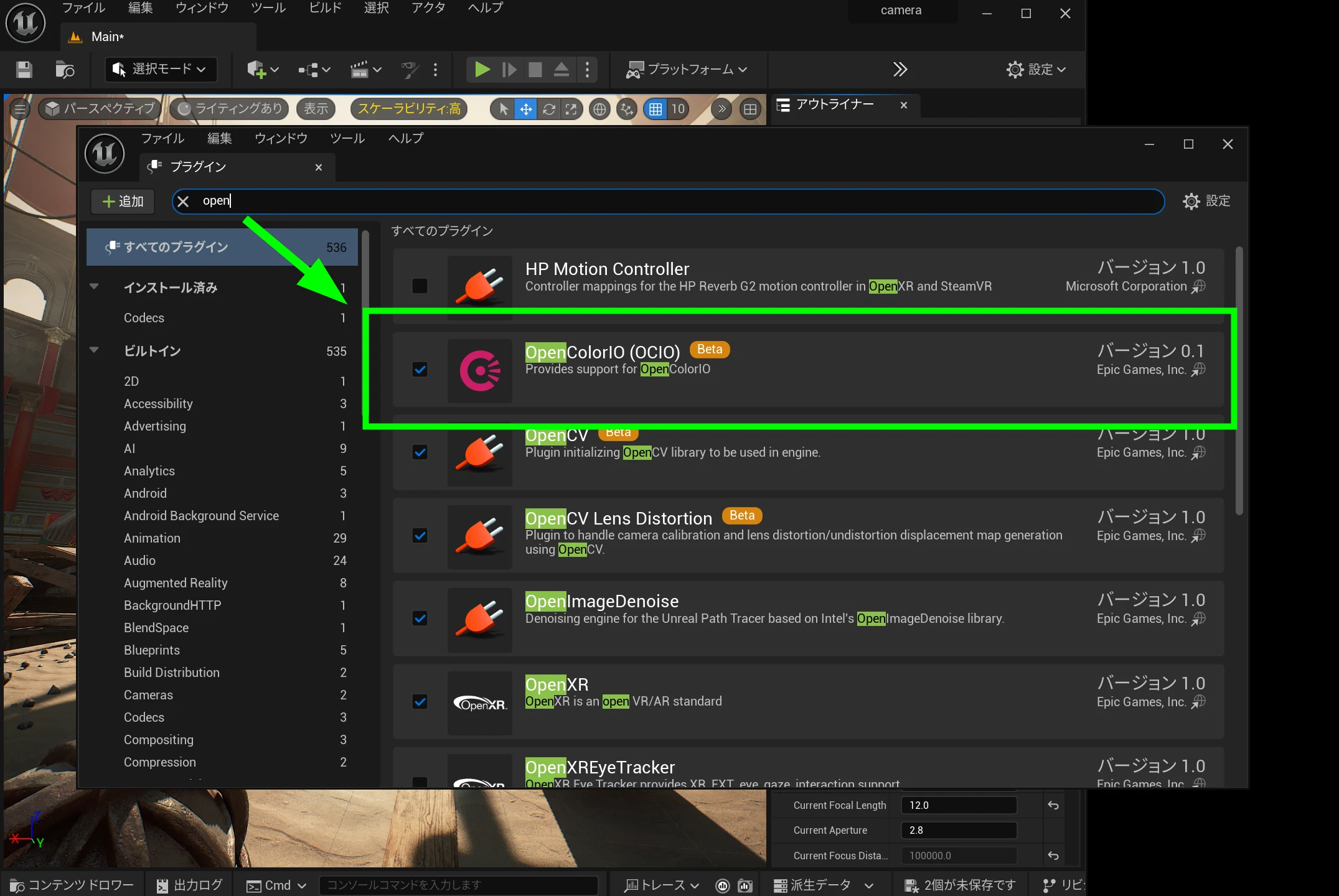
 Enable OpenColorIO as well.
Restart if prompted to apply the changes.
OpenColorIO (OCIO) is open-source software used for color management and conversion in video production and game development.
It is primarily used to keep colors consistent across devices and applications.
This helps prevent unwanted color changes caused by differing color spaces, which is particularly important in film and game post-production.
OCIO manages multiple color spaces so that different software and devices can reproduce a consistent appearance.
Create an OpenColorIO Configuration asset
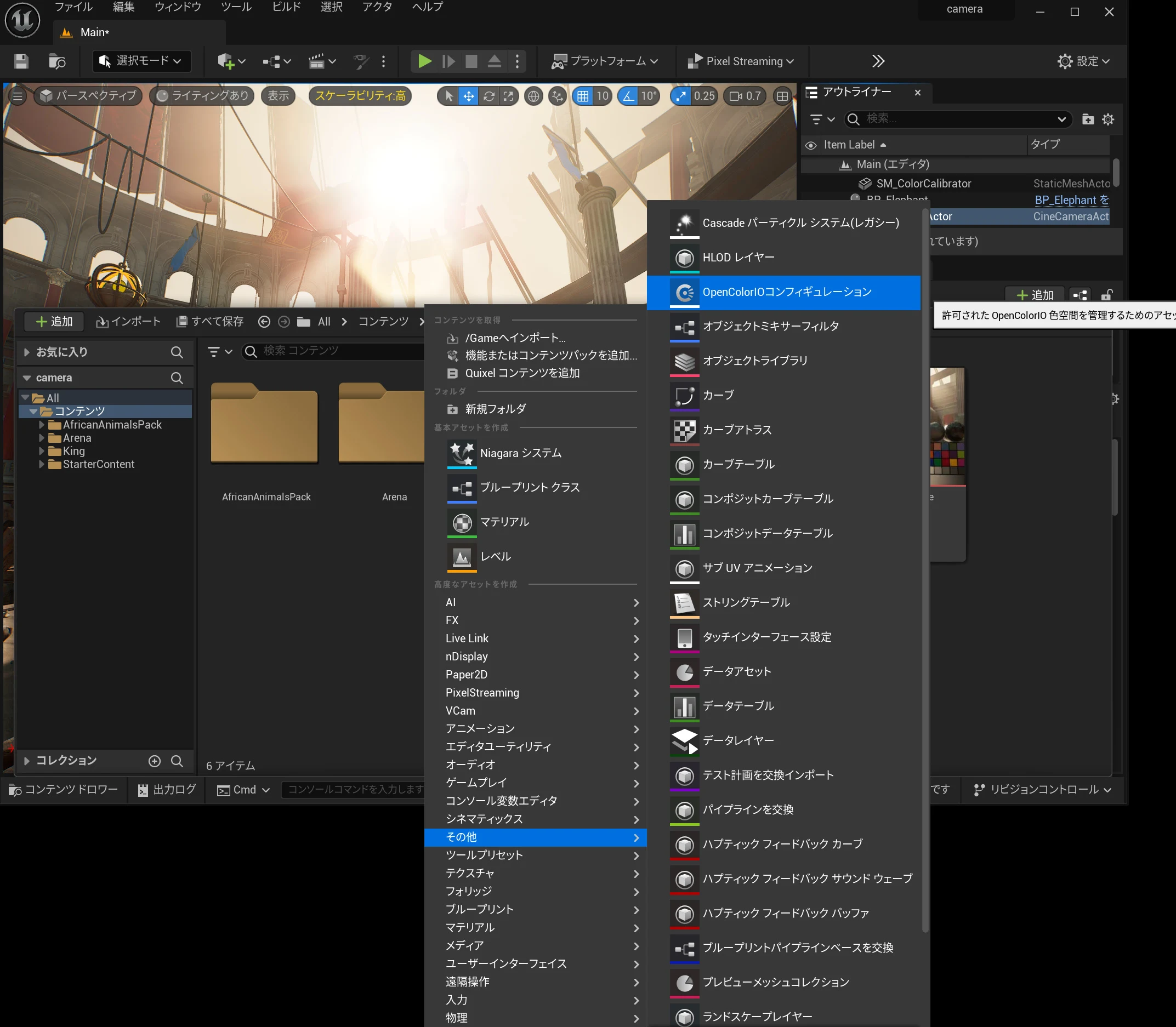
Before using OCIO, create an OpenColorIO Configuration asset.
The steps are as follows.
Right-click in the Content Browser and choose Miscellaneous > OpenColorIO Configuration to create the asset.
See the documentation for a more detailed explanation.
https://docs.unrealengine.com/5.3/ja/opencolorio-quick-start-for-unreal-engine/
 I use the default configuration.
Destination Color Space: the output color space to convert into.
Destination Display View: the display view used for the conversion.
Because this is footage generated inside the project rather than video from an external source, I selected the working color space as the source color space. The appropriate settings will vary by production discipline.
Rec. 709 is common in video production, while Windows and game displays use sRGB. Rec. 709 was designed mainly for broadcast and video; sRGB was designed for the web and computer displays.
They can be thought of as roughly similar for this discussion.
I use the default configuration.
Destination Color Space: the output color space to convert into.
Destination Display View: the display view used for the conversion.
Because this is footage generated inside the project rather than video from an external source, I selected the working color space as the source color space. The appropriate settings will vary by production discipline.
Rec. 709 is common in video production, while Windows and game displays use sRGB. Rec. 709 was designed mainly for broadcast and video; sRGB was designed for the web and computer displays.
They can be thought of as roughly similar for this discussion.
The main difference between Rec. 709 and sRGB is their gamma curve.
Rec. 709 is a video color space commonly associated with a display gamma of about 2.4.
sRGB is for web and computer displays, with a curve approximating gamma 2.2 and including a linear segment.
Their gamuts are very similar, so the difference may not stand out in many situations.
For my first setting, I selected sRGB-Display - Un-tone-mapped.
The intention was to output the colors shown on screen.
I chose Un-tone-mapped so that highlight information would also be retained.
In sRGB-Display - Un-tone-mapped, Untone Mapped means that the process of mapping a High Dynamic Range image down to a Standard Dynamic Range (SDR) image is not applied.
An HDR image normally contains a wider luminance range. Displaying it appropriately on an SDR monitor requires a process called tone mapping.
Untone-mapped refers to a state in which that tone-mapping process has not been applied.
In other words, the HDR data range is retained.
The idea is data in sRGB colors that also retains highlight information.
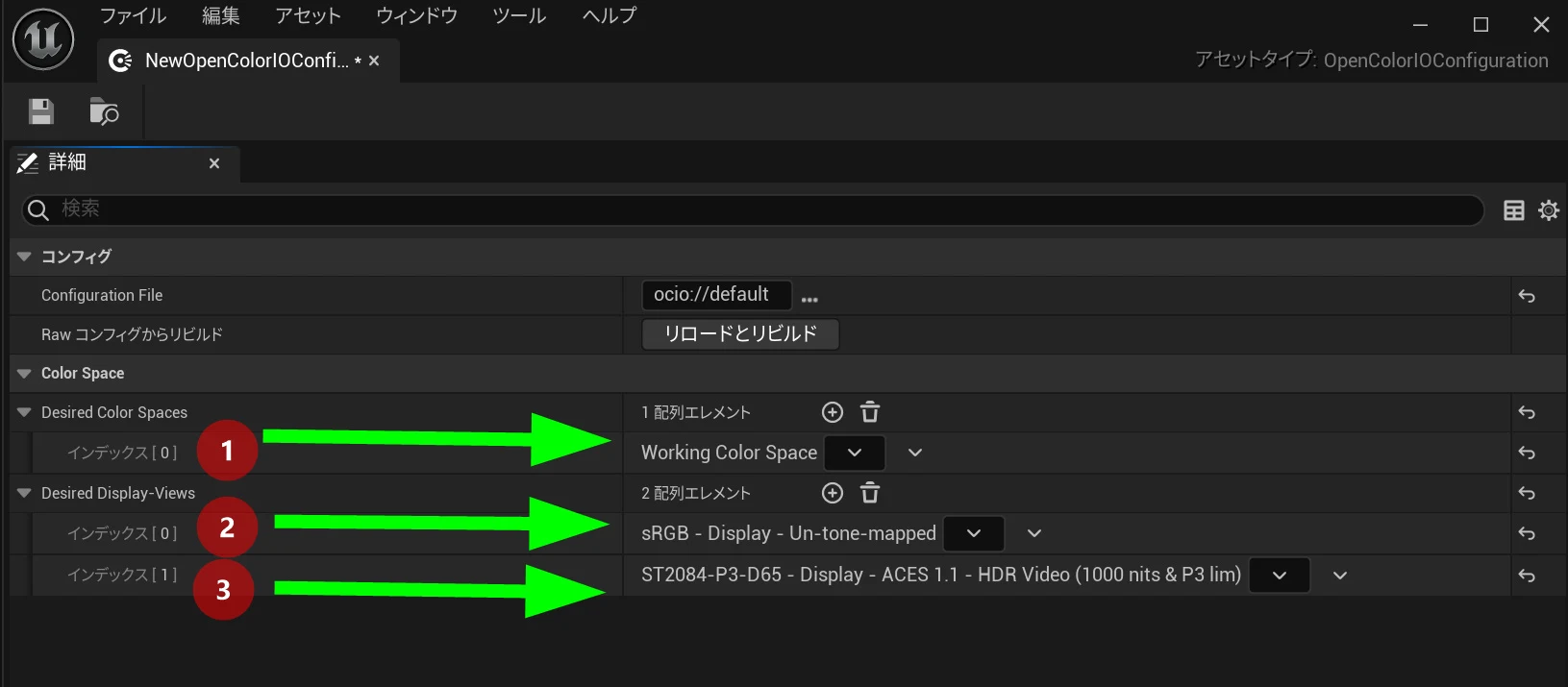 sRGB might be sufficient, but I thought it would be better to pass the information to another application without having to recover highlights there. I therefore looked for a matching HDR option in DaVinci Resolve 18 so I could compare color reproduction.
The matching option I found was ST2084-P3-D65, a combination of color-space and luminance standards for HDR video.
sRGB might be sufficient, but I thought it would be better to pass the information to another application without having to recover highlights there. I therefore looked for a matching HDR option in DaVinci Resolve 18 so I could compare color reproduction.
The matching option I found was ST2084-P3-D65, a combination of color-space and luminance standards for HDR video.
ST2084 specifies HDR luminance encoding, and P3 refers to a wide-gamut color space.
D65 specifies the white point, with a color temperature of approximately 6500K.
This combination is used to reproduce rich colors and high contrast in HDR footage and is important in film and high-quality video production.
The main difference between BT.2020 and P3-D65 is gamut size.
BT.2020 is a color space for Ultra HD television and 4K/8K broadcasting with a very wide gamut.
P3-D65 is used in digital-cinema-related workflows. Its gamut is narrower than BT.2020 but wider than conventional sRGB or Rec. 709.
D65 is the white-point standard used in both color spaces.
HDR video standards are complicated.
My background is on the camera side, so I wanted to use Rec.2020. However, the default OpenColorIO configuration in UE5 does not provide Rec.2020.
It includes the broader Rec.2100 framework, but Resolve's ACES color-management options do not include Rec.2100.
That left me stuck.
Here is how my OpenColorIO Configuration looks.
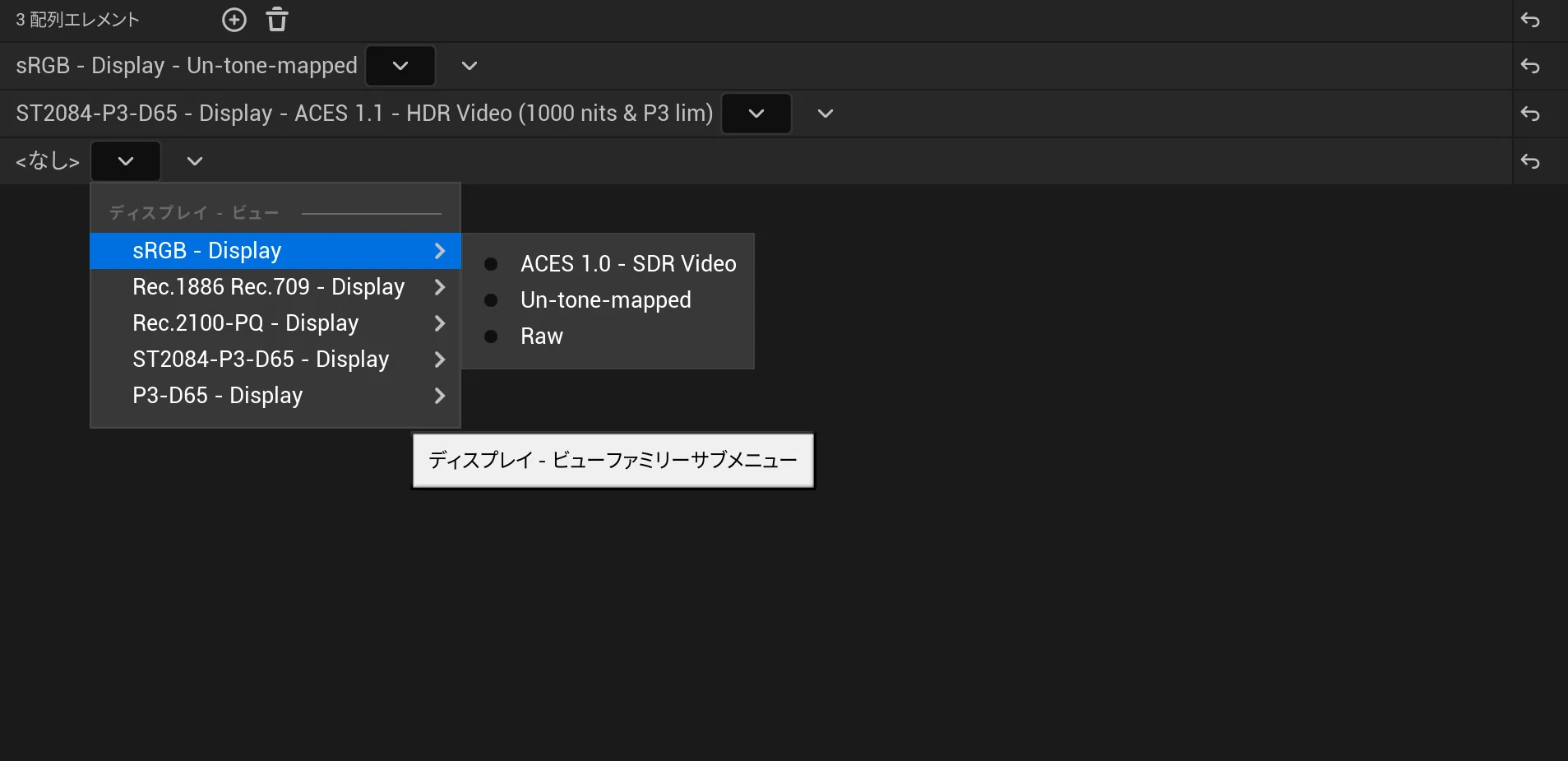
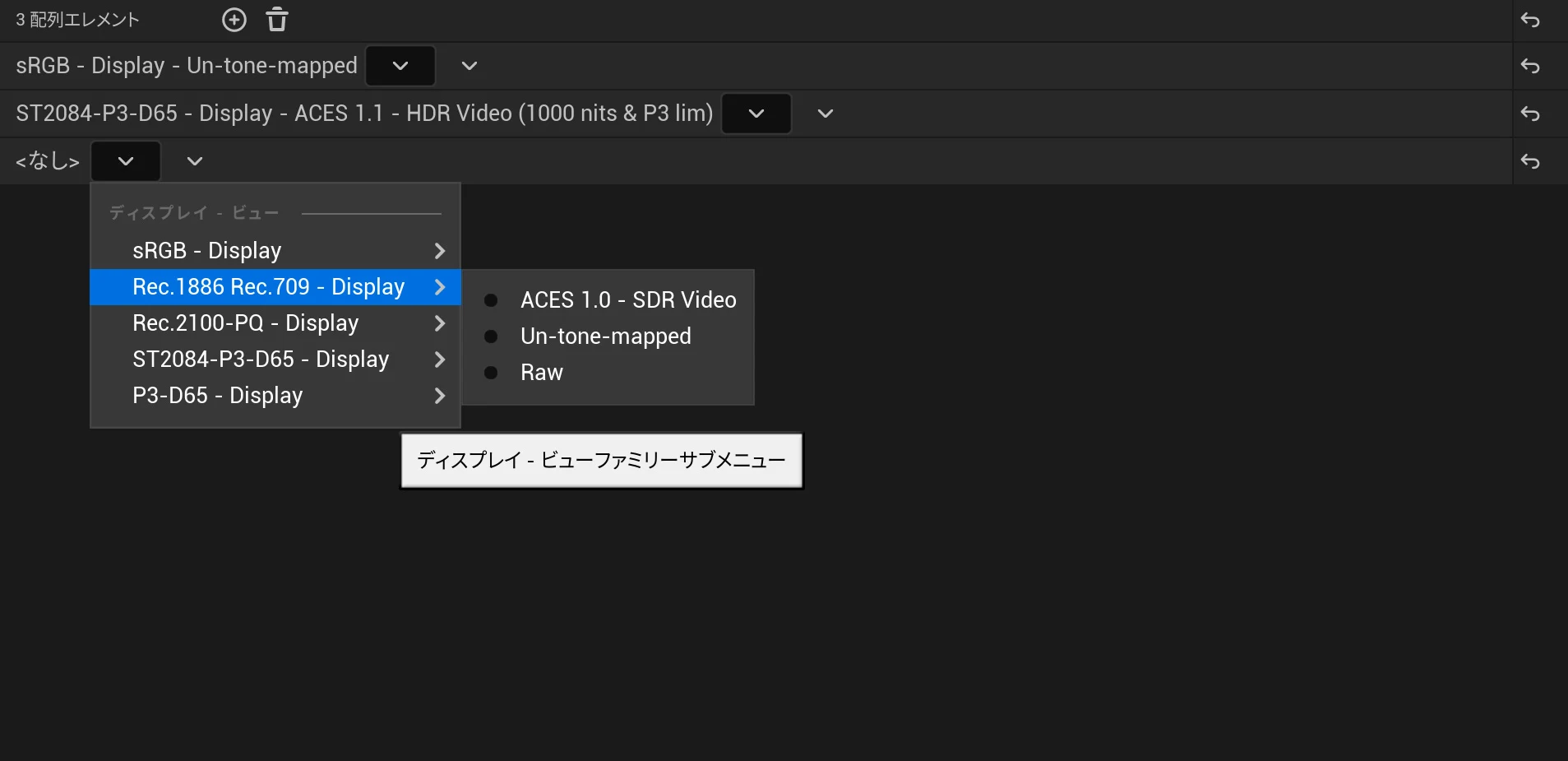
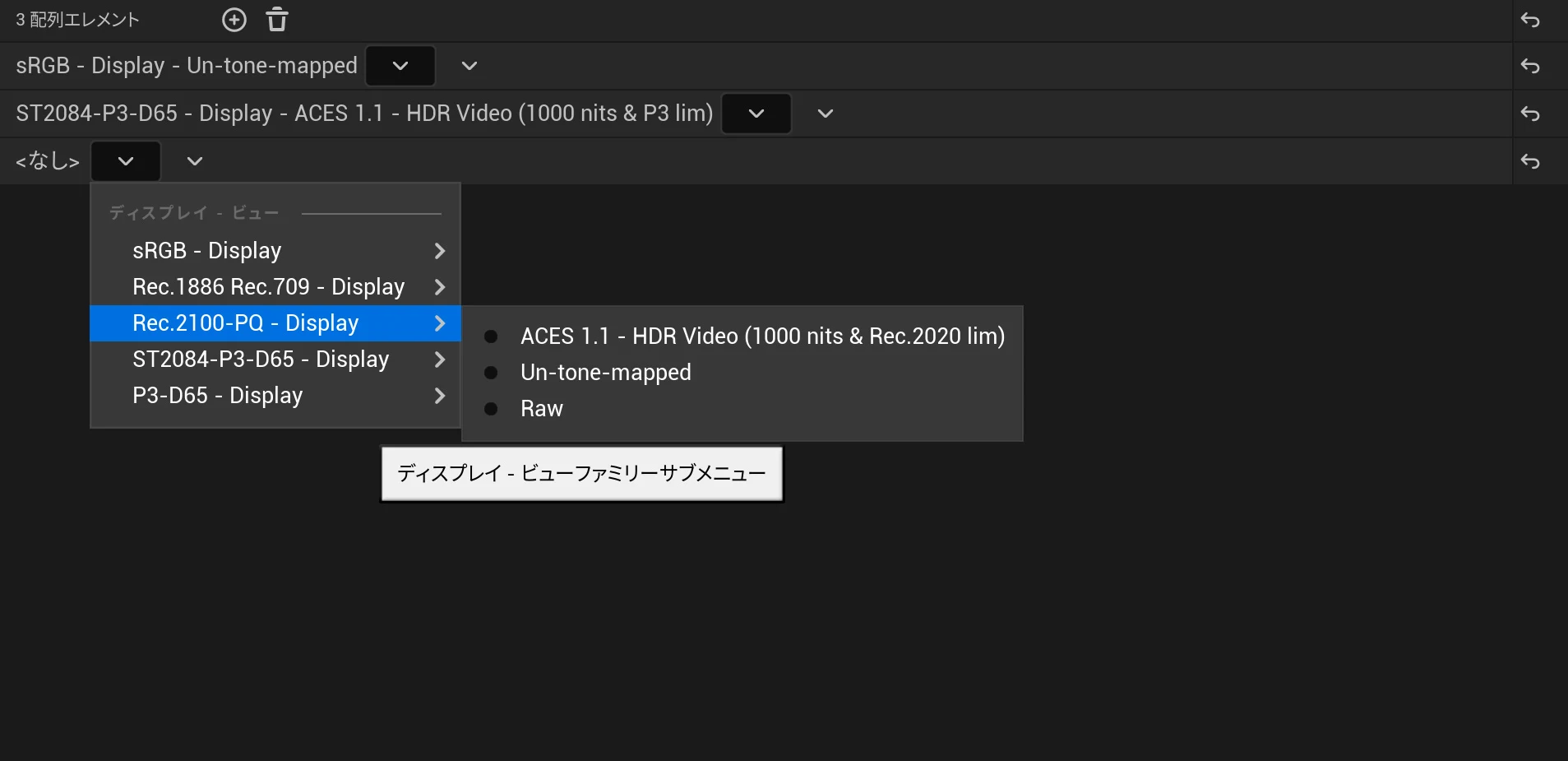
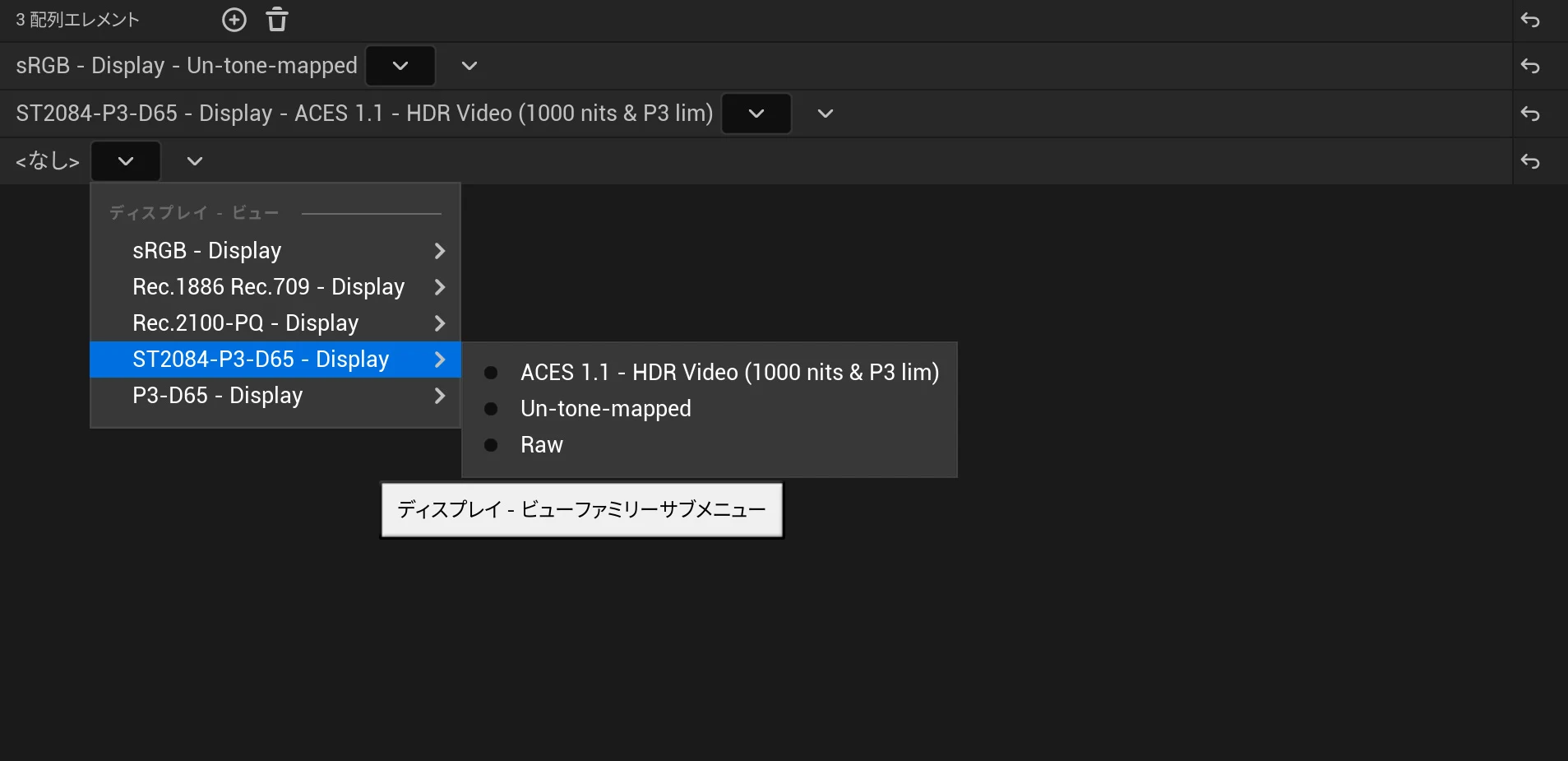
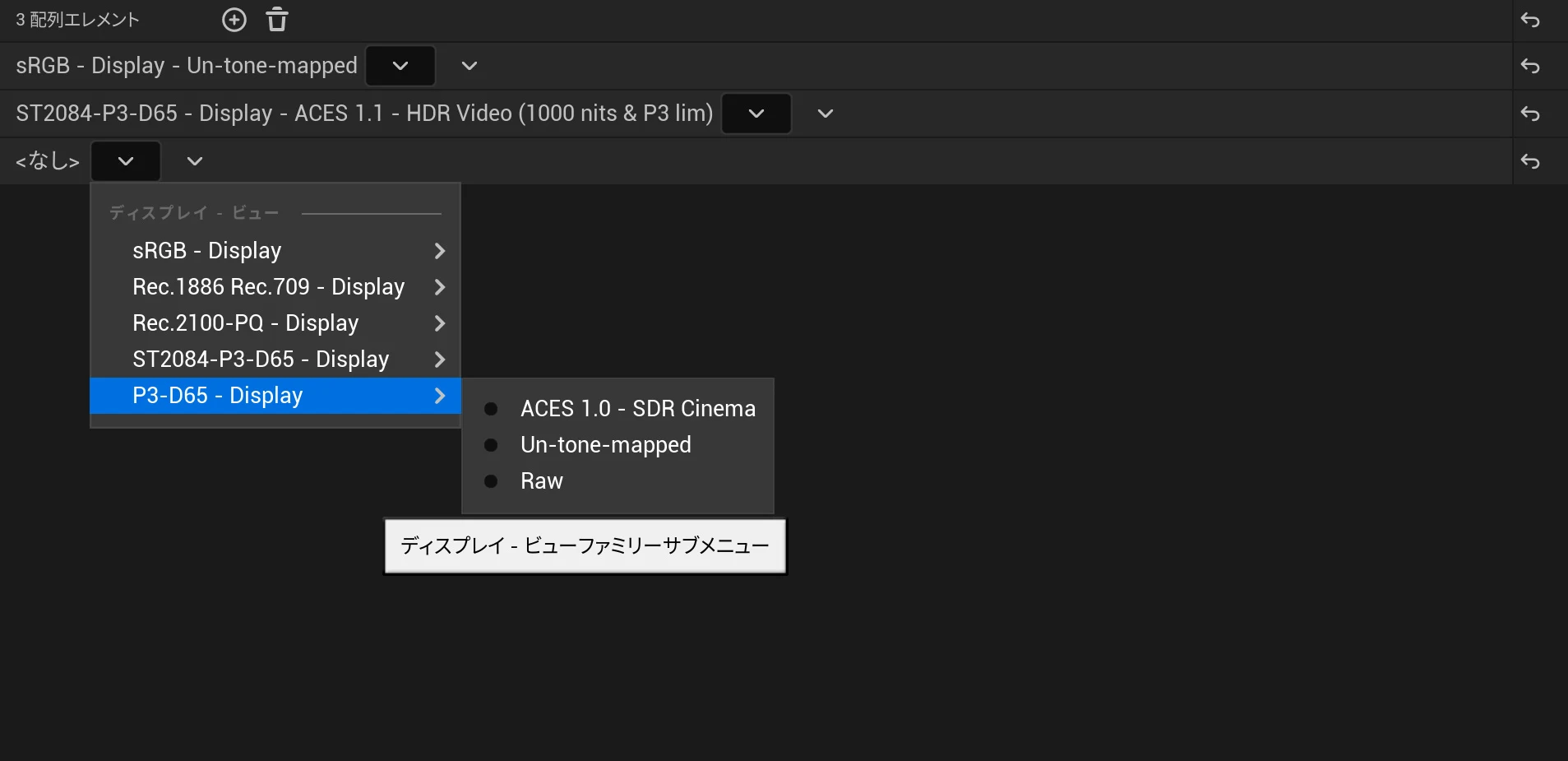 Of the settings I tried, P3-D65 ST2084 felt the most convincing, so I selected ST2084-P3-D65 with ACES 1.1. I have not tested it against RAW footage.
Export settings in Sequencer's Movie Render Queue
Now export the sequence.
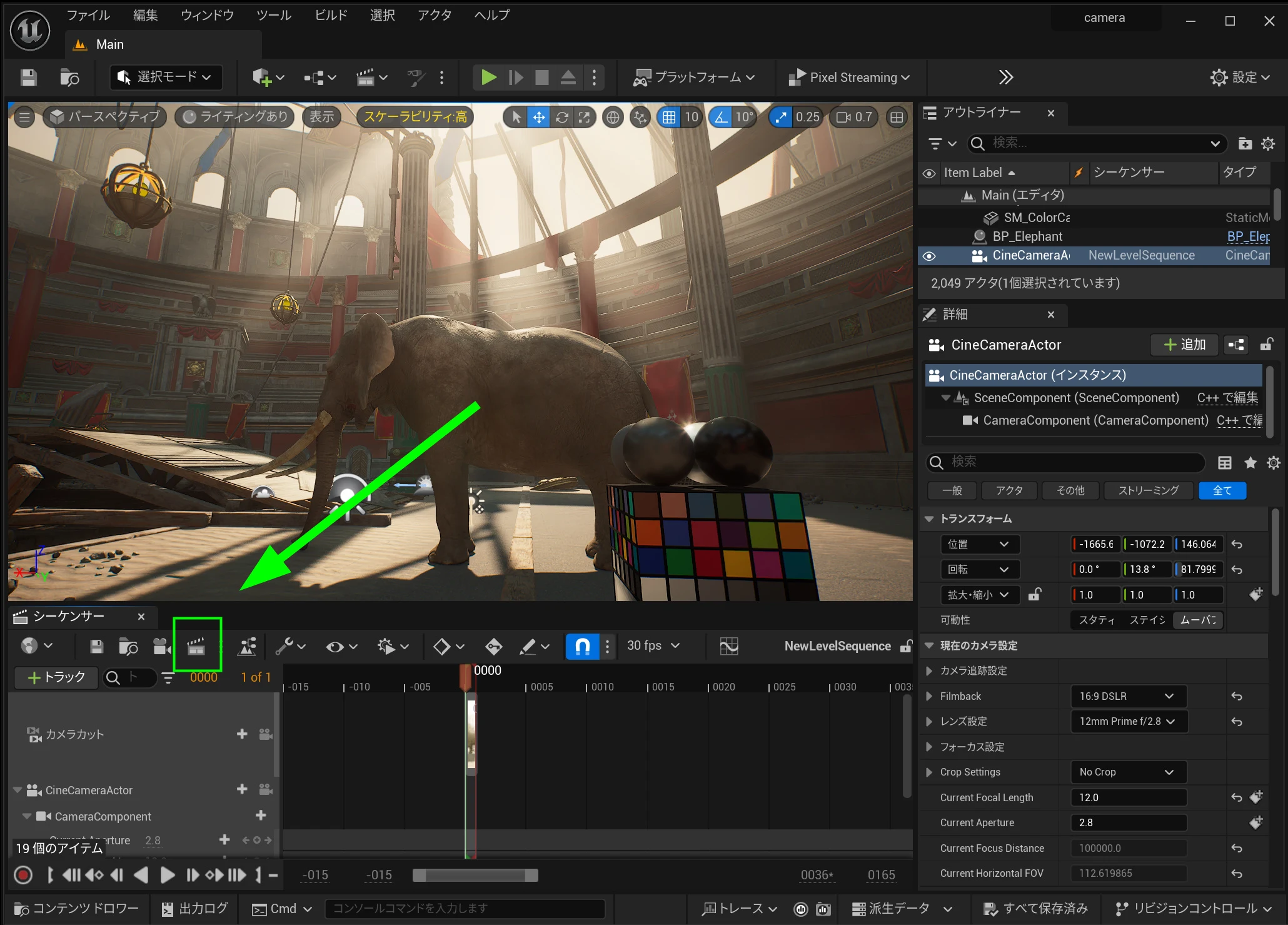 Click the settings configuration to change the export settings.
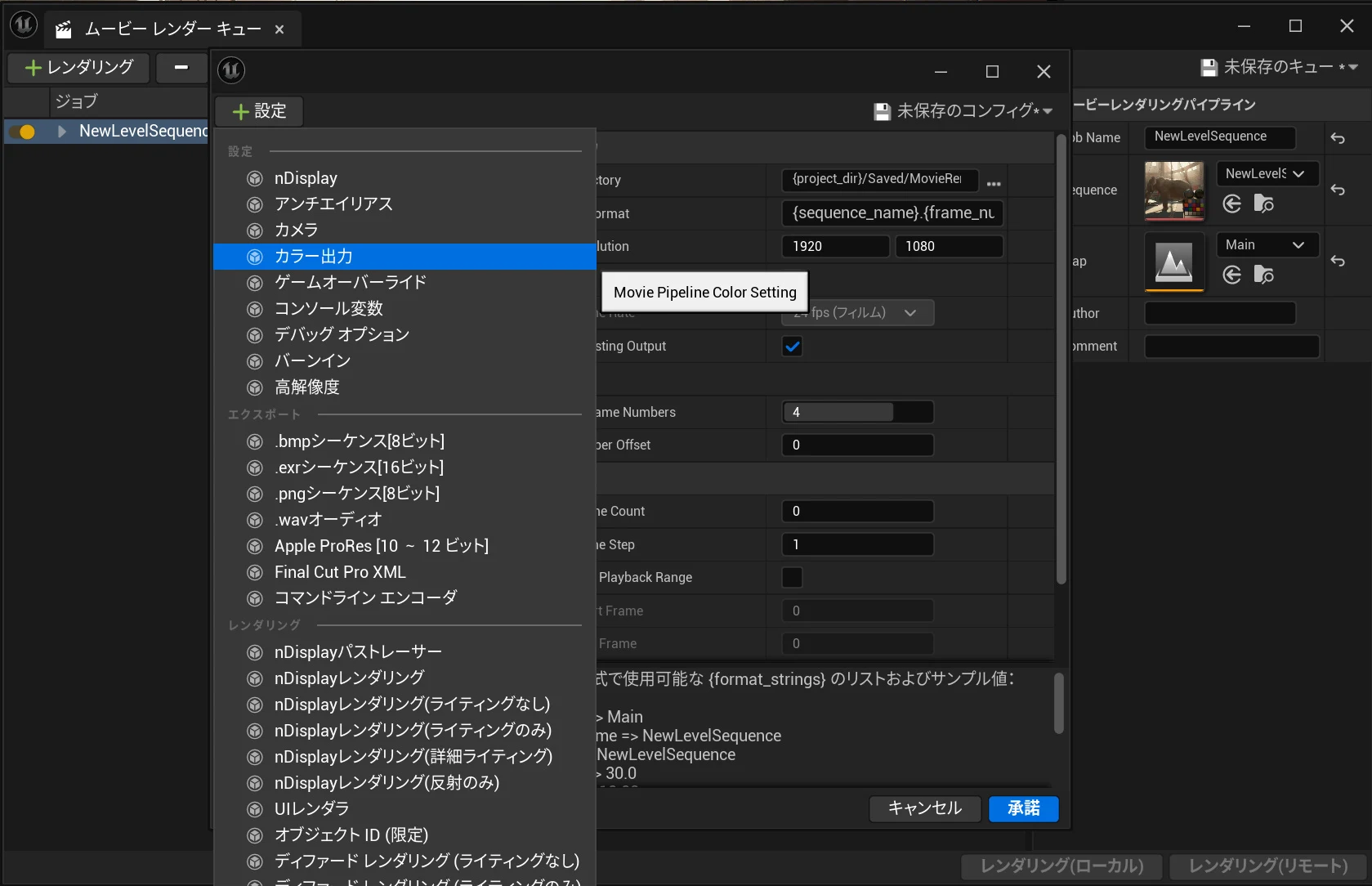
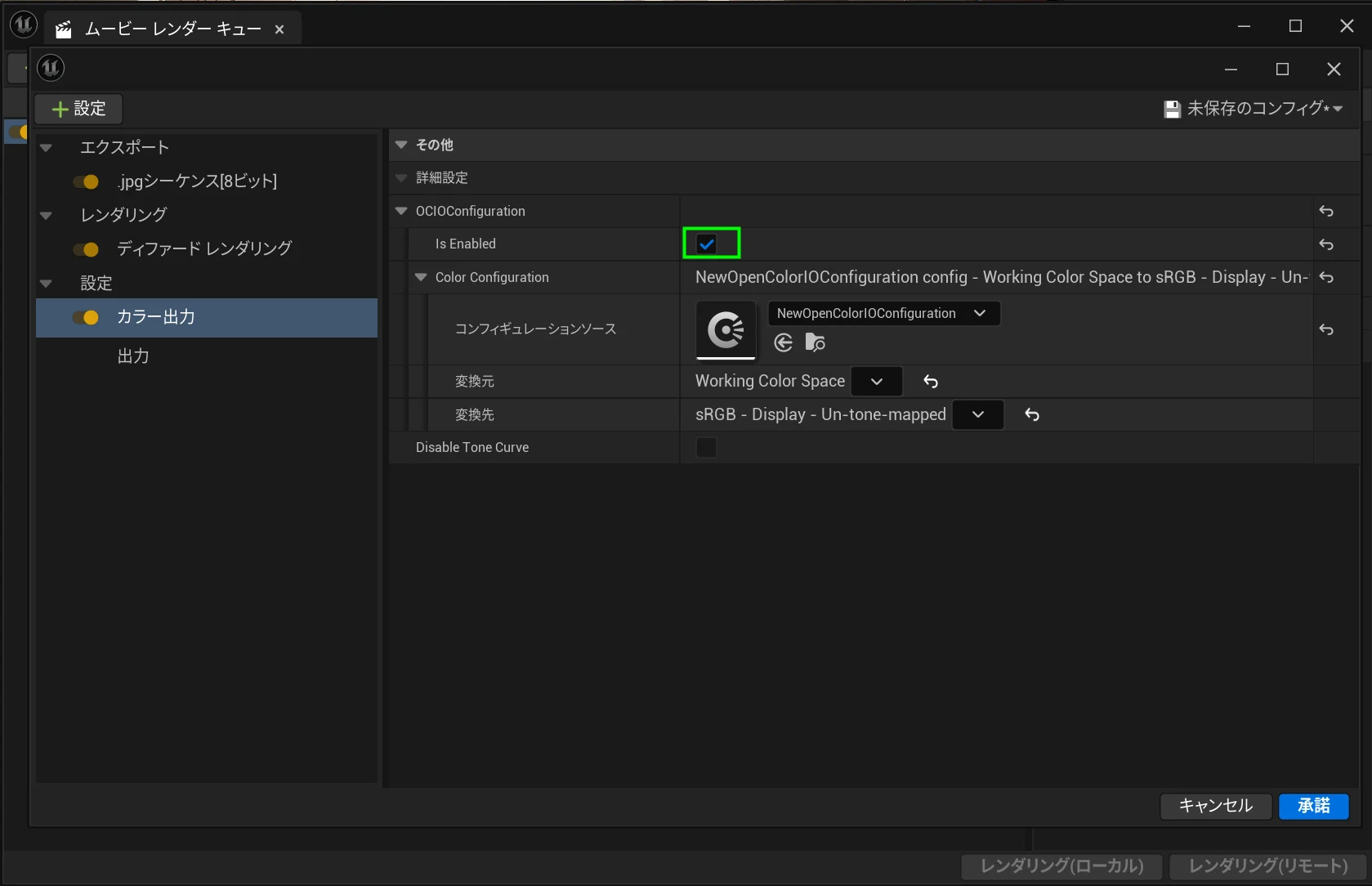
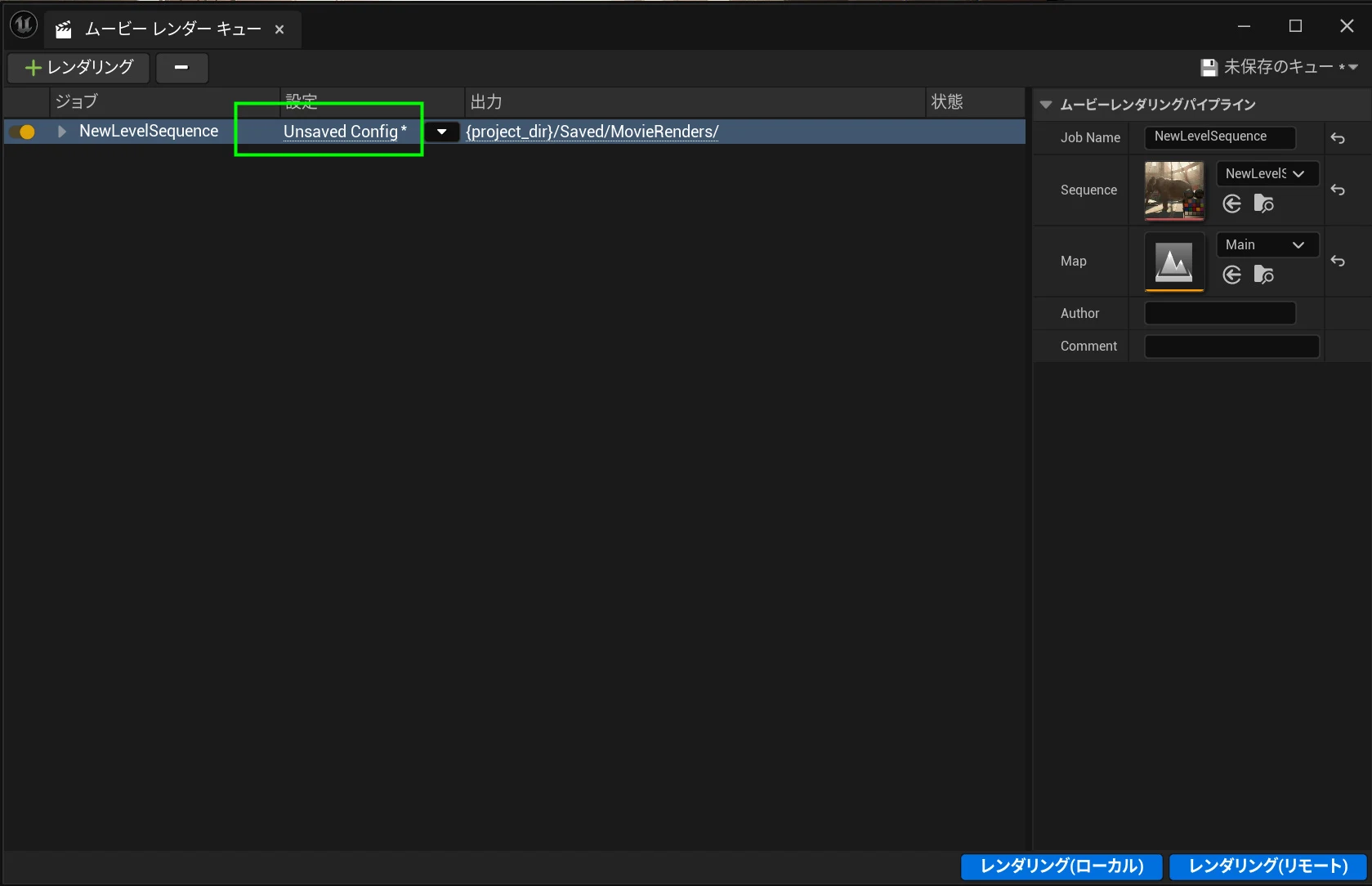 First, select or add Color Output so the color conversion configured earlier can be applied.
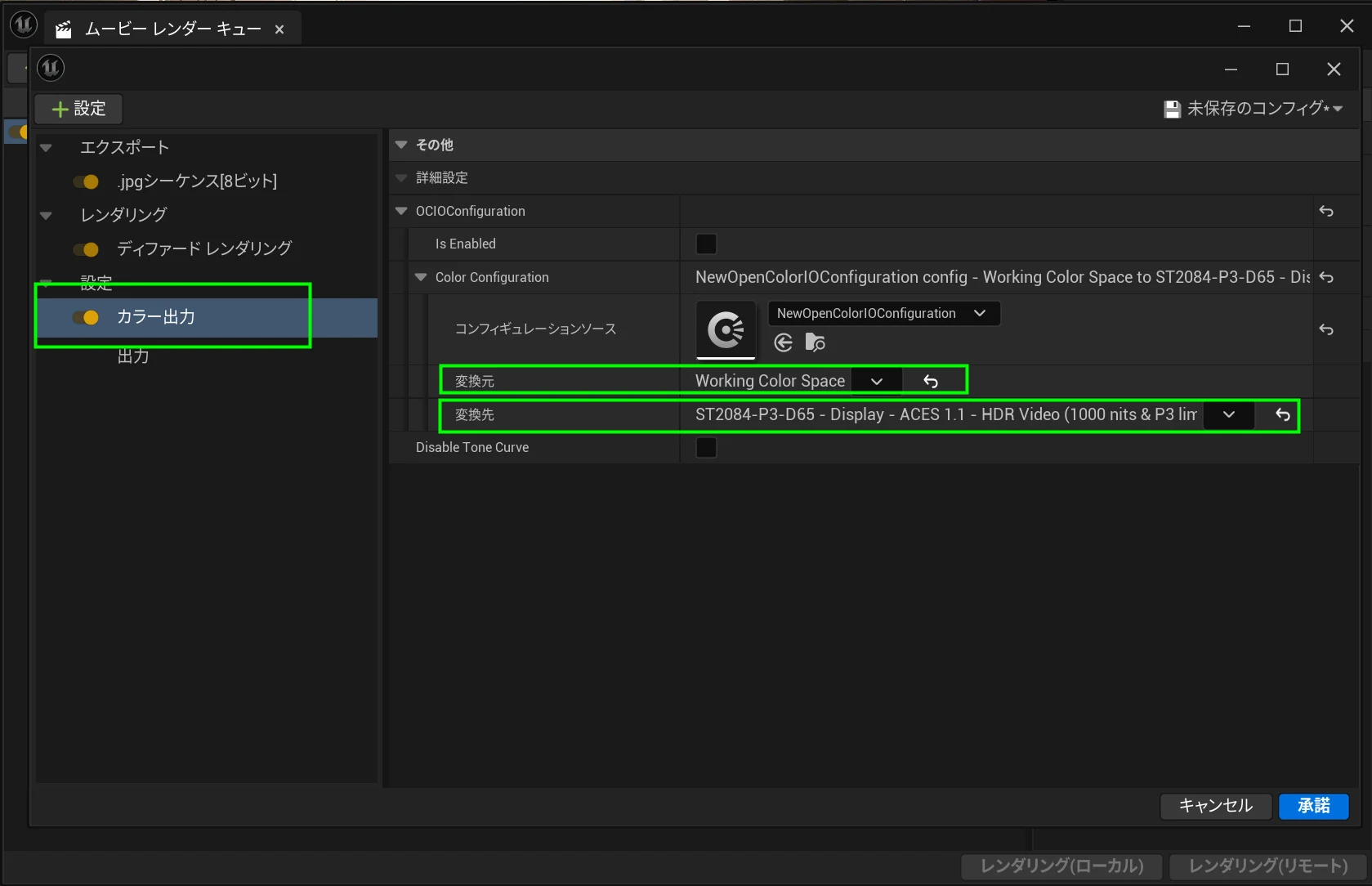
 In the color settings, choose the configuration source created earlier. Remember to select both the source and destination. I had already confirmed that sRGB worked, so this time I tested ST2084.
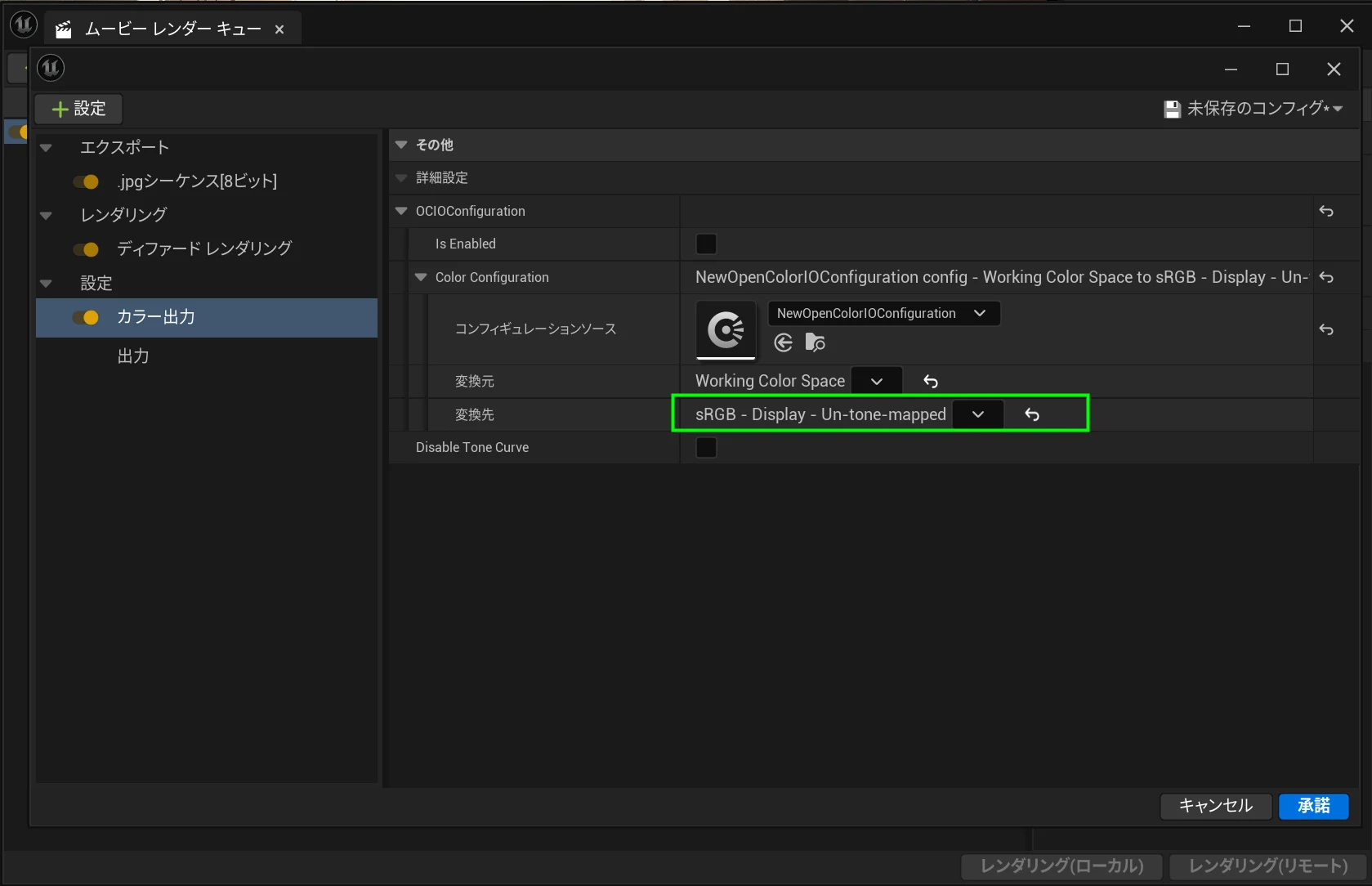
 If you are uncomfortable using ST2084, choose sRGB. It outputs the colors as they appear.
 Remember to enable the application checkbox.
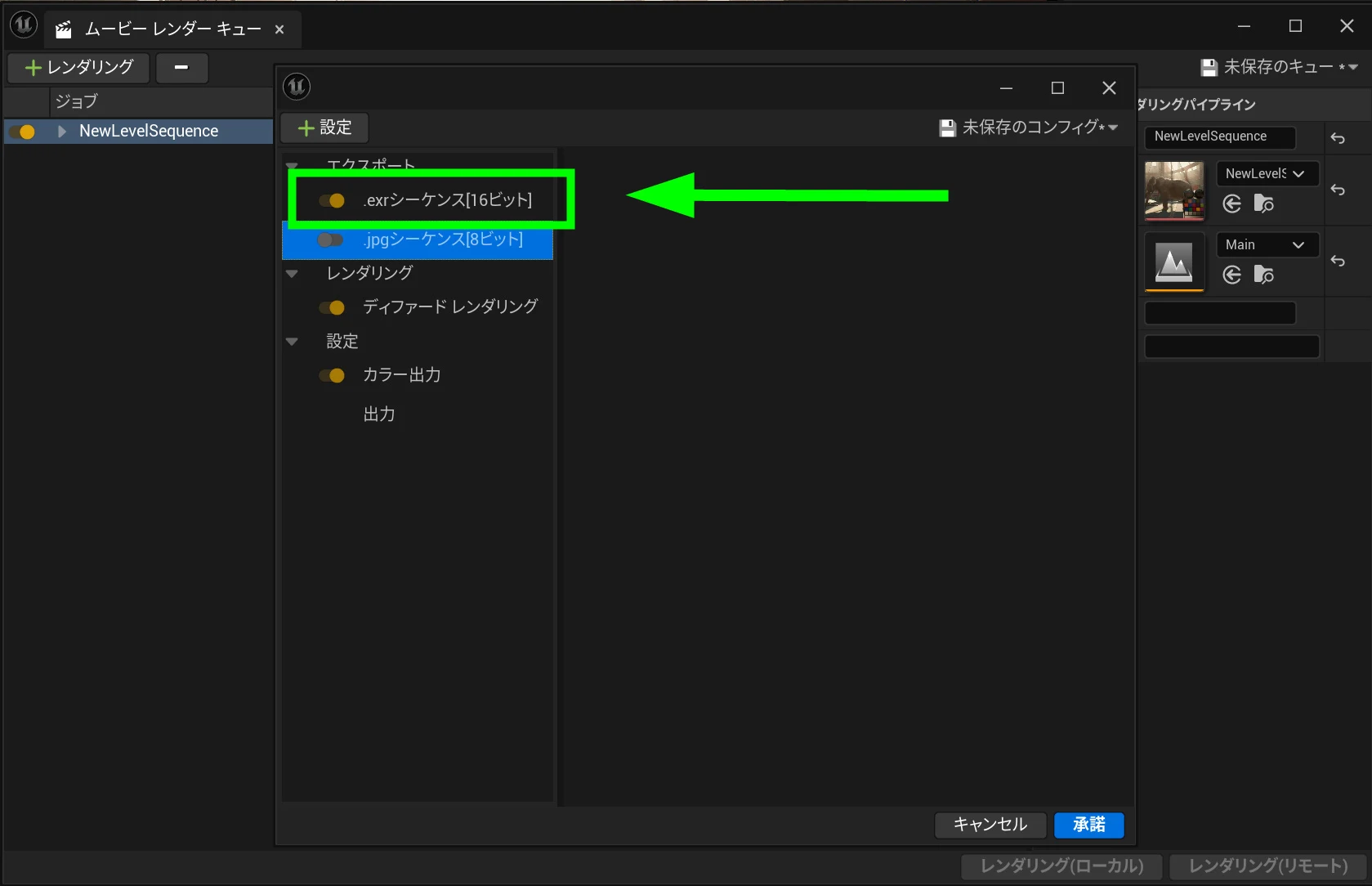
 JPEG loses some data during compression, limiting how much information it retains.
EXR, or OpenEXR, supports high color depth, typically 16 bits or more, and can preserve more color information and dynamic range.
This provides flexibility and detail closer to RAW data, which is useful in post-production and video work.
EXR is a better choice than JPEG for demanding color grading and compositing in particular.
Add EXR in Settings and turn JPEG off.
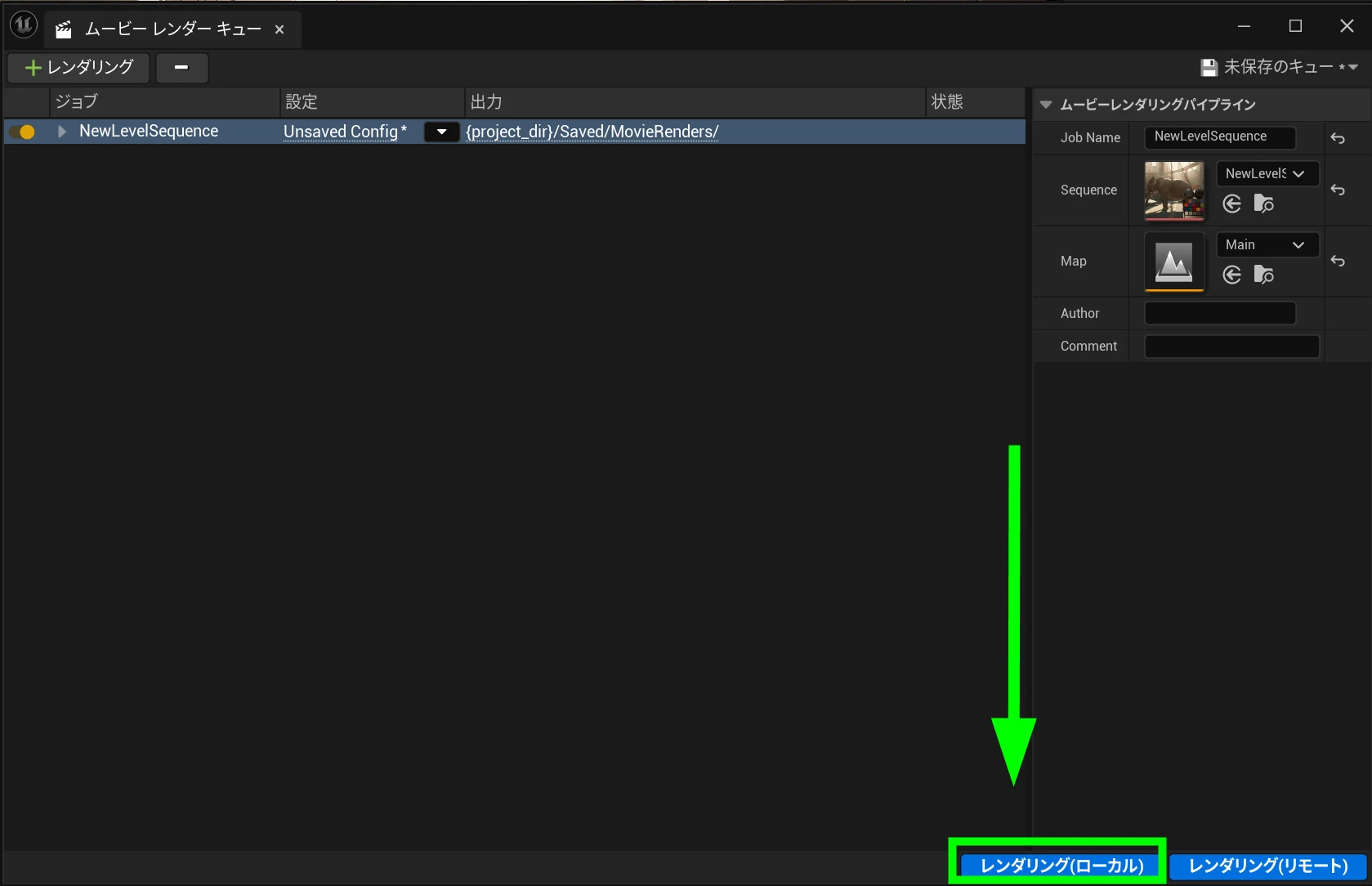
 Since this is a test export, I export it without changing the other settings.
Check color reproduction in DaVinci Resolve Studio
Start DaVinci Resolve Studio. I am using version 18.6.
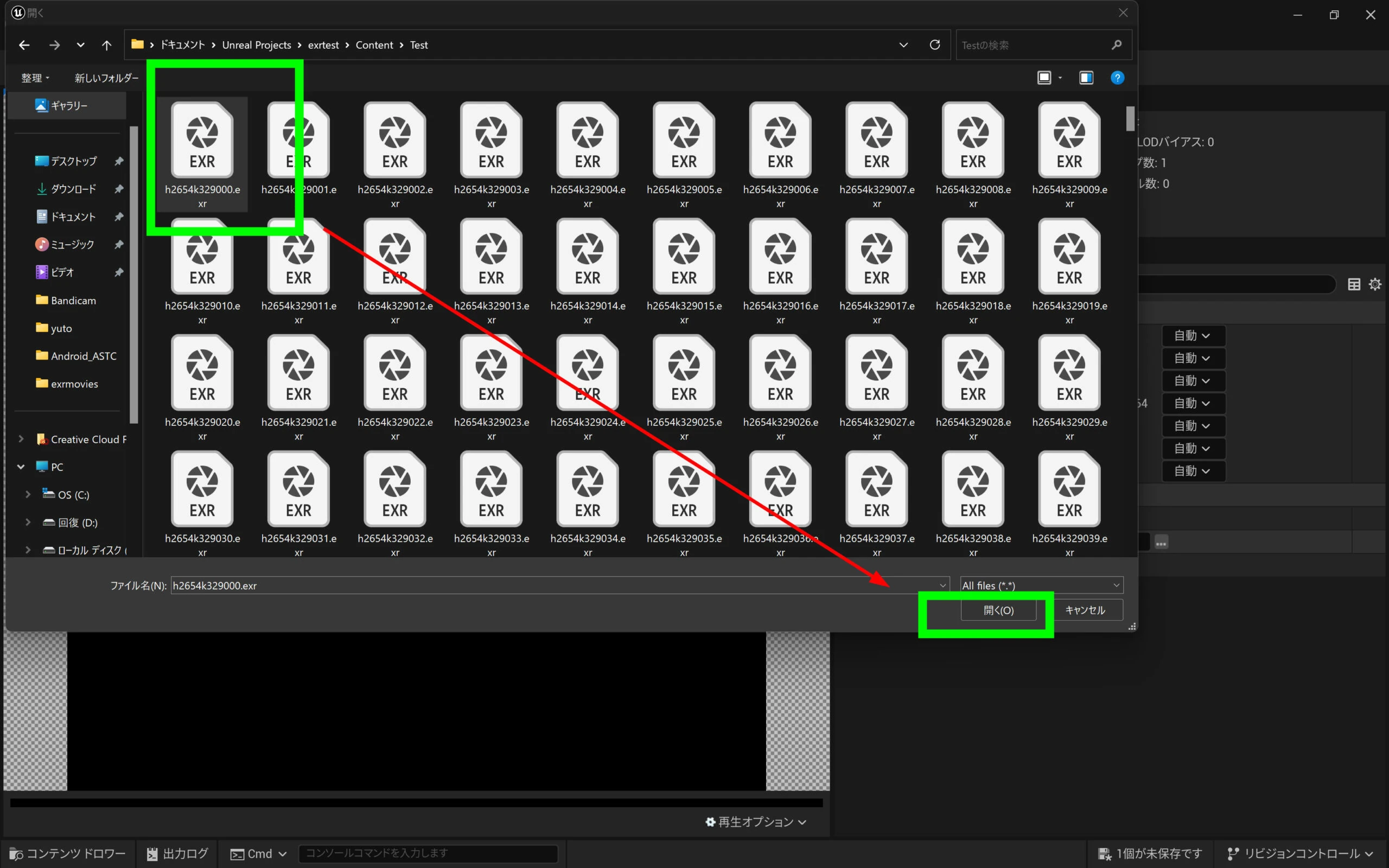
 Import the EXR exported earlier. Exporting an image sequence instead would produce a sequence usable as video.
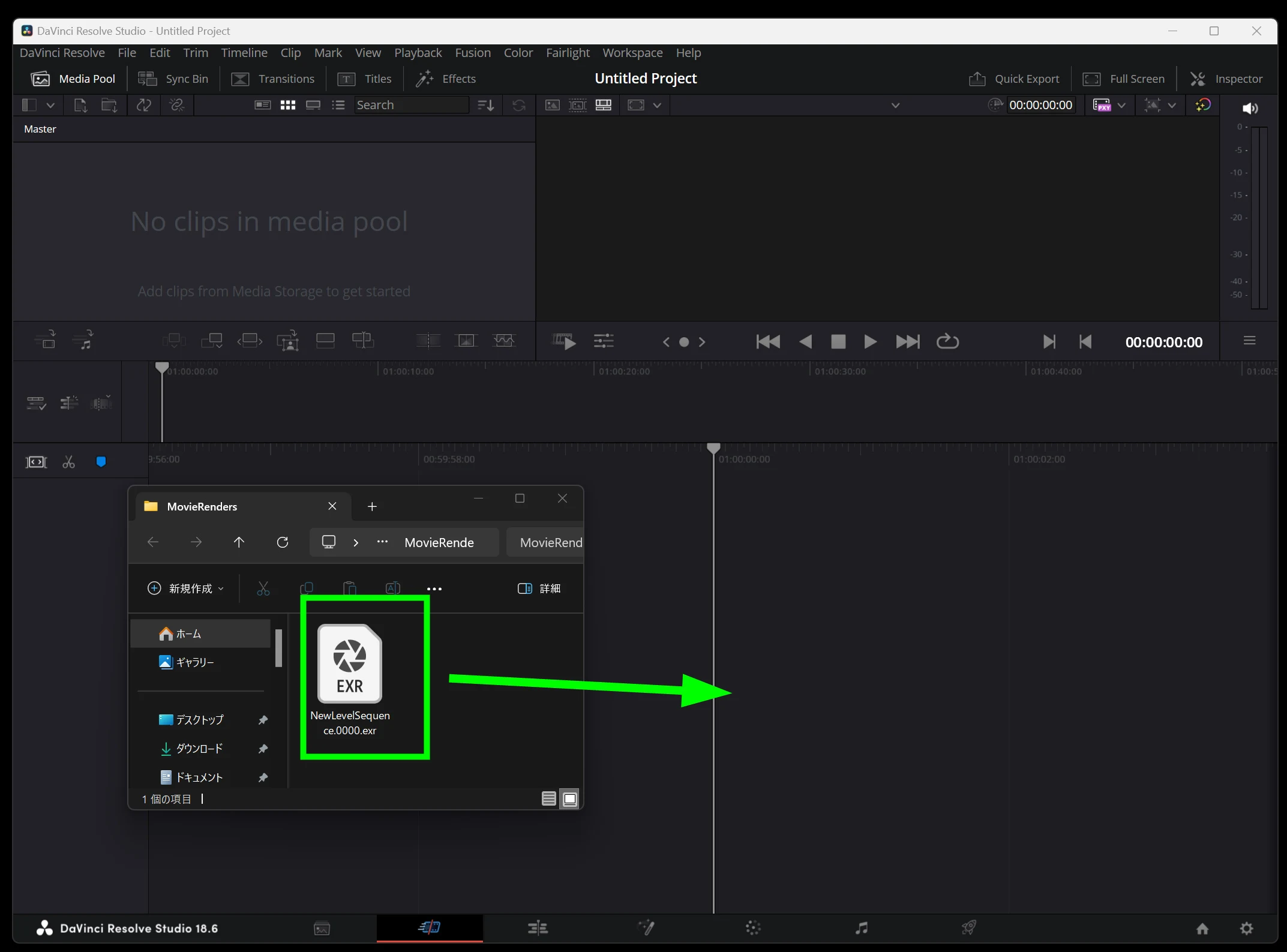 The footage is imported. First, change the color settings.
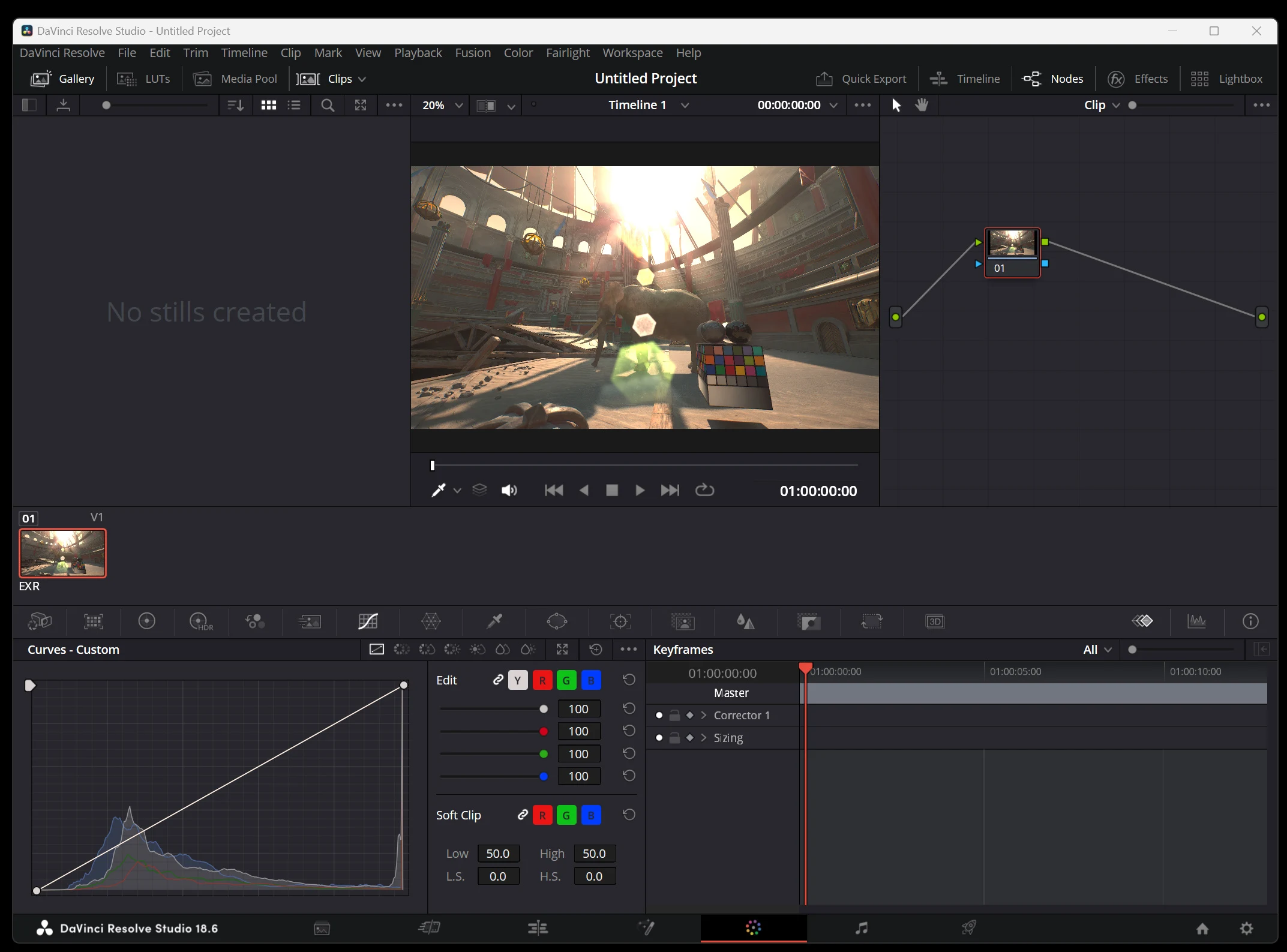
DaVinci Resolve Studio Color Management settings
Select the Color Management tab in Project Settings.
This is where the different color-space and color-management options are available.
Select ACES Color Science.
ACES, the Academy Color Encoding System, is an advanced color-management system widely used in film production.
Select ACES 1.1.
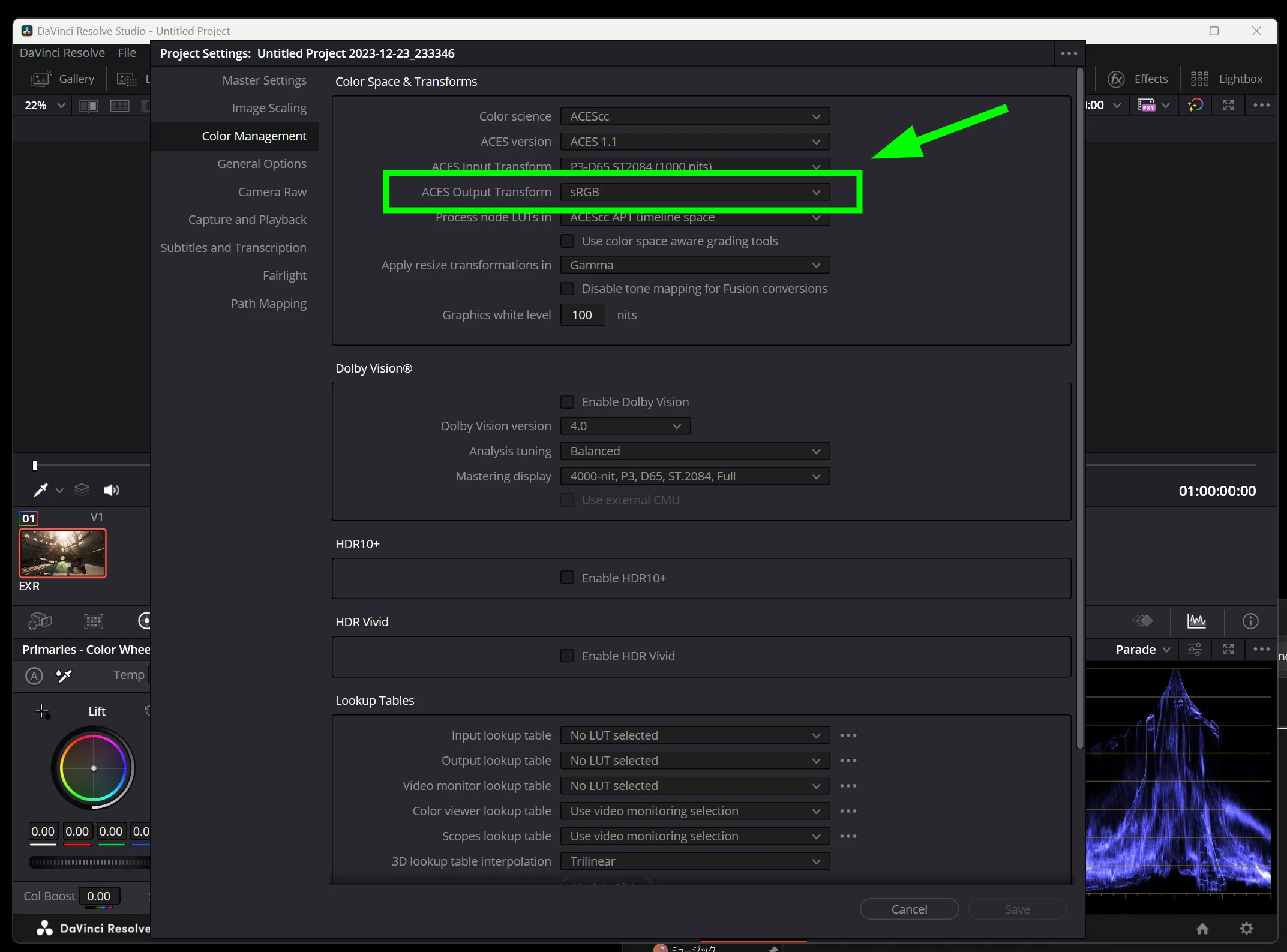
Choose P3-D65 ST2084 as the Output Color Space.
P3-D65 provides the wide-gamut color space, while ST2084 defines the luminance encoding for HDR content.
Together, they allow footage with richer colors and contrast.
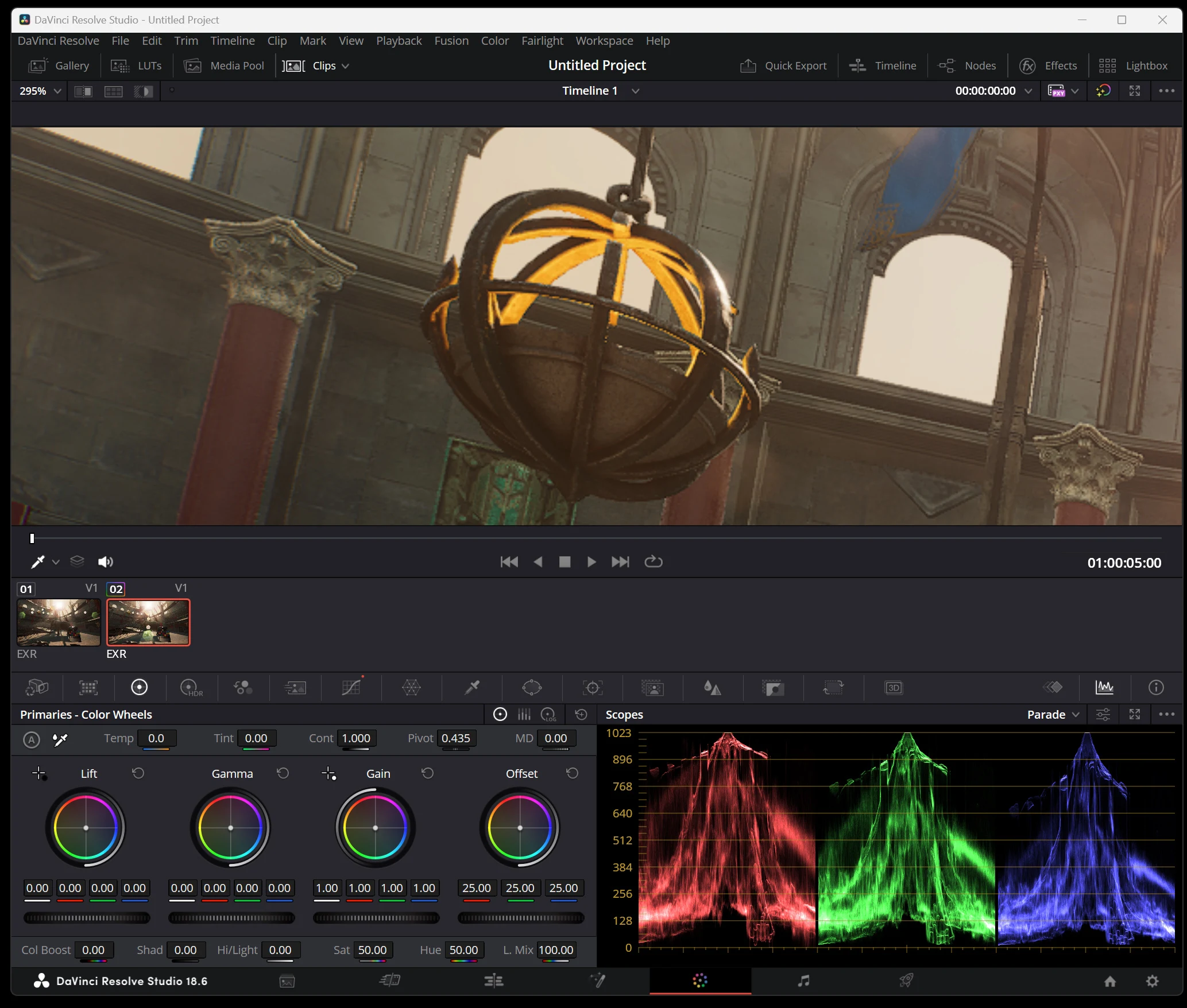
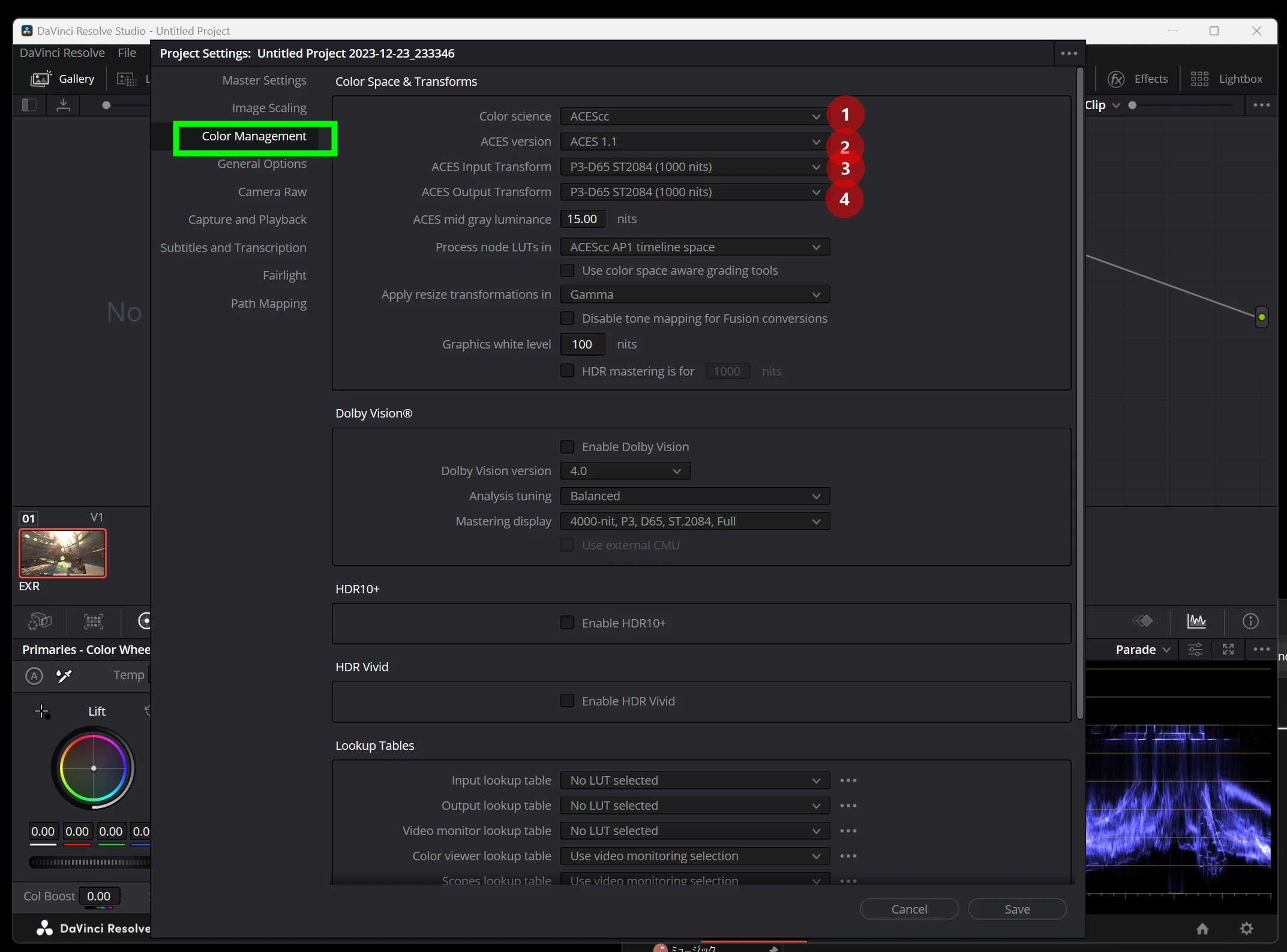 Although this is an SDR monitor, the result looks like Log or RAW footage with information extending from highlights to shadows. It looks promising, and the scopes look good too.
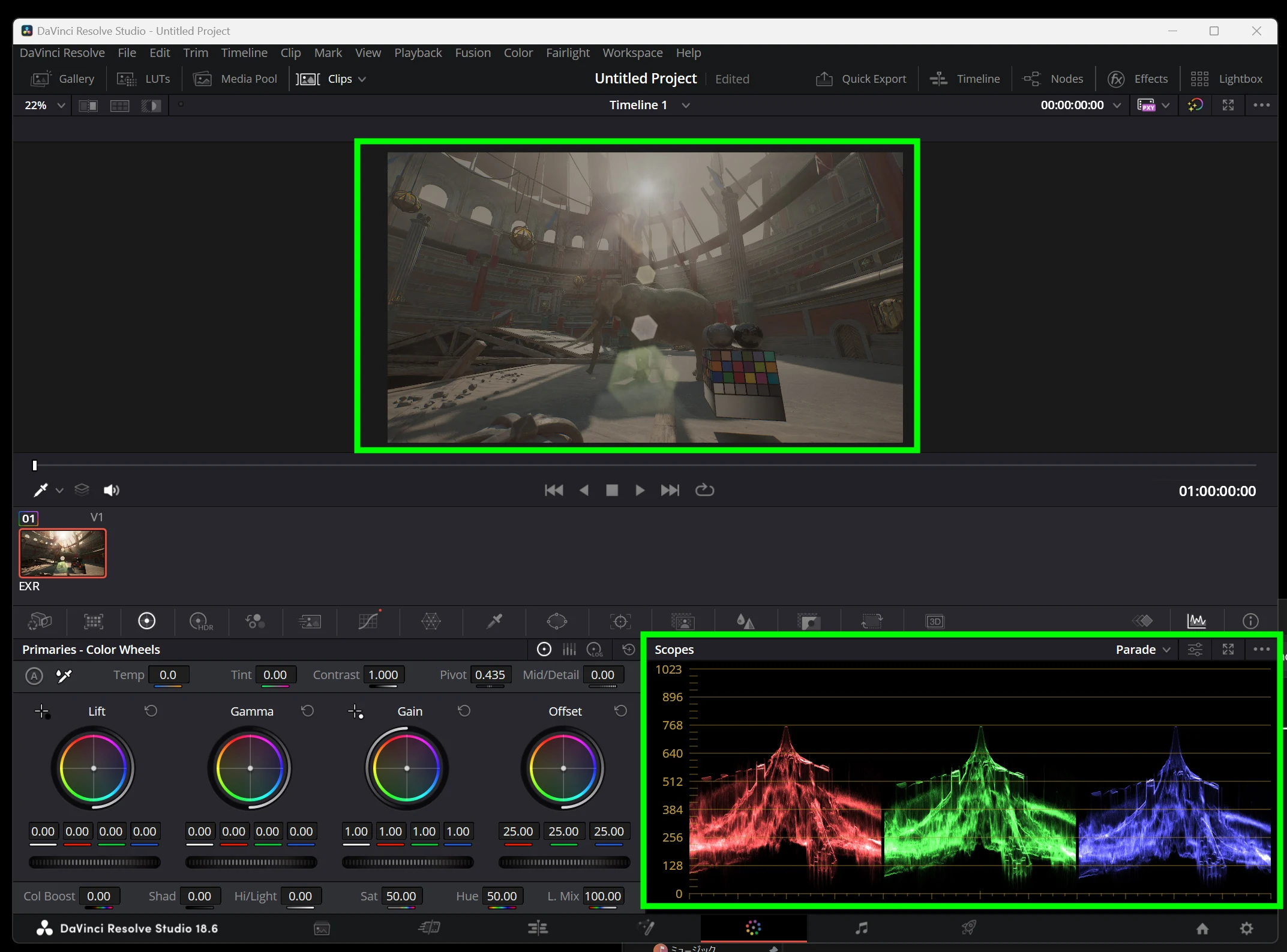 In the UE5 viewport, the image is tone-mapped to suit the SDR monitor. This experiment suggested that the export retained highlight information, in a RAW-like way.
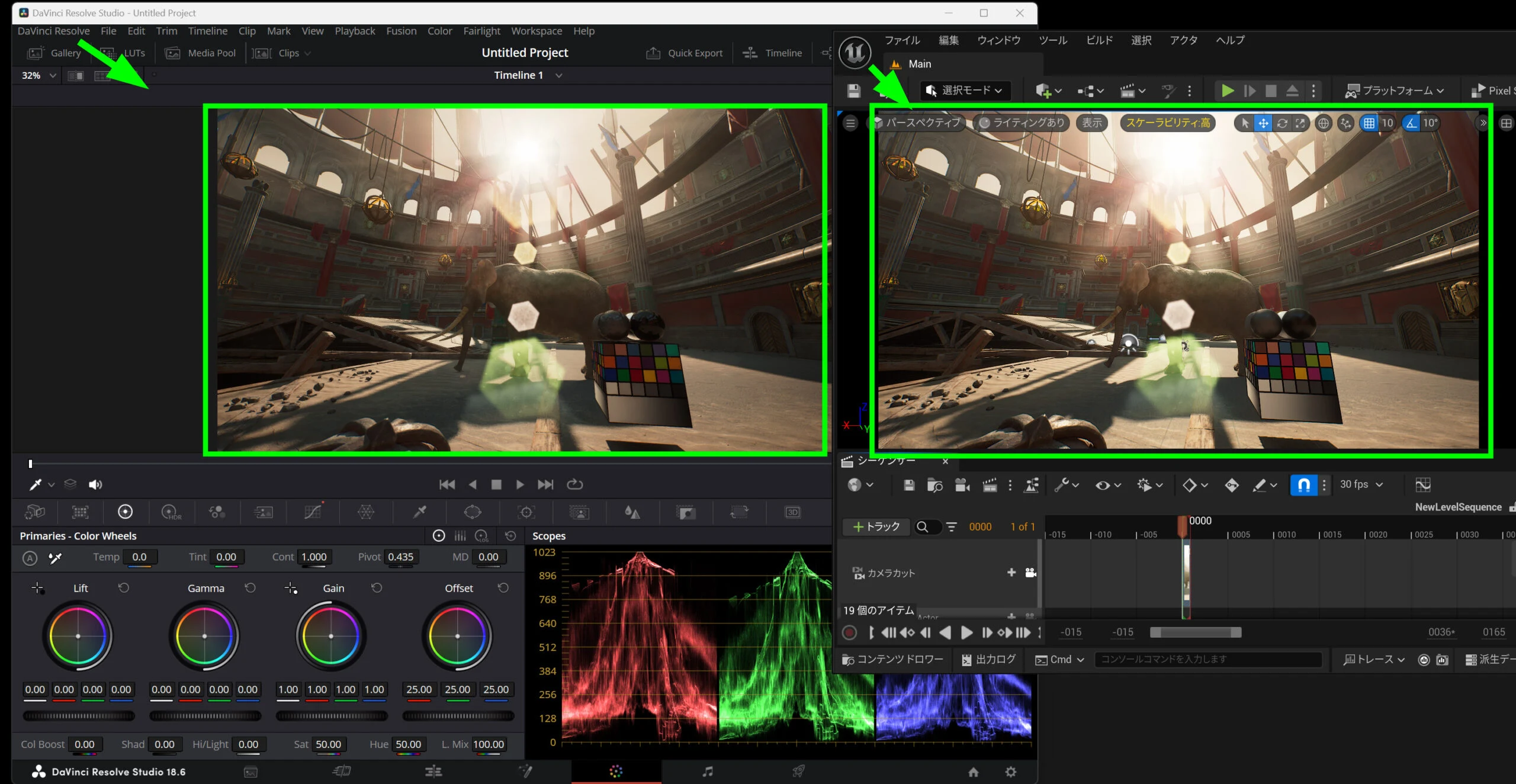
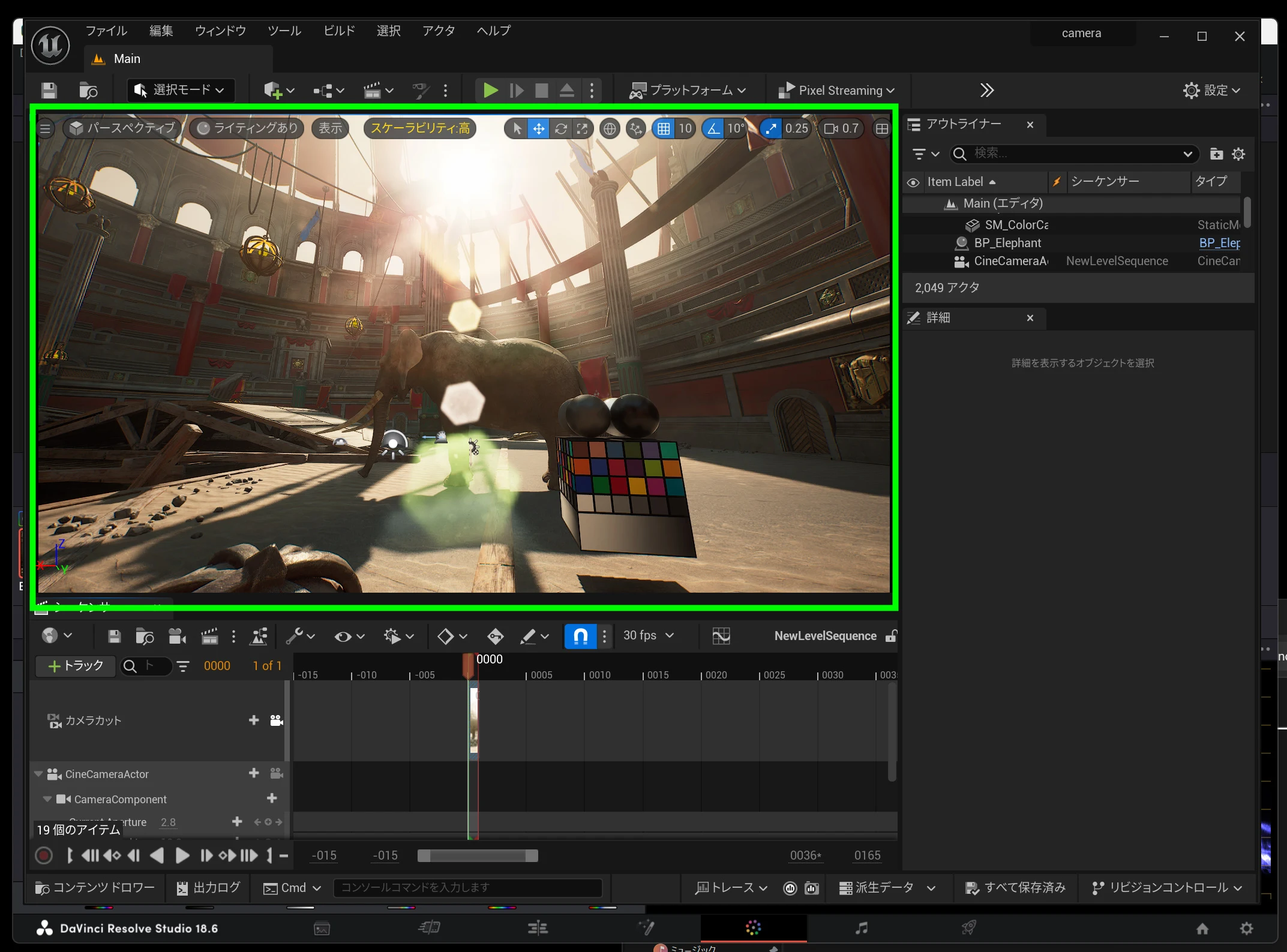 Next, I change the settings to display ST2084 as sRGB.
 DaVinci Resolve on the left and Unreal Engine 5 on the right reproduce almost the same colors. That suggests the two applications are managing the colors consistently.
 The workflow can therefore look like this.
- Export ST2084 from UE5: ST2084 is an HDR standard. Exporting footage with this setting creates intermediate files for further processing while retaining high contrast and rich colors.
- Hand over the intermediate: Pass it to Resolve or another color-grading application. Consistent color management between UE5 and Resolve is important to preserve color reproduction and minimize shifts between applications.
- Convert the color space: Resolve can receive ST2084 intermediate footage and convert it to another space, such as Rec. 709 or sRGB. Rec. 709 is a broadcast standard, while sRGB is used for the web and common displays. This conversion lets you adapt the image to the requirements of different distribution platforms and displays.
- Retain flexibility: Footage created in UE5 can then be adjusted to suit different color-space and dynamic-range requirements, allowing outputs optimized for particular platforms and viewing conditions.
Additional UE5 settings for higher-quality output
For high-quality output from UE5, I recommend considering Anti-Aliasing, Game Overrides, and High Resolution settings.
Anti-Aliasing reduces jagged or stair-stepped edges in the image and textures.
Game Overrides lets you override game settings during export to produce higher-quality footage.
These include shadow quality, texture resolution, view distance, and post-processing effects. Overrides can produce more detailed, refined visuals than the settings used for real-time rendering.
High Resolution lets you export beyond standard 1080p or 4K resolutions. Higher resolution can also mean larger files and longer renders, so consider the project's requirements and available resources.
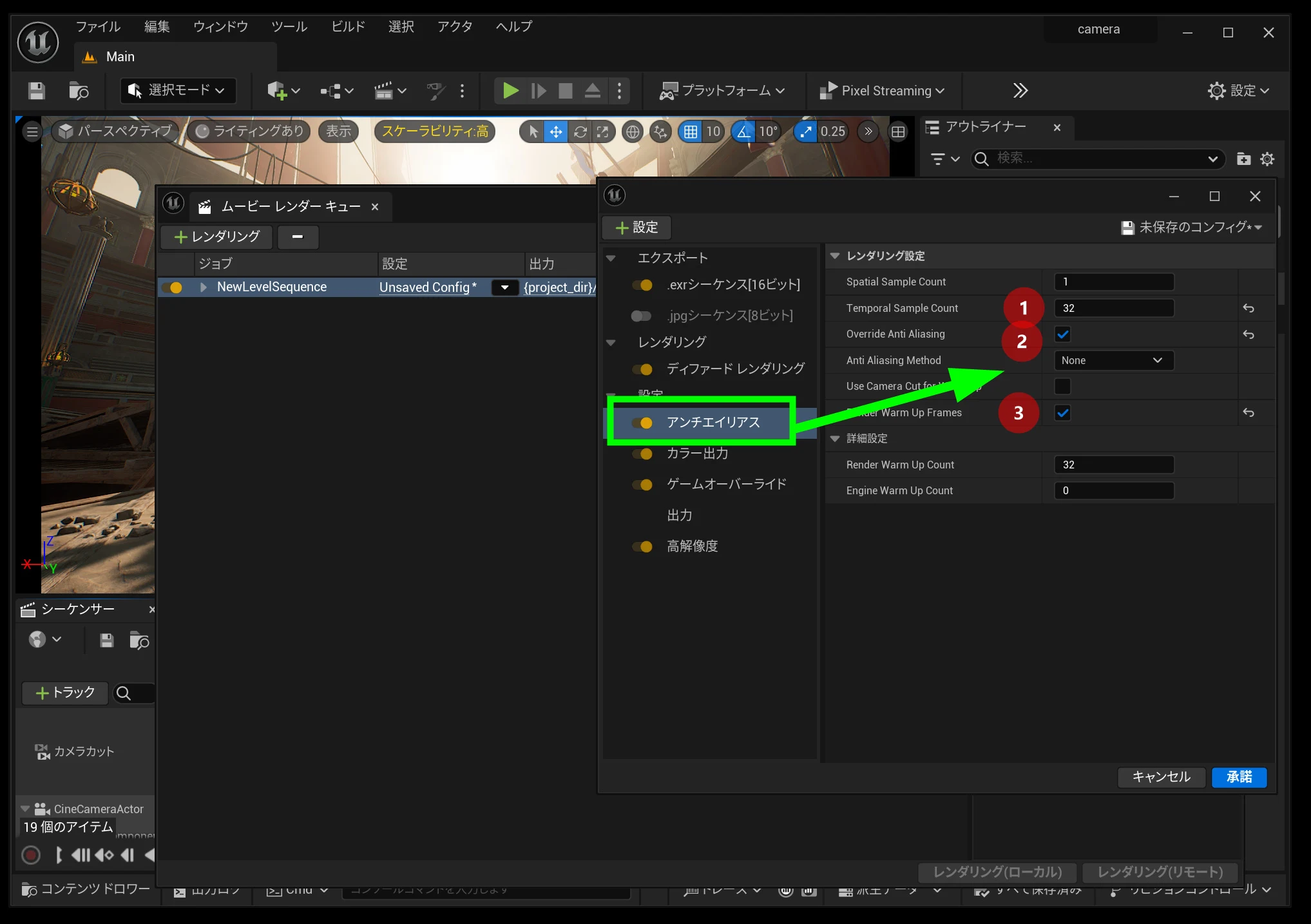
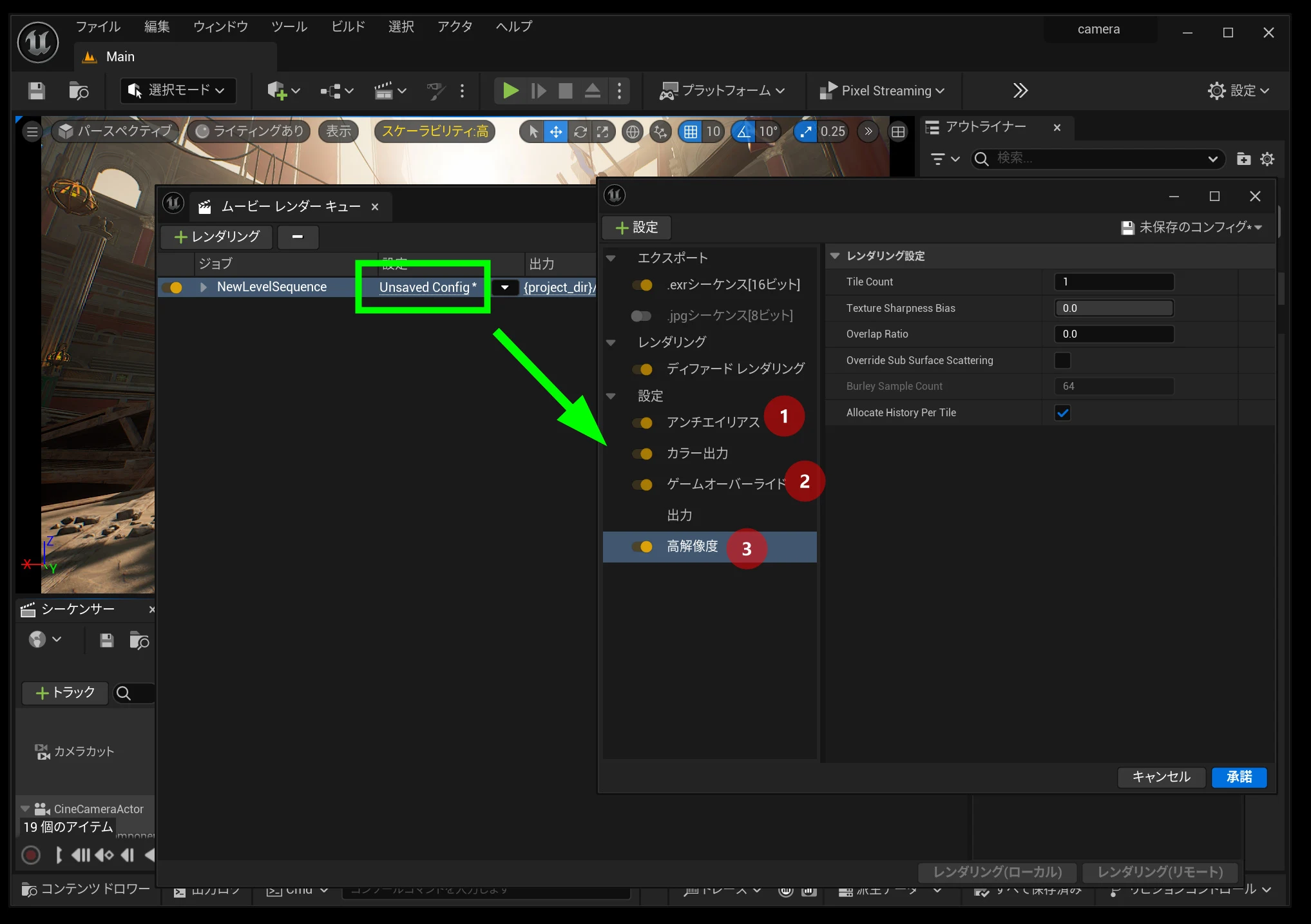 For anti-aliasing, I use temporal sampling at around 32, followed by the override settings. These choices depend on the scene, so research and adjust them as needed.
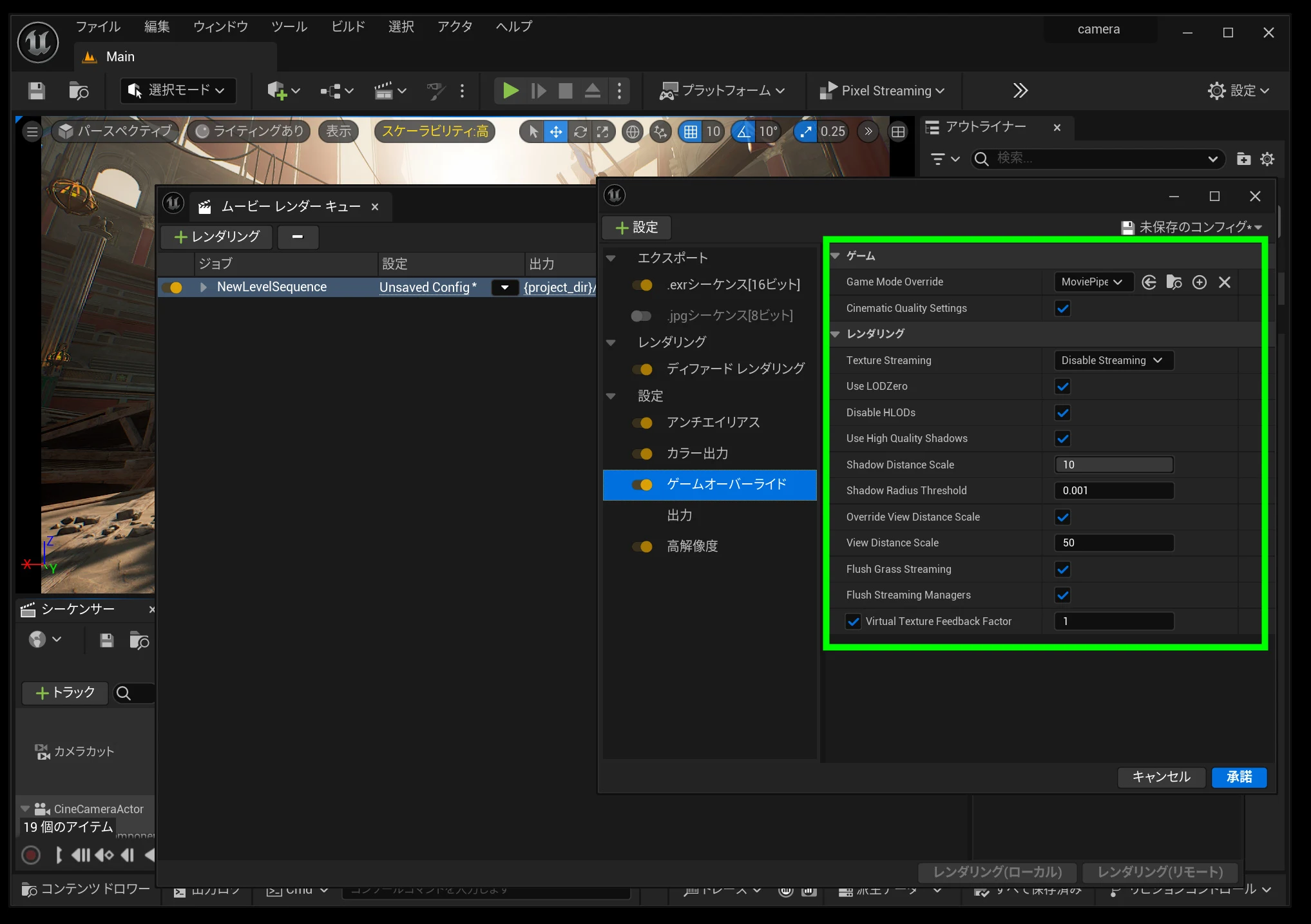
 Game Overrides is reportedly set to maximum quality by default. I leave the defaults here. I have not tested the effect of each setting individually.
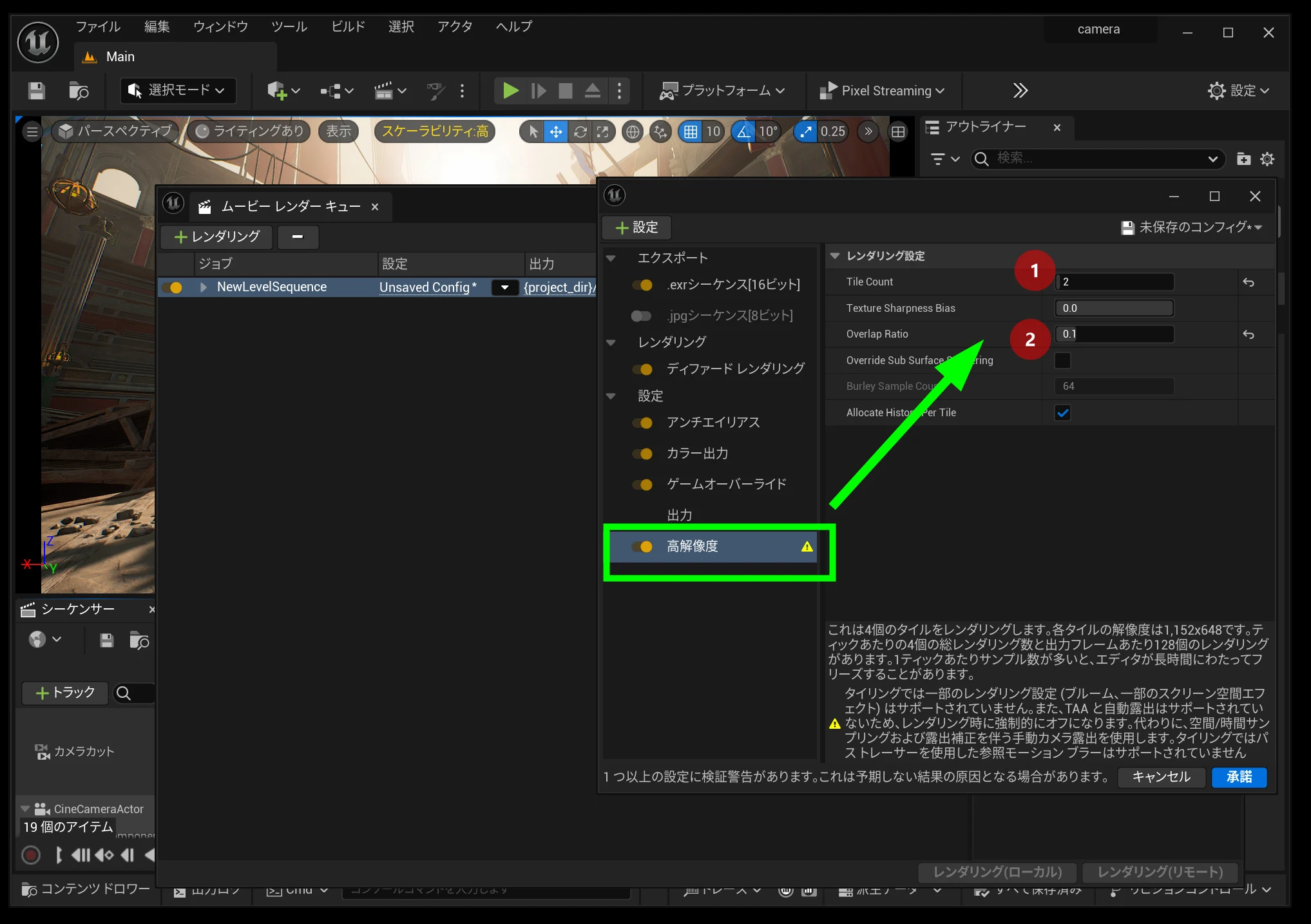
 High Resolution is especially useful when you need to go beyond standard 1080p or 4K. It is not always necessary if the output resolution is already fixed: for a 4K delivery, the standard 4K setting may be sufficient.
Tile Count determines how many pieces the image is rendered in. A count of 2 splits it in two along each axis, giving four rendered sections.
Overlap determines how much adjacent tiles overlap.
High Resolution is especially useful when you need to go beyond standard 1080p or 4K. It is not always necessary if the output resolution is already fixed: for a 4K delivery, the standard 4K setting may be sufficient.
Tile Count determines how many pieces the image is rendered in. A count of 2 splits it in two along each axis, giving four rendered sections.
Overlap determines how much adjacent tiles overlap.
The value ranges from 0 to 0.5. Zero means no overlap, and 0.5 means the sections overlap by half.
Overlap helps minimize visual mismatches at the tile boundaries.
An appropriate overlap value helps join the sections seamlessly.
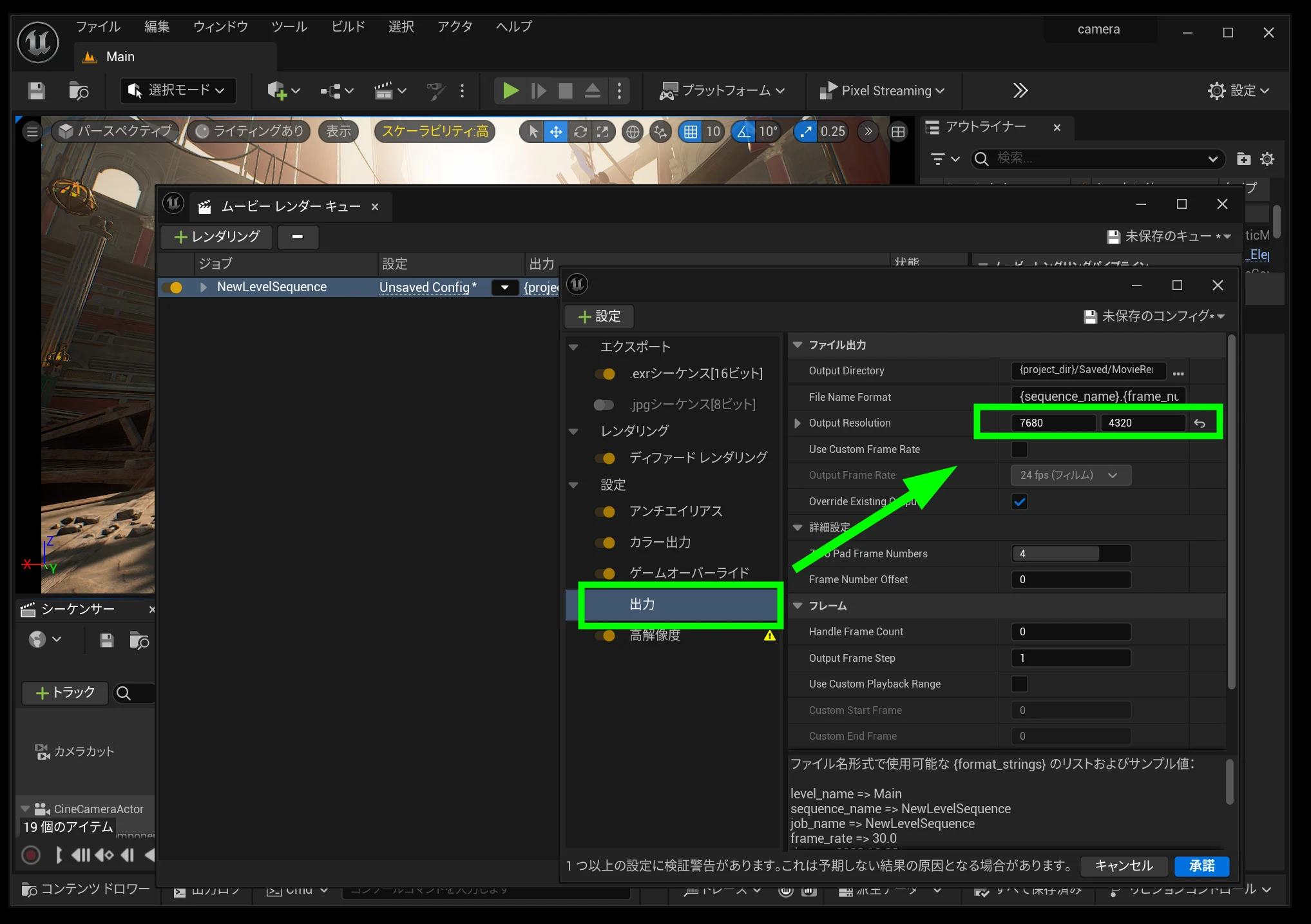
 Set the resolution under Output. My 8K render would not finish, so I actually used 4K: 3840 × 2160.
Compare image quality with the settings applied
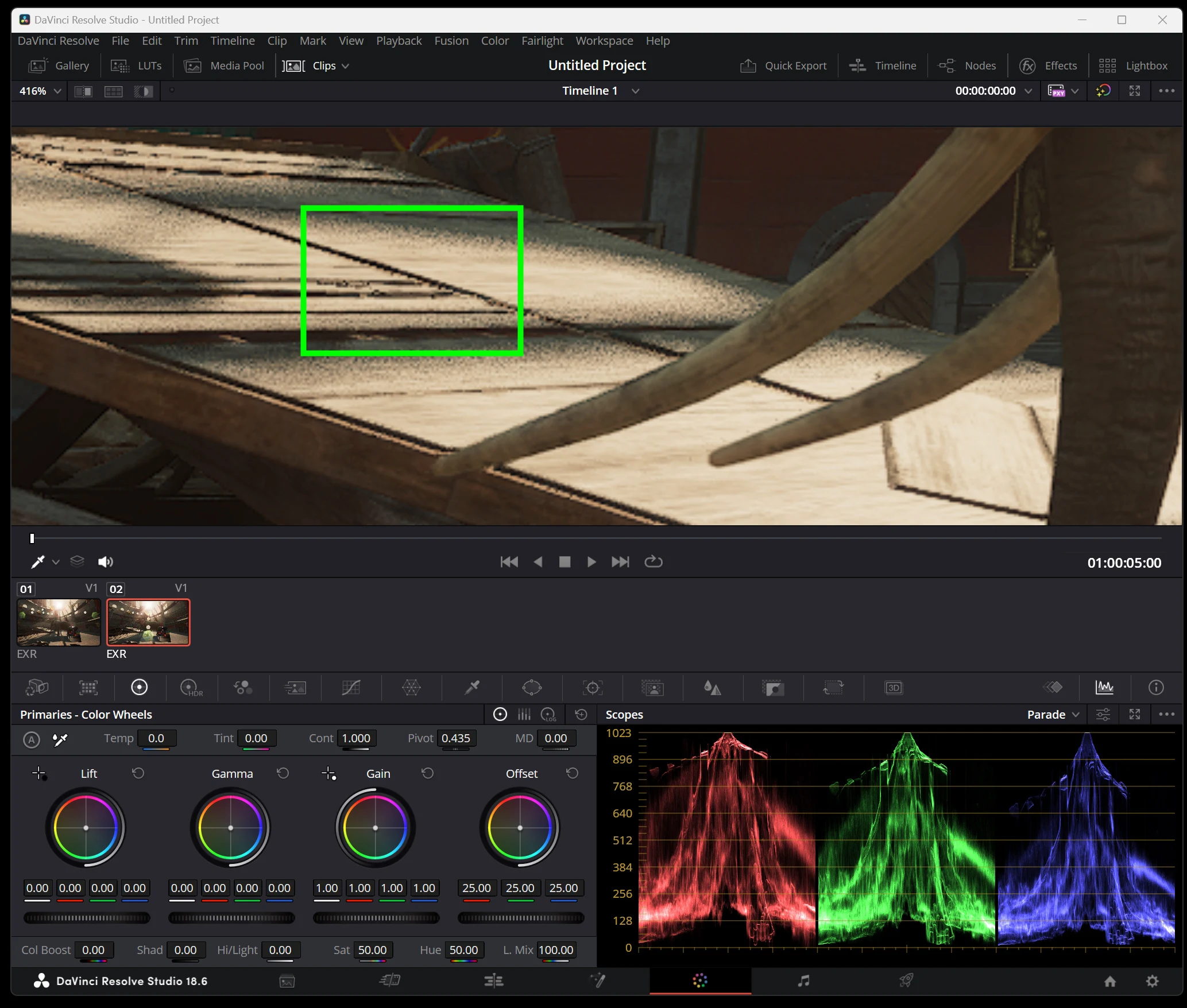
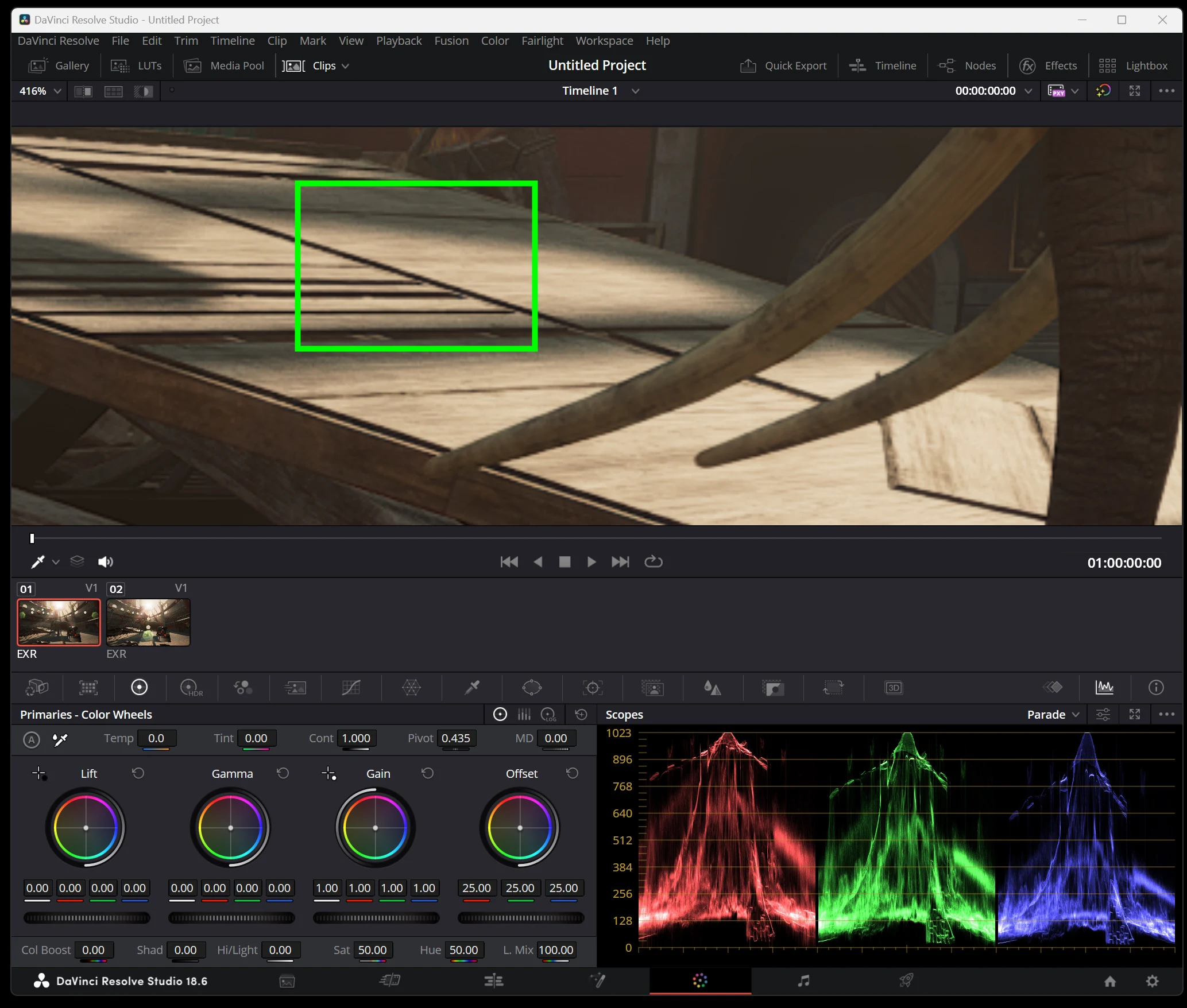
Here is the difference in output. The first image was exported without the extra settings; jagged edges and speckling are noticeable.
 The image with the settings applied is smoother.
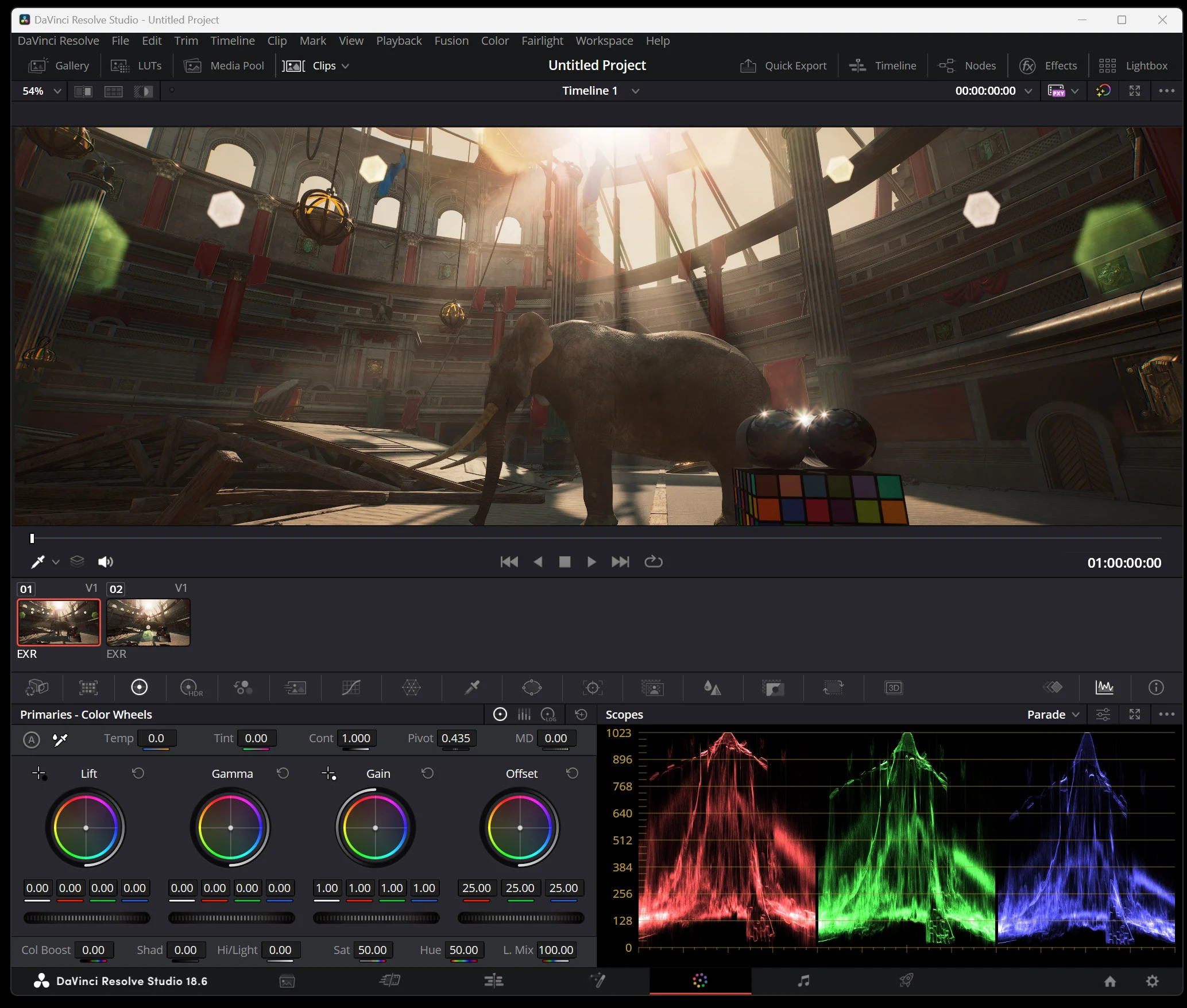
 The full view without the extra settings.
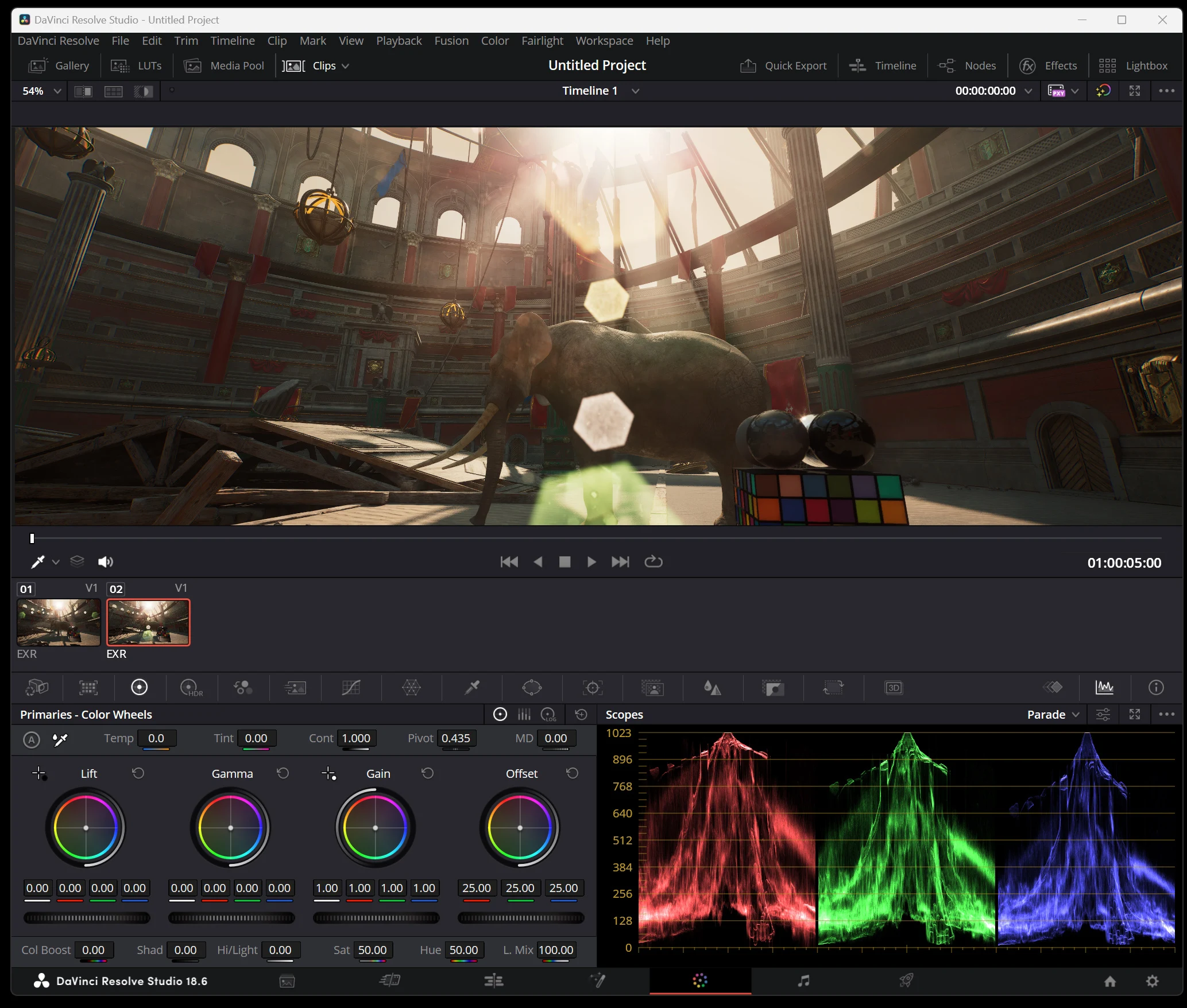 The full view with the settings. The lens flare is split left and right, possibly because of anti-aliasing or High Resolution. Issues like this need testing before a final export.
 Without the settings, the colors around the statue's ears look unnatural.
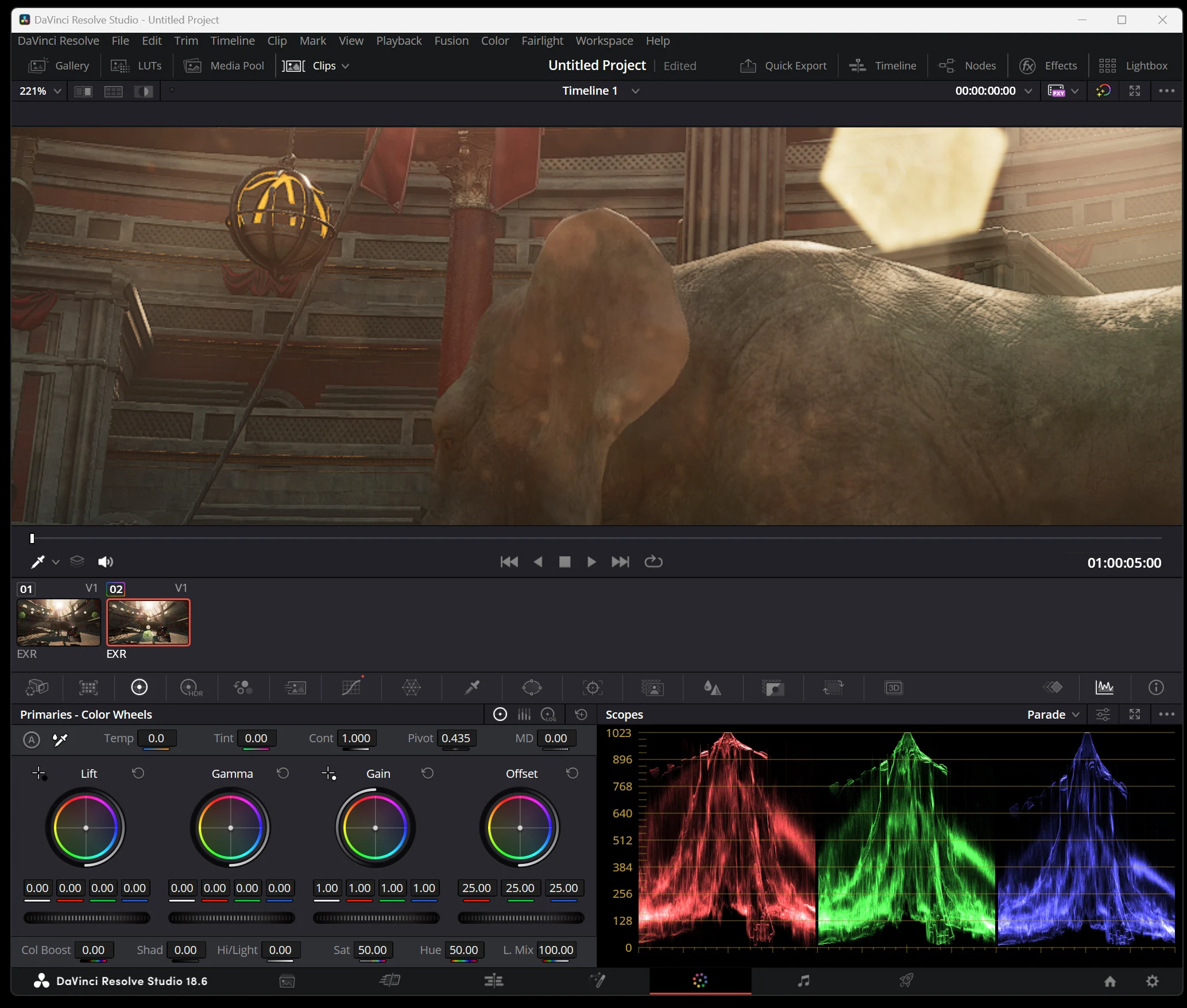 With the settings applied, they look more natural.
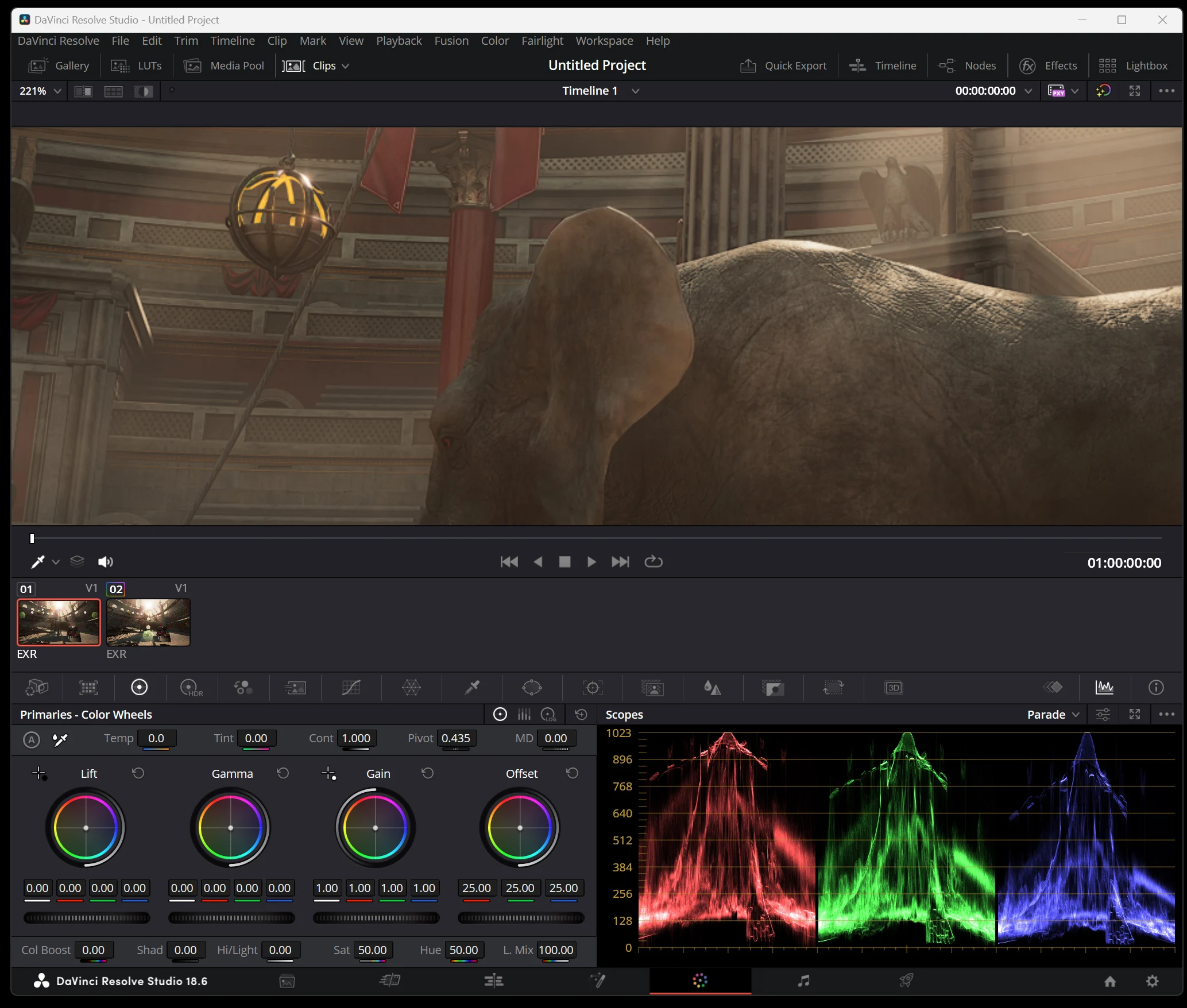 Exporting an image sequence produced footage usable as an intermediate. A happy ending.
Also consult these official resources.
OpenColorIO Quick Start
https://docs.unrealengine.com/5.3/ja/opencolorio-quick-start-for-unreal-engine/
Using UE5 Sequencer and Movie Render Queue
https://www.docswell.com/s/EpicGamesJapan/Z7V32W-cinematicdive-epic#p38
Related articles

Updates and contact: X @riragoncom.