Installing WireGuard on Ubuntu 24.04 and Ubuntu 22.04
A WireGuard setup walkthrough for Ubuntu, with a Windows client, forwarding rules, and the mistakes that prevented my connection. It also includes my workaround for switching between local and public endpoints.
Note: This article was published more than a year ago.
- Ubuntu kernels, package names, and recommended tools can change with LTS point releases. Compare these steps with the official WireGuard setup instructions.
- Key handling, firewalls, and NAT depend on your environment. Redesign a production configuration around your security requirements.
- The command examples assume Ubuntu 22.04-series systems. Paths and service names may differ on other releases.
Here I install WireGuard on Ubuntu 24.04 or Ubuntu 22.04. First, update the package list, upgrade the system, and automatically remove packages that are no longer needed.
sudo apt -y update refreshes the list of available packages.
sudo apt -y dist-upgrade upgrades the system's packages while accounting for dependency changes.
sudo apt -y autoremove automatically removes packages no longer required by the system.
sudo apt -y update && sudo apt -y dist-upgrade && sudo apt -y autoremove
Install the WireGuard VPN software.
sudo apt -y install wireguard
Switch to administrative privileges. Some may prefer sudo -i; consider the security implications for your environment.
sudo su
Go to the WireGuard directory.
cd /etc/wireguard
Set umask 077. This determines permissions for newly created files and directories in the current shell session. Here it restricts access to root, keeping other users from accessing WireGuard's private key and configuration files.
umask 077
Generate the private and public keys.
wg genkey | tee privatekey | wg pubkey > publickey
Display both keys. Copy or record them for use later. I will refer to these as the server private key and server public key.
cat privatekey
cat publickey
Next, open /etc/sysctl.d/99-sysctl.conf in nano, vim, or another editor, and remove the comment marker # from the beginning of the net.ipv4.ip_forward line. The sed command below does the same thing.
sed -i '/^#net\.ipv4\.ip_forward/s/^#//' /etc/sysctl.d/99-sysctl.conf
Now create /etc/wireguard/wg0.conf by opening it in nano. I will not explain nano's operation here.
nano /etc/wireguard/wg0.conf
Paste the following configuration.
Adjust Address and the other values as needed.
This is the WireGuard server's IP address.
In PostUp and PostDown, the NAT rules and FORWARD-chain rules allow traffic received on the WireGuard interface to be forwarded through another interface, eth0 in this example.
This lets VPN clients access other networks through the server.
Replace eth0 with the network interface you actually use.
[Peer] contains the client settings that will be added later.
Use ip a or a similar command to check the name of the LAN interface in use.
It can vary considerably by PC, for example enp2s0.
Replace eth0 in the iptables commands below with that interface name.
[Interface]
Address = 10.1.0.1
ListenPort = 51820
PrivateKey = <サーバー側のprivatekey>
PostUp = iptables -A FORWARD -i %i -o eth0 -j ACCEPT; iptables -A FORWARD -i eth0 -o %i -j ACCEPT; iptables -t nat -A POSTROUTING -o eth0 -j MASQUERADE
PostDown = iptables -D FORWARD -i %i -o eth0 -j ACCEPT; iptables -D FORWARD -i eth0 -o %i -j ACCEPT; iptables -t nat -D POSTROUTING -o eth0 -j MASQUERADE

[Peer]
PublicKey = <クライアント側のpublickey>
AllowedIPs = 10.1.0.2/32
Start the WireGuard VPN interface wg0 using /etc/wireguard/wg0.conf. Check that the interface and iptables rules have been configured correctly.
wg-quick up wg0
ip addr show dev wg0
iptables -S
Enable automatic startup at boot and check it.
systemctl enable wg-quick@wg0
systemctl is-enabled wg-quick@wg0
Uncomment net.ipv4.ip_forward=1 in /etc/sysctl.conf to enable IP forwarding.
sudo sed -i 's/^#\(net\.ipv4\.ip_forward=1\)/\1/' /etc/sysctl.conf
sudo sysctl -p
Reboot and check WireGuard's status.
reboot
sudo wg
Configure ufw and other networking settings for your environment, including allowing ListenPort 51820. I will not cover that in detail because real environments vary widely.
sudo ufw allow 51820
Next, prepare the client. Ubuntu can be used, but Windows is easier for this example, so install WireGuard on Windows. For an Ubuntu client, installing WireGuard and adding the following configuration to /etc/wireguard/wg0.conf should work.
https://www.wireguard.com/install/
Choose Add Tunnel, then add an empty tunnel. This generates the client private key and client public key. The values shown below are unused, which is why I have published them; actual private keys must not be made public.
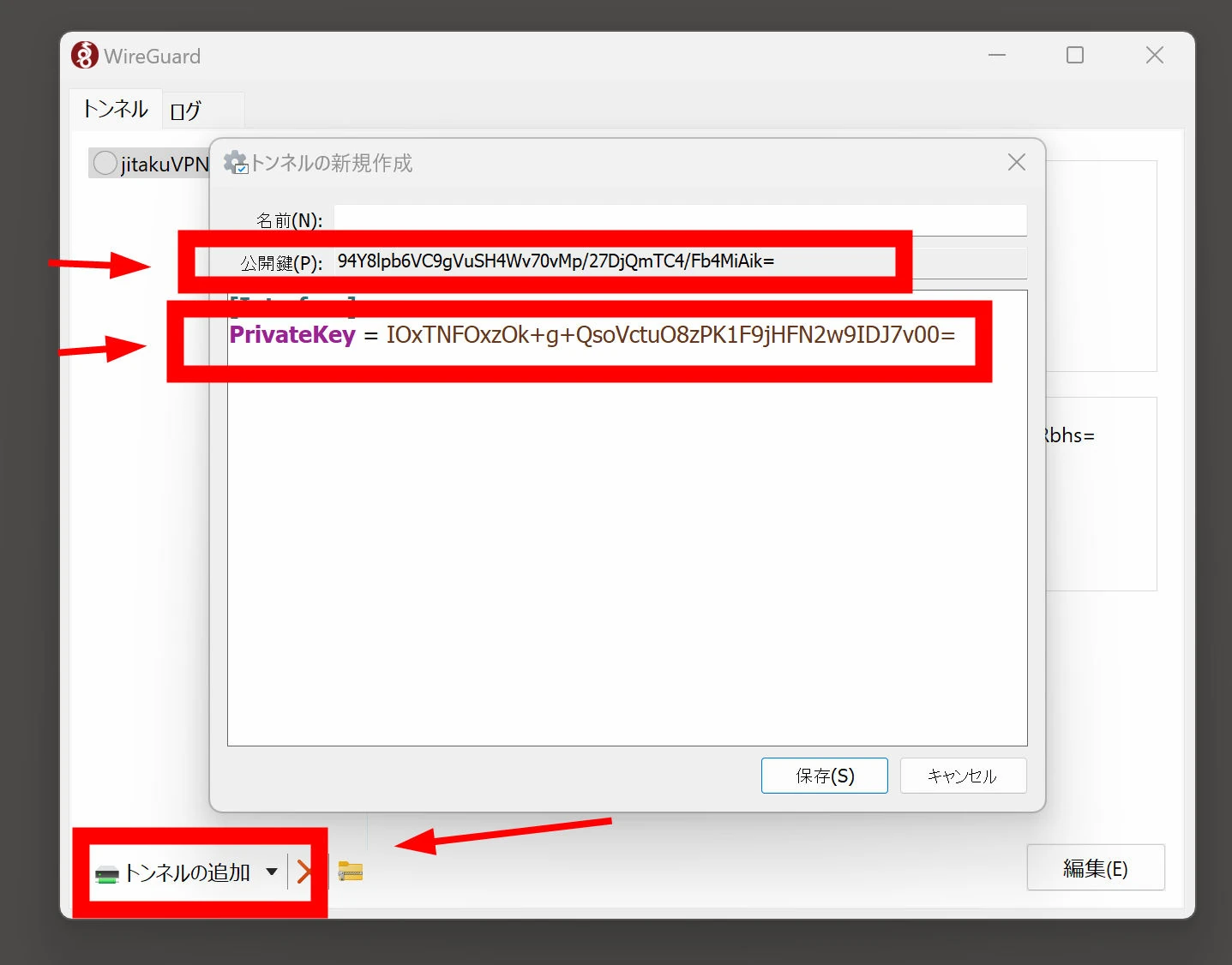 For example, configure it as follows, adding Address and the subsequent lines.
[Interface]
PrivateKey = <クライアント側のprivatekey>
Address = 10.1.0.2/32

[Peer]
PublicKey = <サーバー側のpublickey>
AllowedIPs = 10.1.0.0/24
Endpoint = <サーバー側のIP>:51820
PersistentKeepalive = 25
Return to the server, open wg0.conf, and add the client's settings under [Peer], using the client public key. Add another [Peer] section for each additional client.
nano /etc/wireguard/wg0.conf
[Interface]
Address = 10.1.0.1
ListenPort = 51820
PrivateKey = <サーバー側のprivatekey>
PostUp = iptables -A FORWARD -i %i -o eth0 -j ACCEPT; iptables -A FORWARD -i eth0 -o %i -j ACCEPT; iptables -t nat -A POSTROUTING -o eth0 -j MASQUERADE
PostDown = iptables -D FORWARD -i %i -o eth0 -j ACCEPT; iptables -D FORWARD -i eth0 -o %i -j ACCEPT; iptables -t nat -D POSTROUTING -o eth0 -j MASQUERADE

[Peer]
PublicKey = <クライアント側のpublickey>
AllowedIPs = 10.1.0.2/32
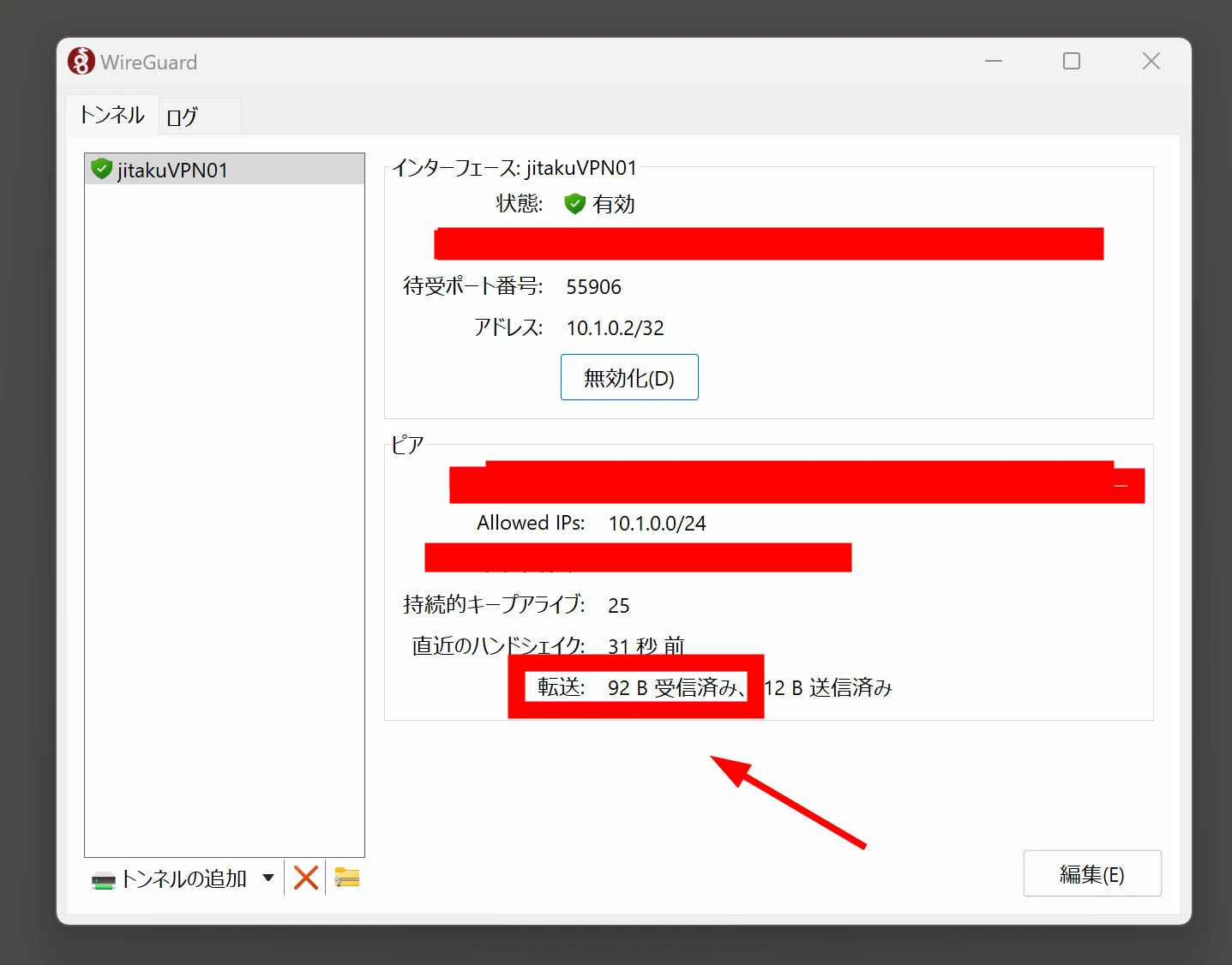
Connect the VPN on Windows. If the received-data counter shows any traffic, it has connected. If it remains at zero, something is wrong.
 Port opening and forwarding are necessary. Connection failures are often caused by incorrect settings there. I would like to cover them here, but router models, fixed-IP setups, AWS, and other server environments differ greatly, so configure them for your own setup.
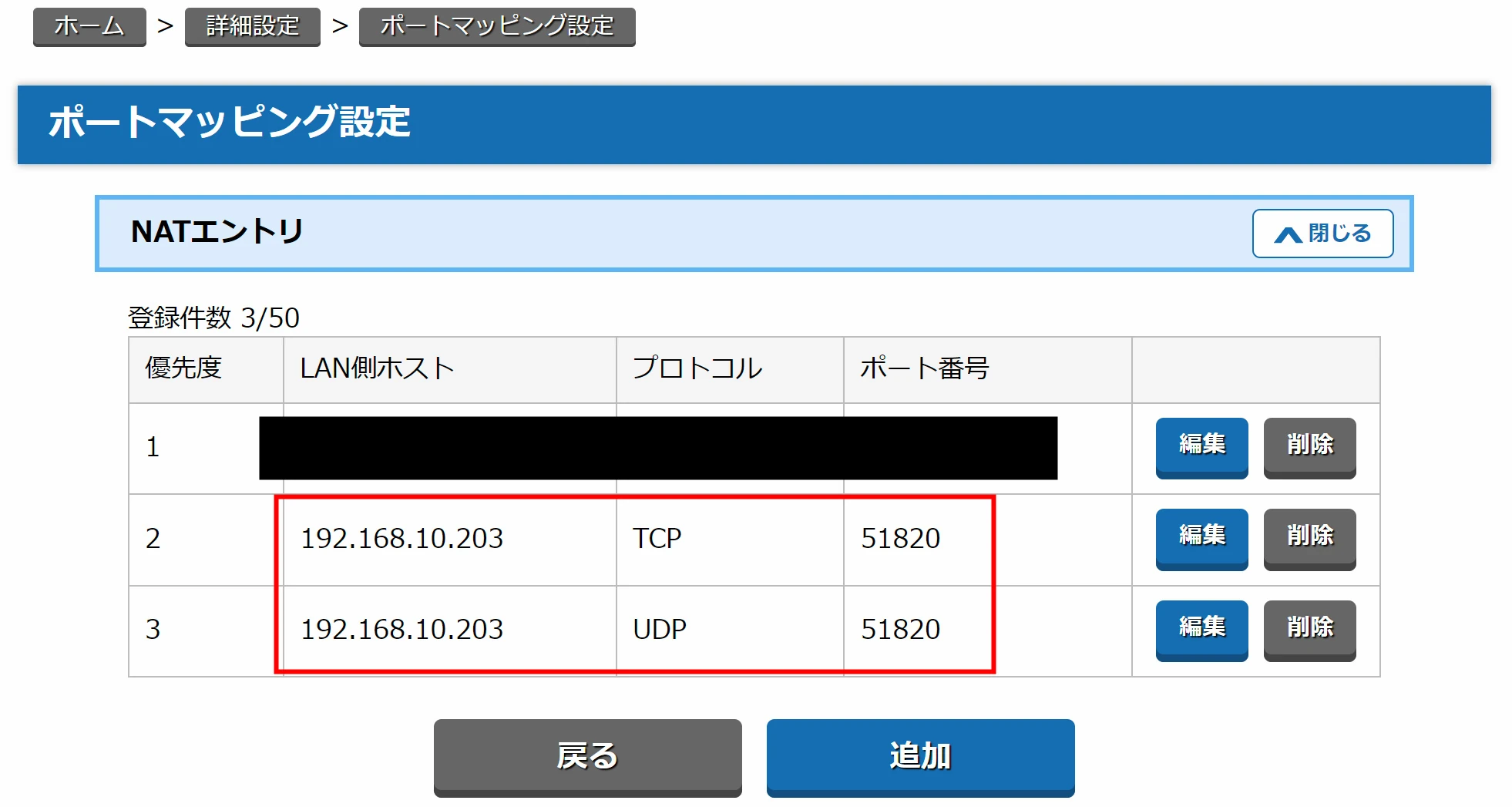
On my home router, for example, the following NAT entry forwards traffic arriving on port 51820 to 192.168.10.203.
I spent around ten hours trying to understand why this setup would not connect. The causes were:
Port opening and forwarding are necessary. Connection failures are often caused by incorrect settings there. I would like to cover them here, but router models, fixed-IP setups, AWS, and other server environments differ greatly, so configure them for your own setup.
On my home router, for example, the following NAT entry forwards traffic arriving on port 51820 to 192.168.10.203.
I spent around ten hours trying to understand why this setup would not connect. The causes were:
- I wrote eth0 in PostUp and PostDown, but the server's actual network interface was eno1.
- I entered 51280 instead of port 51820. It is surprisingly easy to overlook.
I also found that local devices could not connect to the WireGuard server at home. Devices on the same physical network could not use its externally published IP address, such as the VPN server's public IP, to reach the server inside that network. NAT loopback, or hairpin NAT, can address this on the router, but my home router has no such feature. I therefore added the following entry to the hosts file at C:\Windows\System32\drivers\etc\hosts.
192.168.10.21 myvpnserver.local
I then set the endpoint as follows to connect directly to the WireGuard server.
Endpoint = myvpnserver.local:51820
That connected successfully. Thinking about it, I could have simply used the following without a hosts-file entry.
Endpoint = 192.168.10.21:51820
However, that means changing the settings every time I move between the local network and the outside internet, which is very inconvenient. The following workaround automated the change. I doubt it is the best approach, but it does switch automatically for now. Adjust the username, directories, and file locations to your environment.
sudo nano /home/riragon/wgchange.sh
#!/bin/bash

# 設定項目
LOCAL_IP="***********:51820"          # サーバーのローカルIPとポート
PUBLIC_IP="***********:51820"        # サーバーのパブリックIPとポート
WG_INTERFACE="wg0"                      # WireGuardインターフェース名
SERVER_PUB_KEY="***********+**********************************"  # サーバー側のpublickey

# ログファイルの設定
LOG_FILE="/var/log/wgchange.log"

# 現在の日時をログに記録
echo "$(date '+%Y-%m-%d %H:%M:%S') - スクリプト開始" >> $LOG_FILE

# ネットワーク内にルーターがいるか確認 # サーバーのローカルIPを***********に入れる
if ping -c 1 -W 1 *********** >/dev/null 2>&1; then
    # ローカルネットワーク内
    ENDPOINT=$LOCAL_IP
    echo "$(date '+%Y-%m-%d %H:%M:%S') - ローカルネットワークと判断。エンドポイントを $ENDPOINT に設定します。" >> $LOG_FILE
else
    # 外部ネットワーク
    ENDPOINT=$PUBLIC_IP
    echo "$(date '+%Y-%m-%d %H:%M:%S') - 外部ネットワークと判断。エンドポイントを $ENDPOINT に設定します。" >> $LOG_FILE
fi

# WireGuardの設定を変更
wg set $WG_INTERFACE peer $SERVER_PUB_KEY endpoint $ENDPOINT
if [ $? -eq 0 ]; then
    echo "$(date '+%Y-%m-%d %H:%M:%S') - WireGuardのエンドポイントを $ENDPOINT に設定しました。" >> $LOG_FILE
else
    echo "$(date '+%Y-%m-%d %H:%M:%S') - WireGuardのエンドポイント設定に失敗しました。" >> $LOG_FILE
    exit 1
fi

echo "$(date '+%Y-%m-%d %H:%M:%S') - スクリプト終了" >> $LOG_FILE
Set the permissions.
sudo chmod +x /home/riragon/wgchange.sh
Set the log permissions.
sudo touch /var/log/wgchange.log
sudo chmod 644 /var/log/wgchange.log
sudo chown root:root /var/log/wgchange.log
Create a service.
sudo nano /etc/systemd/system/wgchange.service
Run it with administrative privileges.
[Unit]
Description=WireGuard Endpoint Change Service
After=network-online.target
Wants=network-online.target

[Service]
Type=oneshot
ExecStart=/home/riragon/wgchange.sh
RemainAfterExit=true

[Install]
WantedBy=multi-user.target
Enable automatic service startup.
sudo systemctl daemon-reload
sudo systemctl enable wgchange.service
sudo systemctl start wgchange.service
sudo systemctl status wgchange.service
The following script determines whether the connection is local and switches the endpoint accordingly.
● wgchange.service - WireGuard Endpoint Change Service
Loaded: loaded (/etc/systemd/system/wgchange.service; enabled; vendor preset: enabled)
Active: active (exited) since Mon 2024-11-04 10:50:00 JST; 1s ago
Process: 12345 ExecStart=/home/riragon/wgchange.sh (code=exited, status=0/SUCCESS)
Main PID: 12345 (code=exited, status=0/SUCCESS)
2024-11-04 10:50:00 - スクリプト開始
2024-11-04 10:50:00 - ローカルネットワークと判断。エンドポイントを 192.168.10.203:51820 に設定します。
2024-11-04 10:50:00 - WireGuardのエンドポイントを 192.168.10.203:51820 に設定しました。
2024-11-04 10:50:00 - スクリプト終了
That is the script for automatically identifying the IP situation and switching the endpoint. Whether this is a good approach is debatable. It may make the cause harder to identify if something goes wrong.
Related articles



Updates and contact: X @riragoncom.