Installing GStreamer and setting up SRT on Ubuntu 22.04
Install GStreamer on Ubuntu 22.04 and configure SRT streaming. GStreamer processes multimedia such as audio and video, while SRT is an open-source transport protocol for reliable, low-latency video transmission.
Note: This article was first published more than a year ago.
- Plugin names, package splits, and recommended GStreamer versions change in distributions and upstream releases. Recheck the Ubuntu and GStreamer documentation.
- Recommended SRT parameters and toolchains are affected by specification updates. Verify compatible versions at both sender and receiver.
- These command examples assume Ubuntu 22.04. Package names may differ elsewhere.
This walkthrough installs GStreamer on Ubuntu 22.04 and configures it to use SRT.
GStreamer is a multimedia framework for processing audio, video, and other media.
SRT is an open-source transport protocol designed for reliable, low-latency video streaming.
Broadly speaking, this serves a similar purpose to using FFmpeg and RTMP. Both offer comparable capabilities, but personally I lean toward GStreamer for live streaming. Its pipelines can be difficult to understand, which puts people off. The following is also worth reading.
https://github.com/Haivision/srt.git
Installing SRT on Ubuntu 22.04
There appear to be ways to include SRT within GStreamer or install it system-wide. The system-wide approach looked easier, so that is what I used. Start with the usual Ubuntu updates.
sudo apt update
sudo apt upgrade
Install the dependencies needed to build SRT, including build tools, libraries, scripting tools, and package-configuration utilities. This is a fairly standard dependency installation. Install Git too.
sudo apt install tclsh pkg-config cmake libssl-dev build-essential
sudo apt install git
Clone the SRT repository from GitHub, create a build directory, and enter it. Configure the build with CMake; the two dots refer to the parent directory.
git clone https://github.com/Haivision/srt.git
cd srt
mkdir build
cd build
cmake ..
make
sudo make install
Set the environment variable so that the system can locate shared libraries in /usr/local/lib. Add the setting to .bashrc and apply it to the shell.
echo 'export LD_LIBRARY_PATH=/usr/local/lib:$LD_LIBRARY_PATH' >> ~/.bashrc
source ~/.bashrc
sudo ldconfig
SRT is now installed.
Installing GStreamer on Ubuntu 22.04
Install GStreamer along with its tools and plugins. These support playback, encoding, and streaming in various media formats. SRT support is provided by gstreamer1.0-plugins-bad.
sudo apt-get install gstreamer1.0-tools gstreamer1.0-plugins-base gstreamer1.0-plugins-good gstreamer1.0-plugins-bad gstreamer1.0-plugins-ugly
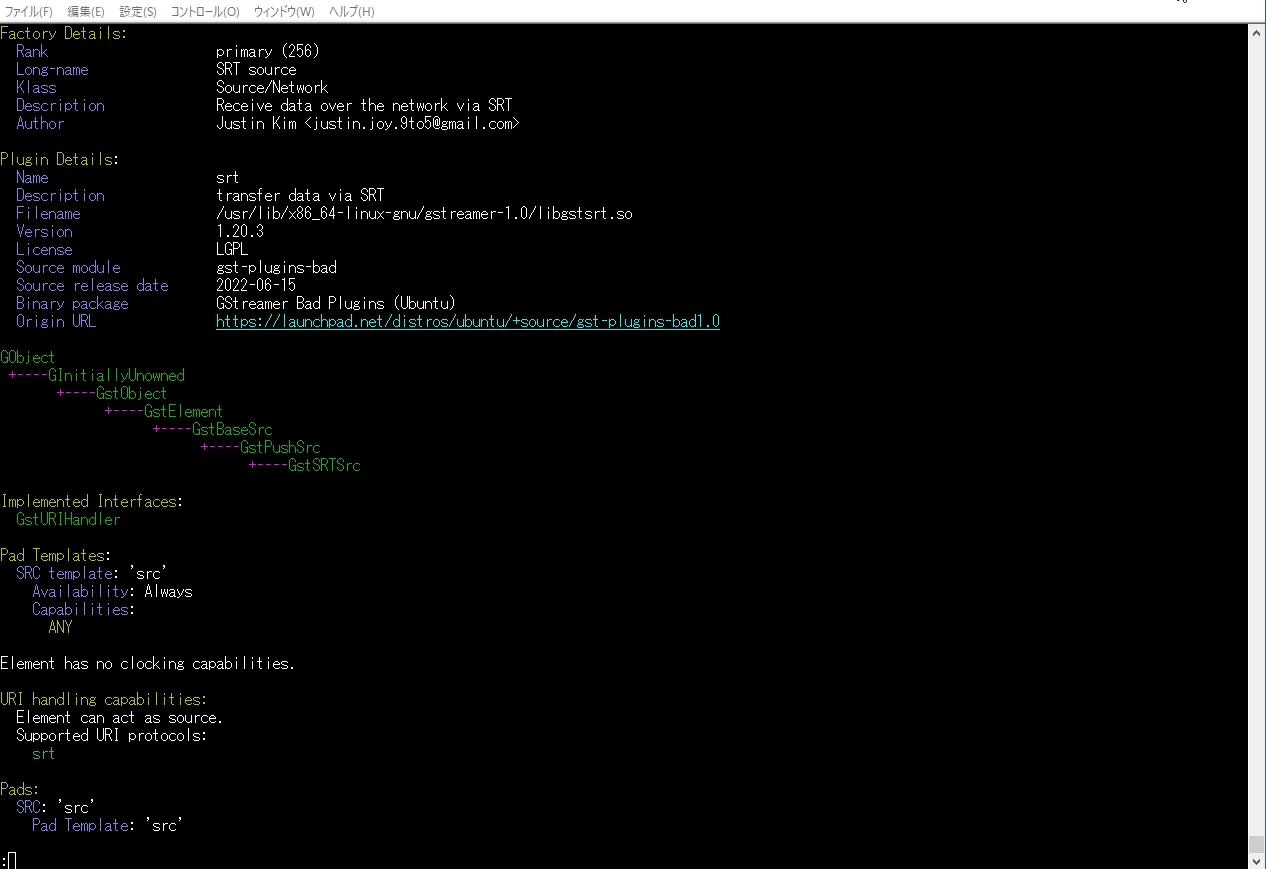
Update the system library cache with ldconfig so that the new libraries are recognized. Check SRT installation with the following command.
sudo ldconfig
gst-inspect-1.0 srtsrc
gst-inspect-1.0 srtsink
 I connected an ordinary USB camera. The commands below identify the device shown as HD USB Camera and use it in the settings. Your camera may differ, so treat this as an example.
Related USB camera listings: Search Amazon for USB cameras (Ad)
lsusb
Bus 001 Device 002: ID 32e4:9230 HD USB Camera HD USB Camera
lsusb -v -d 32e4:9230
udevadm info -q all -n /dev/bus/usb/001/002
dmesg | grep -i usb
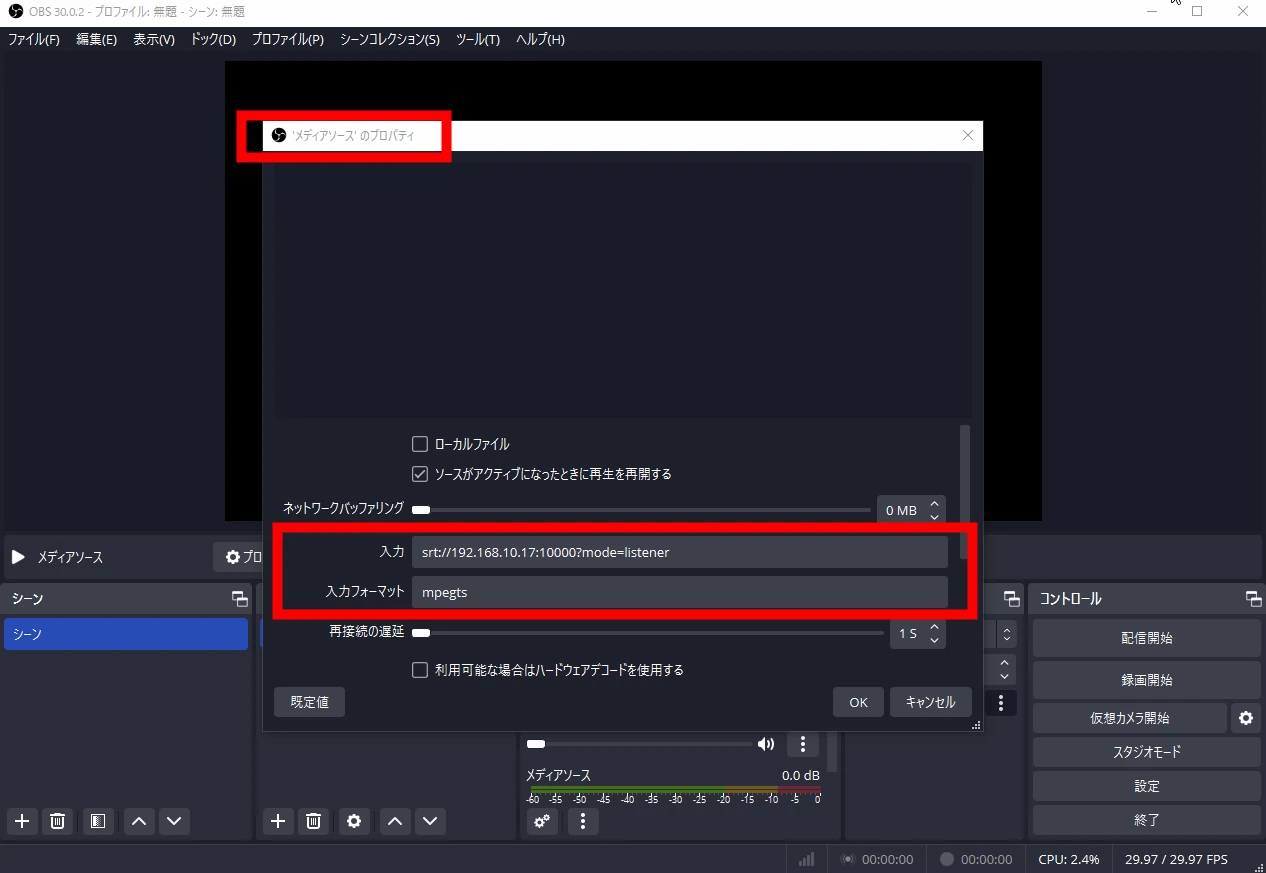
Set up the SRT receiver. I used OBS on another PC, with the address 192.168.10.17. Start OBS and configure a Media Source to receive SRT.
srt://192.168.10.17:10000?mode=listener
mpegts
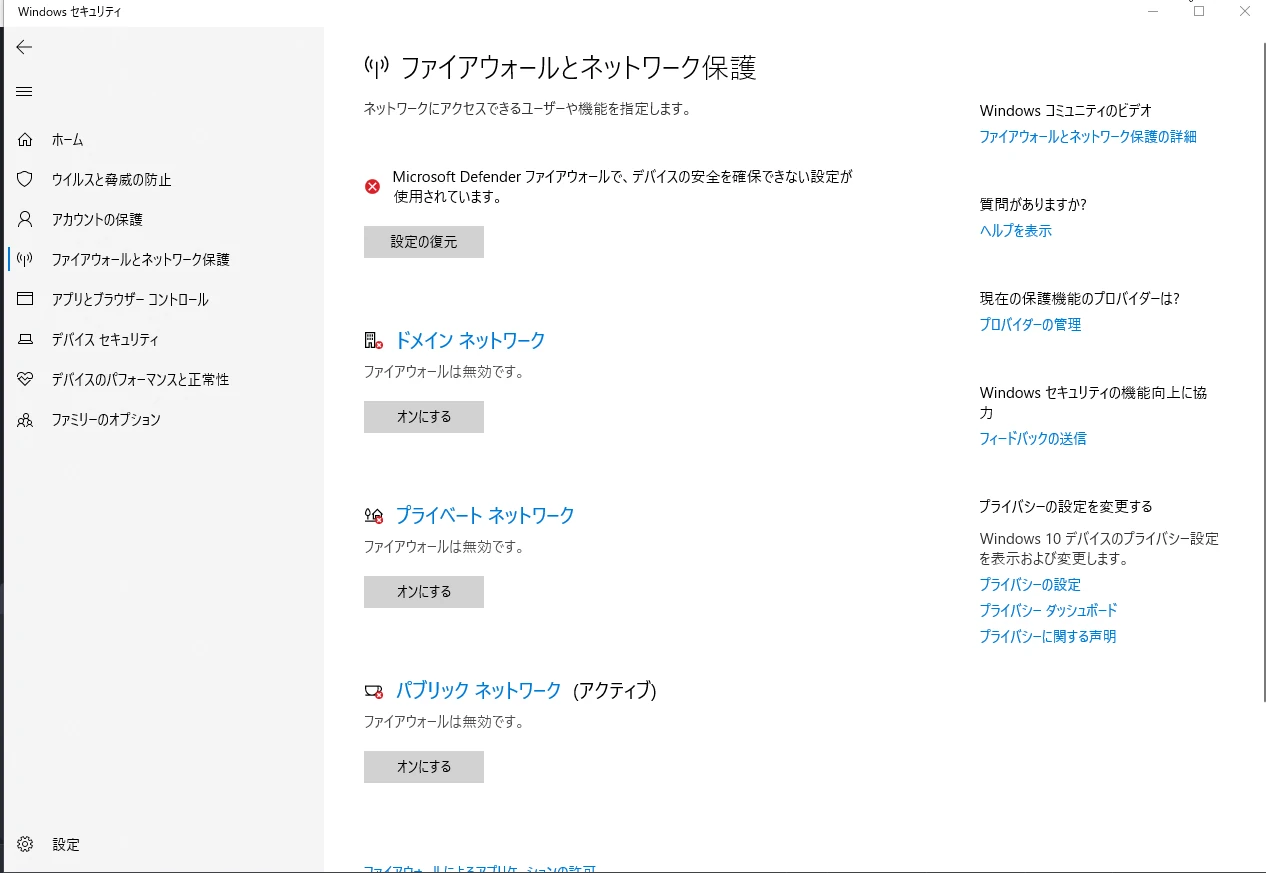
 Security software can block communication, so this walkthrough suggests temporarily turning off the Windows protection settings for the connection test.
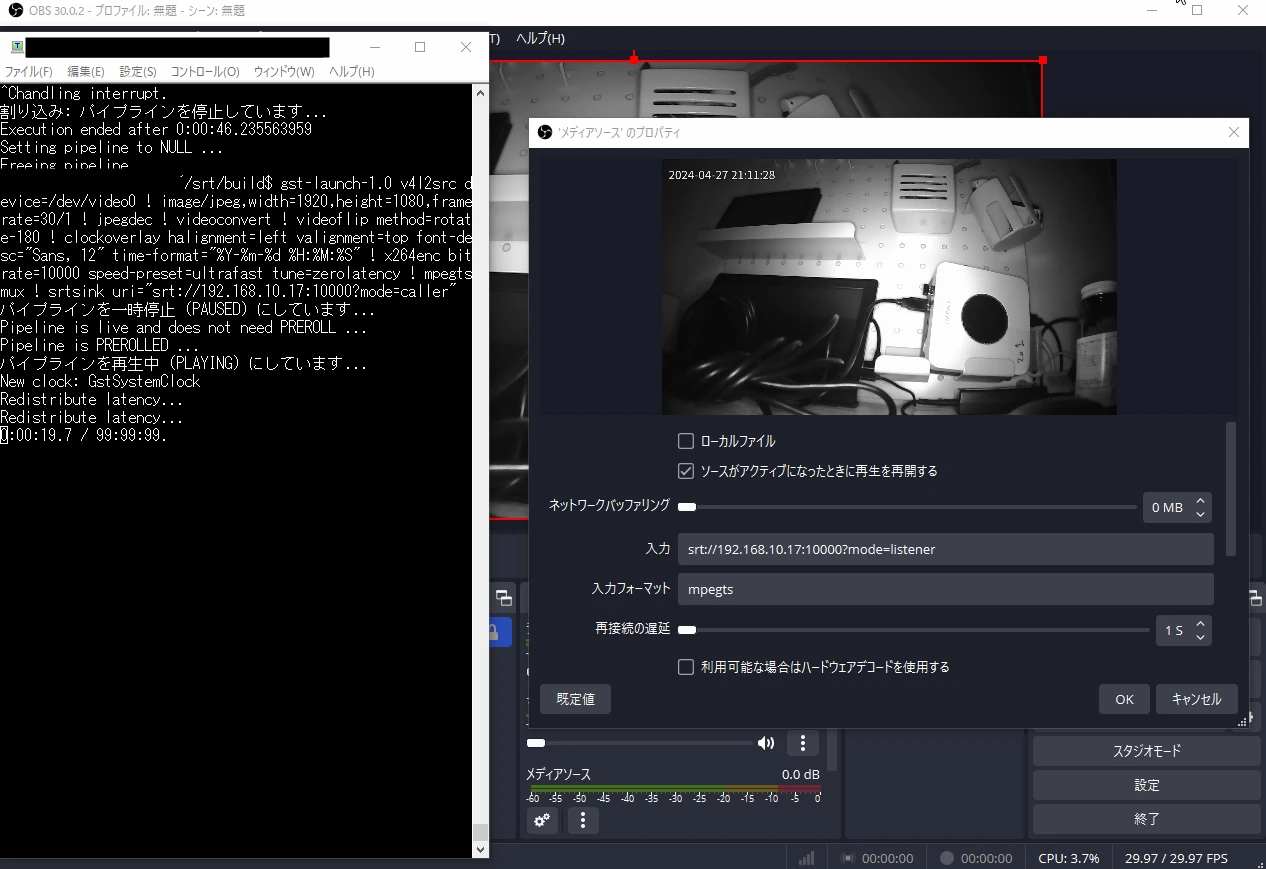
 Return to Ubuntu 22.04 and test the command below. The USB camera is recognized as /dev/video0, and the stream is sent to port 10000 at 192.168.10.17. You should be able to check reception.
gst-launch-1.0 v4l2src device=/dev/video0 ! image/jpeg,width=1920,height=1080,framerate=30/1 ! jpegdec ! videoconvert ! x264enc bitrate=10000 speed-preset=ultrafast tune=zerolatency ! mpegtsmux ! srtsink uri="srt://192.168.10.17:10000?mode=caller"
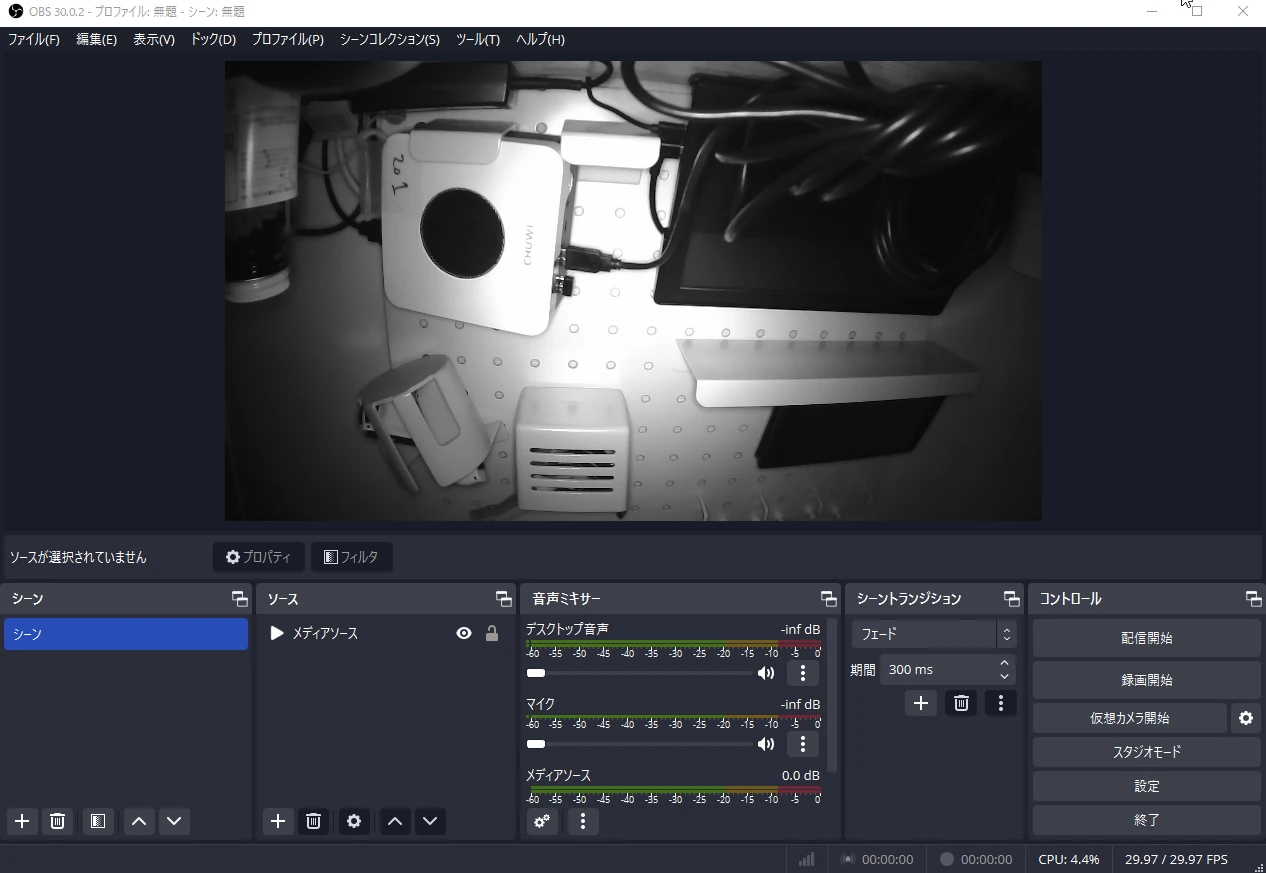 Once reception worked, I customized the pipeline a little, adding the current time and rotating the camera image by 180 degrees.
gst-launch-1.0 v4l2src device=/dev/video0 ! image/jpeg,width=1920,height=1080,framerate=30/1 ! jpegdec ! videoconvert ! videoflip method=rotate-180 ! clockoverlay halignment=left valignment=top font-desc="Sans, 12" time-format="%Y-%m-%d %H:%M:%S" ! x264enc bitrate=10000 speed-preset=ultrafast tune=zerolatency ! mpegtsmux ! srtsink uri="srt://192.168.10.17:10000?mode=caller"
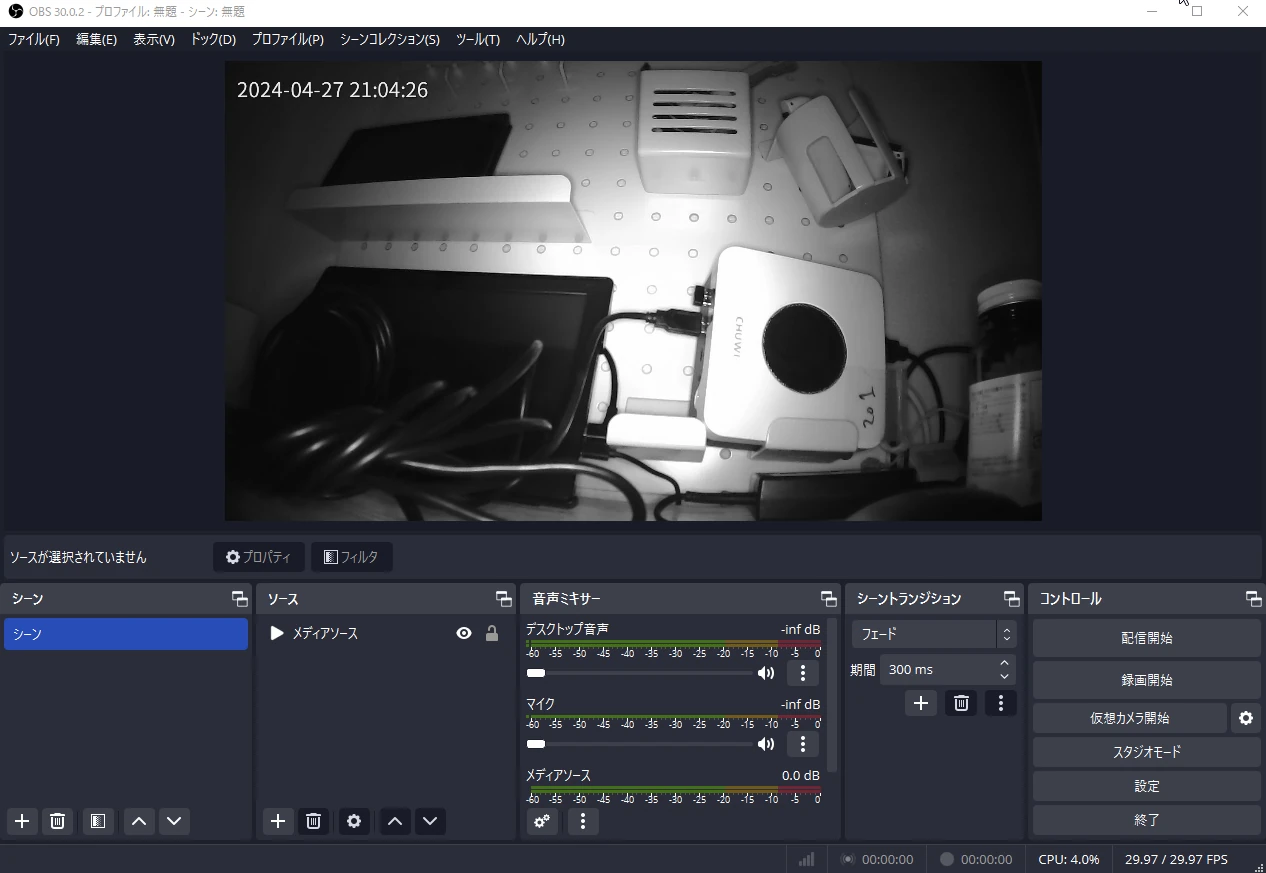 GStreamer could now send and receive SRT. A successful result.
Related articles

Updates and contact: X @riragoncom.