Streaming USB camera video over NDI on Ubuntu 22.04 with GStreamer and gst-plugin-ndi
GStreamer does not normally include NDI support. This walkthrough uses the NDI SDK and the gst-plugin-ndi Git repository to send USB camera video over the network on Ubuntu 22.04.
Note: This article was published more than a year ago.
- The NDI SDK, GStreamer plugins, and package names change quickly. Check the installation instructions and supported versions from NewTek and the respective distributors.
- SDK license terms may change. Check the latest terms before redistribution or commercial use.
- This article assumes Ubuntu 22.04. Build requirements may differ with the kernel and libndi combination.
GStreamer does not normally include NDI functionality, but the NDI Software Development Kit (SDK) and gst-plugin-ndi, available through Git, can turn camera video captured by GStreamer into an NDI stream on the network. I have two reasons for using NDI with GStreamer.
Although these technologies are not directly equivalent, I find NDI offers lower latency and higher quality than RTSP or RTMP.
It is designed for reliable video transport and is not especially well suited to unstable connections such as unreliable Wi-Fi.
It may be particularly suitable for video distribution within a facility.
 Once the NDI stream is running, I do not need to think much about IP configuration, and multiple devices can view the video at low latency and high quality.
If you are comfortable working directly from a Git repository, going straight to gst-plugin-ndi will probably be quicker.
Once the NDI stream is running, I do not need to think much about IP configuration, and multiple devices can view the video at low latency and high quality.
If you are comfortable working directly from a Git repository, going straight to gst-plugin-ndi will probably be quicker.
https://github.com/teltek/gst-plugin-ndi
What is GStreamer?
GStreamer is a powerful framework for creating, processing, and playing multimedia content.
It is designed as an open-source library for advanced media handling across operating systems including Linux, Windows, and macOS.
Like FFmpeg, it supports many audio and video formats and provides encoding, decoding, transcoding, filtering, and streaming. Its architecture and usage are different, however.
https://gstreamer.freedesktop.org/
What is NDI?
NDI, or Network Device Interface, is a video-over-IP technology developed by NewTek.
The NDI SDK lets developers create applications that send and receive high-quality video and audio over a network in real time.
It is a quality-focused transport technology better suited to a wired network than wireless, and wired operation is recommended.
Whether it is ideal for a surveillance-camera application therefore depends on the circumstances.
https://tricaster.jp/ndi-central/
OS, USB cameras, and hardware
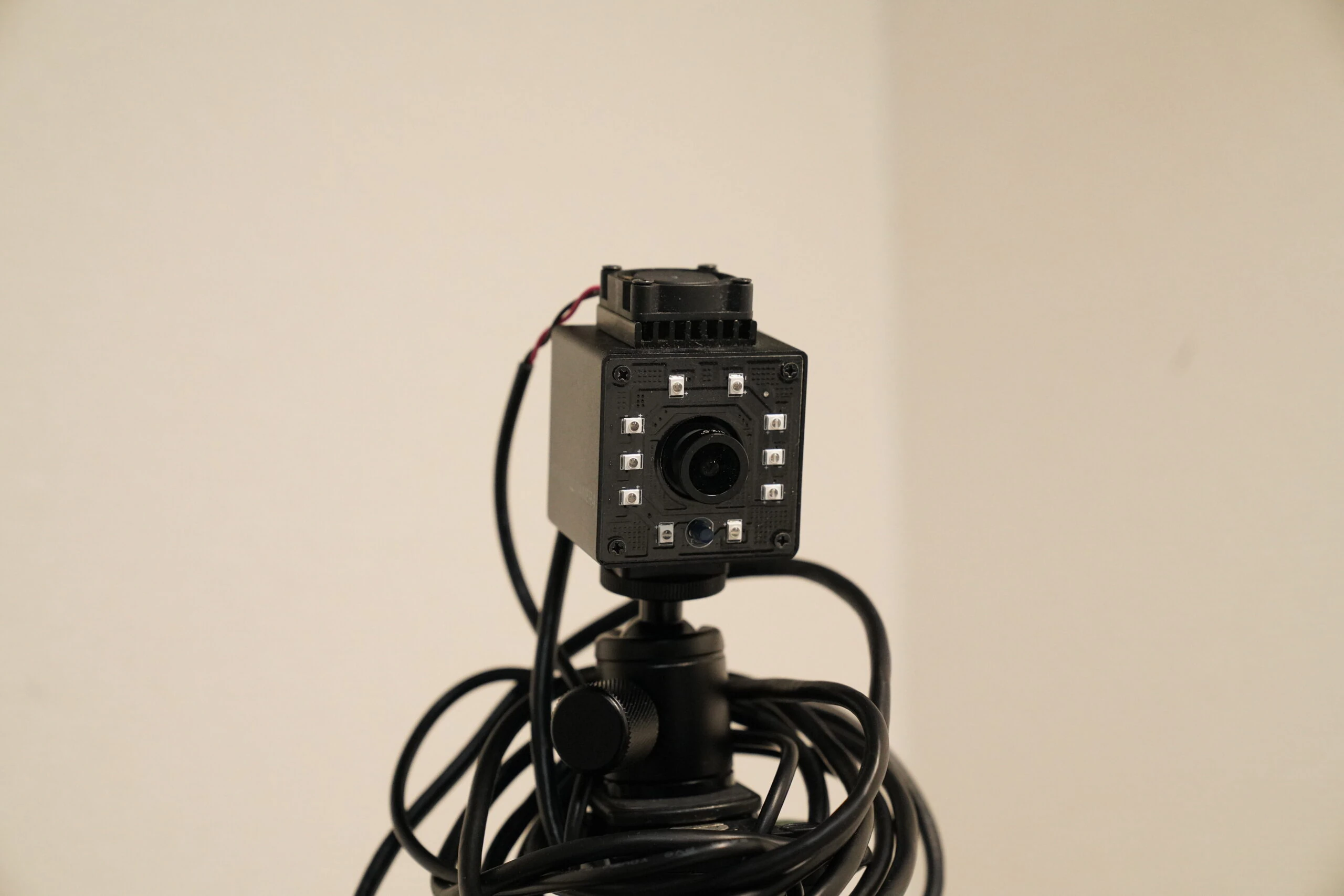
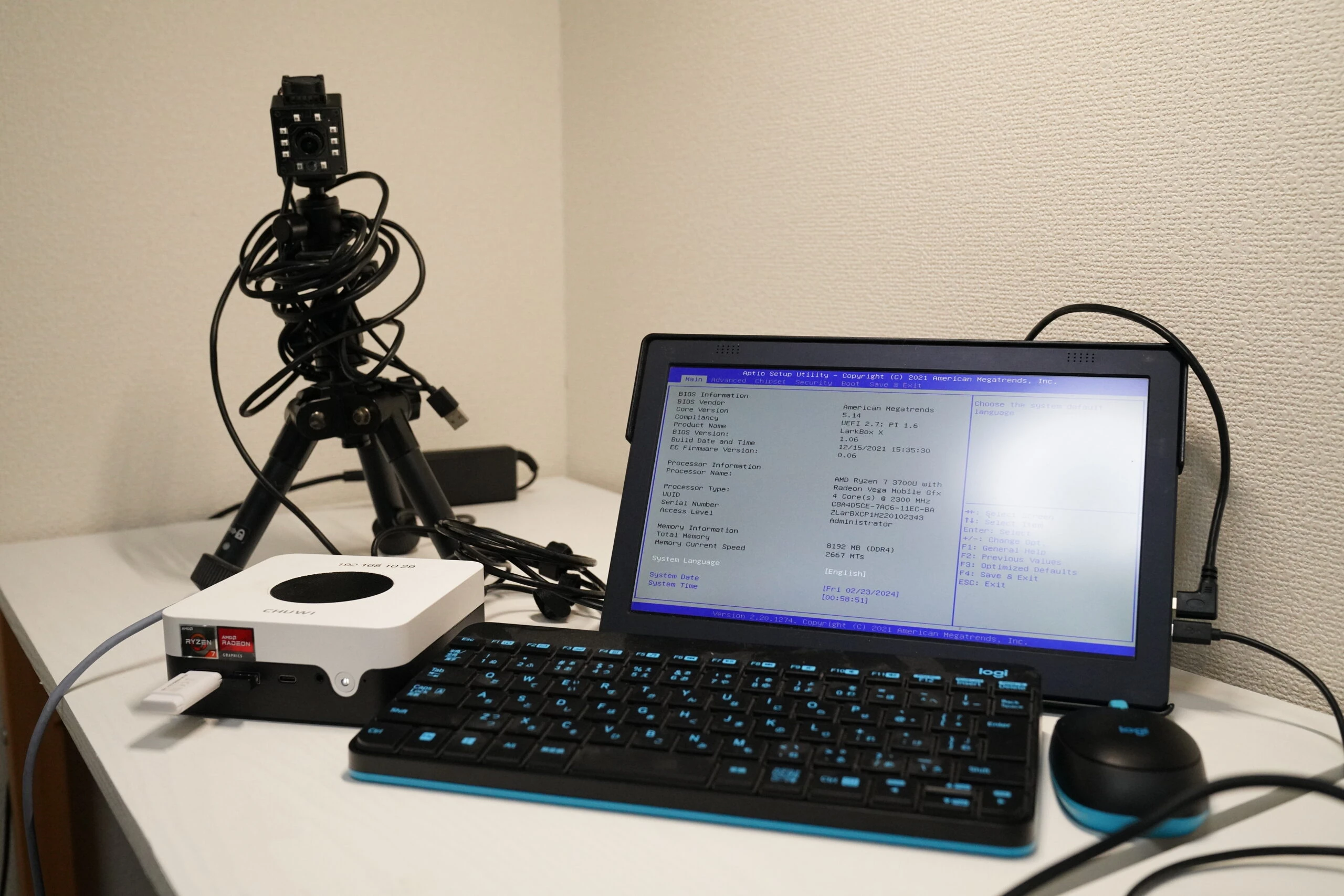
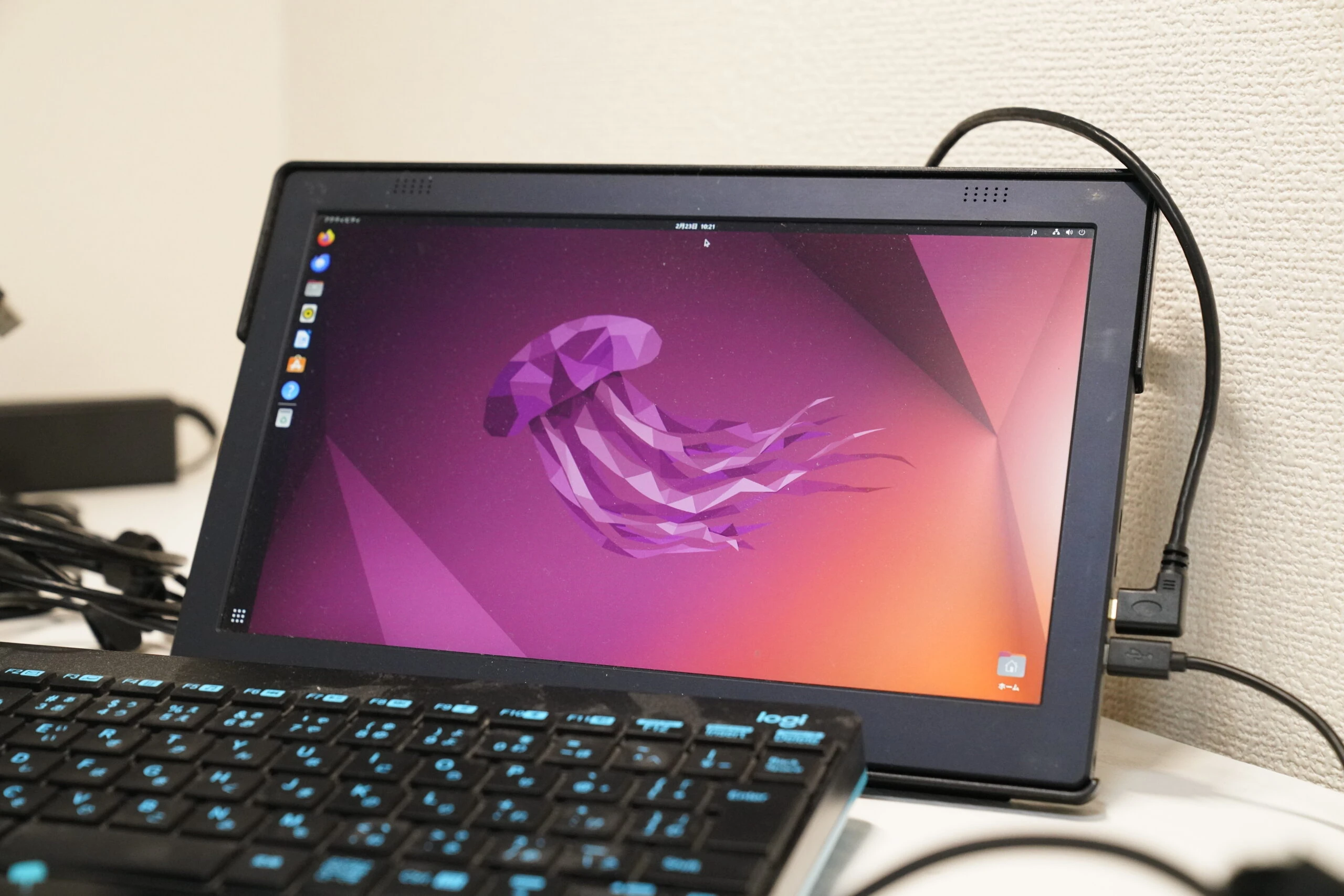
The cameras are from the ELP USB Webcam series. The OS is Ubuntu 22.04, and the mini PC is a CHUWI LarkBox X with an AMD Ryzen 3750U, up to 4.0GHz, four cores/eight threads, 8GB RAM, and 256GB storage. I install SSH first because I am working through Tera Term 5.
Related product listings: Find ELP USB cameras on Amazon (Ad)
Related product listings: Find the CHUWI LarkBox X with AMD Ryzen 3750U on Amazon (Ad)
Adjust these choices to suit your environment.
Set up GStreamer, the NDI SDK, and gst-plugin-ndi on Ubuntu 22.04
 Install OpenSSH Server and UFW, the Uncomplicated Firewall. Configure the firewall to allow incoming connections on port 22, SSH's default port.
sudo apt install openssh-server
sudo apt install ufw
sudo ufw allow 22
Update the package list and upgrade the installed packages to their latest available versions.
sudo apt update
sudo apt dist-upgrade
Install GStreamer, its basic plugins, and plugins for additional media formats.
sudo apt-get install libgstreamer1.0-dev libgstreamer-plugins-base1.0-dev gstreamer1.0-plugins-base gstreamer1.0-plugins-ugly
Install Git and Curl.
sudo apt install git
sudo apt install curl
Download and run the Rust installer. This installs the Rust language and Cargo package manager. Choose '1) Proceed with installation (default)', then load Rust's environment variables into the current shell session.
curl --proto '=https' --tlsv1.2 -sSf https://sh.rustup.rs | sh
source $HOME/.cargo/env
Complete the required registration on the following site to receive the download for Install_NDI_SDK_v5_Linux.tar.gz by email. Download the Linux version of the NDI SDK. Names and download procedures may change between versions.
https://ndi.video/download-ndi-sdk/
Extract the downloaded SDK archive, adjusting the filename as necessary.
tar -xzvf Install_NDI_SDK_v5_Linux.tar.gz
Run the NDI SDK installer script. During the questions, press Enter to skip through to item 10, then press Y to agree. After item 10, press Enter one at a time so you do not skip past the prompt.
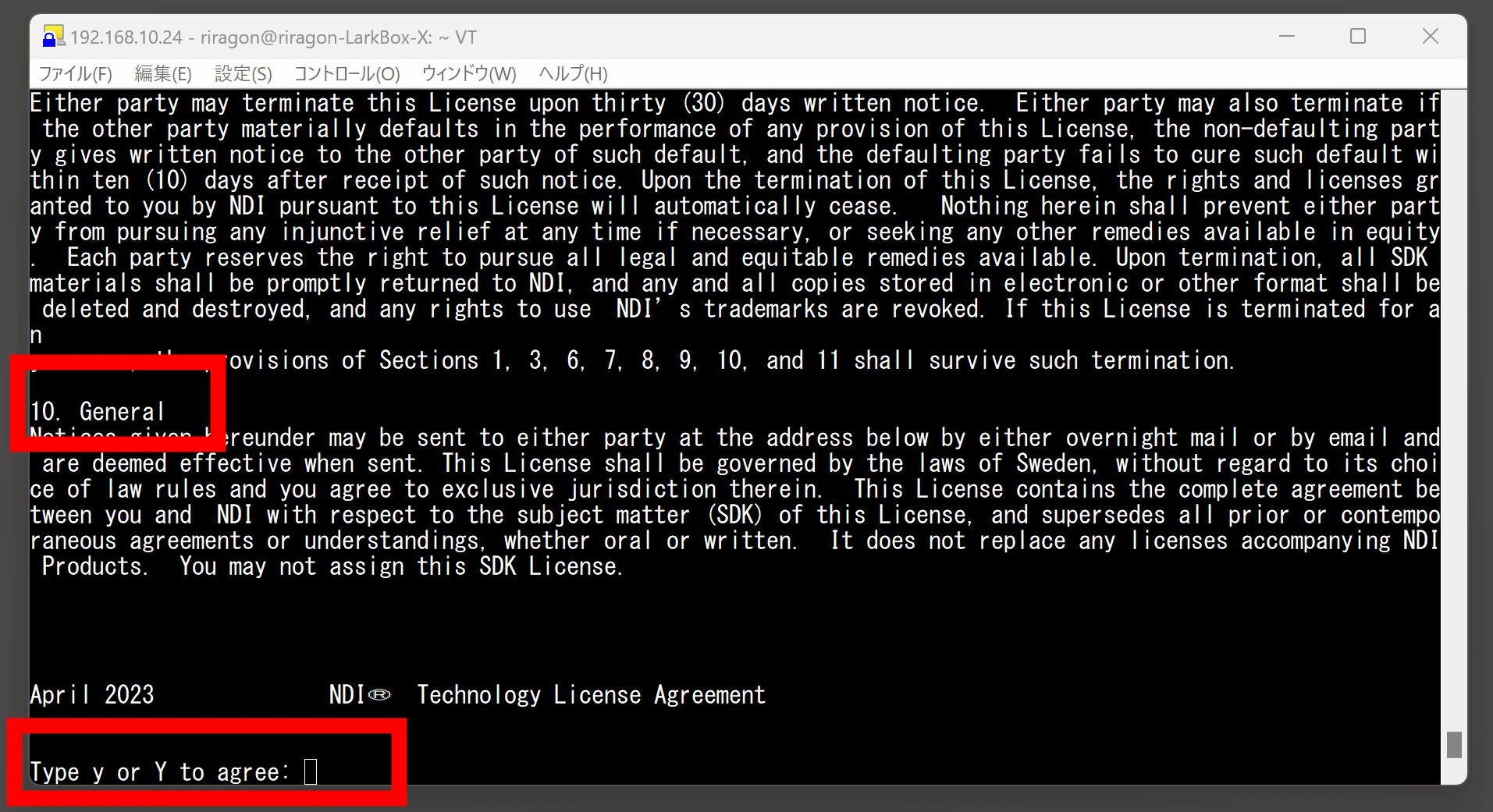
sudo ./Install_NDI_SDK_v5_Linux.sh
Go to the NDI SDK installation directory. Directory names may vary slightly by version, so inspect them with ls. The destination is x86_64-linux-gnu inside lib.
cd 'NDI SDK for Linux'
cd lib
cd x86_64-linux-gnu
Copy the NDI libraries into the system library directory.
Refresh the library cache.
Copying the libraries directly avoids changing environment variables.
Running ls in x86_64-linux-gnu should show around three files, including libndi.so.5.6.0.
Move all of them.
It might also be sufficient to move only libndi.so.5.6.0.
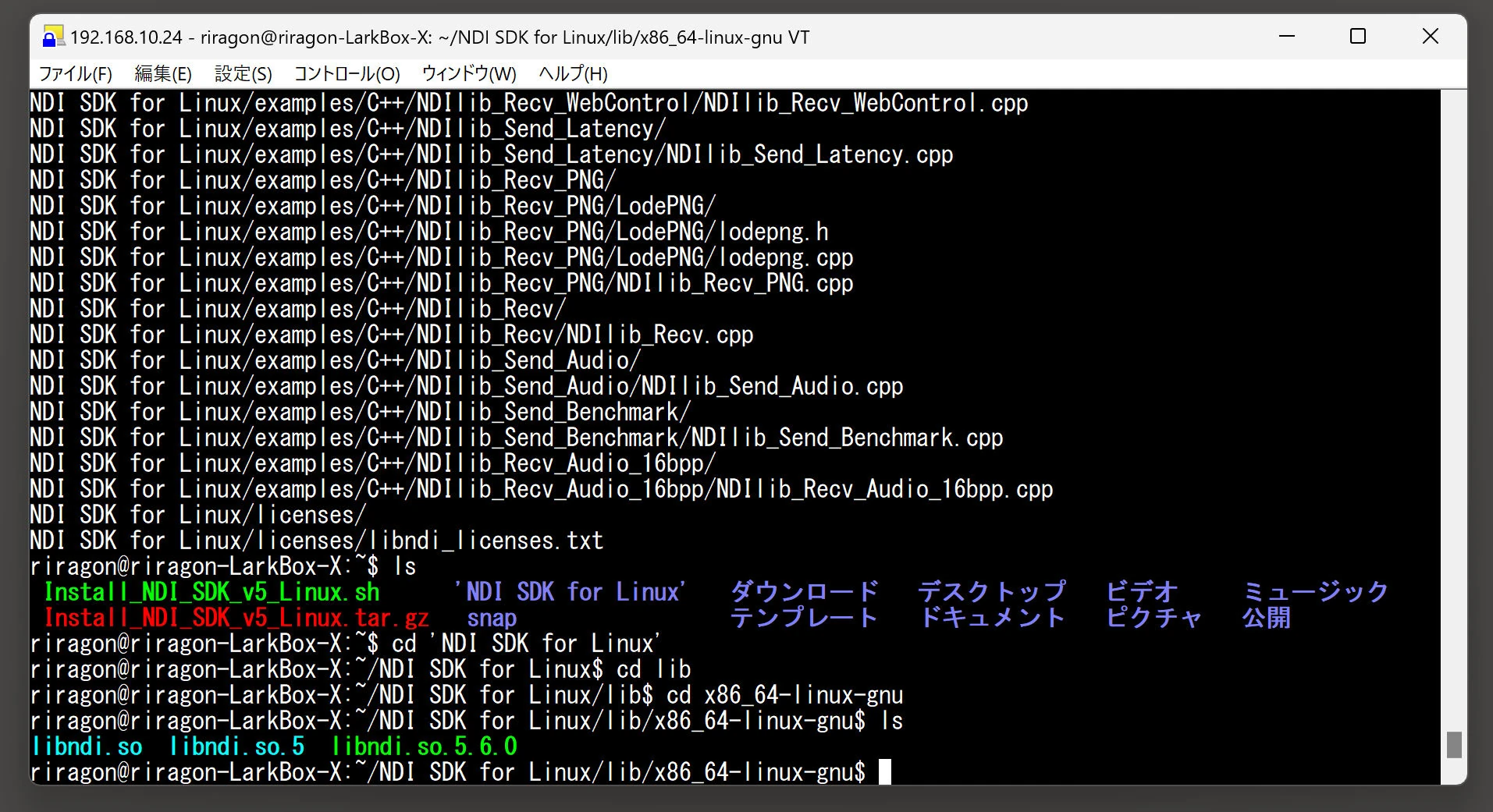
sudo cp libndi.so* /usr/local/lib/
sudo ldconfig
You may see a warning such as '/sbin/ldconfig.real: /usr/local/lib/libndi.so.5 is not a symbolic link'. Check that libndi.so.5 is an actual file, then remove it.
sudo rm /usr/local/lib/libndi.so.5
Create the correct symbolic link to libndi.so.5.6.0 and run ldconfig again to refresh the cache. The warning should disappear.
sudo ln -s libndi.so.5.6.0 /usr/local/lib/libndi.so.5
sudo ldconfig
Clone the GStreamer NDI plugin repository. Use cd ~ to return to your home directory, then enter the repository directory.
cd ~
git clone https://github.com/teltek/gst-plugin-ndi.git
cd gst-plugin-ndi
Install rustup, the Rust installation manager, through Snap. Install Cargo, Rust's package manager, then build the GStreamer NDI plugin.
sudo snap install rustup --classic
sudo apt install cargo
sudo cargo build --release
If sudo apt install cargo stops responding, or perhaps just takes a long time, cancel it partway through and retry it several times; in my case, setup then progressed.
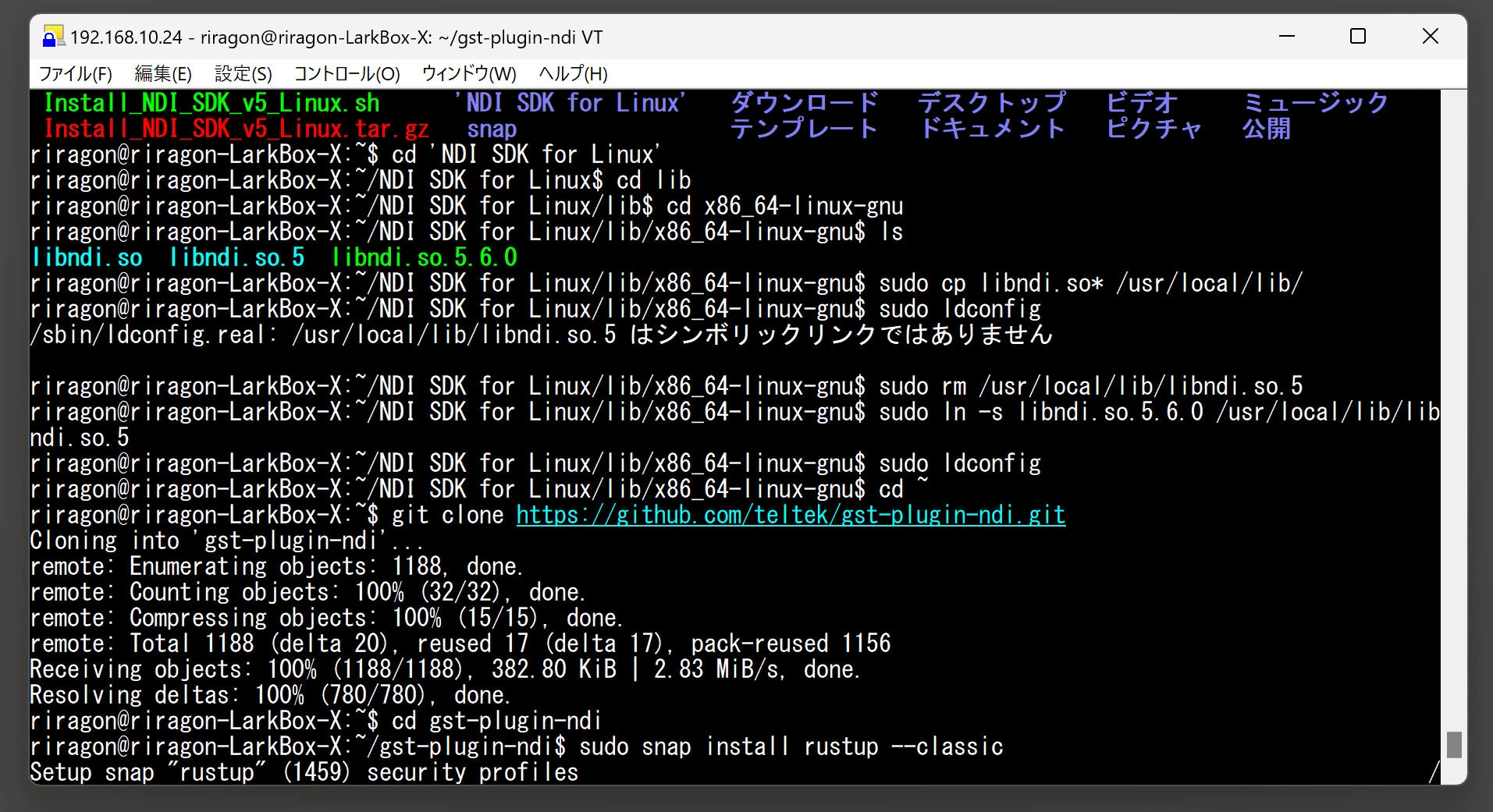 Next, install the built plugin in GStreamer's plugin directory. This makes it discoverable and usable by GStreamer, allowing applications built on GStreamer to receive or send NDI streams.
sudo install -m 755 target/release/libgstndi.so /usr/lib/x86_64-linux-gnu/gstreamer-1.0/
sudo ldconfig
As a precaution, add the current user to the video group to grant access to video devices.
sudo usermod -aG video $USER
Check whether the NDI-related plugin is working inside GStreamer.
gst-inspect-1.0 ndi
gst-inspect-1.0 ndisrc
gst-inspect-1.0 ndisink
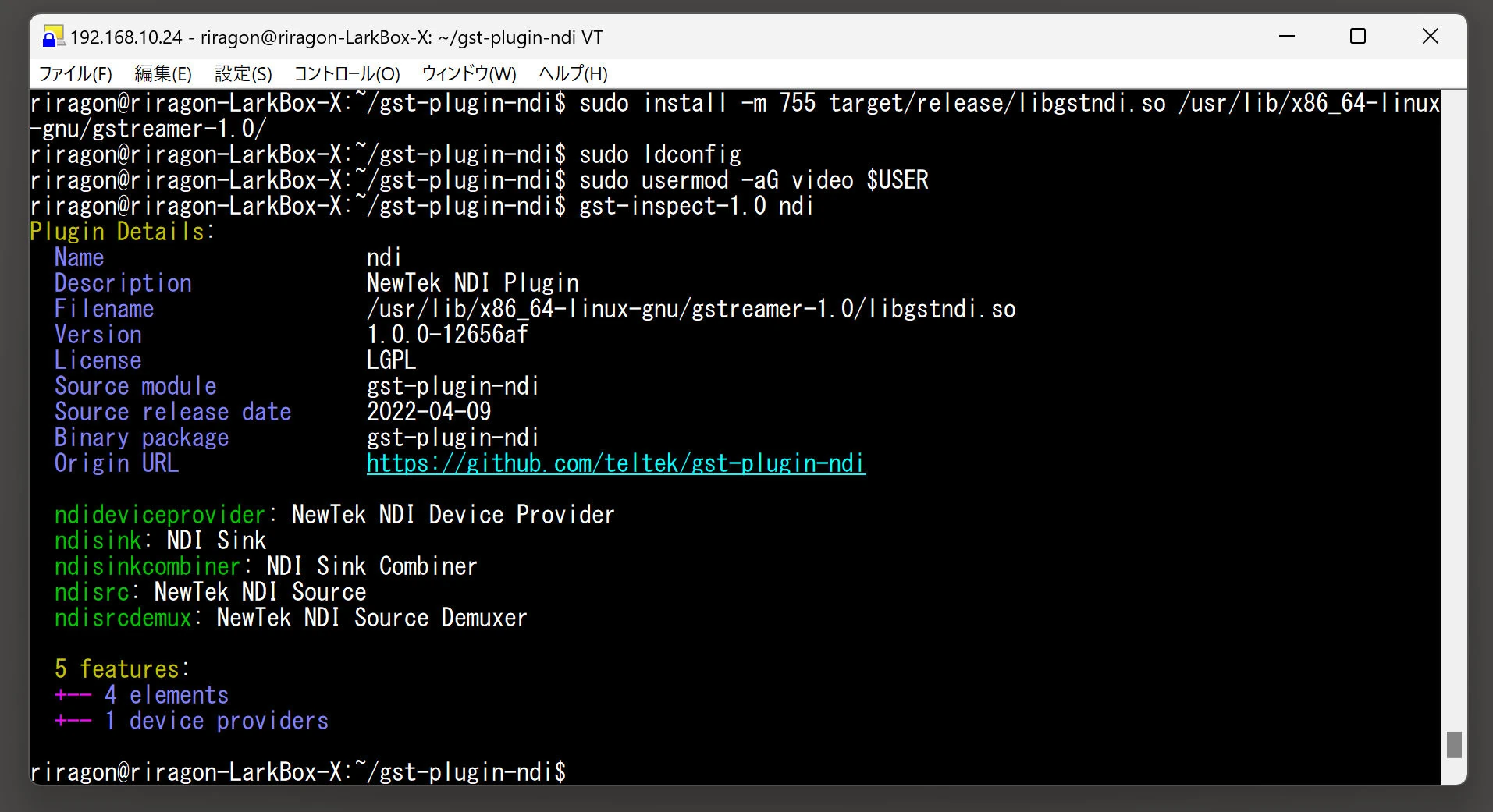
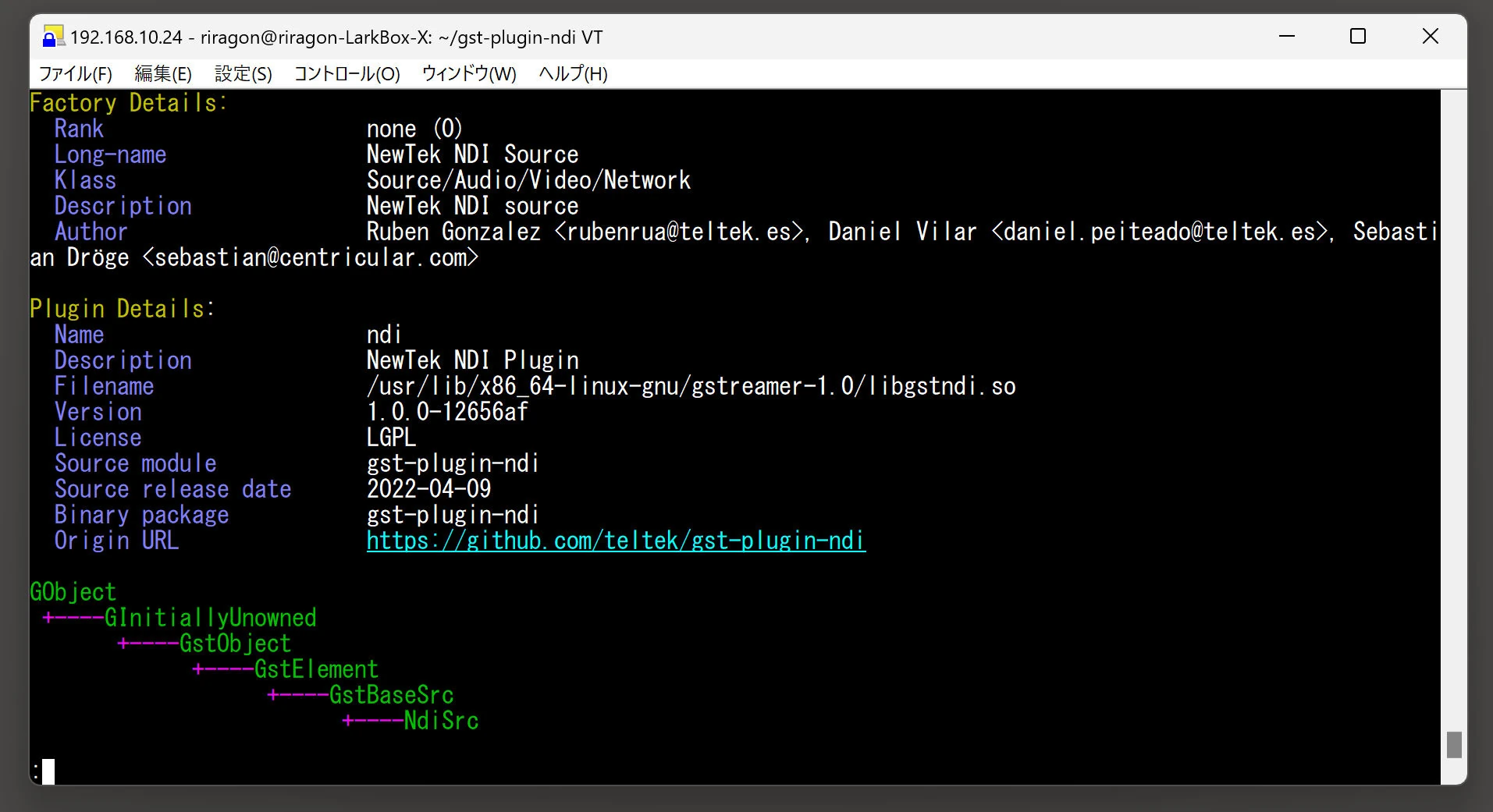 If this works, setup is complete. Connect the USB camera.
sudo apt install v4l-utils
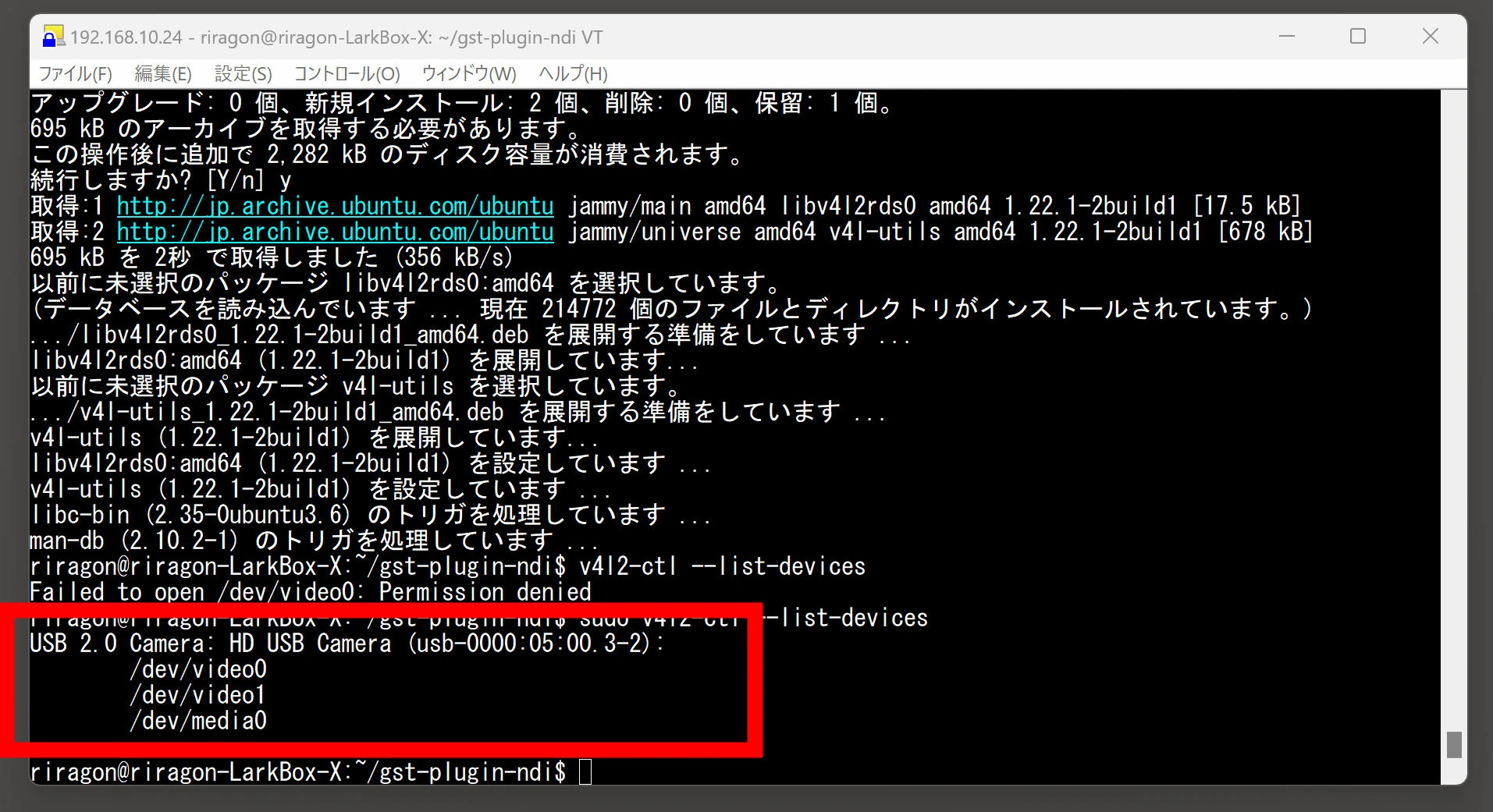
sudo v4l2-ctl --list-devices
The USB camera will usually appear as /dev/video00 or /dev/video1. This particular camera exposes video0 and video1, and video0 appears to provide the video stream.
 Try the video transmission command. This should publish an NDI stream named Camera1 on the network.
sudo gst-launch-1.0 -v v4l2src device=/dev/video0 ! "image/jpeg,width=1920,height=1080,framerate=30/1" ! jpegdec ! videoconvert ! ndisink ndi-name="Camera1"
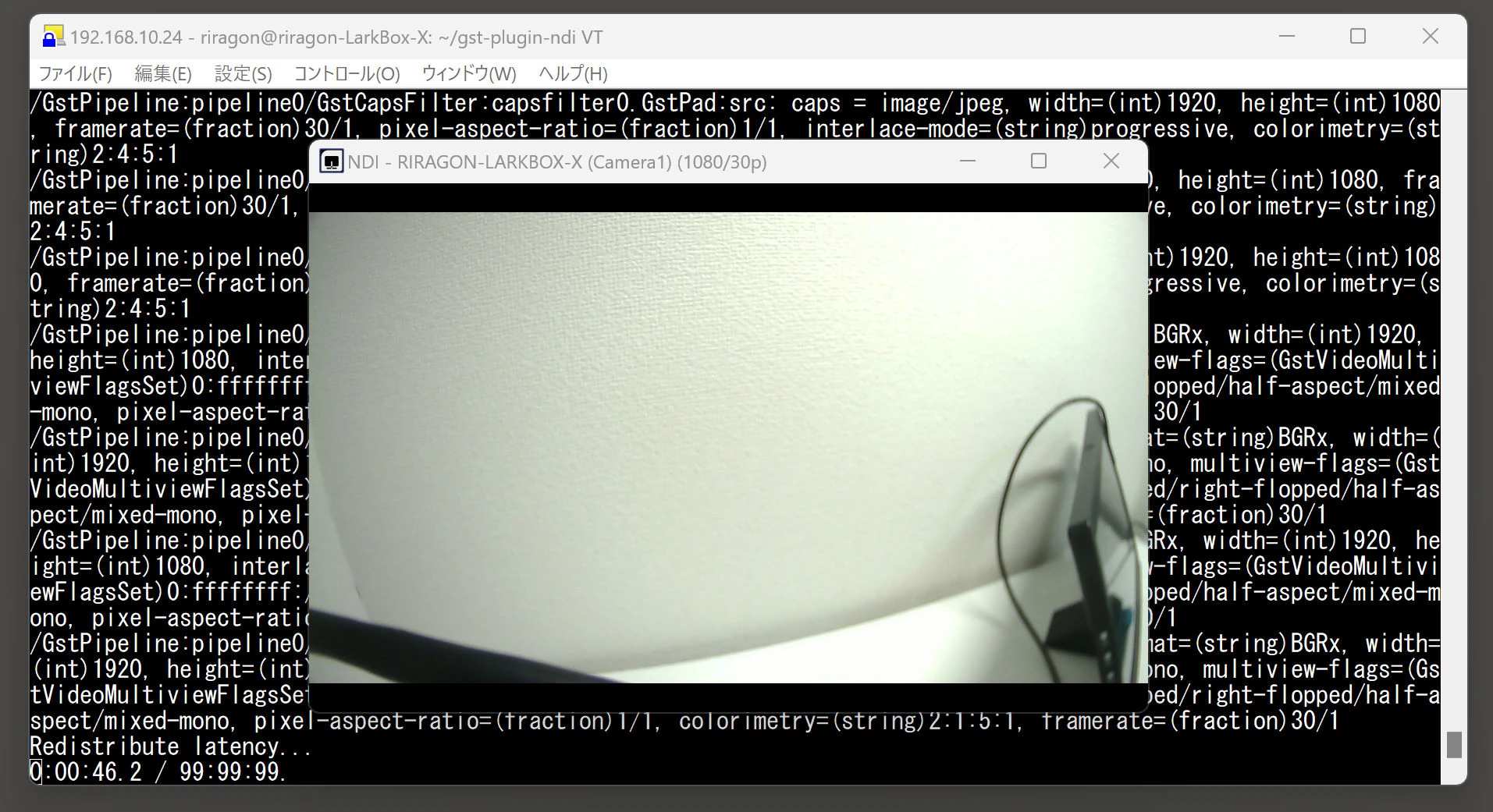
I was able to receive the NDI stream. Using the NDI SDK and gst-plugin-ndi from Git, I could stream camera video captured by GStreamer over the network as NDI.
I wanted compression, but could not make it work
Full HD uses around 80Mbps here. Wanting to reduce that, I also tried H.264 and H.265 compression, for example with the following pipeline.
gst-launch-1.0 -v v4l2src device=/dev/video0 ! "image/jpeg,width=1920,height=1080,framerate=30/1" ! jpegdec ! videoconvert ! x264enc bitrate=5000 speed-preset=ultrafast tune=zerolatency ! h264parse ! decodebin ! queue ! ndisink ndi-name="Camera1"
I received 'WARNING: erroneous pipeline: no element h264parse', so I installed gstreamer1.0-plugins-bad as follows.
sudo apt-get update sudo apt-get install gstreamer1.0-plugins-bad
With this NDI SDK setup, I could not compress the outgoing data. I tried various approaches without success. It appears that NDI HX provides compression and is offered commercially to businesses. Some NDI HX encoder products let you set the bitrate. Those capabilities appear to be available through the commercially offered NDI SDK Advanced. In other words, creating a personal DIY compressed implementation for lighter wireless transport seems difficult.
On Windows, NDI Bridge, included in NDI Tools, also lets you specify a compression bitrate. That option can be used free of charge.
Test: how many cameras can stream simultaneously?
The machine is a CHUWI LarkBox X with an AMD Ryzen 3750U, bought for around ¥40,000 in March 2022. It is useful for a variety of Ubuntu server tasks.
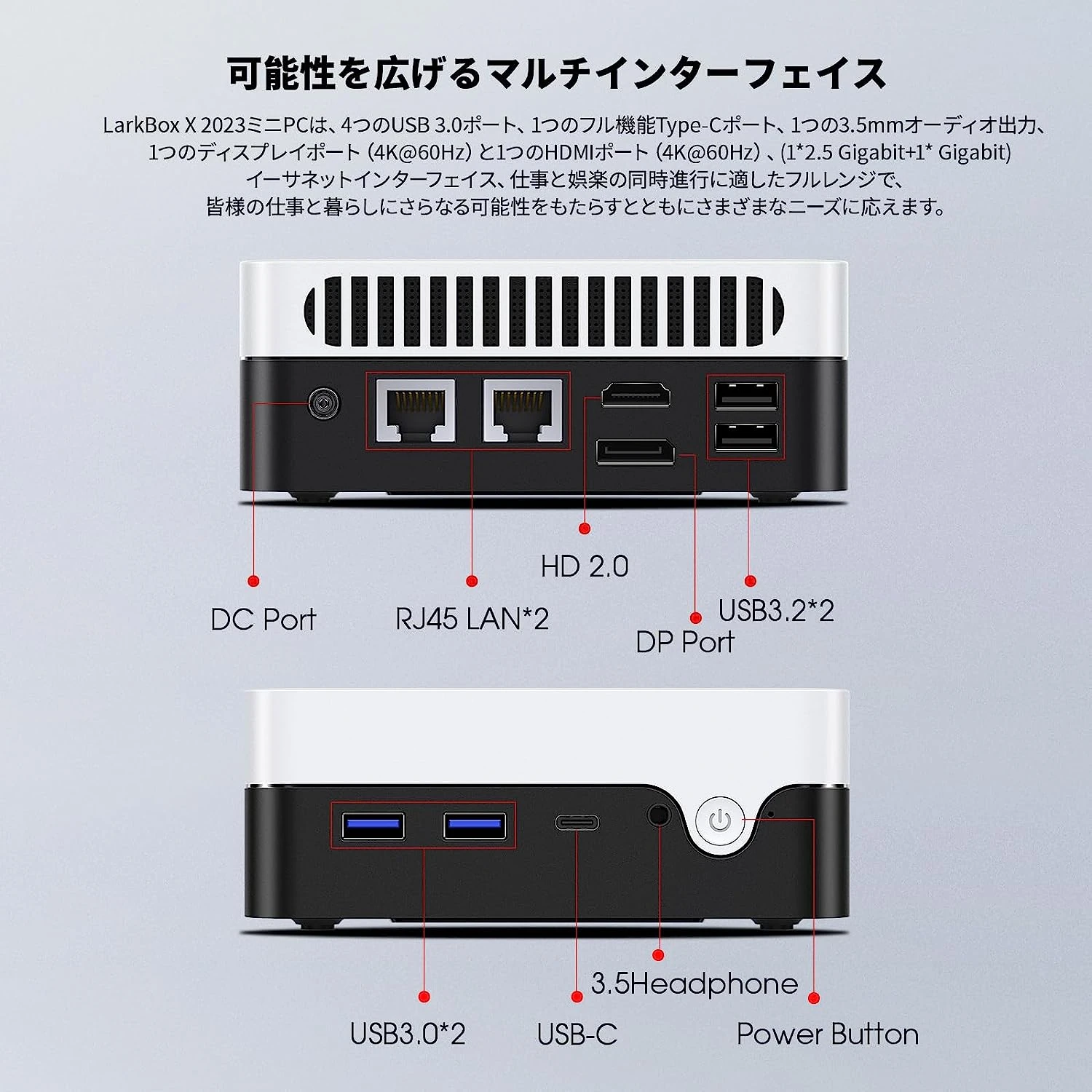
It has two LAN ports and four USB 3 ports. I successfully ran three Full HD USB 2.0 cameras. Perhaps four would work with better encoding settings, but I have not established that.
 Connect three cameras and inspect the devices.
sudo v4l2-ctl --list-devices
They are listed as shown. I think cam0, cam2, and cam5 are the video-producing devices.
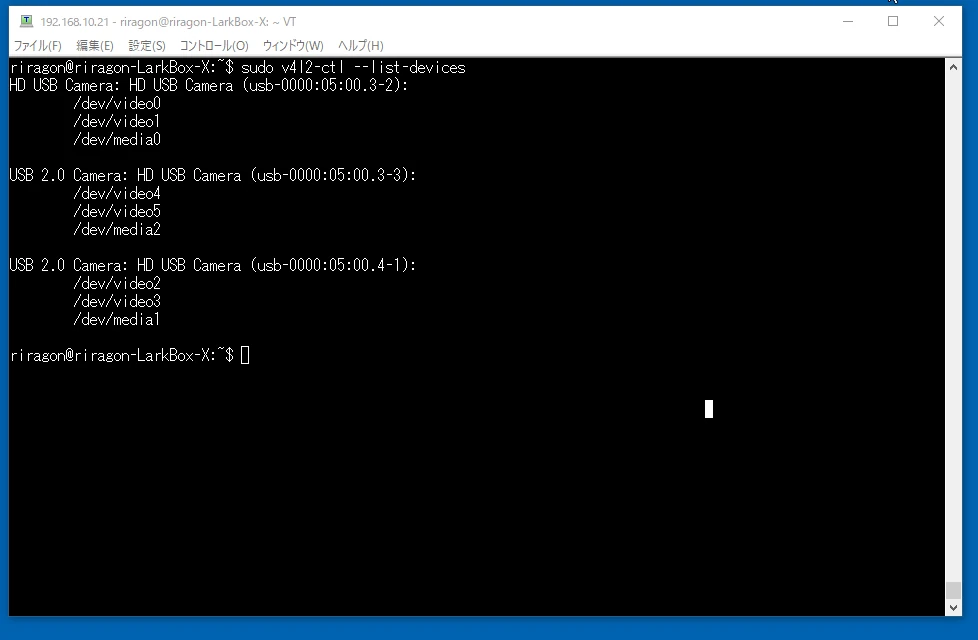 I created a .sh file so that it can handle whichever device numbers are assigned.
#!/bin/bash

sudo gst-launch-1.0 -v v4l2src device=/dev/video0 ! "image/jpeg,width=1920,height=1080,framerate=30/1" ! jpegdec ! videoconvert ! timeoverlay ! ndisink ndi-name="Camera1" &

sudo gst-launch-1.0 -v v4l2src device=/dev/video1 ! "image/jpeg,width=1920,height=1080,framerate=30/1" ! jpegdec ! videoconvert ! timeoverlay ! ndisink ndi-name="Camera2" &

sudo gst-launch-1.0 -v v4l2src device=/dev/video2 ! "image/jpeg,width=1920,height=1080,framerate=30/1" ! jpegdec ! videoconvert ! timeoverlay ! ndisink ndi-name="Camera3" &

sudo gst-launch-1.0 -v v4l2src device=/dev/video3 ! "image/jpeg,width=1920,height=1080,framerate=30/1" ! jpegdec ! videoconvert ! timeoverlay ! ndisink ndi-name="Camera4" &

sudo gst-launch-1.0 -v v4l2src device=/dev/video4 ! "image/jpeg,width=1920,height=1080,framerate=30/1" ! jpegdec ! videoconvert ! timeoverlay ! ndisink ndi-name="Camera5" &

sudo gst-launch-1.0 -v v4l2src device=/dev/video5 ! "image/jpeg,width=1920,height=1080,framerate=30/1" ! jpegdec ! videoconvert ! timeoverlay ! ndisink ndi-name="Camera6" &

sudo gst-launch-1.0 -v v4l2src device=/dev/video6 ! "image/jpeg,width=1920,height=1080,framerate=30/1" ! jpegdec ! videoconvert ! timeoverlay ! ndisink ndi-name="Camera7" &

sudo gst-launch-1.0 -v v4l2src device=/dev/video7 ! "image/jpeg,width=1920,height=1080,framerate=30/1" ! jpegdec ! videoconvert ! timeoverlay ! ndisink ndi-name="Camera8" &

wait
Running camera.sh streams the three USB cameras over NDI.
./camera.sh
I was able to receive the streams as shown.
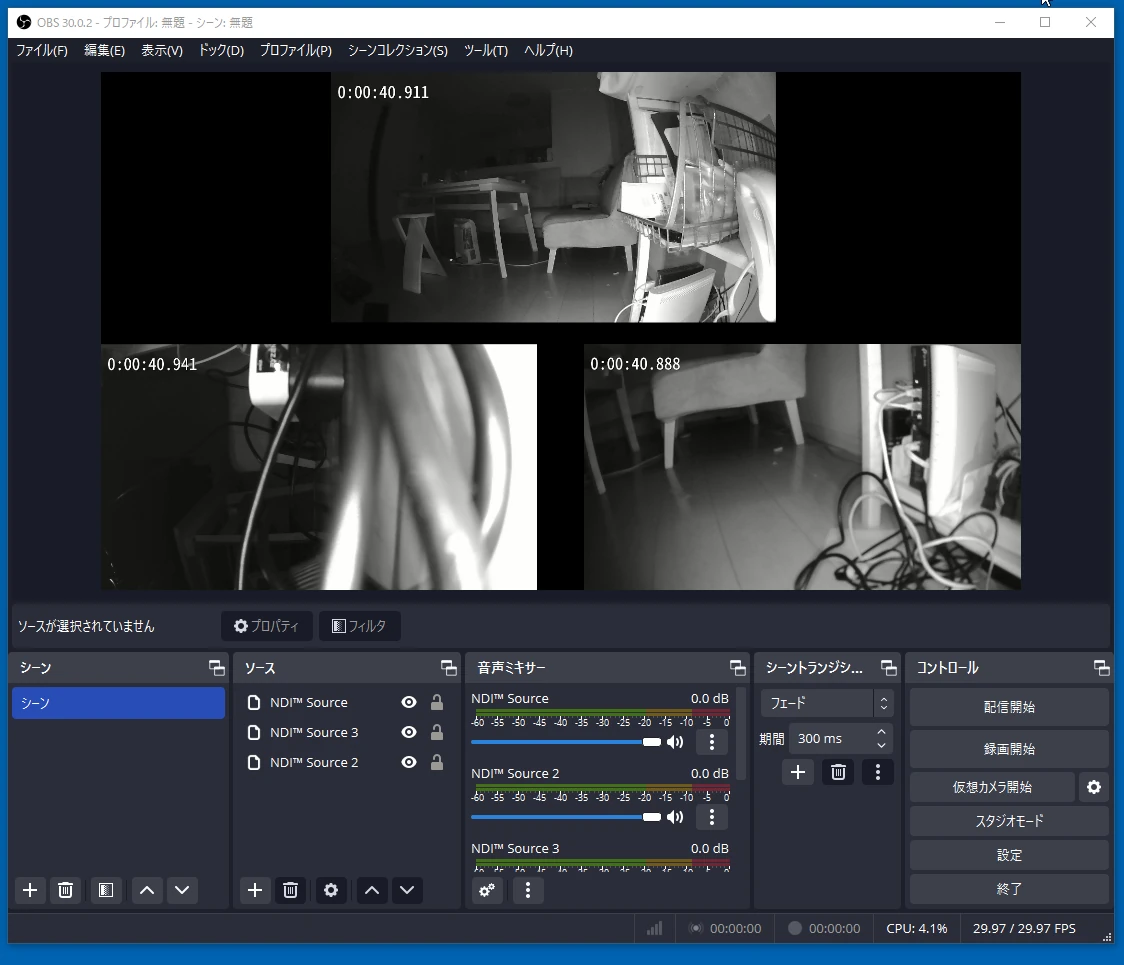 Making the shell script an automatically started service could let the USB cameras operate much like surveillance cameras. Here is a slightly tidier camera.sh.
#!/bin/bash

# カメラの数を定義
NUM_CAMERAS=8

# カメラごとにループ
for ((i=0; i<NUM_CAMERAS; i++)); do
    # GStreamerのパイプラインを実行
    gst-launch-1.0 -v v4l2src device=/dev/video$i ! \
    "image/jpeg,width=1920,height=1080,framerate=30/1" ! jpegdec ! \
    videoconvert ! timeoverlay ! ndisink ndi-name="Camera$((i+1))" &
done

wait
Give it permission to execute.
chmod +x camera.sh
sudo usermod -aG video $USER
That is all.
ELP USB camera listingsBrowse on Amazon Ad · Amazon Associate link
Related articles
Updates and contact: X @riragoncom.