Note: This article is more than one year old.
- systemd unit syntax, recommended directives, and security options are added or deprecated between versions. Check your distribution's manual pages and release notes.
- GStreamer and Python wrapper APIs and package names change. For long-term operation, pin dependencies and retest.
- Design log rotation and restart policy separately for a pipeline running as a service.
Previously, I set up GStreamer with SRT support on Ubuntu 22.04. This time, I will make a Python service that transmits USB-camera video. First, install the Python-related packages below, although I expect most are already installed on Ubuntu 22.04. PyGObject provides bindings that let Python access C libraries built on GObject. This makes it possible to use a multimedia framework such as GStreamer directly from a Python program. A useful mechanism.
Related USB camera listings: Search Amazon for USB cameras (Ad)
sudo apt-get update
sudo apt install python3
sudo apt-get install python3-gi python3-gi-cairo gir1.2-gtk-3.0
python3-gi is the Python 3 package for PyGObject, providing an interface to GObject-based libraries. python3-gi-cairo supplies bindings for using the Cairo graphics library in a Python application with PyGObject. Cairo is a capable 2D library for vector-based graphics. gir1.2-gtk-3.0 provides the GObject Introspection Repository (GIR) files for GTK+ 3.0.
GObject Introspection provides metadata describing a library's API so that language bindings can be generated.
Installing these files allows Python to access the library's functions and classes through PyGObject.
For using GStreamer from Python, the relevant pieces are as follows.
import gi enables access to programs such as GTK and GStreamer from Python.
gi.require_version('Gst', '1.0') explicitly specifies which GStreamer version to use.
from gi.repository import Gst, GLib makes GStreamer, which handles the video and audio, and GLib, which manages the program's basic operation, available.
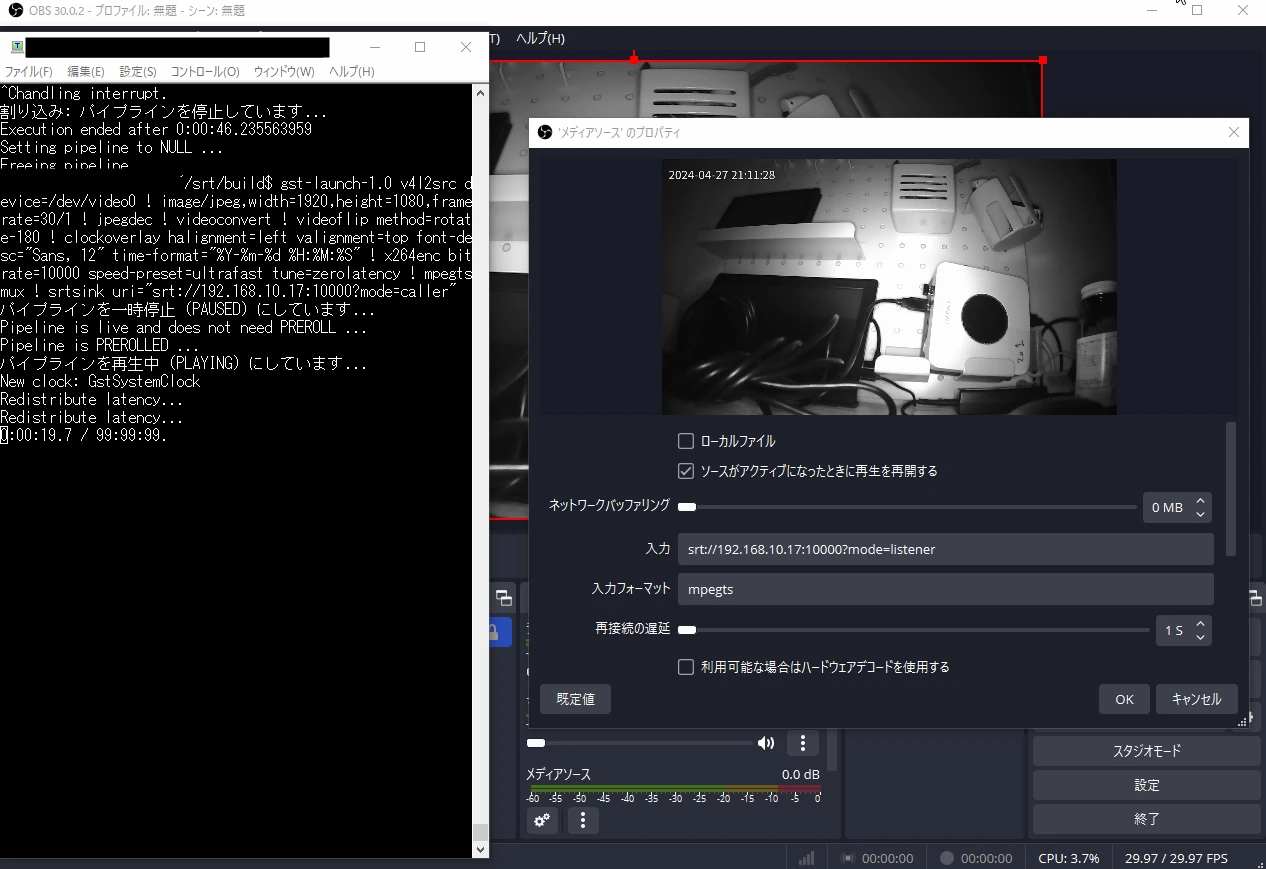
I will capture a USB camera and send it as an SRT stream. My environment uses srt://192.168.10.17:10000?mode=caller; set the receiver's IP address and port for your own setup. The GStreamer pipeline also needs to suit your environment.
sudo nano cam_stream.py
import gi
import sys
import signal

gi.require_version('Gst', '1.0')
gi.require_version('GLib', '2.0')
from gi.repository import Gst, GLib

def handle_signal(sig, frame, pipeline):
"""
シグナルハンドラ:プログラムの終了処理を行う
"""
print(f"Received signal: {sig}. Exiting...")
pipeline.set_state(Gst.State.NULL)
sys.exit(0)

def on_bus_message(bus, message, pipeline):
"""
メッセージハンドラ:GStreamerバスからのメッセージを処理する
"""
msg_type = message.type
if msg_type == Gst.MessageType.ERROR:
err, debug_info = message.parse_error()
print(f"Error: {err}, {debug_info}")
pipeline.set_state(Gst.State.NULL)
sys.exit(1) # エラー発生時には終了コード1で終了

def main():
# GStreamerの初期化
Gst.init(None)

# ストリーミングパイプラインの定義
streaming_pipeline_description = """
v4l2src device=/dev/video0 ! image/jpeg,width=1920,height=1080,framerate=30/1 !
jpegdec ! videoconvert ! videoflip method=rotate-180 !
clockoverlay halignment=left valignment=top font-desc="Sans, 12" time-format="%Y-%m-%d %H:%M:%S" !
x264enc bitrate=10000 speed-preset=ultrafast tune=zerolatency ! mpegtsmux !
srtsink uri="srt://192.168.10.17:10000?mode=caller"
"""

pipeline = Gst.parse_launch(streaming_pipeline_description)
pipeline.set_state(Gst.State.PLAYING)

main_loop = GLib.MainLoop()
signal.signal(signal.SIGINT, lambda sig, frame: handle_signal(sig, frame, pipeline))
signal.signal(signal.SIGTERM, lambda sig, frame: handle_signal(sig, frame, pipeline))

bus = pipeline.get_bus()
bus.add_signal_watch()
bus.connect("message", lambda bus, message: on_bus_message(bus, message, pipeline))

main_loop.run()
pipeline.set_state(Gst.State.NULL)

if __name__ == "__main__":
main()
streaming_pipeline_description is almost a GStreamer command as-is.
It describes a sequence that captures video, applies transformations, and sends it to a particular address over the internet.
The video is rotated 180 degrees, overlaid with the time, encoded, and transmitted.
pipeline = Gst.parse_launch(streaming_pipeline_description) creates the pipeline, and pipeline.set_state(Gst.State.PLAYING) starts streaming.
The handle_signal signal handler allows the program to stop.
It is also set up to release resources properly when the program exits.
on_bus_message detects and handles errors during streaming.
When it finds an error, it displays a message and exits.
main_loop = GLib.MainLoop() creates the main loop and main_loop.run() starts it, allowing the program to keep monitoring events.
Exiting with code 1 on an error is useful when systemd manages the service, because systemd can distinguish a successful exit from one caused by a problem. Give the script execute permission.
sudo chmod +x cam_stream.py
Create the following service. Replace /yoururl/ with the directory containing cam_stream.py. I want the camera stream to keep running, so I use Restart=always.
nano /etc/systemd/system/cam-stream.service
[Unit]
Description=Start Camera Stream
Wants=network-online.target
After=network-online.target

[Service]
Environment="PATH=/usr/local/sbin:/usr/local/bin:/usr/sbin:/usr/bin:/sbin:/bin"
Type=simple
ExecStart=/usr/bin/python3 /yoururl/cam_stream.py
Restart=always
RestartSec=5s

[Install]
WantedBy=multi-user.target
sudo chmod +x /etc/systemd/system/cam-stream.service
systemd lets you configure and manage Python scripts and similar programs as Ubuntu 22.04 system services.
Convenient, isn't it?
When Linux starts, systemd starts the required processes and services in the proper order.
This helps the system start promptly and run stably.
Here is a summary of systemd commands using cam-stream.service as the example.
sudo systemctl daemon-reload
Reloads systemd's configuration. Run this whenever you add, change, or remove service files.
sudo systemctl enable cam-stream.service
Enables the service so it starts automatically at boot.
sudo systemctl disable cam-stream.service
Disables automatic startup at boot.
sudo systemctl start cam-stream.service
Starts the service.
sudo systemctl stop cam-stream.service
Stops the service.
sudo systemctl status cam-stream.service
Shows its current status, including whether it is running, when it last ran, and related log messages.
sudo systemctl list-units --type=service
Lists the system's service units so you can inspect running services and their states.
sudo journalctl
Displays the system journal, including kernel, service, and application messages.
sudo journalctl -u cam-stream.service
Shows only messages related to the specified service, useful for troubleshooting it.
In practice, you would reload the daemon configuration, enable the service, start it, check its state, and inspect error logs, as follows.
sudo systemctl daemon-reload

sudo systemctl enable cam-stream.service

sudo systemctl start cam-stream.service

sudo systemctl status cam-stream.service

sudo journalctl -u cam-stream.service
I now had a system that starts the USB camera automatically and keeps restarting until the SRT connection succeeds. If it disconnects, it repeats until connected again.
Related articles
Updates and contact: X @riragoncom.