Converting triangles to quads in Blender with Triangles to Quads
Use Blender's Triangles to Quads command to combine triangular faces into quads. This walkthrough shows the operation and its limits, including cases where triangles remain or another 3D application triangulates the model again.
Note: This article was first published more than a year ago.
- Modifier names, defaults, and mesh data representations change between Blender versions. Check the manual for your version.
- Triangulation and quad conversion depend on topology and the intended shading. Check normals and UVs before exporting.
- The result in Unreal can vary with FBX or glTF export options.
Blender's Triangles to Quads command converts triangular mesh faces into quads. This article shows how to use it. Some 3D applications only support triangles, so even a model imported with quads may be triangulated again.
Triangles are widely used because they are flexible, handle arbitrary shapes well, and remain stable even in complex geometry.
Quads have advantages for texture mapping and lighting workflows. They make edge loops easier to manage, which is particularly useful for animation and detailed modeling. It is therefore common to want quads in a finished model.
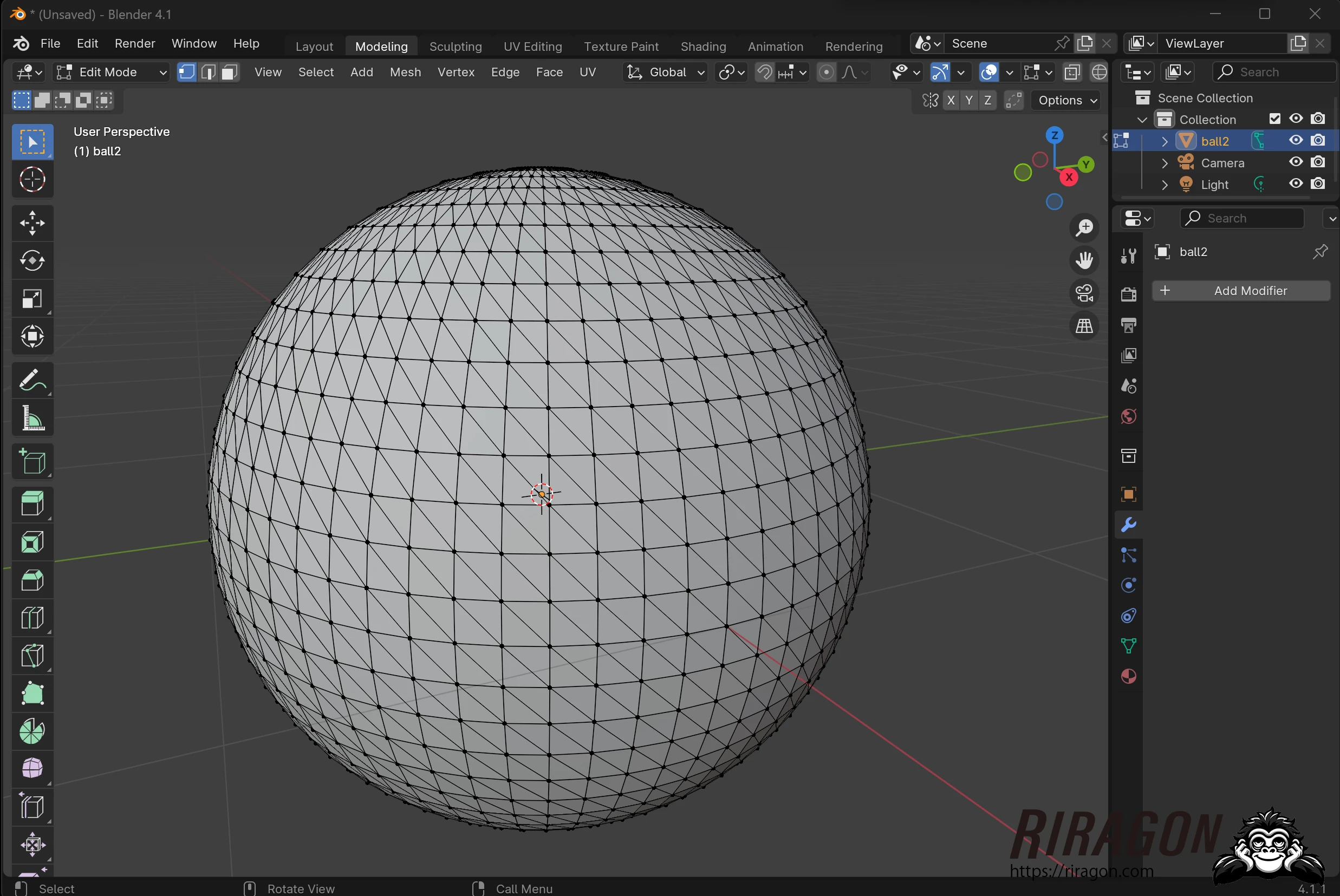
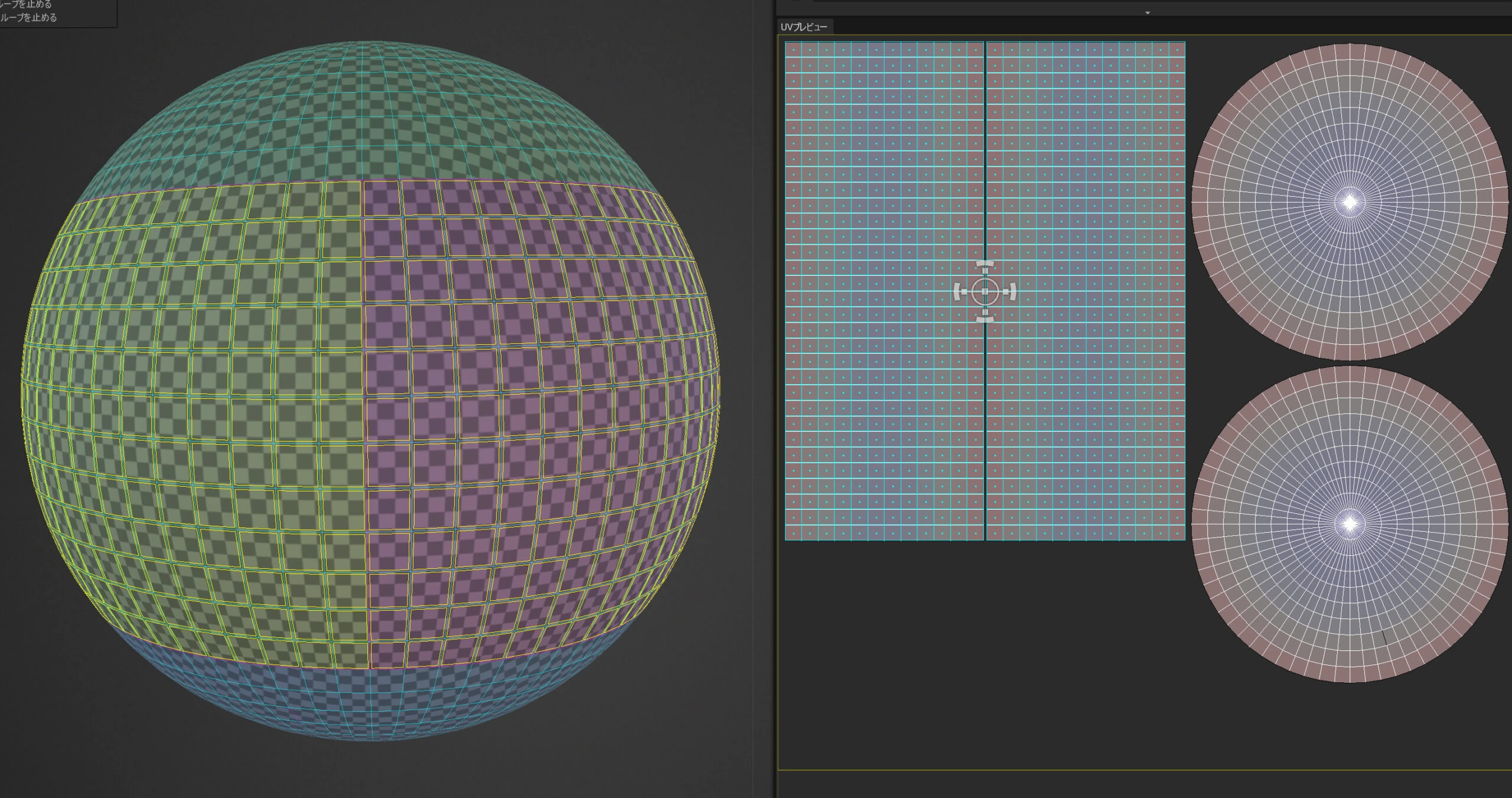
I started with a UV sphere whose faces had been triangulated.
Enter the modeling workspace and switch to a view that shows all the wireframe edges.
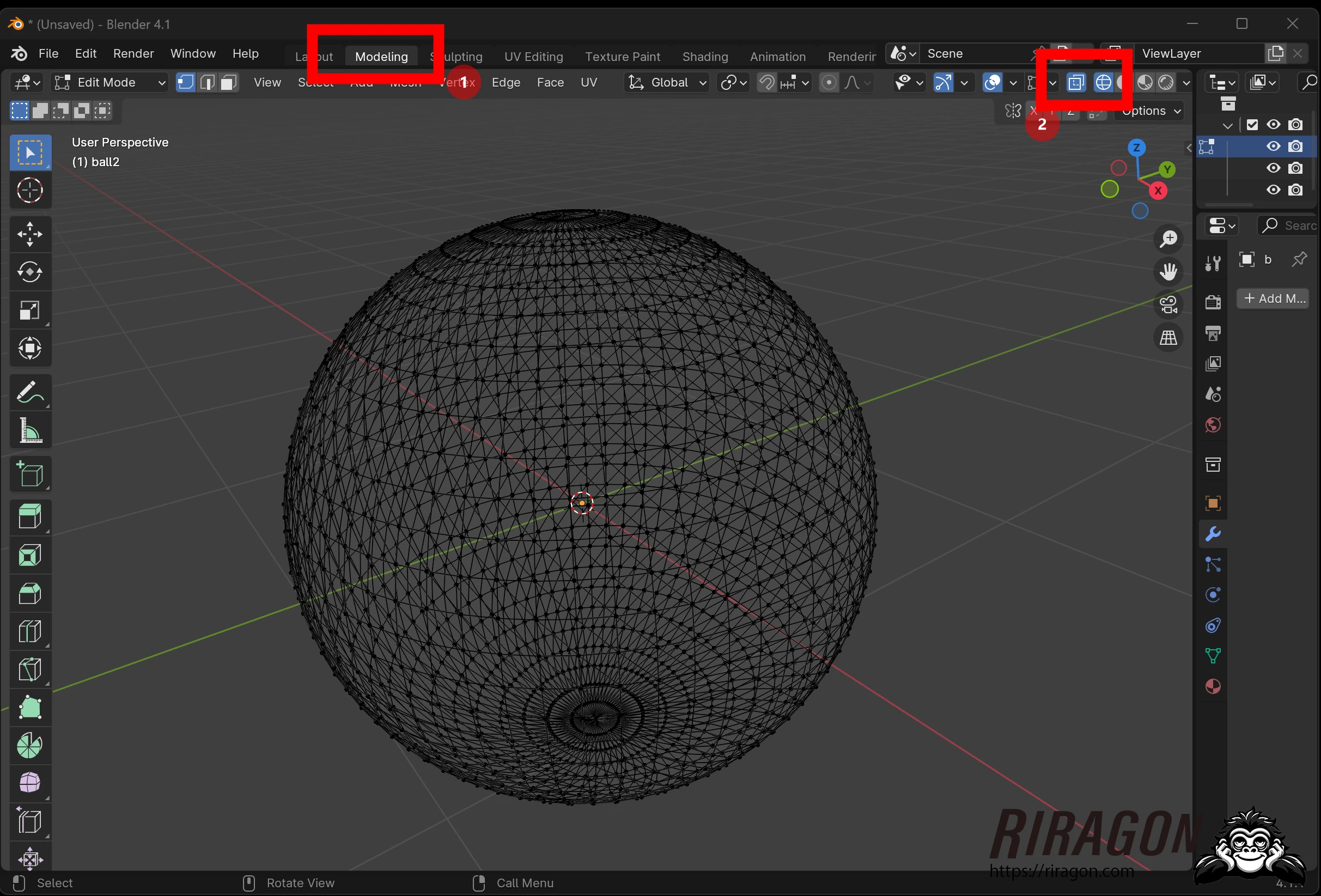 Select all the faces and press Alt+J. The menu command is Face > Triangles to Quads.
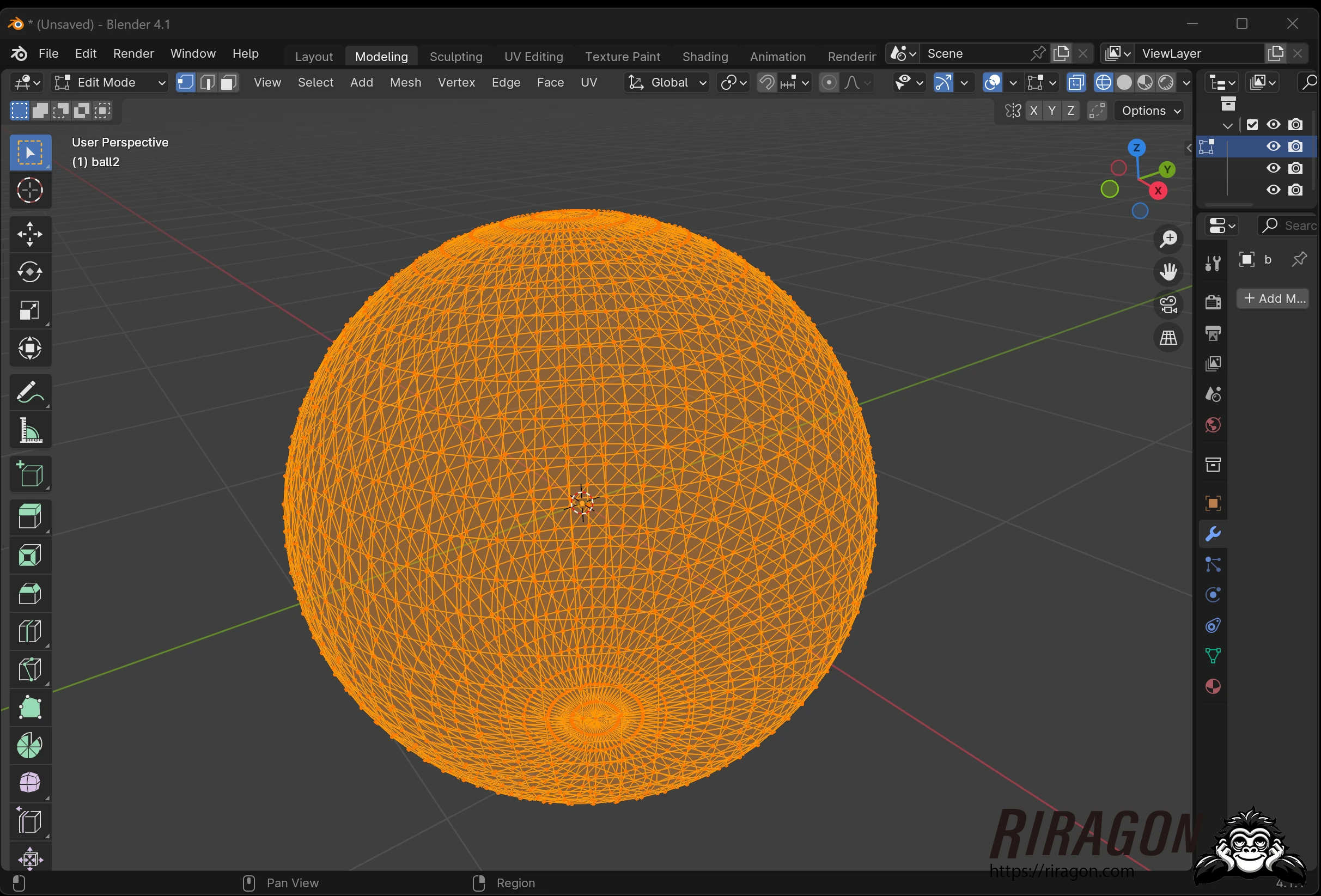 Even this dense triangular mesh can be processed with a single Alt+J shortcut.
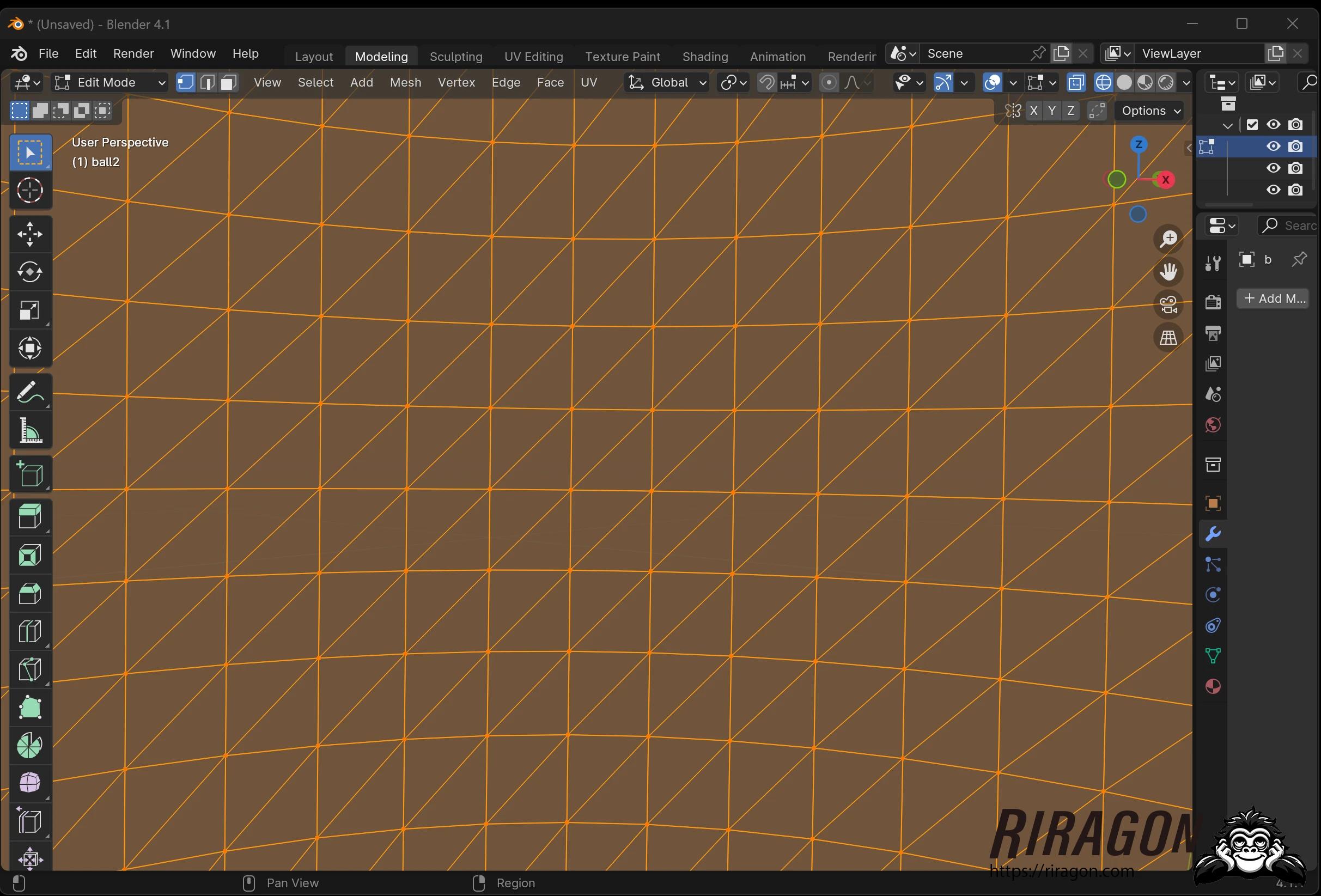
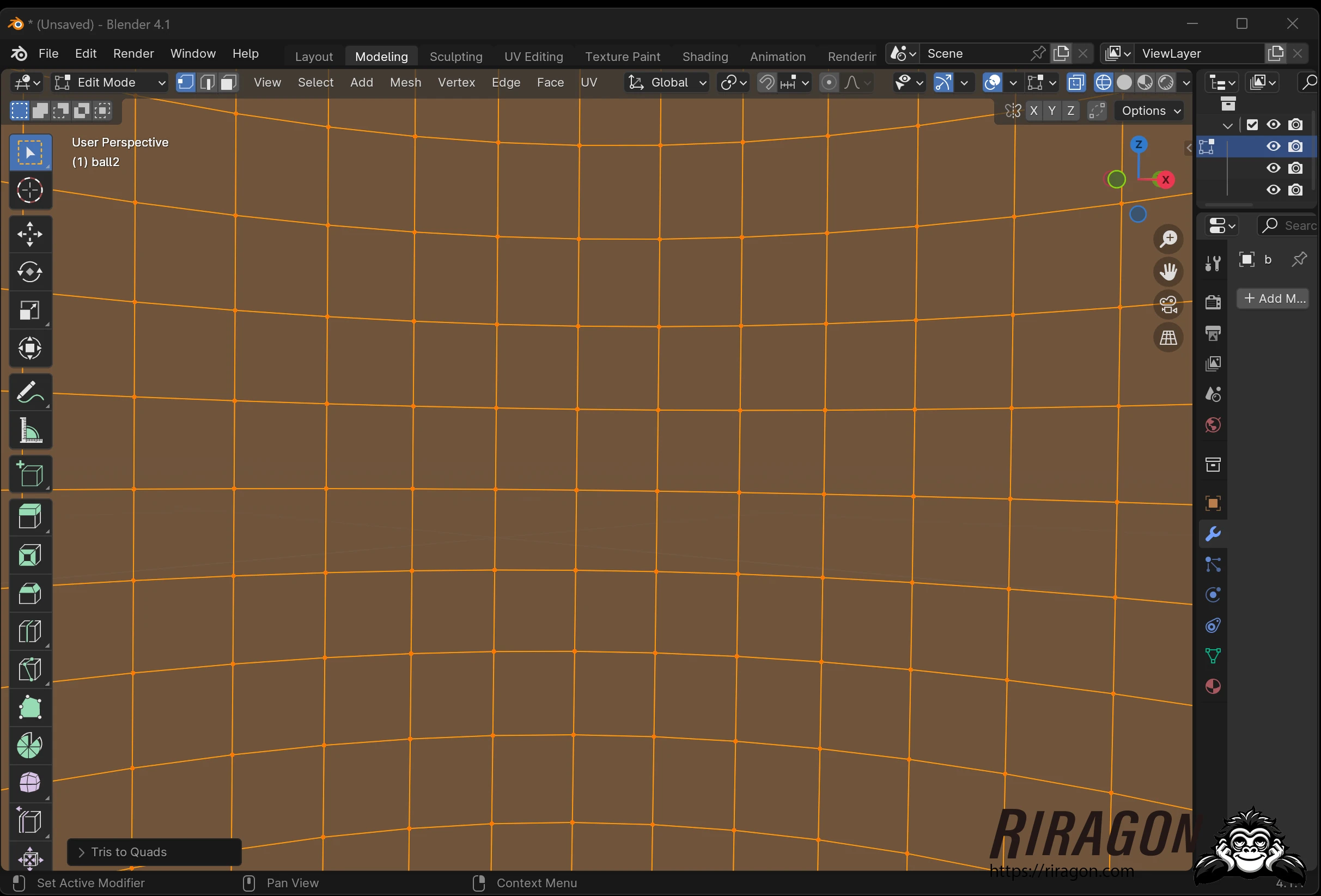 Faces that cannot be combined into quads remain triangles.
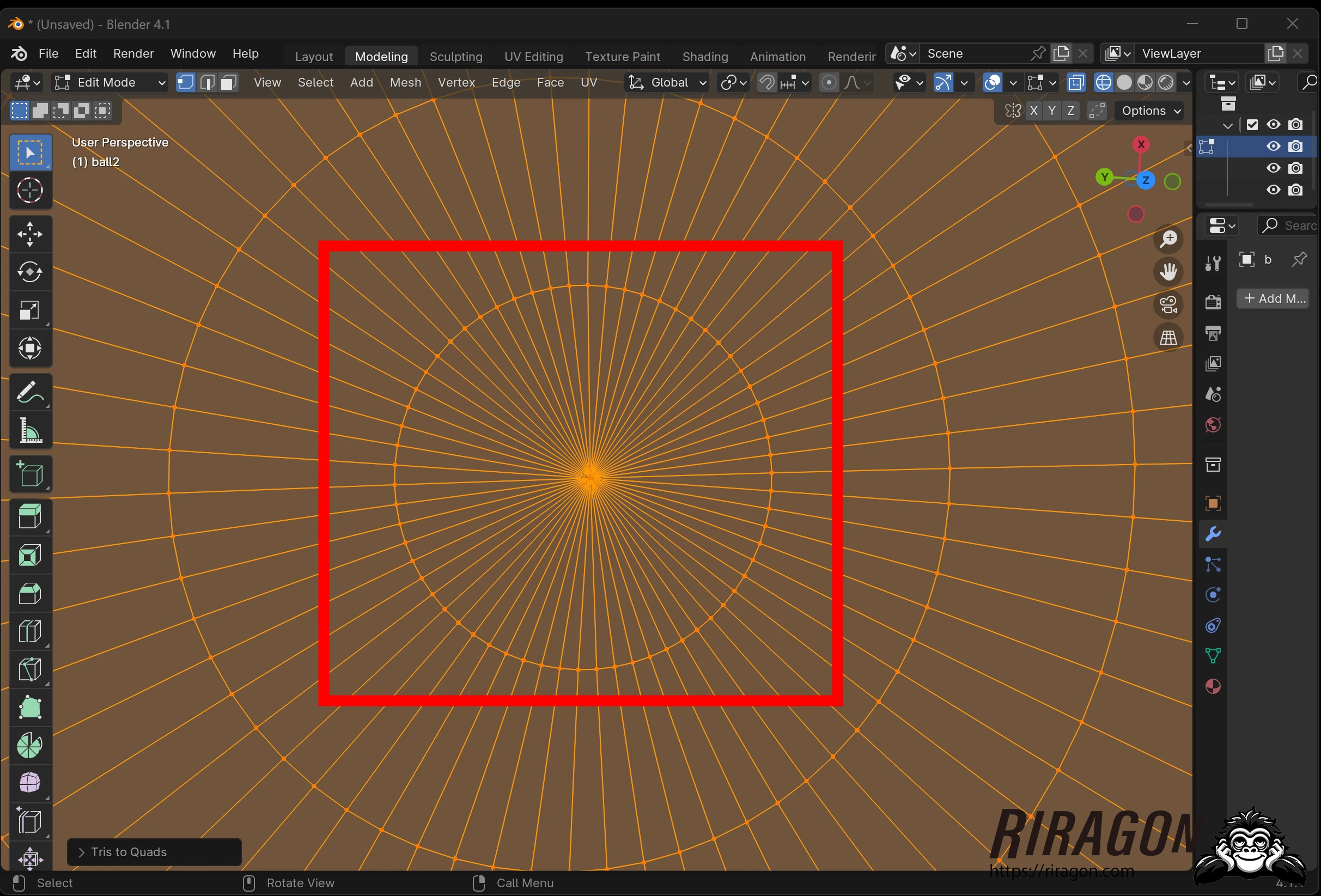 Triangles to Quads takes adjacent triangles and removes their shared edges to form quadrilateral faces. You can apply it to multiple selected triangles without handling each pair individually.
A quad needs at least two adjacent triangles. An even number of selected triangles does not guarantee an all-quad result. The tool tries to form regular rectangular quads, but some triangles can remain. Its options appear in the lower-left corner.
Triangles to Quads takes adjacent triangles and removes their shared edges to form quadrilateral faces. You can apply it to multiple selected triangles without handling each pair individually.
A quad needs at least two adjacent triangles. An even number of selected triangles does not guarantee an all-quad result. The tool tries to form regular rectangular quads, but some triangles can remain. Its options appear in the lower-left corner.
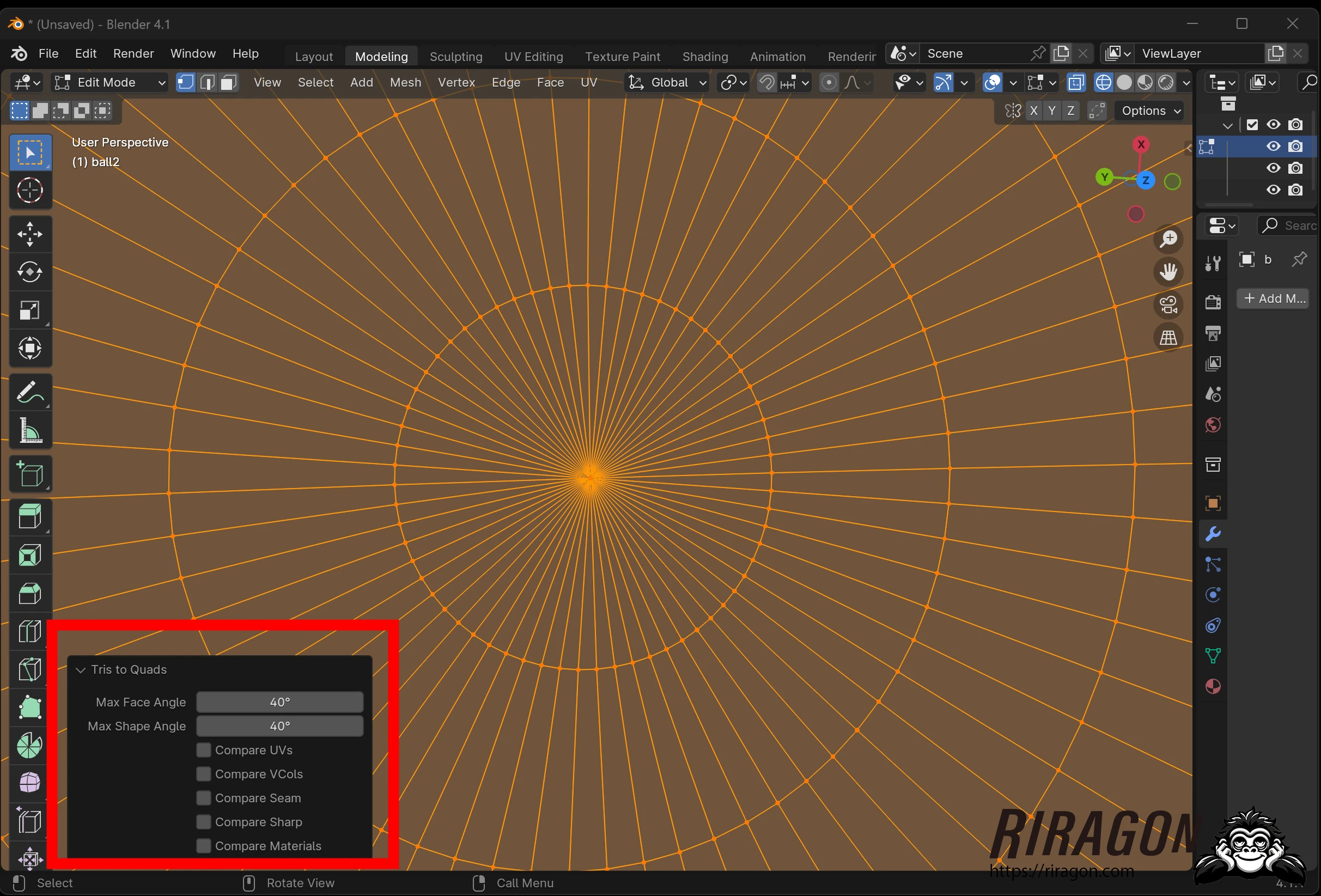 The options in the lower-left corner include:
- Max Angle This value, from 0 to 180, controls the threshold for combining adjacent triangles. At 0.0, only neighboring triangles that form a perfect rectangle, sharing their hypotenuse, are joined. A larger value may be needed when the shared edge is short compared with the other triangle edges.
- Compare UVs When enabled, this prevents triangles that are disconnected in the active UV map from being combined.
- Compare VCols When enabled, triangles with different color attribute values are not combined.
- Compare Sharp When enabled, faces sharing an edge marked sharp are not combined.
- Compare Materials When enabled, faces with different assigned materials are not combined.
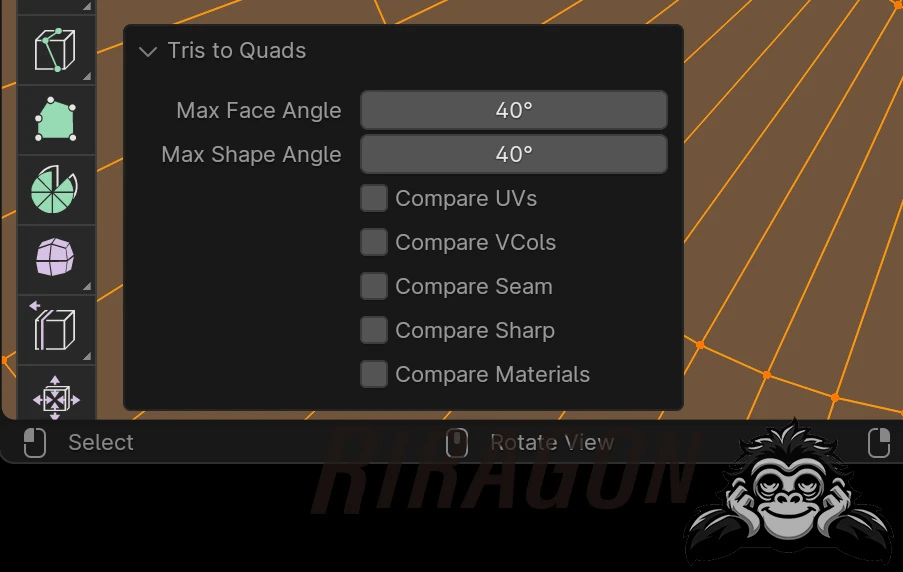 It is a convenient conversion. My UV map initially became distorted afterward, but updating Blender to the latest version available at the time resolved it. Give it a try.
https://docs.blender.org/manual/en/latest/modeling/meshes/editing/face/triangles_quads.html
Related articles
Updates and contact: X @riragoncom.