Related product listings: Find Raspberry Pi 5 on Amazon (Ad)
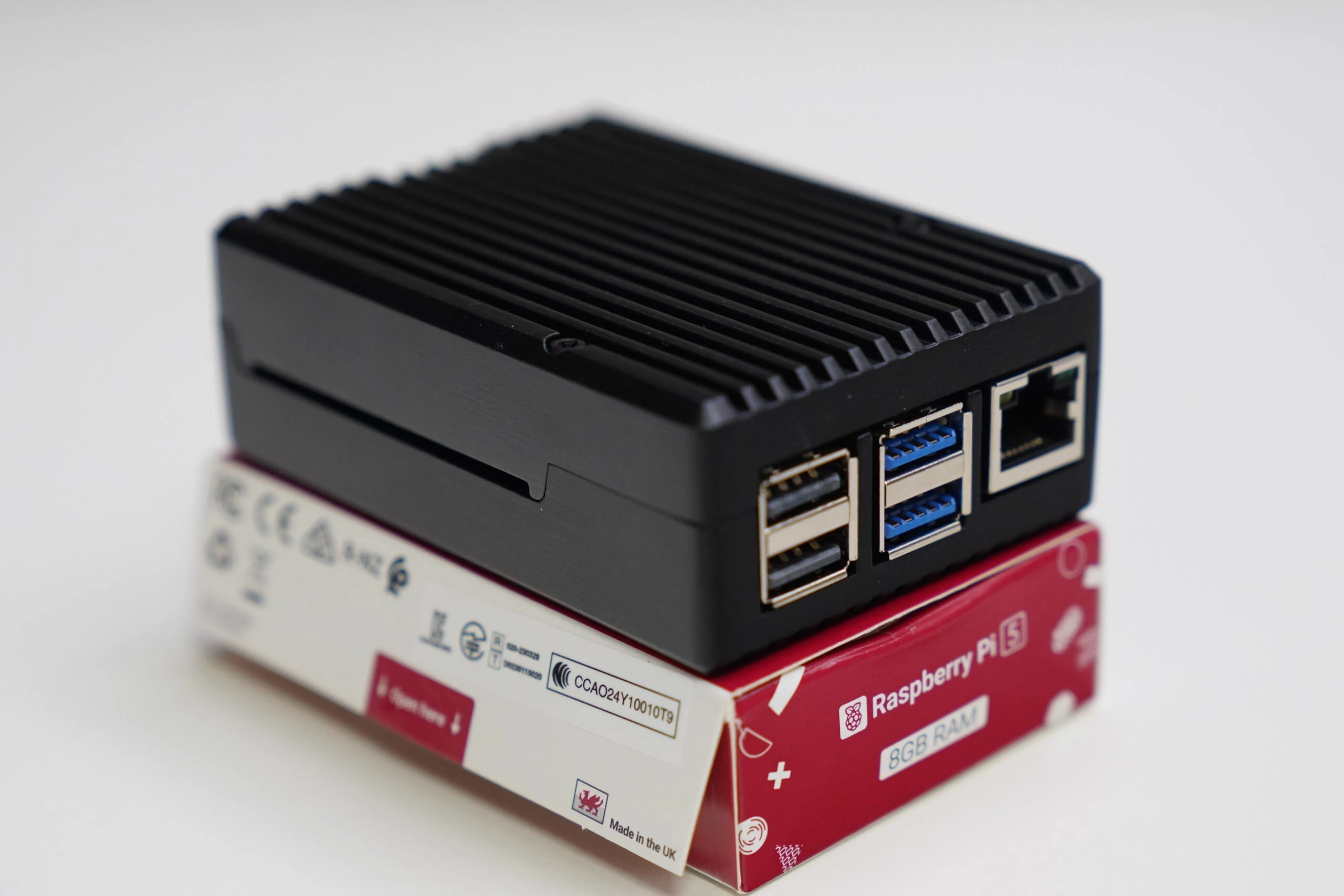
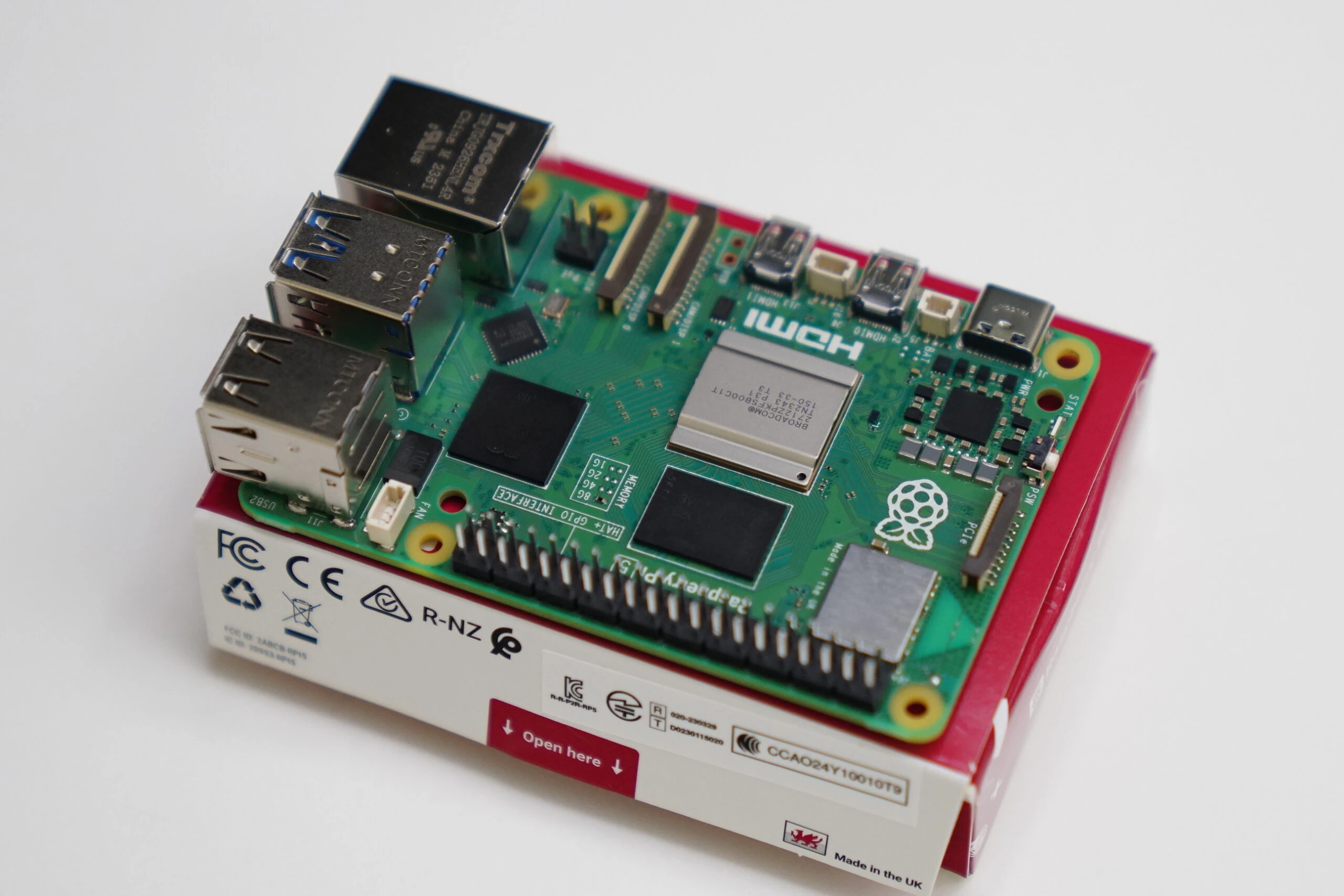 There are now two ribbon-camera connectors, apparently allowing two cameras. That could be interesting for some applications. 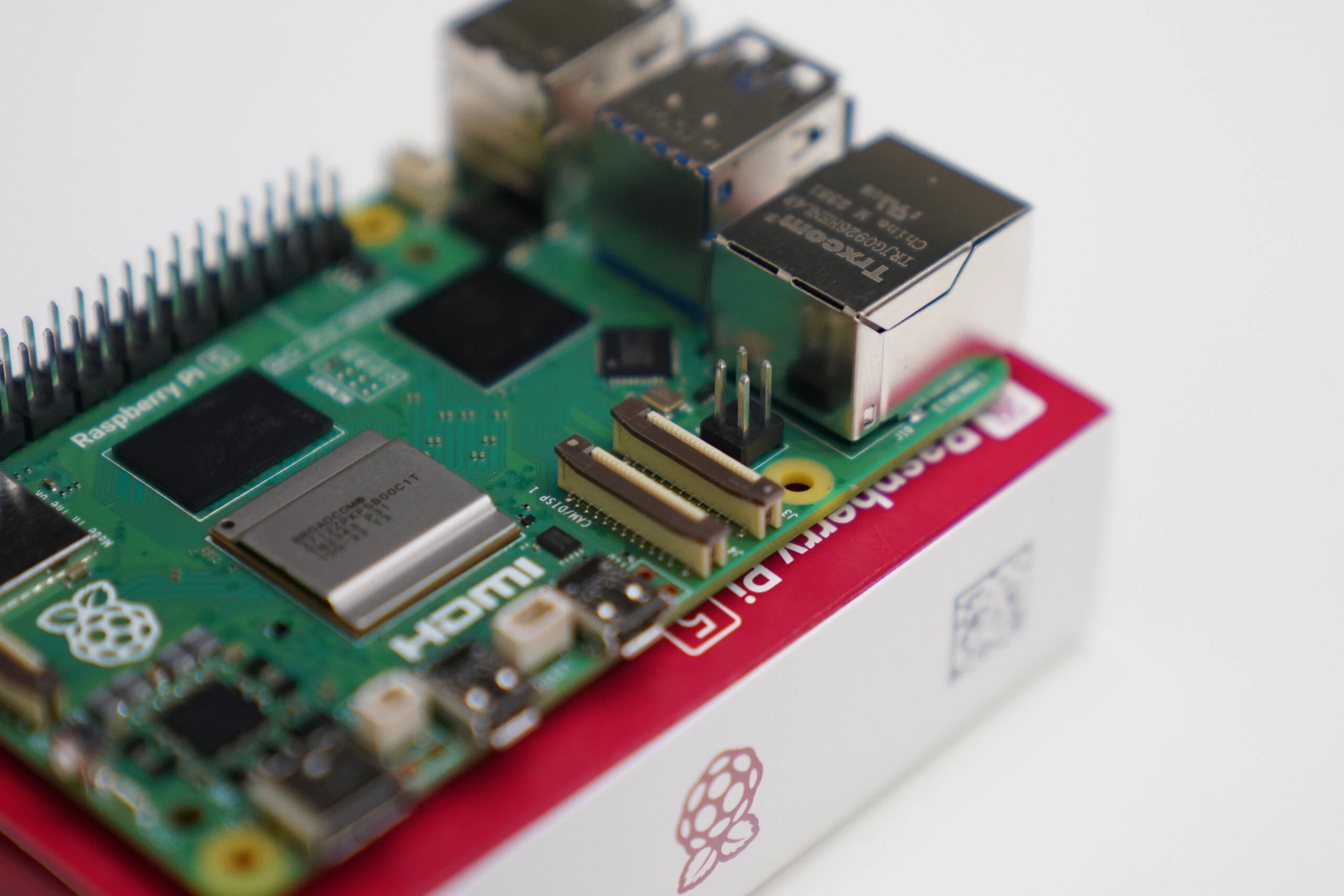 The connector behind the LAN port is apparently for the system fan. 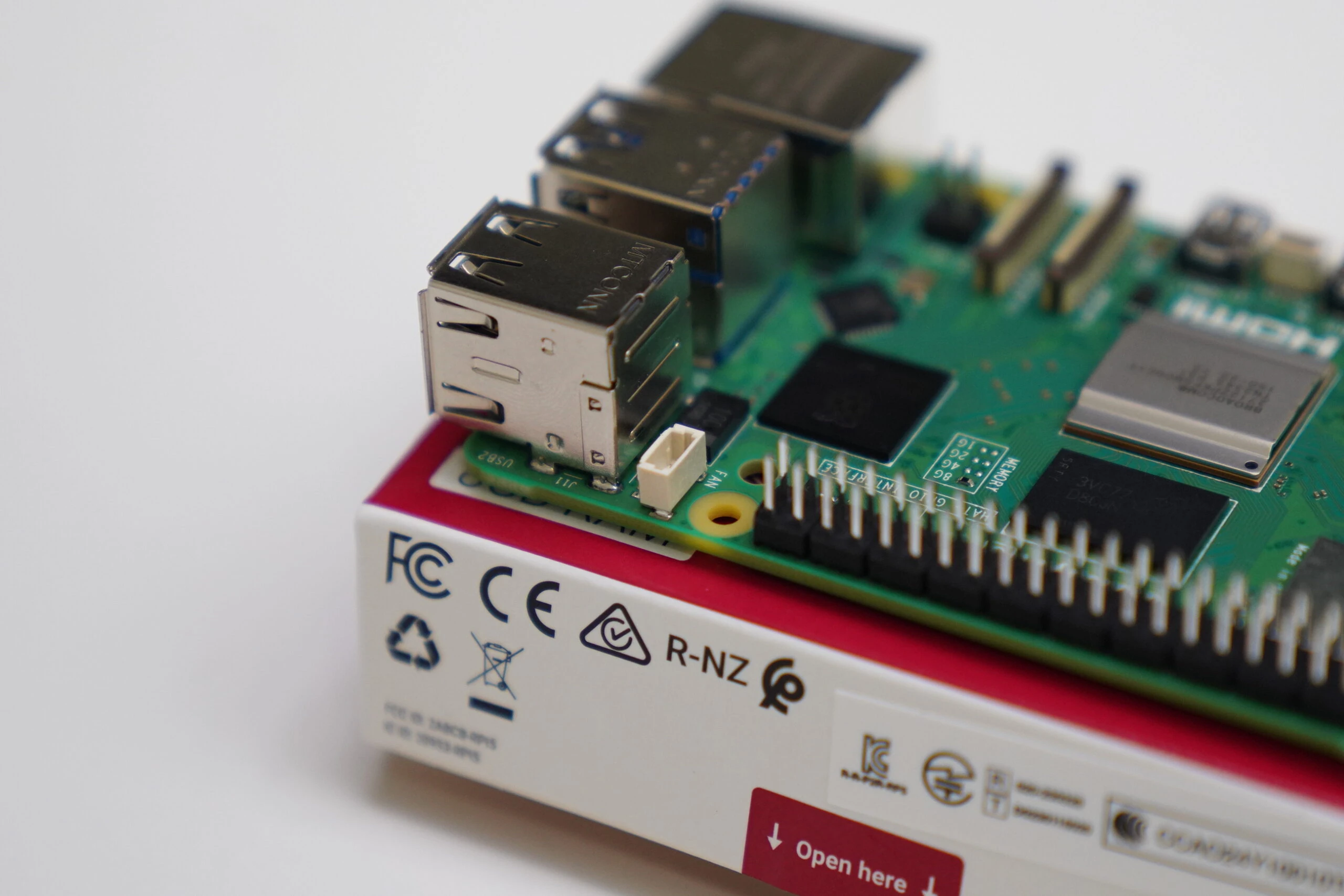 The USB Type-C power connector. 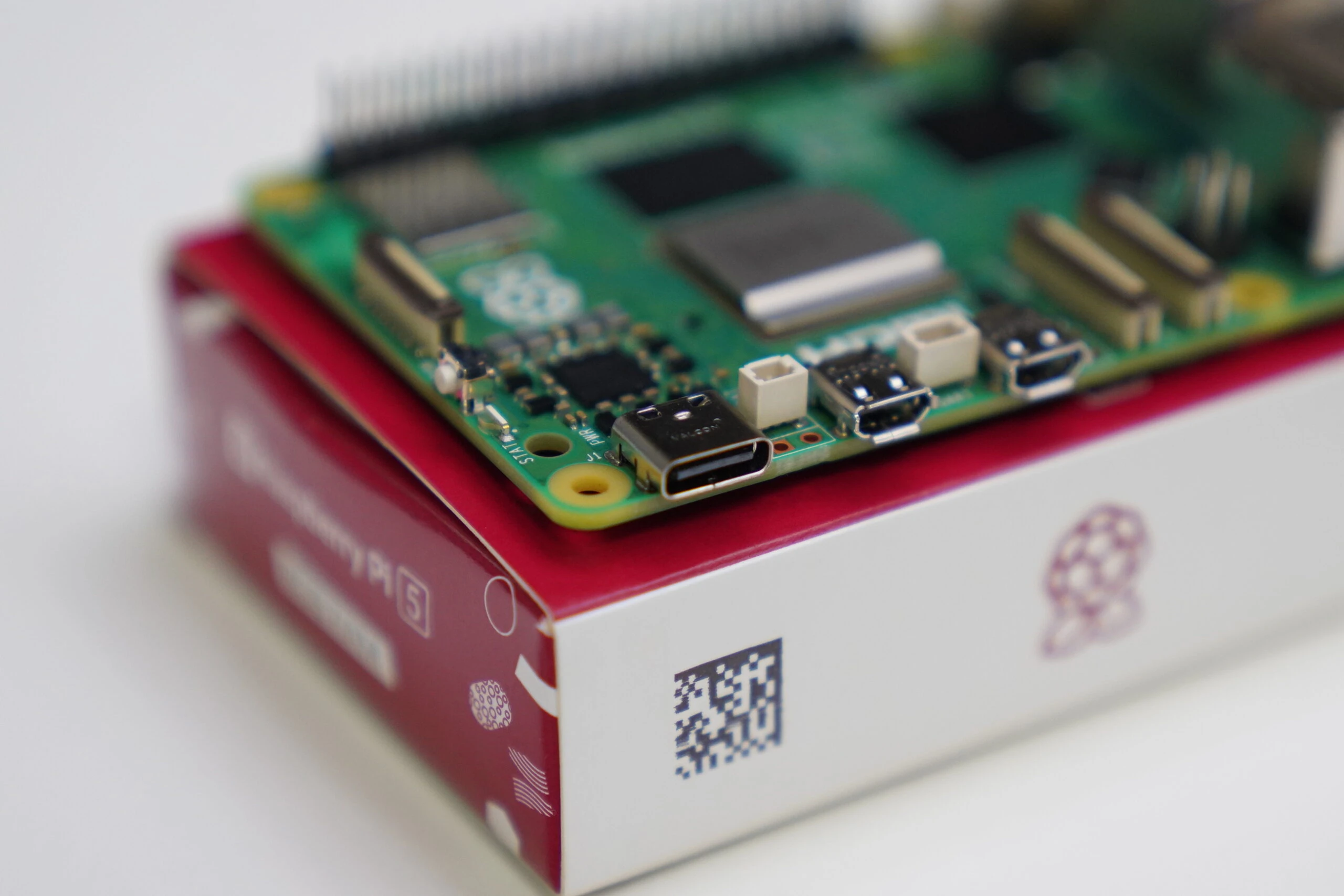 Since the Pi 5 seems to run hotter than the Pi 4, I bought a well-reviewed aluminum case. It is satisfyingly heavy and feels well made. A fanless version seems to exist too, but I chose the version with a fan for extra reassurance. 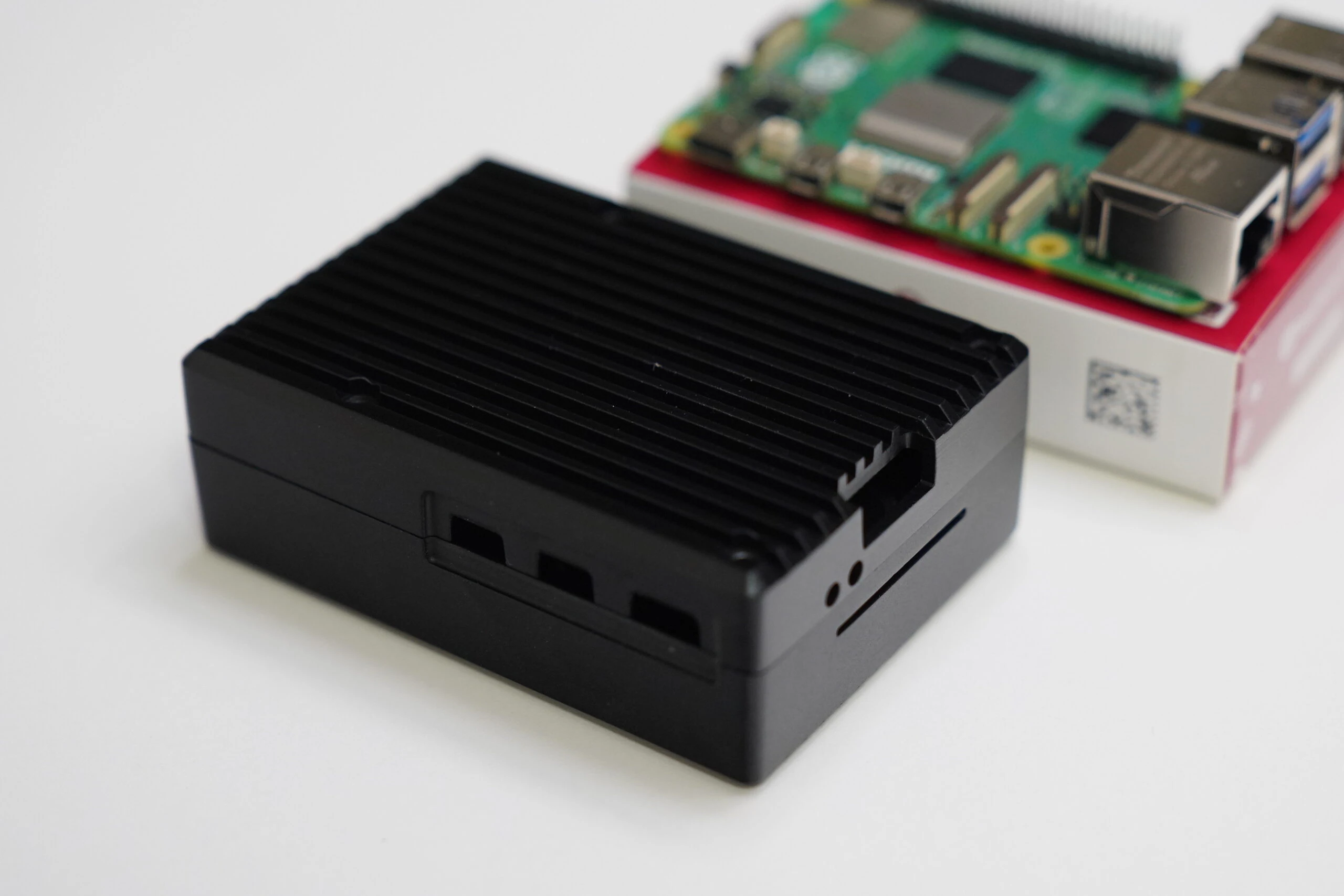 Place the thermal pads on the main chips. 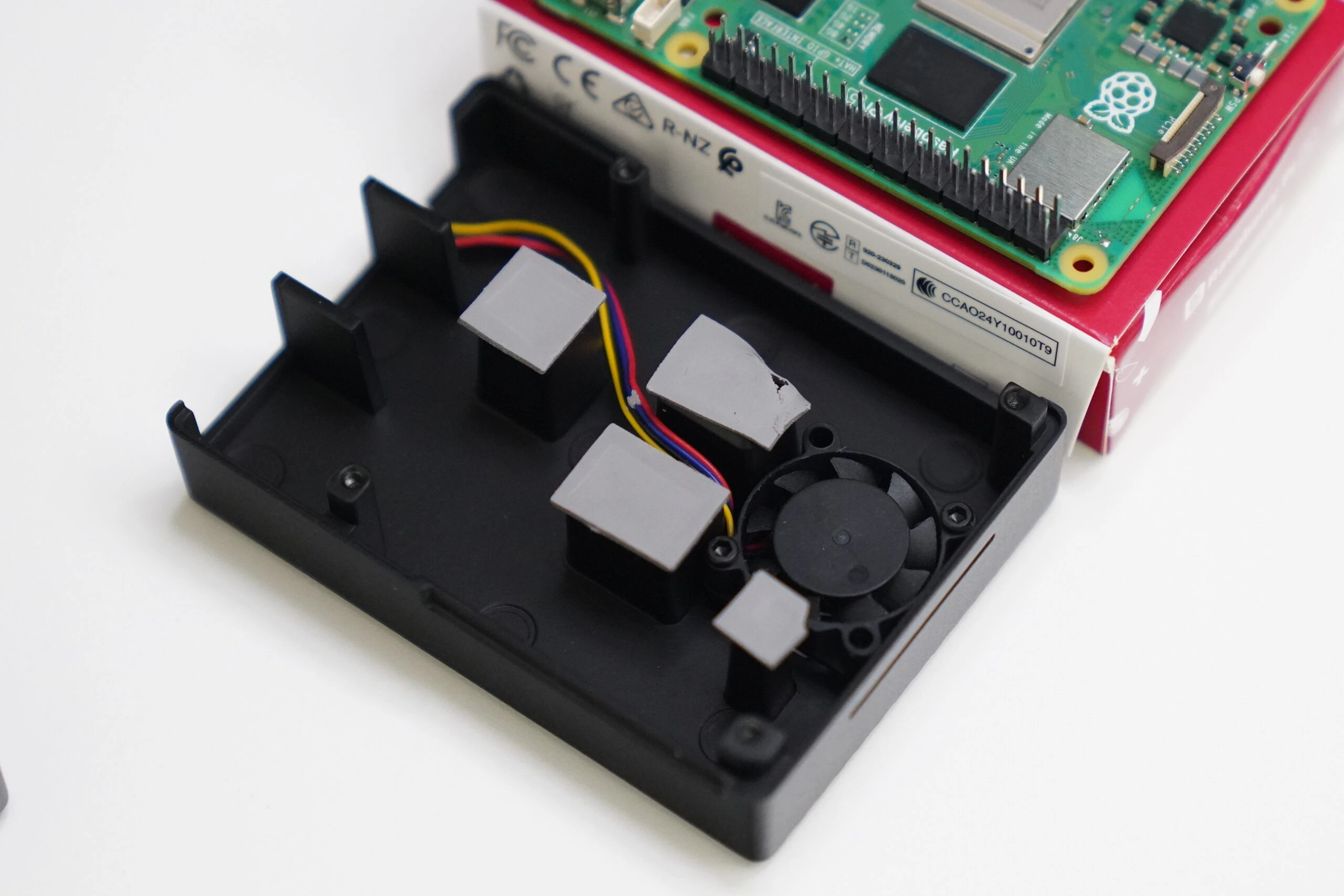 Connect the system fan. 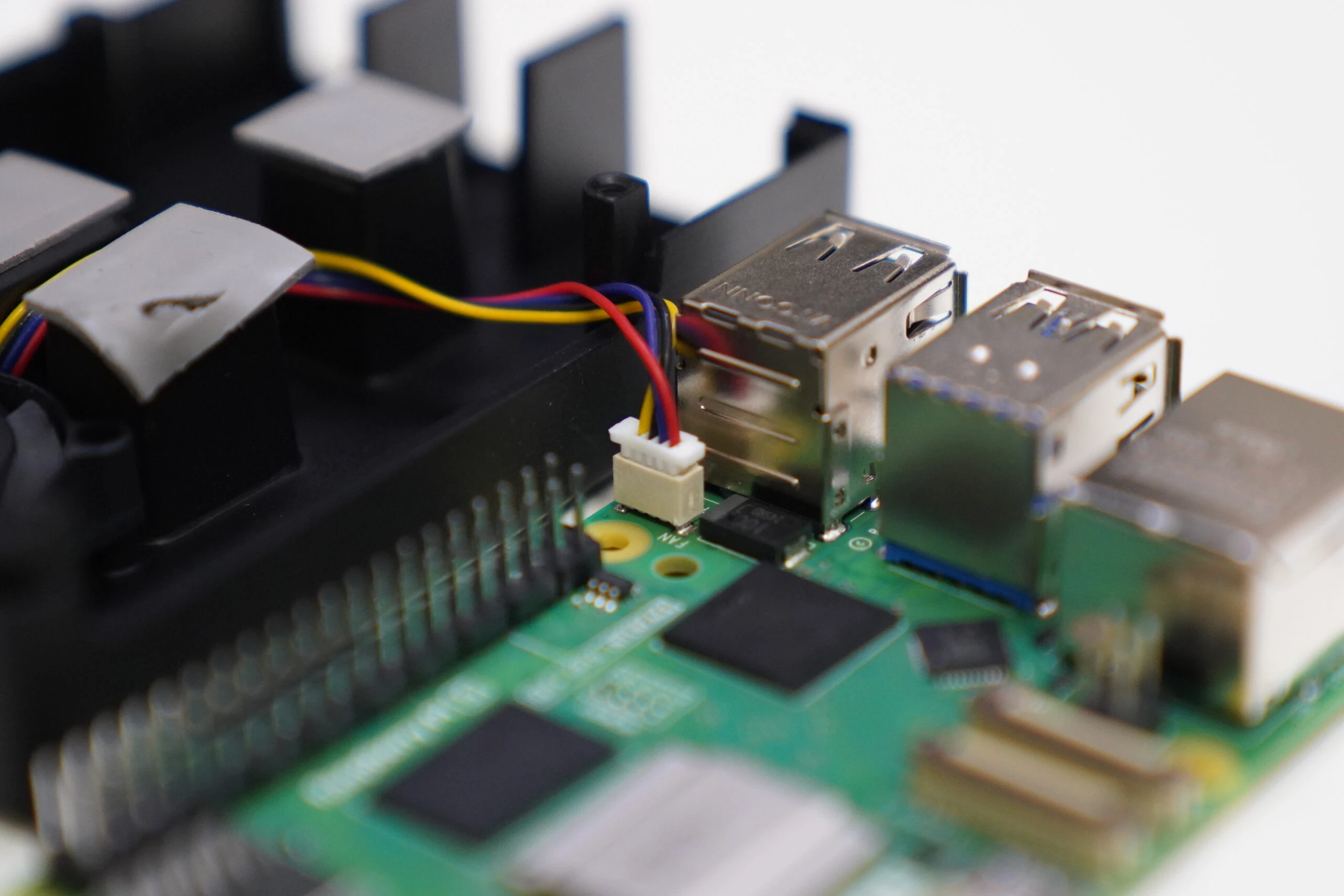 Align the parts and close the case. 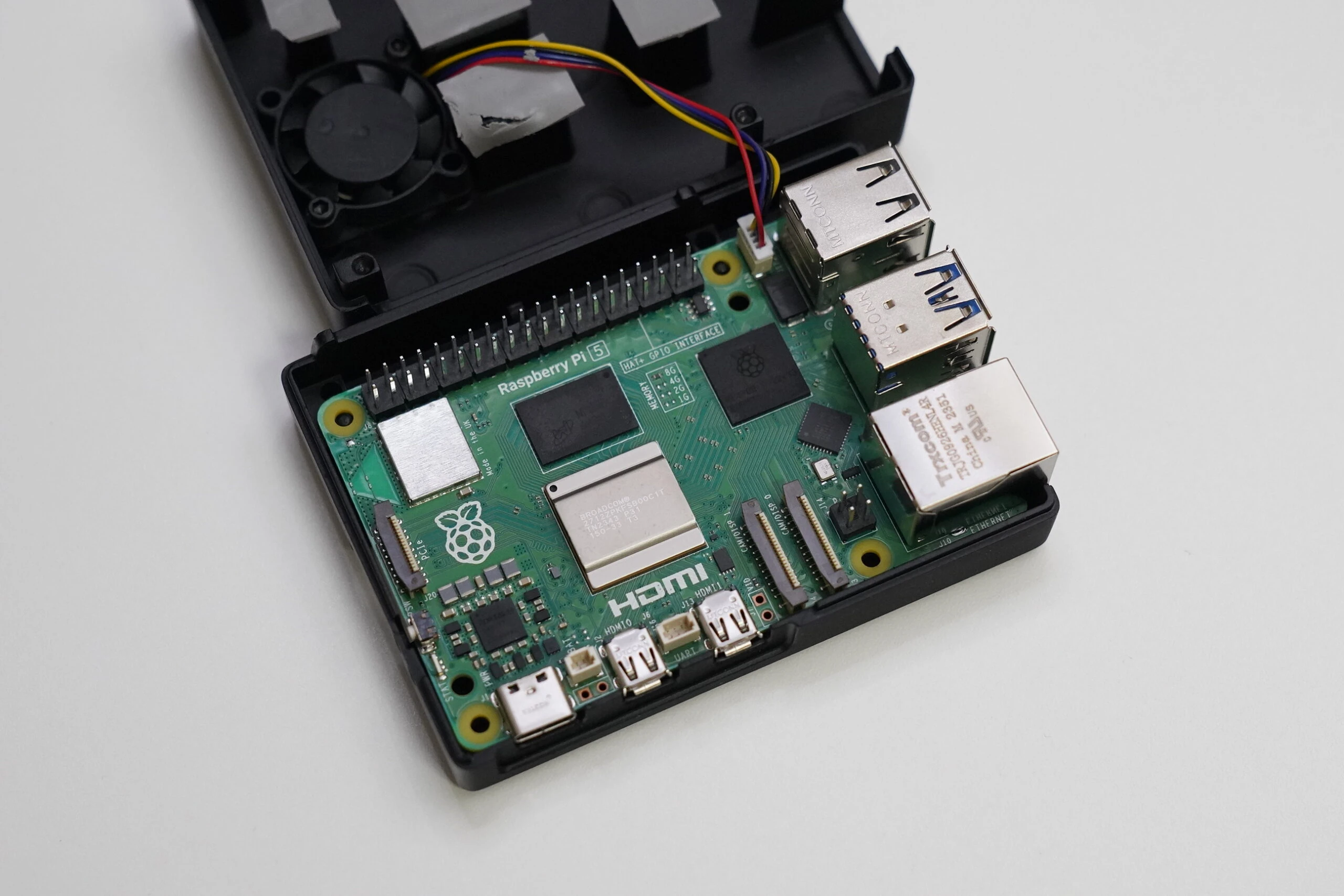 The aluminum case is solid, and its internal fan is quiet. It seems like a good case.Related product listings: Find aluminum Raspberry Pi 5 cases with fans on Amazon (Ad)
 Use the usual installer. 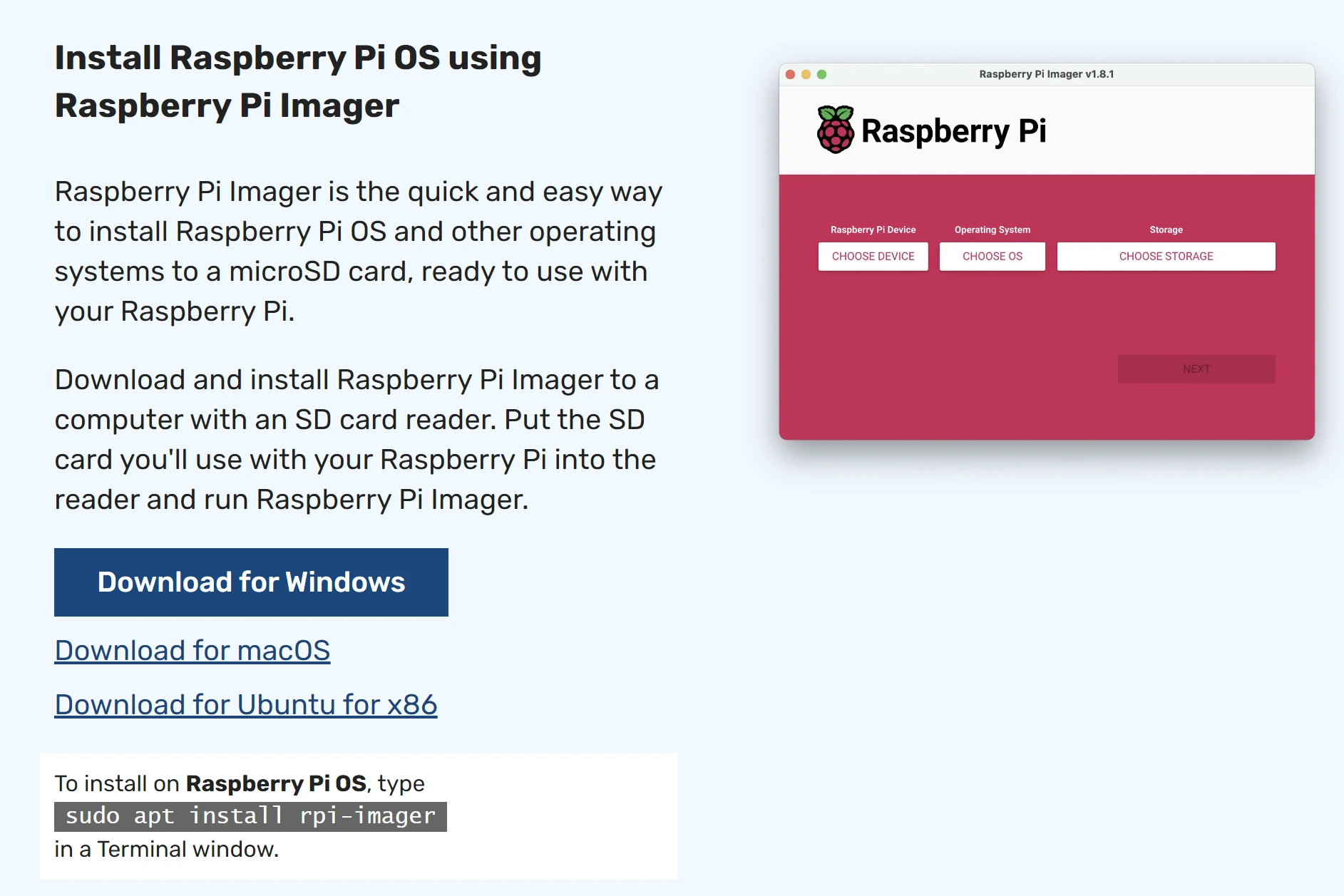 Select Raspberry Pi 5. 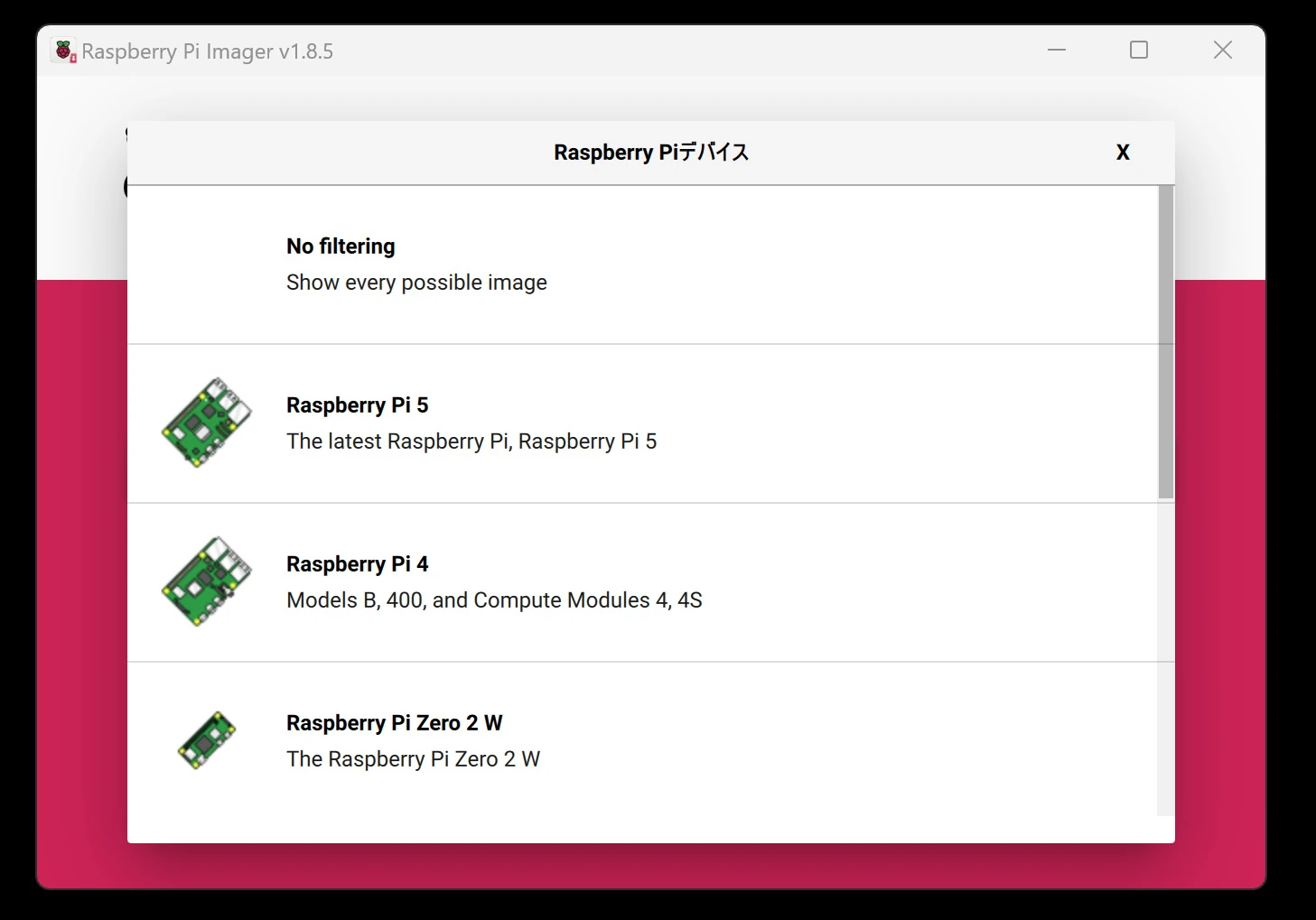 I normally use Ubuntu rather than Raspberry Pi OS, so I install Ubuntu. Raspberry Pi OS would probably cause fewer problems, but Ubuntu it is for now. 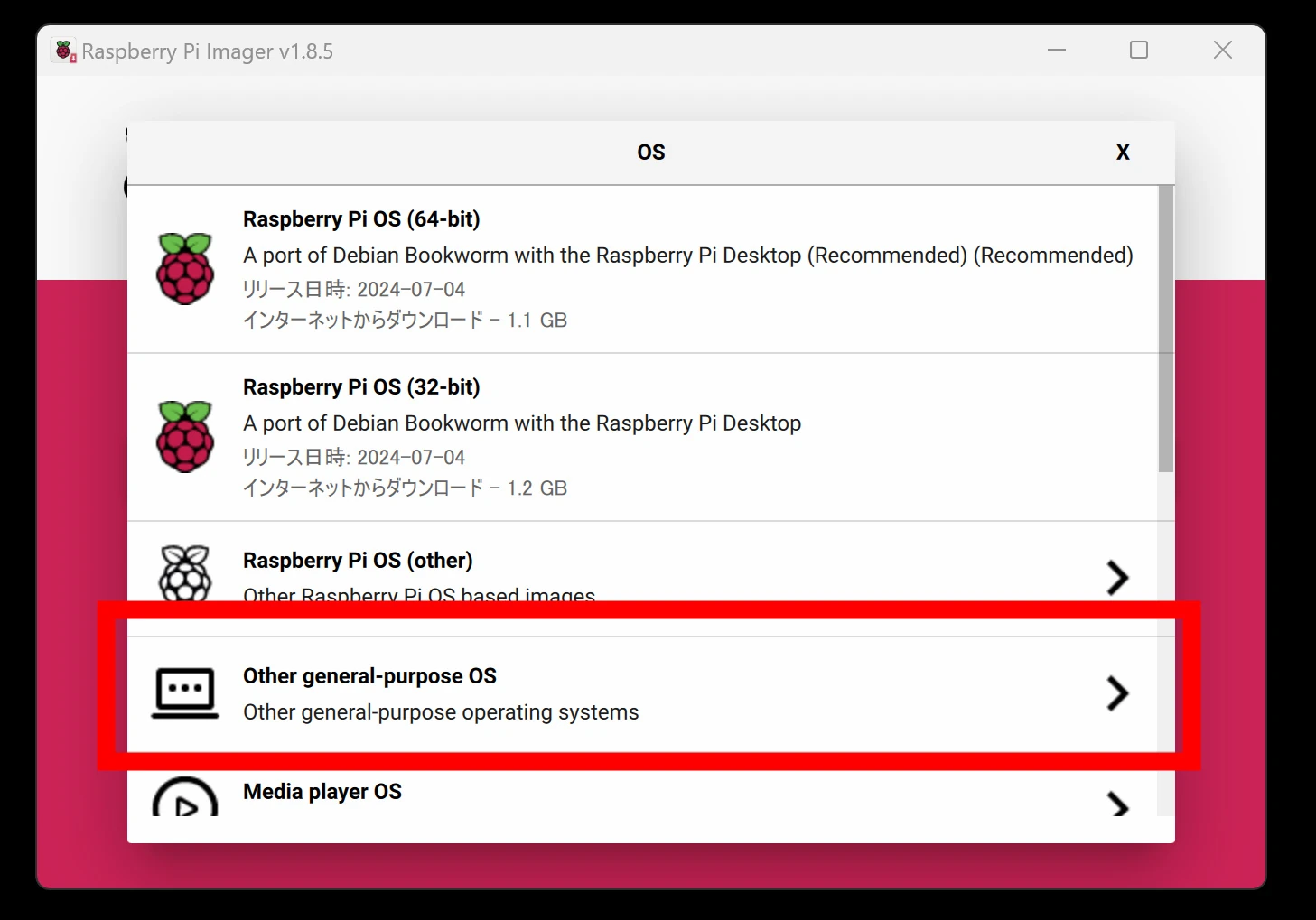 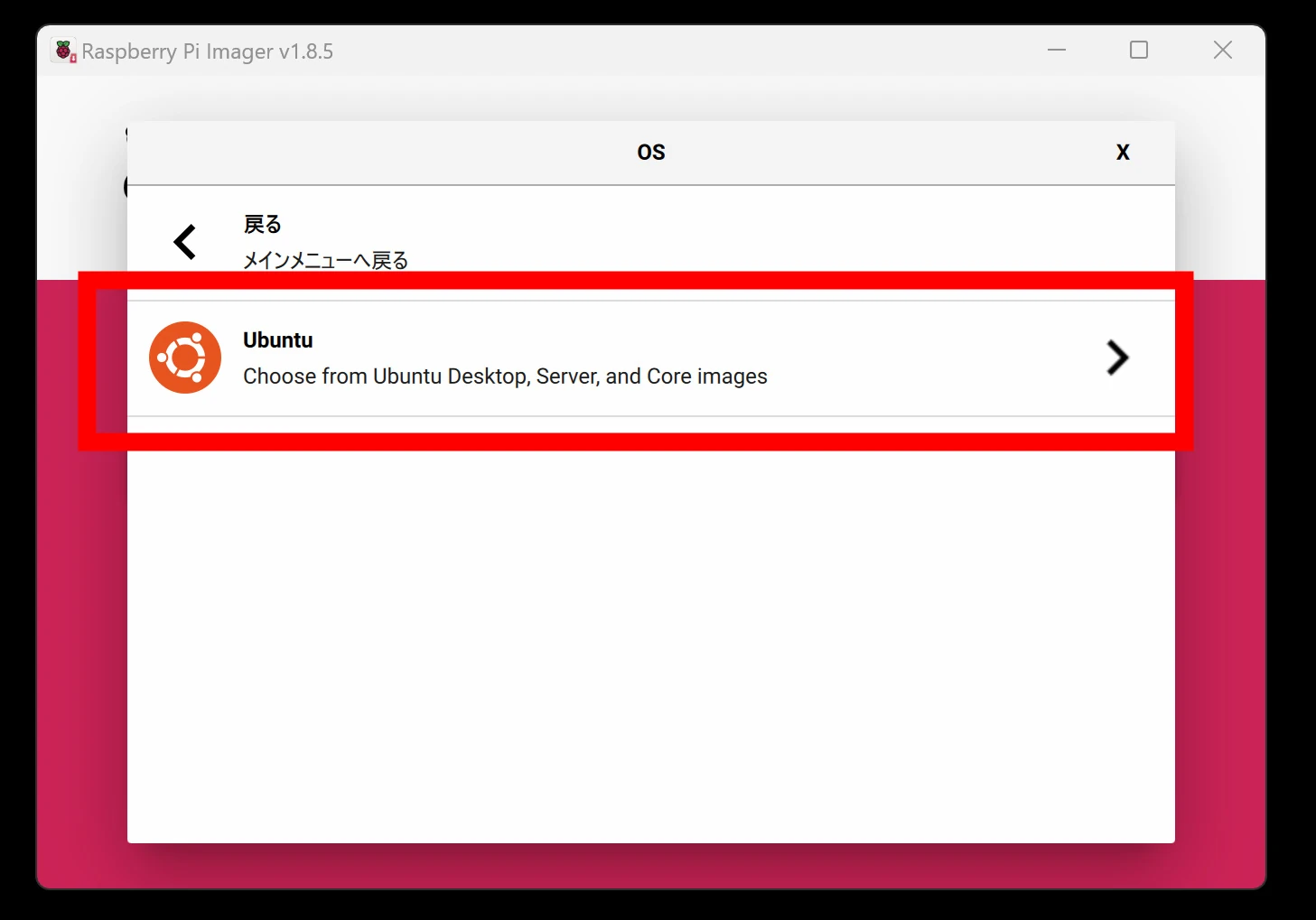 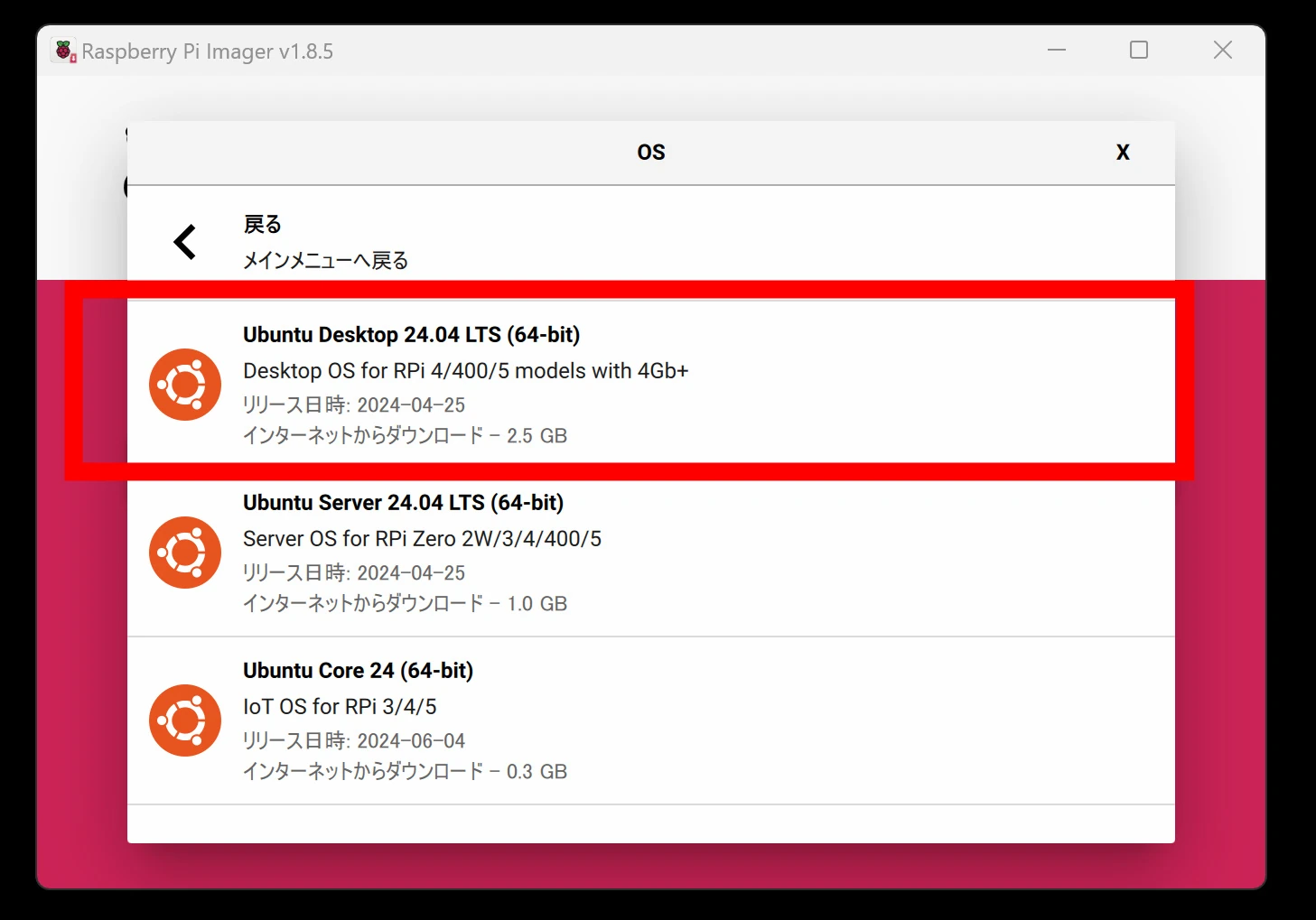 I had a spare 1TB SSD, so I installed the system on that. 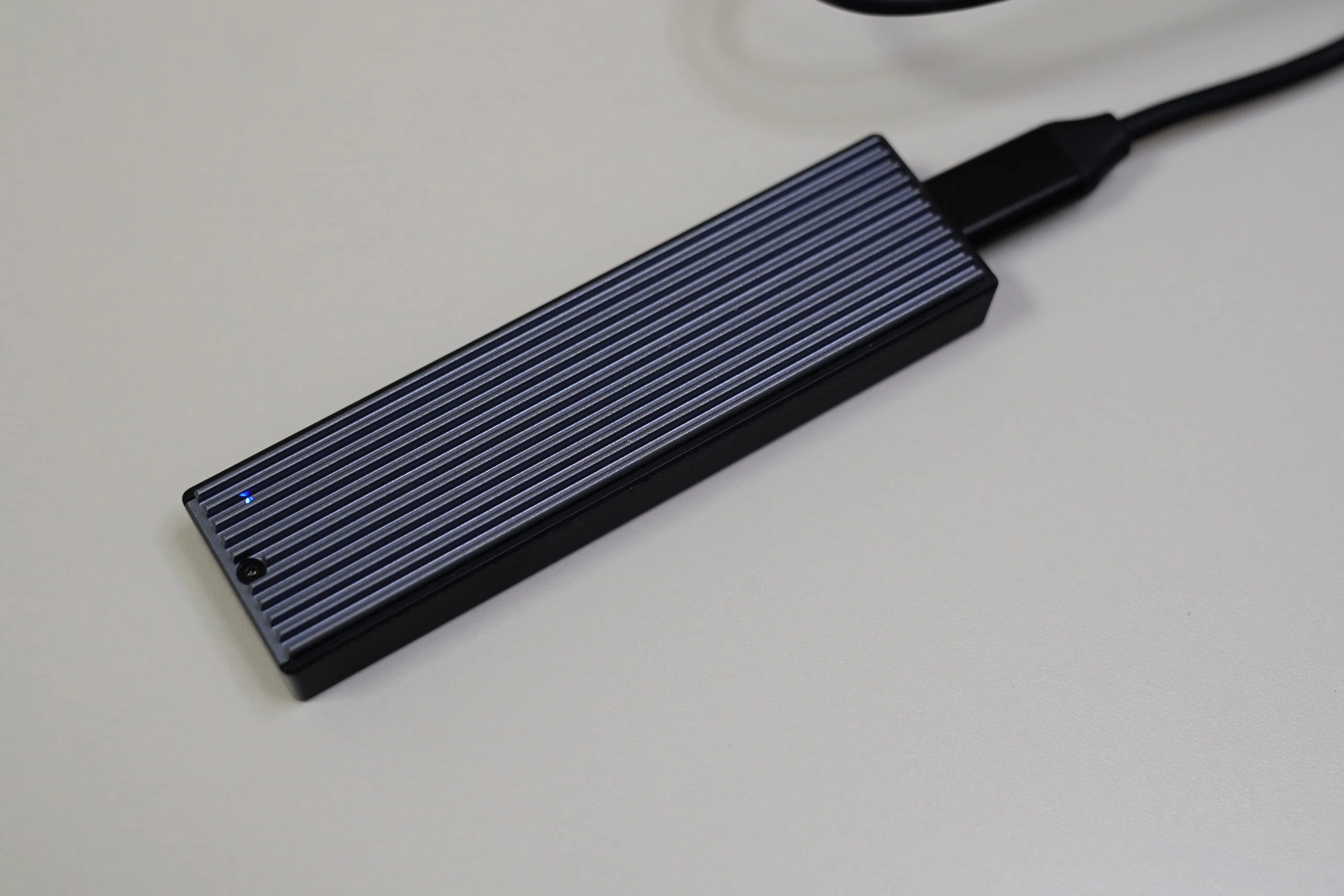 The Pi 5 appears able to boot directly from USB storage plugged into USB 3.0. Simple and convenient.Related product listings: Find 1TB USB-connected SSDs on Amazon (Ad)
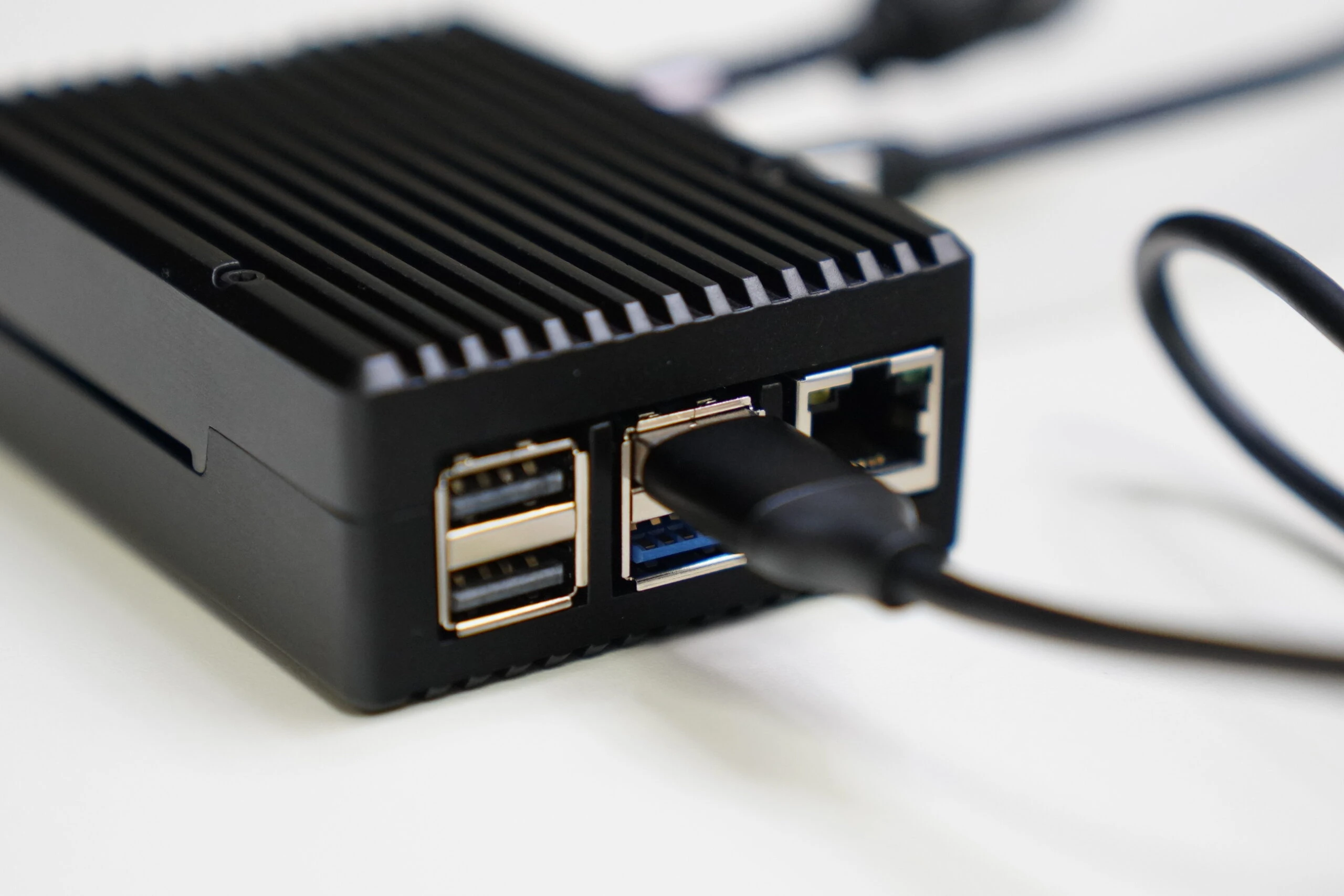 Connect suitable peripherals and proceed with setup. 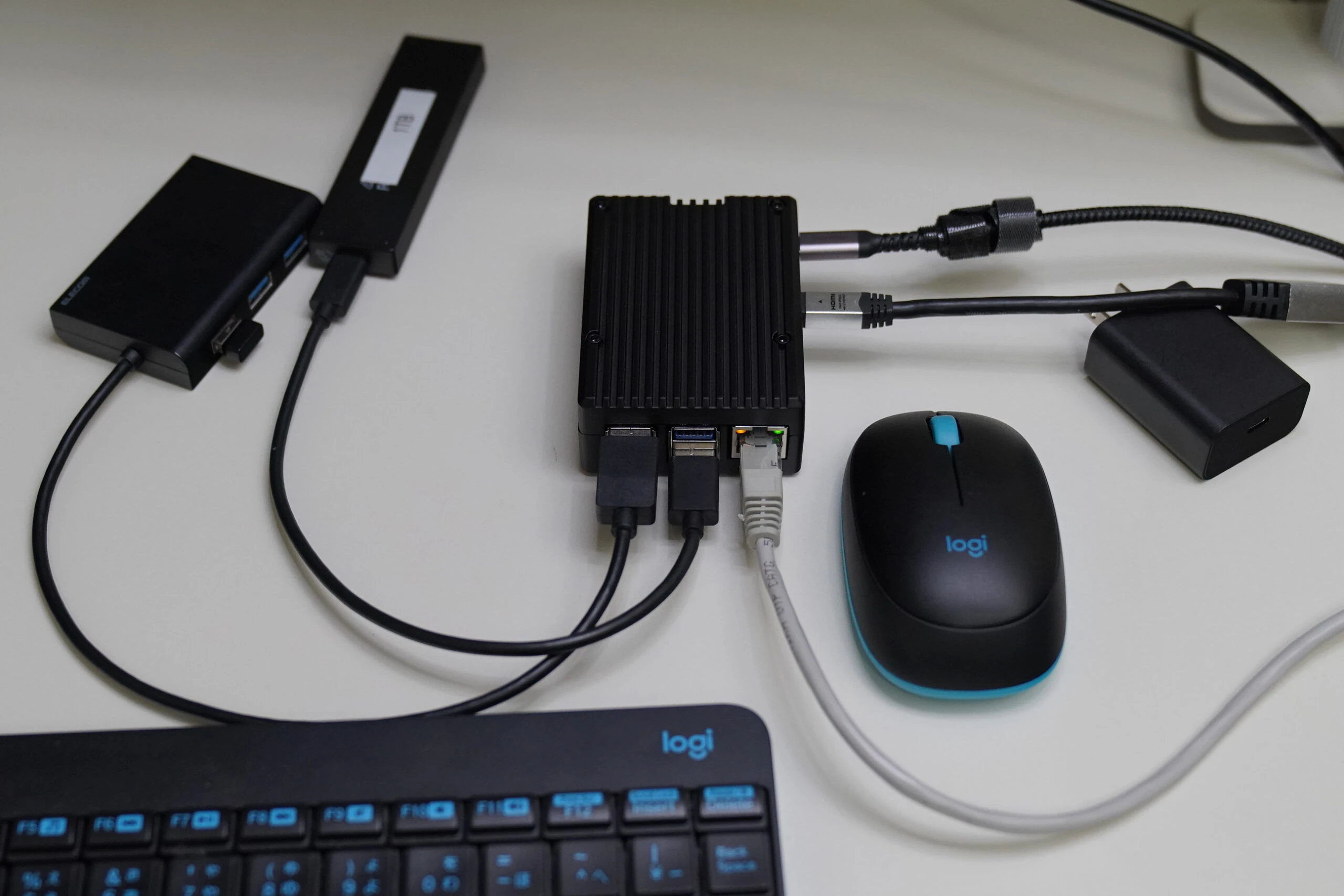 For reasons I did not understand, installation would not progress at all. Disconnecting the network let it continue, but it still stopped from time to time afterward. Frustrating. 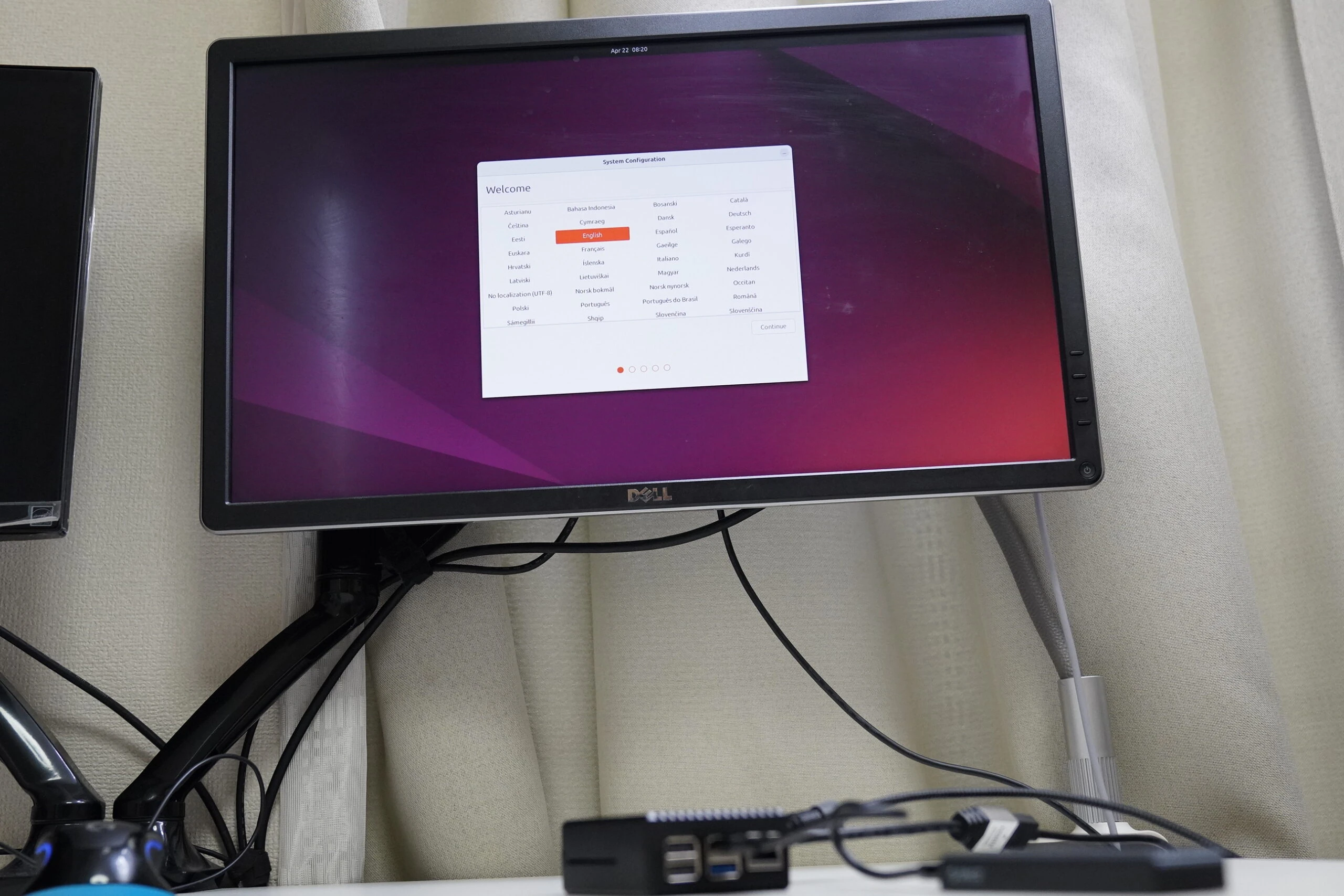 ## Installation would not progress: could power be the cause? I could supply only 5V at 3A over USB, while the Pi 5 calls for 5V at 5A in this setup. Even most 30W USB PD adapters supply only 3A at 5V. The Anker adapters I checked had that specification too. Perhaps insufficient power was the cause. I therefore bought a dedicated 5V 5A adapter on Amazon. During installation, pressing the power switch lets you bypass the warning and proceed at 5V 3A. However, it seemed very unstable, so I felt a dedicated adapter was essential.  For now, I continued getting it running, starting with basic updates. Updating took a very long time, perhaps one or two hours. ``` sudo apt update sudo apt upgrade ``` SSH would make configuration easier, but installing openssh-server produced an error about a damaged configuration. I repaired it with the following command, then installed SSH. ``` sudo dpkg --configure -a sudo apt --fix-broken install ``` ``` sudo apt install openssh-server ``` Open the SSH port with ufw. I also assigned a static IP address. ``` sudo ufw allow 22 ``` Since I want to examine temperatures, I first display the current reading. Only CPU temperature seems to be available. On such a small system, I will use that as a rough indicator for the system as a whole. The following displays it without sudo. The reading is in millidegrees Celsius, so divide by 1,000 to get degrees Celsius. Mine was 44.1°C. ``` cat /sys/class/thermal/thermal_zone0/temp | awk '{print $1/1000 "°C"}' ``` Install a tool to stress the CPU. ``` sudo apt-get install stress ``` Apply load to all four CPU cores for 600 seconds. ``` stress --cpu 4 --timeout 600 ``` The CPU is receiving the intended load. 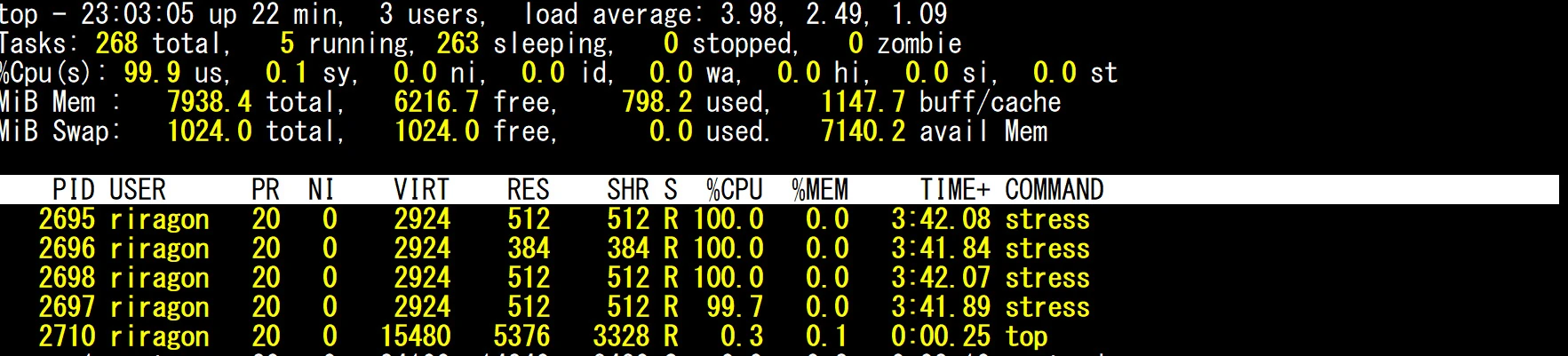 In about a minute, it rose from 40°C to 60°C. Looking into Pi 5 temperatures, it appears that CPU thermal throttling, a heat-related performance restriction, begins at 85°C. Reference Raspberry Pi 5 reviewRelated product listings: Find waterproof boxes on Amazon (Ad)
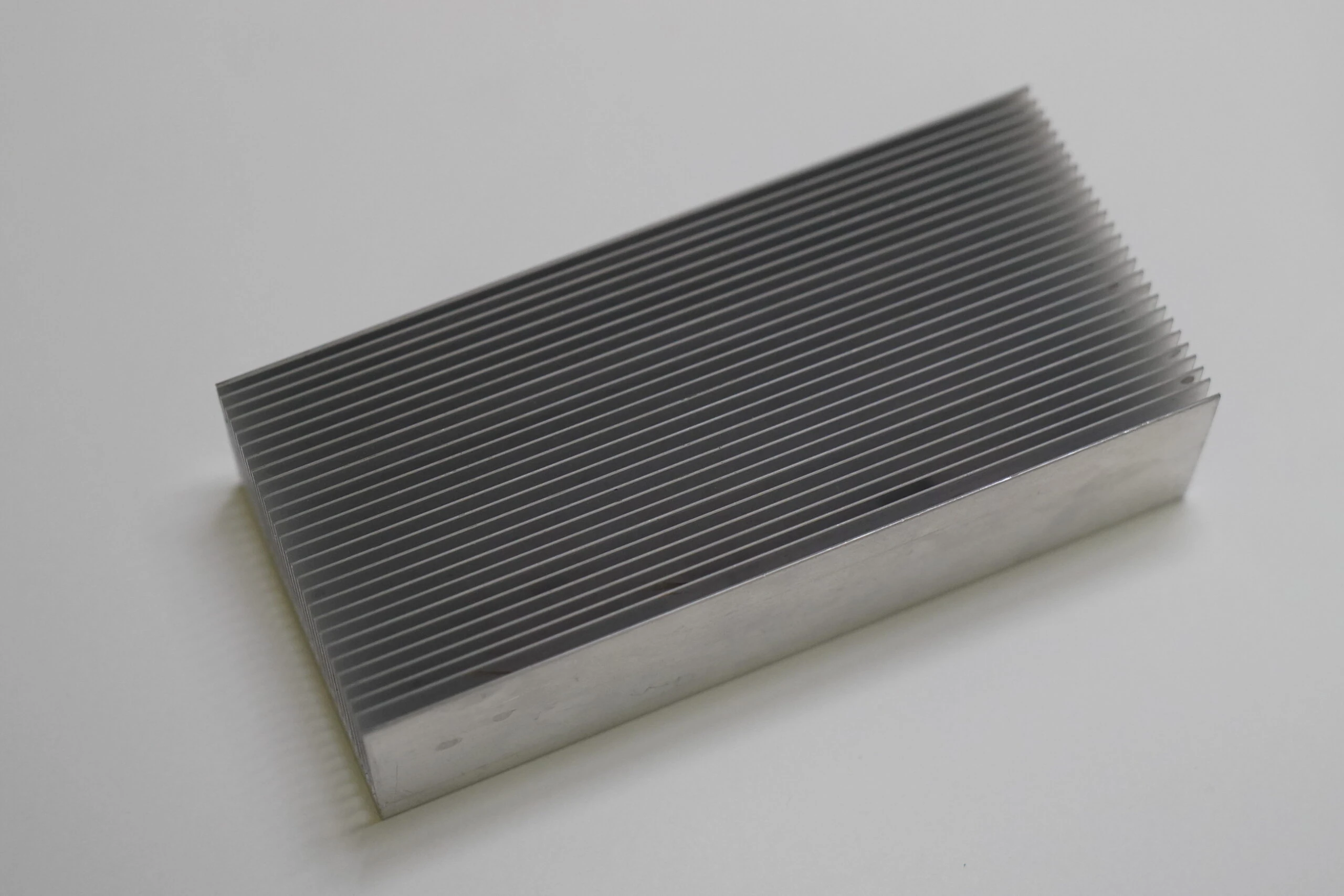
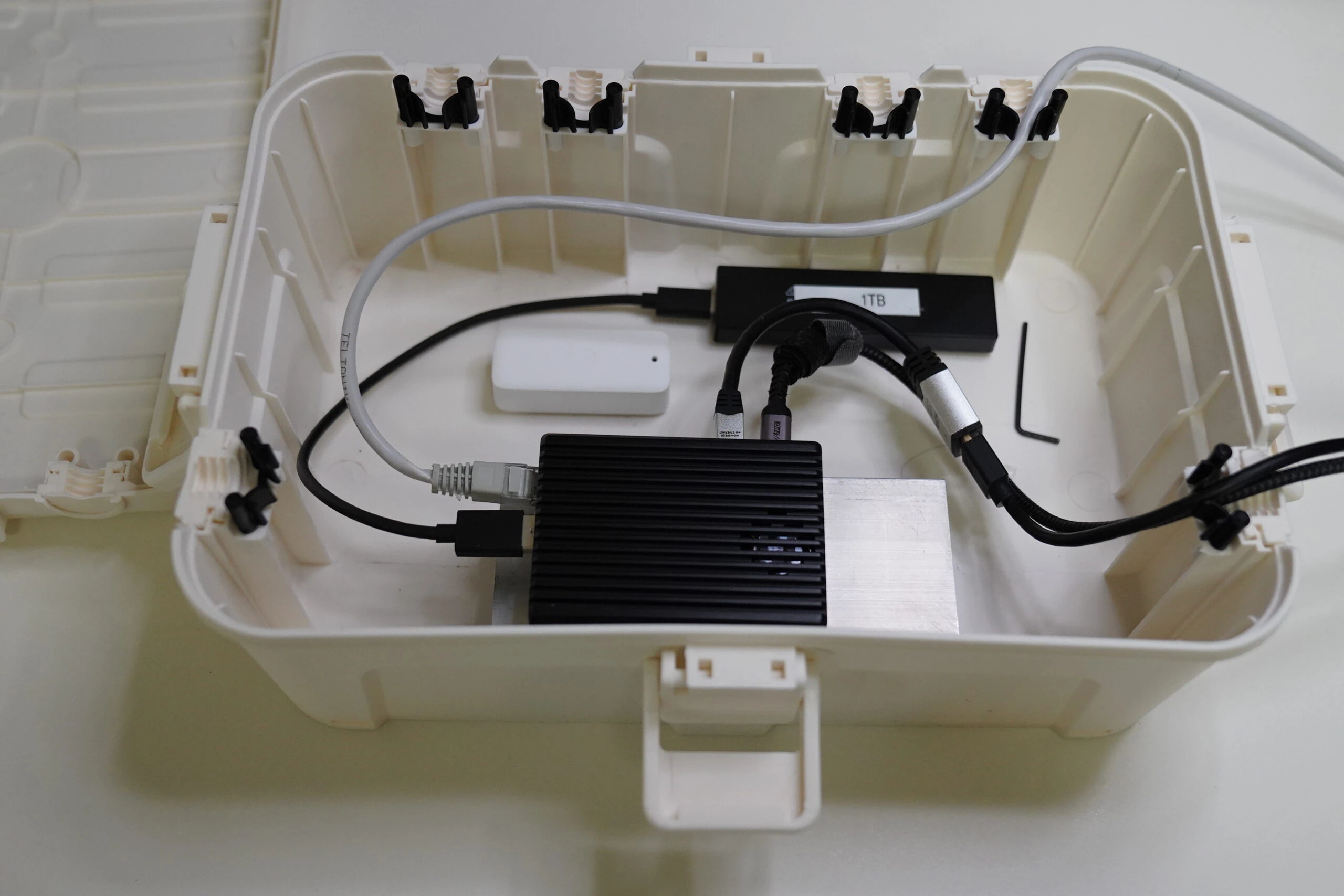 I also reuse a large aluminum heatsink.Related product listings: Find large aluminum heatsinks on Amazon (Ad)
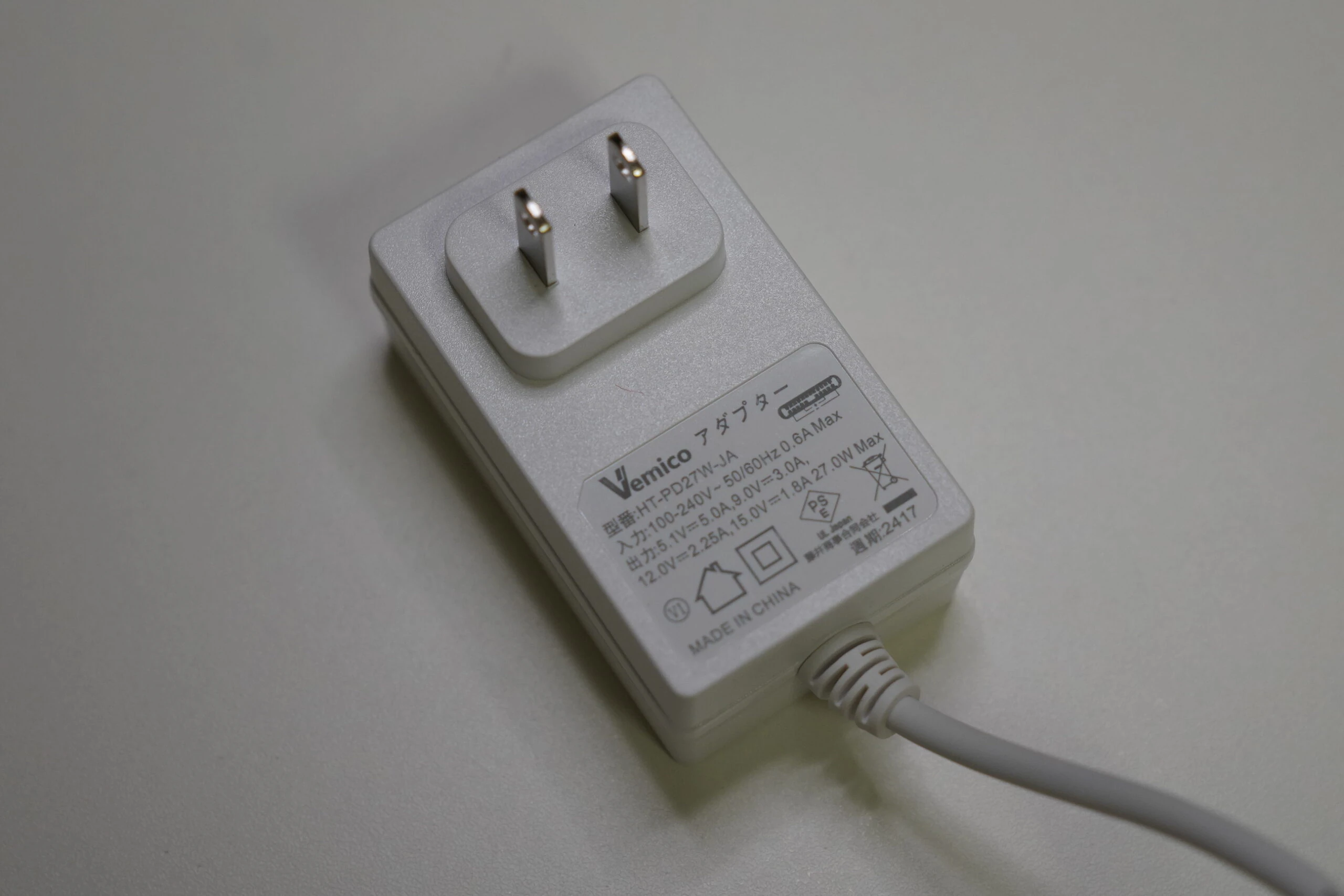
 The 5V 5A adapter costs around ¥2,000 and has to be bought separately. Needing accessories like this is a disappointing part of the Pi 5.Related product listings: Find Vemico Raspberry Pi 5 power supplies on Amazon (Ad)
 Set it up and close the enclosure. 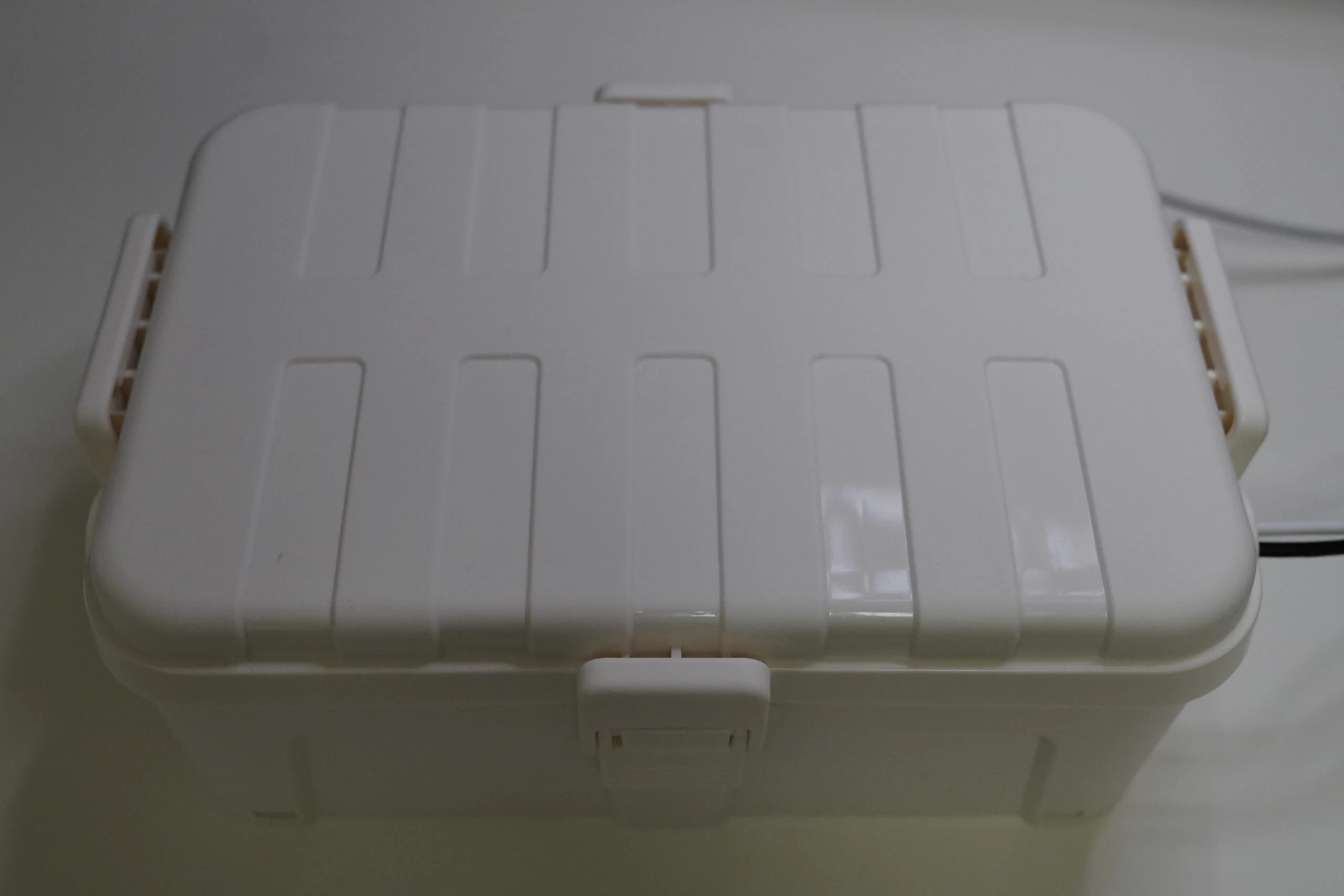 As a precaution, check that the CPU is configured for full performance. Running cat shows performance on all four cores. ``` cat /sys/devices/system/cpu/cpu*/cpufreq/scaling_governor performance performance performance performance ``` ## Waterproof enclosure, 100% CPU load, temperature updates every five seconds Apply stress and update the CPU reading every five seconds. Thermometers inside and outside the enclosure record those temperatures too. ``` stress --cpu 4 --timeout 6000 ``` ``` watch -n 5 "cat /sys/class/thermal/thermal_zone0/temp | awk '{print \$1/1000 \"°C\"}'" ``` 30 minutes after starting: outside 26°C; inside 30°C; CPU 68°C. 50 minutes: outside 27°C; inside 31°C; CPU 72°C. 70 minutes: outside 27°C; inside 32°C; CPU 74°C. 90 minutes: outside 27°C; inside 33°C; CPU 74°C. The CPU temperature is settling around 74°C, although the enclosure temperature is still rising. There does not appear to be thermal throttling. Including the large aluminum heatsink may have helped. 110 minutes: outside 27°C; inside 33°C; CPU 75°C. I ended the test at that point. This suggested it could cope to some extent even in a sealed enclosure. System longevity might still be an issue, but the CPU would not normally remain at 100% continuously, so I accepted it for this experiment. A stainless-steel enclosure might have been better than plastic. At least this setup did not immediately overheat and become unstable, although cooling could still be improved. The Pi 5 certainly gets hot. ## A few months later When I built it, it felt like a good purchase, but I eventually stopped using it. For low heat and power consumption, I use a Pi 4; for performance, I use a mini PC. I did not really need the Pi 5. Without it, a simpler waterproof enclosure would probably have been enough as well.Raspberry Pi 5 listingsBrowse on Amazon Ad · Amazon Associate link