Smoothing rough photogrammetry meshes with the free Meshmixer tool
Meshmixer is particularly good at evening out rough mesh surfaces. Blender and ZBrush can do similar work, but I found Meshmixer especially useful for thin objects and photogrammetry cleanup.
Note: This article was first published more than a year ago.
- Meshmixer development has ended, and its distribution channels and alternatives may change. Check the distributor and license before using it.
- Interfaces in photogrammetry tools such as Meshroom and RealityCapture vary by version. This article uses the toolchain available at the time.
- Mesh repair depends heavily on the resolution and noise in the source data. Adjust the parameters for each model.
Here is a free tool for flattening and smoothing the bumpy surfaces produced by photogrammetry.
Meshmixer is free software with sculpting tools for preparing and repairing 3D prints and editing meshes.
It has many features and apparently supports 3D modeling too, although I have never used it that way.
For modeling, I would probably use Blender instead.
Meshmixer is excellent at evening out mesh surfaces. Blender and ZBrush can do similar things, but for thin objects I feel Meshmixer does the best job. It is an Autodesk tool, after all. It is wonderfully handy and a familiar companion to photogrammetry.
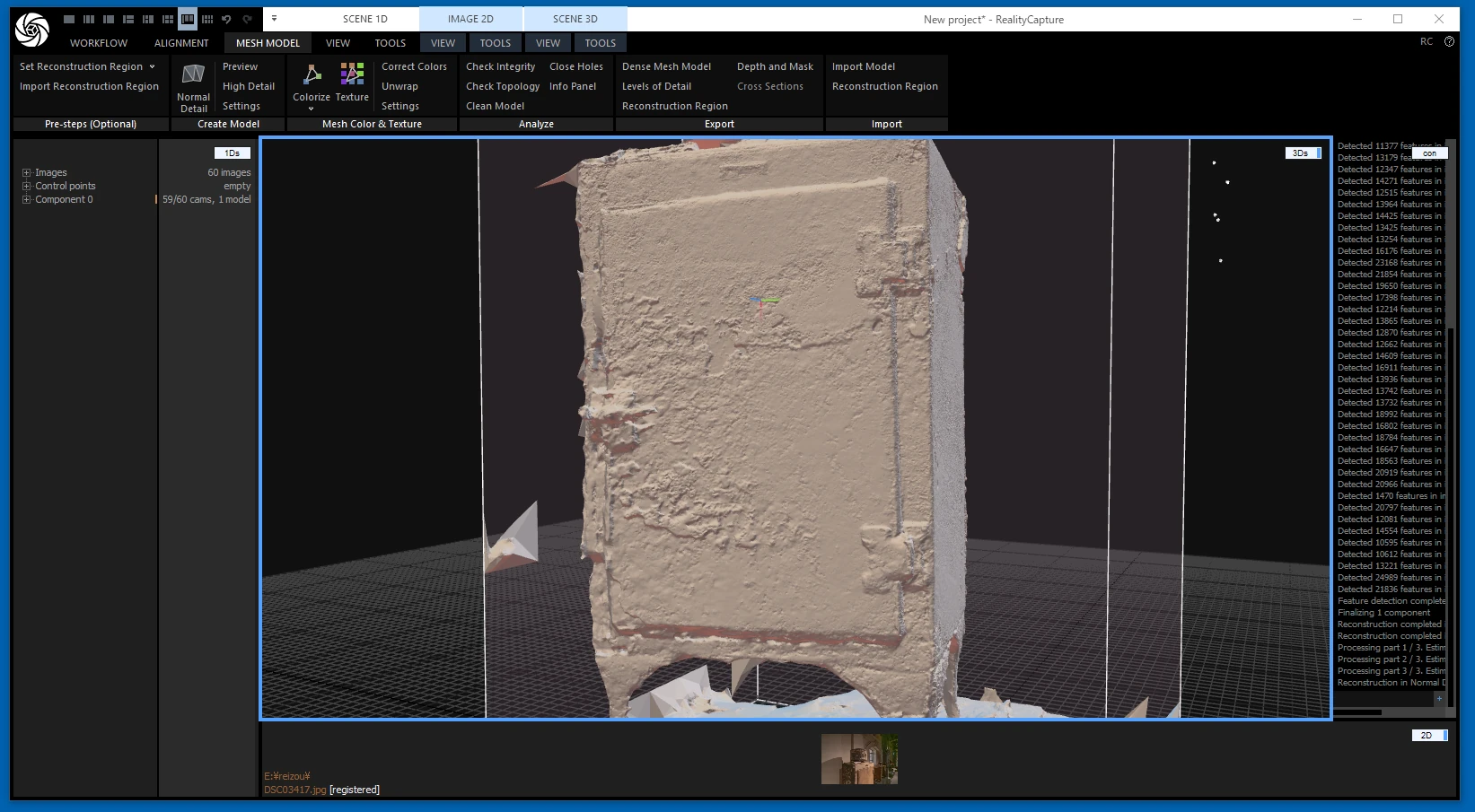
For example, a photogrammetry model often has an uneven, bumpy surface. Export the model in a suitable format, such as OBJ.
Open it in Meshmixer. You can download Meshmixer here. The site no longer looks particularly well maintained, but the program still worked for me.
https://meshmixer.com/download.html
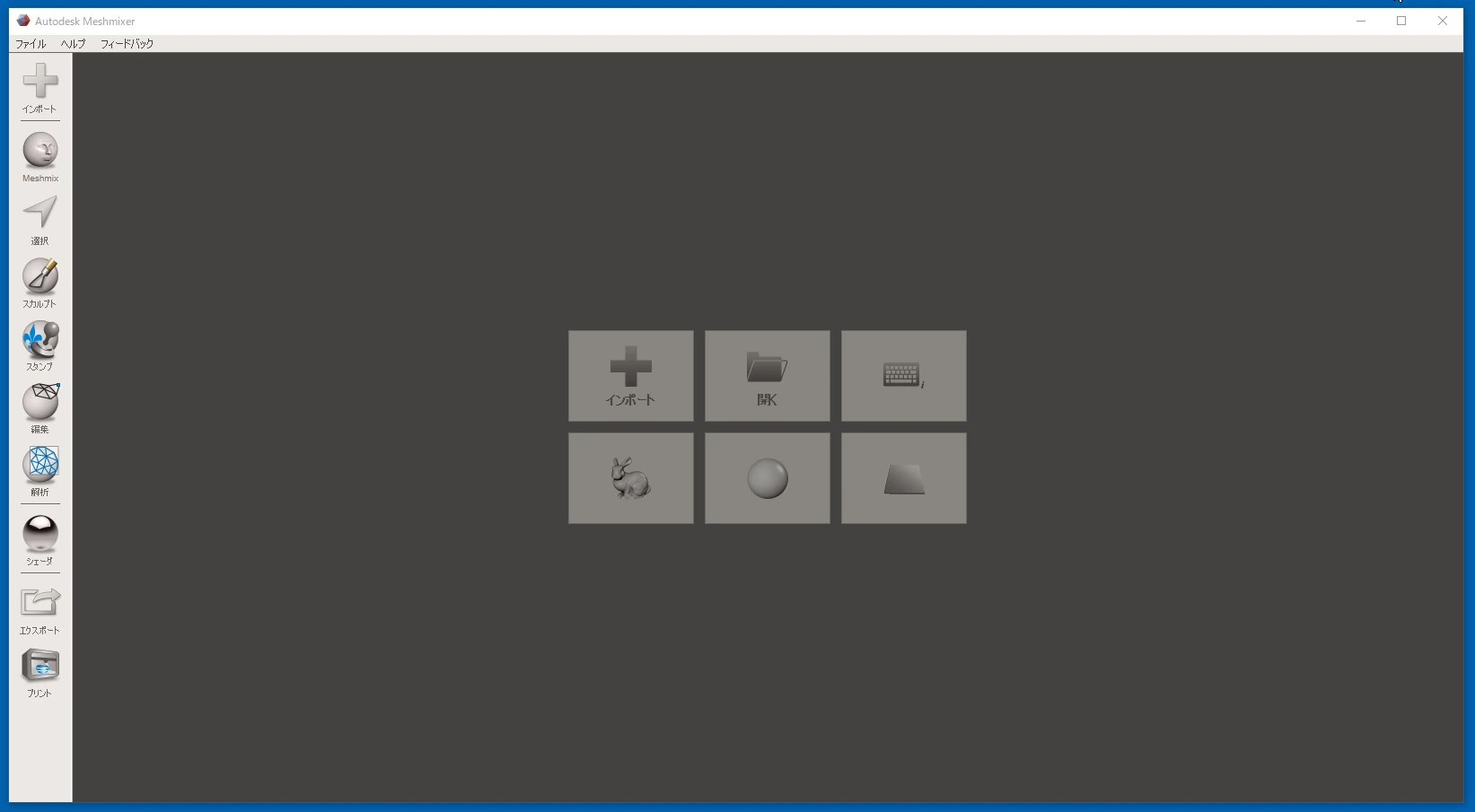 Drop in the OBJ file. For some reason, my PC associates OBJ files with a PDF application, which explains the PDF icon. Ignore that.
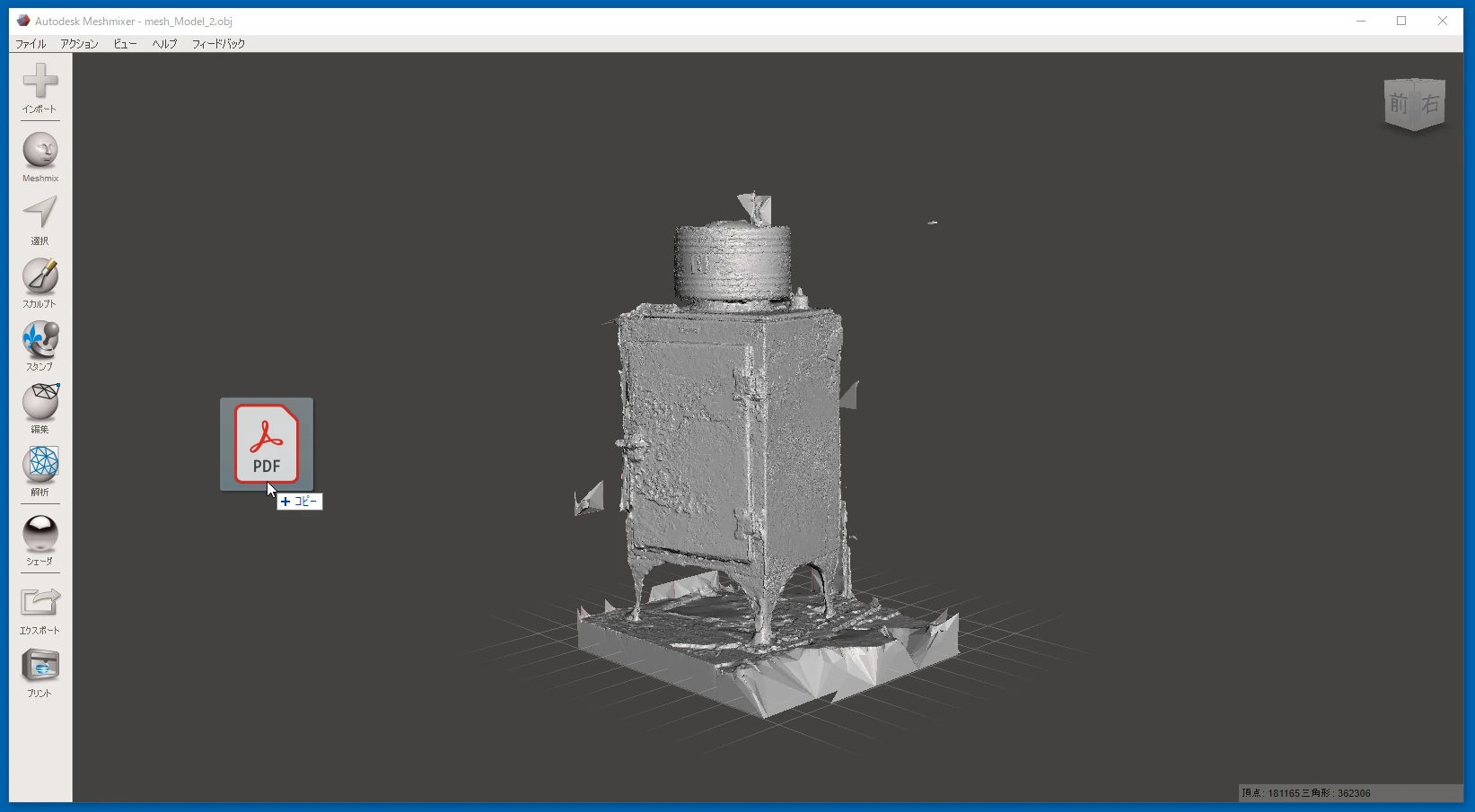 The mesh surface really is this uneven.
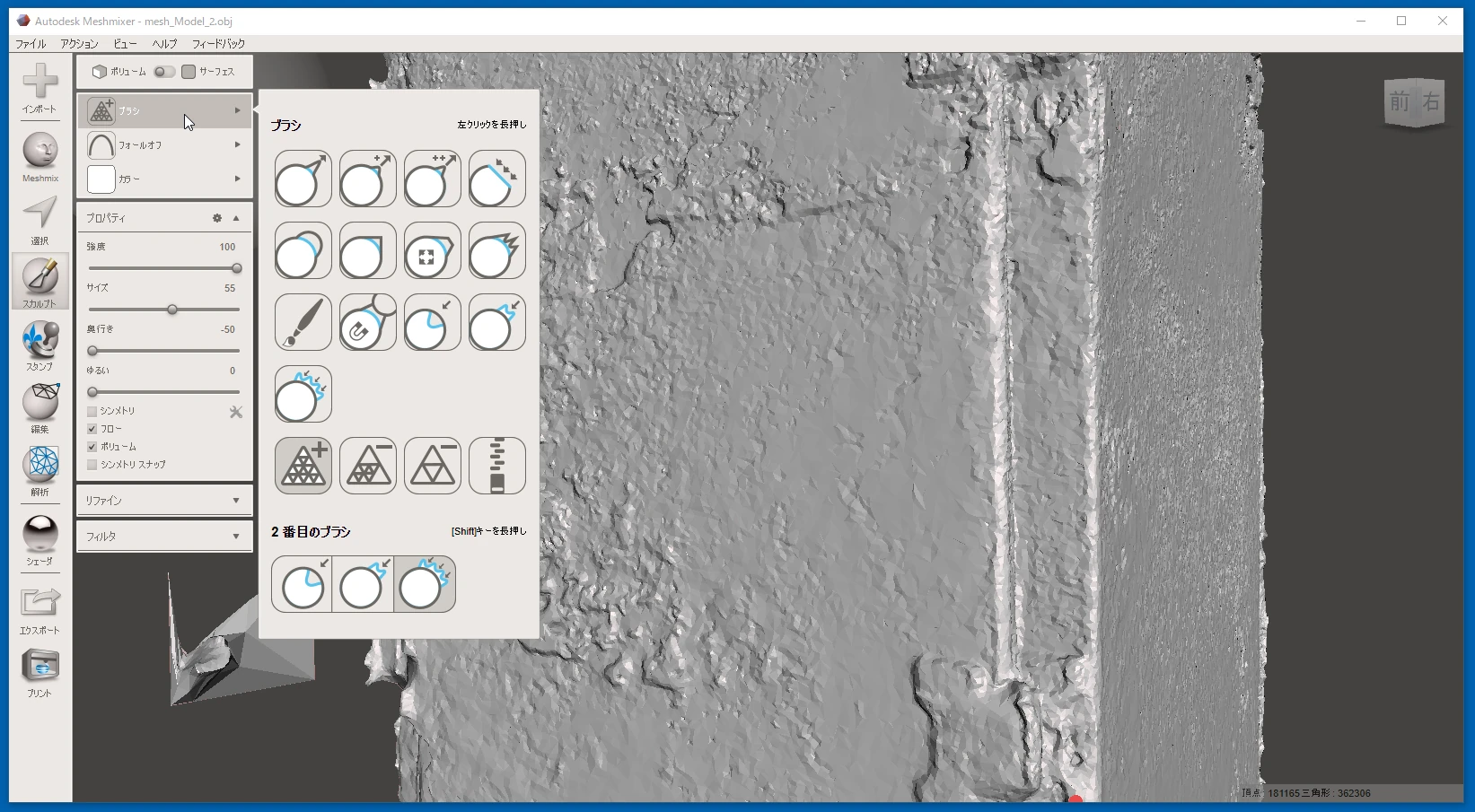
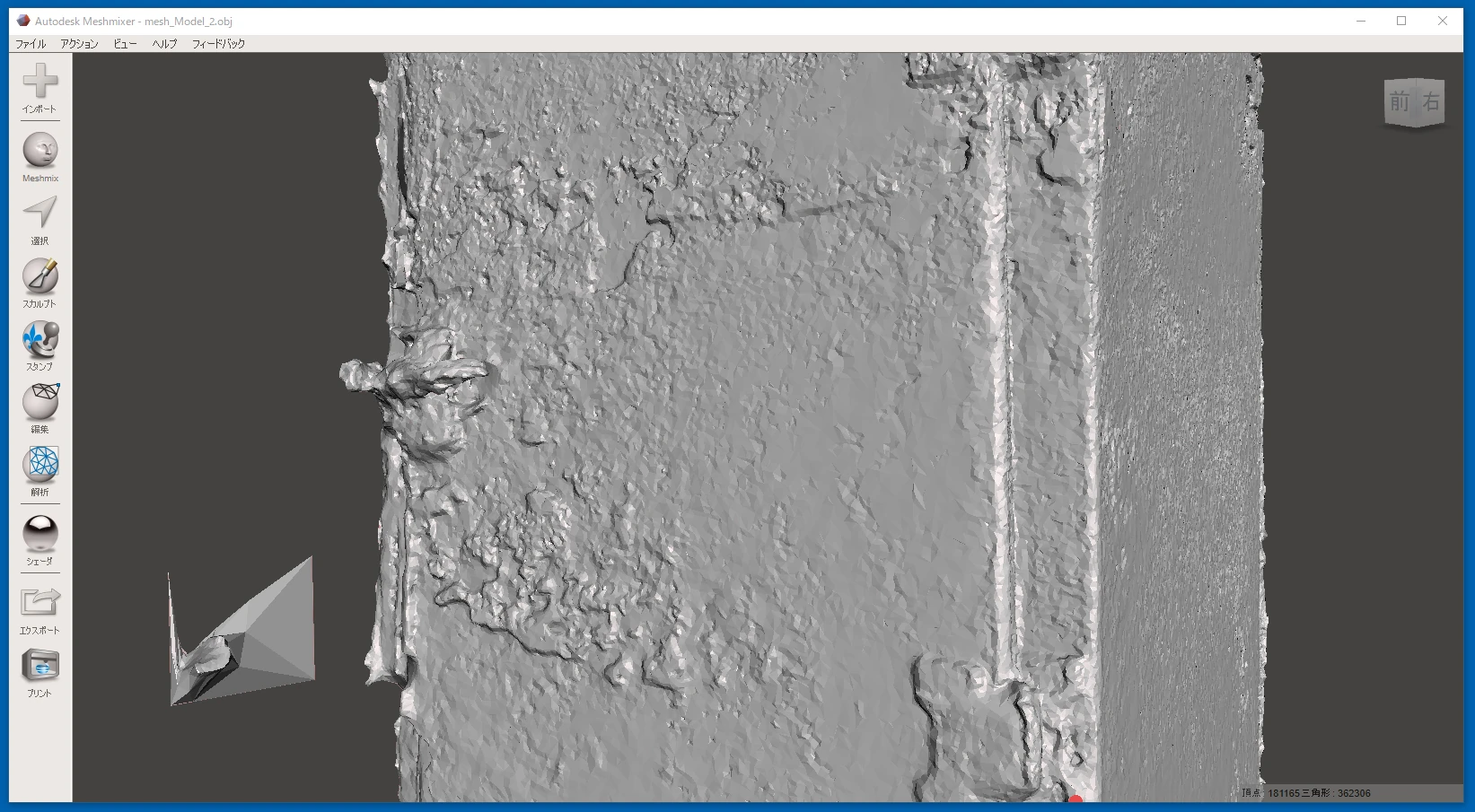 Choose a sculpting brush, then select the smoothing tool at the end of the brush list. It evens out the bumps in the mesh nicely.
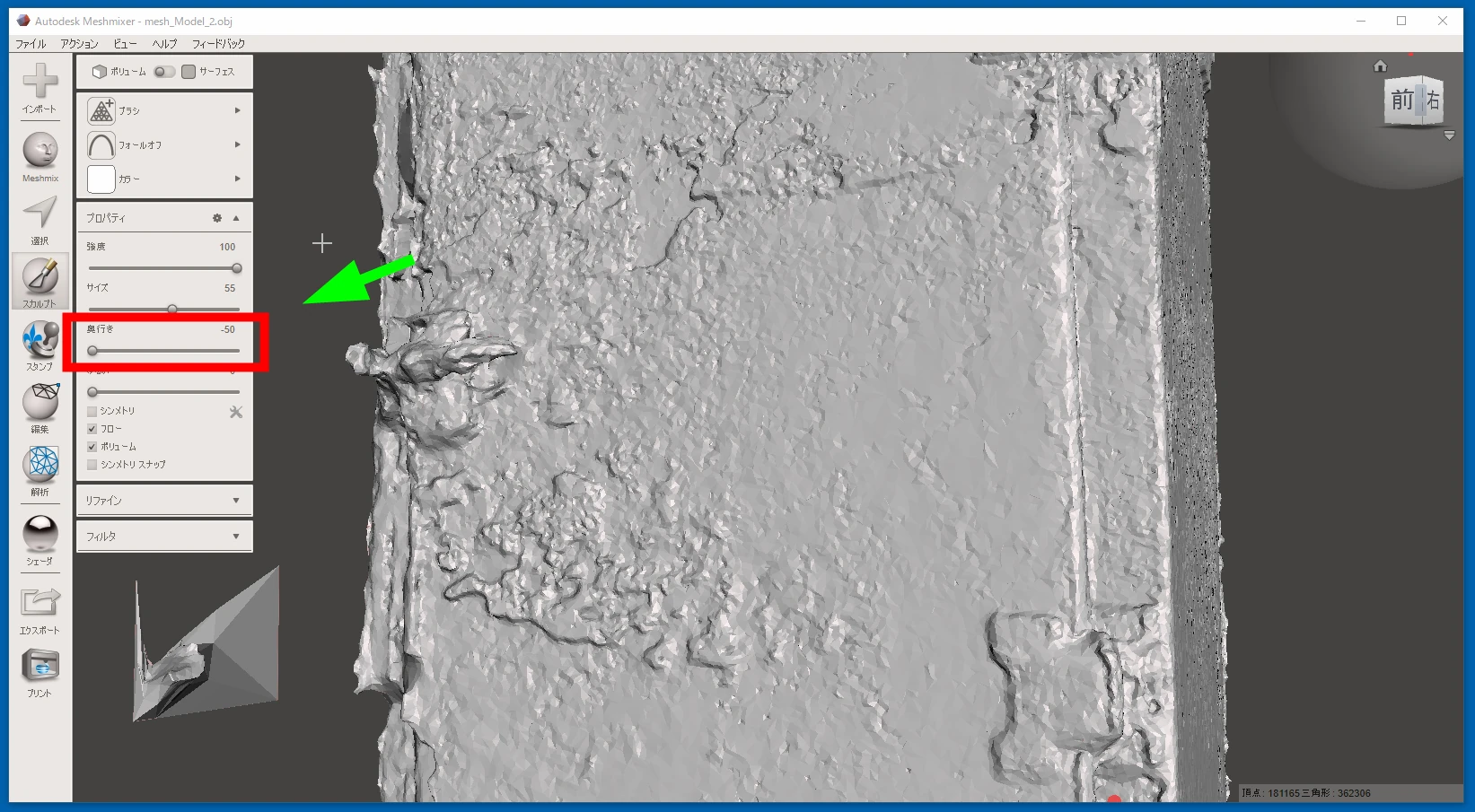
 Set Depth to -50. This makes it less likely to create holes in thin objects.
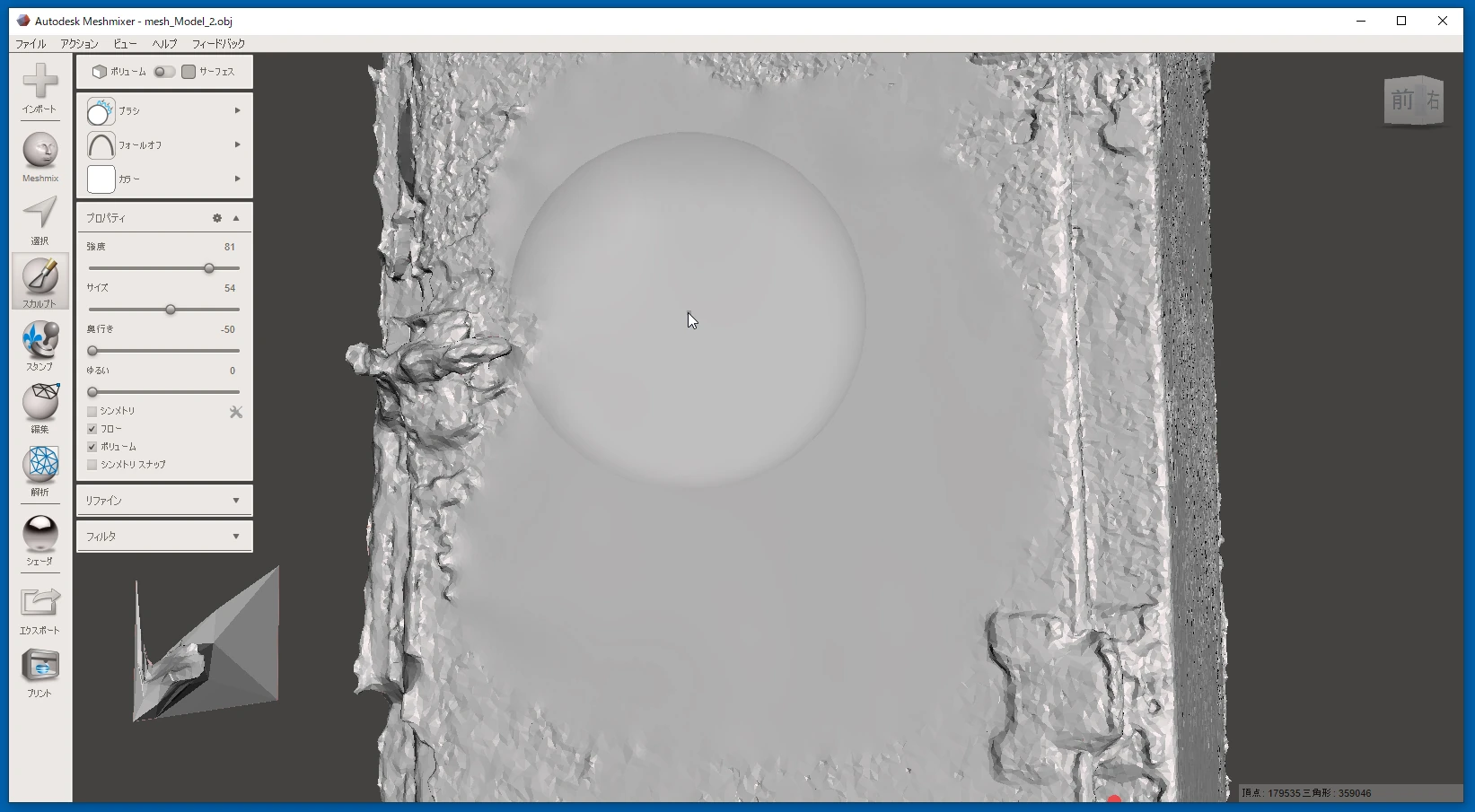
 It becomes smooth with very little effort.
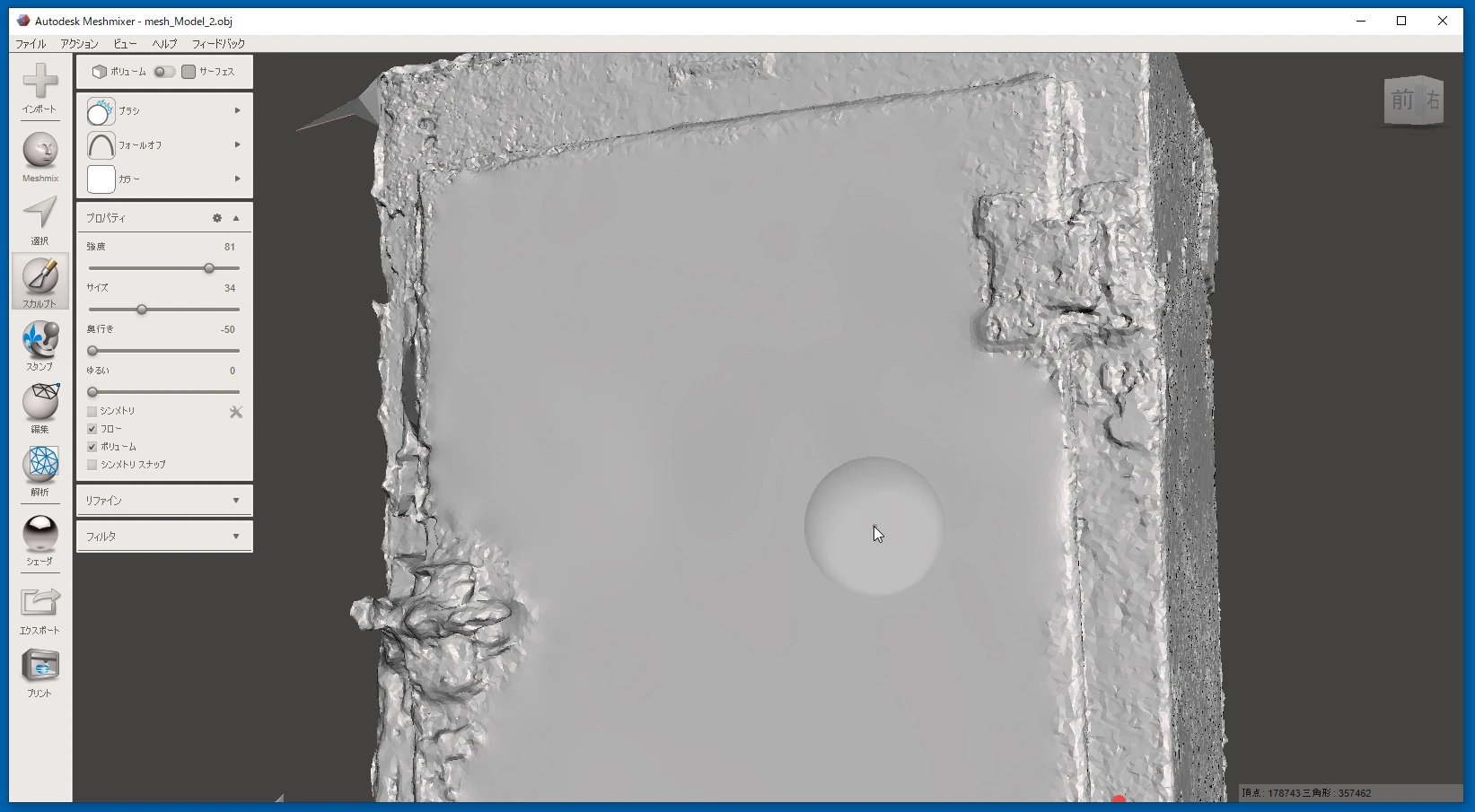
 Used alongside photogrammetry, Meshmixer makes surfaces that tend to come out rough and wavy much flatter and smoother.
Related articles
Updates and contact: X @riragoncom.