Exporting black-and-white masks from UE5 Movie Render Queue for After Effects compositing
Create a black-and-white object mask in Unreal Engine 5 and export it alongside the beauty render. This example then uses the mask as a luminance matte in After Effects to isolate a chair for compositing.
Note: This article was first published more than a year ago.
- UE compositing and media pipelines, and After Effects effect names, vary by version. Check the release notes for each application.
- Chroma-key quality depends heavily on source resolution, compression, and lighting. Treat the parameters here as a starting point.
- Inconsistent color-management settings, such as Linear versus sRGB, can make background composites look unnatural.
UE5, or Unreal Engine 5, is an appealing tool for video creators as well as game developers, thanks to its high-quality visuals and flexible features.
For example, you can build a scene with 3D models and assets, then use Sequencer and Movie Render Queue to export high-quality footage from a camera.
It is useful for many kinds of visualization too.
You can also export footage with a transparent background, which is very useful for compositing. However, enabling background transparency can disable anti-aliasing and other features. Anti-aliasing smooths edges in images and video, and is essential when rendering footage. This is where masking helps. A mask isolates a particular object or character from the background and other elements, allowing effects to be applied without affecting the rest of the scene. It has many other uses too. In this example, I masked just the chair. Masking and compositing in UE5 are especially valuable in post-production, for example when adding effects to a rendered scene or combining it with live-action footage. Knowing how to use them is extremely handy. The following excellent article explains how to create a UE5 mask. I tried it myself. This walkthrough covers creating the mask and then using it in After Effects.
[UE5] Creating a mask with post-processing
https://note.com/logic_magic/n/n37bd20b829e3
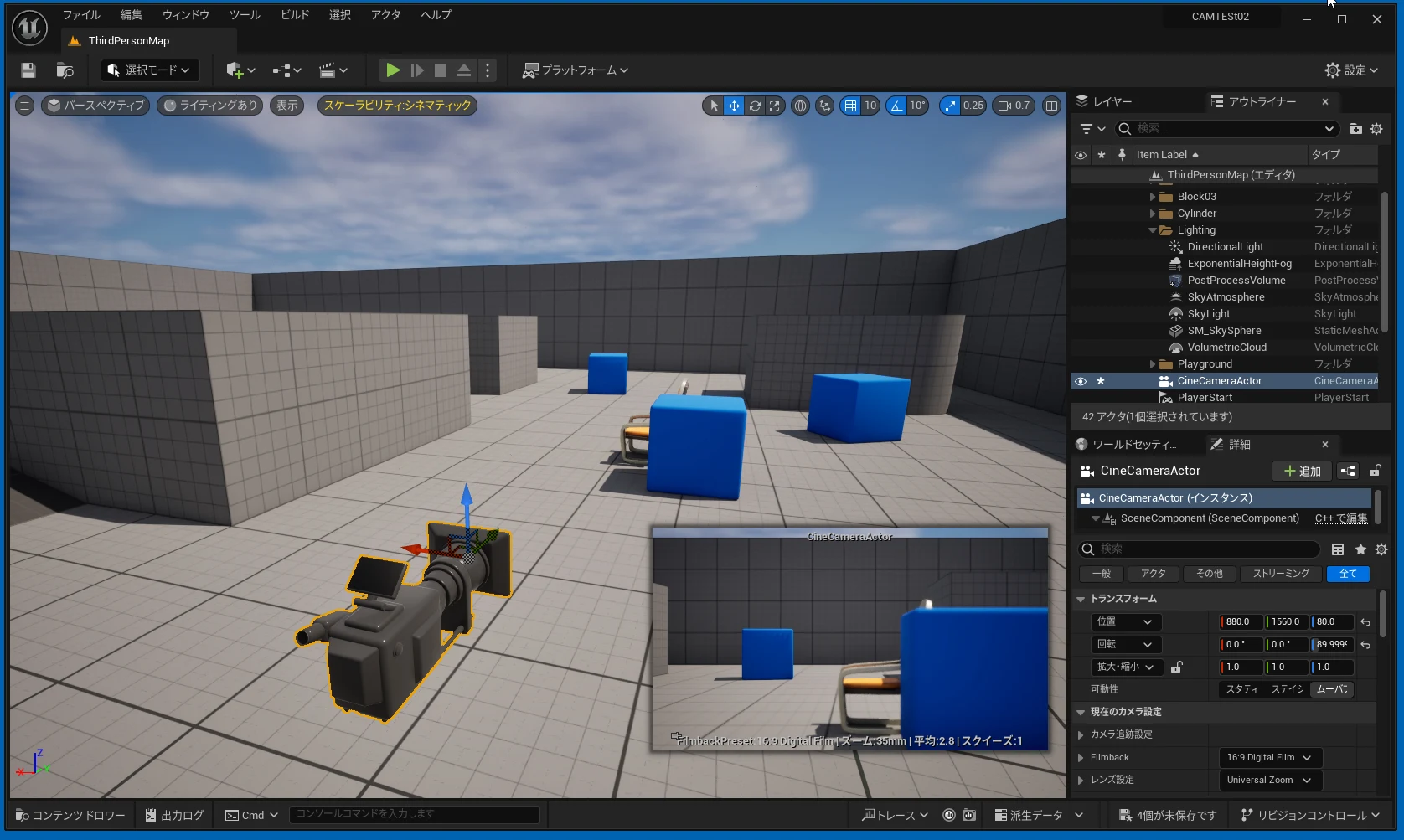
I created a simple scene with a chair and placed a block in front of it.
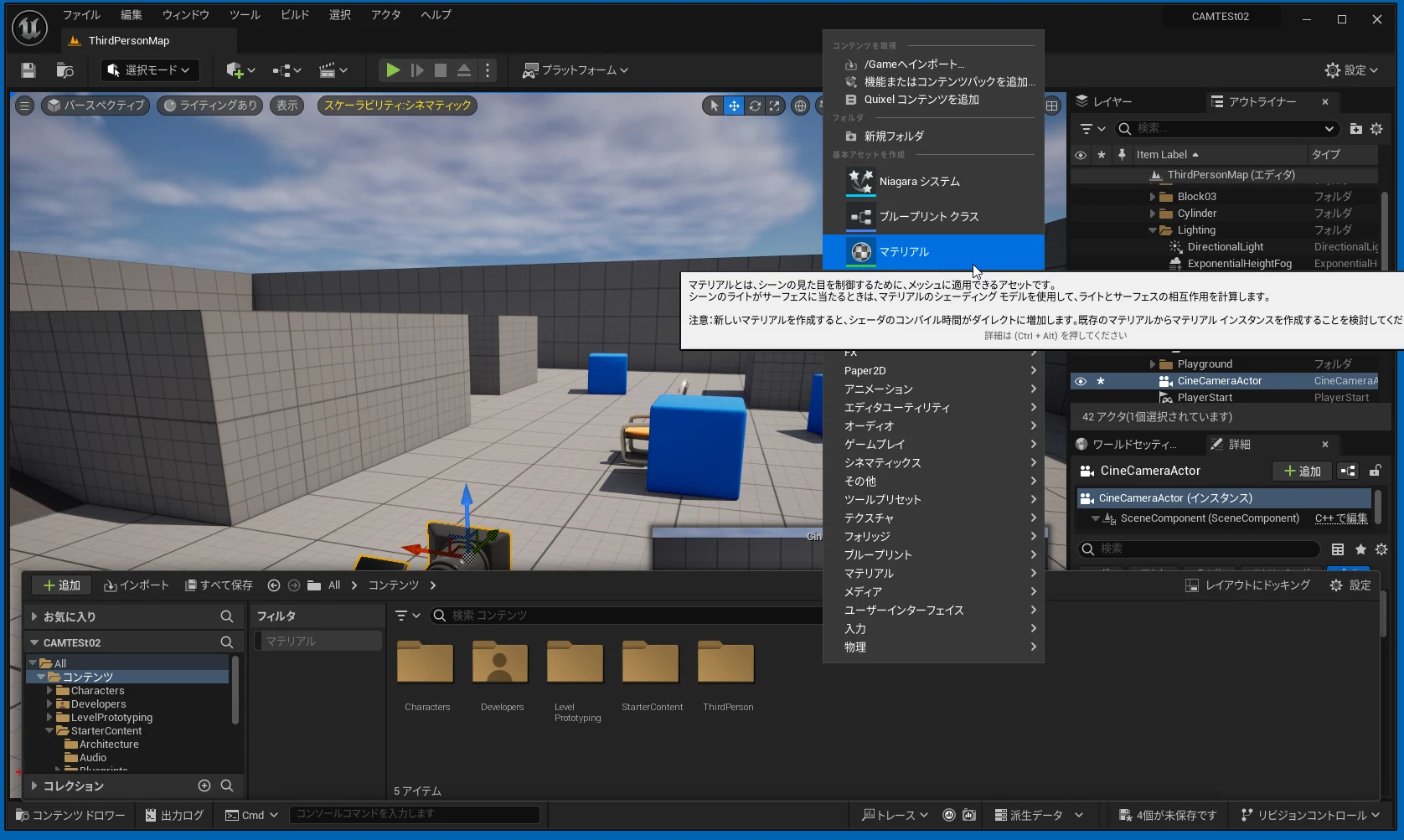
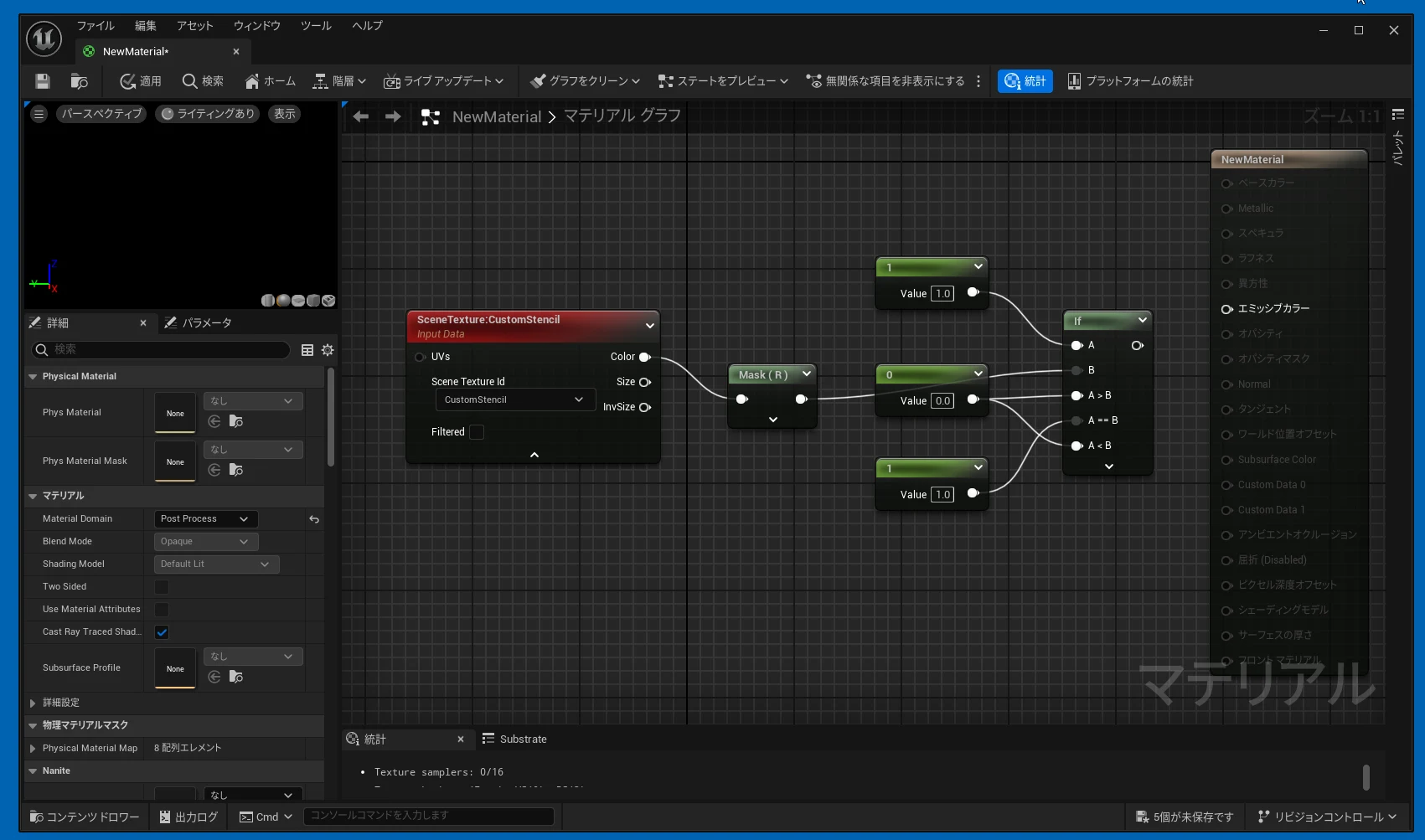
 Create a material in the Content Browser.
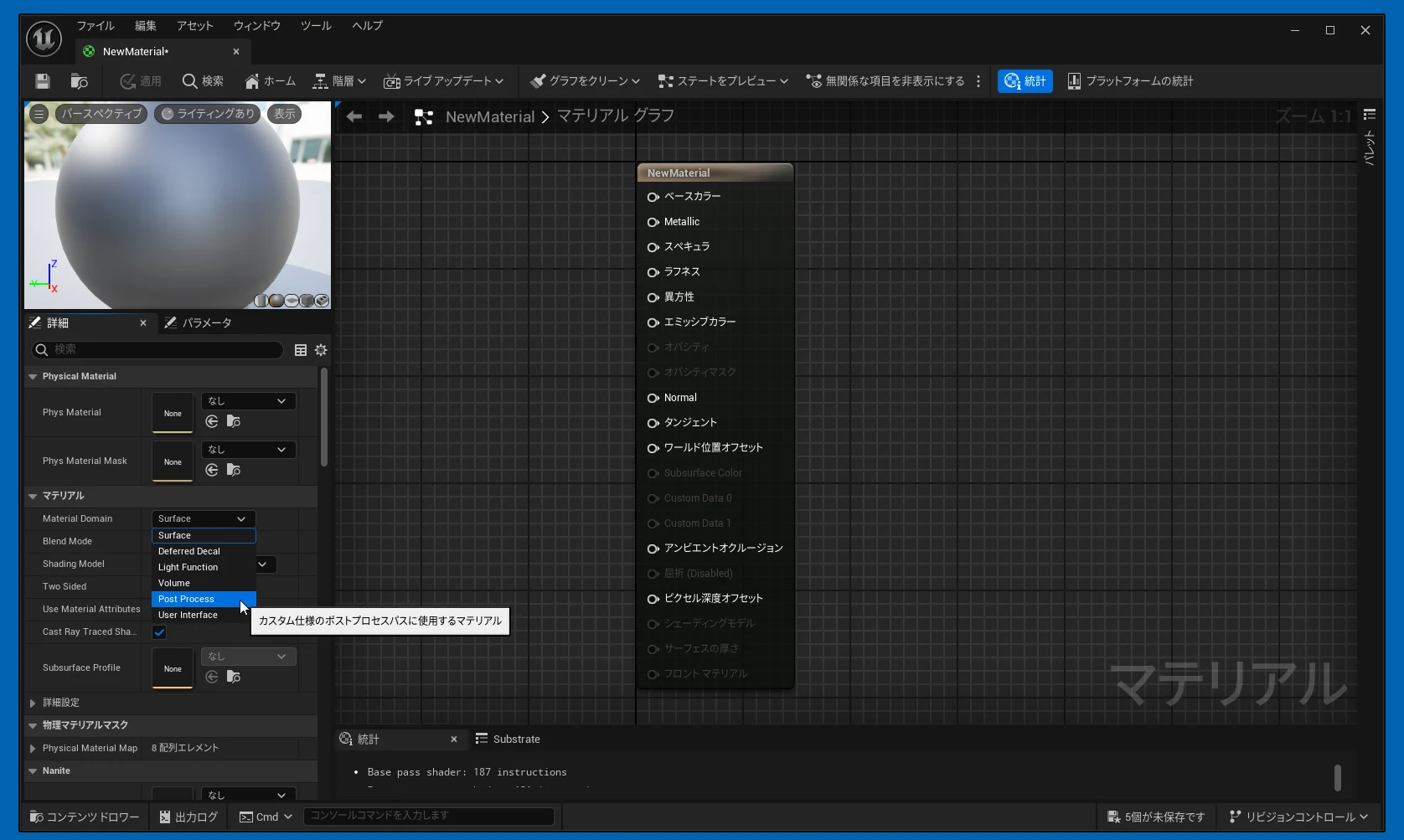
 Set its post-process mode as shown.
 Paste the following code into the material graph. You can recreate the graph from the image, but did you know you can also paste a text representation? Blueprint tutorials often show only an image of a graph, so having the text is useful. Connect the output of the final If node to Emissive Color.
https://docs.google.com/document/d/1X9iklewIujinUY2ucjaAHAXjpq3fK7VR2qVmxWlHKQo/edit?usp=sharing
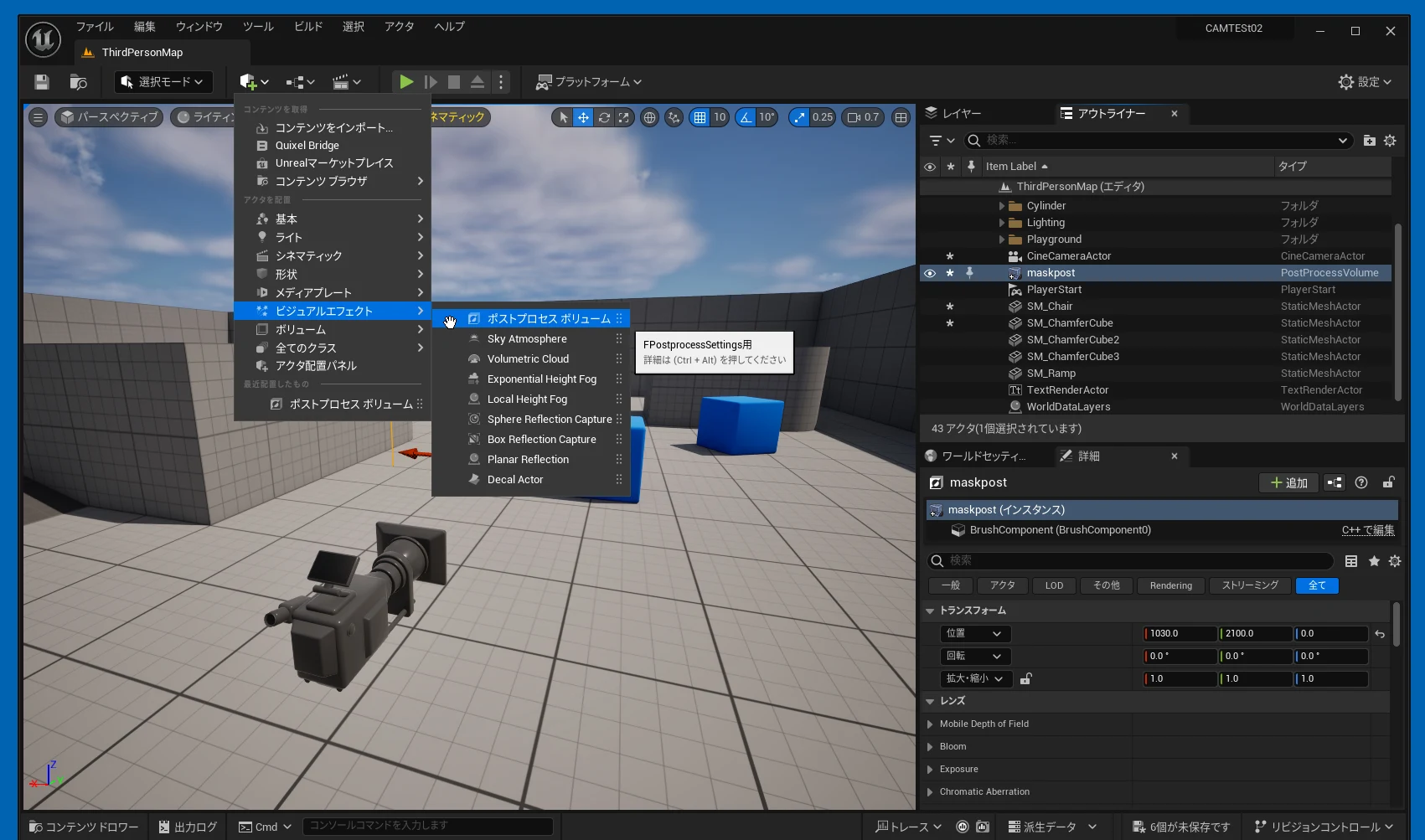
 Create a Post Process Volume and give it a recognizable name.
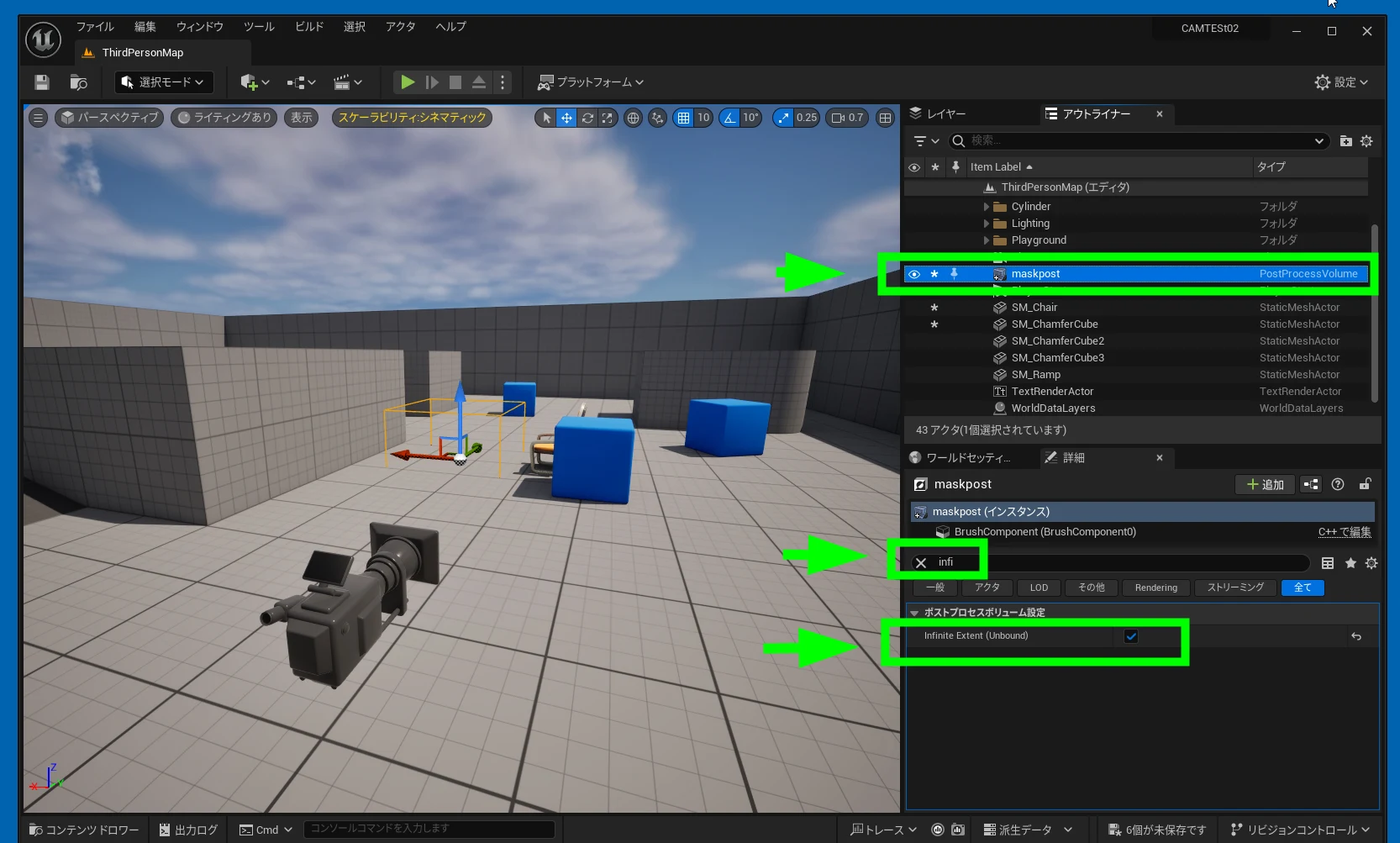
 Set its range to cover the entire scene.
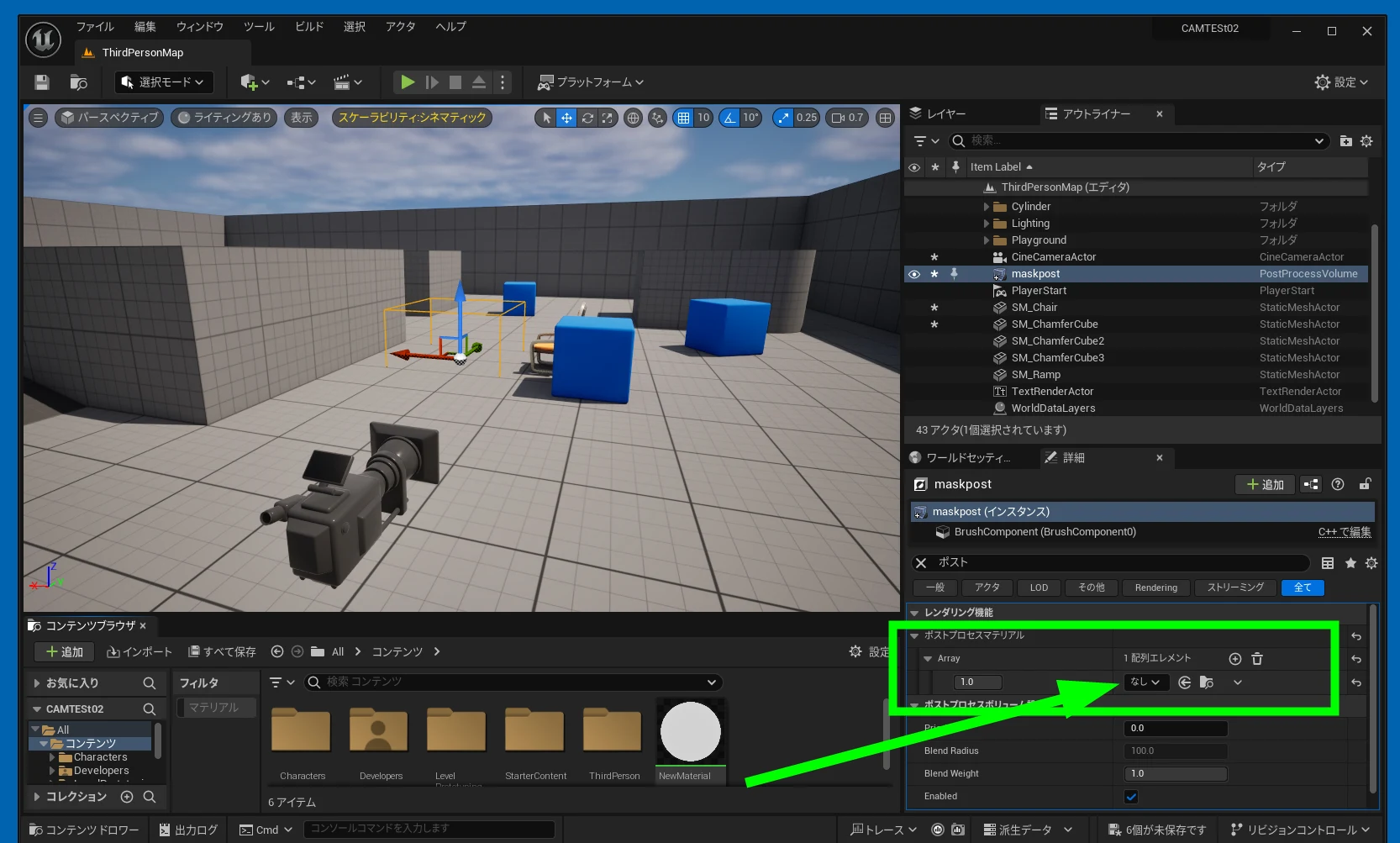
 Add the material you created to the Post Process Materials array on the volume. If you are unsure about this part, refer to the mask article linked earlier; it explains the process more clearly.
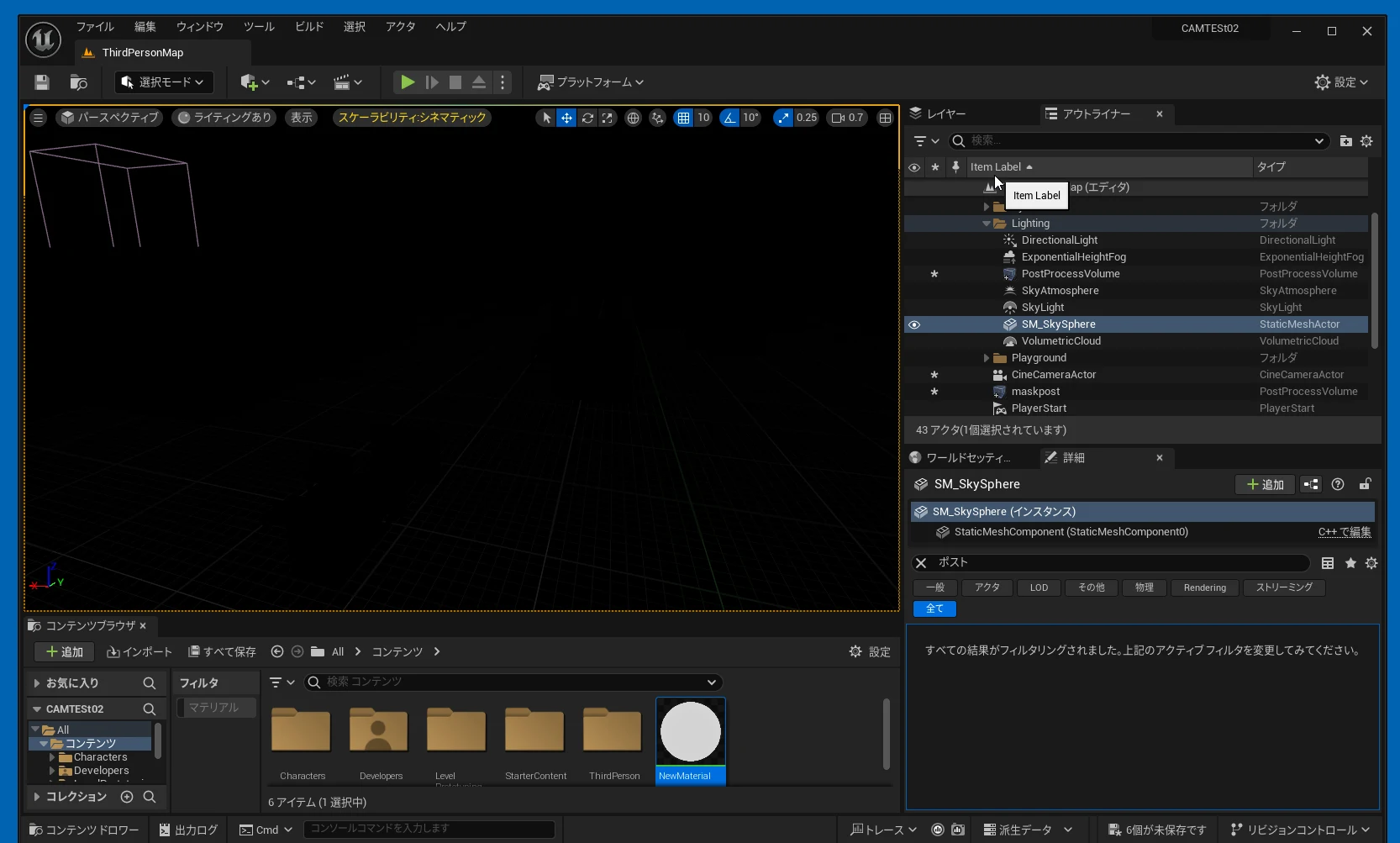
 The settings take effect and the view becomes black.
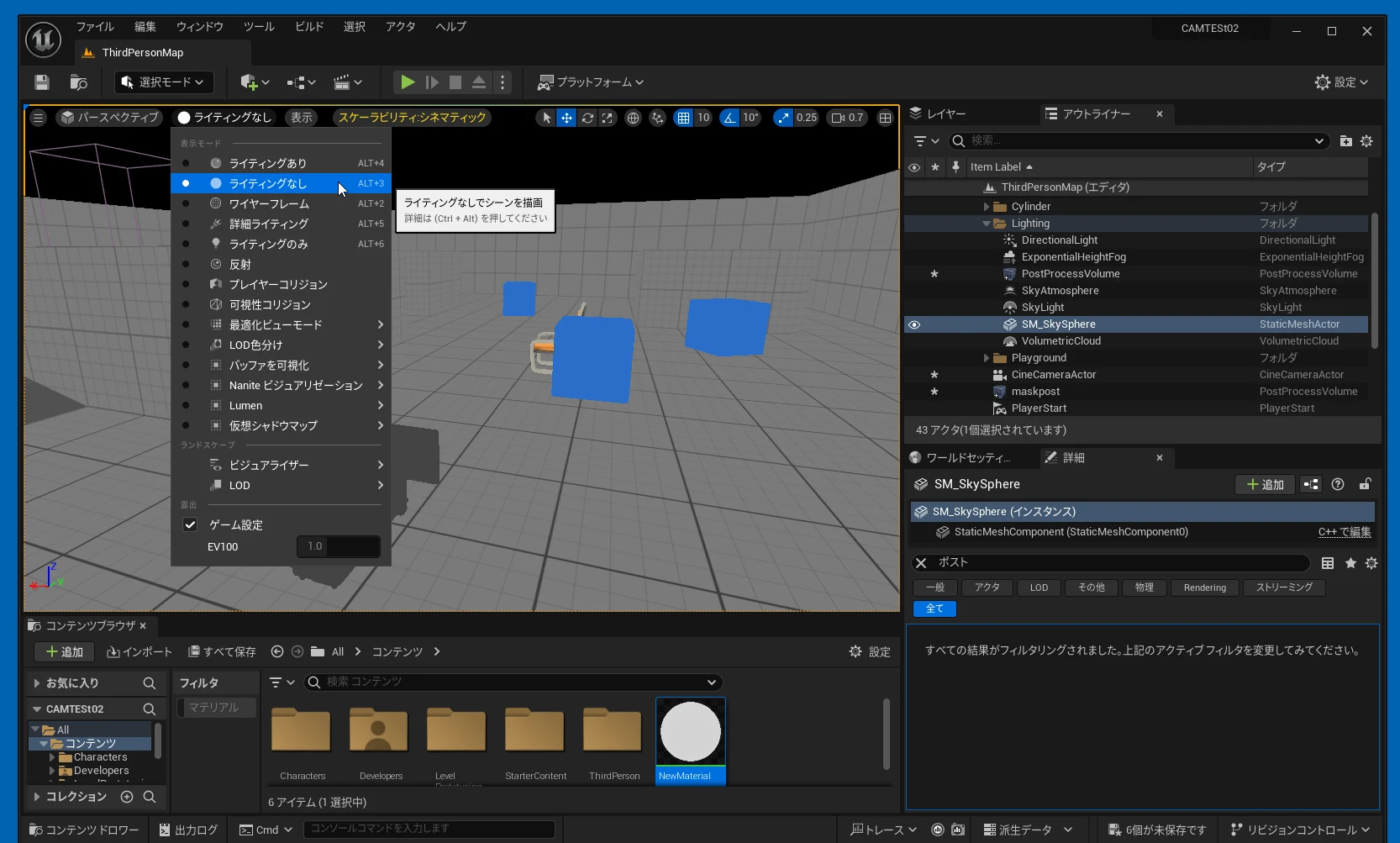
 Switch to an unlit view.
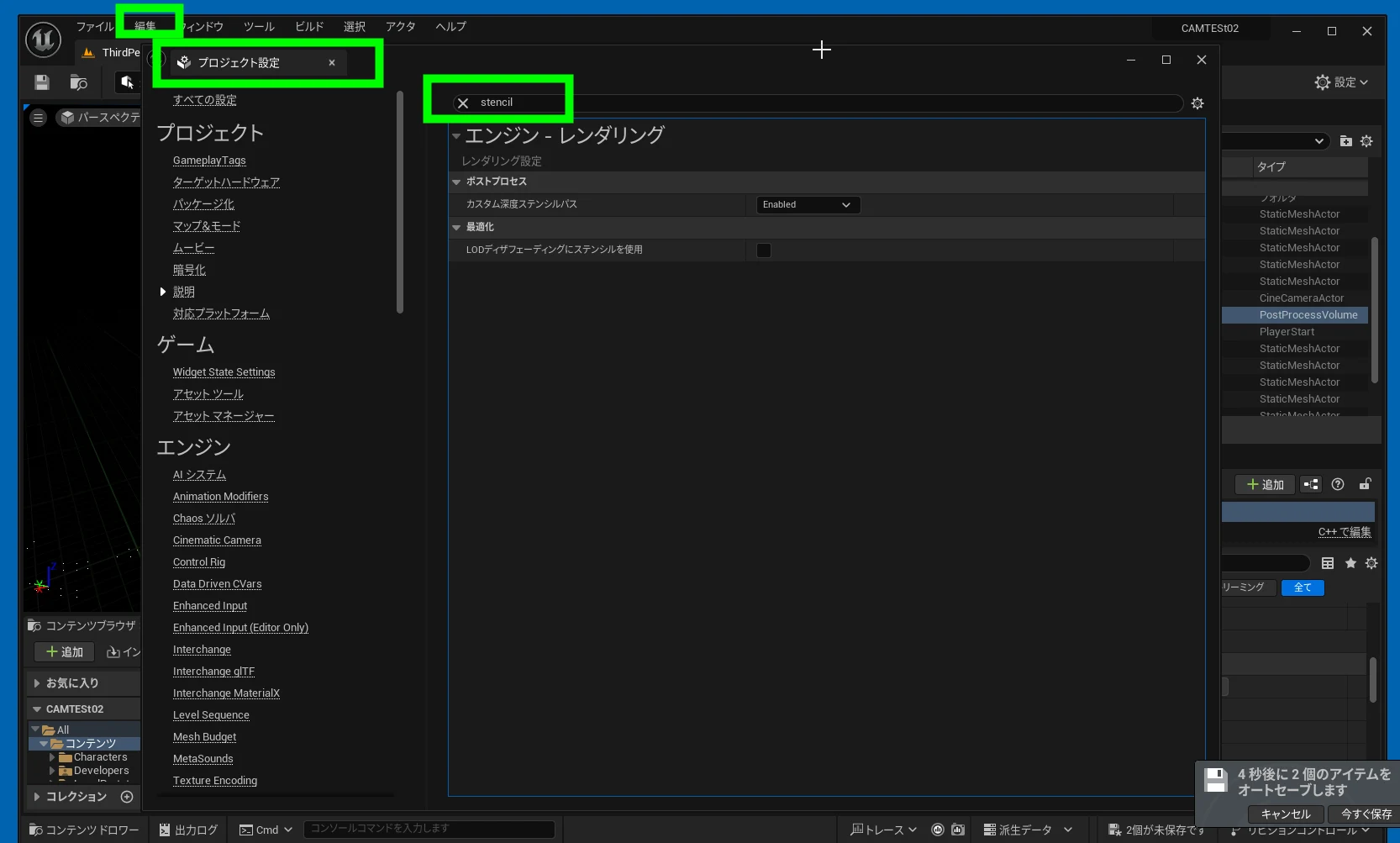
 In Project Settings, under Engine > Rendering, open the Custom Depth-Stencil Pass dropdown.
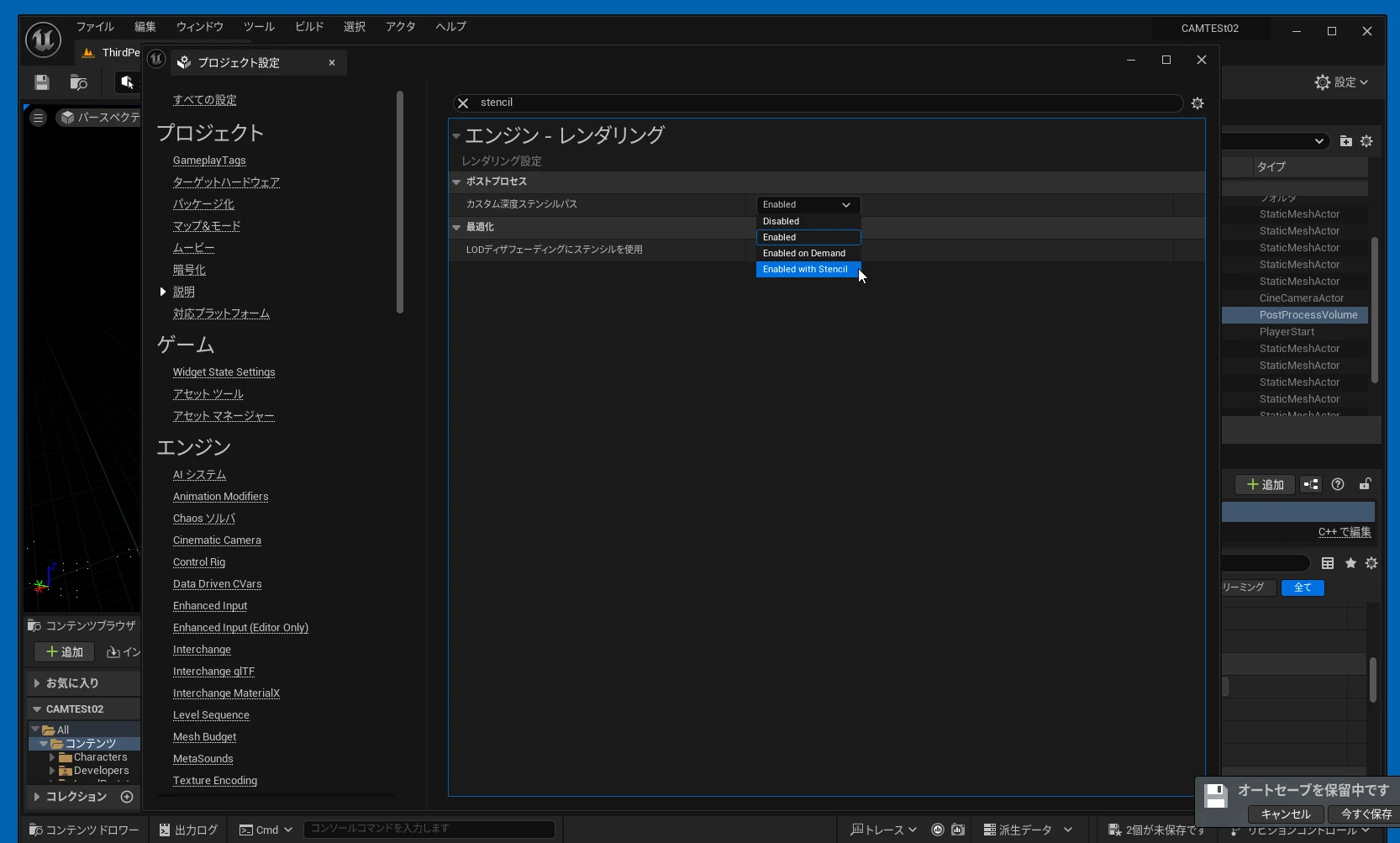
 Select Enabled with Stencil.
 Select the chair you want to mask and configure its custom settings as shown.
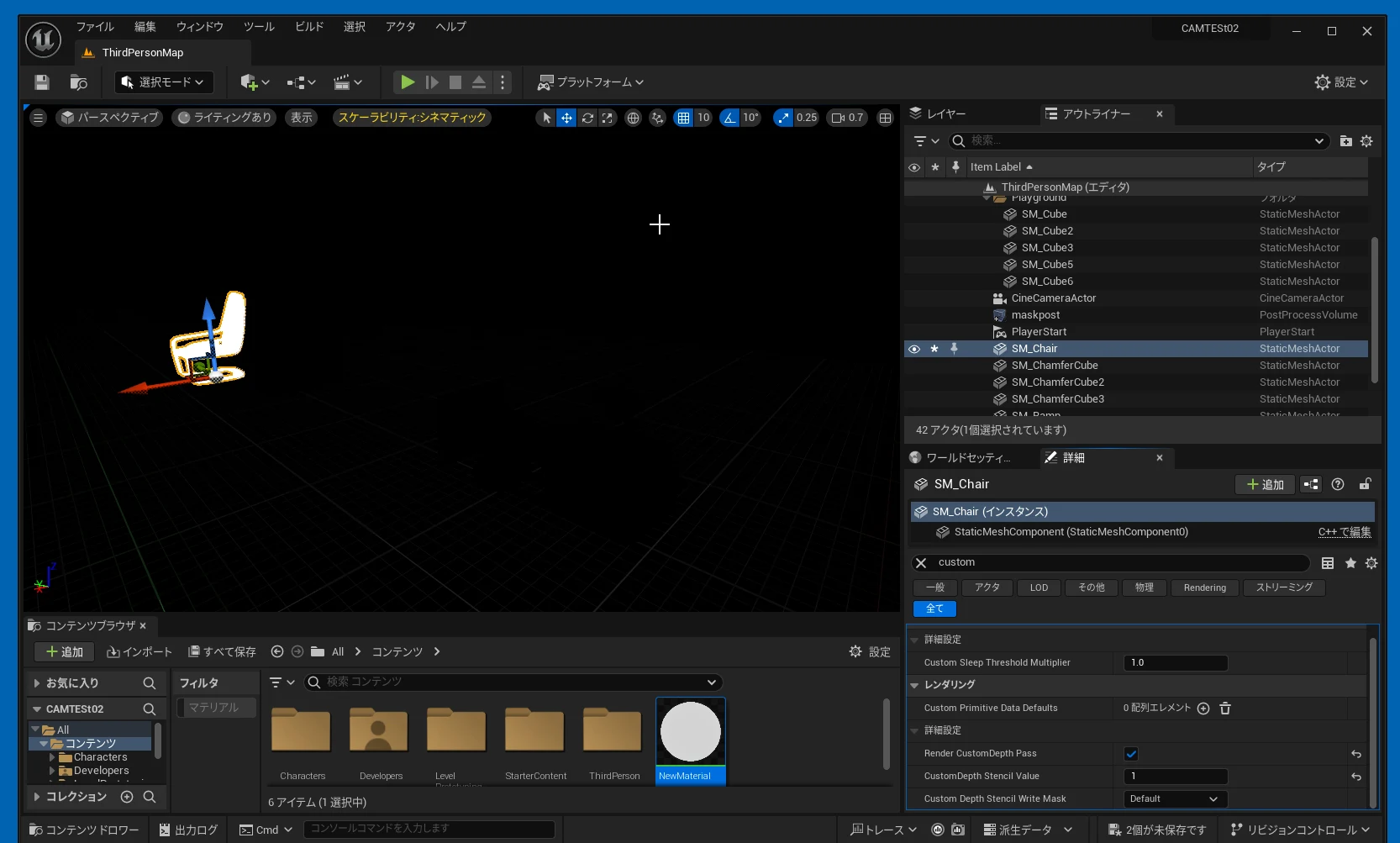
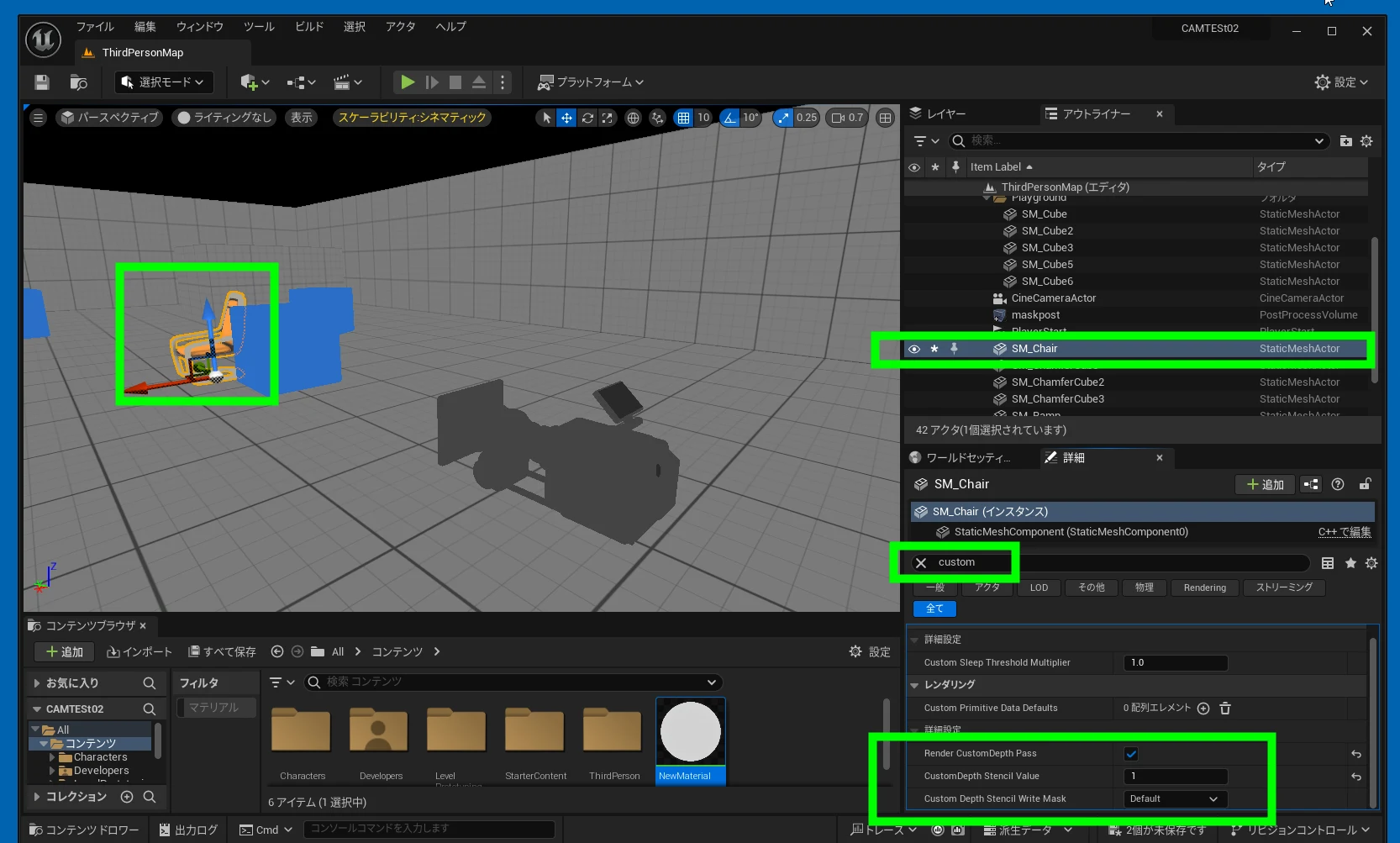 When you return to the lit view, only the chair is white in the mask.
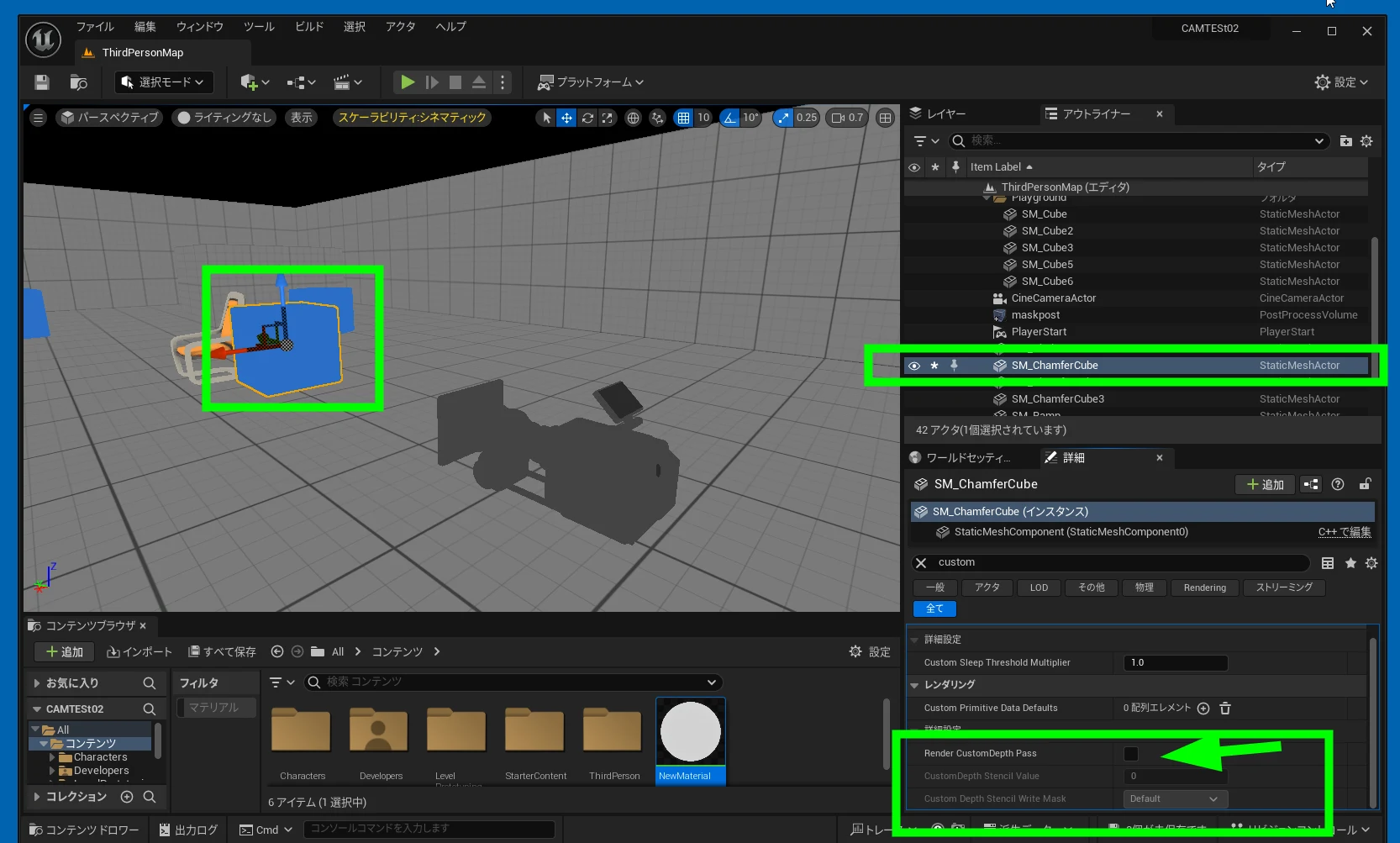
 To remove the foreground cube from the mask, select it and set its value to 0. The screenshot below has the checkbox cleared, although leaving it checked and setting the value to 0 may be the correct approach.
 Export through Movie Render Queue. I will not cover how to use the queue here; look that up if needed. Export one version with the mask and another without it.
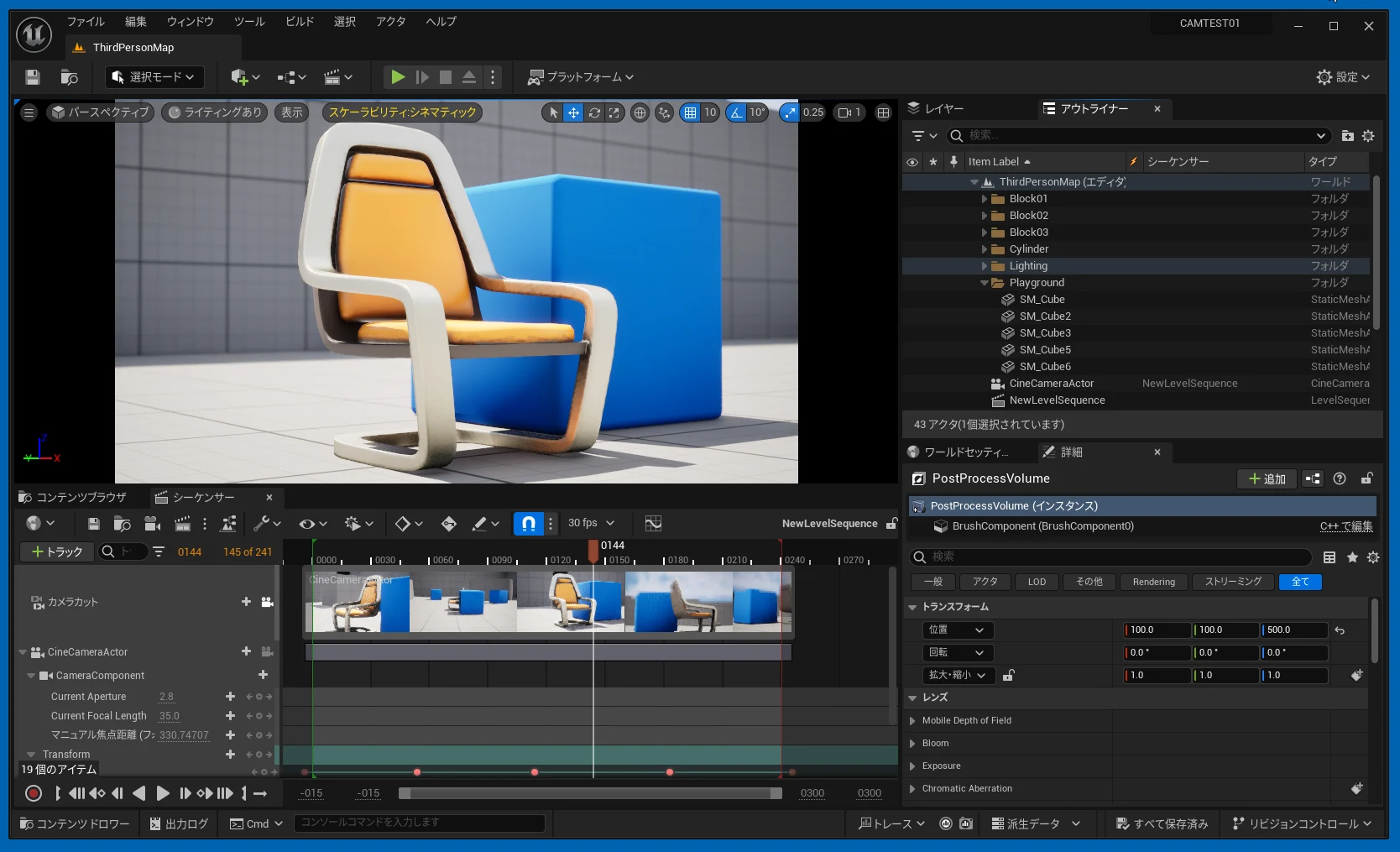 Here are the masked and unmasked exports. I used EXR image sequences.
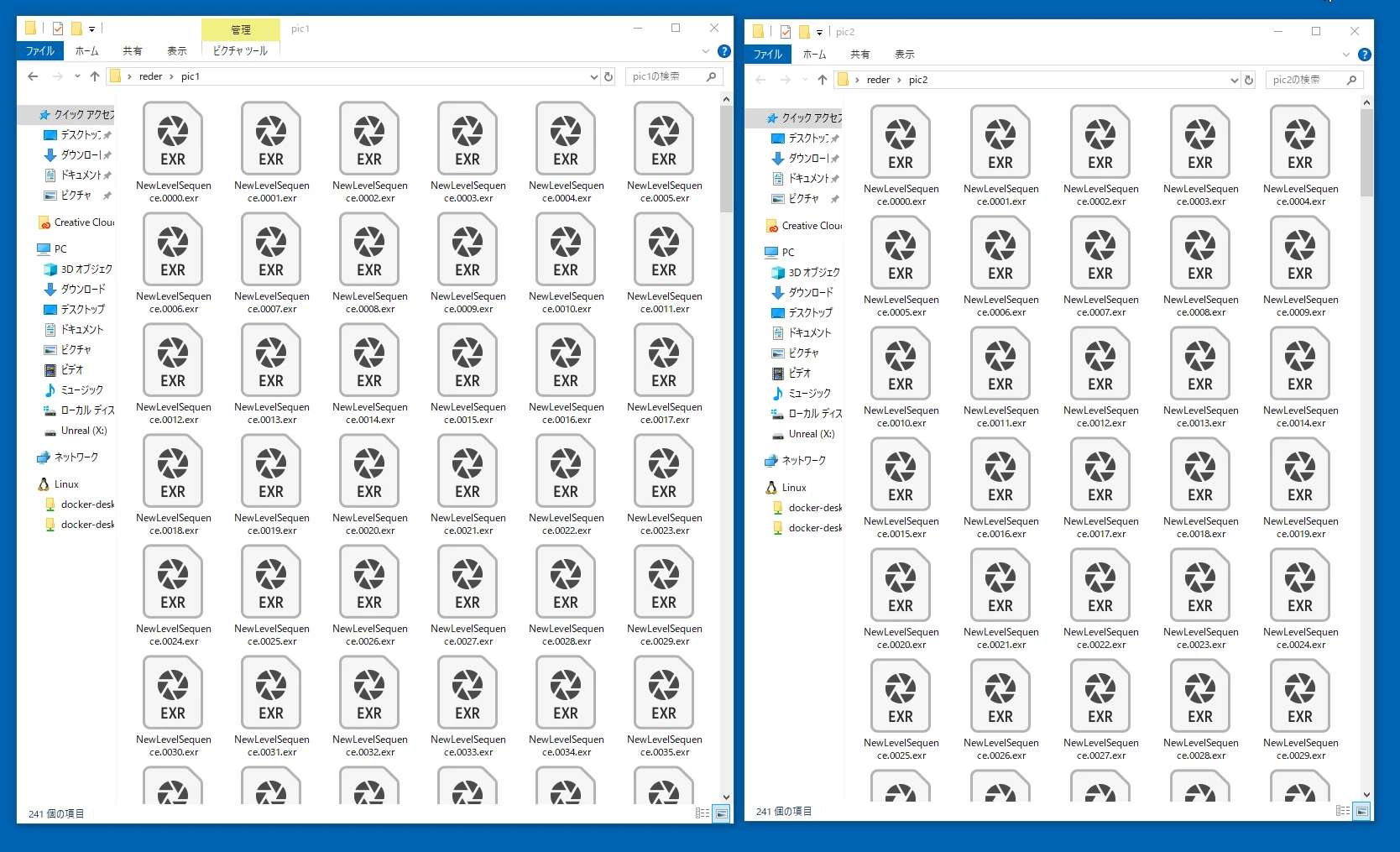 Import the image sequences into After Effects. I will not explain that import process here either; search for instructions if needed.
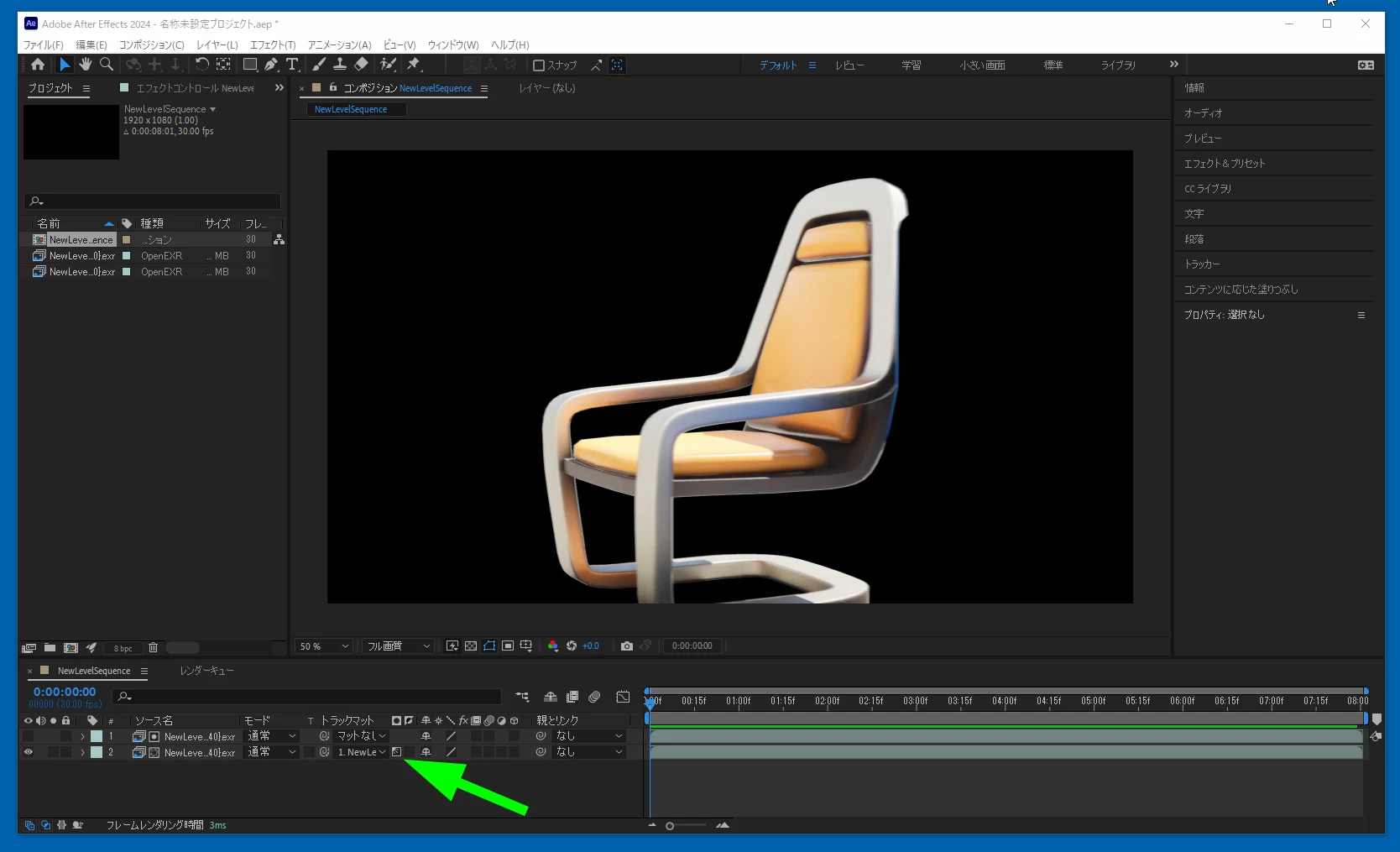
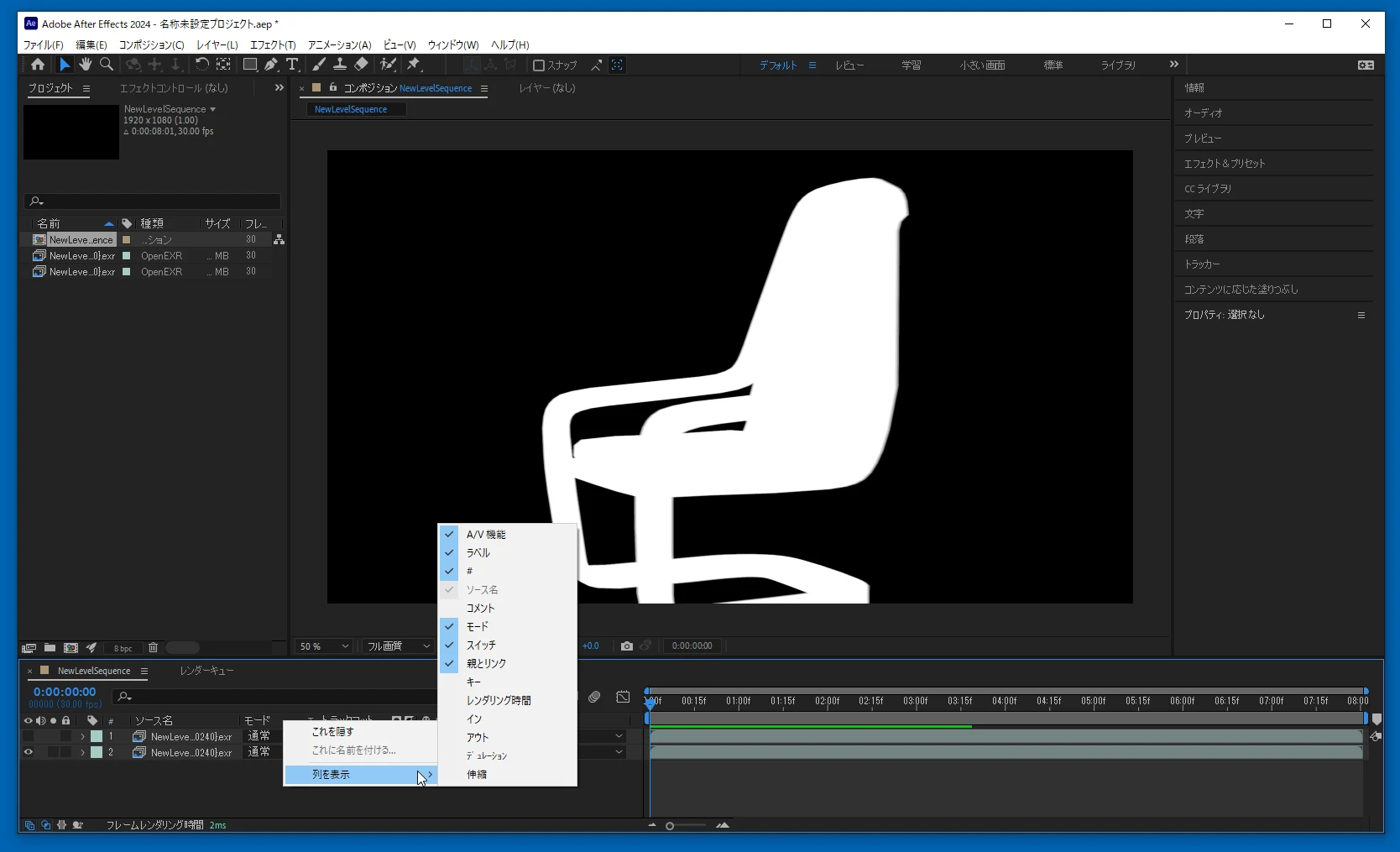
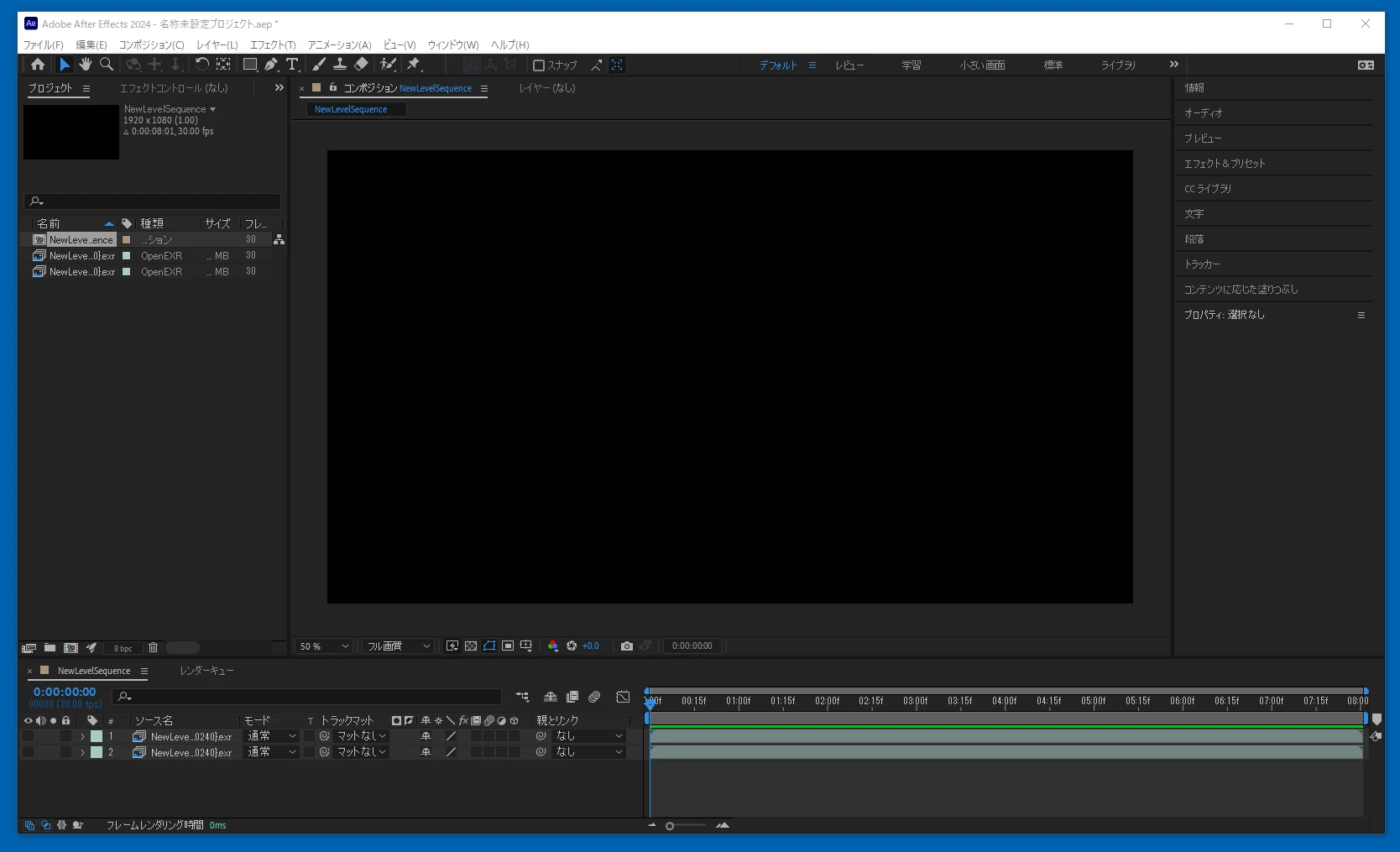 Place the masked and unmasked sequences in the timeline. Right-click the column area and show the Modes and Switches columns.
 Choose the appropriate track matte and select a luminance matte. This applies the mask and makes the background transparent. I have forgotten which layer needs to go above which, so please look that up if you are unsure.
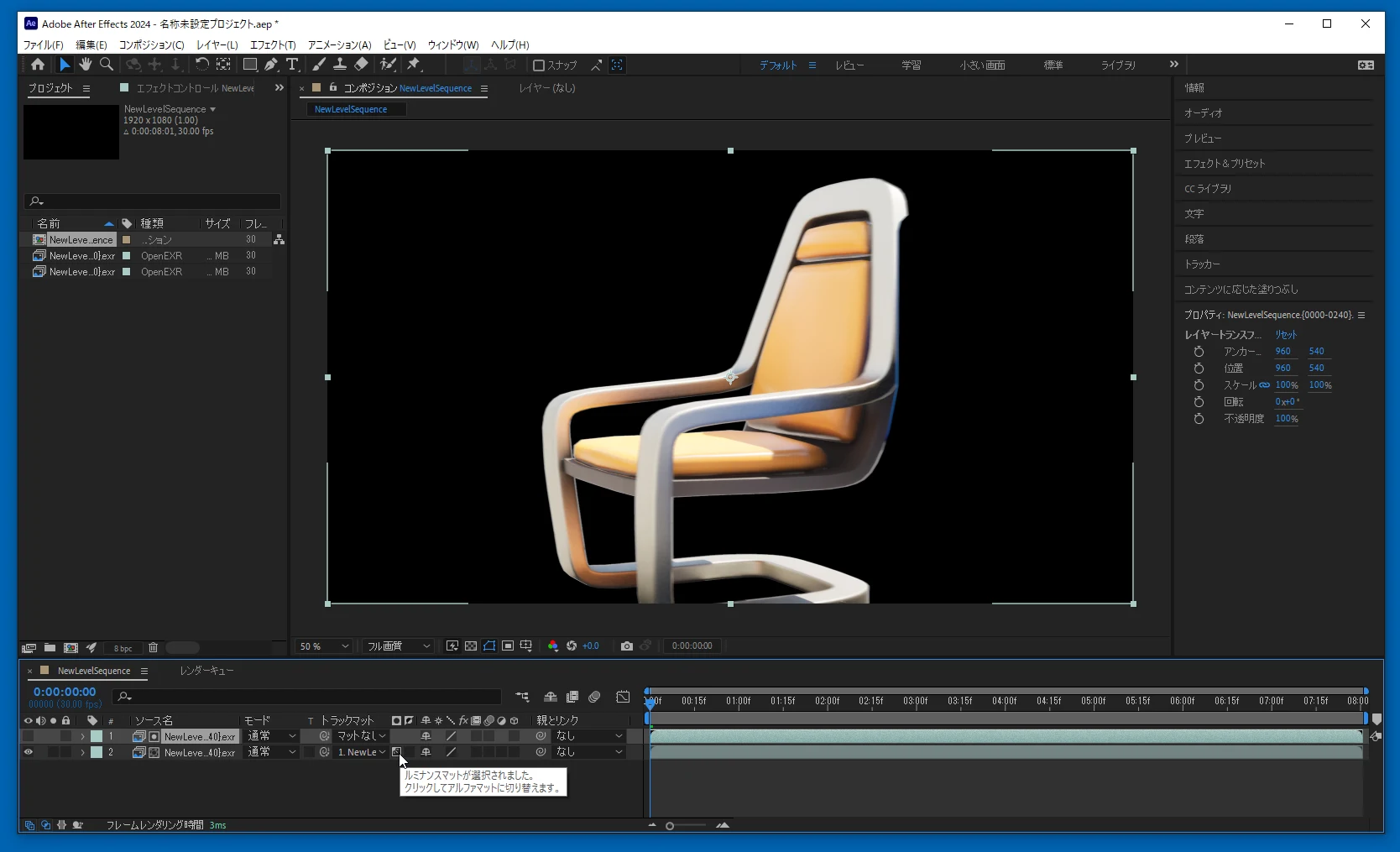 The black-and-white mask isolates just the chair. You can then composite footage like this.
Related articles

Updates and contact: X @riragoncom.