Part 1: linking Blender and 3DCoat for modeling and texturing
I connect Blender and 3DCoat, model a photographed package, and test the texturing round trip. The walkthrough includes the scale mismatch I encountered and how I corrected it before importing the result into UE5.
Note: This article was published more than a year ago.
- Blender and 3DCoat Applink and file round-trip procedures vary by version. Check the official integration documentation for each.
- Scale, normals, and UV handling in intermediate formats such as FBX and OBJ depend on the export preset.
- 3DCoat feature names and license conditions may change with updates.
3DCoat is software by Pilgway, a developer headquartered in Kyiv, Ukraine. Using it also supports Ukraine. It handles a wide range of tasks, including modeling, texturing, rendering, and UV mapping. Competing products include ZBrush and Substance Painter.
It is available at a lower price than those products, through either a perpetual license or subscription.
Each has its strengths, but 3DCoat is also very approachable.
I use it for sculpting and texturing.
Free Blender can perform similar work on its own, but knowing several applications can make a workflow smoother by taking advantage of their individual strengths.
3D-Coat
I will link Blender and 3DCoat, model in Blender, and texture in 3DCoat, using a box as the example.
Link Blender and 3DCoat
Add the plugin through Preferences to connect Blender with 3DCoat.
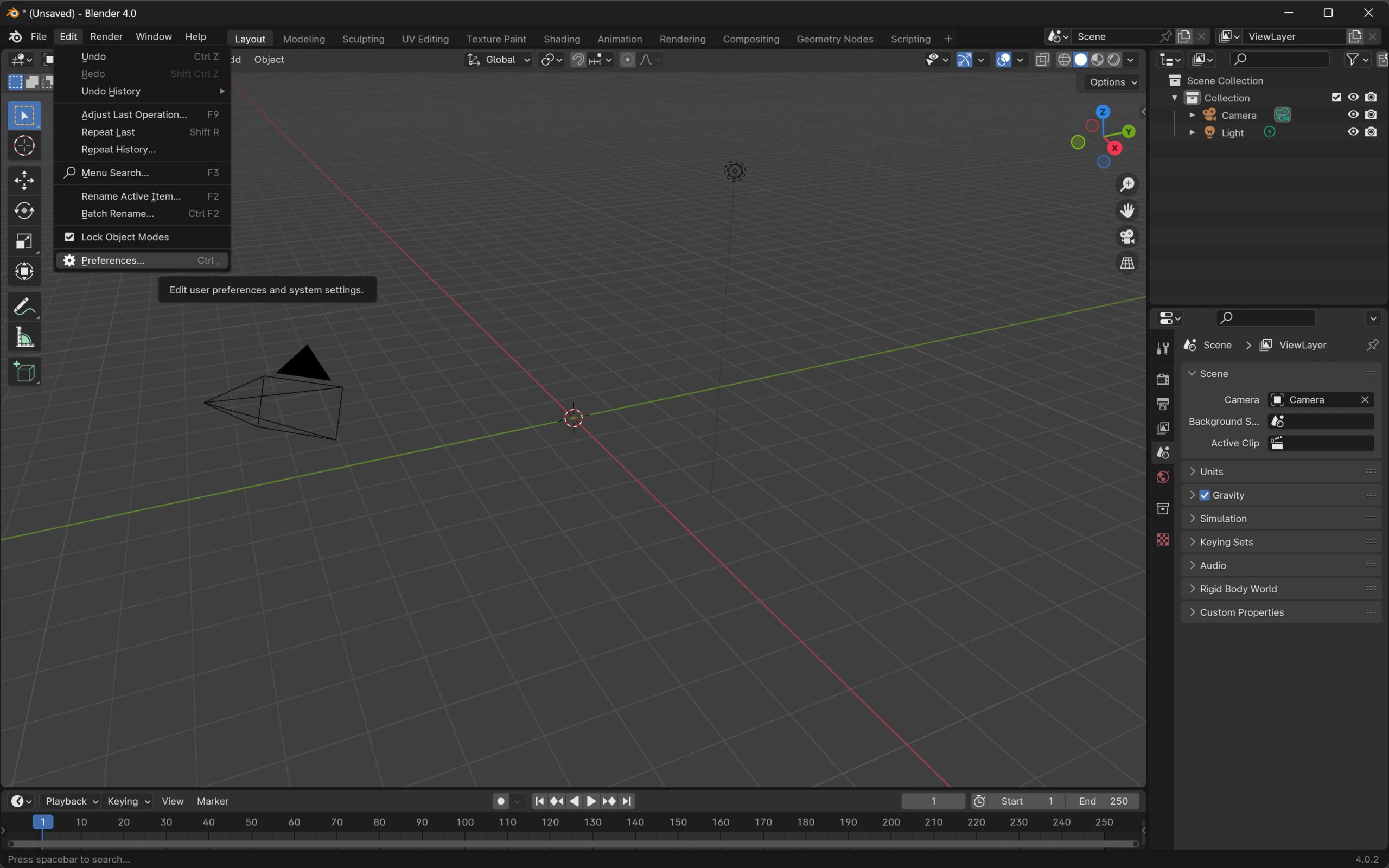 Search for 3D and enable 3D-Coat.
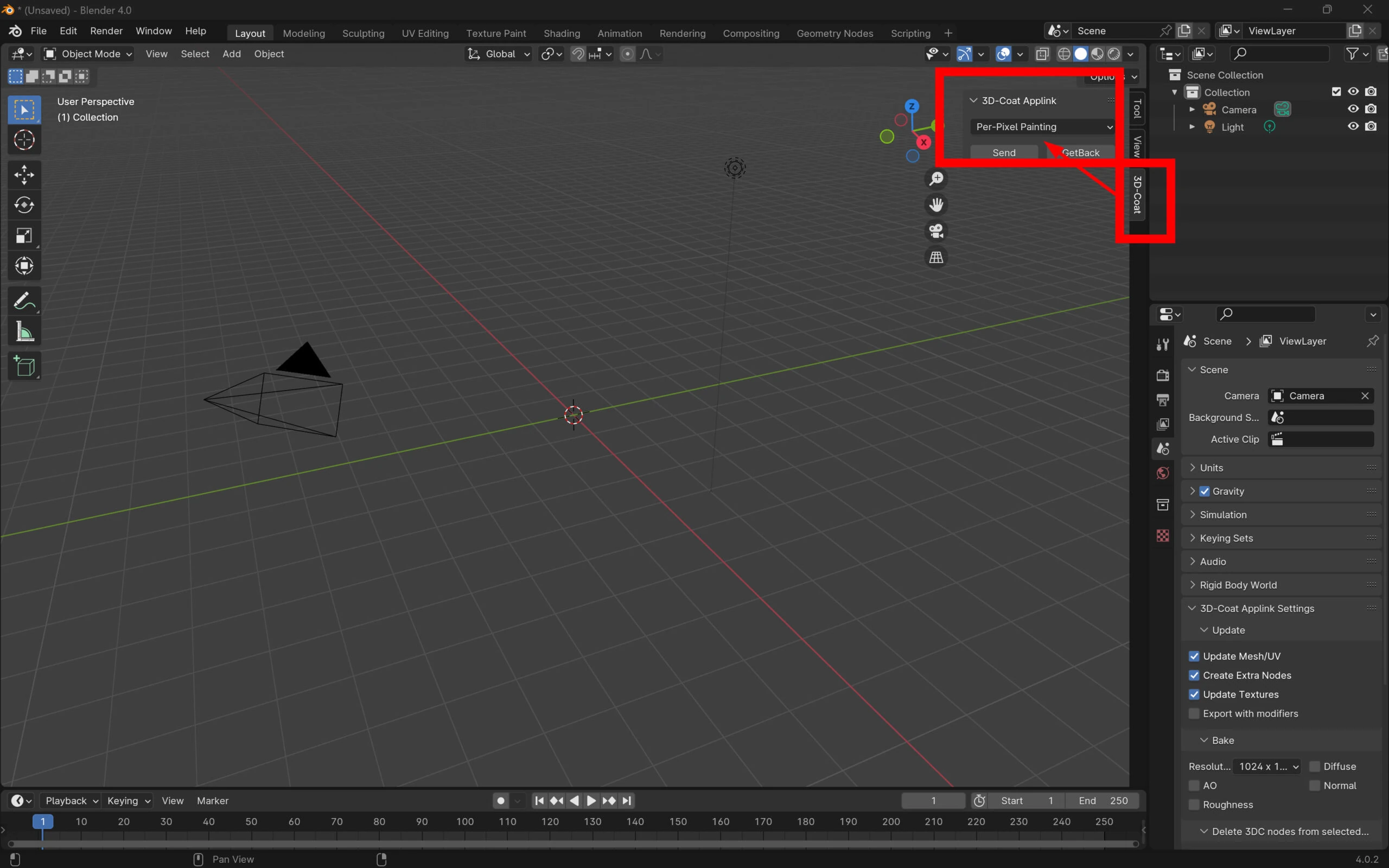
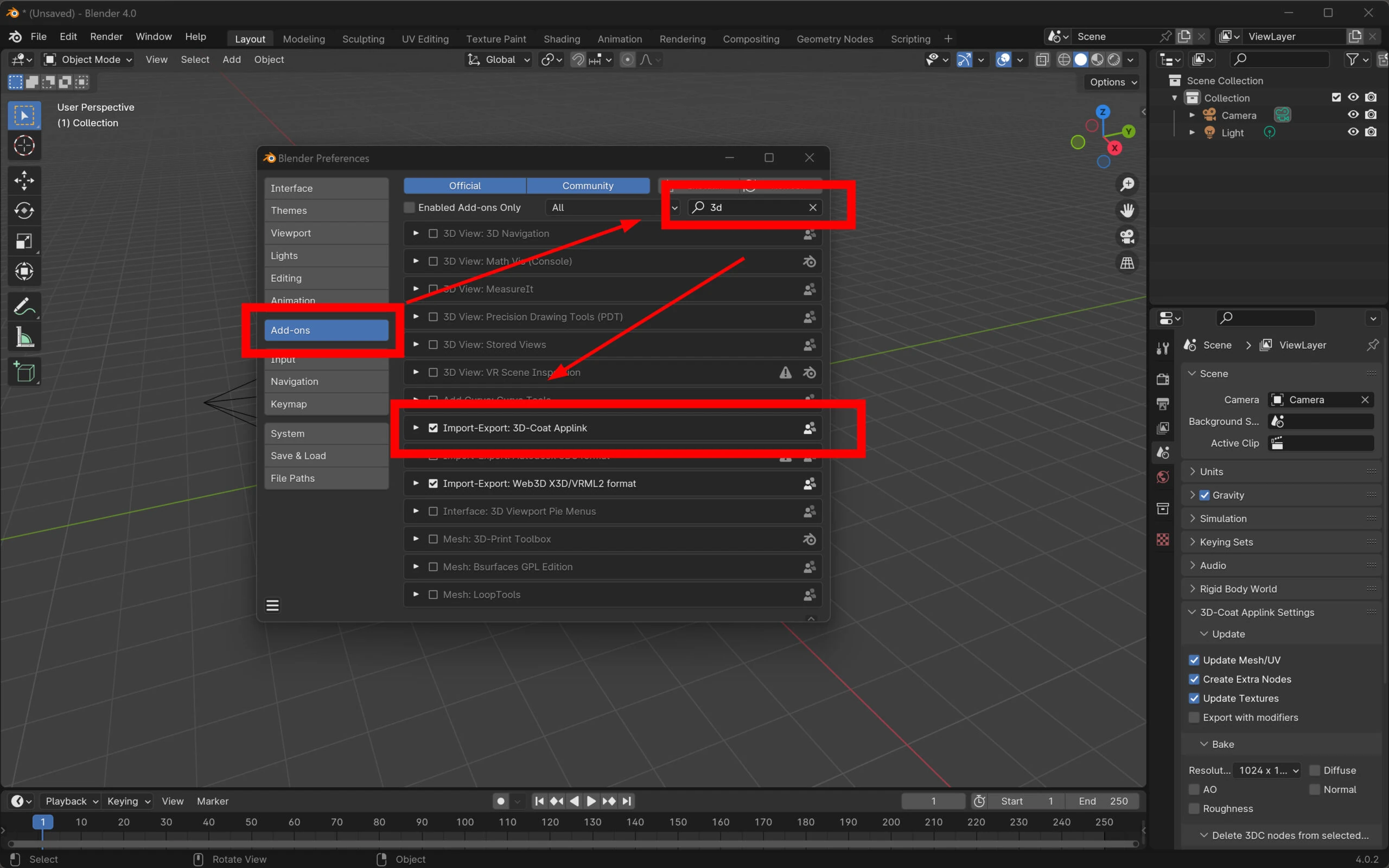 A 3D-Coat tab appears on the right.
 Choose the specific folder to use for the exchange.
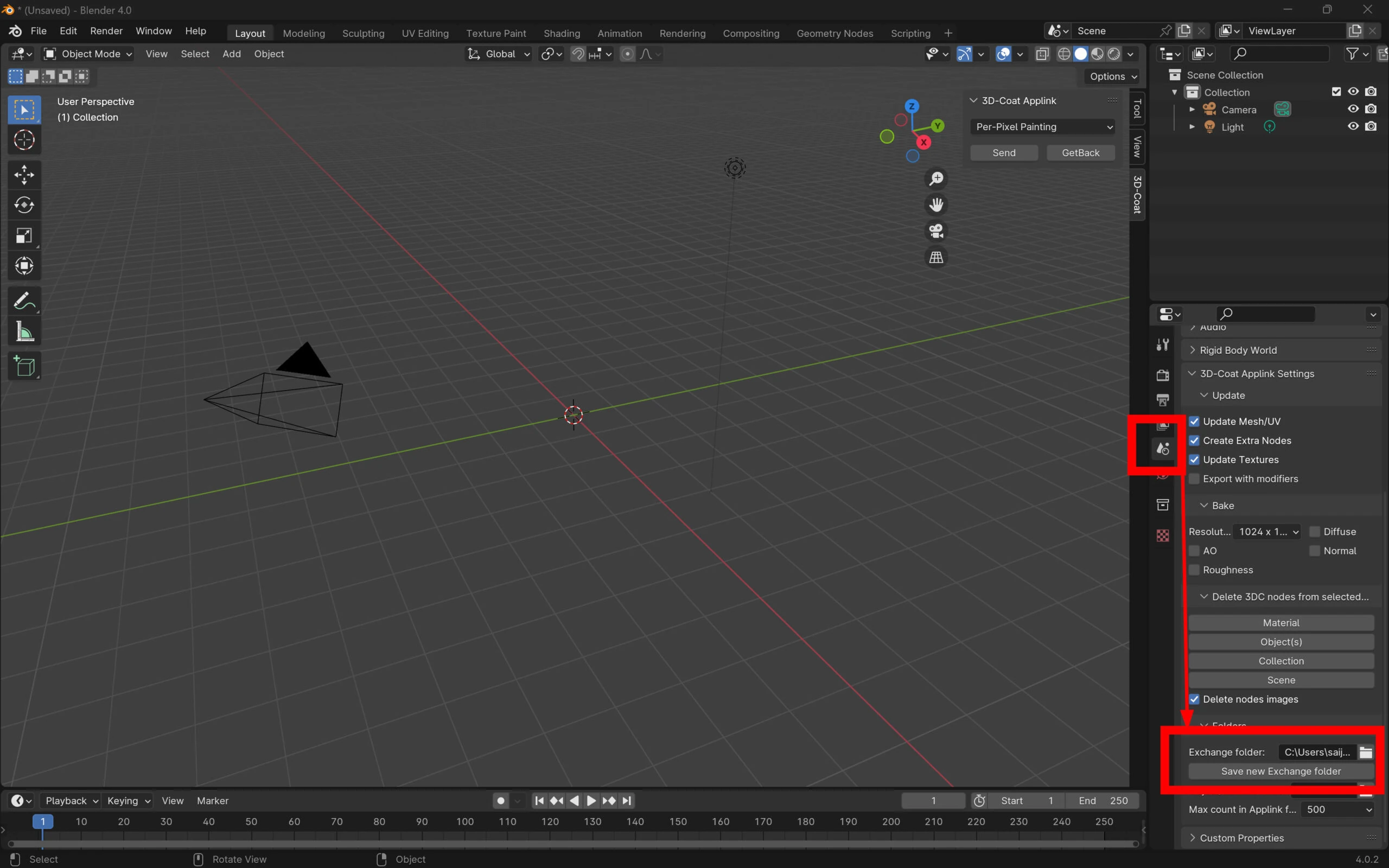 Selecting the Exchange folder is sufficient.
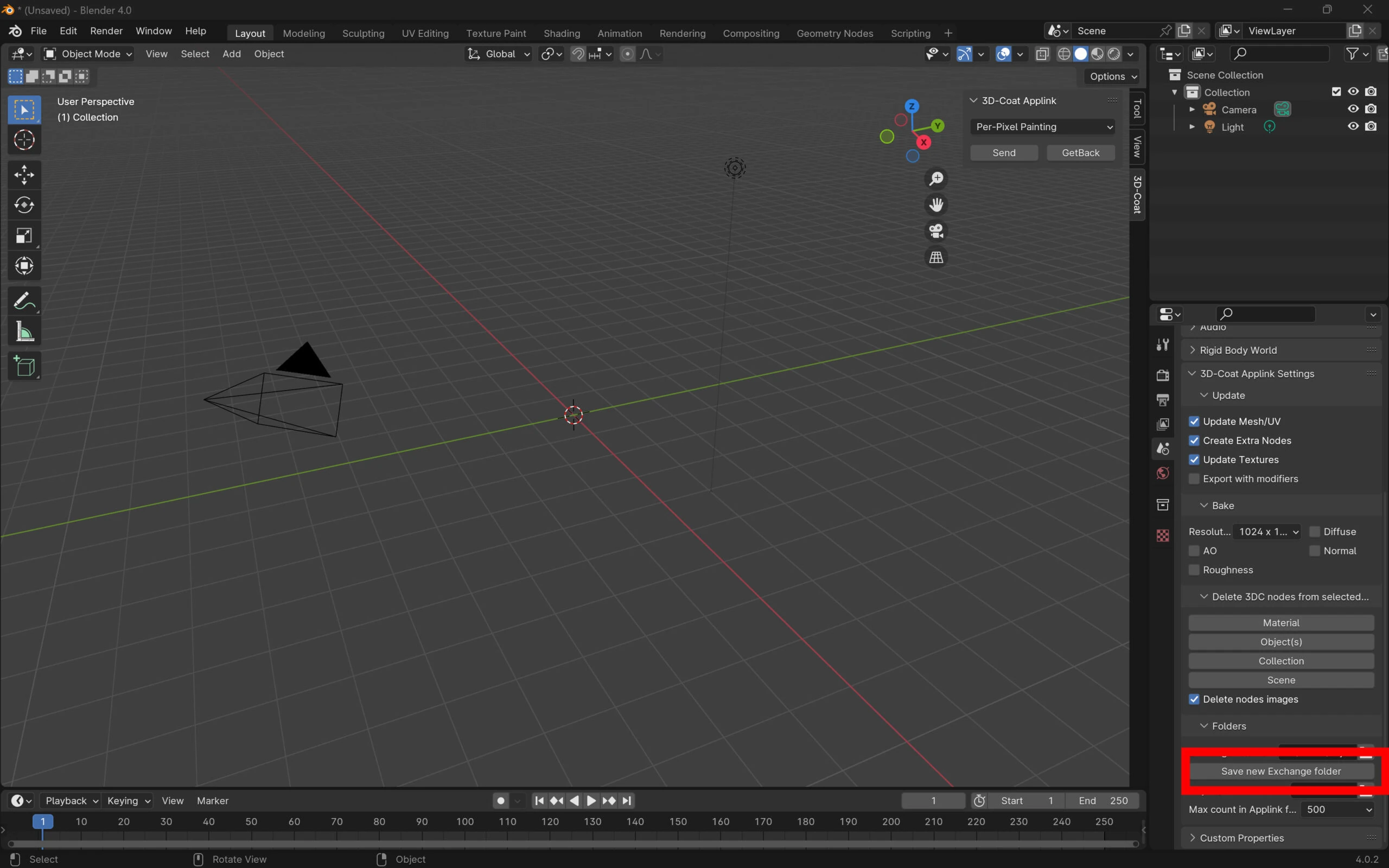
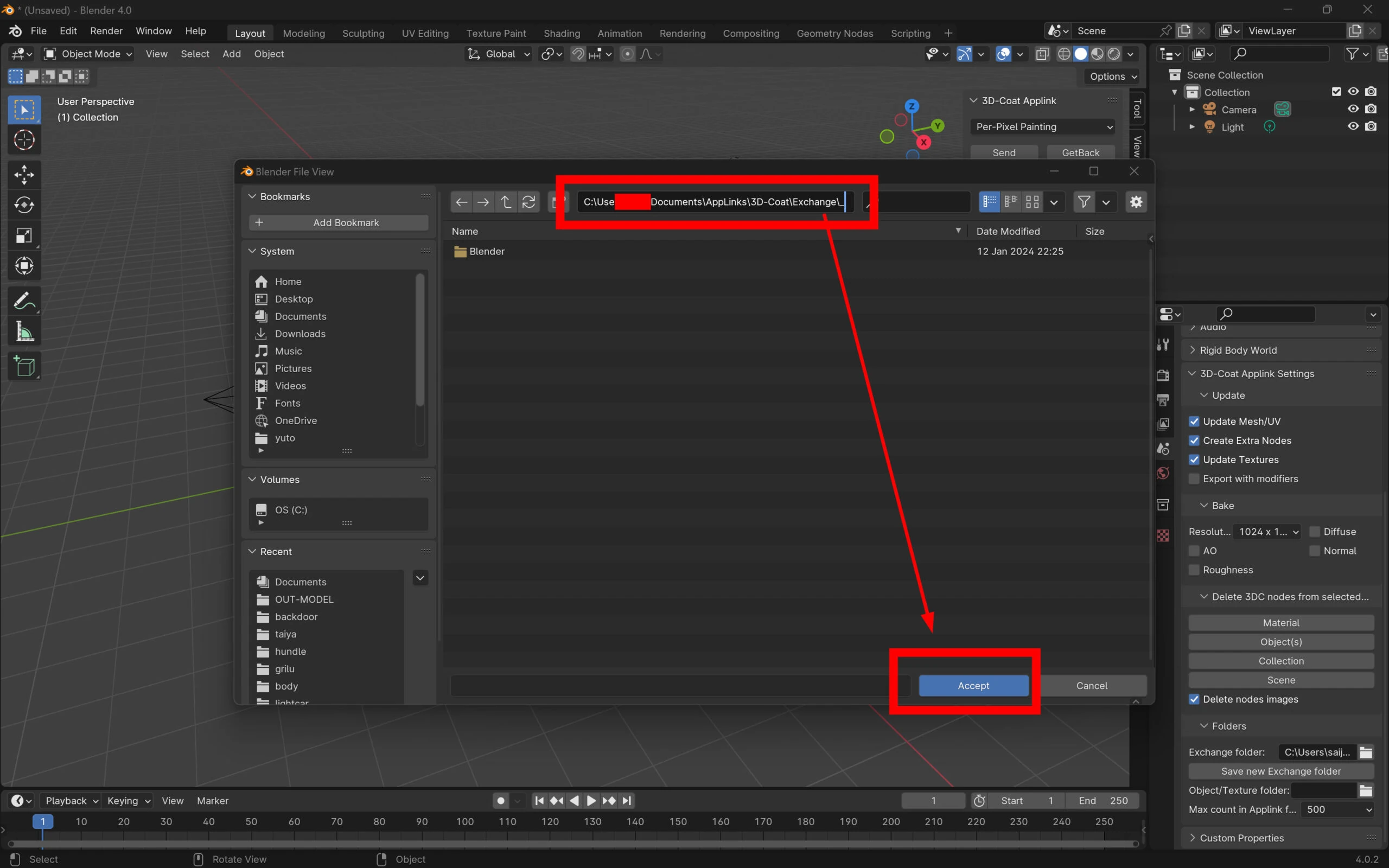 Save the settings. Setup is complete.
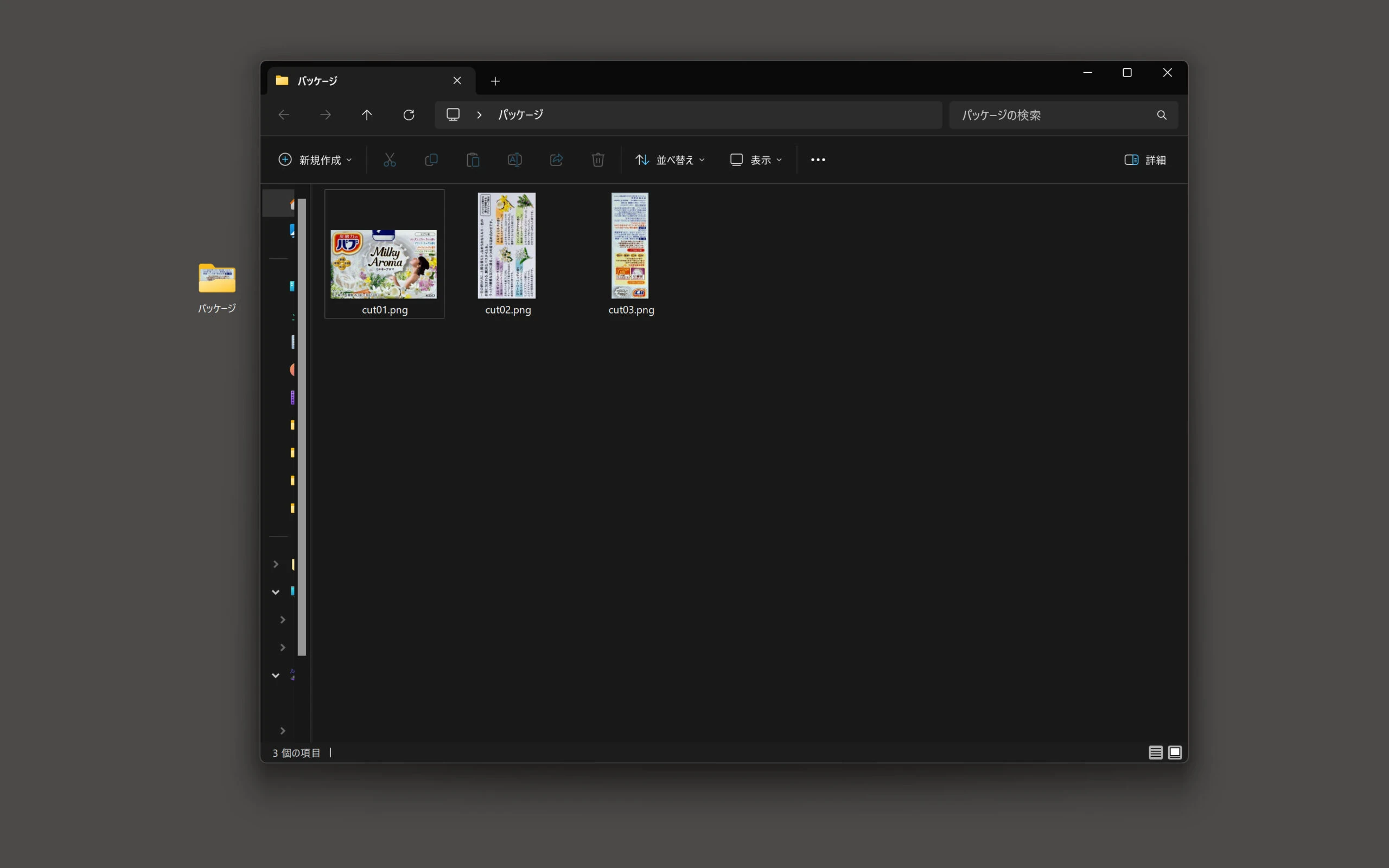
 Photograph a Babu bath-tablet package.
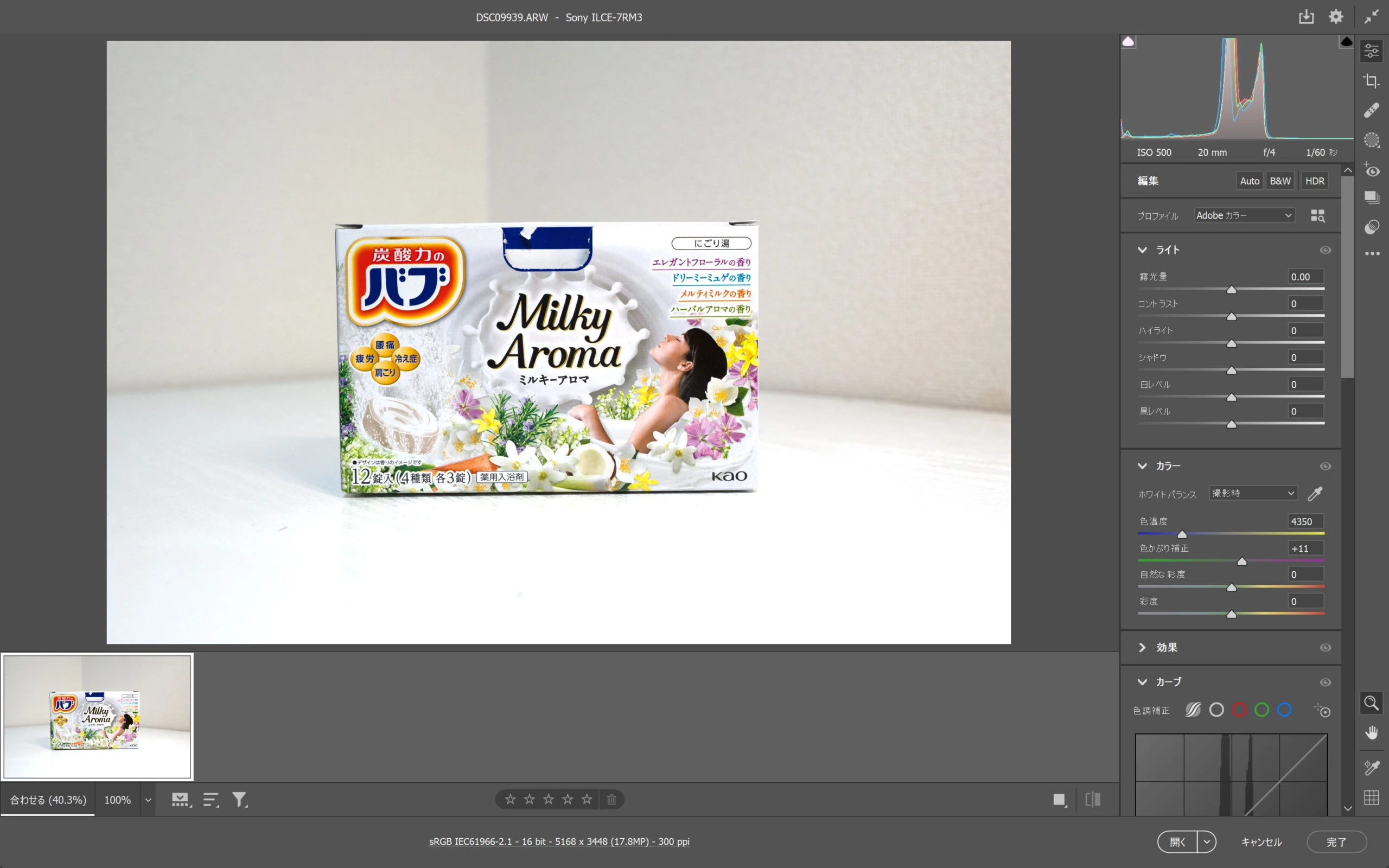 Crop the photographs into separate images for each side.
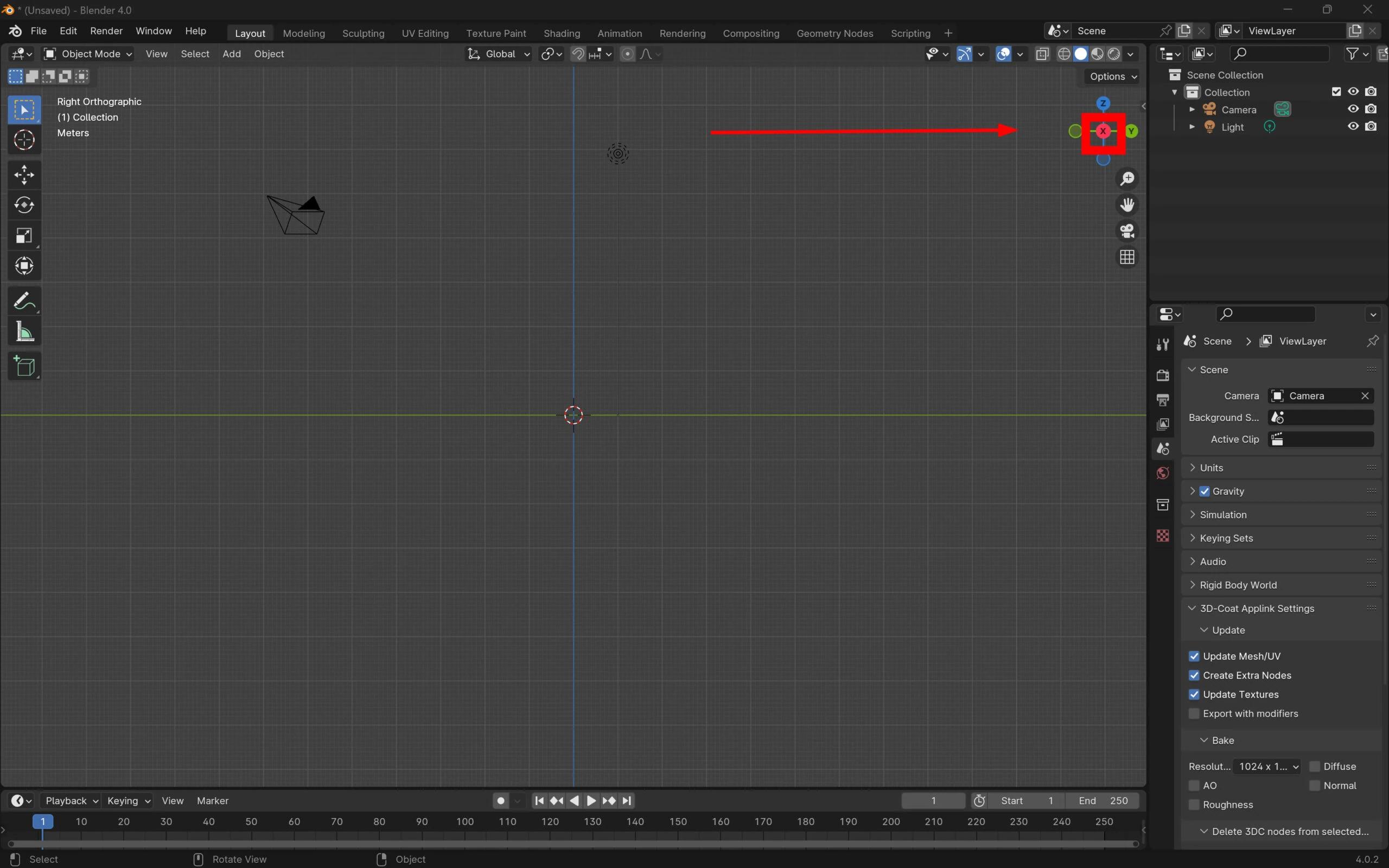
 Set a straight-on view in Blender to insert the guide images.
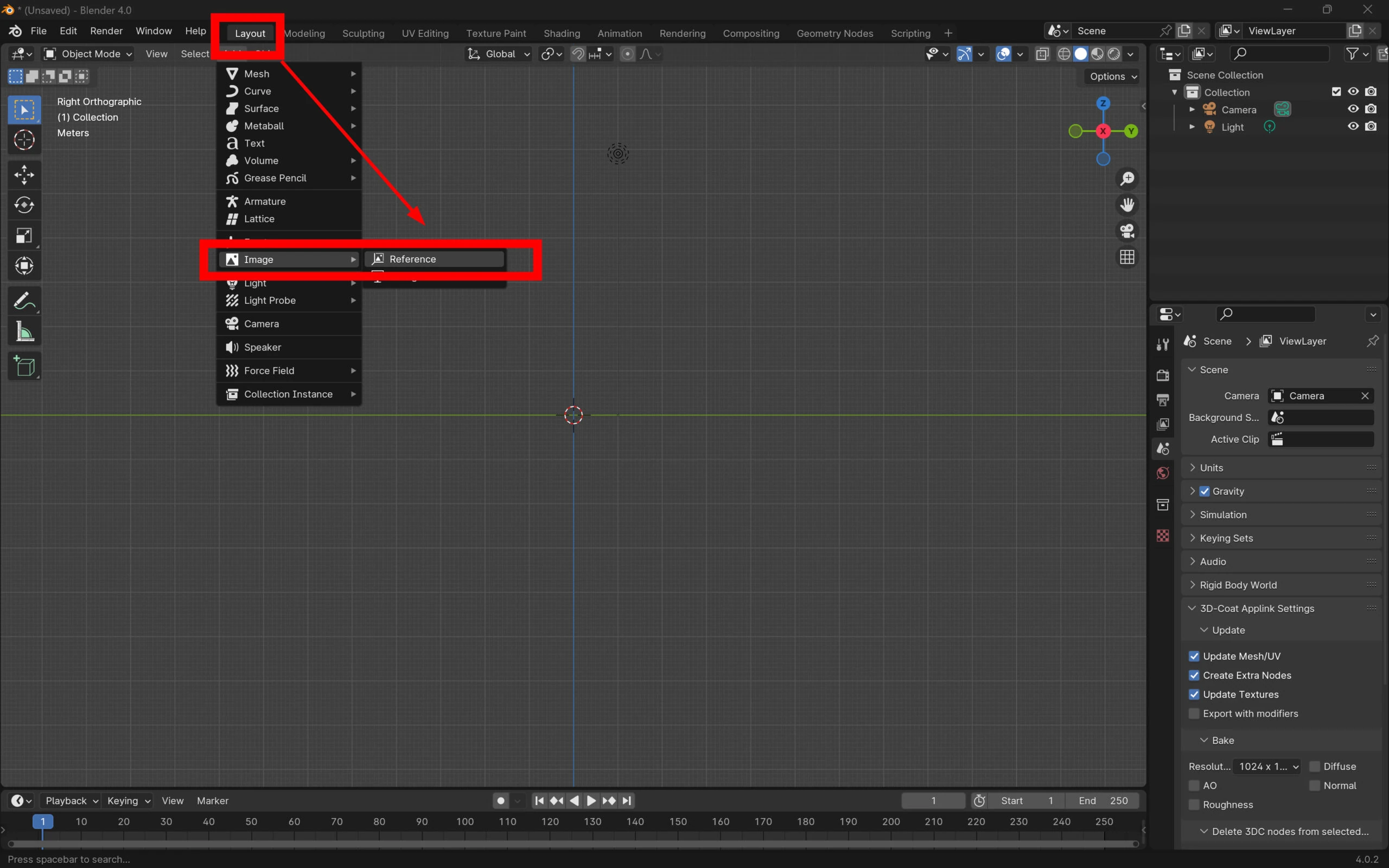
 In Layout, choose Image > Reference.
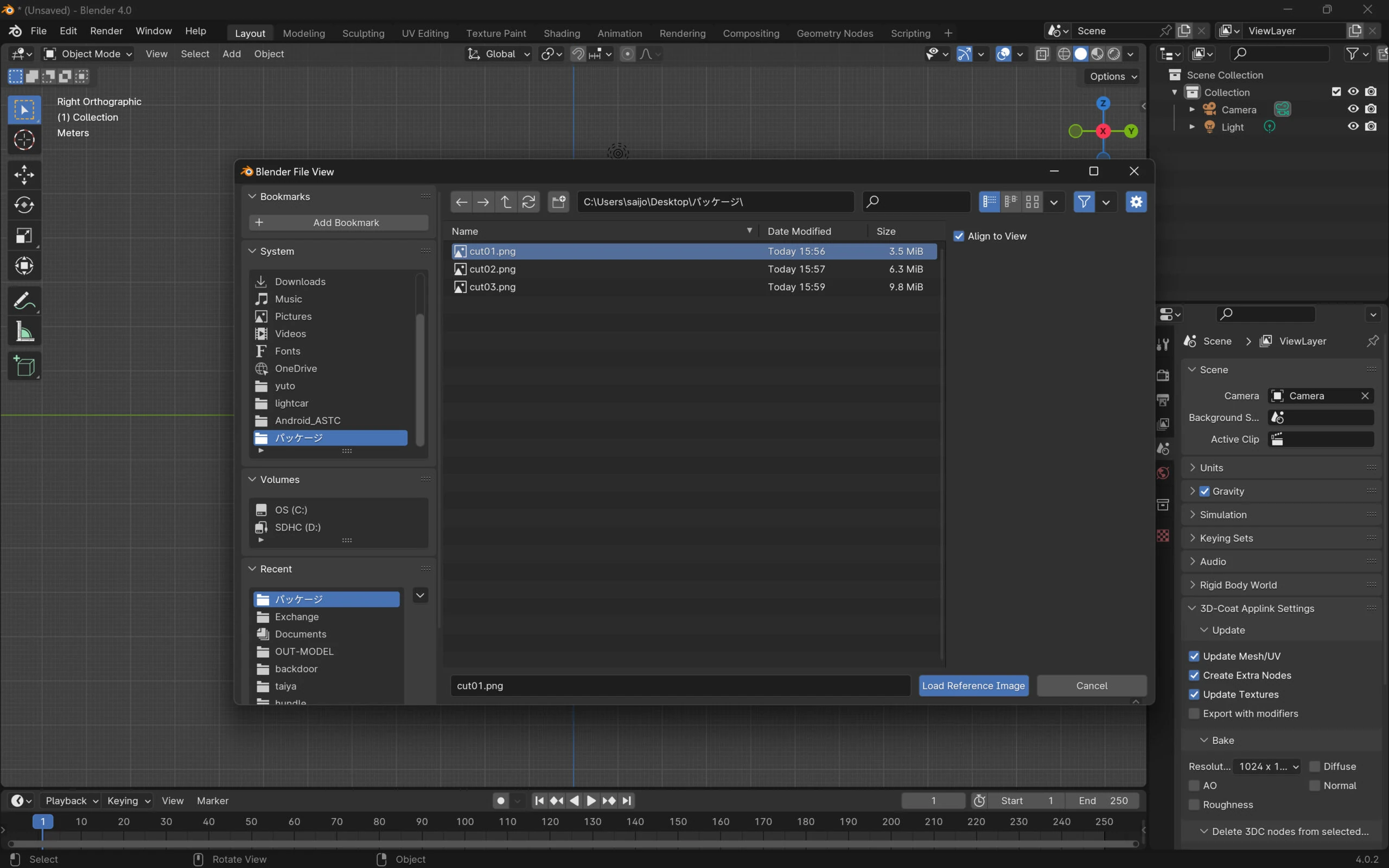
 Select the reference image.
 The reference image appears.
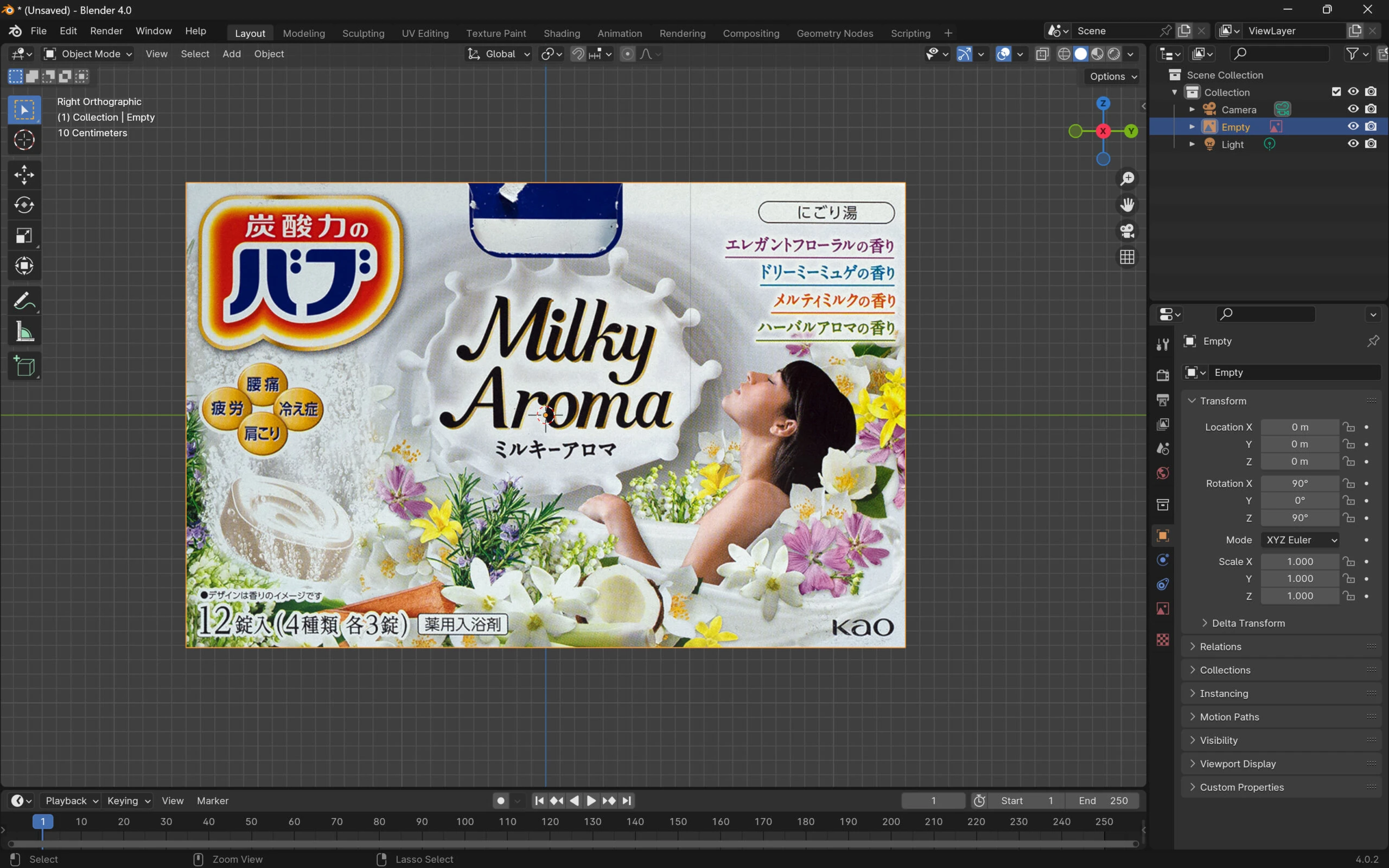 Do the same for the other sides, checking that top, bottom, left, and right are all oriented correctly.
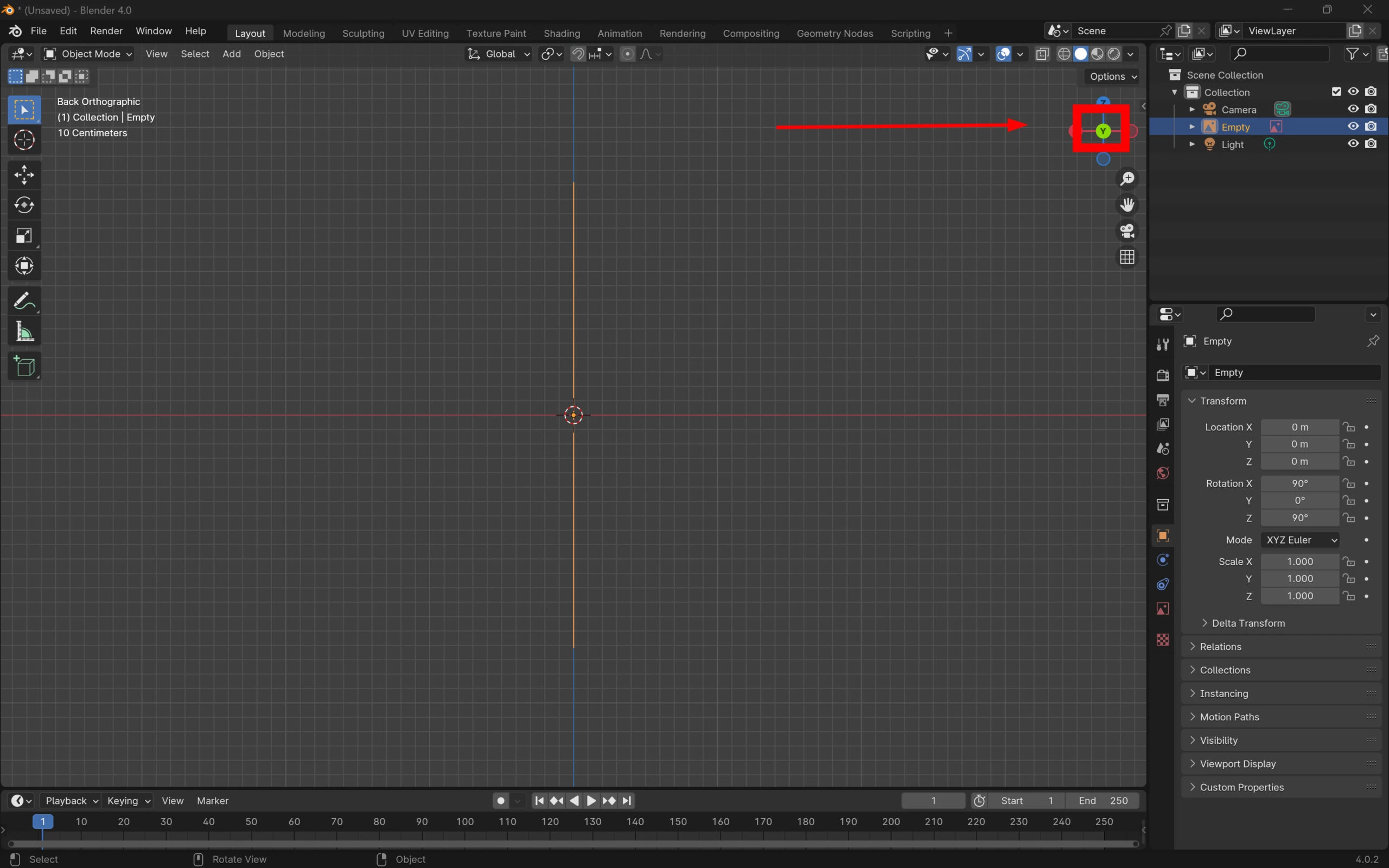 Adjust the sizes to get a layout like this.
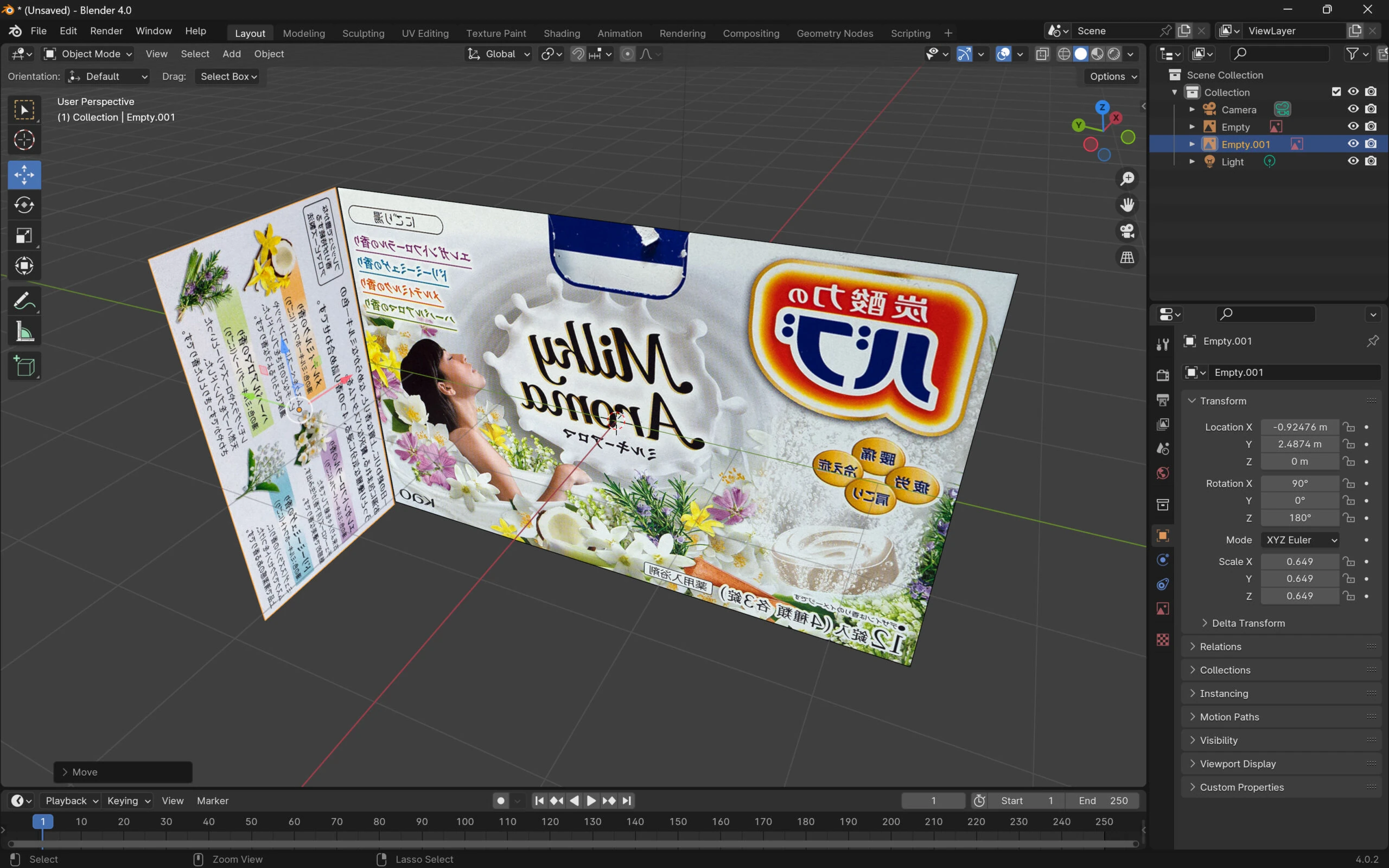 Create a cube using the guides.
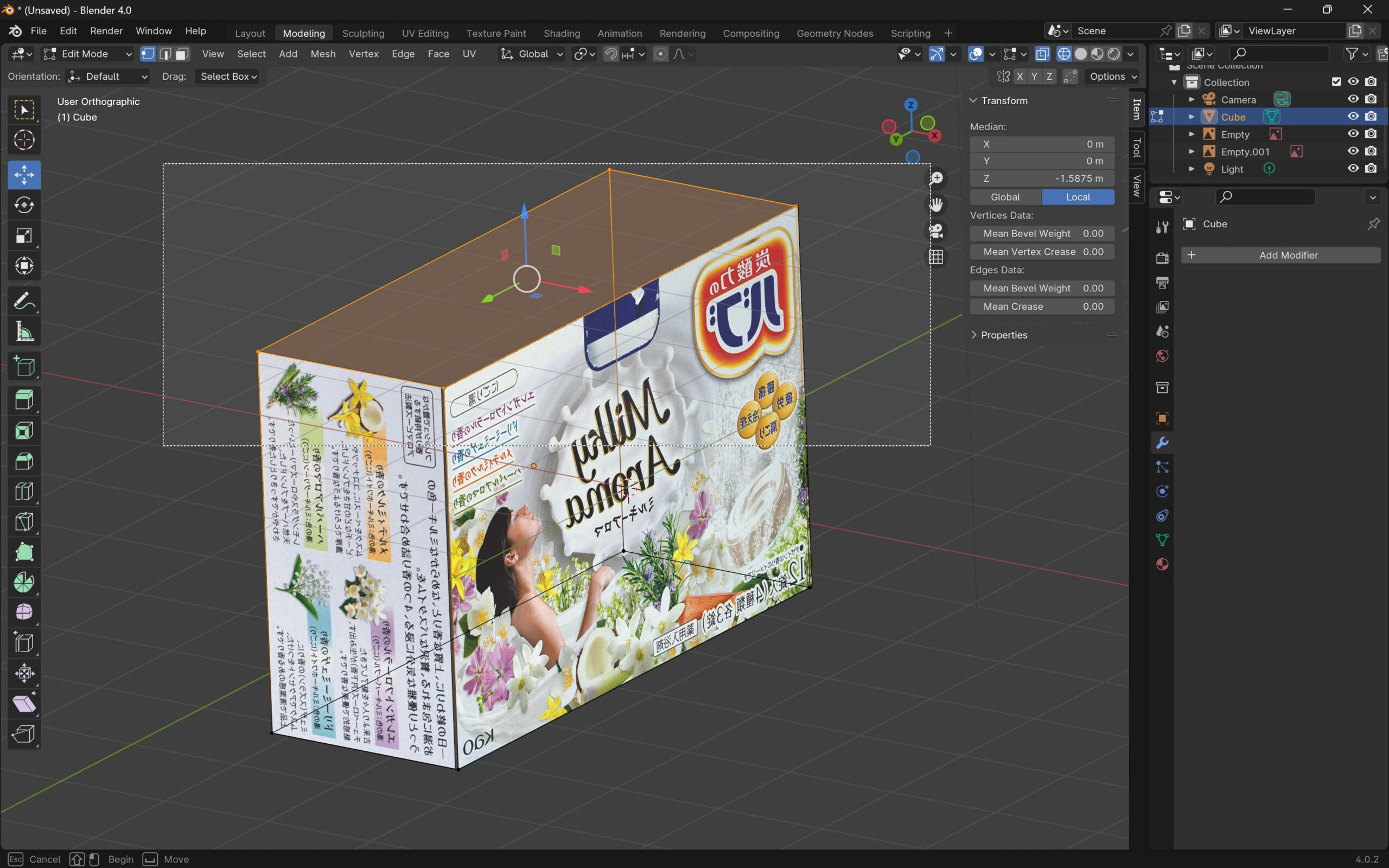
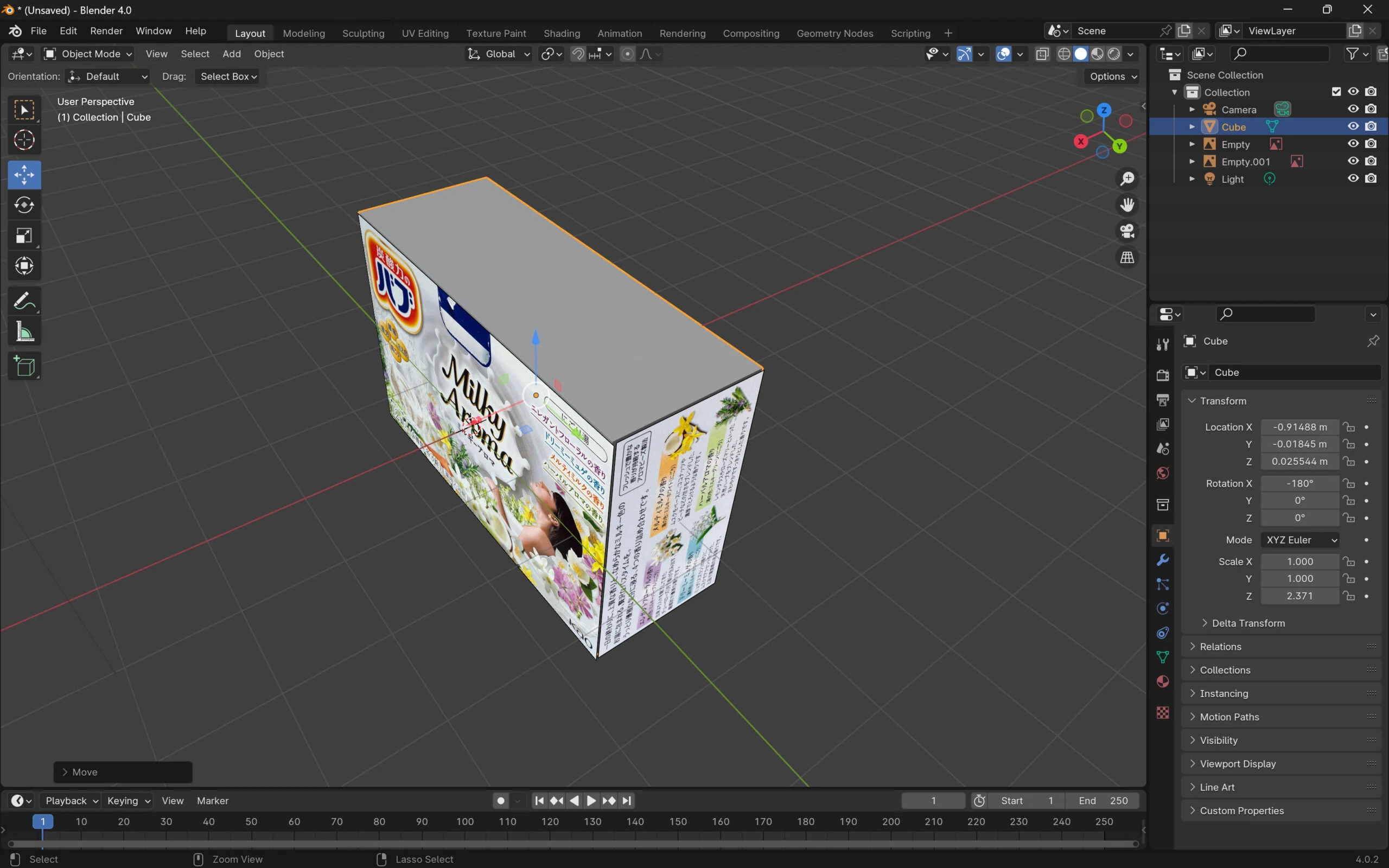 In modeling, enable X-ray so all vertices can be selected, then select them all.
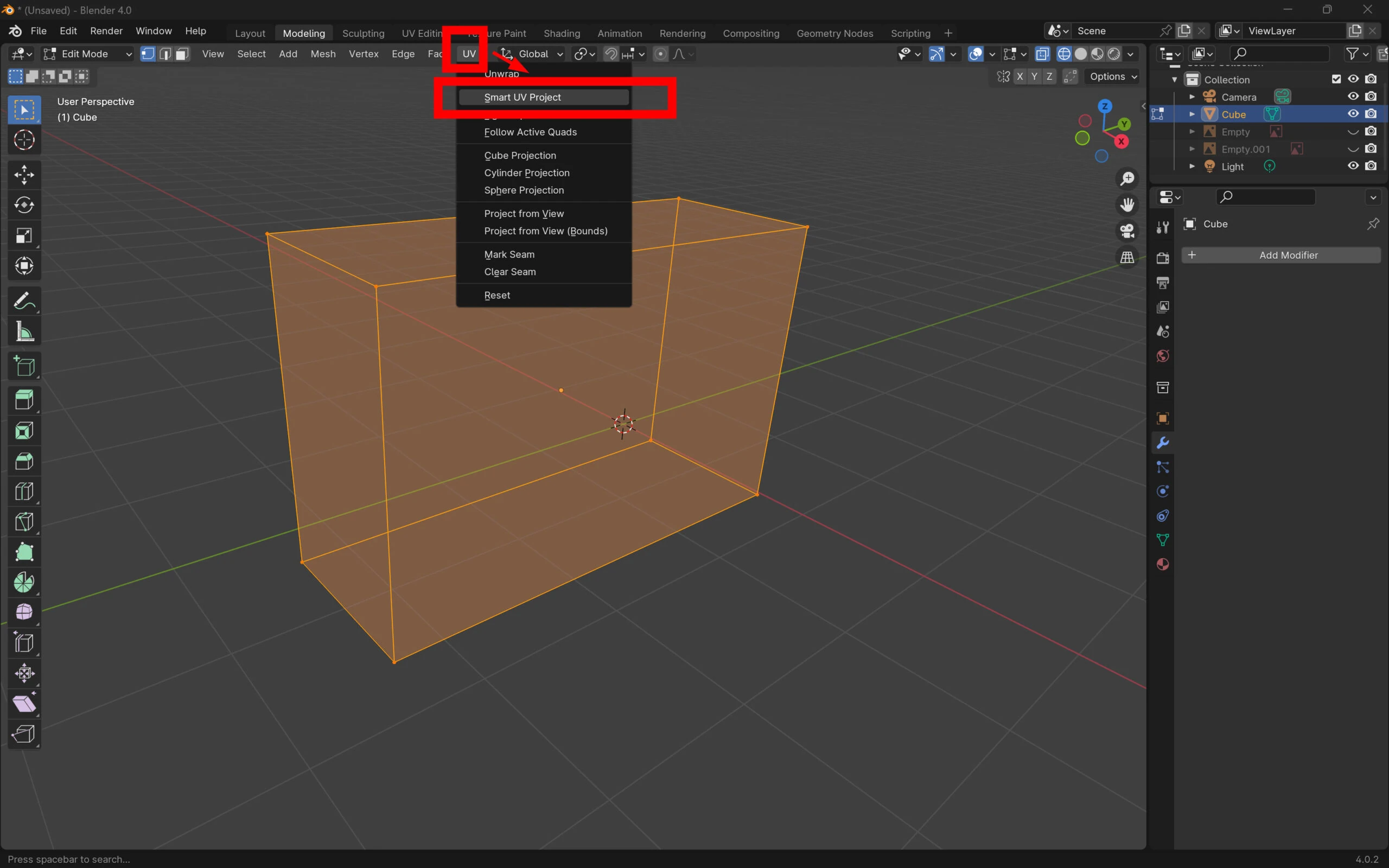
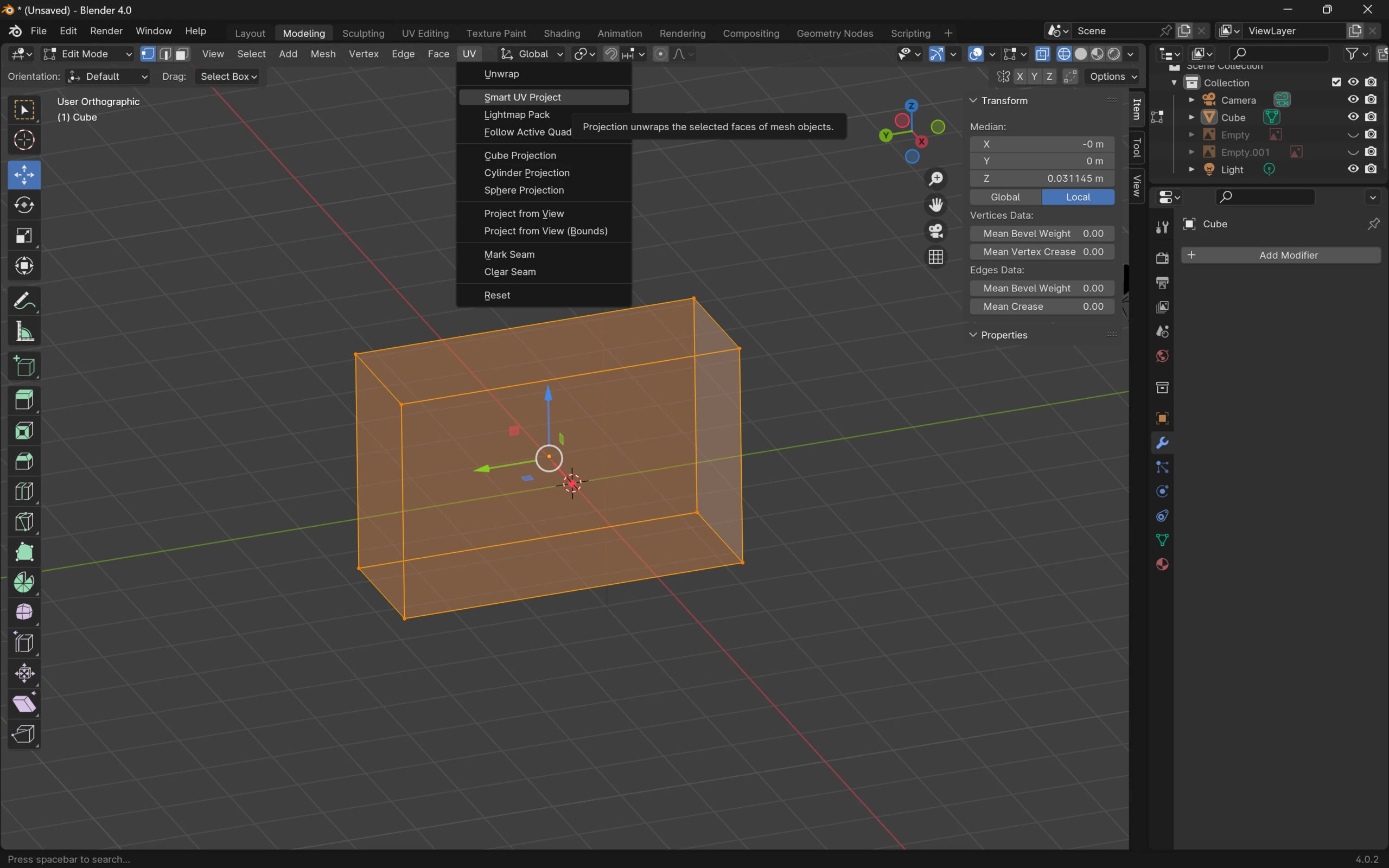
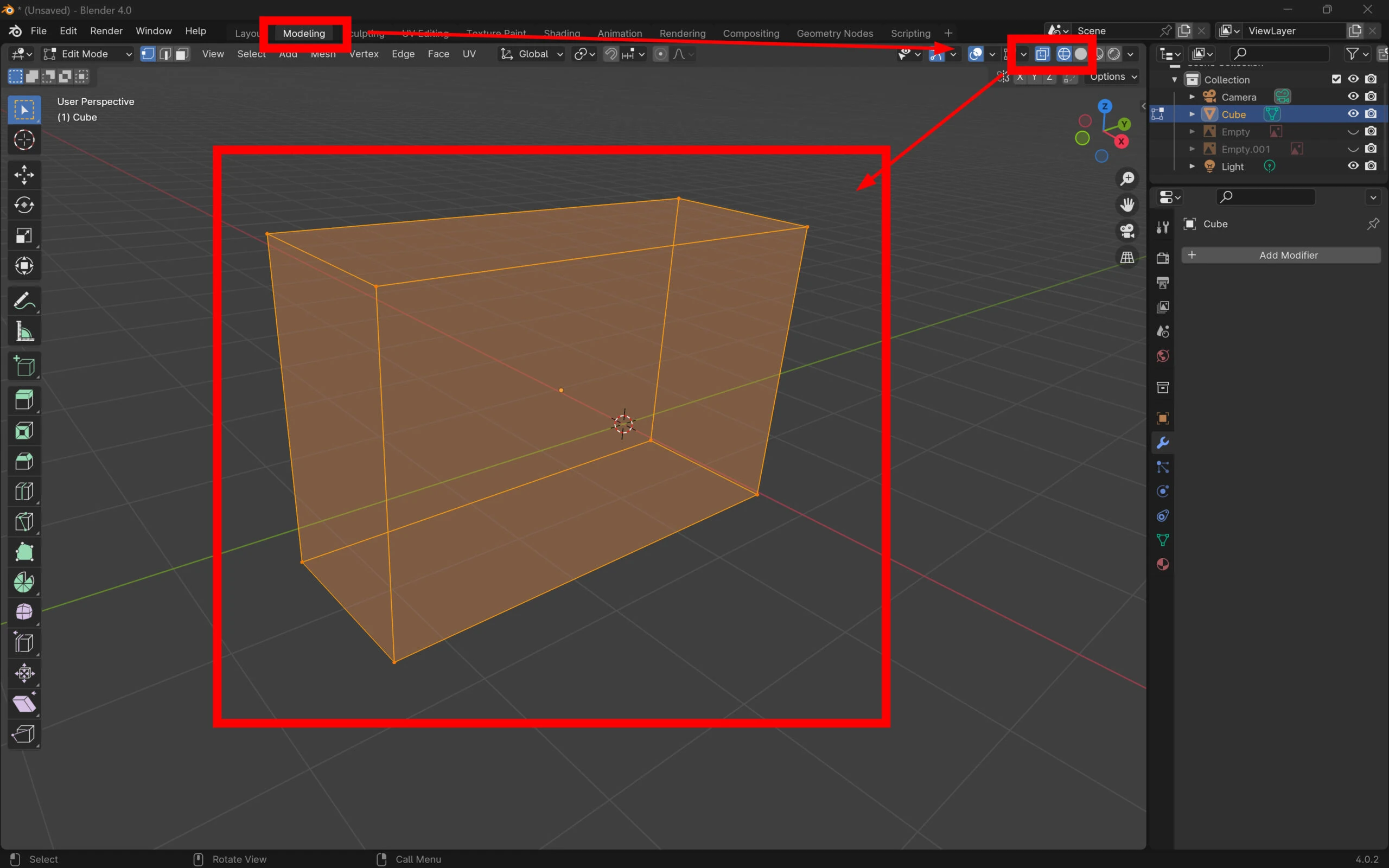 Run Smart UV Project from the UV menu.
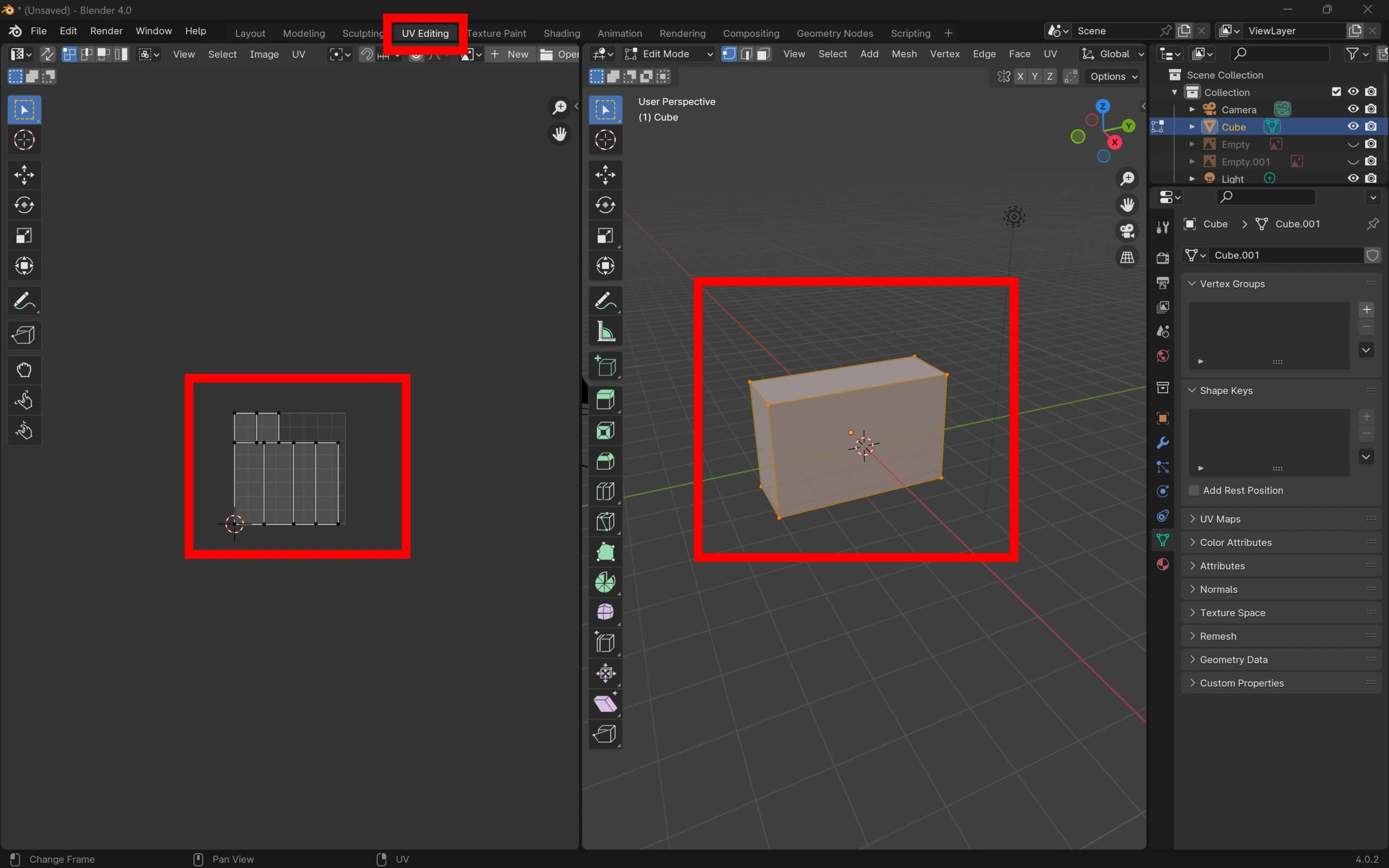
 A UV map is created, but the face proportions are wrong: the sides are still too small.
 Select the model and send it to 3DCoat.
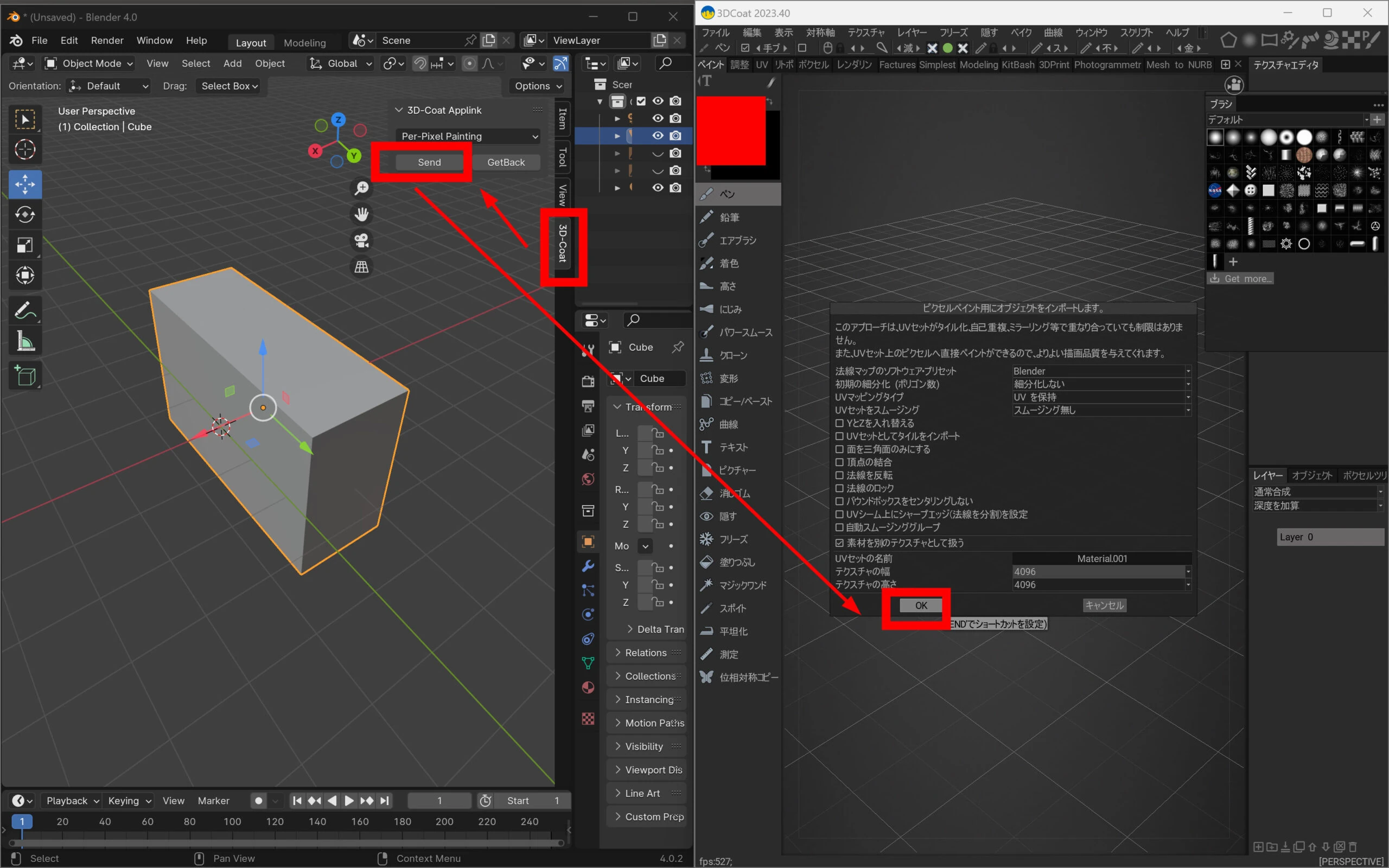 Because of the incorrect proportions, the texture proportions are wrong too.
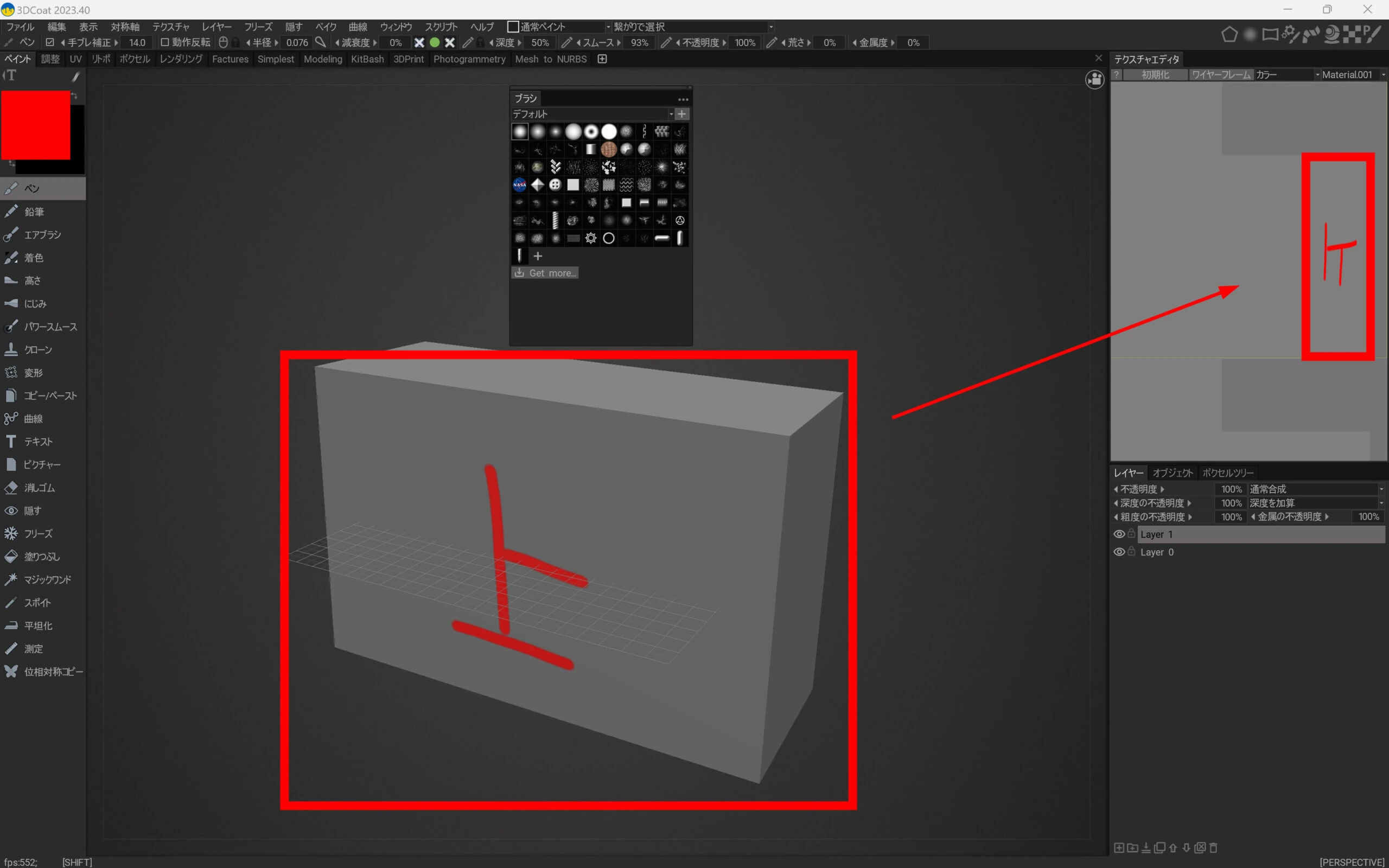 Looking at the item's scale, Z is doubled, which explains the mismatch.
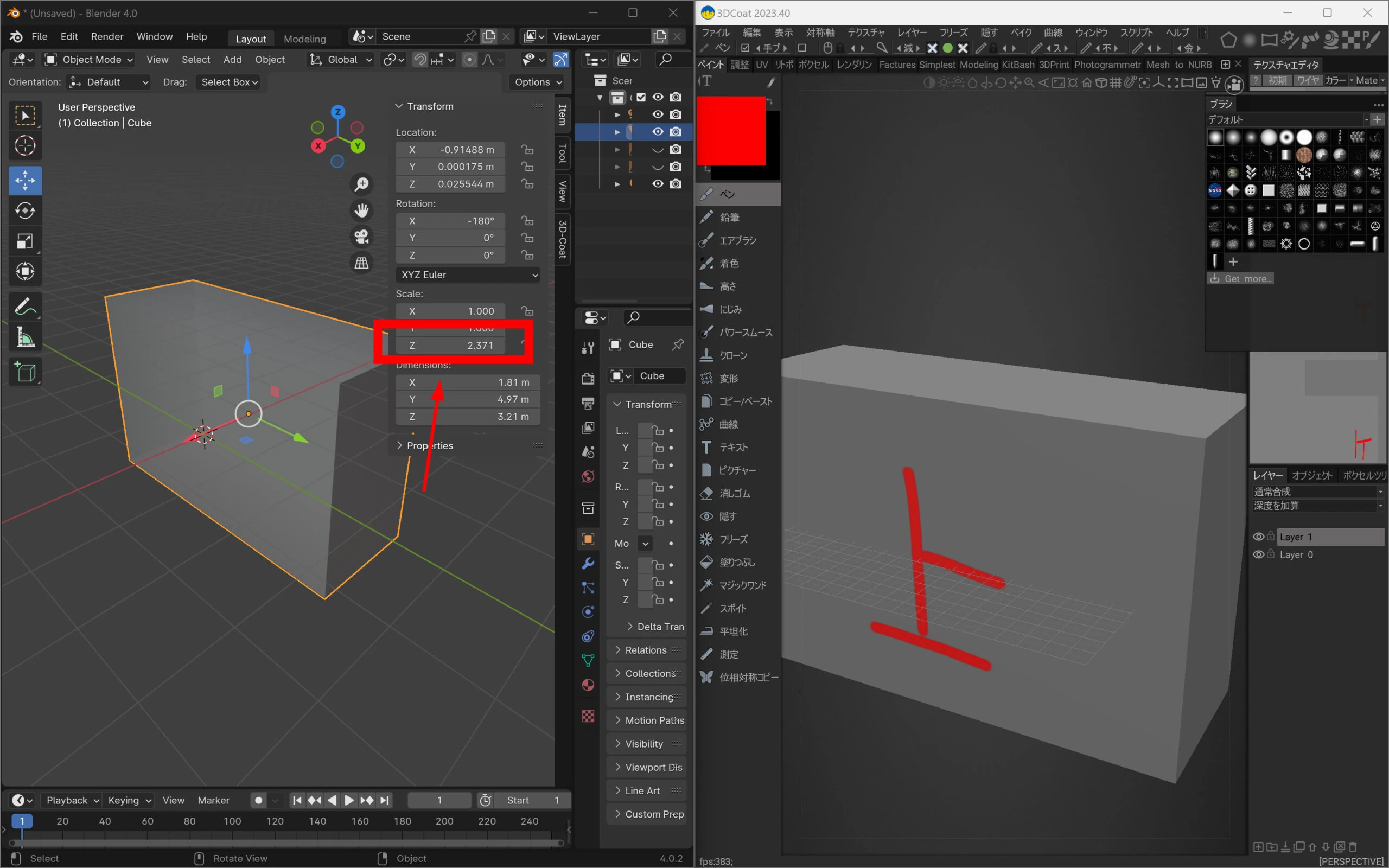 Return the scale to 1.
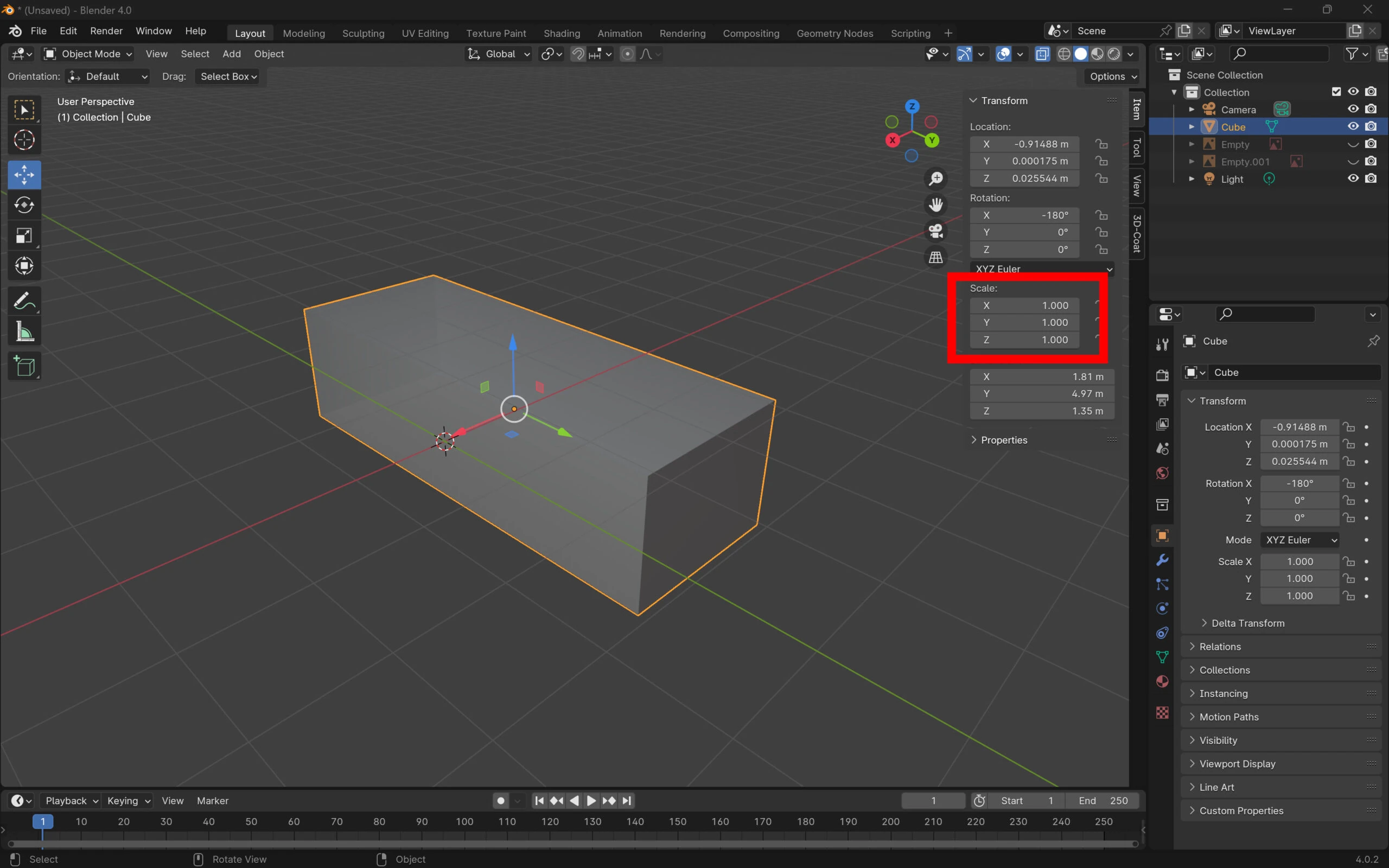 Move vertices to enlarge the geometry instead.
 The scale is now 1.
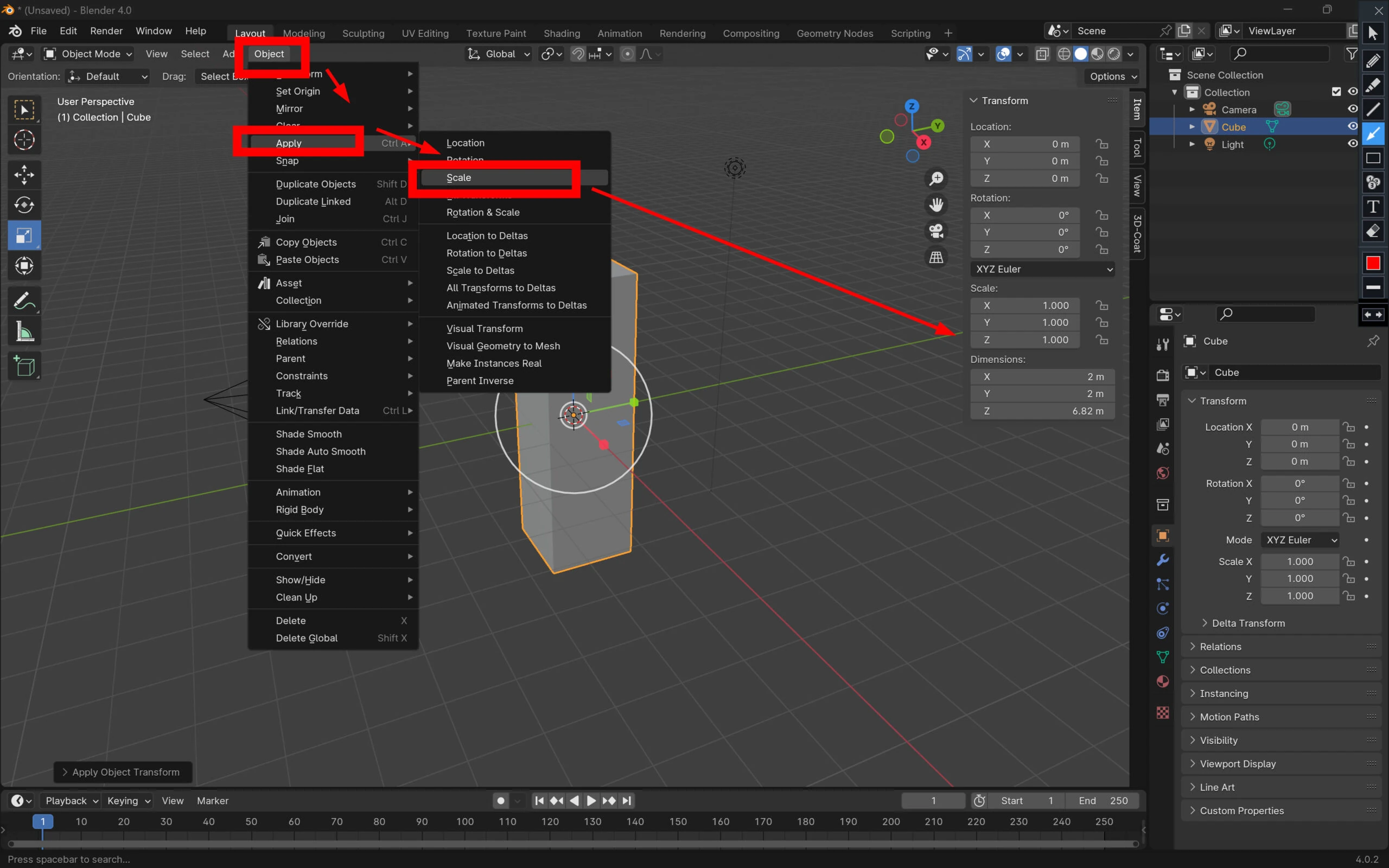
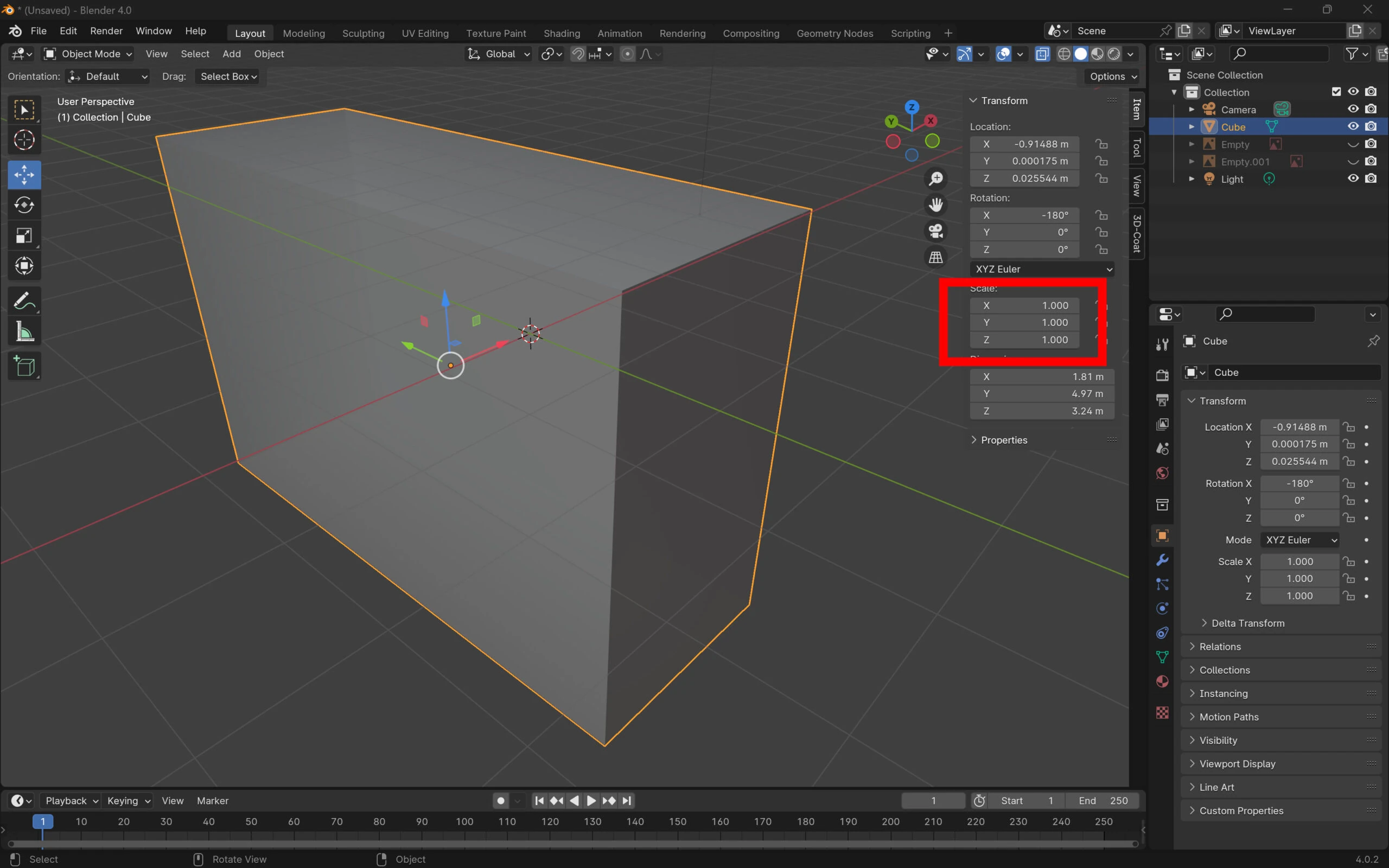 Alternatively, apply the scale through the Object menu. That is easier, and Ctrl+A provides the same option.
 Select the model and run Smart UV Project again.
 The texture regions now have matching proportions.
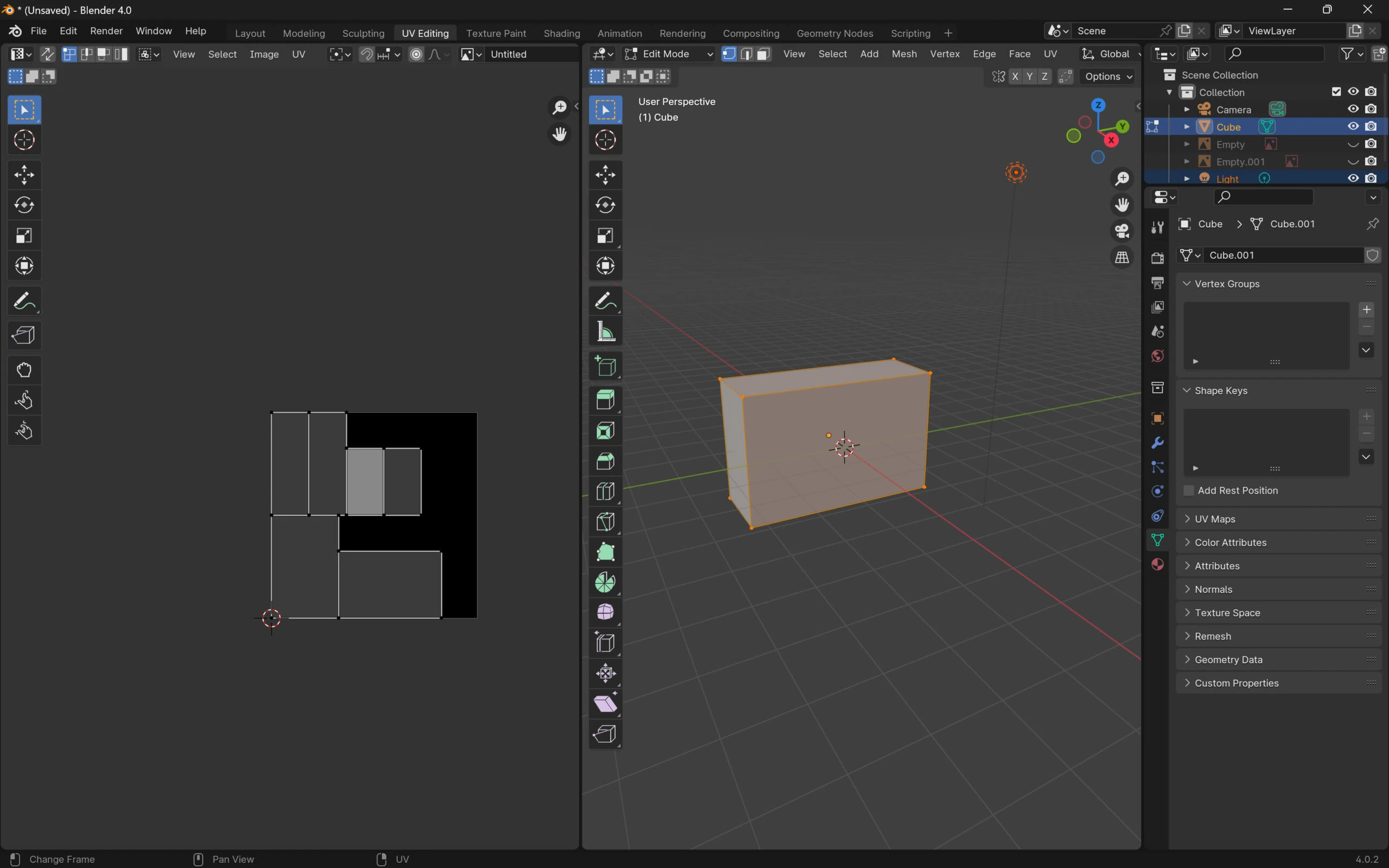 Send the data over.
Painting makes it clear which region corresponds to which part.
Send the data over.
Painting makes it clear which region corresponds to which part.
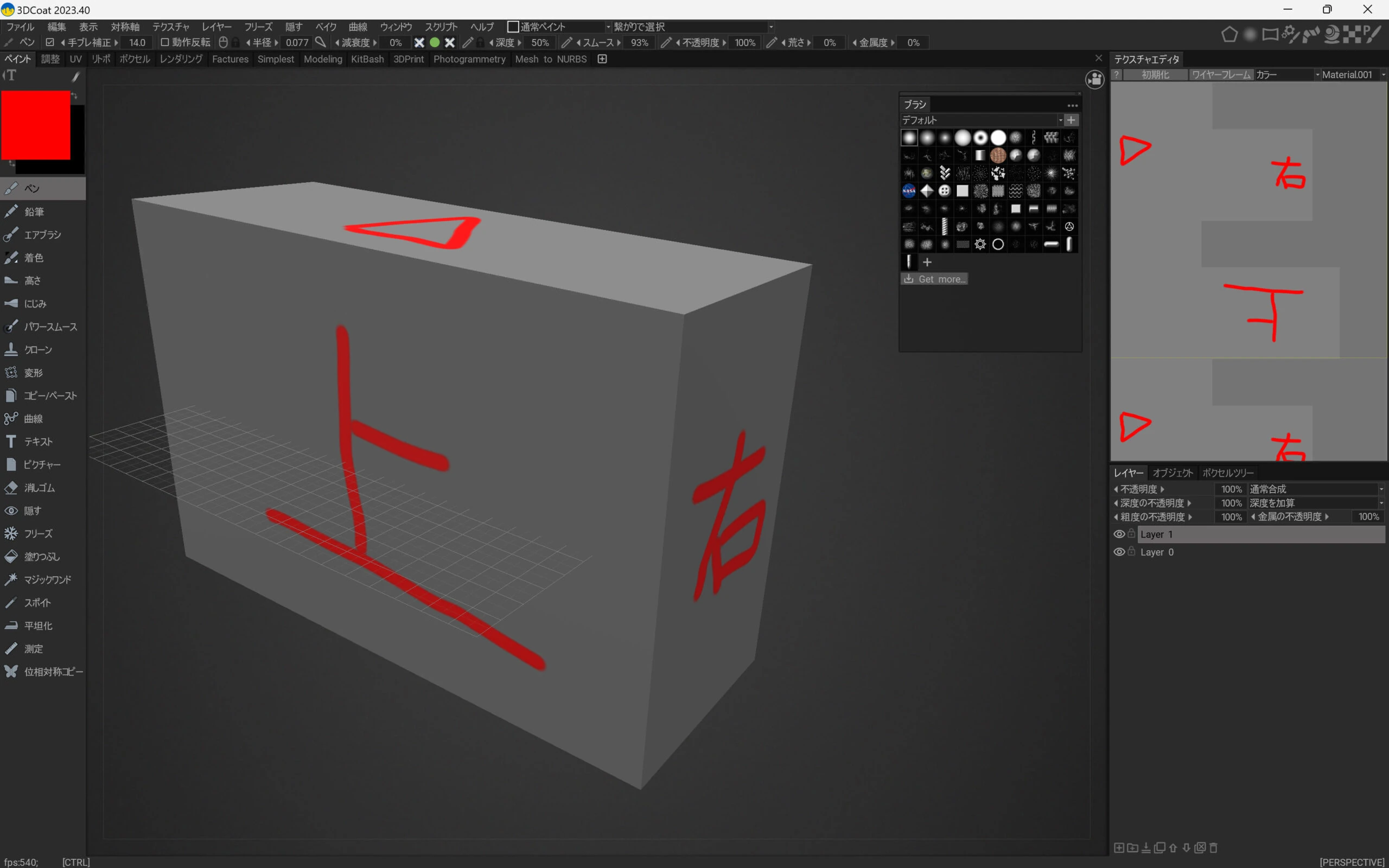 The current layer can also be edited in an external editor.
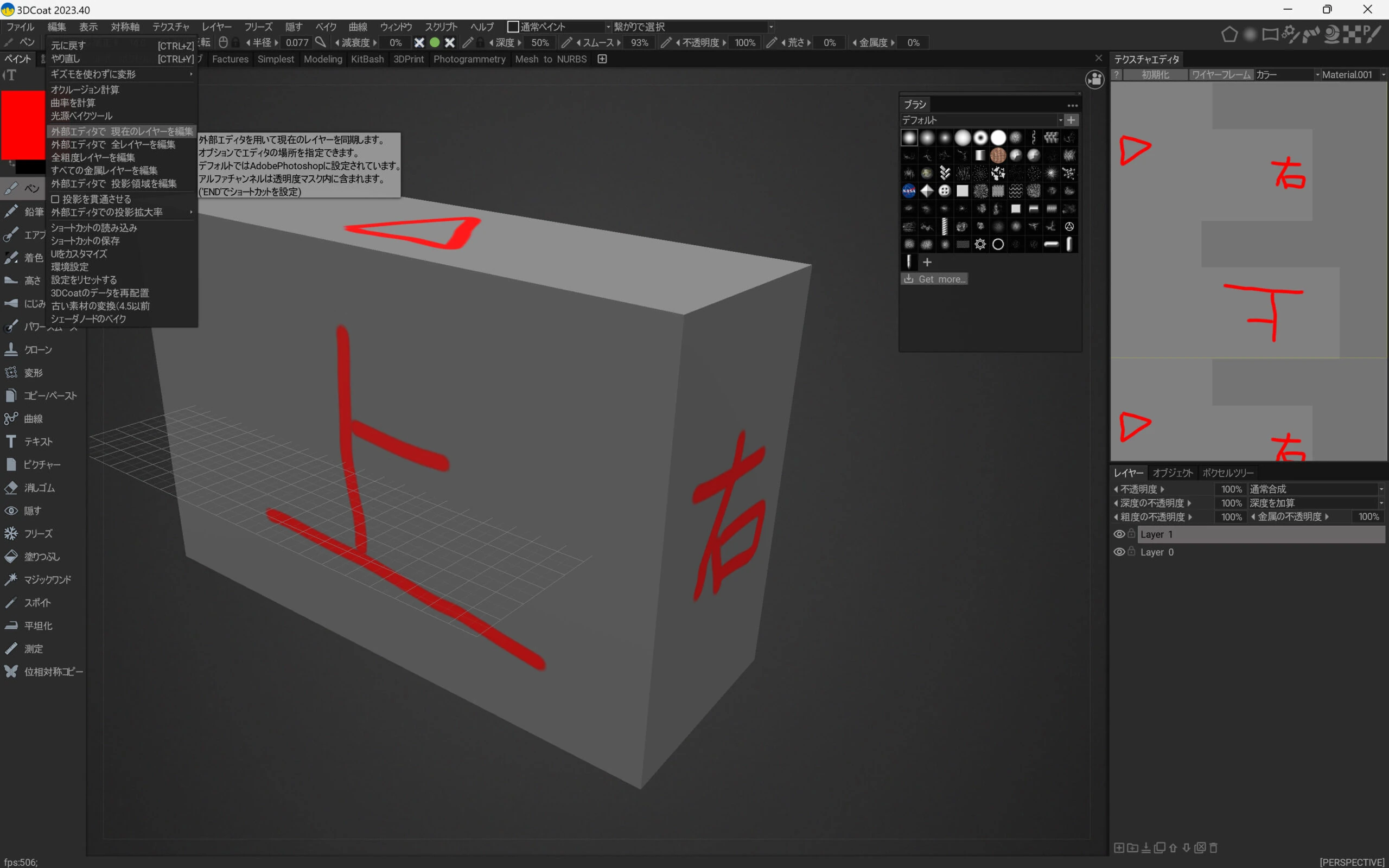 I can edit the texture in Photoshop.
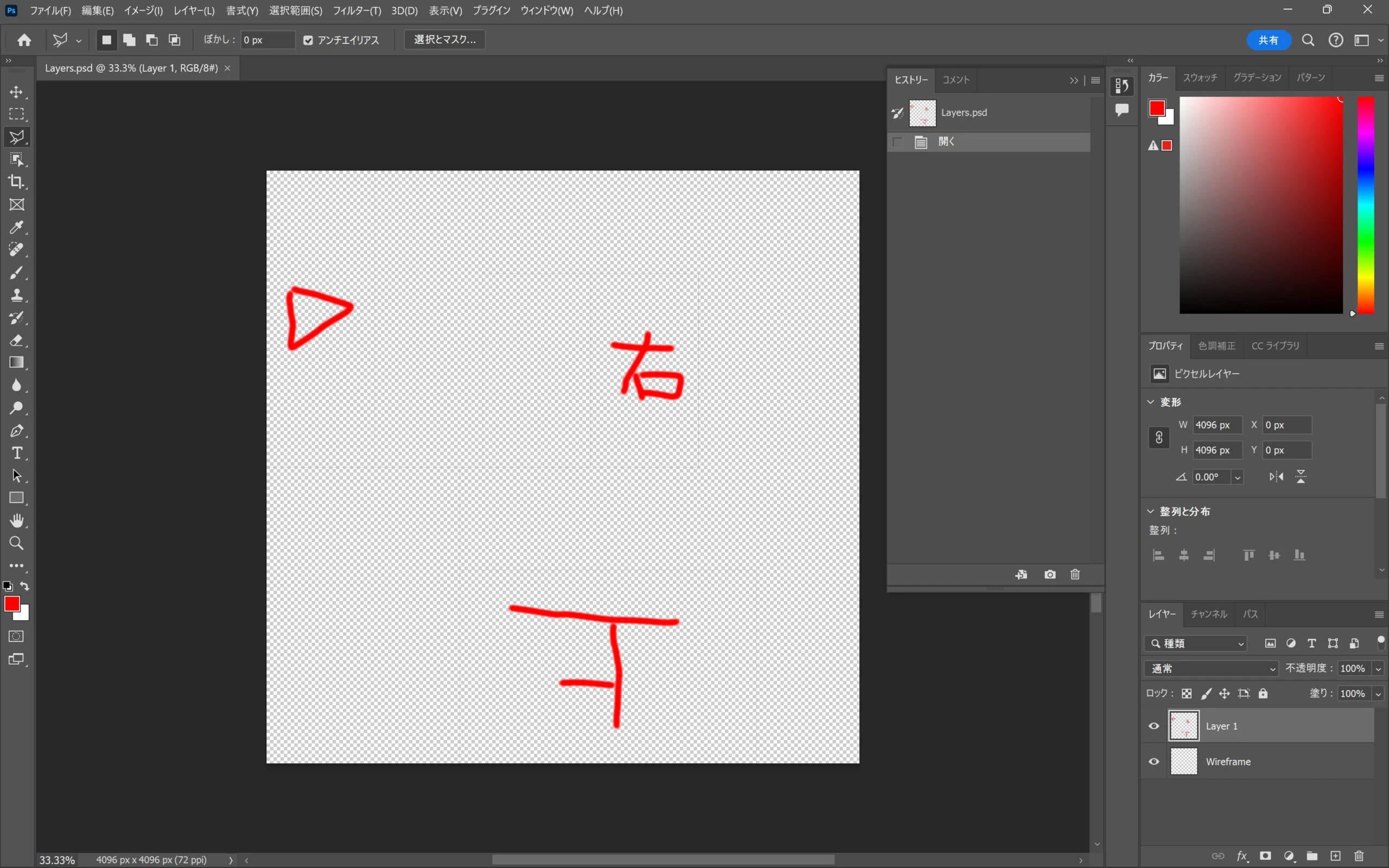 Use the visible wireframe guide to place the images.
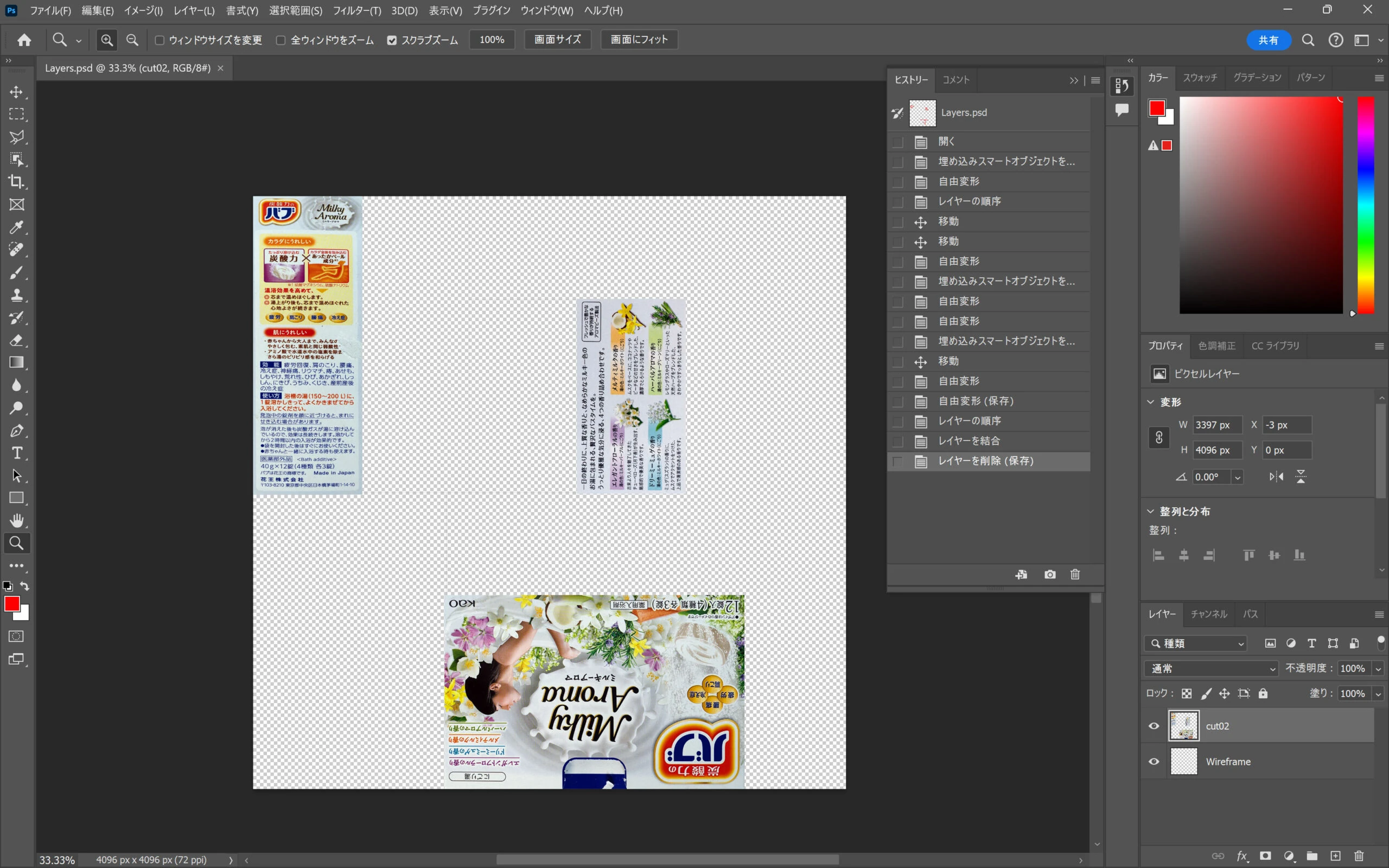 Cover every face using the guide.
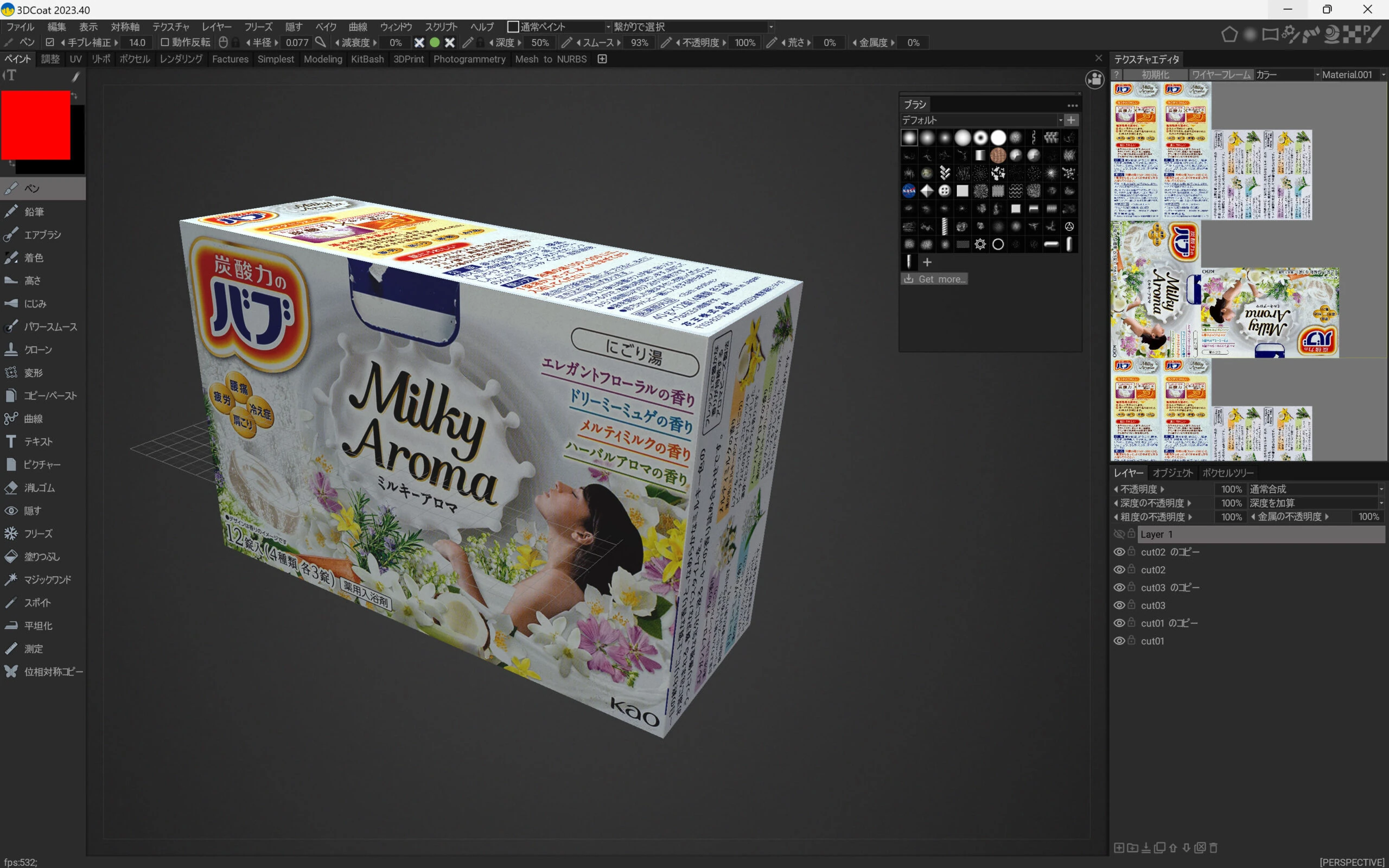 When finished, choose the export-back option.
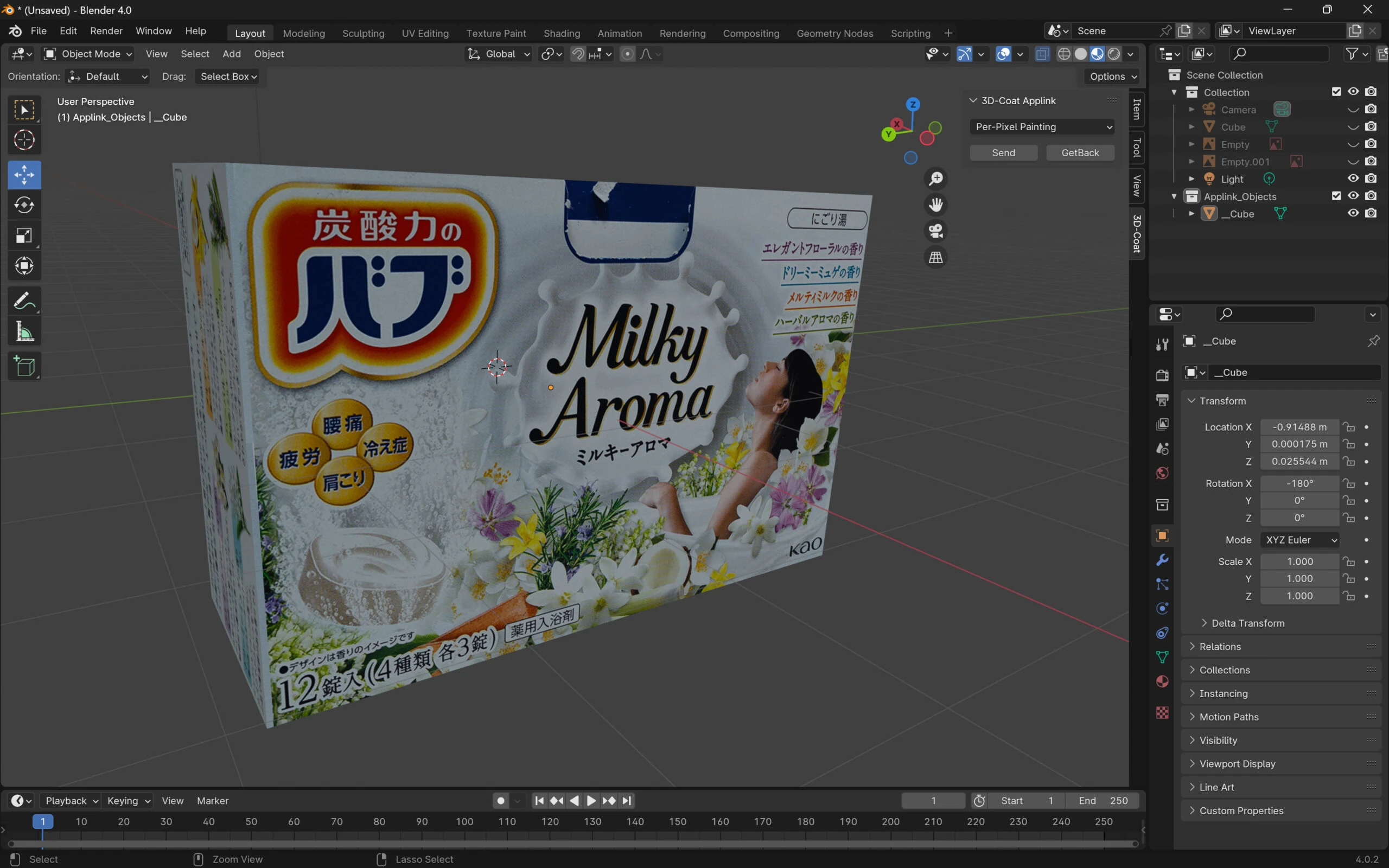
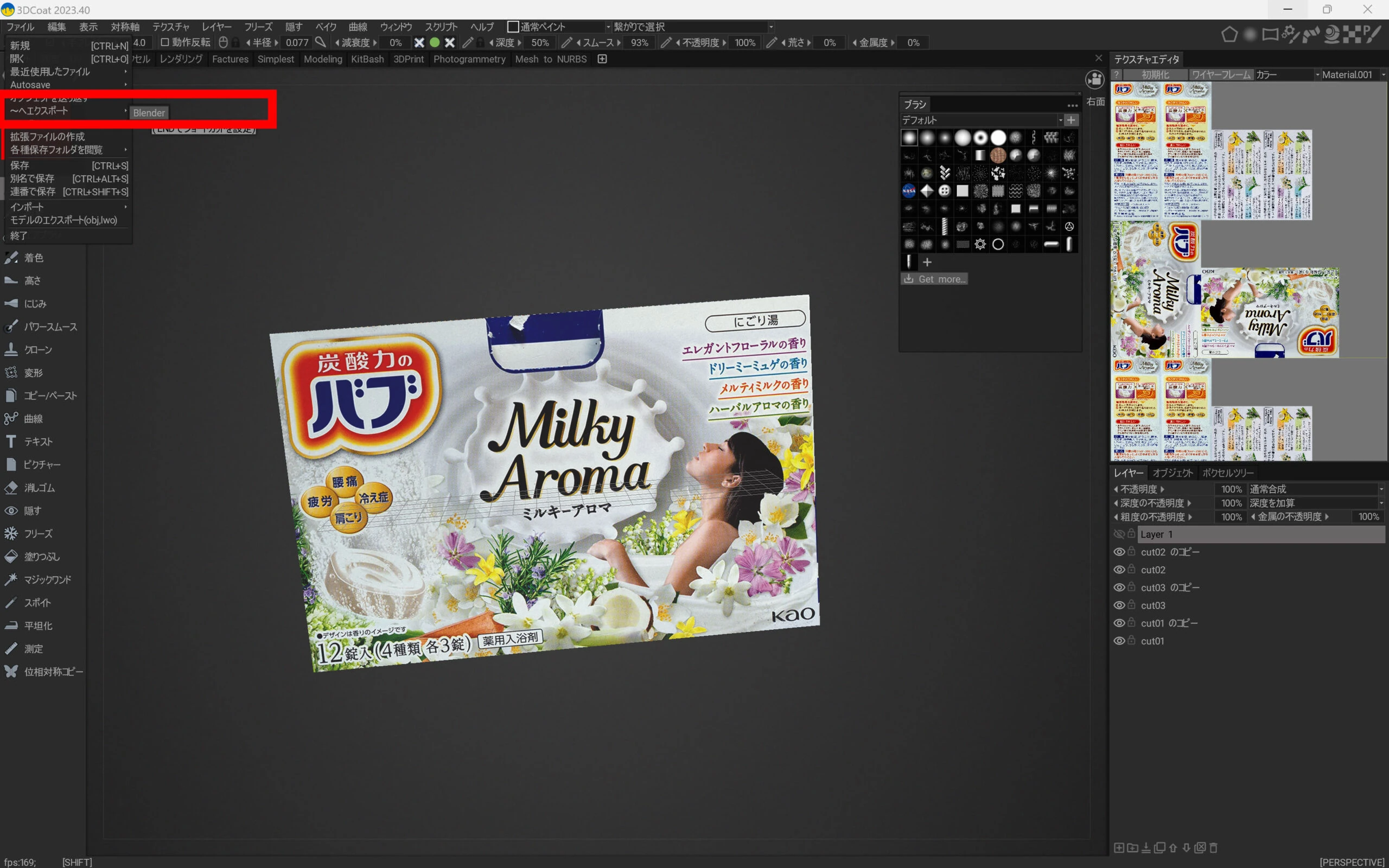 The result is imported into Blender. Export it as OBJ or FBX. FBX sometimes requires setting the textures again; OBJ works well here.
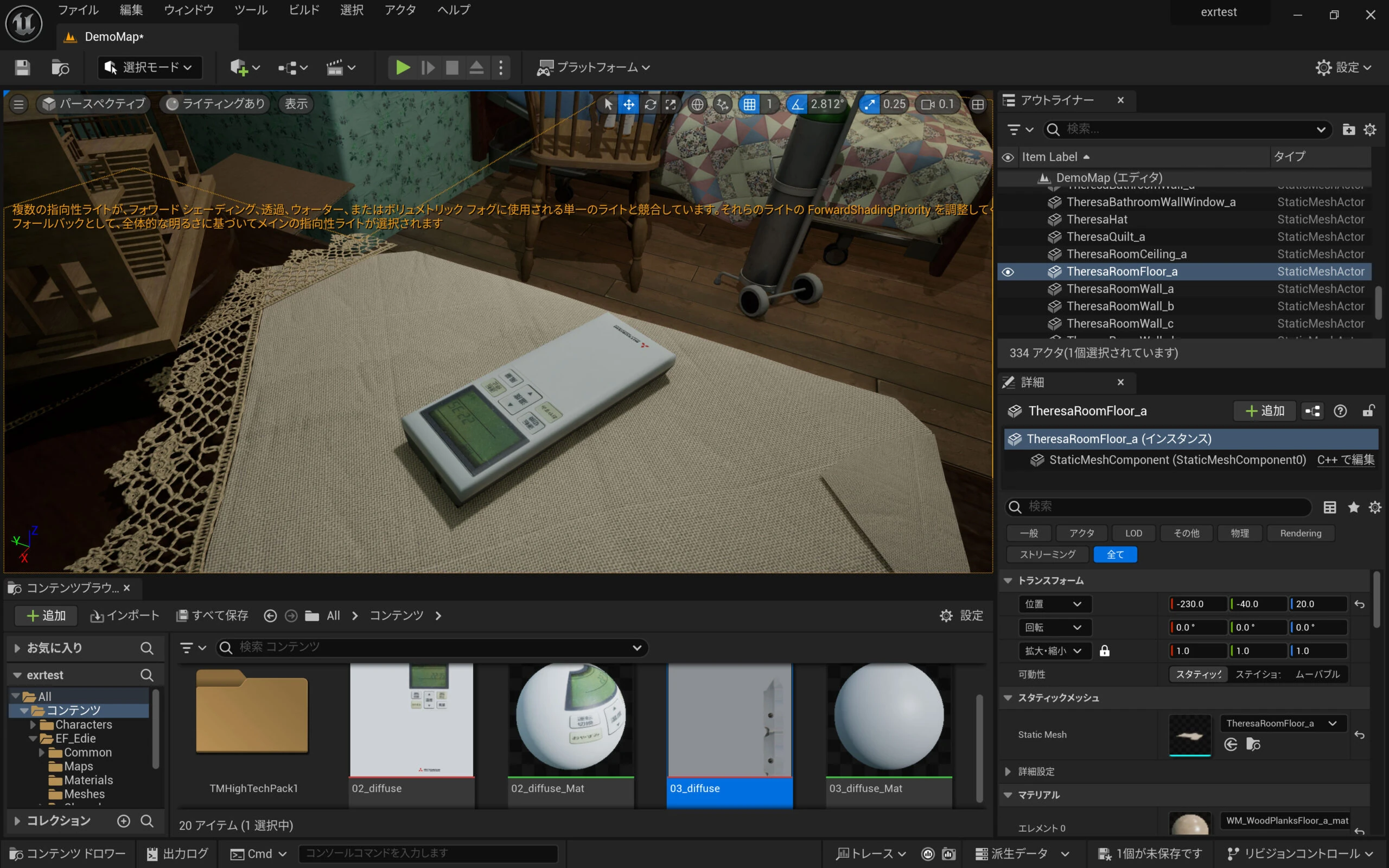
 I imported it into UE5.
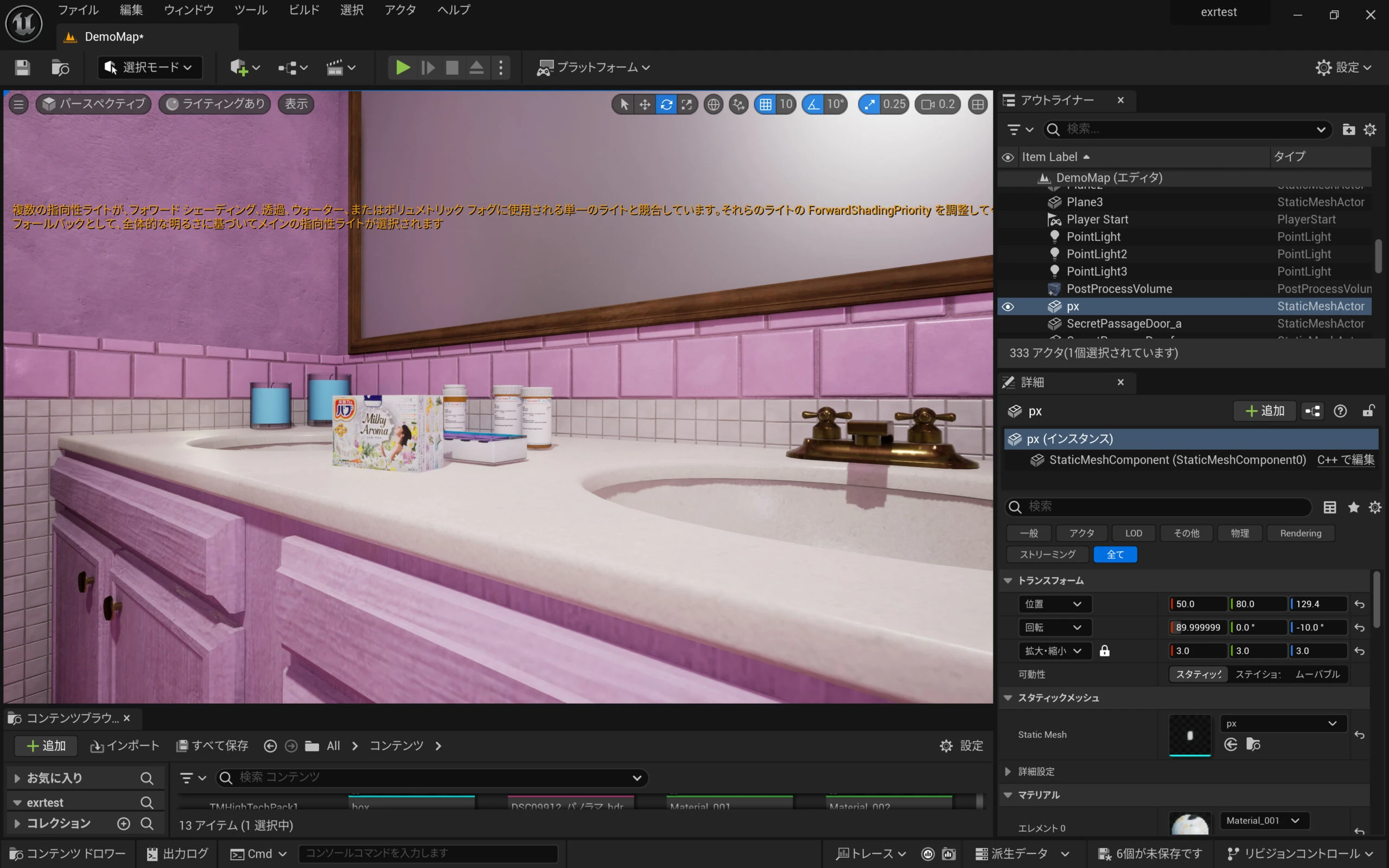 Finished!
Related articles
Updates and contact: X @riragoncom.