Honeycam: quick desktop video capture with small WebM files and VP9 support
Honeycam is often introduced as an animated GIF tool, but it can also export WebM. I use it to capture smooth desktop videos with small files, rather than primarily as a GIF maker.
Note: This article was first published more than a year ago. Available export formats, including WebM, AVIF, VP8 and VP9, and the interface depend on the Honeycam or Bandicam version. The file-size comparisons reflect my setup at the time, rather than controlled, reproducible benchmarks.
- Check the official site for current free-version limits, such as recording duration and watermarks, and for pricing.
- Whether WordPress embeds WebM directly depends on the theme, plugins, hosting configuration, and browser support.
- Codec recommendations change as formats such as AV1 become more widespread relative to VP9.
Honeycam is often described as software for making animated GIFs.
It can also export WebM.
WebM produces much smaller, smoother videos, which makes Honeycam a very good tool for quick, lightweight desktop video captures.
To me, it is more of a lightweight WebM screen recorder than an animated GIF tool.
Honeycam: a free trial is available with some limitations.
https://jp.bandisoft.com/honeycam/
I often use OBS or Bandicam for desktop recordings. I thought Honeycam's interface looked familiar, and it turned out to come from the same developer. Bandicam is a Korean company.
The company seems to promote Bandicam more strongly, but Honeycam is very capable if you only need video capture. Bandicam is preferable when you also need still screenshots; Honeycam is less suited to those. I use both Bandicam and Honeycam, depending on the task. I am glad I bought them.
Trying Honeycam
The opening screen is simple. Start a new recording to capture the screen.
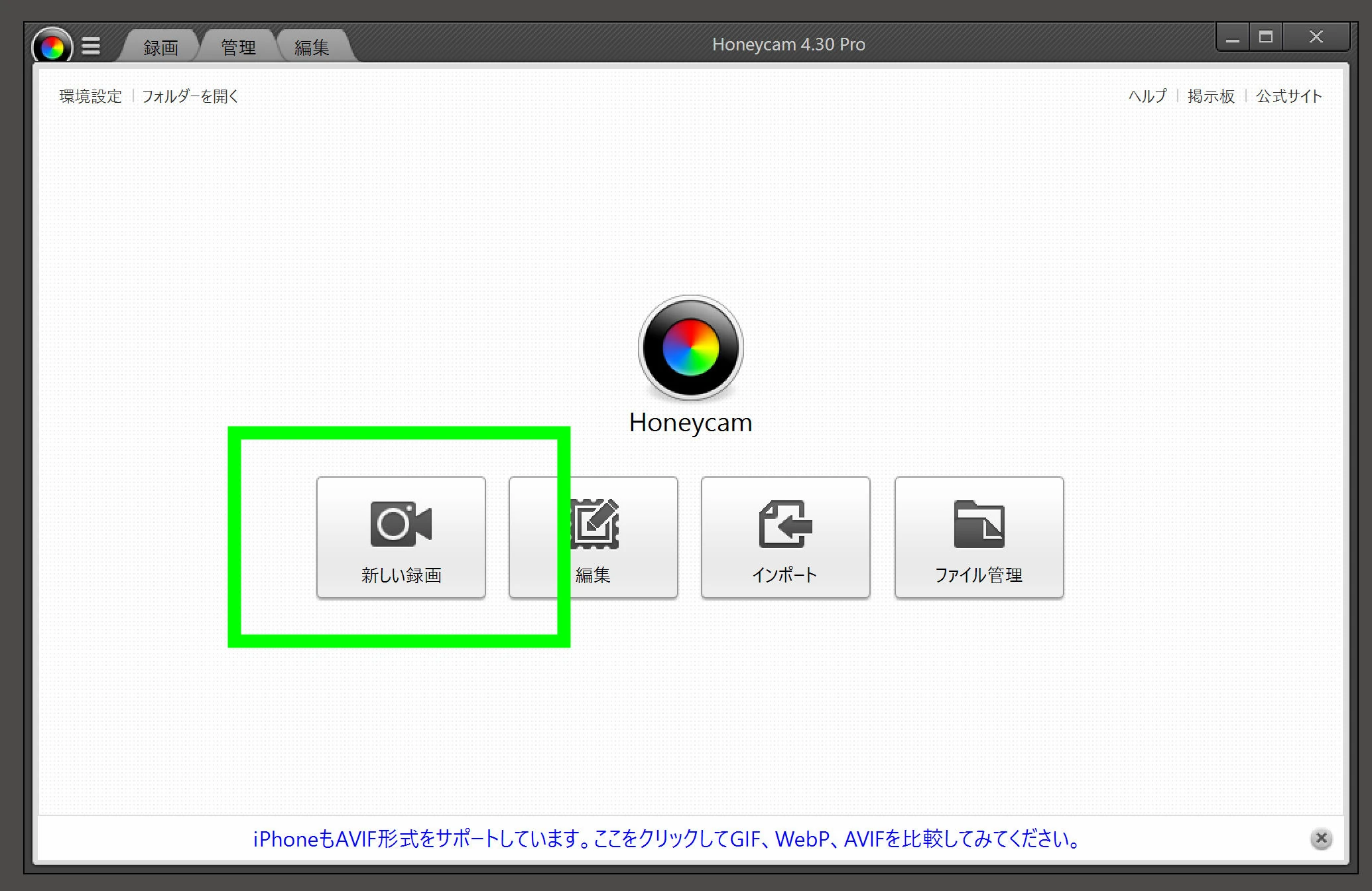 The interface feels familiar.
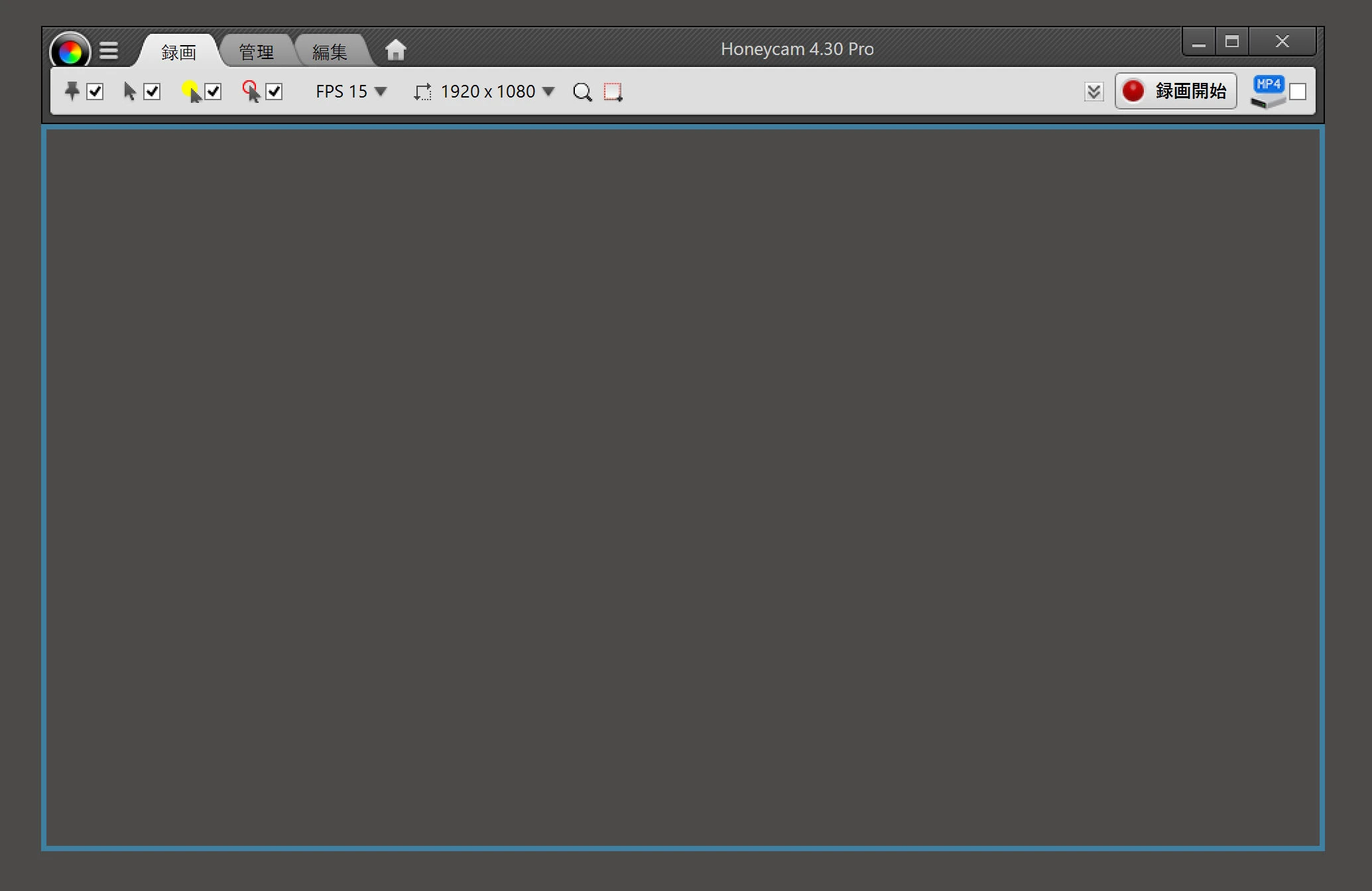 Press the clearly labeled recording button to begin.
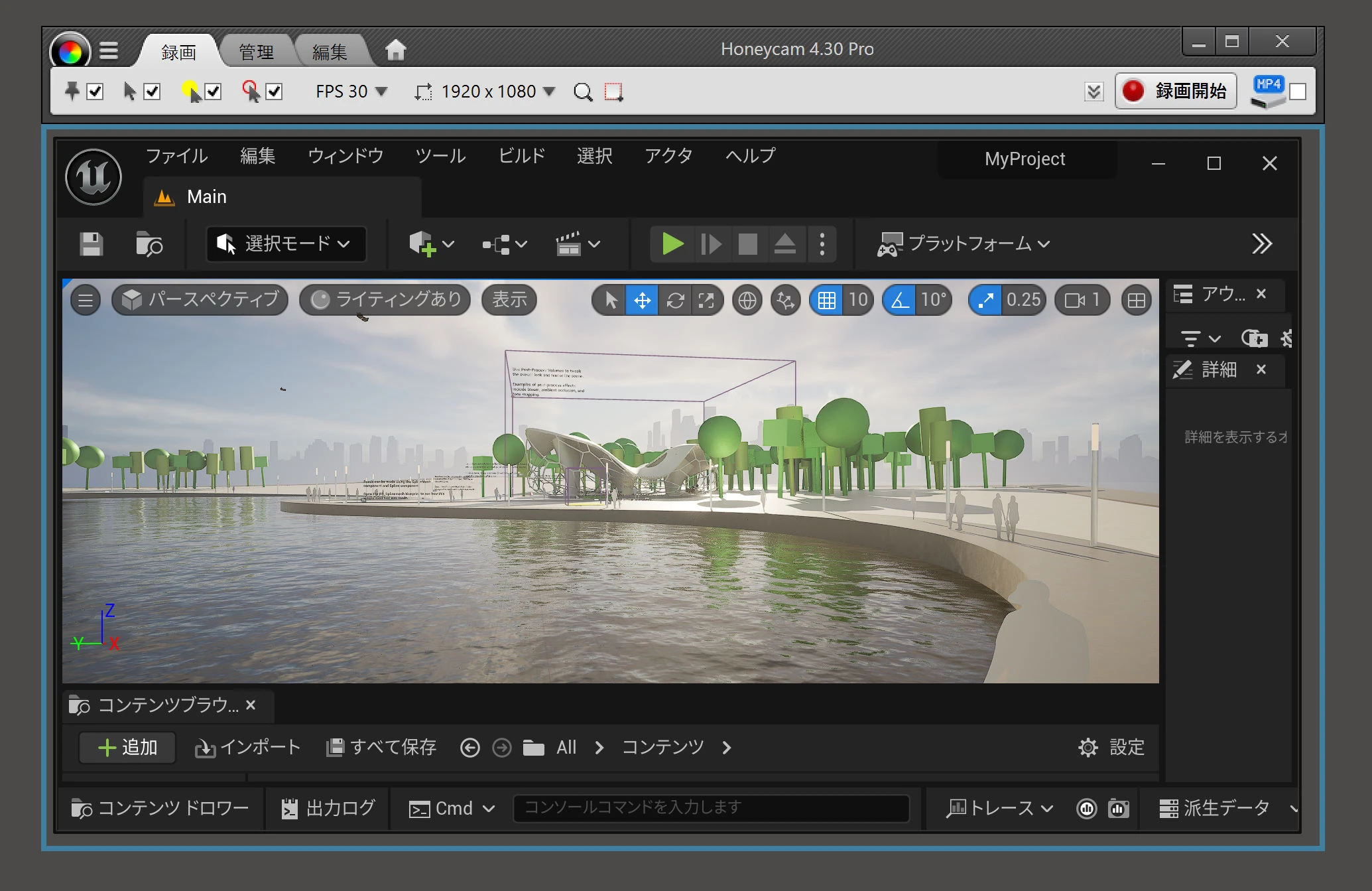 I recorded just ten seconds. Let us look at the available save formats.
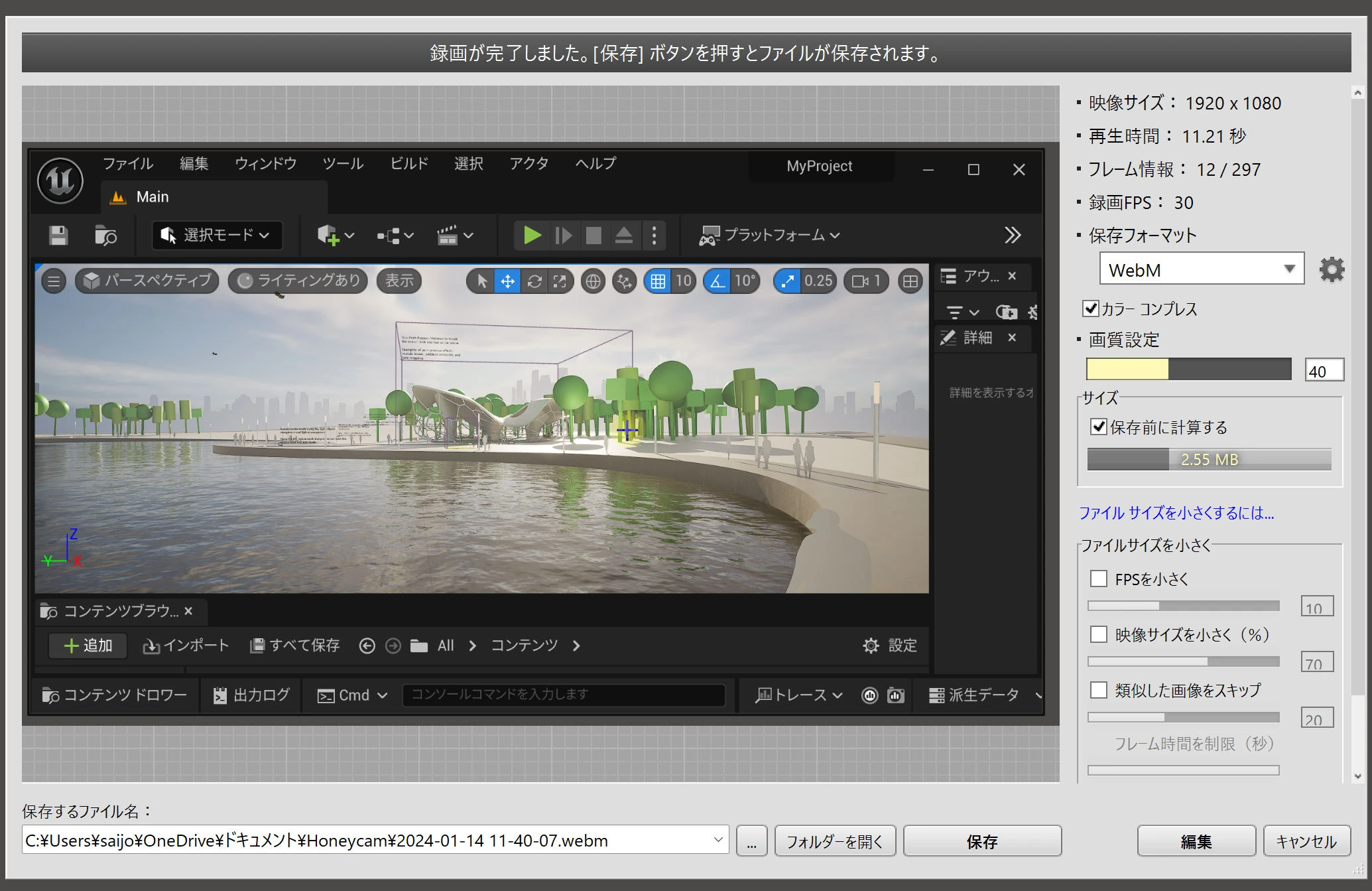 The options include GIF, WebP, WebM, MP4, APNG, and AVIF. Here are the file sizes.
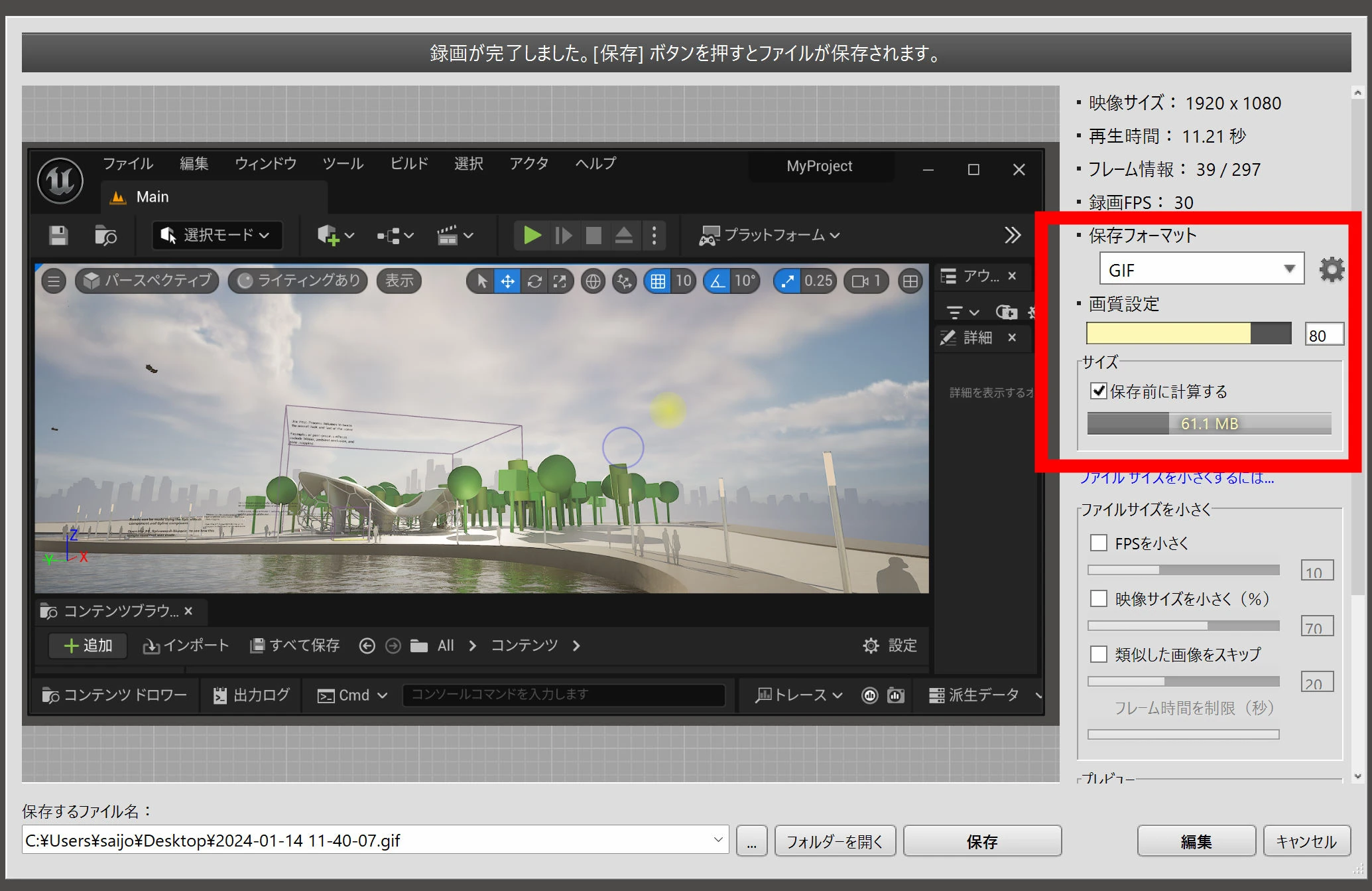
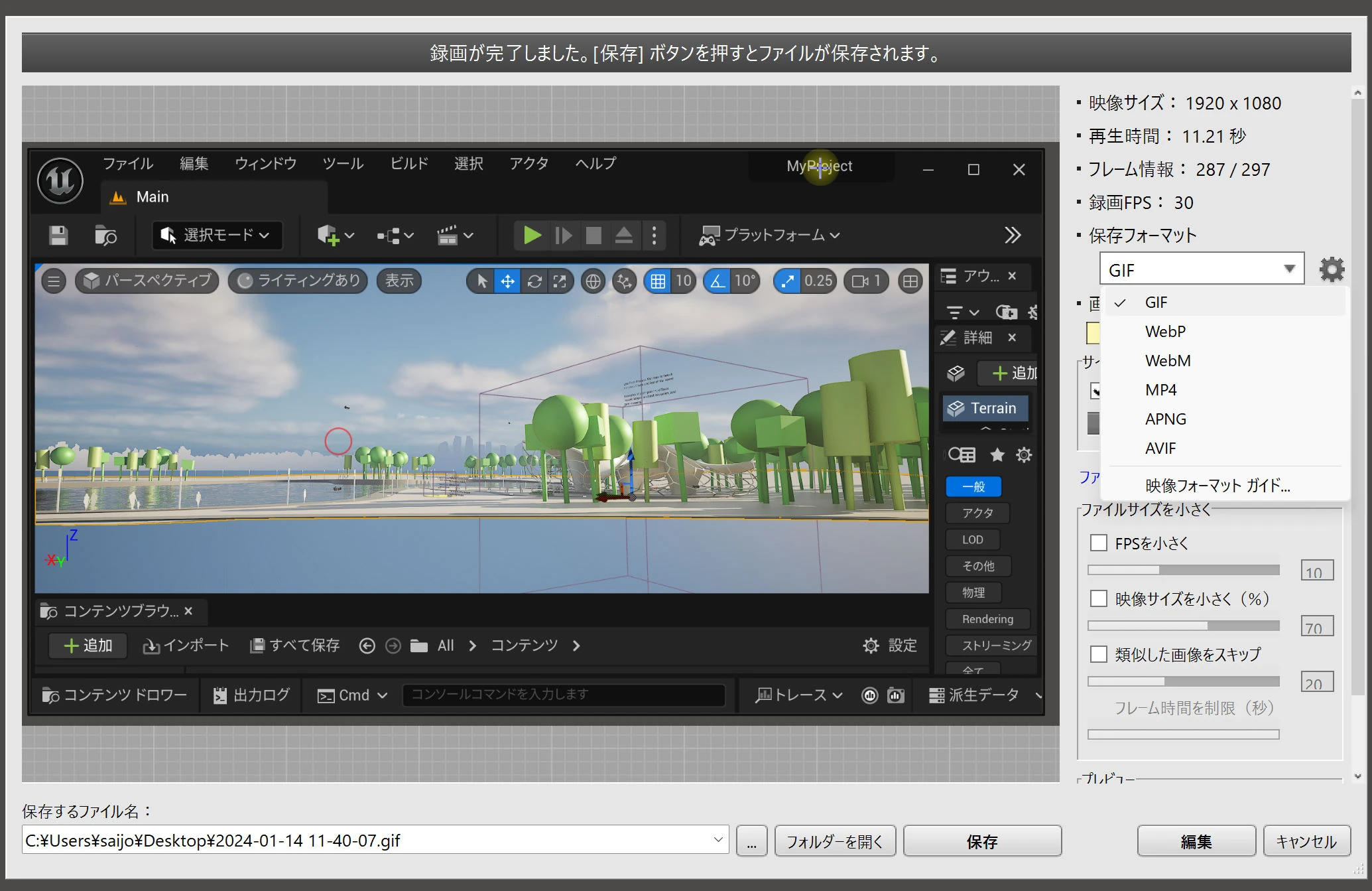 The GIF is a hefty 61 MB. Reducing its color count would make it smaller, but it is an old format now.
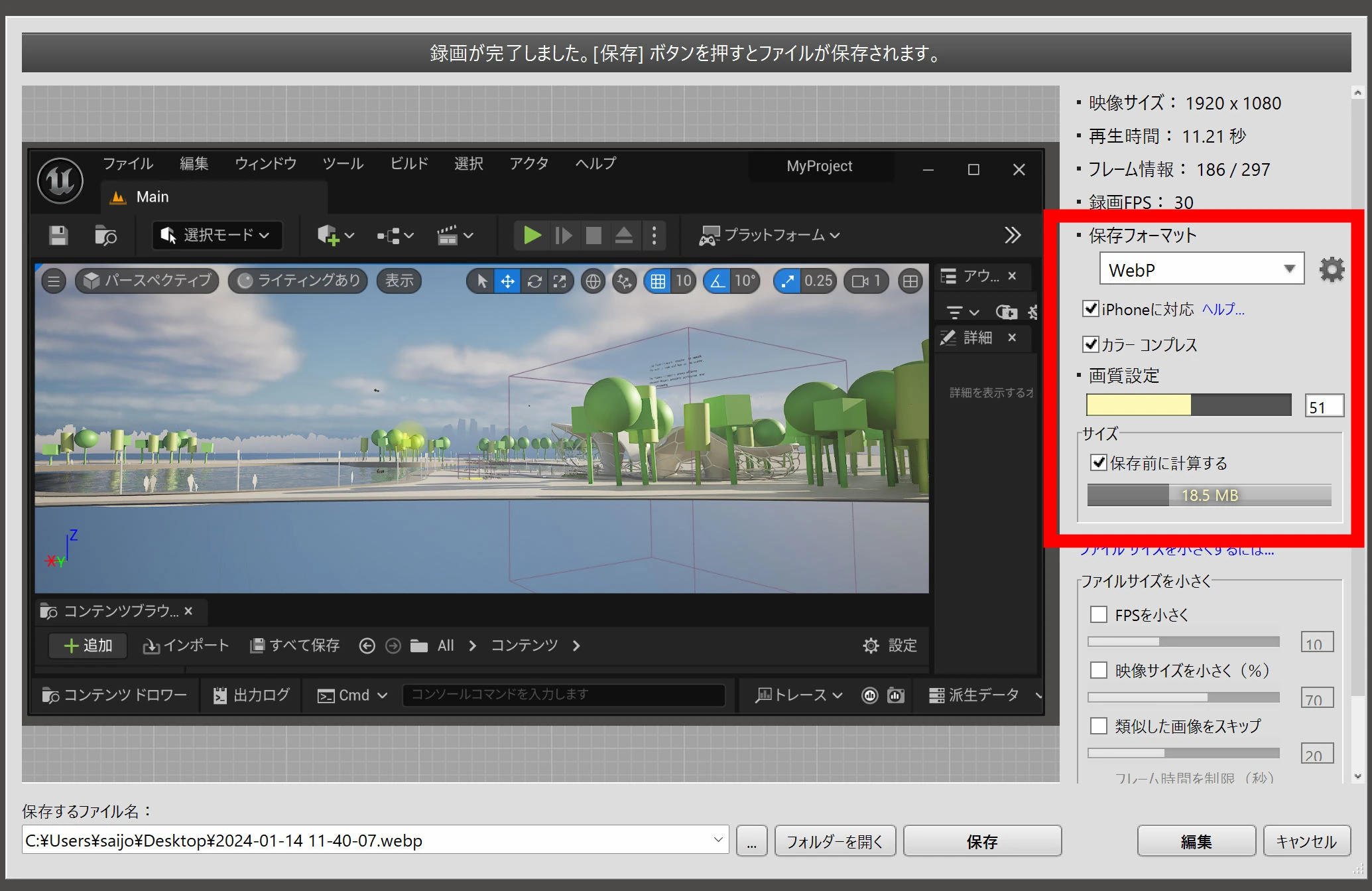
 WebP is a little smaller. The quality controls are similar, although the value is 51, perhaps left over from an earlier export. I know the settings should match for a fair comparison, but this is only a rough demonstration that GIF and WebP are large, not a detailed benchmark.
 The WebM is only 2.5 MB. Much smaller!
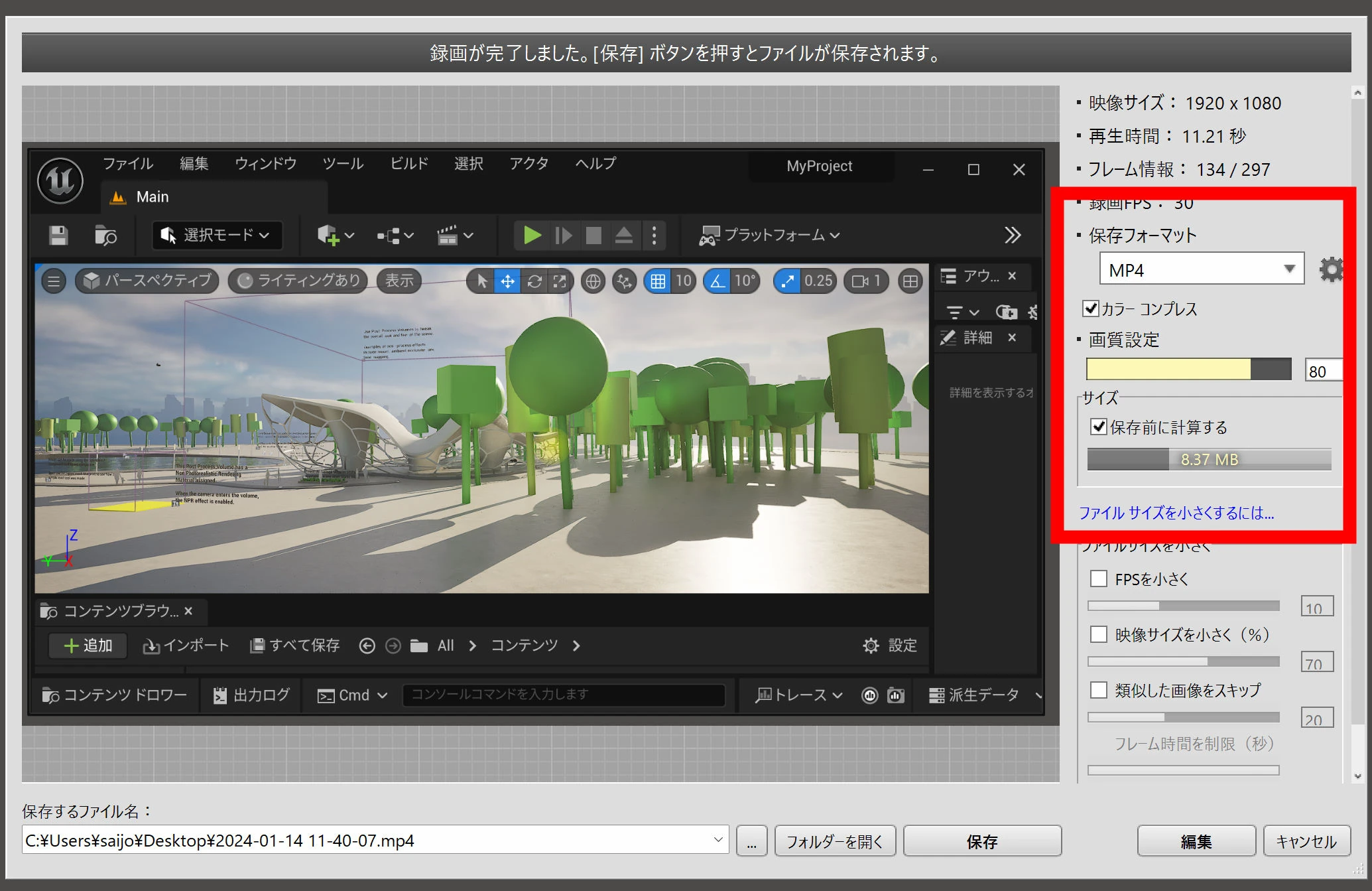
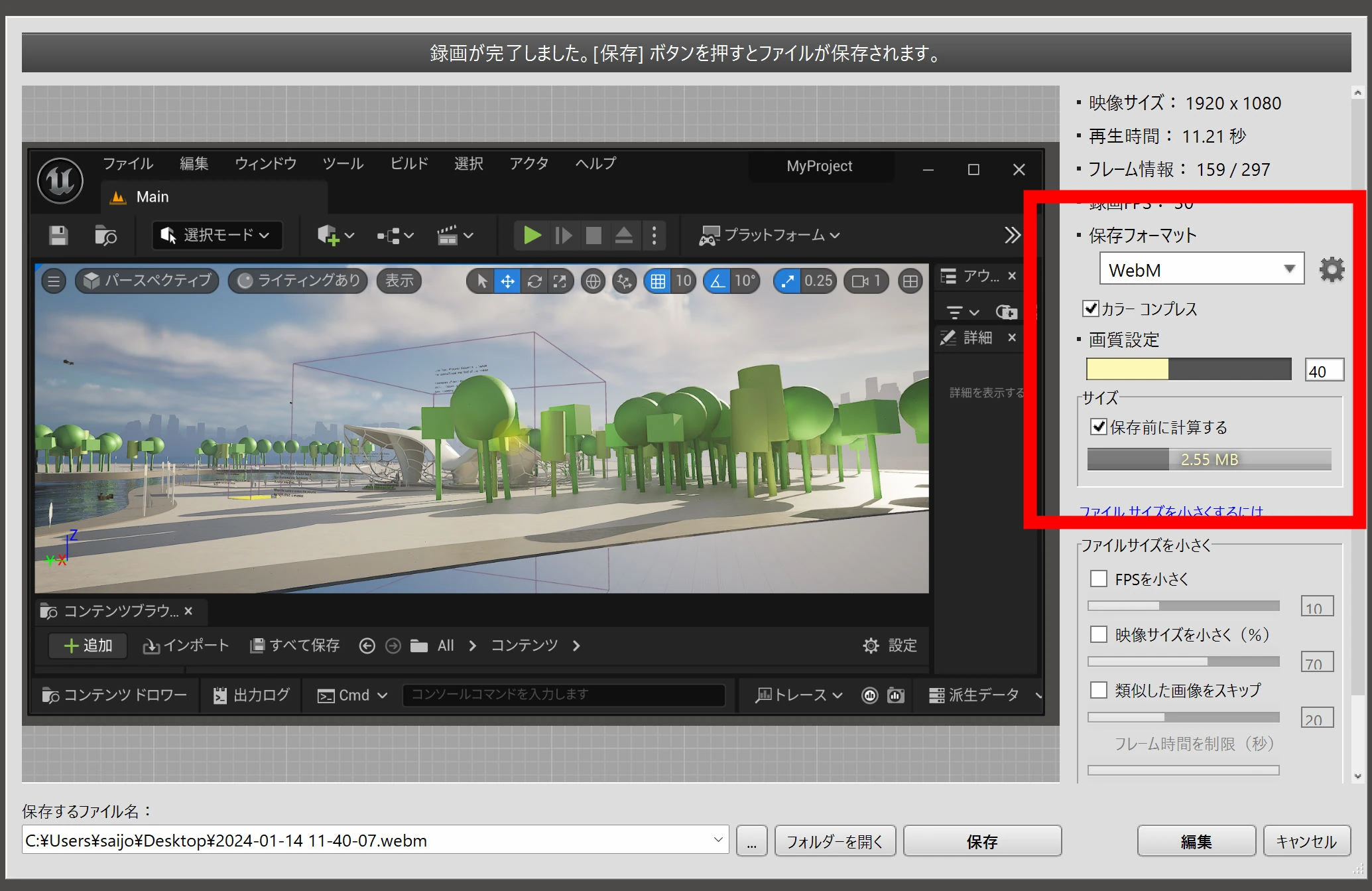 The MP4 is 8 MB. Fairly ordinary.
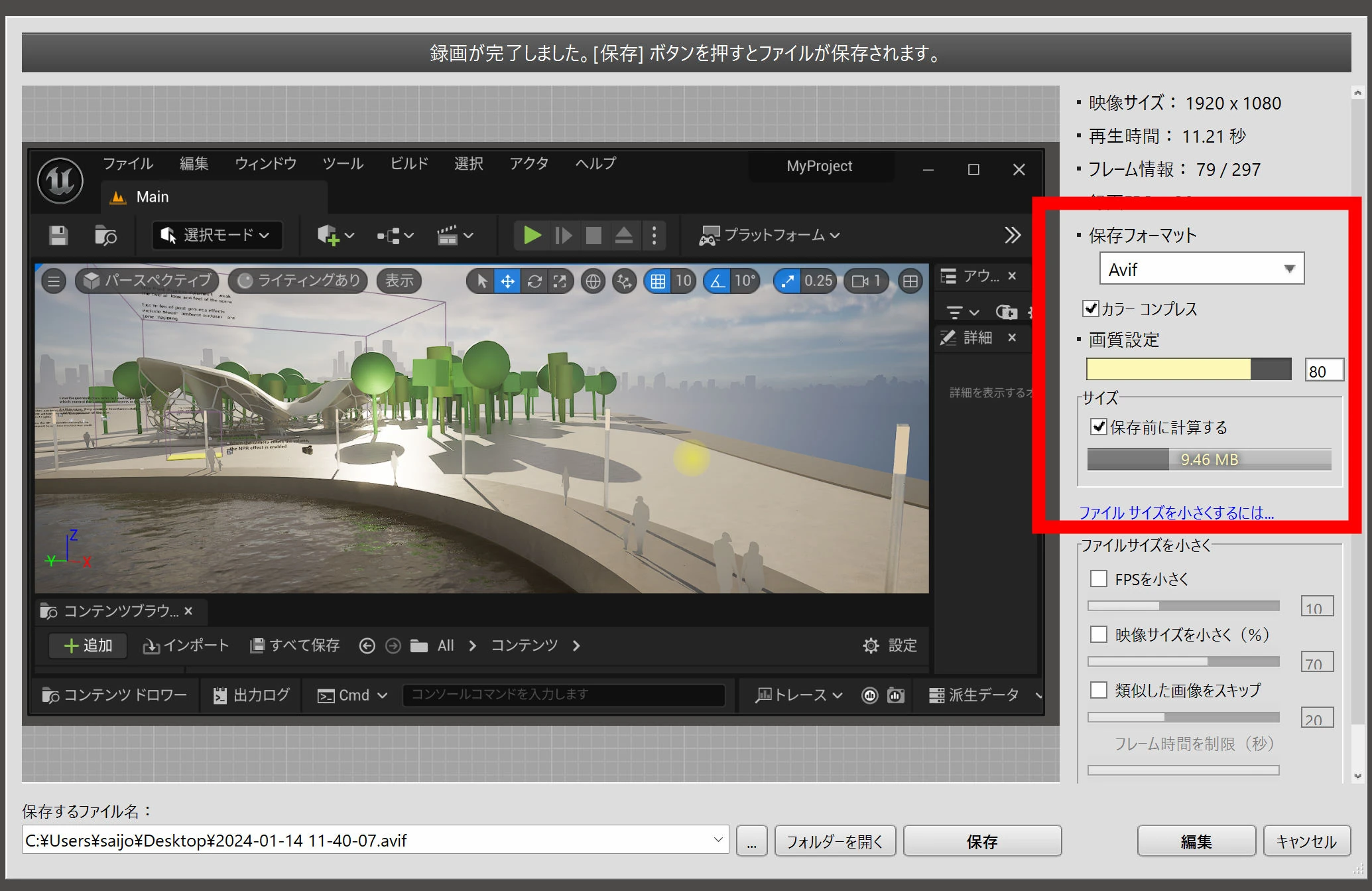
 AVIF puts in a good showing too, although I wonder how many people are using it.
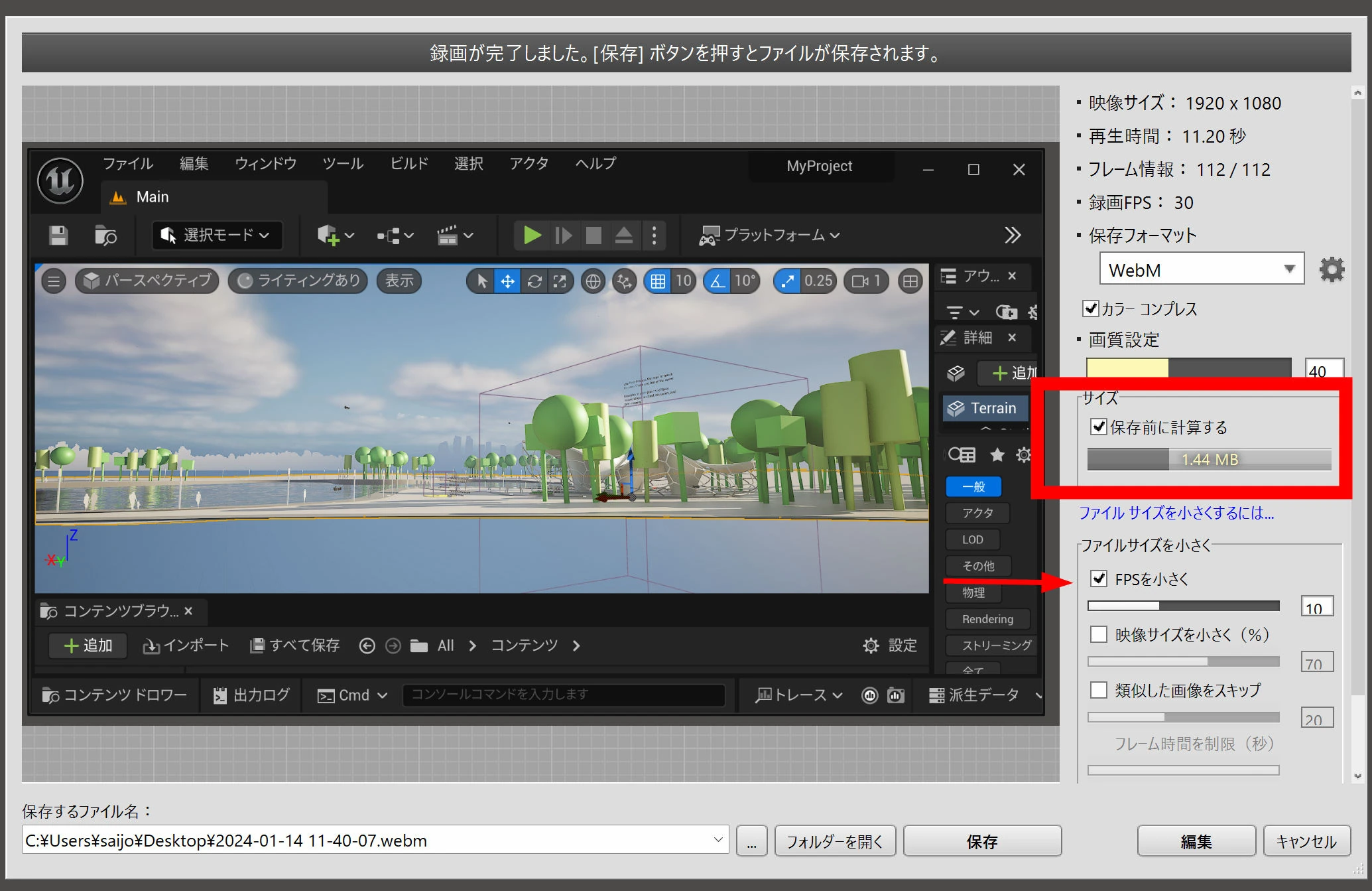
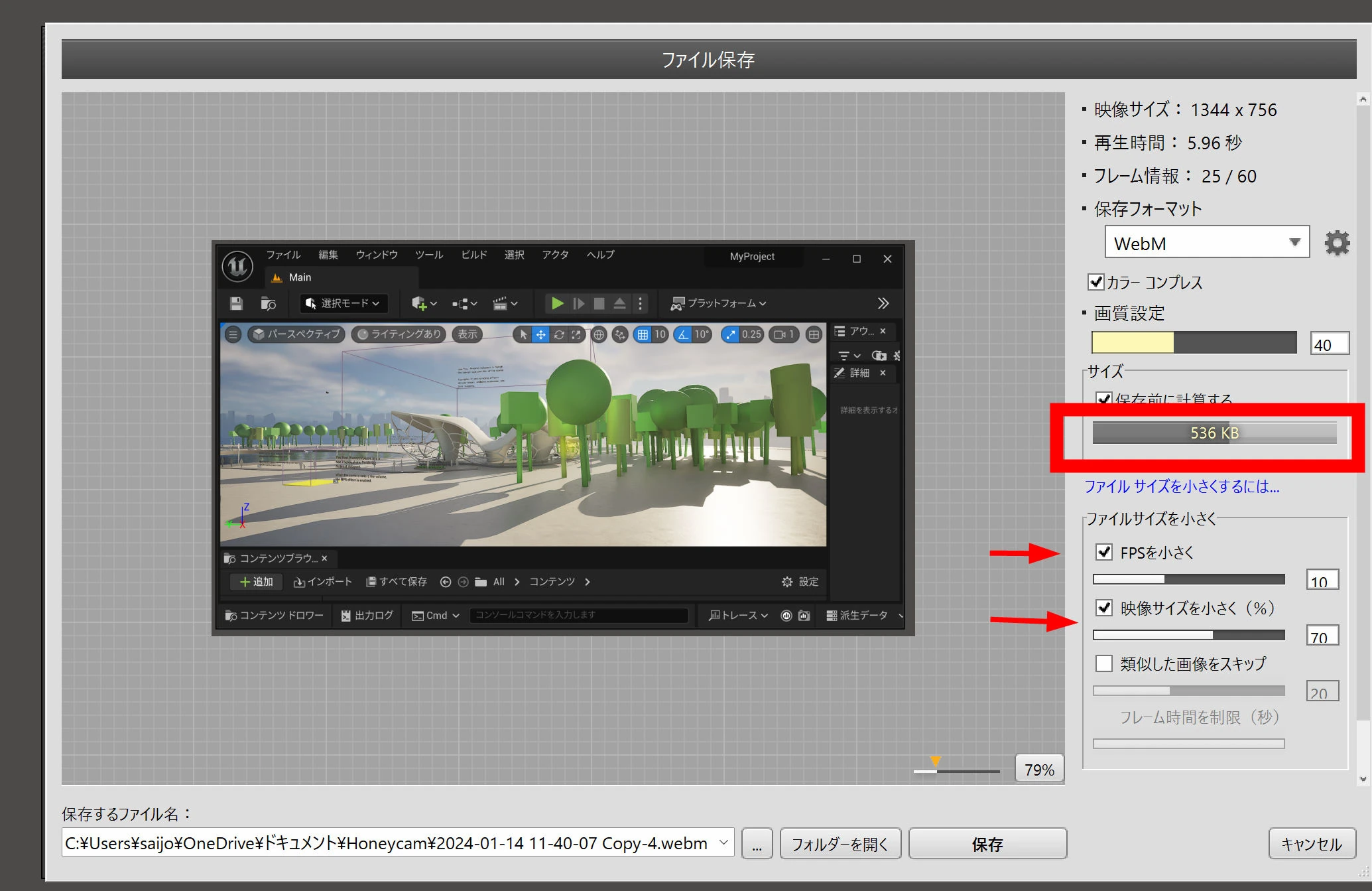
 To make WebM smaller, I watched the motion and reduced the frame rate to 10 fps. A recording of software operations can still be usable at about 10 fps. The file became 1.44 MB.
 Reducing the video dimensions brought it down to 700 KB. A width of 1344 pixels should be enough.
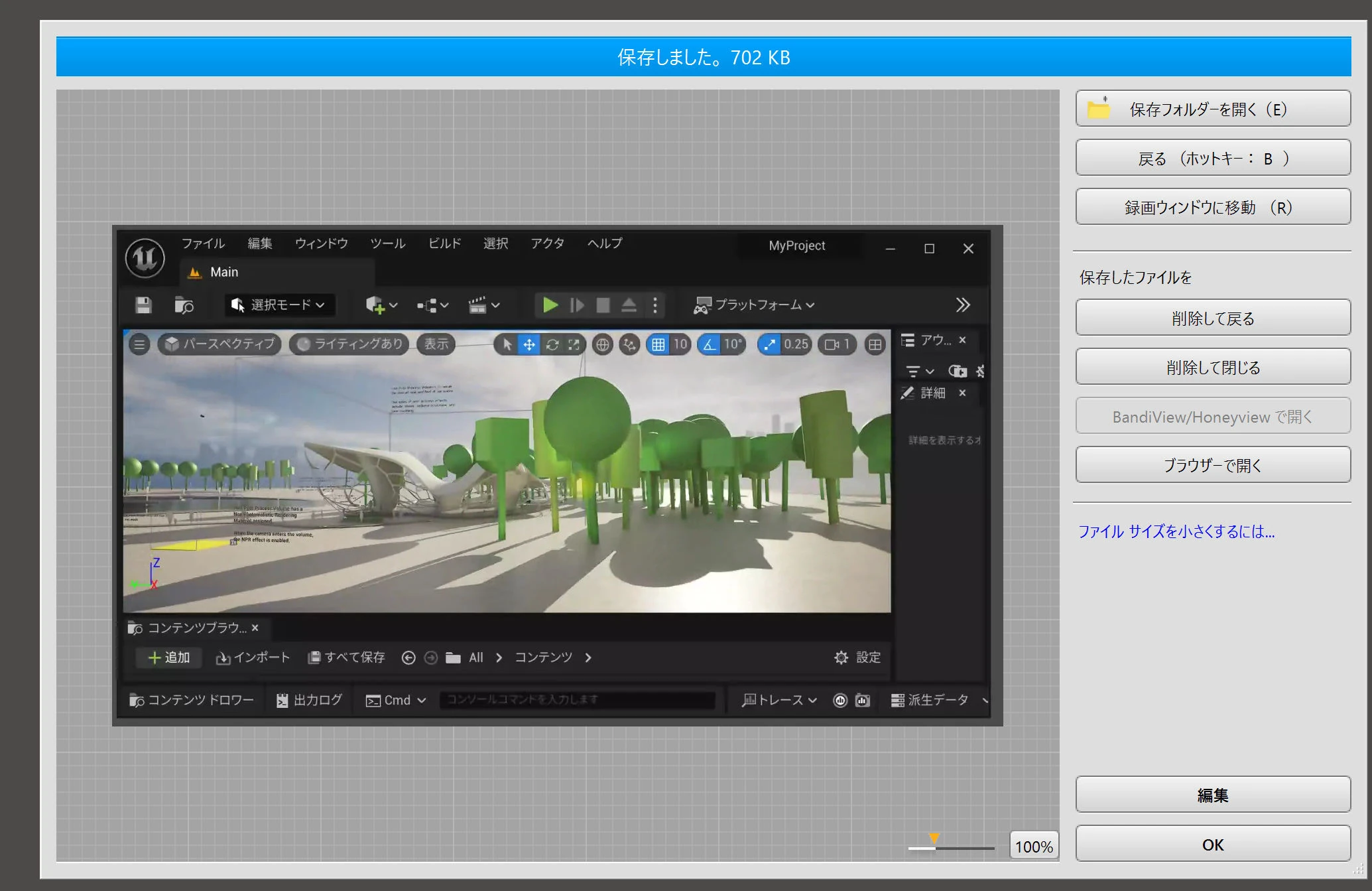
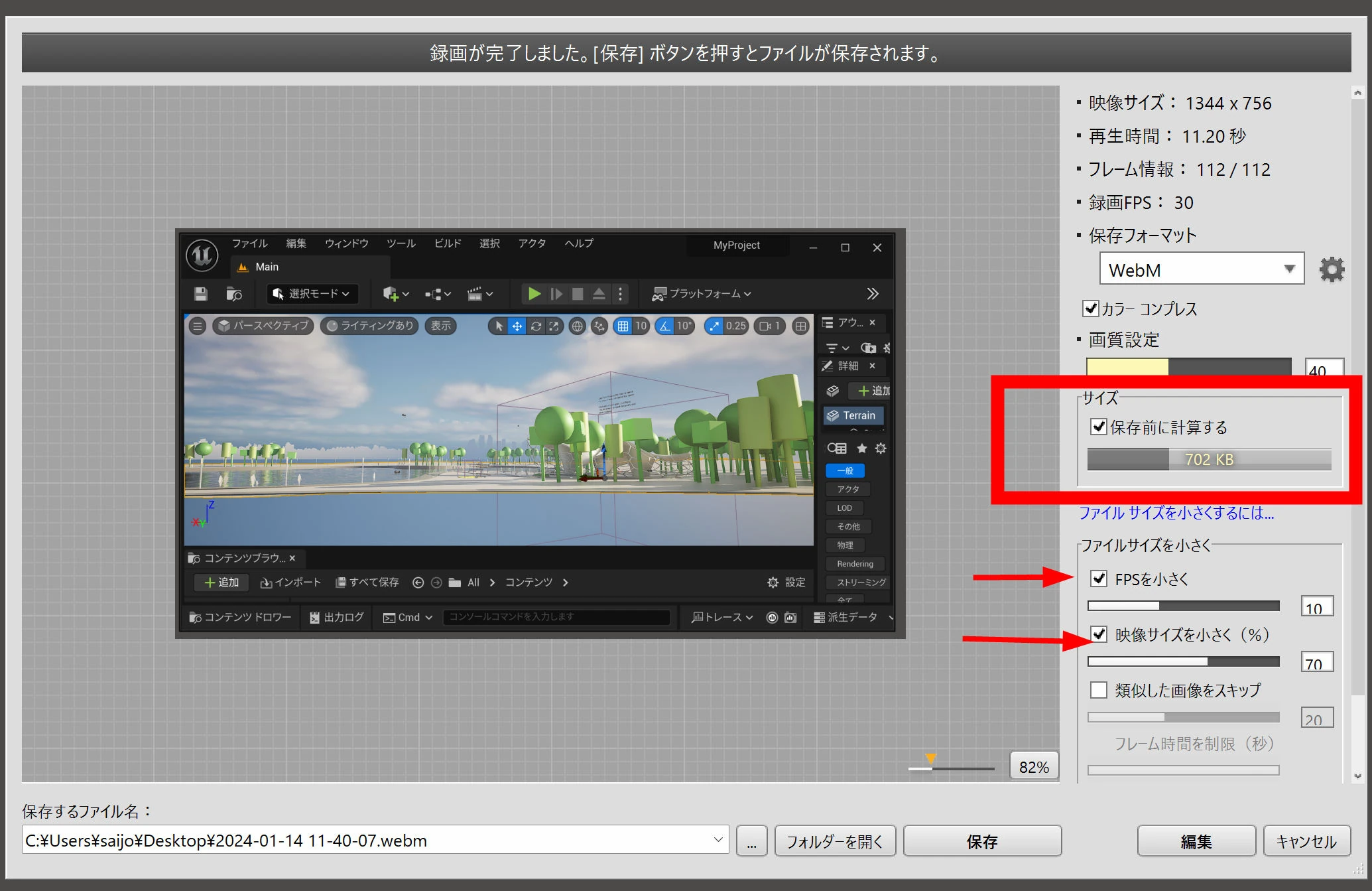 Click Save to save it.
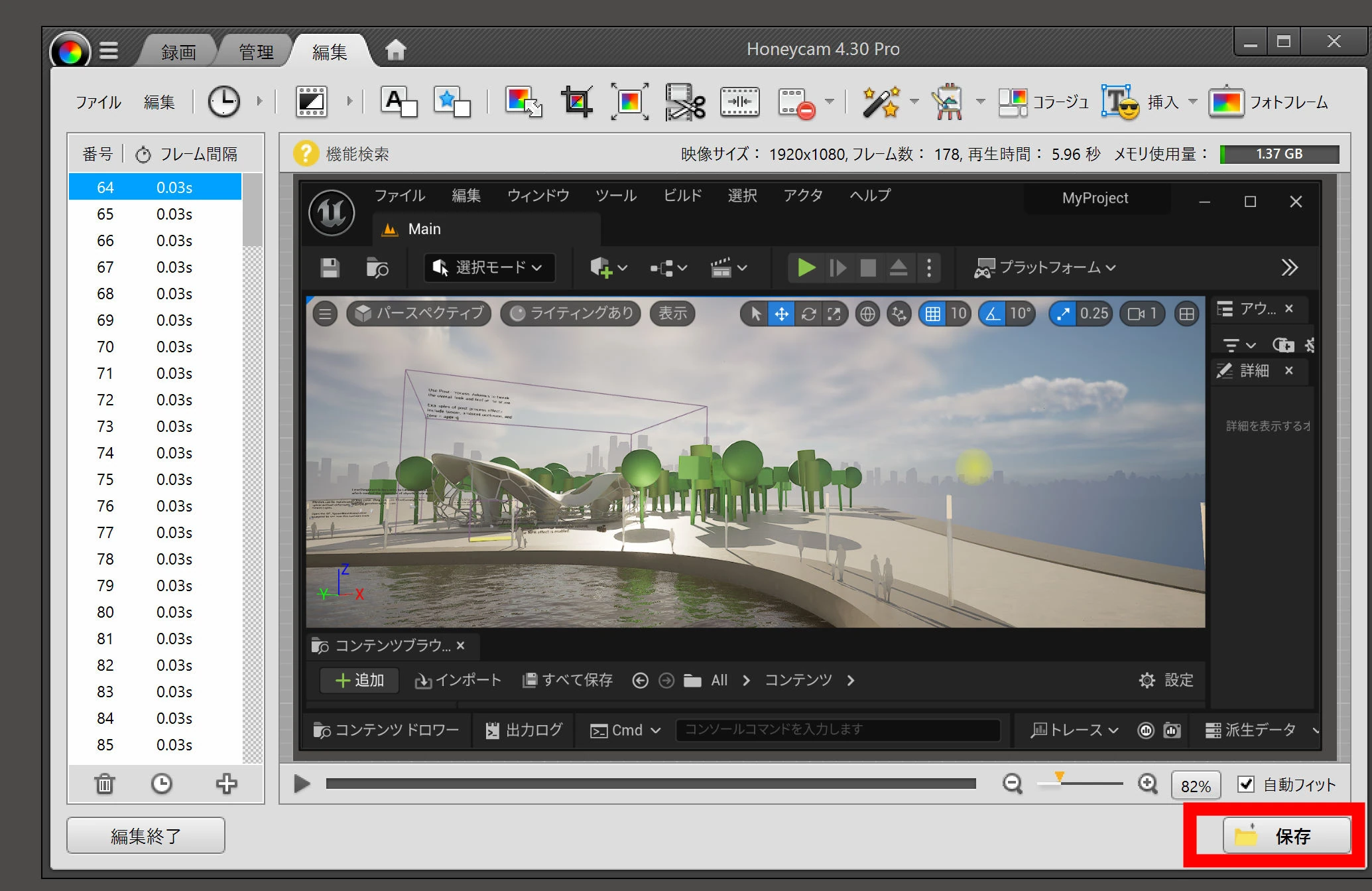
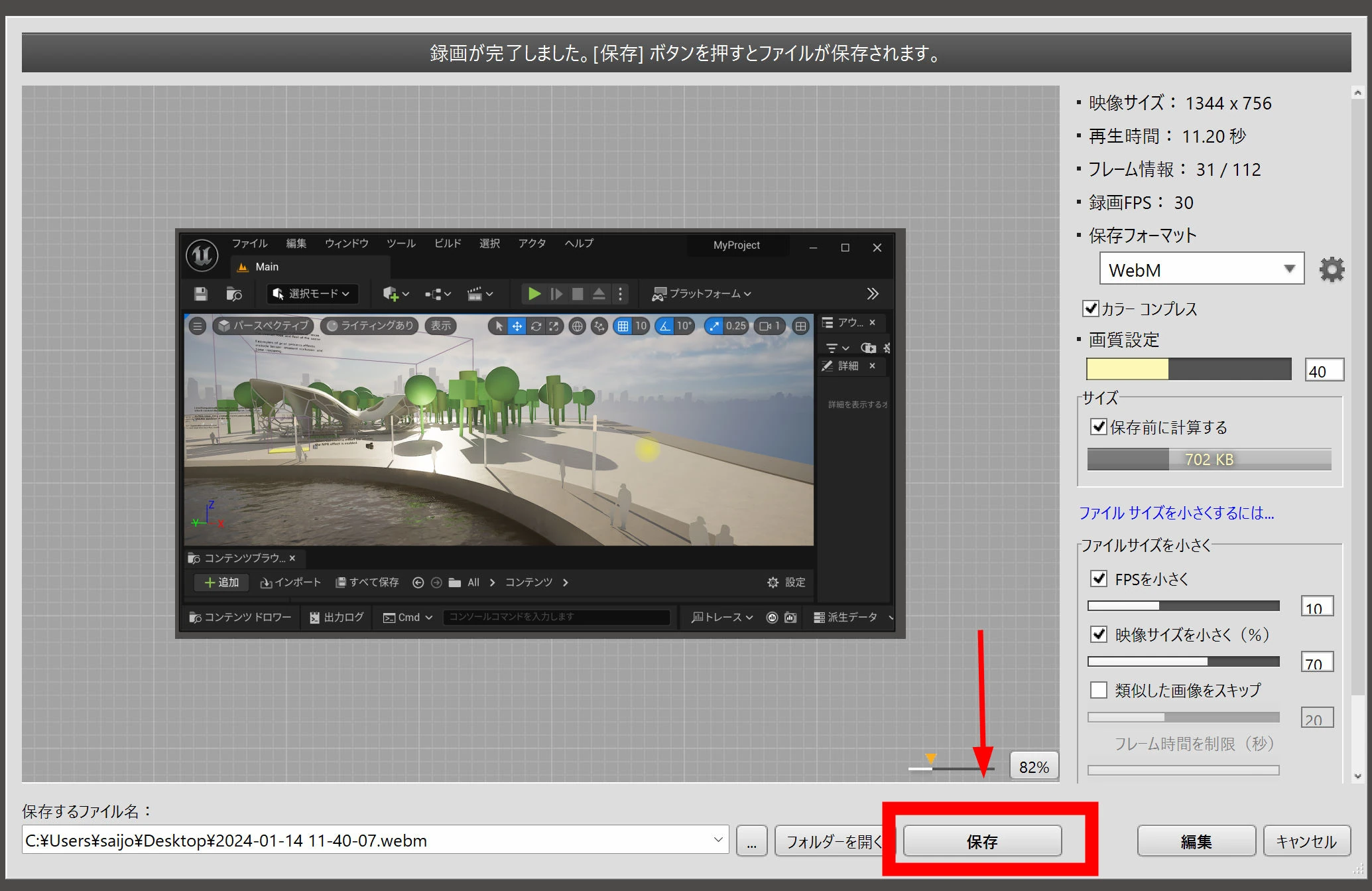 You can edit the recording too. Click Edit at the lower right.
 There are various editing tools. I have only used trimming; for detailed edits, I use a video editor. Still, having simple editing alongside recording is a welcome feature.
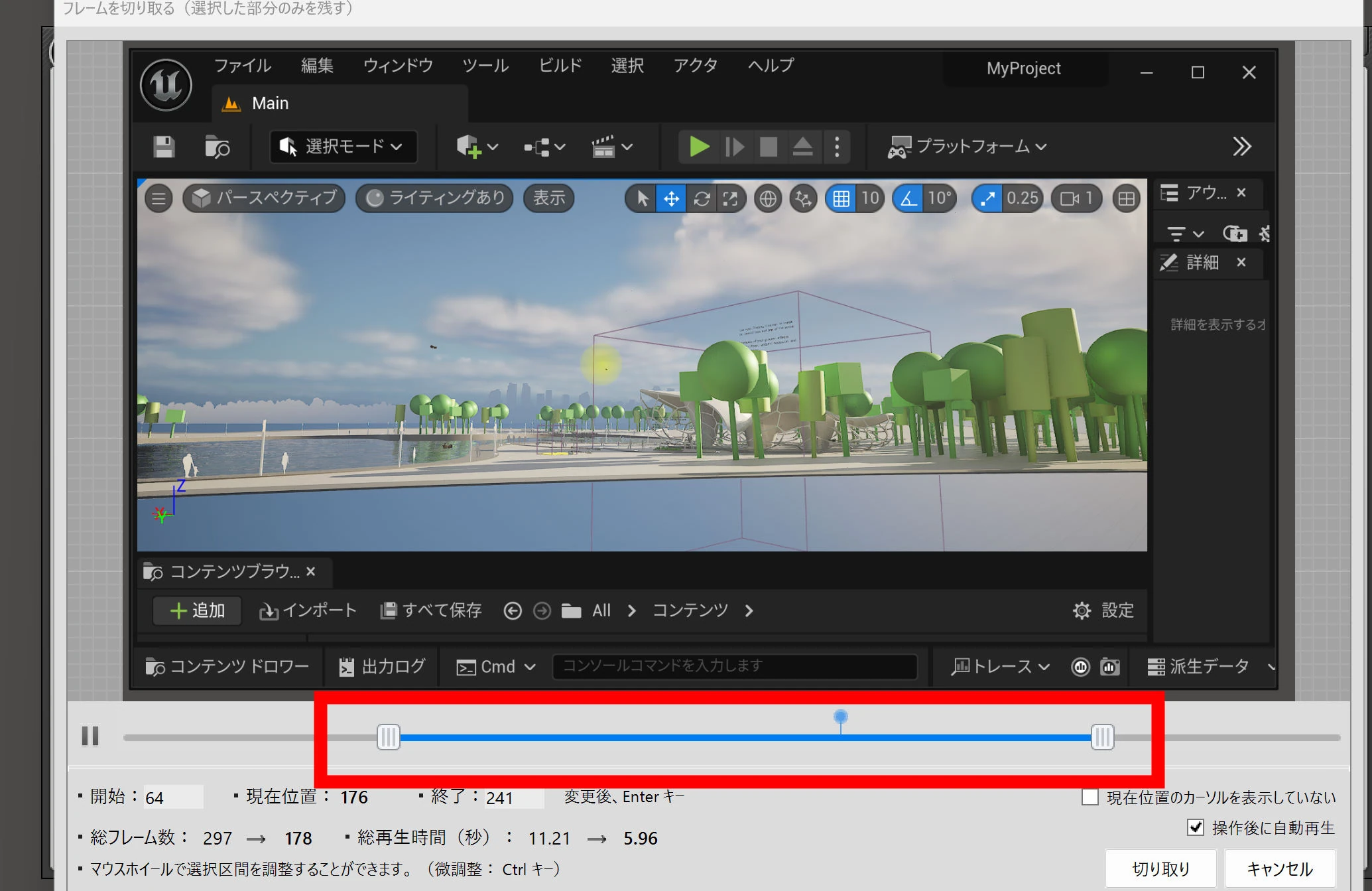
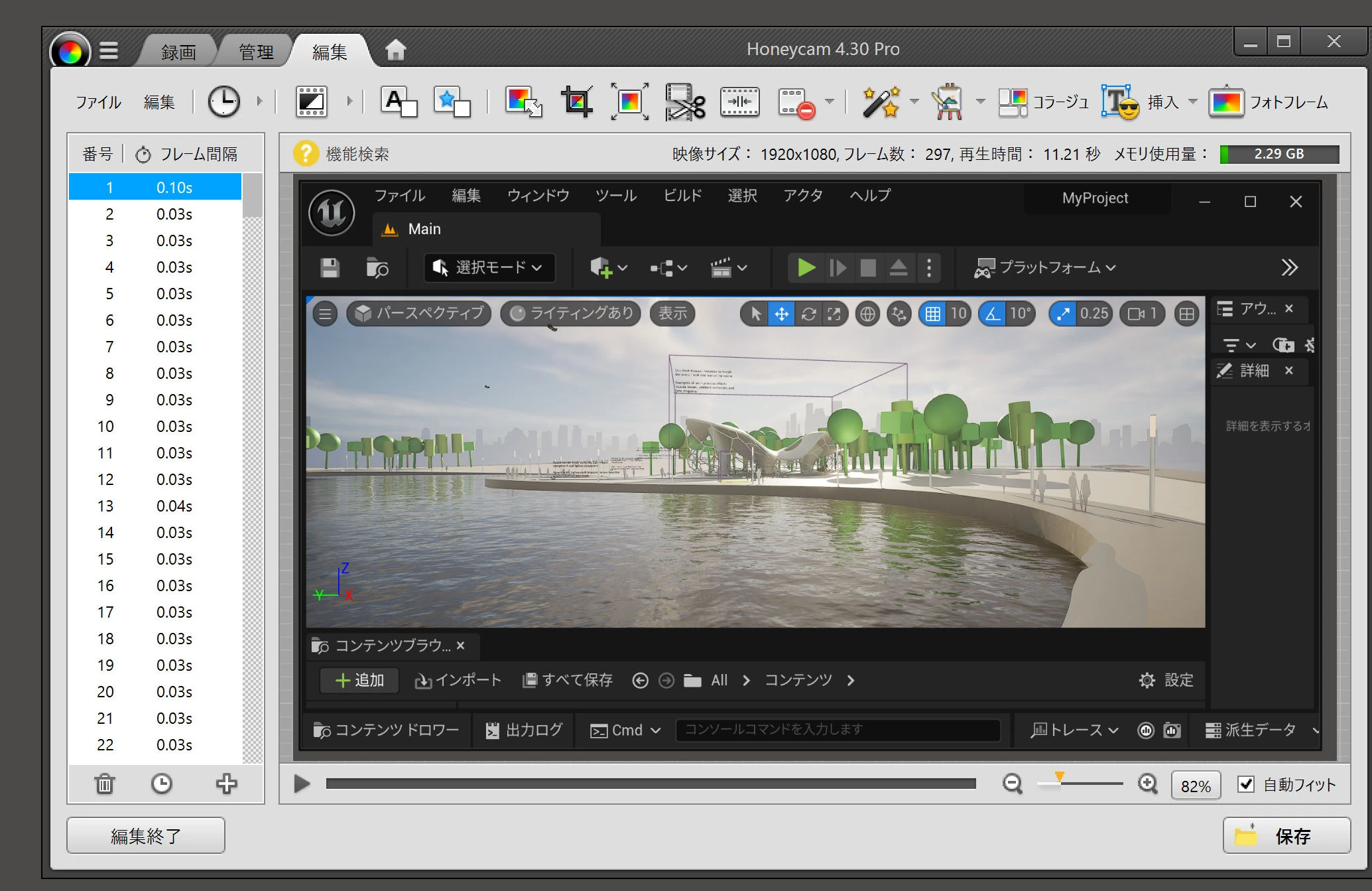 Let us trim the video.
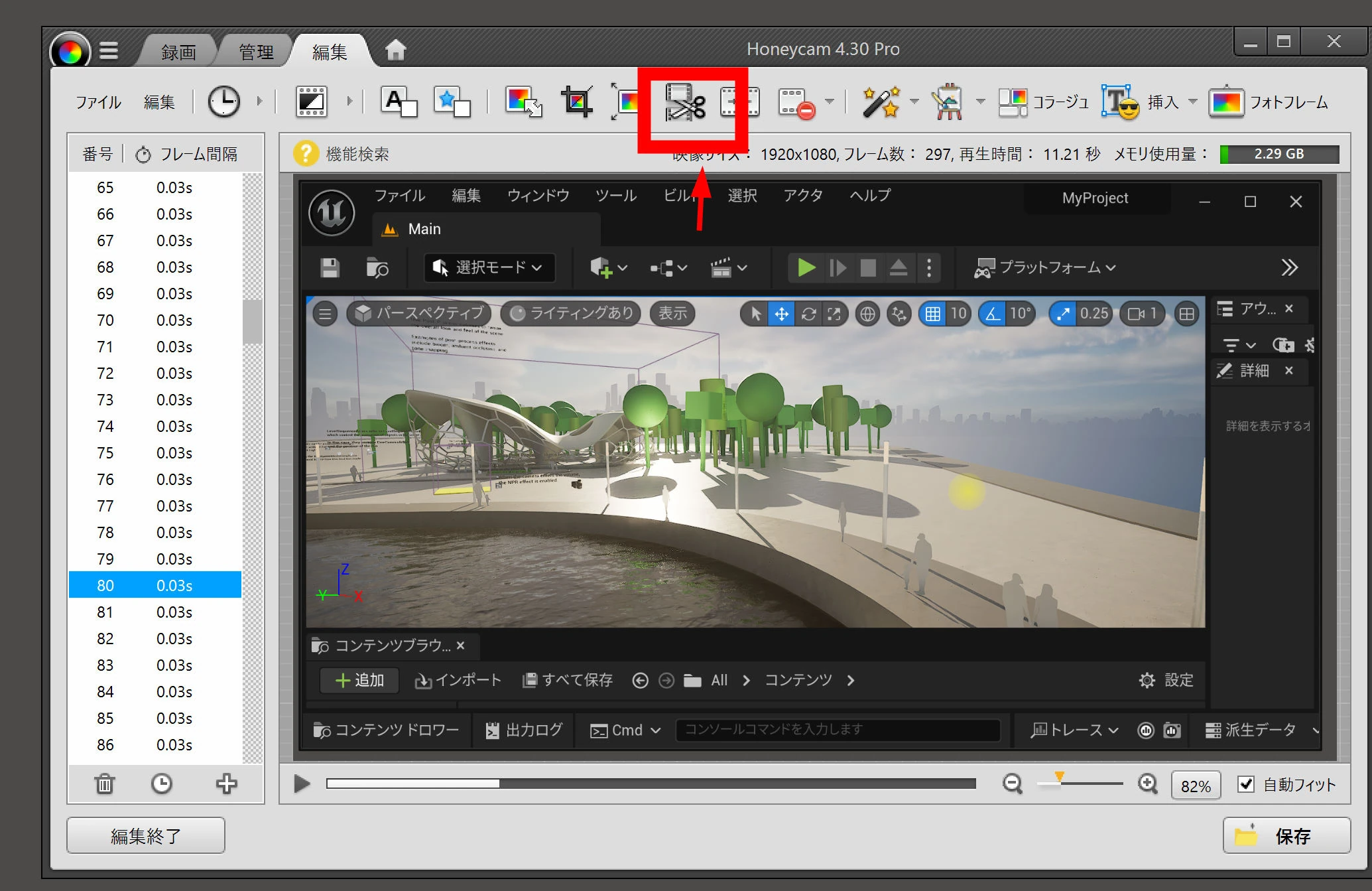 Select the unwanted section and cut it out.
 Save it.
The shorter clip is smaller.
Save it.
The shorter clip is smaller.
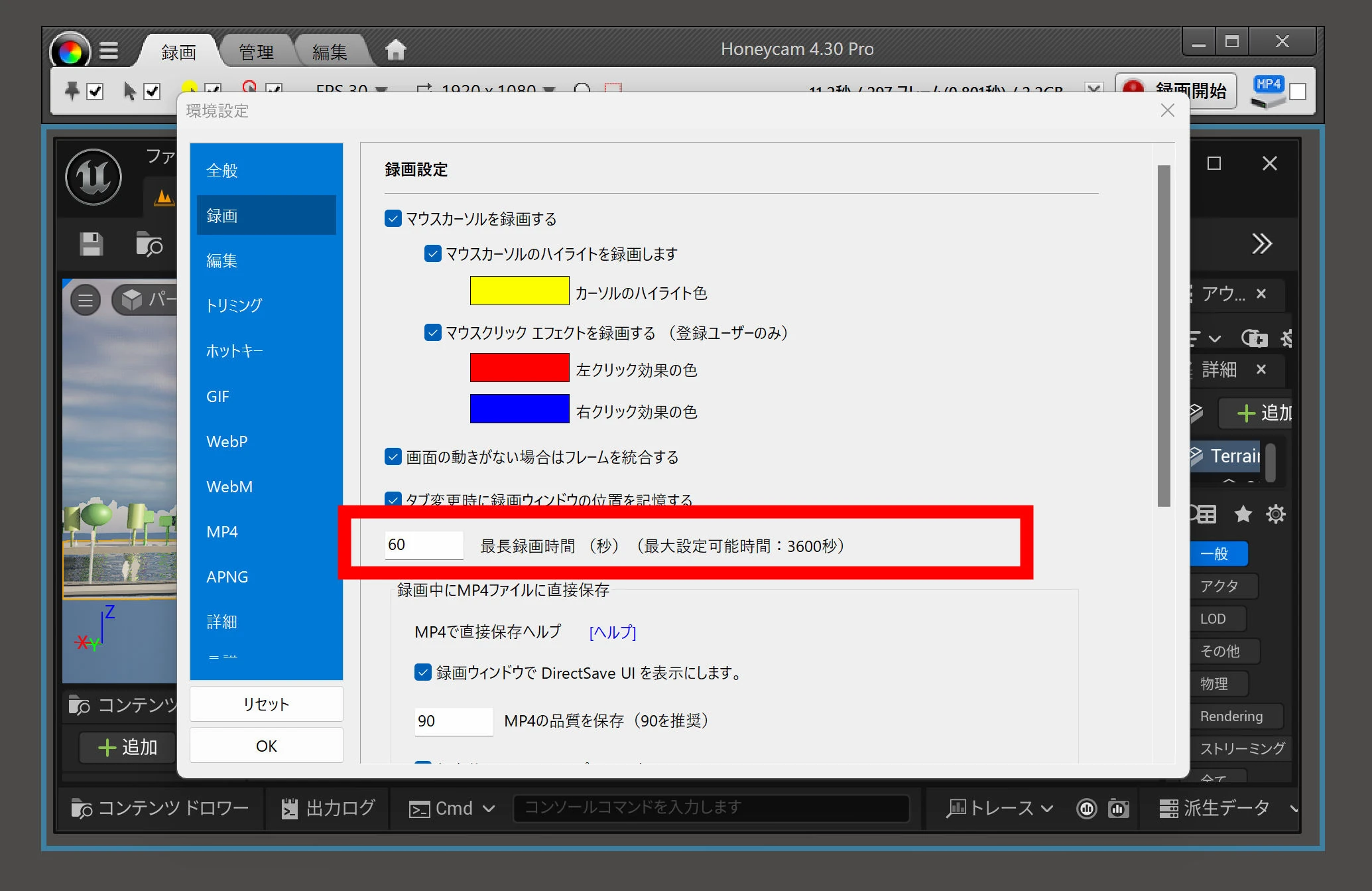
 Here are the main settings. The default recording limit is 60 seconds, but you can increase it to 3600 seconds in Settings. The limit seems related to holding the recording in memory. There is also an unlimited MP4 recording mode, although I would use OBS or Bandicam for that.
 In the WebM options, you can switch to VP9.
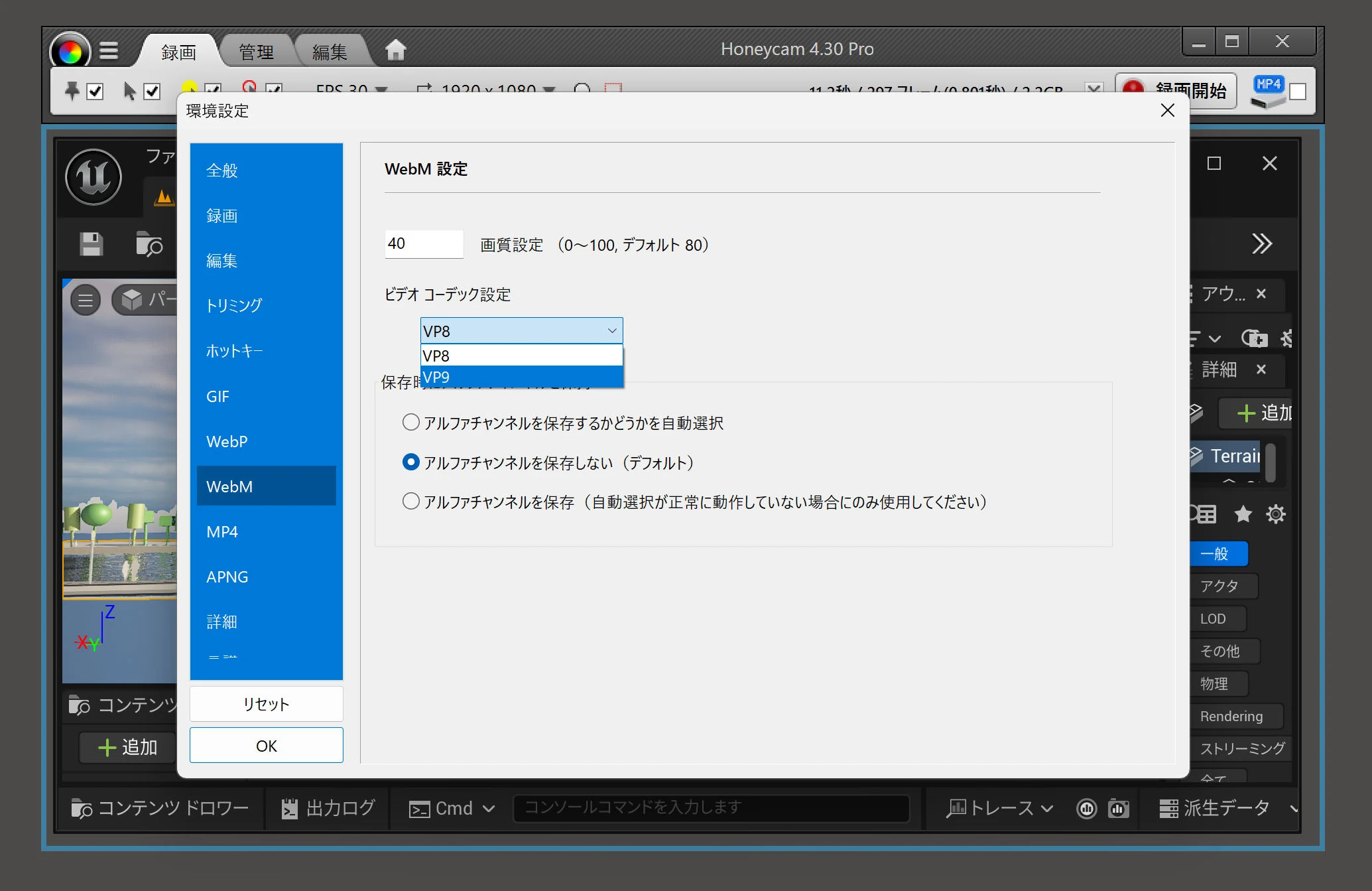 The VP8 version is 785 KB. What happens with VP9?
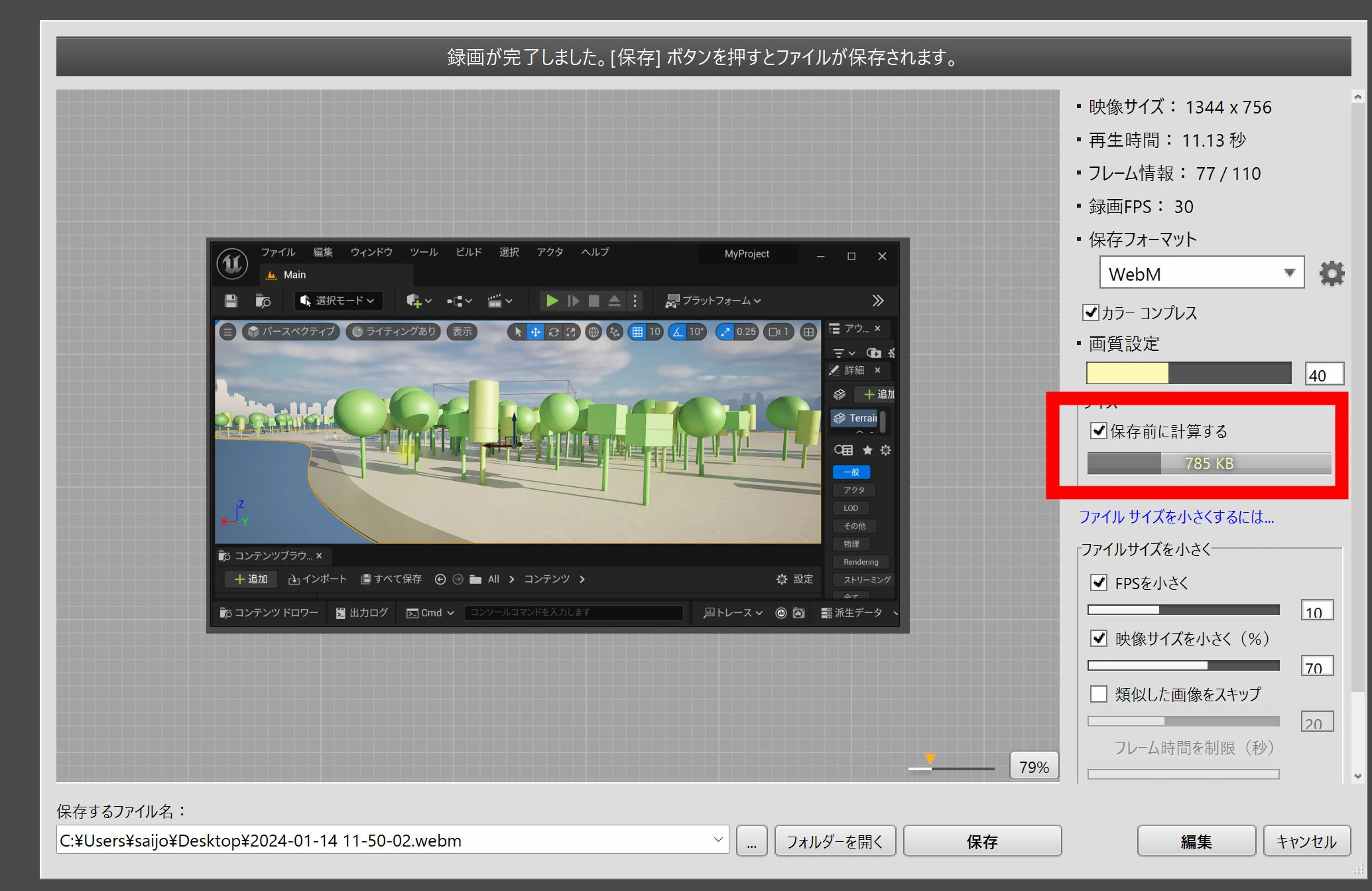 With VP9, it shrinks to 453 KB. A video file about the size of a single JPEG!
 In my WordPress setup, I could drop in the exported videos and play them directly. I uploaded both examples below.
454 KB VP9 video, 1344×756 pixels at 10 fps.
785 KB VP8 video, 1344×756 pixels at 10 fps.
This screen recorder let me make about ten seconds of video in a file about the size of a large JPEG.
In my WordPress setup, I could drop in the exported videos and play them directly. I uploaded both examples below.
454 KB VP9 video, 1344×756 pixels at 10 fps.
785 KB VP8 video, 1344×756 pixels at 10 fps.
This screen recorder let me make about ten seconds of video in a file about the size of a large JPEG.
Related articles

Updates and contact: X @riragoncom.