Downloading free, commercially usable PBR textures from Poly Haven for UE5
I imported Poly Haven PBR textures into UE5 through Blender, repaired material connections, and experimented with UV scale and rotation on a wall.
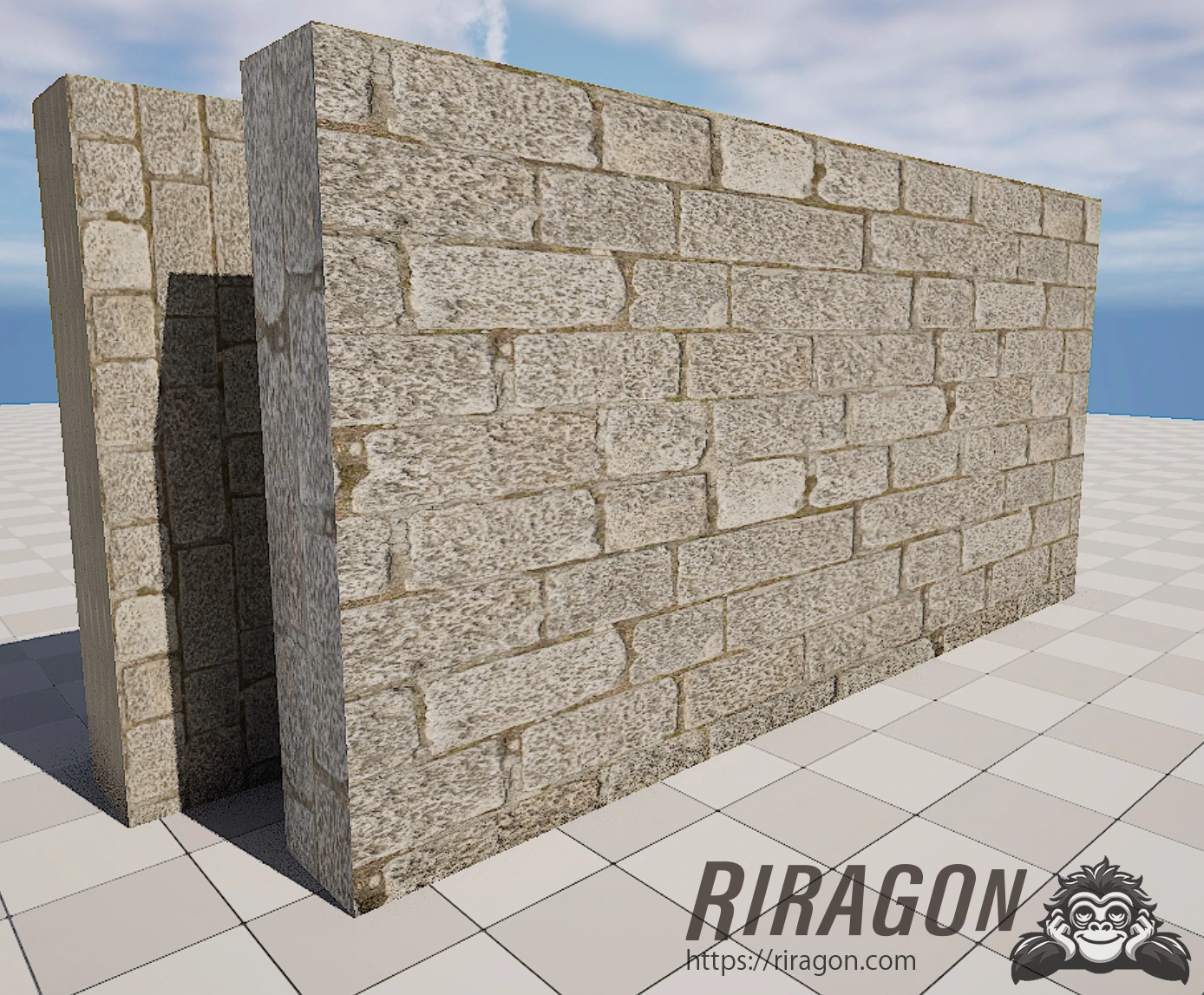
Note: This article is more than one year old. Poly Haven's download interface and the maps included in its texture sets can change.
- Incorrect Normal and Roughness connections when exporting FBX from Blender to UE5 are still a common issue, but behavior depends on the Blender, FBX, and UE versions involved.
- The material-editor interface around TextureCoordinate and Custom Rotator may differ between UE5 versions.
- Check the explanation of CC0 and nonprofit status against the current official About and License pages, since organizational and distribution arrangements can change.
I will try texture assets from Poly Haven, which provides free PBR (physically based rendering) material textures.
Poly Haven stands out for its high quality despite being free.
Let's take a closer look.
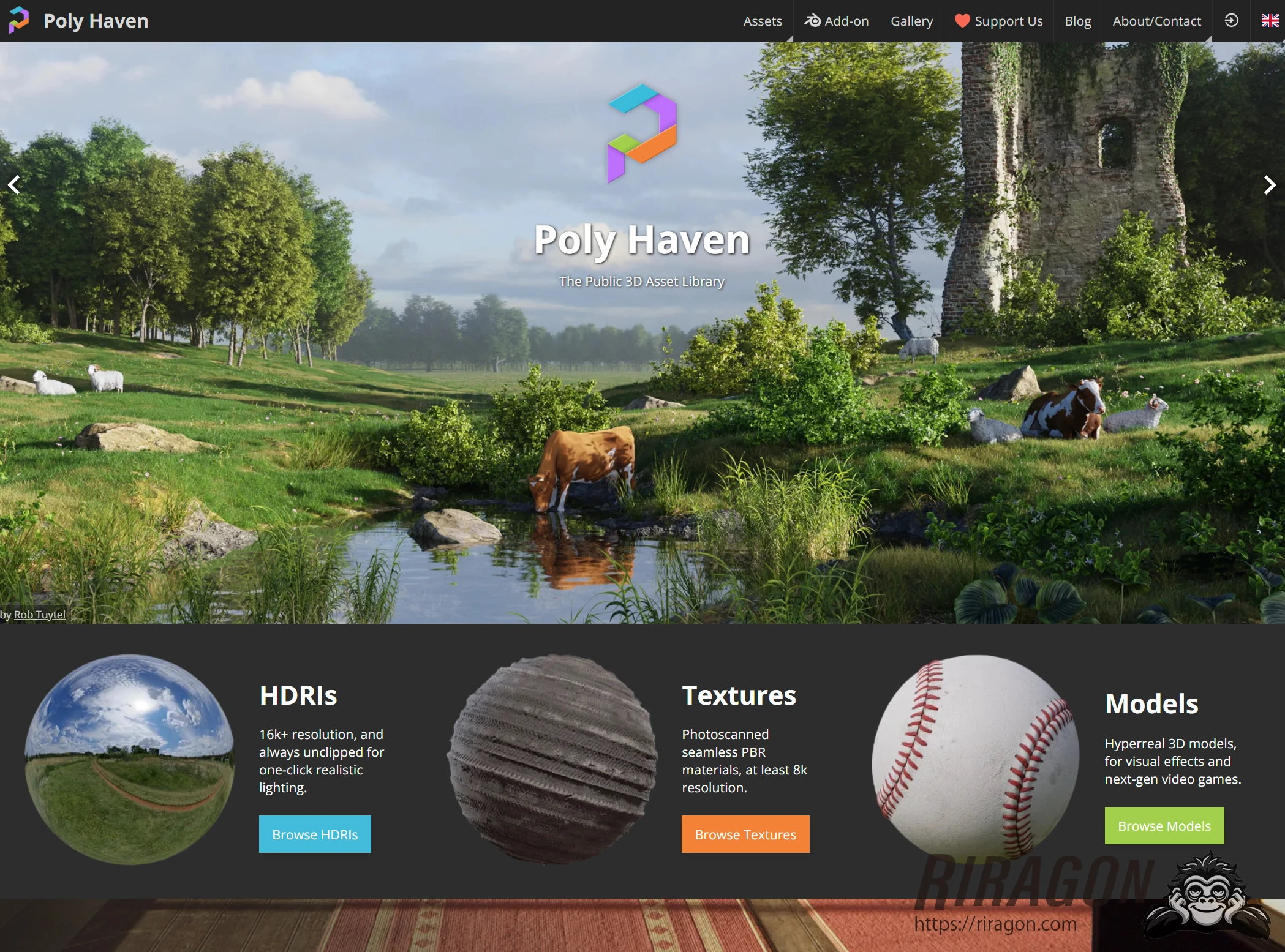
Poly Haven
In Japanese, I suppose Poly Haven would be pronounced "porii hebun" or "heibun." It appears to be a nonprofit organization that supports artists and the industry by providing high-quality 3D assets, textures, and HDRIs for free. Most impressive of all, the assets are provided under Creative Commons CC0.
CC0 means "No Rights Reserved": the creator waives copyright, bringing the work close to the public domain.
The public domain consists of works and information for which intellectual property rights, such as copyright or patents, do not exist, have expired, or have been waived.
Anyone can use, redistribute, and modify public-domain works without obtaining permission from the copyright holder. This allows free use, modification, and redistribution, including commercial use, without those restrictions. You could even download all of Poly Haven's textures and resell them yourself.
Most asset sites prohibit redistribution, so that is remarkable.
Actually doing so would raise an ethical question, however.
Consult the license for the details.
You can support Poly Haven through paid early-access membership, the Blender add-on, sponsorship, and other options.
https://polyhaven.com/about-contact
https://www.patreon.com/polyhaven
Downloading PBR textures from Poly Haven for UE5
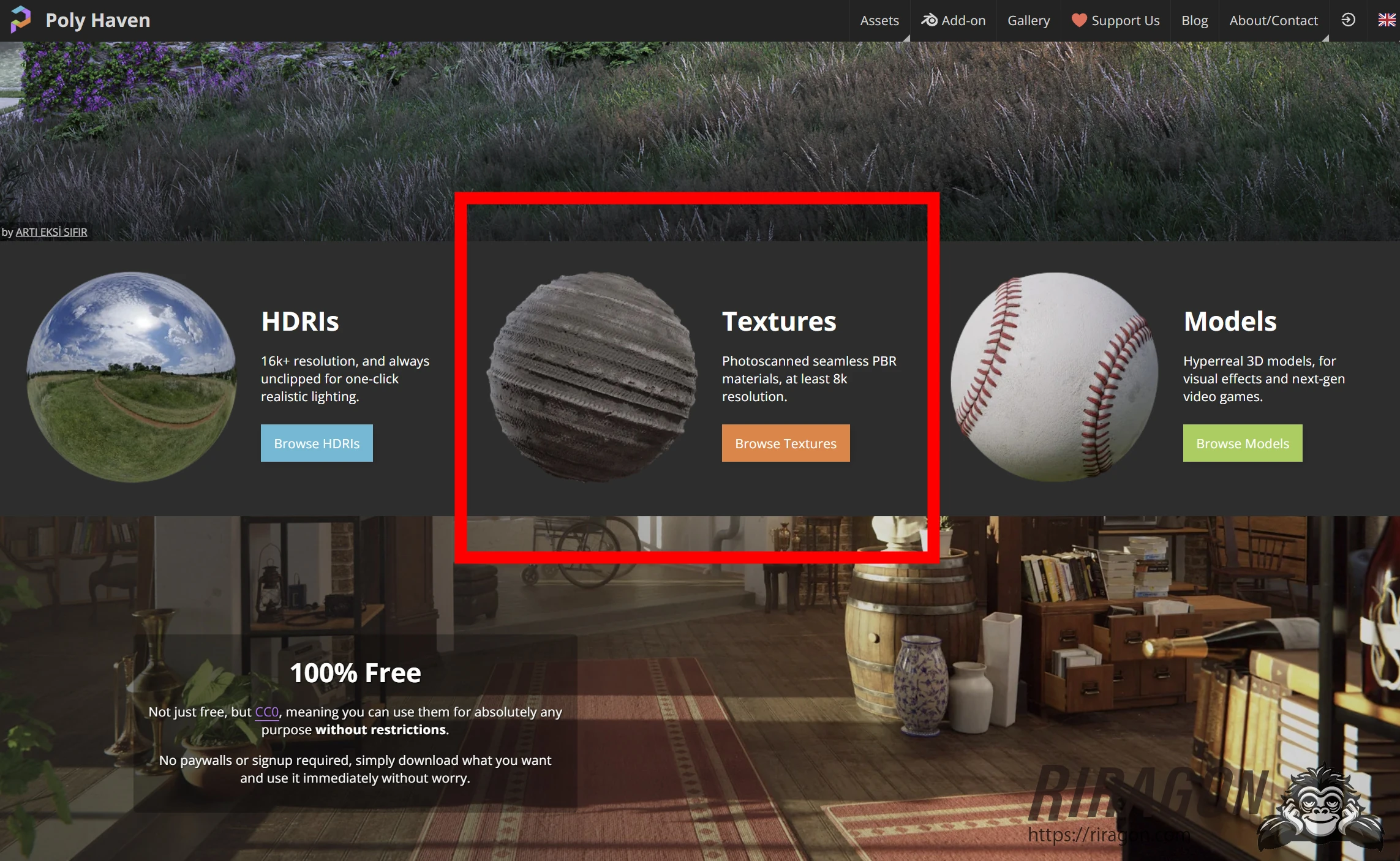
Open Poly Haven and click Textures.
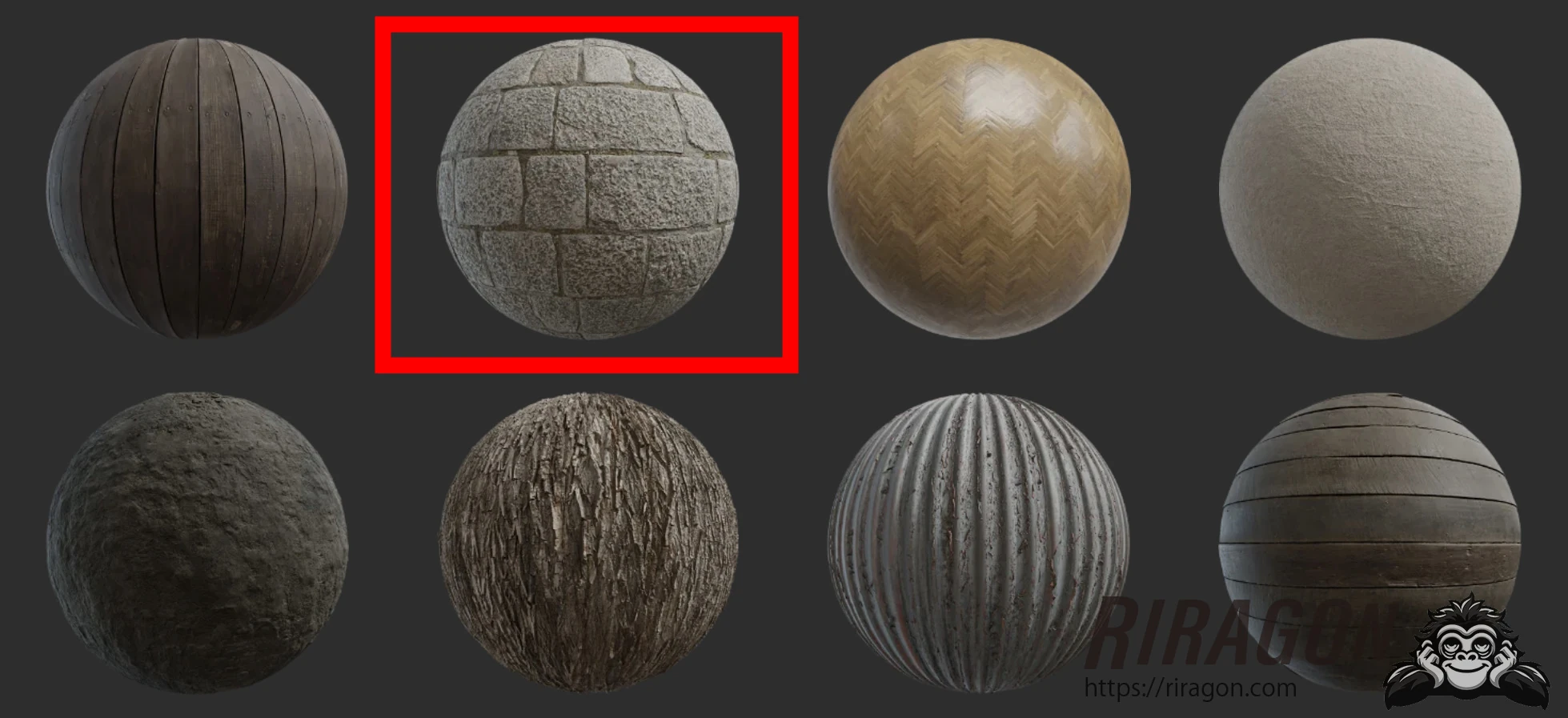
 I will use this texture for a wall.
 Download it from the panel on the right.
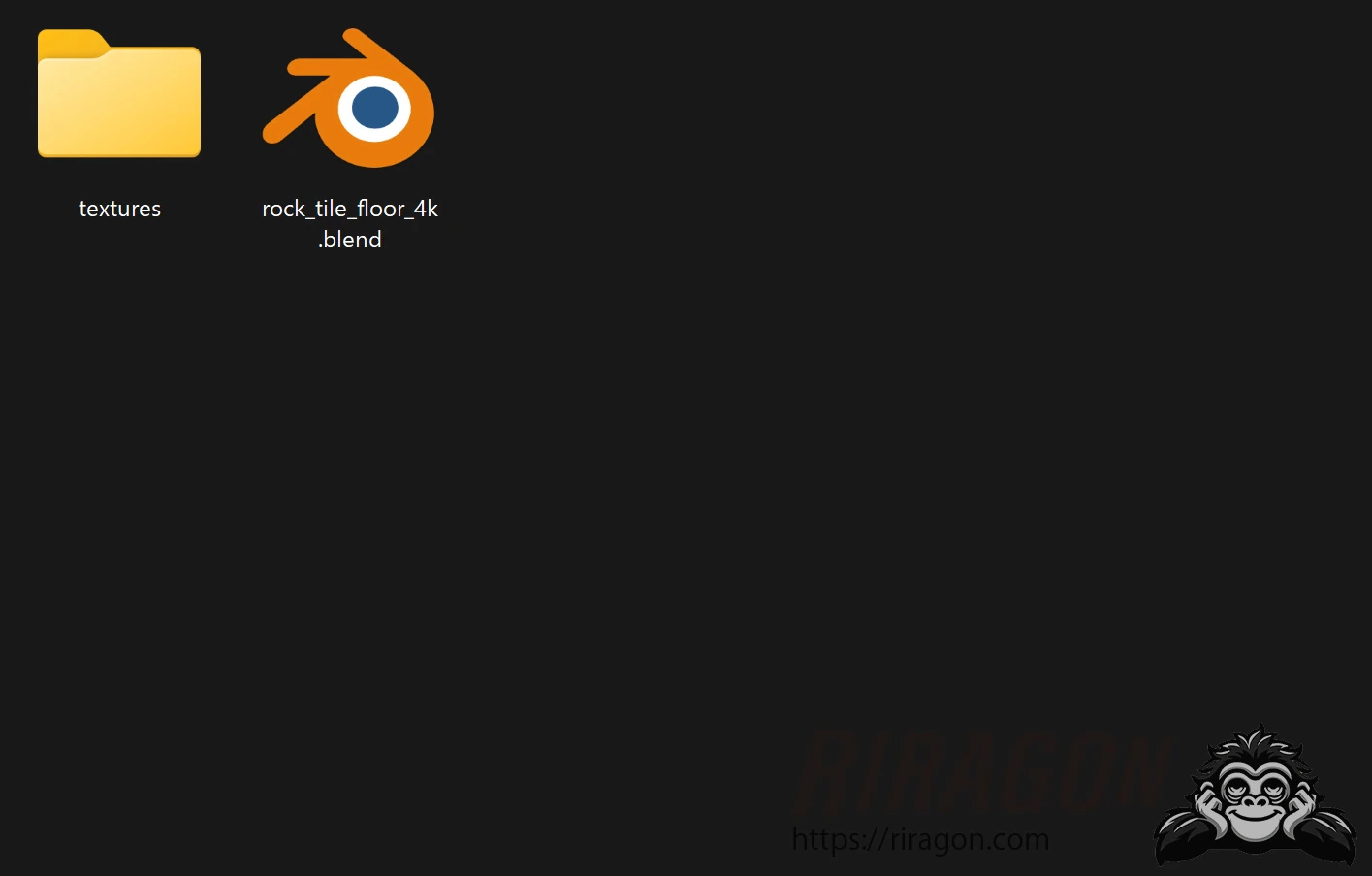
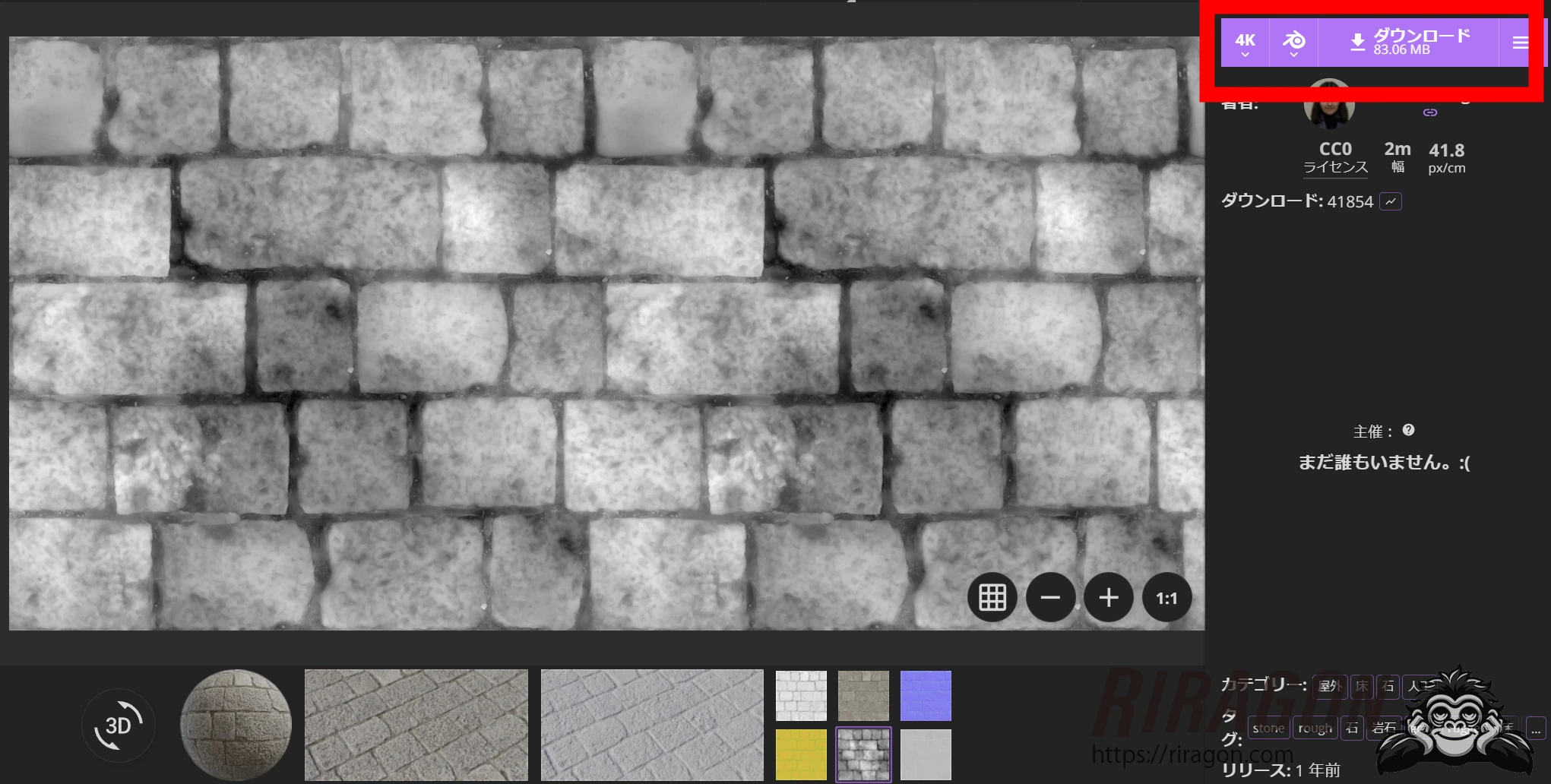 The workflow seems to be centered on Blender. You could also import just the textures and set them up manually in UE5. Since the Blender file was available, I opened it there and exported an FBX.
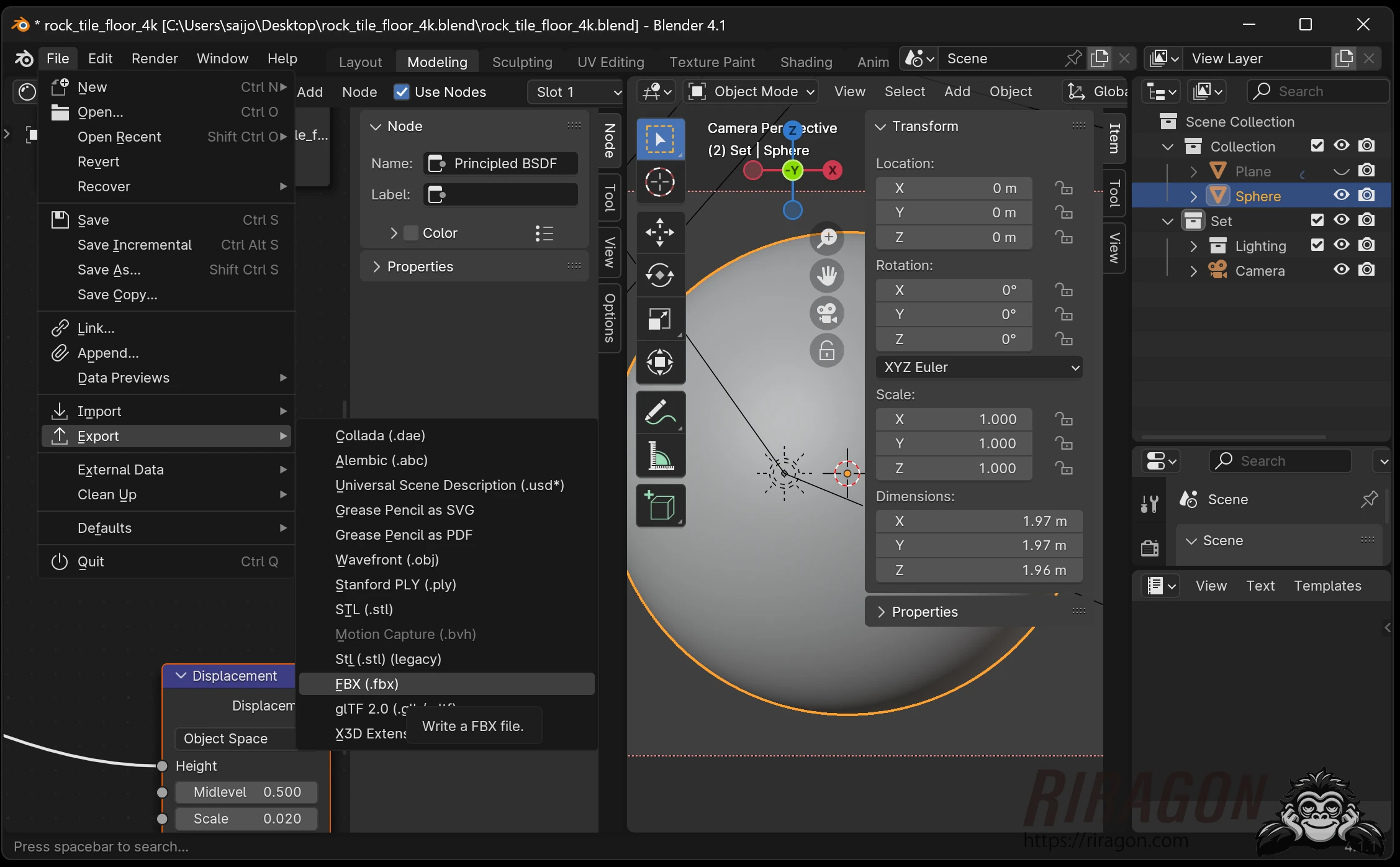
 Choose Export and export as FBX. Including the textures with the FBX keeps the transfer simple.
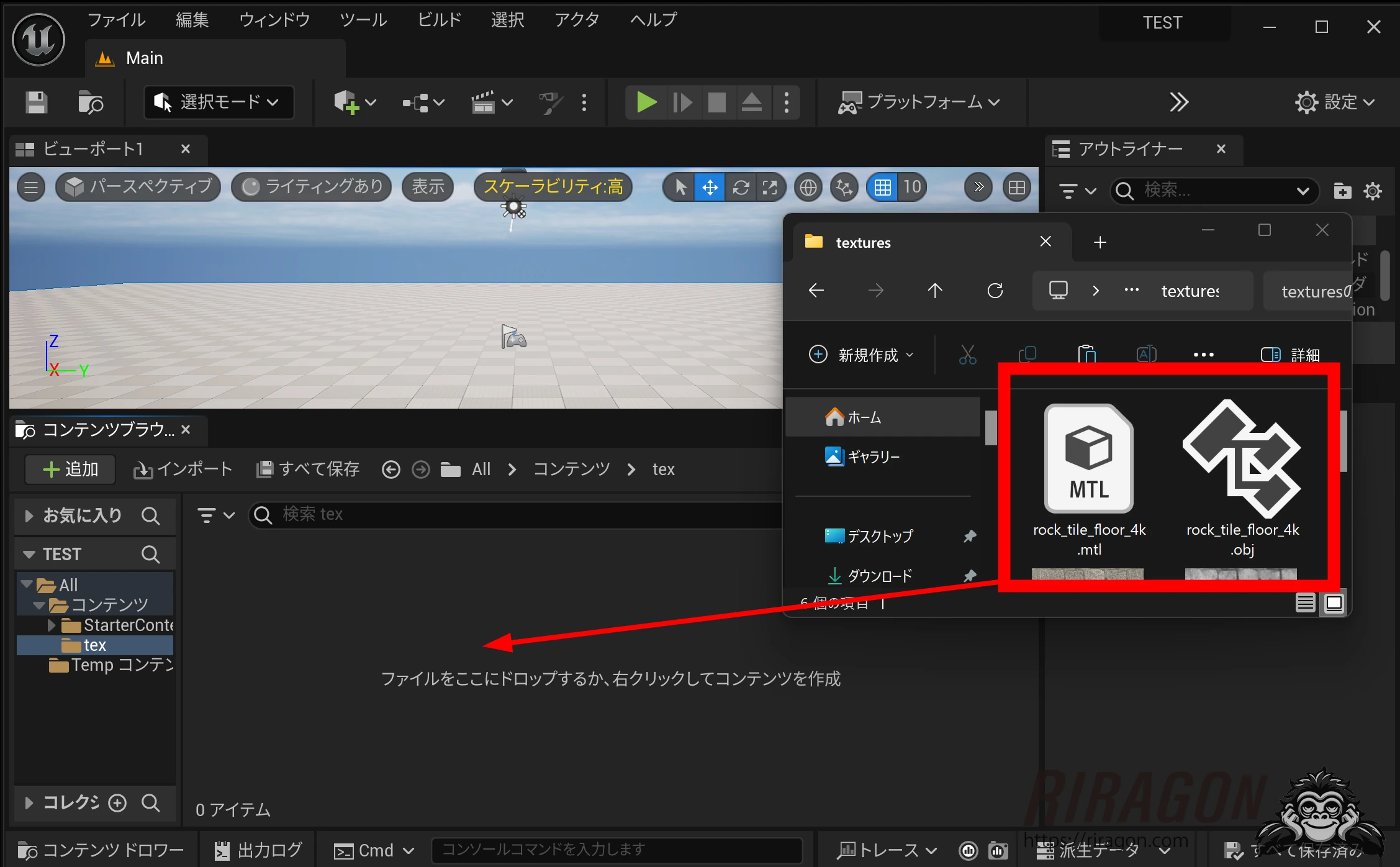
 Open UE5 and drop the exported FBX into the Content Browser.
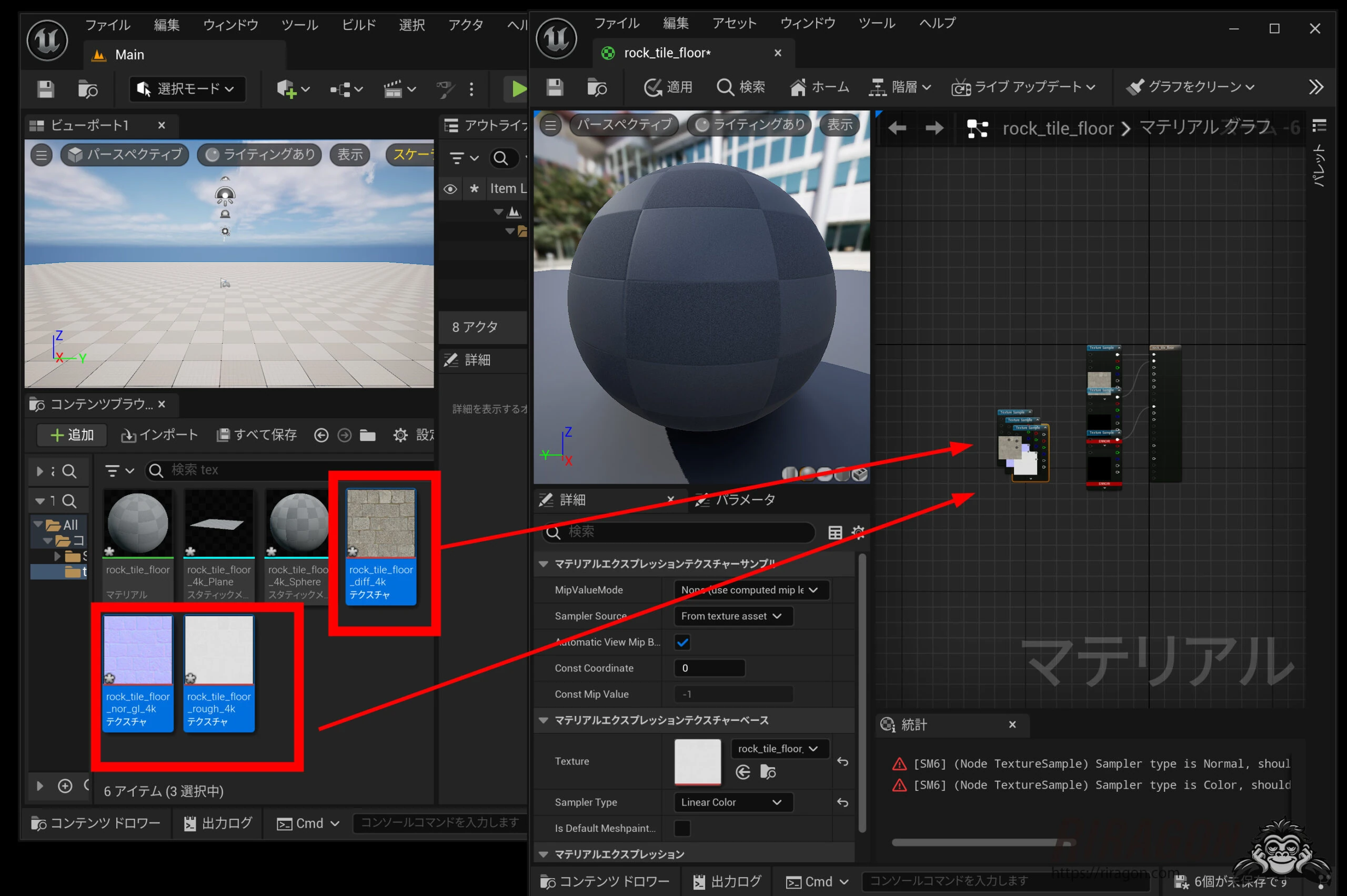
 Importing the FBX brought in the materials and textures.
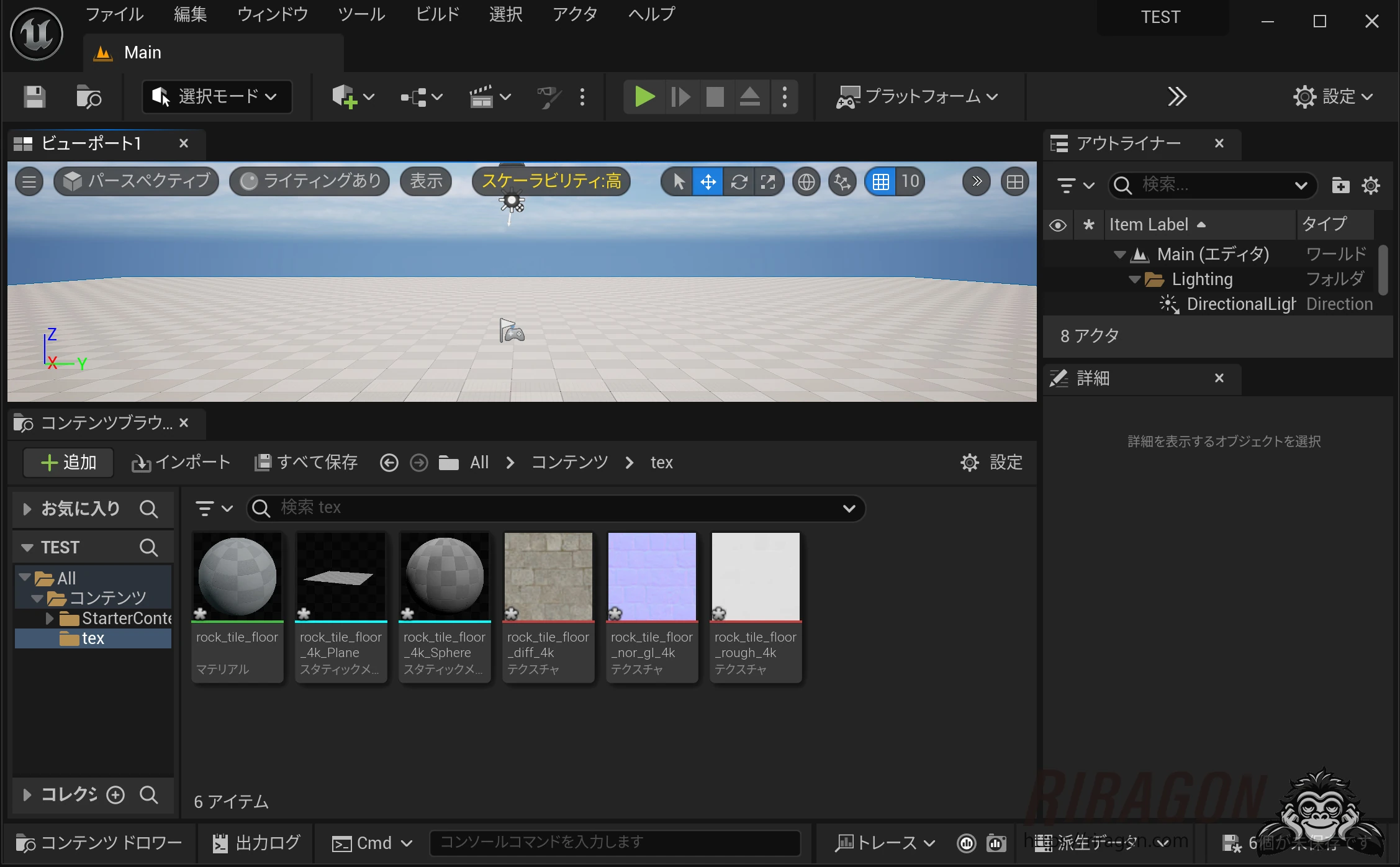 From the left, the textures were diff, nor, and rough: Diffuse, Normal, and Roughness. Included maps vary by asset; this download contained those three.
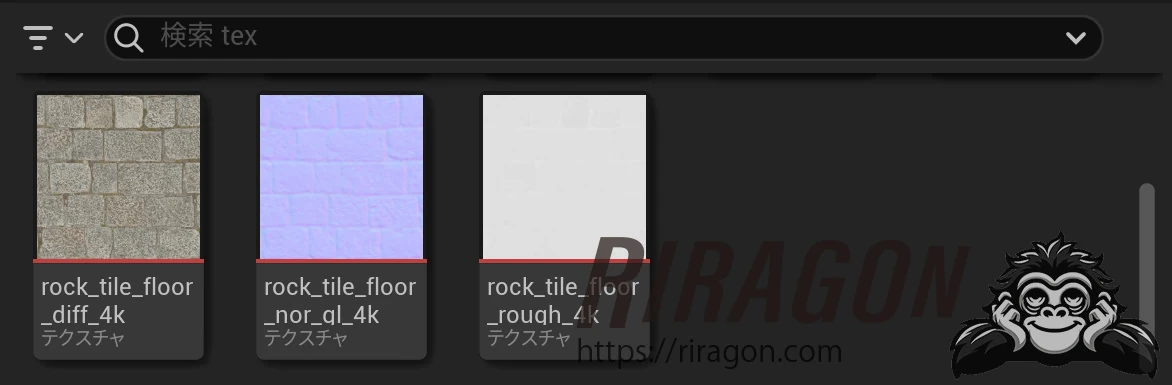 Map names differ between programs. A diffuse map is also called Base Color or Albedo: it represents the basic color.
A normal map simulates fine surface bumps to add realistic detail. I believe the Japanese term for a surface-normal map refers to the same thing.
A roughness map describes surface roughness. Higher values scatter light more broadly; lower values produce more concentrated reflections.
Next, open the material.
Map names differ between programs. A diffuse map is also called Base Color or Albedo: it represents the basic color.
A normal map simulates fine surface bumps to add realistic detail. I believe the Japanese term for a surface-normal map refers to the same thing.
A roughness map describes surface roughness. Higher values scatter light more broadly; lower values produce more concentrated reflections.
Next, open the material.
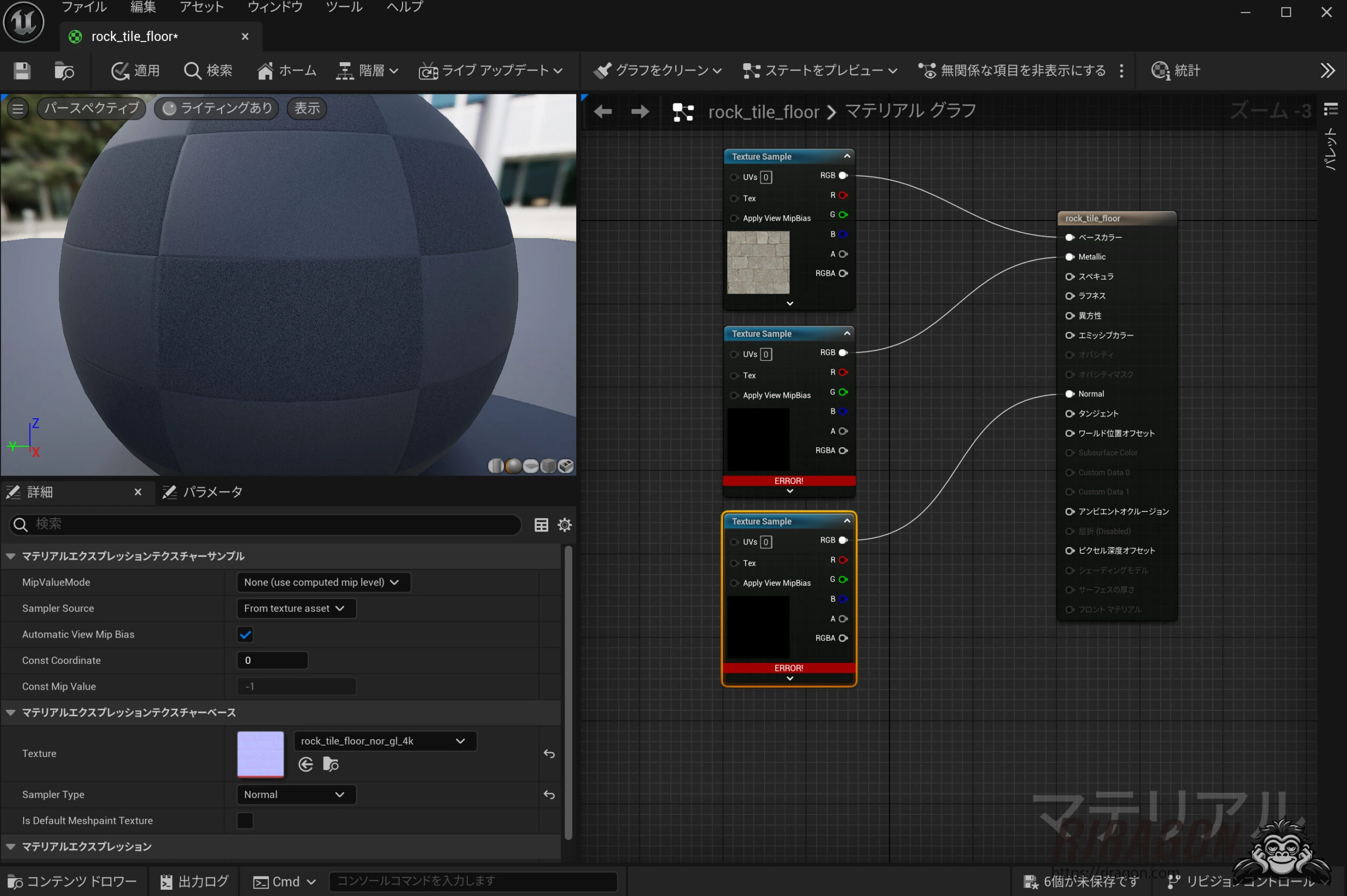
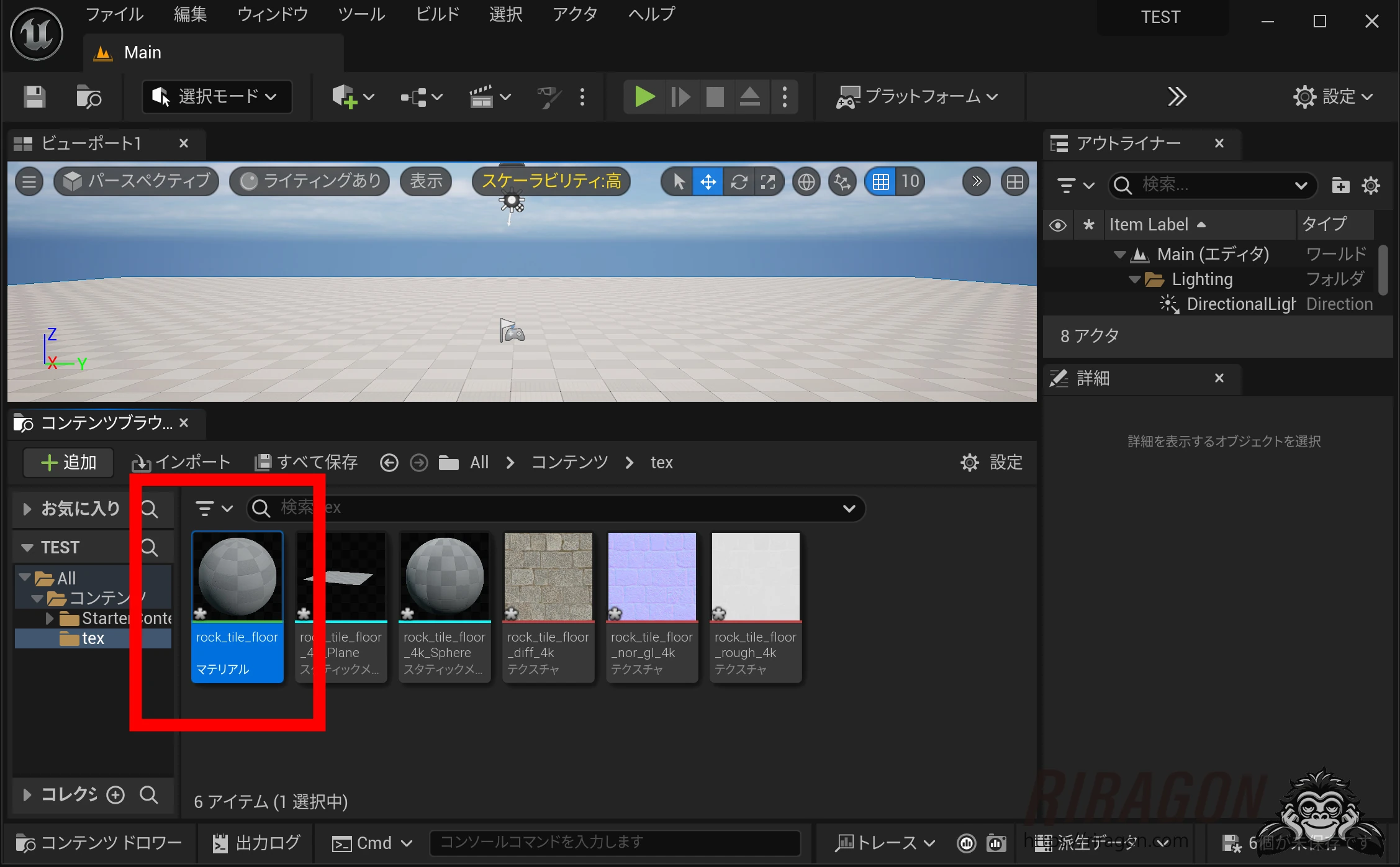 For some reason, the Normal and Roughness maps showed errors. This often happens when I import from Blender.
 The Roughness map was even connected to Metallic.
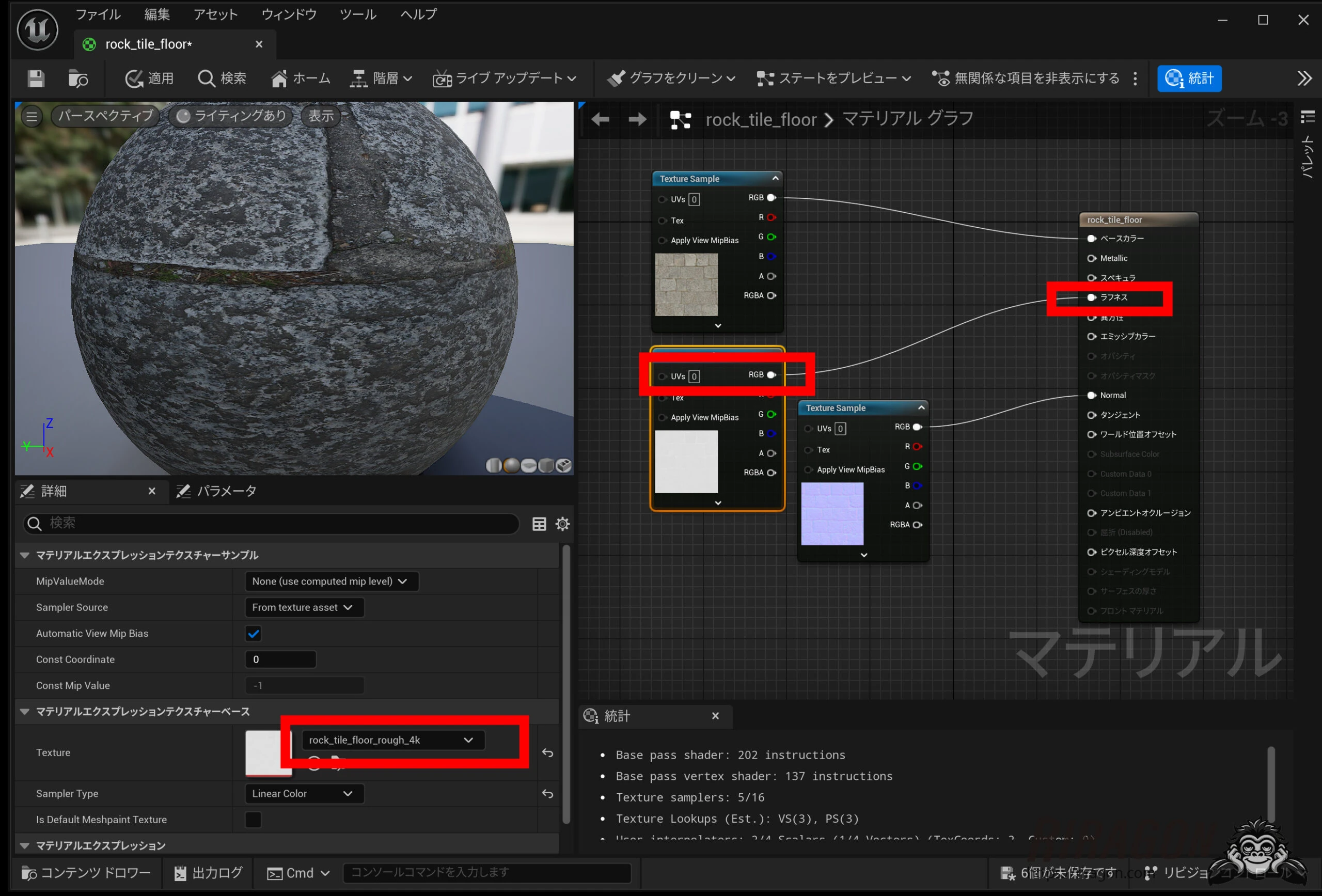
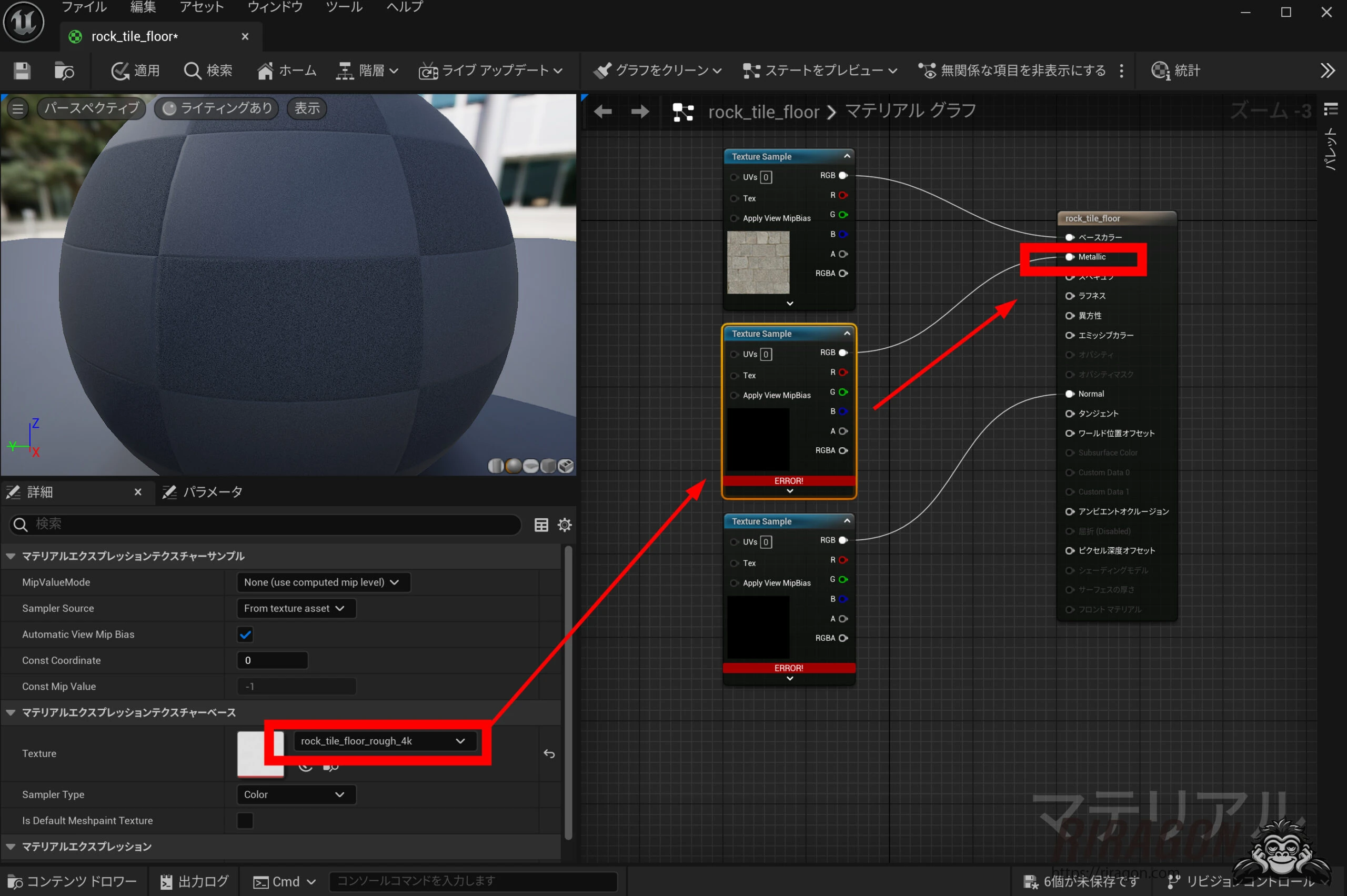 I reassigned the textures in the material.
 I repaired the connections too, putting the Roughness map into Roughness. Creating a material and importing the textures without using Blender would also be an option. There may be a correct Blender export setup for this. Save the material.
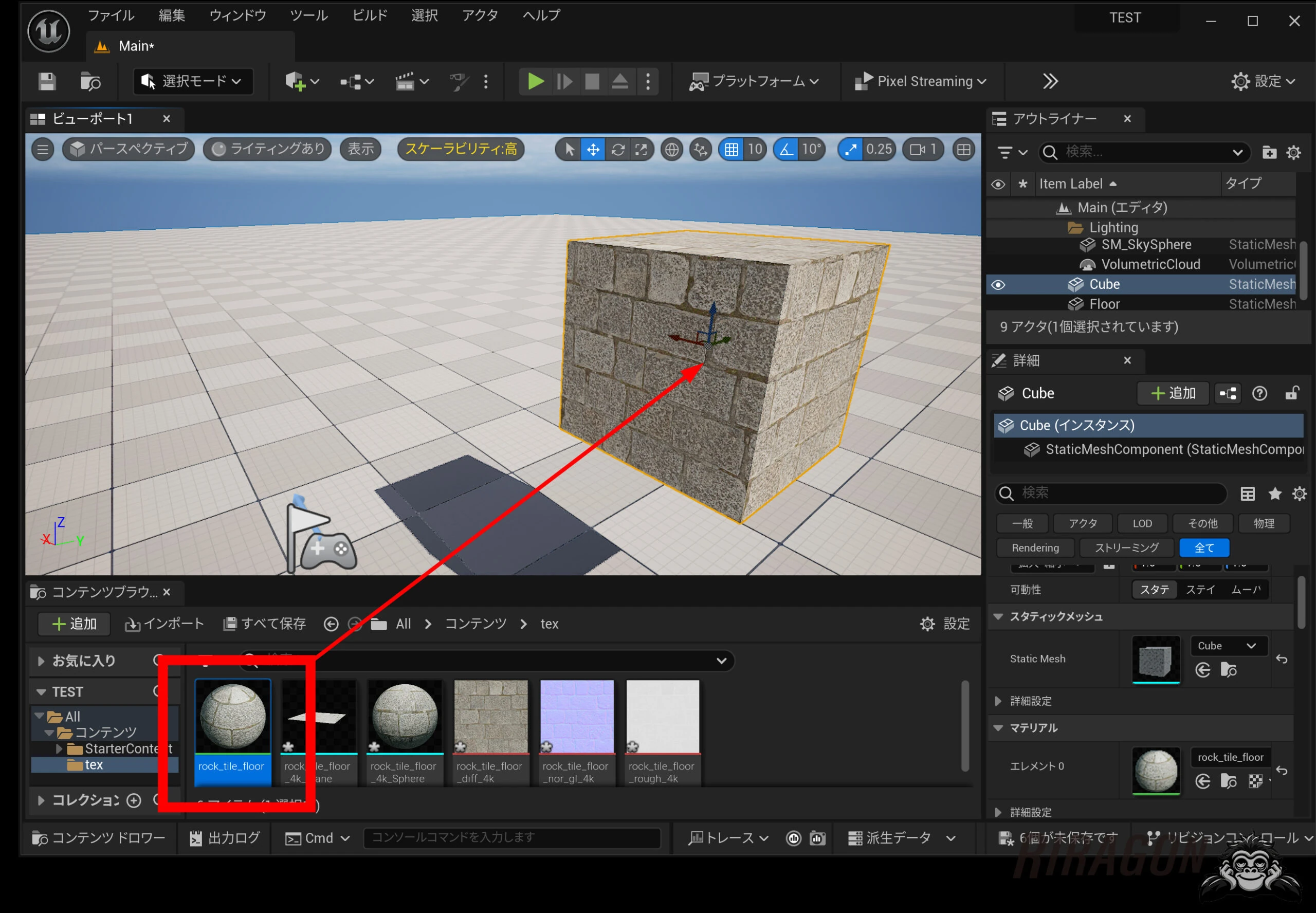
 Create a cube and drop the material onto it to apply the textures.
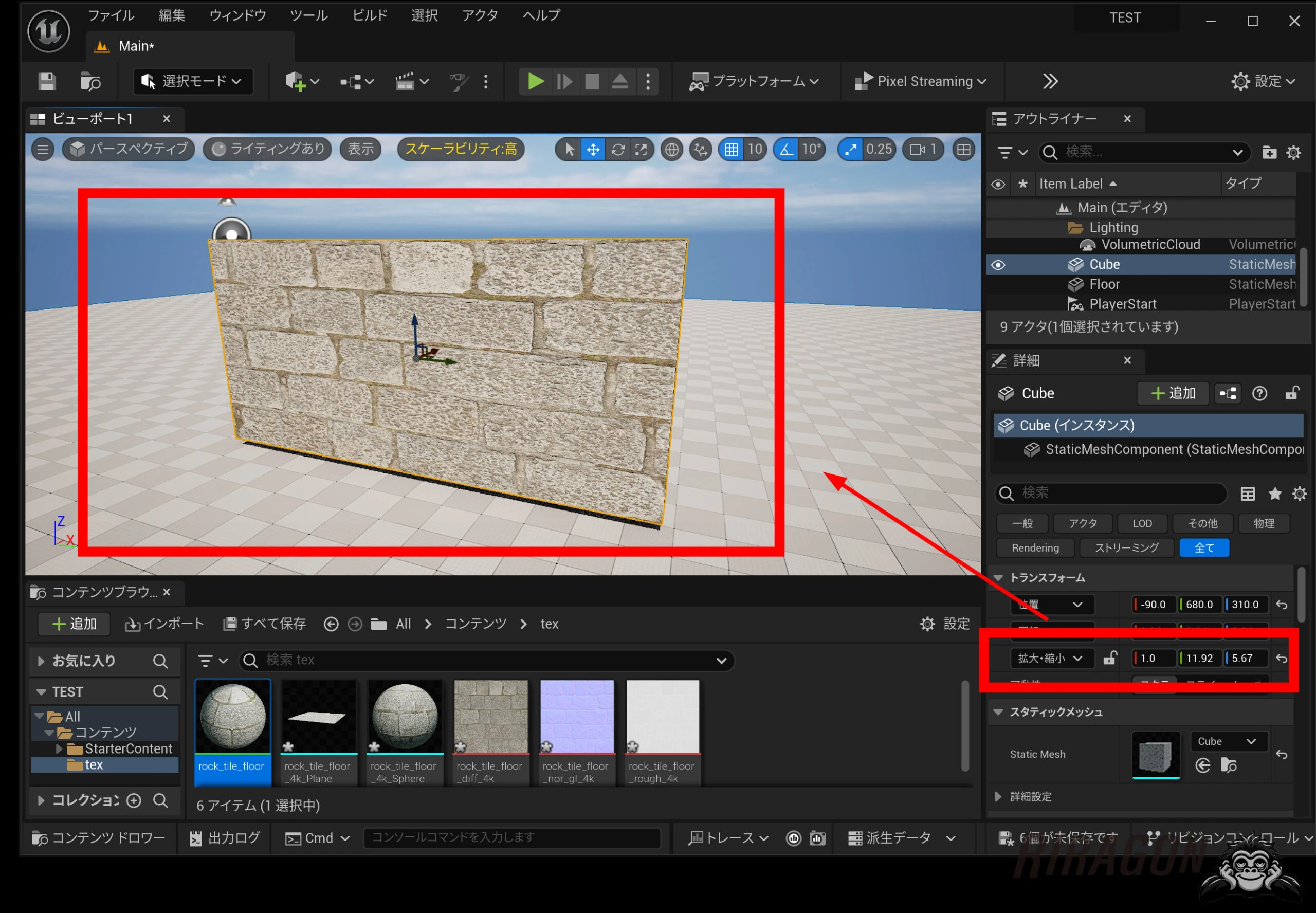
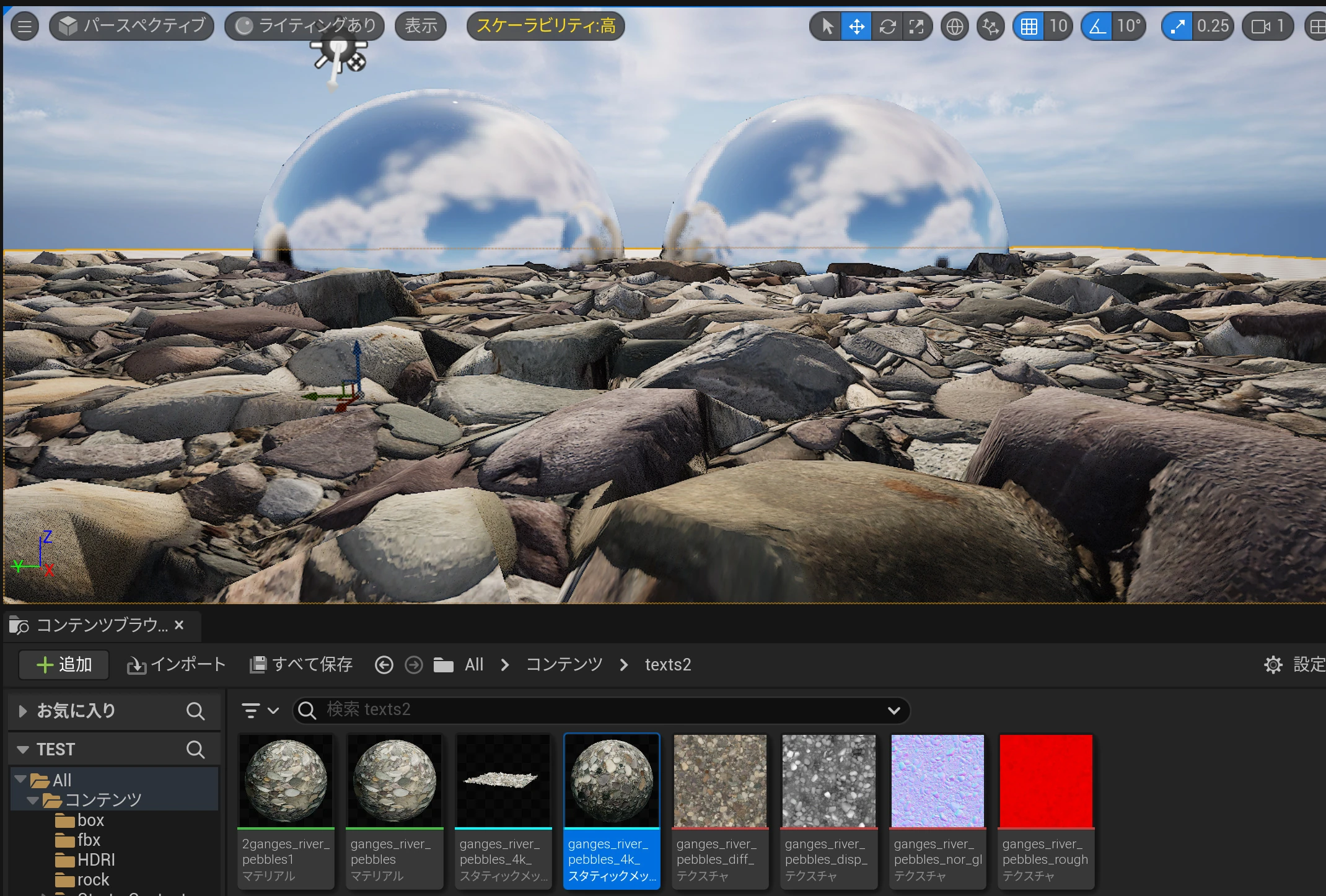
 For a wall, I stretched the cube to proportions of 1:10:5: 1 m thick, 5 m high, and 10 m wide. The texture looked stretched horizontally, so I returned to the material editor.
 Add TextureCoordinate.
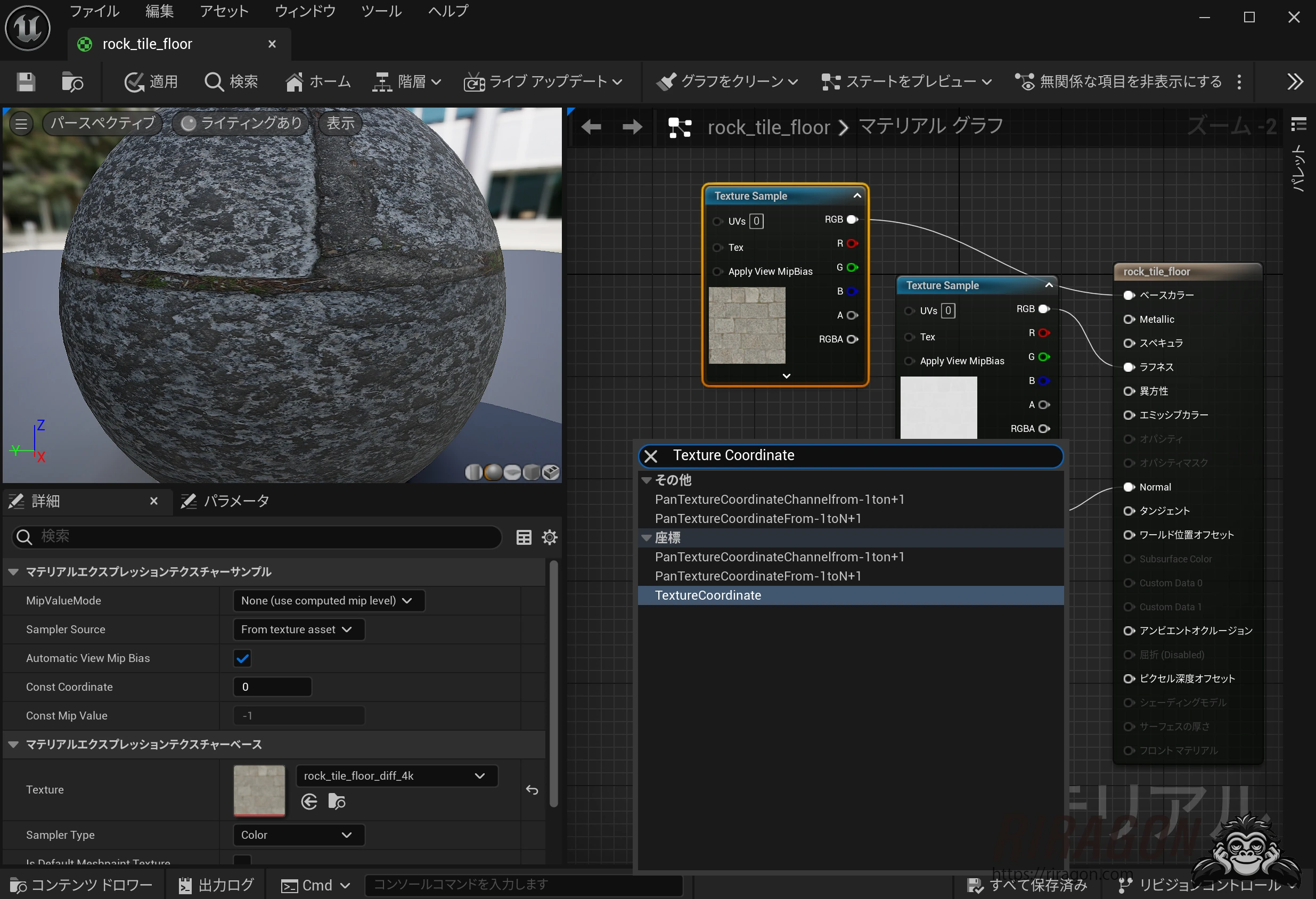 Connect it to the textures' UV inputs. TextureCoordinate controls the horizontal and vertical UV proportions.
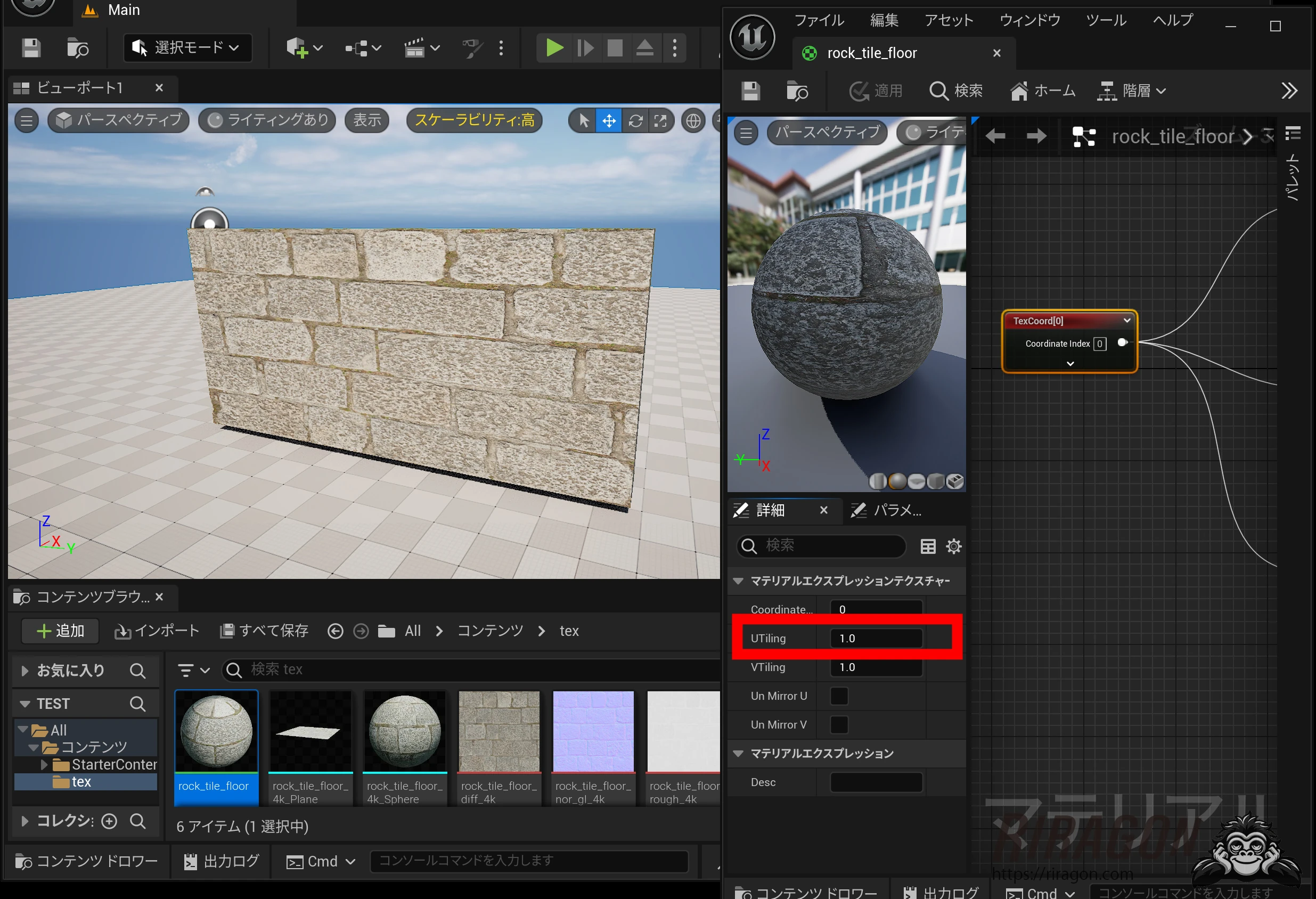
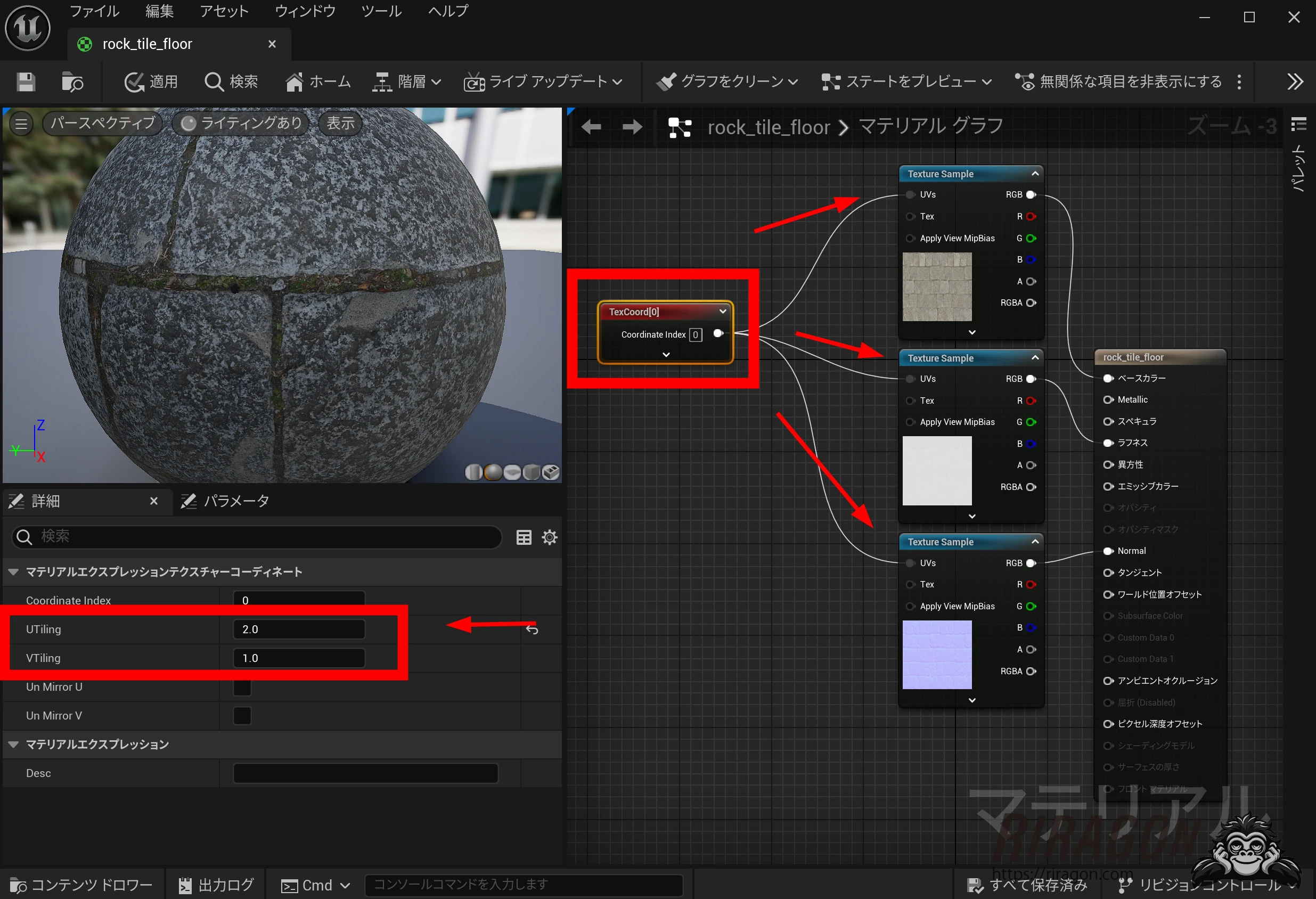 Here is U Tiling at 1.
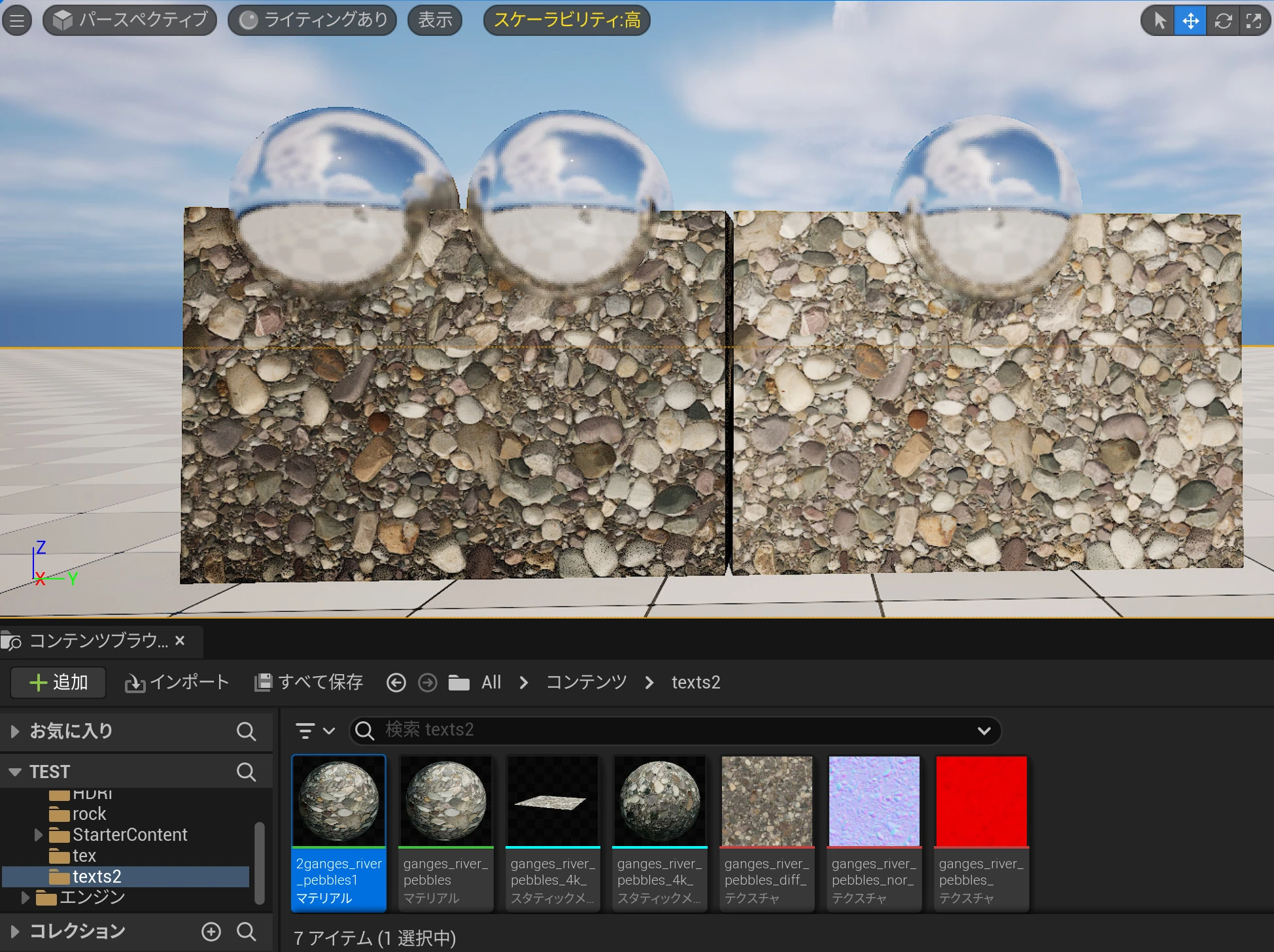
 At 2, the horizontal appearance changed. This lets you adjust the balance to your liking.
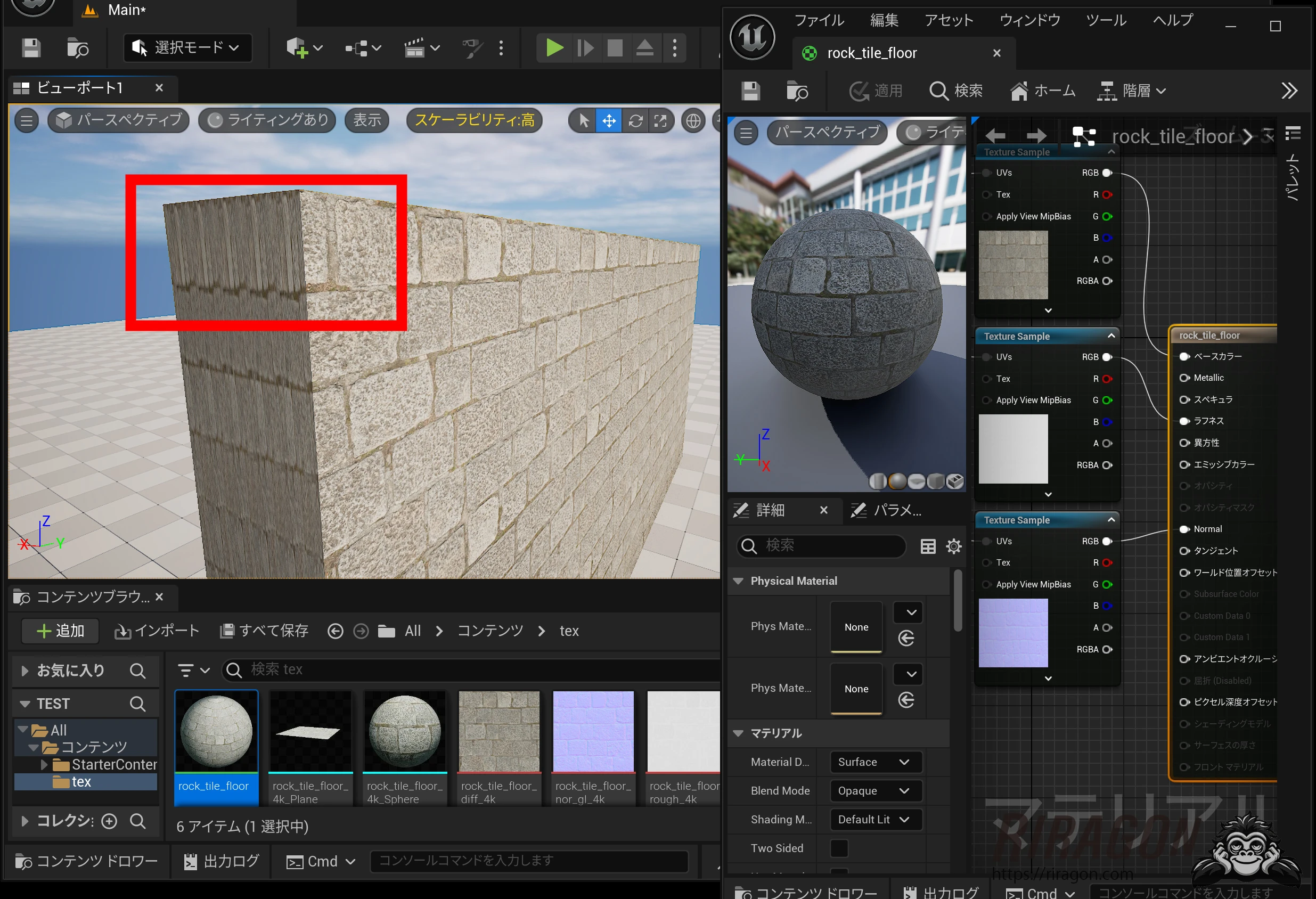
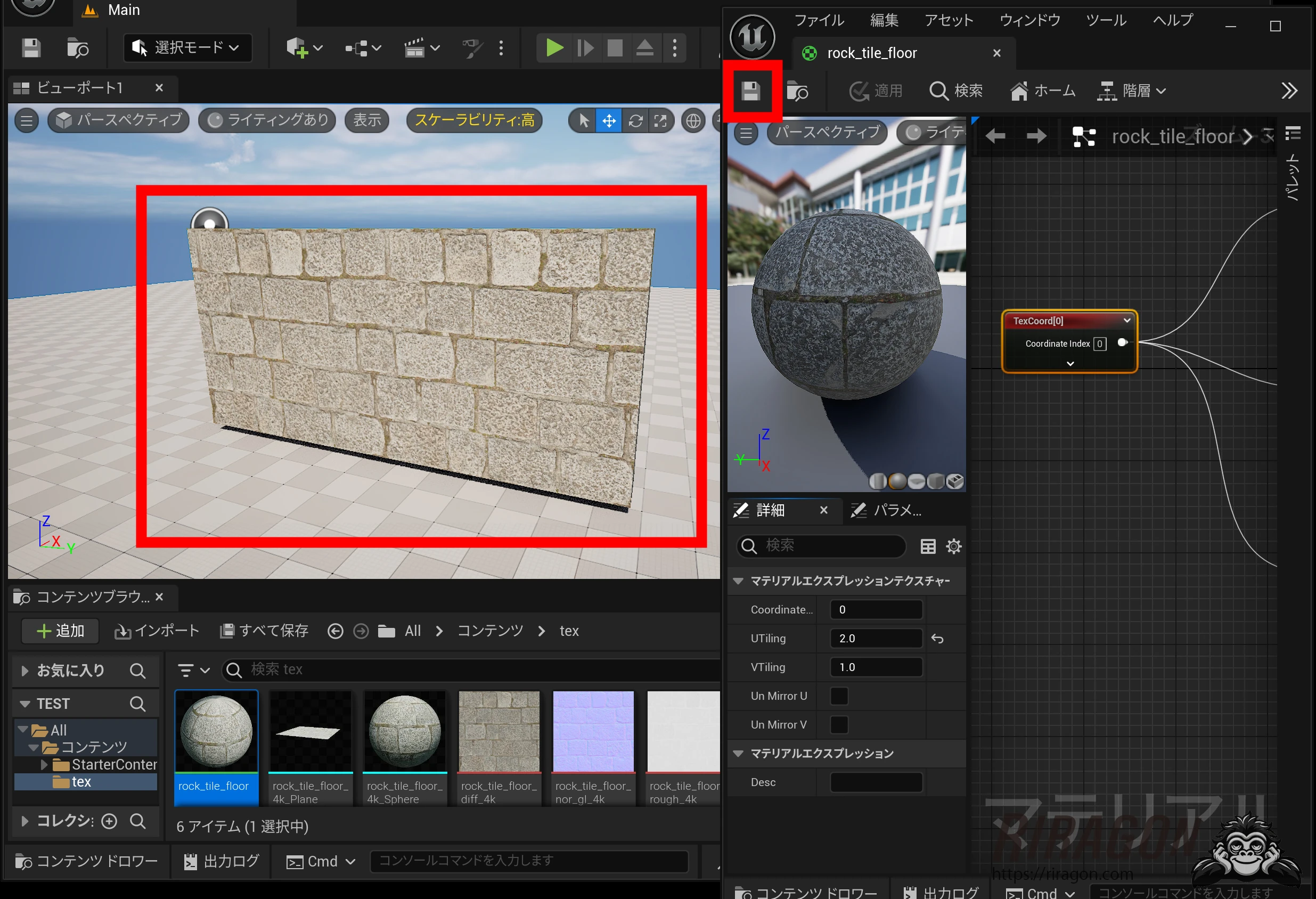 However, stretching a cube this way left the texture proportions wrong: the UV map still had square proportions even though the cube had changed shape.
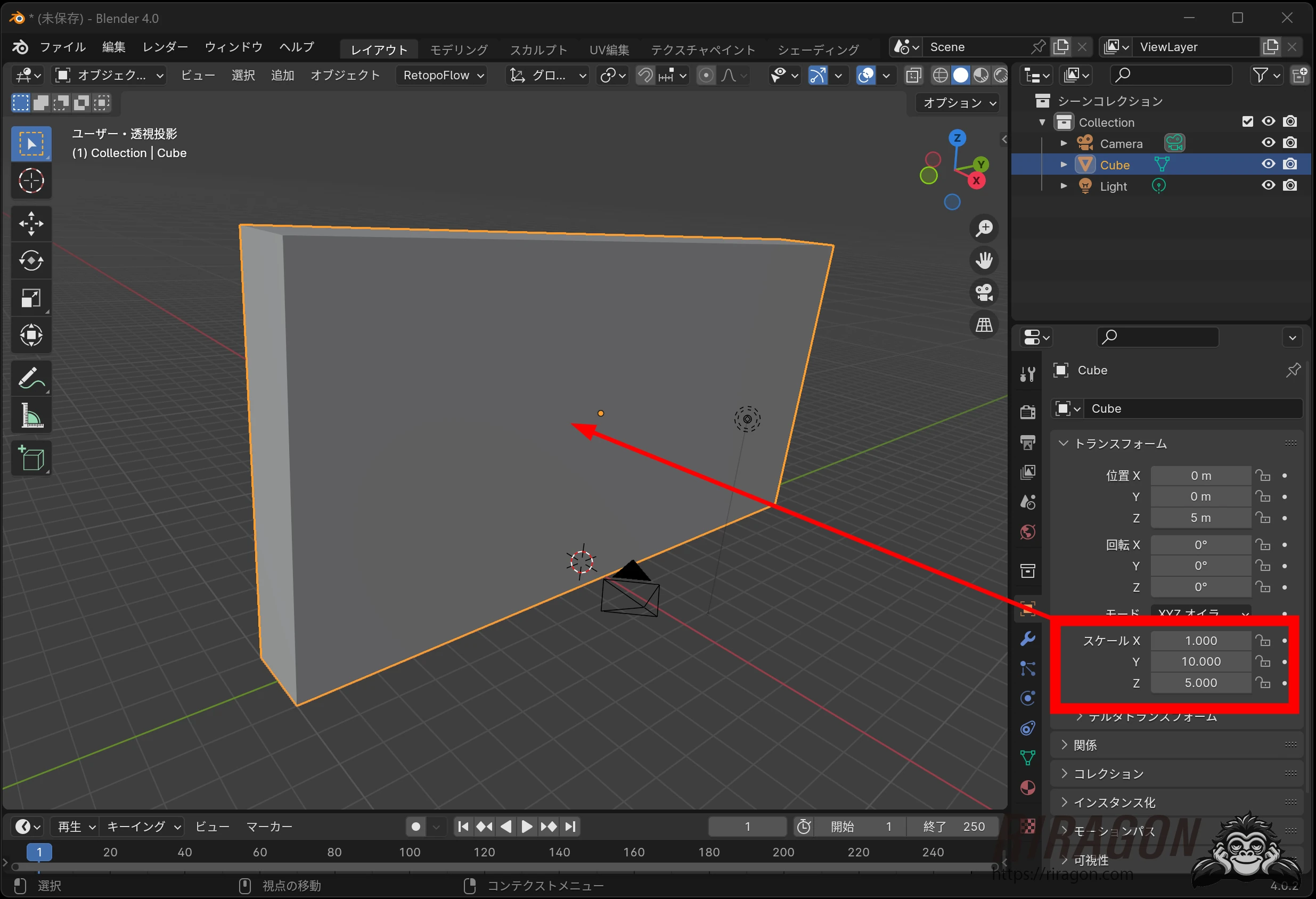
 Suppose the 1:10:5 proportions were right and I wanted a wall 1 m thick, 5 m high, and 10 m wide. I created a cube in Blender and set the same scale.
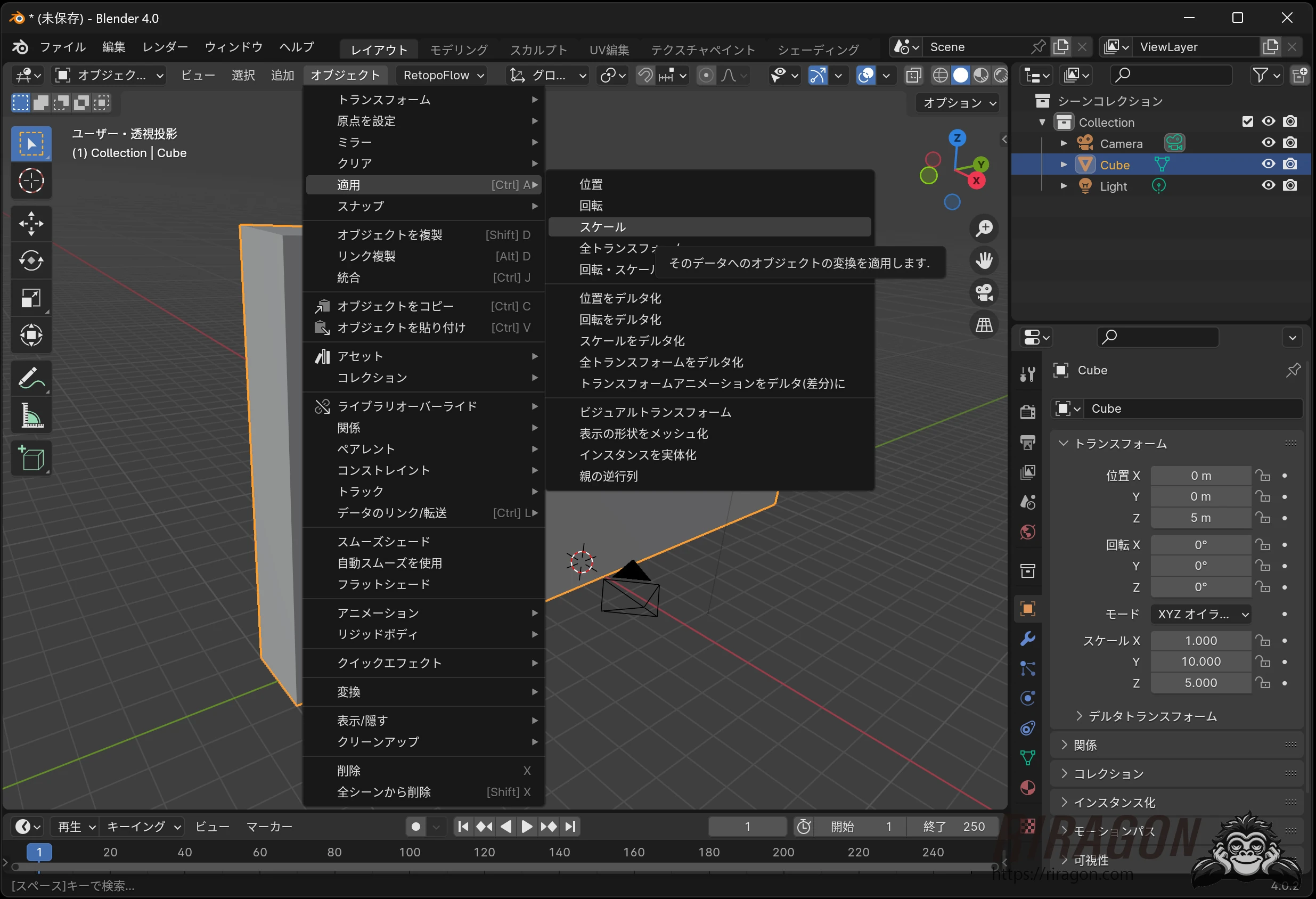
 Choose Apply → Scale to apply the scale as the object's dimensions.
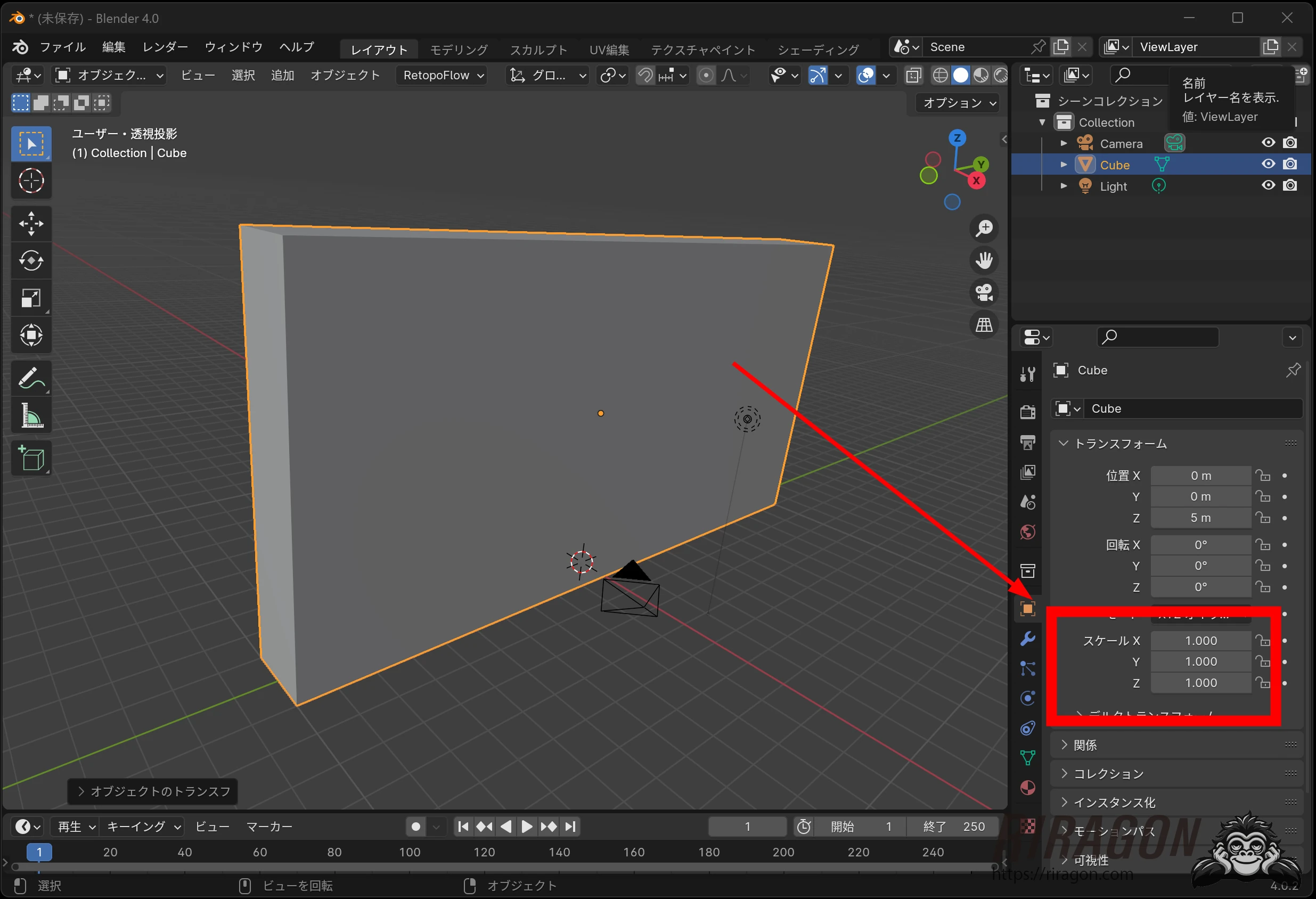
 The object was now 1 m thick, 5 m high, and 10 m wide.
 I created a UV map to match, selecting everything in modeling mode.
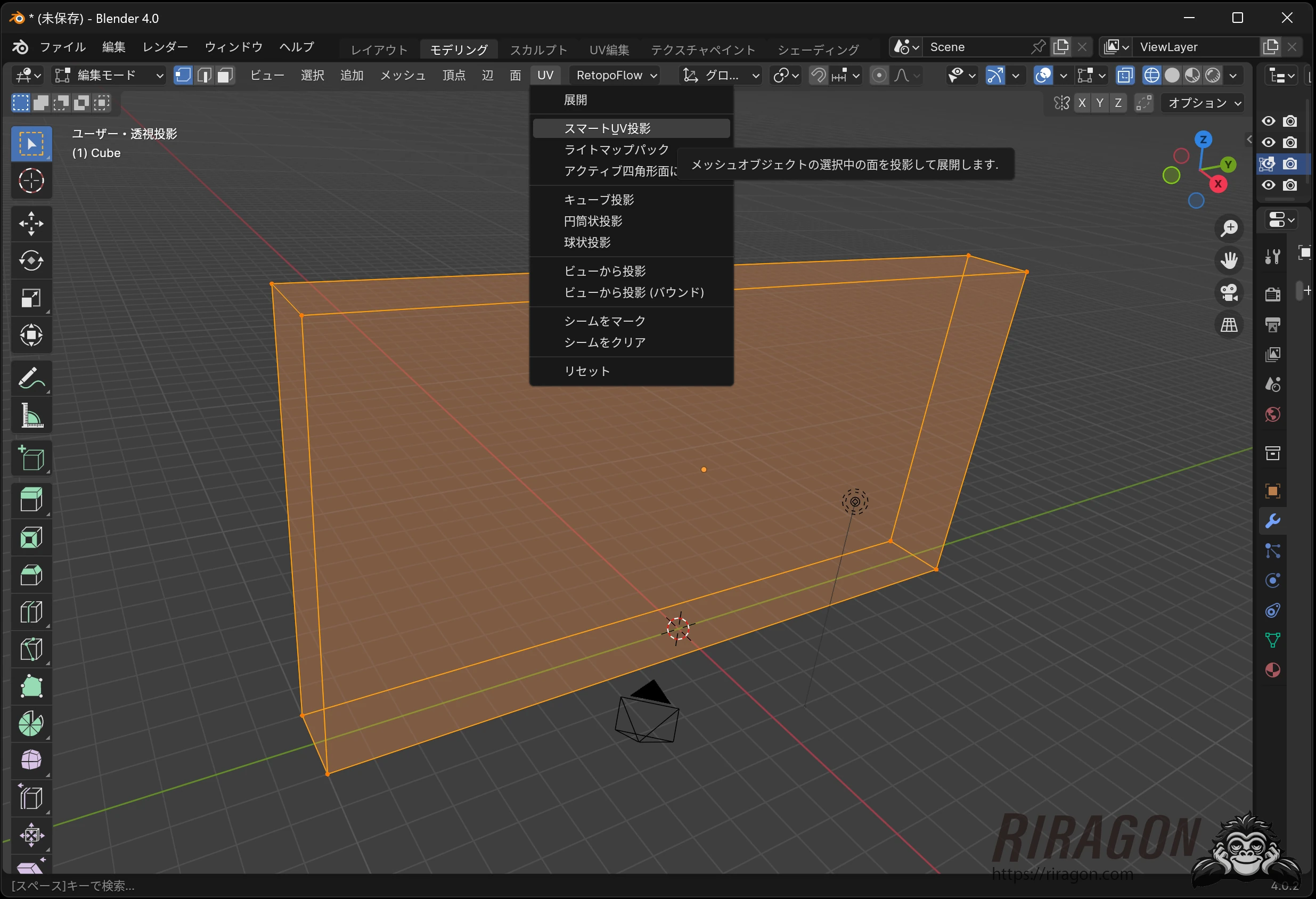
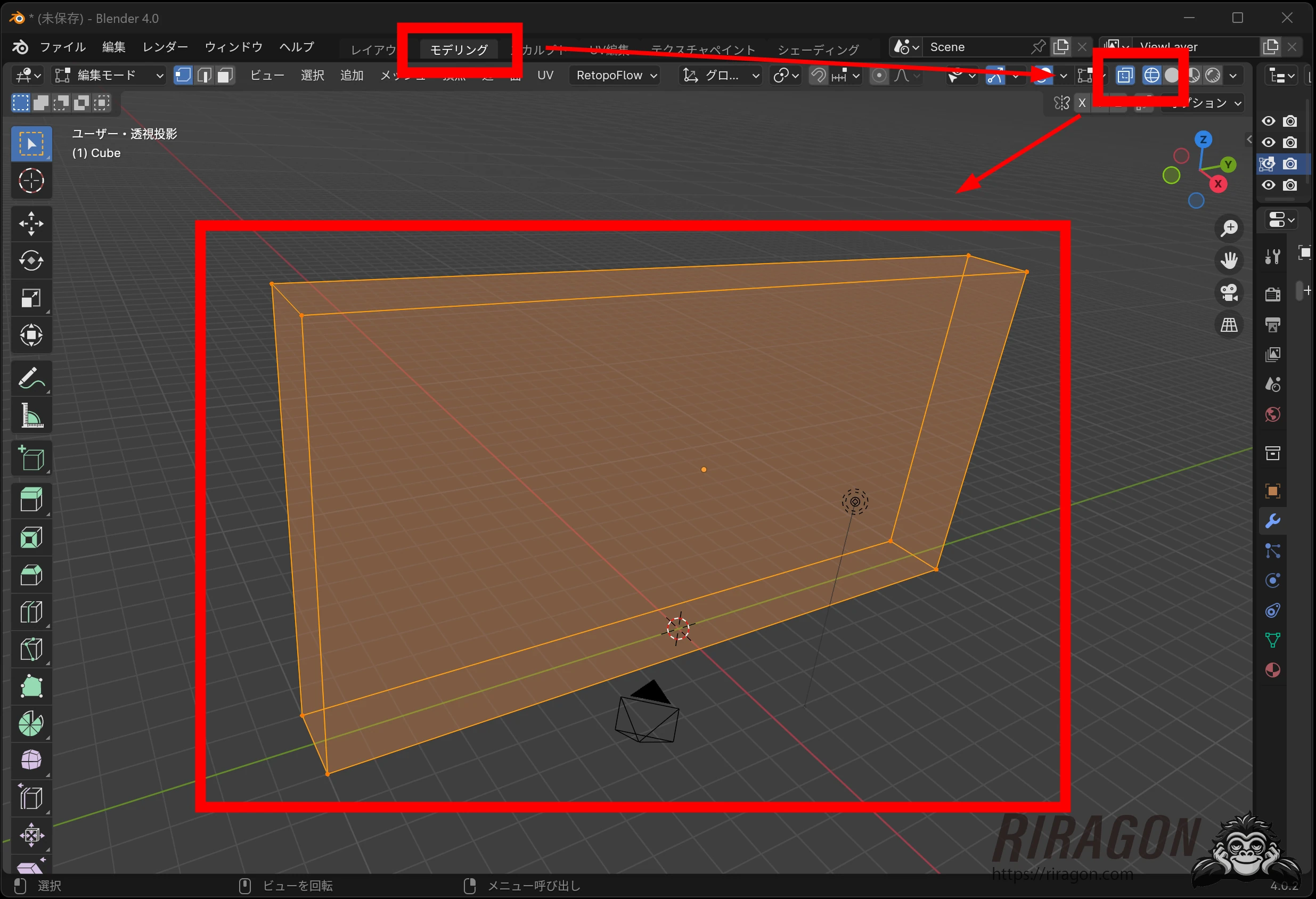 I used Smart UV Project. Other UV methods are available, so choose whichever suits you.
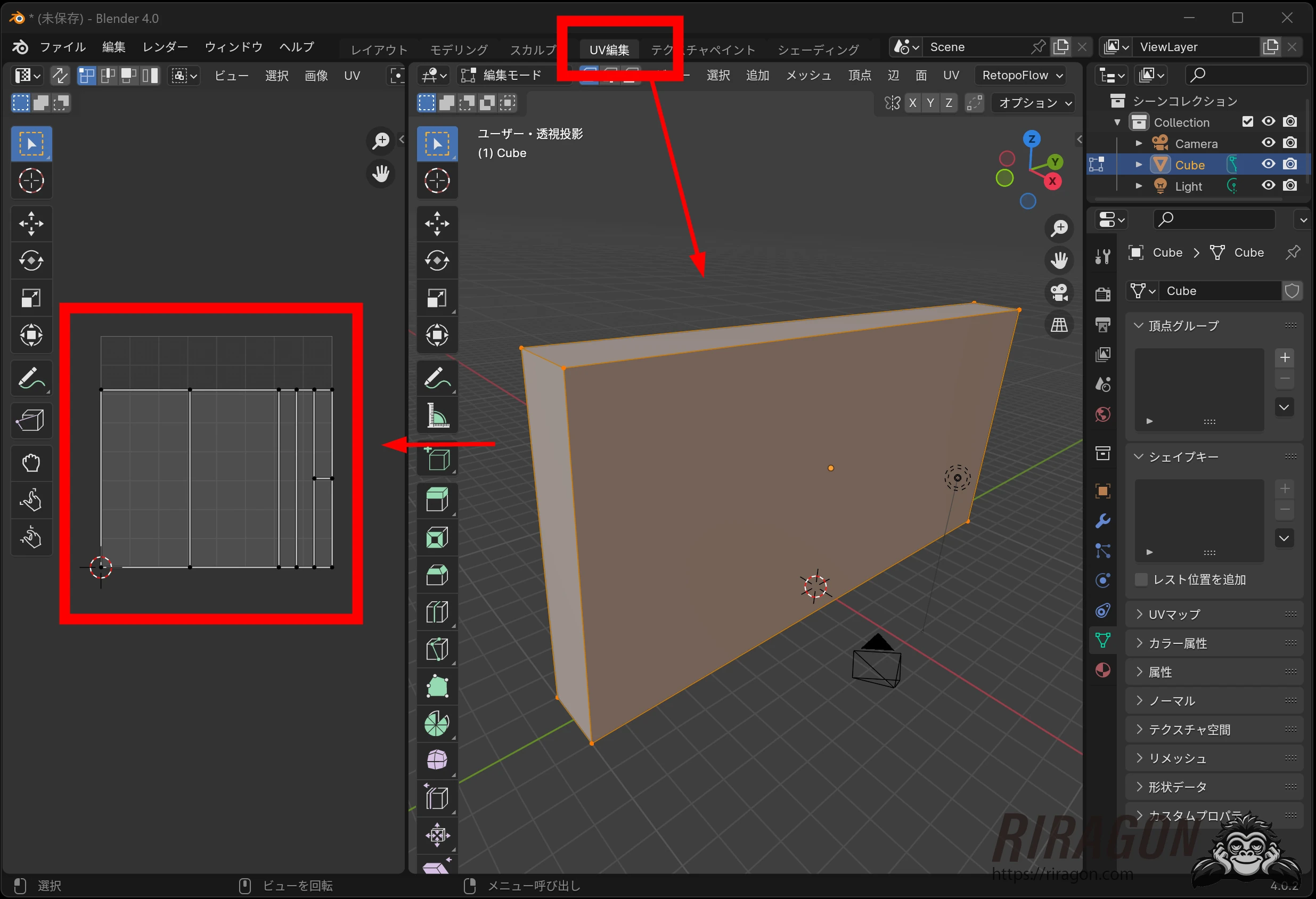
 The UV editor showed a map matching the dimensions.
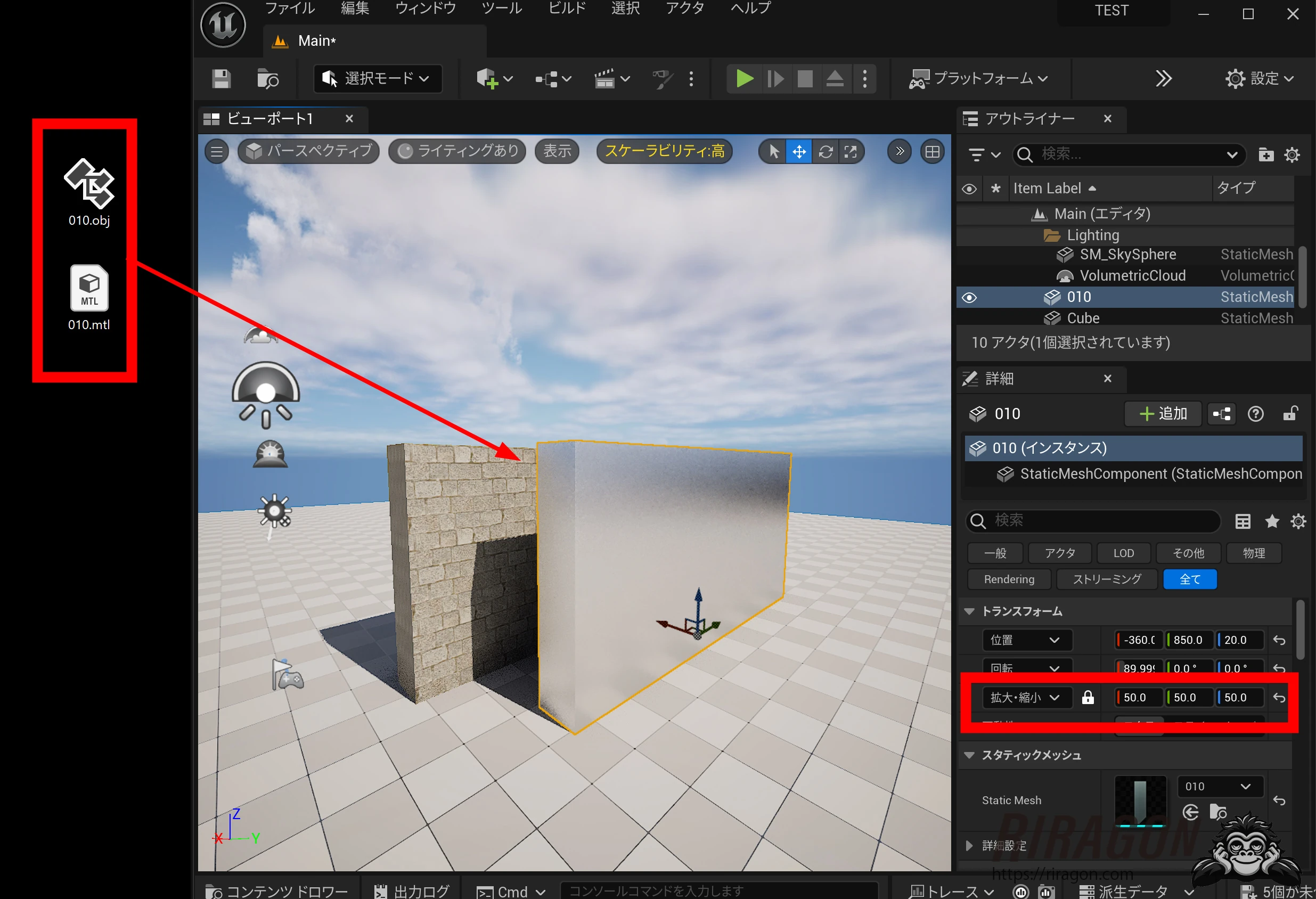
 I exported and imported it. Because I used OBJ rather than FBX, I needed to increase the scale by 50 and it also came in rotated 90°. Unlike FBX, OBJ transfers often differ in how scale and orientation are interpreted.
 The side texture now had the right scale. A happy improvement.
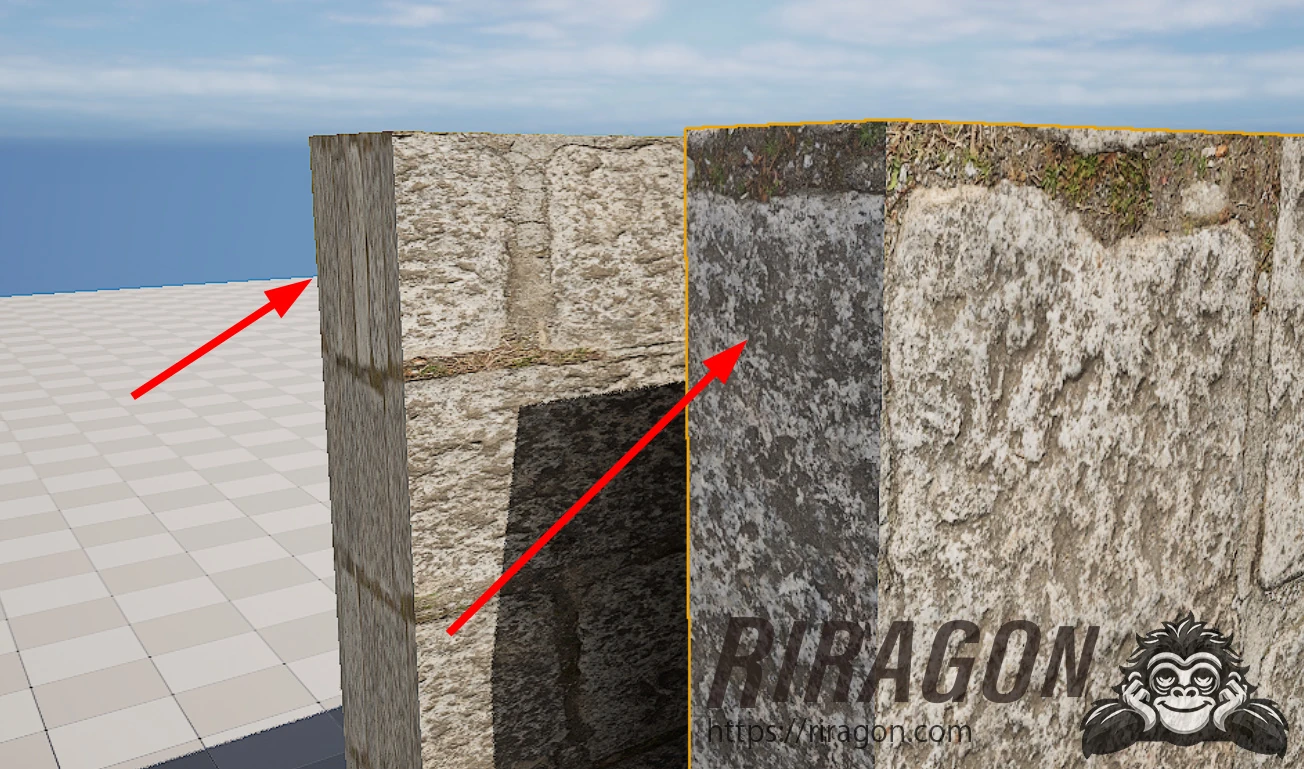 But the face texture was rotated 90°. Another problem.
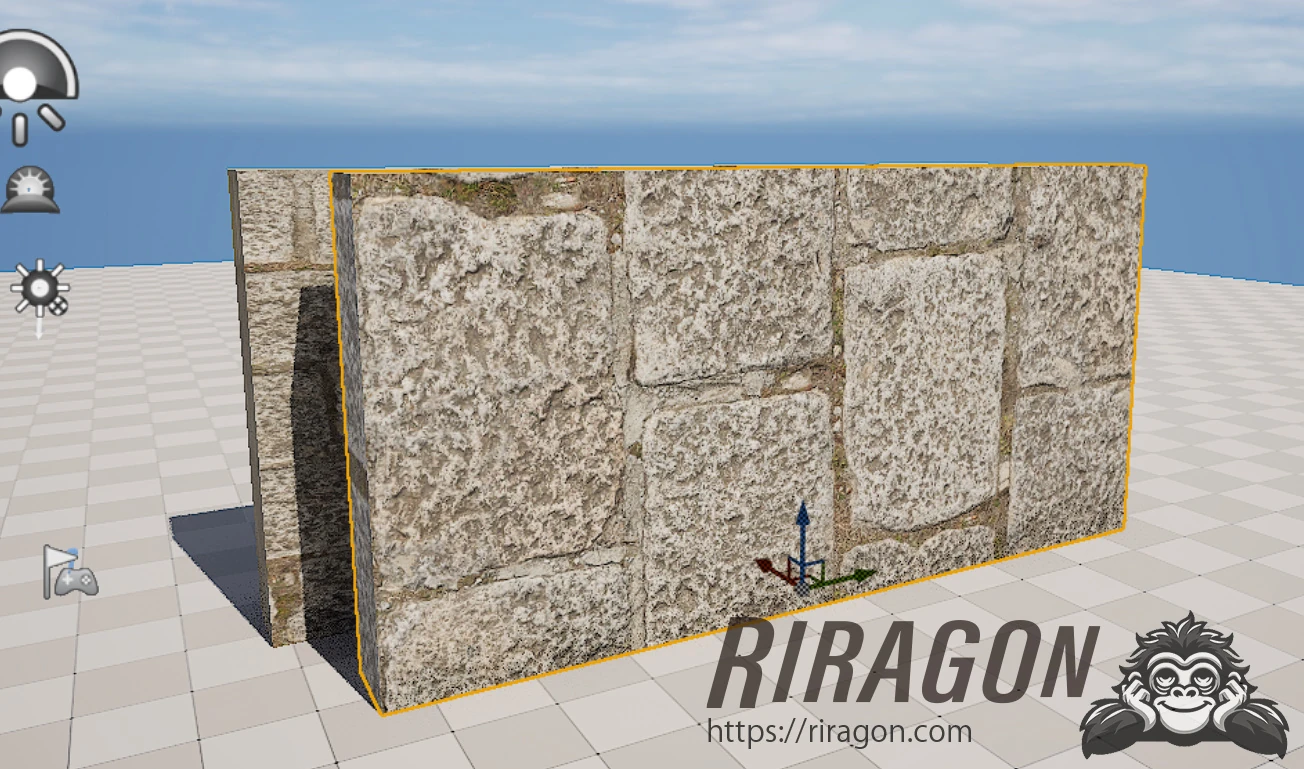 I reopened the material and added Custom Rotator, which rotates UVs. I also added a Constant and connected them as shown. Constant 0 means 0°, and 1 means 360°, so 0.25 gives 90°.
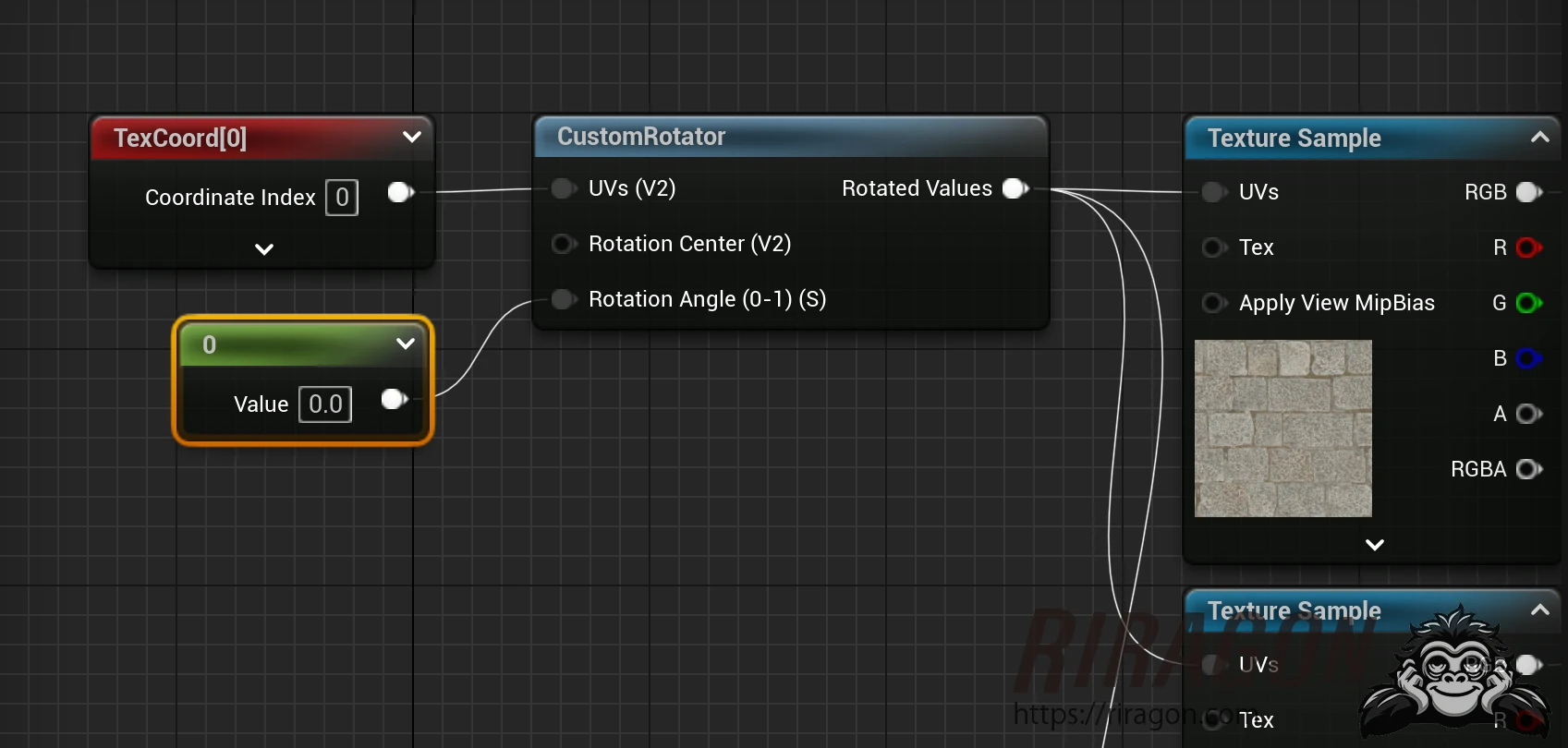 I entered values like these.
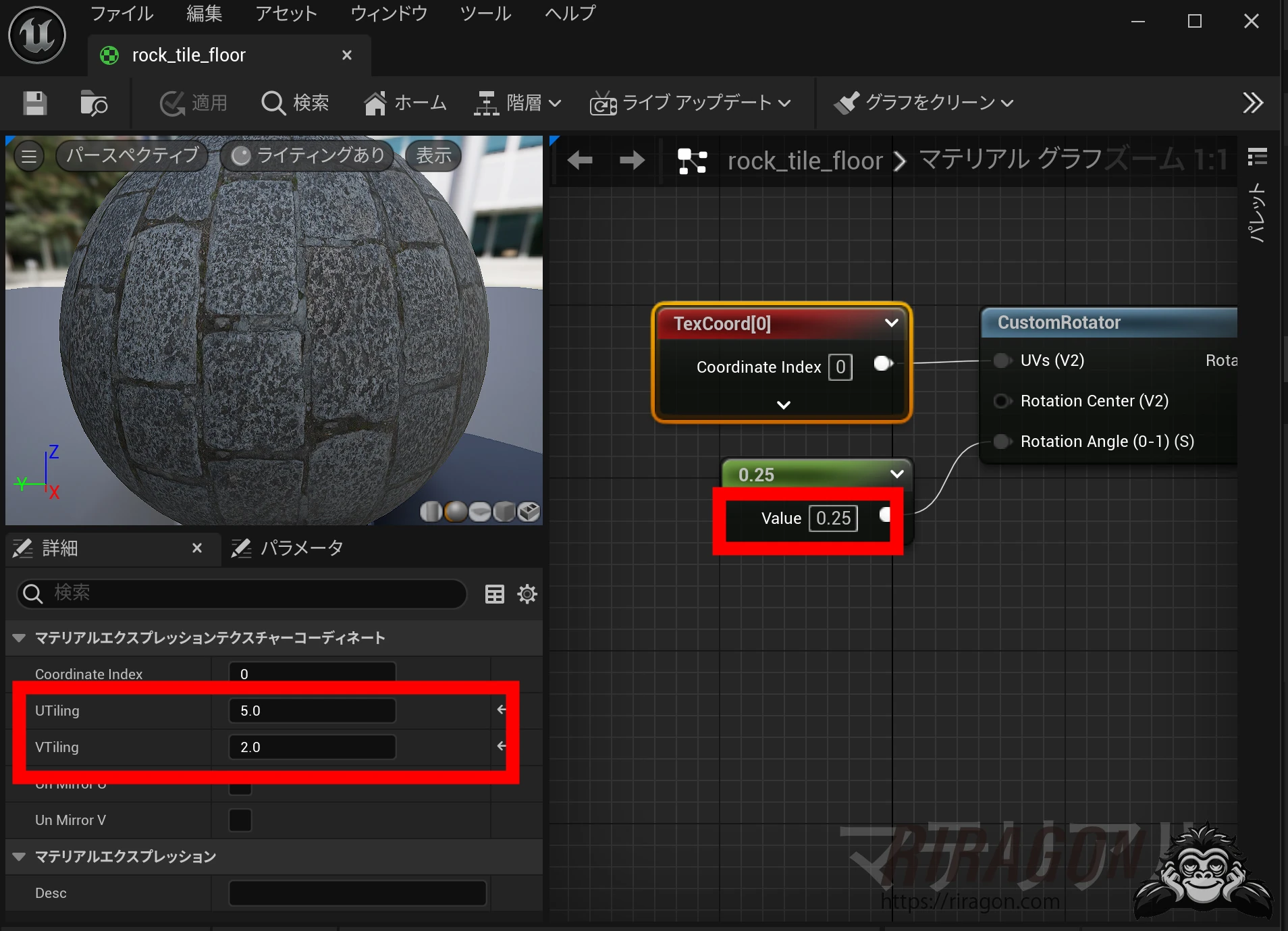 Here is the complete node setup.
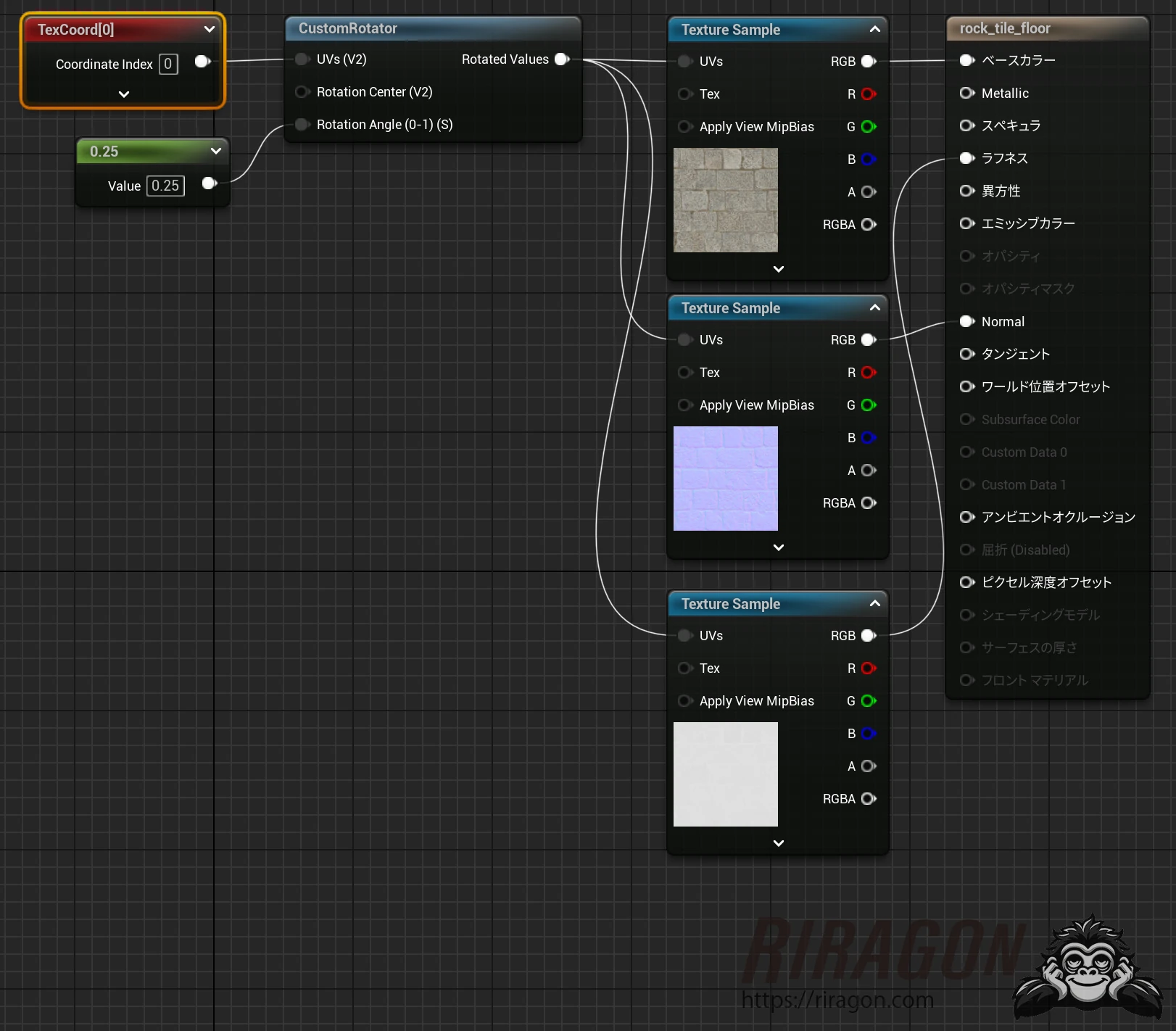 I could now control the result as intended. A happy ending.
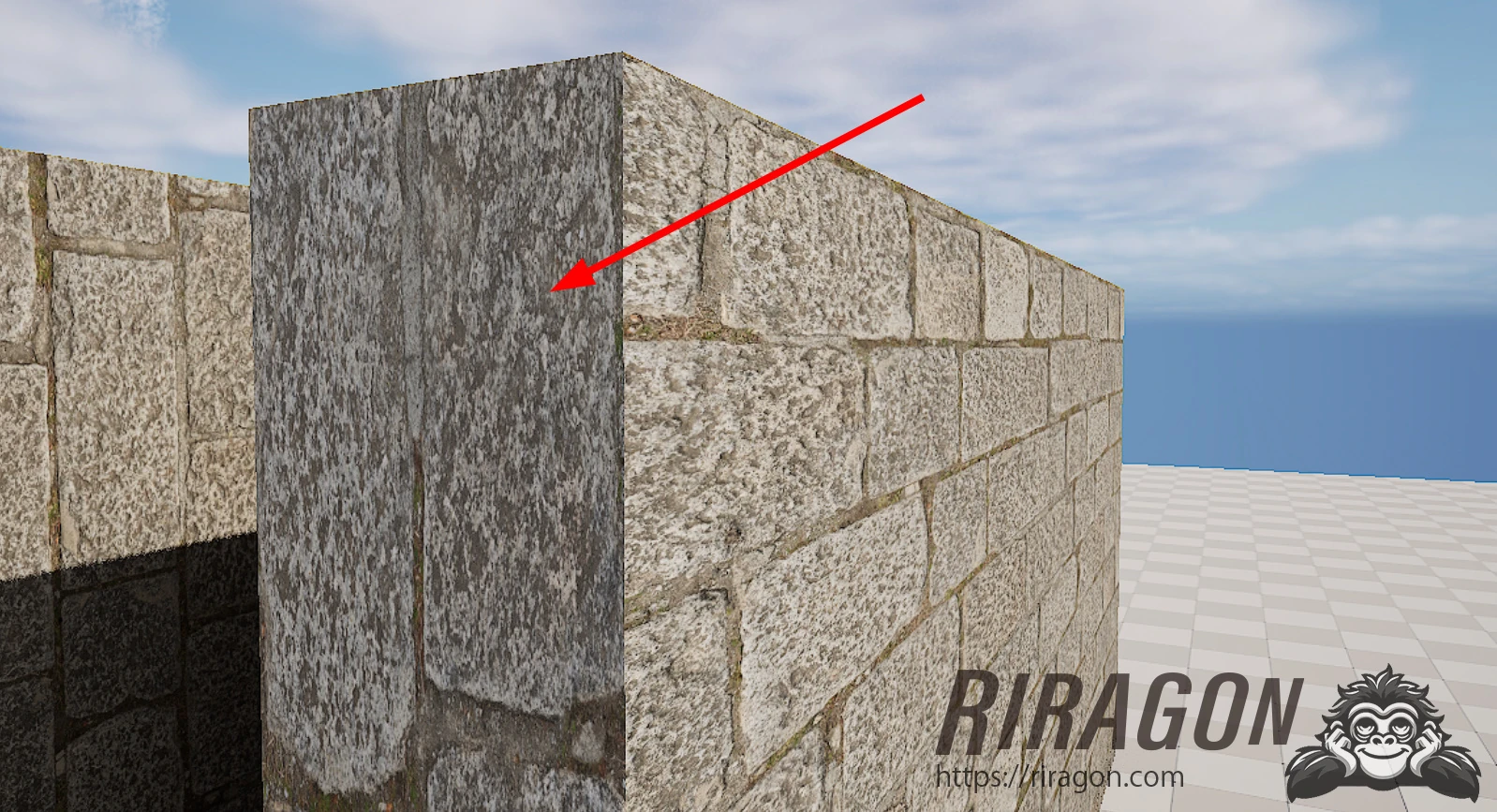
Except I wanted this part horizontal. How should I do that? Rotating 90° had moved what should be on top onto the side, producing this result.
I could now control the result as intended. A happy ending.
Except I wanted this part horizontal. How should I do that? Rotating 90° had moved what should be on top onto the side, producing this result.
Related articles
Updates and contact: X @riragoncom.