Aligning two misaligned 3D models precisely with CloudCompare
Use CloudCompare to align two 3D models by matching feature points and refining the result. This is useful when models exchanged between photogrammetry and other 3D applications no longer share the same position.
Note: This article was published more than a year ago. CloudCompare menu names and icon positions, such as Edit > Normals, vary by version.
- The reversed reference/aligned defaults described here may change after bug fixes or settings changes. Always check which mesh will move.
- Differences in point-cloud or mesh versions and file formats can produce different results from the same procedure.
Here is how to align two 3D models precisely with CloudCompare, moving one to overlap a main model. CloudCompare is open-source software for processing and analyzing 3D point clouds and meshes. Photogrammetry and other modeling workflows often use multiple applications. While exchanging data, a carefully repaired model can end up slightly, or substantially, displaced or rescaled. Manually matching models whose positions and sizes differ can be extremely difficult. CloudCompare can compare feature points, align the models, and refine the alignment. The main model stays in place while the other model moves. CloudCompare
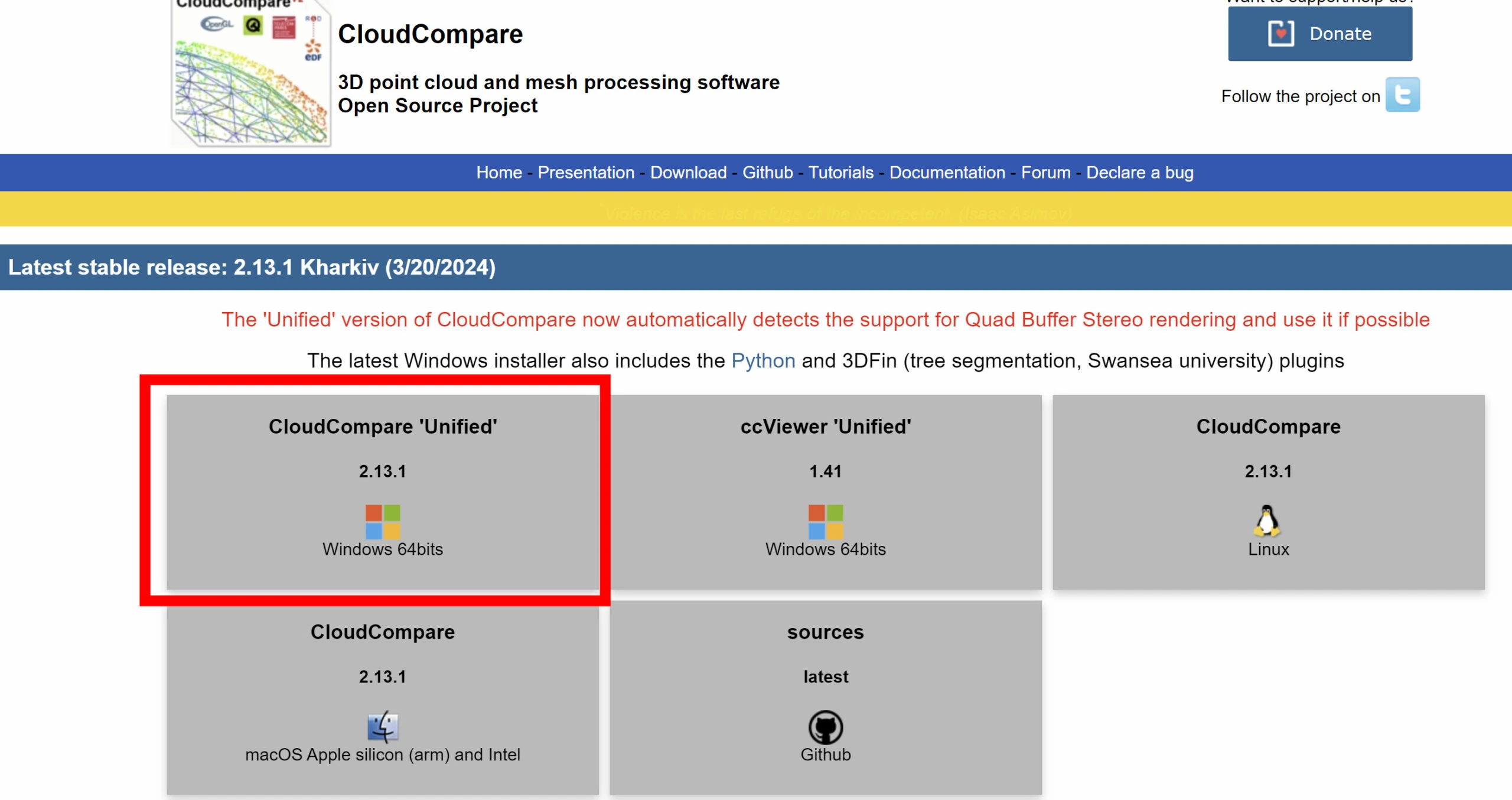
CloudCompare supports several operating systems. Here I download and install the Windows version.
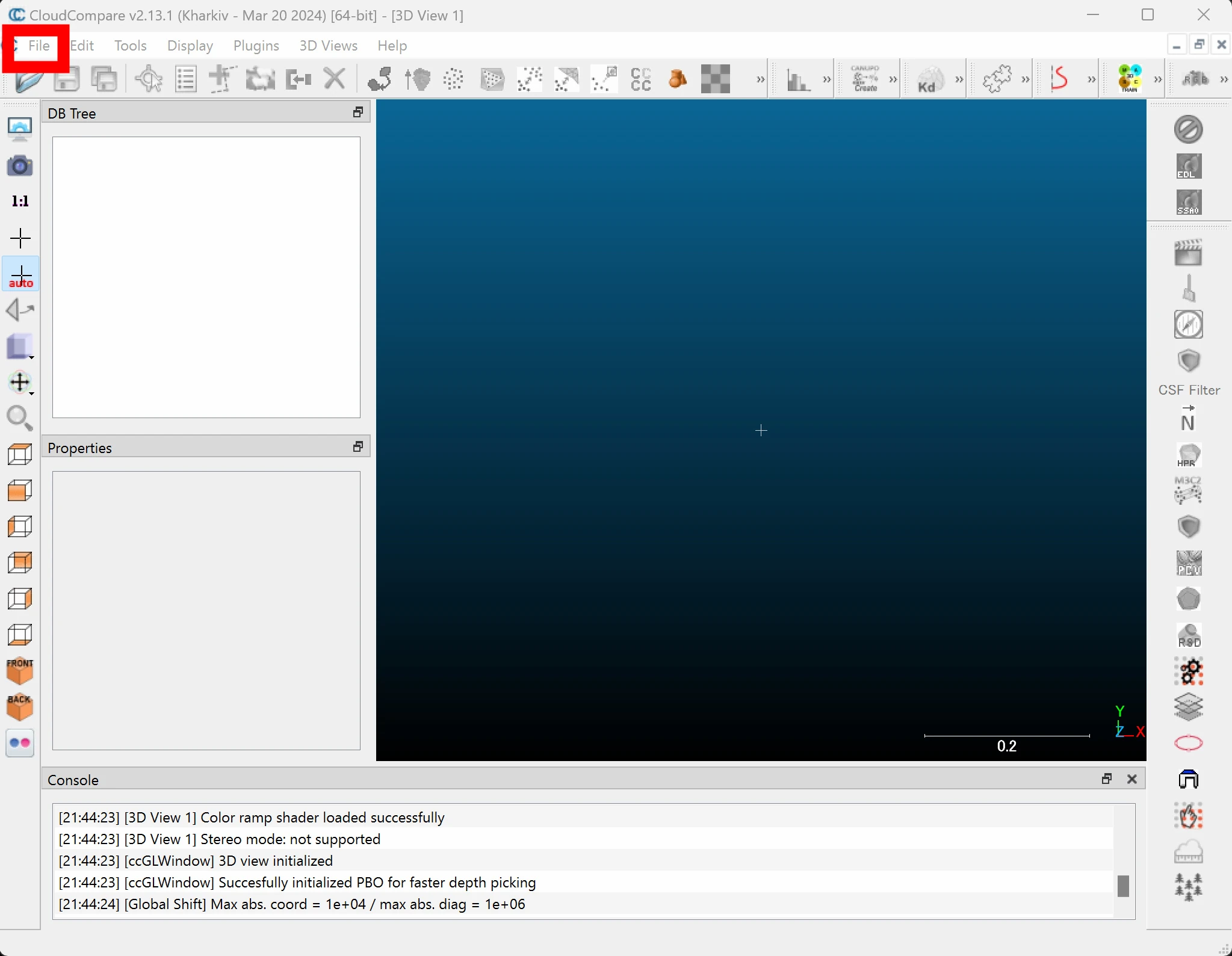
 Choose File.
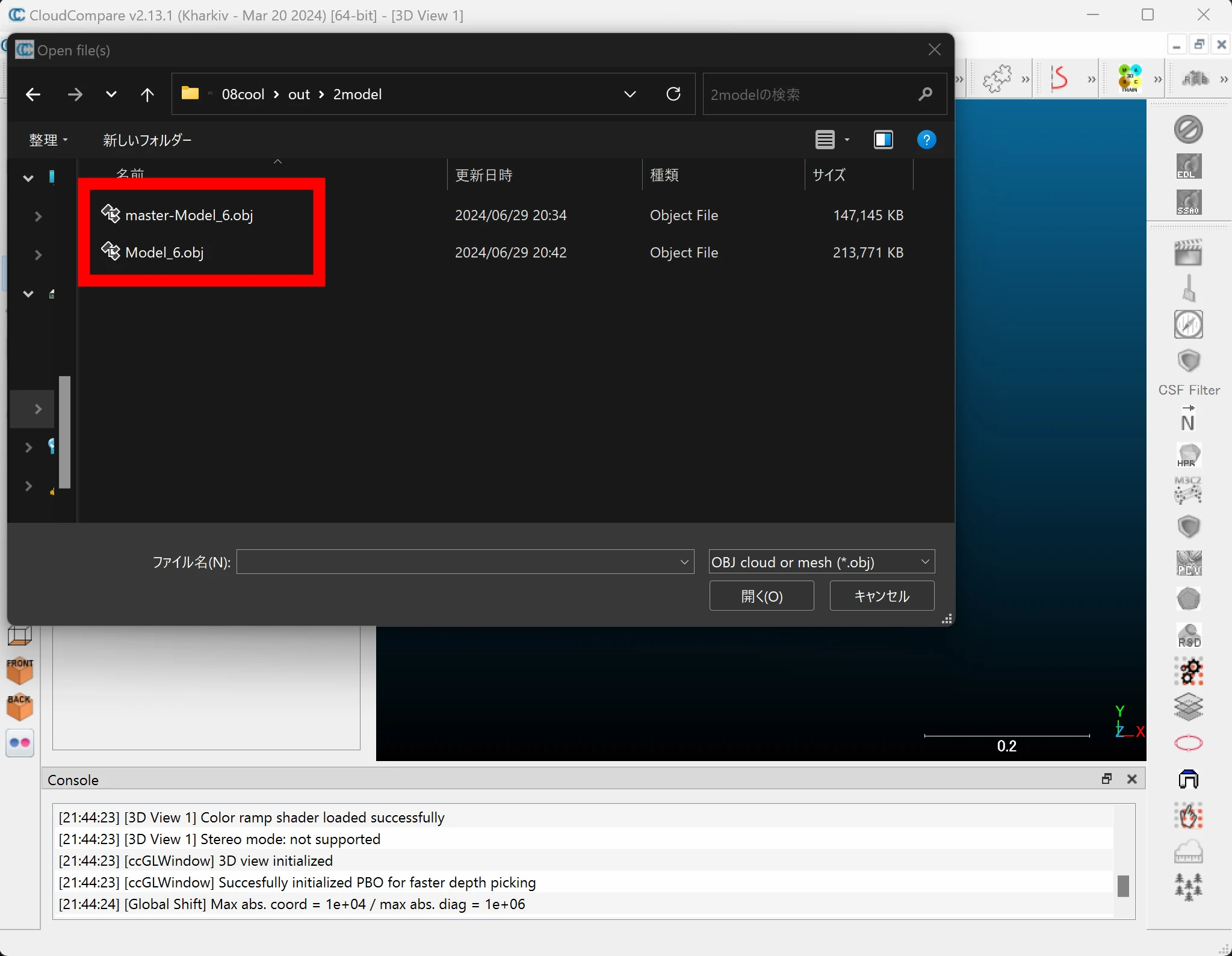
 Select the two models. Give them clear names identifying the fixed model and the one to move. Here, master-model remains fixed, while model is the repaired, displaced model that should move into place.
 After import, they appear solid green and are hard to read. Select both models to improve their appearance.
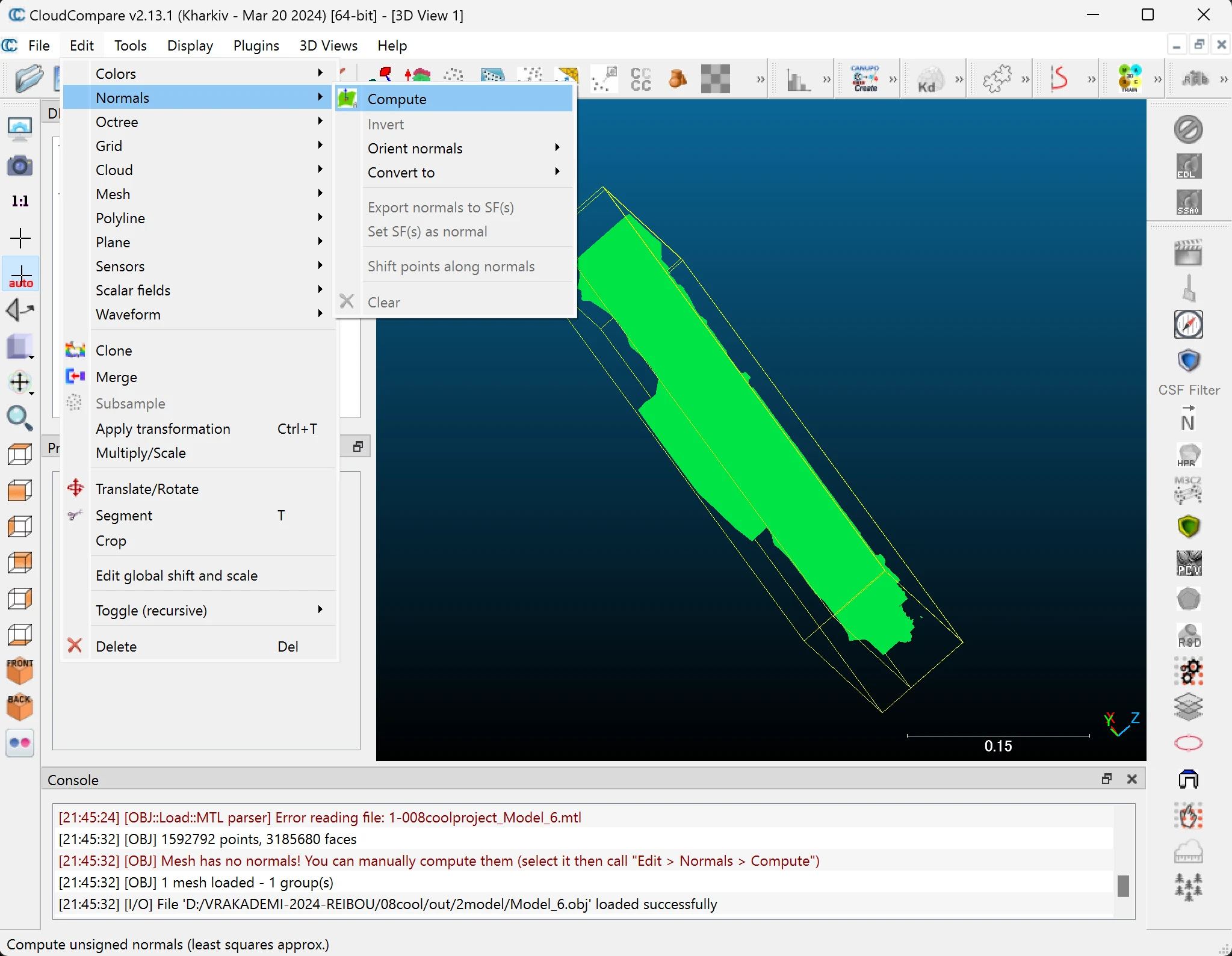
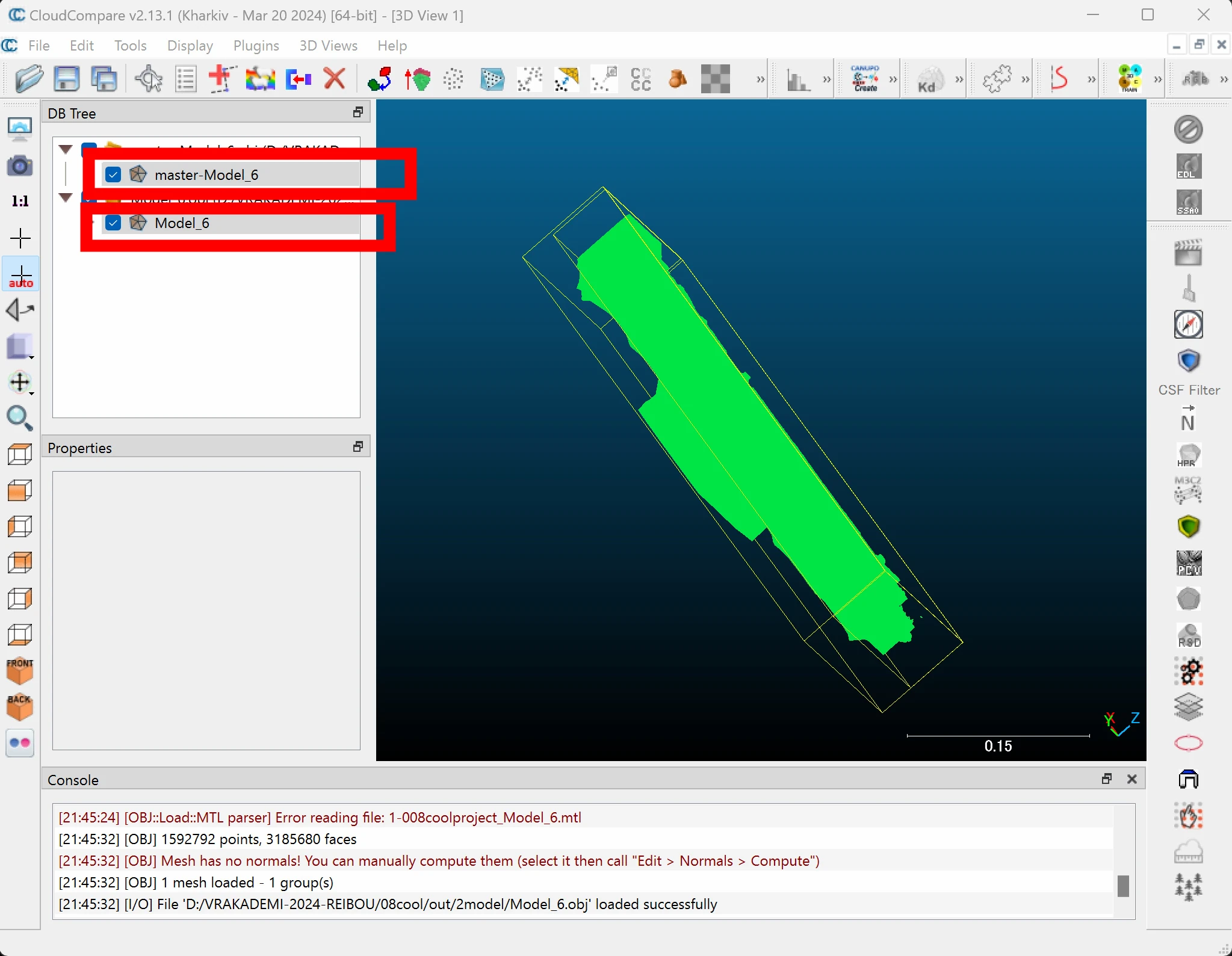 With both selected, choose Edit > Normals > Compute.
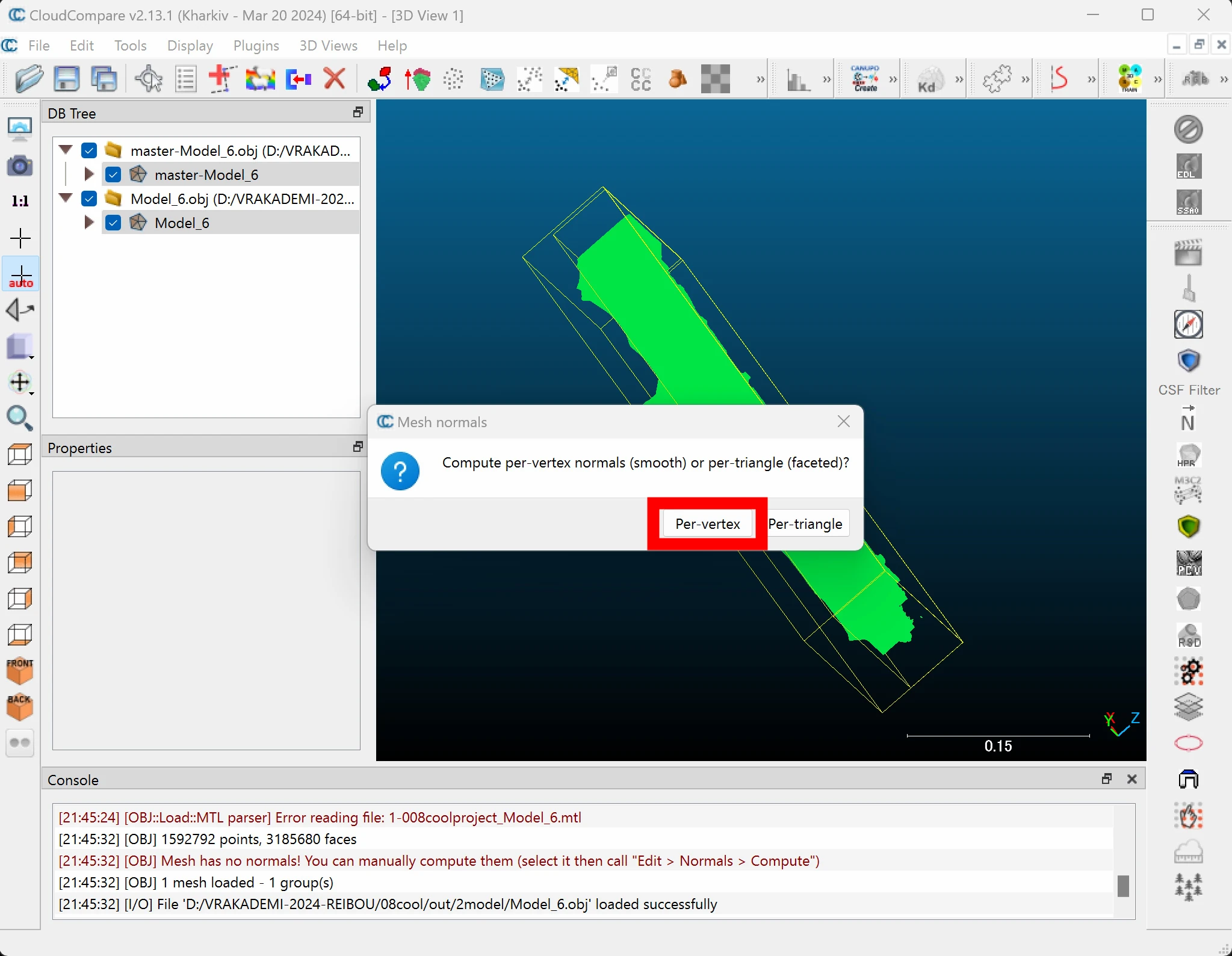
 Select Per-Vertex.
 The models are only very slightly displaced, too little to see easily in the preview. I will move one temporarily to make the process clearer. Do not move the master. Select the model to move and click the red-arrow icon.
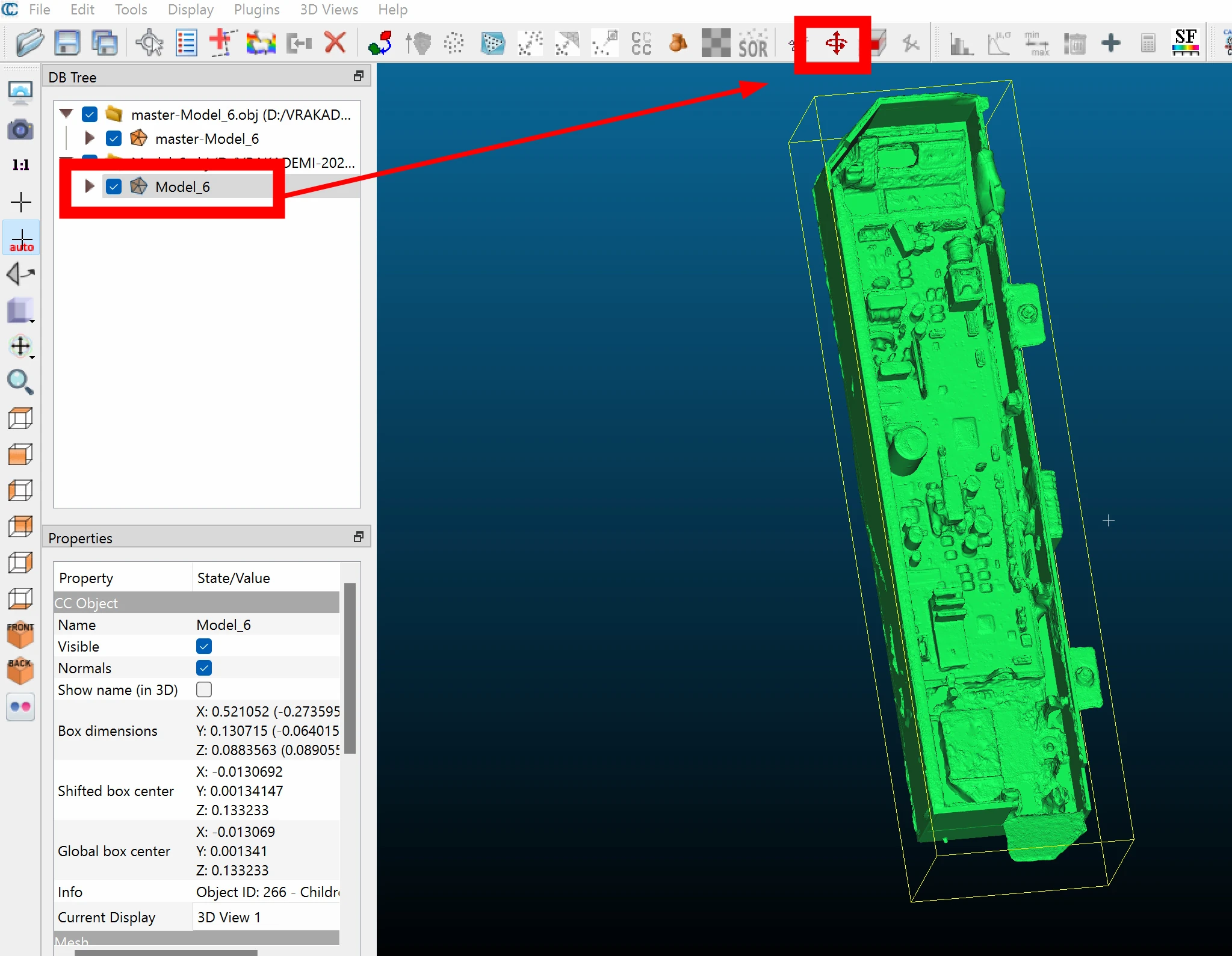 I moved it upward for clarity.
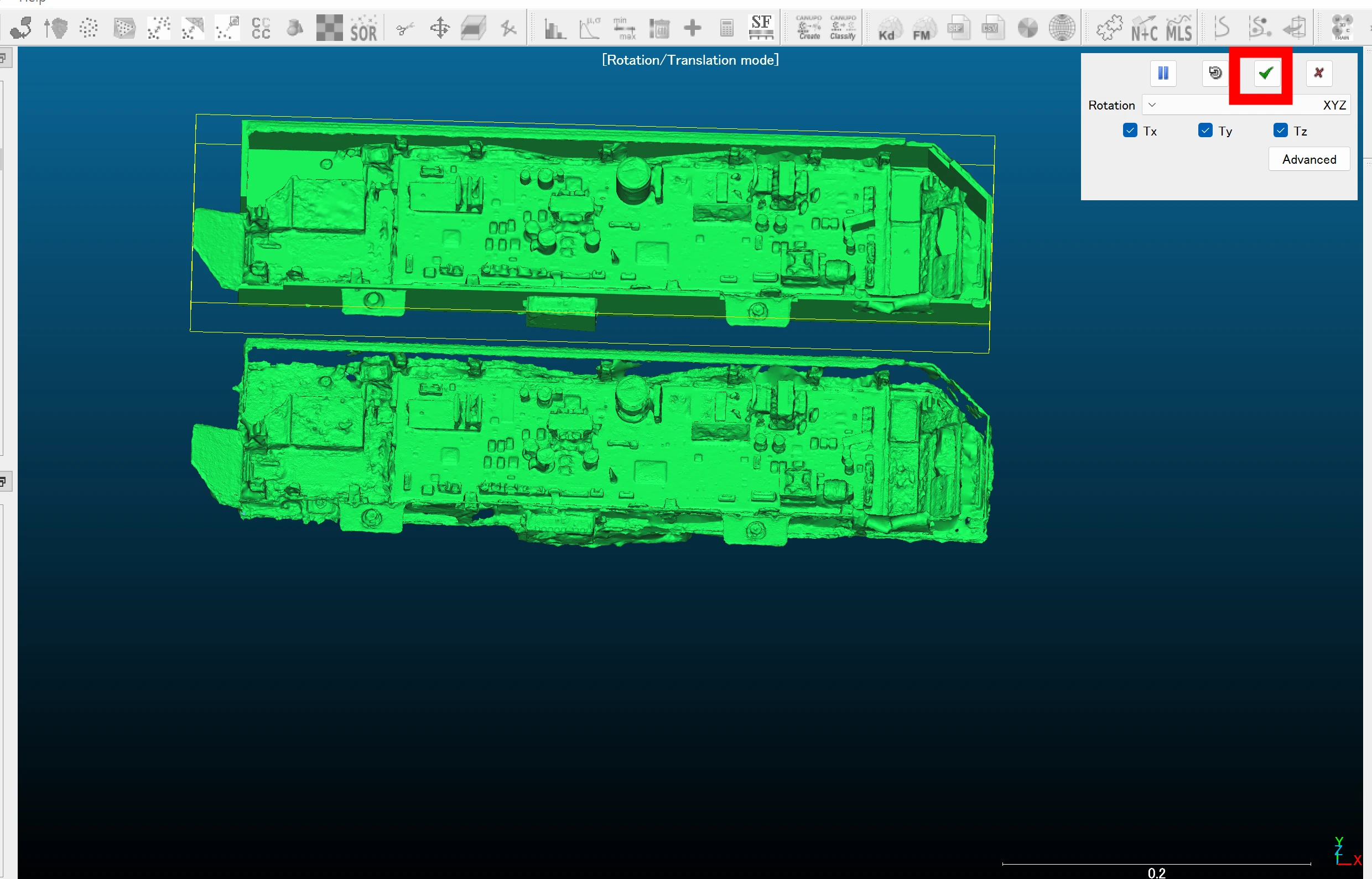
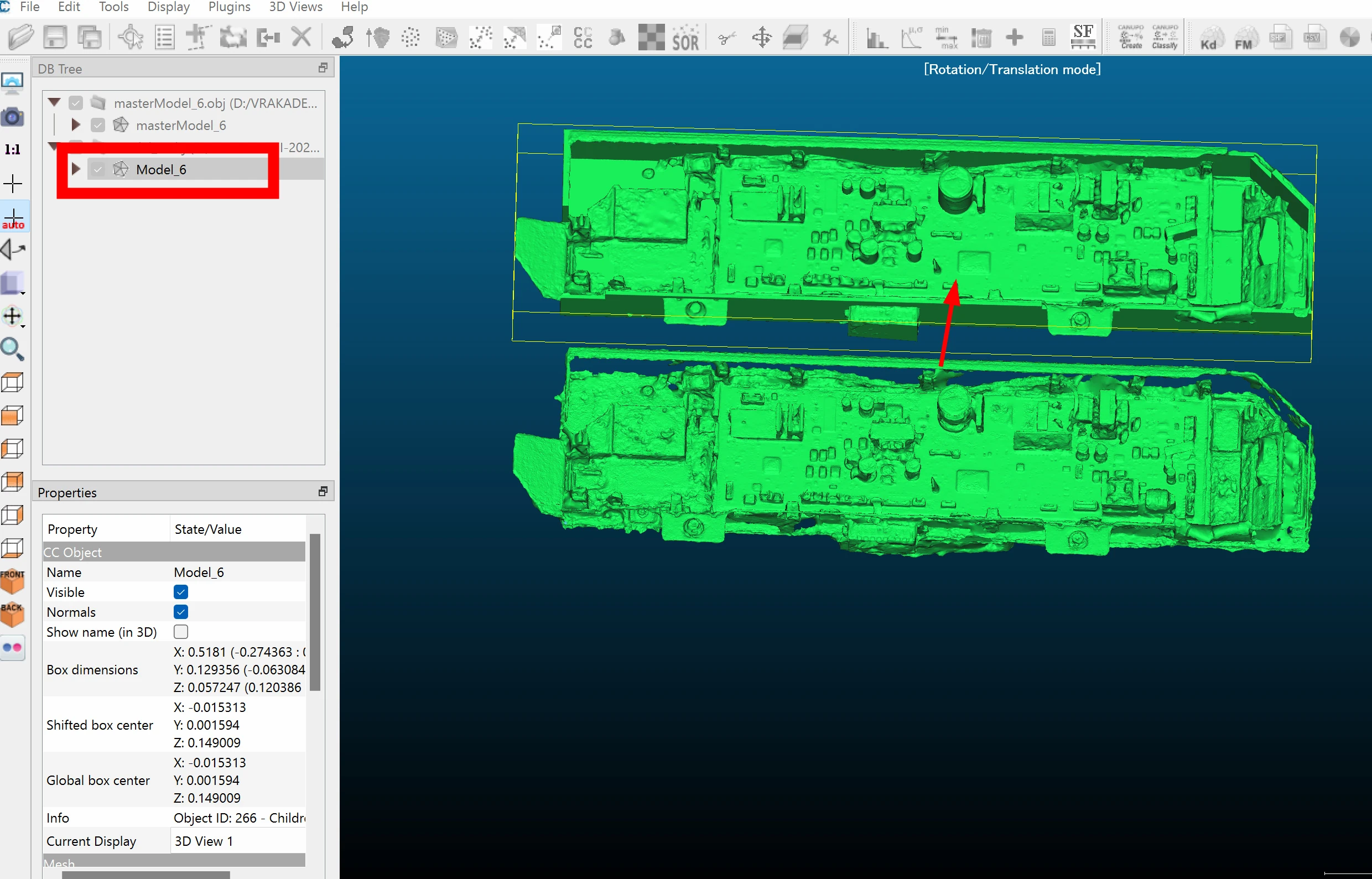 Click the checkmark at the upper right to confirm its position.
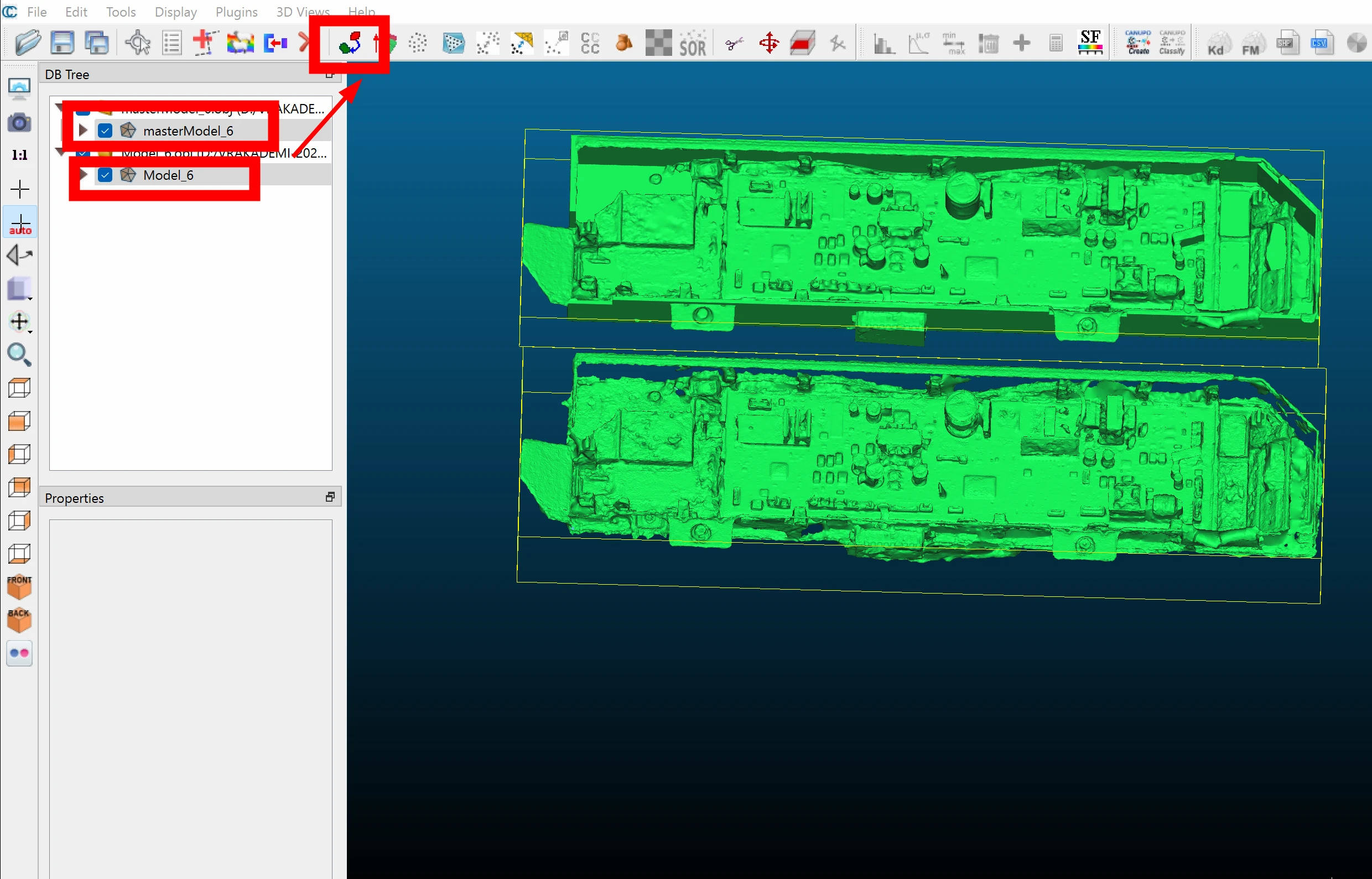
 Choose feature points on both models to create the comparison data. Select both and click the blue-and-red icon.
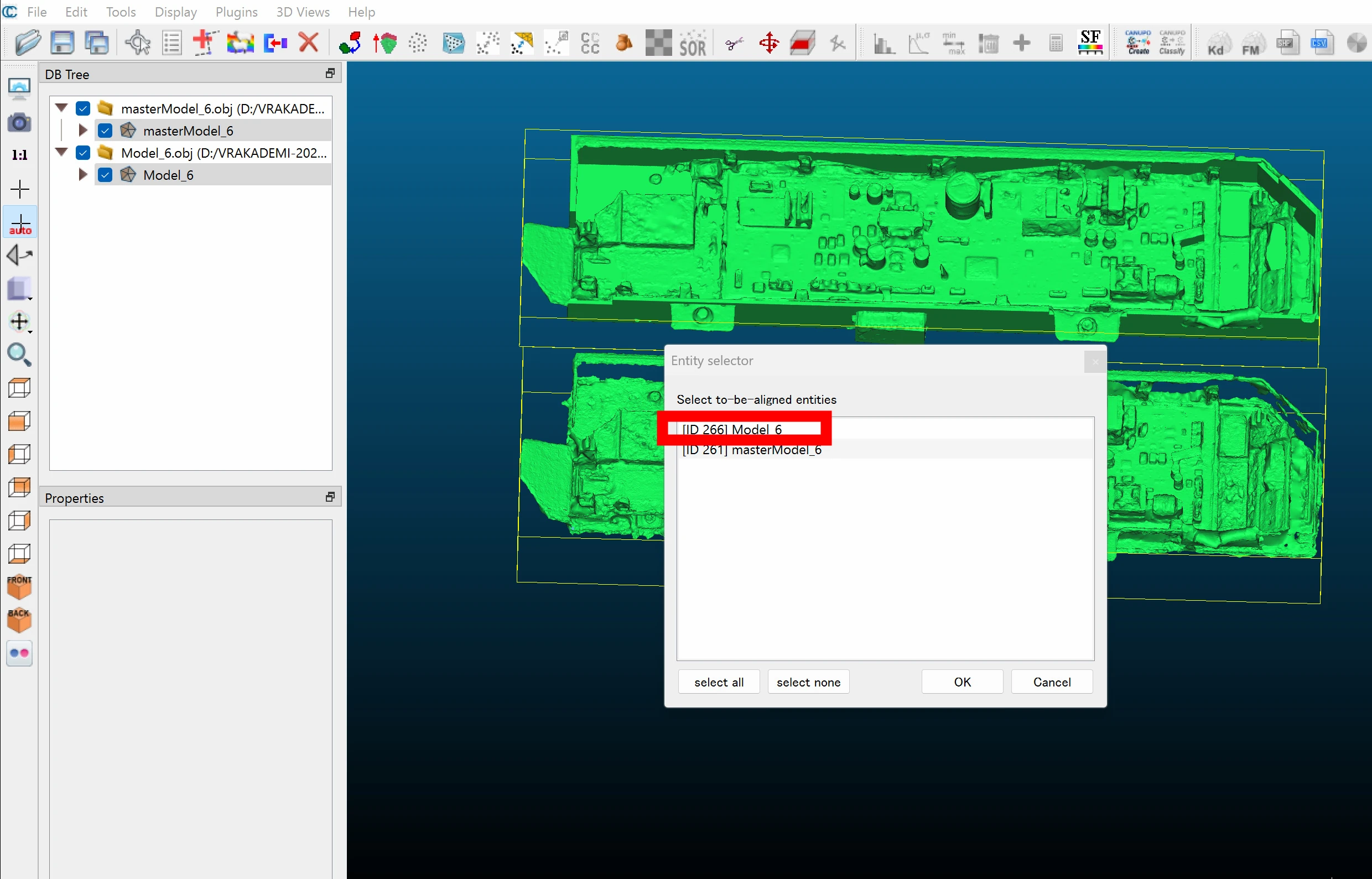
 Pay attention here: in Select to be aligned entities, choose the model you actually want to move.
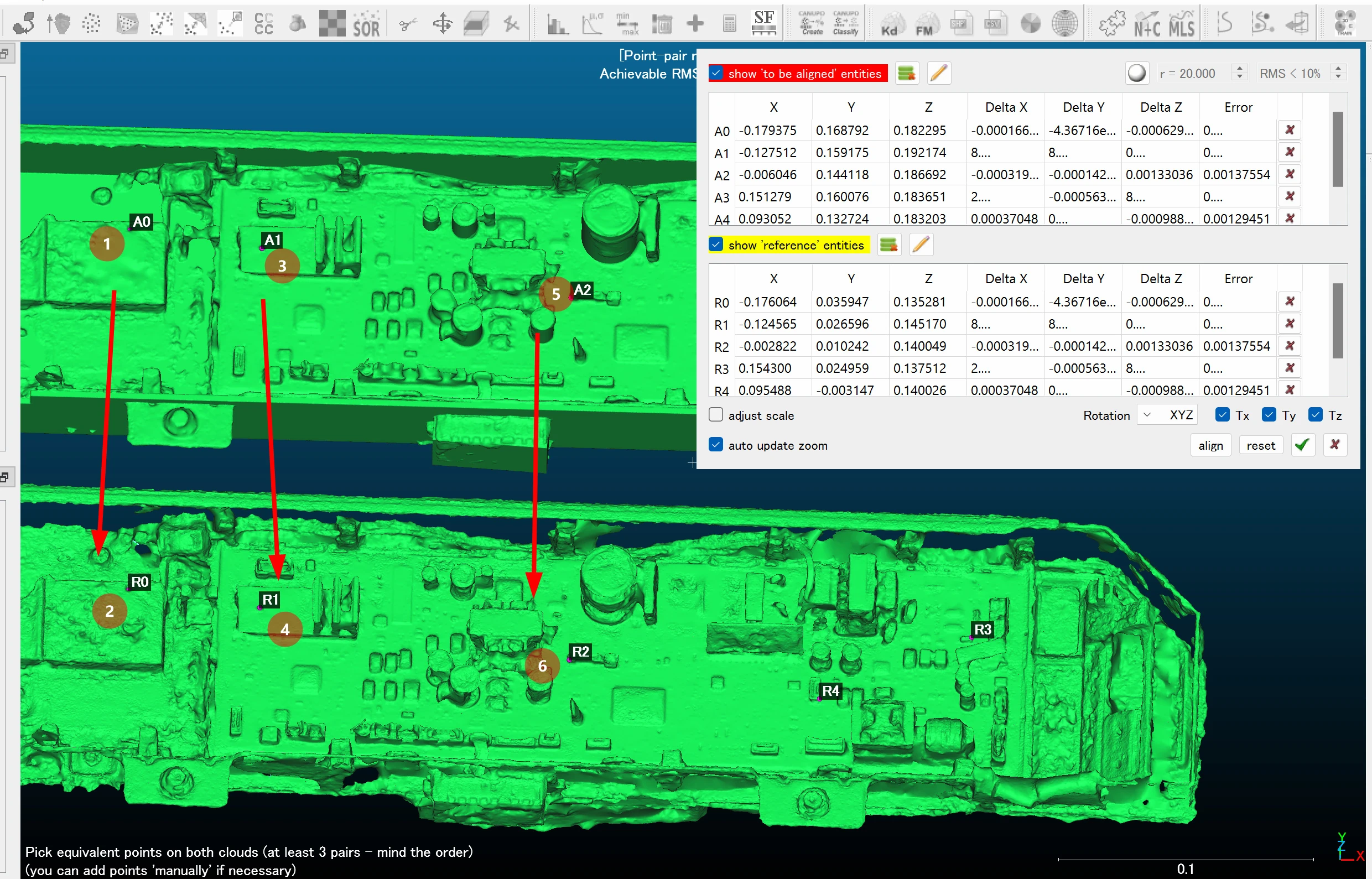
 Pick a distinctive point and the corresponding location on the other model. Pairs such as A0:R0 are added. First pick on the to-be-aligned entity, then on the reference entity.
After choosing several points, click Align.
Pick a distinctive point and the corresponding location on the other model. Pairs such as A0:R0 are added. First pick on the to-be-aligned entity, then on the reference entity.
After choosing several points, click Align.
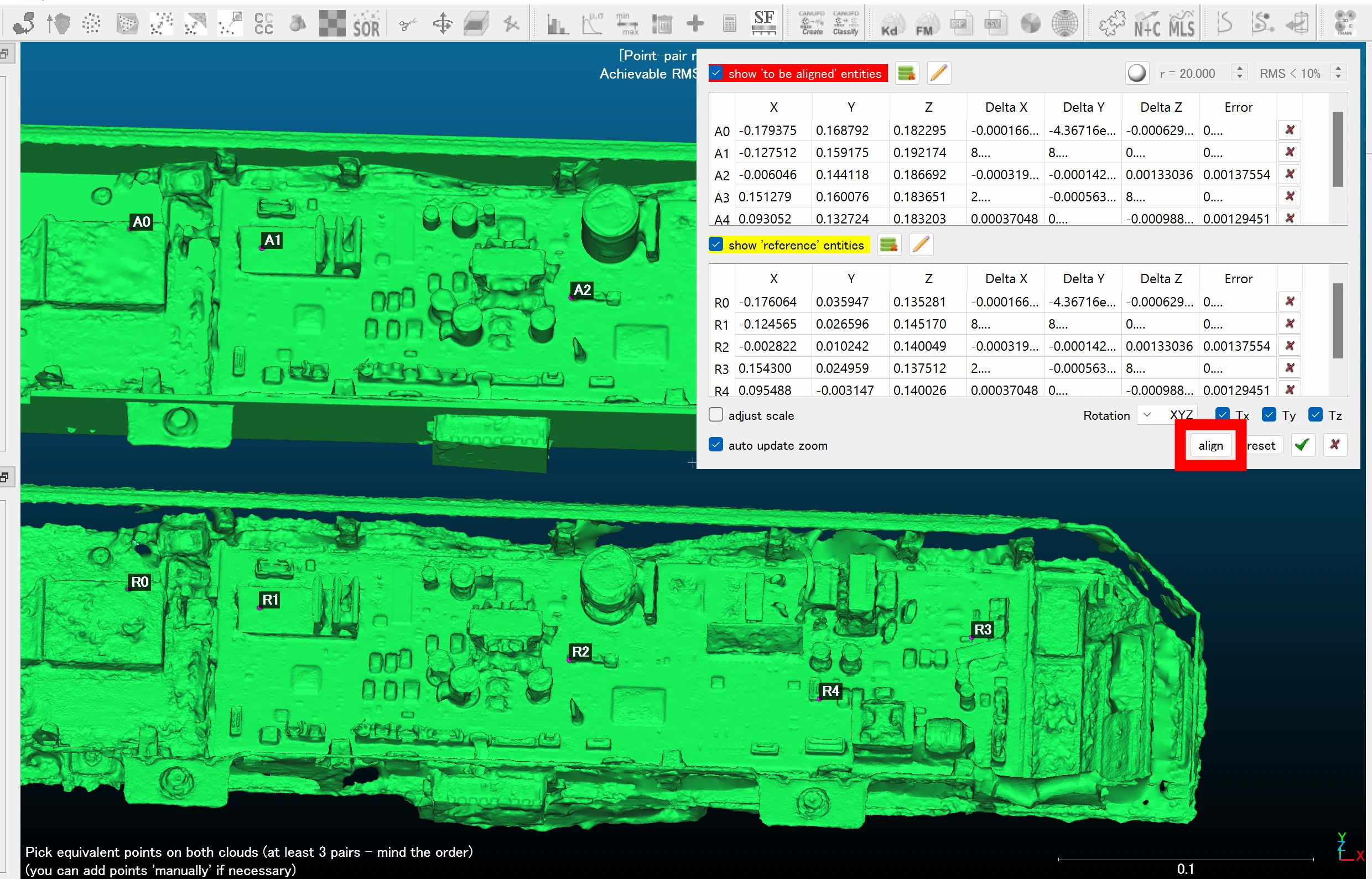 If the alignment looks correct, click the checkmark to confirm.
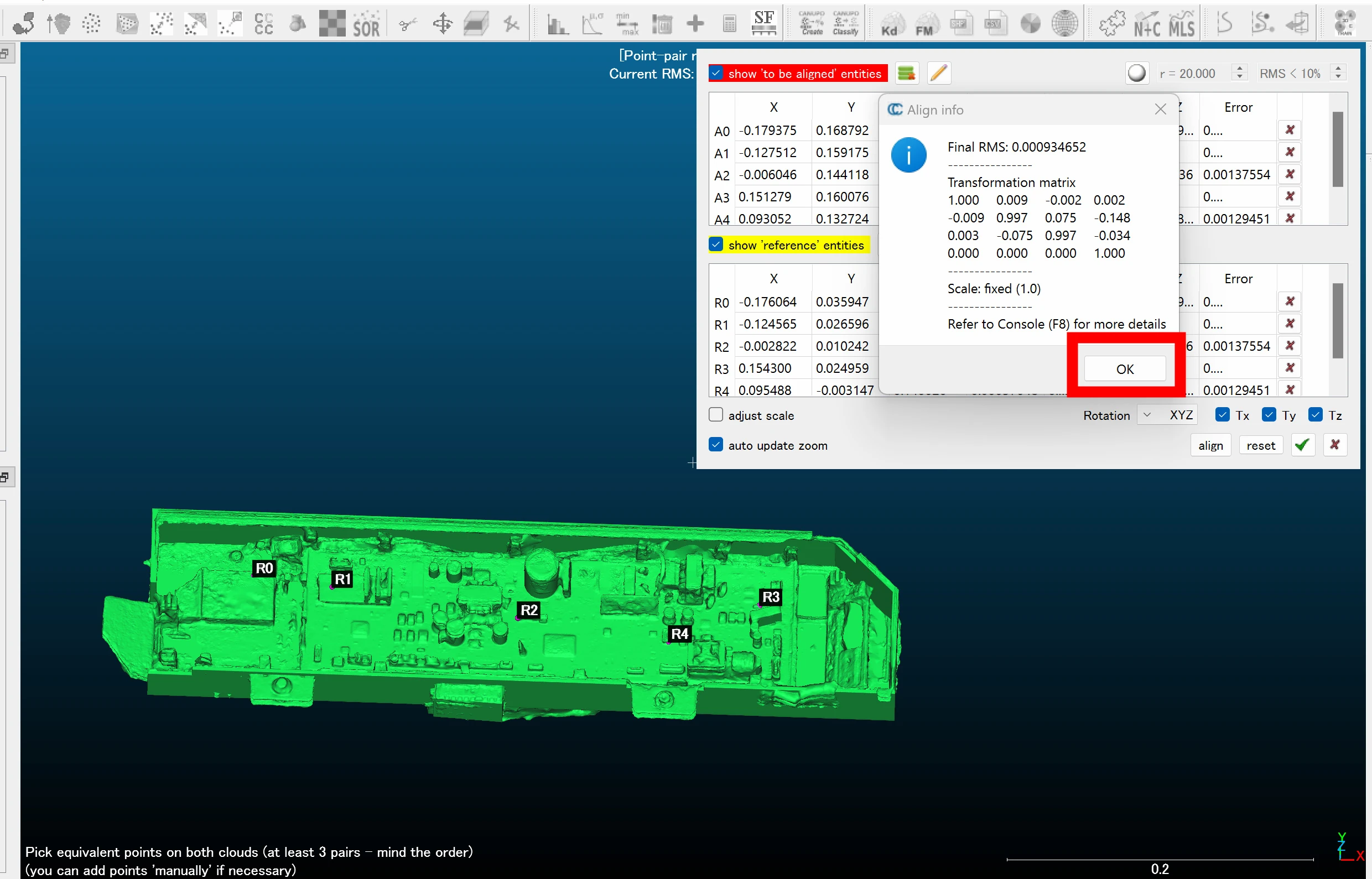
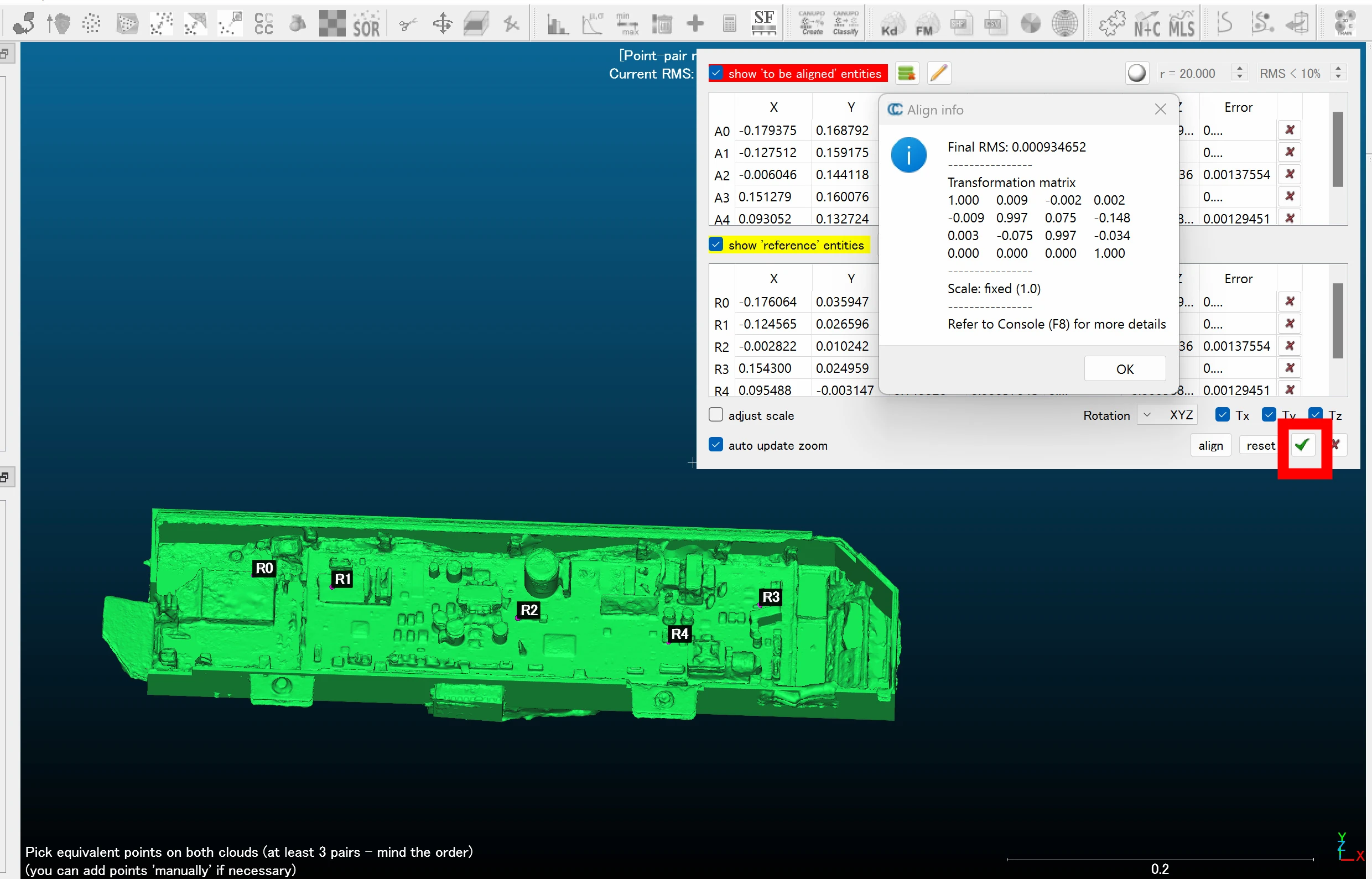 Click OK. Next, refine the alignment.
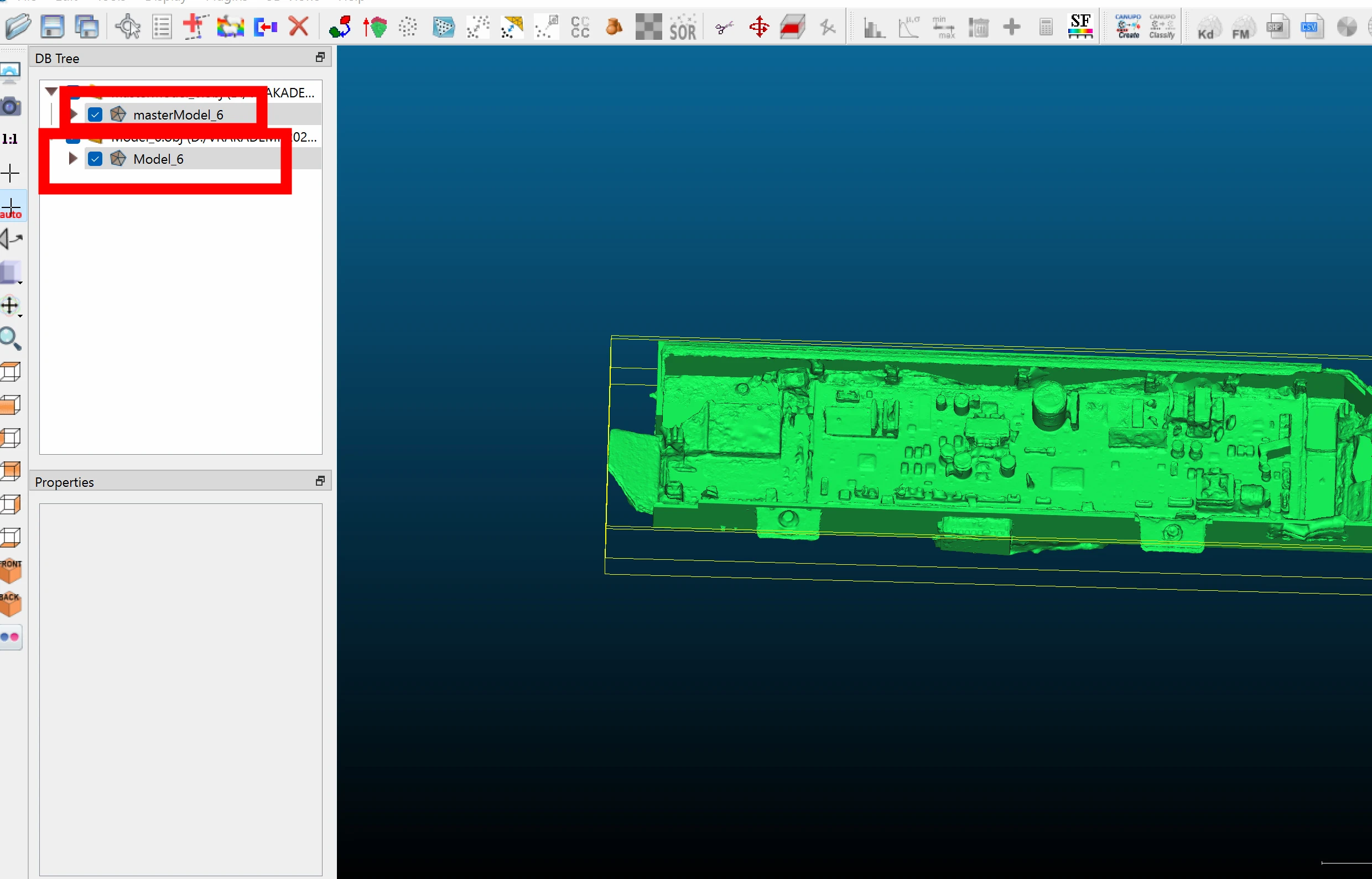
 Select both models.
 Choose the icon with overlapping green and red shapes.
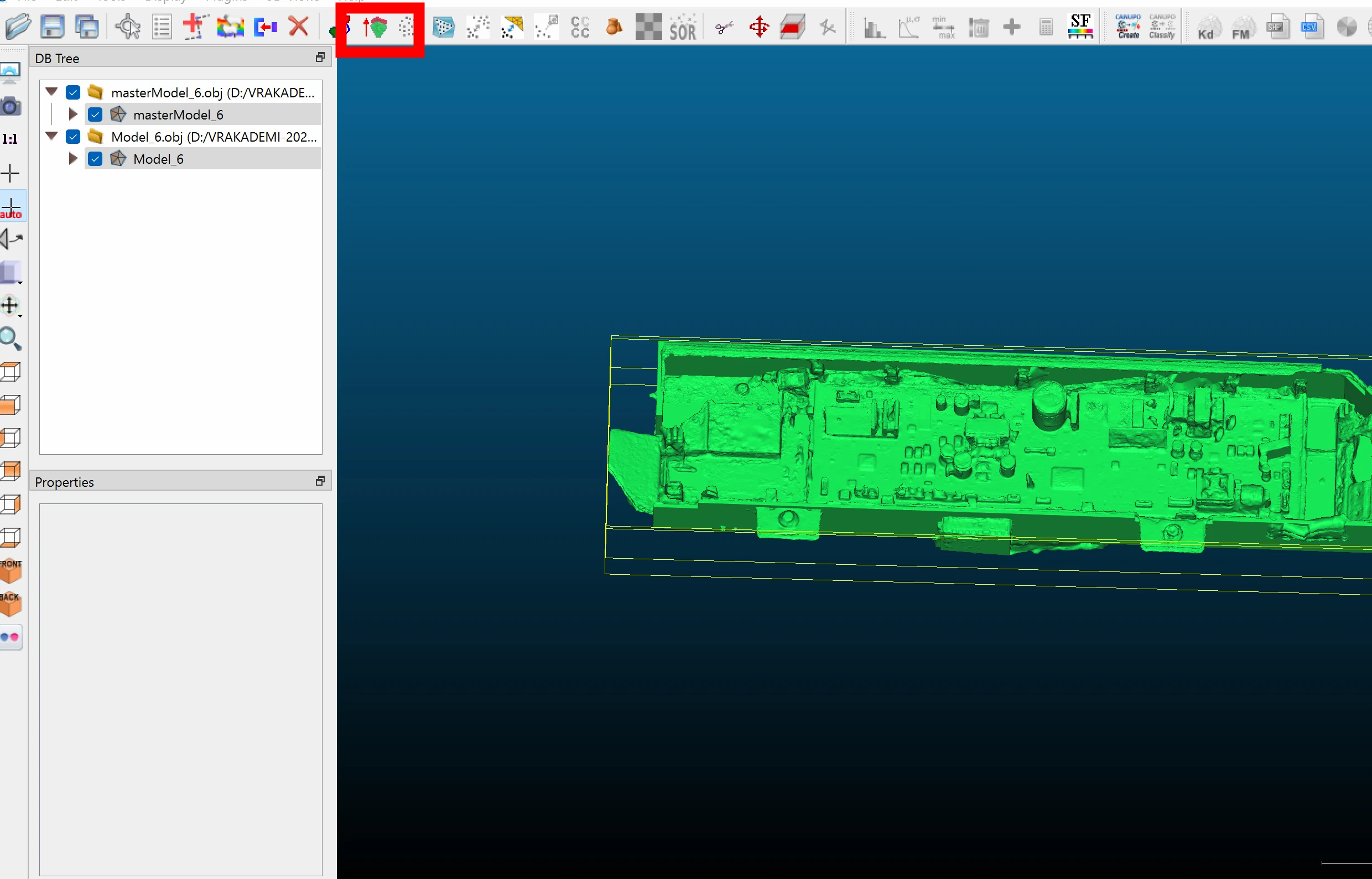 Be careful here. Whether it is a bug or not, the default assignment is reversed in my setup. Make sure the master is not selected as To be aligned. Moving the master defeats the purpose, so check carefully.
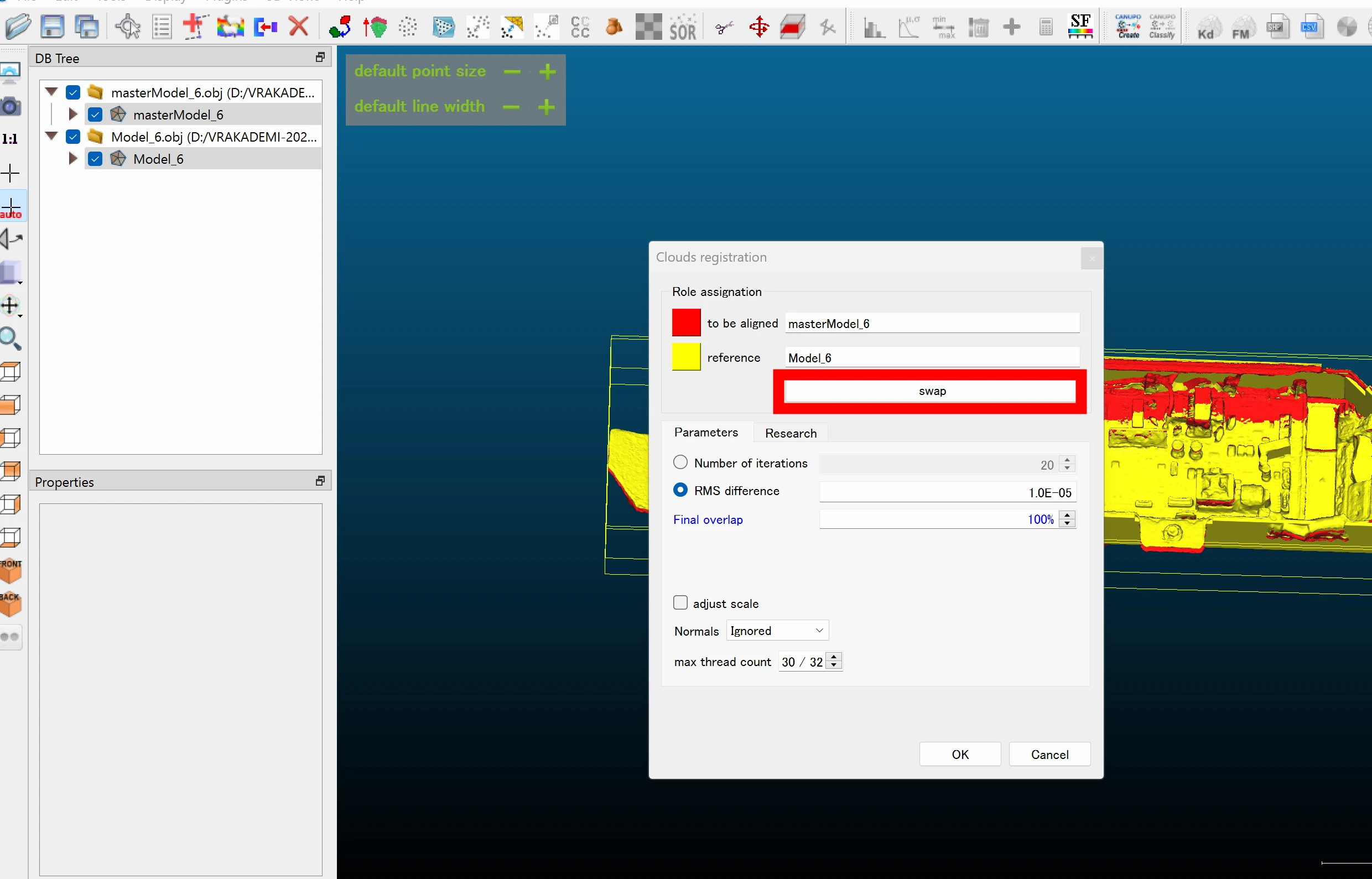
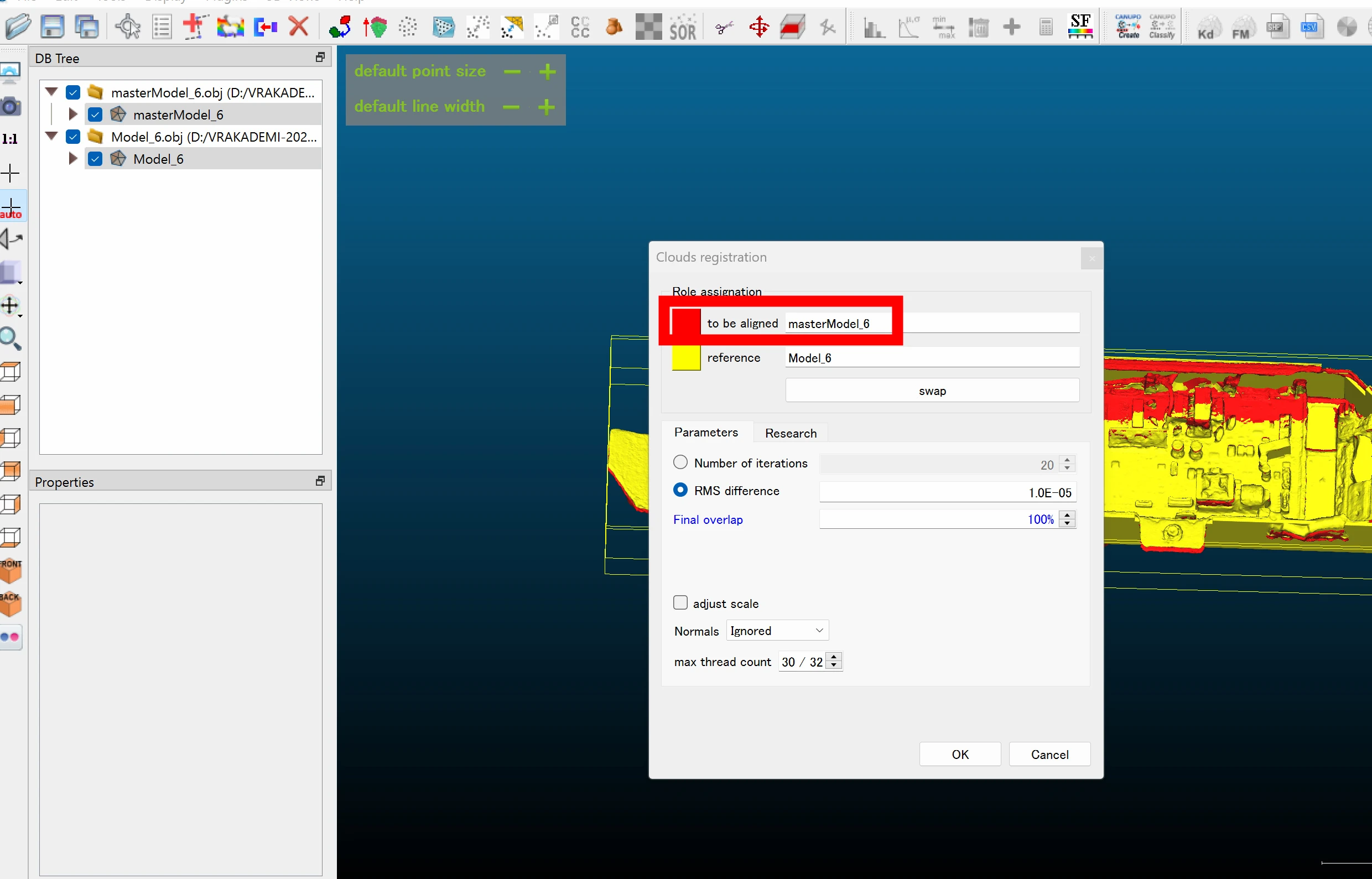 If they are reversed, press Swap.
 The assignments are now correct, with the master as Reference. Clear filenames help. Click OK.
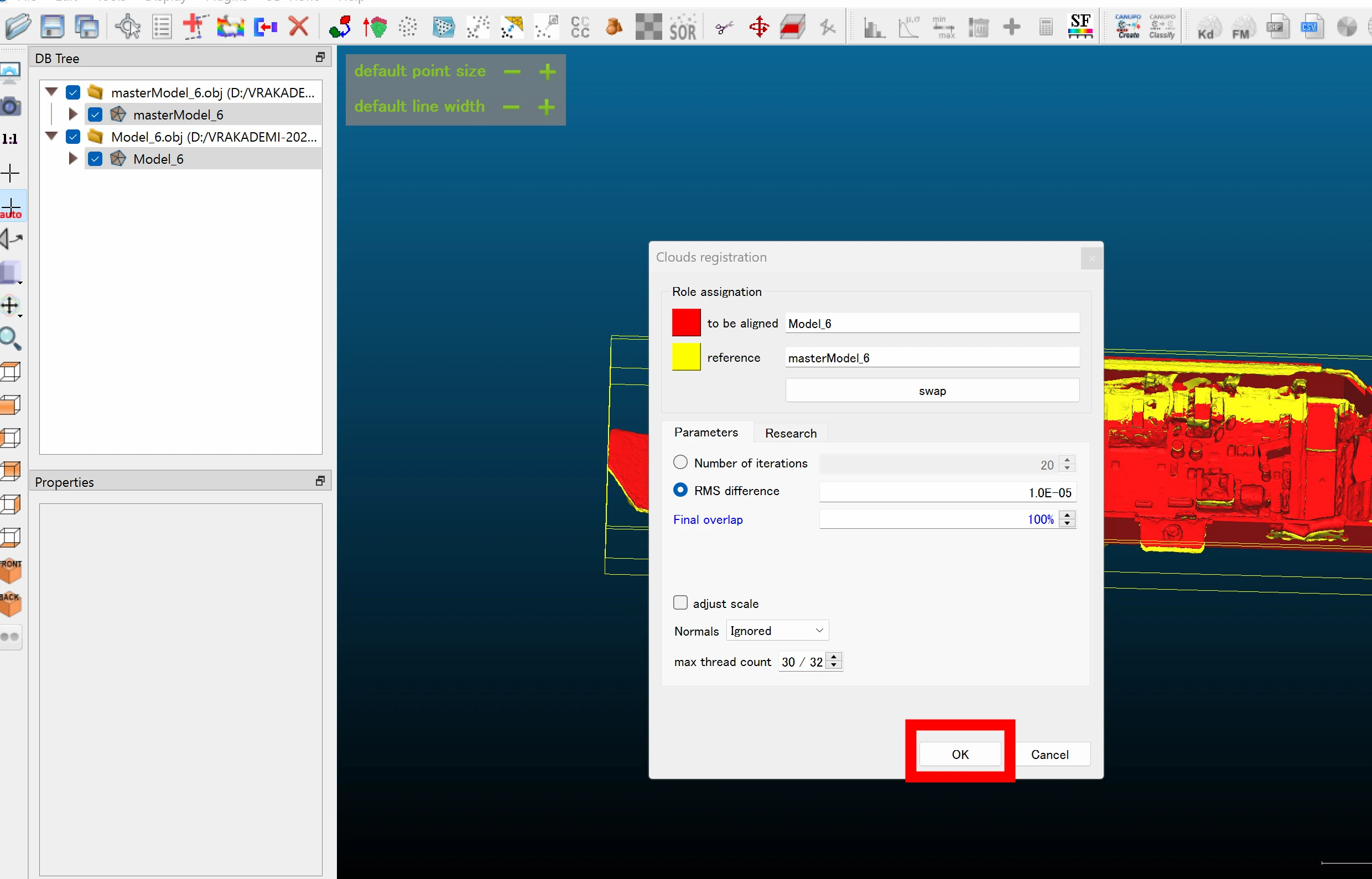 The finer alignment process begins.
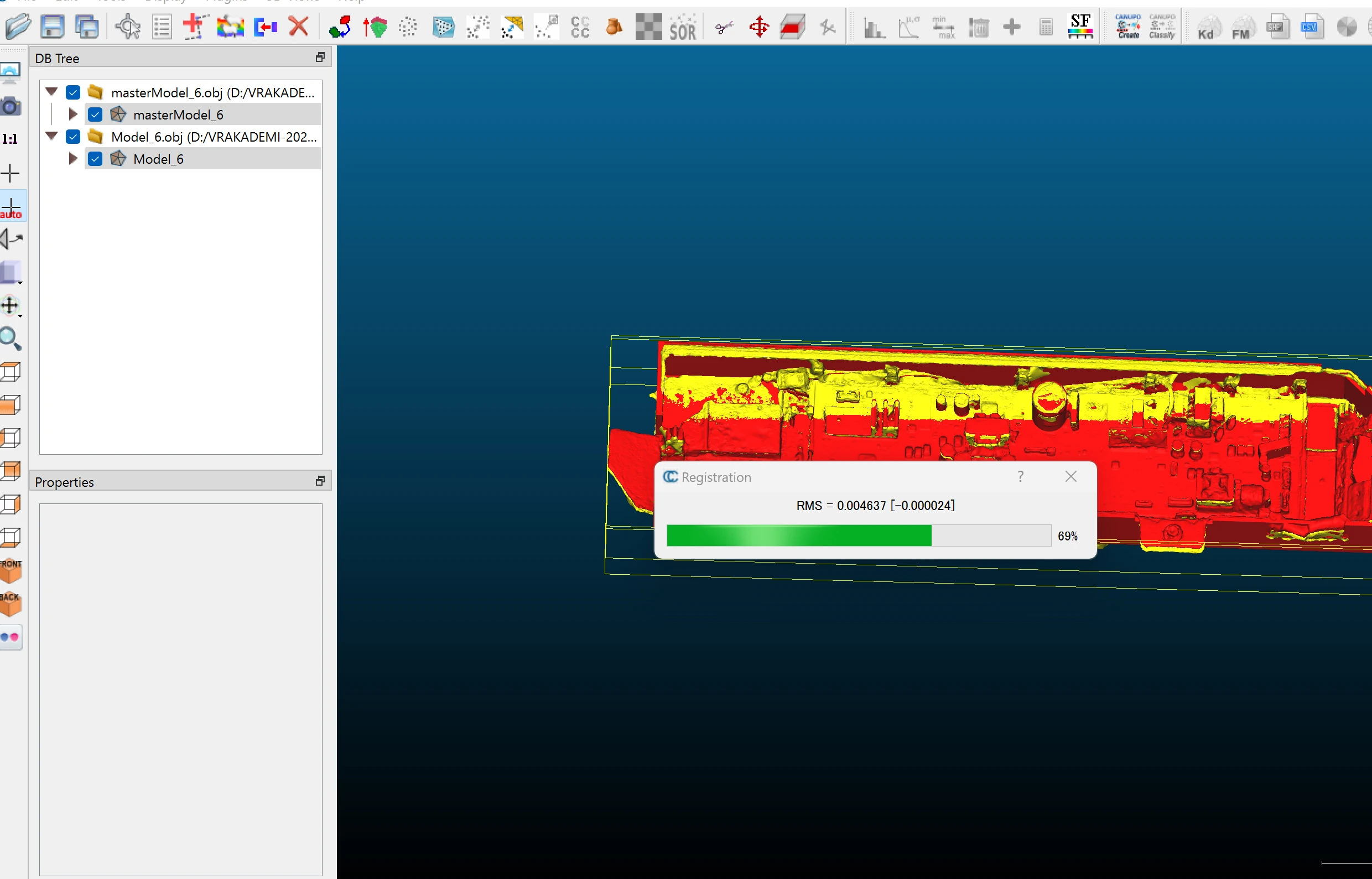 The models are now more closely aligned. Repeating this about twice seems to help, so I ran it twice and obtained an almost perfect match. The assignments reverse again on the second run too, so be careful.
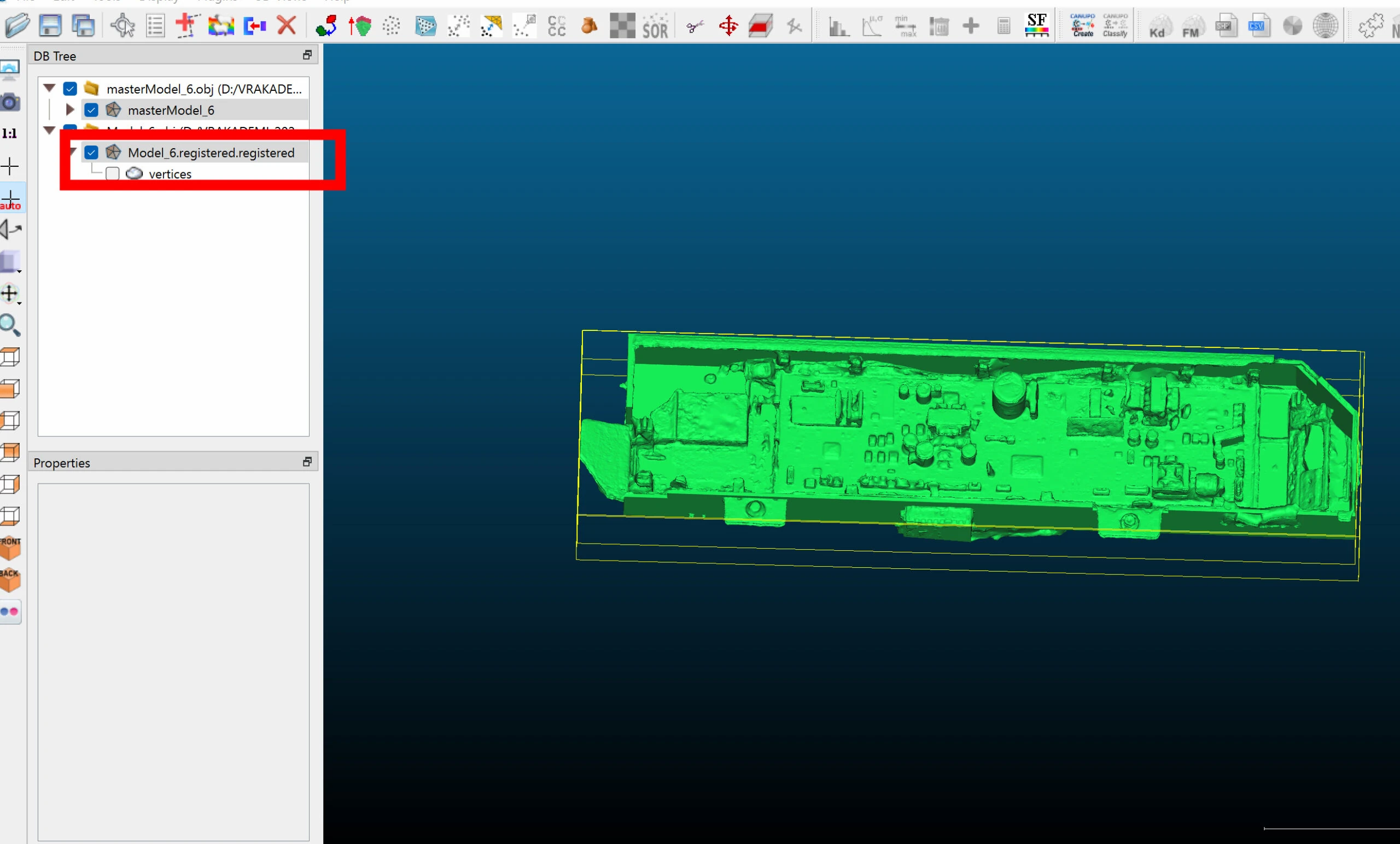
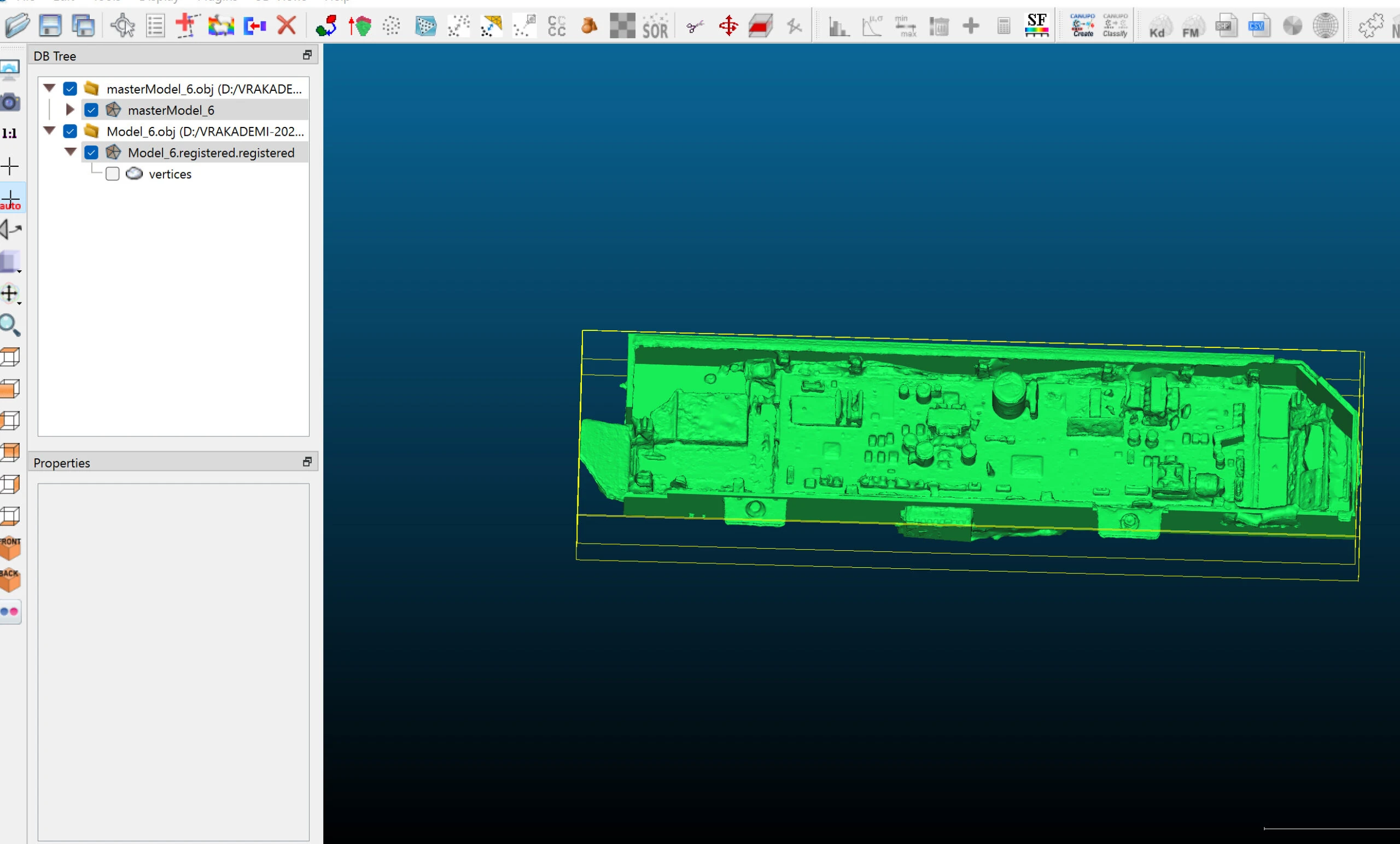 The moved model is renamed. Because I ran the operation twice, it has registered,registered appended.
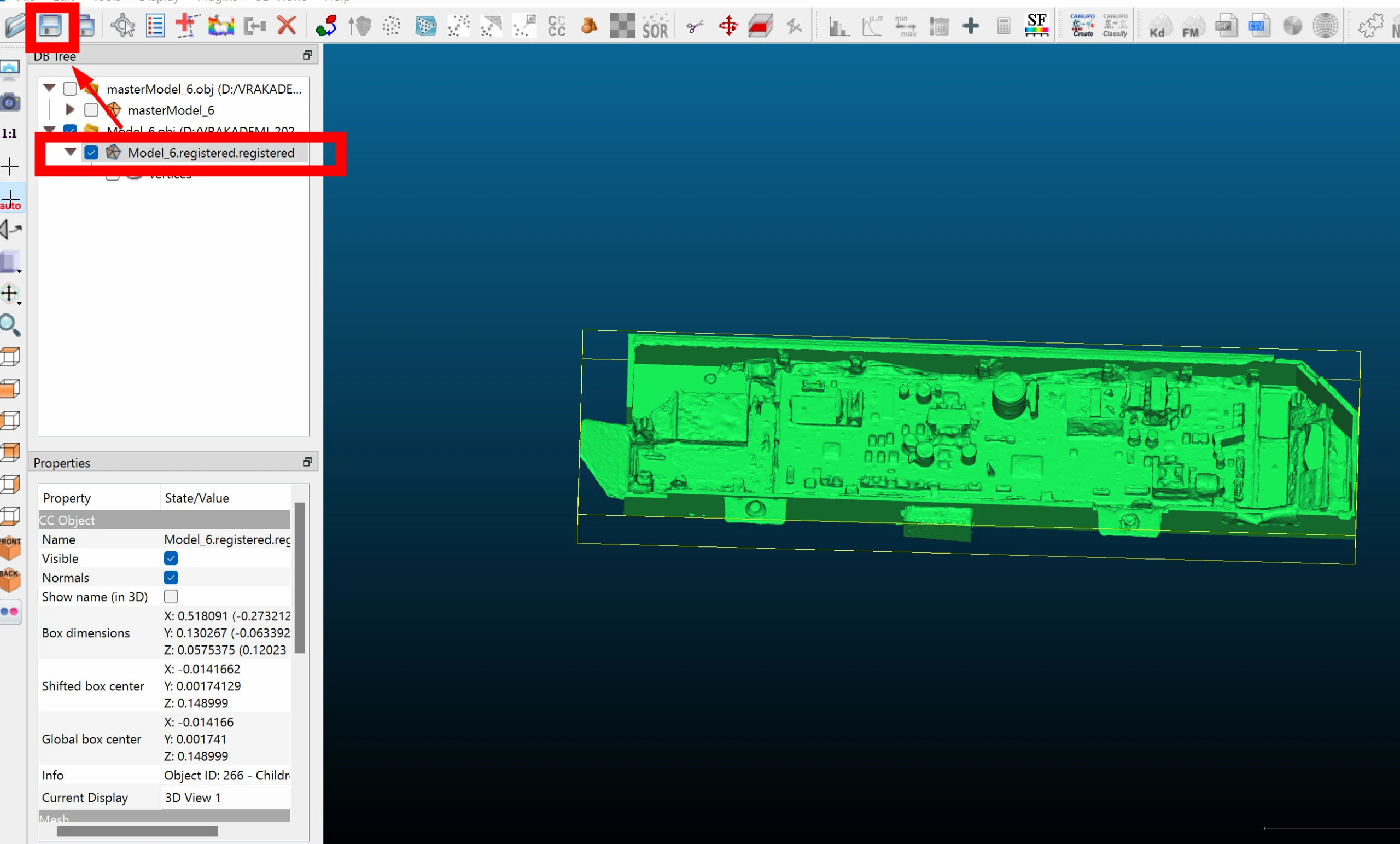
 Select the model, click Save, and export it as OBJ or another suitable format.
 Photogrammetry models often need repair before they are usable. I then return the repaired model to the original workflow for texturing. Previously, losing its position during that process meant redoing work. This method can realign it and may help when starting over would be difficult.
Related articles

Updates and contact: X @riragoncom.