Formatting a drive as FAT32 on Windows with Rufus
Older devices may require SD cards or other media formatted as FAT32, even when Windows does not offer that option. This is how I used Rufus after other formatters failed.
Note: This article was first published more than a year ago. Some OS versions do offer FAT32 in File Explorer's format dialog; this article describes a workaround for cases where it is unavailable.
- Rufus changes its interface and recommended options over time. Screenshots may differ from the current official or download pages.
- For large FAT32 volumes, limitations such as the 4 GB maximum file size may make exFAT more suitable, depending on the device.
Older devices still require FAT32 for SD cards and other media. Unfortunately, Windows sometimes does not offer it.
When I searched for a solution, I found formatters from I-O DATA and Buffalo, but some only worked with their own storage products. I then installed tools such as Fat32Formatter, thinking I had found the answer, only to get errors or unsuccessful formatting. Why was this so difficult?
That was when I tried Rufus. Known as a utility for working with ISO images, it also turned out to be a very capable FAT32 formatter.
Download Rufus here:
https://forest.watch.impress.co.jp/library/software/rufus/
The GitHub repository:
https://github.com/pbatard/rufus
Rufus can format FAT32 volumes too
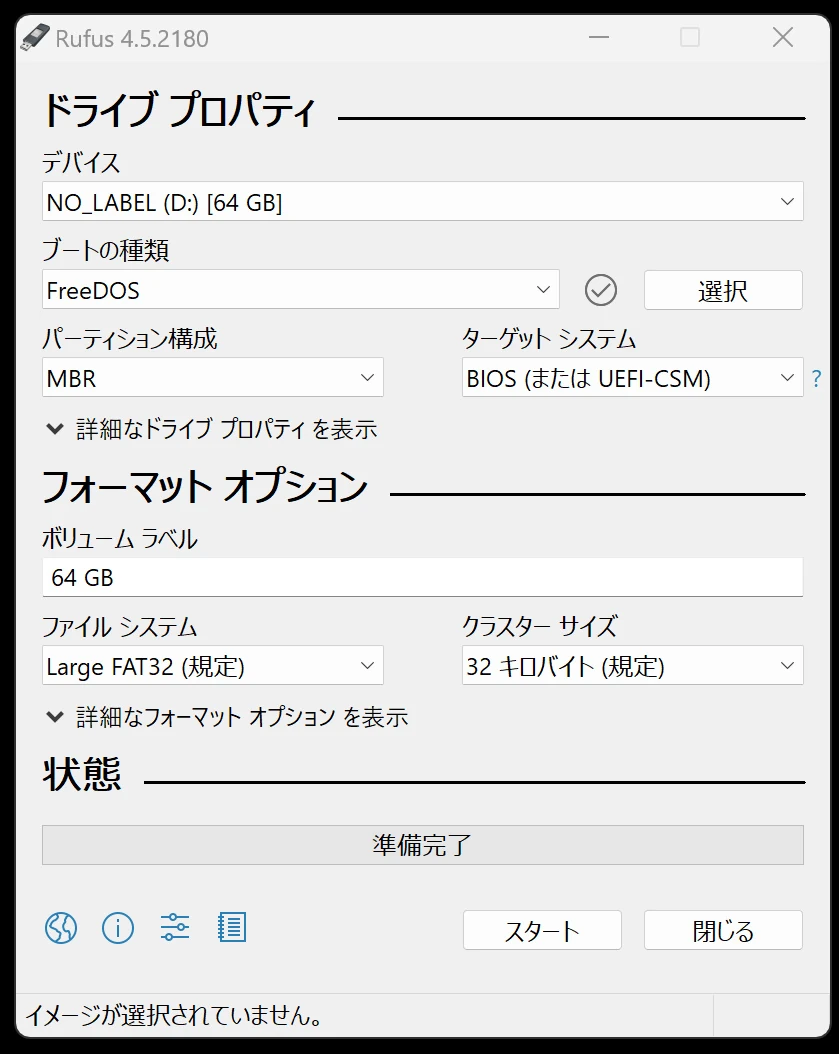
The settings may depend on the device you intend to use, but formatting as FAT32 with FreeDOS worked for me. Those were all the settings I needed. Perhaps choosing a non-bootable format would be better?
Related articles

Updates and contact: X @riragoncom.