Power settings and fresh thermal paste made my 9900K and RTX 2080 Ti PC pleasant to use again
Measured differences in power, temperature, and fan speed were small after applying power-saving settings. Cleaning and replacing the CPU thermal paste may also explain why the PC feels quieter than before.
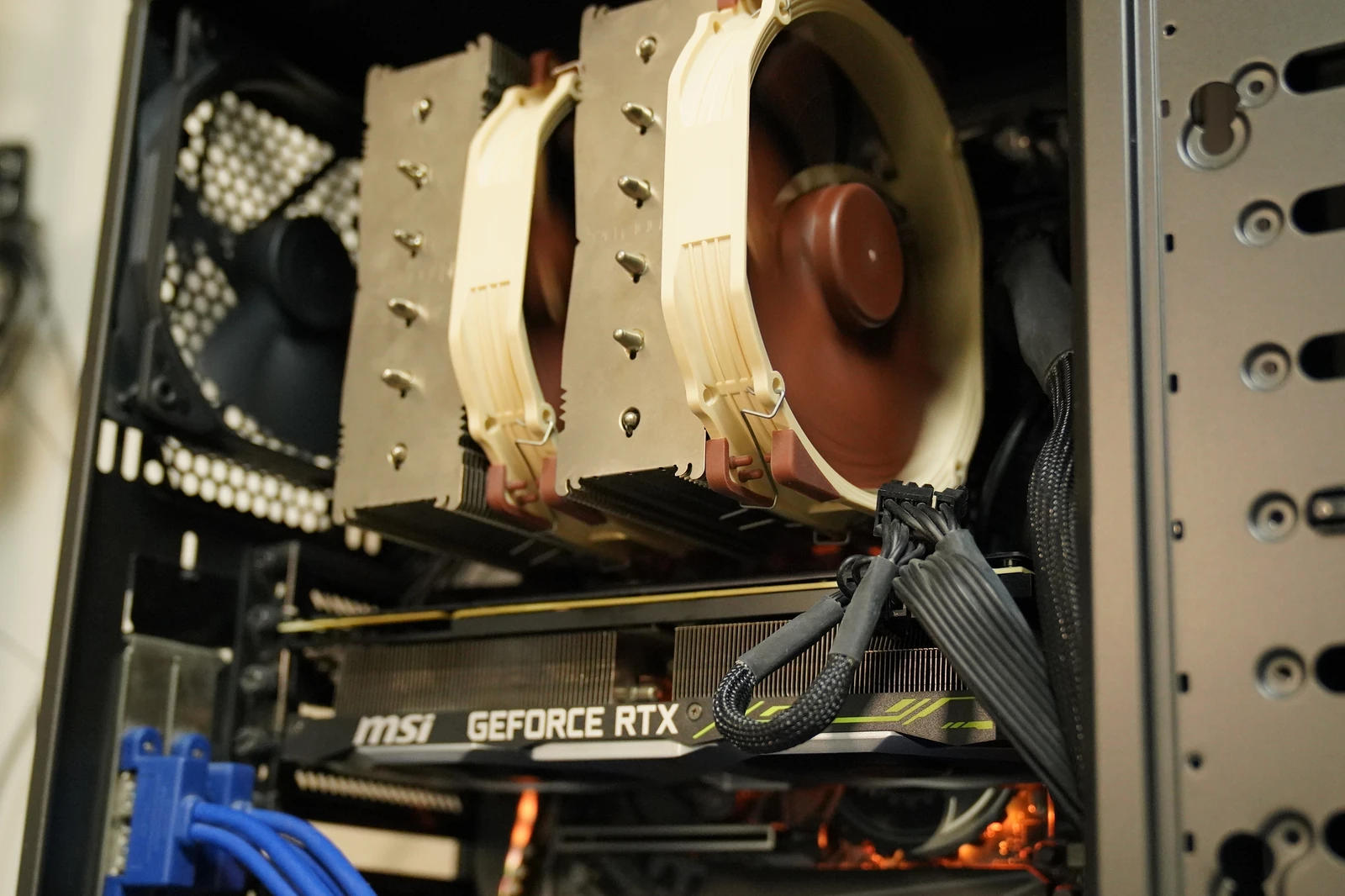
Revisiting an older PC's settings
This PC has a Core i9-9900K and GeForce RTX 2080 Ti and was bought seven or eight years ago. It became a backup after I bought a newer machine, but it feels barely slower for browsing, writing, and even somewhat heavier work, so I am using it daily again.
Related product listings: Find Intel Core i9-9900K on Amazon (Ad)
Related product listings: Find GeForce RTX 2080 Ti graphics cards on Amazon (Ad)
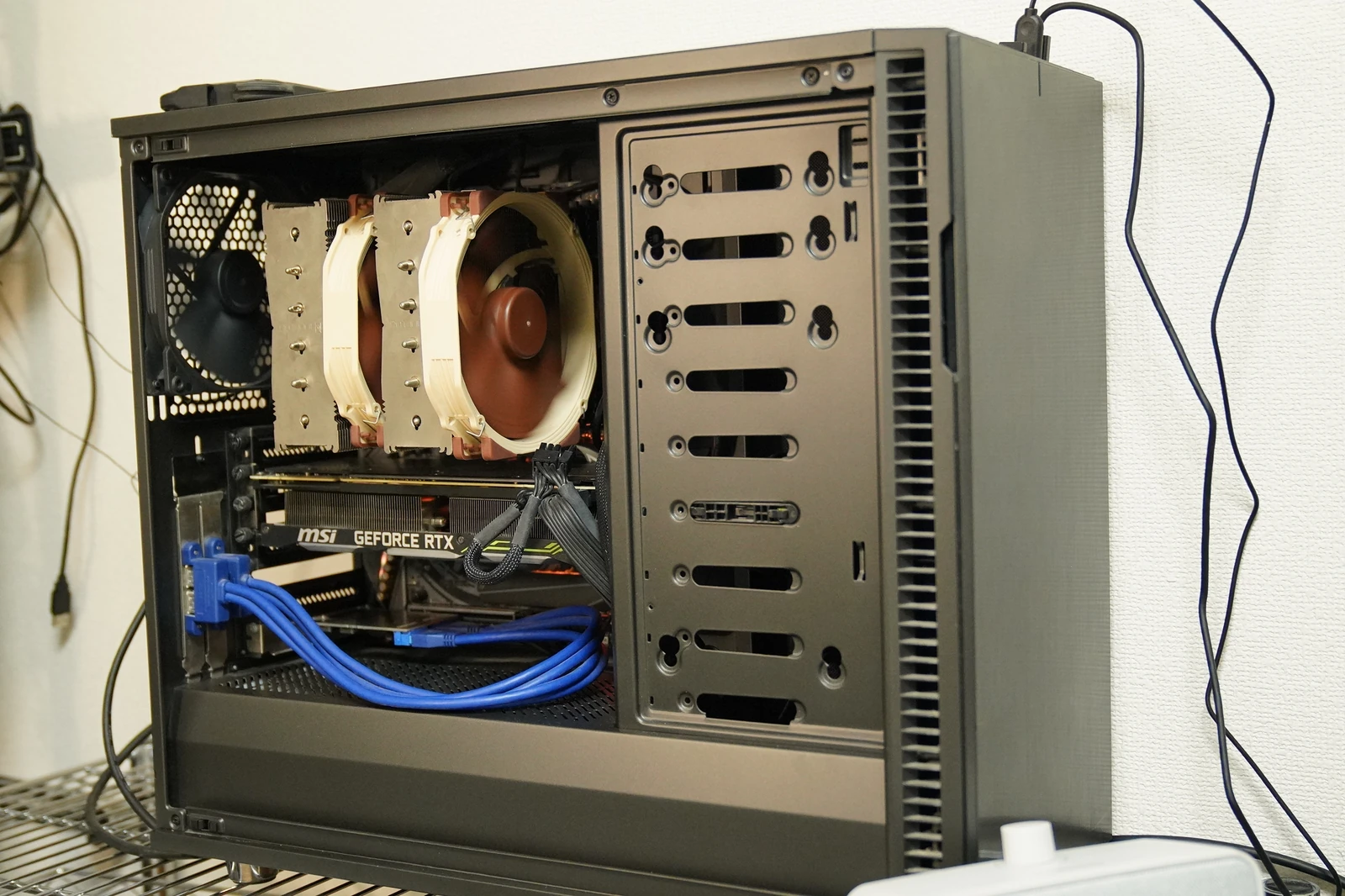
The CPU cooler is a large Noctua air cooler. From its appearance, it seems to be an NH-D15.
https://www.noctua.at/en/products/nh-d15
Related product listings: Find Noctua CPU coolers on Amazon (Ad)
The settings here leave the CPU free to reach full performance while reducing the power limit of the graphics-processing GPU.
| Item | Power-saving setting |
|---|---|
| Maximum processor state | 100% |
| CPU Turbo Boost | Allowed; no additional frequency cap |
| GPU power limit | Reduced from this PC's normal 260W to 210W |
| Automatic display off, sleep, and hibernation | All disabled |
Turbo Boost increases the CPU's clock frequency when needed. A maximum of 100% does not mean running flat out constantly; it means high performance is permitted.
The GPU limit is 50W lower, a reduction of about 19%. However, light work does not consume 210W in the first place, so this does not save 50W all the time.
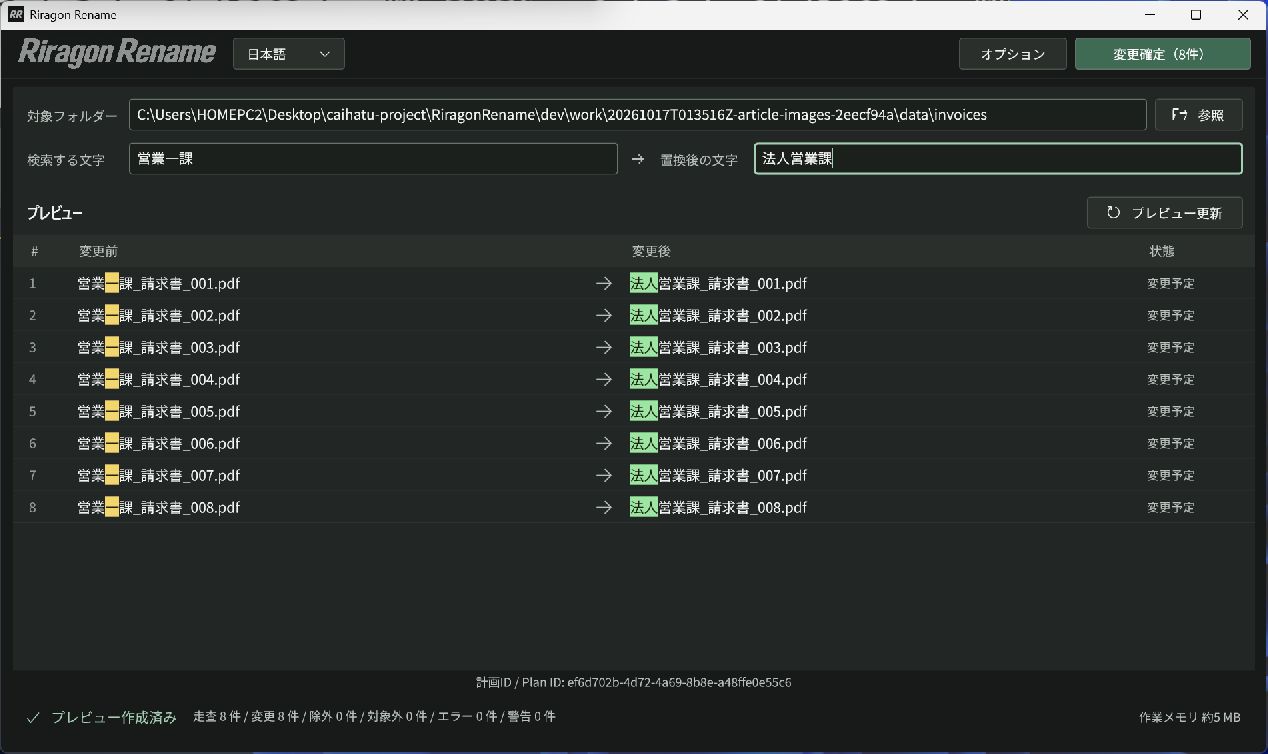
Switch the settings from one screen
I use Windows' built-in powercfg command and NVIDIA's official nvidia-smi management command. I made a single interface to operate them together.
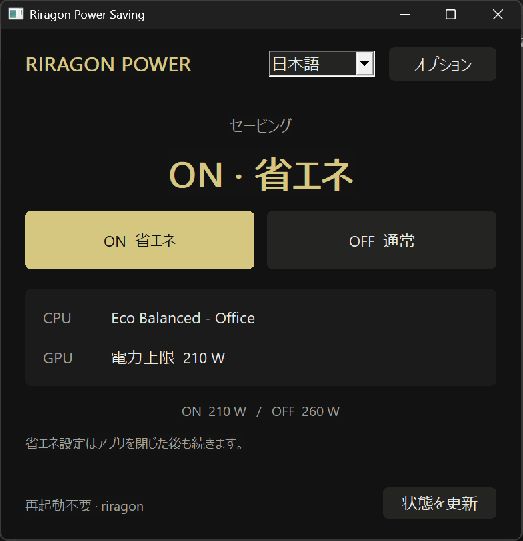
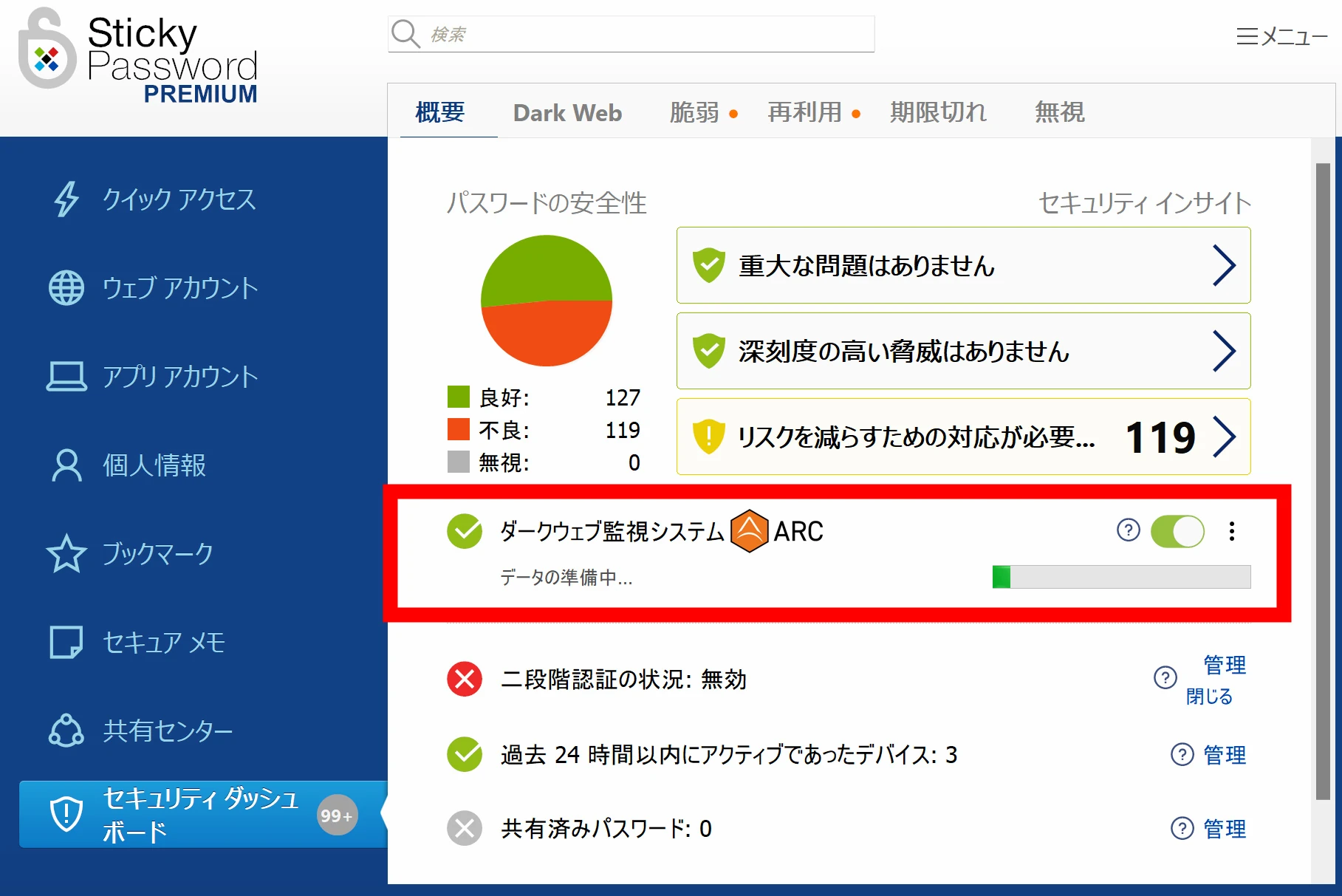
The actual screen when photographed: power saving is ON and the GPU limit is 210W.
Open the interface with start.bat, press the button labeled ON / Power Saving, accept the Windows administrator prompt, and wait for application. OFF / Normal restores the original Balanced plan and 260W GPU limit. Switching does not require a restart.
The settings remain after closing the interface. The Windows power plan is saved, and Task Scheduler is configured to reapply the GPU limit automatically. However, I have not yet tested an actual reboot or resume cycle. Use Refresh Status to check if settings revert after a driver update or similar change.
I have not manually adjusted voltage, BIOS settings, or fan speeds. These settings and switching procedures are tailored to this PC.
https://docs.nvidia.com/deploy/nvidia-smi/index.html
Lower power does not always reduce performance proportionally
Intel's official material includes a graph comparing Core i9-13900K performance at different power levels.
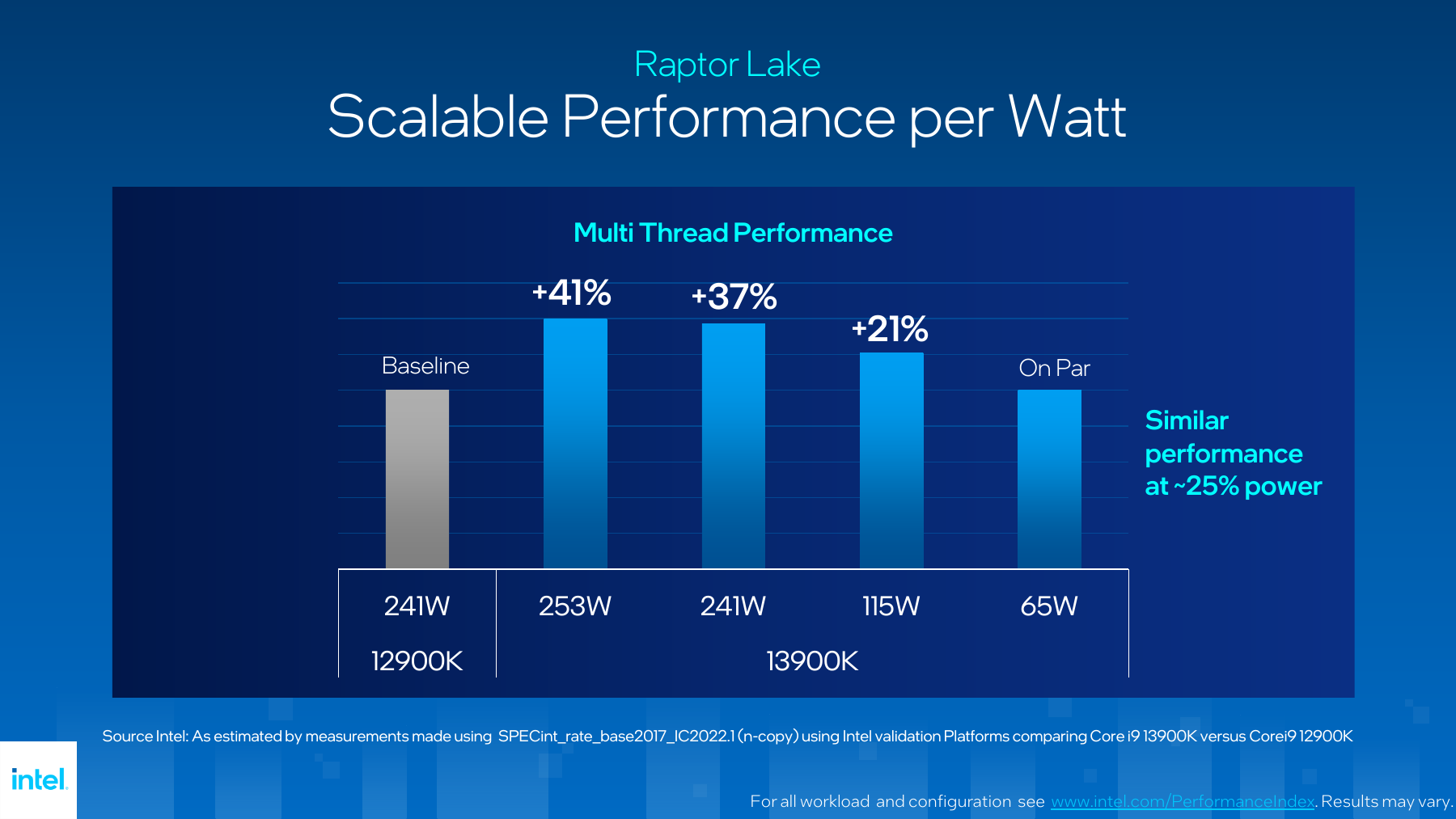
Source: Intel, 13th Gen Intel Core Desktop Media Presentation, page 32. These are manufacturer-published estimates based on a parallel integer-processing test.
Using the graph's common baseline, the 115W condition retains about 86% of the performance at 253W: 121 ÷ 141 ≈ 0.86. Performance differs by about 14%, while the power figure is less than half.
That is a particular test on a different CPU, not a measurement of my 9900K. It illustrates that sacrificing a little peak performance can sometimes improve efficiency.
My measurements showed small differences in both performance and power
On October 17, 2026, I ran the same workload three times under each normal and power-saving setting. Both were tested after cleaning and replacing the thermal paste.
For the CPU, I used FFmpeg to convert Full HD video to H.264. I specified one and 16 threads, the units of parallel processing, and processed 900 and 4,500 frames respectively. The encoder was x264, with medium and CRF23 fixed for speed and quality settings.
For the GPU, I rendered the image below with Cycles in Blender 4.2.23 LTS, using NVIDIA CUDA and only the RTX 2080 Ti. This is not an official Blender Benchmark score.
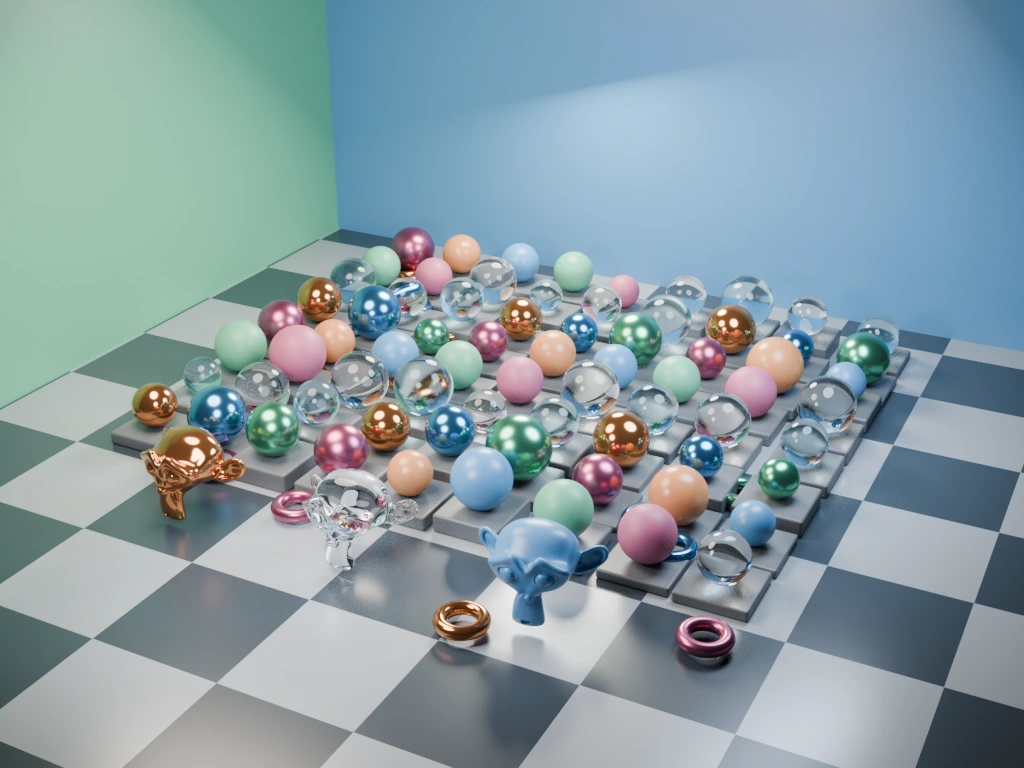
Resolution was 1024 × 768 with 2,048 samples. Adaptive sampling and denoising were disabled.
I measured after warm-up and allowed cooling between runs. Continuous GPU load, including warm-up, lasted about 90 seconds. The order was normal → saving → saving → normal → normal → saving. Graphs show the median of three runs, with individual results as white dots.
Processing performance was around 97–100% of normal
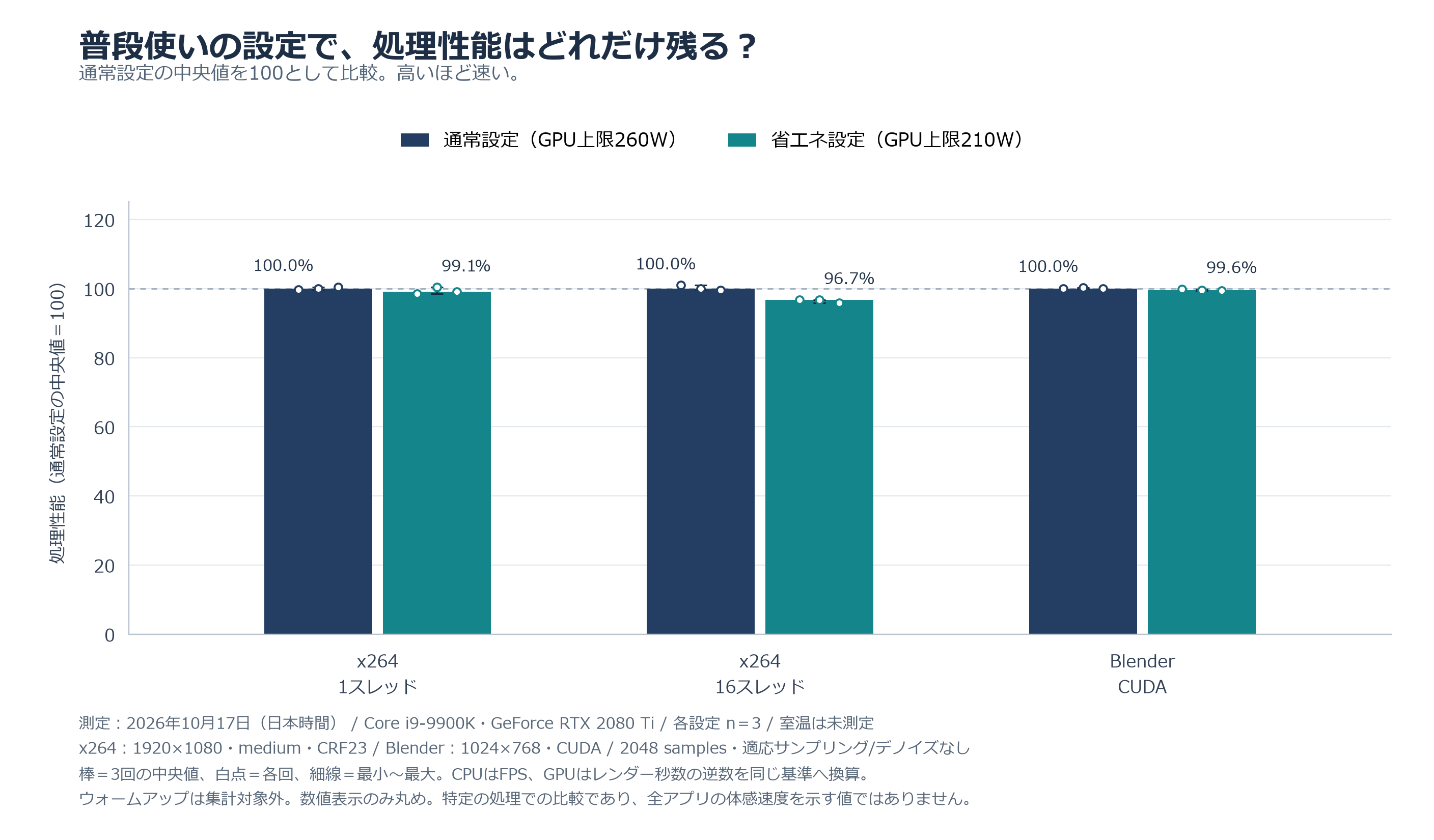
Under power saving, video conversion retained 99.1% of normal performance with one thread and 96.7% with 16 threads. GPU rendering retained 99.6%.
GPU power differed by about 2%
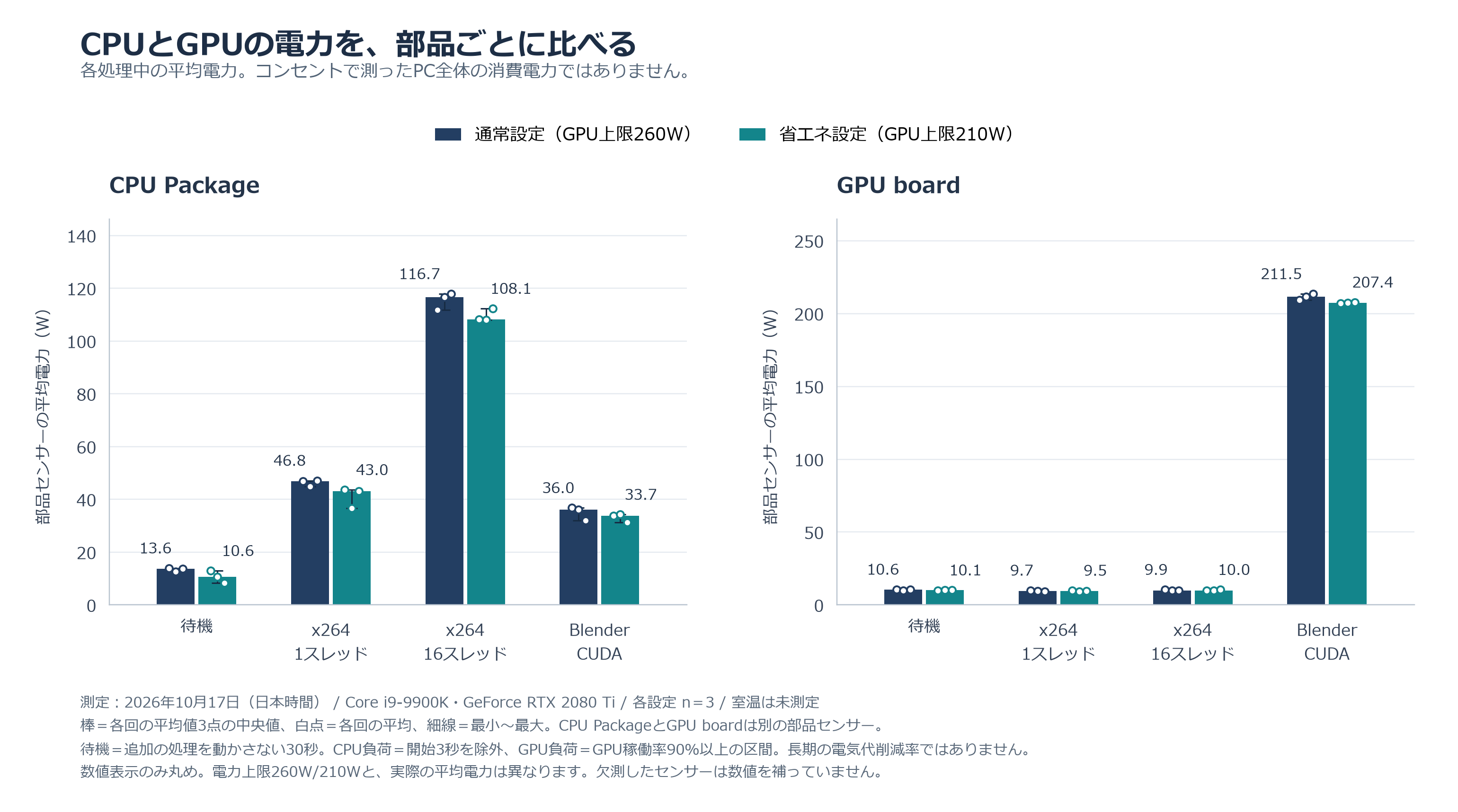
CPU readings are CPU Package power; GPU readings are from the board sensors. I calculated the workload average for each run and compared the median of three runs. CPU measurements exclude the first three seconds, while GPU figures include rendering periods with utilization of at least 90%.
Even under normal settings, GPU power averaged 211.5W and did not reach the 260W cap. Power saving averaged 207.4W, a difference of about 2%. This workload did not strongly expose the cap's effect, and performance differences were small too.
Including processing time, CPU energy per 16-thread video conversion fell from about 0.803Wh to 0.790Wh, around 1.5%. Wh measures energy consumed. These are component-sensor readings, not the reduction in whole-PC consumption or electricity cost.
Temperatures and fan speeds were almost unchanged too
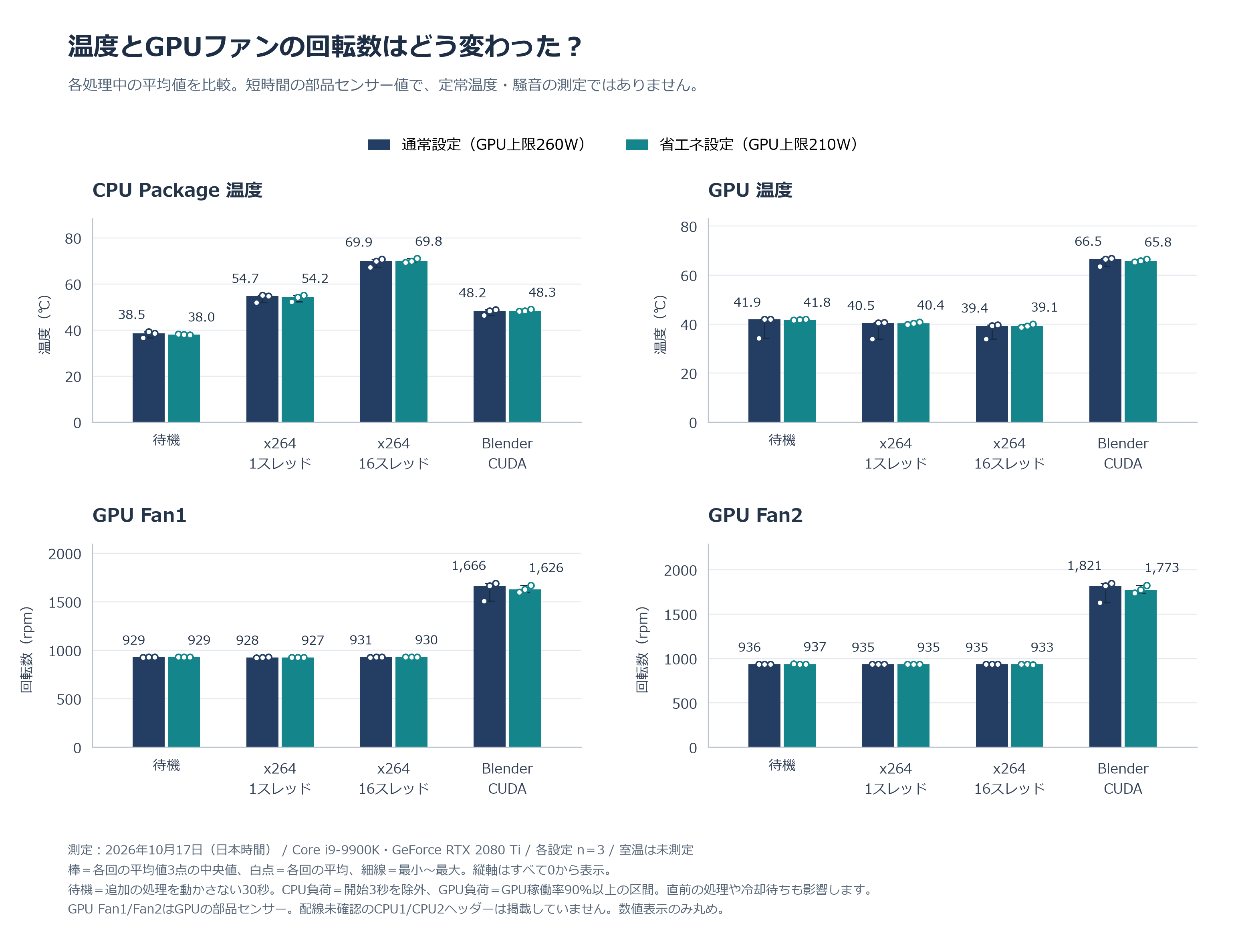
Average CPU temperature during 16-thread encoding changed from 69.9°C to 69.8°C; GPU rendering changed from 66.5°C to 65.8°C. The two GPU fans changed from about 1,666 to 1,626rpm and 1,821 to 1,773rpm. rpm means revolutions per minute.
I did not measure room temperature or sound levels. In some runs, the GPU temperature was still rising at the end, so this is not a comparison after temperatures stabilized under sustained load.
The fresh thermal paste may explain why it feels quieter
My impression that the machine is quieter comes from memory. Yet CPU temperature and GPU fan speeds were almost unchanged in these measurements. I wondered whether the settings alone could explain the improvement I felt.
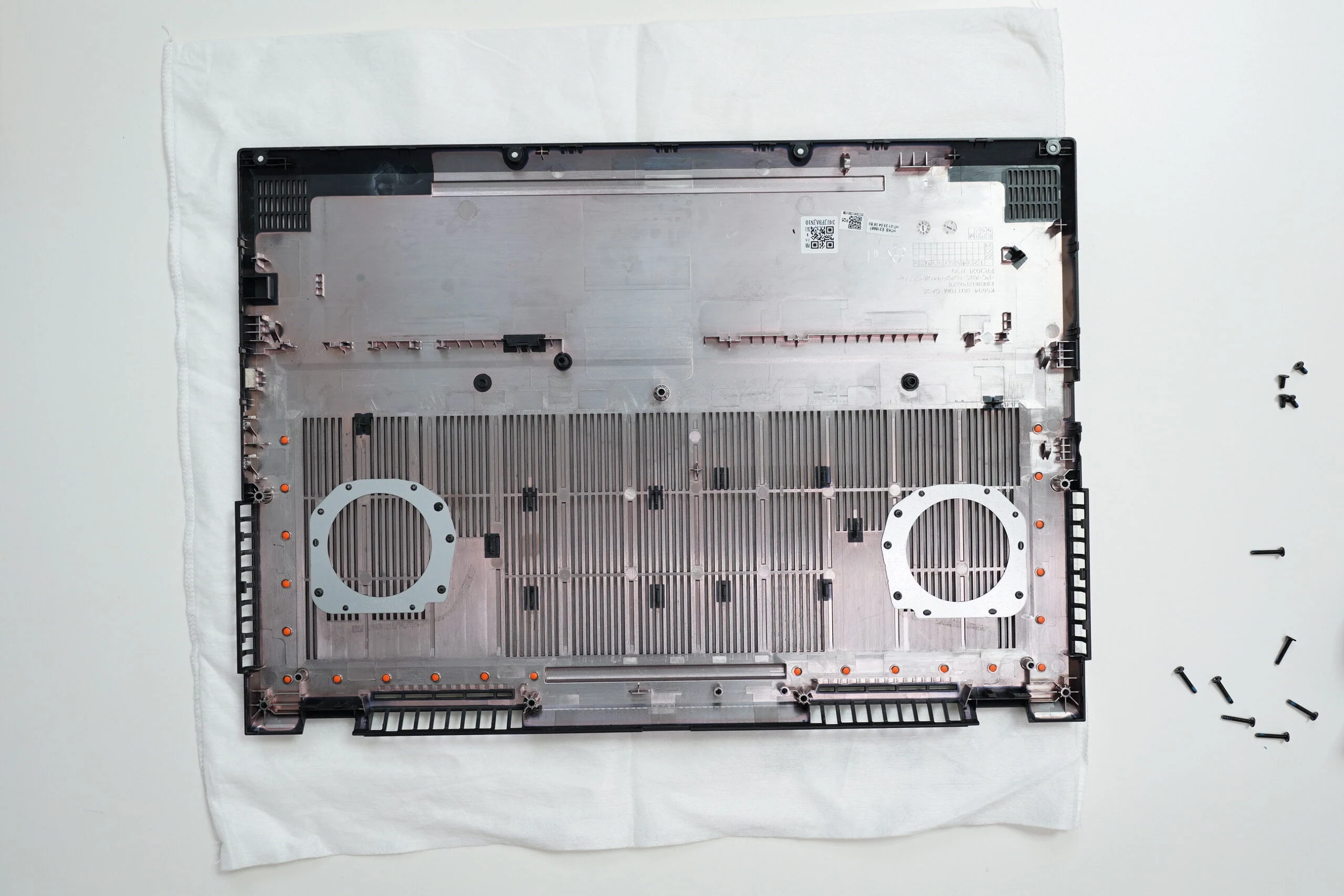
I also cleaned the inside and replaced the CPU thermal paste around the same time. Paste fills small gaps between the CPU and cooler to improve heat transfer. If the old paste had deteriorated, replacing it might have affected CPU temperature and fan noise more than the power settings did.
However, I did not record temperatures or speeds before replacement, and I have no noise measurements. I should have kept work photos, the paste name, and the replacement date, then measured the same workload before and after. Comparing cleaning, paste replacement, and setting changes one at a time would have made their effects clearer.
Thermal paste does not have a universal three- or four-year lifespan; it depends on the product and operating conditions. Judge replacement timing from manufacturer guidance and temperature changes. For example, Noctua recommends up to five years of use on a CPU for NT-H2.
https://www.intel.com/content/www/us/en/gaming/resources/how-to-apply-thermal-paste.html
https://www.noctua.at/en/products/nt-h2-3-5g/specifications
Even if fresh paste makes the CPU easier to cool, it does not necessarily lower the PC's total power use or heat released into the room. I do not have a wall-power meter, so whole-PC energy savings are unknown. Light everyday work may differ very little from normal settings.
I could not separate the effects, but I am glad I cleaned it, replaced the paste, and revisited power settings
Did the power settings help, or did new thermal paste make the bigger difference? Because I cleaned it at the same time too, I cannot isolate the individual effects.
Even so, everyday speed feels almost unchanged, and heat and fan noise bother me less. The former backup is now in daily use again. Taken together, the maintenance and setting changes have made it feel much better to use. I am glad I did them.
Intel Core i9-9900K related listingsBrowse on Amazon Ad · Amazon Associate link
Related articles
Updates and contact: X @riragoncom.