Creating a clean green-screen background in UE5 without shadows or green reflections
I set up a green-screen background in UE5 and experimented with removing shadows, green spill, and reflections on glossy objects for compositing.
Note: This article is more than one year old.
- Names and defaults for Composure and chroma-key nodes change between UE versions. Check the documentation for your version.
- Green-screen quality depends heavily on even lighting and camera color-space settings. Treat the parameters here as a starting point.
- Hair and translucent materials can be difficult to key and may require other compositing methods.
Here is how I set up a green-screen background for chroma keying in UE5 (Unreal Engine 5). I will explain the settings I used to remove green spill, shadows, and green reflections on glossy objects. I was able to export video without those reflections and shadows, as shown here.
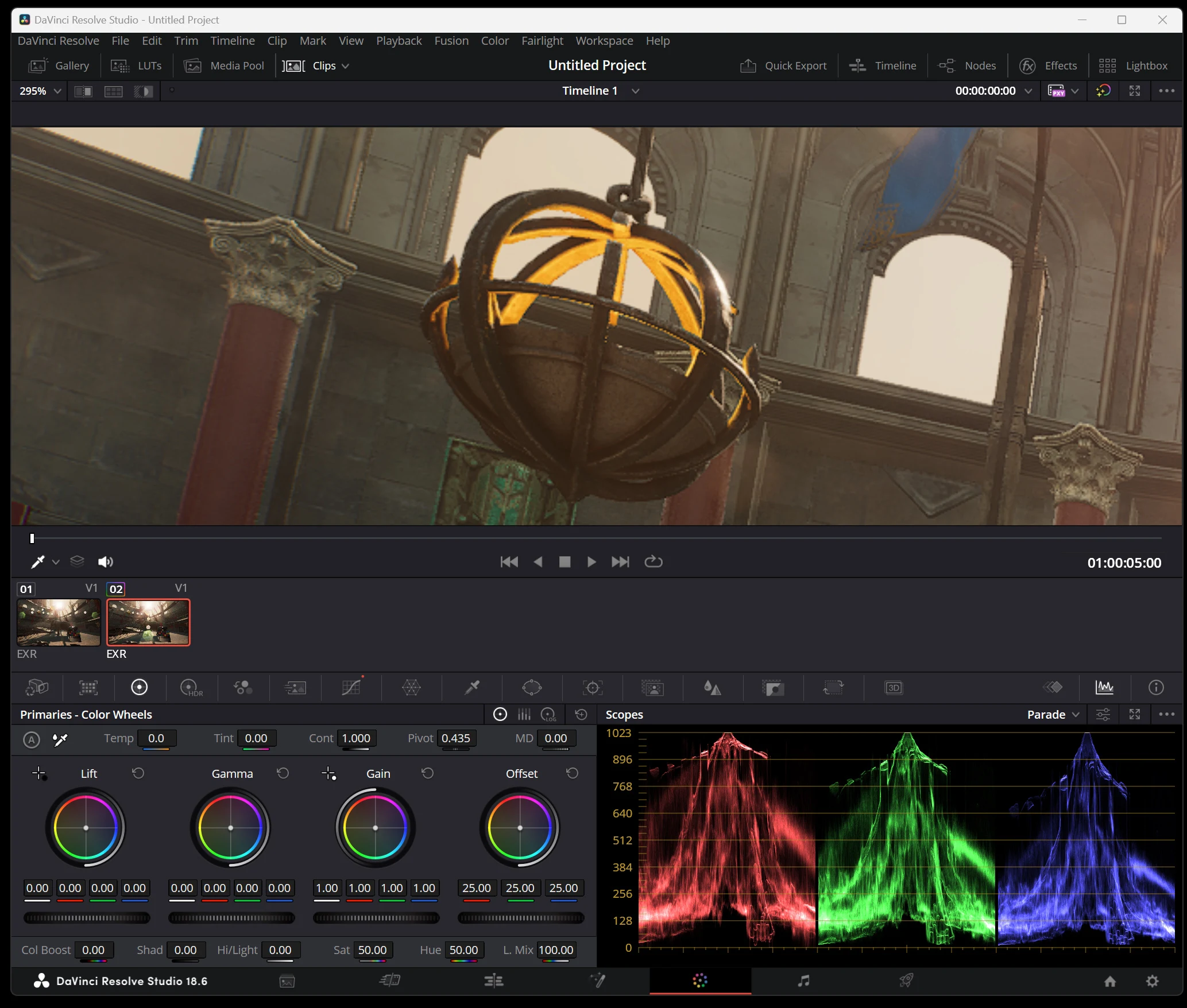
Exporting a UE5 camera view against green is useful for compositing the resulting footage in Adobe After Effects, Adobe Premiere Pro, DaVinci Resolve, or similar editing software.
UE5's masking and stencil features can produce excellent technical results, but setting up those advanced features can be complicated and difficult to understand. A green screen is a simple, effective alternative for beginners or users unfamiliar with UE5.
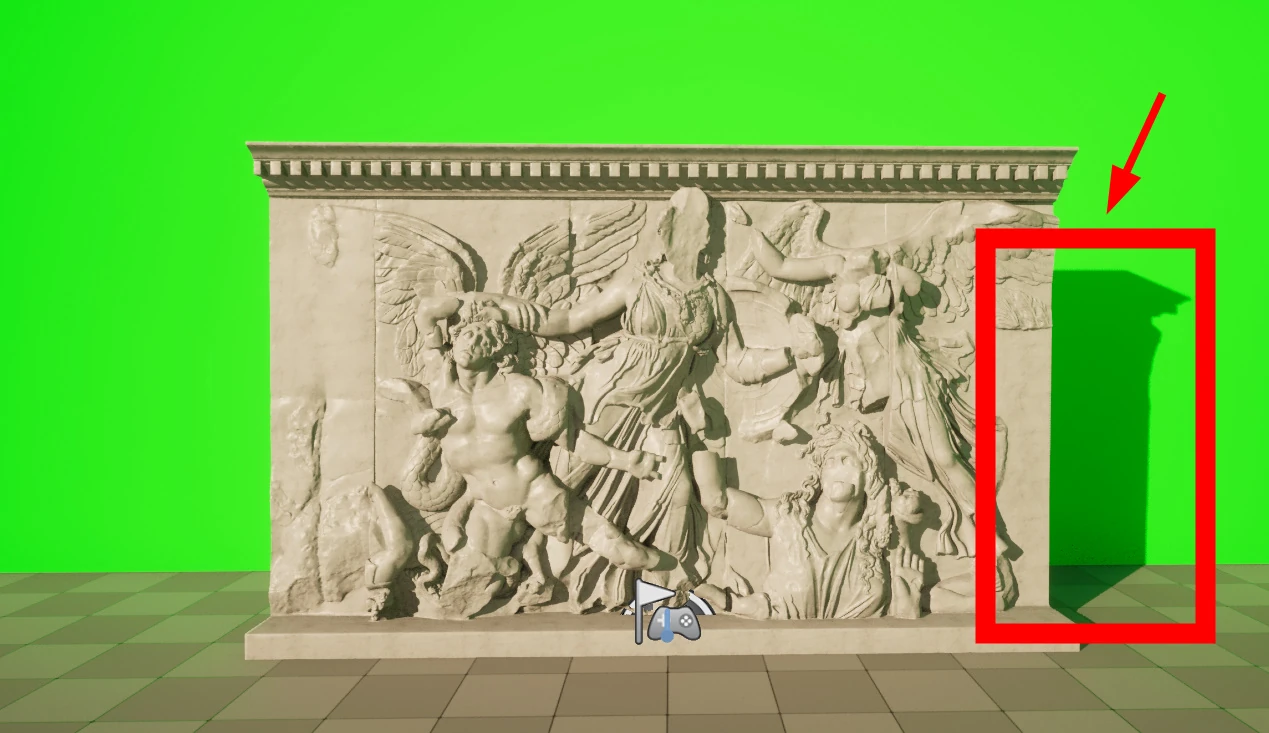
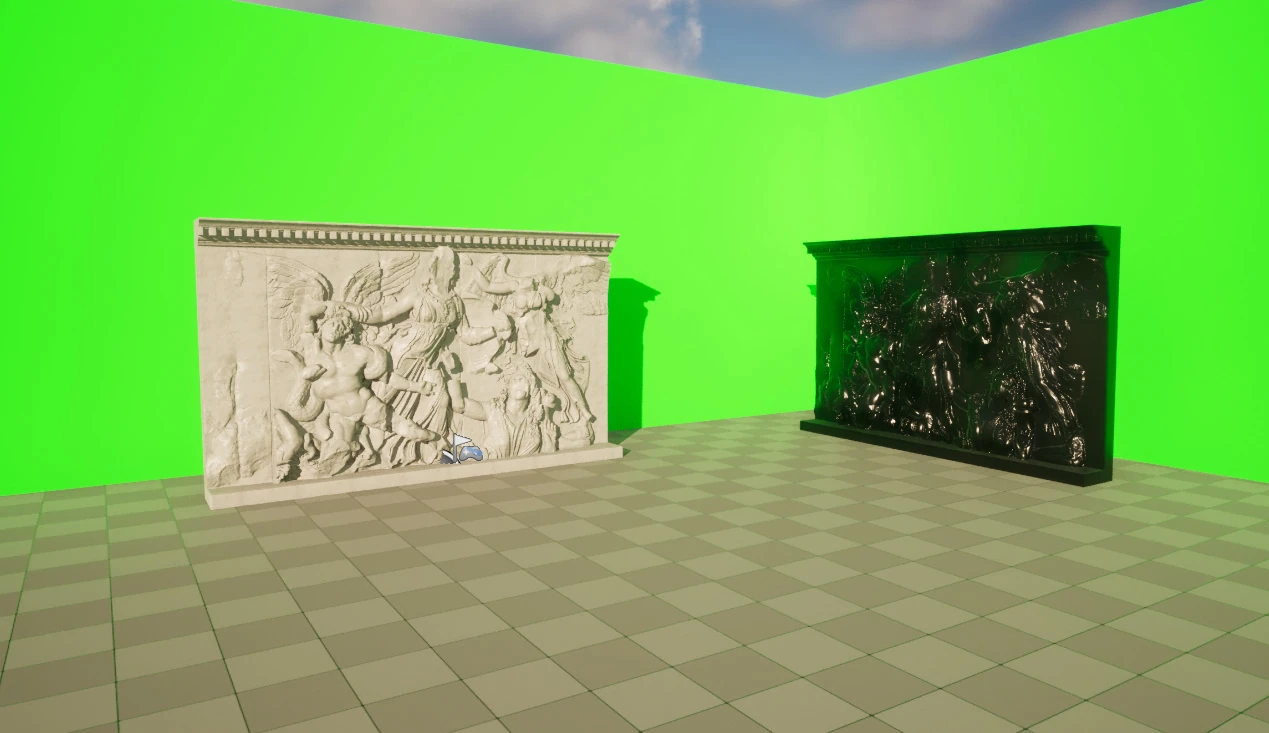 I had a green background, but shadows appeared. Shadows alone might still key out with some adjustments later.
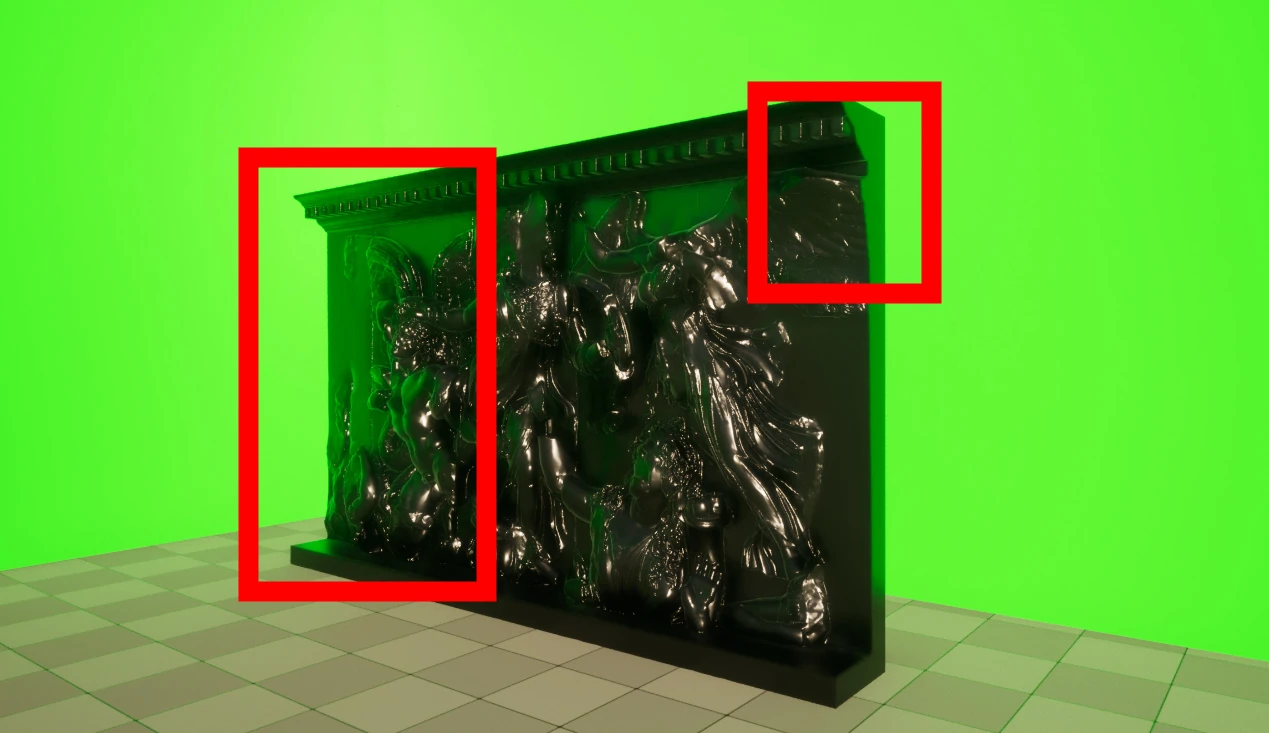
 Even if shadows were manageable, green reflected in glossy objects was a much bigger problem. That would require advanced masking in the editing software.
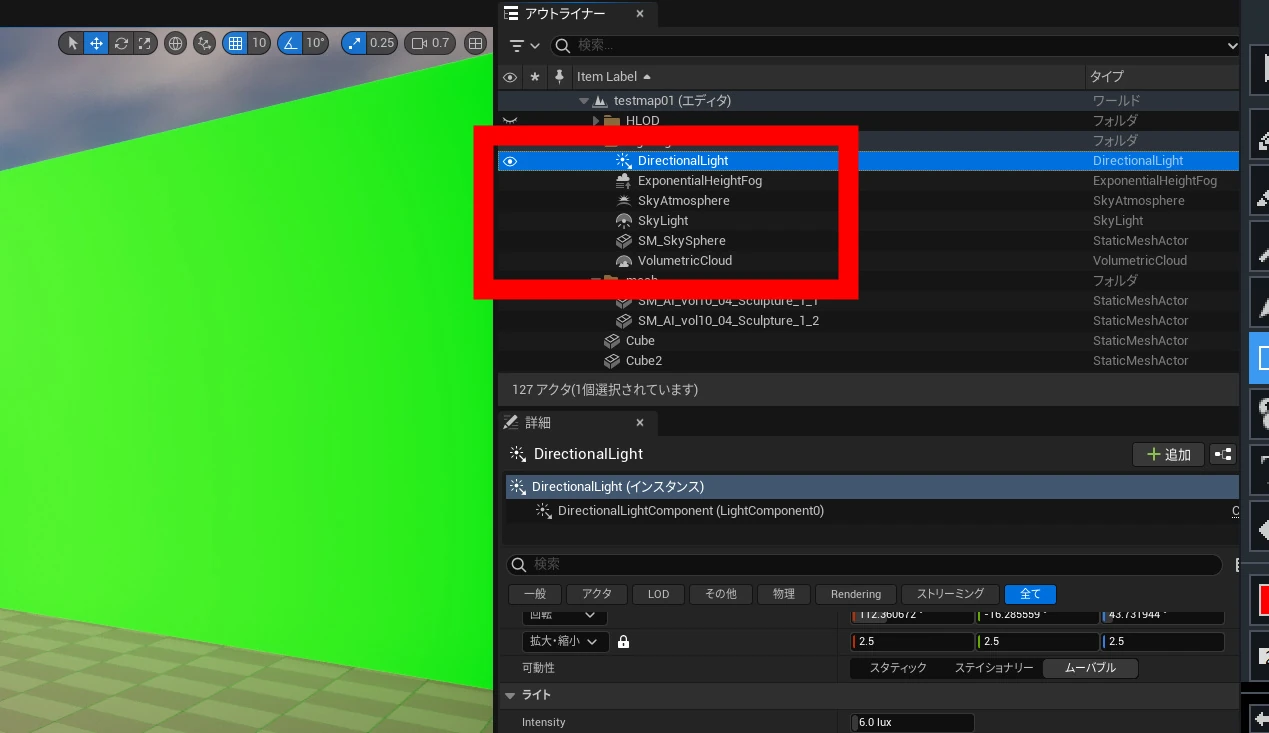
 Let's try a simple solution. First, I removed all the lights that were getting in the way. Because this removes the environmental lighting, the method may not suit every purpose.
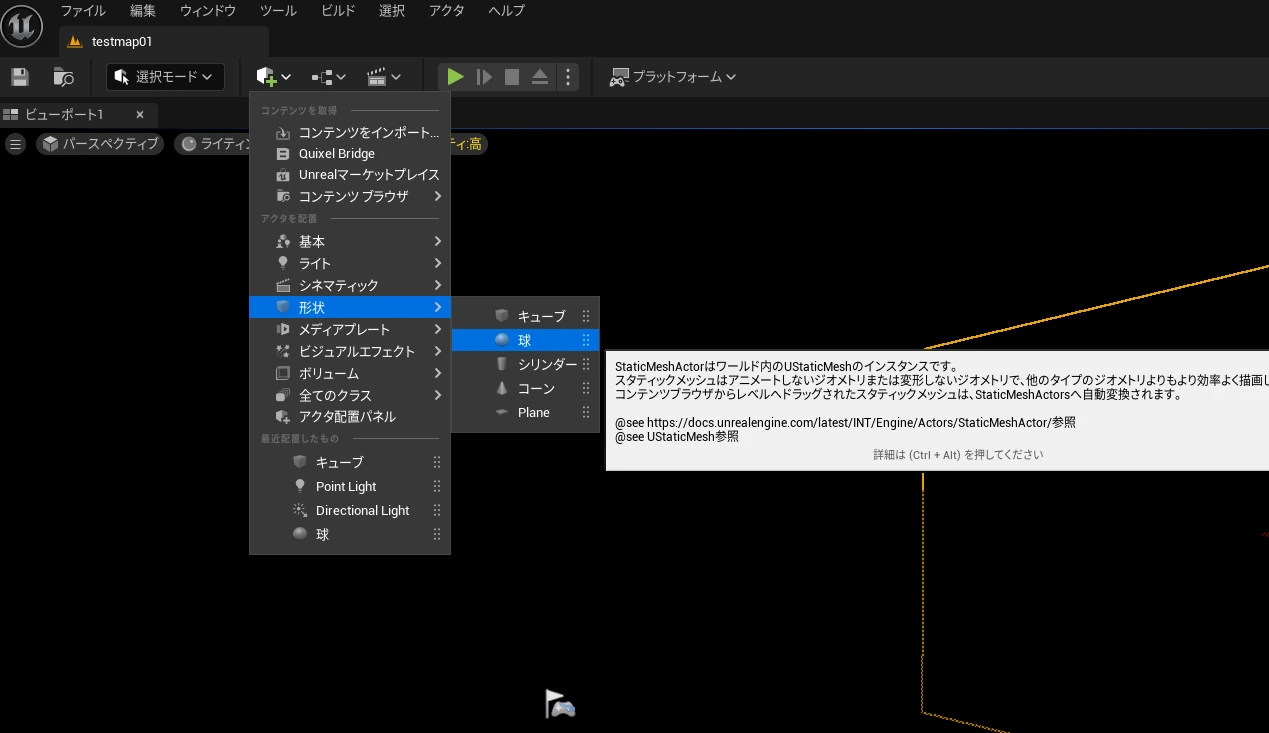
 I added a sphere from the shapes.
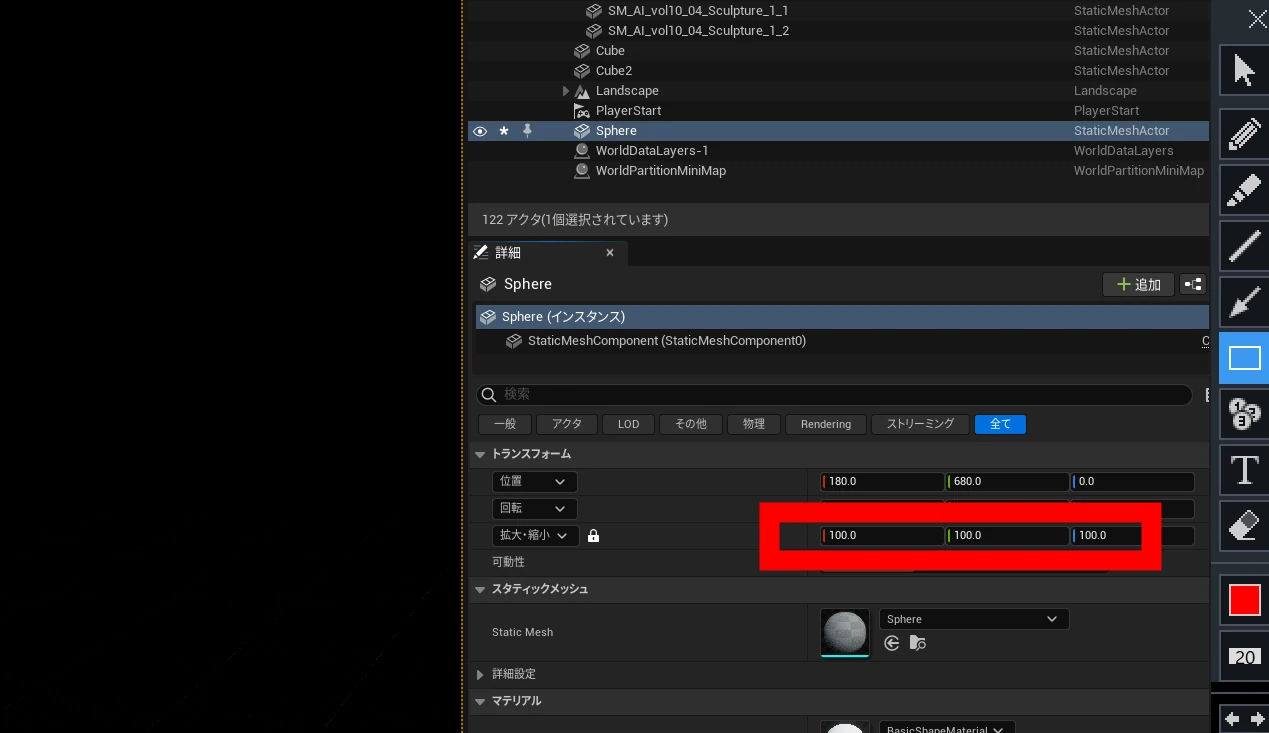
 I set its scale to 100.
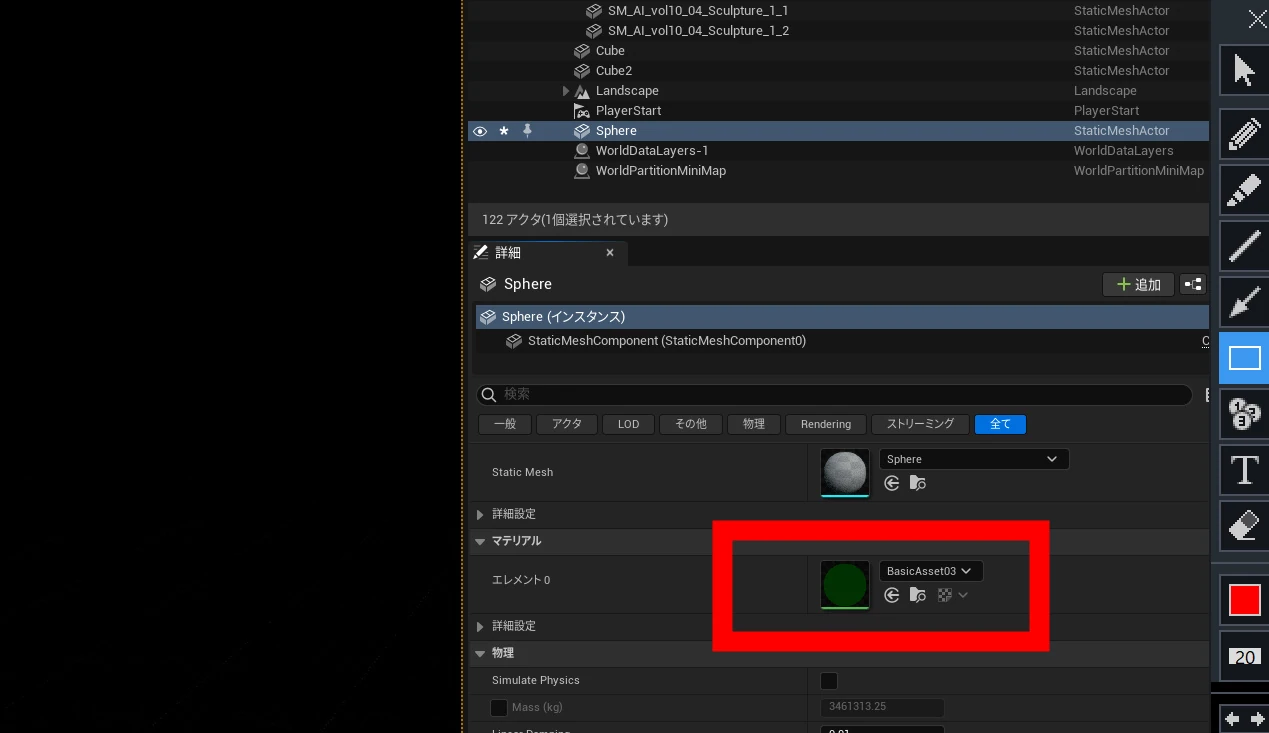
 I chose a green material for its material element, then double-clicked the material to open its settings.
 The default material should use Base Color and Default Lit. Note: I marked the wrong area in the image below.
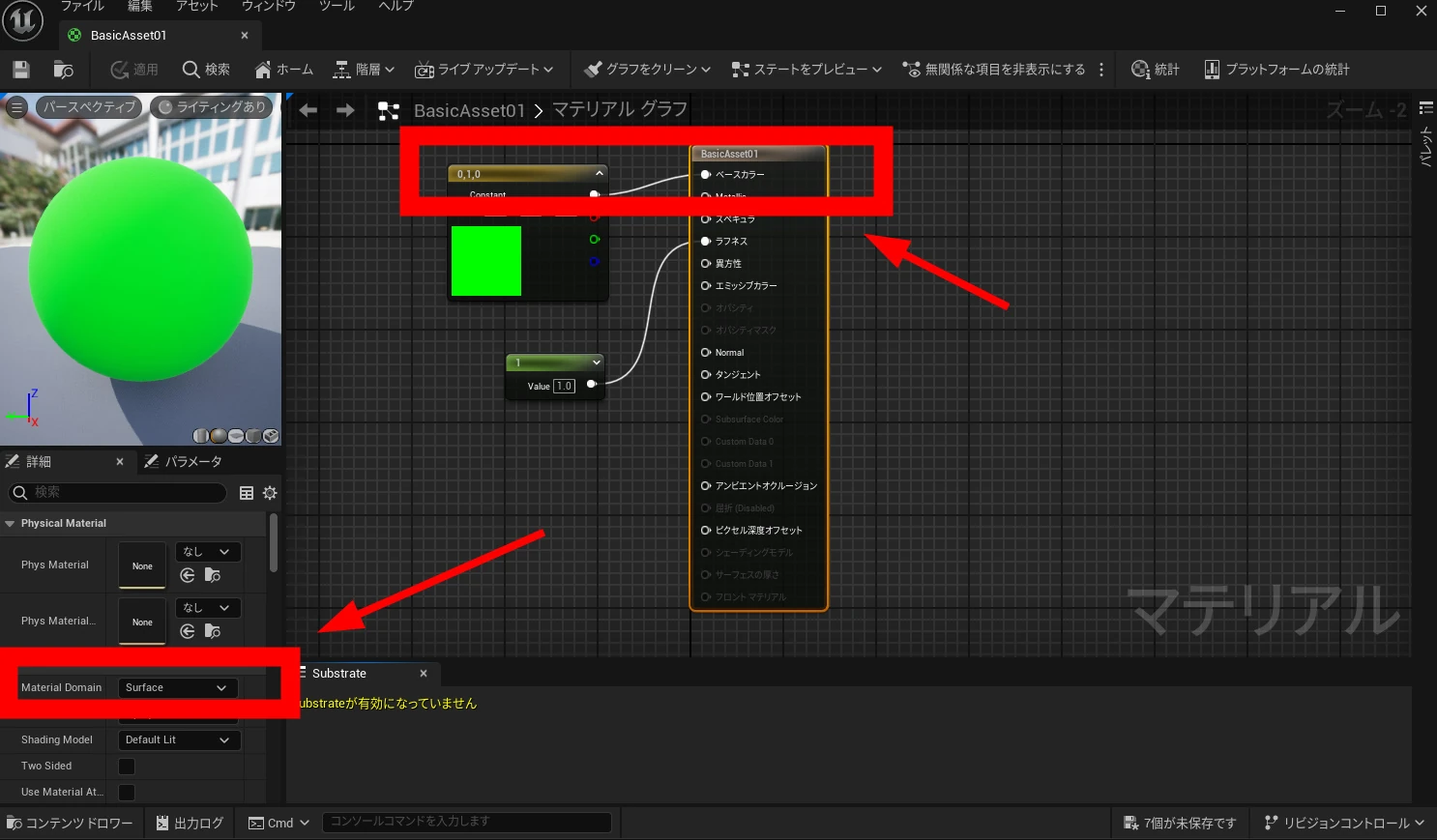 I changed it to Unlit and used Emissive Color. Changing from lit to unlit means shadows will not fall on the green surface itself. The unlit material is self-illuminating, so its brightness appears constant.
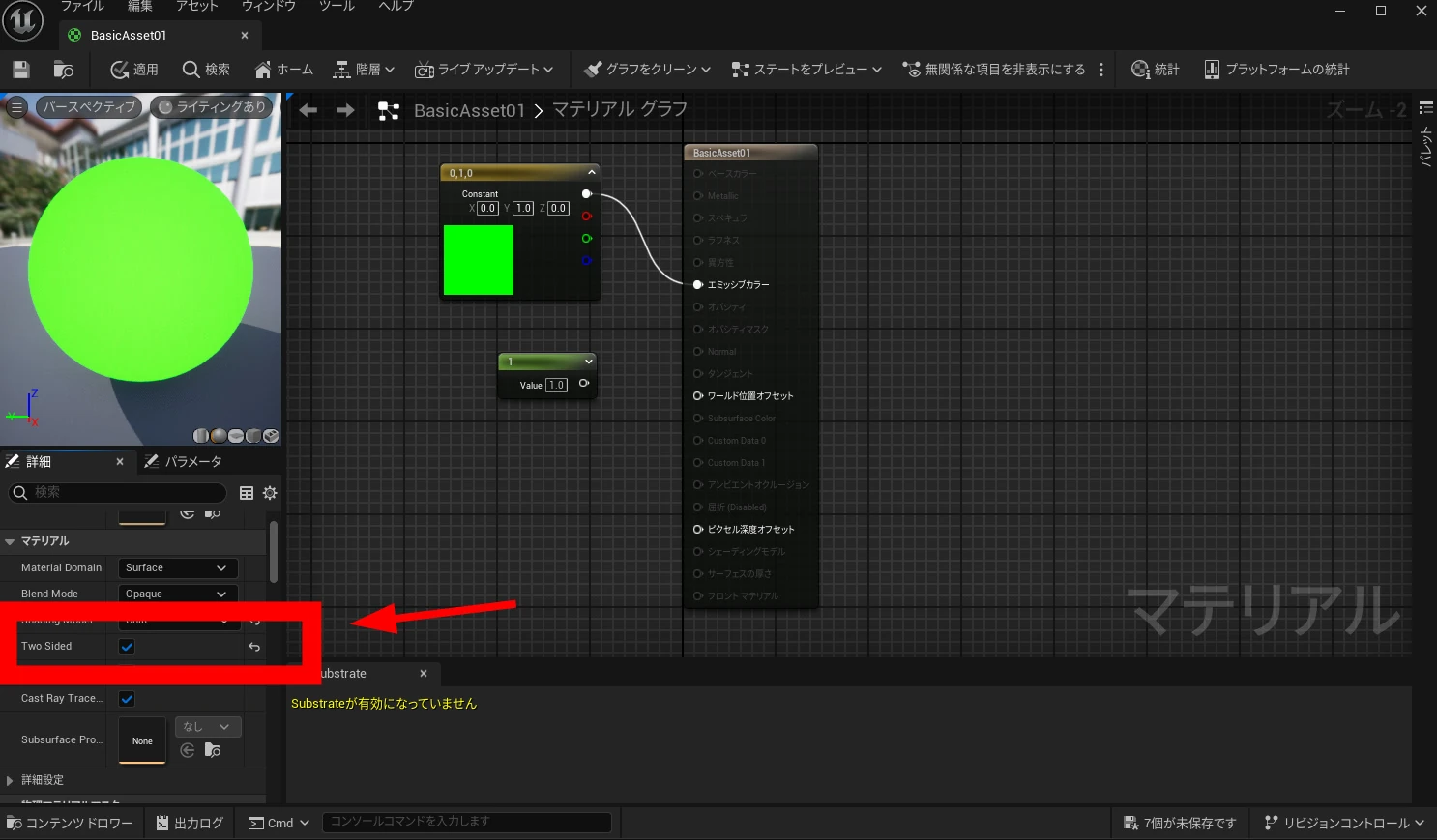
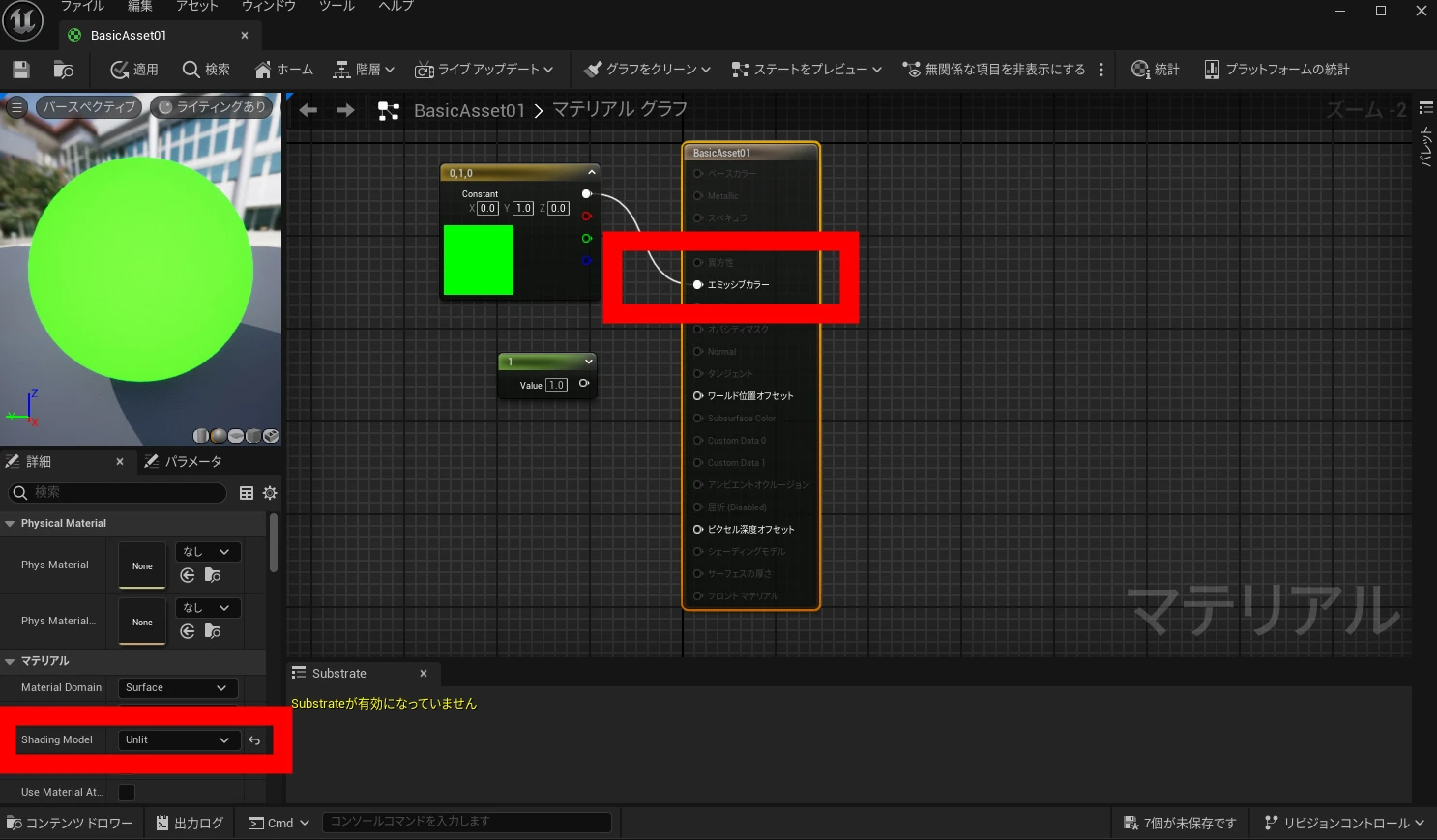 With the sphere enlarged to 100, I could not see the green from inside. Enabling Two Sided made the interior visible. I saved and returned to the scene.
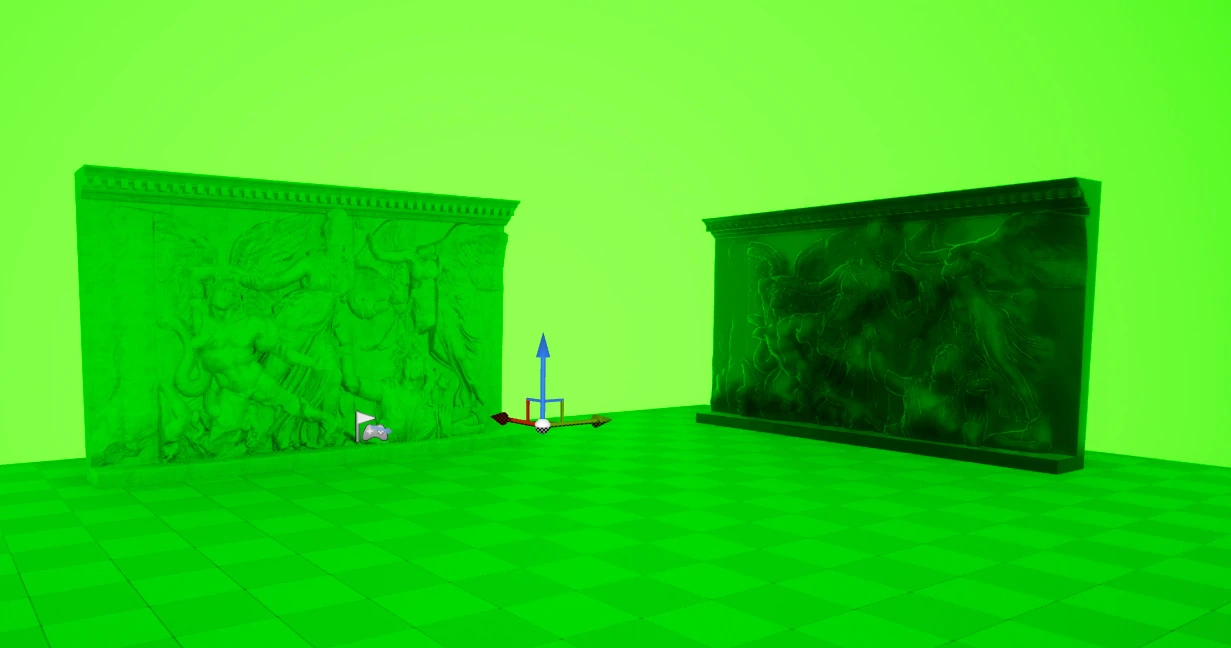
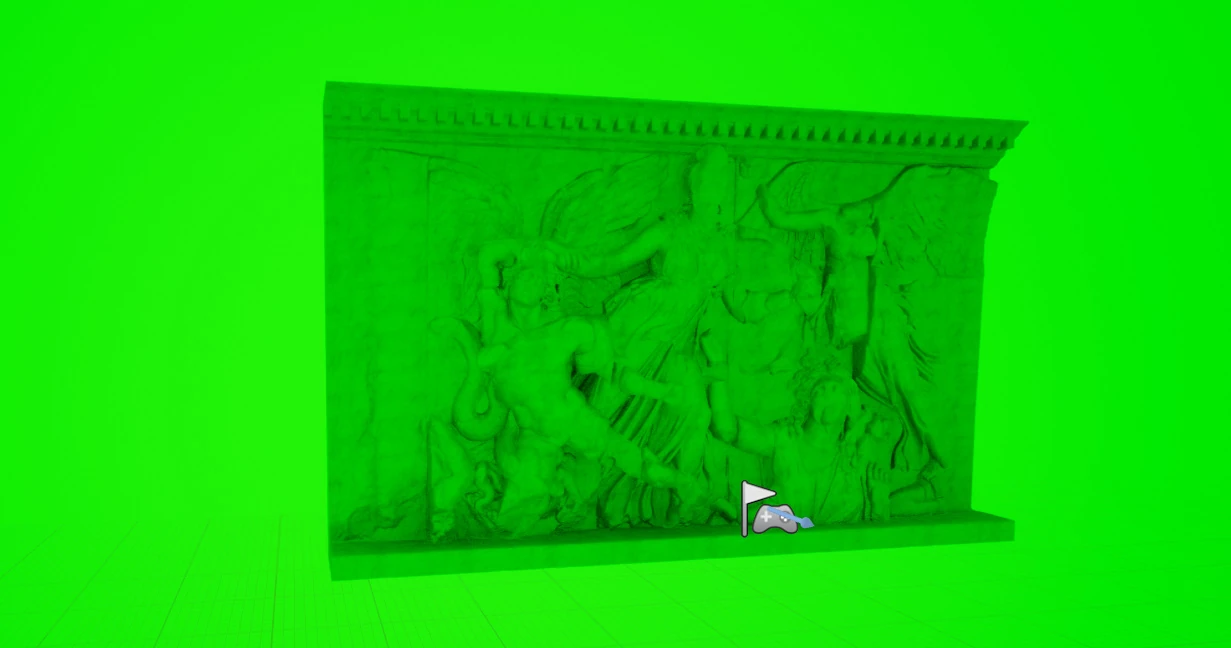
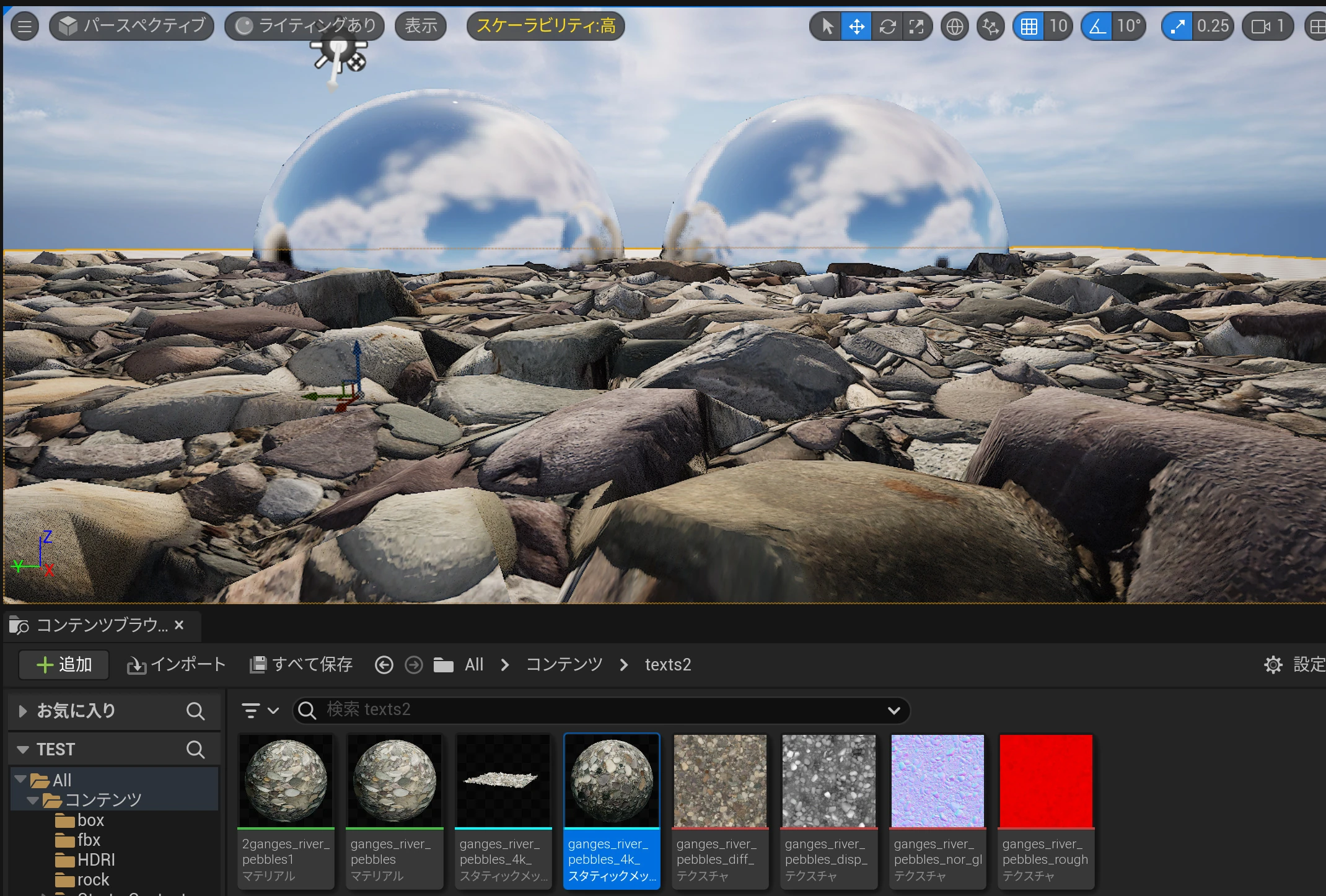
 Everything had turned green! The sphere's green was reflecting onto the objects. What a result.
An easy color on the eyes, perhaps, but the key would remove everything.
Everything had turned green! The sphere's green was reflecting onto the objects. What a result.
An easy color on the eyes, perhaps, but the key would remove everything.
 I selected the sphere and enlarged it to around 1000.
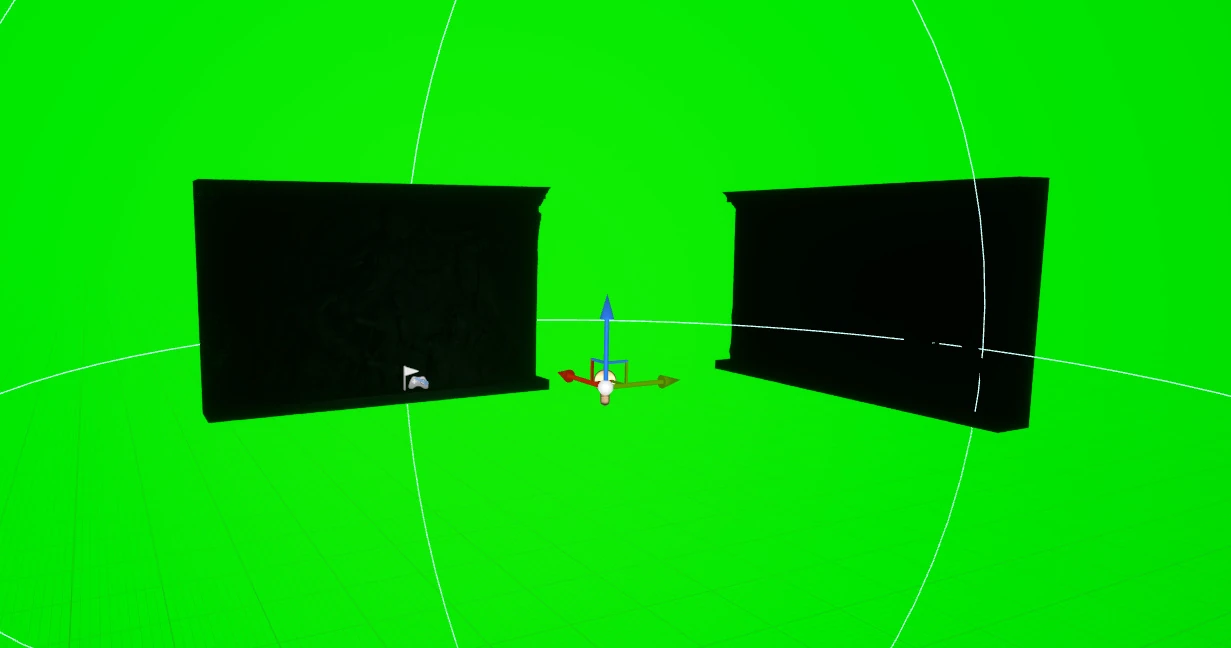
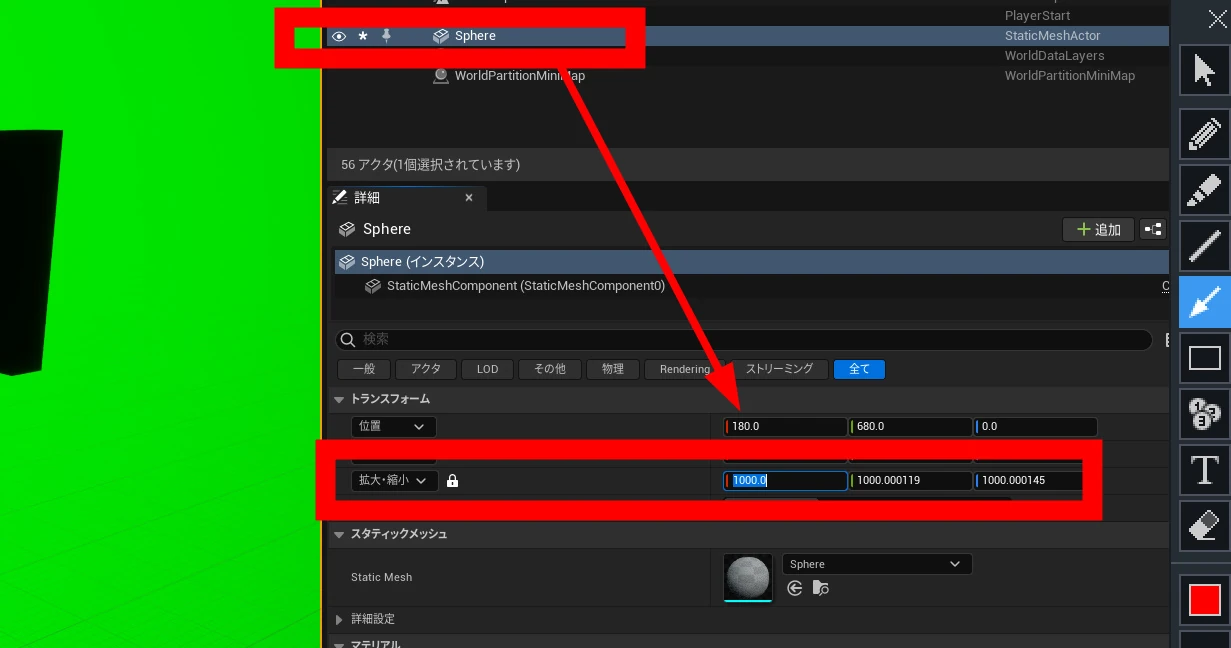 The green light no longer reached the objects, which became black. The background remained green, but its light no longer reached them.
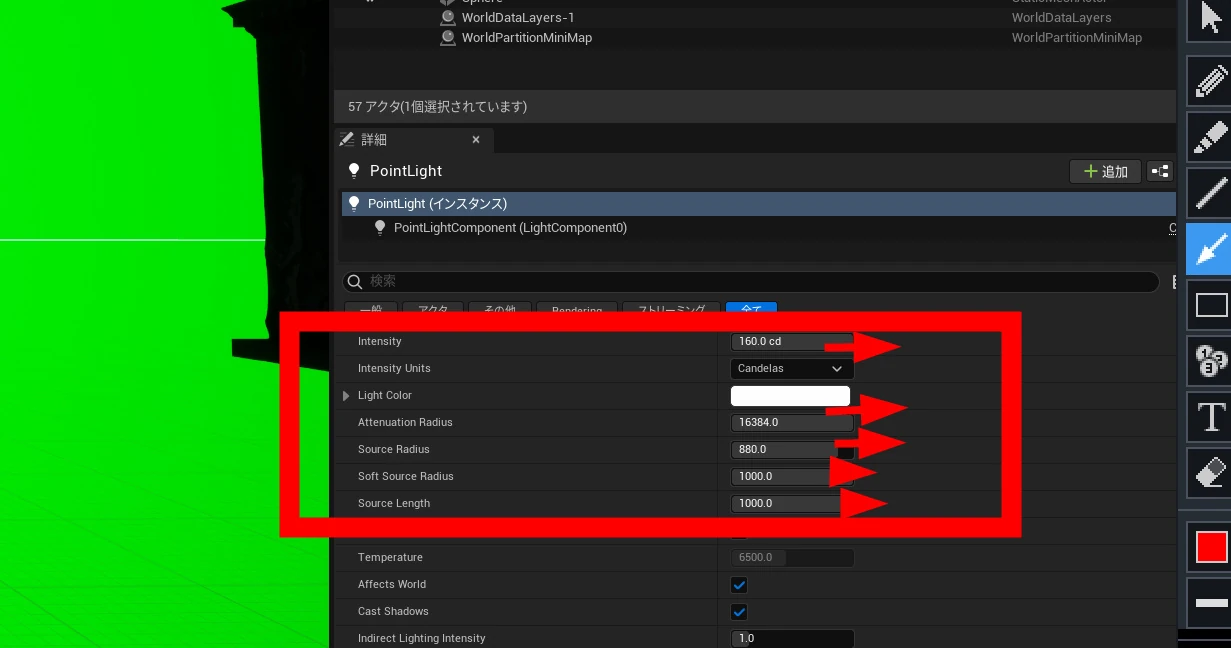
 I added lights and adjusted their range and softness. Add more lights and tune them as needed for the scene.
 The objects now appeared cleanly.
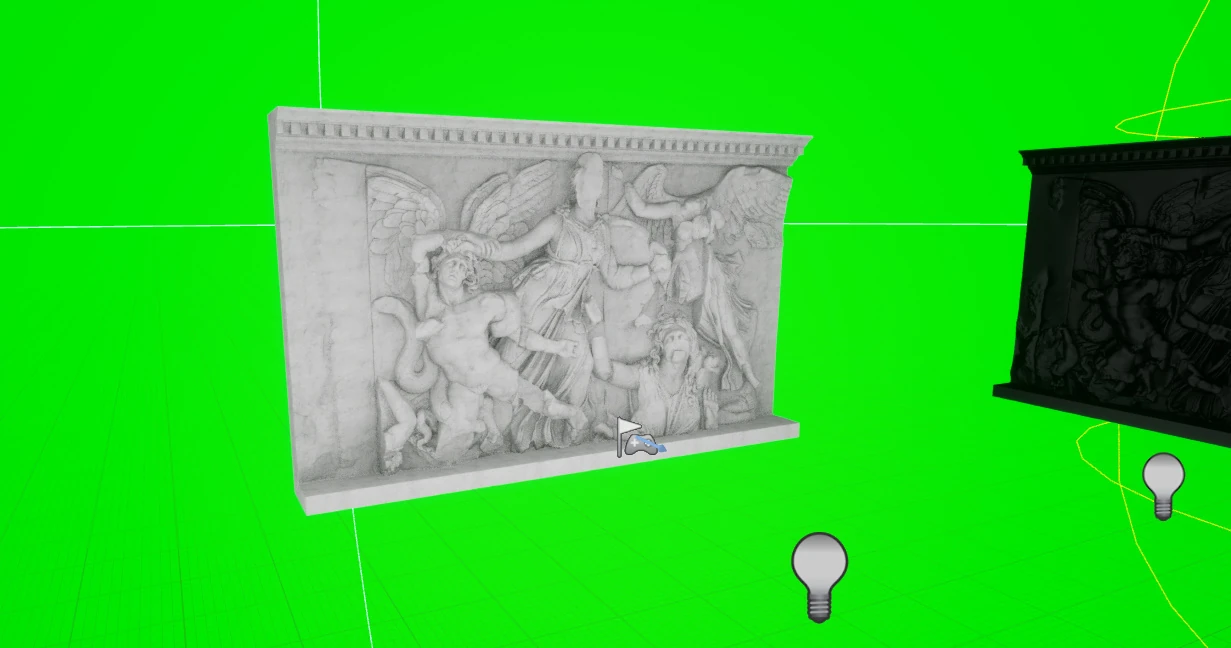 Glossy black objects also rendered well, with no green influence. This should make for a clean key.
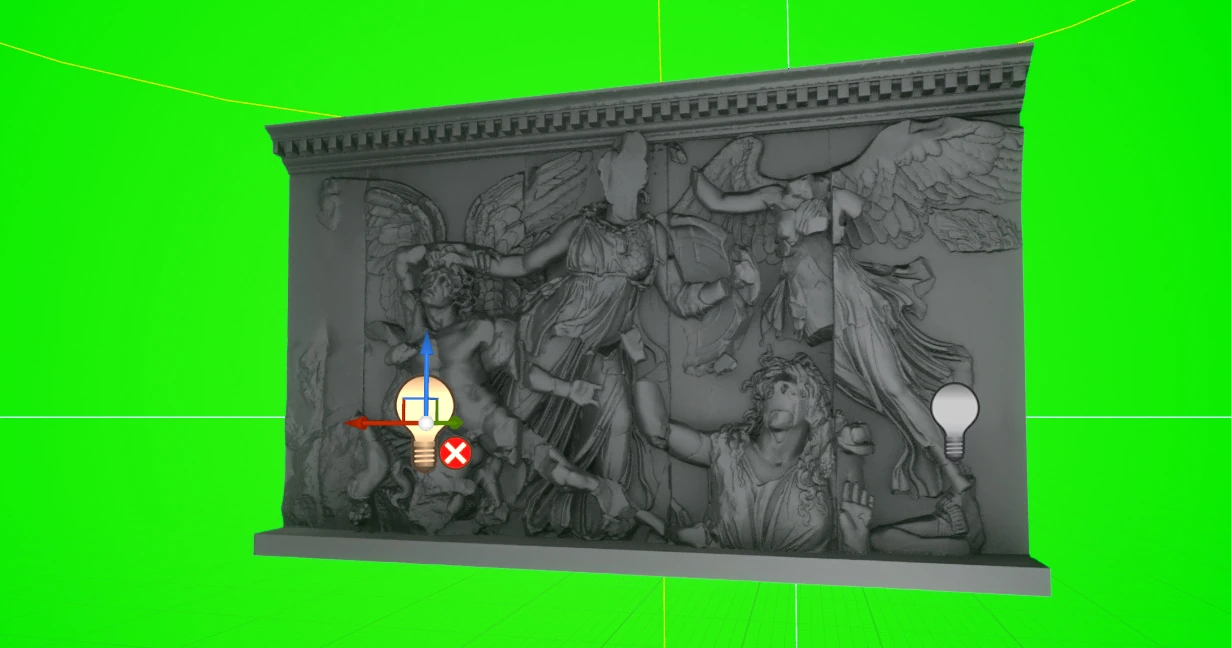 Here is the exported video.
Related articles

Updates and contact: X @riragoncom.