Note: This article was first published more than a year ago.
- Ubuntu kernel, V4L2, and udev behavior varies by version. If the camera is not recognized, check release notes and driver information.
- UVC camera resolutions, frame rates, and synchronization behavior depend on the model. Consult vendor specifications alongside tests with tools such as v4l2-ctl.
- This article uses a particular ELP model. Other models may have different VID/PID values and supported formats.
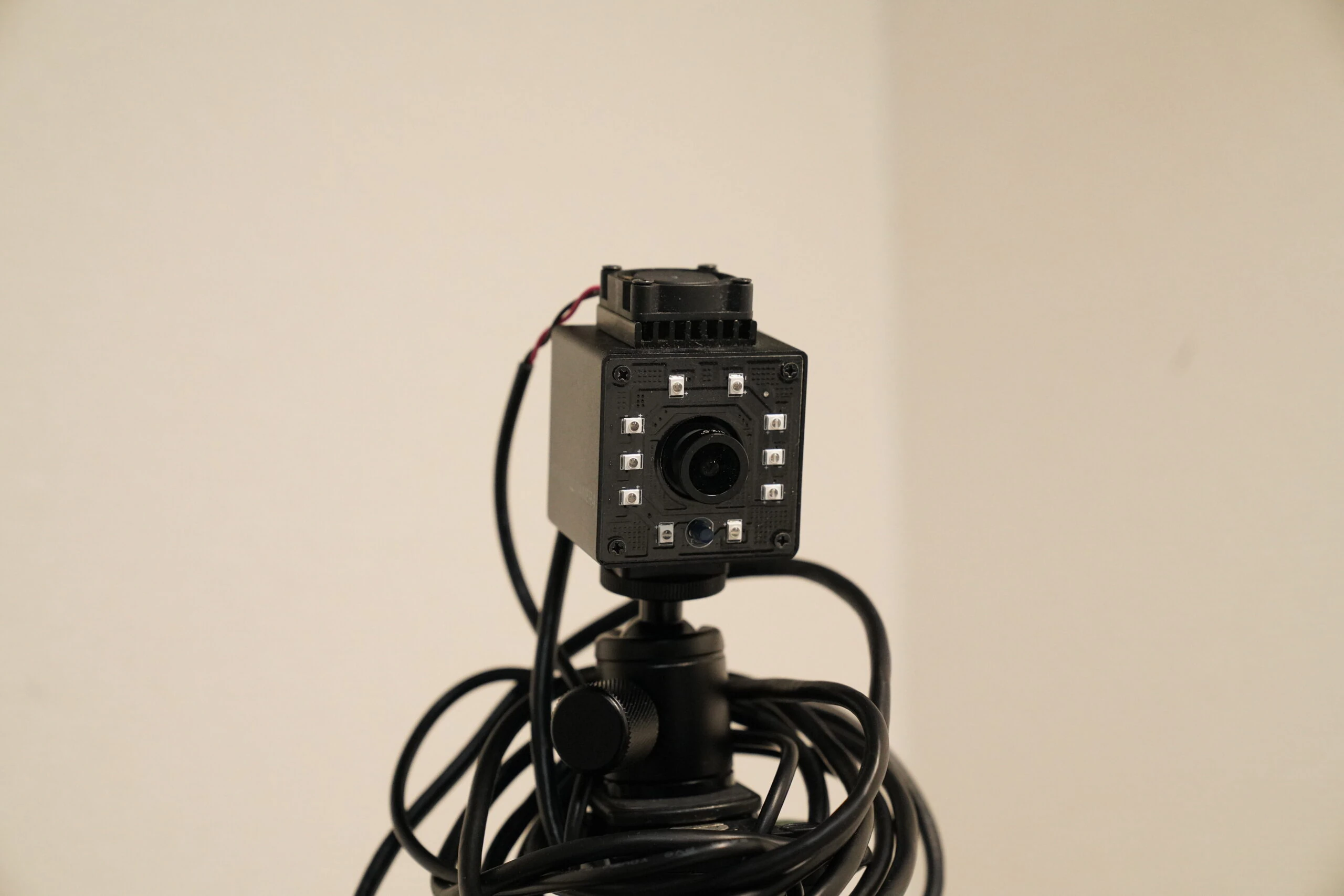
ELP USB cameras: I own quite a few. They are inexpensive cameras that work properly.
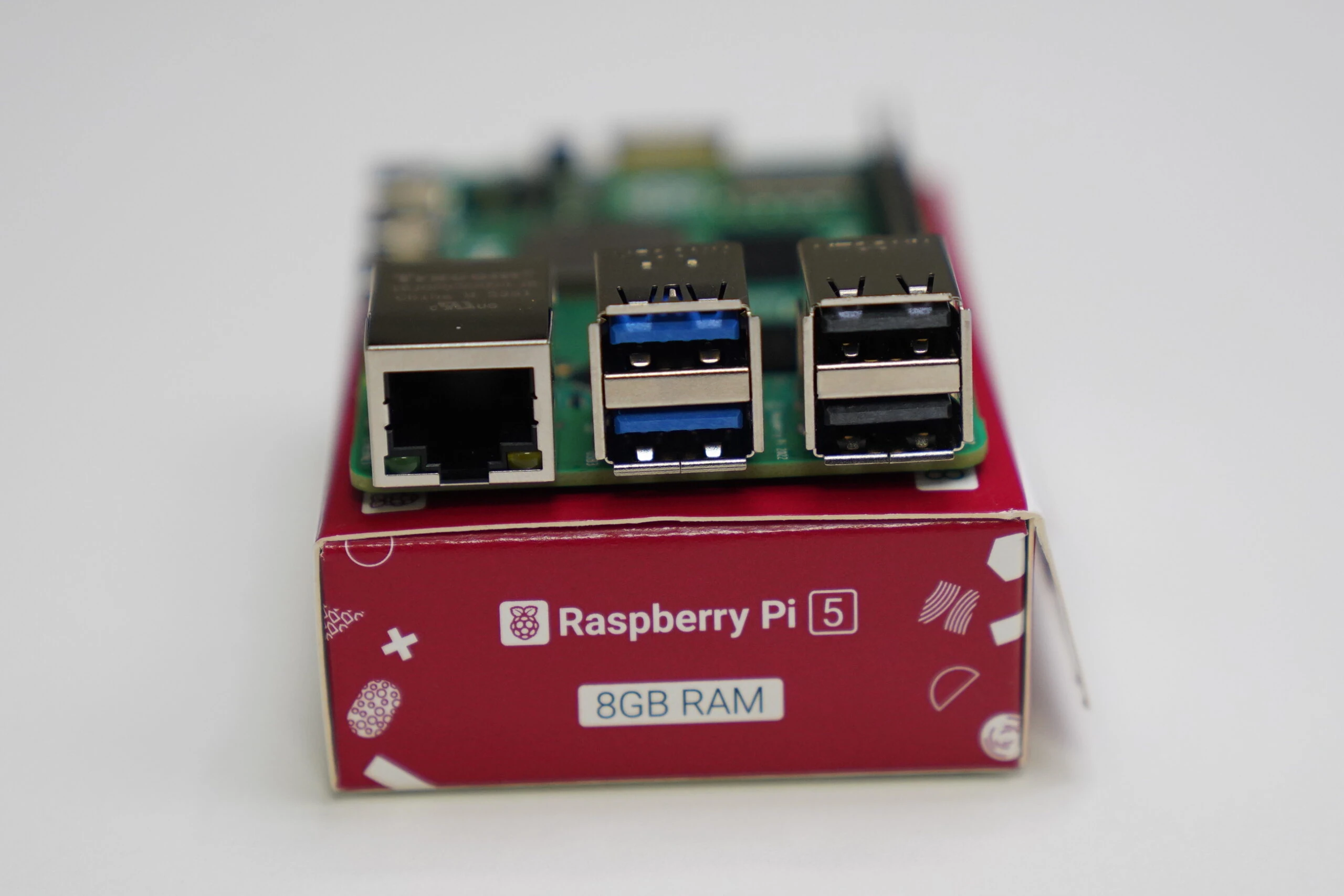
I connected one to a Raspberry Pi 5 running Ubuntu 24.04. These are my notes for controlling it with v4l-utils. First, check that the camera is recognized. ELP cameras are Chinese-made USB cameras sold on Amazon and elsewhere. The available controls vary slightly by model, but they are generally similar. These commands change automatic or manual exposure, brightness, white balance, and other settings from the Ubuntu terminal. This is really a guide to v4l-utils rather than a feature unique to ELP.
Related products: Search Amazon for Raspberry Pi 5 (Ad)
ELP USB camera manufacturer website:
Related products: Search Amazon for ELP USB cameras (Ad)
lsusb

Bus 002 Device 002: ID 05a3:9230 ARC International Camera
Bus 004 Device 002: ID 32e4:9230 HD USB Camera HD USB Camera
Install v4l-utils.
sudo apt install v4l-utils
Use list-devices to identify the connected cameras.
v4l2-ctl --list-devices
USB 2.0 Camera: HD USB Camera (usb-xhci-hcd.0-2):
        /dev/video2

HD USB Camera: HD USB Camera (usb-xhci-hcd.1-1):
        /dev/video0
Inspect the camera formats using the device information, such as /dev/video0.
v4l2-ctl --device=/dev/video0 --list-formats-ext
ioctl: VIDIOC_ENUM_FMT
        Type: Video Capture

        [0]: 'MJPG' (Motion-JPEG, compressed)
                Size: Discrete 1920x1080
                        Interval: Discrete 0.033s (30.000 fps)
                Size: Discrete 1280x720
                        Interval: Discrete 0.017s (60.000 fps)
                Size: Discrete 1024x768
                        Interval: Discrete 0.033s (30.000 fps)
                Size: Discrete 640x480
                        Interval: Discrete 0.008s (120.101 fps)
                Size: Discrete 800x600
                        Interval: Discrete 0.017s (60.000 fps)
                Size: Discrete 1280x1024
                        Interval: Discrete 0.033s (30.000 fps)
                Size: Discrete 320x240
                        Interval: Discrete 0.008s (120.101 fps)
        [1]: 'YUYV' (YUYV 4:2:2)
                Size: Discrete 1920x1080
                        Interval: Discrete 0.167s (6.000 fps)
                Size: Discrete 1280x720
                        Interval: Discrete 0.111s (9.000 fps)
                Size: Discrete 1024x768
                        Interval: Discrete 0.167s (6.000 fps)
                Size: Discrete 640x480
                        Interval: Discrete 0.033s (30.000 fps)
                Size: Discrete 800x600
                        Interval: Discrete 0.050s (20.000 fps)
                Size: Discrete 1280x1024
                        Interval: Discrete 0.167s (6.000 fps)
                Size: Discrete 320x240
                        Interval: Discrete 0.033s (30.000 fps)
Next, inspect the camera's user controls and current settings.
v4l2-ctl --device=/dev/video2 --list-ctrls

User Controls

                     brightness 0x00980900 (int)    : min=-64 max=64 step=1 default=0 value=0
                       contrast 0x00980901 (int)    : min=0 max=64 step=1 default=32 value=32
                     saturation 0x00980902 (int)    : min=0 max=128 step=1 default=60 value=60
                            hue 0x00980903 (int)    : min=-40 max=40 step=1 default=0 value=0
        white_balance_automatic 0x0098090c (bool)   : default=1 value=0
                          gamma 0x00980910 (int)    : min=72 max=500 step=1 default=100 value=100
                           gain 0x00980913 (int)    : min=0 max=100 step=1 default=0 value=0
           power_line_frequency 0x00980918 (menu)   : min=0 max=2 default=1 value=1 (50 Hz)
      white_balance_temperature 0x0098091a (int)    : min=2800 max=6500 step=1 default=4600 value=4500
                      sharpness 0x0098091b (int)    : min=0 max=6 step=1 default=2 value=2
         backlight_compensation 0x0098091c (int)    : min=0 max=2 step=1 default=1 value=1

Camera Controls

                  auto_exposure 0x009a0901 (menu)   : min=0 max=3 default=3 value=1 (Manual Mode)
         exposure_time_absolute 0x009a0902 (int)    : min=1 max=5000 step=1 default=157 value=100
     exposure_dynamic_framerate 0x009a0903 (bool)   : default=0 value=0
Here are explanations of those controls and commands for changing them. Running a command stores the selected value. To restore defaults, change the values back manually.
- brightness: min=-64, max=64, step=1 Adjusts brightness. Increasing or decreasing the value changes the brightness of the image.
v4l2-ctl --device=/dev/video0 --set-ctrl=brightness=0
- contrast: min=0, max=64, step=1 Adjusts contrast. Higher values make the difference between light and dark more pronounced.
v4l2-ctl --device=/dev/video0 --set-ctrl=contrast=32
- saturation: min=0, max=128, step=1 Adjusts color intensity. Higher values make colors more vivid.
v4l2-ctl --device=/dev/video0 --set-ctrl=saturation=60
- hue: min=-40, max=40, step=1 Adjusts hue, changing the color cast.
v4l2-ctl --device=/dev/video0 --set-ctrl=hue=0
- white_balance_automatic: automatic white balance Select on (1) or off (0). When enabled, the camera adjusts color temperature automatically.
v4l2-ctl --device=/dev/video0 --set-ctrl=white_balance_automatic=1
- gamma: min=72, max=500, step=1 Adjusts gamma to control midtone brightness.
v4l2-ctl --device=/dev/video0 --set-ctrl=gamma=100
- gain: min=0, max=100, step=1 Adjusts image gain, or sensitivity. Increasing it can make dark scenes easier to see, but may also increase noise.
v4l2-ctl --device=/dev/video0 --set-ctrl=gain=0
- power_line_frequency: mains frequency Options: 0 (off), 1 (50 Hz), 2 (60 Hz) Helps prevent flicker caused by mains power frequency.
v4l2-ctl --device=/dev/video0 --set-ctrl=power_line_frequency=1
- white_balance_temperature: min=2800, max=6500, step=1 Manually adjusts color temperature, changing the color balance.
v4l2-ctl --device=/dev/video0 --set-ctrl=white_balance_temperature=5000
- sharpness: min=0, max=6, step=1 Adjusts the sharpness of image edges.
v4l2-ctl --device=/dev/video0 --set-ctrl=sharpness=3
- backlight_compensation: min=0, max=2, step=1 A setting for improving an image with backlighting.
v4l2-ctl --device=/dev/video0 --set-ctrl=backlight_compensation=2
- Camera Controls: auto_exposure 1 is manual; 3 is automatic. Selects the exposure mode. In manual mode, you can set the exposure time yourself.
v4l2-ctl --device=/dev/video0 --set-ctrl=auto_exposure=1
- exposure_time_absolute: min=1, max=5000, step=1 The original example describes this as setting exposure time in milliseconds in manual exposure mode. It has no effect when automatic exposure is enabled.
v4l2-ctl --device=/dev/video0 --set-ctrl=exposure_time_absolute=1
- exposure_dynamic_framerate: exposure-based frame-rate adjustment A Boolean setting: on (1) or off (0). Controls whether the frame rate is adjusted dynamically based on exposure time.
v4l2-ctl --device=/dev/video0 --set-ctrl=exposure_dynamic_framerate=1
ELP USB camera listingsView listings on Amazon Ad / Amazon Associates link
Related articles
Updates and contact: X @riragoncom.