Part 5: Turning a photograph of white wallpaper into a PBR wall material with 3D-Coat and UE5
I made a seamless texture from a photograph of my white wallpaper, built a PBR material in 3D-Coat, and applied it to a Blender wall imported into UE5.
Note: This article is more than one year old.
- The interfaces for 3DCoat's PBR workflow, smart materials, and export presets vary by version. Check the official manual.
- Texture resolution and channel packing must match the material design in UE.
- License options and update rights can change with sales policies.
3D-Coat is software from Pilgway, a developer based in Kyiv, Ukraine. Using it is also one way to support Ukraine. It handles 3D modeling, texturing, rendering, UV mapping, and more. Competing products include ZBrush and Substance Painter.
It is available at a lower price than those products, with perpetual-license or subscription options.
Each has its strengths, but 3D-Coat is just as approachable.
I use it for sculpting and texturing.
You can do similar work entirely in the free Blender, but having several tools available can make work smoother by letting you use each one's strengths.
3D-Coat
Making a PBR material from white wallpaper
This time, I photographed the white wallpaper in my room and made a wall PBR material in 3DCoat. I created a wall in Blender, textured it with the PBR material, and imported it into UE5. PBR stands for physically based rendering. A PBR material is a material intended for that rendering approach.
PBR simulates the physical behavior of light to produce more realistic 3D graphics.
It mathematically models how light interacts with surfaces and is widely used in real-time graphics, such as games and interactive media, and offline rendering for films and animation.
Making the wall texture repeat
First, I photographed the wall. It was an ordinary white wall. I would turn it into a repeating texture and use it in the PBR material.
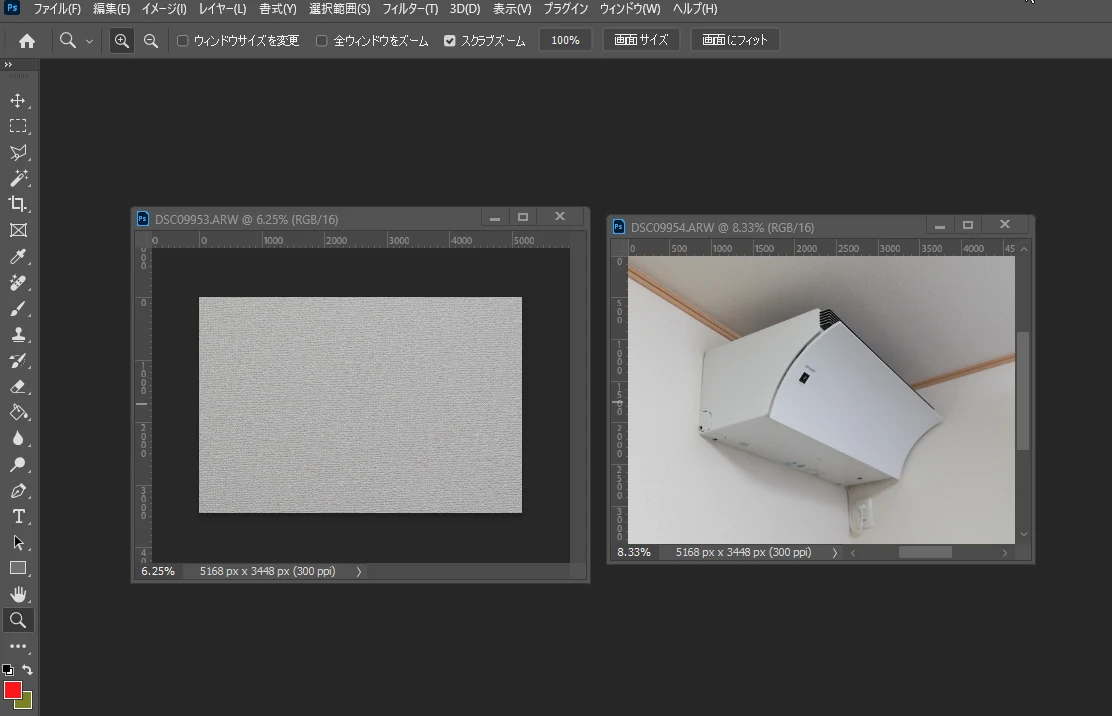 Here is the wallpaper. To make it repeat, the opposite edges need to join.
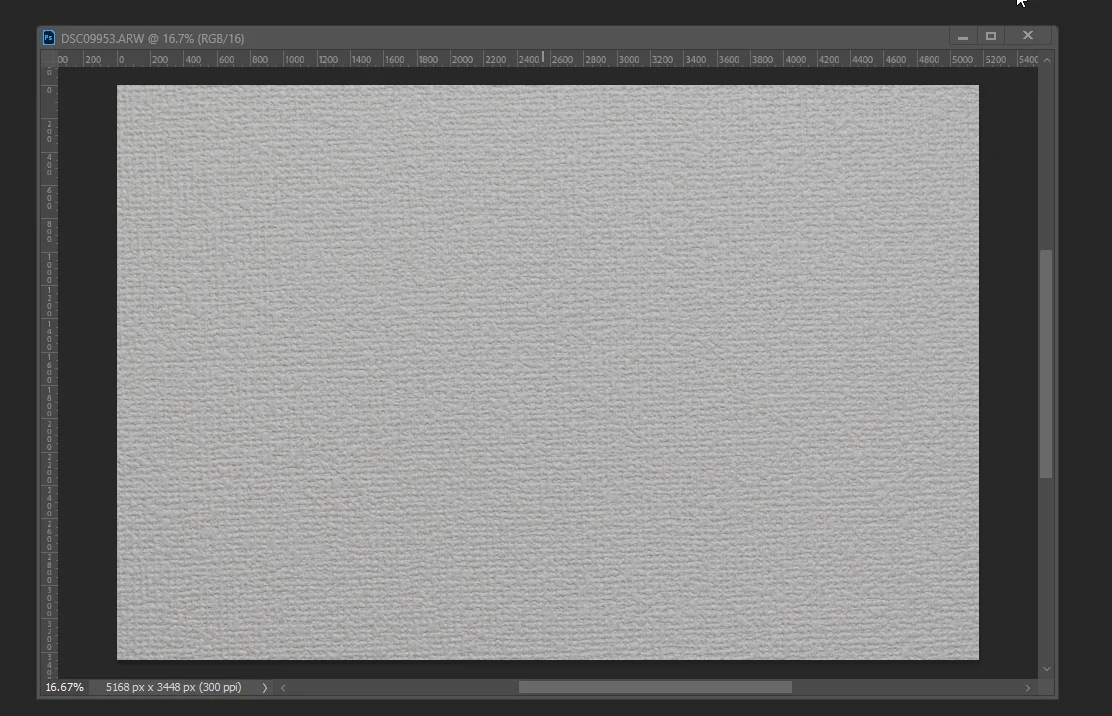 For simplicity, I resized it to 2000 × 2000 pixels and displayed center guides.
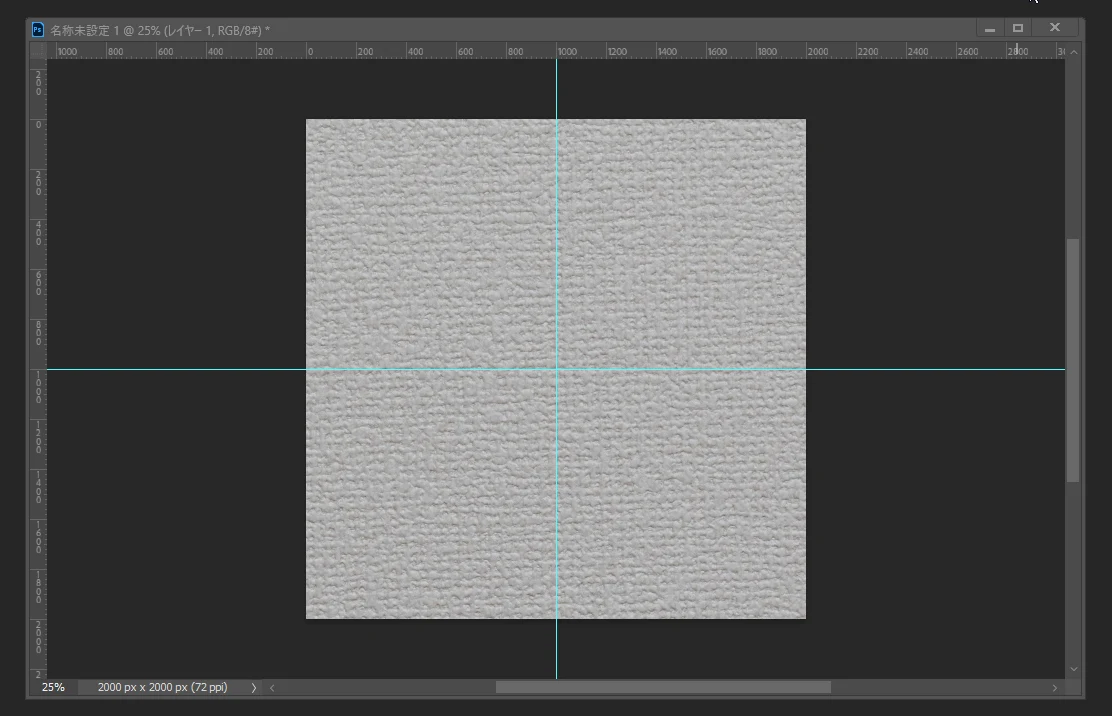 I moved the bottom-right quadrant to the top-left and moved the other quadrants diagonally in the same way.
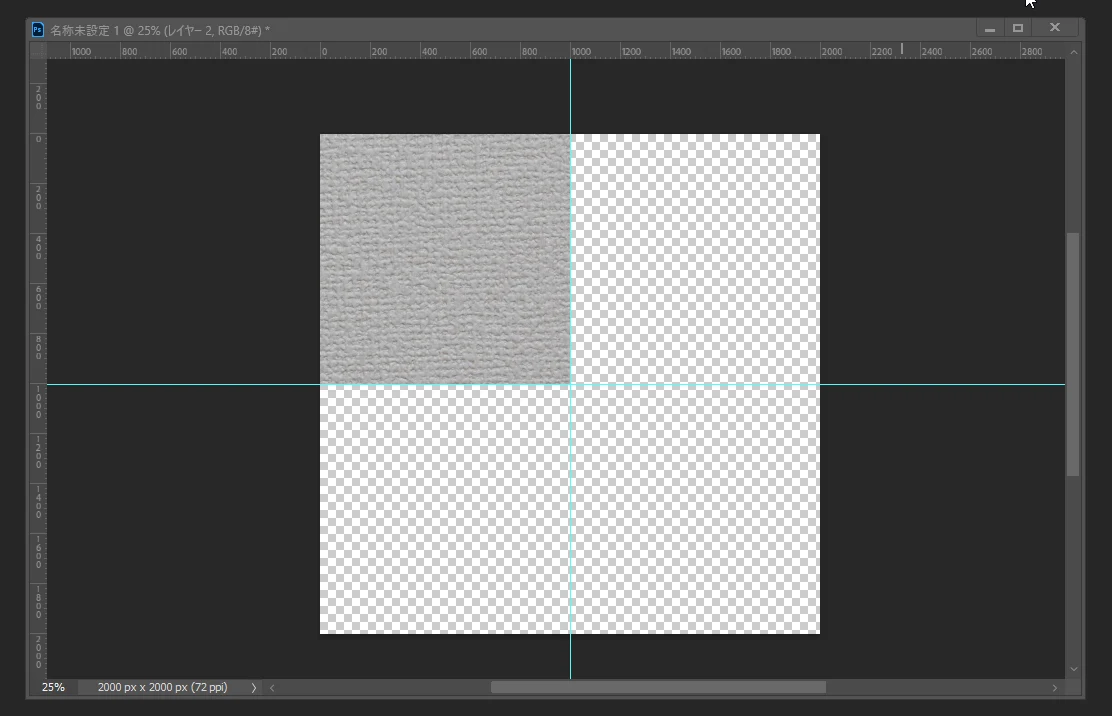 The bottom-left quadrant went to the top-right.
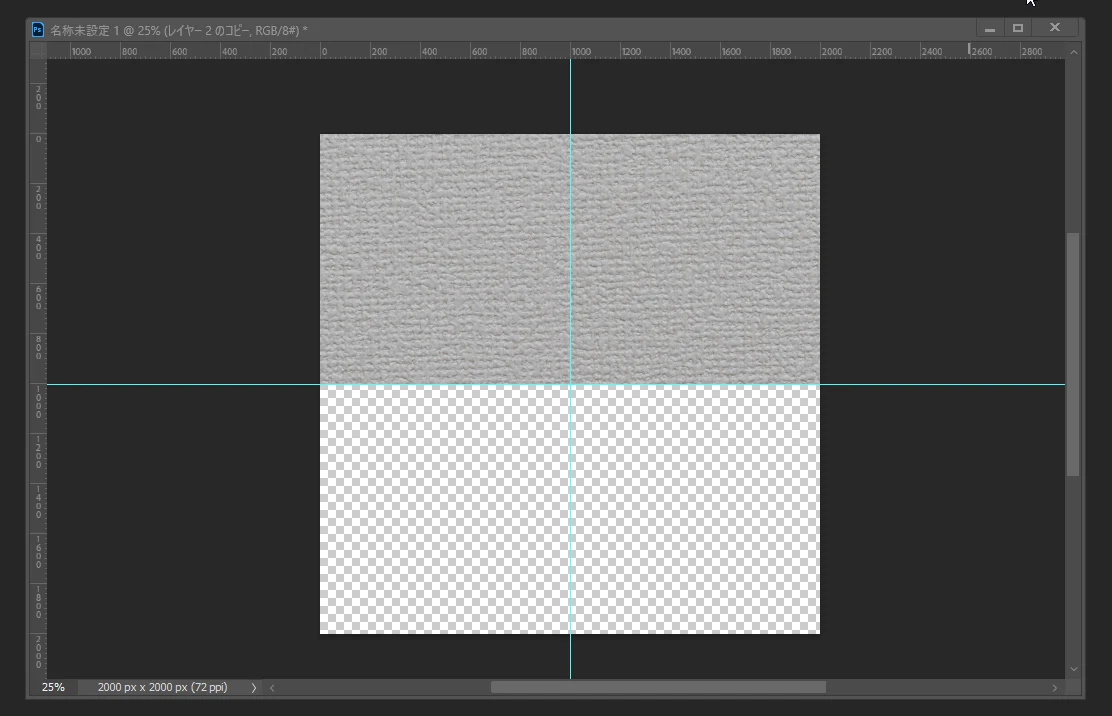 I continued moving the other quadrants.
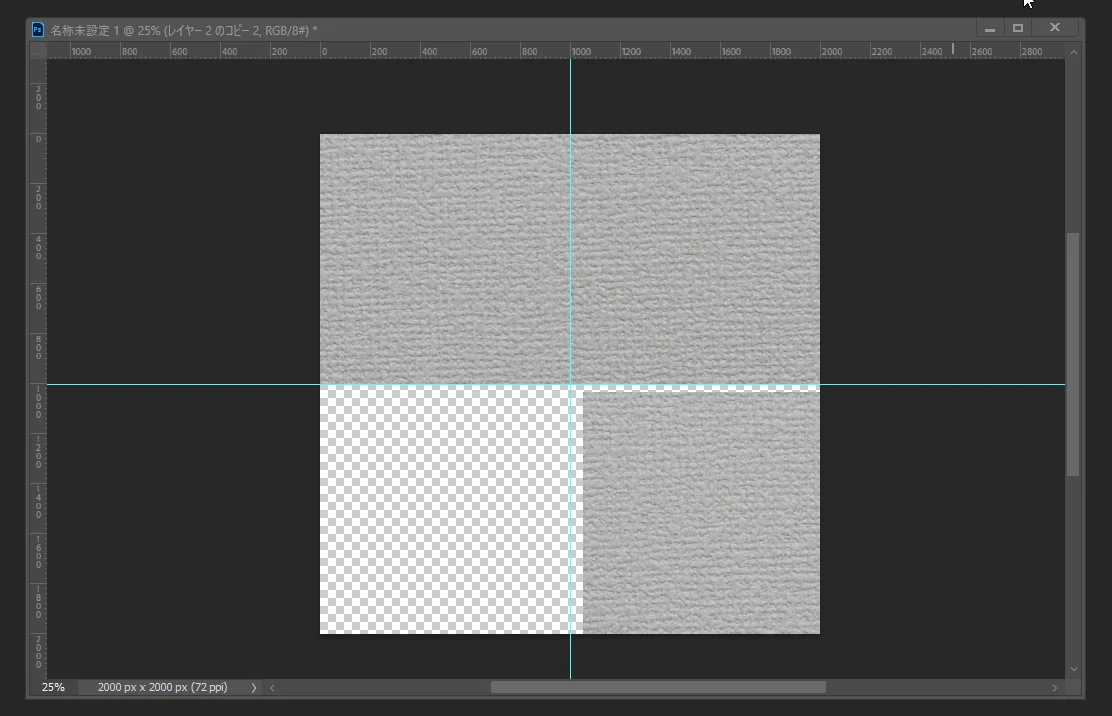 This gave me a repeating texture. If the edges join when tiled, it works. There are many other approaches, including seamless-texture tools such as Substance Designer, GIMP, and PixPlant.
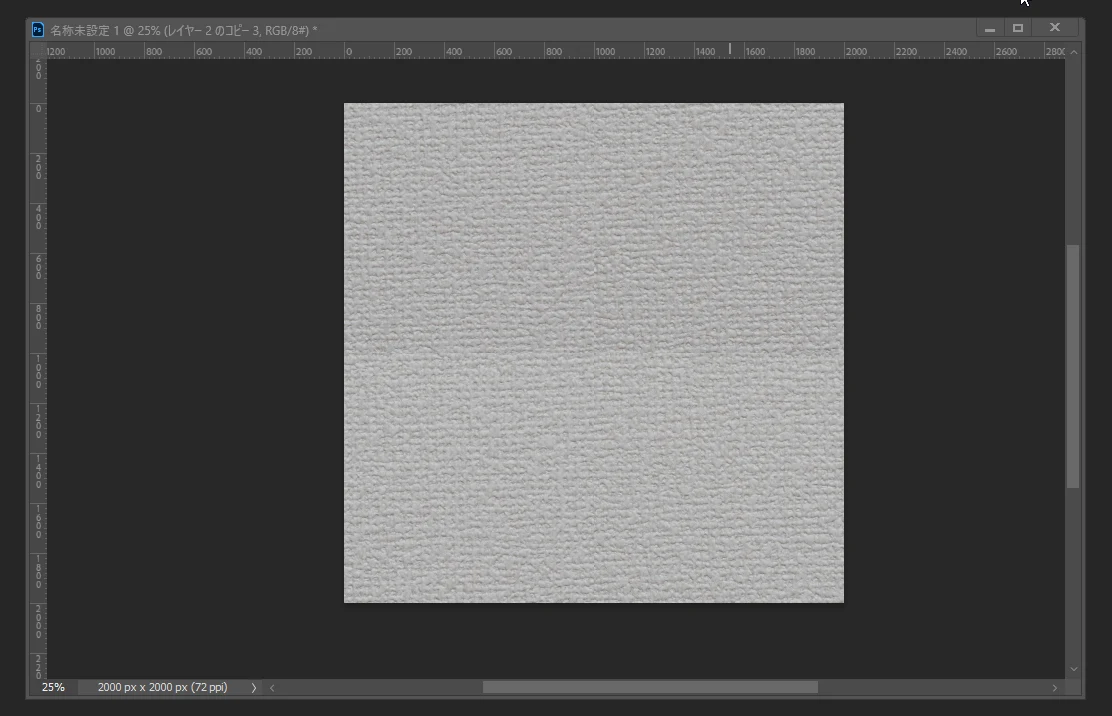 I merged the layers. Rearranging the sections made color differences obvious.
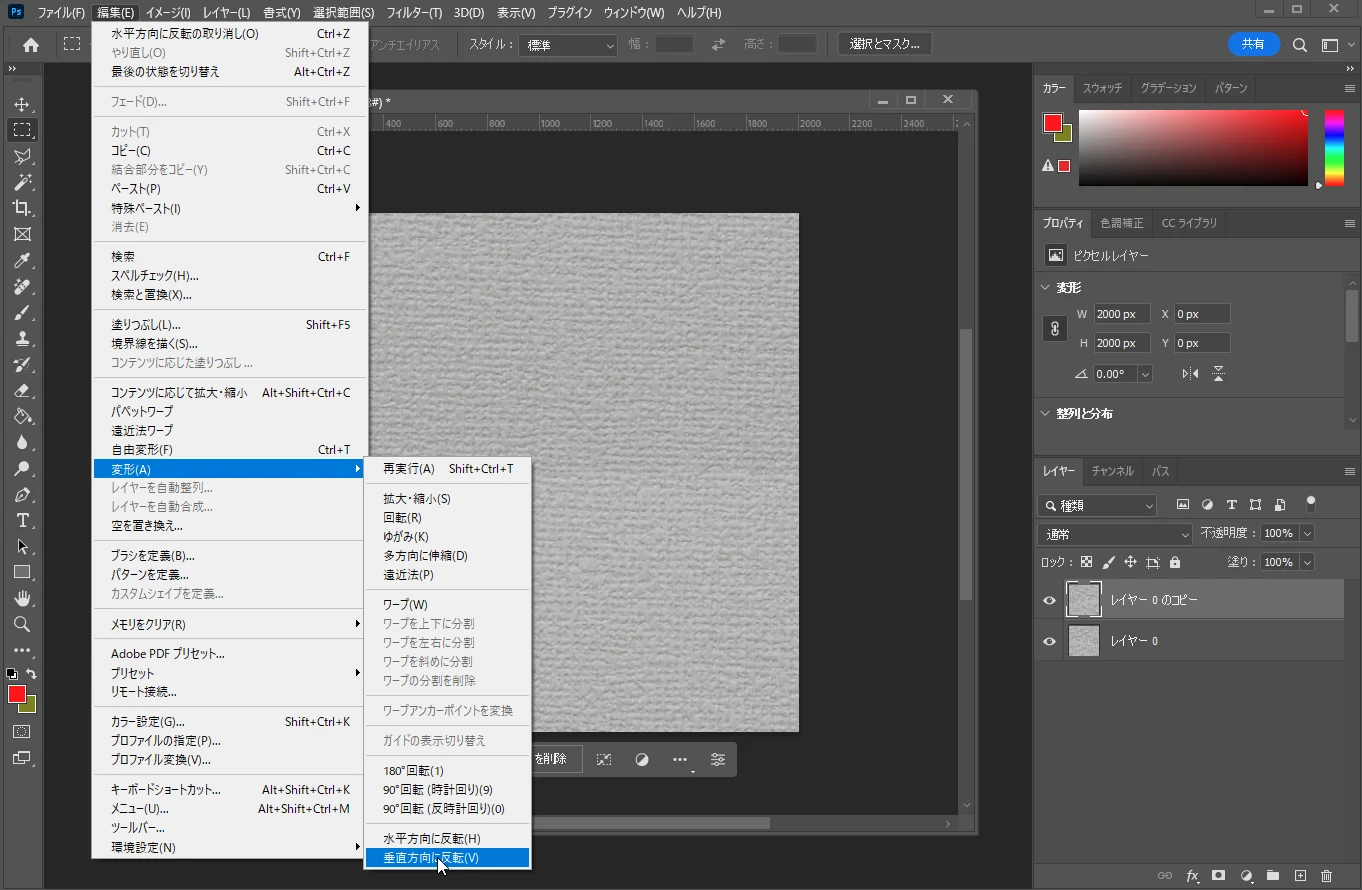
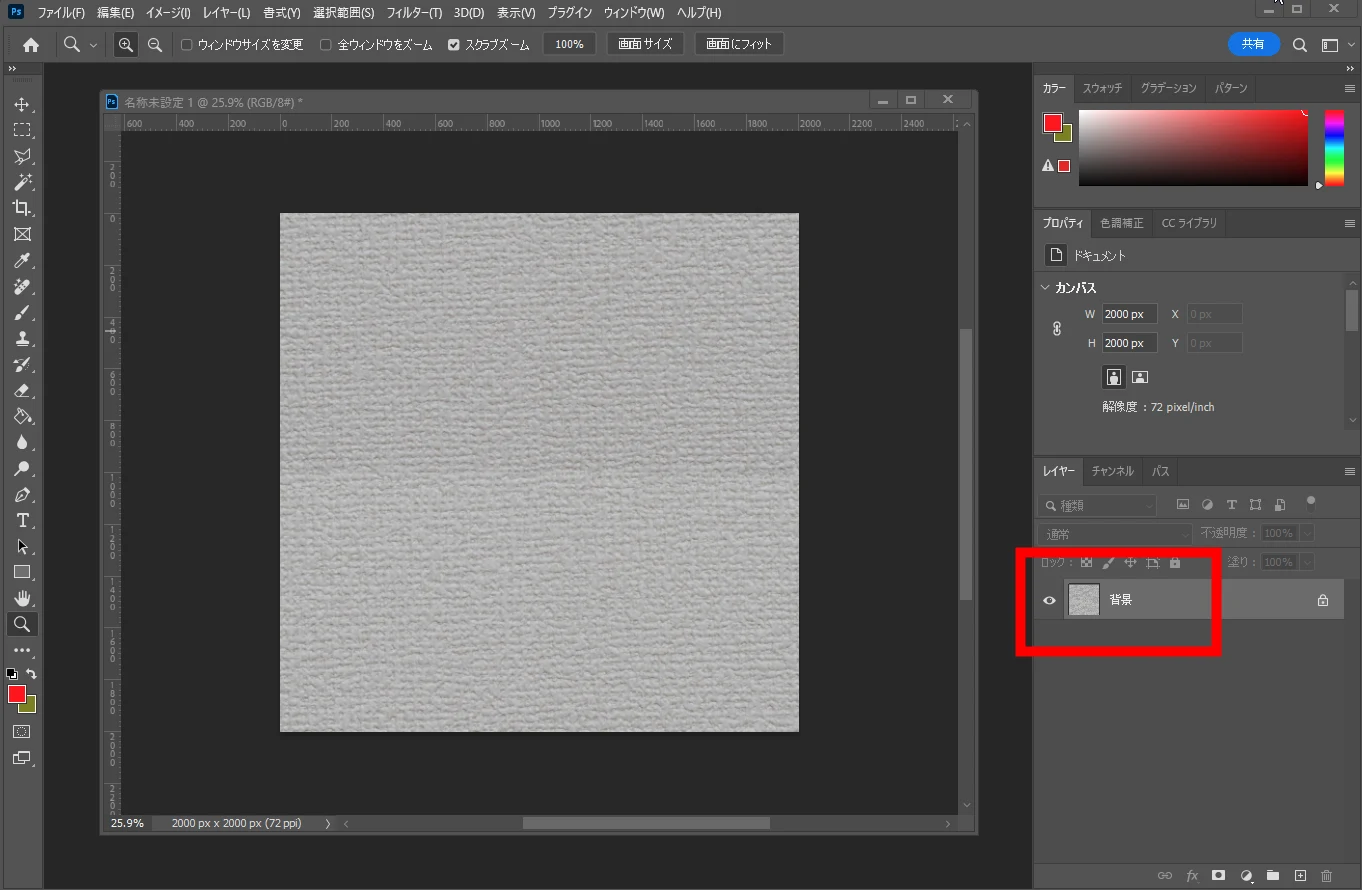 To reduce the uneven color, I duplicated the layer and flipped it horizontally and vertically, aiming to cancel out the differences.
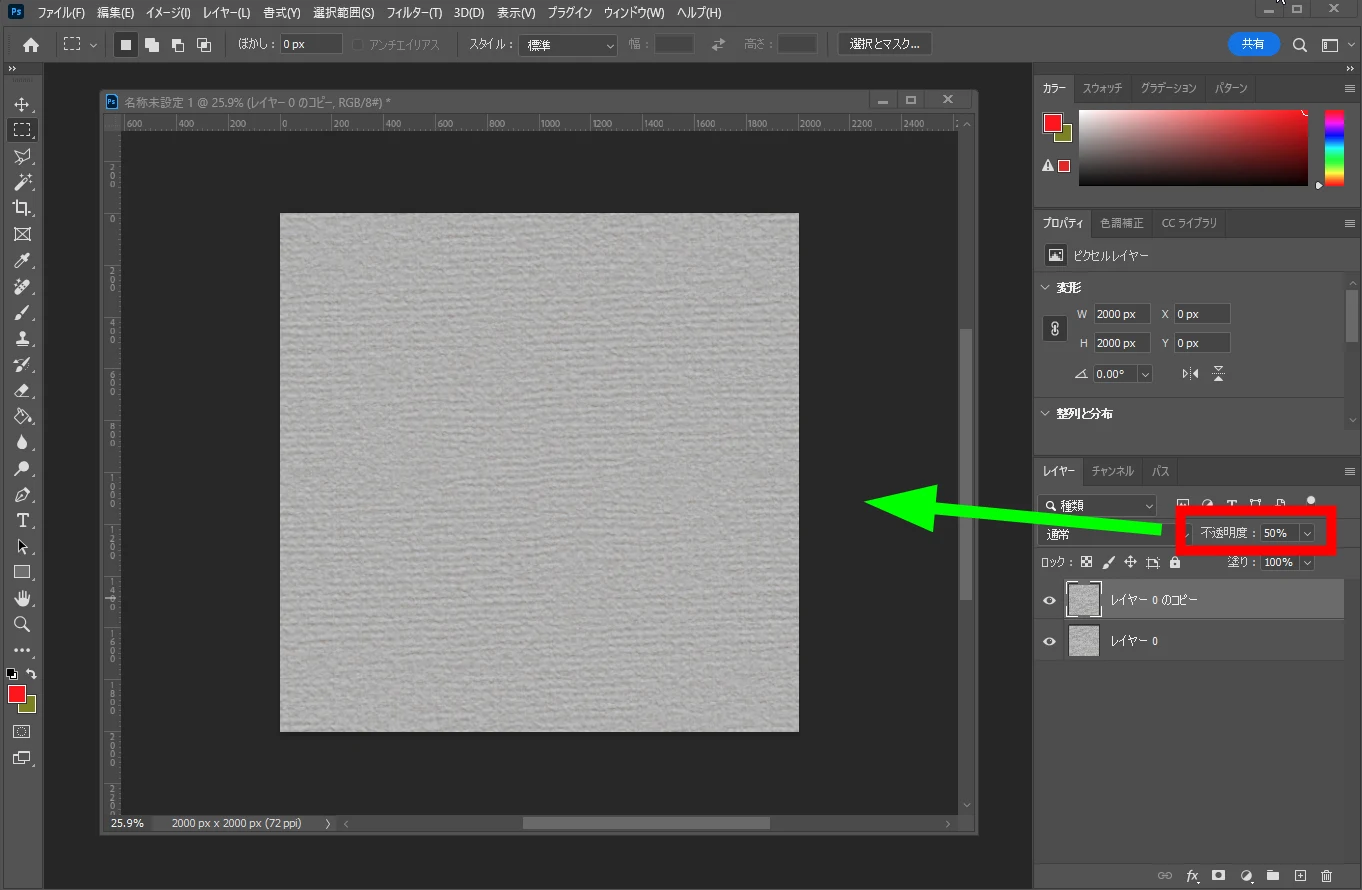
 I set the opacity to 50%. Mixing the colors reduced the unevenness. This depends on the image and would probably not work well with a distinct pattern. These are Photoshop editing steps.
 Straight lines were still visible along the joins.
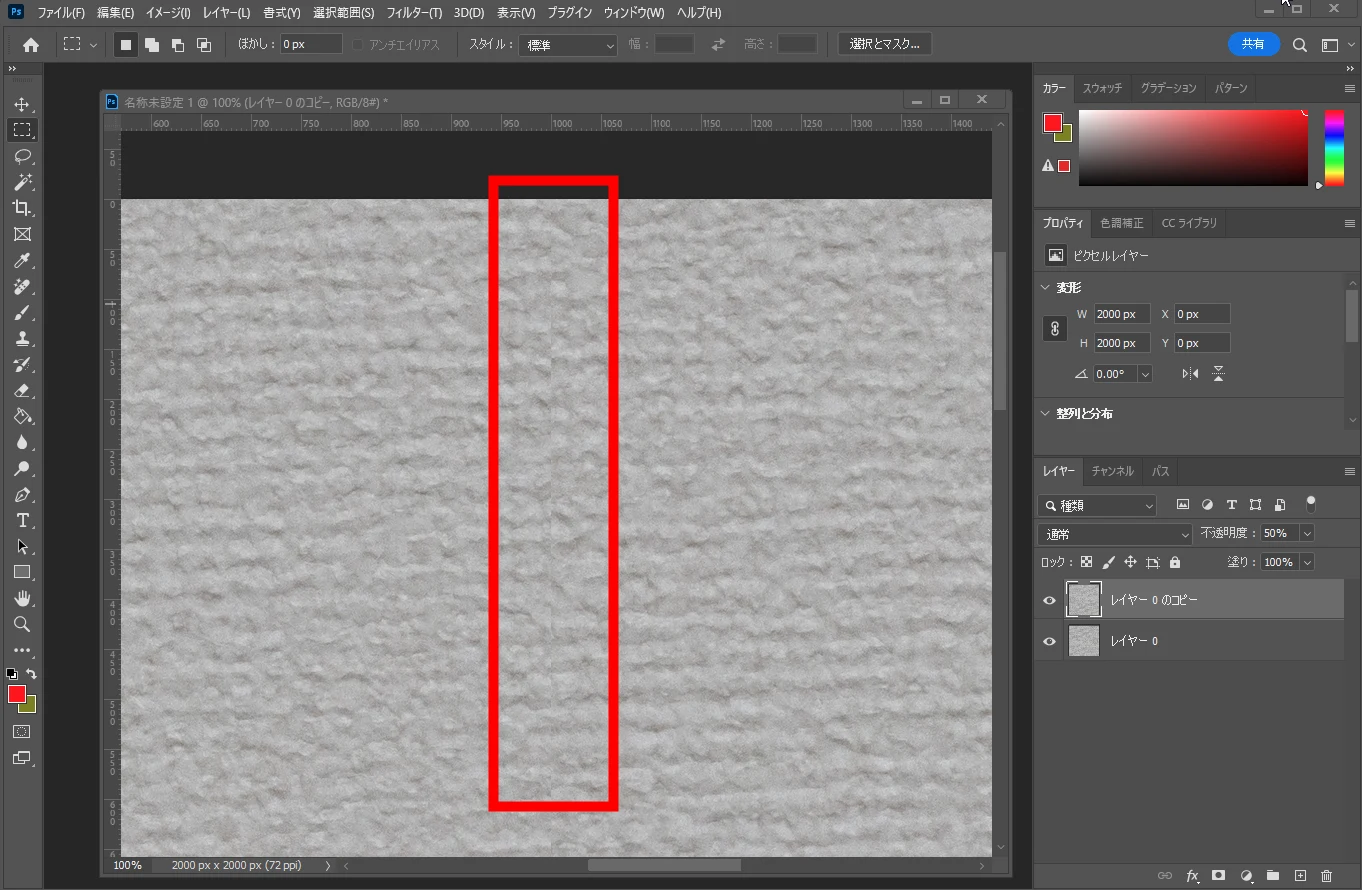 I merged the image.
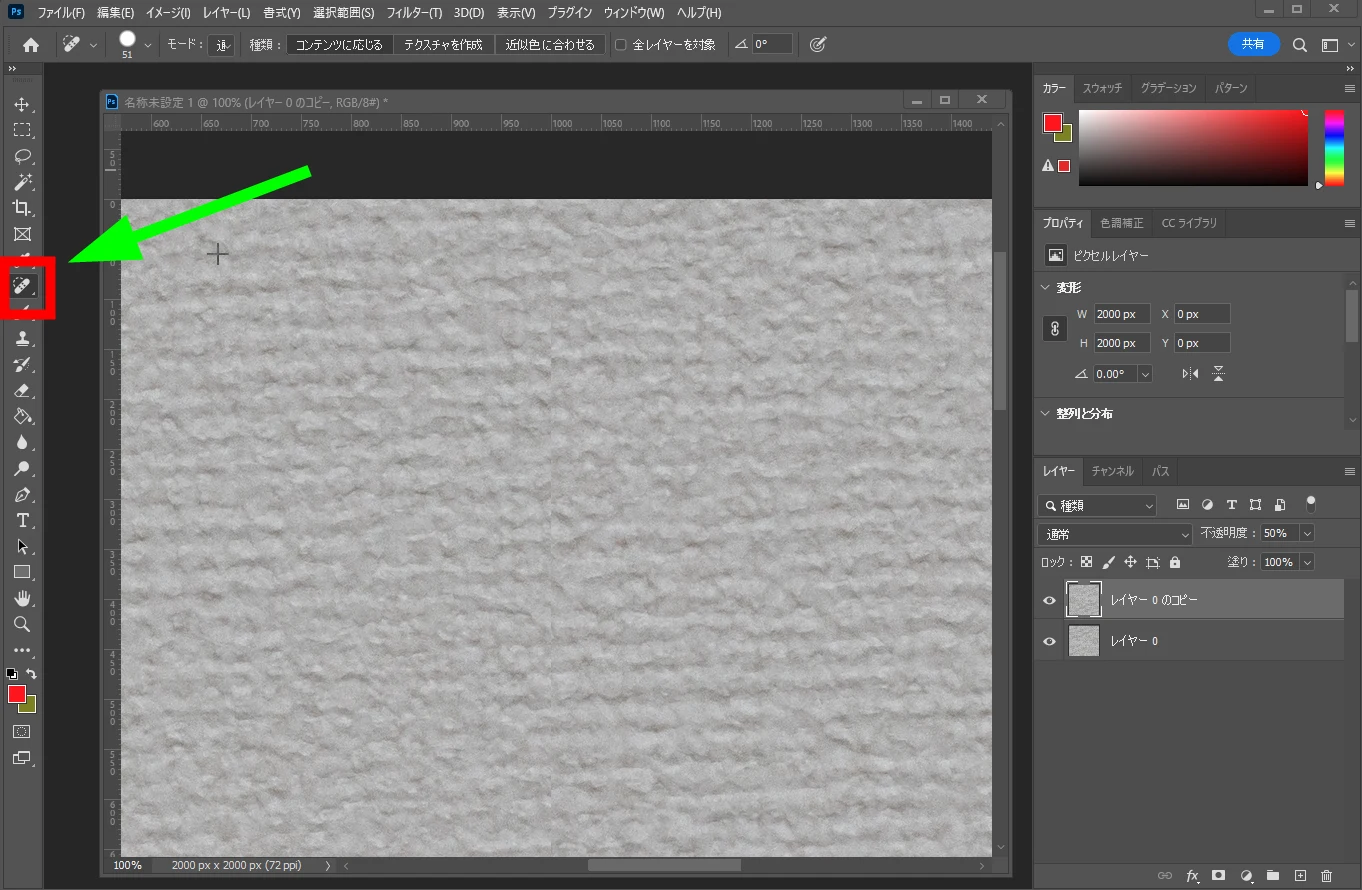
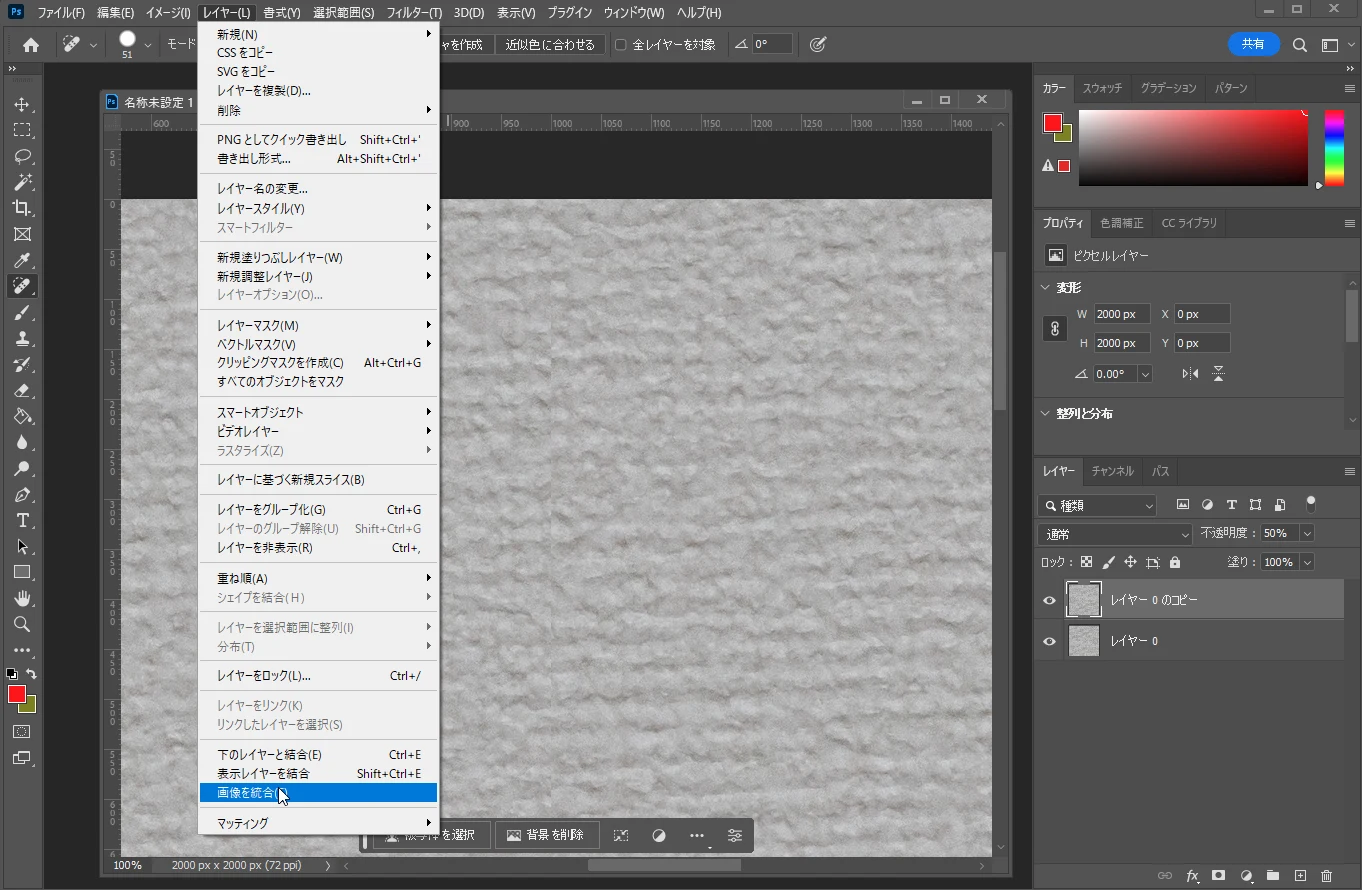 I selected the automatic repair tool for a selected area. A tool that repairs only the area you trace is ideal for hiding small imperfections.
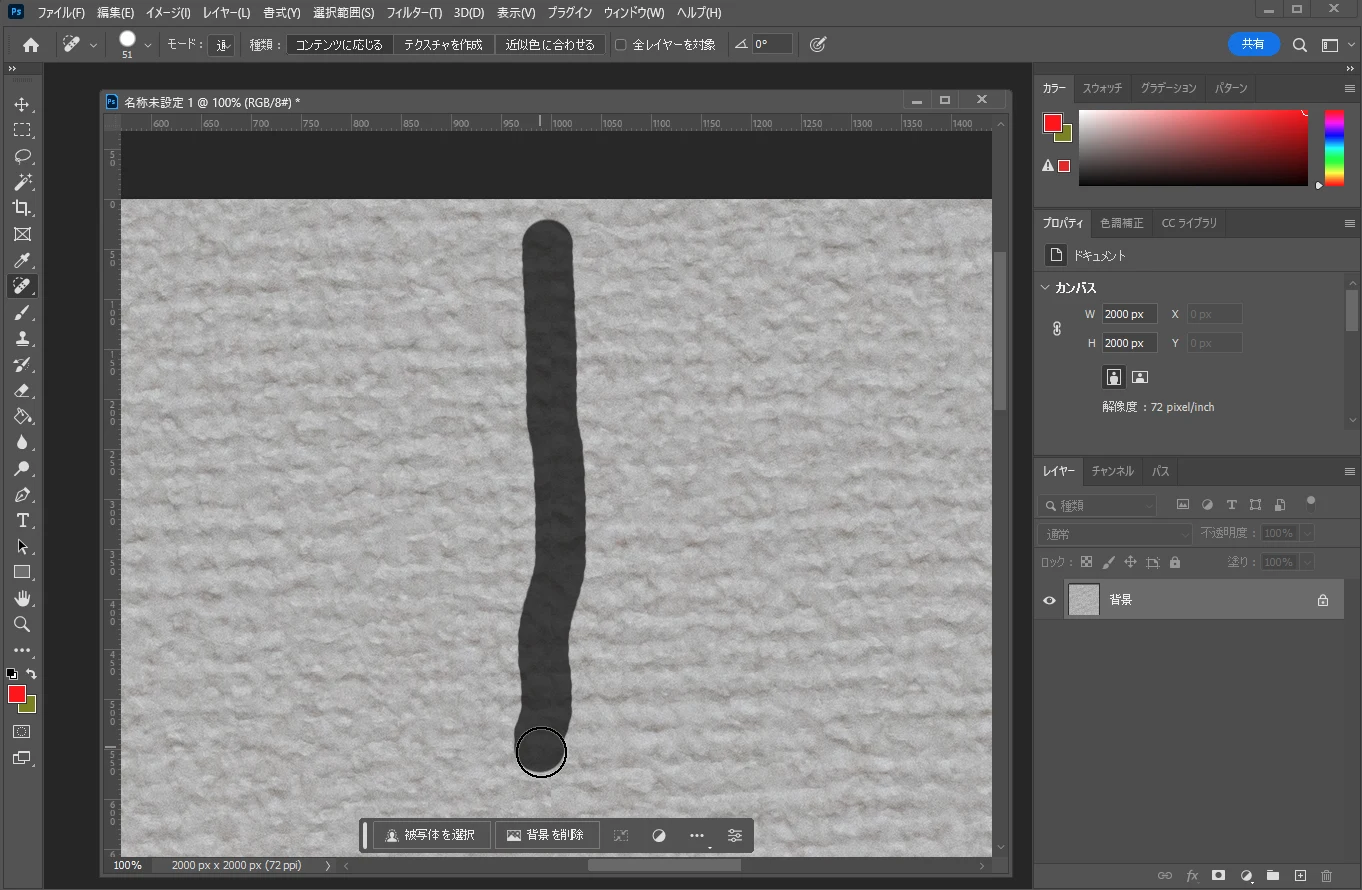
 I traced the boundaries.
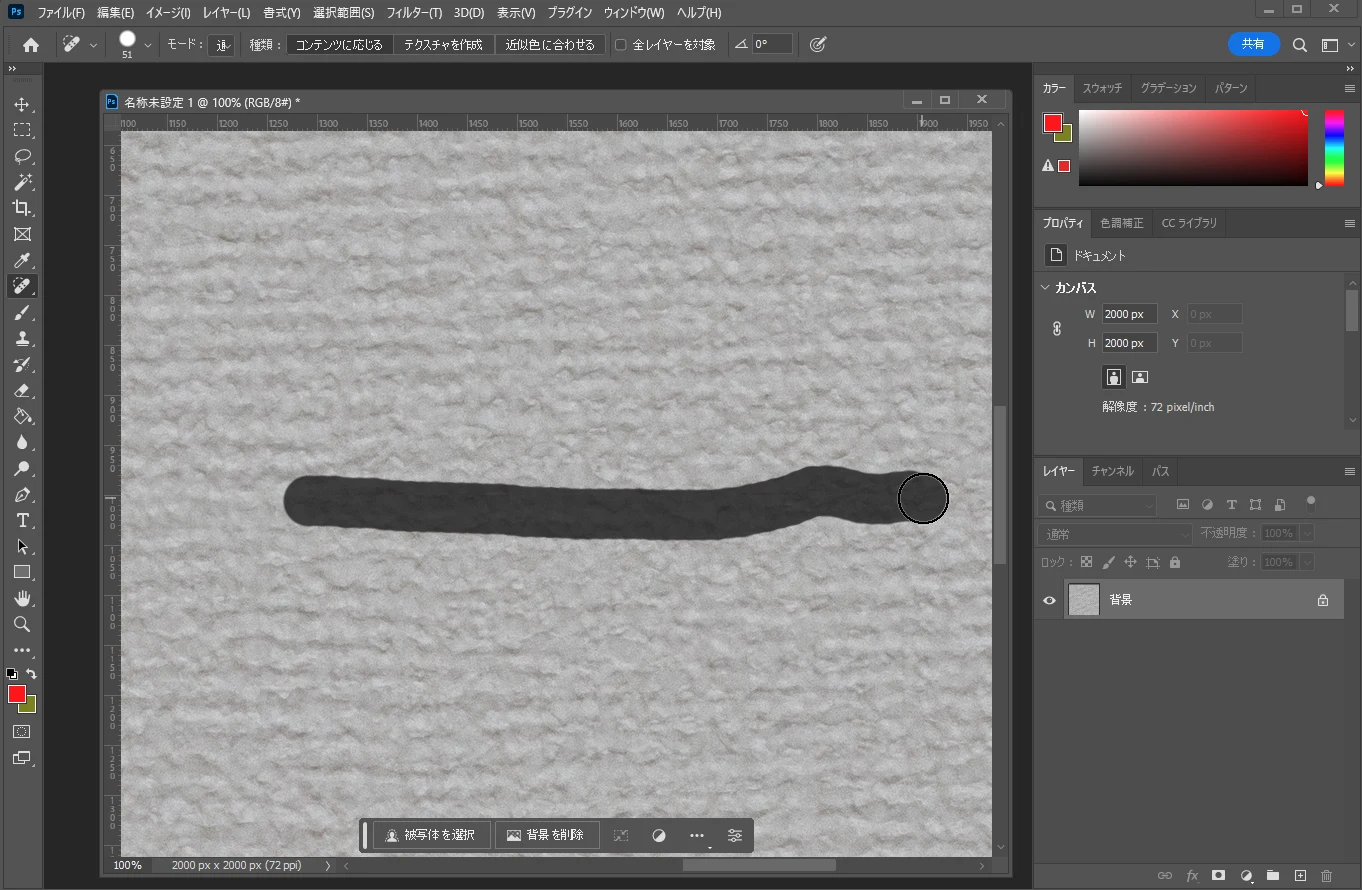 The joins were no longer visible, so I saved the image.
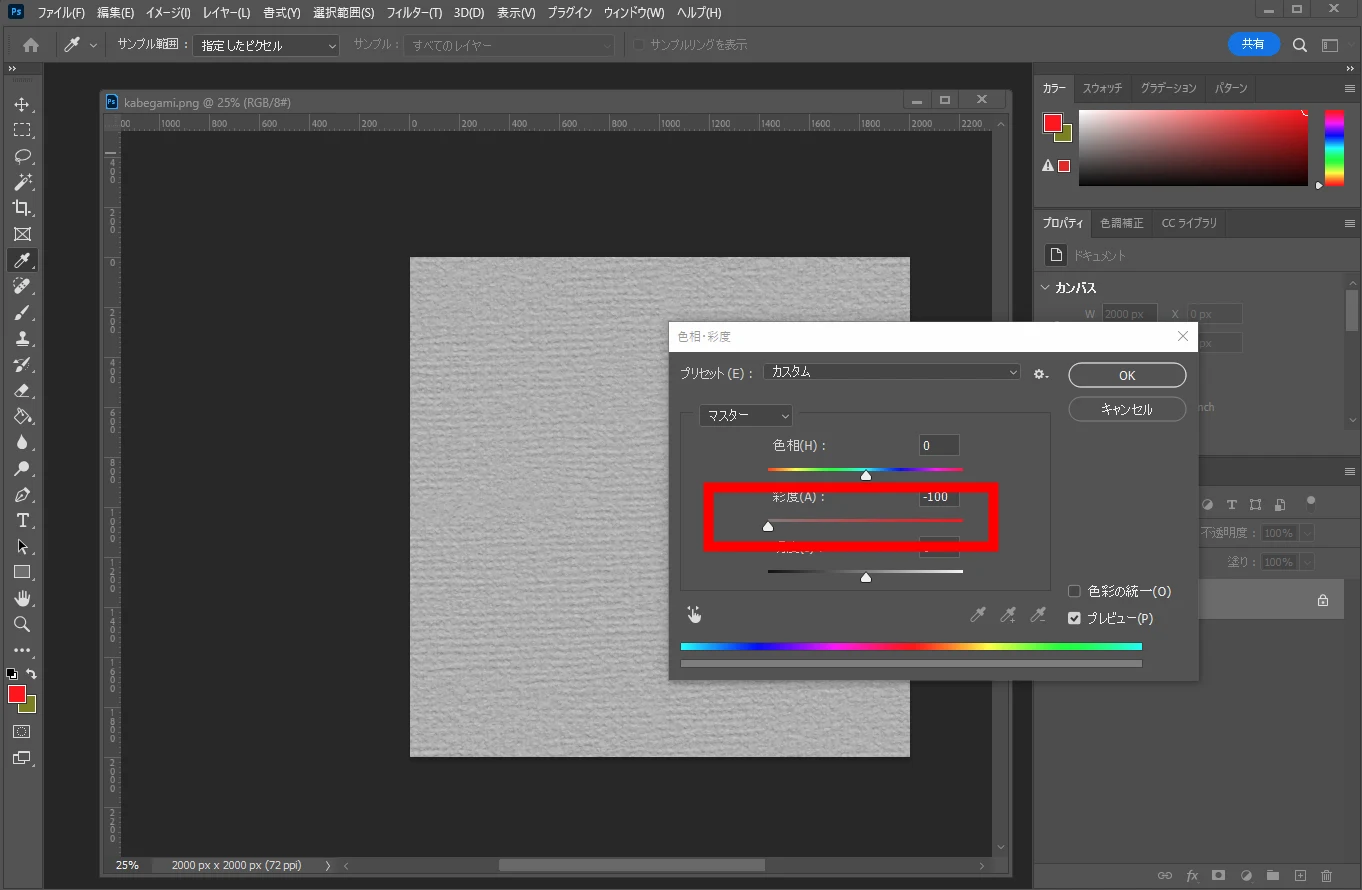
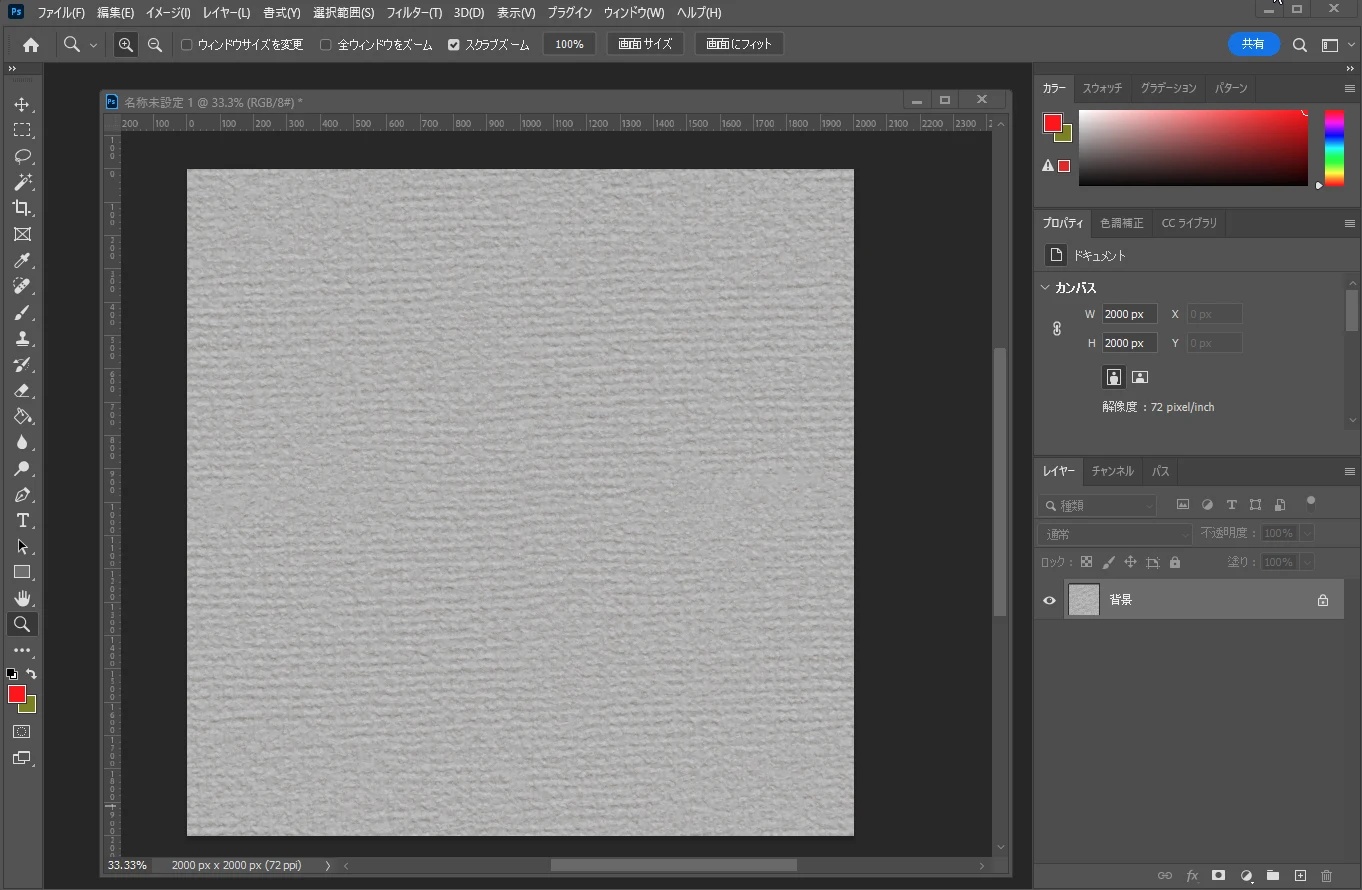 I also made a rough depth map. A depth map stores distance information for points in a 3D scene or image. It is commonly represented in grayscale, with brighter areas nearer and darker areas farther away. The recessed wallpaper pattern was already darker, which seemed suitable. I reduced saturation to zero.
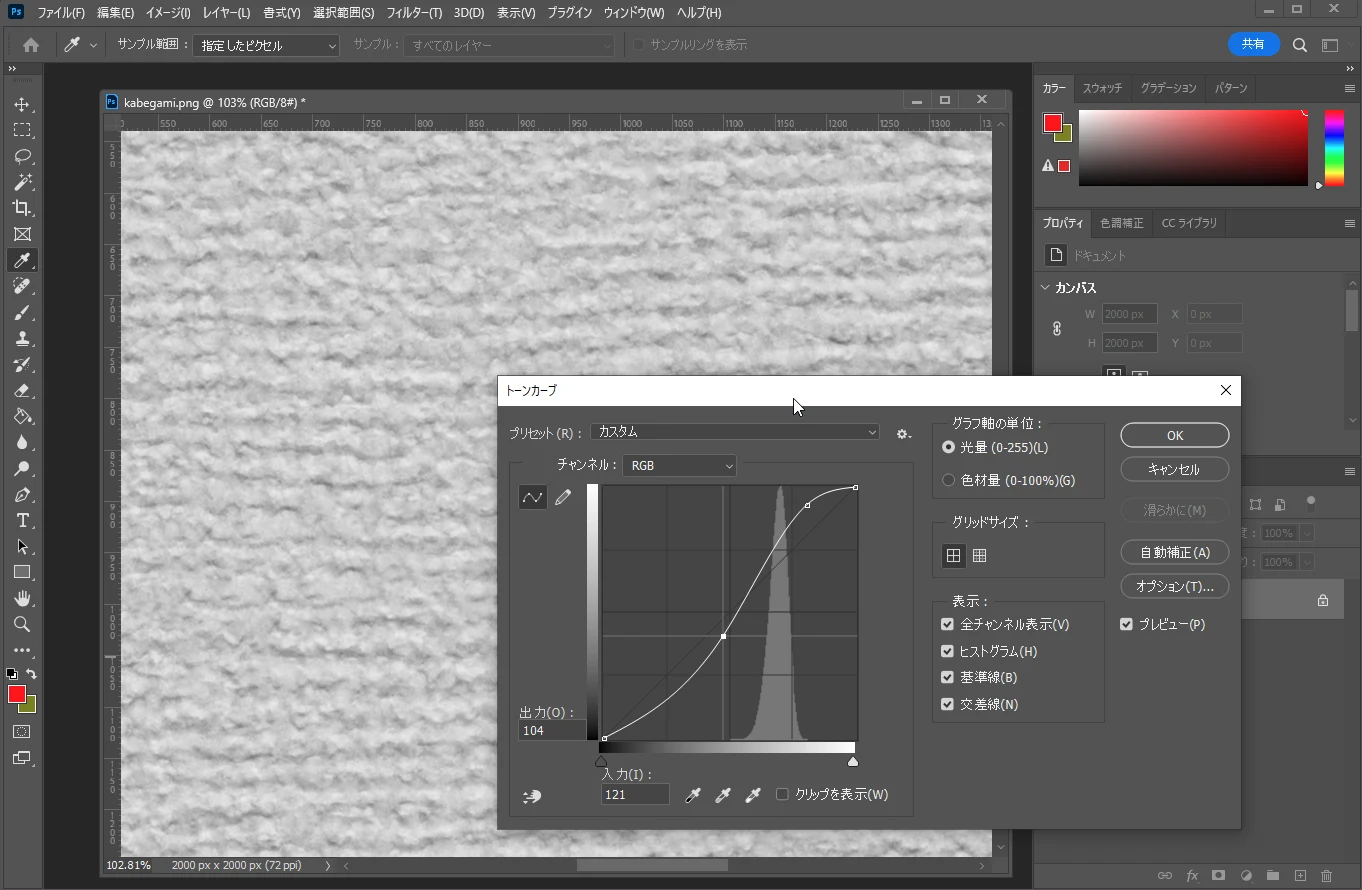
 I adjusted the tones.
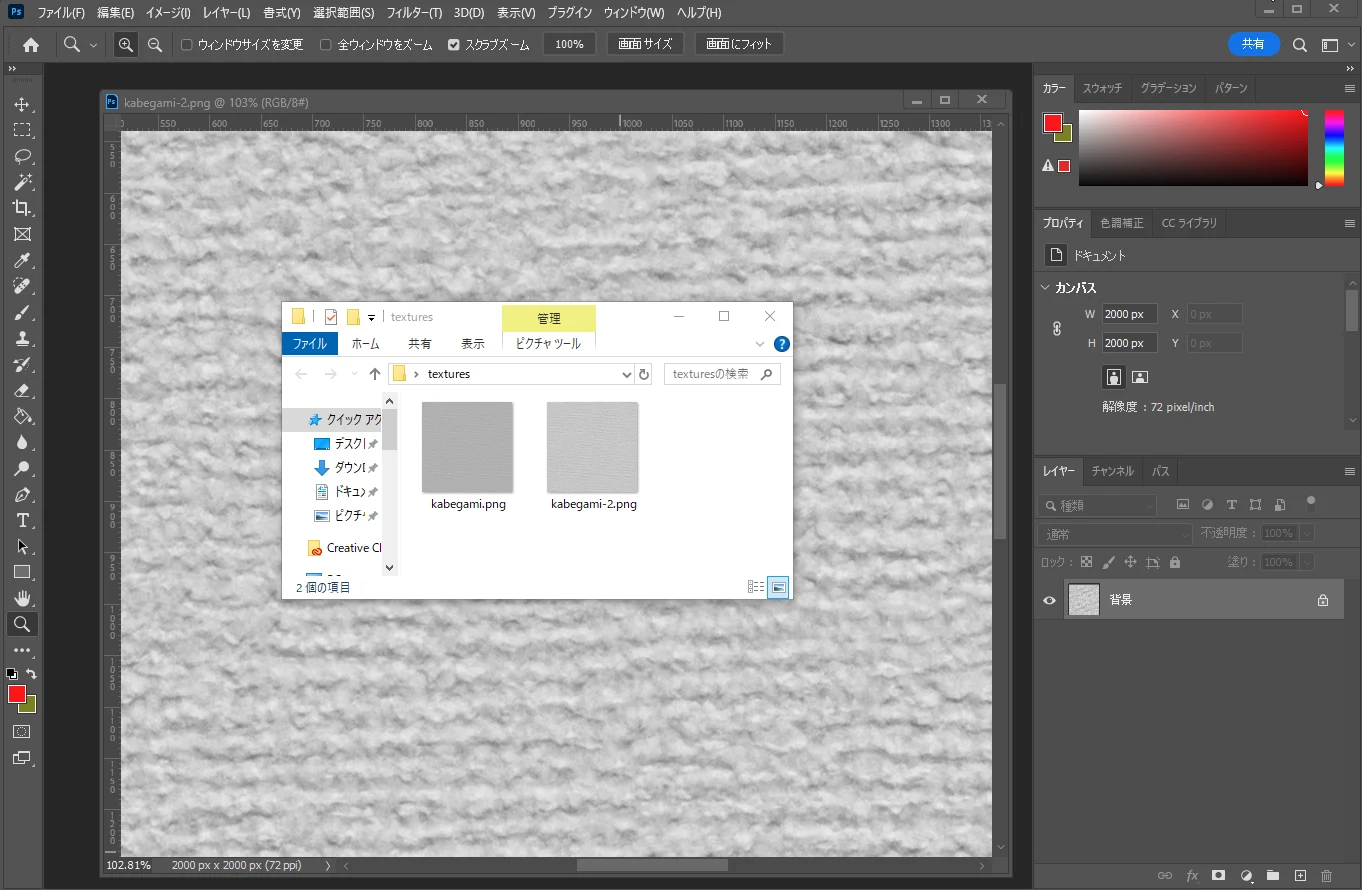
 The two textures were ready.
Creating the PBR material in 3DCoat
I selected PBR materials in 3DCoat.
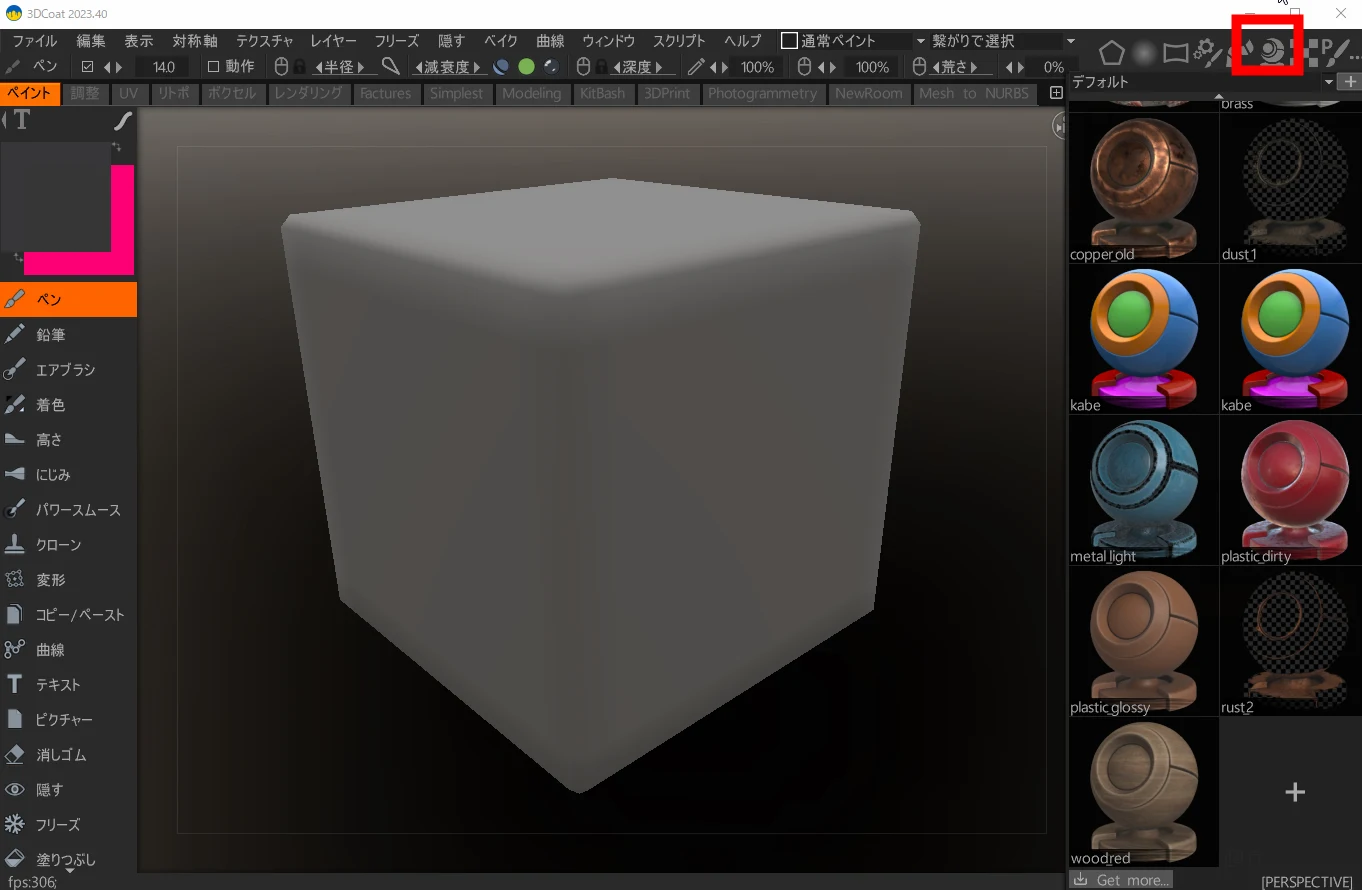 I created a new material.
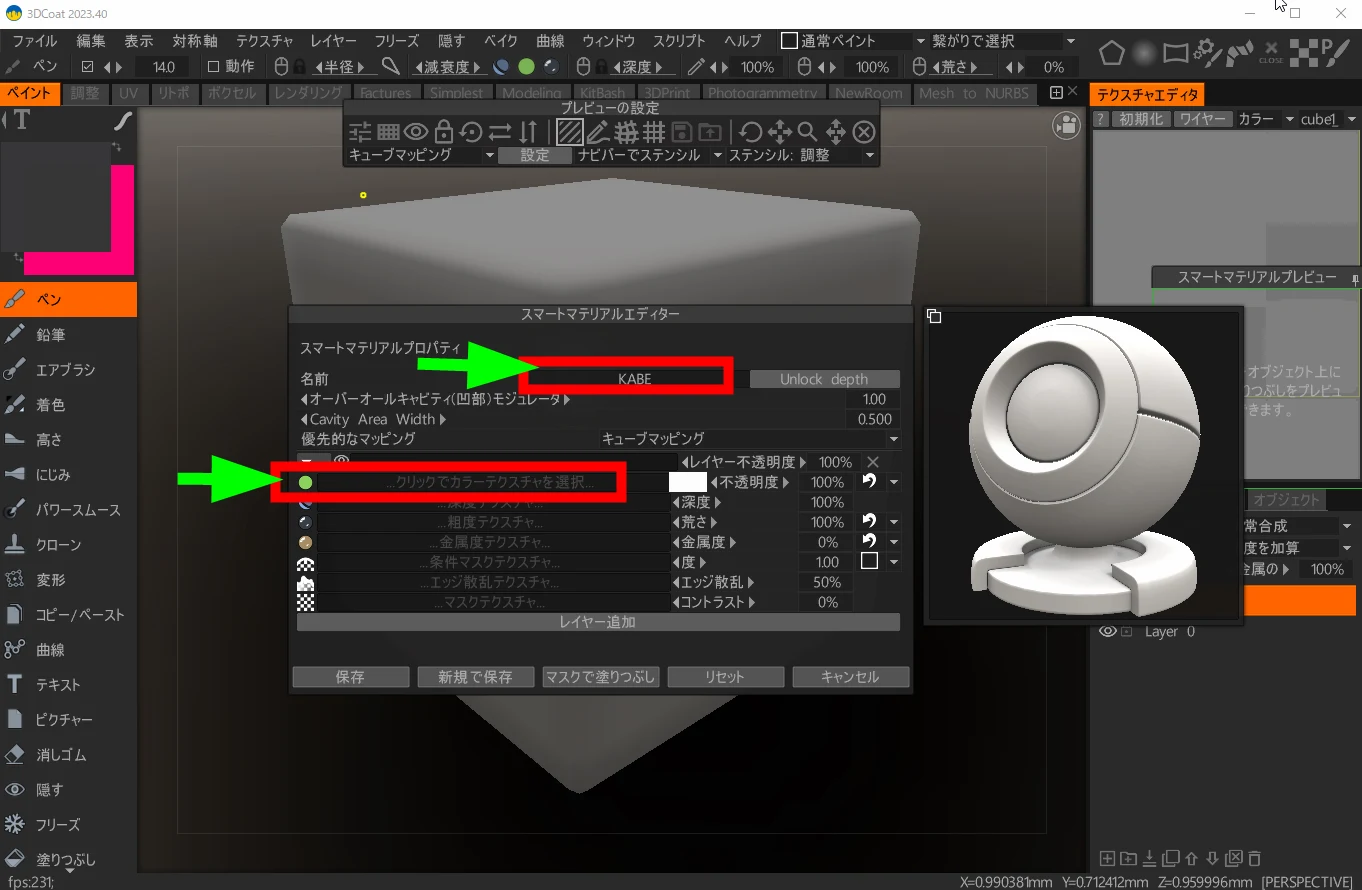
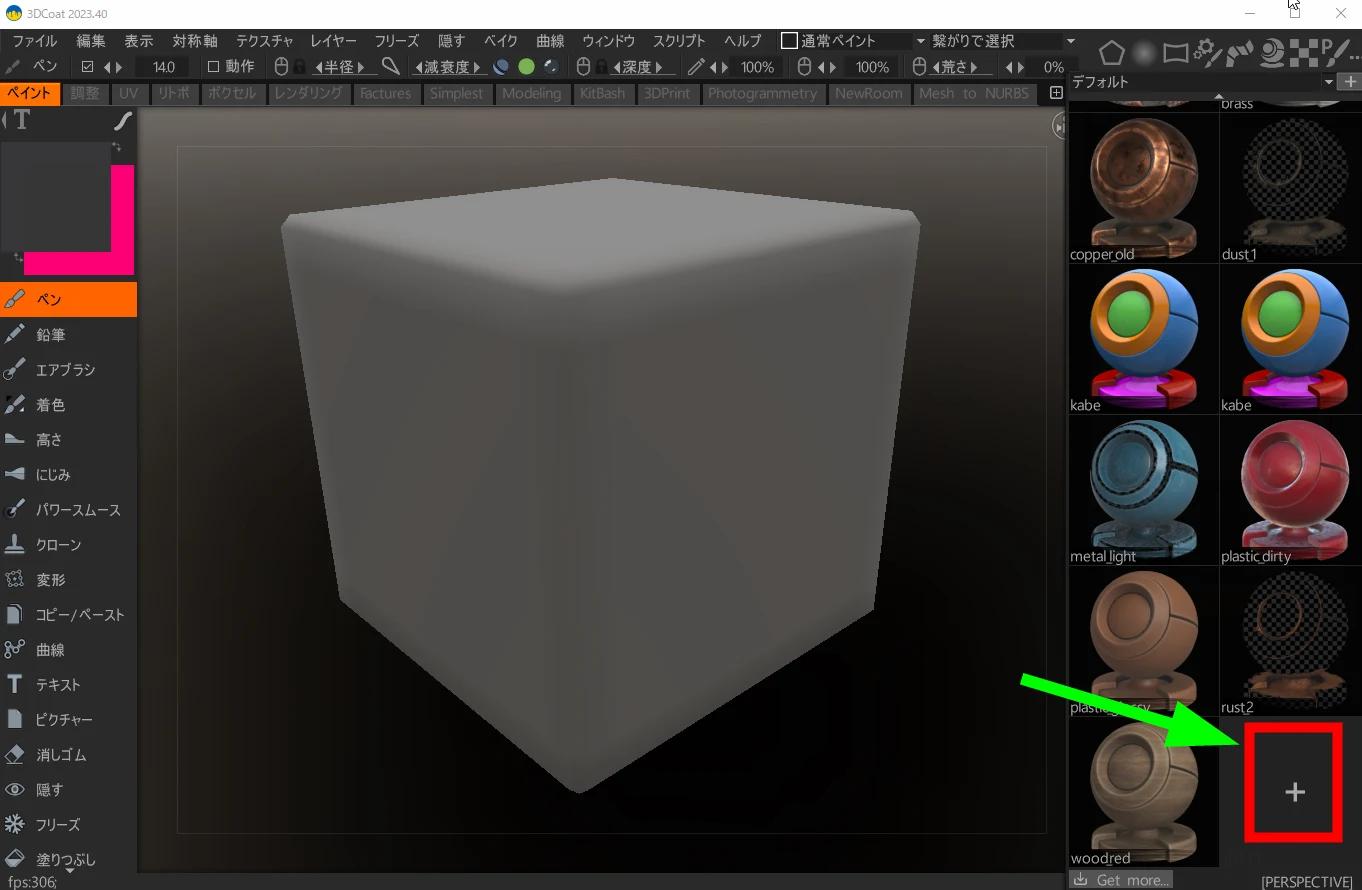 I named it KABE and loaded the color texture.
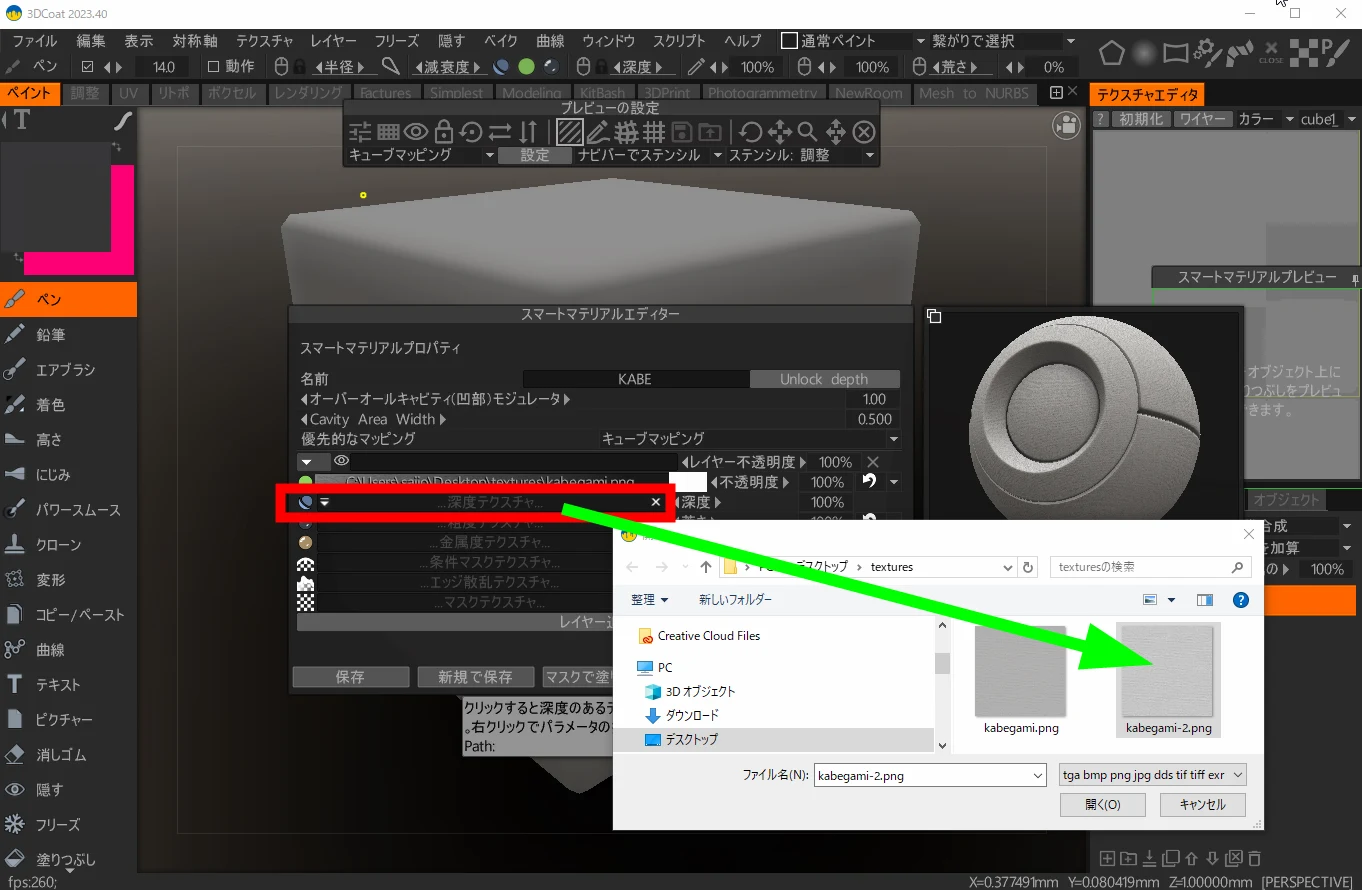
 Then I loaded the depth texture. In this workflow, 3DCoat uses a depth map rather than a normal map. More complex settings should allow more sophisticated PBR materials.
 I painted it onto a block.
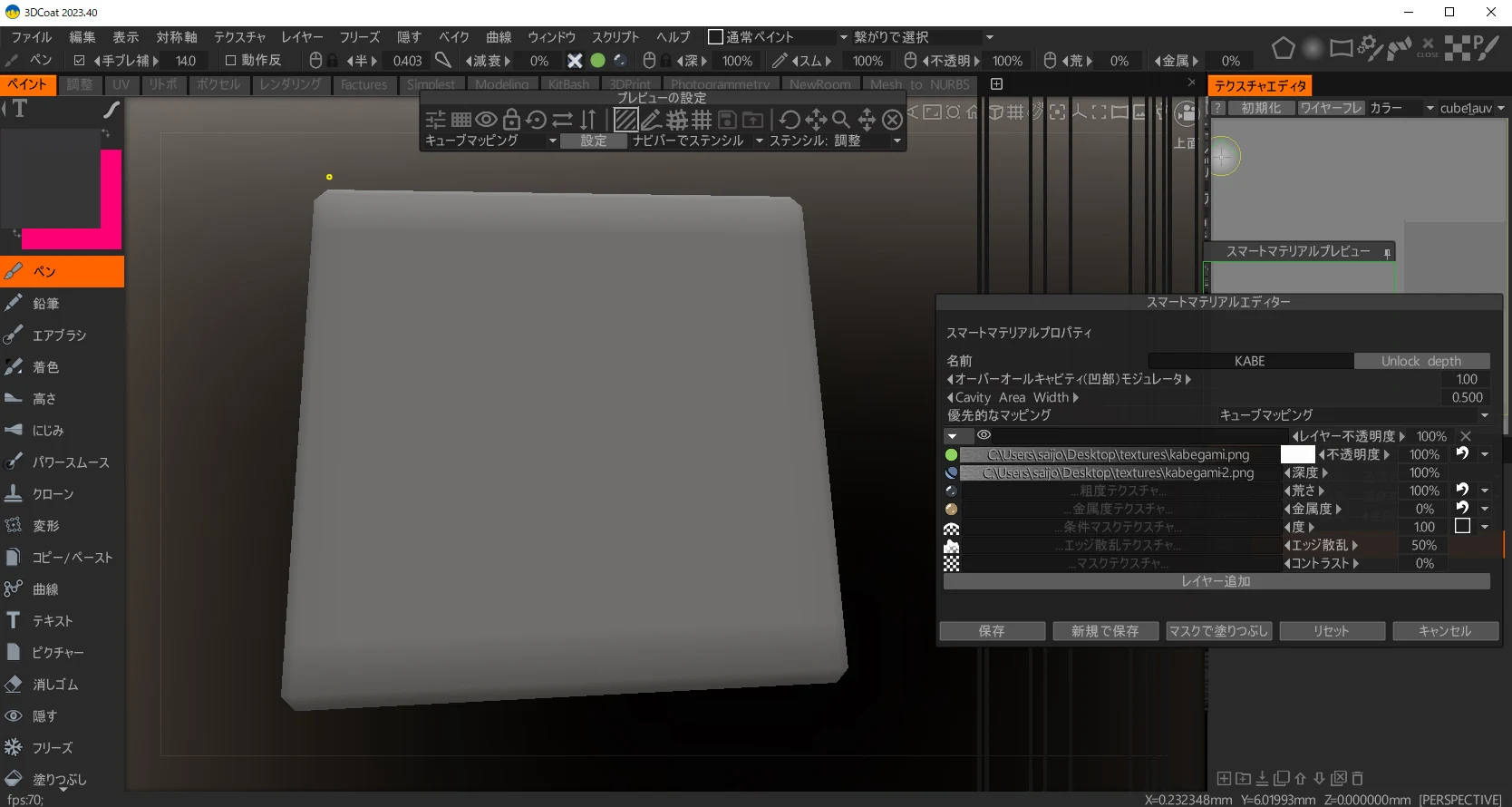 The wallpaper appeared flat with the depth map disabled.
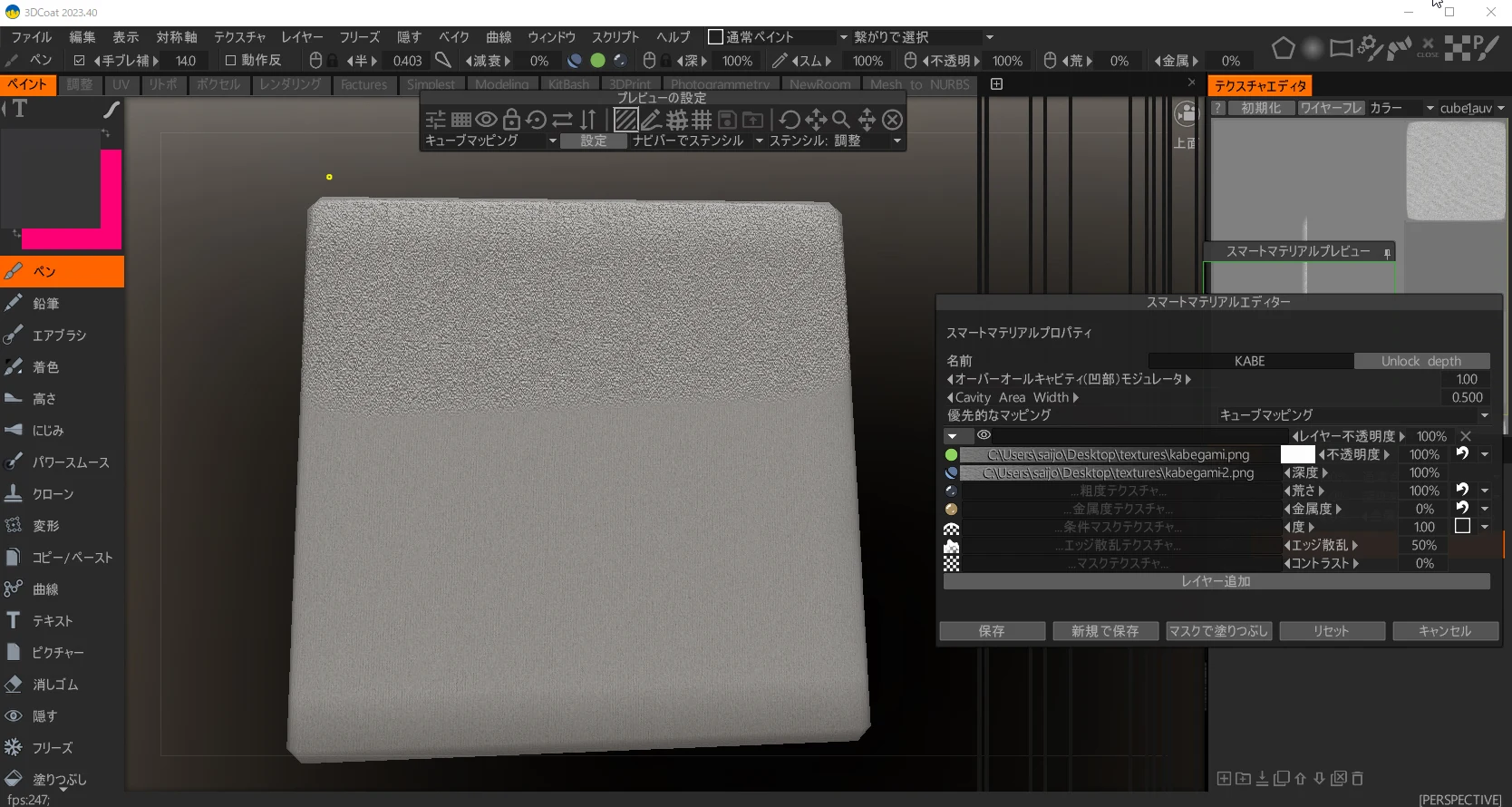
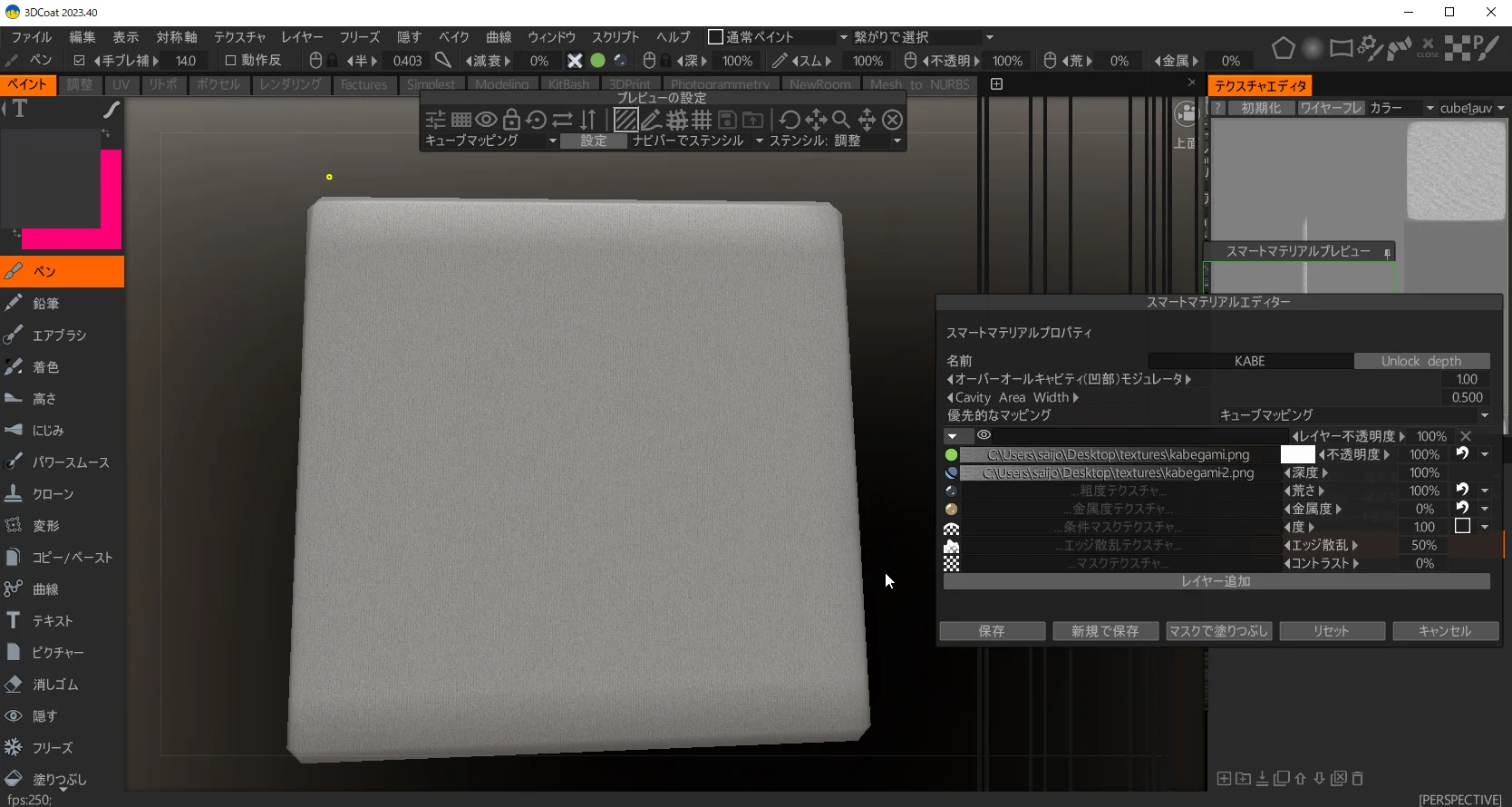 Enabling depth made the relief and roughness stand out. I reduced its strength to a suitable level.
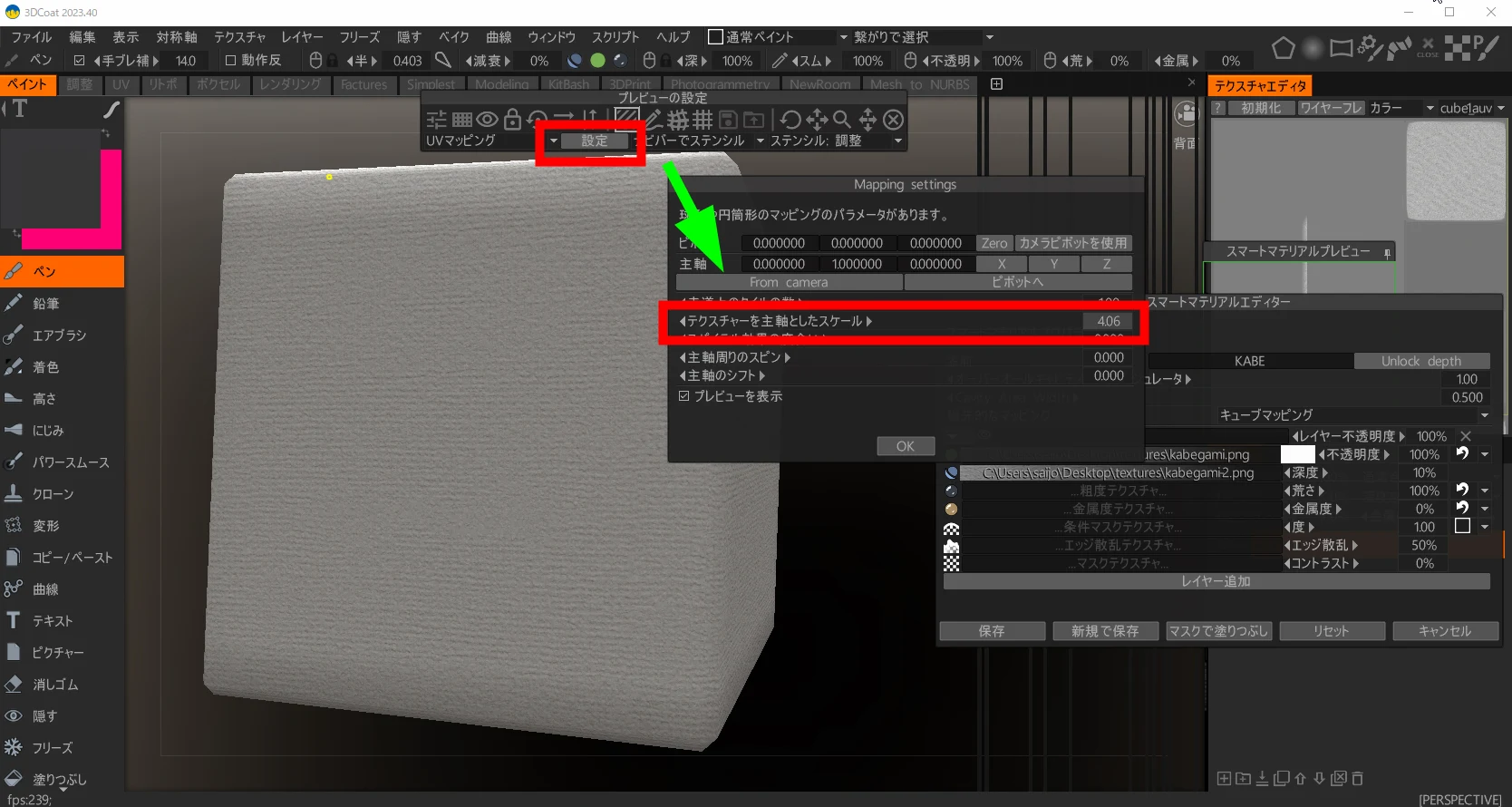
 I adjusted the scale in the settings. Was the cube one meter across? I matched the appearance to roughly a meter of real wall.
 In Blender, I created a 2 m × 4 m wall.
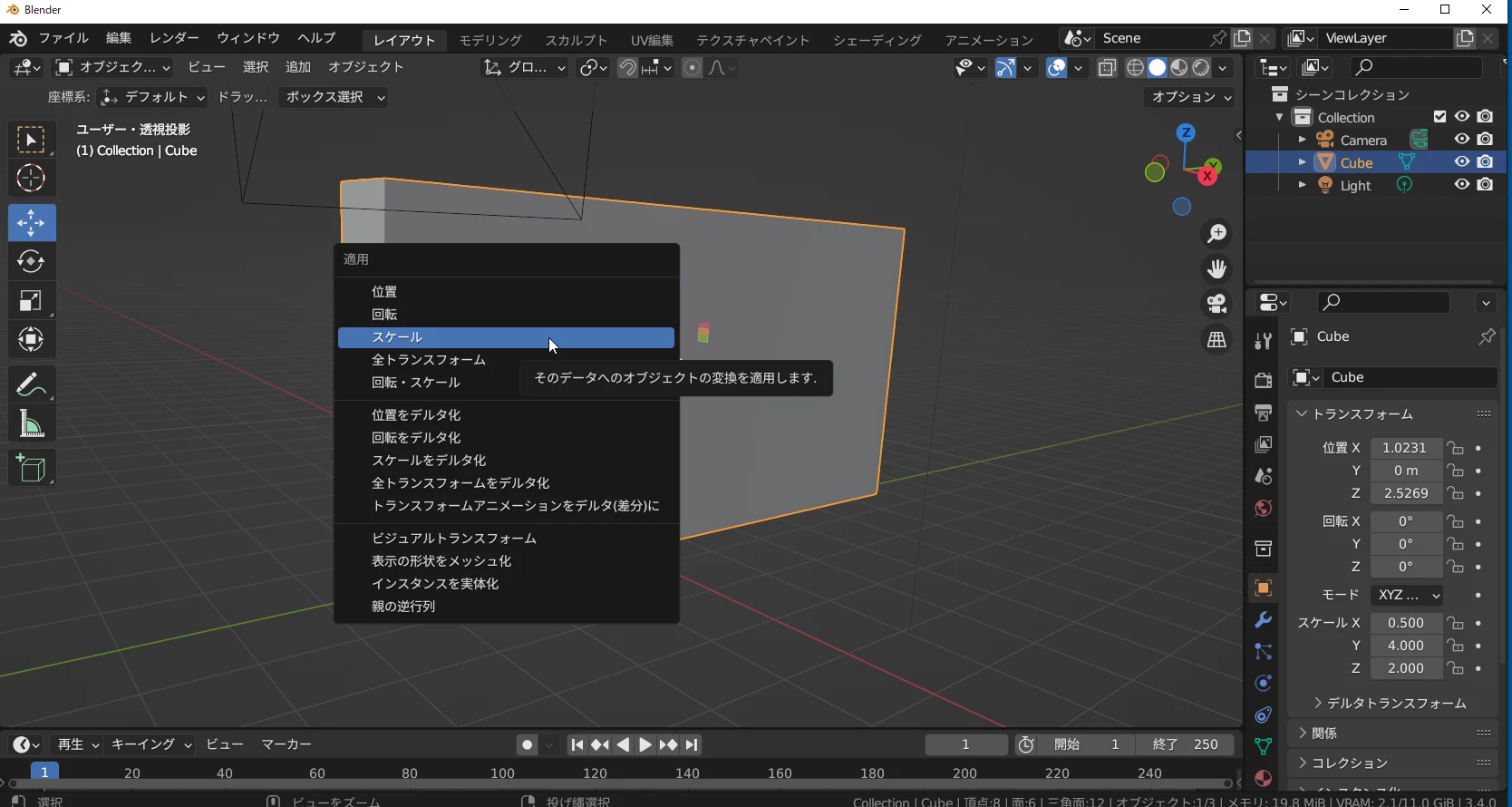
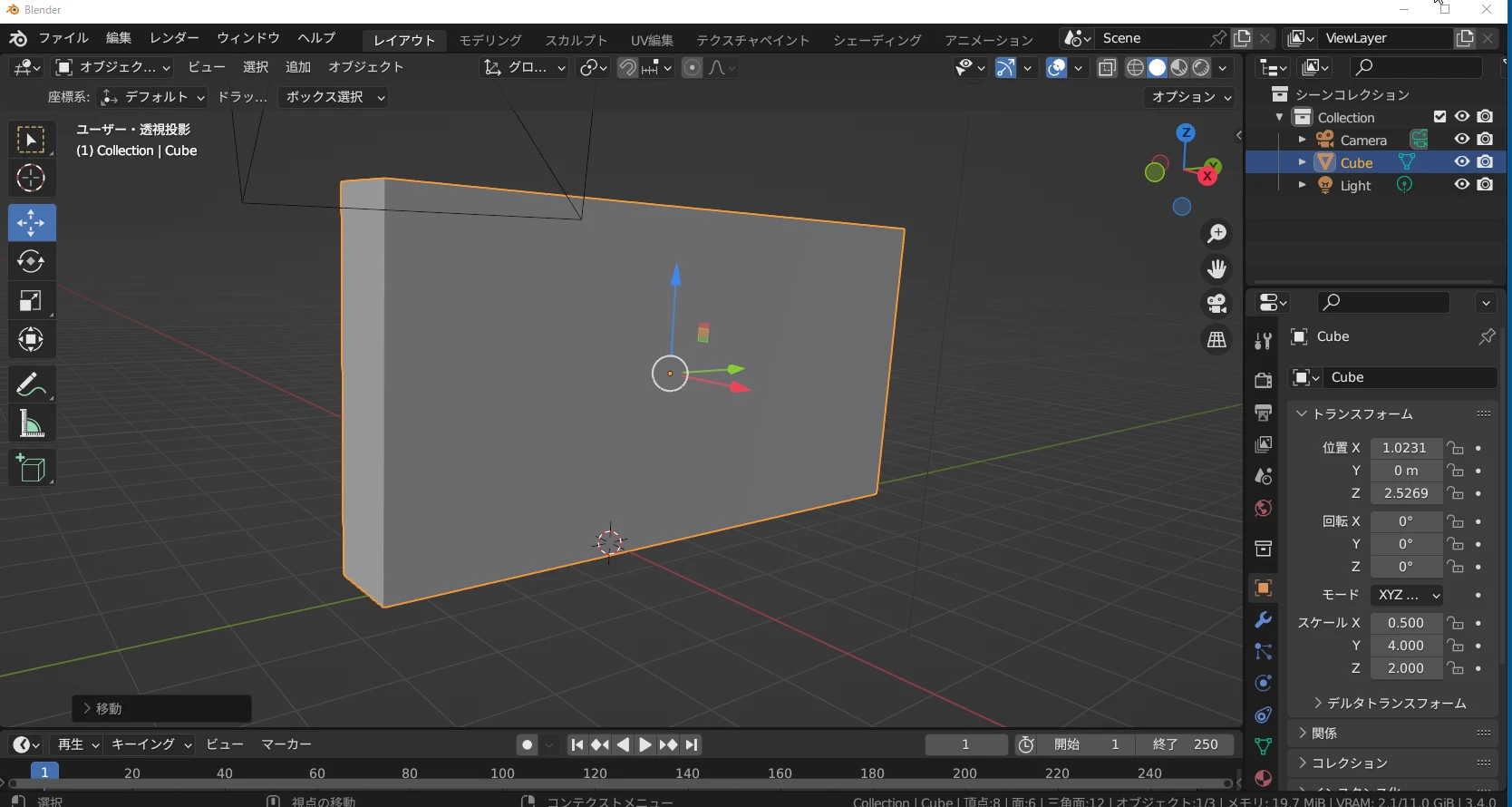 To make the UV mesh appropriate for the stretched dimensions, I used Ctrl+A and applied Scale. This applies the object's scaled dimensions.
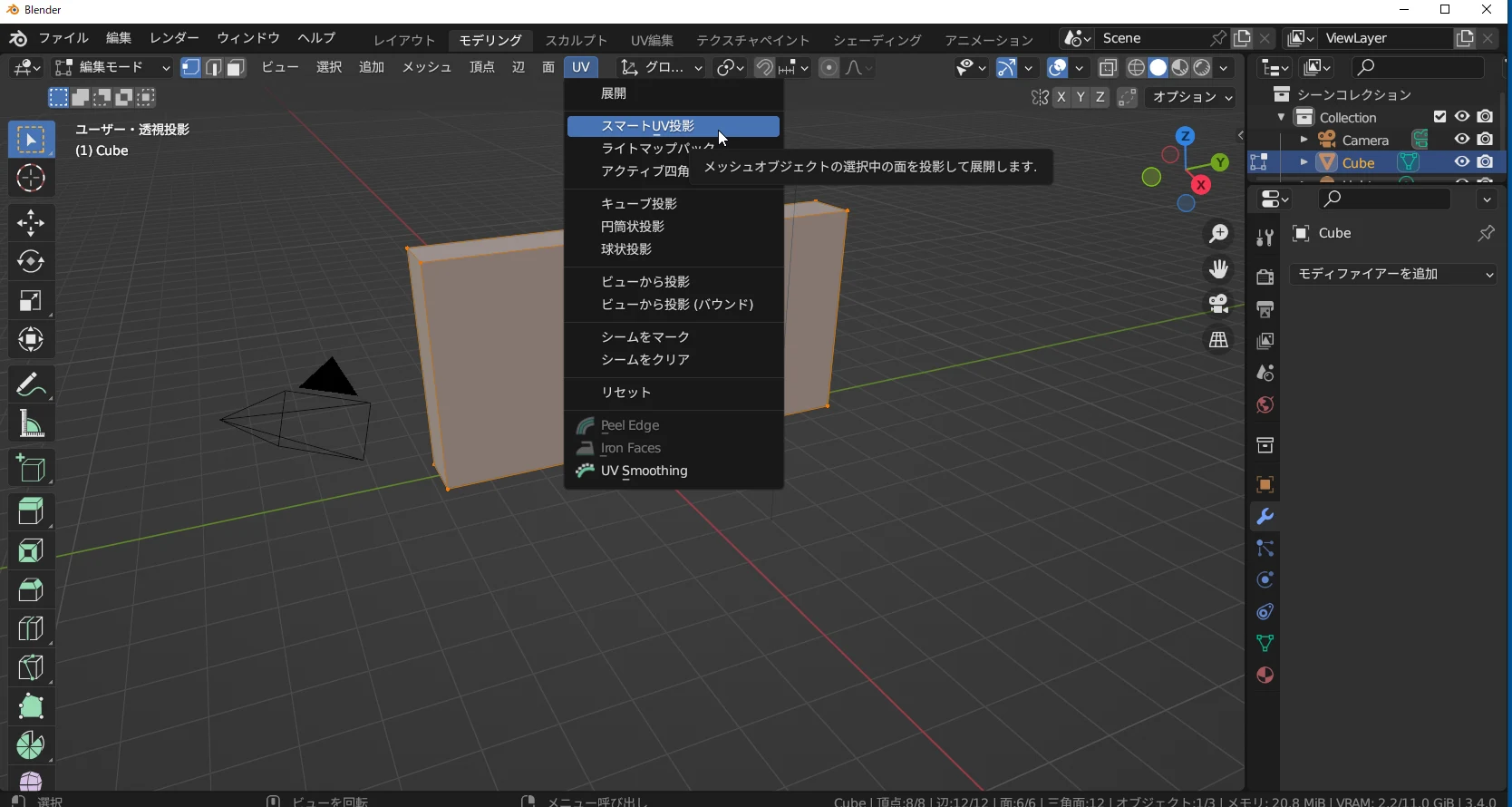
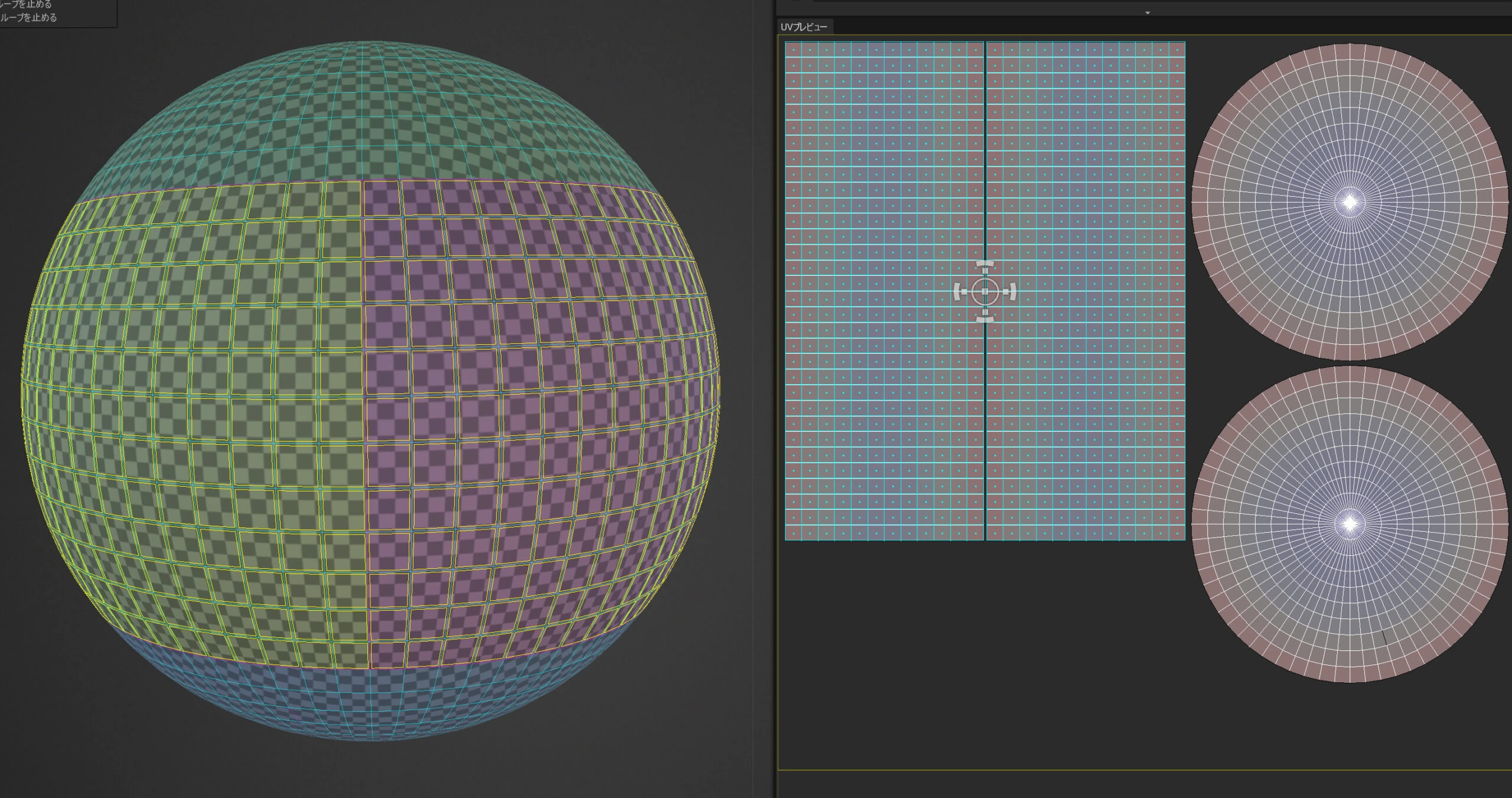
 I used Smart UV Project to create the UV map automatically.
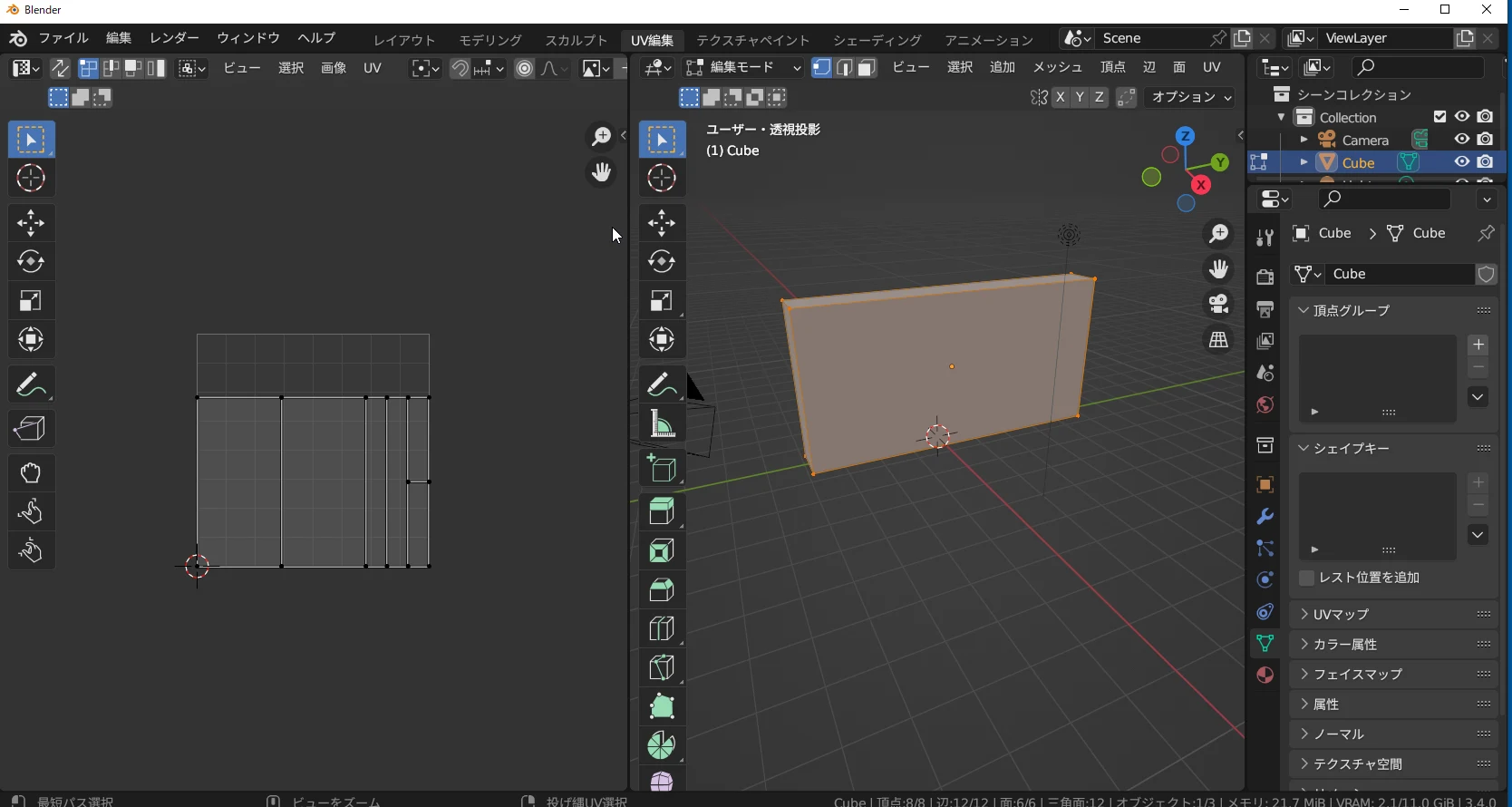
 Here is the resulting UV map.
 I transferred the model to 3DCoat and painted the wall with the PBR material. My room's wall was ready.
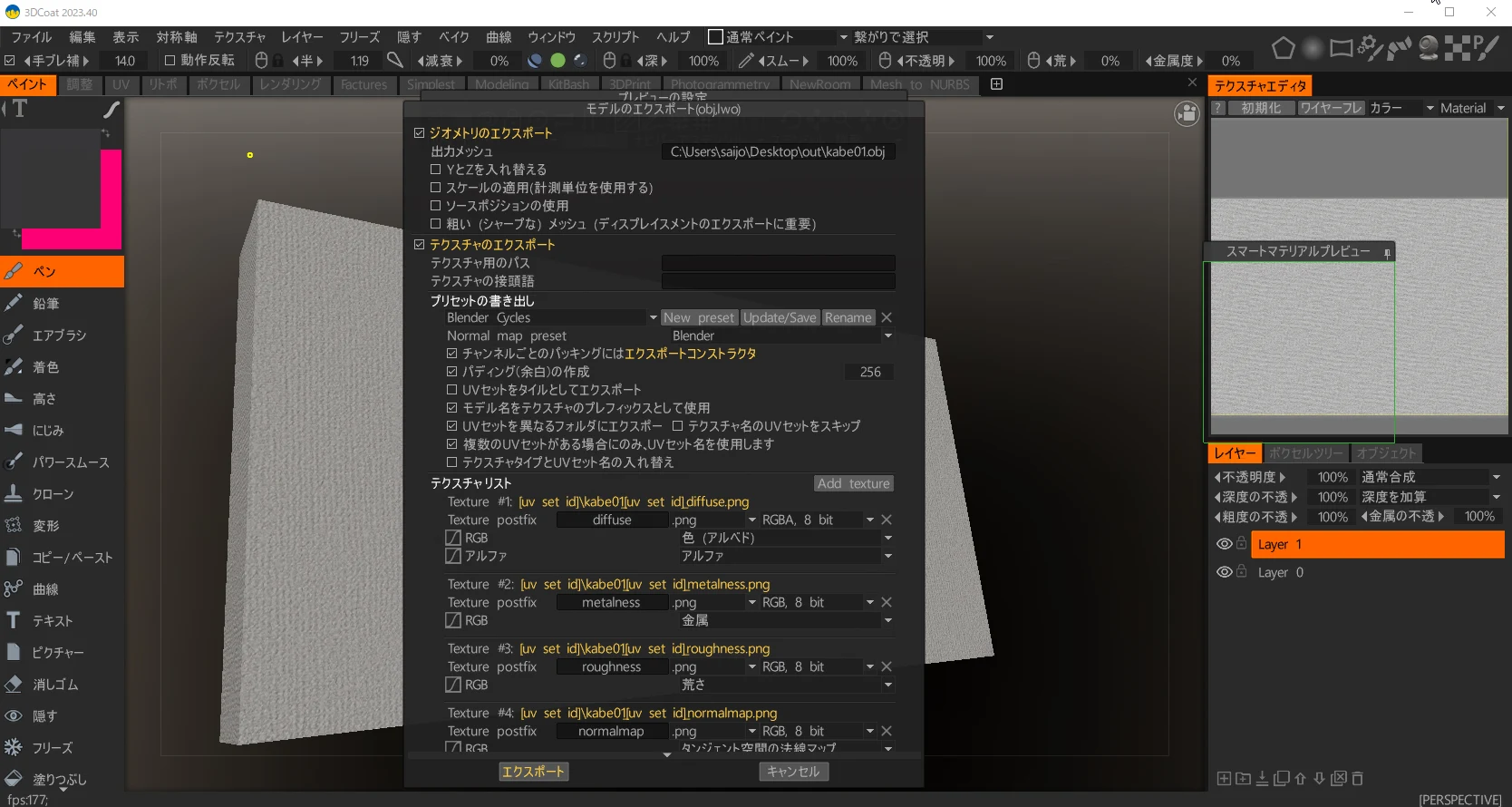
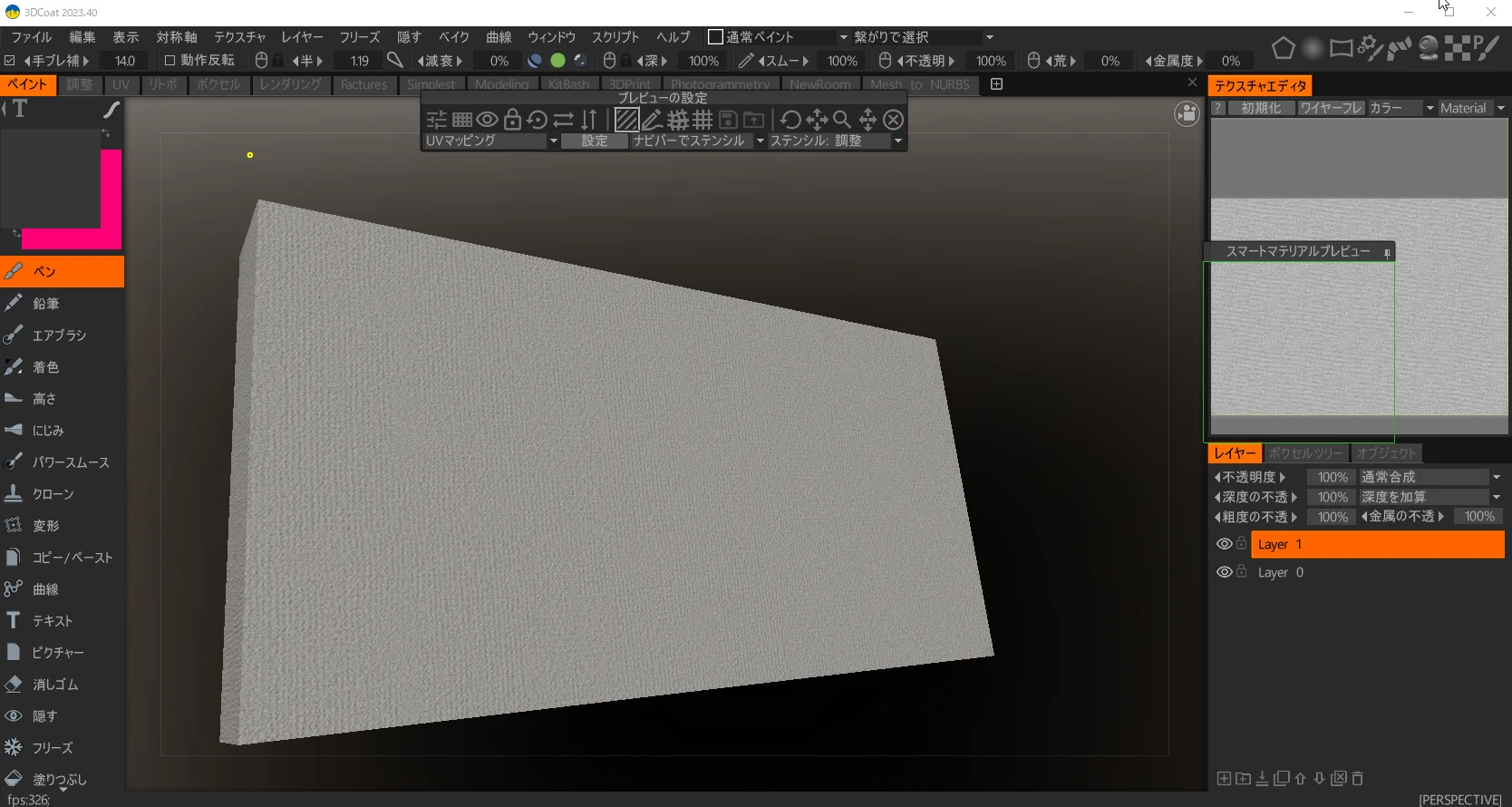 I exported the file. FBX is recommended for transfers to UE5, but OBJ imported the textures directly in this test, so I exported as OBJ.
Importing into UE5
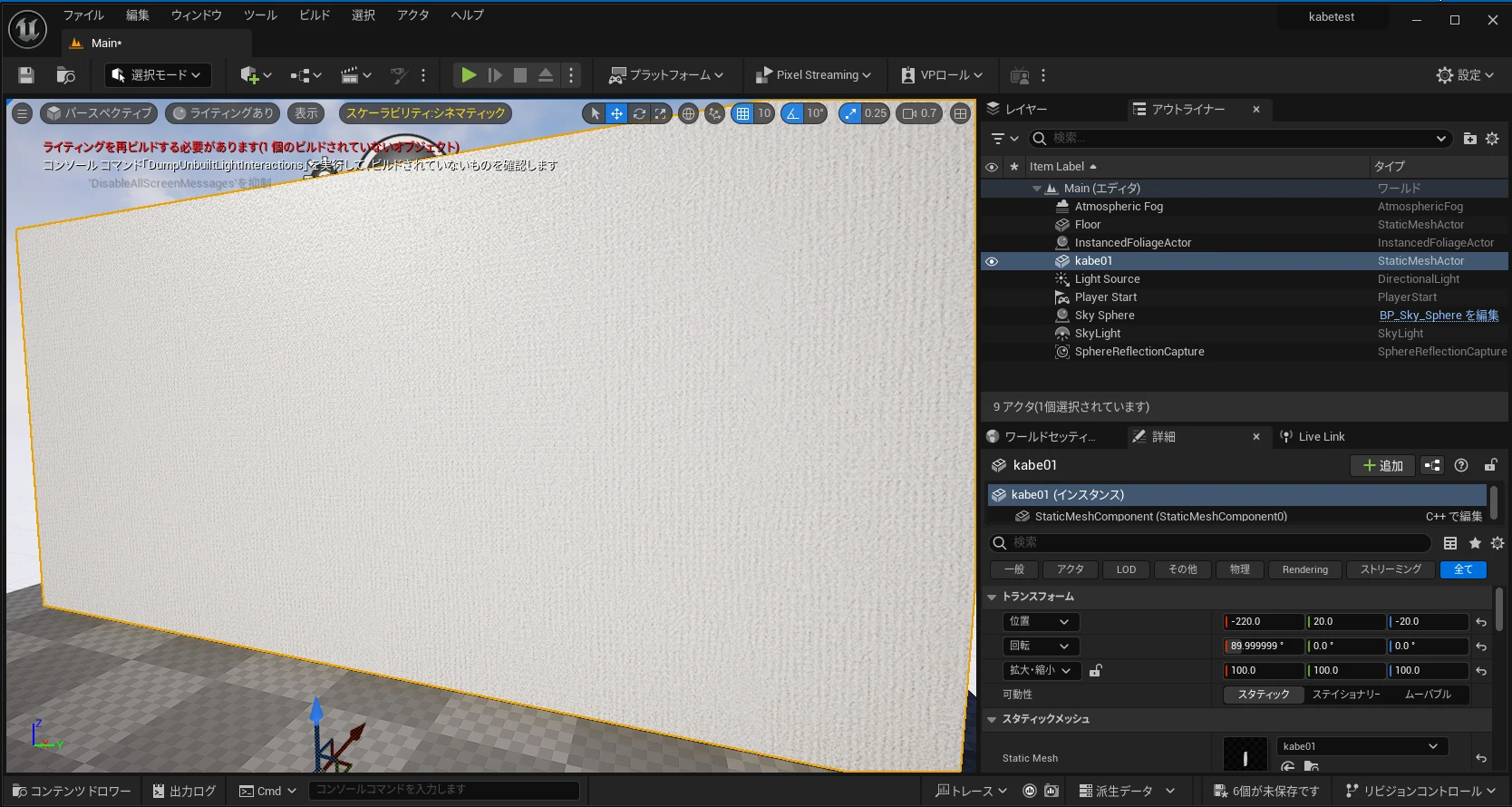
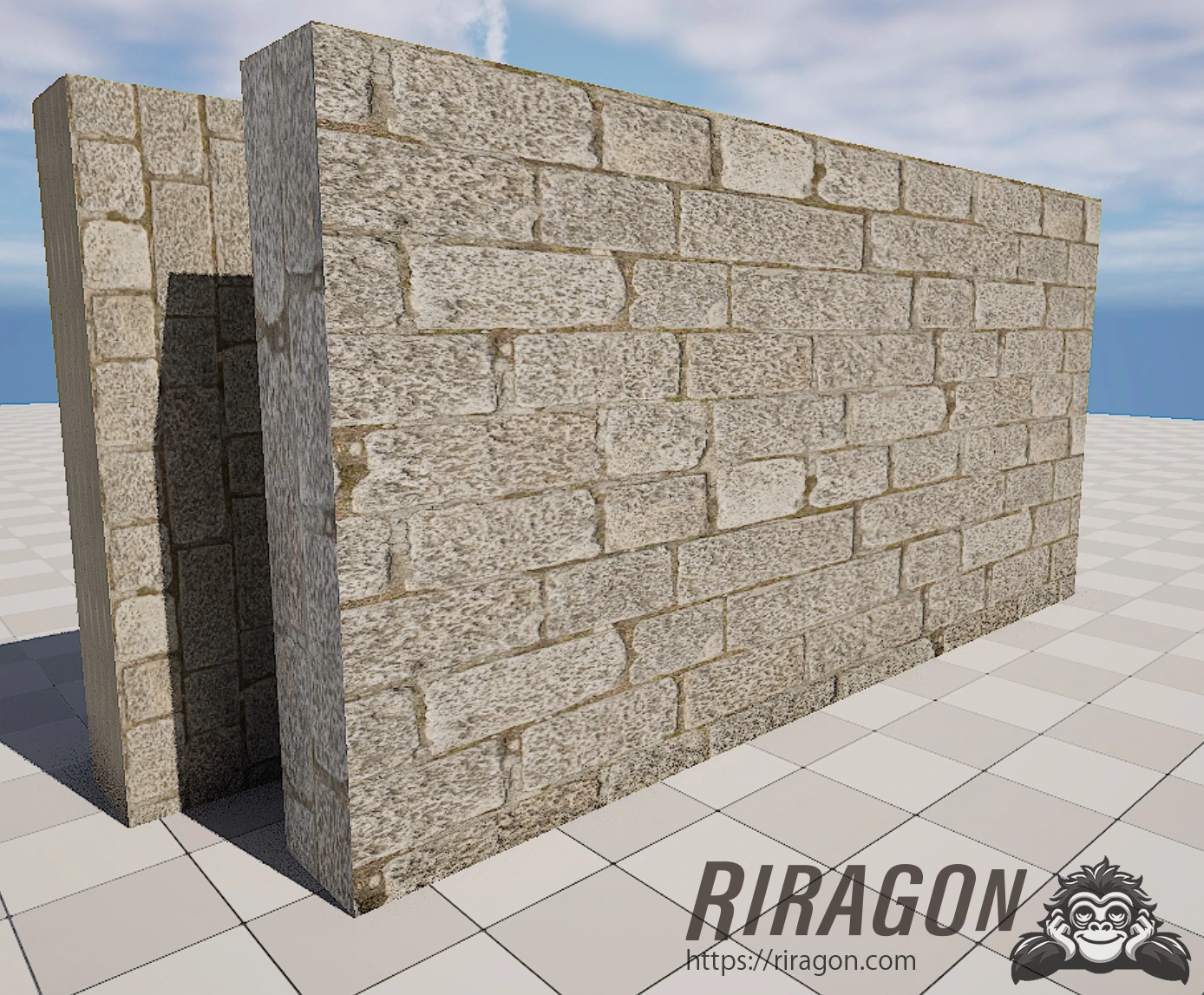
I imported it into UE5. The result looked very close to the real wall.
The fine texture settings came through too, although the detail was almost too small to see.
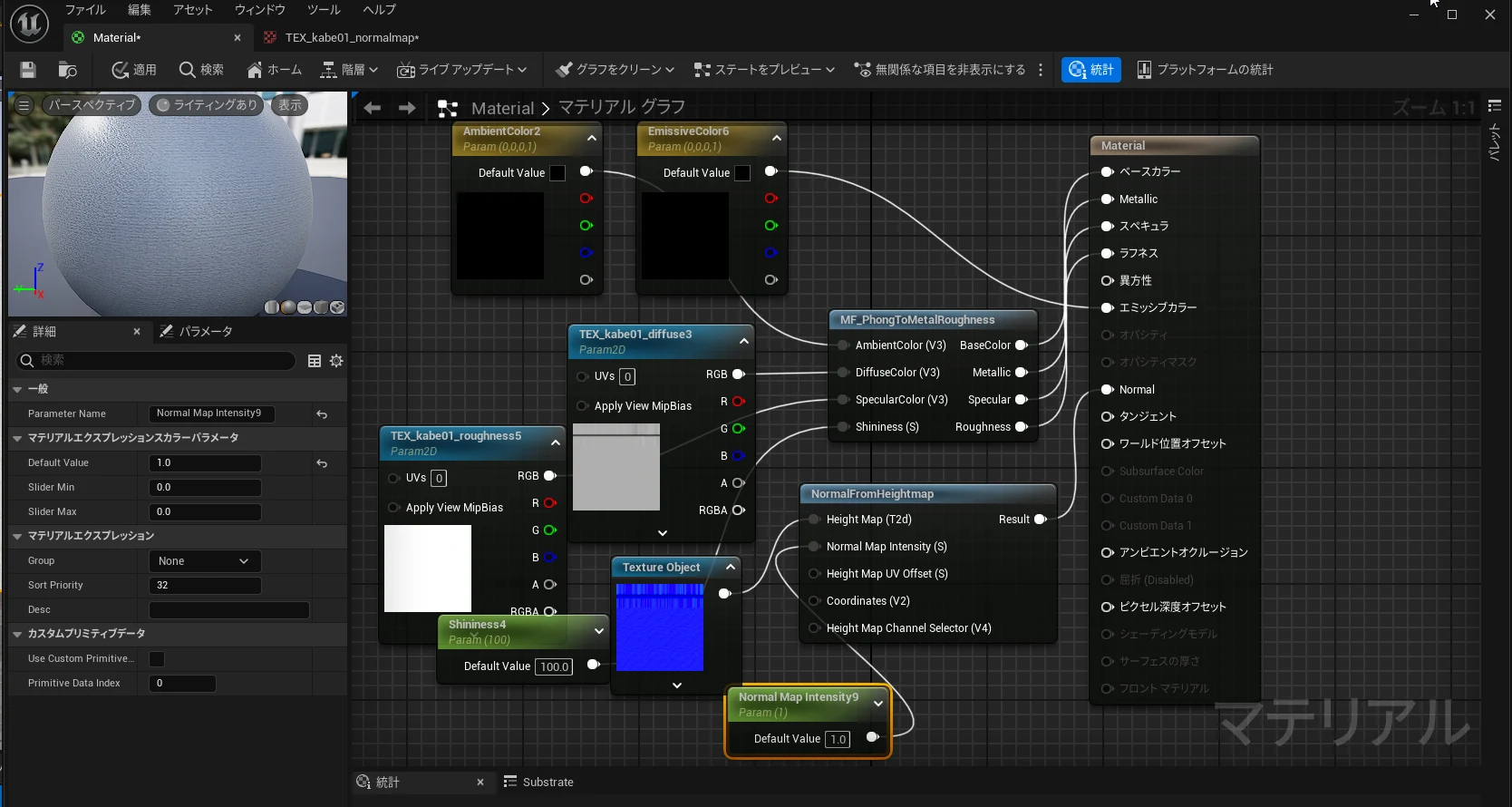 I had made a wall from a photograph and imported it into UE5.
Related articles
Updates and contact: X @riragoncom.